Установка приложений Windows 10, не используя магазин Microsoft Store
Adguard опубликовала новый онлайн-инструмент, благодаря которому, пользователи со всего мира могут загружать приложения Windows 10 не используя Microsoft Store.
Вы можете помнить, что Adguard в 2017 году создал инструмент, позволяющий, напрямую загружать образы ISO Windows и Office с серверов Microsoft.
Ранее у вас было два варианта загрузки приложений из Microsoft Store, оба работали на устройстве Windows 10: использовать Store для загрузки и установки приложений или используйте монитор трафика для перехвата загрузок и сохранения файлов приложений непосредственно в системе.
Новый инструмент Adguard Store меняет это, поскольку предоставляет всем возможность загрузки любого приложения из магазина Microsoft. Все, что вам нужно, это ссылка на приложение в магазин; вы можете выбрать загрузку определенной версии приложений, например, для выпуска версий Windows 10 или Fast Ring.
Adguard перечисляет все доступные версии, и все, что вам осталось сделать, — это нажать на одну из них, чтобы загрузить приложение в локальную систему. Сценарий извлекает информацию из Microsoft Store. В интерфейсе перечислены все файлы, даты истечения срока действия и хэши SHA-1. Вам необходимо загрузить файлы AppxBundle и EAppxBundle для выбранного приложения. Обратите внимание, что в листинге могут отображаться разные версии одного и того же приложения.
Как получить ссылку на нужное приложение в Магазине Windows 10.
- Чтобы получить ссылку на загрузку приложения, откройте магазин с помощью меню «Пуск» или откройте ссылку Microsoft Store и перейдите на страницу нужного вам приложения и скопируйте ссылку.
- Рядом со звездным рейтингом нажмите на ссылку «Поделиться» (см. картинку ниже), если вы используете Web версию магазина кнопки поделится не будет, просто скопируйте ссылку на страницу загрузки приложения и перейдите к пункту 4.
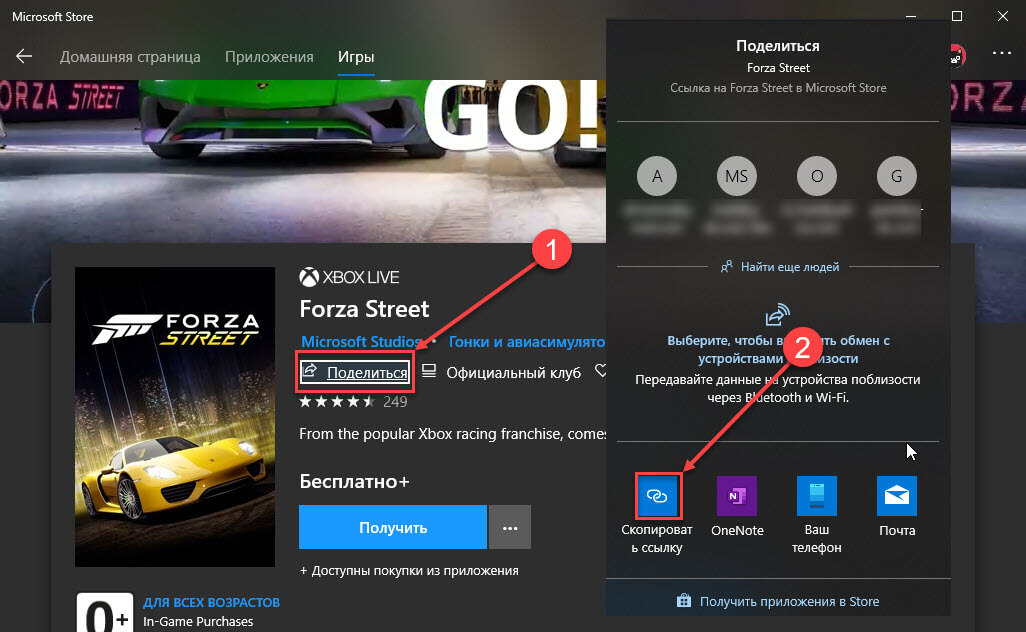
- В следующем диалоговом окне выберите опцию «Скопировать ссылку», ссылка на приложение будет скопирована в буфер обмена.
- Вставьте ее в инструмент инструмент «Adguard Store» и загрузите AppxBundle файл в локальную систему.
Чтобы установить его, нужно включить «Режим разработчика» на компьютере с Windows 10.

Включить Режим разработчика.
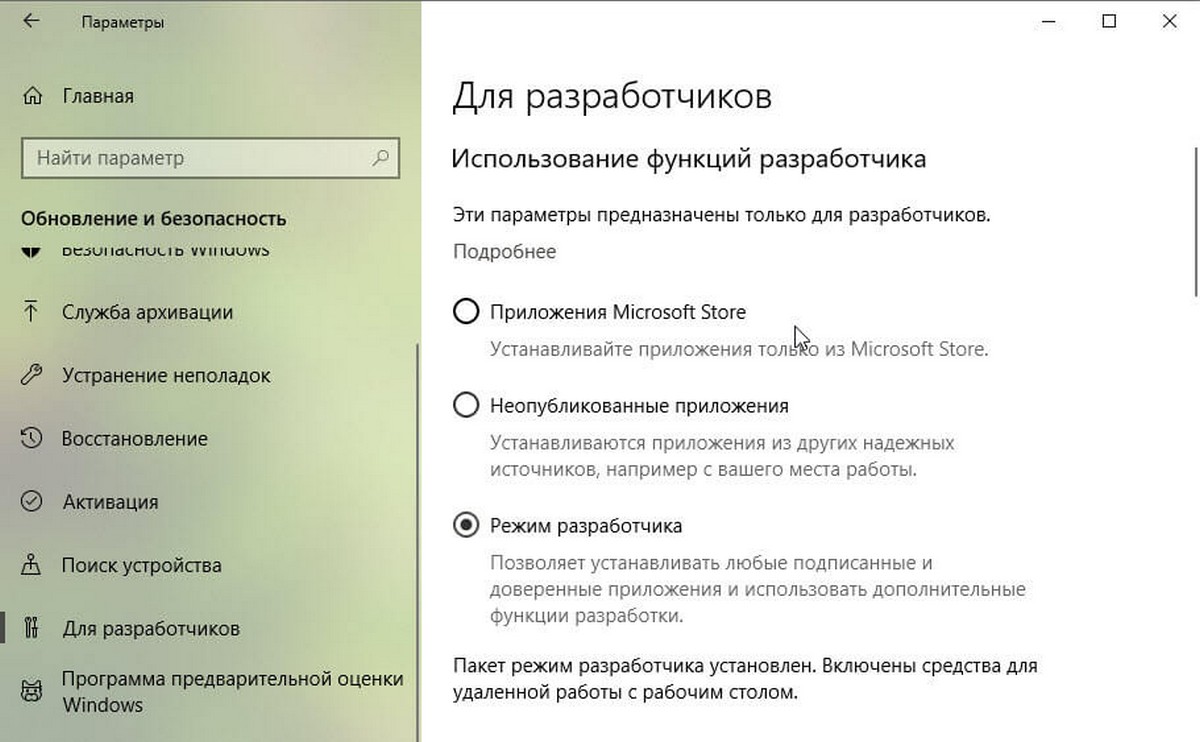
- Откройте приложение «Параметры» нажав сочетание клавиш Win + I .
- Перейдите в раздел «Обновление и безопасность» → «Для Разработчиков».
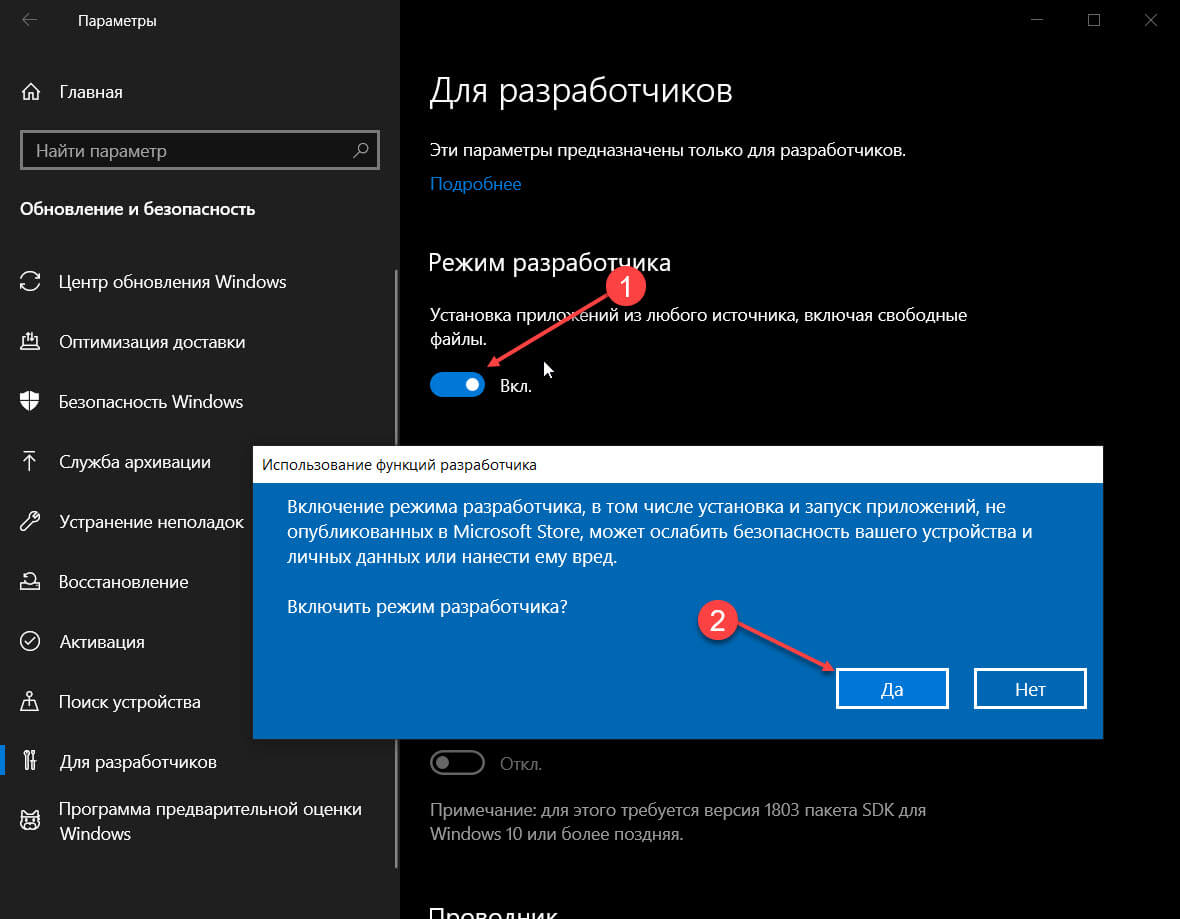
- Включите параметр «Режим разработчика».
- Windows покажет уведомление, информирующее вас об опасностях включения режима разработчика. Примите приглашение, выбрав «Да».
- При необходимости перезагрузите компьютер.
или
Установить .appx с помощью Установщика приложений.
Установщик приложений — это бесплатное приложение Microsoft, созданное для конкретной цели установки приложений APPX в Windows 10.
- После того, как вы загрузили нужный файл в формате .appx. Дважды кликните на нем, чтобы установить приложение. Файл EAppxBundle используется для обновления приложения.
- Windows 10 откроет окно установки, нажмите на кнопку «Установить».
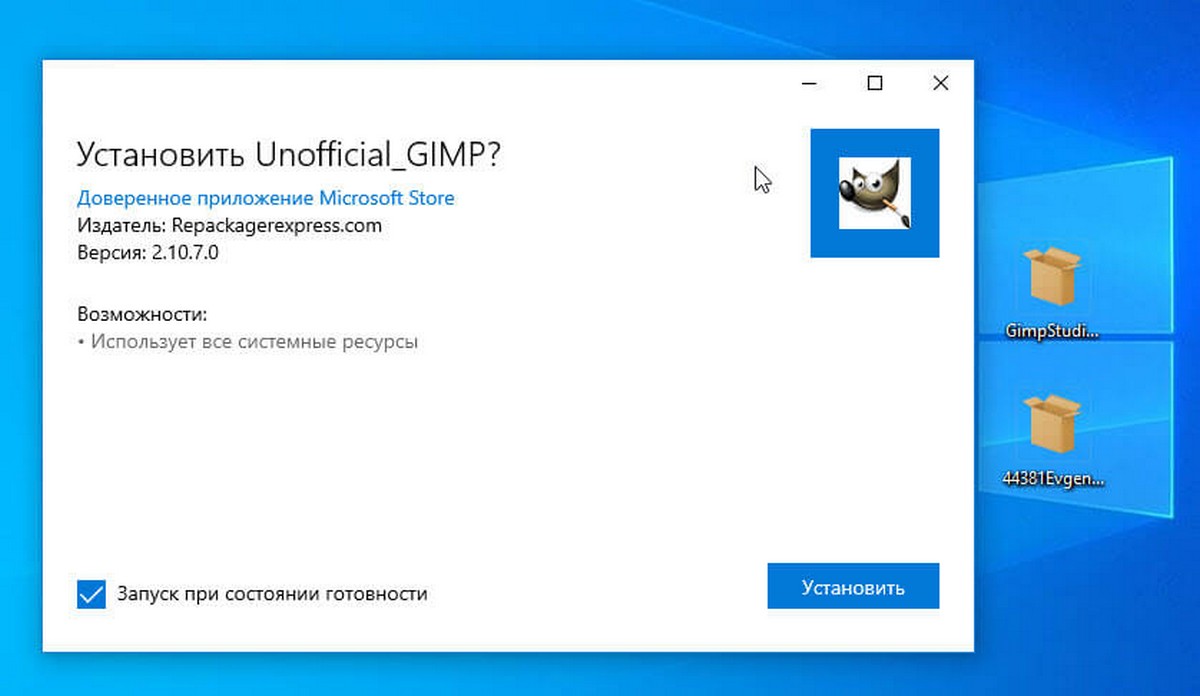
- После завершения установки, система автоматически запустит установленное UWP приложение.
Приложение будет установлено на вашем устройстве. Если вы все сделали правильно, вы сможете открыть приложение .appx, как и любую другую программу из меню «Пуск». Проверьте список установленных приложений в Microsoft Storе, вы заметите, что оно ведет себя также как любое другое приложение, установленное из Магазина.
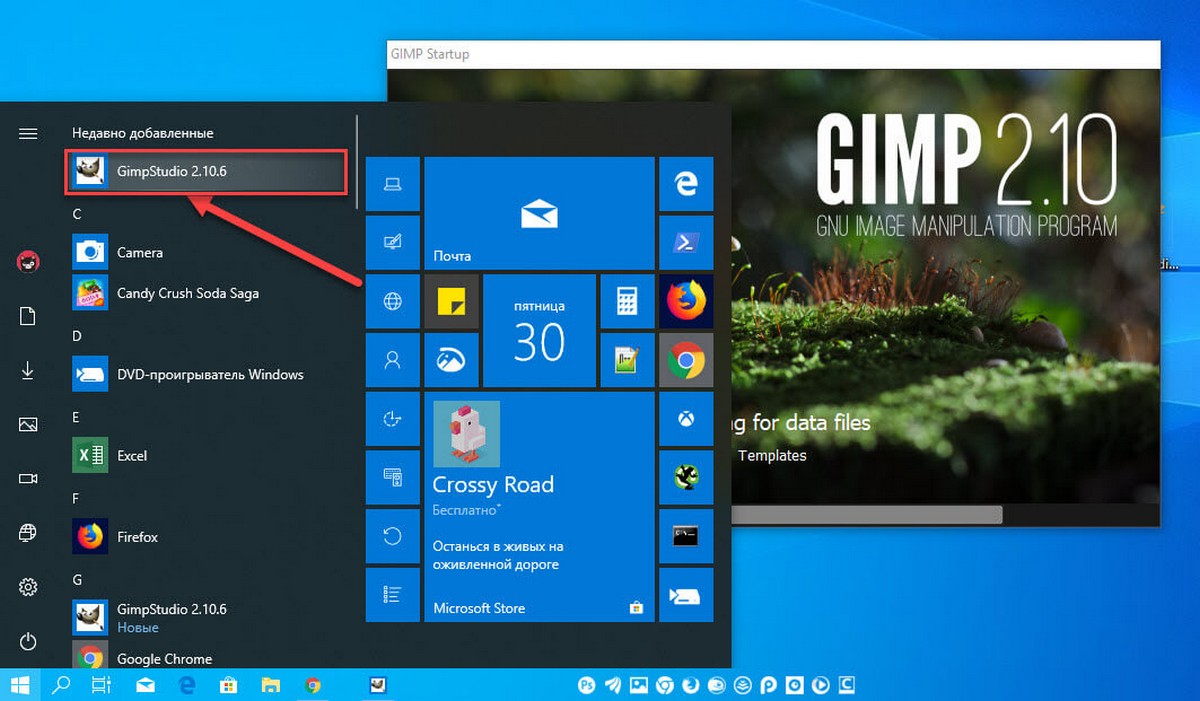
Если вы хотите удалить установленное приложение, кликните правой кнопкой мыши на приложение, и выберите в контекстном меню опцию «Удалить». Процесс удаления .appx приложений не отличается от любого другого приложения в Windows 10.
Установка файла .appx с помощью PowerShell
В качестве альтернативы, вы можете установить заранее загруженное приложение .appx с помощью PowerShell.
- Откройте папку в которой находится .appx файл.
В моем случае это «C:\Users\Almanex\Downloads», кликните вкладку «Файл» и перейдите в выпадающем меню «Запустить Windows PowerShell» → «Запустить Windows PowerShell от имени администратора» см. картинку ниже.
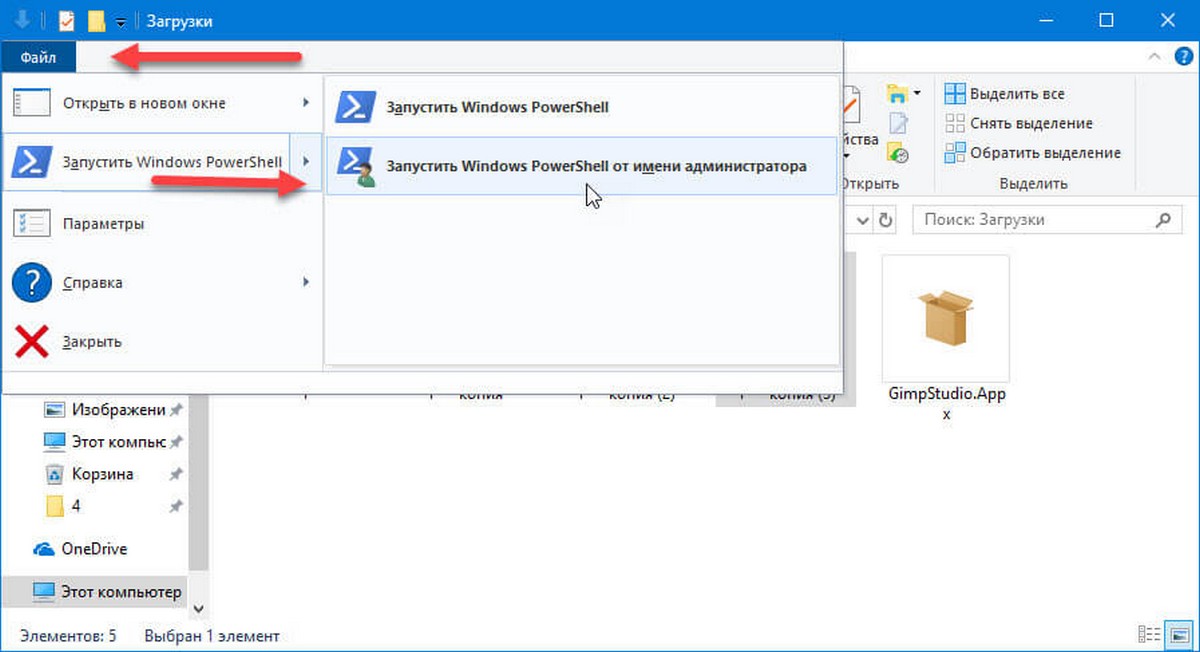
2. Дальше вы должны использовать команду, чтобы установить .appx файл. Не забудьте изменить название файла « имя .appx» на ваше.
Add-AppxPackage .\ имя .appx
Add-AppxPackage -Path .\ имя .appx
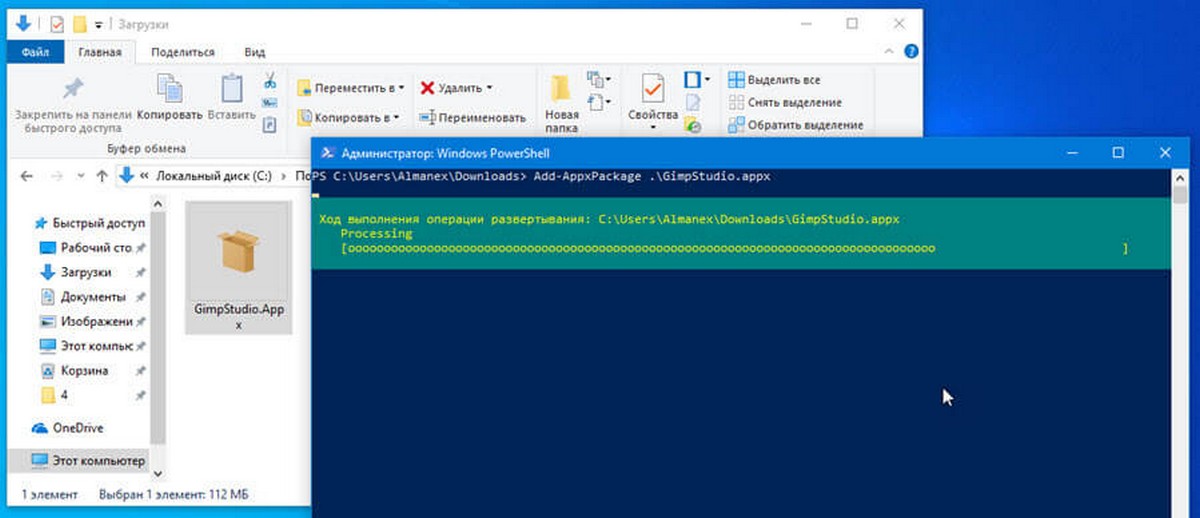
После выполнения одной из команд, приложение будет установлено, вы не получите сообщение о успешной установке, само приложение вы найдете в меню «Пуск».
Итог
Установить приложение / файл APPX так же просто, как установить исполняемый файл. Вам нужно будет дважды кликнуть по нему, чтобы начать установку. Если вы не можете получить Установщик приложений или не можете установить приложение по какой-либо причине, используйте PowerShell.
Если вы знаете другой способ установки .appx приложений в Windows 10, поделитесь с нами в комментариях ниже.
Опция загрузки приложений полезна в некоторых ситуациях, например, когда необходимо установить приложения на несколько компьютеров, но вы не хотите каждый раз загружать его из магазина. Другим не менее интересным вариантом является возможность загрузки приложений из других каналов, например «Fast Ring», если вы находитесь в «Retail».
Установка Неопубликованных приложений в Windows 10.
В операционной системе Windows 10, Microsoft позволила устанавливать не опубликованные Универсальные приложения. Это очень полезно, когда у вас есть APPX пакет приложения, который не доступен в Магазине Windows. Давайте посмотрим, как это можно сделать.
«Неопубликованные приложения» функция позволяющая устанавливать приложения из других надежных источников помимо Магазина Windows. Если вы использовали Metro / Современные приложения в Windows 8 и Windows, 8.1, вы уже знаете, что Microsoft сделали эти операционные системы для запуска приложений только из Windows Store. Установить неопубликованные приложения в было действительно сложной задачей.
Для установки Неопубликованных приложений в Windows 10, Вам необходимо включить эту опцию в приложении «Параметры», а затем использовать PowerShell для установки пакета APPX. Сделать это можно следующим образом.
Установка Неопубликованных приложений в Windows 10
Шаг 1: Откройте приложение «Параметры» нажав сочетание клавиш Win + I или нажмите на значок шестеренки в меню «Пуск»
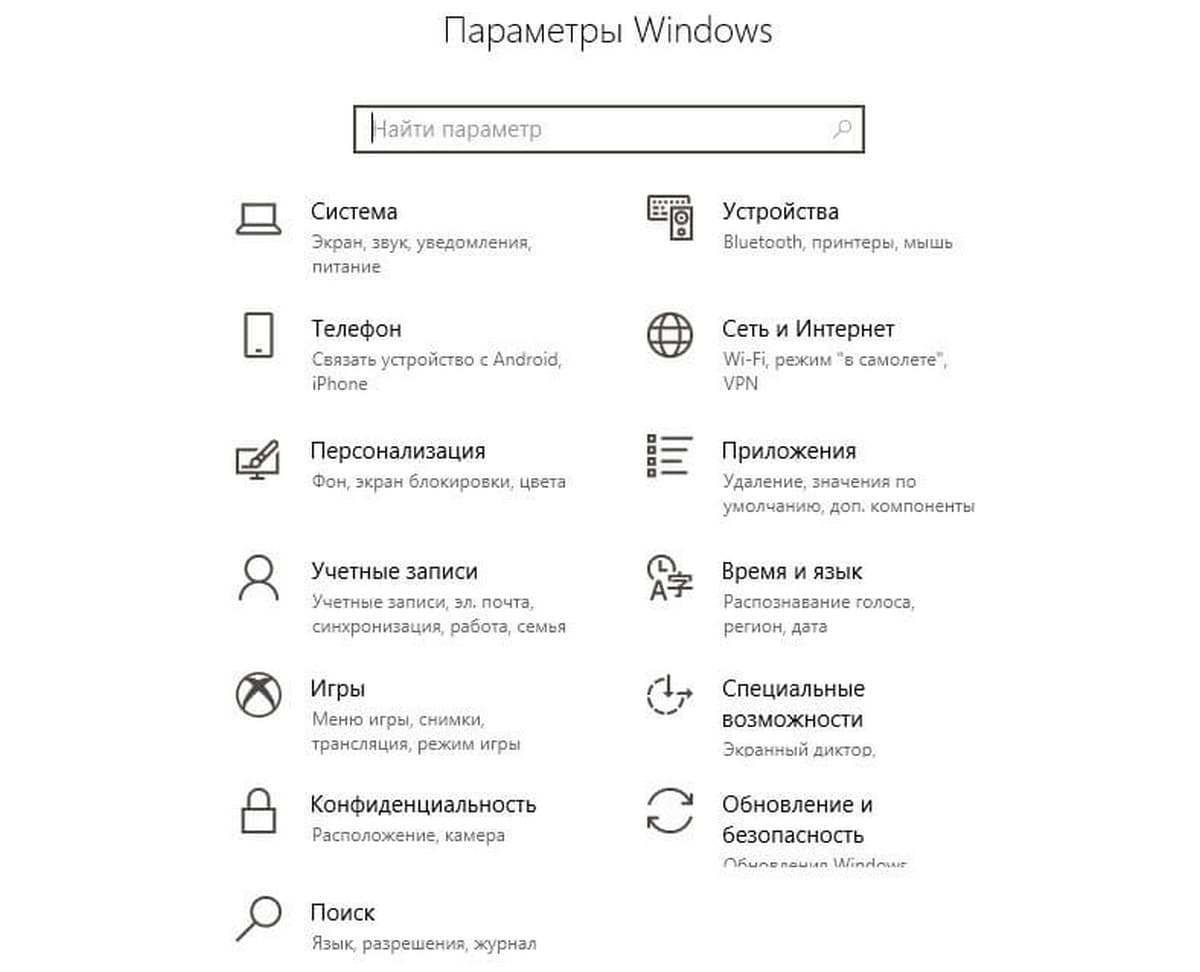
Шаг 2: Перейдите в раздел «Центр обновления и безопасности» → «Для разработчиков»:
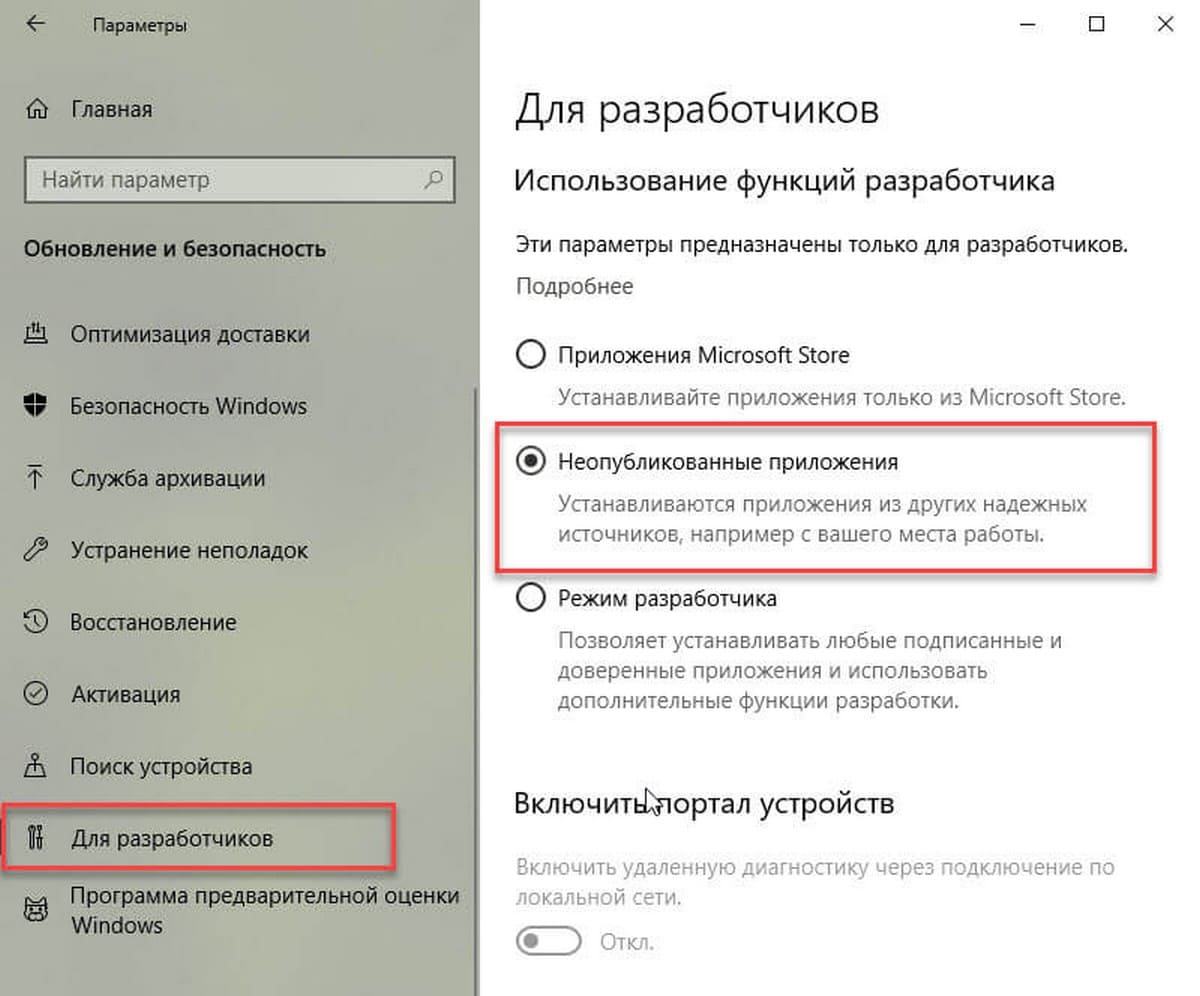
Шаг 3: В разделе «Использование функций разработчика», Вам необходимо включить опцию «Неопубликованные приложения», как показано ниже, и подтвердить свой выбор:
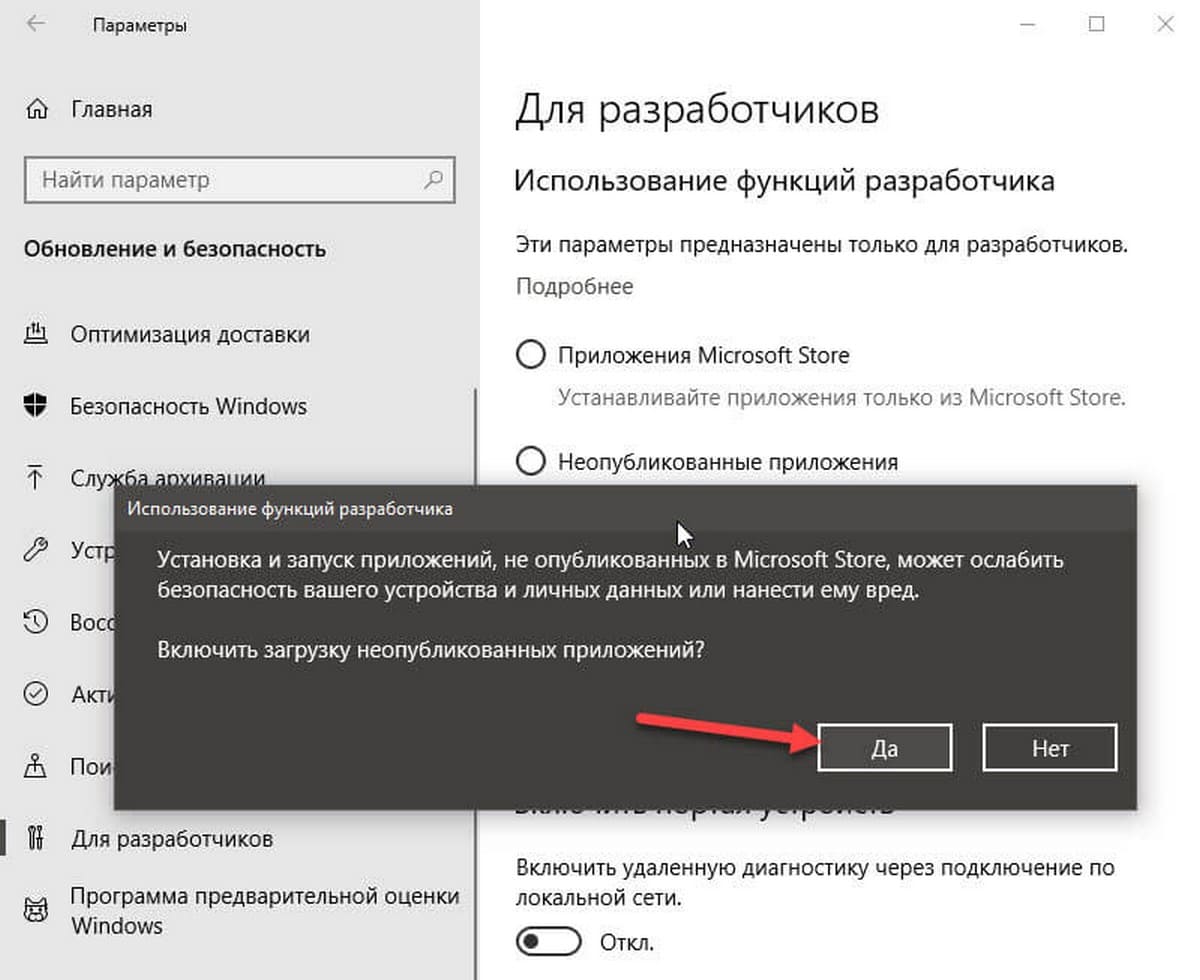
С этого момента, вы можете установить пакеты APPX из любого источника.
После того как вы загрузите пакет, дважды кликните файл APPX, чтобы установить его и следовать мастеру «Установки приложения»
Если это не сработает, попробуйте сделать это с помощью PowerShell следующим образом.
Шаг 1: Откройте новое окно PowerShell от имени администратора.
Шаг 2: Выполните следующую команду PowerShell для установки пакета appx:
add-appxpackage Путь_к_файлу_appx

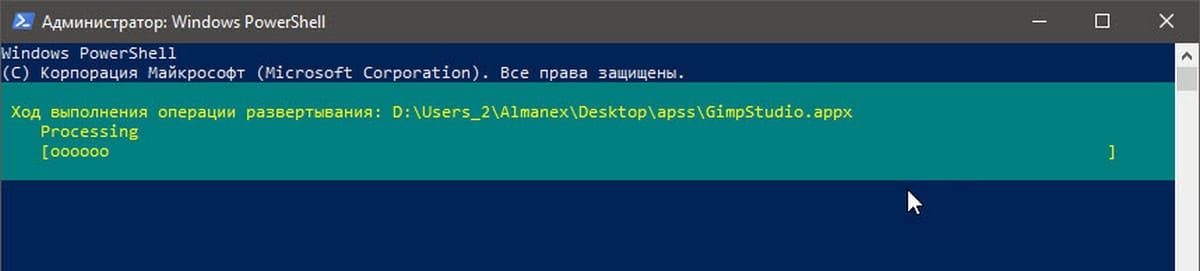
Вот и все, приложение будет немедленно установлено и вы сможете найти его в меню «Пуск».
How to install Microsoft Store applications without Microsoft Store
I had to install a Windows 10 VM to do some researches. But I’ve got a problem after the installation. There was not a Microsoft Store and of course I had to install some MS Store specific applications.
In this article I will show you how to install MS Store specific applications without MS Store. You can even install the MS Store itself by doing this.
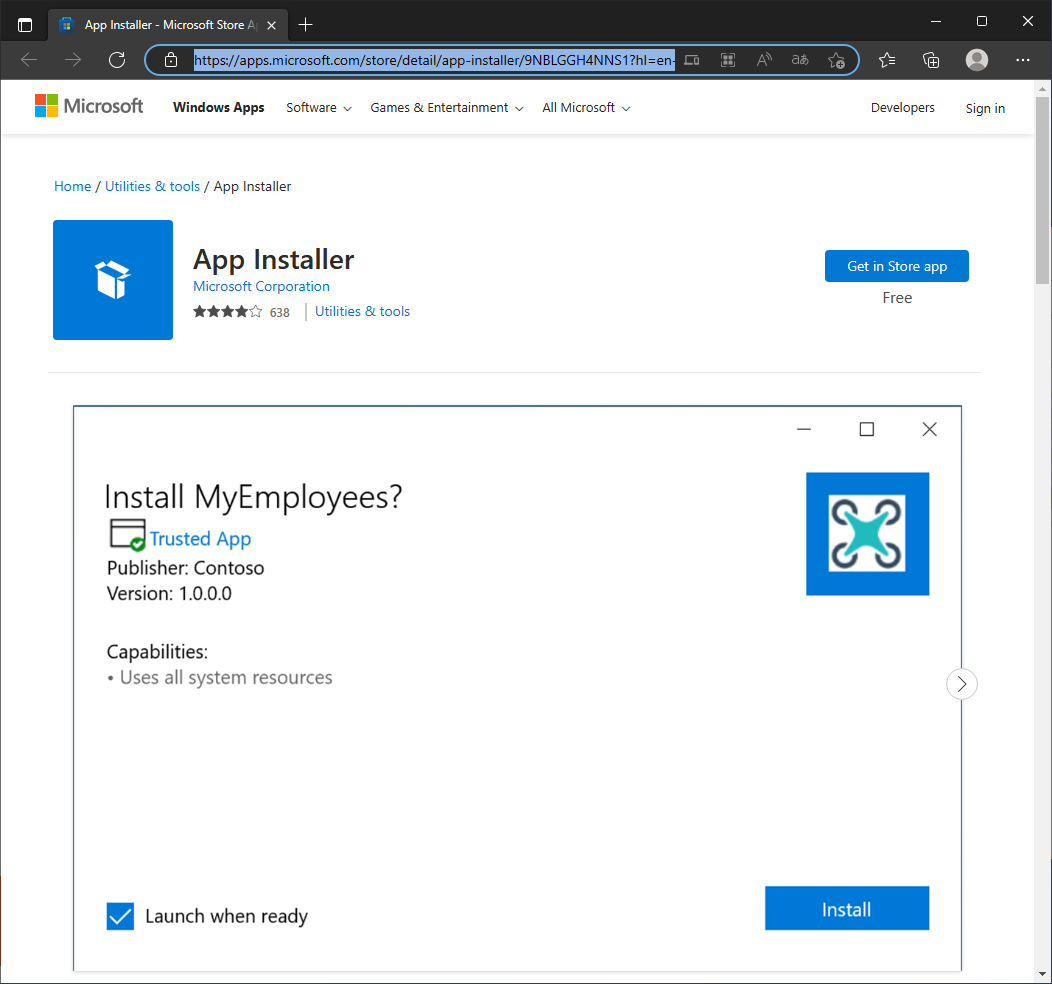
Install App Installer
Turn on Developer Mode
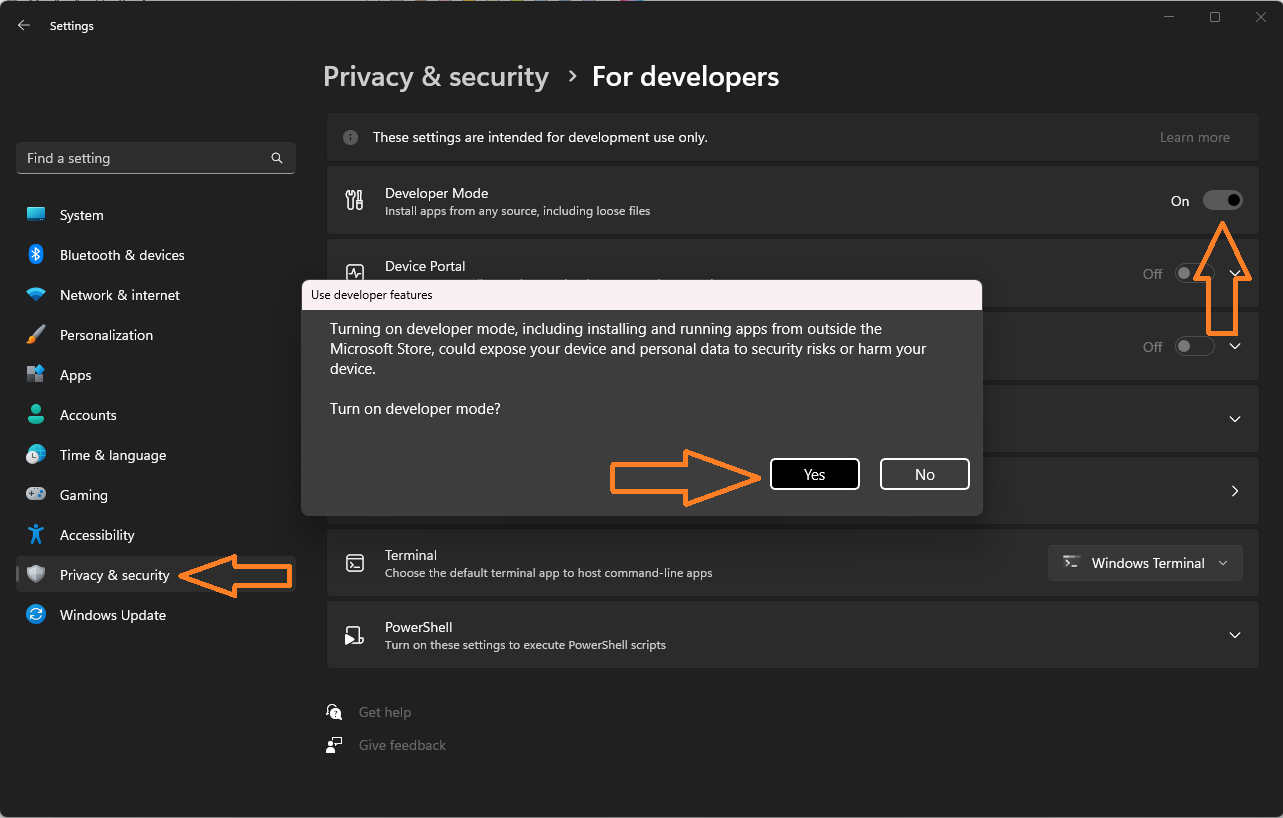
Firstly, we have to turn on “Developer Mode”. Press Ctrl + I → Click “Privacy and Security” → Click “For developers” → Turn on “Developer Mode” → Click “Yes”.
Install the application
Find the application on MS Store web and copy link to that web page.
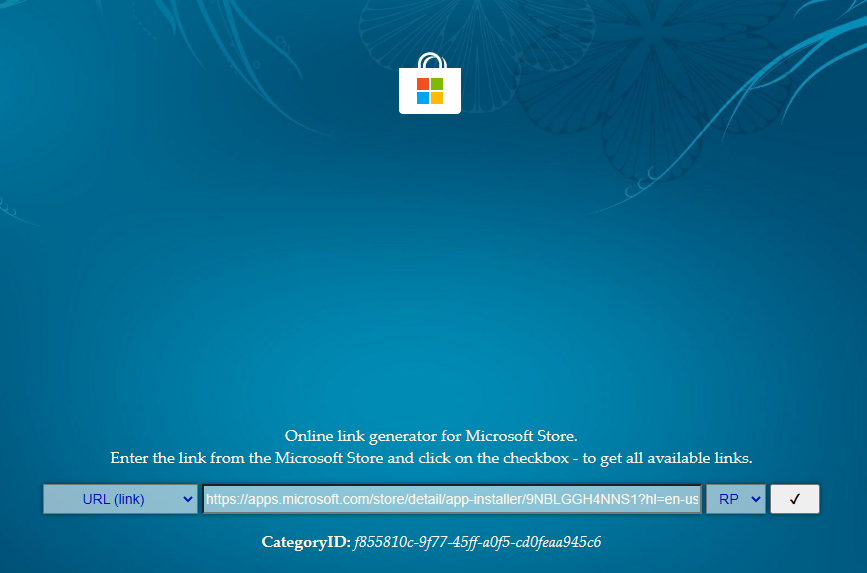
Go to this site, put the link in an entry and click the button. The site will process the link and output all links to direct files needed to install the application. You can find all libraries required by the application in this list.
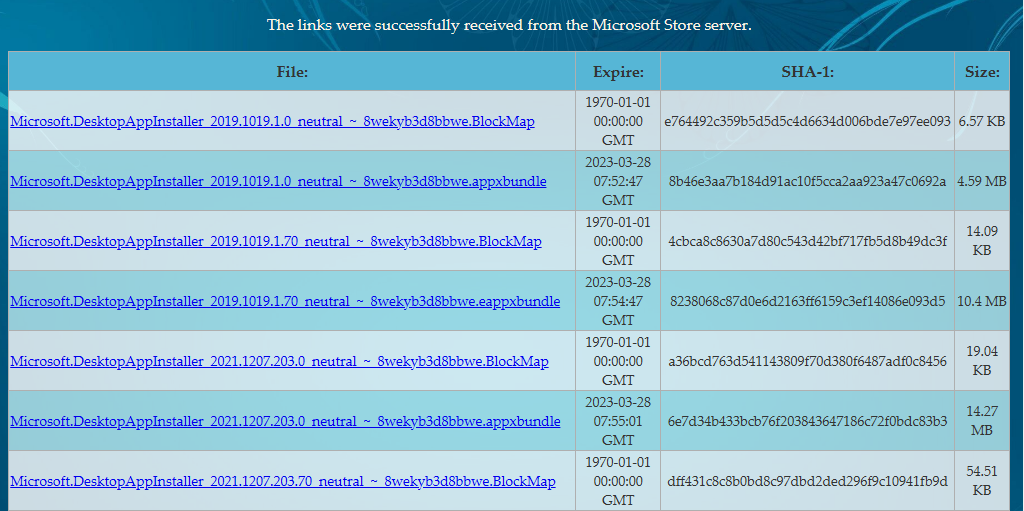
Download required packages. Applications can be in different formats (appx, appxbundle, msix, msixbundle). You can find more about how to install them manually here. I recommend to install .appx or .appxbundle package, because you can install them just with PowerShell commands. In my situation, I had to install the “VCLibs” library. It was also listed in packages list on the site.
Install required packages with PowerShell
Add-AppxPackage -Path .\Downloads\Microsoft.VCLibs.140.00_14.0.30704.0_x64__8wekyb3d8bbwe.Appx Add-AppxPackage -Path .\Downloads\Microsoft.DesktopAppInstaller_2019.1019.1.0_neutral___8wekyb3d8bbwe.AppxBundle
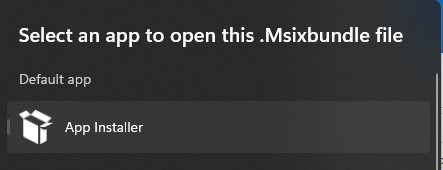
Check everything is OK. After installation, you could open .msix, .msixbundle and other installation files with App Installer application.
Example with WhatsApp Desktop
Suppose you want to install WhatsApp Desktop on your Windows computer. How can you do it without interacting with MS Store? The example of the process is below.
Find the app on MS Store web and copy link to the app page.
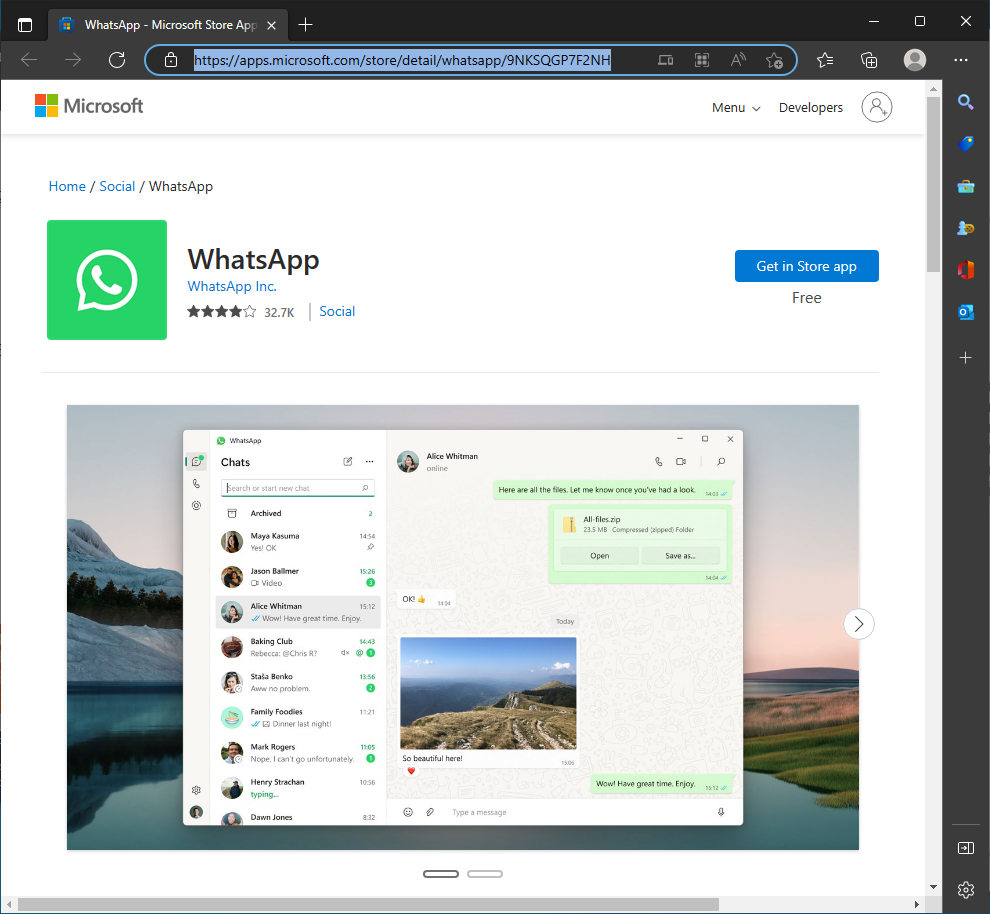
Go to this site, put the link in an entry and click the button.
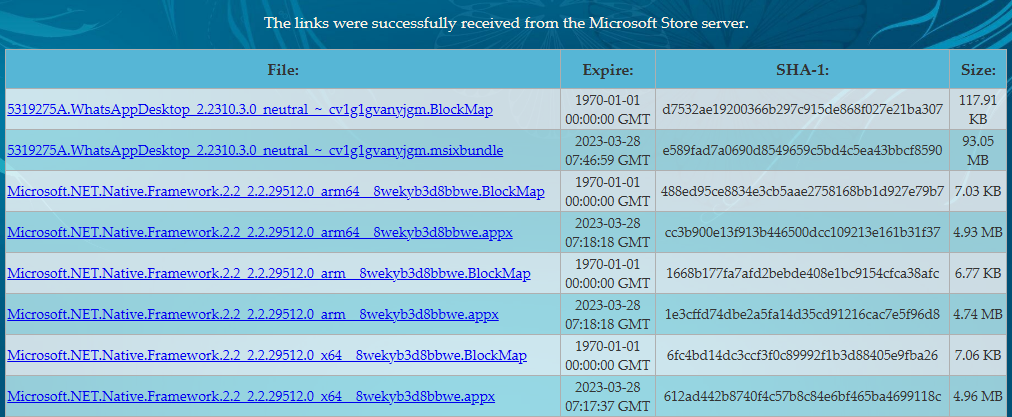
Download the application package (here it is the second item with .msixbundle extension).
If you did install the App Installer app before, you can install applications in these formats easily by just double-clicking on them.
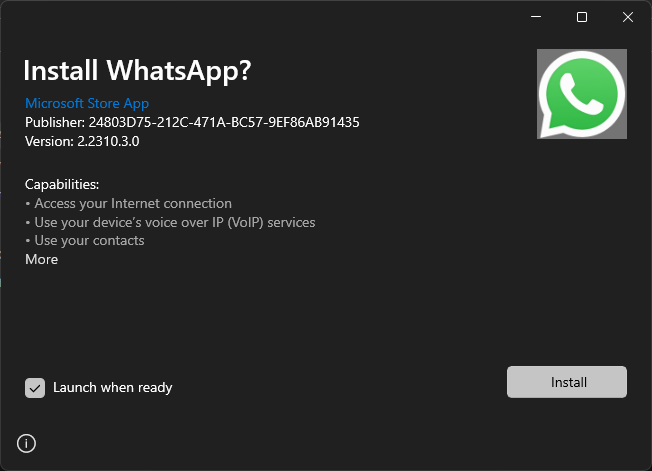
Click the “Install” button and there you are.
Conclusion
Today we learned how to install Microsoft Store applications without the MS store itself. You can also install applications and packages which are not distributed from the MS Store with App Installer.
Thank you for reading, I hope it was useful for you ❤️
How To install apps on Windows 10 without Store
With Microsoft Store, you can easily install apps on your Windows 10 device, just like with Google Play or the Apple App Store. IT departments often remove the Microsoft Store from the devices to prevent users from installing all kinds of apps.
But some apps, like Microsoft ToDo app for example, are only available through the store. So how can you install these kinds of apps on your Windows 10 device without store?
With the help of the online Microsoft Store, an URL converter, and a little bit of PowerShell you can install any app on your computer without the store.
Install Microsoft ToDo without Store
We are going to use the Microsoft ToDo app as an example of how you can download and install apps without the store, but you can use this for any app of course.
Step 1 – Find the URL of the app
So the first step is to find the URL of the app in the online Microsoft Store. You don’t need the actual store for this, you can just use your browser to open the Store. If you have found the app that you want to install, just copy the URL from the address bar.
The URL for the Microsoft ToDo app is:
https://www.microsoft.com/en-us/p/microsoft-to-do-lists-tasks-reminders/9nblggh5r558 # Make sure you remove ?activetab=pivot:overviewtab from the url
Step 2 – Generate Microsoft Store link
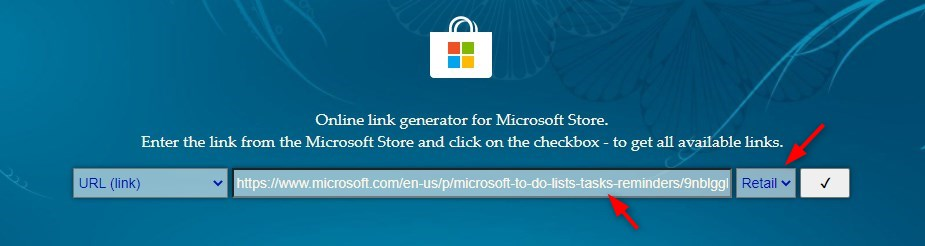
We need to convert the link to the actual Microsoft Store items. To do this we will use the website https://store.rg-adguard.net.
Past the URL and make sure you change the option RP to Retail
Step 3 – Download the appxBundle
After you clicked on the checked mark it will find all the related apps. Most of the time the results start with .Net Frameworks that are required for the app, but we can skip them. Somewhere in the middle, you will find the appxBundles for the Microsoft ToDo app.

Make sure you select the latest version, ignore the date column, just check the version number. Also, make sure you select the appxBundle and not the eappxBundle. The latter is for Xbox.
To download the appxbundle, copy the link and paste it into a new browser tab. Just click on the link itself doesn’t always work, but opening it in a new tab seems to do the trick.
Step 4 – Use PowerShell to install the appxBundle
The last step is to install the Microsoft ToDo app with PowerShell.
Add-AppxPackage -Path "c:\temp\Microsoft.Todos_2.46.41622.0_neutral___8wekyb3d8bbwe.AppxBundle"
Microsoft Todo should now be installed without the need for the store.
Wrapping up
As you can see you can download Microsoft Todo without store. Using PowerShell gives you much more control over which versions and apps are installed on your computers. It’s also a great way to pre-installed apps that are generally used in your organization.
Make sure you check the version number. You will get an installation error if the app is already installed with the same or higher version number. If an app won’t install add all, then make sure you check if the needed pre-requested are installed on the client.
If you have any questions, just drop a comment below!
You may also like the following articles

Jan 23, 2024
How to find your Outlook PST File Location
Jan 17, 2024
How to Export AD Users to CSV – Free Script
Nov 14, 2023
How to create a file in CMD
85 thoughts on “How To install apps on Windows 10 without Store”
Hi
It worked, Excellent guide
Thanks
Amazing work, holy crap this is all you could ever ask for.
Impressive Lazyadmin!
Hey please please help now that happened with skype xbox I uninstalled it and cant find it on store what could I do to download it on xbox again via pc or anything please help me!
Have you tried this link: https://www.microsoft.com/en-us/store/p/xbox/9wzdncrfjbd8 ?
HEY Rudy its xbox app doesnt have the skype I dont how to transfer the old version app to an xbox format as I deleted it by mistake and ccant find the supported version of xbox and its not on any xbox store online or on xbox
sergei douchenkov
Excellent stuff, worked for me! had a wvd without a calculator app for some reason and store is blocked by gpo
Does not work anymore for Todo. Only has very old ToDo version.
Per Henriksen
Excellent guide. Easy to bypass company Store block.
Lucas Sales
Power Toys does not exist on the generator, that’s unfortunately. A lot of people like me are strugging with MS saying the app is installed when it’s not.
Trying this method to install Sticky Notes. The latest version is 4.6.0.0. I don’t see an option to grab the appxbundle. Only msixbundle. Tried the steps with the MSI but looks like nothing is happening. Should I be using another syntax for this file type?
I attempted to download Sketchbook Pro with the file “Sketchbook.SketchbookPro_9.0.20.0_neutral_~_k9x4nk31cvt0g.Msixbundle” I used “Add-AppxPackage -Path “c:\users\rabba\downloads\Sketchbook.SketchbookPro_9.0.20.0_neutral_~_k9x4nk31cvt0g.Msixbundle” I got “Add-AppxPackage : Deployment failed with HRESULT: 0x80073CF0, Package could not be opened.
error 0x8007007B: Opening the package from location
Sketchbook.SketchbookPro_9.0.20.0_neutral_~_k9x4nk31cvt0g.Msixbundle failed.
NOTE: For additional information, look for [ActivityId] 99a7316d-7bc2-0006-4533-a799c27bd901 in the Event Log or use
the command line Get-AppxLog -ActivityID 99a7316d-7bc2-0006-4533-a799c27bd901
At line:1 char:1
+ Add-AppxPackage -Path “c:\users\rabba\downloads\Sketchbook.Sketchbook …
+ ~~~~~~~~~~~~~~~~~~~~~~~~~~~~~~~~~~~~~~~~~~~~~~~~~~~~~~~~~~~~~~~~~~~~~
+ CategoryInfo : OpenError: (C:\users\rabba\…vt0g.Msixbundle:String) [Add-AppxPackage], FileNotFoundEx
eption
+ FullyQualifiedErrorId : DeploymentError,Microsoft.Windows.Appx.PackageManager.Commands.AddAppxPackageCommand” Any help?
After two days of back and forth trying other solutions, this one finally solved my problem. Thank you so much for the helpful article.
Pixelshrink Digital Impact
This is fantastic, as I keep getting problems with the 0x80070005 error on Microsoft Store and Microsoft Support are no help, apart from telling me to completely reinstall Windows.
It Works ! Thanks
Thank you for this guide!
Muchas gracias, no lograba que funcione samsung flow, pero ahora si logre instalarlo
Haluk Coskun
Thank you very much. I now have access to webp images in Windows without Store.
This worked perfect. Thanks as this saved me heaps of messing around.
Hello, I have a problem, I downloaded snip & sketch, it loaded but does not work, do you know what the problem is?
Jacob Holmes
I tried doing this with the new QuickAssist and it seemed to work, but I can no longer find the quickassist.exe anywhere, and don’t know the name of the new executable. Google searching seems to indicate that I need Microsoft Store to even run this. I don’t get it, then what was the point of the offline install? What got installed exactly? (I searched for https://www.microsoft.com/store/productId/9P7BP5VNWKX5” on https://store.rg-adguard.net/, then installed the appxbundle.)
Oh, man, you’ve saved my life ! It’s such a wonderful cure ! BRAVO . BRAVISSIMOOO ! You are such a GREAT Administrator ! Actually the best that I have ever seen .
Thank you. It worked :-*
I tried installing Microsoft photo without store and i tried all the steps but its not working, can someone please help me out
I tried to install the store itself but my shell gets stack at the step microsoft.net.native.runtime 2.2 is missing. When I try to pick it from the listed frameworks I get notified with “access denied, you do not have permission to access the link”. What can I do.
How do I use To Do without signing in to Microsoft? I don’t want my tasks stored in Microsoft’s “cloud” I want them to remain local. I don’t understand why I have to “sync” my tasks this is so obnoxious.
roaa abo al-hagag
I dont know the written command in powershell , i have save the file in downloads
The generated links copy /pasting or even clicking on doesnt come up with any results. just ends up showing search results. Is that new?
Chrome is indeed blocking the download. Seems to be an issue with an “insecure” download link. Edge however seems to work fine, haven’t tried other browsers yet.
If there is no file in the format “.appxbundle” you can just go for “.msixbundle”
Thanks, Tim. It’s also worth noting that you may have to tell your browser to allow the download, it thinks it’s potentially unsafe, likely due to the cross-domain and non-HTTPS URL. On Edge, after clicking to download, there’s 3 dots and then you can tell it to keep the download.
I am trying to install FBreader usng power shell and this is the report. can you help out please. I have been using this method for years now until this app kind failed me PS C:\WINDOWS\system32> Add-AppxPackage -Path “C:\Users\User\Downloads\f9b14fb5-5c2f-4a3a-bcf4-56ea4e9b259c.msix” Add-AppxPackage : Deployment failed with HRESULT: 0x80070005, Access is denied. AppX Deployment operation failed with error 0x0 from API Logging data because access was denied for file:
C:\ProgramData\Microsoft\Windows\AppRepository\Packages\FBReader.ORGLimited.FBReader_1.999.10.0_x64__n9cpejf4jr0x8,
user SID: S-1-5-18
NOTE: For additional information, look for [ActivityId] 9eddd4ee-2f28-0003-85a8-f19e282fd801 in the Event Log or use
the command line Get-AppPackageLog -ActivityID 9eddd4ee-2f28-0003-85a8-f19e282fd801
At line:1 char:1
+ Add-AppxPackage -Path “C:\Users\User\Downloads\f9b14fb5-5c2f-4a3a-bcf …
+ ~~~~~~~~~~~~~~~~~~~~~~~~~~~~~~~~~~~~~~~~~~~~~~~~~~~~~~~~~~~~~~~~~~~~~
+ CategoryInfo : SecurityError: (C:\Users\User\D…ea4e9b259c.msix:String) [Add-AppxPackage], PSSecurityE
xception
+ FullyQualifiedErrorId : DeploymentError,Microsoft.Windows.Appx.PackageManager.Commands.AddAppxPackageCommand
What is the result of: Get-AppPackageLog -ActivityID 9eddd4ee-2f28-0003-85a8-f19e282fd801
This is the best article on the internet. Worked like a charm. I COULD NOT find a way to install the MS store or any of the pre-installed MS apps (which were for some reason missing of my brand new laptop). THANK YOU
That was very helpful! Thanks! The installation didn’t work using powershell, though. Doesn’t show an error but the app doesn’t install. Simply double clicking the AppxBundle file did the trick!
i spent a stupid amount of time trying to find a workaround, and it was all right here. thanks Rudy!
Jokowi Dodo
I has problem when I installed the app using .msixbundle and .AppxBundle file format on powershell, after that the apps shortcut is showing on my start menu, but I cant run the apps? When I click the shortcut menu nothing happend
Maybe I did something wrong?
Please help me, thanks
does anything happen when you try to open it via run? (microsoft key + r)
I got the same problem, I can see the app in the start menu, but nothing happen when I click on it, I can’t right-click and go to the folder because it doesn’t show up.
Microsoft Account Sign-in Assistant Service must be started. Otherwise the app won’t start
Hi Ruud,
Thanks a lot for the trick.
I installed Windows Scanner on corporate laptop without Wondows Store. Some feedback from my experience :
– Don’t install the last VCLibs but the version needed by the target app. In my case the 120, not running with the 140.
– The link from https://store.rg-adguard.net/ for th VCLibs downloaded a file named 07991083-08a6-4564-8aa5-76b242236669 without extension. Just add .appx extension.
– It was not necessary to use PowerShell to install the packages, just double click on as on common exe files.
can confirm i needed to use powershell; i was attempting to download msft’s app installer so that NOW i don’t have to lol
Peter Goezinya
I think you’re just getting lucky with certain apps.
Often the result will be framework that could not be found. Provide the framework “Microsoft.UI.Xaml.2.4”
yes, you may have to download frameworks first, lucky this is a simple extra step �� copy the requested PackageFamilyName & search for it, either on…
a) the same ad-guard site above by changing “url” & “retail” to “PackageFamilyName” & “rp” or
b) google, advise to stick to msft links amap for your example i found this https://docs.microsoft.com/en-us/windows/apps/winui/winui2/release-notes/winui-2.4 which provides the nuget package download & instructions on how to install good luck, cheers
I wanted to install microsoft alarm and clock of windows 11 on windows 10 . and there is noway to delete alarm and clock of windows 10. when I did all progress and typed the code on powershell it started to install but after finishing it happened nothing.what can I do?
This is the best explanation I’ve found on the internet so far!
Thank you, this was super helpful!
Gerónimo Tutusaus
I tried to install the Your Phone app, but I couldn’t. This is the message error I got: Add-AppxPackage : Deployment failed with HRESULT: 0x80073CFD, A Prerequisite for an install could not be satisfied.
Unspecified error
NOTE: For additional information, look for [ActivityId] 63f0e7f6-fe5a-0000-ba7d-05645afed701 in the Event Log or use
the command line Get-AppxLog -ActivityID 63f0e7f6-fe5a-0000-ba7d-05645afed701
At line:1 char:1
+ Add-AppxPackage -Path “C:\Users\Geronimo\Downloads\Microsoft.YourPhon …
+ ~~~~~~~~~~~~~~~~~~~~~~~~~~~~~~~~~~~~~~~~~~~~~~~~~~~~~~~~~~~~~~~~~~~~~
+ CategoryInfo : NotSpecified: (C:\Users\Geroni…bwe.EAppxBundle:String) [Add-AppxPackage], Exception
+ FullyQualifiedErrorId : DeploymentError,Microsoft.Windows.Appx.PackageManager.Commands.AddAppxPackageCommand I read the log file, but I couldn’t understand it… would you be able to help me?
It required another package first, try installing the listed VCLibs: Microsoft.VCLibs.140.00.UWPDesktop_8wekyb3d8bbwe.appx
Microsoft.VCLibs.140.00_8wekyb3d8bbwe.appx
Gerónimo Tutusaus
Many thanks, Rudy! I tried to install those .appx first, and because I had the same error message, I decided to install these two packages too.
Microsoft.UI.Xaml.2.4_2.42007.9001.0_x64__8wekyb3d8bbwe
Microsoft.NET.Native.Runtime.2.2_2.2.28604.0_x64__8wekyb3d8bbwe Nothing worked, unfortunately. Add-AppxPackage : Deployment failed with HRESULT: 0x80073CFD, A Prerequisite for an install could not be satisfied.
Unspecified error
NOTE: For additional information, look for [ActivityId] 63f0e7f6-fe5a-0006-09ad-04645afed701 in the Event Log or use
the command line Get-AppxLog -ActivityID 63f0e7f6-fe5a-0006-09ad-04645afed701
At line:1 char:1
+ Add-AppxPackage -Path “C:\Users\Geronimo\Downloads\Microsoft.YourPhon …
+ CategoryInfo : NotSpecified: (C:\Users\Geroni…bwe.EAppxBundle:String) [Add-AppxPackage], Exception
+ FullyQualifiedErrorId : DeploymentError,Microsoft.Windows.Appx.PackageManager.Commands.AddAppxPackageCommand
You may have just downloaded the wrong file.
The extension I found was “.Msixbundle”. I initially tried one with “.emsixbundle” but that one was for an xbox system not PC.
Make sure you’re downloading the right file.
Hello, I have completed this entire tutorial to test an app within our company. Unfortunately I don’t see where the app is supposed to be run from. No desktop shortcut, no start menu tile or shortcut. I see the app stored in C:\user\WindowsApps, but I was told that you shouldn’t run files explicitly from this root location. When I do try to run it from this location, there are a couple dlls required that windows reports as missing. Thank you!
It should be listed in the start menu, just like any other app.
Hi,
the tricks works fine, but when I try to start the APP it reports: ”
Check your account
is currently not available in your account. Here’s the error code, in case you need it: 0x803f8001
See in Store
” ..and than the Close button. In the Store, infact, the app installed in this way are not shown �� I googled and found a lot things about how to solve this problem but nothing works…(powershell messages, troubleshooter, re-install store…) any ideas?
the server returned an empty list
When I try to download the appx bundle by pasting it into a new browser, nothing downloads, it only brings up a search for it. How can I make this work?
Did you select the Retail option?
Does everyone that wants Microsoft To Do List on their PC have to go through all this? What is the matter here. I really enjoy this Windows app and I’m happy I had these great instructions to actually get it loaded and running. How could Microsoft Store ignore this issue. Before Microsoft bought the rights, modified the code and immediately dumped it on the store, it was Wonderlist. It never suffered the installation miseries that Microsoft has imposed. Thanks Rudy for getting this process figured out and posted here.
Thank You! I was able to use these steps to install an app from the store! My company has things set up so the store doesn’t work! This was super fast and easy to follow/do! =D
Will the Store recognize this once it’s installed? I’m trying to find a way to deploy the store version of Power Bi Desktop so that it’s recognized and can be updated normally through the store.
Yes, I think it does.
winget might be a better option.
You can find instructions elsewhere on how to install it. Find the string of letters and numbers in the url after /productid/ then type
winget install [the product id you obtained in the previous step]
hi le”
add-appxpackage : Deployment failed with HRESULT: 0x80073CFD, A Prerequisite for an install could not be satisfied.
Unspecified error
NOTE: For additional information, look for [ActivityId] e4da406d-eb3f-0000-2e5d-dae43febd701 in the Event Log or use
the command line Get-AppxLog -ActivityID e4da406d-eb3f-0000-2e5d-dae43febd701
At line:1 char:1
+ add-appxpackage “F:\Microsoft.DesktopAppInstaller_2019.1019.1.0_neutr …
+ ~~~~~~~~~~~~~~~~~~~~~~~~~~~~~~~~~~~~~~~~~~~~~~~~~~~~~~~~~~~~~~~~~~~~~
+ CategoryInfo : NotSpecified: (F:\Microsoft.De…bbwe.AppxBundle:String) [Add-AppxPackage], Exception
+ FullyQualifiedErrorId : DeploymentError,Microsoft.Windows.Appx.PackageManager.Commands.AddAppxPackageCommand how fix that .
You are missing a pre-requested package or framework. But it’s not clear which one. Sometimes it’s as simple as updating Windows. Otherwise run Get-AppxLog -ActivityID e4da406d-eb3f-0000-2e5d-dae43febd701 to see if it shows which package or framework it’s missing.
Kristopher Orion Hill
Add-AppxPackage -Path “C:\Users\ShopstreamUser\Downloads\33987StevenMcGrew.PressureWaveformOverl
ays_3.0.14.0_neutral___ffwgjqmz9jyhe.AppxBundle” Add-AppxPackage : Deployment failed with HRESULT: 0x80073CF3, Package failed updates, dependency or conflict
validation.
Windows cannot install package 33987StevenMcGrew.PressureWaveformOverlays_3.0.14.0_x86__ffwgjqmz9jyhe because this
package depends on a framework that could not be found. Provide the framework “Microsoft.Services.Store.Engagement”
published by “CN=Microsoft Corporation, O=Microsoft Corporation, L=Redmond, S=Washington, C=US”, with neutral or x86
processor architecture and minimum version 10.0.1610.0, along with this package to install. The frameworks with name
“Microsoft.Services.Store.Engagement” currently
Windows cannot install package 33987StevenMcGrew.PressureWaveformOverlays_3.0.14.0_x86__ffwgjqmz9jyhe because this
package depends on a framework that could not be found. Provide the framework “Microsoft.Services.Store.Engagement”
published by “CN=Microsoft Corporation, O=Microsoft Corporation, L=Redmond, S=Washington, C=US”, with neutral or x86
processor architecture and minimum version 10.0.1610.0, along with this package to install. The frameworks with name
“Microsoft.Services.Store.Engagement” currently installed are: <>
NOTE: For additional information, look for [ActivityId] a4517d6b-e0e4-0002-a3aa-52a4e4e0d701 in the Event Log or use
the command line Get-AppPackageLog -ActivityID a4517d6b-e0e4-0002-a3aa-52a4e4e0d701
At line:1 char:1
+ Add-AppxPackage -Path “C:\Users\ShopstreamUser\Downloads\33987StevenM …
+ ~~~~~~~~~~~~~~~~~~~~~~~~~~~~~~~~~~~~~~~~~~~~~~~~~~~~~~~~~~~~~~~~~~~~~
+ CategoryInfo : WriteError: (C:\Users\Shopst…jyhe.AppxBundle:String) [Add-AppxPackage], IOException
+ FullyQualifiedErrorId : DeploymentError,Microsoft.Windows.Appx.PackageManager.Commands.AddAppxPackageCommand HOW DO I FIX THIS?