Как открыть файл с расширением JSON в Windows

Открыть файл с расширением json просто, но делать это нужно осторожно. Формат применяется в веб-разработке и изначально создан для использования языком программирования JavaScript. Благодаря компактному синтаксису и объектной архитектуре получил массовое распространение и поддерживается большинством систем веб-программирования.
Назначение и структура
JavaScript Object Notation – текстовый формат представления данных для обмена в сети Интернет между клиентским приложением и сервером. Запись json это структурированный текст, где основная сущность пара ключ и значение. Такая связка может быть в составе объекта (находиться внутри фигурных скобок) или массива (элементы заключены в квадратные скобки). Открыть файл в формате json можно как стандартными редакторами, встроенными в операционную систему, так и сторонними специализированными средствами для программистов и веб-мастеров.
Блокнот
Встроенный блокнот Windows самый простой вариант работы с текстовыми форматами. Доступ к содержимому json ничем не отличается от доступа к файлам других расширений.
- Найдите json-файл в проводнике. Правой кнопкой мыши откройте всплывающее меню. Нажмите пункт «Открыть с помощью…».

- В перечне доступных программ выберите блокнот.

- Нажмите кнопку «Ок». Формат откроется для просмотра и редактирования.

Аналогично можно использовать редакторы MS Word или WordPad. Система запомнит последний вариант и для открытия достаточно будет дважды кликнуть по имени файла в проводнике.
Универсальные стандартные средства ОС обладают ограниченным набором функций, не учитывают специфические свойства конкретного формата. Для удовлетворения нужд пользователей, работающих с json, существуют более адаптированные сторонние решения.
Notepad++
Notepad++ продвинутая версия блокнота. Разработана романтиком от программирования инженером Дон Хо (Don Ho). Свободно распространяется по GNU General Public License. Обладает набором функций, обеспечивающих более эффективную работу с текстом:
- Выделение цветом разных категорий текста (ключ, значение, тип данных), компоновка и сворачивание текста по абзацам.
- Автоматическое формирование окончаний и закрытие скобок.
- Многострочное редактирование и установка закладок.
- Разработка и подключение плагинов и макросов.
- Настройка под нужды пользователя.
- Резервное копирование.
После установки и запуска приложения:
- Выберите в меню «Файл» пункт «Открыть» или нажмите соответствующую иконку на панели управления.

- Найдите требуемый файл и нажмите «Открыть».

- С файлом можно работать.

Существует достаточно много решений аналогичных Notepad++ для установки на ПК. Похожий функционал у текстовых редакторов Komodo Edit, AkelPad или NFOpad. Разработаны релизы для Windows 10,11 и более ранних версий, варианты для других операционных систем – Unix или Mac OS. Подобные приложения предоставляют расширенные и более удобные, чем у стандартных системных средств, возможности для просмотра и редактирования текста. Однако, все они не являются полнофункциональными средами разработки IDE.
Online-редакторы
Если не хочется устанавливать сторонне программное обеспечение на свой компьютер, можно воспользоваться онлайн-решением. JSON Editor online – один из бесплатных сервисов, предоставляющий доступ к json-файлу.

-
Кликните на иконку открытия. Выберите «Открыть с диска». Найдите требуемый файл в дереве каталогов. Нажмите кнопку «Открыть».

Онлайн-сервис позволяет читать, редактировать, форматировать и сравнивать текст. Поддерживаются функции проверки, копирования и восстановления поврежденного файла. Организована обратная связь с разработчиком. Такой вариант будет востребован при работе с мобильного устройства – смартфона или планшета.
IntelliJ IDEA
IntelliJ IDEA – она из ведущих сред разработки на Java и Kotlin от команды JetBreans. Мощная профессиональная платформа для создания информационных систем любого уровня и сложности. Распространяется бесплатно и поддерживает множество форматов исполняемых, ресурсных, медиа и других типов файлов, в том числе json.
- В меню File нажмите на строку «New» и далее «Project…».

- В открывшемся диалоге и последующих, нажимайте кнопку «Next» с параметрами по умолчанию до появления панели ввода имени проекта.

- Введите имя проекта и нажмите кнопку «Finish».

- В меню «File» выберите пункт «Open…».

- В диалоге открытия проекта найдите местоположение json и нажмите кнопку «Ok».

- В рабочей зоне среды разработки появится текст, с которым можно работать.

Выбор способа работы с json-файлом зависит от конечной цели его использования. Если нужно быстро посмотреть какой-либо параметр или оценить объем передаваемой информации, достаточно простых средств типа стандартного блокнота Windows или онлайн-варианта.
Для ручного создания или модификации данных лучше воспользоваться редакторами с более расширенными и удобными инструментами работы с текстом. Автоматическая генерация json-формата и его обработка клиентским или серверным приложением возможна только с применением профессиональных инструментов разработки.
Важно помнить, что текстовый формат никак не защищен от записи. Самое незначительное изменение содержимого приведет к нарушению работы клиентского приложения с веб-сервером. Особенно актуально для встроенных средств операционной системы, так как они не поддерживают архивацию и создание резервных копий.
How To Open JSON File In Windows 10?

JSON files are a popular format for storing and exchanging data, and they are often used in web development and software programs.
For Windows 10 users, it’s important to understand how to open and view a JSON file. In this tutorial, we’ll show you how to open a JSON file in Windows 10.
- Open the File Explorer.
- Locate the JSON file.
- Right-click the JSON file.
- Select «Open with» from the dropdown menu.
- Choose an application from the list.
- View the JSON file.
How Do I Open A JSON File In Windows?
JSON (JavaScript Object Notation) is a file format used for storing and exchanging data. It is a standard text-based format which is easy for humans to read and write. It is language independent and can be used with most programming languages. In Windows, JSON files can be opened using any text editor, such as Notepad or Notepad++. To open a JSON file in Windows, first double-click it to open it in Notepad.

The file will be displayed in a hierarchical structure, with the root element at the top and its children indented below it. Once the file is open, you can view, edit, and save any changes you make. To open a JSON file in Notepad++, right-click the file and select “Edit with Notepad++”. This will open the file in the Notepad++ editor. You can then view the file in a hierarchical tree structure and make any edits you need. Once you’re done, you can save the file and close Notepad++.
What Program Can Open JSON Files?
JSON (JavaScript Object Notation) is a lightweight data-interchange format that is used to store and transmit data. It is an open-standard file format that is both human-readable and machine-readable. JSON files are commonly used for data interchange between web applications and servers. There are several programs that can open and view JSON files. Some of the most popular programs include Notepad++, Sublime Text, Atom, Visual Studio Code, Adobe Dreamweaver, and Brackets.
Notepad++ is a free, open-source text editor for Windows that supports syntax highlighting for JSON files. Sublime Text is a cross-platform text editor that is also free to use with support for JSON files. Atom is a free and open-source text and source code editor from GitHub that supports JSON files as well. Visual Studio Code is a free, open-source text editor from Microsoft that supports JSON files. Adobe Dreamweaver is a commercial HTML editor from Adobe that also supports JSON files. Brackets is a free, open-source text editor from Adobe that supports JSON files.
In order to view a JSON file, one must first open the file in one of the programs listed above. Once the file is opened, the contents of the file should be visible. To view the file in a more organized fashion, one can use the Format Document command in the program to format the file. This will allow the user to view the file in a better way and understand the data more easily.
How Do I View A JSON File?
JSON (JavaScript Object Notation) is an open-standard file format that stores data objects in a human-readable and machine-readable format. It is commonly used for exchanging data between web applications and servers. Viewing a JSON file is easy, as they are text-based and can be opened with any text editor. To view a JSON file, start by opening the file in a text editor such as Notepad, Notepad++, or Sublime Text. When the file opens, you should see a plain text file with lines of data.
This data will be organized in a specific order, with keys and values. Keys are the names given to the data and values are the data itself. You can also use a JSON viewer to explore the data in a JSON file. JSON viewers are available online, as an extension for web browsers, and as standalone applications. To use a JSON viewer, simply open the file in the viewer and it will display the keys and values in an organized manner. This makes it easier to read and explore the data.
How Do I Convert A JSON File To Readable?
A JSON file is a file that is formatted in JavaScript Object Notation (JSON). It is used to store data in an organized, easy-to-access manner. The data is saved in name/value pairs, and a JSON file can contain many different elements, including objects, arrays, and strings.
In order to read a JSON file, you will need to convert it into a readable format. The easiest way to convert a JSON file to a readable format is to use an online converter. There are several free online converters that can convert your JSON file into a readable format such as XML, CSV, or HTML. These converters are easy to use and require no technical knowledge. Simply upload your JSON file, select your desired output format, and the converter will generate the readable output. Another way to convert a JSON file to a readable format is to use a programming language.
There are several programming languages which can parse the contents of a JSON file and convert it into a readable format. Popular languages such as Python and JavaScript have libraries that can be used to convert JSON files. If you are familiar with programming languages, this is a great option for converting your JSON file.
How To Open Json File In Readable Format?
JSON (JavaScript Object Notation) files are a form of plain text document, usually human-readable, which is used to store and transfer data. It is a language-independent data format that is easy for humans to read and write. JSON files are commonly used to store and exchange data between web applications and servers.
To open and view a JSON file in Windows 10, you can use a text editor such as Notepad, or any other advanced text editor. To do this, first open the Notepad program and then go to “File > Open”. From the dialogue box, select and open the JSON file. The file will now be opened and displayed in a readable format. The file will appear in a plain text format, and the syntax of the file will be highlighted. Once the file is open, you can make changes and save it. To open a JSON file in a web browser, you can use any web browser such as Google Chrome, Firefox, or Edge.
To do this, first open the web browser and go to the File menu. Select “Open” and select the file you want to open. The file will then be opened and displayed in a readable format. The data in the file will be displayed in a hierarchical structure, and the syntax of the file will be highlighted in different colors.
How To Open JSON File In Chrome?
JSON files are used to store data in an organized, human-readable format. JSON stands for JavaScript Object Notation. On Windows 10, you can open JSON files with the built-in Notepad app or another simple text editor. If you are using the Google Chrome web browser, you can open JSON files with the Chrome application.
- Open Google Chrome and click the three dots in the upper-right corner. Select the «More Tools» option and then click «Developer Tools.»
- Open the JSON file in Chrome by selecting the «File» menu, then «Open File,» and navigating to the JSON file. Alternatively, you can enter the URL of the JSON file, if it is available online.
- The JSON file will be displayed in a tree format in the Chrome application. You can expand and collapse the various nodes to view the data in the file.
- You can also edit the JSON file directly in Chrome. To do so, right-click a node and select «Edit as Text» from the menu. Make your changes and click the «Update» button.
- Save the JSON file by selecting the «File» menu and then «Save As.» Select a location on your computer to save the file.
How To Open JSON File In Excel?
JSON (JavaScript Object Notation) files are one of the most common file formats used for storing and exchanging data. It is a text-based format that is both human-readable and machine-readable. It is primarily used to store data in a structured format, and can be read by a wide range of programs and applications. To open a JSON file in Windows 10, there are several methods available.
The simplest is to use the built-in Windows Notepad application. This program can read and edit text files, and can open JSON files without any additional software or plugins. Simply right-click on the file and select «Open With» and then select Notepad. For a more advanced JSON editor, there are various third-party software packages available. Notepad++ is a popular free editor that can open and edit JSON files. It has syntax highlighting and autocompletion capabilities, making it easier to read and write JSON code. Other free JSON editors include Sublime Text, Atom, and Brackets.
For an even more powerful JSON editor, Microsoft offers the Visual Studio Code application. This program is free to download and use, and has many features specifically designed for working with JSON files. It can also be used with other programming languages, and has support for debugging and refactoring code.
How To Open JSON File Online?
Json files are a type of data file, commonly used to store data in a structured and easy to access way. It is often used to exchange information between web applications and can be opened on a variety of platforms. You can open a json file in Windows 10 using a text editor, such as Notepad. To open a json file in Windows 10:
- Navigate to the json file you wish to open.
- Right click on the file and select ‘Open with’ from the dropdown menu.
- Select ‘Notepad’ or another text editor from the list of programs.
- The json file will open in the text editor.
- You can now view and edit the file.
Alternatively, you can open json files in Windows 10 using an online JSON viewer. These tools allow you to view json files in a clean, organized way, making them easier to read. To open a json file online:
- Navigate to the json file you wish to open.
- Right click on the file and select ‘Copy path’ from the dropdown menu.
- Open an online JSON viewer in your web browser.
- Paste the path to the json file in the viewer.
- The json file will open in the viewer.
- You can now view the file.
JSON File Viewer
If you are using Windows 10 and want to open a JSON file, you can do so using a JSON file viewer. JSON stands for JavaScript Object Notation and is a way to structure data so that it can be easily read by humans and machines. A JSON file viewer is an application that allows you to view and edit the contents of a JSON file. There are various JSON file viewers available for Windows 10. Some of the most popular ones are Notepad++, Sublime Text, Visual Studio Code, and JSON Viewer. Notepad++ is a text editor with syntax highlighting and auto-completion, which makes it great for editing JSON files.
Sublime Text is a powerful text editor that supports many programming languages and also has a built-in JSON viewer. Visual Studio Code is a full-featured text editor with an integrated debug and a built-in JSON viewer. JSON Viewer is a lightweight application designed specifically for viewing and editing JSON files. Each of these JSON file viewers offers different features and has its own advantages and disadvantages, so it’s important to choose the one that best fits your needs.
Some of the features to look for in a JSON file viewer include syntax highlighting, auto-completion, editing, and debugging. Once you have chosen the viewer that best meets your needs, you can open your JSON file and begin editing or viewing it.
How To Open Json File In Windows 11?
Json files are a type of text file commonly used by web applications and programs. They are often used to store data such as user preferences and application settings. Windows 10 comes with a built-in utility which allows users to open and view json files. To open a json file in Windows 10, firstly, open File Explorer. Then, locate the json file and open it with the Notepad. This will open the json file in Notepad, making it easier to view and edit the file.
To view the json file in a more readable format, you can use a third-party program such as Notepad++, Sublime Text, or Visual Studio Code. These programs provide additional features, such as syntax highlighting, which make it easier to read and edit json files. In order to manipulate and modify json files, you can use a tool such as Json Editor, Json Viewer, or JSON Tools.
These tools provide additional features, such as the ability to update and delete existing json entries, as well as to add new ones. All of these tools are available for free and can be easily downloaded from the internet.
How To Open Json File On Android?
The JSON (JavaScript Object Notation) file format is a widely used format for data storage and data interchange. It is a lightweight text-based open standard designed for human-readable data interchange and is a common format for storing and exchanging data. JSON files are supported and can be opened on all popular operating systems including Windows 10.
On Windows 10, you can open a JSON file with the built-in File Explorer or with a text editor, such as Notepad.
- Open the Start menu and type in «File Explorer» into the search bar.
- Click on the File Explorer icon when it appears in the search results.
- Navigate to the directory where your JSON file is located.
- Click on the JSON file to select it.
- Right-click on the file and select «Open With» from the drop-down menu.
- Choose either Notepad or WordPad from the list of applications.
- Select «Yes» when prompted if you want to allow the application to make changes to your system.
- The JSON file will open in either Notepad or WordPad.
Alternatively, if you want to view the JSON file in a browser, you can rename the file to a «.html» file. When you open the file in a web browser, the content of the file will be displayed in the browser window, where you can view and search through it.
How To Open JSON File In Pdf?
Json files can be opened in Windows 10 using a variety of software programs. It is recommended to use dedicated software such as Notepad++ or Sublime Text, which are specifically designed for editing json files. Alternatively, you can open json files with any text editor, such as Microsoft Notepad, but you will not get the better formatting and syntax highlighting options that are available with dedicated software. To open a json file with Notepad++ or Sublime Text, simply right-click on the file and select the software you want to use.
Both programs will open the json file and display its contents in a readable format. If you want to change the content of the file, you can do so in the text editor. When you are done making changes, you can save the file in the same format. If you want to open a json file with Microsoft Notepad, right-click on the file and select «Open With» > «Notepad». The file will be opened in a text editor, but the content may not be in a readable format.
You can still make changes to the content and save it, but it is recommended to use dedicated software for better formatting and syntax highlighting options.
Что за формат JSON и чем его открыть
Прежде чем открывать или редактировать файл с расширением JSON, необходимо понимать, для чего он создан и какие возможности предоставлять. Отобразить его содержимое можно при помощи стандартных средств, дополнительных приложений и онлайн сервисов.
Что за формат JSON?
Аббревиатура JSON расшифровывается, как JavaScript Object Notation. Пользователь может встретить элементы с таким расширением у себя на компьютере. Но чаще его используют веб-программисты для работы, создания приложений.
JSON является аналогом XML, но отличается более структурированной записью. Он представляет собой текстовый документ, в котором хранятся данные попарно. Так, здесь можно найти только информацию об объекте и его значении.
Файл с таким расширением используется для веб-браузеров. В нем хранится резервная копия баз данных, которая необходима, в случае каких-либо сбоев. Формат применяется в браузере Mozilla, в качестве бэкапа закладок начиная с версии 3.0.

На данный момент формат JSON является стандартом. Она все чаще используется в различных сервисах. Это возможно благодаря четкой и понятной структуре организации данных. В документе предоставлена информация о ключе и его значении, без сложных кодов и непонятных выражений.
Программы для открытия
Каждый пользователь может открыть данный формат у себя на компьютере. Для этого понадобится обычный блокнот или веб-браузер. В документе можно ознакомиться со всей информацией, которая в нем хранится.
Файл с таким расширением открывается не только для чтения. Пользователь может изменить некоторые данные, в случае необходимости. Однако, не рекомендуется вносить какие-либо поправки, без знания его особенностей. Это может привести к неправильной работе приложения или потере важных данных.
Для того чтобы грамотно открыть формат JSON на компьютере, его следует открывать в программе или сервисе, которому он принадлежит. Пользователь не сможет понять суть содержимого, если не будет знать, к чему он относится и какие данные в нем хранятся.
Что за формат Webp и как его открыть
Altova XMLSpy
Altova XMLSpy представляет собой среду разработки различных приложений. Утилита работает с различными форматами, в том числе XML и JSON. Также, программа работает с различными базами данных.
Открытие в Altova XMLSpy происходит следующим образом:
- Запустить приложение и выбрать функцию File— Open.

- Перейти в место расположения нужного файла и выбрать его.

- Ознакомиться с содержимым в центральном окне.

У данной утилиты есть и недостатки. В первую очередь это касается того, что она платная. Пользователю предоставляется 30-дневный пробный период. Также, в программе присутствует множество функций. Поэтому она может показаться сложной в использовании, несмотря на понятный интерфейс.
Notepad++
Одним из самых лучших приложений для открытия JSON можно считать Notepad++. Он представляет собой обычный блокнот, но с большим набором функций. Здесь нет нескольких окон и дополнительных возможностей. Но софт отлично подходит для открытия, создания или редактирования.
- Запустить Notepad++ и перейти в раздел Файл — Открыть.

- Найти нужный элемент в проводнике.

- Ознакомиться с содержимым файла.

Утилиту можно установить абсолютно бесплатно. Она имеет простой и понятный файл. Но программе понадобится время, чтобы загрузить «тяжелый» документ.
AkelPad
Еще один простой редактора, но уже от российского разработчика. AkelPad предоставляет пользователю простой интерфейс, высокую мощность и полезный набор функций. Этого хватить, чтобы открыть формат JSON.
Для просмотра содержимого файла нужно:
- Открыть программу и перейти в Файл — Открыть.

- Выбрать документ и кликнуть на соответствующую кнопку. Здесь же будет доступен предпросмотр содержимого.

- Ознакомиться с информацией в главном окне.

Бесплатная утилита поддерживает различные плагины. Но для открытия больших документов понадобится некоторое время.
Komodo Edit

Komodo Edit отличает большой набор функций, который необходим для работы программистам. Но утилита позволяет и просто открывать формат JSON. Для этого нужно в главном окне выбрать функцию «Open file». После этого откроется проводник, в котором пользователю нужно задать путь к нужному элементу.
Как преобразовать документ Word в формат pdf – программы, конвертеры и онлайн-сервисы

Все содержимое будет отображено на главном экране. Программа распространяется только в английской локализации. Здесь же можно не только ознакомиться с текстом, но и проверить синтаксис.
Sublime Text
Sublime Text является еще одним представителем редакторов, которые в своей работе ориентированы на создание кода. Однако, интерфейс утилиты намного понятнее. Чтобы открыть JSON необходимо:
- Запустить программу и перейти в раздел File — Open File.

- Найти папку с документом и открыть его.

- Ознакомиться с содержимым документа.

Софт предоставляется бесплатно, но только на английском языке. Кроме того, время от времени на экране отображается сообщение, в котором предлагается купить лицензию. Но бесплатная версия от платной не будет отличаться функционалом.
NFOPad

NFOPad является обычным блокнотом. Но его также можно использовать для запуска JSON. Для этого достаточно открыть его и перейти во вкладку «Файл», затем выбрать «Открыть».

В окне проводника следует перейти в папку с нужным документом. В случае, если его нет по заданному адресу, необходимо изменить тип на «Все файлы». После открытия, на экране отобразится содержимое JSON.
Блокнот
Если у пользователя нет возможности скачивать дополнительное приложение, он может воспользоваться стандартным Блокнотом. Редактор есть на всех компьютерах, под управлением Windows.

Открывается документ стандартным способом. Достаточно перейти во вкладку «Файл» и выбрать команду «Открыть». После этого нужно задать путь и запустить сам JSON.В блокноте можно не только просматривать содержимое, но и редактировать его.
Онлайн сервисы для открытия

Открыть код можно и при помощи онлайн сервисов. Так, можно воспользоваться JSON EDITOR ONLINE. В нем можно открывать или создавать файлы. Достаточно выбрать нужную команду в верхней части экрана.
Лучшие бесплатные темы для WordPress – преобрази свой сайт

Еще одним онлайн сервисом будет Count Words Free, раздел JSONVIEWER. Здесь нужно выбрать загрузку документа с диска или облака. В главном окне можно ознакомиться с содержимым.
Как создать файл?
Для создания документа, можно воспользоваться одним из редакторов, в котором он открывается. Пользователь может запустить обычный блокнот и вписать нужный код. После этого его нужно сохранить с нужным расширением.
В некоторых случаях, пользователь может сохранить код в любом формате. А после поменять формат на JSON.
How to Open json File in Windows 10
Are you also not able to open json file in Windows 10? Don’t worry, you are not the only one. For some time now, a lot of Windows users are facing this issue. Even though Mac and Linux users also use json files but they aren’t facing this issue as of now. So what is the issue? And the bigger question for people who don’t know about it, is what are these json files that I am talking about? Don’t worry, in this article I am going to discuss some solutions to open json file. So without further ado, let’s get started.
Table of Contents
What are json files?
JavaScript Object Notation or better known as json files are the files which are used for standard data interchange. The json is basically a format which carries the information contained in the file between servers and web applications like web browsers, etc. One such example of a json file would be information regarding bookmarks in a web browser.
The json files are readable by human eyes and are basically text based small files. It can have data structures and objects of the programming mentioned in them. It is considered an alternative version of XML or eXtensible Markup Language which was a way to encode documents using a set of rules that was readable by both machines and humans. The json file format was earlier developed for its usage as a subset of JavaScript but then now considered independent of the language. A lot of different programming APIs, its popularity rose a lot in the past decades.
A lot of applications use json file format for the data interchange but that doesn’t mean that they will be able to save it on the computer’s local storage. A lot of work is done on the network and hence the files are not saved locally. Some applications do allow users to save in on the hard drive, one such example was Google+ which is now out of commission.
How to open json file?
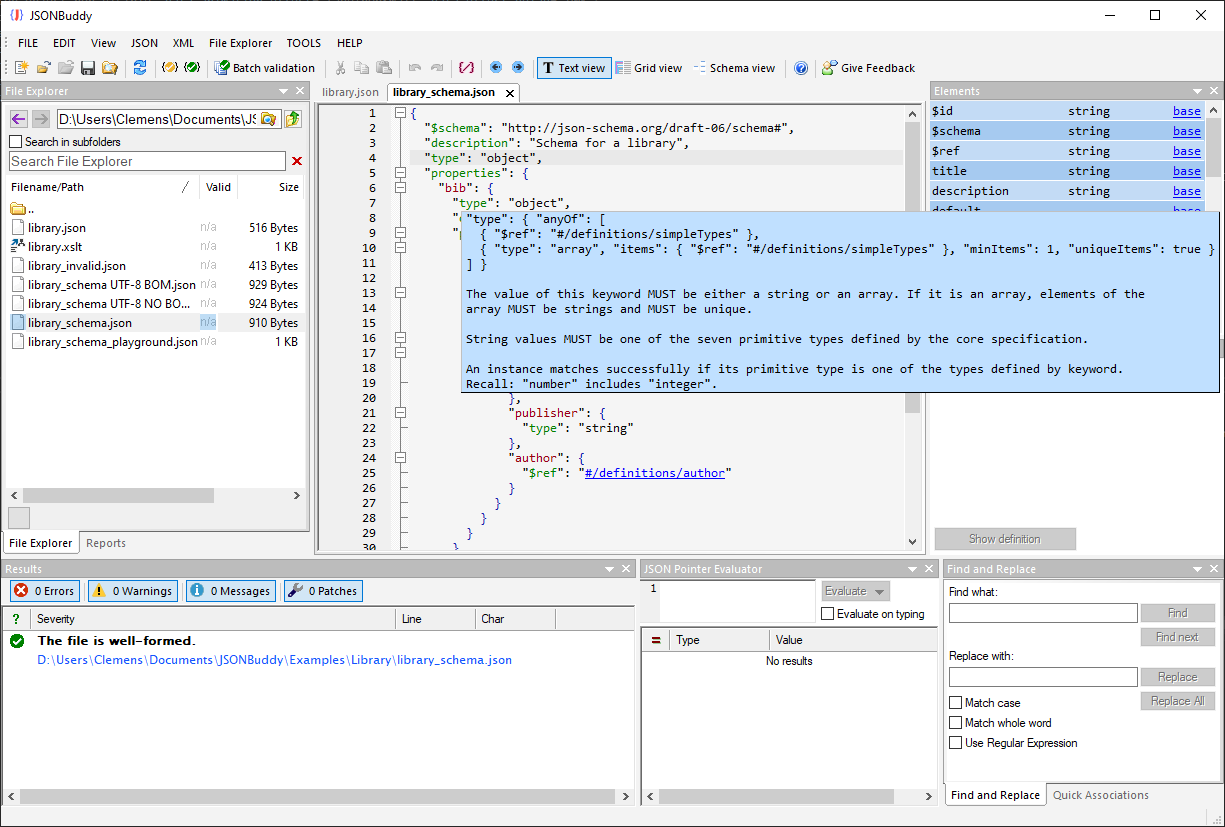
If you are not able to open json file on your computer then probably you don’t have the right application to do the job for you. If you don’t have the app that is compatible working with json files then you won’t be able to open it. Some of the applications that can open json files are JavaScript Object Notation, Microsoft Notepad, Microsoft Wordpad, Google Gears Manifest Files, File Viewer Plus, Altova XMLSpy, Notepad++, Mozilla Firefox, Firefox Bookmark Backup, etc.
Use the correct program
At times Windows operating system do not relate json files with text editing applications and so even if you have basic text editors, you won’t be able to simply double click on the file and open them. So the best and the most simple way for Windows users to open a json file would be to
- Right click on the file
- Select Open with
- And here a sub menu will pop up, this sub menu will contain applications that Windows is suggesting you can open these files from and from this sub menu select Notepad.
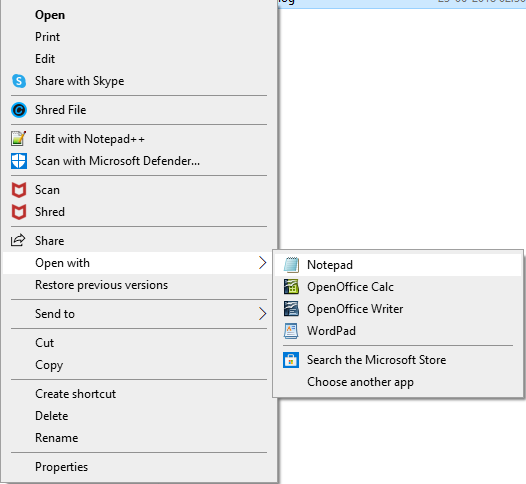
If json your file is bigger than 100 KB of space then you can choose Wordpad instead. Now it may be possible that Windows don’t consider these programs suitable for json files and may not even suggest it. In this case you will have to click on “Choose another app” and a small window will open which will contain more options of apps which can open it.
If you still don’t find what you are looking for, then scroll down and click on More Apps. The Windows will then offer more open ended suggestions, list almost all the apps that it thinks can open the files. If you are still not satisfied with it, click on “Look for another app on this PC”. Here you can now navigate to the specific folder where the application is installed. This option usually comes handy when the reader application is not installed properly for Windows to register it.
If you are still not able to find Wordpad or Notepad on your computer then probably they were either deleted or uninstalled for some reason. Don’t worry, you can still install the useful software programs mentioned above to solve this issue. Almost all of them are free of cost and can be used easily.
Set it up correctly
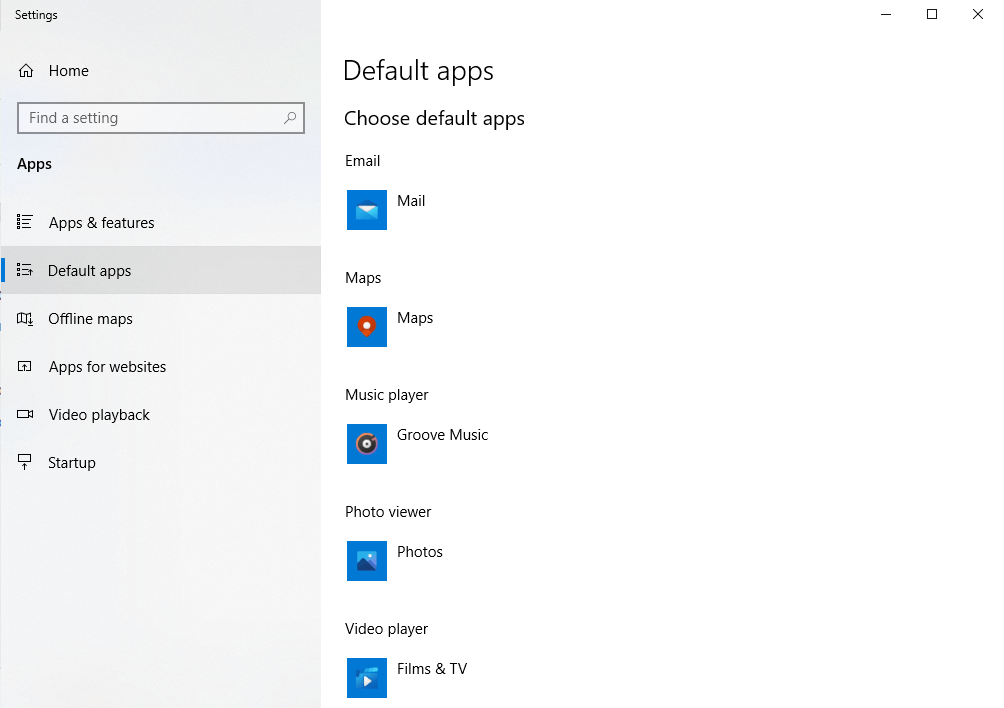
So if you have finally installed and got hold of a program that is actually able to open the json files the best course of action from here on would be to set that program as the default application for opening json files time and again. To do this you will need to head over to settings > Apps > Default Apps > Here choose the application you find to be working with the json files in your computer. If you don’t know which is, then you can simply choose Notepad.
After you have selected the default app for the purpose, you can then open all your json files simply by double clicking on them.
I hope this method has helped you and you are over the above mentioned issue. And if you are a beginner and want to know more about programming and json files then I would suggest you to start learning early. The field is quite huge and interesting.
Thanks for reading!
Gajendra Singh
Gajendra Singh is working at Systweak Blogs. His potential of writing is PC tips, Android and Mac and Windows software tricks and he is anxious in writing other technical blogs.