Как узнать серийный номер ноутбука HP, Lenovo, ASUS, Acer и других

Всех приветствую. Сегодня я расскажу вам, как узнать серийный номер ноутбука или компьютера. На самом деле тут нет ничего сложного, и в статье я подробно описал 5 способов. Вы можете выбрать и воспользоваться любым из представленных. Заметите ошибку, или будут дополнения – обо всем пишите в комментариях в самом низу этой странички. Поехали!
Способ 1: Командная строка в Windows

Посмотреть серийный номер ноутбука или даже компьютера можно с помощью встроенной командной строки. Для этого мы воспользуемся встроенной функцией WMIC. Сразу хочу предупредить, что она присутствует только на версиях Windows 7, 8, 10, 11 и старше. Если вам лень переворачивать и крутить ноутбук в поисках этикетки, то этот вариант для вас. Инструкция подходит для любых моделей ПК и ноутбуков (HP, Lenovo, Acer, MSI, ASUS и т.д.).
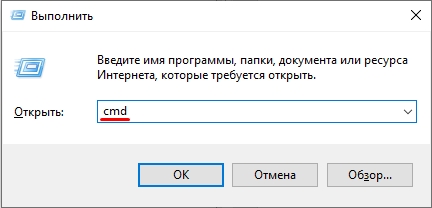
- Зажимаем одновременно кнопки и R , чтобы вызвать утилиту «Выполнить». После этого вводим команду:
СОВЕТ! Консоль можно открыть через поиск или в списке программ в «Пуск».
- Далее вводим команду:
wmic bios get serialnumber
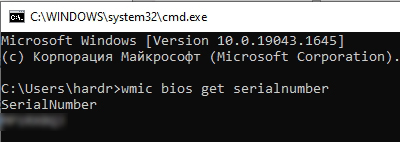
- Нужно будет немного подождать, иногда она срабатывает на сразу.
Способ 2: PowerShell
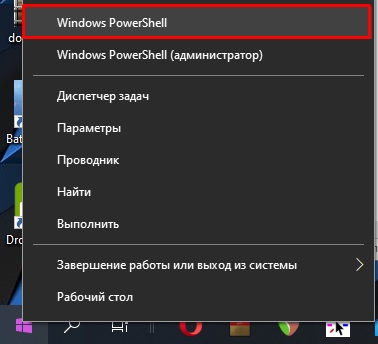
Во всех новых Виндовс есть еще одна консоль PowerShell, в которой также можно определить серийный номер ноутбука или ПК. Чтобы запустить продвинутую командную строку, нажмите правой кнопкой мыши по кнопке «Пуск» и найдите её во всплывающем меню. Для работы нам понадобится обычная версия без прав администратора.
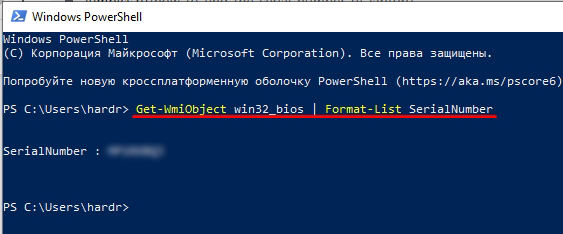
Осталось внимательно вписать команду:
Get-WmiObject win32_bios | Format-List SerialNumber
Способ 3: На самом ноутбуке
Где можно еще посмотреть серийный номер? – правильно, на самом ноутбуке. Чаще всего информация находится на задней стороне, или точнее на дне аппарата. Просто переверните ноутбук и поищите сзади небольшого блока текста. Там же вы увидите название модели. Вам нужно найти надпись:
Serial Number или сокращение S/N
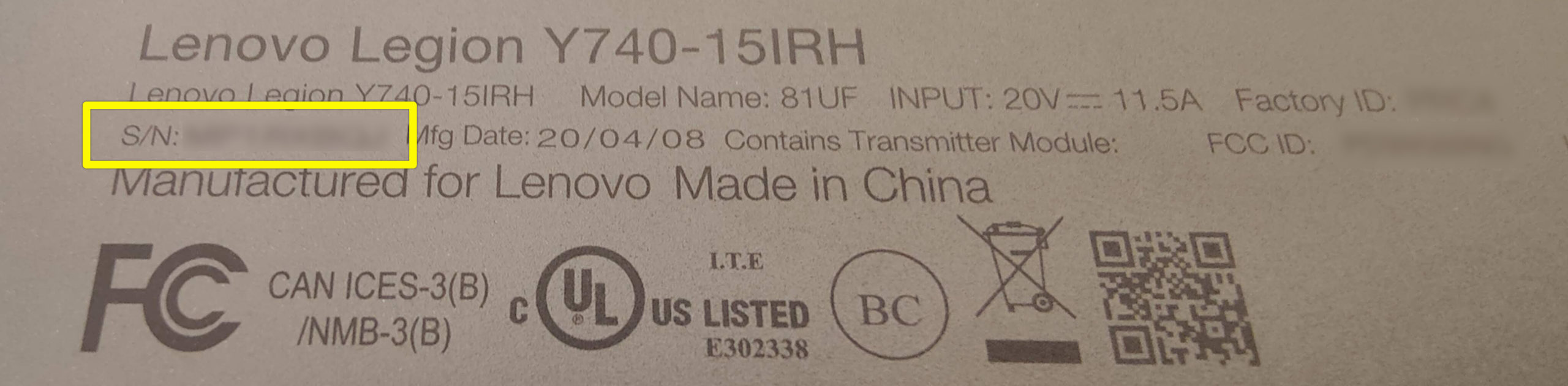
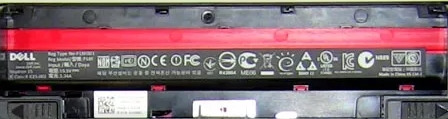
Сам текстовый блок может быть налеплен на отдельную бумажку или написан на самом ноутбуке. На старых ноутах серийный номер, а также вся дополнительная информация, может находиться под батареей – поэтому нам нужно её снять. У некоторых моделей есть специальные защелки, которые позволяют быстрее снять аккумулятор с вашего ноутбука. В других же моделях придется его откручивать.
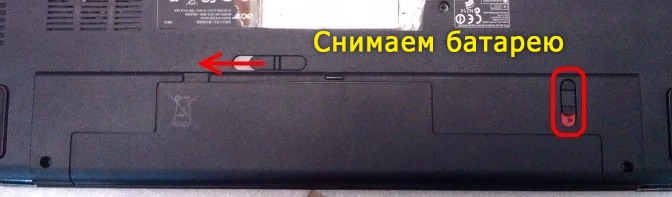
Вся нужная вам информация будет сразу под крышкой на самом ноутбуке.
Способ 4: В BIOS/UEFI
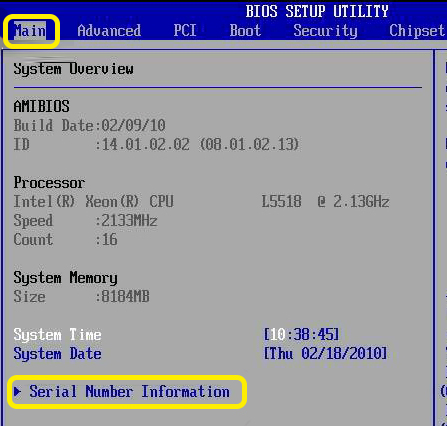
Даже если у вас не установлена операционная система, вы все равно можете найти серийный номер. Это можно сделать в основной микро-системе – BIOS или UEFI, которые напрямую работают с железом компа. Для начала нам нужно туда попасть – для этого при включении или перезагрузке нам нужно зажать (или несколько раз кликнуть) по вспомогательной кнопке на нашей клавиатуре. Вот ряд кнопок, которые используются чаще всего: Del , Esc , F1 , F2 , F3 .
Как правило, строка «Serial Number» находится сразу в первой вкладке. Она может называться «Information» или «Main».
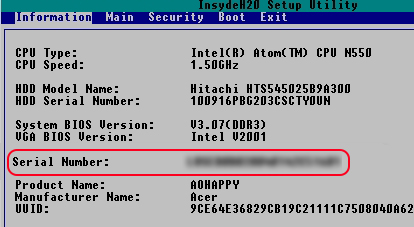
Если вы не можете найти эту строчку, то просто поищите её во всех вкладках и разделах. Обычно их не так много, поэтому это не займет у вас много времени.
Способ 5: Специализированное ПО
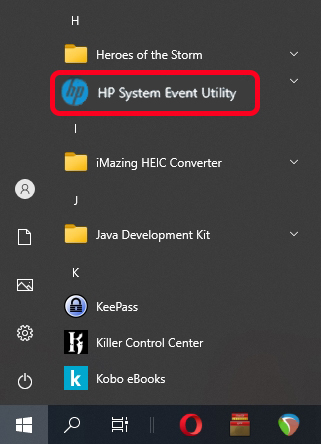
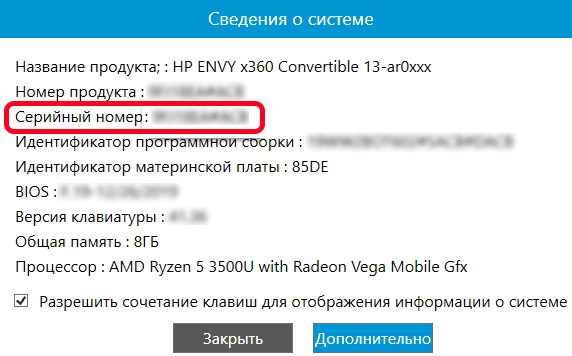
У некоторых ноутбуков и даже компьютеров есть отдельное специальное программное обеспечение, которое показывает полную информацию о железе. Например, у HP – это «HP System Event Utility».
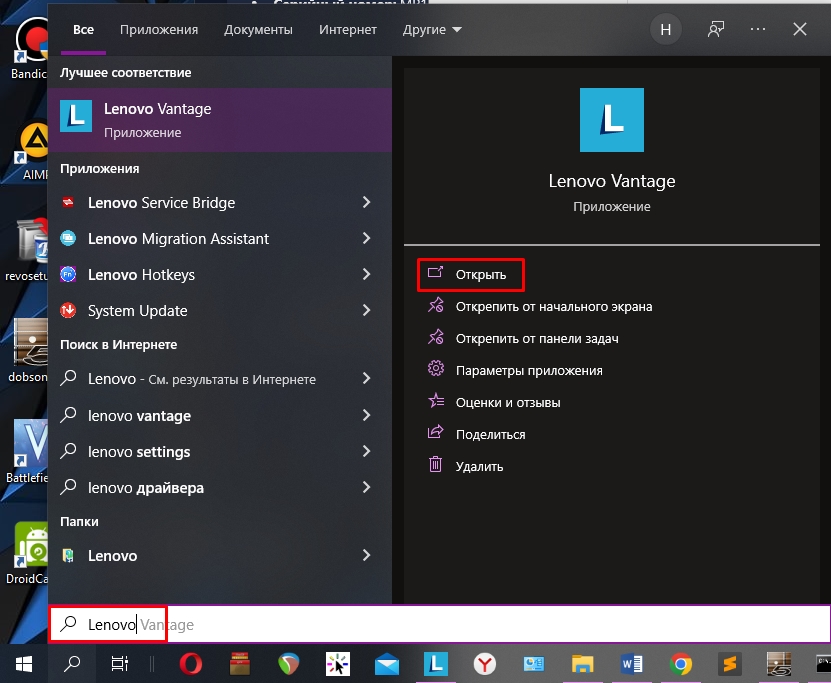
У Lenovo – это программа «Lenovo Vantage». После открытия жмем по разделу «Состояние системы».

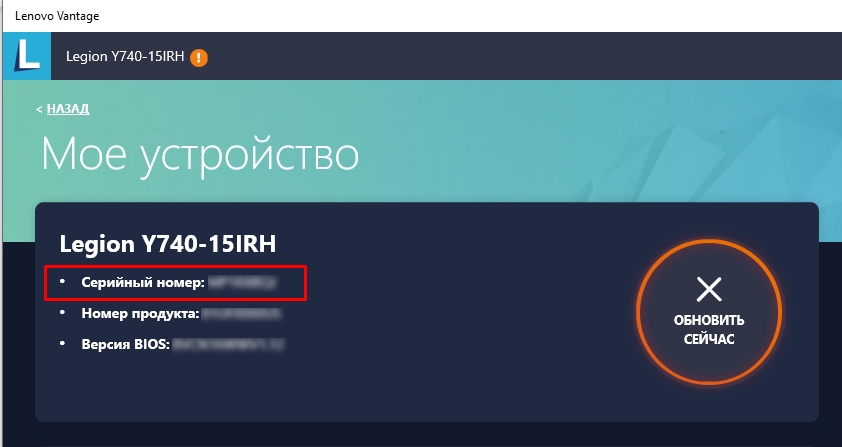
Если вы не знаете, установлена у вас эта программа или нет, то просто введите название фирмы-производителя вашего ноутбука или компьютера в поисковую строку Windows. Если программа установлена к вам на ПК, то вы её увидите.
На этом все, дорогие наши читатели. Если что-то было непонятно, или у вас есть вопросы – то пишите их в комментариях или в отдельной форме. На этом портал WiFiGiD.RU прощается с вами. До новых встреч и до свидания.
How to Find Serial Number on HP Laptop? 6 Simple Ways
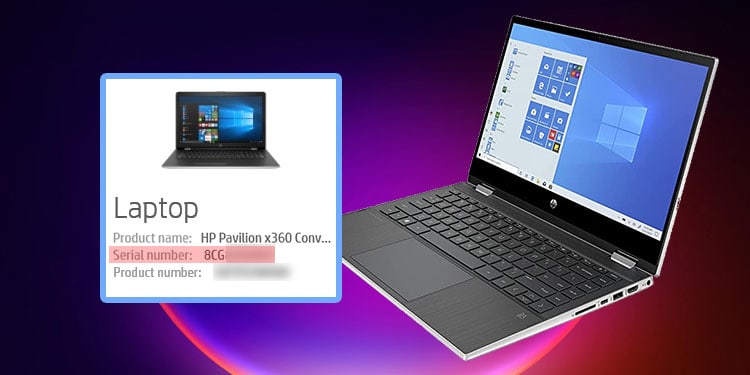
The serial number of a laptop identifies the individual laptops from one another. Usually, manufacturers assign incremental serial numbers to the HP laptops. This way, they can keep records of the laptop information and warranty status after selling them.
So, if you ever lose your laptop, it is possible to use the serial number to identify the device if it is discovered. Other than that, you can also use this ID to check whether the laptop’s warranty is still valid.
Table of Contents
Using the Sticker on the Laptop or Packaging
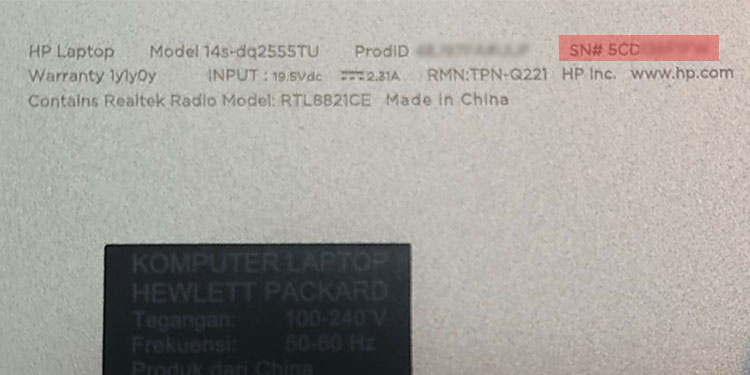
The easiest way to find the serial number on your HP laptop is by looking at the stickers on the back of the laptop or its packaging. You will usually find the serial number under the labels: S/N, SN, Serial, or Serial No near the bar/QR code. Some devices may also contain this information inside the external battery compartment.
From HP System Information
HP also provides an app, the HP System Information, which contains the laptop’s basic system and device information. To check the serial number from this app,
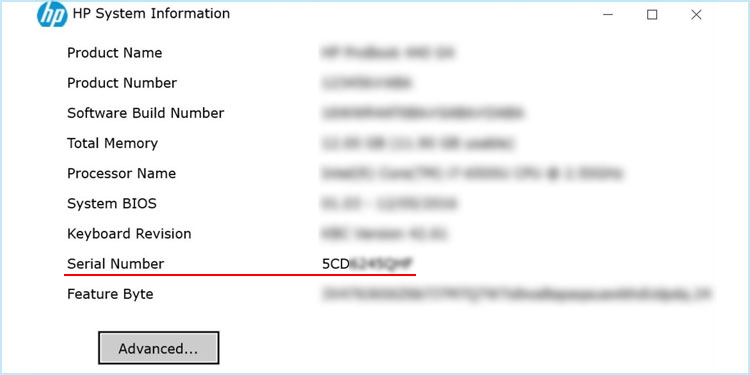
- Open HP System Information on the laptop. You may be able to use the Fn + Esc shortcut to do so.
- If the app doesn’t open, install it from the Microsoft store and then open it.
- Locate the Serial number.
Through HP Support Assistant
You can use HP’s dedicated configuration application, the HP Support Assistant, to find the product details like the serial number. In addition to it, you can also troubleshoot your system as well as check the warranty status through this app.
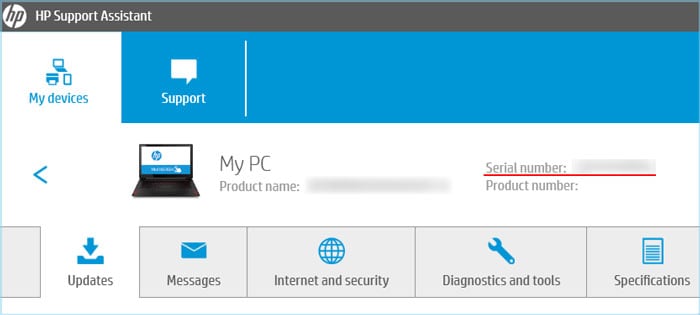
- Download and install HP Support Assistant on your laptop. Then, open the application.
- Go to the Dashboard or the My devices tab.
- Look for the Serial number under or next to your laptop icon.
Using Command Prompt
It is also possible to get this information on your laptop using a command-line interface like Command Prompt. You need to use the Windows Management Instrumentation (WMI) service that accesses and manages your device and other hardware information. And to do so, you can use the WMI command-line (WMIC) command from the Command Prompt.
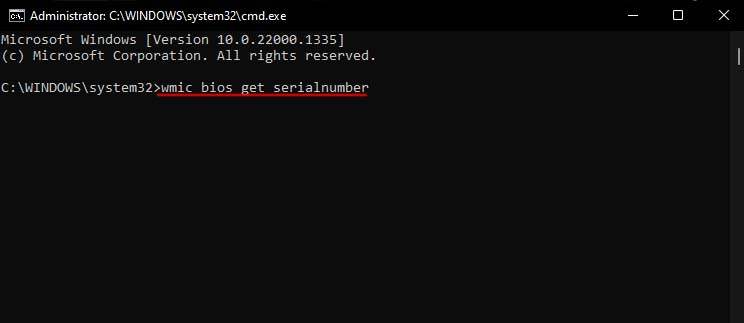
- Open Run by pressing Windows + R.
- Type cmd and press Enter to open the Command Prompt.
- Type wmic bios get serialnumber and press Enter to check the serial number.
Using PowerShell
While you can use the wmic command on PowerShell as well, it also provides its cmdlet to get the serial number, which is the Get-CimInstance cmdlet.
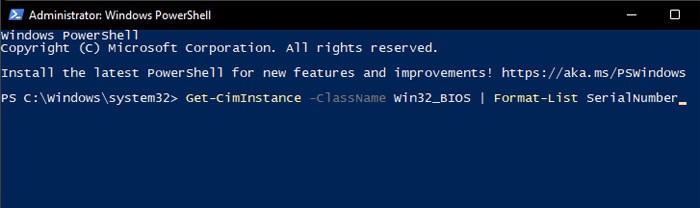
- Open Run.
- Type powershell and press Enter to open Windows PowerShell. If you want to run PowerShell core, use the command pwsh .
- Type Get-CimInstance -ClassName Win32_BIOS | Format-List SerialNumber and press Enter to obtain the serial number.
Through BIOS Setup
You can also find your device details—including the serial number on the laptop’s BIOS setup utility.
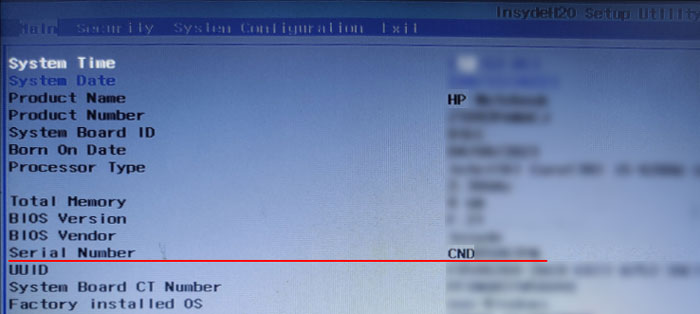
- Restart your PC. Then, as soon as you see the manufacturer’s logo, press the BIOS key repeatedly to access the BIOS setup. If you don’t know which key to press, we recommend searching for this info on the manufacturer’s website.
- Look for the Serial Number on the Main tab or Advanced Options.
Abhishek Silwal is an Electronics Engineer and a technical writer at TechNewsToday. He specializes in troubleshooting a wide range of computer-related issues. His educational background in Electronics Engineering has given him a solid foundation in understanding of computers. He is also proficient in several programming languages and has worked on various robotics projects. Even in his early days, he used to tinker with various computer components, both hardware, and software, to satiate his curiosity. This experience has given him a breadth of experience that goes beyond his educational qualification. Abhishek has been writing articles on dealing with varieties of technical issues and performing specific tasks, especially on a Windows machine. He strives to create comprehensive guides on fixing many system and hardware issues and help others solve their problems. You can contact him at abhisheksilwal@technewtoday.com
How to Find Your HP Laptop Model Number

Not everyone knows where to find the reference information for their HP laptop , such as its model number. This information is important when it comes to checking laptop warranty , getting troubleshooting help, and when contacting HP Customer Support .
While HP laptop model numbers can commonly be found on the side, back, or top of the laptop’s case, you may need to remove the laptop battery to find this information.
Contents
- What do model, product, and serial numbers mean?
- Finding your product information
What do model, product, and serial numbers mean?
The model number represents the components and features that define your product. There could be 10,000 HP products with the same model number.
The product number identifies your HP product within a series. 1,000 HP products could share a product number.
Serial numbers are unique to an individual product.
Finding your product information
The most common location to find your product information is on its label. For most HP products the product label is on its bottom, its side, its top, or its back. On some products, it might be inside a battery compartment or behind an access panel.
Your product label might look different depending on what HP product you own. If your label does not include your product’s model number, check the ink access area of printers or on the front or top of your HP product.
Another way to find the product information on HP computers is by opening the HP System Information window.
For HP notebooks, press the Function(Fn) and Escape(Esc) keys together. The HP System Information window should appear on your screen. This window might appear differently on some devices, but it will usually include product information such as the product name and serial number.
After finding the model number, write it down and keep it in a safe place.
You can find additional helpful videos at our YouTube channel, youtube.com/howto4U .
Knowing where to find your HP laptop model number will help you check for product compatibility , verify your warranty, and receive the appropriate support when needed.
Categories
- Laptops (72)
- Desktops (35)
- Miscellaneous (22)
- Printer (26)
- Accessories (9)
- Monitor (22)
- Business (46)
- Student (35)
- Gaming (22)
- Security (0)
- Sustainability (0)
Recent Posts

November 23, 2023

November 23, 2023

November 23, 2023

November 23, 2023

November 23, 2023
Popular Posts

October 11, 2022

September 30, 2022

October 13, 2022

October 18, 2022

October 06, 2022
Archive
Tags
Select Store
HP Online Store
Indonesia | Order by phone: Home customers 02150851986 : Business customers 007-803-331-5104
Contact Us
- Please call 007 803 331 5068
Mon-Fri 9AM to 6PM
Excluding public holidays - Whatsapp instant enquiry with our agent
Mon-Fri 9AM to 6PM
Excluding public holidays - Live Chat with our agent
Mon-Fri 9AM to 6PM
Excluding public holidays
Contact Us
- 007 803 331 5068
- Mon-Fri 9am — 6 pm
- (excl. public holidays)
Shop for Products
Customer Service
- About Us
- Technical Support
- Software & Drivers
- Terms & Conditions
- FAQs
- Contact Us
- Feedback & Complaints
- How to Order
My HP
- My Account
- Track My Order
- Store locator
- Tech Info
- Sustainable Impact
HP STORES
- HP Online Store
- HP Employee Store
- Corporate Employee Offers
- HP Advantage for Business
- HP Education Store
- HP Business Leasing
Newsletter
© Copyright 2024 HP Development Company, L.P.
Stay connected
Price is inclusive of 11% VAT (where applicable).
Arc, Arria, Celeron, Cyclone, eASIC, Intel Ethernet, Intel,the Intel logo, Intel Agilex, Intel Atom, Intel Core, Intel Evo, Intel Inside, the Intel Inside logo, Intel Optane, Intel vPro, Iris, Killer, MAX, Movidius, Pentium, Intel Select Solutions, Intel Si Photonics, Stratix, the Stratix logo, Tofino, Ultrabook, Xeon are trademarks of Intel Corporation or its subsidiaries.
Not all features are available in all editions or versions of Windows. Systems may require upgraded and/or separately purchased hardware, drivers and/or software to take full advantage of Windows functionality. See www.microsoft.com
The following applies to HP systems with Intel Skylake or next-generation silicon chip-based system shipping with Windows 7, Windows 8, Windows 8.1 or Windows 10 Pro systems downgraded to Windows 7 Professional, Windows 8 Pro, or Windows 8.1: This version of Windows running with the processor or chipsets used in this system has limited support from Microsoft. For more information about Microsoft’s support, please see Microsoft’s Support Lifecycle FAQ at www.support.microsoft.com/lifecycle
In accordance with the Microsoft Silicon Support Policy, HP does not support or provide drivers for Windows 8 or Windows 7 on products configured with Intel or AMD 7th generation and forward processors
Covid-19 Disclaimer: We are working to meet the current extraordinary customer demand for our products. Our website reflects current product availability but circumstances are dynamic. You may check your order status via our Track My Order page ( Here ). We will send updates by email as soon as they are available. We greatly value your business and appreciate your ongoing patience as we work to get your order to you.
Please note: The product colour and look & feel may vary from the visual representation on the Website. While all efforts are made to check pricing, product specifications and other errors, inadvertent errors do occur from time to time and HP reserves the right to decline orders arising from such errors. For pen drives, please reach out to respective manufacturers for any service queries.
4 Methods to Find or Know HP Laptop Serial Number in Windows 10
Sometimes it’s necessary to know about your HP laptop specifications like HP Serial Number (S/N), Product Number, or even knowing about your laptop’s warranty. However, in this guide, you are going to learn 4 different methods to find or to know the HP laptop serial number in Windows 10.
Meanwhile, Serial Numbers are normally found on a label on the item but in some cases, they are printed in the manual or a piece of paper that came with the item. They are normally Numeric or Alphanumeric e.g. 0233456679 or A1G3C6F4.
How to Find HP Serial Number in Windows 10
Sometimes, it’s necessary to know your HP laptop or any other laptop’s Serial Number, Product Number, and Model Number in order to download drivers. So here, you will learn, three different ways to know your Laptop’s serial number.
Note: Serial Numbers may be referred to as:
- Serial
- Serial Number
- Serial No.
- Asset Number
- Service Tag
- S/N
Method 1. Find HP S/N using HP Support Assistant
Well, the easiest way to get information related to your HP laptop is using the HP Support Assistant. This useful software provides information like Product name, Serial number, Product number, Warranty check, Battery health, automated support, updates, and fixes, and much more useful information about your HP laptop.
Here’s how to check HP laptop serial number using HP Support Assistant:
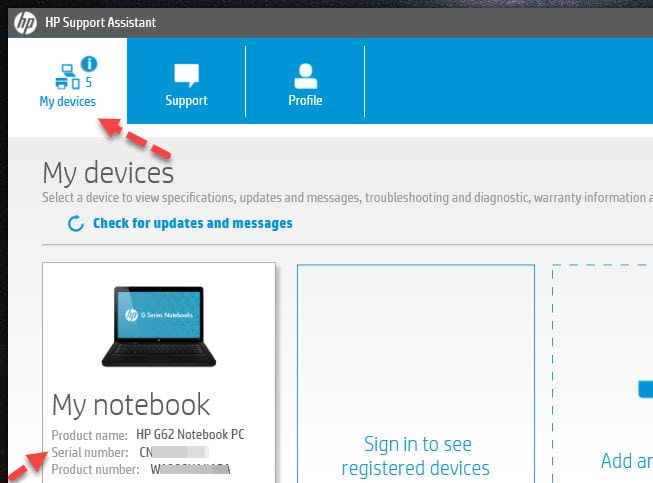
- Download and install HP Support Assistant.
- When installed, launch the app.
- Make sure the My devices tab is selected. Here you can check the Product name, Serial number, Product number of your HP laptop.
Method 2. Check HP Serial Number using Command Prompt ( WMIC)
This is by far the easiest method to find out your HP laptop or any other laptop serial number. All you need to is just type a command in Command Prompt (CMD). Here’s how it’s done:
- Open a Command Prompt window to get started. Simply type Command Prompt in the search bar next to the Start Menu button.
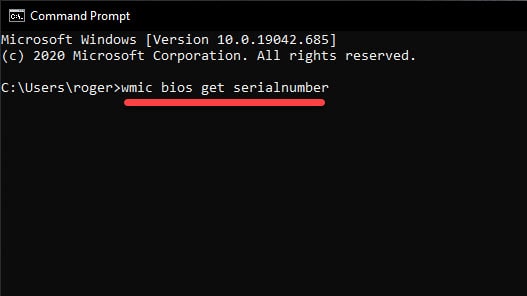
- At the Command Prompt, type the following command and then press Enter:
wmic bios get serialnumber
- You’ll see your laptop’s serial number displayed under the text “SerialNumber”.
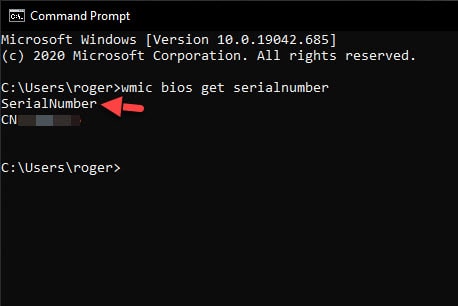
f you don’t see your PC’s serial number, blame your PC’s manufacturer. The number will only appear here if the PC manufacturer saved it to your computer’s BIOS or UEFI firmware. PC manufacturers don’t always fill in the number properly. In that case, you’ll see something like “0” or “To be filled by O.E.M.” instead of an actual serial number.
Method 3. Find HP Laptop S/N in BIOS in Windows 10
In the third method, You may also be able to check the HP serial number on the BIOS or UEFI firmware settings panel. That strategy won’t get you a serial number if you don’t have a WMIC button, as the order takes the serial number out of the BIOS. Nevertheless, testing the BIOS might be helpful if you can’t actually sign up to run the WMIC command on Windows.
Access the screen for BIOS or UEFI firmware settings and search somewhere on a system information panel for a “Serial Number.” On various PCs, it will be in a different place, but you can usually find it somewhere on the screen of the “Main” or “System.”
How to Get BIOS in HP:
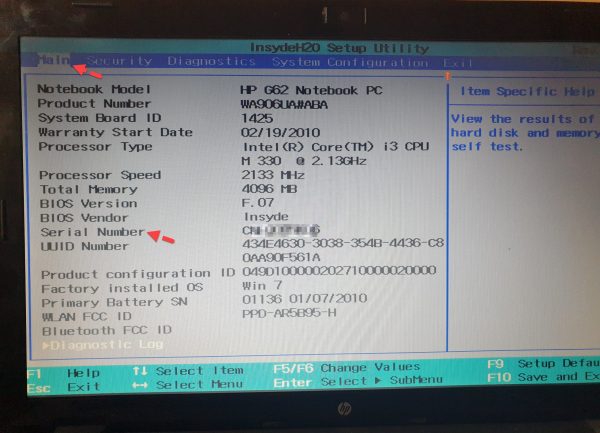
- Turn on or restart the computer.
- While the display is blank, press the F10 key to enter the BIOS settings menu.
- Now, in the Main menu tab, you can check your HP laptop’s serial number.
Method 4. Check HP Serial Number under the Battery Compartment or Underside of the Laptop
Find the Serial Number underside of the Laptop
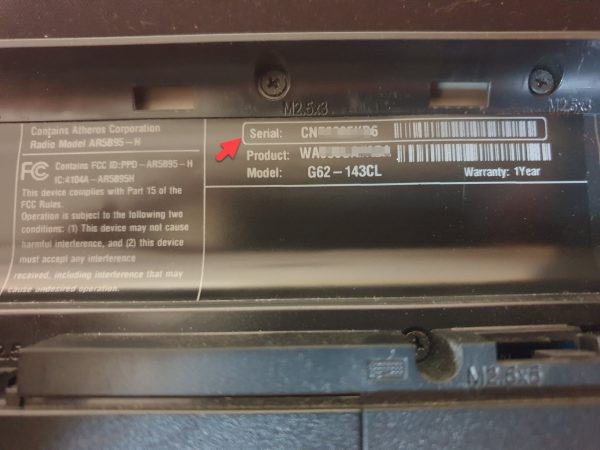
On most HP models, the sticker on the underside of the laptop contains your model number and serial number, along with other important information. Turn your laptop upside-down and place it on a soft, clean surface such as a chair or couch cushion. Locate the white or silver sticker on the underside of the laptop, toward the middle of the casing. Read the sticker and look for the prefix “S/N“, “Serial” or “Serial Number” the number following this prefix is your computer’s serial number.
Check HP Laptop Serial Number Under the Battery Compartment
If you have a laptop with a removable battery, you can easily find the serial numbers on the HP laptop in Windows. Laptop Serial Numbers are usually found at the laptop bottom or under the compartment of the batteries. So, to know your laptop’s serial number just check the bottom side of your laptop or if you can’t find it there then remove the battery, you will see the serial number beneath the removable battery.
Final Words
These were the 4 methods to check HP laptop serial number in Windows 10. We hope that after reading this post, you may find your HP laptop’s serial number with ease by following the above-mentioned methods.
Related Posts:
- How to Adjust the Brightness on HP Laptops in Windows 10
- How to Disable The Touchpad on HP Laptop
- How to Check HP Laptop Warranty in Windows 10