У вас большие запросы!
Точнее, от вашего браузера их поступает слишком много, и сервер VK забил тревогу.
Эта страница была загружена по HTTP, вместо безопасного HTTPS, а значит телепортации обратно не будет.
Обратитесь в поддержку сервиса.
Вы отключили сохранение Cookies, а они нужны, чтобы решить проблему.
Почему-то страница не получила всех данных, а без них она не работает.
Обратитесь в поддержку сервиса.
Вы вернётесь на предыдущую страницу через 5 секунд.
Вернуться назад
У вас большие запросы!
Точнее, от вашего браузера их поступает слишком много, и сервер VK забил тревогу.
Эта страница была загружена по HTTP, вместо безопасного HTTPS, а значит телепортации обратно не будет.
Обратитесь в поддержку сервиса.
Вы отключили сохранение Cookies, а они нужны, чтобы решить проблему.
Почему-то страница не получила всех данных, а без них она не работает.
Обратитесь в поддержку сервиса.
Вы вернётесь на предыдущую страницу через 5 секунд.
Вернуться назад
Как отключить защиту от вирусов в Opera
Доброго времени суток, дорогие читатели. Каждый разработчик браузеров старается сделать свой продукт максимально удобным, надежным и защищенным. Но, не всегда эта защита сказывается положительно, в том числе и защита от вирусов. И в сегодняшней статье мы расскажем вам, как отключить ее в браузере Opera, а также приведем пример, как именно это можно сделать.
Зачем отключать защиту от вирусов в браузере Opera

Дело в том, что Opera обладает достаточно мощной защитой от вирусов. Она не только блокирует потенциально вредоносные сайты и большую часть вредоносной рекламы, но еще и блокирует файлы при скачивании, если считает их подозрительными.
И это не всегда хорошо, ибо браузер может блокировать файл ошибочно, например, если знакомый вам скинул какую-то пиратскую игрушку с «кряком», который считывается любой защитой, как вирус и вредоносное ПО. Или если ваш сайт находится на подозрительном домене, но вам все равно нужно на него зайти. В этом случае и нужно будет отключить защиту от вирусов.
Как отключить защиту от вирусов в Opera
Немного забежим наперед и скажем, что защита в Opera нужна и полезна, поэтому не забудьте включить ее обратно после того, как сделаете свои дела.

Чтобы отключить защиту от вирусов в Opera, вы должны будете кликнуть на иконку браузера в верхнем левом углу, а в открывшемся меню выбрать пункт «настройки». В левом верхнем углу настроем вы увидите пункты «основные» и «дополнительные». Перейдите в дополнительные настройки и выберите пункт «безопасность».
В правой части экрана вы увидите пункт «включить защиту от вредоносных сайтов». Просто переключите галочку в неактивное состояние, и браузер уберет свою защиту.

Вот, собственно, и все, дорогие читатели. На этом наша статья подходит к концу. Пишите в комментариях, если мы что-то упустили, а также не забывайте оценить статью и делиться ею с друзьями. Мы же прощаемся с вами, всем удачи и до новых встреч.
Fix Windows Defender Detecting Virus on Opera Browser
The Opera browser (Opera GX) has faced numerous detection threats from Windows Defender and other antivirus software despite being a widely used browser.
It has been consistently flagged as a possible malware or detection threat during the previous few months. Many users are speculating whether the browser is still safe or not.
Some of the most common Windows Defender threat detection names given to the browser are the following:
- Trojan:Script/Conteban.A!ml
- Trojan:Script/Oneeva.A!ml
- BrowserModifier:JS/Adrozek.A
Not to mention, all of these detections are pointing to the cache folder for the browser, which is located in AppData\Local\Opera Software\Opera GX Stable\Cache\f_xxxxxx. Malware detection by antivirus software in a browser, particularly in the cache folder, is uncommon.
Why Does Windows Defender Detect Opera GX Browser As Malware?
There are many rumors that the Opera browser is malicious, but let’s first clarify that there is no guarantee that it is. Windows Defender may frequently show false positives, but there’s also a potential that the Opera browser itself contains malware.
One of the main sources of the detections can be malware, including malicious plugins, toolbars, and browser hijackers. In addition to that, the malware may have been cached.
Checking the Opera browser for any unwanted extensions is the best approach to find out this information. You can also try clearing the cache to see if that resolves the problem at hand.
How to clear the cache in Opera GX browser:
1. Click on the three horizontal dots in the upper right corner of Opera when it has opened.
2. Select Settings from the choices in the dropdown menu.
3. Click Advanced in the left sidebar of the Settings page.
4. Scroll down and click Clear browsing data under the Privacy and security section.
5. Choose the time range for which you wish to erase the cache in the Clear browsing data window.
6. Check the box next to Cached images and files.
7. Select the Clear data option from the menu to finish clearing the cache.
If Windows Defender still detects it after clearing the cache, it may be either a false positive or malicious program. In this case, you can always add the cache folder as an exception in Windows Defender.
However, since malware in the system is possible, we advise that you scan your system with a different antivirus first to make sure that you aren’t accidentally excluding a potential malware threat from Windows Defender.
How to Fix Windows Defender Flagging Opera Browser As Malware
This step-by-step guide will help assist users in resolving the problem with Windows Defender flagging the Opera browser as virus.
Step 1: Scan With A Different Antivirus
Often times, Windows Defender can be inaccurate and a different antivirus may provide a better result. When it comes to removing malware-related problems on the computer, it is best to utilize the anti malware software provided by Malwarebytes.
We have determined that it can remove most types of malicious threats when we conducted malware tests.

Malwarebytes also offers a free 14-day trial when you download it for the first time, so you might want to use the remaining time of the trial to test out the premium features.
1 Click the button above to download the latest version of Malwarebytes Anti-malware.

2 Open the installation file after the download and follow the procedure shown.
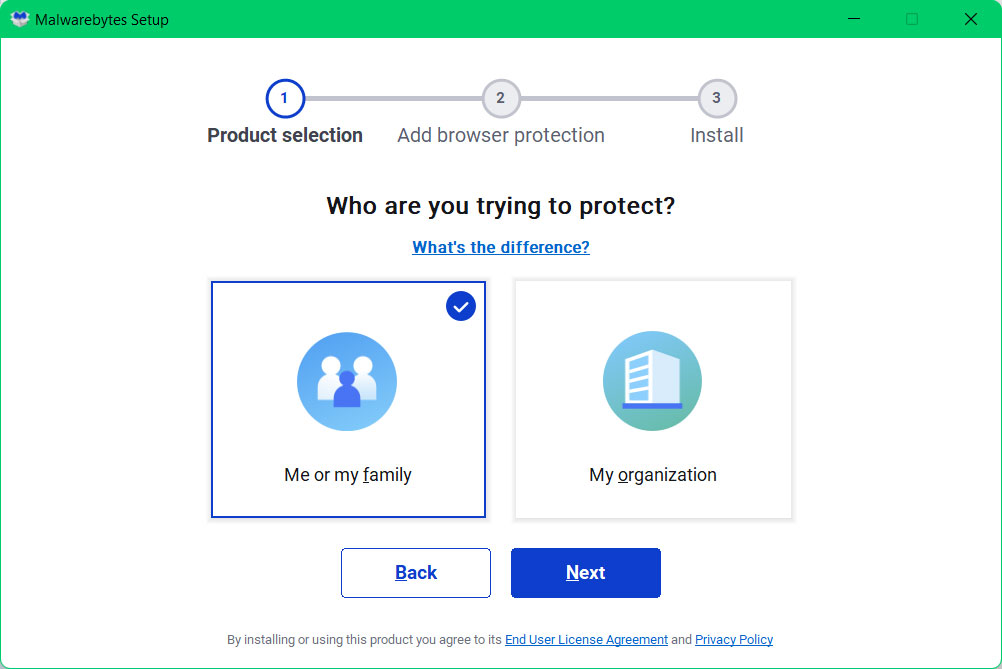
3 After following the software setup instructions, wait for the application to finish installing.

4 Once the application is installed, you may now run your first computer scan and wait for it to finish.
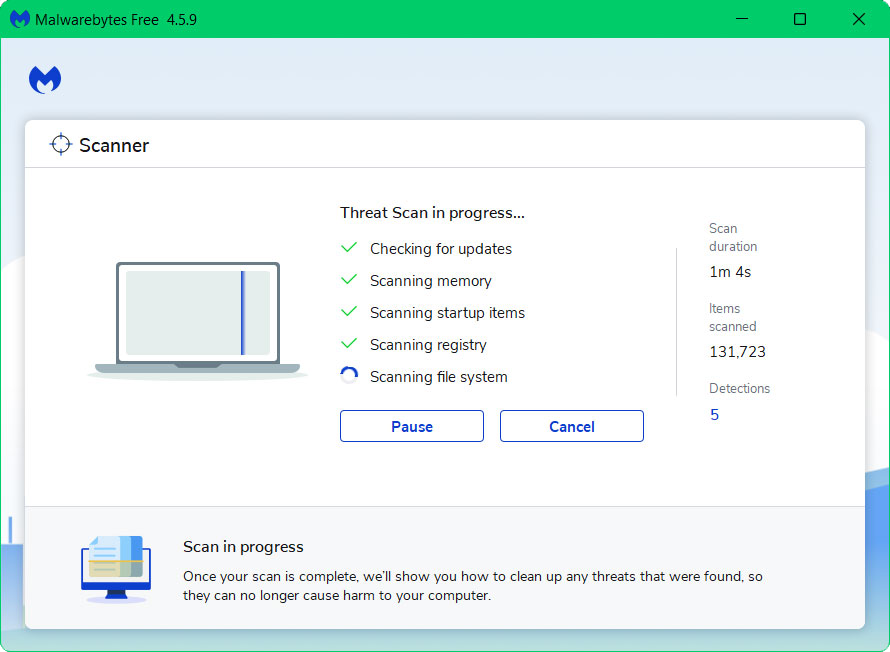
5 All discovered malware on the computer will be displayed on the screen, and you can eliminate them by pressing the “quarantine” button.
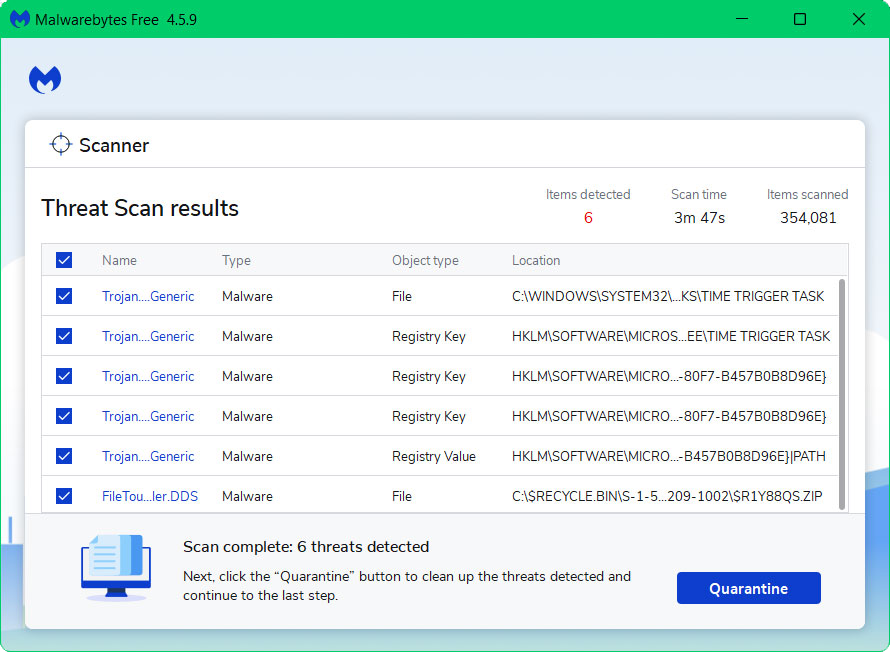
Any potential malware that may have been hiding on your system has now been eliminated, and the modifications it made to the system have been undone. You can check if malware detected by Windows Defender in the browser still appears.
Alternative: Kaspersky Antivirus
If you visit numerous forums and websites, you will see most users agree that Kaspersky is one of the best antivirus tool available.
There is a chance that malware may still be present in the computer system and in this case, a second opinion scan is recommended.

Since each antivirus application has its own threat database, Kaspersky’s detection technology may be able to find viruses that the prior program missed.
To ensure sure the malware is completely removed from the system, we advise running a scan just in case. If you are downloading the application for the first time, you will also receive a 31-day premium trial.
1 Download the Kaspersky Security Cloud by clicking the button above.

2 Once the setup has finished downloaded, open the file and start the installation.

3 Wait until the wizard finds the latest version of the application or click Skip to install the current version stored.

4 Review the License Agreement. If you agree to its terms, click Continue.

5 Follow the installation instructions as shown then finally click install. (You may choose to uncheck the options shown if you do not want those features.)

6 Wait for the application to finish installing, then after the process is complete, click done.

7 Apply the recommended settings then start the application by clicking apply. Feel free to untick the options you do not desire.

8 You will be prompt to create an account and once you are finished, you will be redirected to the main screen. Select the Scan tab then click the run full scan and wait for it to complete. (Before scanning, we recommend you update the database to ensure any new malware variants are detected.)

9 After the scan has finished, the detected threats will be deleted from the computer.

Step 2: Add Opera’s Cache Folder to Windows Defender Exclusions
If the threat detections still persist, you can now add the cache folder to exclusions knowing that malware is not hiding in the system.
- Search Windows Defender on the Start Menu search bar and click on the application.

- Once the Windows Security panel opens, select Virus & threat protection from the left side bar.

- Scroll down and select Manage settings under Virus & threat protection settings.

- Find the Add or remove exclusions option under Exclusions.

- Click on the Add an exclusion then click folder.
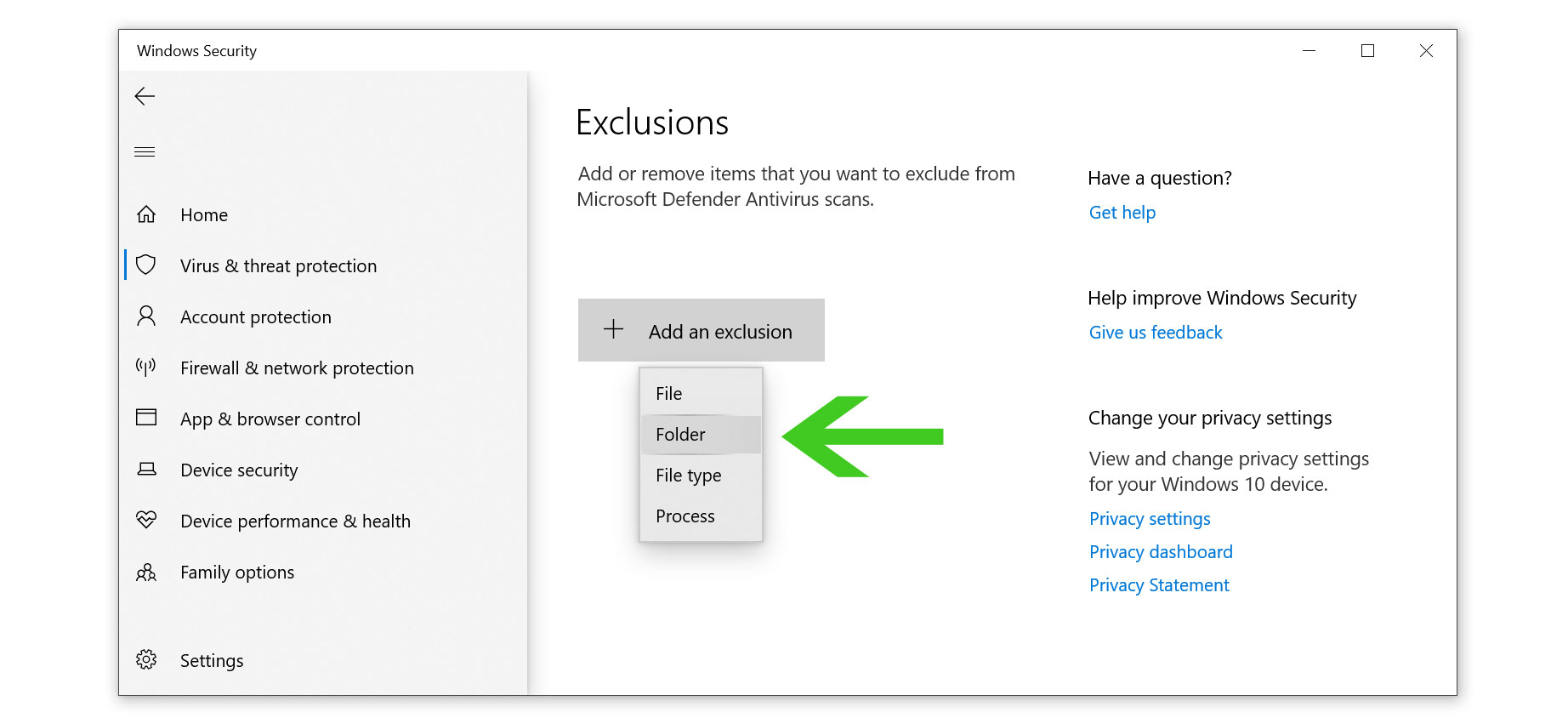
- Then hover over to the Opera browser’s cache folder location at AppData\Local\Opera Software\Opera GX Stable\Cache then click select folder. (The image below only sets an example. Opera browser’s folder is at a different path than the image.)
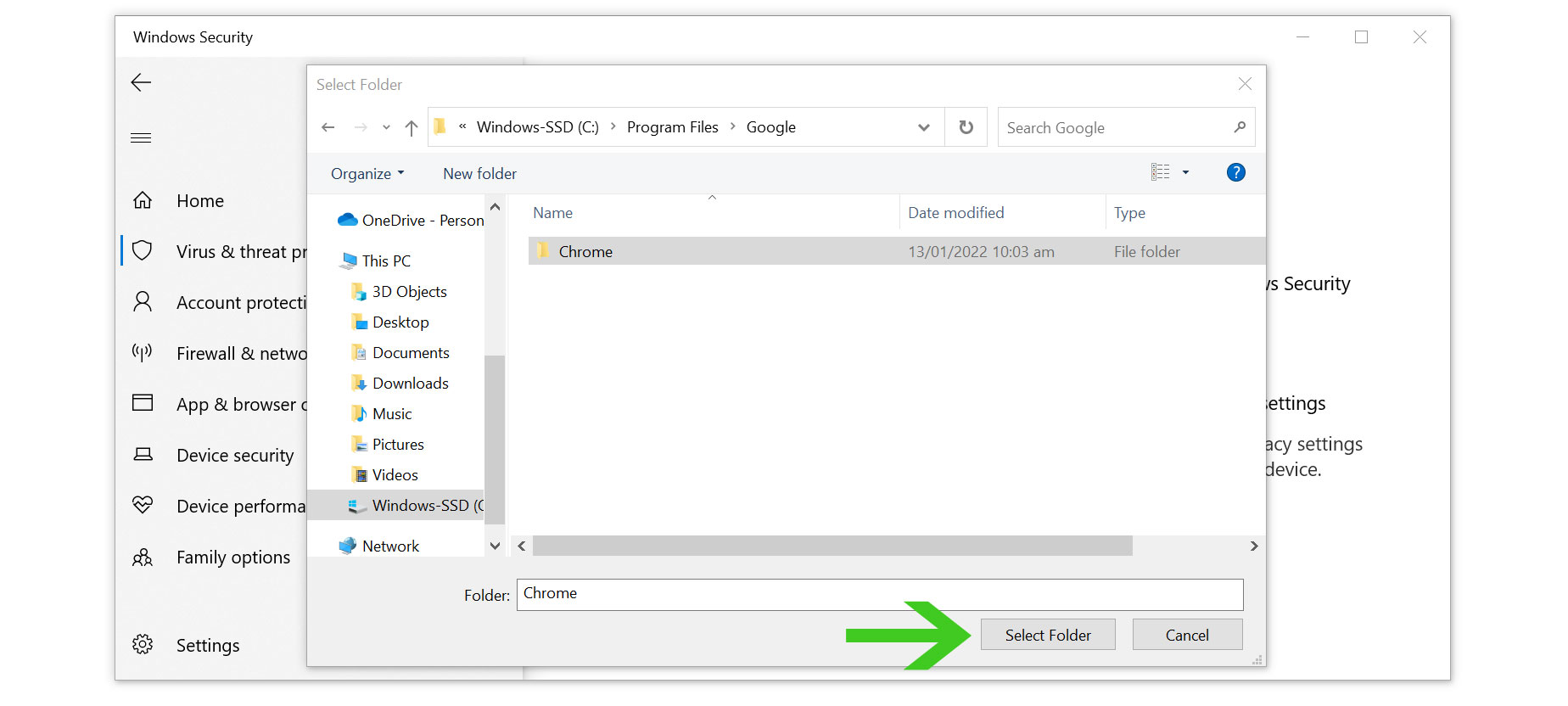
- Now that the cache file location has been selected as an exclusion to Windows Defender, it should fix the threat alerts pop-up now.

Millan Nava
Millan Nava, an adept Information Security Analyst, brings a decade of hands-on expertise in cybersecurity. His area of expertise is in conducting a thorough analysis of malicious software, revealing its susceptibilities, and providing pragmatic, user-friendly methods for removal. He created this website to serve as a navigational aid for the security of all internet users.
Prevent Identity Fraud with Aura
Protect yourself and your family’s online data and privacy from being exploited with Aura Identity Protection.