Legitimate and Credible Method to Convert MLT to MP4
A file with the .mlt extension may be unfamiliar to most people, definitely, I was at a loss when I received a request for technical assistance from a customer. Therefore, after careful and detailed investigation, I found that many people fell into a misunderstanding. It is necessary to take this opportunity to clarify the fact to save you from detours. Also, I’ll show you how to convert MLT to MP4 in the right way.
In addition, if the exported MP4 file is too large, here’s a handy toolkit to edit, compress and convert videos with ease.
- Things You Should Know Before Converting MLT to MP4
- How to Convert MLT to MP4 with Shotcut Video Editor
Things You Should Know Before Converting MLT to MP4
Q: How do you convert a .mlt file? I want to upload a video to YouTube with the .mlt extension but it doesn’t work and I have no clue how to convert it to proper YouTube video specs. — from Google Community Forum YouTube Help
A: That’s because a .mlt file is not a real video file, but a proprietary project file generated by Shotcut Video Editor in XML format. It only records your source file locations, profile descriptions, transitions and other edits in progress. Not surprisingly, this is actually quite common, especially for beginners who just embarked on video editing. In the following paragraphs, I’ll elaborate how to convert MLT file to MP4 video format.
Tips: An MLT file saves the detailed editing information on your own local drive. If your MLT file is shared by someone or downloaded from the internet, you may fail to open MLT files as all the original file paths and settings have changed.

Multi-purpose Video/Music Format Converter
Video or music file won’t play on a certain device due to codec incompatible issue? Not to worry, HD Video Converter Factory Pro is always ready for this situation. After just a few mouse-clicks, the problem will be solved with ease. A great success begins with a simple trial.


How to Convert MLT to MP4 with Shotcut Video Editor
People are accustomed to clicking «Save» or «Save as» to create their video works, but in Shotcut, it’ll produce a project MLT file. As I said, MLT files are exclusive to Shotcut Video Editor, so there is no any third-party software can open or convert MTL files. DO NOT waste your time looking for impractical and exaggerated tools, Shotcut is the ONLY MLT to MP4 converter. Now let’s see how to import and render MLT file to MP4 video.
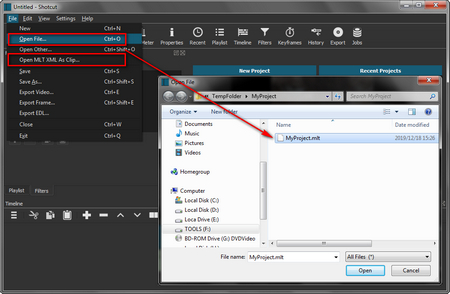
MLT File Converter
Step 1. Run Shotcut Video Editor. Then click «File» on the menu bar and select either «Open File» or «Open MLT XML As Clip» to import your MLT file.
Step 2. Shotcut will read and restore all your work processes from the last editing status, so that you’re able to go ahead with your editing as you wish, such as add effects, transitions or other elements, etc.
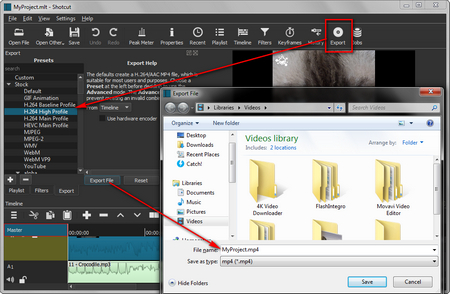
Shotcut Save as MP4
Step 3. After done, make sure you press the «Export» button on the Quick Access Toolbar or «File > Export Video», rather than «Save» or «Save As». Then, it will show some preset formats on the left. Choose «Default» and it will acquiescently convert MLT to MP4 (H.264/AAC) video that is compatible with most players and devices as well as YouTube. For experienced users, you can choose your desired profile or go to the Advanced window to customize your user-defined settings, for instance, change video resolution, adjust video bit rate and so forth.
Step 4. Finally, hit the «Export File» button, specify the video name and destination to save the MP4 file. After a while, you’ll find the real video file in the output folder.
Now you’ve got an MLT to MP4 converter and figured out how to export MP4 video from Shotcut. You see, by taking advantage of a proven and effective method, it’s no more an ordeal for you. If this tutorial deserves a thumb-up from you, just tweet, like and share it via your social media.
A Great Helper to Simplify Your Digital Life
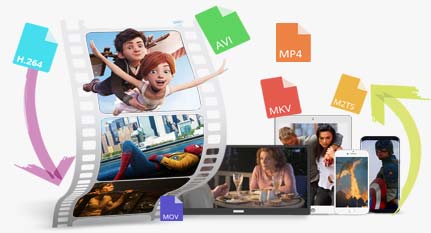
HD Video Converter Factory Pro
1. Convert video/music to 500+ preset formats and devices.
2. Foolproof video editing features, trim, merge, rotate, add subtitle…
3. Download online video/music from 1000+ mainstream UCG sites
4. Record screen activities for presentation, gameplay, tutorial, etc.
5. Make GIF from photos or video files. And practical Toolbox…
How to Convert MEPJ File to MP4 Credibly?
DO NOT make a futile effort to look for a nonexistent MEPJ to MP4 converter. If you have no idea how to open, edit, and convert MEPJ files, this step-by-step guide will show you the only workable way to export MEPJ files to MP4.
Kevincy | Aug 31, 2023
Comprehensive Guide to Converting MEPJ to MP4:
- Part 1 — What is an MEPJ File?
- Part 2 — How to Export and Convert MEPJ File to MP4?
- Part 3 — FAQs About MEPJ to MP4 Conversion
What is an MEPJ File?
An MEPJ file, stands for Movavi Editor ProJect, is a proprietary video project file introduced by Movavi Video Editor from version 23.2.0 onwards. This type of file is not a typical video file that you can play on your media player.
Some key facts about MEPJ files:
- Introduced as a successor to older MEPX/MEPB and MEP project file formats
- Designed to allow for quicker project opening and saving
- Can only be opened, edited, and converted in Movavi Video Editor v23.2.0 and later
- Does not contain any actual video, or audio data
- Only stores references to imported media files
- Moving/deleting imported assets will break project file
So in summary — an MEPJ file lets you save and reopen a Movavi editing project, but it is not a video file itself and cannot be played directly .
All-in-one Video and Audio Processor
Have no knowledge about video editing? No worries, WonderFox HD Video Converter Factory Pro is an all-purpose video processing program which covers video conversion, video downloading, video recording, video editing. With the intuitive GUI, it’s well-suited to green hands. To your surprise, there is no need to install multiple programs on the computer, you only need one. Download and take your first trial, it won’t let you down, I promise.
Free Download
Compatible with Windows
How to Convert MLT to MP4 with Detailed Steps



An MLT file is a project created by the open source video editor Shotcut. It contains project settings in the XML format. And those project settings means all information about the media files saved in the project, like the media files imported in the Shotcut library, the video and audio files placed on the timeline, the effects applied to some media files, the color settings for some images, etc.
But please notice that this MLT file does not contain actual video, audio, or images, but only the references to the files saved in the project. Or to put it simply, you cannot share or upload it to YouTube or some other video platforms. To make it, you have to convert the MLT file to MP4, or some other real video formats. And in the following, we will show you how to make it.
How to Convert MLT to MP4
For an MLT file, first, you need to know that you can only open it in Shotcut. I don’t think there are some programs which can really open it. Even though some special tools can do it, there are also some legal issues which the developers need to be concerned about.
So now you may wonder if Shotcut can convert the MLT file to MP4, right. Short answer, yes. And here are the detailed steps.
Step 1. Launch Shotcut on your computer. If you do not have it yet, please go here to download the corresponding file based on your computer operating system, and then install it as it requires.
Step 2. After you open Shotcut, find the Open File menu on its interface, locate the MLT file, and then open it.
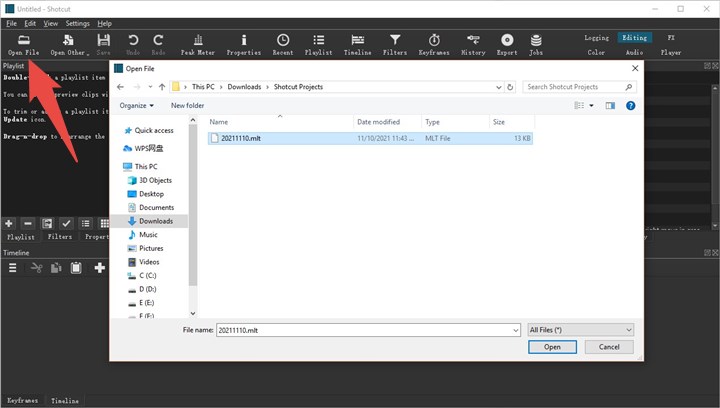
Step 3. Then Shotcut would start scanning and reading all media files and their editing settings saved in this MLT file. After the importing finishes, please note that you can go on editing the files, as you prefer.
Step 4. After you finish editing the media file which is sitting in the timeline, now please go to the File menu and find the Export Video button, which will introduce you to the Presets window.
Step 5. In the Presets window, you will find a bunch of video and audio formats used for exporting the file. You can simply choose the Default option, because it will require Shotcut to create a H.264/AAC MP4 file, which can work for almost all platforms, including YouTube.
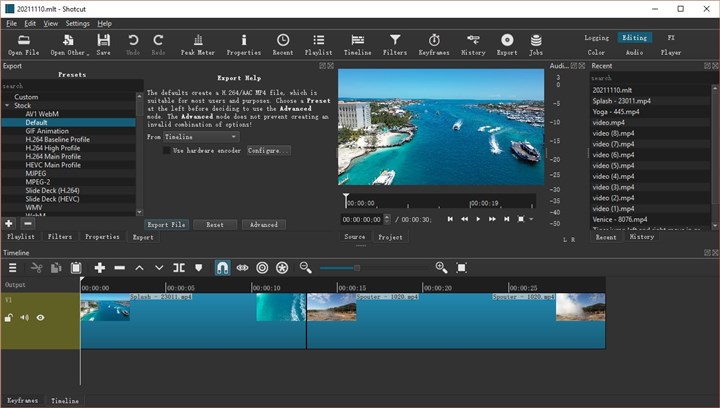
Step 6. Then if you have some specific requirements for the MP4 file resolution, aspect ratio, frame rate, etc. you can click on the Advanced button to easily adjust them.
Step 7. Lastly, you can simply click on the Export button to save the MLT file as an MP4 file on your computer now.
The Bottom Line
Here is a bonus tip for the MLT file. Even though we have mentioned that you can only open the MLT in the Shotcut program, in fact, you can also use an XML editor to view it. However, it is definitely not recommended for you to edit or modify an MLT file in the XML editor. Because it may lead to the file being corrupted and Shotcut would crash when importing this file.
About The Author

Cecilia Hwung is the marketing manager of Digiarty Software and the editor-in-chief of the VideoProc team. She pursues common progress with her team and expects to share creative content and useful information with readers. She has a strong interest in copywriting and rich experience in editing tips.
Home > Media Converter > How to Convert MLT to MP4
VideoProc is a primary branch of Digiarty Software that is a leading multimedia software company founded in 2006. It endeavors to provide easier hardware-accelerated video audio editing and conversion solutions. The installed base of the VideoProc product has reached 4.6 million units from 180 countries since its release 5 years ago.
[Newest Solution in 2023] How to Convert MLT to MP4 Effortlessly
Download Video Converter FREE Now! Convert HD videos, MTS, M2TS files to MP4, MKV, AVI and more than 180+ formats Windows and Mac.
The MLT (Media Lovin’ Toolkit ) is an open source multimedia framework, designed and developed for television broadcasting. You might encounter the problem that you cannot open the MLT files on your computer. If you open it on your Windows/ Mac/ iPhone/ Android, you will receive a message “How do you want to open this file?”, “Windows cannot open this file” or some other similar alert. There may be several reasons. The most common reason is the lack of a suitable application that supports MLT among those that are installed on your computer. A simple way to solve this problem is to find and download appropriate software supporting the MLT files. Do you find any software that supports playing MLT files on your computer or phone? If not, we suggest converting MLT to a more popular format, such as the MP4 format. It is widely used today for almost every device. Next, let’s see how to do it. You may also like to read: How to convert MOV to MP4 on computer?
- Part1: The Best MLT to MP4 Converter
- Part2: How to Convert MLT to MP4
Part1: The Best MLT to MP4 Converter
When it comes to converting video on the computer, the video converter tool is necessary. In today’s article, I will introduce an easy-used but powerful tool for all of you.
Video Converter is a professional application that lets you convert videos not just to MLT but to other video formats as well including MP4, MTS, M2Ts, AVCHD, WMV, and etc.
With it, you will not just be able to convert videos to play on your computer players, but on other devices as well like iPhone, Android, Xbox One/360, and more.
Furthermore, it can convert videos into audio files with formats like MP3, AAV, and FLAV. So, if you wish to get only the audio part of a specific video, it is possible with this program and you can choose the format that would play on your audio player.
This video converter also allows editing of videos before conversion. Some of its edit features include Effect, Crop, Trim, and Subtitle. It is more convenient as you don’t need to use another application for simple video editing. You can easily personalize any video with this capability.
It has a user-friendly interface and is not difficult to learn how to use it. What’s more, it allows batch conversion. You can convert several videos simultaneously, which saves time.