How to Cancel a Google Calendar Event

We’ve all been there. Trying to juggle schedules and commitments only to find that we need to cancel meetings. It happens all the time, but the good news is that Google Calendar can help you handle these situations.
In this blog post, we will cover the following:
- How to cancel Google Calendar events (single and recurring)
- How to notify attendees about a canceled meeting
- How to craft a cancellation message and sample template
- Best practices for canceling meetings
How to Cancel a Google Calendar Event for Everyone (for Organizers)
If you delete a Google Calendar event as a meeting organizer, you will also delete it for all attendees. To proceed, follow these steps:
- From your desktop computer or laptop, open Google Calendar.
- Select the event you want to cancel.
- Click the trash can icon to delete the event.
All event participants will also receive an email confirming cancellation.

How to Cancel a Google Calendar Meeting Only for Yourself (for Attendees)
If you are an attendee, you can cancel and delete an event from your Google Calendar. Here’s how:
- From your desktop computer or laptop, open Google Calendar.
- Select the event you want to cancel.
- Click the trash can icon to delete the event.
Note that this action does not delete the event from the calendar of other attendees.
How to Delete a Google Calendar Event You’re Invited to
Method 1: On Gmail
When someone invites you to an event, you will receive the invitation via email. You can delete this event by clicking “No” in the invitation, as shown below:
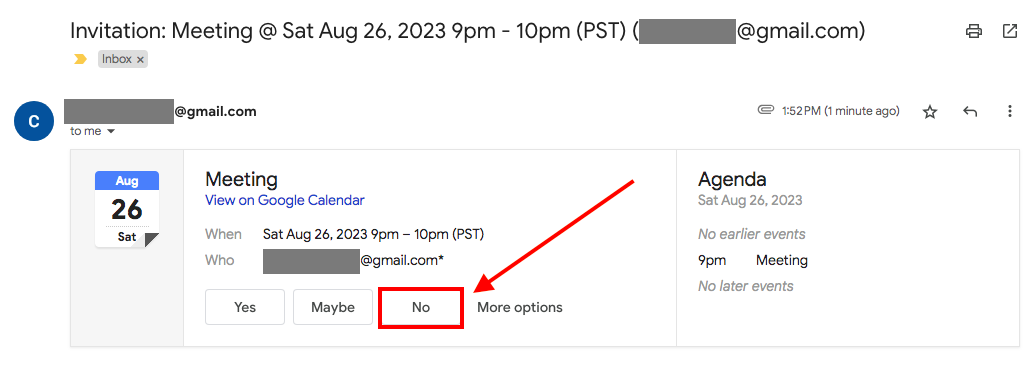
If you’re declining a recurring event you’re invited to, you can choose to delete:
- Only this event;
- This and following events; or
- All events
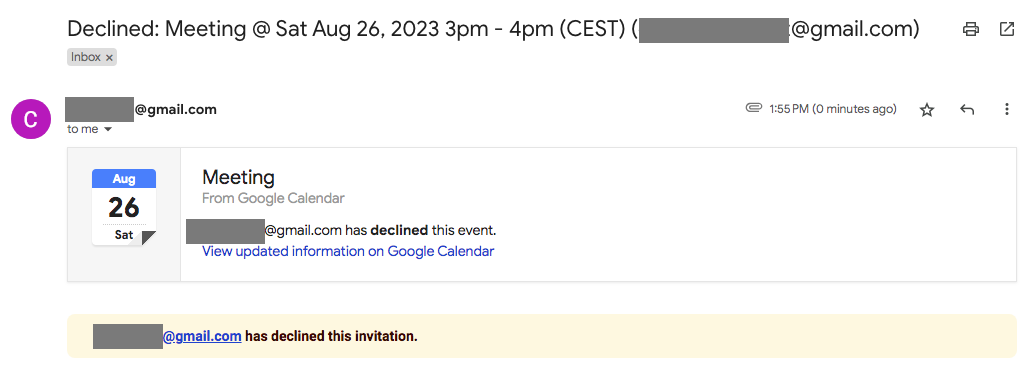
Note: When you click “No”, Google Calendar informs the event organizer via email. They’ll get an email that looks like this.
Method 2: On Google Calendar
You can also delete a Google Calendar event directly from Google Calendar. To do that, follow these steps:
- From your desktop computer or laptop, open Google Calendar.
- Select the event you want to remove.
- Click the trash can icon to delete the event.
If you can’t join the meeting, inform the event organizer via Google Calendar’s message window, and give a brief explanation why.
How to Cancel a Recurring Event in Google Calendar
A recurring event is set to repeat daily, weekly, bi-weekly, monthly, or yearly. When you delete a repeating event, you’ll have the following options:
- This event or Only this instance — deletes this particular event. This action doesn’t delete any future events and meetings
- This and following events or All following — deletes this recurring event meeting and future meetings
- All events or All events in the series — deletes all recurring events in the series
Note: You won’t find these options if someone else created the event.
Canceling a single event on Google Calendar affects only that specific occurrence. It leaves the rest of the event series untouched. This can be useful for handling isolated conflicts or changes. For example, if you have a weekly marketing call and you won’t be able to attend this week’s meeting, you only need to delete the meeting for this week. No need to delete future weekly meetings.
On the other hand, canceling the entire series removes all events. This works great when the entire series is no longer needed or should be rescheduled. For example, if you no longer need to meet your team weekly, you can delete the entire series.
You may want to think twice before canceling. If you delete an event, it goes to the trash bin and will remain there for 30 days, during which you can restore it. We’ll go through how this works in a little more detail later on.
How to Notify Attendees About a Canceled Event in Google Calendar
When you cancel a Google Calendar meeting from your computer, you can choose whether you want to notify the attendees or not. Here are the two options you will find:
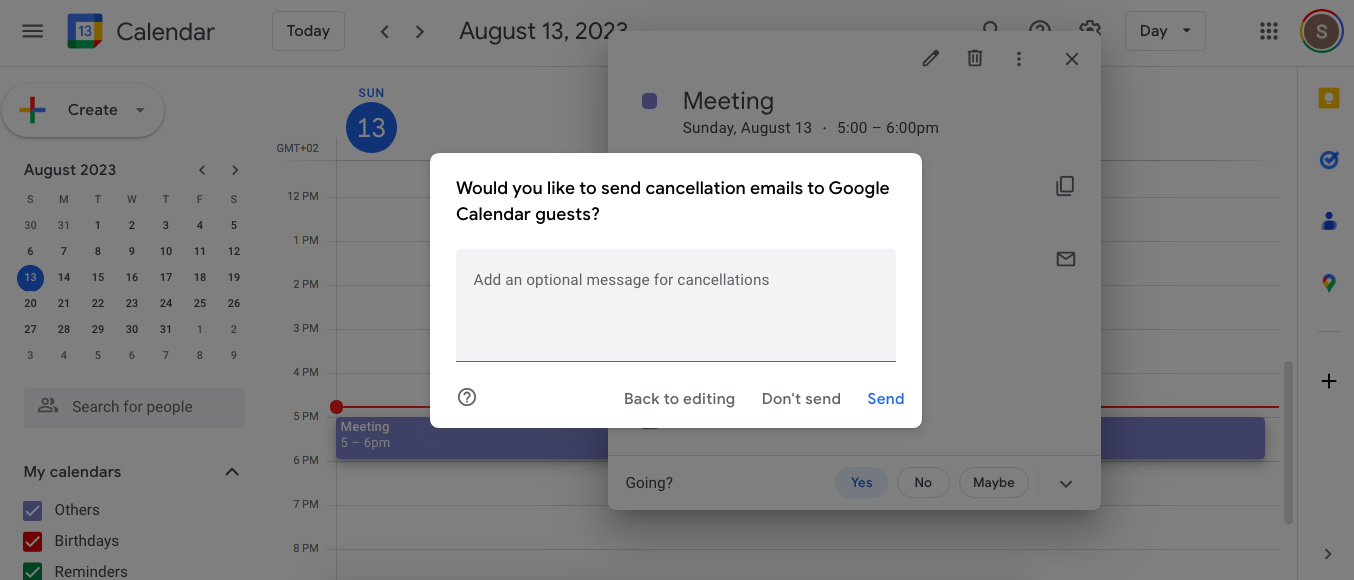
- ‘Send’ — select this to notify attendees of the cancellation. You can include a message explaining the reason for cancellation.
- ‘Don’t send’ — select this if you do not wish to notify anyone about the cancellation.
What Happens When You Delete a Google Calendar Event
If you delete a Google Calendar event as an organizer, you’ll cancel the meeting entirely. This includes any reminder notifications. The deleted event will be in the trash bin for 30 days, and you have the option to restore it.

- Go to Google Calendar.
- Click the gear icon on the upper right to open the settings and select ‘Trash’.
- Hover over the event and click the ‘Restore’ icon.
Best Practices for Canceling a Google Calendar Event
Canceling a Google Calendar event requires finesse to maintain professionalism and positive relationships. Here are some suggestions for when you find yourself needing to cancel a meeting:
- If you can, give 24-hour notice when canceling a meeting.
- Provide a clear reason why you want to cancel the meeting.
- If rescheduling the meeting, please provide at least three options. It’s easier to follow the same time and move it to a different day, especially if you’re in different time zones.
- If you can’t attend the meeting, ask for the recording or the transcription.
Quickly Transcribe and Summarize Your Meetings with Tactiq

If you can’t attend a Google Calendar meeting, meeting transcription tool Tactiq will come in handy.
By transcribing and summarizing these meetings, Tactiq ensures you stay updated on everything that’s been discussed. This way, you can quickly understand the context and contribute with participants after the event — even though you weren’t able to attend.
Think of Tactiq as a virtual note-taker that helps you stay informed.
To install Tactiq on your computer, simply follow these steps:
- Visit the Chrome Web Store.
- Click ‘Add to Chrome’ on the right-hand side of the page, then ‘Add Extension’.
- Go to Google Meet. The Tactiq widget will be on the right-hand side of the screen.
If you wanna learn more about how to send a Google Meet invite, click here: How to Send a Google Meet Invite.
Canceling Google Calendar Events Made Easy
In this blog post, we’ve discussed the basics of cancelling a Google Calendar event, from the technicalities to etiquette around cancellation.
It’s important to remember that no one will mind if you cancel a meeting politely, with good reason, and in good time. Your approach matters so much because it’s a reflection of the value you place on others’ time.
How To Undo In Google Calendar

Learn the essential steps to quickly undo actions in Google Calendar.
Enter Google Calendar, your trusted digital scheduler, where undoing changes is made simple. Whether you accidentally deleted an event, shifted the wrong appointment, or made an edit you didn’t intend, fear not.
In this guide, we’ll walk you through the art of undoing in Google Calendar, ensuring you stay on top of your schedule with confidence.
Important disclosure: we’re proud affiliates of some tools mentioned in this guide. If you click an affiliate link and subsequently make a purchase, we will earn a small commission at no additional cost to you (you pay nothing extra). For more information, read our affiliate disclosure.
How To Undo In Google Calendar ↩️
After performing any action (such as creating an Event, exploring Additional Tips, or managing Tasks), you’ll notice a notification at the bottom. This notification will inform you about the option to undo the action. Don’t hesitate to click on «Undo» if you are dissatisfied with the outcome.
Your action will be promptly reversed, ensuring that your experience with Google Calendar meets your expectations.

This notification will promptly vanish after a few seconds but offers the chance to undo the action.

If you weren’t able to undo an action in time, don’t worry – you always have the option to delete any event if needed.
Frequently Asked Questions ��
How long does the notification to undo an action stay visible?
The notification appears for a brief period, typically a few seconds. If you miss the notification, you can still access the «Undo» option from the bottom-left corner of the screen.
Is the «Undo» feature available for mobile devices as well?
Yes, the «Undo» feature is available on mobile devices. When you perform an action, the notification to undo the action will appear at the bottom of the screen, just like on desktop.
Can I use the «Undo» feature to restore deleted events or tasks?
Yes, you can use the «Undo» feature to restore accidentally deleted events or tasks. The action will be swiftly undone, and the event or task will be restored to your calendar.
Final Thoughts
In the realm of scheduling, Google Calendar’s «Undo» feature is your ally. It empowers you to rectify actions swiftly, from event changes to participant updates. Don’t fret if the undo notification disappears fast – you’re always in charge.
If a decision doesn’t sit well, use «Undo» to revert. With this tool, your calendar stays efficient and effective, adapting to your needs flawlessly.
Keep scheduling with confidence!
What happens if you can’t undo an action in time?
How to Cancel an Event in Google Calendar

In an ever-changing world, it is nice to have manageable tools by your side to help organize your schedule. Google Calendar provides many features that assist in scheduling, managing, and inviting people to events.
Users can also cancel events, delete goals, or remove tasks with a few clicks. This article will discuss how to cancel an event in Google Calendar in different situations.
Remove Events from the Desktop Version
How to Cancel an Event in Google Calendar
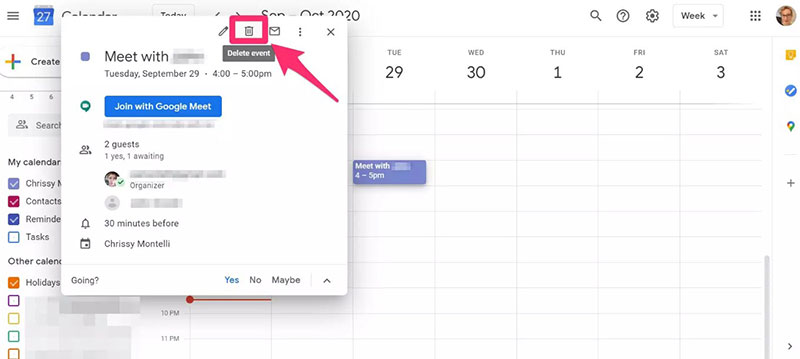
Canceling an event on Google Calendar is straightforward and simple. To cancel an event on the desktop version first open Google Calendar.
Next, locate the Google event you wish to cancel. Users can select the date from the mini calendar on the left side of the screen. Or they can use the Schedule view to see all upcoming events.
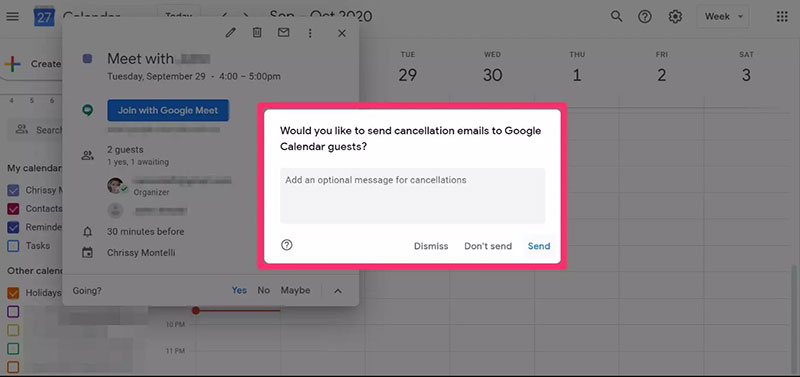
Once you locate the event, click on it. A window will pop up offering different options. To delete the event, click on the trash can icon. If you have invited guests to the event, Google will ask if you wish to send a cancellation email to them.
It also allows users to write an explanation for the cancellation. Click on Don’t Send or Send and then the event is canceled. The event will be removed from the calendars of the guests.
Another way to delete events is to right-click on the event and then select Delete. Or users can click on the pencil icon to edit the event. On the editing window, click on the drop-down menu that says More Options and select Delete.
If you did not create the event, you cannot cancel it, but you can remove it from the calendar.
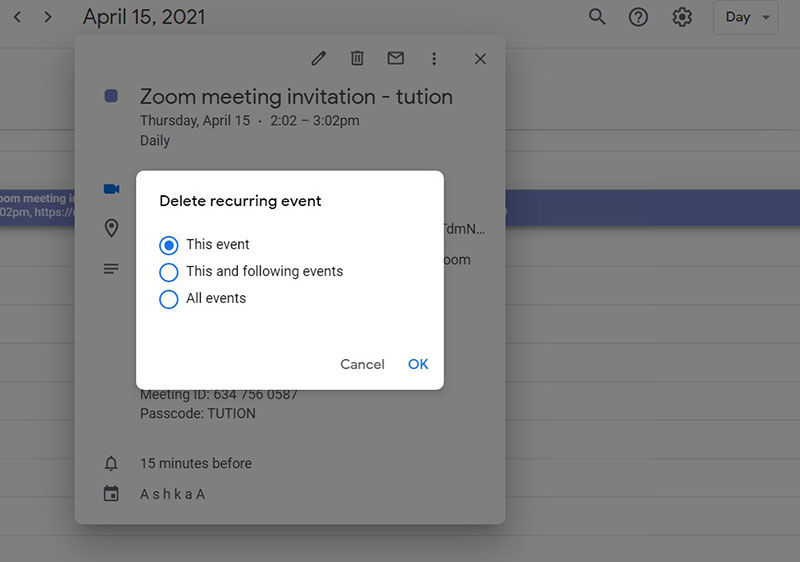
To delete a recurring event, click on the event. Then, click on the trash can icon. Google Calendar will give you three options.
- Option number one: Delete This event will delete this occurrence of the event but keep all future events.
- Option number two: Delete This and following events will delete the recurring event from that time forward.
- Option number three: Delete All events will delete every occurrence of the recurring event.
The creator of the Google event is the only person with the authority to cancel an event for all guests. If a user has a shared calendar they can delete an event from their personal calendar but it will stay on the shared calendar unless the creator of the event deletes it.
After deleting an event, it may not be removed from Google’s servers right away and thus may remain on backup copies of the calendar.
How to Permanently Delete a Google Event
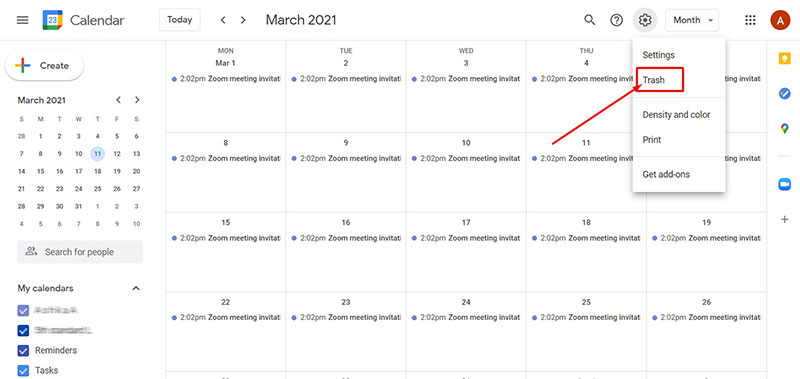
After a user deletes an event it stays in the trash for thirty days in case the user wants to restore it. Users who have “Make changes to events” or “Make changes AND manage sharing” permission for the calendar can delete events and restore events from the trash. Users can only access the trash from a computer.
This is how to delete an event from Google Calendar forever:
- Open Google Calendar
- On the right-hand side of the top toolbar click on the gear icon to open settings
- Select Trash
- Hover or click on an individual event
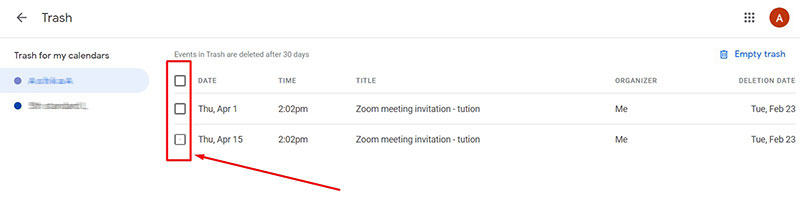
- Click on the trash can icon to delete the event forever
- To delete more than one event, checkmark each event you wish to delete
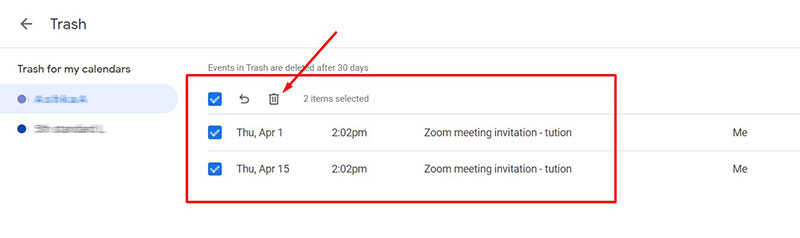
- Click on the trash can icon that appears at the top of the list
- To delete all events, select the Empty trash button that appears in the top right corner
- Then press Empty
How to Restore Deleted Events
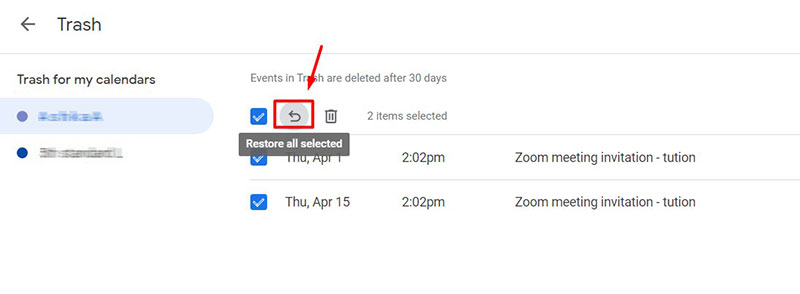
Users can restore deleted events within thirty days of deletion. Google Calendar might move events to the trash if it suspects spam. Or with shared calendar accounts, the Administrator can move events to the trash.
To restore deleted events follow these steps:
- Open Google Calendar
- Click on the gear icon to open settings
- Select Trash
- Hover or select an individual event and press on the back arrow icon to restore it
- To restore more than one event, checkmark all the events you wish to restore. Next, press the back arrow icon that appears at the top of the list
How To Cancel an Event In Google Calendar On a Mobile Device
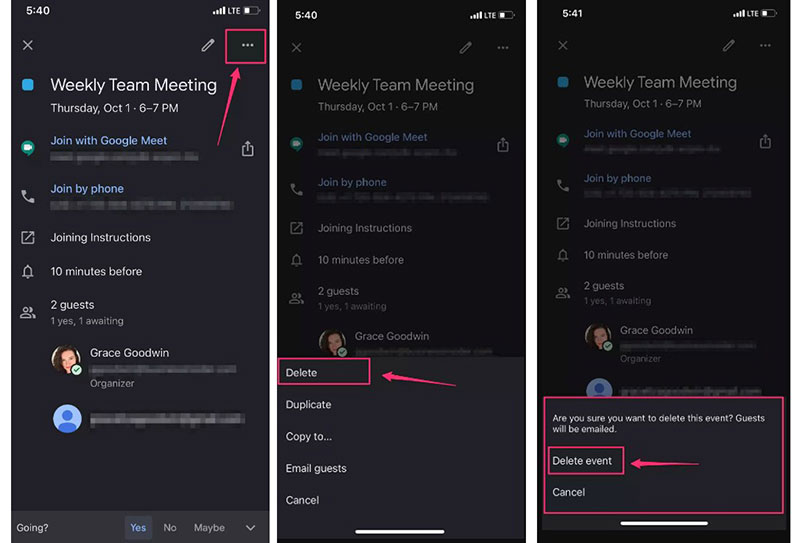
Canceling and deleting events in the Google Calendar mobile app is similar to on a desktop.
- First, open Google Calendar
- Tap on the event you wish to cancel
- Press on the three dots in the top right corner of the event window
- Select Delete
- Tap Delete event. Google Calendar will send a cancellation email to the guests
Follow the same steps to delete a recurring event or a goal on the mobile app. The app will offer the same three options as the desktop version. Users can delete one event, from the selected event and forward, or all the recurring events.
Remove Calendars and Other Events
Remove a Google Event Invite
When you decline a Google invite to join an event, Google Calendar will notify the organizer. To remove the declined event from your calendar, click on the event. Then press Remove or Remove from this calendar.
Delete Google Calendars and All Events
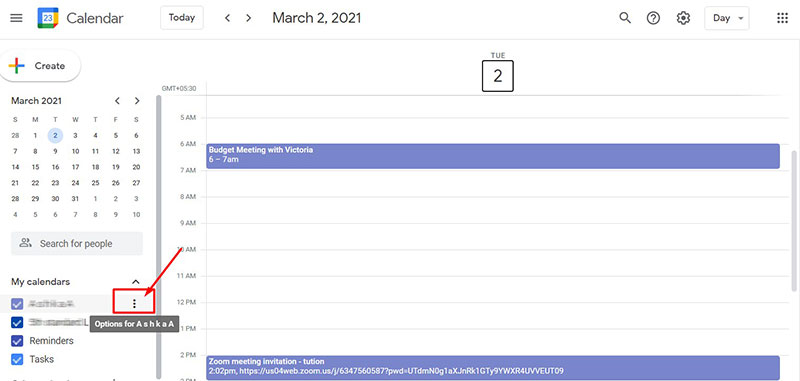
Google Calendar users can delete all the events on their calendar. If you have more than one calendar, delete the secondary calendars first. Users have to delete secondary calendars to delete all the events from their primary calendar.
Here is how to delete a Google calendar on a desktop:
- Open Google Calendar
- On the left side of the screen under My calendars, hover over the calendar you want to delete
- Click on the three-dot menu that appears next to the calendar
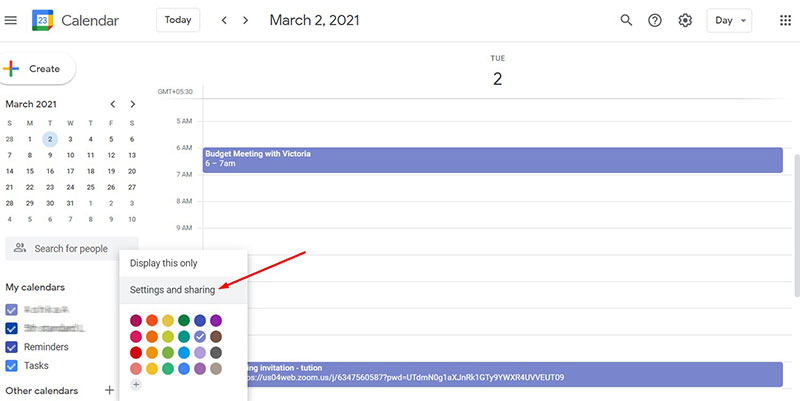
- Select Settings and sharing
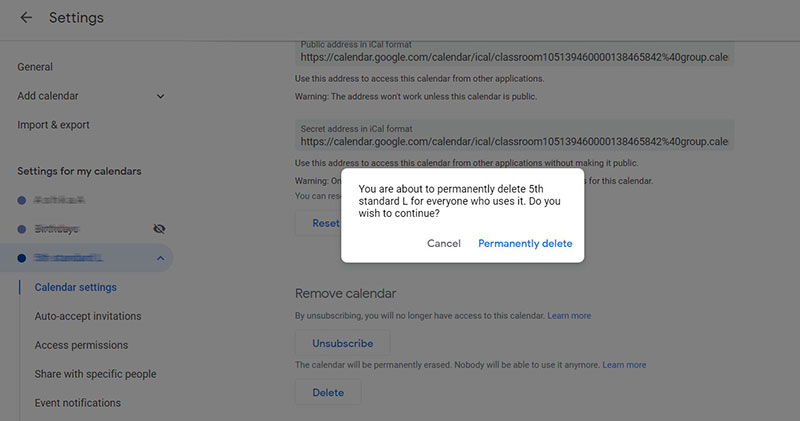
- Scroll to the bottom of the page and select Delete
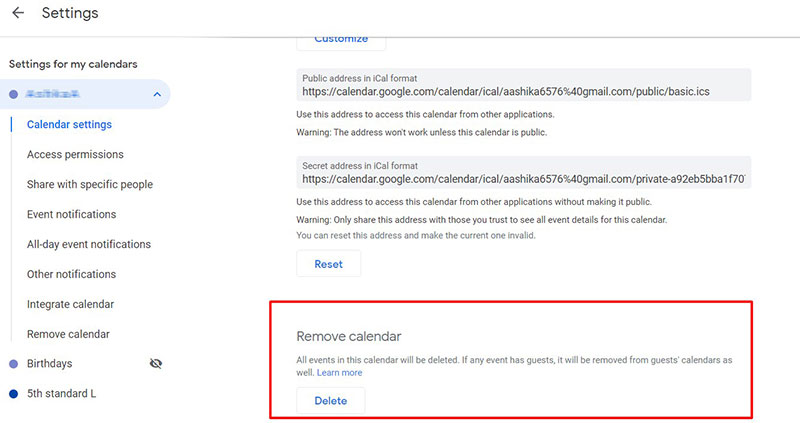
- The events of that calendar will be deleted from the primary calendar
The primary Google calendar cannot be deleted but all the events in the calendar can be canceled.
To cancel all the events on the primary calendar follow these steps:
- Under My calendars hover over the primary calendar
- Click on the three-dot menu
- Select Settings and sharing
- Scroll to the bottom of the page
- Under Remove calendar press Delete. This will delete any events in the primary calendar. Any events that had guests will be deleted from the guests’ calendar.
Ending thoughts on how to cancel an event in Google Calendar
Google Calendar is an excellent scheduling app that many people recommend. Some of its benefits include the fact that it is free and accessible. As this guide for how to cancel an event in Google Calendar shows, navigating the application is simple. Another benefit of Google Calendar is that it integrates with many other applications.
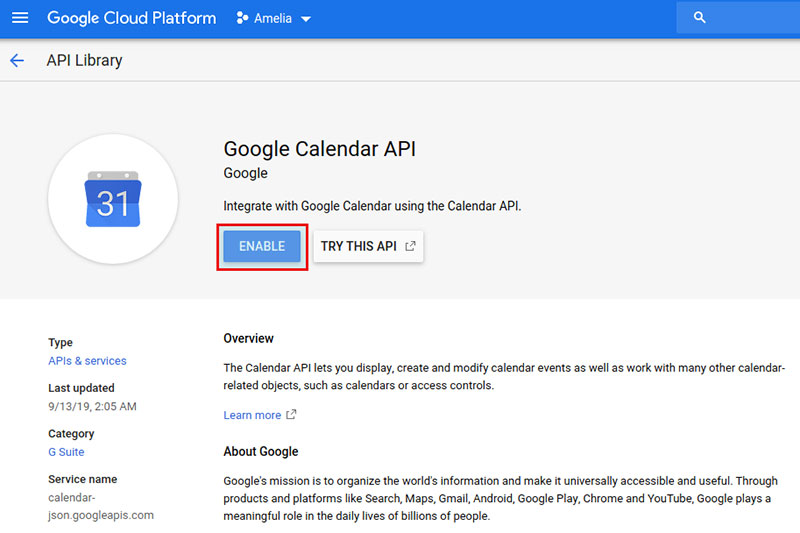
One software that Google Calendar integrates with is Amelia. Amelia is an online booking software. Amelia facilitates the booking process so that employees’ calendars update as soon as a customer makes an appointment.
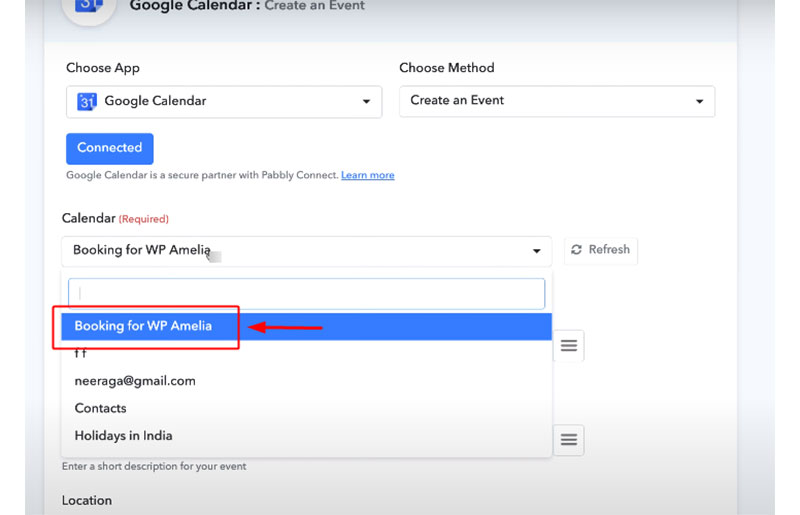
Employees can manage their schedules with ease and mark when they are free or busy. Customers can see the schedules of the employees and can make an appointment when they are available so as to not overbook.
When an appointment is booked, a confirmation email is sent and the appointment is scheduled in Google Calendar.
Users can then use either Google Calendar or Amelia to update, reschedule or delete the appointment. Two-way synchronization makes sure that the appointment is updated on every platform.
If you enjoyed reading this article on how to cancel an event in Google Calendar, you should check out this one comparing Google Calendar vs Apple Calendar.
How to Cancel a Google Calendar Event (Desktop & Mobile)
Google Calendar events are an excellent way to manage your meetings, appointments, and calls. Many people rely on these to organize their personal and professional lives and keep track of their weekly schedules. However, sometimes we just need to cancel an event due to various reasons—and we want to do it correctly. In this post, we’ll explain how to cancel a Google Calendar event notifying guests and how you can do it both on your computer and smartphone.
Table of contents
- How to cancel a Google Calendar event on desktop
- 1. Open Google Calendar
- 2. Locate the event
- 3. Delete the event
- 4. Optional: delete the recurring event
- 5. Confirm deletion and notify guests
- 1. Open the app
- 2. Find the event
- 3. Locate the three dots icon
- 4. Tap on Delete
- 5. Optional: Delete recurring event
- 6. Notify guests
How to cancel a Google Calendar event on desktop
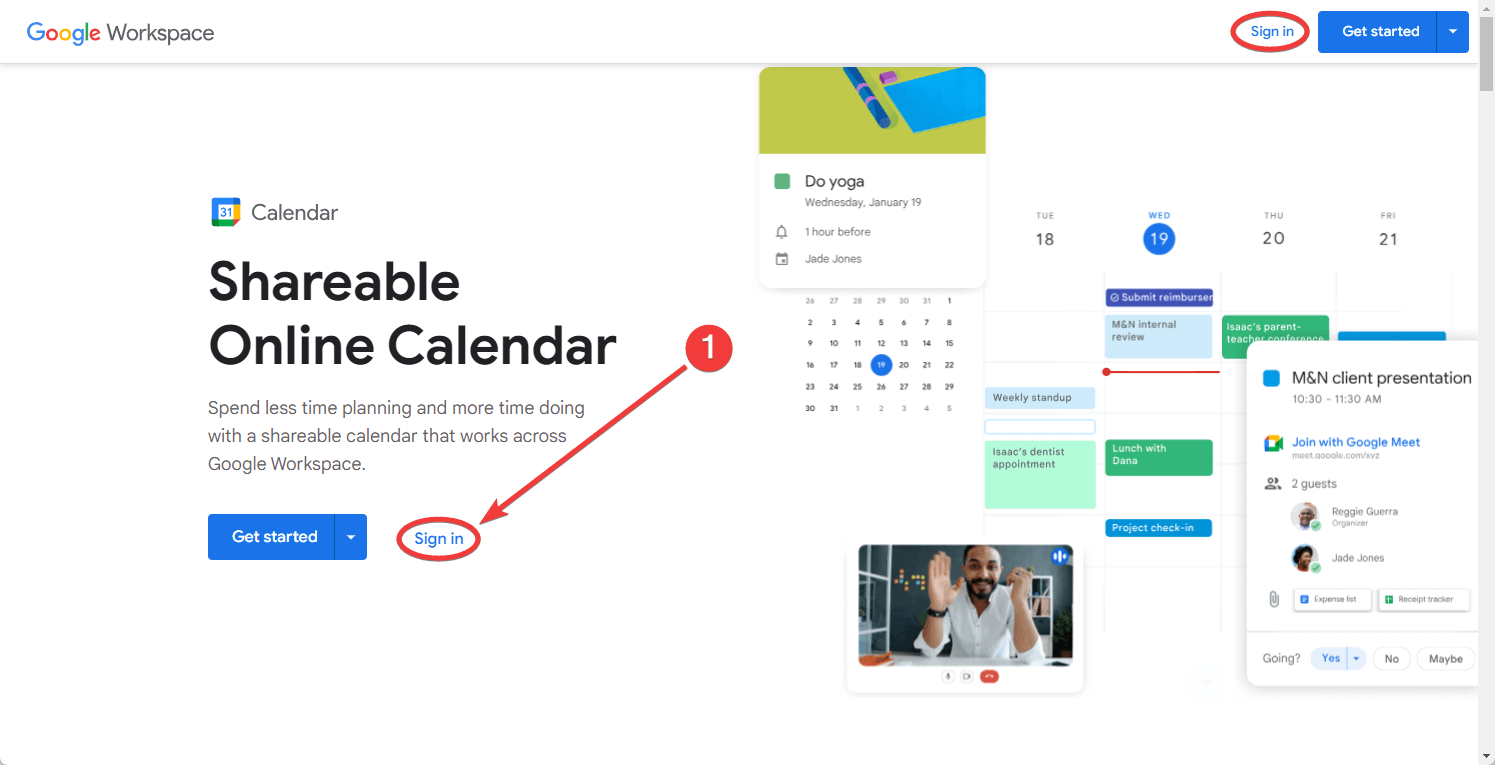
1. Open Google Calendar
Navigate to Google Calendar on your computer and sign in with the Google account you have the event in.
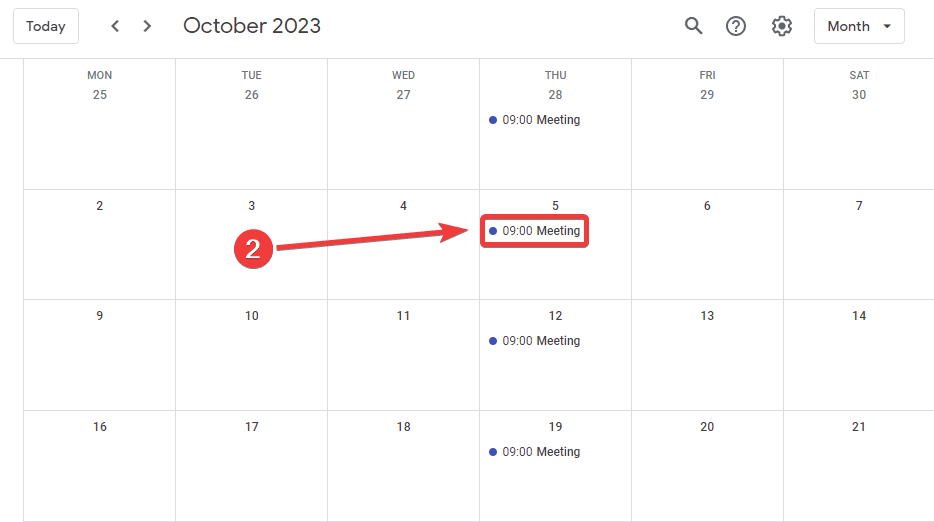
2. Locate the event
Browse through your calendar to find the event you wish to cancel. Click on the event to open its details.
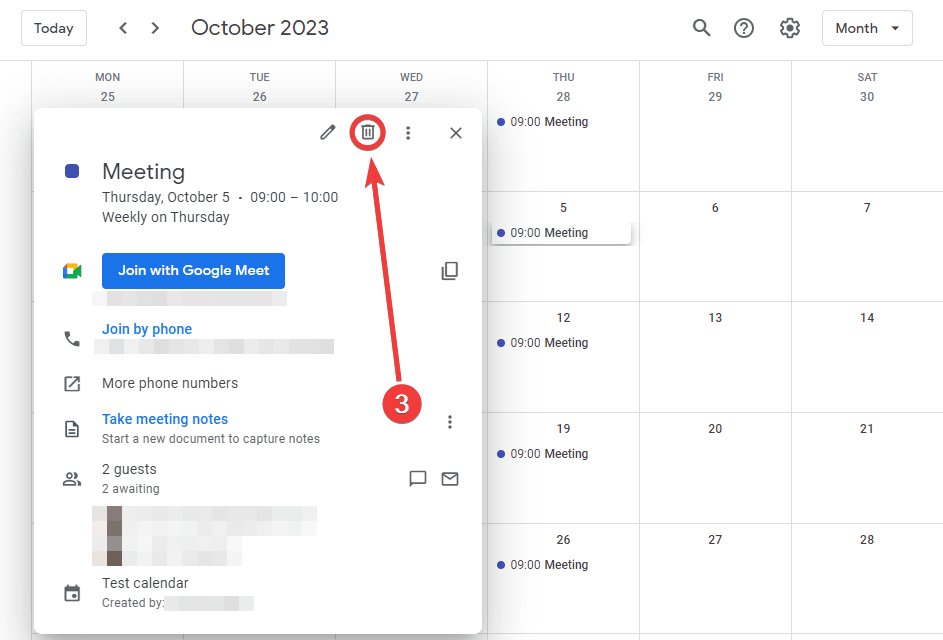
3. Delete the event
Once the event details pop up, you’ll see a trash bin icon on the top menu. Click on this icon to delete the event.
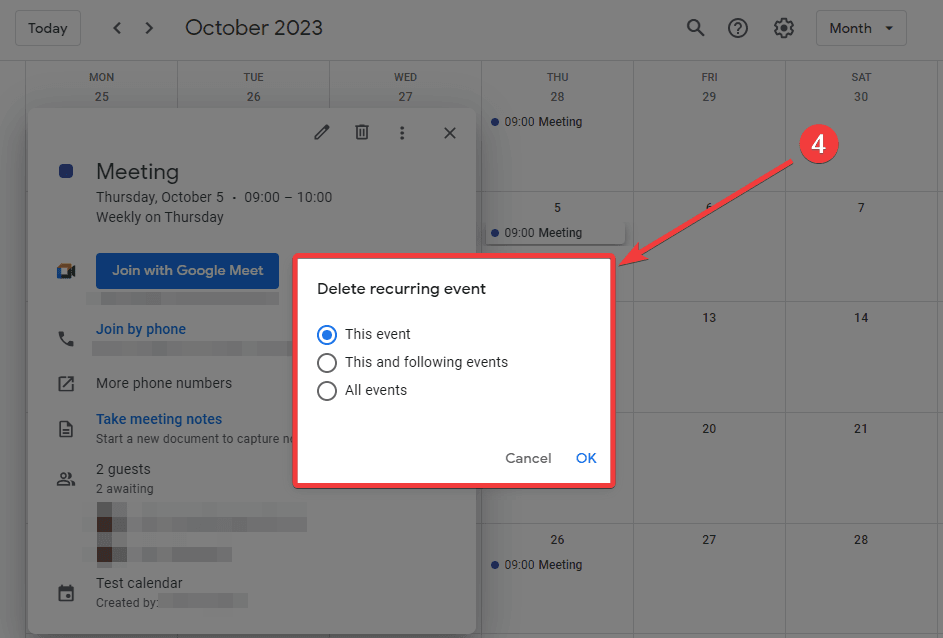
4. Optional: delete the recurring event
If the event you want to delete is a recurring event, you’ll be able to delete only the current event, the current one and the following events, and all the repeated events from this set (including those in the past).
Click OK when you have selected your preferred option, and you’re good to go!
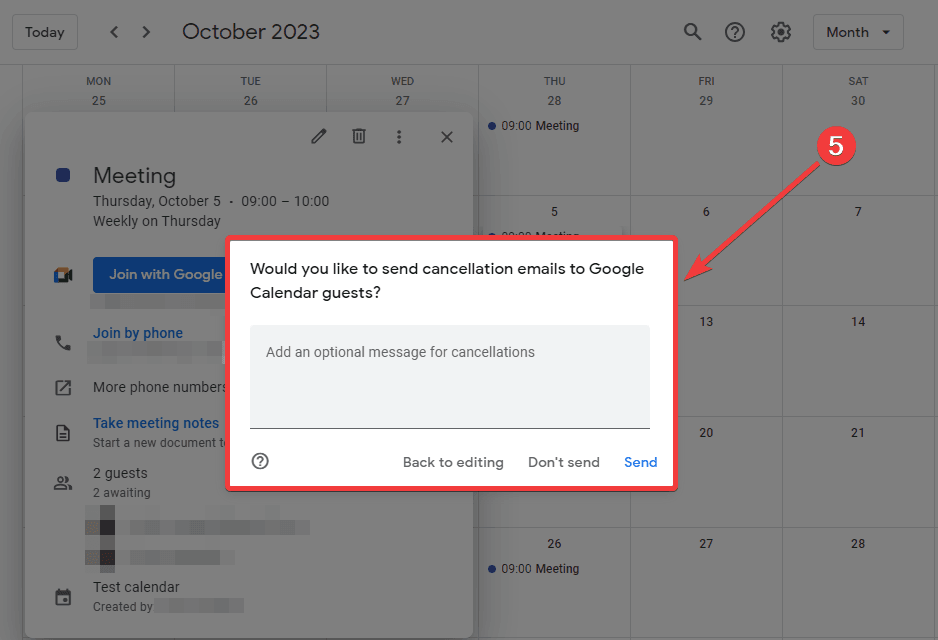
5. Confirm deletion and notify guests
A prompt will appear asking if you’d like to notify guests via email. From here, you can add an optional message to explain the reasons for the deletion. Choose your preferred option.
How to cancel a Google Calendar event on mobile
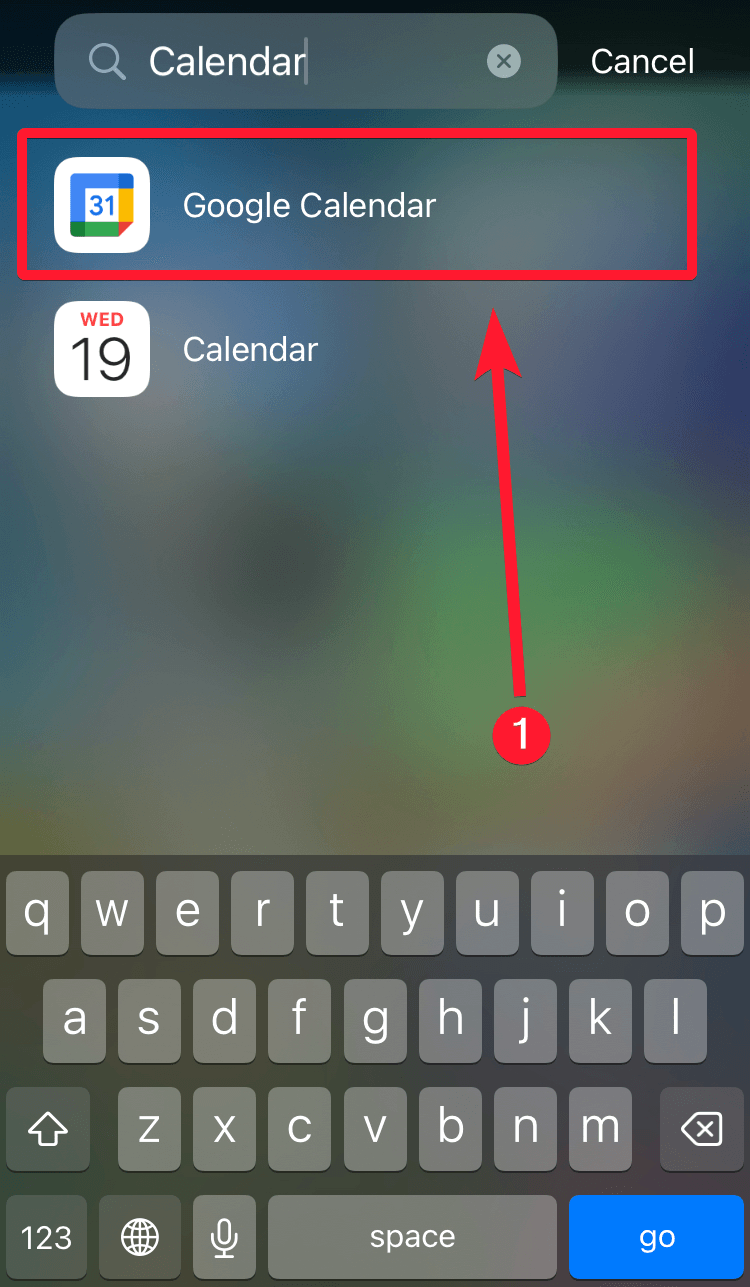
1. Open the app
Tap on the Google Calendar app on your mobile device.
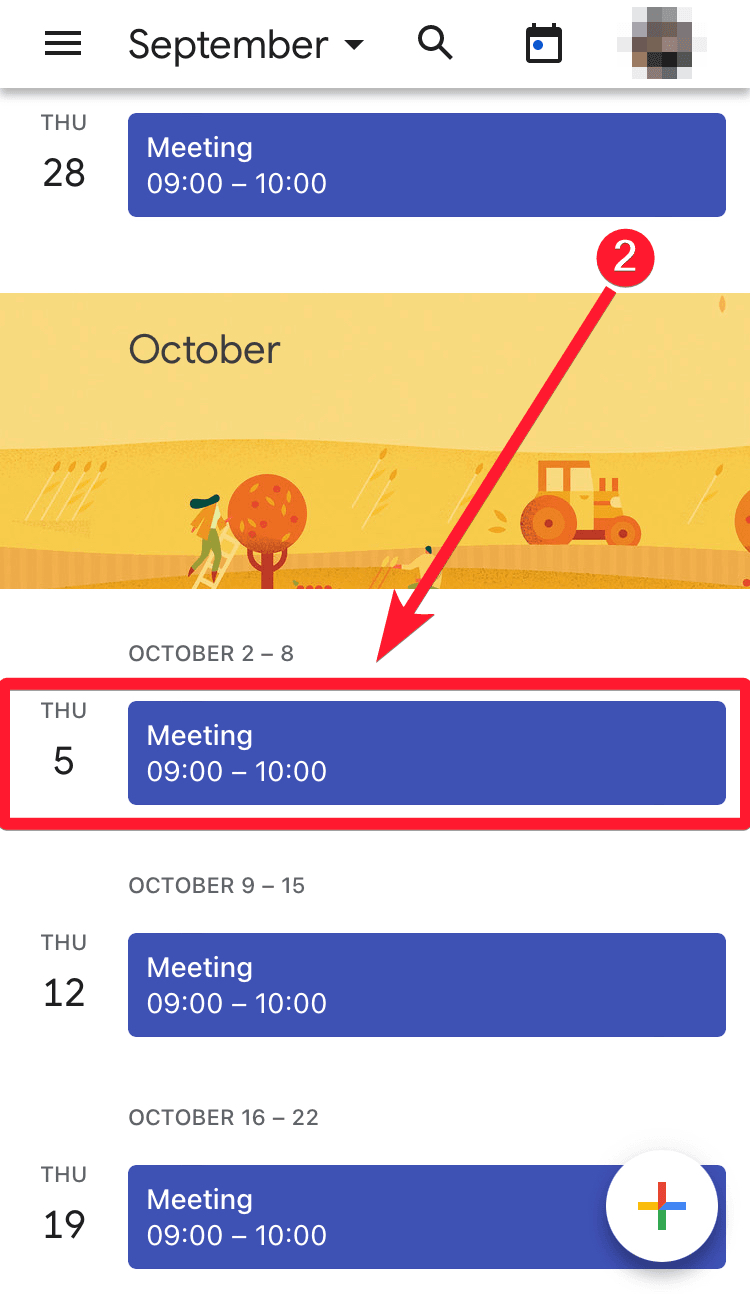
2. Find the event
Scroll through your calendar and tap on the event you want to cancel.
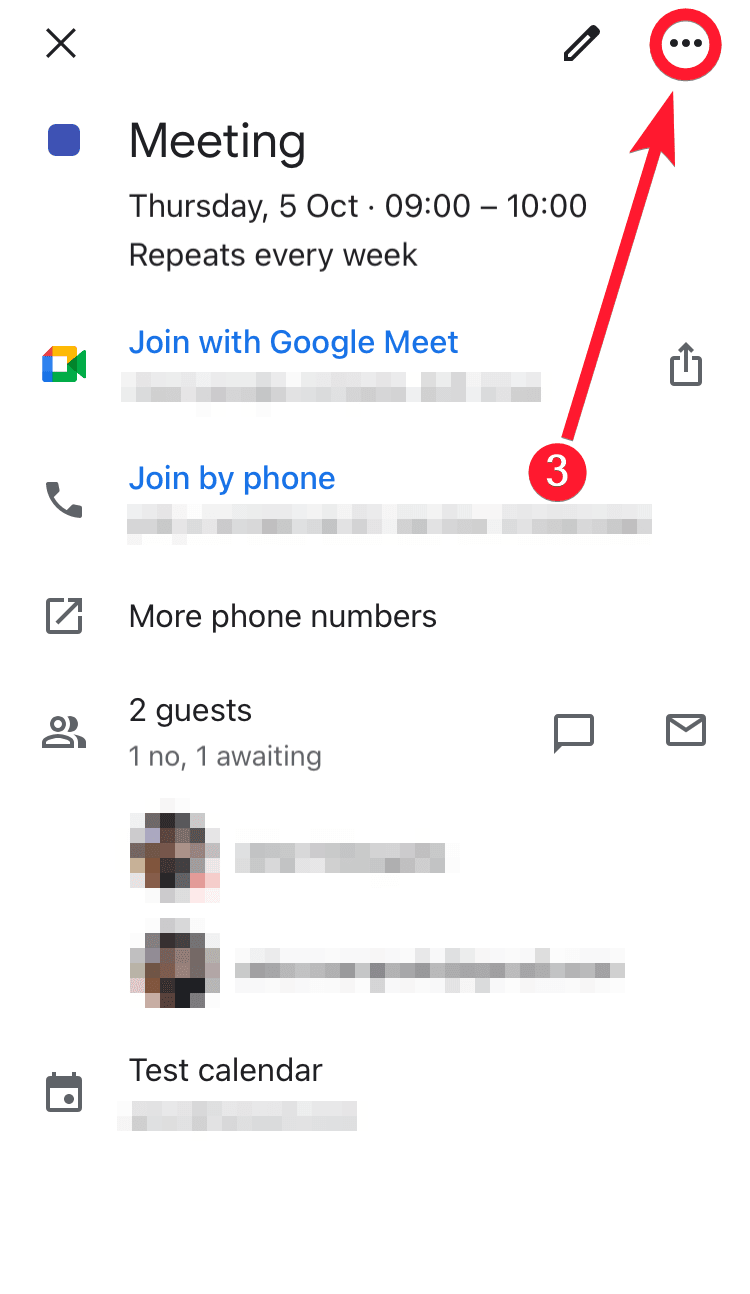
3. Locate the three dots icon
Once you tap on the event, its details will appear. Look for the three dots icon and tap on it.
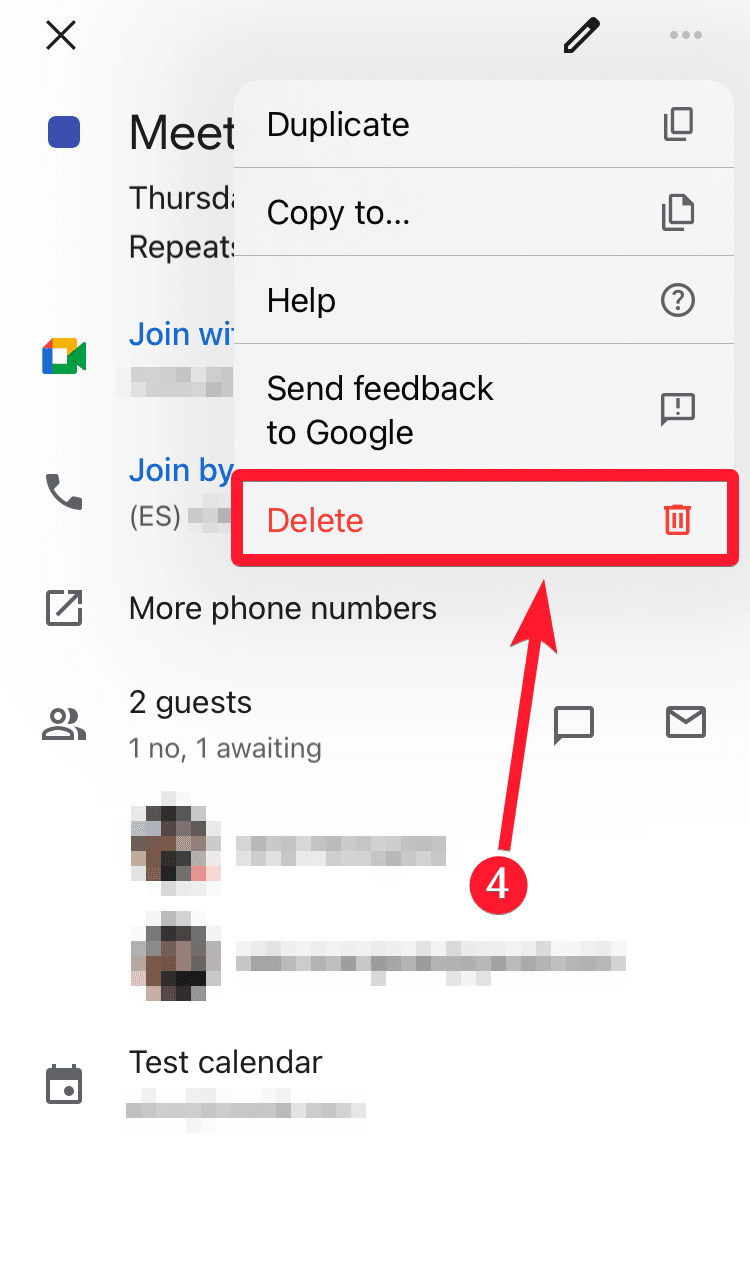
4. Tap on Delete
Next, you’ll find a Delete option with a trash bin icon. Tap on it.
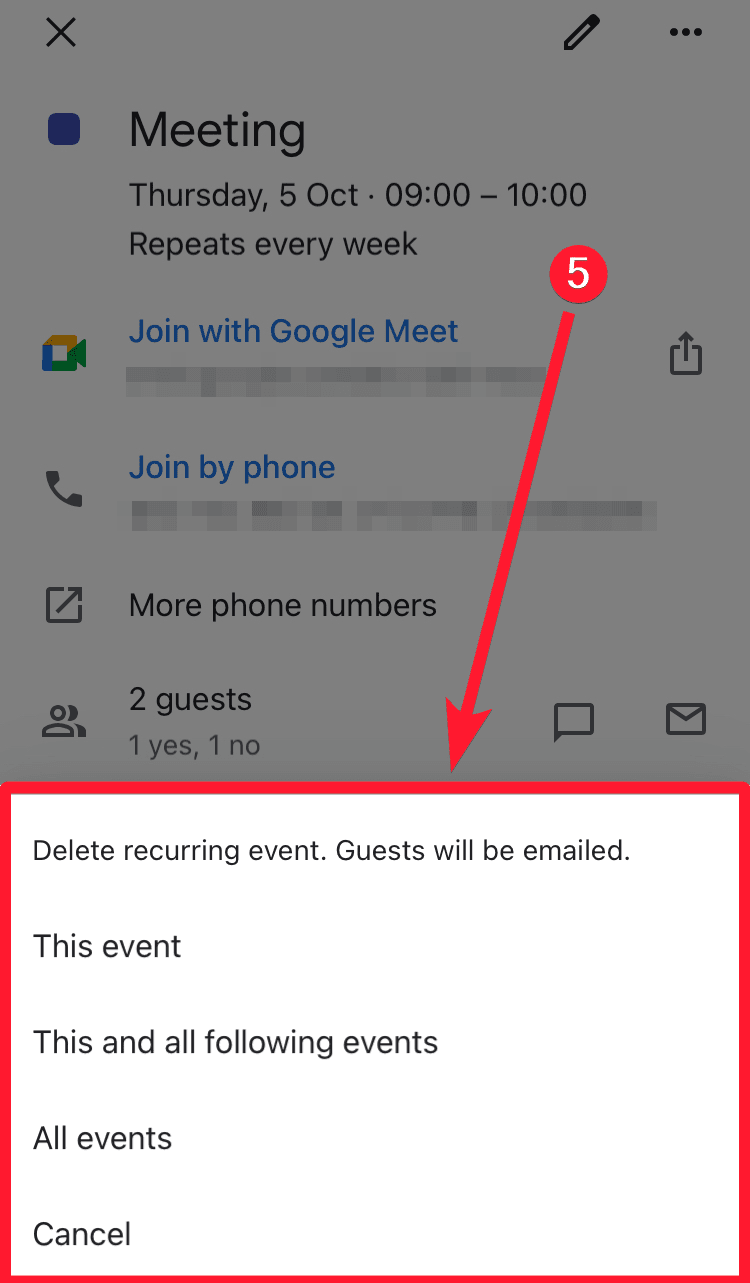
5. Optional: Delete recurring event
If the event you want to delete is a recurring event, you’ll be able to delete only the current event, the current one and the following events, and all the repeated events from this set (including those in the past). Choose your preferred option.
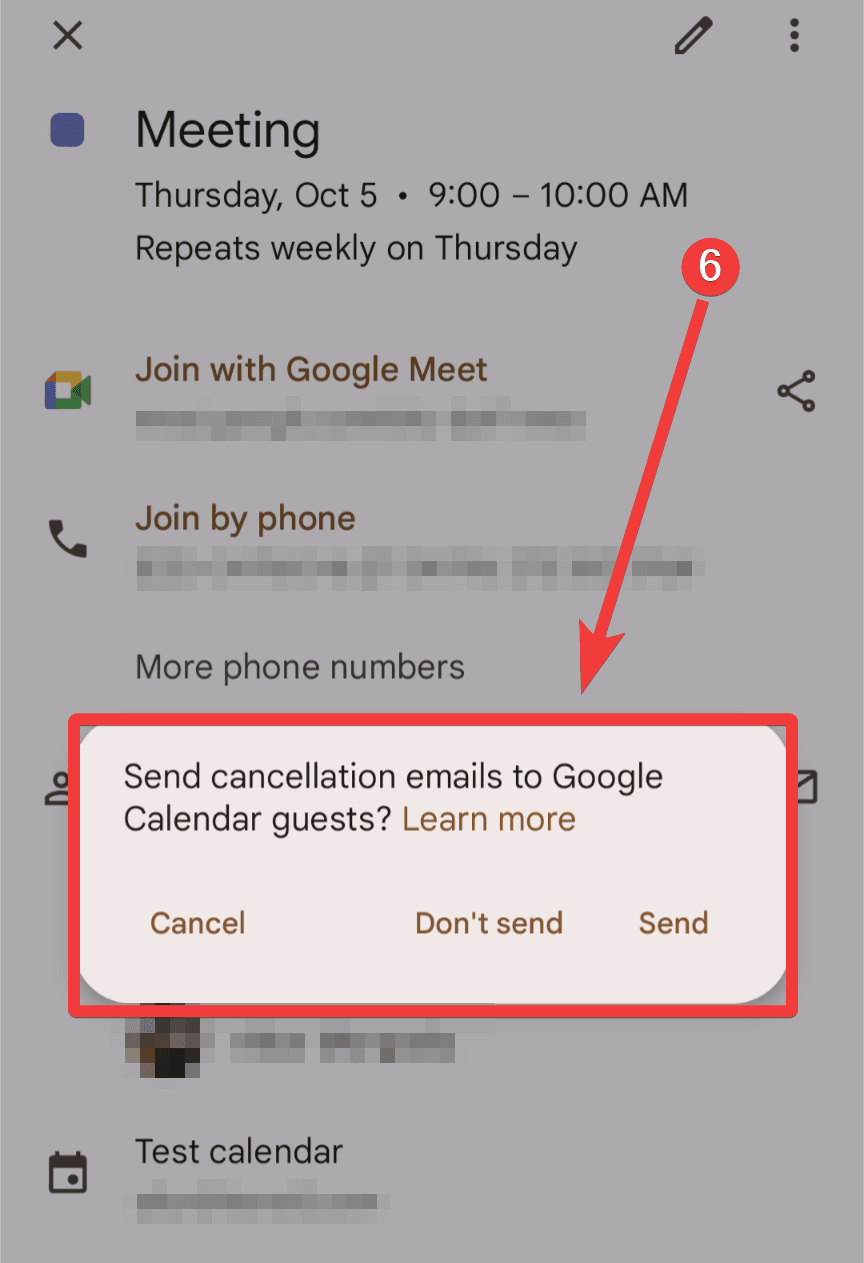
6. Notify guests
A pop-up will ask you if you want to notify guests about the event deletion. Choose your preferred option.
On iOS, the notification may be sent automatically.
Automate your calendar with 2sync
In the dynamic world of digital organization, having a holistic platform to manage tasks, notes, databases, and calendars is invaluable. Enter Notion, an all-in-one organizing software that transforms your work routine. By incorporating Notion into your daily workflow, you not only streamline your processes but also ensure all your tasks and events are in one place.
At 2sync, we take this synergy a step further. Imagine the convenience of syncing your Google Calendar directly with Notion. With our expertise, that’s exactly what you get, among other integrations. This seamless synchronization means you can control your calendar and tasks more effectively, ensuring you never miss a beat.
Dive into the realm of organized efficiency. Let 2sync be your guide in marrying the best of Google Calendar with the versatility of Notion. Try our Google Calendar & Notion sync to further boost your productivity today!
Simo Elalj
Co-Founder at 2sync. Passionate about circular economy, great UX and goats.