Как исправить «Denuvo Driver Error Code 2148204812»?
Помогите избавиться от Denuvo Driver Error Code 2148204812. Ошибка появляется всякий раз, когда пытаюсь запускать Mortal Kombat 11. Не совсем понимаю, что произошло, но раньше игра работала как надо, разве что подлагивала иногда, но у меня слабое железо. Перезагрузка ПК не помогает от слова совсем, а ничего другого я придумать не могу.
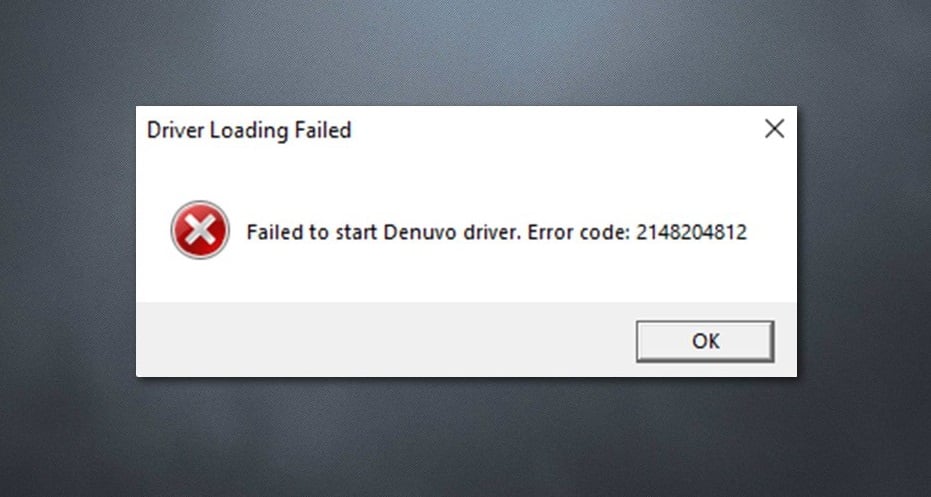
Ошибка «Denuvo Driver Error Code 2148204812» появляется в случае запуска видеоигры, защищенной антипиратским ПО (DRM) Denuvo. От появления такой ошибки, как правило, страдают владельцы лицензионных версий игр. Сообщение ошибки можно перевести следующим образом:
Не удалось инициализировать драйвер Denuvo. Код ошибки: 2148204812
Сложно сказать, почему не удалось пустить в работу драйвер Denuvo, но зачастую это случается по следующим причинам:
- Файлы Denuvo, интегрированные в запускаемой игре, были повреждены.
- Некоторые файлы запускаемой игры были повреждены или изменены.
- Инициализации драйвера Denuvo препятствует иное ПО, например, антивирус.
- «Кривое» обновление Windows мешает нормальной работе Denuvo.
В сегодняшней статье мы покажем вам, как избавиться от ошибки 2148204812 на своем компьютере.
Перезагрузка компьютера
Перезагрузка компьютера помогает крайне редко, но некоторые пользователи в сети все-таки утверждают, что от такого рода проблемы можно избавиться простой перезагрузкой. Если вы все еще не пробовали перезагружать ПК — пробуйте.
Переустановка игры
Как бы вам не хотелось этого делать, переустановка игры может помочь исправить ошибку 2148204812. Удалять внутриигровые сохранения и прочие файлы, располагающиеся в документах системного раздела Windows, не обязательно. Перезагрузите свой ПК после того, как удалите нужную вам игрушку, и только после этого переходите к ее повторной установке.
Удаление последних обновлений Windows
Удивительно, но некоторые обновления ОС Windows могут вызывать появление ошибки 2148204812. Вам нужно удалить последние несколько апдейтов из своей системы, перезагрузить ПК и проверить, была ли решена проблема. Чтобы удалить обновления Windows 10, вам нужно сделать следующее:
- Нажмите комбинацию WIN+I, чтобы открыть параметры свой системы.
- Перейдите в раздел «Обновление и безопасность», далее — в подраздел «Центр обновления Windows».
- Опуститесь чуть ниже и кликните на пункт «Просмотр журнала обновлений».
- Кликните на пункт «Удалить обновления», чтобы открыть окошко «Установленные обновления» в панели управления ОС.
- Выберите последние несколько обновлений, нажмите на них ПКМ и выберите «Удалить».
- Подтвердите свои намерения и следуйте дальнейшим указаниям на экране.
Как только удалить обновления, перезагрузите ПК и проверьте наличие ошибки 2148204812.
Удаление анти-чита Vanguard
Ошибка 2148204812 может возникать по вине конфликта между файлами Denuvo и анти-чит программой Vanguard. На вашем ПК установлен Vanguard? Чтобы удалить этот анти-чит, вам нужно сделать следующее:
- Нажмите ПКМ на значок Vanguard в системном трее и выберите «Закрыть Vanguard».
- Кликните ПКМ на меню Пуск и выберите «Приложения и возможности».
- Найдите в списке программ Vanguard, выделите его ЛКМ и нажмите на «Удалить».
- Следуйте инструкциям на экране, чтобы удалить из своей системы Vanguard.
- Перезагрузите ПК.
Как только получите контроль над системой, запустите игру и проверьте наличие ошибки 2148204812.
Отключение антивируса
В некоторых случаях помещать работе Denuvo может установленный на компьютере антивирус. Как правило, Защитник Windows не мешает австрийскому DRM, но пользователи в сети отмечают, что после отключения системного антивируса ошибка 2148204812 у них пропала. Вот как отключить Защитник Windows у себя на компьютере:
- Нажмите WIN+S для вызова системной поисковой строки.
- Пропишите запрос «Безопасность Windows» и выберите найденный результат.
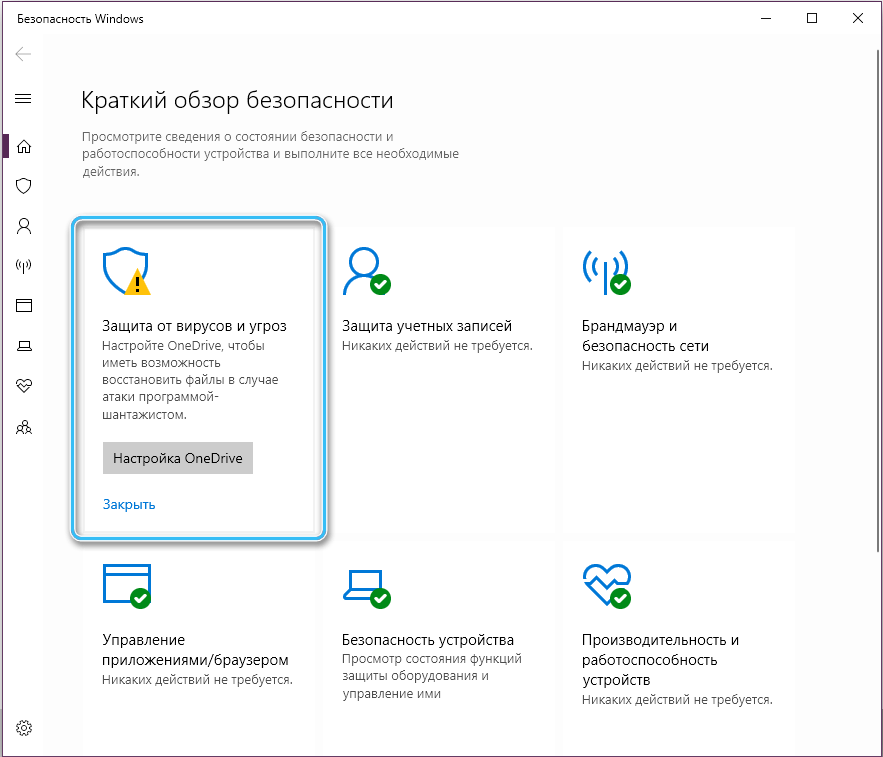
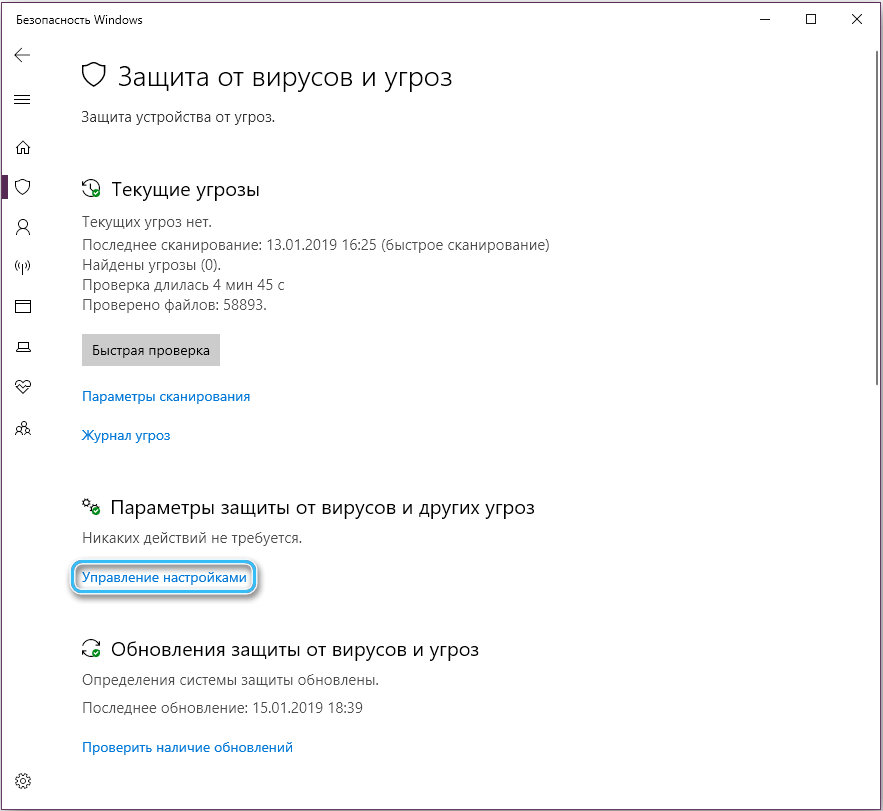
- Кликните на клеточку «Защита от вирусов и угроз», затем — на пункт «Управление настройками».
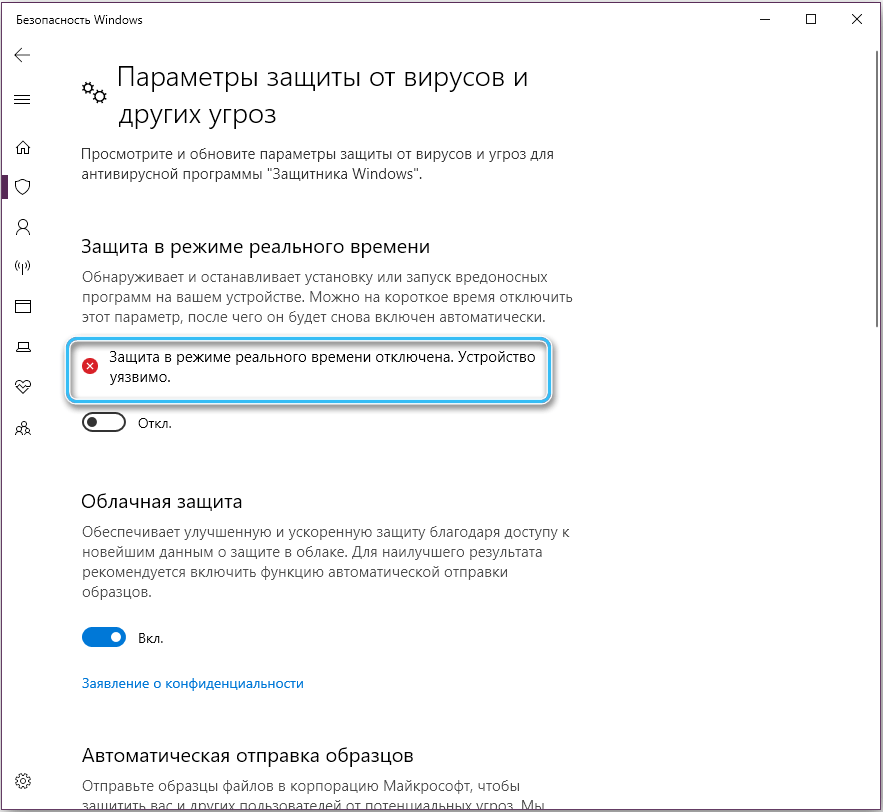
- Переставьте переключатель «Защита в режиме реального времени» в положение «Откл.»
Отключив антивирус, проверьте наличие ошибки 2148204812.
Способы устранения ошибки 2148204812
Геймеры нередко сталкиваются с различными сбоями при запуске игрового софта на компьютере, и устранять их приходится самостоятельно. Одна из частых ошибок, встречающихся при старте игр (обычно речь о лицензионных версиях, защищённых антипиратским ПО), сопровождается сообщением «Failed to start Denuvo driver. Error code: 2148204812».
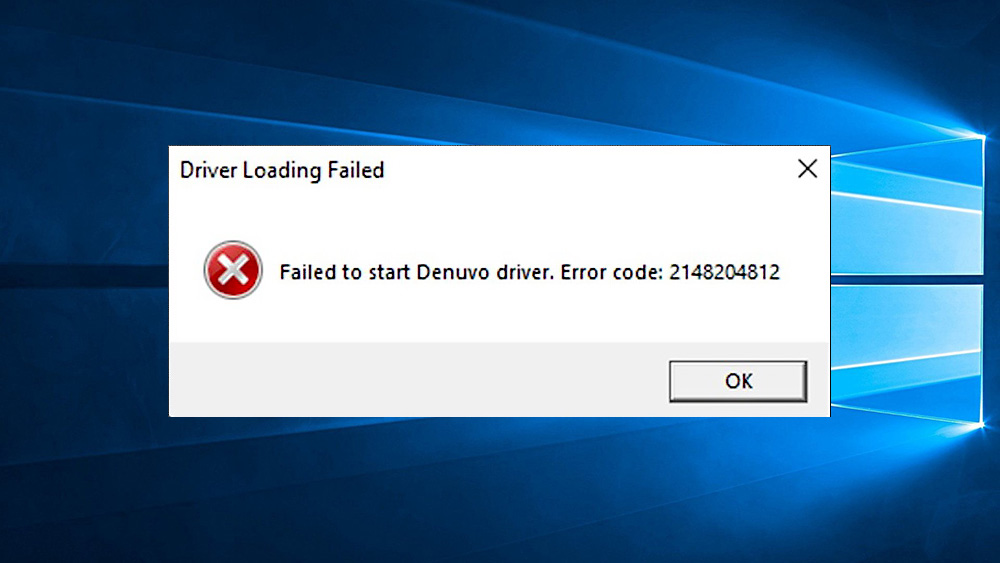
Сбой инициализации драйвера Denuvo может возникать по разным причинам. Часто это конфликт с иным софтом, таким как анти-чит Valorant Vanguard, но есть также вероятность, что запуск игры блокирует антивирус или же пользователь промышляет взломом, что и стало источником проблемы, а в некоторых случаях причиной может послужить и некорректное обновление системы. Рассмотрим эффективные методы устранения ошибки, которые помогут справиться с ошибкой в том или ином случае.
Перезагрузка компьютера
Многие одноразовые сбои в работе системного программного обеспечения решаются путём обычной перезагрузки устройства. Не исключение и ошибка «Failed to start Denuvo driver. Error code: 2148204812». В некоторых случаях этот простейший способ позволяет избавиться от неё, так что первым делом стоит перезагрузить компьютер.
Переустановка игры
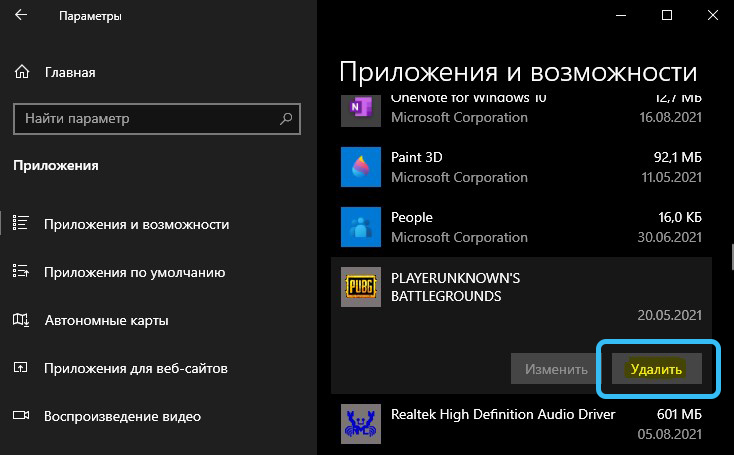
Действенный способ устранения ошибки драйвера Denuvo «Error code: 2148204812» – переустановка софта. Так, в случае повреждения ПО сбой удастся исправить, если вы корректно удалите игру через оснастку «Параметры» (Win+I) или «Панель управления», перезагрузив устройство после выполнения процедуры, и затем повторно проинсталлируете её на компьютер.
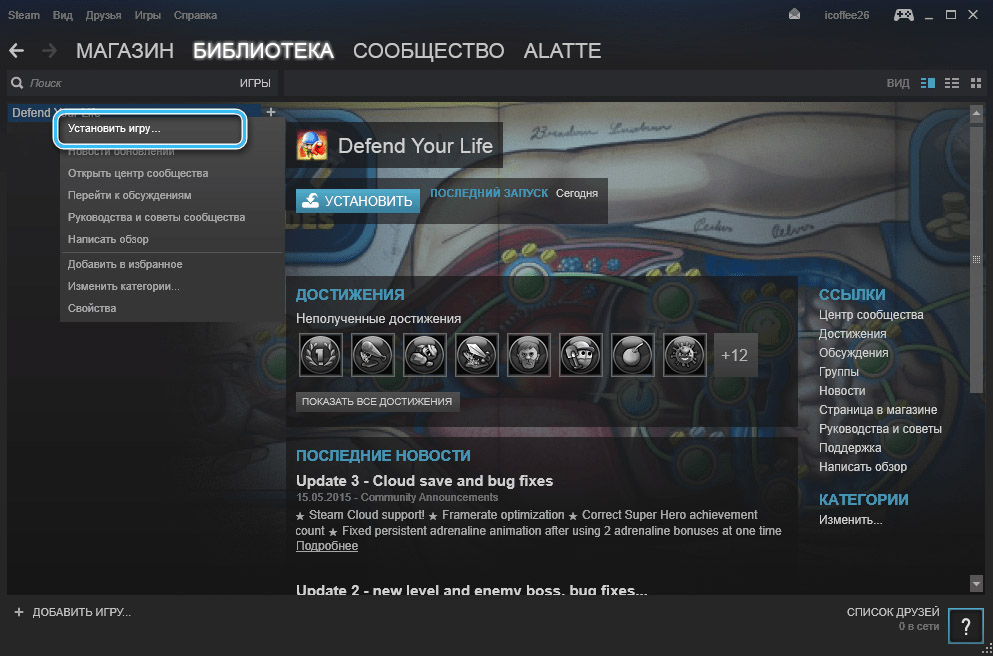
В случае использования игрового софта посредством Steam, удаление и последующая установка выполняются через лаунчер.
Удаление последних обновлений Windows
Как ни странно, иногда спровоцировать ошибку «Failed to start Denuvo driver. Error code: 2148204812» могут недавно загруженные пакеты обновлений системы. В этом случае последние апдейты можно просто удалить. Для этого в Windows 10 выполняем следующие действия:
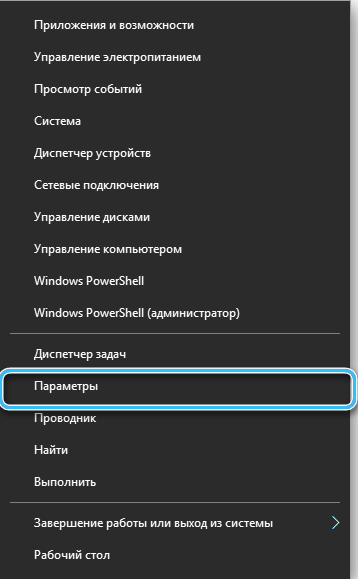
- идём в «Параметры» (Win+I или переходим через меню «Пуск»);
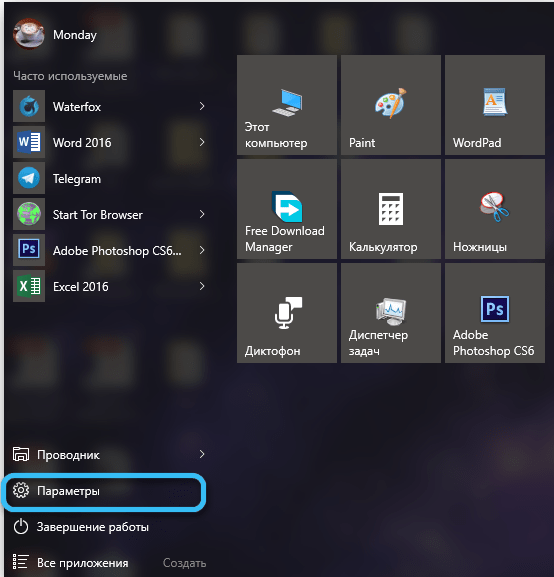
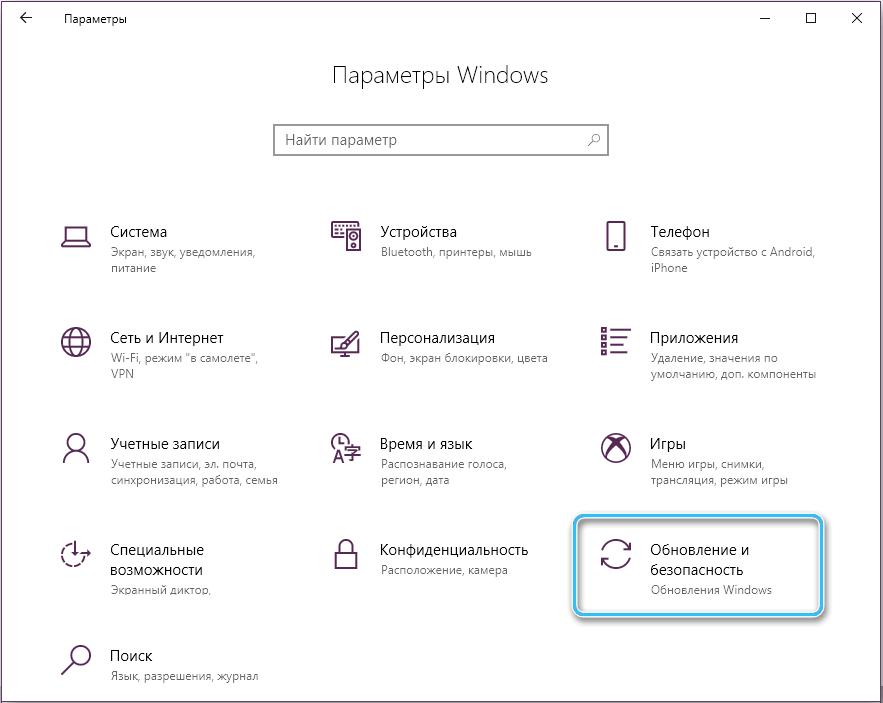
- открываем раздел «Обновление и безопасность»;
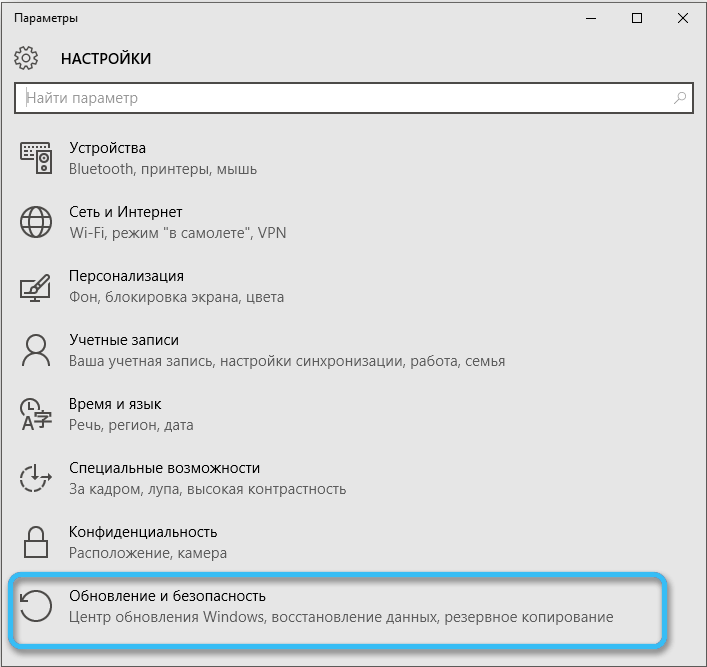
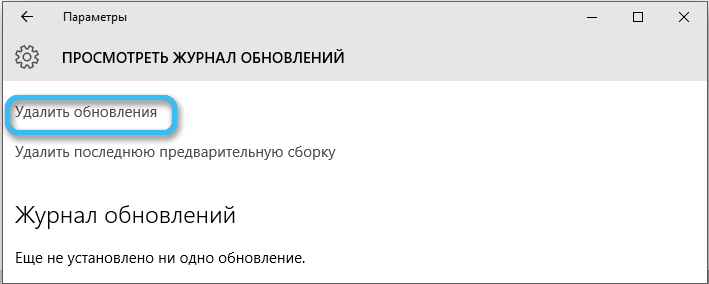
- в первом подразделе «Центр обновления Windows» открываем «Журнал обновлений» и жмём «Удалить обновления»;
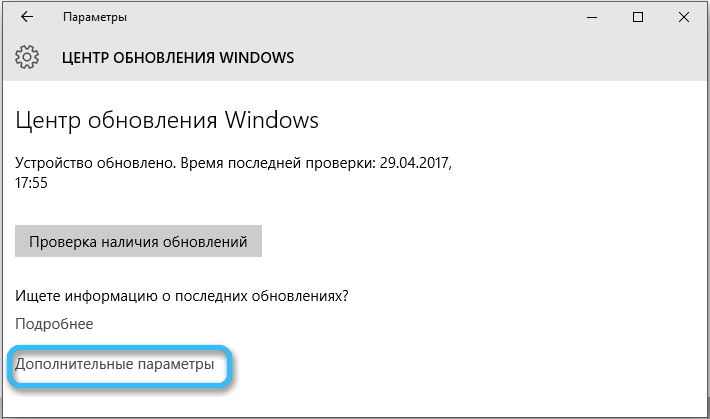
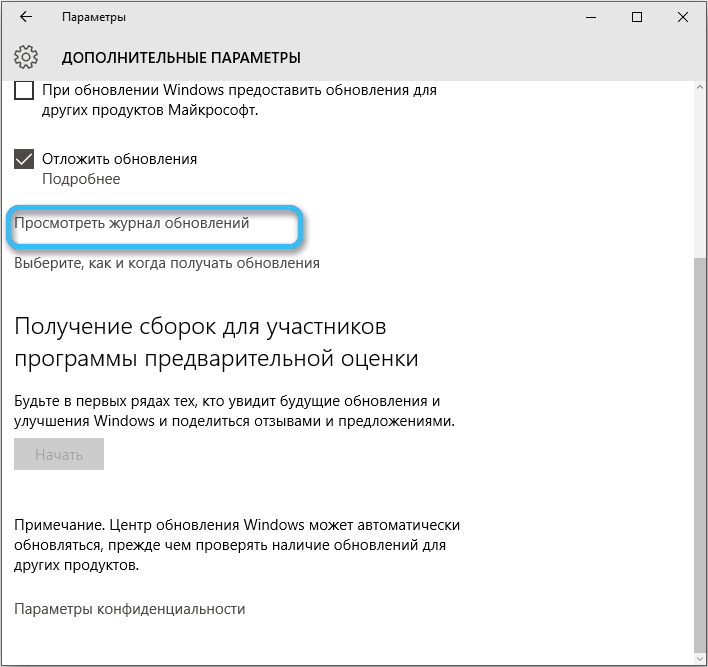
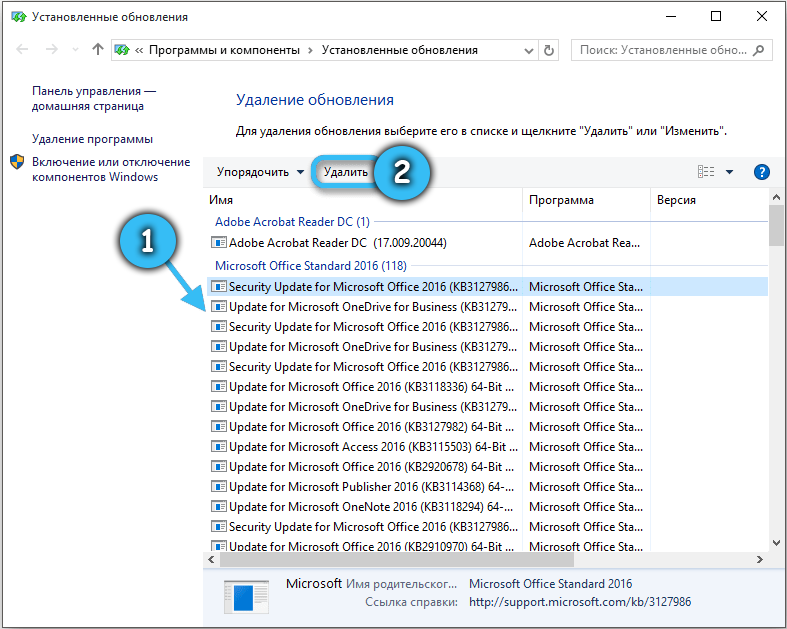
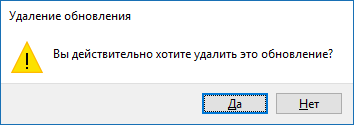
- в новом окне откроется список установленных на компьютере пакетов, выбираем последние из них, жмём ПКМ – «Удалить», подтверждаем действие;
- перезагружаем компьютер после удаления последних апдейтов и проверяем, исчезла ли проблема.
Удаление анти-чита Vanguard
Поскольку ошибка с кодом 2148204812 часто возникает по причине конфликта Denuvo с Vanguard, при наличии установленного анти-чита на компьютере его удаление поможет решить проблему. Процедура выполняется стандартно:
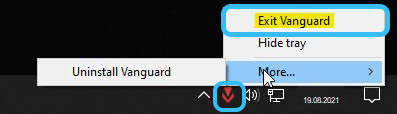
- закрываем Vanguard в системном трее (жмём ПКМ на значке и выбираем из меню соответствующий пункт);
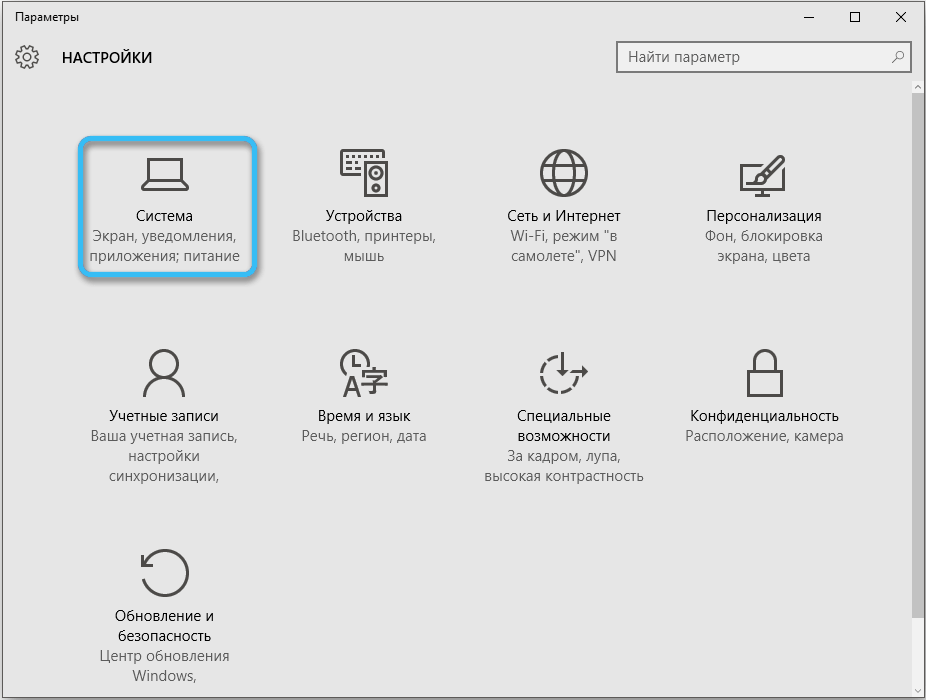
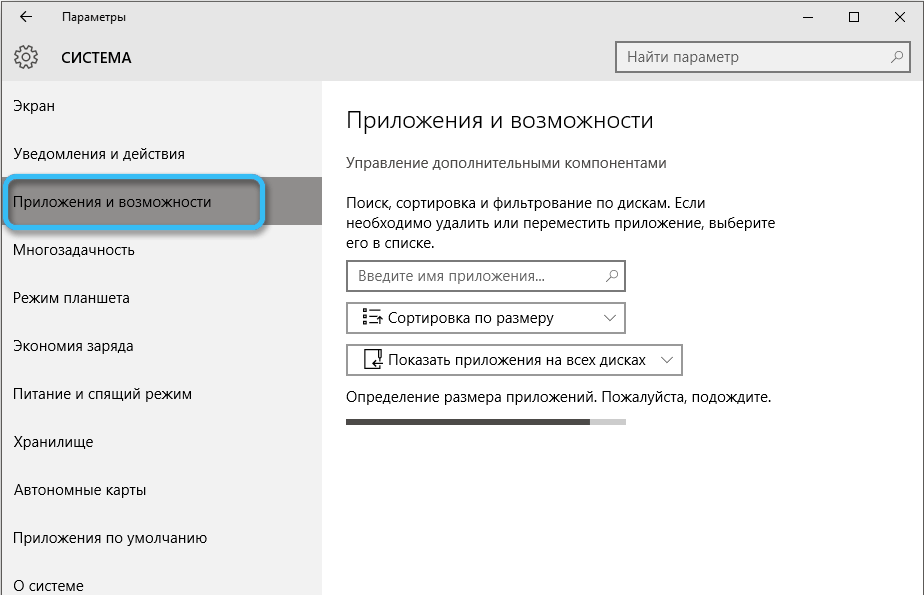
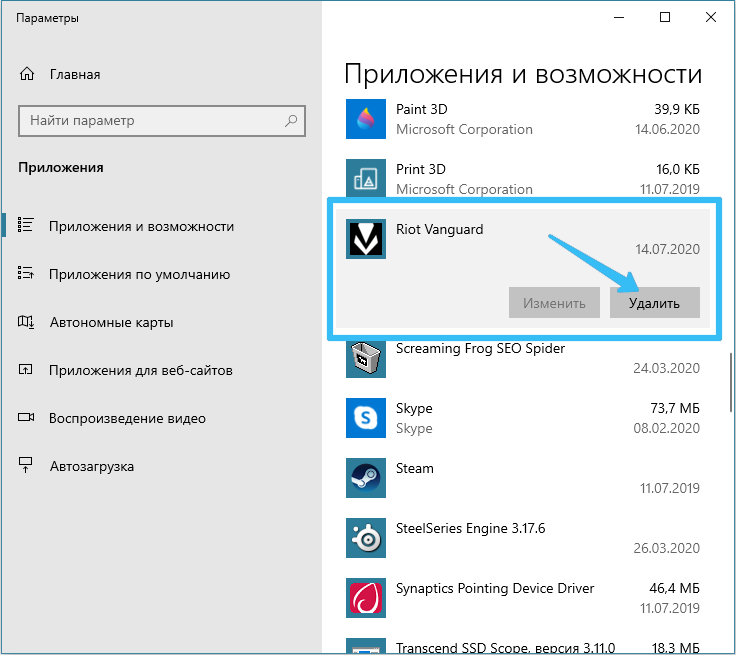
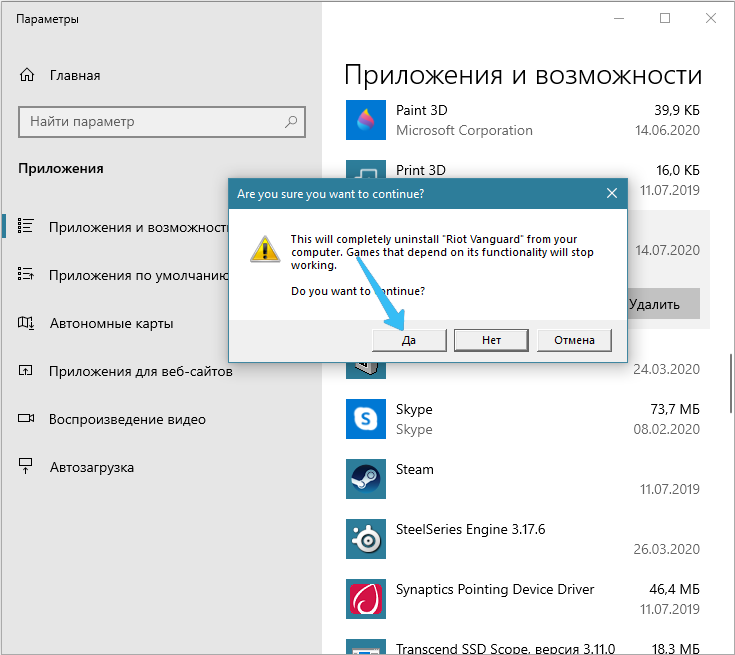
- удаляем ПО, воспользовавшись системной оснасткой «Параметры», где переходим в раздел «Система» – «Приложения и возможности». Можно также использовать Панель управления («Программы»). Выбираем софт из списка и удаляем, подтвердив действие;
- перезагружаем устройство.
Отключение антивируса
Иногда виновником появления ошибки инициализации Denuvo, препятствующей запуску игры, становится установленный на устройстве защитный софт. Обычно такое происходит при использовании нелицензионной версии ПО. Файл игры мог попасть в карантин антивируса, в таком случае его потребуется восстановить, после чего добавить в исключения. Также у некоторых пользователей ошибка пропадала после отключения стандартного защитника Windows. Сделать это можно следующим образом:
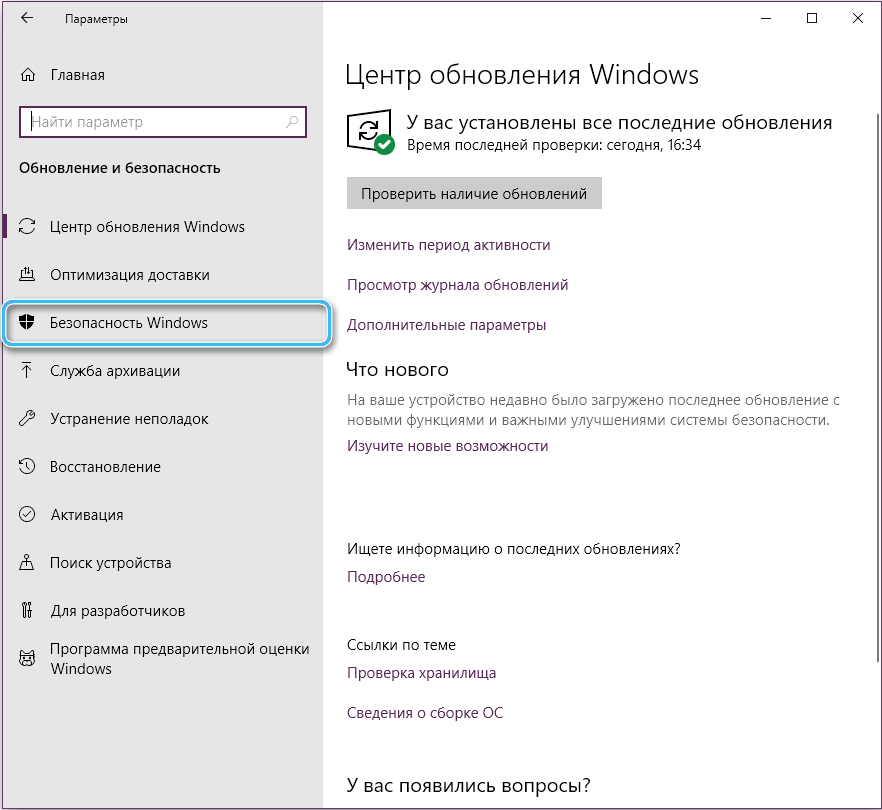
- переходим к параметрам Защитника Windows, например, используя поисковую строку, где следует ввести соответствующий запрос, или «Параметры» – раздел «Обновление и безопасность» – «Защитник Windows»;
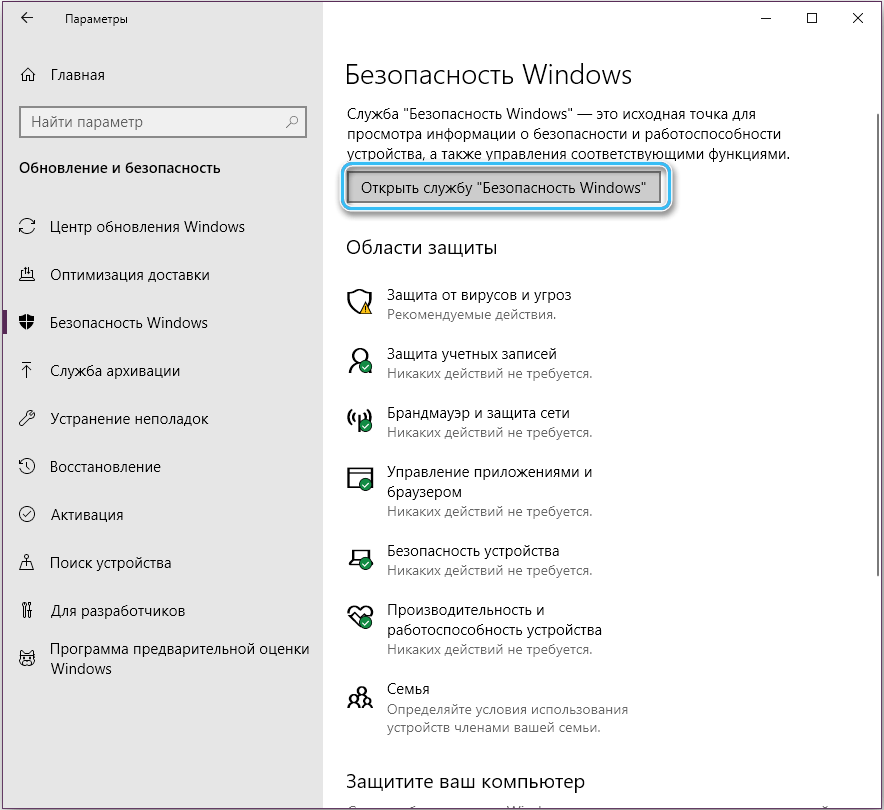
- в настройках сервиса находим пункт «Защита в реальном времени» и переводим тумблер в положение выключения.
В зависимости от источника появления проблемы, она может быть решена одним из вышерассмотренных способов. Даже если причина неизвестна, устранить сбой можно, поочерёдно используя различные варианты.
How To Fix Denuvo Driver Error Code 2148204812?
You might have received “Denuvo Driver Error 2148204812” on your Windows Machines while trying to launch a game like Football Manager 2018 or Pro Evolution Soccer 2018. Or there is a chance that you’ll receive it while launching other apps as well. Some people consider Denuvo Driver a component of an app or system that lets specific hardware perform better. But that’s not the case since this is done by drivers on Windows Computers. Denuvo is mainly a piece of software, the job of which is “Digital Rights Management (DRM)”.
DRM is one of the protection measures that developers implement for preventing piracy and tempering with components of different programs. So, in order to launch an app, it is mandatory to initiate a driver as well. But if something is wrong with it, you find difficulty in launching it and experience “Denuvo Driver Error 2148204812”.
Let’s take a look at the reasons behind “Denuvo Driver Error 2148204812” and see how to resolve this issue.
Facing PC Issues? Fix It Automatically.
1. Download Advance System Repair Tool Here.
2. Click Install and Scan Now to find all system issues causing the current problem.
3. Click Fix, Clean & Optimize Now to fix issues affecting your computer’s security and performance.
Why does Denuvo Driver Error 2148204812 occur?
There can be multiple reasons behind this issue. For example, if there is an issue with the software, you will receive “Denuvo Driver Error Code 2148204812”. And the only way left is to uninstall it. Users who pirate games also face the same issue, so it may be due to software piracy also. You may also experience the same issue with this message “A Certificate was explicitly revoked by its user. Error Code 2148204812.”
So, make sure that you find the reason first before trying to resolve it, or else, you may not even know what’s wrong with the app or software.
How to Resolve “Denuvo Driver Error 2148204812” issue?
If you are facing any such issue with a game or an app, you can try out any of the following methods to resolve it.
Fix Denuvo Driver Error 2148204812 by reinstalling the Game
You can Uninstall a game or app in a number of ways. Using a game client like Steam for this purpose is suitable, or you may also use Control Panel for removing the app. Just use the “Apps & Features” Section for making it easier. Here is how you can do it:

- First of all, right-click on “Start” and then choose “Apps & Features”.
- You will see a list of apps or games there, find the one you want to uninstall and click on “Uninstall”.
- Restart the PC.
- Download and Install the game again.
- See if the issue is resolved or not.
Sometimes, uninstalling a game or app removes the glitches in it and you get to play a better version of it after reinstalling or updating it. But it’s easy to do on mobile than on a PC. So, you may try this method to resolve the “Denuvo Driver Error 2148204812” issue.
Uninstall Valorant/Vanguard
If you are using Valorant on the same PC where you have received “Denuvo Driver Error Code 2148204812”, software conflict may be the reason behind this. Valorant has an anti-cheat engine named as Vanguard. If you aren’t using Valorant at the moment, you must uninstall it as it may resolve the “Denuvo Driver Error 2148204812” issue for you.

Follow the below-mentioned steps in this regard:
- First of all, open “System Tray”.
- Right-click on “Vanguard Icon” and then select “Exit Vanguard”.
- After that, click on “Apps & Features” for finding the “Riot Vanguard” entry.
- Click on “Uninstall” for uninstalling it.
- When you see “User Account Control”, click on “Yes”.
- Restart the PC again.
Uninstalling a game is the simplest way of making it work. So, try out the above-mentioned steps and see if the “Denuvo Driver Error 2148204812” issue has been resolved or not.
Uninstall Windows Update

If uninstalling and then reinstalling the game doesn’t work, you may go for uninstalling the windows update. The reason is that you may face “Denuvo Driver Error 2148204812” after the latest update. So, the only way is to uninstall it. But this may not work either at times because of time limitations. Also, keeping your system outdated because of software vulnerabilities is never recommended. So, it is better not to consider this method since it may not prove to be a permanent solution.
However, you can try it out using the below-mentioned steps:
- Type “Control Panel” in the Search bar and click on “Enter”.
- Click on “Programs” and uninstall a Program.
- You will see the option “View Installed Updates” on the left. Click on it.
- Sort them out by date.
- Right-click on the latest installment or update and click on Uninstall.
- Restart your PC again.

As mentioned above, this method may or may not work. If there is any glitch in the Windows, this method may remove that. But you must try it out once to fix “Denuvo Driver Error 2148204812”.
Facing PC Issues? Fix It Automatically.
1. Download Advance System Repair Tool Here.
2. Click Install and Scan Now to find all system issues causing the current problem.
3. Click Fix, Clean & Optimize Now to fix issues affecting your computer’s security and performance.
Contact Customer Support
Contacting customer support is usually considered as the last option since you have to provide them with proof and reasons that you are facing a certain issue. So, if you are using pirated version of a game or app, that will be considered illegal and the team won’t entertain you at all. Otherwise, it is one of the best solutions available to launch a game. Contact the game’s technical support via email and inform them about the issue, “Denuvo Driver Error 2148204812” in this case. Some games also require you to purchase a code for getting help. So, don’t take any method for granted and try to sort out the issue.
Conclusion
All the manual repair techniques may or may not work depending on the severity of the issue. But they get the job done most of the time. However, using automatic software to resolve “Denuvo Driver Error 2148204812” is a better option. Also, since manual methods won’t work on pirated versions because of the usage of illegal software in them, automatic software can cope with them also. So, try to figure out the reason first and then use any of the above-mentioned methods or some other software to resolve “Denuvo Driver Error 2148204812”. If you have any question, you can click to Visit Our Discussion Board.

Nishant Verma is a senior web developer who love to share his knowledge about Linux, SysAdmin, and more other web handlers. Currently, he loves to write as content contributor for ServoNode.
4 Ways to Fix Denuvo Driver Error Code 2148204812

When the user launches the game on their Windows 11 or Windows 10 computer, they can face an error like the Denuvo driver error code 2148204812. Most users reported that this error occurred in only two games, such as Football Manager and Pro Evolution Soccer. This error is also received on regular applications.
If you are frustrated by this error, then don’t worry. We are talking about how you can fix the Denuvo driver error code 2148204812 in this blog.
About The Denuvo Driver
The Denuvo driver is an app or a system that helps you improve performance and compatibility. Usually, this is the purpose of a driver on a Windows 11 or Windows 10 pc. But it is a protection software to prevent piracy and uninvited tampering with specific files or components of a software. The Denuvo driver software is responsible for Digital Rights Management (DRM).
Sometimes users cannot open games; if something goes wrong, they face the Denuvo driver error code 2148204812. So let’s talk about the Denuvo driver error solution.
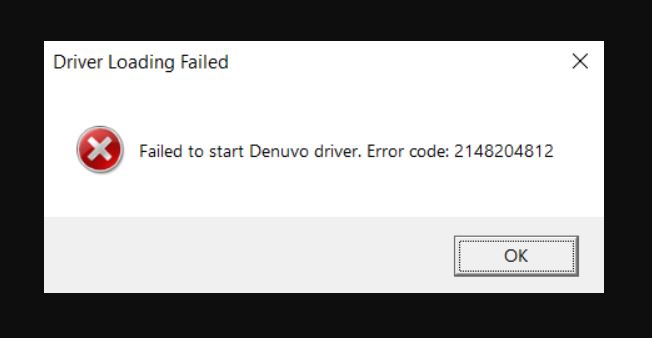
How to Fix Denuvo Driver Error Code 2148204812?
- Reinstall the Game.
- Remove or Uninstall the Vanguard or Valorant.
- Uninstall the latest Windows Updates.
- Contact the Game Support.
Method 1: Reinstall the Game
- Open your Settings on your windows computer.
- Click on the Apps and then click Apps & features( windows 11)
- Now, select the game and right-click or click on the three dots.
- Next, click on the uninstall button.
- After that, restart your device.
- Now, download the game once again and install it.
Method 2: Remove or Uninstall the Vanguard or Valorant
- Open the system tray, right-click on the Vanguard icon, and select exit Vanguard.
- Now, settings and then Apps & features.
- Navigate the Riot Vanguard entry.
- Now, click on the Uninstall, and in the next window, click yes.
- After that, restart your computer and check the error.
Method 3: Uninstall the latest Windows Updates
Some users reported that they could face the Denuvo driver error code 2148204812 issue when they update the windows. So with this method, we are uninstalling the latest Windows updates and trying to fix the problems. Follow the steps given below.
- In the Windows search bar, type Control Panel and click the Enter Key.
- Click on the Program option.
- On the left side, select View install Updates.
- Now, right-click on the latest install version and click Uninstall.
- After that, restart the computer.
Method 4: Contact the Game Support
If any of the above methods did not work, you could contact the game support team in the last process because every game has a technical support team. So, you can contact the game support of the particular game where you face the Denuvo driver error code 2148204812 issue. You can email them about your problem, and they might fix your problem soon.
We hope your Denuvo driver error code 2148204812 issue will be fixed, and you can play the game.