У вас большие запросы!
Точнее, от вашего браузера их поступает слишком много, и сервер VK забил тревогу.
Эта страница была загружена по HTTP, вместо безопасного HTTPS, а значит телепортации обратно не будет.
Обратитесь в поддержку сервиса.
Вы отключили сохранение Cookies, а они нужны, чтобы решить проблему.
Почему-то страница не получила всех данных, а без них она не работает.
Обратитесь в поддержку сервиса.
Вы вернётесь на предыдущую страницу через 5 секунд.
Вернуться назад
How to Check HDMI Cable Version?
When connecting two multimedia devices, you must know what kind of HDMI cable you have.
As the resolution and refresh rates featured by display devices such as monitors and TVs are getting higher and higher, so is the requirement for better HDMI cables.
Hence, “how to check HDMI cable version” is becoming increasingly relevant.
Fortunately, there are a few methods that you can employ to check what kind of HDMI cable you have.
However, before we delve into that, we must understand critical concepts regarding HDMI interface, version, and cables.
TABLE OF CONTENTS
HDMI Interface Version is Not the Same as HDMI Cable Type
It is essential to understand that the HDMI interface differs from the HDMI cable version.
HDMI version of the input and the output ports located on the source device (PC, gaming console, etc.) and the display device (TV, monitor, projector) define the capabilities of the HDMI interface.
For instance, HDMI version 1.4 ports can offer up to 4K resolution at a 30 Hz refresh rate. HDMI 2.0 ports can support up to 4K resolution at a 60Hz refresh rate.
The version of the HDMI ports is the primary consideration when determining whether your video connectivity will support a specific resolution and refresh rate.
The following table shows the different HDMI versions, their max resolution and refresh rate, and the maximum bandwidth they can support.
| HDMI Version | Max Resolution | Max Refresh Rate | Max Bandwidth (Gbit/s) |
Effective Bandwidth (Gbit/s) |
HDR? | Audio Technology Supported |
|---|---|---|---|---|---|---|
| HDMI 1.0 | 1080p | 1080p @ 60 Hz | 4.95 | 3.96 | No | – 8 Audio Channels |
| HDMI 1.1/1.2 | 1440p | 1440p @ 30 Hz | 4.95 | 3.96 | No | – 8 Audio Channels -Super Audio CDs |
| HDMI 1.3/1.4 | 4096 x 2160 (4K) | 120 Hz @ FHD Resolution 30 Hz @ 4k Resolution 24 Hz @ 4k Resolution |
10.2 | 8.16 | No | – 8 Audio Channels – ARC – Dolby TrueHD – DTS-HD |
| HDMI 2.0 | 4096 x 2160 (4K) | 60 Hz @ 4K Resolution | 18 | 14.40 | Yes | – 32 audio channels, – Dynamic Resolution Adaptation (DRA) – High-Efficiency Advanced Audio Coding (HE-AAC) |
| HDMI 2.1 | Upto 10240 x 4320 (10K) | Upto 120Hz @ 10K | 48 | 42.67 | Yes | – 32 audio channels – eARC |
The HDMI interface version IS NOT THE SAME AS the HDMI Cable version.
The version of the HDMI ports should not be confused with that of the HDMI cable.
HDMI Cable Versions (or Types Rather)
Technically speaking, there is no such thing as HDMI Cable VERSION. HDMI cables do not have controllers or ICs with software and drivers that can be updated.
HDMI cables are wires that carry signals from one port to the other.
However, the quality of the wiring inside determines what TYPE of cable a particular HDMI cable is in terms of PERFORMANCE STANDARDS.
The performance standard of an HDMI cable may differ, and hence specific HDMI cables may not be able to carry a high data rate generated by the newer HDMI 2.0 and HDMI 2.1 ports.
A few years back, when the only prevalent HDMI interface was 1.4, there was only one type of performance category of HDMI cables. Hence, choosing a suitable HDMI cable wasn’t quite an issue.
However, with the ever-increasing data rate, changes had to be made to HDMI cables. Cables nowadays carry performance certifications given to them by HDMI.org itself.
The following table shows the TYPES of HDMI cables defined by their performance standards.
| HDMI Standard Certification |
Max Data Rate Supported |
Specs Supported | Best Port |
|---|---|---|---|
| Standard | 4.95 Gb/s | 720 or 1080P @ 60Hz | So How to Check HDMI Cable Version? |
Now that you understand all the important jargon, we can tackle the question: how do we check the HDMI cable version or the HDMI cable type based on its performance certification?
Unfortunately, all HDMI cables look the same visually. In other words, looking at it won’t tell the difference between a Standard or an Ultra High-Speed HDMI cable.
Additionally, as mentioned earlier, HDMI cables do not have any drivers, IC, or controllers. Hence you cannot check out their type or how much bandwidth they can carry from within your PC or through software.
So the options to check what HDMI cable you have is pretty limited.
Here are two methods that can work.
1. Checking the Performance Specifications of the Cable
You can check what type of HDMI cable you have by looking at its performance specifications.
There are three ways to go about this. You can check its
- Data Rate Specification
- Resolution and Refresh Rate Specification
- Performance Certification
If your HDMI cable’s package or its listing highlights any one of these, you would know what version of cable you have.
You will need the package or the technical spec sheet of the cable, though.
Deducing Cable Type through Data Rate:
The Data Rate is provided regarding Gbit/s, Gb/s, or Gbps. Hence if an HDMI cable has a rated Gbit/s of 10.2, you have a High-Speed HDMI cable capable of supporting up to 4K @ 30Hz.
Similarly, if the HDMI cable is rated at 18 Gbit/s, you have a Premium Ultra High-Speed cable suitable for HDMI 2.0 ports or 4K @ 60Hz TVs and monitors.
Deducing Cable Type through Resolution and Refresh Rate:
Similarly, your HDMI cable type can be deduced through its rated resolution and refresh rate.
If a cable is listed with specs as 4K @ 30Hz, then you have a High-Speed HDMI cable suitable for HDMI 1.4 port.
Similarly, if a cable offers 4K @ 60Hz, you have a Premium High-Speed cable suitable for HDMI 2.0 ports.
Identifying Cable Type through Performance Certification:
HDMI.org provides performance certification to certain brands of HDMI cables.
These cables can be identified through a label on their packaging. The following are certification labels provided by HDMI.org.
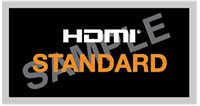

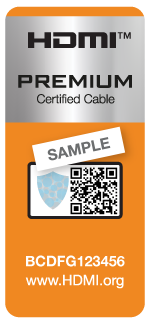
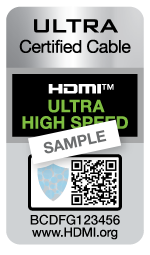
Note that Premium High Speed and Ultra High-Speed certified cables have a QR code on the label that can be scanned to verify their certification.
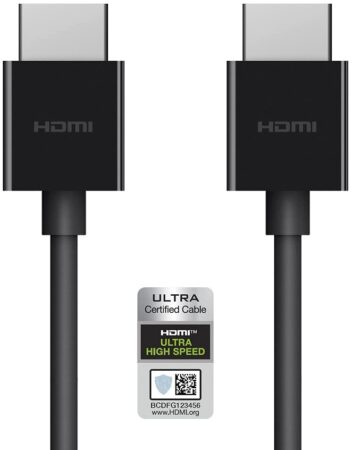
Premium High Speed and Ultra High-Speed cables may also have the labels printed on the cable jacket. Other times, you may find the specification labeled on top of the connector.
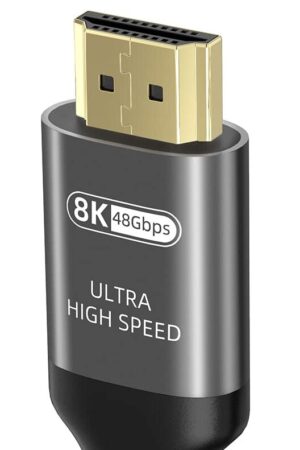
2. Checking What HDMI Cable You Have Through Trial And Error
This is more of a brute-force method.
If you have misplaced or lost the package of your HDMI cable – which you most certainly would have if you have an old cable at hand – and if the cable has no labels on it whatsoever, then the only way to check what version it is is through trial and error.
As a rule of thumb, almost all HDMI cables are compliant with the specs of HDMI 1.4. Therefore, carrying 1080p @ 60Hz or 4K @ 30Hz is not an issue for even the most basic and old HDMI cables.
The issue arises when connecting newer TVs and monitors with powerful specs such as 4K @ 60Hz or 4K @ 120Hz, or even 8K.
To connect to a 4K@60Hz TV, you must have at least a Premium High Speed. So the only way to check if the cable you have at hand supports this is to do some trial and error.
Checking if You Have a Premium High-Speed Cable
To check if you have a Premium High-Speed Cable (aka HDMI 2.0 cable, 18 Gbit/s cable):
- Check if the cable works on a Full HD (1080) PC monitor or a Full HD TV
- Then check again if the cable works in your 4K@60Hz TV or monitor.
If the cable works in the first instance but fails and shows a blank screen in the second, then you DO NOT have a Premium High-Speed cable.
Additionally, if the cable works in the second instance, but the specs are capped at 4K @ 30Hz, then again, you do NOT have a Premium High-Speed cable.
You most probably have a High Speed 10.2 Gbit/s HDMI cable.
It is essential to check the cable on a Full HD monitor or TV first to establish whether it is faulty.
Checking If You Have an Ultra High-Speed Cable
You can follow a similar trial and error method to check if you have an Ultra High Speed (HDMI 2.1) cable.
- Check if the cable works on a Full HD (1080) PC monitor or a Full HD TV
- Check if the cable works on your 4K @ 120Hz, or your 8K TV or monitor.
Again, if the cable works in the first instance, we can deduce that it is not faulty.
If it does not work on the second instance, you have a High Speed or a Premium High-Speed cable.
Again, for you to conclude that you have an Ultra High-Speed cable, not only does the TV or monitor have to run, it must run at specs HIGHER than 4K @ 60 Hz!
Final Words
This article is aimed to serve as a comprehensive guide on how to check the HDMI cable version.
Identifying a High Speed or HDMI 1.4 cable is not an issue since all HDMI cables are backward compatible and technically compliant with 1.4 specs at the very least.
The issue is identifying whether an HDMI cable is 2.0 or 2.1 (Premium High Speed or Ultra High Speed).
This can generally be done by reading the specs on the listing or the packaging. If you have misplaced the packaging or can’t find the listing, then the only other way is to test it yourself.
If you have anything more to add, or if I have missed something of value in this article, please let me know in the comments below.
FREQUENTLY ASKED QUESTIONS
1. How to Tell if HDMI Cable is 2.0?
The simplest way to tell if an HDMI cable is 2.0 is to read through the specifications on the package it came in or on its listing online. An HDMI 2.0 cable should have some of the following specifications highlighted:
–Name/Label: Premium High Speed
–Specs: 4K @ 60 Hz
–Data Rate: 18 Gbit/s (Gb/s, Gbps)
It may also have a certification label provided by HDMI.org as follows:
You can also check if the cable is 2.0 by testing it yourself. Plug it into a 4K HDMI TV or monitor and check what refresh rate it caps at. You have an older HDMI 1.4 cable if it limits to 30Hz, and you have an HDMI 2.0 cable if it caps at 60Hz.
2. How to Tell if HDMI Cable is 2.1?
You can follow the same tips mentioned in the FAQ above. HDMI 2.1 cables have the following specifications highlighted on their listing or mentioned on their packaging:
Name/Label: Ultra High Speed
Specs: 8K @ 120Hz or 4K @ 120Hz
Data Rate: 48 Gbit/s (Gb/s, Gbps)
HDMI Ultra High Speed
You can also test your cable on your 4K @ 120Hz TV to see if it works and operates at 120Hz. Some cables may also carry this certification label:
3. Can I use an older version HDMI cable with newer devices, or do I need to upgrade?
In most cases, you can use an older version HDMI cable with newer devices, but you may not get the full benefits of the newer device’s features.
For example, if you use an HDMI 1.4 cable with a device that supports HDMI 2.0, you won’t be able to take advantage of features like 4K resolution or HDR.
To get the best performance and compatibility, it’s recommended to use an HDMI cable that matches the version of your device.
4. Can a faulty HDMI cable cause problems with my device, and how can I troubleshoot HDMI-related issues?
Yes, a faulty HDMI cable can cause problems with your device, such as flickering or loss of signal.
If you’re experiencing HDMI-related issues, the first step is to check the cable for damage or loose connections.
You should also try using a different HDMI cable to see if the issue is with the cable or the device.
If the problem persists, you may need to troubleshoot the device or consult a technician.
5. How do I choose the right HDMI cable for my needs, and what factors should I consider when making a purchase?
When choosing an HDMI cable, there are several factors to consider, including the version of the cable, the length you need, and any special features you require, such as Ethernet or ARC.
It’s important to choose an HDMI cable that matches the version of your device to ensure optimal performance and compatibility.
Additionally, you should consider the length of the cable and choose one that is long enough to reach your devices but not so long that it causes signal loss.
Finally, you should check the specifications of your devices and choose an HDMI cable that supports any special features you need.
How to Check HDMI Port Version?
The only definitive method to check the HDMI port version on your monitor, TV, PC, or any other multimedia device is to check its spec sheet. The spec sheets give you the best answer regarding the version of the HDMI port you have.
For desktop PCs, you can check the spec sheet of either the motherboard or the graphics card to identify its version. For laptops, that is also relatively straightforward, as a simple search for its technical spec sheet would reveal the version of the HDMI port it uses. The same goes for monitors, TVs, projectors, home theater systems, etc.
However, before you indulge yourself in the spec sheet of your device, you have to understand the technical jargon, particularly regarding what the different HDMI versions entail.
In the following text, I will discuss how to check the HDMI port version and how to identify which version your particular device has.
TABLE OF CONTENTS
Different HDMI Versions and Data Rates
There are various HDMI versions. Each newer version increases the overall bandwidth of the HDMI interface. In other words, more recent versions can carry more information.
This, in turn, means that a newer HDMI version would support higher resolution, higher refresh rates, and a higher color bit depth.
This brings us to the next point: the amount of data rate sent over the interface depends upon these three parameters:
- Resolution
- Refresh rate
- Color bit depth
The higher these parameters, the more data your interface would need to carry. However, your interface must have enough capacity to support your desired data rate.
This is where the newer and improved version of HDMI comes into play. The following table shows the different HDMI versions, the total bandwidth they can carry, and the max resolution and frame rate they can support.
| HDMI Version | Max Resolution | Max Refresh Rate | Max Bandwidth (Gbit/s) |
Effective Bandwidth (Gbit/s) |
HDR? | Audio Technology Supported |
|---|---|---|---|---|---|---|
| HDMI 1.0 | 1080p | 1080p @ 60 Hz | 4.95 | 3.96 | No | – 8 Audio Channels |
| HDMI 1.1/1.2 | 1440p | 1440p @ 30 Hz | 4.95 | 3.96 | No | – 8 Audio Channels -Super Audio CDs |
| HDMI 1.3/1.4 | 4096 x 2160 (4K) | 120 Hz @ FHD Resolution 30 Hz @ 4k Resolution 24 Hz @ 4k Resolution |
10.2 | 8.16 | No | – 8 Audio Channels – ARC – Dolby TrueHD – DTS-HD |
| HDMI 2.0 | 4096 x 2160 (4K) | 60 Hz @ 4K Resolution | 18 | 14.40 | Yes | – 32 audio channels, – Dynamic Resolution Adaptation (DRA) – High-Efficiency Advanced Audio Coding (HE-AAC) |
| HDMI 2.1 | Upto 10240 x 4320 (10K) | Upto 120Hz @ 10K | 48 | 42.67 | Yes | – 32 audio channels – eARC |
So, in other words, if you wish to run a 4K display, you must have at least an HDMI 1.4 interface. However, if you want to run a 4K display at 60Hz, you will need an HDMI 2.0.
Similarly, if you wish to play at Full HD @ 144Hz, the HDMI 1.4 interface would suffice. However, to play Full HD @ 240Hz, you will need HDMI 2.0.
A perfect equation to take note of to calculate the data rate for your desired settings is as follows:
- H is the horizontal pixel count
- V is the vertical pixel count
- C is the color depth
- F is the refresh rate
- Hblank is the Horizontal blanking interval
- Vblack is the Vertical blanking Interval
Hblank = 80 pixels for FHD @ 60 Hz, Vblank = 30 Pixels for FHD @ 60 Hz. These changes depend on the desired resolution.
How To Check HDMI Port Version?
With that said, the only definitive way to check the HDMI port version is through the spec sheet of your device.
Various devices feature an HDMI port. Some feature them as output, whereas others feature them as input ports. The devices include, but are not limited to:
- Desktop Motherboard – Output HDMI Ports
- Desktop Graphics Card – Output HDMI Ports
- Laptop – Output HDMI Ports
- PC Monitors – Input HDMI Ports
- Televisions – Input HDMI Ports
Other devices include gaming consoles, projectors, home theater systems, etc.
Checking HDMI Port Version on Motherboard – Output HDMI Ports
You can check the version of the HDMI port on your motherboard through its spec sheet by heading over to the section labeled “graphics,” “onboard graphics,” or something along those lines.

Here you can see that the HDMI port on this motherboard supports 4096×2160 resolution @ 60 Hz refresh rate. This corresponds to HDMI 2.0. However, the caveat underneath shows that it can also support monitors with HDMI 2.1, but its max resolution and frame rate will conform to those of HDMI 2.0.
Checking HDMI Port on Graphics Card – Output HDMI Ports
The dedicated graphics card on desktop PCs also has HDMI ports. Since dedicated graphics cards are more robust and powerful than onboard motherboard graphics cards, they tend to feature newer and faster port versions more readily.
You can also check the HDMI port version on a graphics card through its spec sheet.

You can see here that this graphics card features 2 x HDMI 2.1 ports.
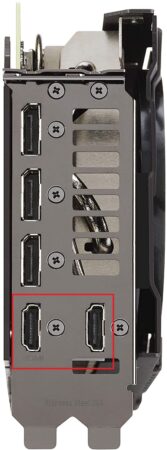
Checking HDMI Port Version On Laptop – Output HDMI Ports
You can also use the same principle to check the HDMI version of your laptop’s port.
The following image shows the HDMI version of the MSI GL66 Pulse gaming laptop.
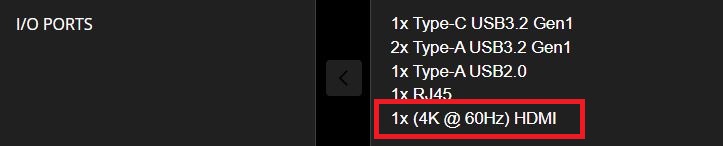
It is worth noting here that instead of mentioning the HDMI version, here you can see the specs of the HDMI in terms of max resolution and refresh rate supported by the port, i.e., 4K @ 60Hz.
From the specs of the port alone, we can deduce that this refers to HDMI 2.0. As mentioned in the table above.
Checking HDMI Version on PC Monitors – Input HDMI Ports
PC monitors have input HDMI ports, unlike the previous three devices, which feature output HDMI ports.
To run the interface at a specific version, both the output AND the input devices must have the same version.
In other words, if you want to run your monitor at 4K @ 60Hz, you will need both your PC and your monitor to have HDMI 2.0 interface. The same goes for TVs.
Monitors can have multiple HDMI input ports. These can connect numerous devices, such as a PC in one HDMI port and a gaming console in the other.
You can also check the version of the HDMI port on a monitor through the spec sheets.
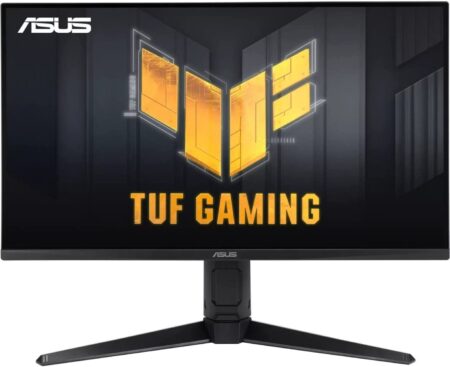
The following image shows the spec sheet for ASUS Tuf Gaming VG28UQL1A – a premium 4k gaming monitor.
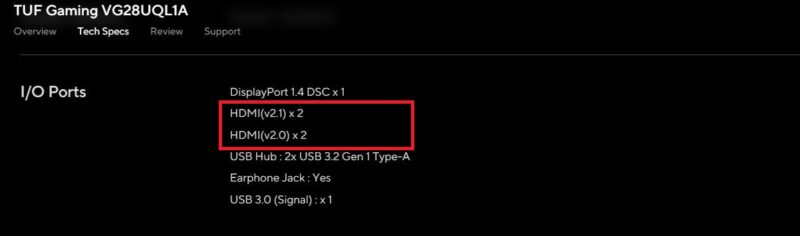
You can see that this monitor features a total of 4 x HDMI ports. 2 of them correspond to HDMI 2.0 while the other two conform to HDMI 2.1 version.
Checking HDMI Port Version on Televisions – Input HDMI Ports
TVs also feature multiple HDMI input ports. The simplest way to check the version of HDMI ports on a TV is also through its spec sheet.
The spec sheet often tells you exactly what version the HDMI ports conform to. The following image shows the spec sheet for Sony Bravia A90J, and we can see that this TV has HDMI 2.1 ports, which makes sense because it can do 4K @ 120Hz.
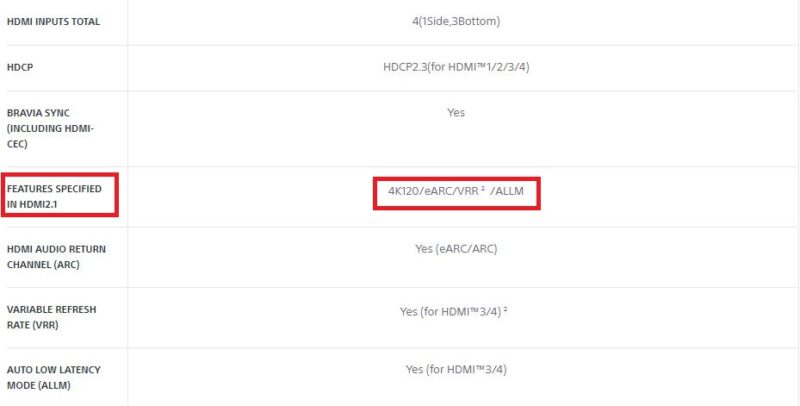
However, sometimes, TVs do not specify the version of HDMI. In that case, you can tell what HDMI version they conform to using the TV’s highest resolution and refresh rate.
For instance, if a TV has a resolution of 4K and a refresh rate of 60Hz, then it would offer HDMI 2.0 interface. If the refresh rate or the resolution is higher than this, then it would have HDMI 2.1 ports.
If a TV is full HD but has an actual refresh rate of 240Hz, it would again have HDMI 2.0 ports. If a TV is Full HD and has a refresh rate of merely 120Hz, it could have HDMI ports conforming to only HDMI 1.4. I would again like you to refer to the equation mentioned earlier, which you can use to calculate the data rate for your desired resolution and refresh rate.
Final Words
Here I talked comprehensively about how to check HDMI port versions on various input and output devices such as monitors, TVs, and PCs.
Again, if a particular device does not precisely specify the version, you can often deduce it by looking at the maximum refresh rate and the resolution supported by the device.
FREQUENTLY ASKED QUESTIONS
1. Can I use an older HDMI cable with a newer HDMI port, or do I need to upgrade the cable as well?
Yes, it is generally possible to use an older HDMI cable with a newer HDMI port.
However, it’s essential to note that older cables may not support the newer HDMI features, such as higher resolutions or refresh rates. To take full advantage of the newer HDMI features, it may be necessary to upgrade to a newer HDMI cable.
2. Can I upgrade the HDMI port on my device, or do I need to replace the entire device?
In most cases, it is not possible to upgrade the HDMI port on a device, as it is typically integrated into the device’s hardware. If the HDMI port is damaged or not functioning correctly, it may be necessary to replace the entire device or have the port repaired by a professional.
3. Are there any compatibility issues with using a different HDMI version than the one specified for my device?
Using a different HDMI version than the one specified for your device can potentially lead to compatibility issues, especially if the device or cable is older.
For example, using an older HDMI cable with a newer HDMI port may not support the newer HDMI features, such as higher resolutions or refresh rates.
It’s always best to check the device’s documentation or consult with the manufacturer to ensure compatibility before using a different HDMI version.
Как визуально отличить HDMI 1.4, 2.0 и 2.1
Забавно, но, по какой-то причине, на HDMI кабелях нет обозначений о версии, к которой они принадлежат. Вместо этого, HDMI провода усыпаны надписями, мало интересующими обычных людей, которые просто хотят подключить современную приставку типа Xbox series X к современному телевизору.
Лично у меня и правда сформировалась проблема — HDMI кабелей дохрена, но для получения нужных 120 кадров с расширенными функциями на приставке подходил только один — тот, что был в комплекте с приставкой :D. Но как его найти, когда все эти кабели перемешались и вообще сложно опознаваемы?
Визуальный осмотр HDMI кабелей разных версий
Из всего многообразия HDMI кабелей я выбрал 4 штуки, которые, видимо, принадлежат к разным поколениям.
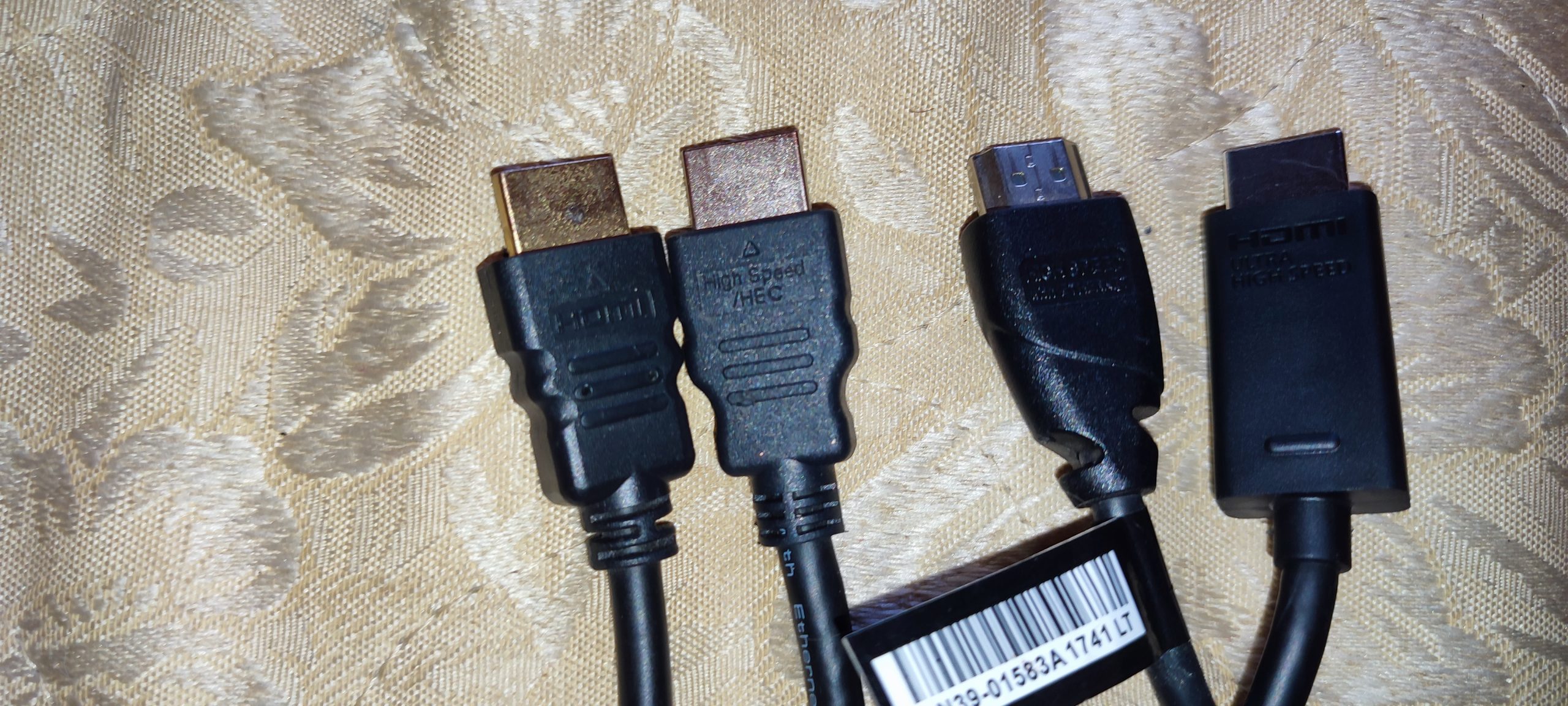
Знающие люди, безусловно, уже поняли к какому из поколений принадлежит каждый из эти кабелей, но почему-то в интернете больше любят обсуждать характеристики этих кабелей, нежели способы их отличить. Ведь по факту все HDMI кабели совместимы с прошлыми версиями. То есть кабель версии 2.1 спокойно может работать с устройством, которое не поддерживает все его функции.
Так вот, визуальный осмотр, а так же физическое подключение к различным устройствам, дал такой результат:
Hdmi 1.4-2.0
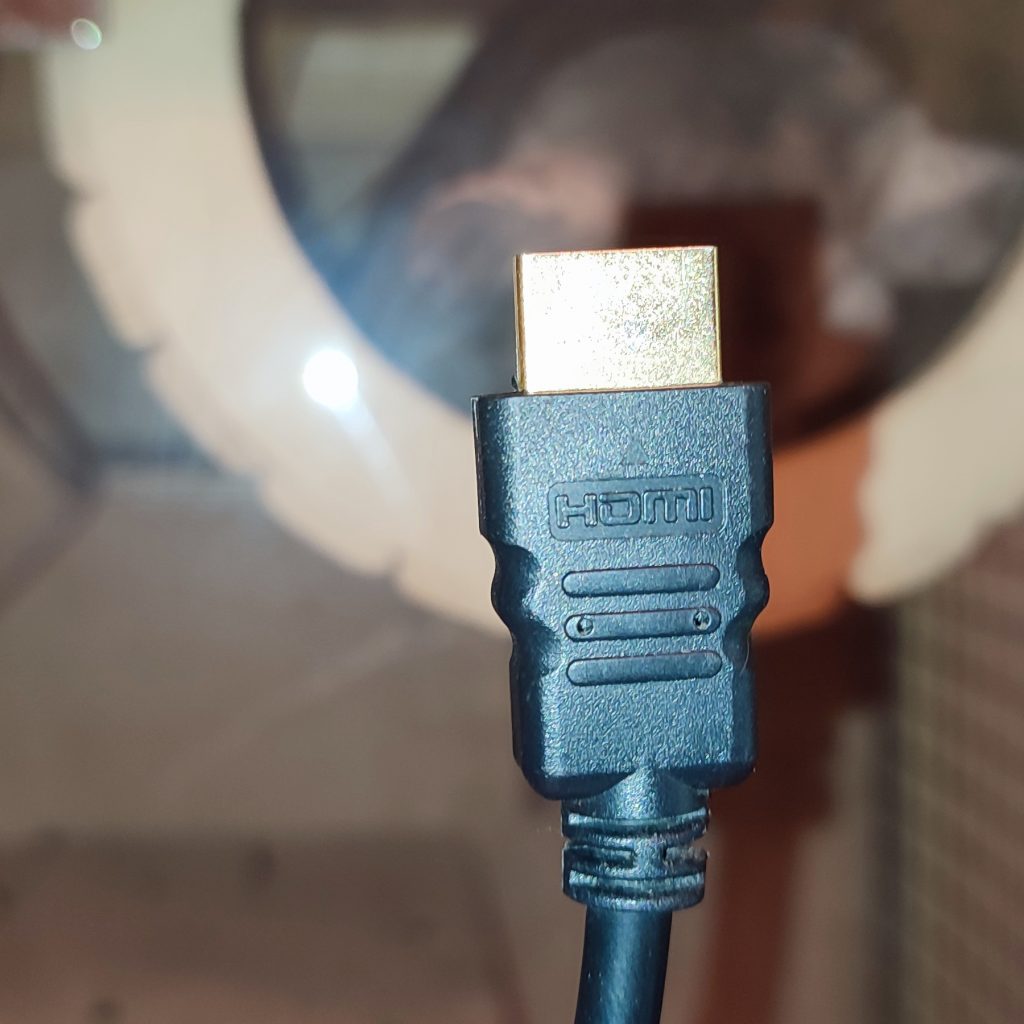
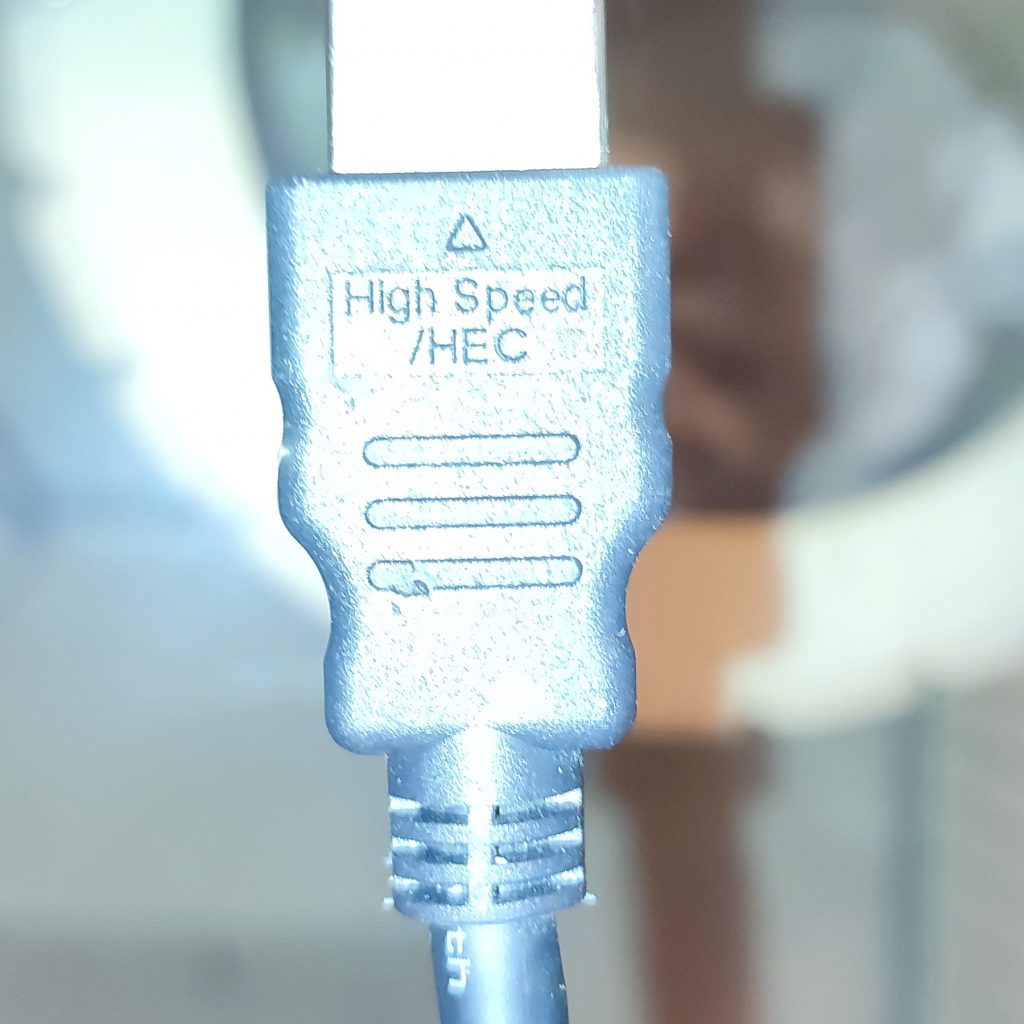
Вряд ли вам когда-нибудь пригодится такой формат. Да, HDMI 2.0 позволяет воспроизводить 4к видео и обладает большей пропускной способностью, нежели 1.4. Будем честны. Данный формат подойдёт всем людям, использующим HDMI приставки и игровые приставки старого поколения. Пропускной способности этих кабелей с головой хватает для покрытия нужд большинства. Отличить 1.4 от 2.0 мне не удалось. Они оба имеют маркировку Hight Speed, и оба могут сопровождаться надписями типа «ethernet», «Hec» и тд.
Если на вашем кабеле нет маркировки Hight Speed, то у вас кабель из прошлого, прост первые версии HDMI. Если же маркировка есть, то, независимо от наличия других маркировок, это может быть как 1.4, так и 2.0, но разница между ними в бытовом применении в любом случае несущественна.
Hdmi 2.1
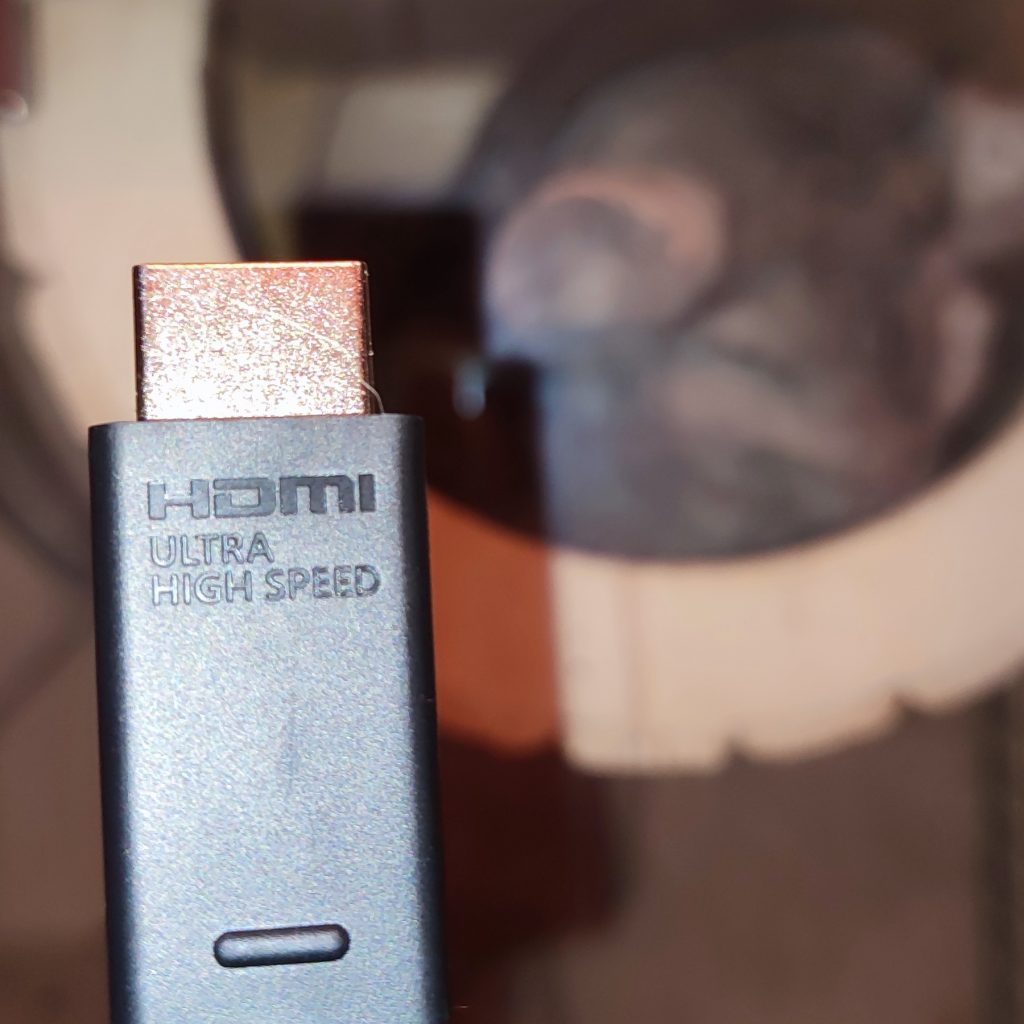
Это — Hdmi 2.1, обозначается он гравировкой Ultra Hight Speed, и именно он необходим всем владельцам приставок PS5 и Xbox Series X. Помимо кабеля, понятное дело, вам потребуется телевизор с поддержкой HDMI 2.1. Лично я выбрал этот телек, взамен своему прошлому. Разница, скажу я вам, существенна, особенно в плане задержки отклика геймпада. Мало того, что этот телек позволил на многих играх включить переменную частоту кадров, так ещё и нехило прокачал ощущения от игр, даже старых. Не знаю, что там на PS5, но у меня на Xbox Series X в большинстве игр не только вырос FPS, но ещё я потерял разницу между игрой на ПК в плане управления, наконец то нет ощущения того, что ты плаваешь в бассейне с флегмой. Как вообще приставочники раньше играли в игры? Ну, я конечно же имею ввиду поколение PS3-4, ибо на Ps1-2 и Xbox-xbox360 таких косяков с телеками не было. Возможно потому, что мы играли на аналоговых телевизорах) хз.
Послесловие
Я не могу понять, почему бы самим конструкторам HDMI кабелей не писать на кабеле версию. Это бы упростило жизнь обычным гражданам, ведь HDMI существует уже очень много лет.
В послесловии хотелось бы обозначить послание ПК-игрокам, которые считают, что 2.1 кабель, способный передавать 120 Гц, прекрасно способен заменить им консоль при подключении ПК к телевизору. Увы и ах, это не так. Сколько бы FPS не выдавала ваша видеокарта, телевизор чаще всего попросту не предназначен для правильного вывода изображения с ПК, а потому вас будет бесить задержка ввода/вывода изображения. Вы можете подключать свой ПК каким угодно кабелем, задержка в управлении всегда будет на уровне задержки самого телевизора, а там, в отличии от мониторов, задержка как правило не 1 мс, и не 5 мс, а чаще всего все 15-50 мс. Передавать изображение с ПК на телевизор конечно же можно, но играть в таком режиме в какие-то более менее активные игры попросту больно. А потому, если вы вдруг решили подключить ПК к телевизору через HDMI для игр, лучше забудьте.
Ну либо играйте в игры без активной механики, типа Disgaea или Final Fantasy. Лично мне только в таких играх удалось получить удовольствие от игры с ПК на ТВ. Приставкам проще, видимо они используют какой то другой кодек для вывода изображений, к тому же там зачастую FPS не превышает 30. Если, конечно, не брать Xbox, на нём всегда частота кадров была куда выше нежели у сонибоев.