Командная работа: как ноутбук и смартфон Honor дополняют друг друга
До того, как смартфоны обрели свою нынешнюю мощь и функциональность, не раз высказывались предположения, что они, как минимум, подвинут компьютеры с пьедестала главного гаджета в доме и на работе. Так и произошло — телефоны стали центром цифрового мира каждого человека, а десктопы и ноутбуки просто выполняют свои роли основных игровых или офисных «рабочих лошадок».
Василий Парфенов
В бренде Honor эту волну поймали давно: все продукты бренда интегрируются в фирменную трехуровневую экосистему согласно концепции 1+8+N. За последней буквой прячется неисчислимое множество периферийных гаджетов и устройств умного дома. А первый и главный в ней смартфон, вокруг которого располагаются ноутбуки, планшеты, часы и телевизоры (всего восемь видов высокотехнологичной электроники). Они соединяются с центром — телефоном — благодаря оригинальной технологии Magic-link 2.0, которая в случае с лэптопом позволяет легко и удобно объединить виртуальное рабочее пространство двух столь разных вселенных: карманных и «настоящих» компьютеров.
Совместная работа
В ходе выполнения самых разных задач гаджеты нужно подключать друг к другу, отсюда возникает множество проблем: для повседневной работы приходится либо сразу приступать к проектам на каком-то одном устройстве, либо превращать рабочее место в настоящую паутину. Трудно найти в офисе стол, на котором не скопилось бы два-три шнура, да еще и с переходниками. В период вынужденной самоизоляции, когда многим приходится переезжать «на удаленку», эта беда становится особенно актуальной — везти к себе в уютный дом весь этот хаос совсем не хочется. Да и если говорить о возврате к «нормальной жизни», хотелось бы обойтись без творческого беспорядка — вопреки стереотипам, он не способствует продуктивности.

Попытка выжить без проводов оборачивается дополнительными трудностями. Для передачи мультимедиа-файлов можно воспользоваться облачными сервисами, но, во-первых, они не всегда работают быстро, во-вторых, могут не отвечать требованиям безопасности организации. То же самое касается и документов, причем если при загрузке и последующем скачивании видео кажется хоть немного логичным совершить несколько действий и подождать пару минут, то аналогичные трудозатраты на переброску небольшого файла с резюме, мягко говоря, раздражают.
Наконец, задачу единого буфера обмена и вовсе решить непросто — как по соображениям конфиденциальности (копироваться могут и пароли), так и в связи с громоздкостью существующих решений. Последний аспект справедлив и для большинства остальных технологий, которые призваны упрощать вышеописанные ситуации: они либо дорогие, либо имеют крайне ограниченный функционал, либо сложные и медлительные в работе, либо вообще все сразу. И чем активнее владелец ноутбука со смартфоном пользуется каждым устройством, тем сложнее ему объединять их функционал — трудоголики страдают вдвойне.
«Магическое» решение от Honor
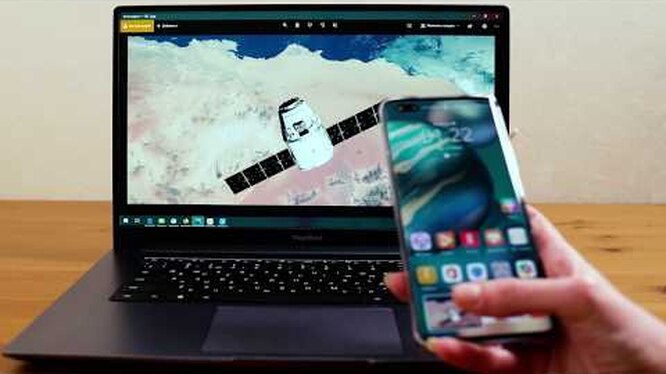
Технология Magic-link 2.0 использует сразу три протокола — NFC, Bluetooth и Wi-Fi. С помощью первого инициируется процесс сопряжения: приемник в смартфоне «видит» метку на корпусе ноутбука и система получает команду на поиск совместимого устройства. Беспроводная связь BT отвечает за передачу звука без задержек, например, при просмотре видео с телефона на экране компьютера. В свою очередь, по каналу Wi-Fi устанавливается соединение «точка-точка» и львиная доля данных между устройствами передается именно с его помощью.
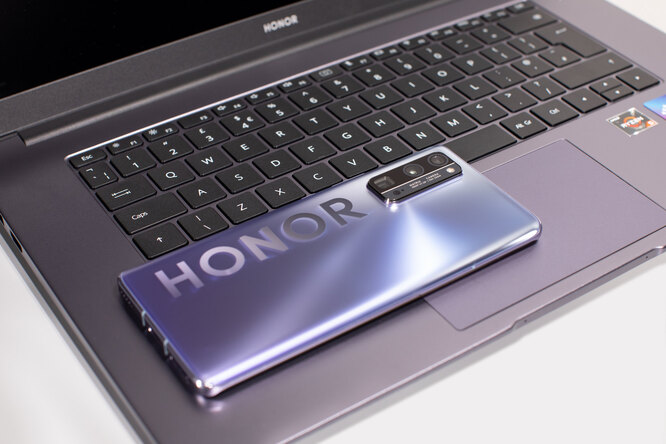
Для пользователя этот процесс выглядит максимально просто. Смартфон Honor (в нашем случае — новейший 30 Pro+) под управлением прошивки Magic UI версии 3 и выше, а также с включенными NFC, BT и Wi-Fi подносится к наклейке Magic-link на корпусе лэптопа. На нем, в свою очередь, должна быть запущена программа PC Manager версии 10 или выше. После этого сразу начнется процесс подключения, а через несколько мгновений на экране компьютера появится запрос на подтверждение связи. Если метки на ноутбуке по какой-то причине нет, то сопряжение можно запустить нажатием кнопки «подключить» в разделе «Мой телефон» панели управления PC Manager.
После этого экран смартфона дублируется на компьютере, а карманное устройство можно отложить — его дисплей через несколько секунд погаснет, батарея не будет зря тратиться. Пользователь получает возможность полноценно управлять телефоном с ноутбука, а также единый буфер обмена для текста на двух устройствах. Простым перетаскиванием мышью можно перенести любые файлы из памяти смартфона на диск компьютера и обратно. Альтернативный способ перебросить документ с лэптопа на телефон — просто поднести его к метке Magic-link 2.0. В этом случае на смартфон «улетит» текстовый файл, таблица, презентация или фотография, которые сейчас открыты на компьютере.
Еще пара интересных опций — бэкап фотографий и видео, а также запись экрана. Последнее очень удобно для тех, кому нужно быстро показать, как выполнить ту или иную операцию на компьютере, либо доказать технической поддержке, что какой-то элемент проекта отказывается работать корректно. Пока что функция записи экрана доступна только для лэптопов на базе процессоров Intel, а системы с чипами AMD получат ее в течение квартала. Для работников интернет-СМИ, разработчиков и руководителей среднего звена — незаменимая функция. Самое приятное, что все основные разделы PC Manager, посвященные взаимодействию со смартфоном, сопровождаются короткими обучающими видеороликами.
Опыт использования
Редакторам и авторам «TechInsider» постоянно требуется работать с огромным объемом информации в любом месте и в любое время: «горячая» новость или интересный инфоповод ждать не будут. Так что написать черновик статьи в дороге на смартфоне — не самое редкое событие. Тем более, что набор текста на сенсорном экране благодаря непрерывному вводу давно перестал быть проблемой. Да и при работе на дому статьи также нередко пишутся с телефона — на диване всяко приятнее работать, чем сидя за столом.
Однако финальная редактура и публикация, конечно, происходят с компьютера, так что возможность «бесшовно» объединить рабочее пространство гаджетов бесценна. Запись видео или съемка фото для материалов нередко производятся на телефон (благо, таких камер для большинства целей достаточно), однако в этом случае проблема встает, как говорится, во весь рост. В современных ноутбуках не предусмотрено большого количества портов (справедливости ради, они почти никогда и не нужны), но когда возникает необходимость скопировать «тяжелые» файлы, порой оказывается, что от компьютера в этот момент ничего нельзя отключить, чтобы освободить разъем.
Беда с облачными сервисами для мультимедиа была описана выше, а вот у текста свои особенности. Например, когда он копируется из онлайн-заметок, в «админку» может подтянуться форматирование, что не всегда удобно. Без Magic-link 2.0 ранее приходилось пропускать статьи через текстовый редактор, чтобы на сайте не появилось лишних символов или «сломанной» верстки.
Тестовая платформа
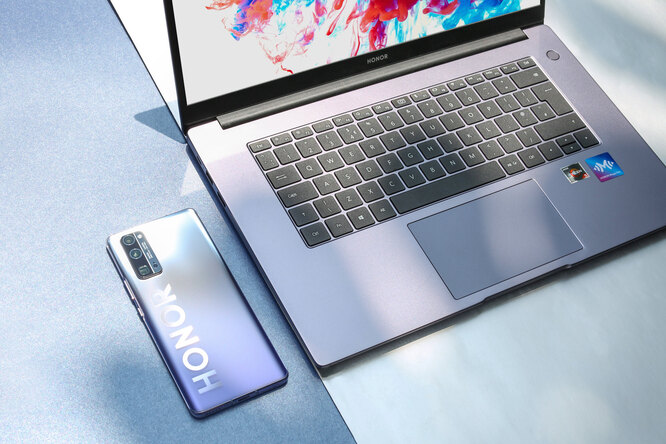
Magic-link 2.0 тестировался на связке из смартфона Honor 30 Pro+ и ноутбука MagicBook 15. Первый показал себя настолько хорошо, что заслужил отдельного обзора. Это флагманский смартфон Honor без сервисов Google, который при этом компенсирует возможные неудобства собственными «фишками». Например, в нем роль основного голосового помощника выполняет встроенная в систему «Алиса» от «Яндекса», а поддержка резервного копирования и синхронизации учетных данных возложена на «облако» Huawei. Отдельной похвалы заслуживает дизайн, качество изготовления и возможности камер. Наконец, это первый смартфон бренда с экраном, обладающим частотой обновления 90 Гц.
Как связать телефон honor с ноутбуком honor


HONOR 50 Lite


HONOR 50 Lite

HONOR MagicBook 16

HONOR MagicBook View 14

HONOR MagicBook 15 AMD

HONOR MagicBook X 15

HONOR MagicBook 14 AMD
HONOR MagicBook View 14
HONOR MagicBook 16
HONOR MagicBook 14 AMD
HONOR MagicBook 15 AMD

HONOR MagicBook 14 2021

HONOR MagicBook 15 2021

HONOR MagicBook X 14
HONOR MagicBook X 15
Носимые устройства Аксессуары Аудио HONOR CHOICE

HONOR MagicWatch 2

HONOR Watch ES

HONOR MagicWatch 2 42mm

HONOR Band 6

HONOR Band 5
Защитный бампер для HONOR 50
Защитный бампер для HONOR 50 Lite

HONOR Earbuds 2 Lite

HONOR AM115

HONOR Sport AM61R

HONOR CHOICE Earbuds X
О бренде
События HONOR
HONOR 50 Lite
Серия HONOR N
HONOR 50 Lite
Серия HONOR X
HONOR MagicBook 16
HONOR MagicBook View 14
HONOR MagicBook 15 AMD
HONOR MagicBook X 15
HONOR MagicBook View Серия
HONOR MagicBook View 14
HONOR MagicBook N Серия
HONOR MagicBook 16
HONOR MagicBook 14 AMD
HONOR MagicBook 15 AMD
HONOR MagicBook 14 2021
HONOR MagicBook X Серия
HONOR MagicBook X 14
HONOR MagicBook X 15
Носимые устройства
HONOR MagicWatch 2
HONOR Watch ES
HONOR MagicWatch 2 42mm
HONOR Band 6
Аксессуары
Защитный бампер для HONOR 50
Защитный бампер для HONOR 50 Lite
HONOR Earbuds 2 Lite
HONOR AM115
HONOR Sport AM61R
HONOR CHOICE
HONOR CHOICE Earbuds X
События HONOR
Популярные продукты
Рекомендуемые продукты
Уведомление о платформе HONOR
Добро пожаловать на платформу HONOR. Чтобы предоставить вам более качественные услуги, нам необходимо получить информацию об устройстве, сети, идентификаторе учетной записи и использовании. Мы обещаем принять соответствующие меры безопасности для защиты вашей личной информации. Нажимая СОГЛАСЕН, вы подтверждаете, что согласны с этими условиями, а также Заявление о платформе HONOR и конфиденциальности и Пользовательское соглашение платформы HONOR.
Я хотел(а) бы получить последнюю информацию о компании и продуктах HONOR. * Вы можете отказаться от подписки в любое время. Пожалуйста, ознакомьтесь с нашей «Политикой конфиденциальности» для получения более подробной информации.
Передача данных между вашим устройством и компьютером с помощью Huawei Share
Поддерживаемые продукты: HUAWEI Mate Xs(dual sim card 8gb+512gb),HUAWEI nova 9(dual sim card 8gb+128gb),PORSCHE DESIGN HUAWEI Mate 30 RS,HUAWEI Mate 30(dual sim card 8gb+256gb、dual sim card 8gb+128gb),HUAWEI Mate 30 Pro 5G(dual sim card 8gb+256gb、dual sim card 8gb+128gb),HUAWEI Mate 30 Pro(dual sim card 8gb+256gb、dual sim card 8gb+128gb),HUAWEI nova 8(dual sim card 8gb+128gb),HUAWEI P40(single sim card 8gb+128gb、dual sim card 8gb+128gb),HUAWEI P40 Pro+(dual sim card 8gb+512gb),HUAWEI Mate 40 Pro(single sim card 8gb+256gb、dual sim card 8gb+256gb),HUAWEI P40 Pro(single sim card 8gb+256gb、dual sim card 8gb+256gb)
Поддерживаемые продукты:
Huawei Share
For a better user experience, please use the latest version of Internet Explorer or switch to another browser.
Smartphones, Laptops & Tablets, Wearables and More
About Huawei, Press&Event, and More
Products, Solutions and Services for Enterprise
Products, Solutions and Services for Carrier
Search Open menu
search Search Close
Popular Products
Quick View
enter more search keys
- Africa
- Asia Pacific
- Europe
- Latin America
- Middle East
- North America
- Global

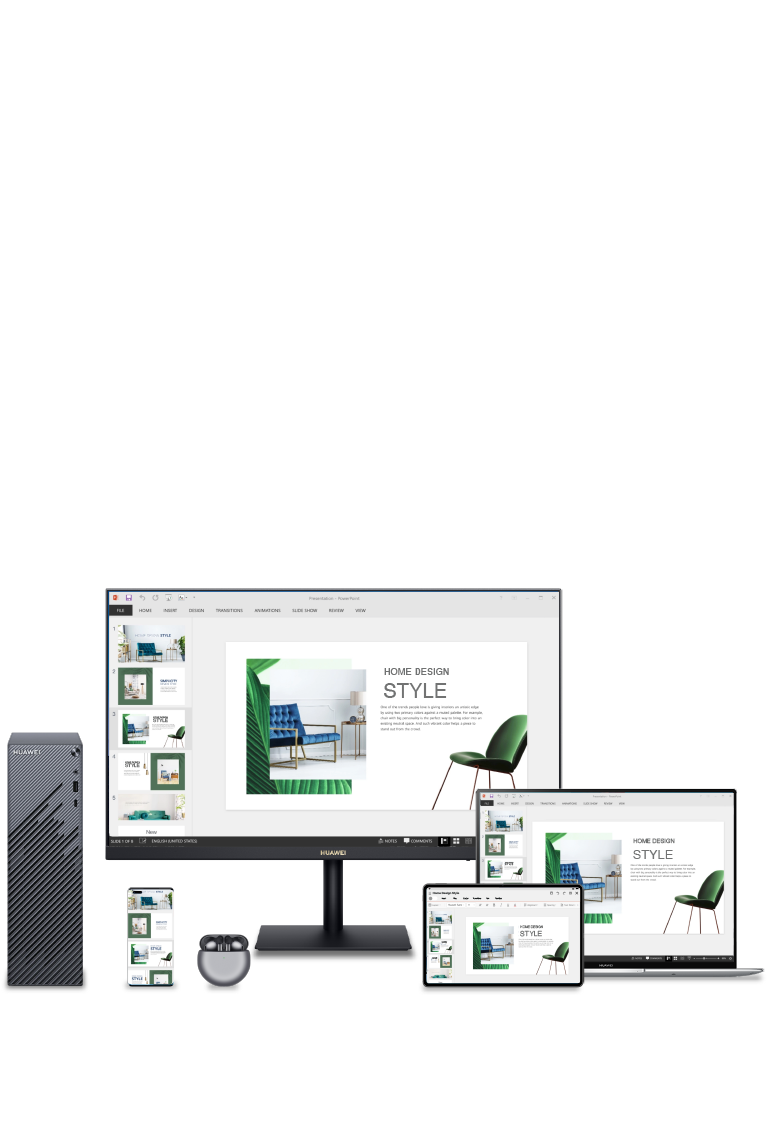
Huawei Share
Smart, versatile connectivity.
Real-time interactions, supported by cross-system, multi-screen collaboration.
Share the screen, keyboard, and mouse, to enjoy effortless convenience.
Share files, images, and data to send your work efficiency through the roof.
Connecting Devices
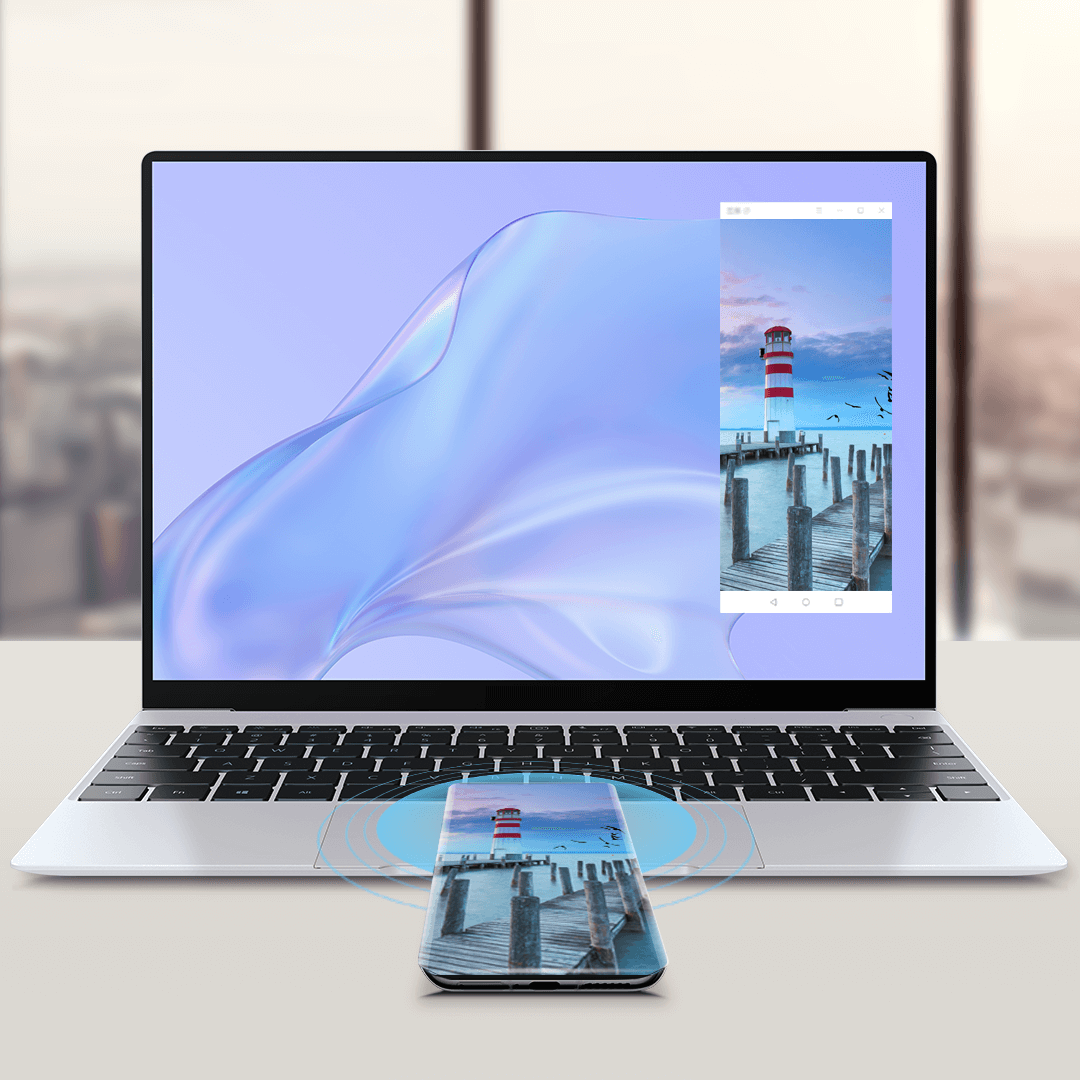
You’ll need to establish a connection between two of your devices in order to access certain features.
Connect Your Phone and Computer
Connect Your Tablet and Computer
Connect Your Earphones and Computer
—>
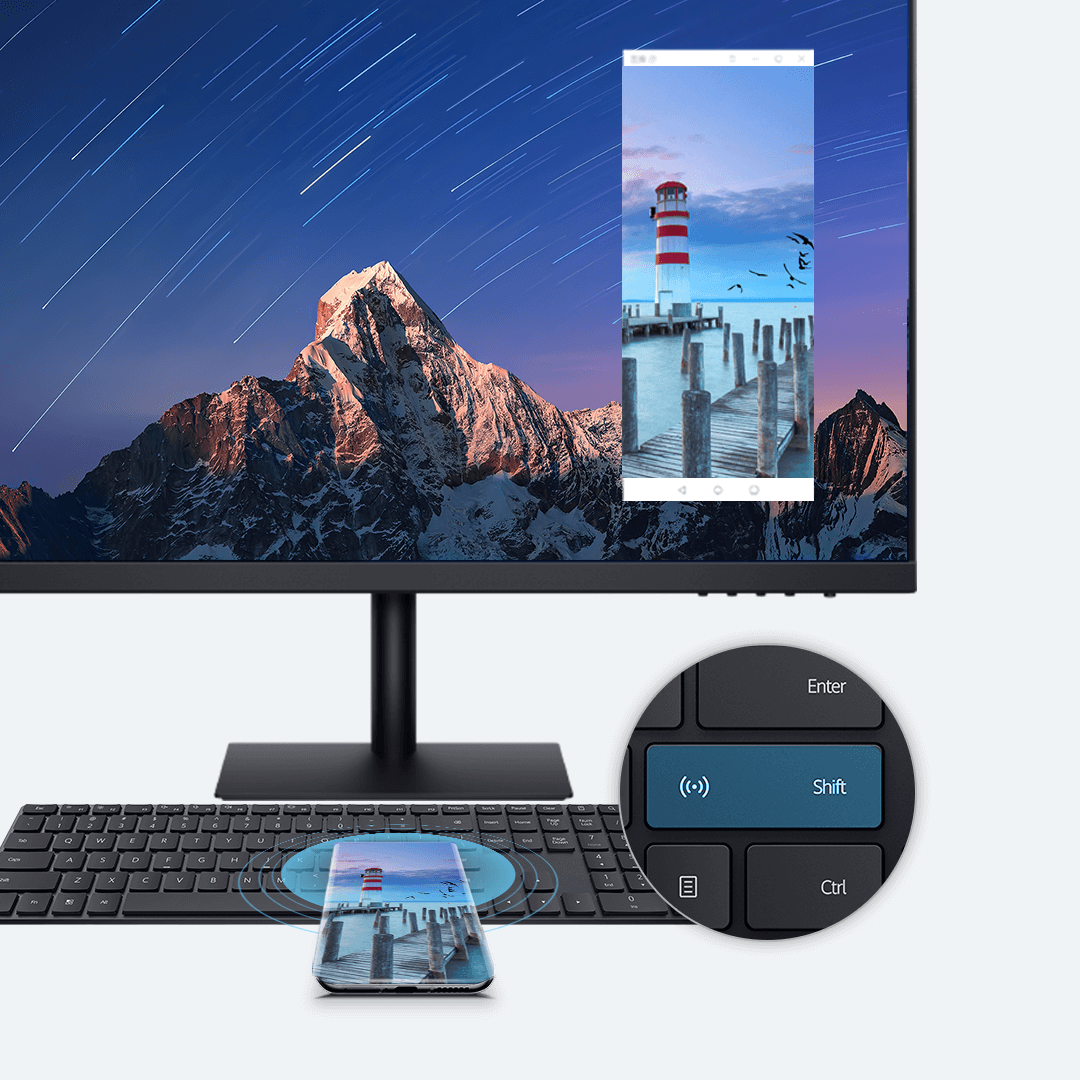
- Share and edit files between your phone and computer as if they are a single device, for effortlessly productive working at all times.
- 1. Turn on Wi-Fi, Bluetooth, and NFC on your phone.
- 2. Turn on Wi-Fi, Bluetooth, and PC Manager on your computer.
- 3. Tap the NFC area on your phone (when the screen is unlocked) against the Huawei Share sensor (or the area with the icon) on your computer. You will hear your phone vibrate or play a notification sound to indicate a successful connection. After the connection is established, the phone screen will be projected to the computer display. You can then:
- ● Control phone apps: Open apps, view the phone home screen and webpages directly on the computer.
- ● Input text and send messages: Type in the virtual phone window using the computer keyboard, and copy-and-paste content between the two devices.

Note
Open PC Manager , go to Phone > Multi-Screen Collaboration (or My Device > Phone > Multi-Screen Collaboration ), and connect the two devices via Bluetooth, QR code scanning, or a cable.
—>
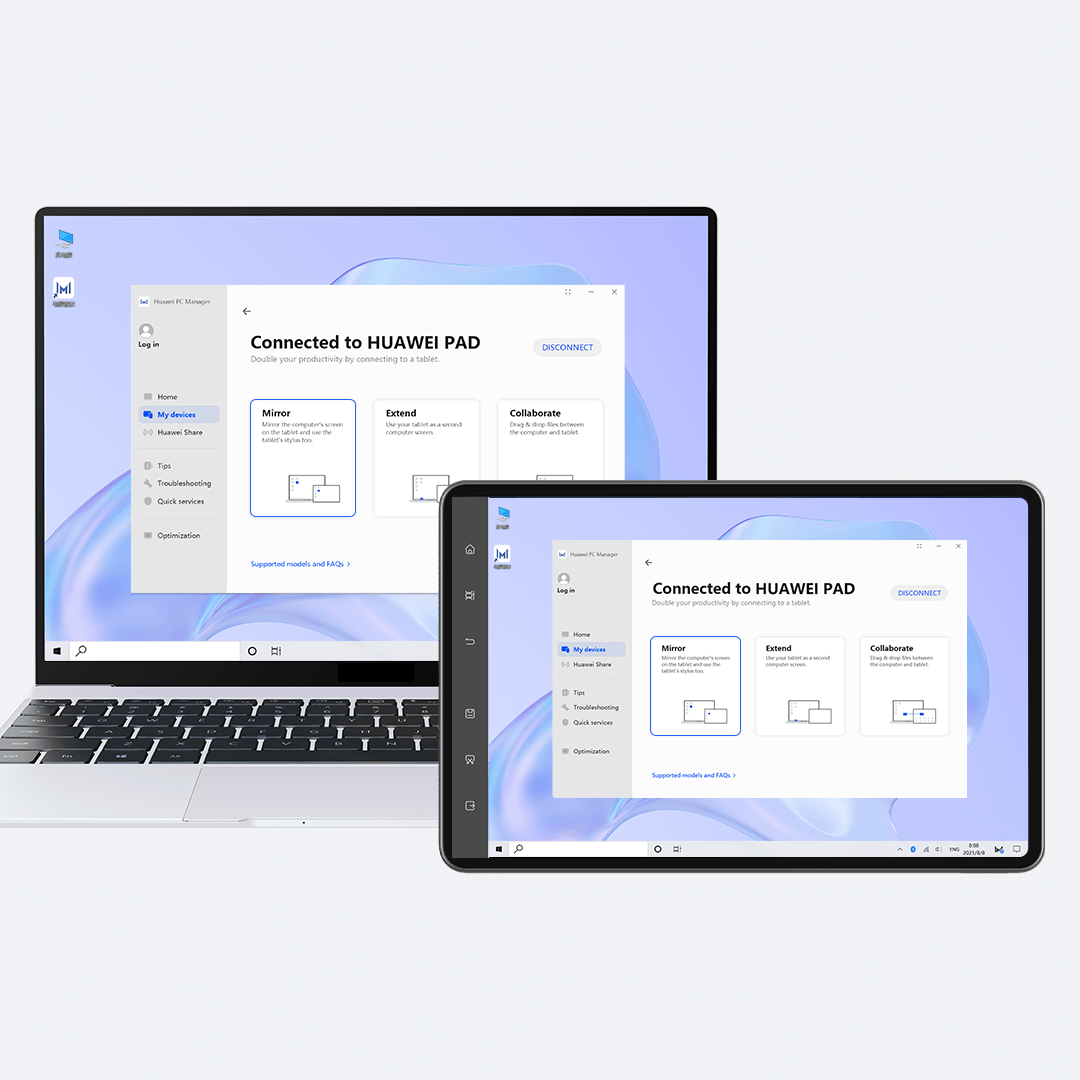
- 1. Open PC Manager and go to My Device > Tablet on your computer.
- 2. Click on Connect , and select your tablet from the displayed device list.
- 3. When connecting to the tablet for the first time, enter the PIN displayed on the tablet in the dialog box on your computer, and follow the onscreen instructions to establish a connection.
- If your tablet and computer are logged in to the same HUAWEI ID, a PIN code is not required. You can also connect the two devices by cable.
Note
Make sure that your tablet’s operating system has been updated to HarmonyOS 2 or a later version.
—>
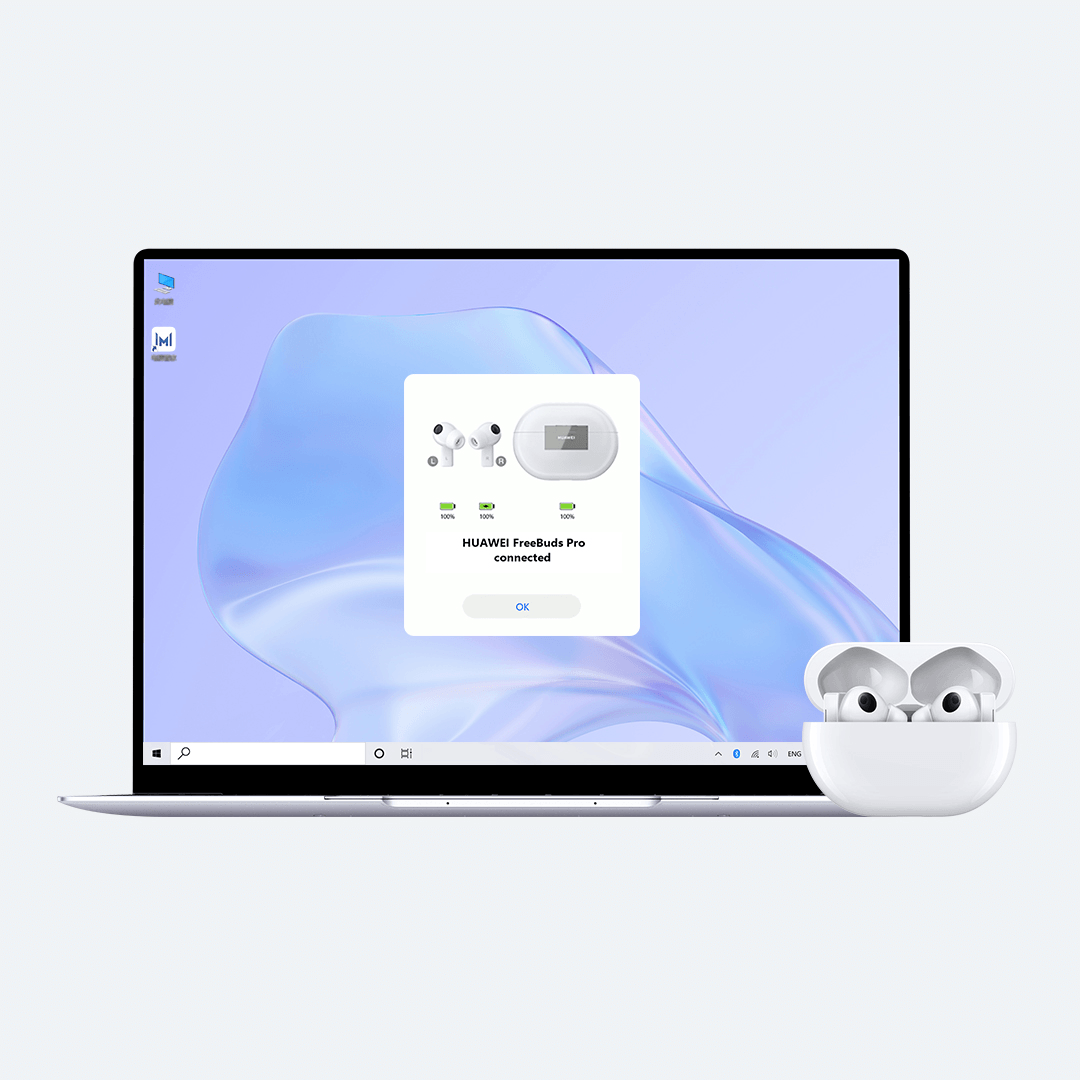
- Bring your earphones in close proximity to the computer, where they’ll be automatically detected. It’s as simple as that!
- Make sure that Bluetooth is enabled on your computer.
- 1. Open the charging case (with the earphones inside), or press and hold the Function button or Bluetooth button for 2 seconds until the indicator flashes.
- 2. Bring the earphones in close proximity to your computer, and follow the onscreen instructions to pair the two devices.
Note
This feature is only supported on certain computer and earphone models (View supported models and requirements.).
Multi-Screen Collaboration
Multi-Screen Collaboration turns your computer and phone or tablet into a seamless efficiency unit, supporting drag-and-drop file transfers, sharable keyboard input and mouse navigation, and cross-device document editing.
Multi-Screen Collaboration with a Phone
Multi-Screen Collaboration with a Tablet
—>
Answer Voice and Video Calls on Your Computer
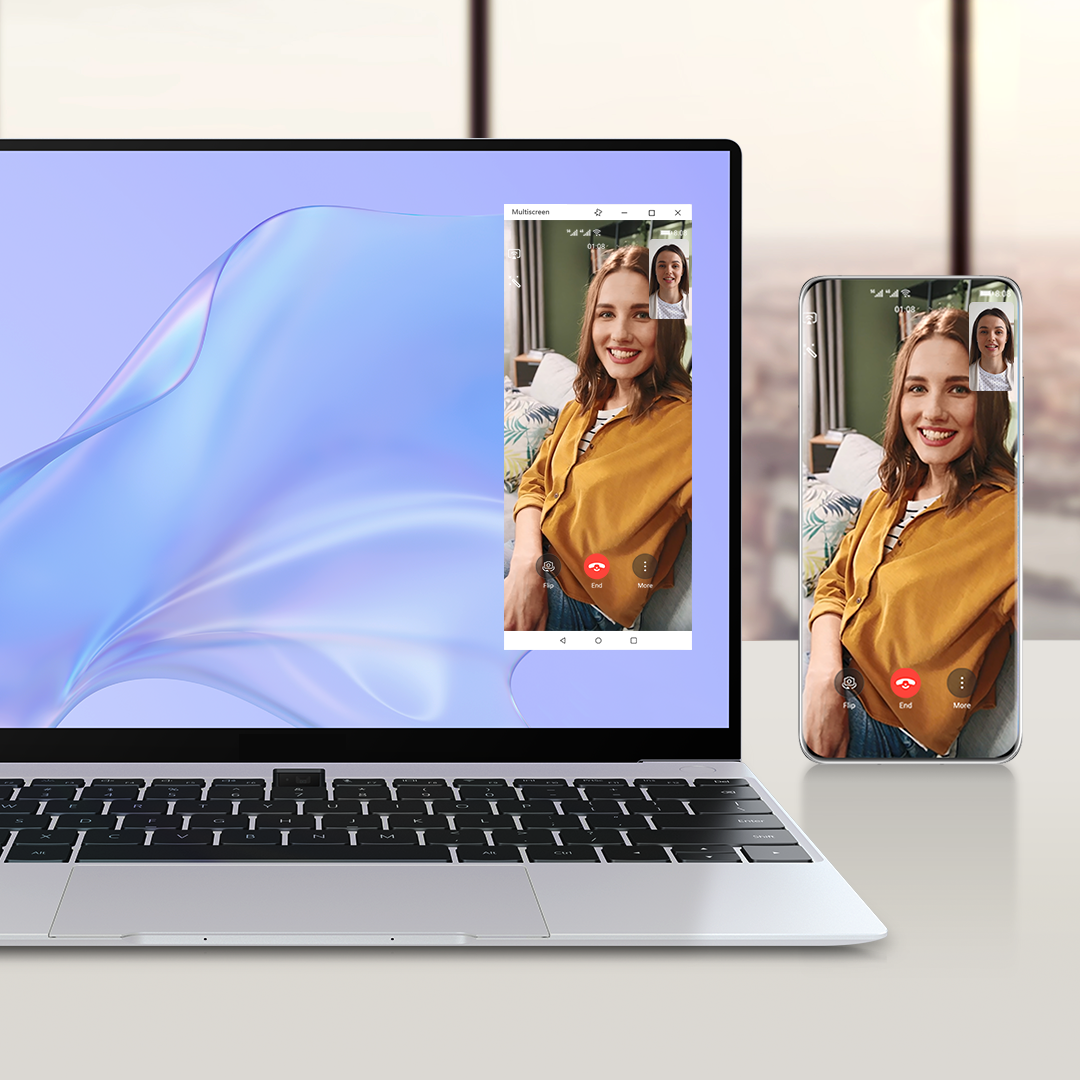
- Once your phone screen is projected to your computer, you can join conference calls made to your phone, with the benefit of the more powerful camera and speaker on your computer.
- When there’s an incoming audio or video call to your phone, answer it on your computer instead, with just a click. Swipe down from the status bar on your phone to display the shortcut switches panel, and touch Play audio/video on phone when you want to switch the call back to your phone.
Note
● Make sure that your phone is running EMUI 10.1 or a later version.
● This feature is only supported in certain dialer apps.
● This call switching feature is not supported on desktop computers.
Open Phone Files on the Computer
- Once your phone screen is projected to your computer, you’ll be able to open, edit and save phone files on your computer as needed.
- ● Open a file: Open a file (such as a document, picture, audio file, video, or compressed package) from the Files or Email apps on your phone, to view or edit it directly on your computer.
- ● Open a link: Click on a URL saved in a note on your phone, to open it in the computer browser.
Note
● Make sure that your phone is running EMUI 10.1 or later.
● This feature is only supported by certain versions of third-party apps.
—>
—>
Drag-and-Drop Files Between Your Phone and Computer
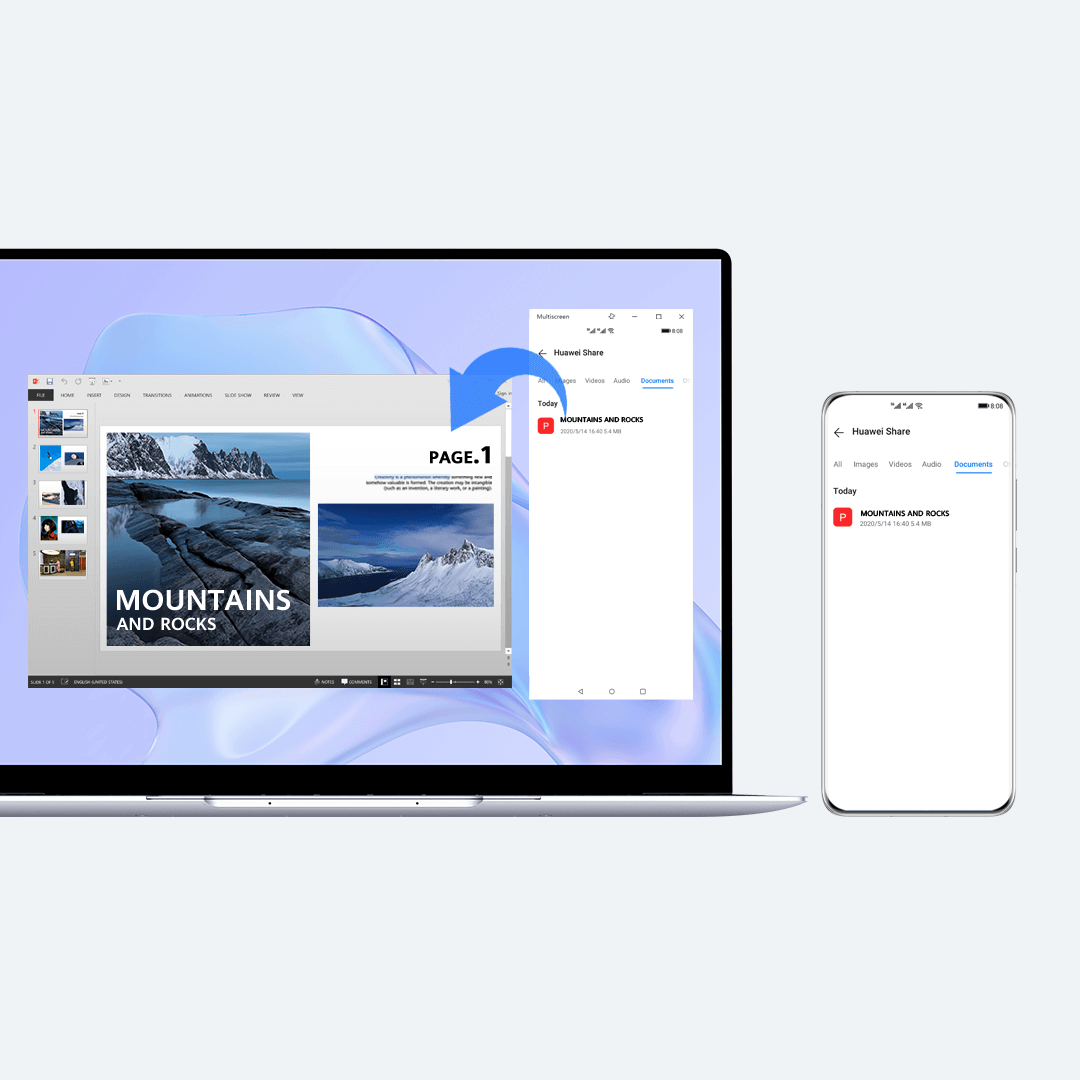
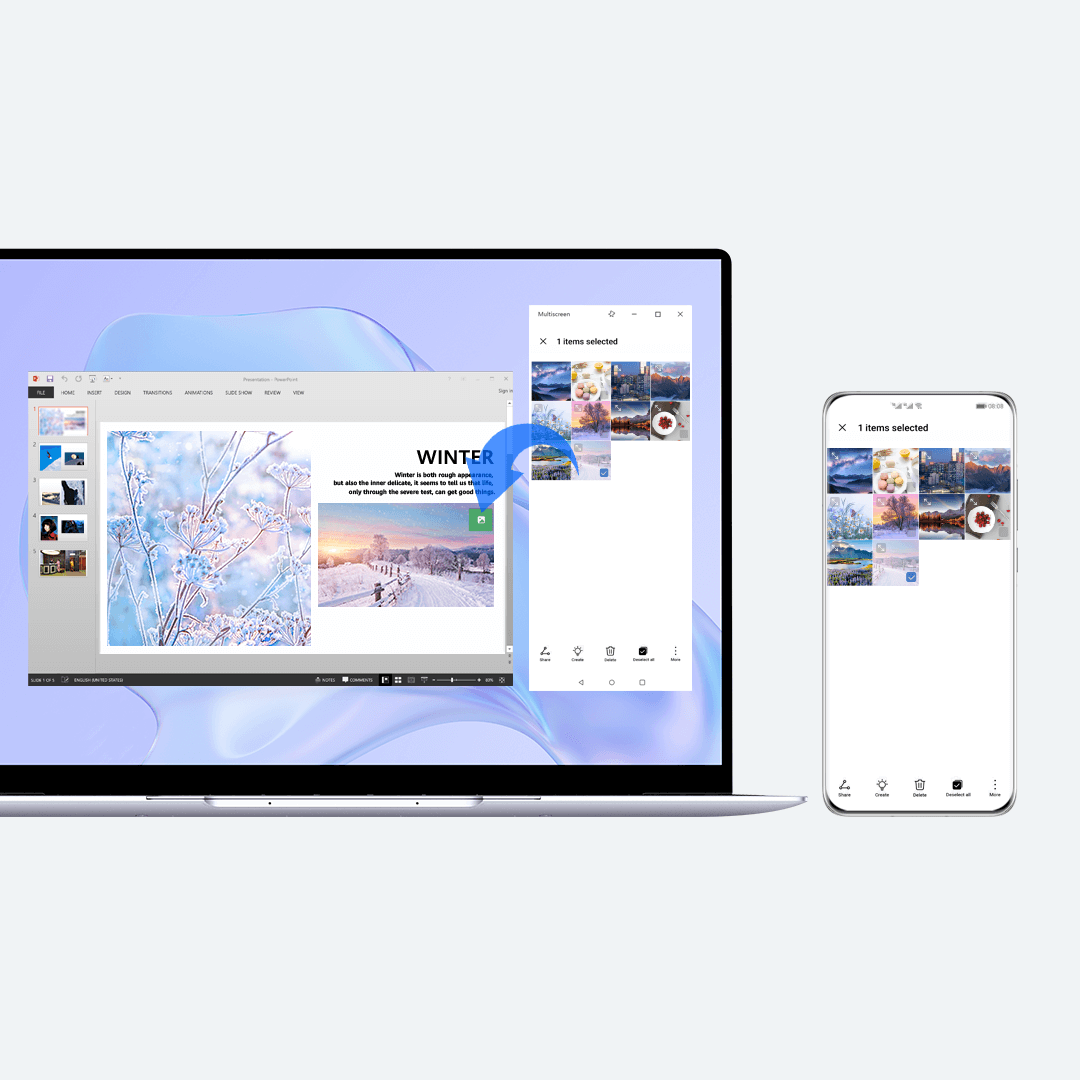
- Once your phone screen has been projected to your computer, you’ll be able to drag-and-drop files between the two devices, to share and edit important work with greater ease.

- Phone to computer: Touch and hold a file in the phone window, until you see displayed. Then drag the file to the desktop or a specific folder on your computer.
- Computer to phone: Select a file on your computer and drag it to the phone window, to save it or send it to a chat in a communications app, such as MeeTime.
- File editing: Drag text, pictures, and audio and video files from your phone or computer, to a corresponding app on the other device, for more efficient and effective editing. For example, you can drag a picture from your phone into an open presentation on your computer.
- Cross-device copying-and-pasting: Copy the text from your phone and paste it on your computer, or vice versa.
Open Multiple Apps at the Same Time
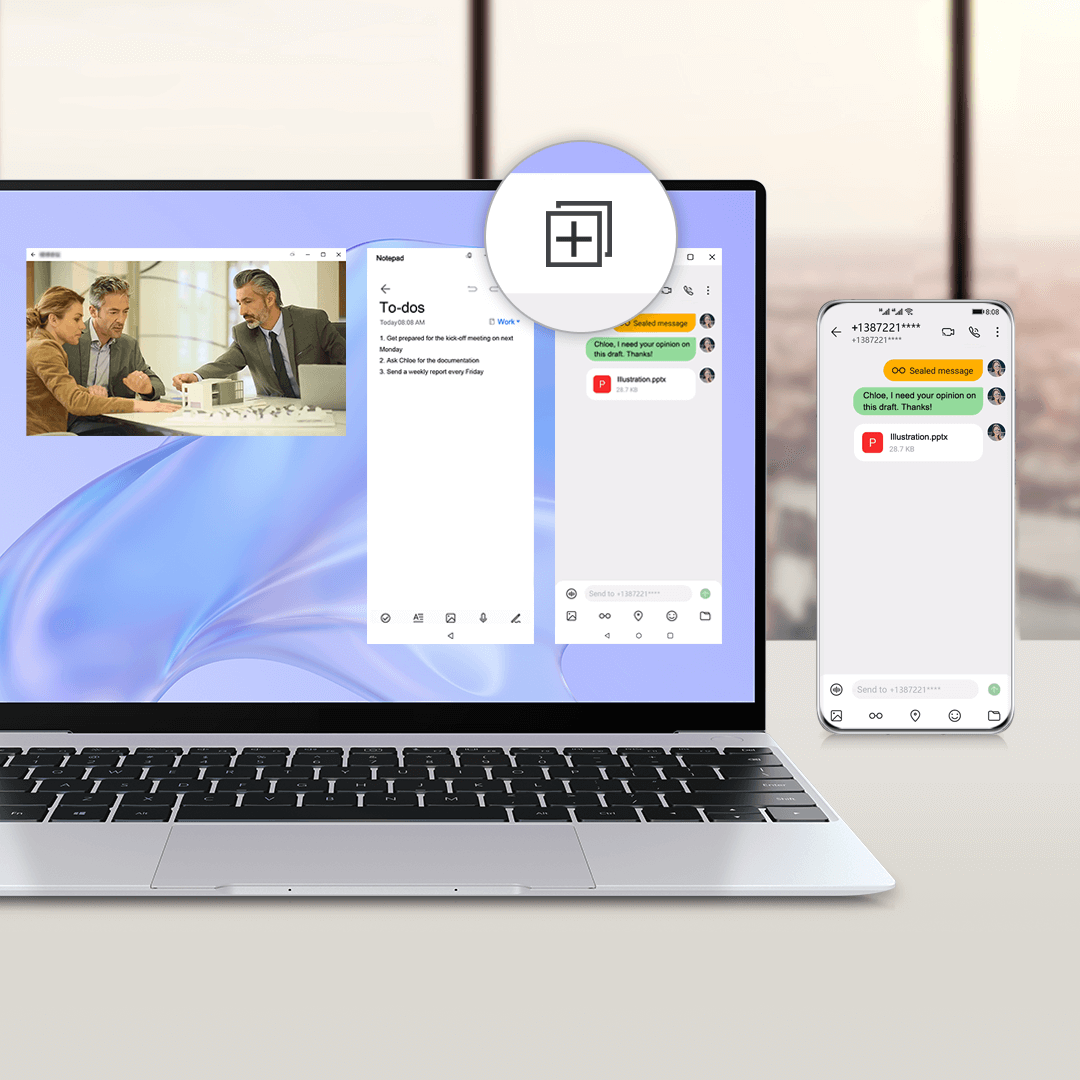
- Once your phone has been projected to your computer, you’re free to open up to three phone app windows on the computer screen, to enjoy next-level multitasking efficiency.

- Open an app in the virtual phone window on your computer, and touch to open additional windows for other phone apps on your computer. The phone windows work independently of each other.
Note
● Make sure that your phone is running EMUI 11.0 or later.
● You can run two or three windows on your phone at the same time.
—>
Unlock Your Phone from the Computer
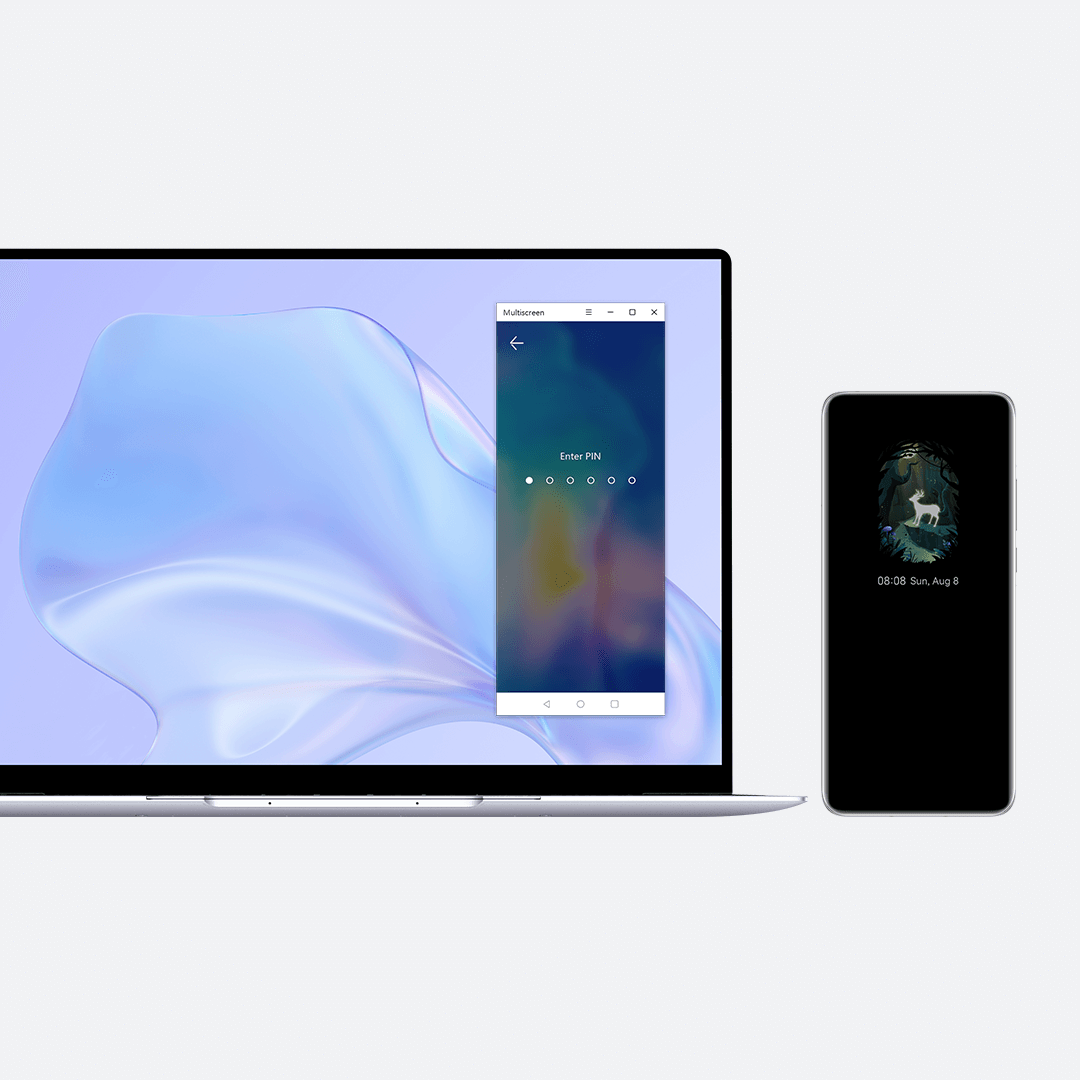
- Once your phone and computer are connected via multi-screen collaboration, you’ll be able to unlock your phone or locked phone apps from the computer screen, to boost your efficiency without compromising security.
- During multi-screen collaboration, you can unlock the phone screen or locked phone apps, simply by entering a PIN or password on the computer keyboard, or by drawing the unlock pattern on the computer touchpad.
Note
● Make sure that your phone’s operating system has been updated to EMUI 12.0 or a later version.
—>
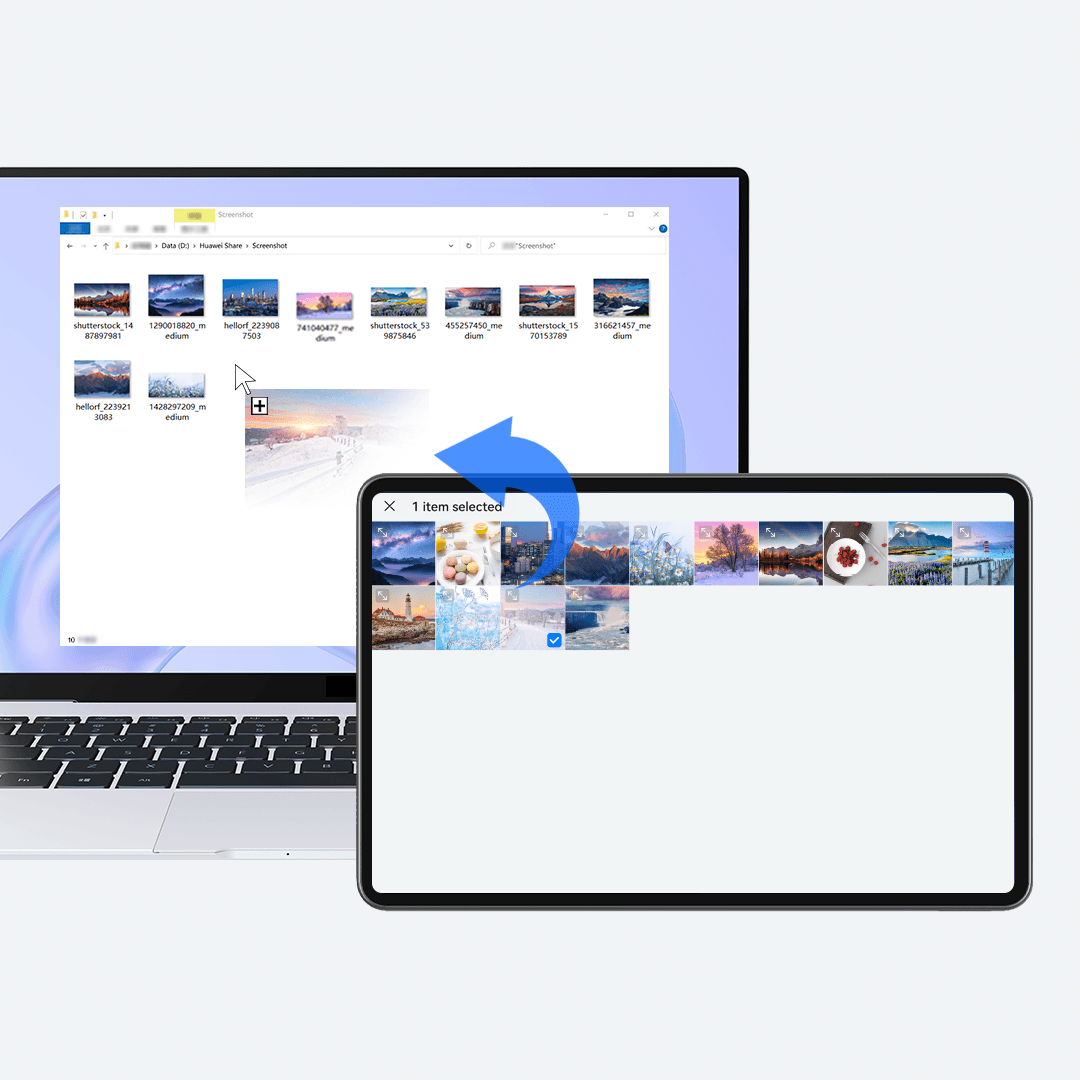
Drag Text and Files Between Your Tablet and Computer
- 1.Open PC Manager , go to My Device > Tablet > Connect on your computer, and follow the onscreen instructions to connect your tablet and computer.
- 2. Click on Collaborate to share your computer’s keyboard and mouse. From there, you can:
- ● Drag text: Select the text to be dragged, then click and hold down on the text to drag it to the desired location on your tablet or computer.
- ● Drag files: Click and hold down on the relevant images or files, and drag them to your tablet or computer.
Note
Make sure that your tablet’s operating system has been updated to HarmonyOS 2 or a later version.
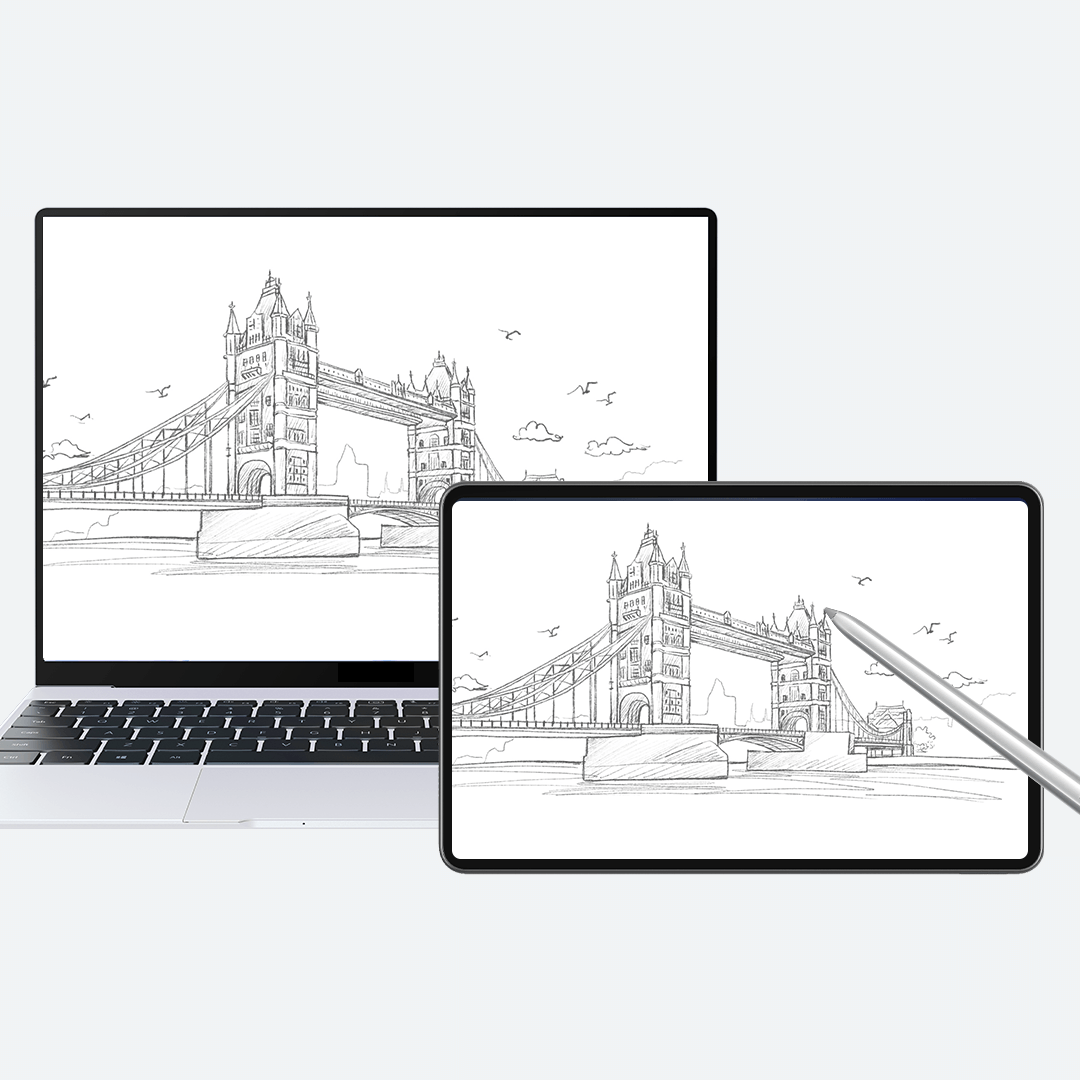
Turn Your Tablet into an Extension of Your Computer
- Make your tablet a second screen for your computer, to enjoy seamless multi-tasking and effortless cross-device navigation.
- Open PC Manager , go to My Device > Tablet > Connect on your computer, and follow the onscreen instructions to connect your tablet and computer.
- ● Selecting Mirror shows the tablet’s on-screen content on your computer desktop. You can also doodle or leave comments in files by using a stylus.
- ● Selecting Extend allows you to extend the computer desktop to a second screen. You can drag an open app window on your computer to your tablet, to edit a file on your computer, while also searching for information within the app window on your tablet.
- To adjust the position of the sidebar on your tablet, or transfer computer audio to your tablet, touch Settings .
Note
● Make sure that your tablet’s operating system has been updated to HarmonyOS 2 or a later version.
—>
File Sharing
Transfer and then edit files to and from your device of choice, without consuming any mobile data.
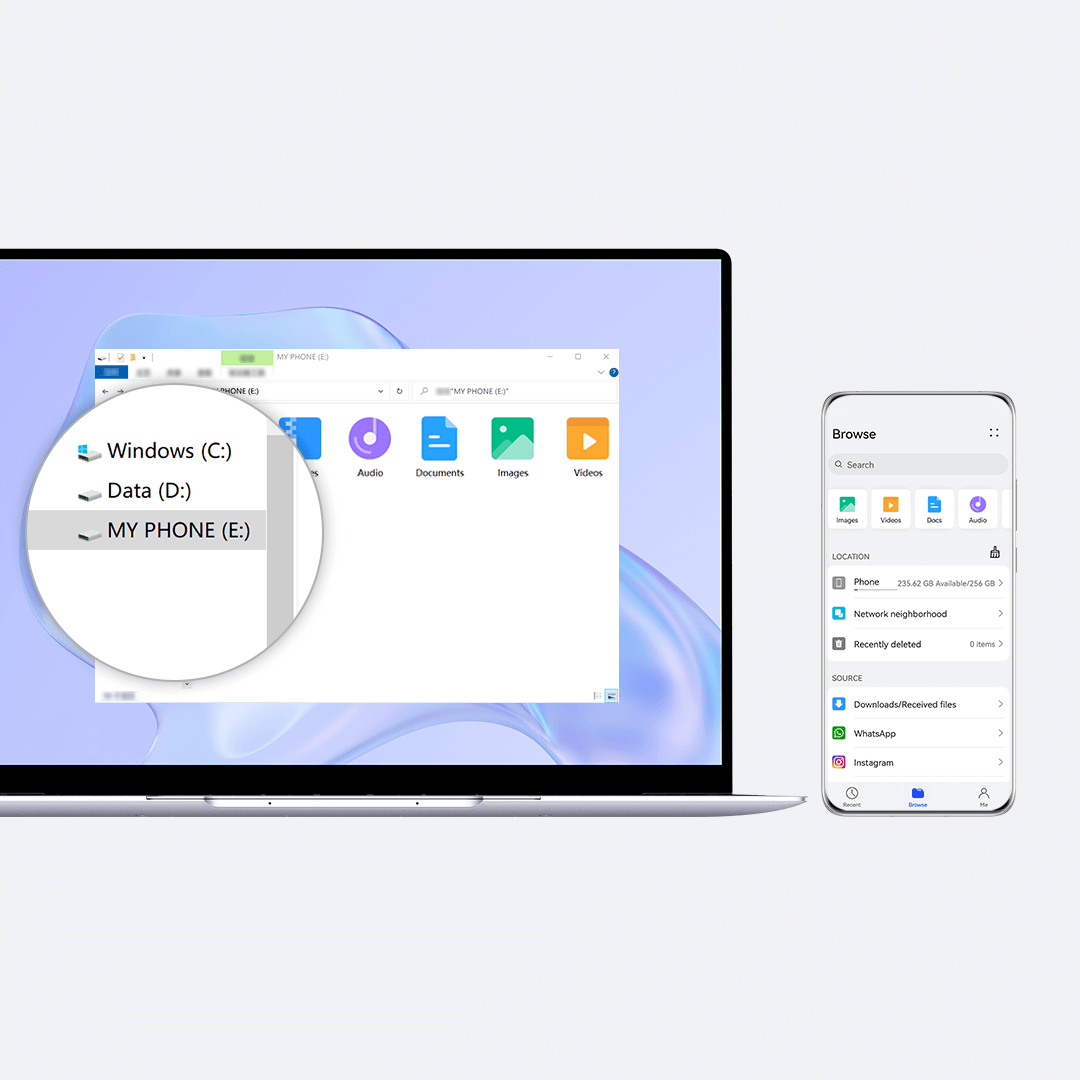
Access and Edit Phone Files from Your Computer
- Once your phone and computer are connected, you can directly access categorized phone folders from the computer.
- Click on This PC on your computer, and then click on the drive letter for your phone. You’ll then see the phone folders displayed by category. From there, you’ll be able to edit phone files directly on your computer, and have them saved on your phone.
Note
● Make sure that your phone’s operating system has been updated to EMUI 12.0 or a later version.
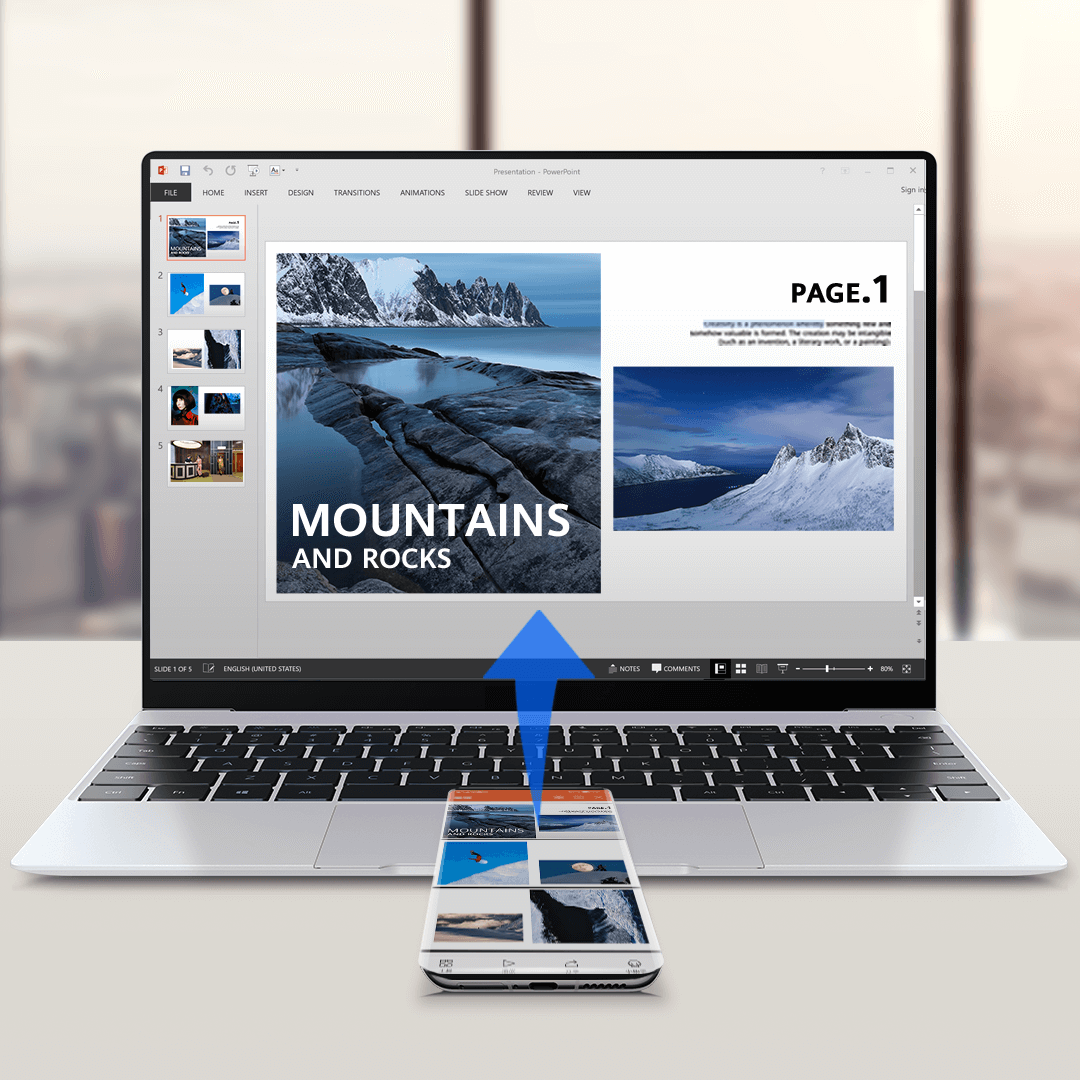
Transfer Files Between Your Phone and Computer
- Transfer files between your phone and computer with just a tap, once a connection has been established between the two devices, for quick and easy sharing.
- Open the file you wish to send in a specific app on your phone, tap the NFC area on your phone against the Huawei Share sensor (or the area with the icon) on your computer. You will hear your phone vibrate or play a notification sound to indicate a successful connection.

- ● Before sending pictures or videos: Open one or select more pictures or videos to be sent in Gallery on your phone. If you are on your computer, open the picture or video you wish to send in Huawei Image Viewer .
- ● Before sending a document: Open the document to be sent in WPS Office on your phone. If you are on your computer, open the document you wish to send in Microsoft Office.
- To view the files received on your computer, touch on the task bar, then select Notifications to locate the storage location.
—>
—>
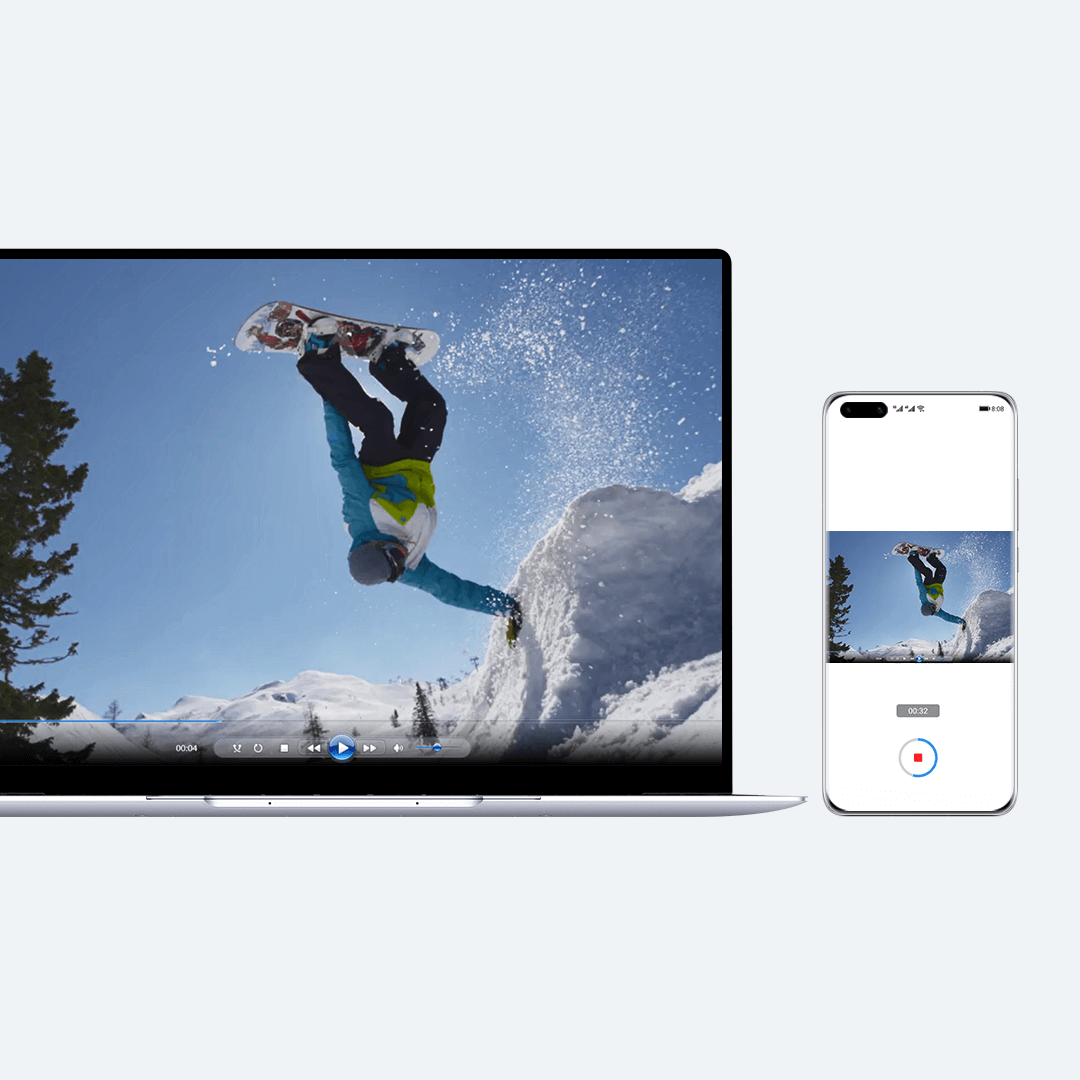
Use Your Phone to Record the Computer Screen
- Use OneHop to record your computer screen on your phone with just a tap, where it can be shared with greater ease.
- 1. Connect your phone with your computer. Shake your phone (when the screen is unlocked), and then within 5 seconds, tap the NFC area of your phone against the Huawei Share sensor (or the area with the icon) on your computer. You will hear your phone vibrate or play a notification sound to indicate a screen recording request.
- 2. Confirm the screen recording request on the computer, and your phone will begin recording the computer screen. Touch
 to halt the screen recording (max recording length of 60s). The recorded content will be saved automatically in Gallery on your phone.
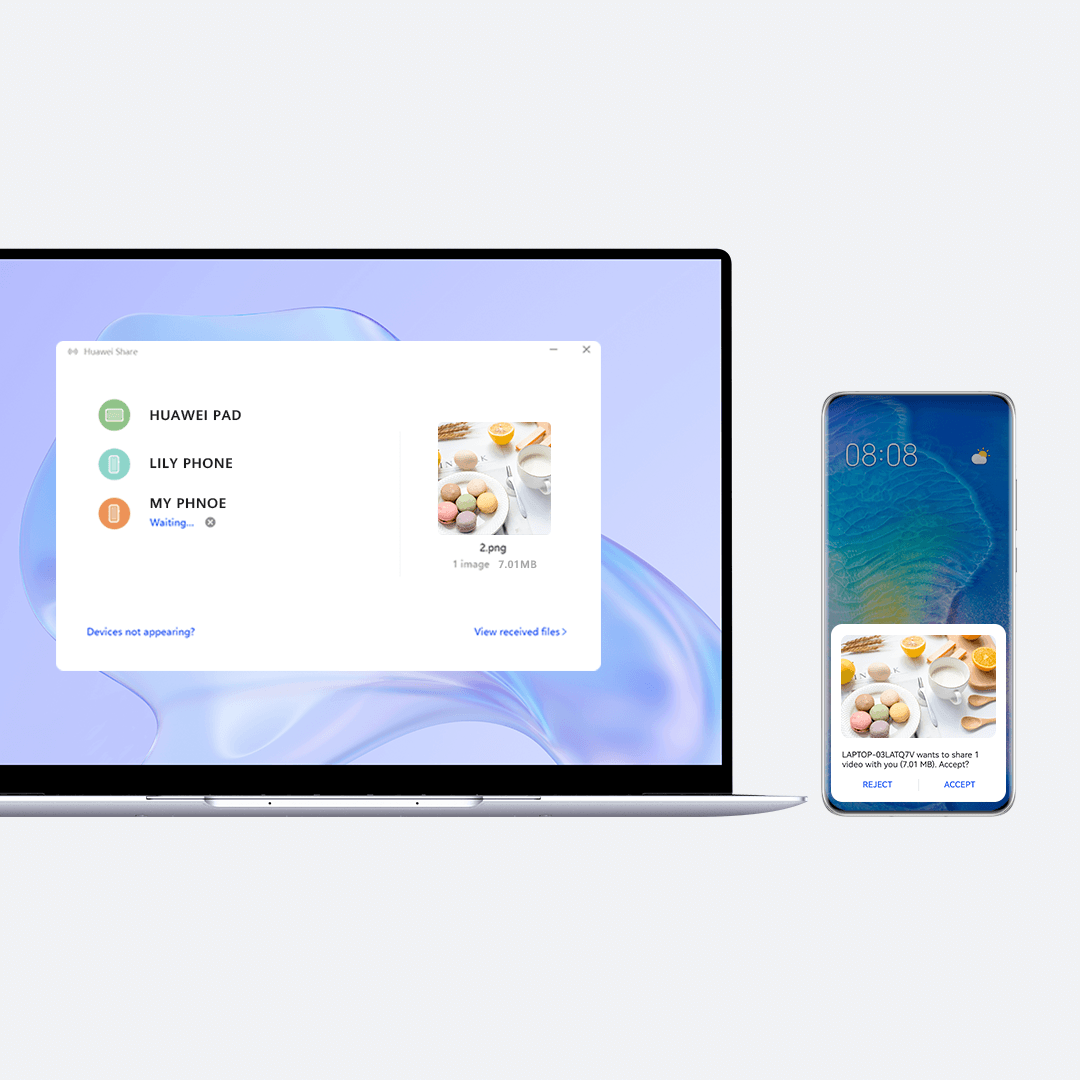
- ● Computer-to-phone/tablet file transfer: Right-click on the file to be shared on your computer, select
 , click on the recipient device, and then touch Accept on that device. You can also open the PC Manager app on your computer, click on
  , and drag the file to the recipient device.
 - ● Phone/tablet-to-computer file transfer: Touch and hold the file to be shared on your phone or tablet, touch Share , touch the name of your computer, and then click on Accept on the computer.
- To prevent your computer from being detected by other Huawei Share-enabled devices, click on
 on the taskbar in the lower right corner of the computer screen, and then click on
  .
.
Note
● Make sure that your device’s operating system has been updated to HarmonyOS 2 (or EMUI 12.0, depending on the device type) or a later version.
Data Syncing
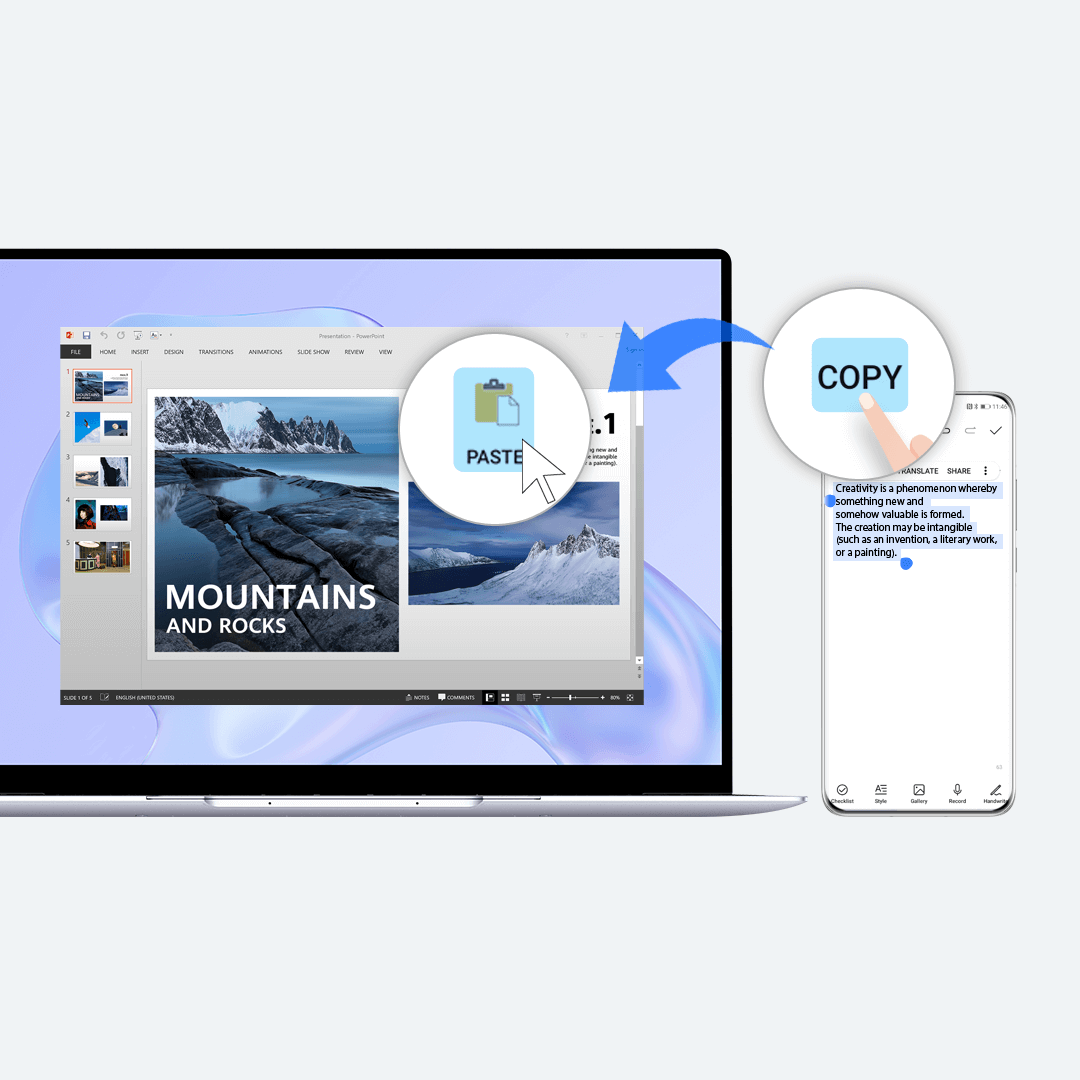
With a sharable phone-computer clipboard, you can copy-and-paste content between the two devices with effortless ease. Documents that were recently opened on your phone can even be automatically synced to your computer!
—>
Sharing the Clipboard Between Your Phone and Computer
- Your phone and computer are able to share each other’s clipboards, once a connection has been established between the two devices. You’ll be able to copy the text on your phone and paste it on your computer, and vice versa.

- 1. Log in to your HUAWEI ID on your phone.
- 2. Log in to the same HUAWEI ID in PC Manager on your computer.
- 3. Copy text on your phone and paste it on your computer, or vice versa.
- Click on in the lower right corner of the taskbar on your computer, and select Clipboard to view recently copied content.
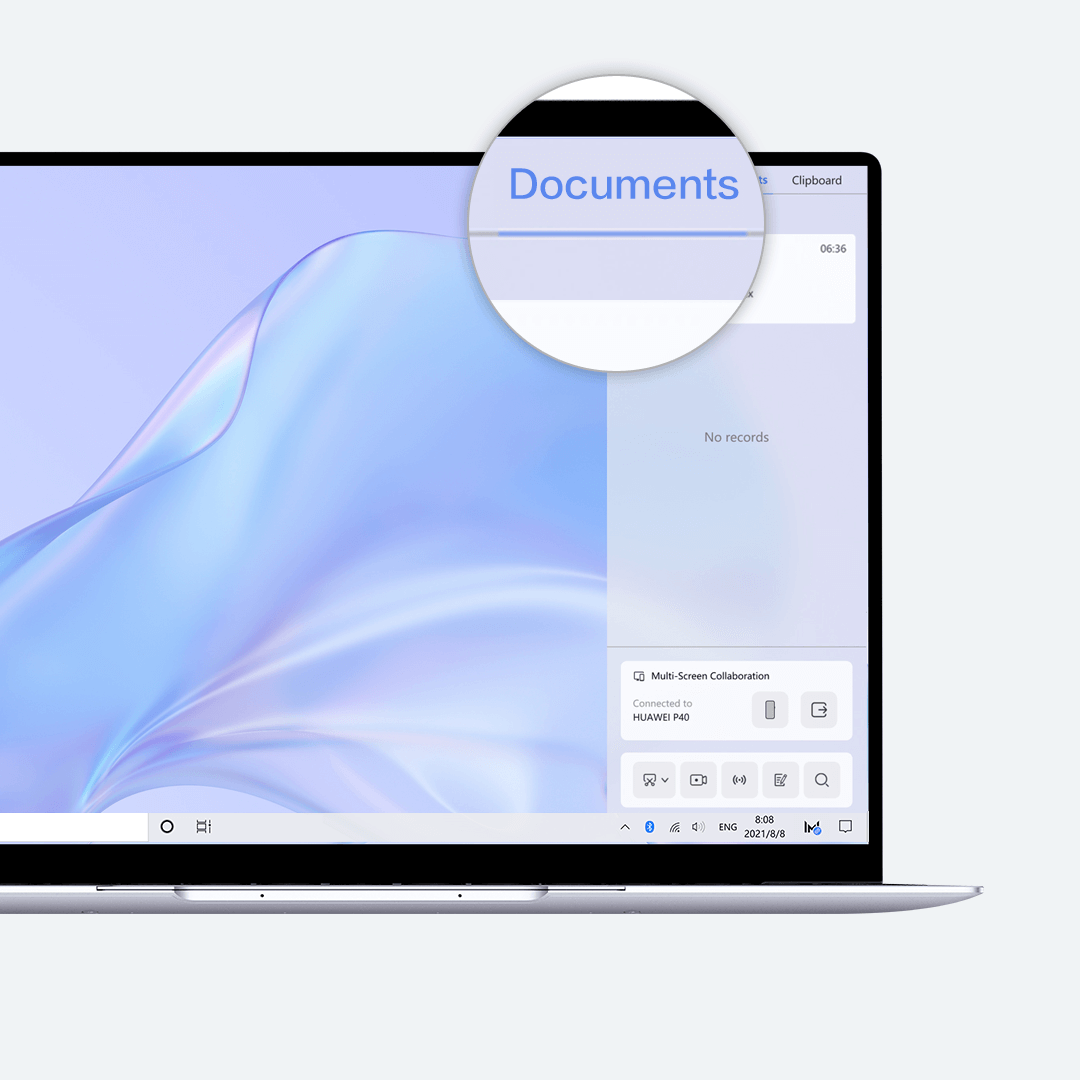
Viewing Recently Opened Documents on Your Phone
- View recently opened phone documents directly on your computer, once a connection has been established between the two devices, to enjoy ultra-efficient work and study.
- 1. Log in to your HUAWEI ID on your phone.
- 2. Log in to the same HUAWEI ID in PC Manager on your computer.
- 3. Click on in the lower right corner of the taskbar on your computer, and select Documents to view or download recently opened documents on your phone.
Note
● Only documents from the past seven days can be synchronized from your phone, and only documents in the following formats are supported: Word, PPT, Excel, PDF, and RTF.
—>
1. The above product images and screen displays are for reference only. Actual product specifications (including but not limited to external designs, colors, and sizes) and on-screen content (including but not limited to backgrounds, interfaces, and illustrations) may vary.
2. The features detailed above may vary depending on the product model and software version, as well as usage conditions and environmental factors.
3. Product information, specifications, features, and components may vary by product model and system version. Huawei may update the above content in real time, to ensure that the information is accurate and up to date.
4. Product information is subject to such changes and updates without notice.
5. The product launch time differs by country and region. The «Supported Models and FAQs» page might not include the most recent information. For any questions, please contact after-sales personnel.