How to Download Canva Presentation as PowerPoint PPT
As one of the best online presentation software, more and more people use canvas to create presentations, but PowerPoint is the more general presentation software. Sometimes you need to export slides from Canva to PowerPoint, here is how to do that.
Download Canva presentation template as PPT
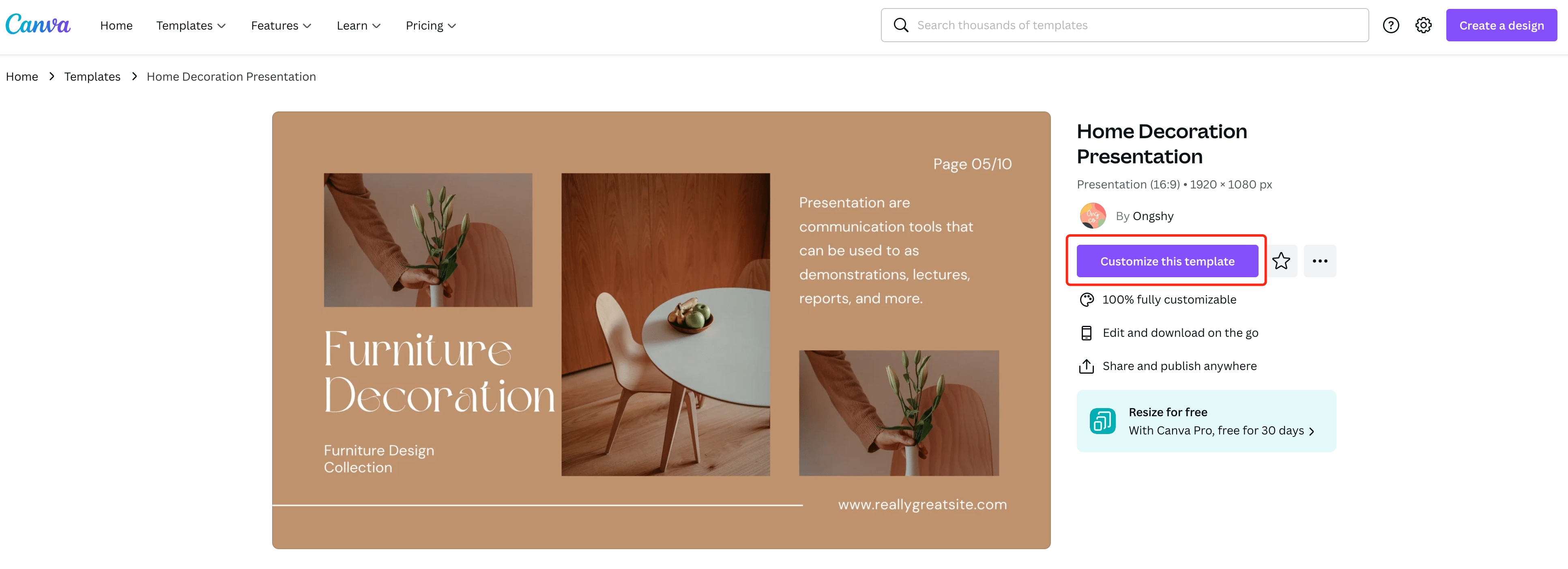
If you want to download a Canva presentation template, you need to make a copy first, log in and click [Customize this template], then you can edit or download a template.
How to download Canva presentation as ppt?
Total Time: 1 minute
-
Edit your presentation
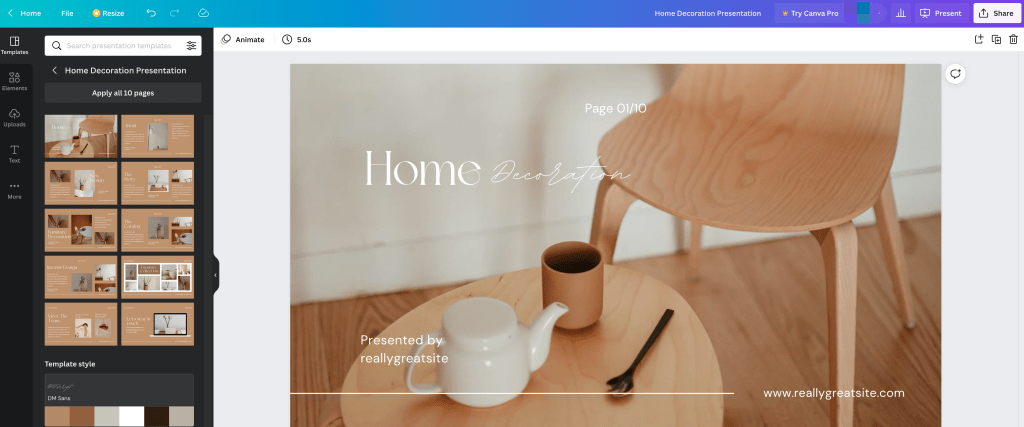
Canva presentation
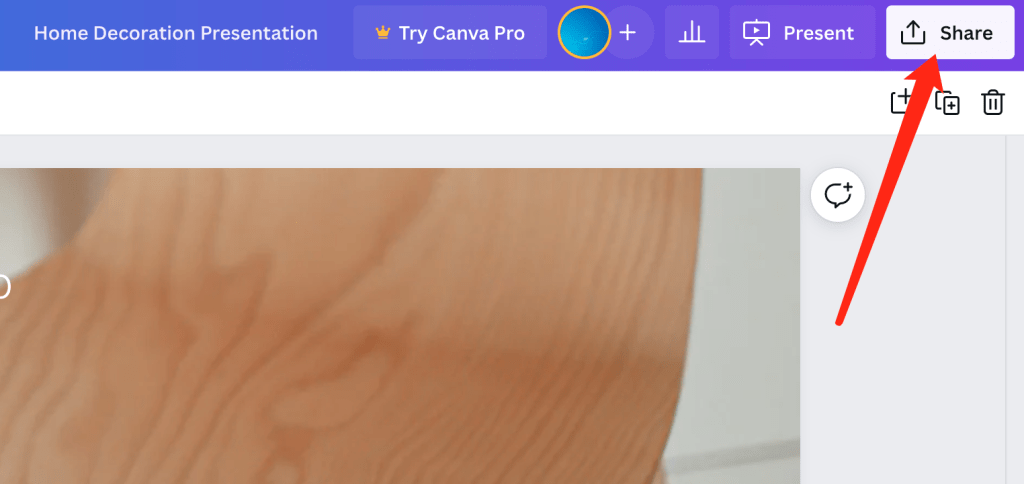
Canva share
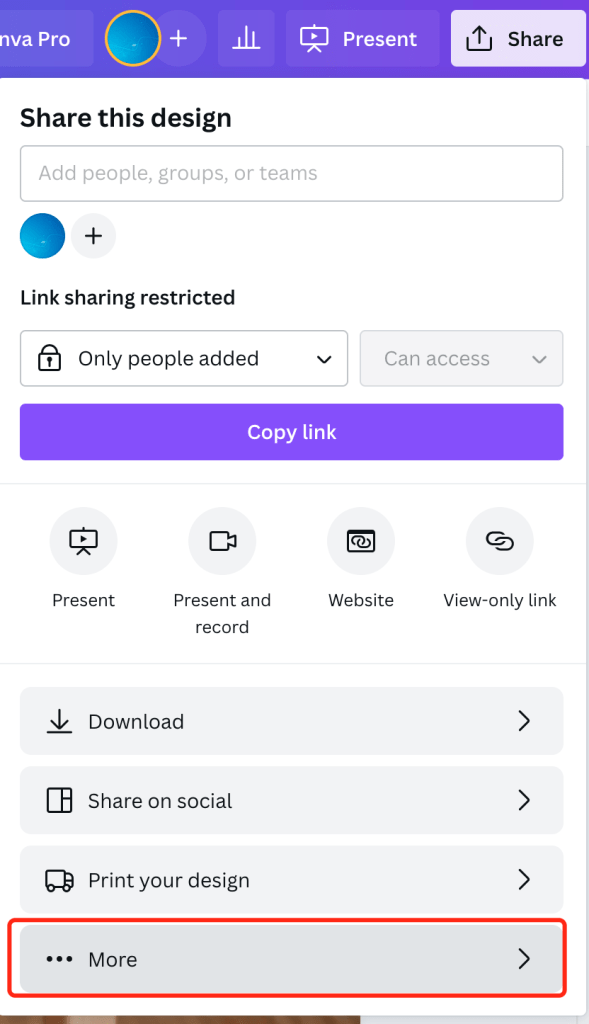
[share] > [More]
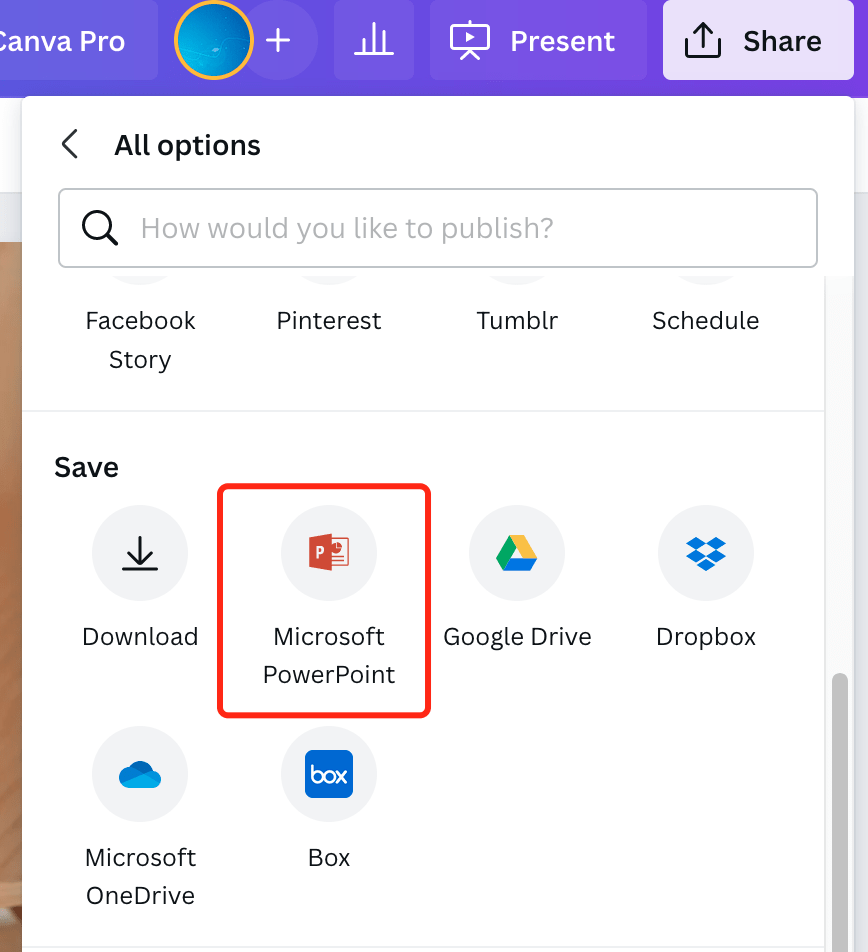
[Save] > [Microsoft PowerPoint]
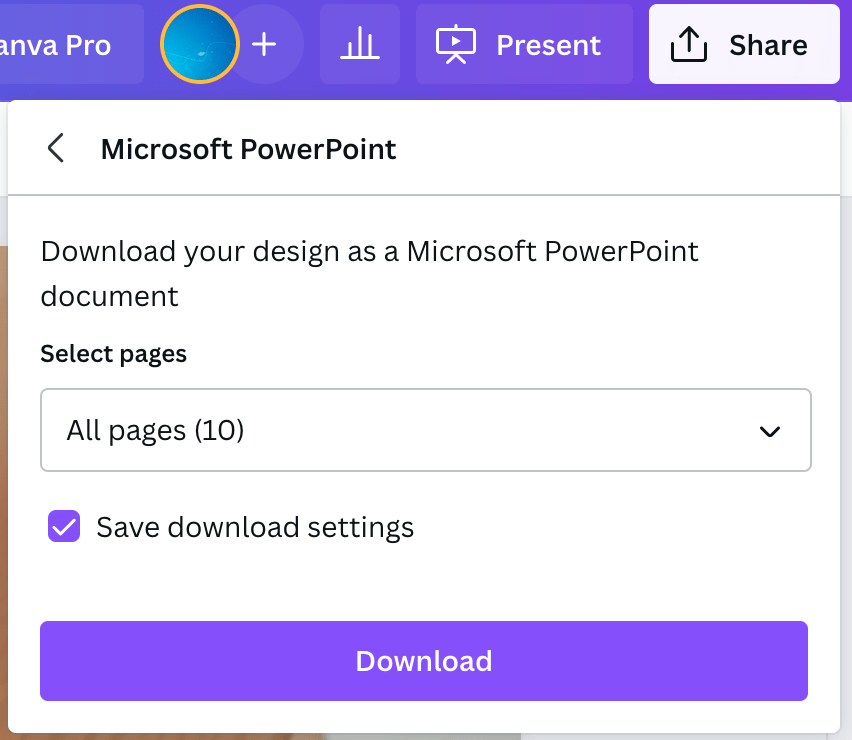
Download your design as a Microsoft PowerPoint document.
More presentation tips:
- How to Embed a YouTube Video in PowerPoint in Under 3 Minutes
- How to Reduce PowerPoint File Size
- How to Compress Pictures in PowerPoint
Как перевести шаблоны Canva в PowerPoint

01.06.22 редактор Canva прекратил свою работу в России. У многих там остались годы труда: баннеры на несколько соцсетей, лид-магниты, целые написанные книги.
VPN пока помогает. Но надолго?
Можно ли скачать шаблоны из Canva и продолжить редактировать их в другой программе? Пока другие говорят, что это невозможно, я нашла способ 🙂
Скачать шаблоны можно в формате Microsoft PowerPoint. Они сохранятся со всеми фотографиями и графическими элементами. Вы сможете их редактировать, переводить в нужный формат — всё как обычно.
Многие скептически относятся к PowerPoint. Уверяю, когда вы узнаете все её возможности, влюбитесь без оглядки. Здесь можно оформить всё: баннеры для соцсетей и сайта, гайды, чек-листы, рабочие тетради и PDF книги.
Свои первые продукты для Магазина шаблонов я создавала именно в Microsoft PowerPoint. Просто сравните эти шаблоны: один сделан в Canva, другой в PowerPoint. Найдите 10 отличий (их нет!)


Но вернемся к инструкции…
Я столкнулась, что не с любым VPN удается зайти в Canva. У меня получилось только с Psiphon VPN. Его можно установить на телефон или как программу на компьютер.
Как скачать шаблоны из Canva
Шаг 1.
Включите VPN и зайдите в редактор Canva. Важно зайти именно по адресу www.canva.com , без всяких приписок (типа www.canva.com/ru-ru/).
Шаг 2.
Откройте свой шаблон и нажмите кнопку «Поделиться». В открывшемся окне спуститесь вниз, найдите вкладку «Ещё» и кликните на неё.

Шаг 3.
Найдите раздел «Сохранение» и кликните значок «Microsoft PowerPoint». Далее сохраните шаблон, как обычно.

Шаг 4.
Откройте файл в Microsoft PowerPoint. При первом открытии у вас может появиться предупреждающий баннер. Нажмите кнопку «Разрешить редактирование»↓

Как видите, шаблон открывается со всеми фотографиями и графическими элементами. После редактирования вы можете сохранить шаблон как в формате PDF, так и в виде изображения PNG или JPG.
Единственное отличие – в Canva все выступающие элементы автоматически обрезаются, а в PowerPoint остаются на виду. Не переживайте, в готовом файле этого не будет.

Важные уточнения
1. Перед открытием файла желательно установить шрифты, которые вы использовали в шаблоне. Этот шаг можно пропустить, но тогда вам придется искать альтернативу из тех шрифтов, что установлены на вашем устройстве.
2. Для корректной работы нужна программа Microsoft PowerPoint не ниже версии 2016 года, установленная на вашем компьютере или ноутбуке. Иначе при конвертации файла в формат PDF или PNG, он может сохраниться в низком качестве.
Можно ли редактировать в мобильной версии Microsoft PowerPoint?
Так как многие шаблоны содержат массу графики и получаются довольно тяжелыми, не все телефоны могут корректно с ними работать. Плюс мобильную версию могут в любой момент отключить в России. Поэтому повторюсь, нужна программа не ниже версии 2016 года, установленная на вашем компьютере или ноутбуке.
P.S. Добро пожаловать в обновленный Магазин шаблонов! Здесь вы найдете шаблоны PowerPoint для оформления своих лид-магнитов и инфопродуктов. ОТКРЫТЬ ШАБЛОНЫ »
Easy Ways to Export Canva to Powerpoint
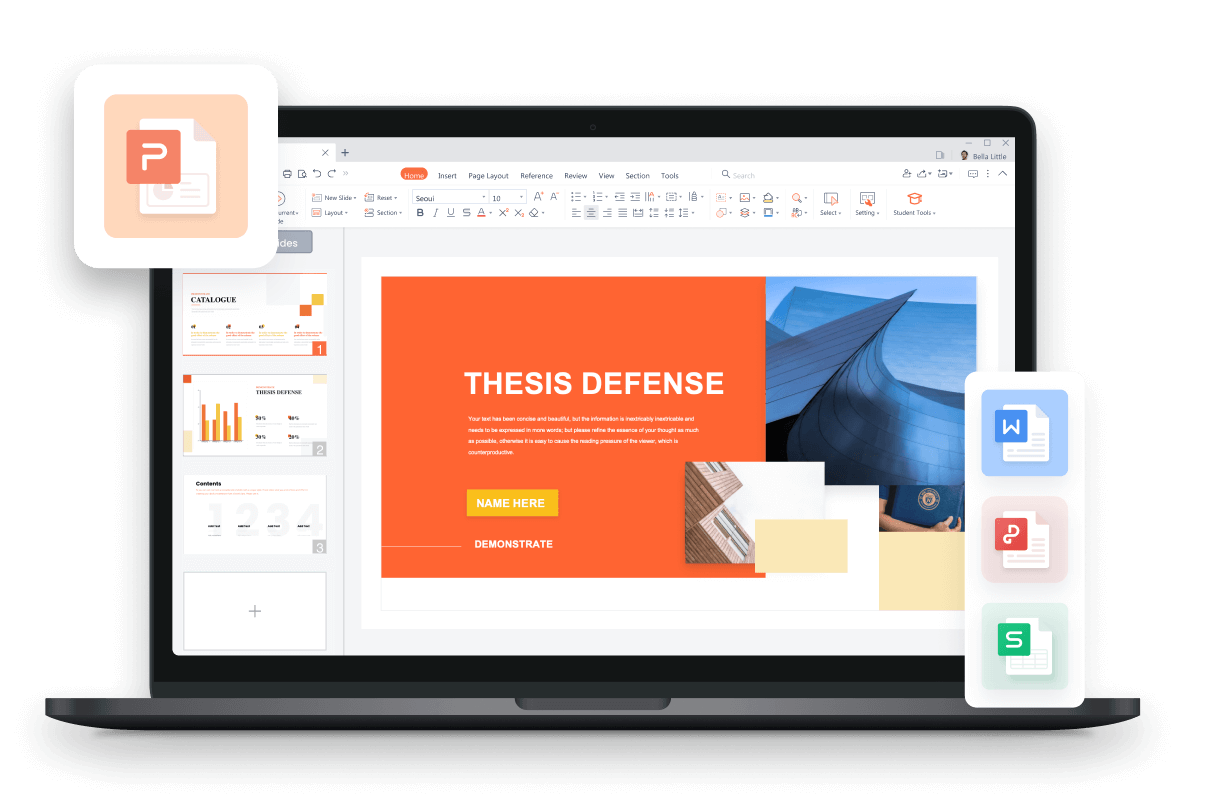
In a world dominated by PowerPoint’s presentation prowess and Canva’s online design finesse, the desire to merge these creative platforms surfaces. As users seek a pathway to convert Canva masterpieces into PowerPoint slides, we explore the transformation. Navigating this quest, we unveil the strategy to seamlessly transition Canva designs to PowerPoint, enabling a harmonious blend of visual appeal and functionality.
Part 1: What is Canva?
Canva is an online graphic design platform that allows anyone to create professional-looking designs, even if they don’t have any design experience. It offers a wide variety of templates, tools, and features that make it easy to create everything from social media graphics to presentations to marketing materials.
Functions:
- Offers thousands of customizable templates for various purposes.
- Provides a vast library of free media like photos, icons, and videos.
- Utilizes an easy drag-and-drop editor with advanced features.
- Operates as a cloud-based platform for cross-device access.
- Enables collaboration and sharing with others.
- Includes a print feature for physical copies and download options.
Advantages:
- Quick creation of professional designs with customizable templates.
- Access to a wide array of free and premium media assets.
- Intuitive editor simplifies design process, including advanced elements.
- Seamlessly syncs designs across devices via cloud-based system.
- Facilitates teamwork and sharing, enhancing collaboration.
- Offers convenient options for both digital and physical design outputs.
Part 2: How to export Canva to Powerpoint?
If you’ve created a design in Canva and would like to use it in a PowerPoint presentation, you can easily export your Canva design as an image and then insert that image into your PowerPoint slides. Here’s a step-by-step guide on how to do it:
Step 1: Open Your Presentation in Canva
Start by opening the presentation you’ve created in Canva.
Step 2: Access the Share section
Look for the «Share» in the top-right corner of your screen.
Step 3: Select Microsoft PowerPoint
Within the «More» menu, navigate to the «Share» section and choose «Microsoft PowerPoint.»
Step 4: Choose Pages for Export
Decide if you want to download all the pages in your presentation or only specific ones. Uncheck the box for any page you don’t wish to download.
Confirm and Finish
Click the purple «Done» button to confirm your settings.
Step 6: Initiate Download
Proceed to click the purple «Download» button. Note that some media types like videos, audio, and animations might not function in the exported file.
Download in Progress
Your presentation will start to download onto your device.
Part 3: Can I export the Canva to PPT with Animations?
Canva doesn’t natively support exporting animations directly to PowerPoint. However, you can follow alternative methods below to incorporate animations effectively into your PowerPoint presentation.
Change File Format
To convert Canva slides with animations into PowerPoint presentation slides, follow these steps:
Step 1: Return to your Canva presentation and download the pages containing animations as GIFs.
Go to ‘Share’ and then click on ‘Download.’ Select the specific page or pages you want to download:
Step 2 Choose GIF as the file format and click the download button:
Step 3: Add the GIFs to PowerPoint:
Insert a blank slide in your PowerPoint presentation. Upload the downloaded GIF image to the blank slide.
Adjust the GIF to cover the PowerPoint slide.
Add the Animations in PPT
Step 1 Open Presentation: Launch PowerPoint and open your presentation.
Step 2 Select Element: Click on the element to animate.
Step 3 Go to «Animations» tab. Pick an animation from the menu.
Step 4 Click to apply the animation to the element. Adjust animation settings in the Animation Pane.
Step 5 Use «Preview» to see the animation.
Part 4: Free Alternative Office Software — WPS Office
WPS Office is a free and all-in-one office suite that allows you to create and edit documents, spreadsheets, presentations, and PDF files on any device. It is compatible with Microsoft Office, Google Docs, and Adobe PDF, and supports 47 file types. With WPS Office, you can have an efficient and comfortable working experience on any device and any scenario.
Here are some other outstanding functions of WPS Office
- It is free and open-source: WPS Office is free to use and download. It is also open-source, which means that anyone can contribute to its development.
- It is powerful and versatile: WPS Office includes a word processor, spreadsheet, presentation software, and PDF reader. It also has a number of other features, such as a text editor, image editor, and database manager.
- It is compatible with Microsoft Office: WPS Office can open, edit, and save Microsoft Office documents. This makes it a great choice for users who want to switch from Microsoft Office to a free alternative.
- It is regularly updated: WPS Office is regularly updated with new features and bug fixes. This ensures that you are always using the latest version of the software.
WPS Office provides a reliable alternative for users seeking an efficient and comfortable office suite experience without the cost. Its extensive features, compatibility with industry-standard formats, and user-friendly interface make it a compelling choice for both personal and professional use. Download WPS Office today and see for yourself how it can improve your work efficiency and inspire your creativity
Trustpilot 4.8
WPS Office- Free All-in-One Office Suite
- Use Word, Excel, and PPT for FREE, No Ads.
- Edit PDF files with the powerful PDF toolkit.
- Microsoft-like interface. Easy to learn. 100% Compatibility.
- Boost your productivity with WPS’s abundant free Word, Excel, PPT, and CV templates.
Free Download
5,820,008 User
Algirdas Jasaitis
FAQs
Can I import PPT to Canva?
Easily upload files in Canva by either dragging and dropping your presentation onto the homepage or clicking the «Upload» button on the top corner of the homepage banner. Alternatively, access the «Projects» section from the side menu and go to the «Uploads» folder. Here, you can drag your file onto the page or use the «Upload» button. In the editor, drag and drop your presentation into the workspace or select «File» > «Upload a file» on the top corner. Within the editor’s side panel, navigate to the «Uploads» tab, either dragging files or using the «Upload files» option.
Can I record the presentation in Canva?
In the editor menu bar, find «Present» and click it. If not visible, click «Share» first. Opt for «Present and record» and proceed with «Next.» Access the recording studio by clicking «Go to recording studio,» permitting mic and camera access. Select desired camera and mic if multiple devices are available. Initiate recording by clicking «Start recording» and present your content. Finish by clicking «End recording» on the top corner, allowing time for upload.
How to make sure the same fonts export to PPT?
Mismatched fonts can distort your presentation’s appearance. Ensure uniform font usage in both tools. If PowerPoint lacks Canva fonts, download from Google and upload to Windows. Canva’s extensive font library boasts 3000 options, which could require purchasing for PowerPoint, potentially at a premium cost. If budget constraints apply, continuing with Canva’s presentation might be necessary, while another workaround is exploring Google Slides as an alternative.
Summary
In this guide, we explore the seamless integration of Canva’s creative prowess into PowerPoint presentations. We uncover how to convert Canva designs into PowerPoint slides, focusing on image export and animation incorporation through alternate means like GIFs. While Canva doesn’t directly support animation export to PowerPoint, this guide outlines a workaround to achieve dynamic visual effects.
Notably, we highlight the significance of WPS Office, a free and versatile alternative office suite that ensures an efficient working experience across documents, spreadsheets, presentations, and PDFs. Compatible with Microsoft Office formats and boasting diverse features, WPS Office emerges as a powerful tool for enhancing productivity and creativity, offering users an all-inclusive and cost-effective solution.
3 Smart Ways To Convert Canva To Powerpoint You’ve Got To Learn Now
You have created a beautiful presentation in Canva, but you have no idea how to convert Canva to PowerPoint?
I get it. Some of you may prefer using Canva rather than PowerPoint. Nevertheless, one day you might want to share it with a non-Canva user and need to convert the Canva presentation into a PowerPoint file. As it turns out, you can do this quite easily.
Canva is a great tool to make professional presentations, and the cool thing is that they have plenty of beautiful templates to work with. And in this post, I’ll show you how you can create a presentation in Canva and download it straight into PowerPoint.
Is Canva better than Powerpoint?
Canva allows users to create more professional-looking designs with little effort. Presentations can be quickly put together with Canva because of the ready templates, fonts, and easy drag-and-drop interface.
So which one should you choose? It will depend on how you plan to use it. Canva is a good choice if you use it daily to create custom graphics for your blog and social media and sometimes for presentations.
However, if you are primarily interested in creating presentations, we recommend PowerPoint since it specializes in one feature and offers more customization options. You can make visually stunning presentations that grab your audiences’ attention if you have advanced PowerPoint skills.
If you don’t have Microsoft Office 365 on your computer, no worries, you can still use PowerPoint online for free. Search for Free Microsoft Office Online. Basically, it’s a web-based version of Microsoft’s presentation app accessible through any browser. You only need to have a Microsoft account to access it.
Is Canva good for presentations?
Canva design software is perfect for creating presentations, social media graphics, etc. There are plenty of presentation templates available in the free plan. Alternatively, Canva Pro has more templates and is also an affordable option. Canva may not be able to compete with Powerpoint anytime soon, but on the other hand, the platform caters to an entirely different audience.
How to create a presentation in Canva?
1.Log into your Canva account.
2. Type “Presentation” in the search box to open the template library

3. Select an appropriate template for your presentation
4. You can filter the library by theme, style, or color. Hovering over a template displays the multiple pages it includes.
5. Select the pages you wish to use for your presentation or click the use all pages button.
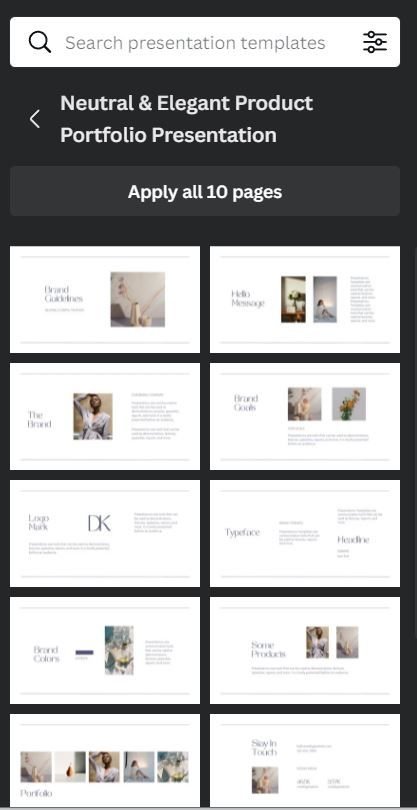
6. Click, “Use This Template”, and start creating your presentation.
7. Explore millions of free images, illustrations, charts, shapes, and other graphics, or upload your own to customize your presentation.
8. You can blend elements from different templates into a unique presentation. Test out different backgrounds, color schemes, font types, and animated effects.
9. The Canva app also allows you to record yourself speaking over a presentation.
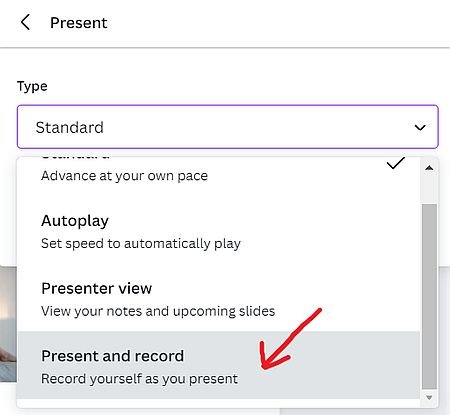
10. Save and click Present to preview the presentation.
11. It is possible to save and download your presentation in PNG, JPEG, PDF, and PPTX formats. In addition, you can share the video with your friends and coworkers or choose to transform and save the design as a web page.
Can you transfer Canva to PowerPoint?
Here I’ll show you the three ways to import your presentation from Canva to Powerpoint.
First method
Click, share this design, and choose the three dots at the bottom of the dropdown menu to convert your Canva presentation to PowerPoint.
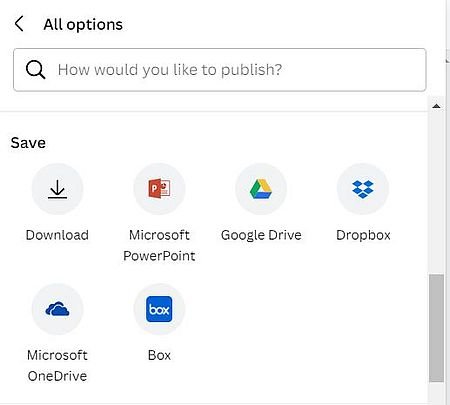
- From the selection, choose to save as ‘ Microsoft PowerPoint. ‘ Select the pages and press Done. This will automatically generate your presentation in the .pptx format.
- Save the PowerPoint file on your computer.
- Find the file you just downloaded, double-click it, and, voila, it will open in Powerpoint.

second method
The presentation is still created in PowerPoint when you use this method, not in Canva. The second way to convert Canva to PowerPoint:
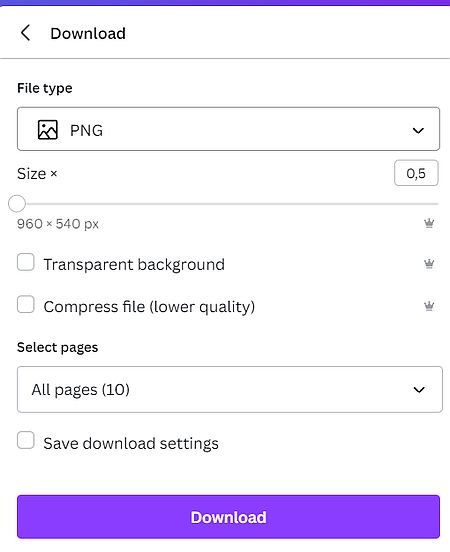
- Use Canva to create your presentation.
- Then download all the images as PNGs.
- Create blank slides for your presentation in PowerPoint
- Finish by inserting the Canva images into the empty slides.
third method
Method number three, which some people prefer, is downloading the presentation in pdf form and then converting it into a PowerPoint presentation. You can do this with a free tool called SmallPDF. This file retains its original format, so you can revise it and edit it as needed.
In my opinion, this is the most complicated solution to convert Canva to PowerPoint. Downloading the PNG files and inserting them into blank slides is much easier.
How to save Canva as ppt with animation?
Once you confirm to download your Canva presentation as a PPT (Powerpoint) file, you’ll see a warning that any animated elements in the presentation will be lost when you download it. But there’s a workaround. A simple method makes it possible to convert Canva to ppt with animation, as you can see in the video below.