Настройка маршрутизатора D-Link DIR-825
Мы подготовили для Вас видео, о том что же входит в комплект данного маршрутизатора и расскажем о его особенностях.
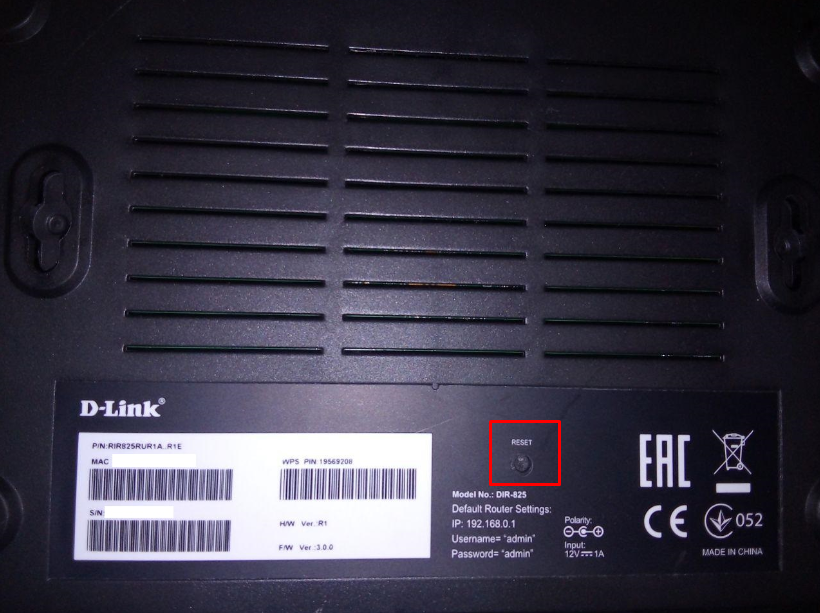
Чтобы сбросить роутер до заводских настроек, Вам нужно зажать кнопку «Reset» не менее, чем на 12 секунд и не более, чем на 25 секунд. Иначе маршрутизатор просто перезагрузится. Данная кнопка находится в углублении с обратной стороны роутера.
Для настройки роутера D-Link DIR-825 Вам понадобится сам роутер, компьютер и патч-корд (кабель идущий в комплекте с роутером).
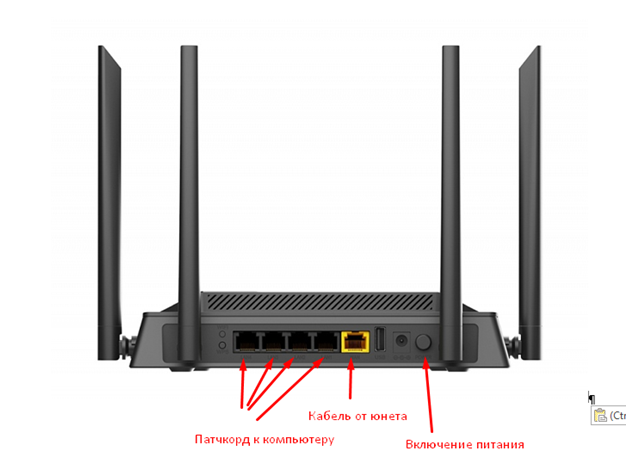
- Нужно включить роутер в розетку, подсоединить интернет-кабель в желтый порт, подсоединить патч-корд в любой из черных портов роутера и вторым концом в ноутбук или компьютер. После чего нажать кнопку включения питания на роутере.
- На ноутбуке/компьютере открыть браузер, ввести в адресную строку адрес 192.168.0.1 и нажать клавишу Enter.
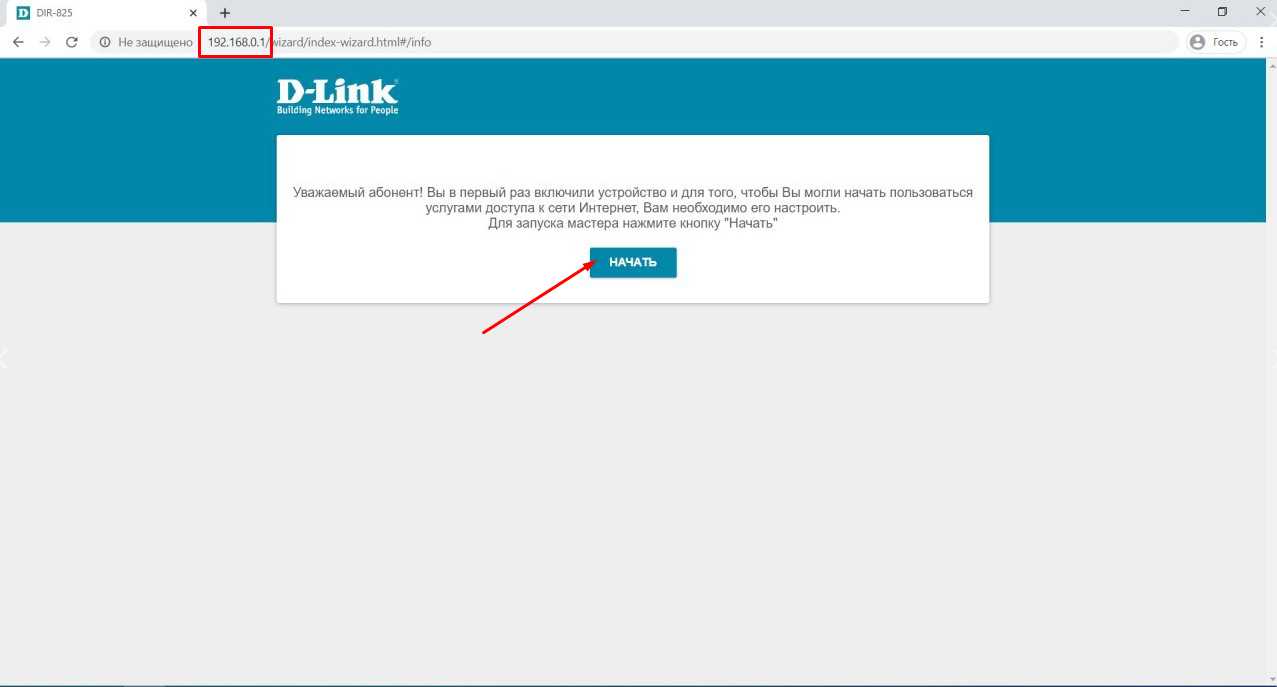
Откроется веб-интерфейс роутера. Нажмите кнопку «Начать».
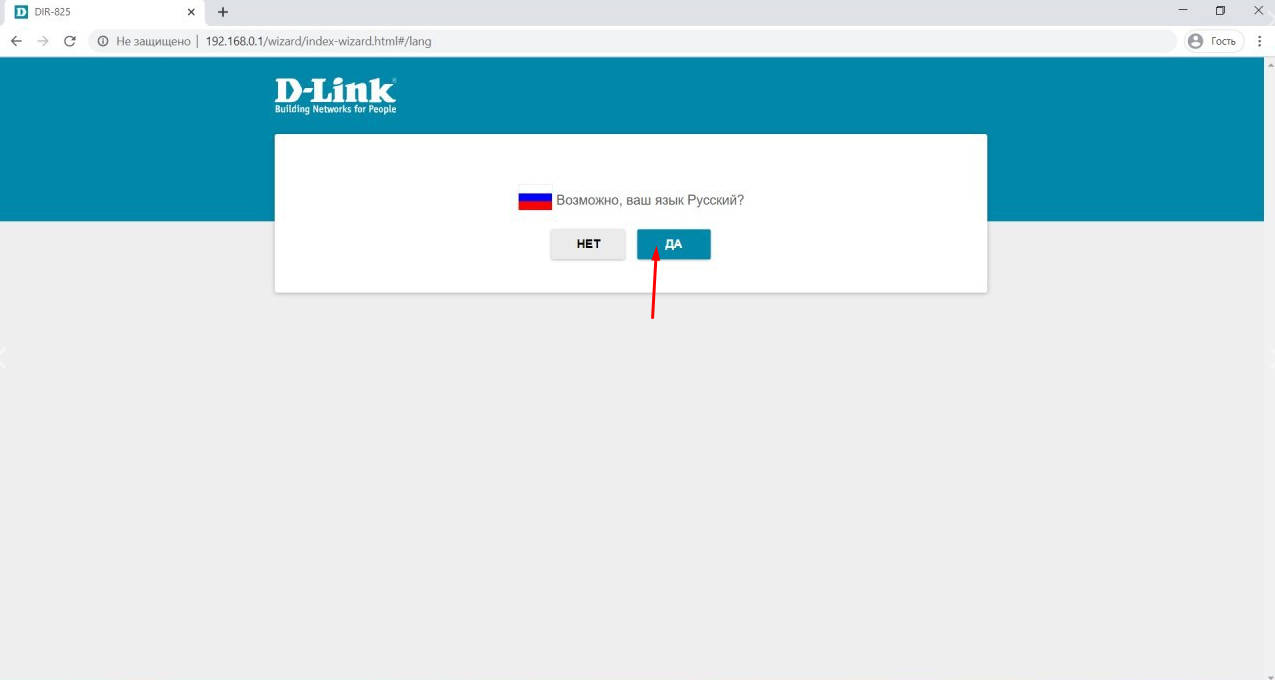
- В открывшемся окне будет предложено подтвердить то, что Ваш язык русский. Нажмите кнопку «ДА».
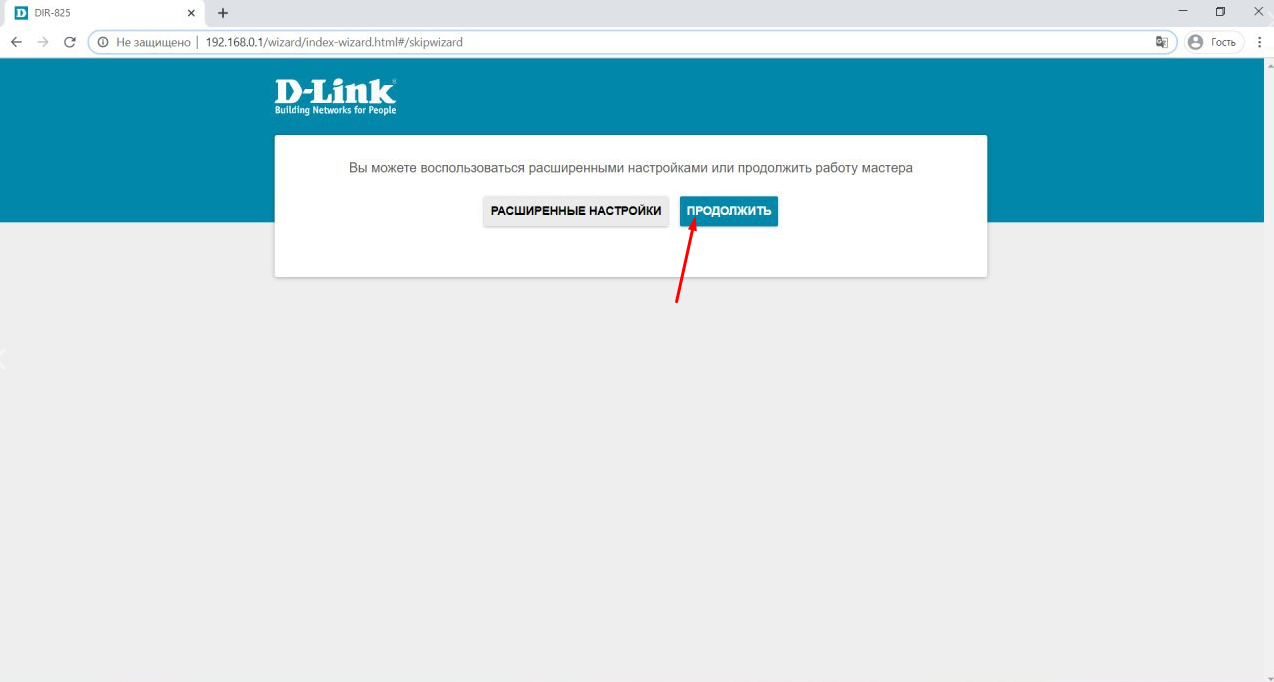
- Далее будет предложено перейти к расширенным настройкам или воспользоваться мастером настроек. Нажимаем кнопку «Продолжить».
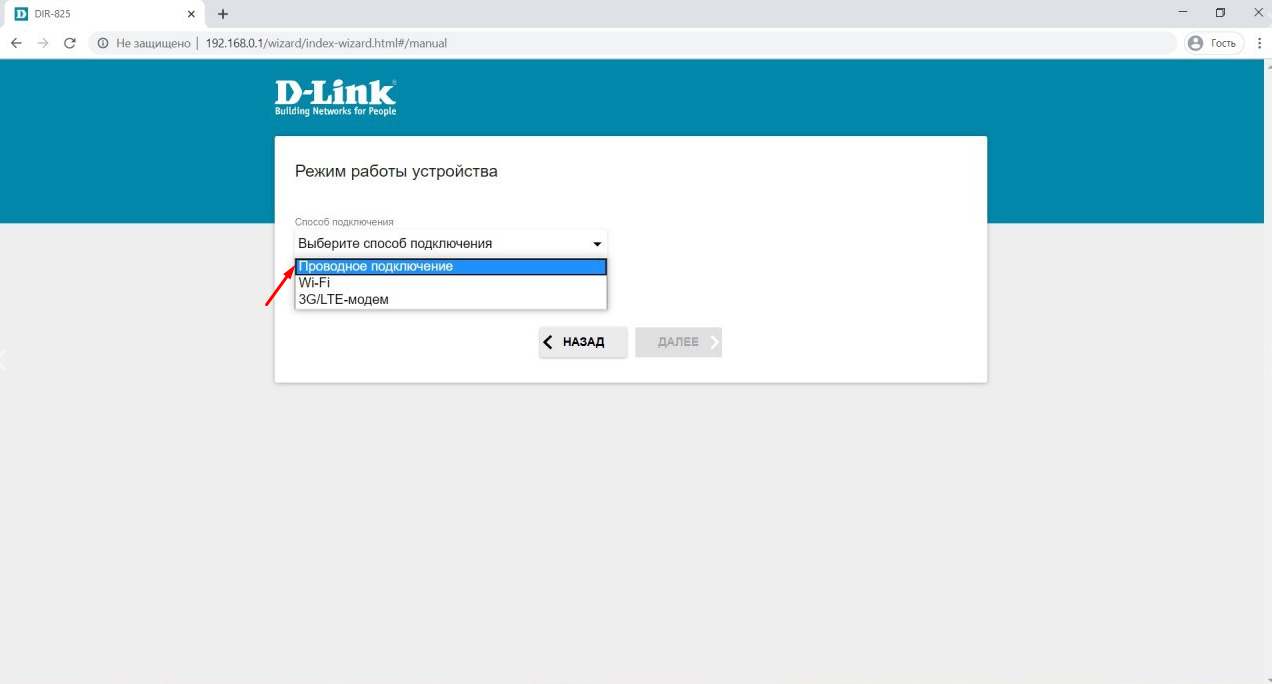
- На следующей странице необходимо выбрать способ подключения. В выпадающем меню выберите пункт «Проводное подключение».
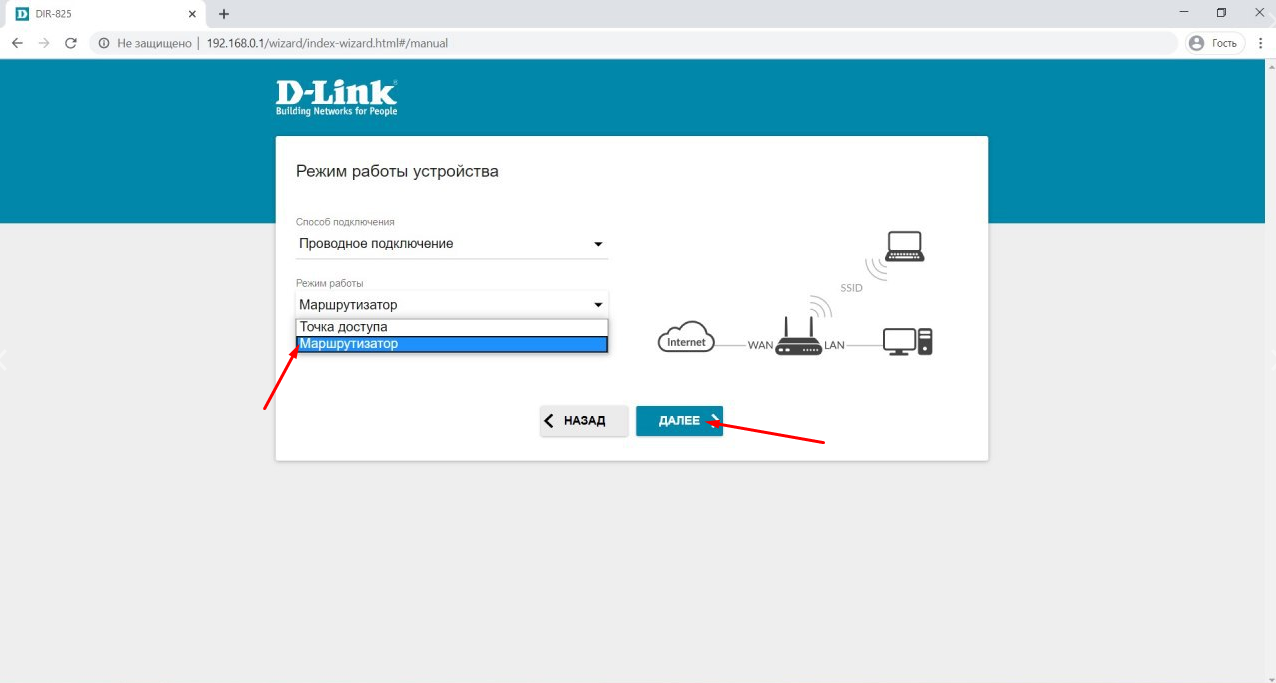
Далее появится пункт «Режим с работы». В выпадающем меню выберите «Маршрутизатор» и нажмите кнопку «Далее».
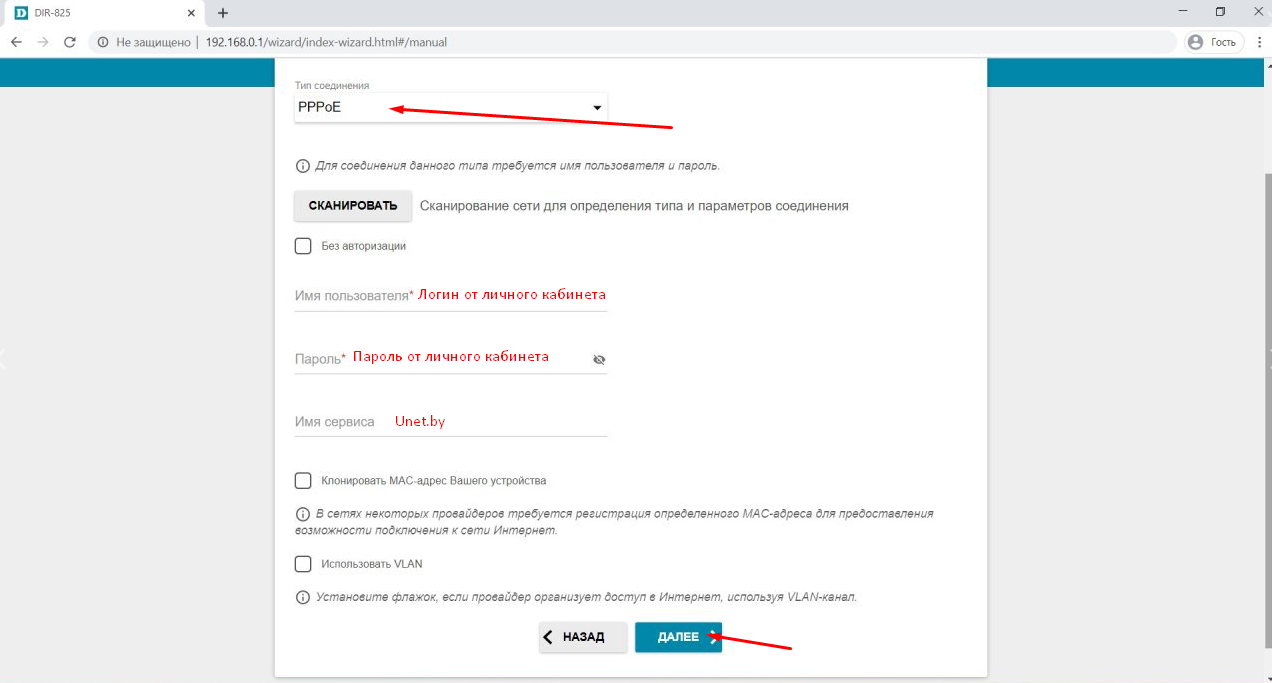
- На следующей странице необходимо настроить Ваше подключение к сети интернет.
Вам будет предложено выбрать тип подключения. В выпадающем меню выберите пункт «PPPoE».
После чего появятся поля для ввода информации.
В поле «Имя пользователя» укажите Ваш логин от личного кабинета (который мы Вам выдали).
В поле «Пароль» впишите пароль от личного кабинета.
В поле «Имя сервиса» укажите «Unet.by». После чего нажмите кнопку «Далее».
7. На следующей странице Вам будет предложено настроить Wi-Fi роутер на частоте 2,4 ГГц.
В поле «Имя основной WI-FI-сети» необходимо ввести название Вашей беспроводной сети (можно придумать любое). В поле «Пароль» необходимо ввести пароль (минимум 8 символов), который Вы хотели бы чтобы был у вас от wi-fi.
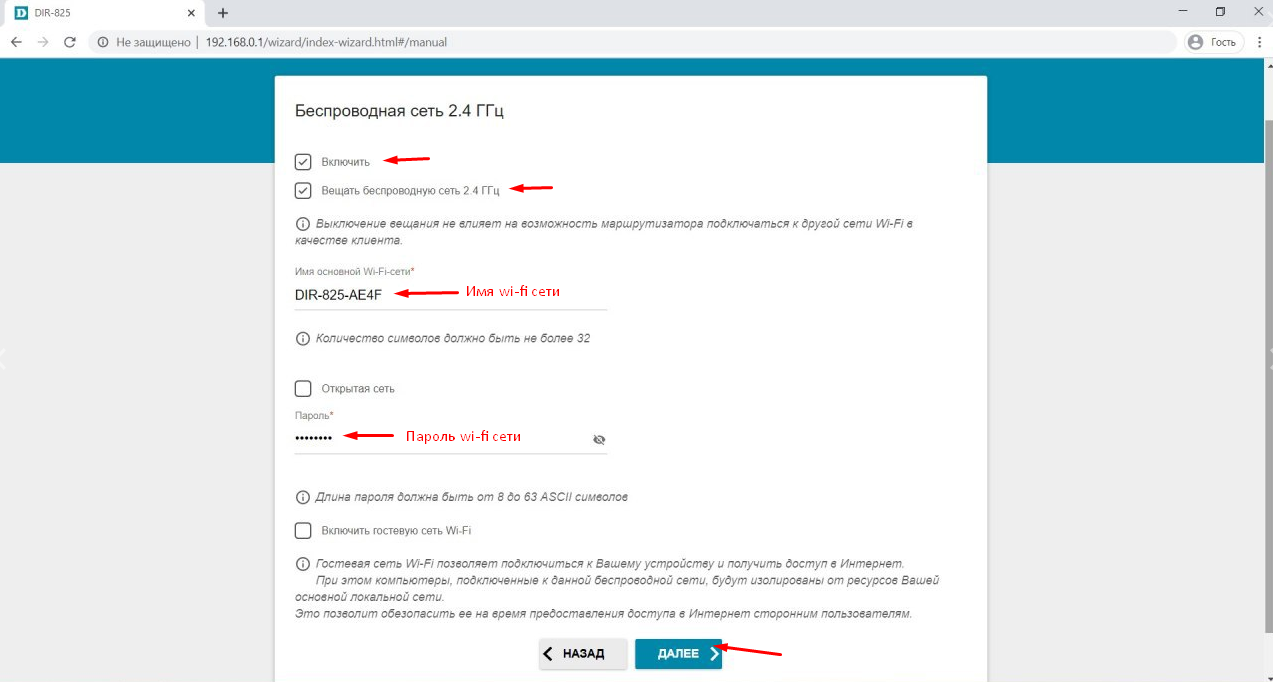
Поле чего нажмите кнопку «Далее» внизу страницы.
8.На следующей странице Вам будет предложено настроить Wi-Fi роутер на частоте 5 ГГц.
В поле «Имя основной WI-FI-сети» необходимо ввести название Вашей беспроводной сети на частоте 5 ГГц (можно придумать любое). В поле «Пароль» необходимо ввести пароль, который Вы хотели бы чтобы был у вас от wi-fi (необходимо минимум 8 символов).
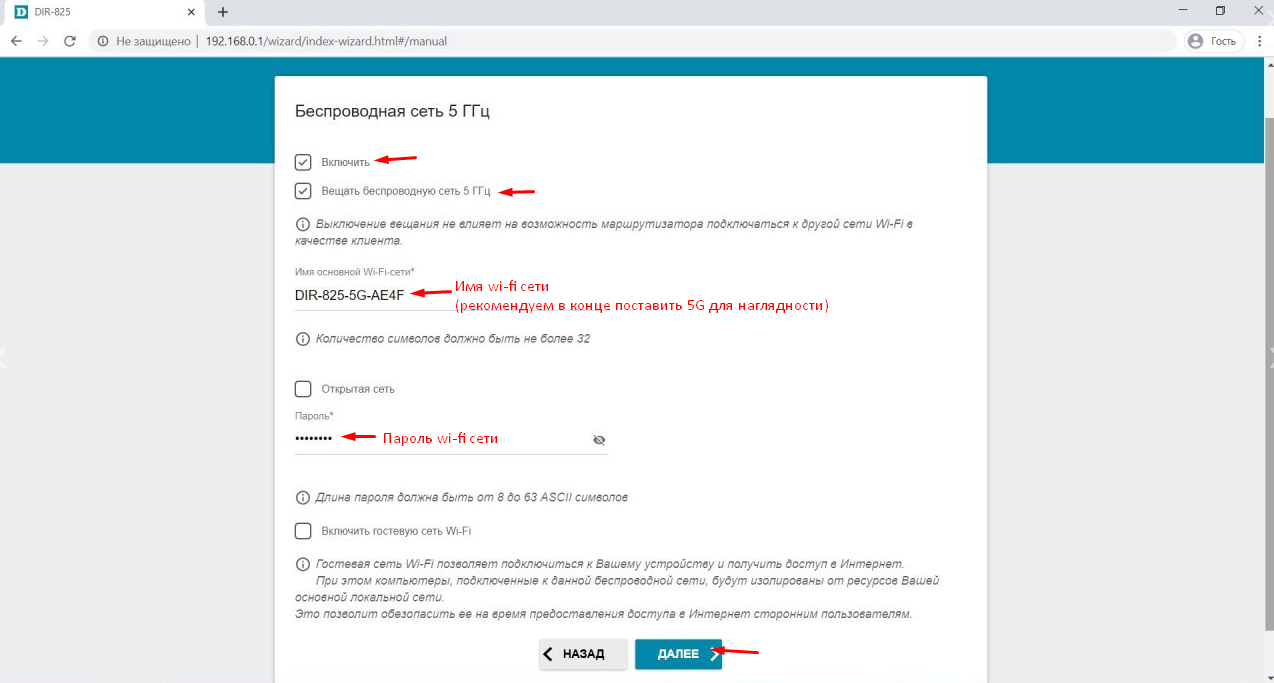
После этого нажмите кнопку «Далее».
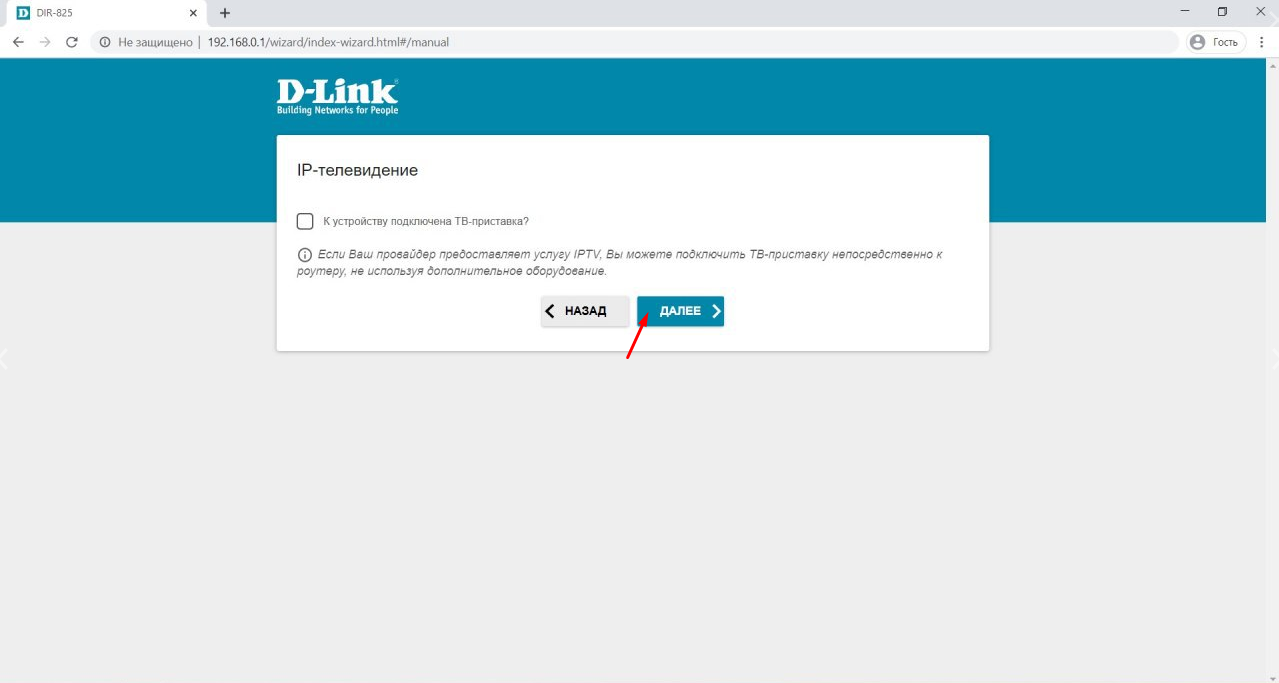
9. На вопрос подключена ли ТВ-приставка в любом случае галочку НЕ ставим, а просто нажимаем кнопку «Далее».
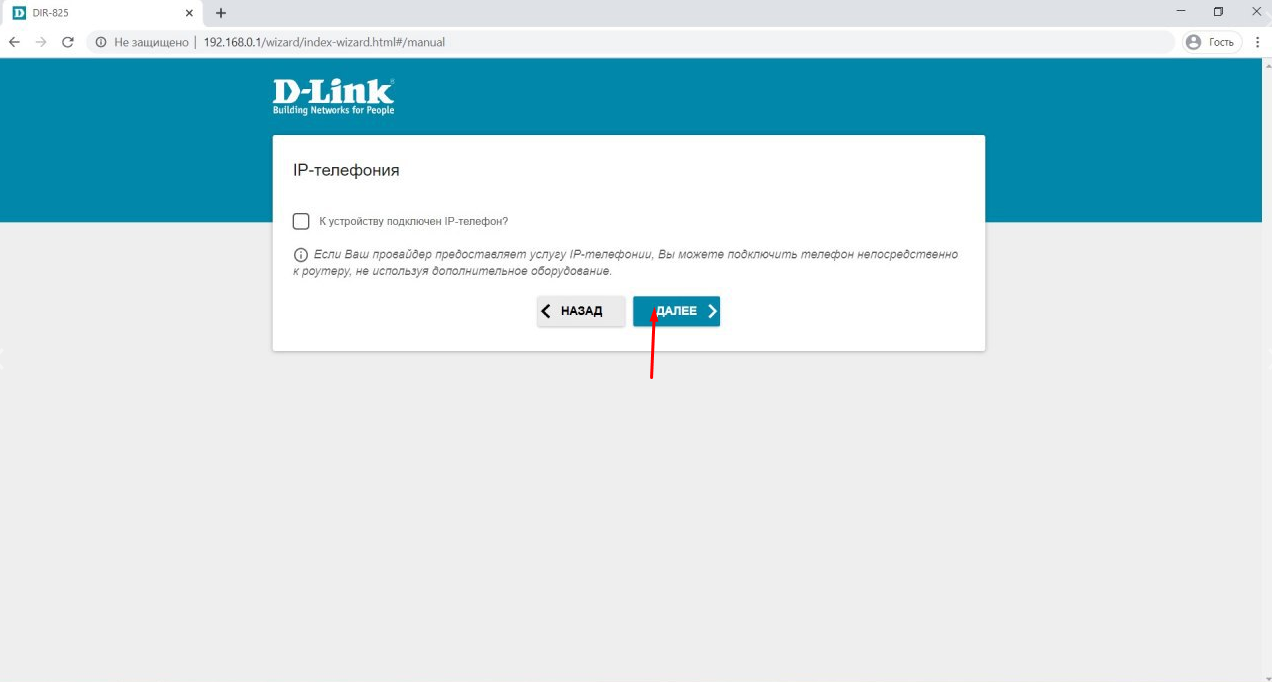
10. На вопрос подключен ли IP-телефон в любом случае галочку НЕ ставим, а просто нажимаем кнопку «Далее».
11. На следующей странице Вам необходимо задать пароль для доступа к настройкам роутера.
В поле «Пароль администратора» впишите тот пароль, который Вы хотели бы.
В поле «Подтверждение пароля» впишите этот пароль еще раз.
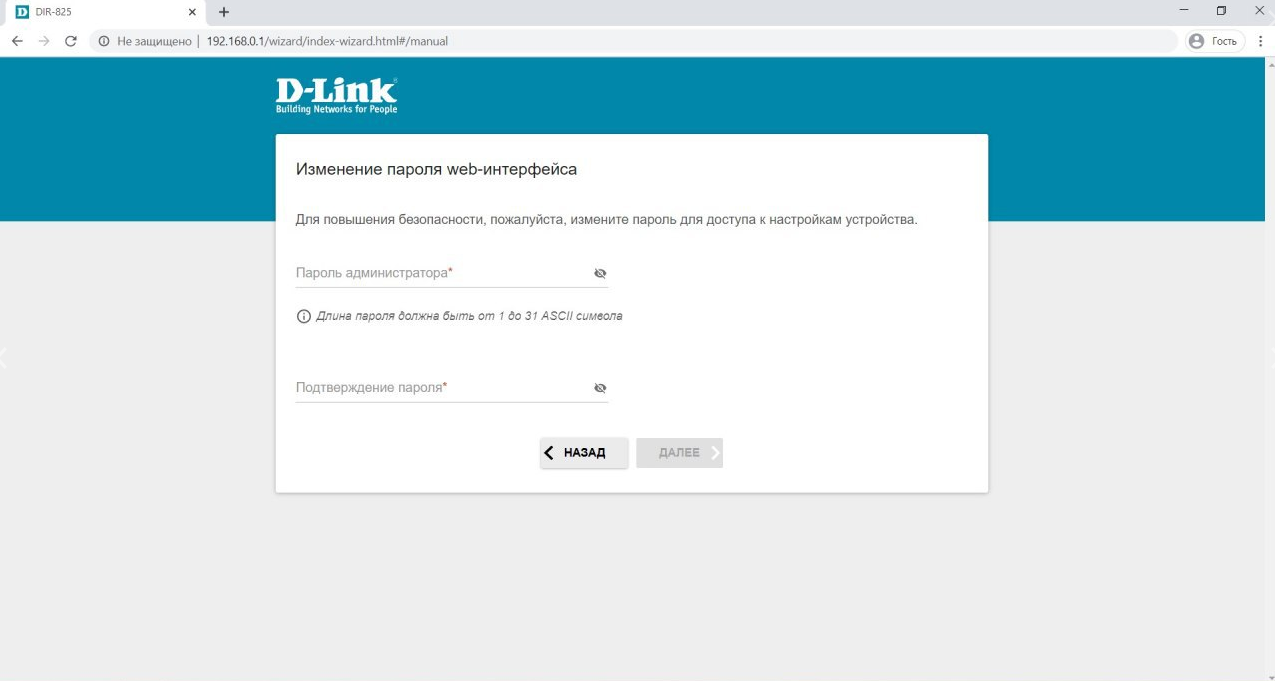
После чего нажмите кнопку «Далее».
12. На следующей странице Вам будут приведены настройки которые Вы задали, для того чтобы Вы могли проверить их.
Сверьте настройки и нажмите кнопку «Применить».
В случае, если обнаружили ошибку, то нажатиями кнопки «Назад» вернитесь к необходимому разделу настроек и исправьте ошибку.
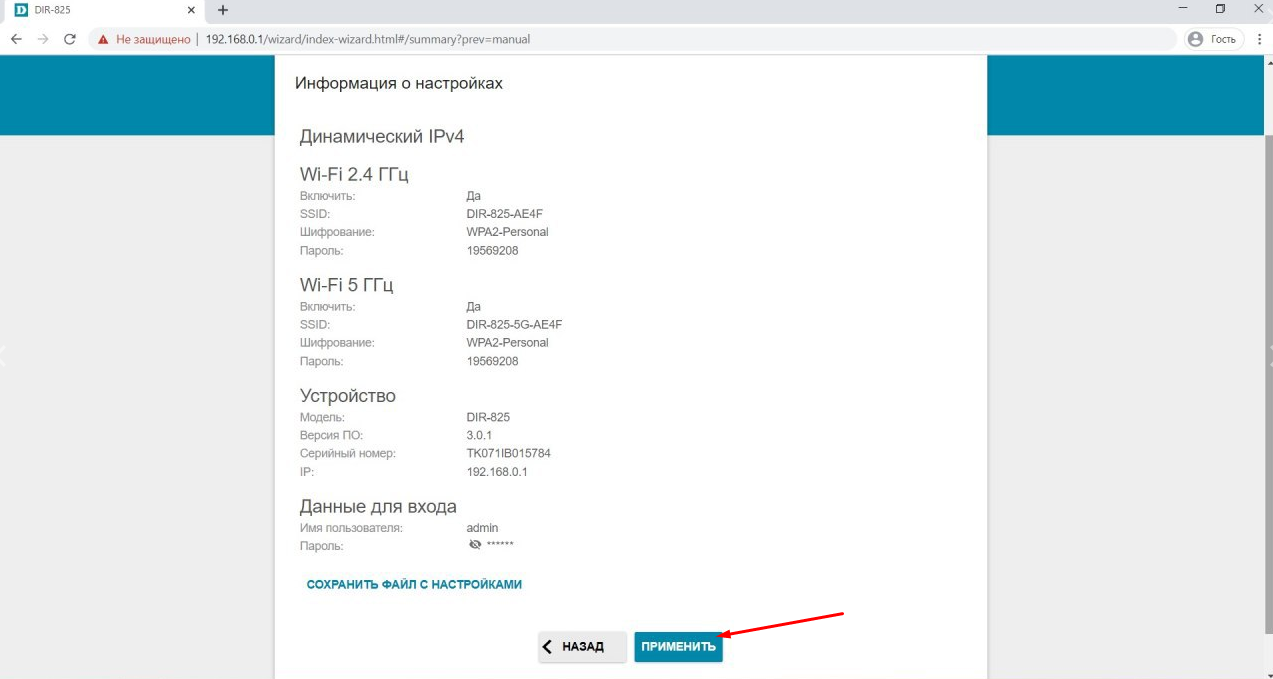
13. После этого роутер начнёт применять введённые настройки. Вы увидите строку состояния прогресса.
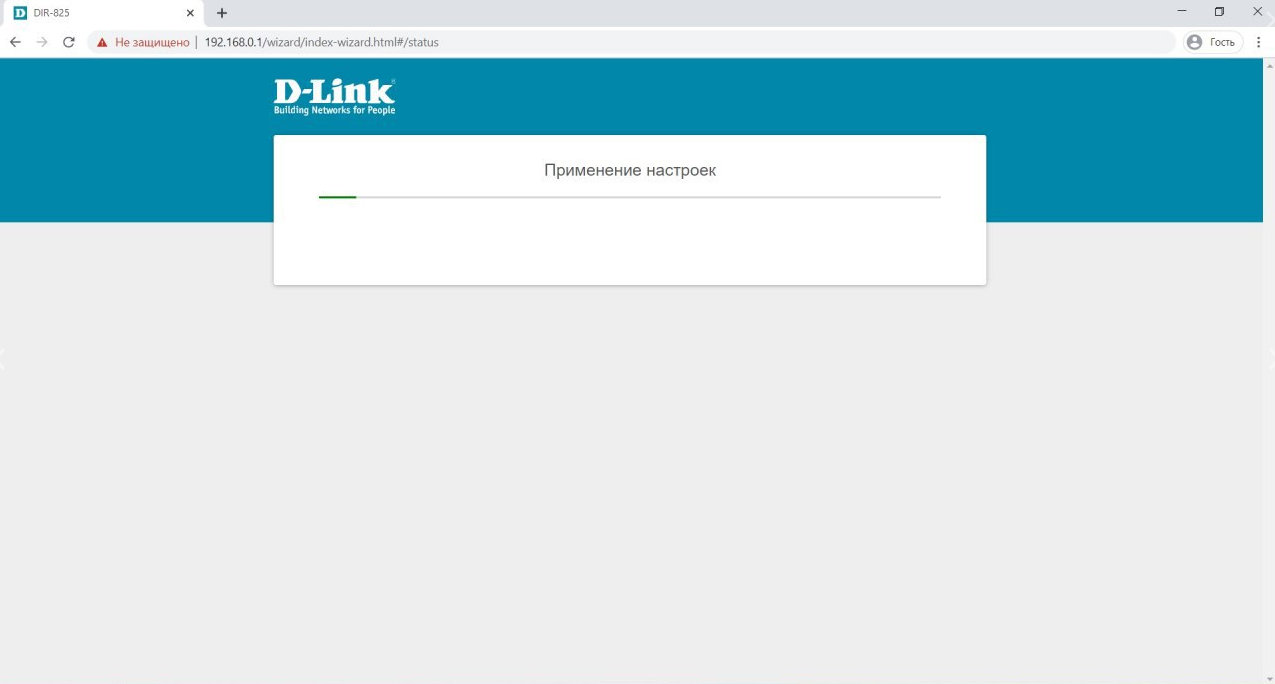
После применения интернет заработает. Приятного пользования интернетом! 🙂
Подпишитесь на мобильное приложение: Viber, Telegram.
А также следите за актуальными новостями в нашем Telegram-канале.
Если у Вас возникли вопросы — напишите нам или позвоните 7778282 (любой мобильный оператор).
How to Reset the Dlink Xtreme DIR-825
On this page I will be showing you how to reset the Dlink DIR-825v2 router back to the original factory defaults. This is not the same thing as a reboot which is simply cycling the power to the device. A reset is a complete factory restore of all settings.
Warning: Resetting a router means every single setting you have ever changed is erased. Some things that need consideration before you continue are:
- The router’s main username and password are reverted. Forgetting one’s password and/or username is the number one reason for a reset. Just about every other setting can be fixed from inside the router’s interface.
- The Internet name and password are also erased. These need to be reconfigured after the reset process is complete.
- If you use a DSL style connection you need to re-enter the ISP (Internet Service Provider) username and password to be able to use the Internet again after the reset. For more details call your loacal ISP.
- Have you made any other changes to your device? Things you may have forgotten include any IP address changes or port forwards. Don’t forget these are erased as well and need to be reconfigured after the reset is finished.
Other Dlink Xtreme DIR-825 Guides
- Dlink Xtreme DIR-825 — How to change the IP Address on a Dlink Xtreme DIR-825 router
- Dlink Xtreme DIR-825 — Dlink Xtreme DIR-825 Login Instructions
- Dlink Xtreme DIR-825 — Dlink Xtreme DIR-825 User Manual
- Dlink Xtreme DIR-825 — Dlink Xtreme DIR-825 Port Forwarding Instructions
- Dlink Xtreme DIR-825 — Setup WiFi on the Dlink Xtreme DIR-825
- Dlink Xtreme DIR-825 — How to Reset the Dlink Xtreme DIR-825
- Dlink Xtreme DIR-825 — Information About the Dlink Xtreme DIR-825 Router
- Dlink Xtreme DIR-825 — Dlink Xtreme DIR-825 Screenshots
- Dlink Xtreme DIR-825 v2 — How to change the IP Address on a Dlink Xtreme DIR-825 router
- Dlink Xtreme DIR-825 v2 — Dlink Xtreme DIR-825 Login Instructions
- Dlink Xtreme DIR-825 v2 — Dlink Xtreme DIR-825 User Manual
- Dlink Xtreme DIR-825 v2 — Dlink Xtreme DIR-825 Port Forwarding Instructions
- Dlink Xtreme DIR-825 v2 — Setup WiFi on the Dlink Xtreme DIR-825
- Dlink Xtreme DIR-825 v2 — Information About the Dlink Xtreme DIR-825 Router
- Dlink Xtreme DIR-825 v2 — Dlink Xtreme DIR-825 Screenshots
Reset the Dlink Xtreme DIR-825
Once you have decided to reset the Dlink DIR-825v2 router you need to find the reset button on the back panel of the device. I circled the reset button in the image below.
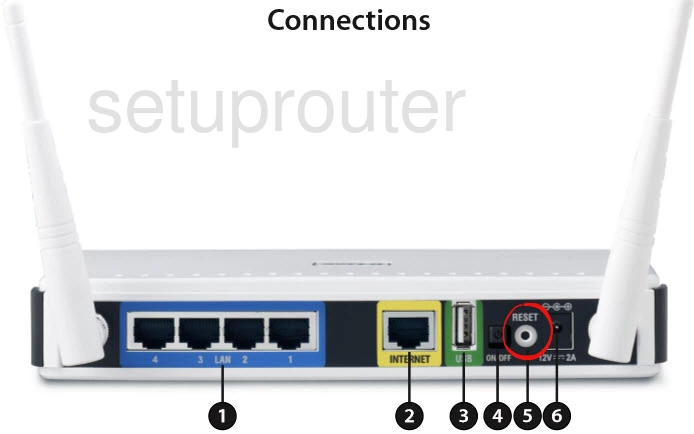
Take the end of a paperclip and press down on the reset button for about 10 seconds. This starts the reset process. If you don’t hold the reset button down for long enough you end up only rebooting the router instead of resetting it like you wanted.
Remember resetting this router causes every setting you have ever changed to be erased. If you want to avoid that you need to try other methods of fixing your problem.
Login to the Dlink Xtreme DIR-825
Once you’ve reset the Dlink DIR-825v2 router you’ll need to log into it. Do this by using the default username and password. Not sure where to find these? Not to worry. We have them listed for you in our Login Guide.
Tip: If the defaults aren’t logging you in it may be because the reset button wasn’t held down for long enough.
Change Your Password
After logging into your router we suggest setting a new password for it. Keep in mind that this password only protects your router settings, not your wireless network. For more help be sure to visit our Choosing a Strong Password Guide.
Tip: Avoid losing your new password by writing it on a sticky note and putting it on the bottom of your router.
Setup WiFi on the Dlink DIR-825v2
Now you need to reconfigure any other settings you had before the reset. This should include the WiFi settings. For a complete guide on that topic check out our How to Setup WiFi on the Dlink DIR-825v2.
Dlink Xtreme DIR-825 Help
Be sure to check out our other Dlink Xtreme DIR-825 info that you might be interested in.
- Dlink Xtreme DIR-825 — How to change the IP Address on a Dlink Xtreme DIR-825 router
- Dlink Xtreme DIR-825 — Dlink Xtreme DIR-825 Login Instructions
- Dlink Xtreme DIR-825 — Dlink Xtreme DIR-825 User Manual
- Dlink Xtreme DIR-825 — Dlink Xtreme DIR-825 Port Forwarding Instructions
- Dlink Xtreme DIR-825 — Setup WiFi on the Dlink Xtreme DIR-825
- Dlink Xtreme DIR-825 — How to Reset the Dlink Xtreme DIR-825
- Dlink Xtreme DIR-825 — Information About the Dlink Xtreme DIR-825 Router
- Dlink Xtreme DIR-825 — Dlink Xtreme DIR-825 Screenshots
- Dlink Xtreme DIR-825 v2 — How to change the IP Address on a Dlink Xtreme DIR-825 router
- Dlink Xtreme DIR-825 v2 — Dlink Xtreme DIR-825 Login Instructions
- Dlink Xtreme DIR-825 v2 — Dlink Xtreme DIR-825 User Manual
- Dlink Xtreme DIR-825 v2 — Dlink Xtreme DIR-825 Port Forwarding Instructions
- Dlink Xtreme DIR-825 v2 — Setup WiFi on the Dlink Xtreme DIR-825
- Dlink Xtreme DIR-825 v2 — Information About the Dlink Xtreme DIR-825 Router
- Dlink Xtreme DIR-825 v2 — Dlink Xtreme DIR-825 Screenshots
Reset the Dlink DIR-825ACG1
This article covers how to reset the Dlink DIR-825ACG1 router back to factory default settings. Resetting a router is different than rebooting a router. Every time your router loses power it reboots. A Router Reset completely erases the router and returns it to factory settings.
Warning: Since this erases everything you have done to the router, there are some things you need to consider first. A router reset will affect the following settings:
- The router’s login and password are reset.
- Your WiFi login, password, and network name are reset.
- If your router has any ISP settings they will be removed, and you will have to contact your ISP.
- Any port forwards, firewall settings, or parental controls that you have configured will be removed.
A router reset is the last step you should take in recovering your router’s password. Before you reset your router, you may want to try recovering your router password with our Router Password Finder.
Other Dlink DIR-825ACG1 Guides
- Dlink DIR-825ACG1 — Dlink DIR-825ACG1 User Manual
- Dlink DIR-825ACG1 — Dlink DIR-825ACG1 Login Instructions
- Dlink DIR-825ACG1 — Dlink DIR-825ACG1 Screenshots
- Dlink DIR-825ACG1 — Information About the Dlink DIR-825ACG1 Router
Recover Password in Dlink DIR-825ACG1
Instead of resetting your router back to factory settings, you may want to try running our Router Password Finder first.
Our Router Password Finder can recover your lost or forgotten router password without doing a full router reset, which can save you lots of time.
Router Password Finder — Automatically Recover Lost or Forgotten Router Passwords
If you are unable to recover your lost router password, then you may have to proceed with a full router reset.
Reset the Dlink DIR-825ACG1
There is usually a small reset button located on either the back or the bottom of a router. What you are looking for is something that looks like this:
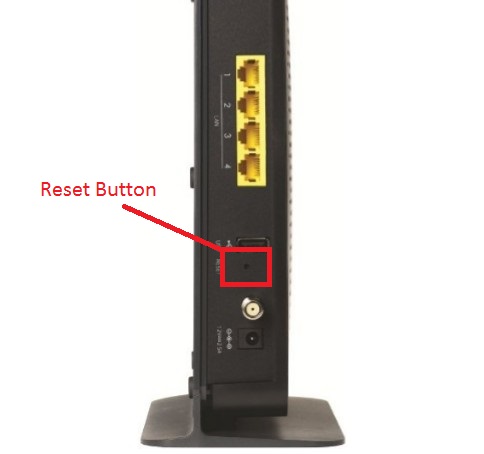
Yours may look slightly different, but they are usually tiny. You may need a paper clip to push the reset button.
Watch the front panel lights while you hold the reset button down for at least 10 seconds. After a few seconds the lights should blink differently. When this happens, the reset is complete. Do not be concerned about holding the reset button down too long. It will not hurt anything.
Don’t forget, this step will totally reset your Dlink DIR-825ACG1 router back to factory settings.
This last step should only be taken if you have tried everything else, such as using our Router Password Finder software, which can recover lost or forgotten router passwords.
Login to the Dlink DIR-825ACG1
Once the reset is complete, you need to login to your router using the default IP address, username, and password. Our DIR-825ACG1 Login Guide has all of the information that you need.
Change Your Password
After logging in, you should really change your router’s password for added security. Leaving a router password set to default is a very serious security risk. If you need help coming up with a strong password, check out our Choosing a Strong Password guide.
Tip: Write your new password down on a note and tape it to the bottom of your router for future reference.
Other Dlink DIR-825ACG1 Guides
If you want additional help with your Dlink DIR-825ACG1 be sure to check out some of our other guides.
- Dlink DIR-825ACG1 — Dlink DIR-825ACG1 User Manual
- Dlink DIR-825ACG1 — Dlink DIR-825ACG1 Login Instructions
- Dlink DIR-825ACG1 — Dlink DIR-825ACG1 Screenshots
- Dlink DIR-825ACG1 — Information About the Dlink DIR-825ACG1 Router
D-Link DIR-825 Router – How To Reset To Factory Defaults Settings

D-Link DIR-825 Router Reset To Factory Defaults. You can easily reset your wireless WiFi router. Here we are also provide Reboot methods of D-Link routers. You must reset your Wireless router to the factory defaults settings if you have forgotten your router user name or password. And you need to reboot your device if your router does not works properly.
This post will detail how to reset back to a factory default configuration the D-Link DIR-825. If password have been forgotten and or access to the D-Link Router is limited or configurations have been done incorrectly, resetting back to the factory default settings can assist. And also provide How to change router wireless password.
Table of Contents
Toggle
Difference between Reset and Reboot :
There is a big difference between Resetting a router and Rebooting a router. Reboot means, cycle the power to Router or Refresh the router. Resetting involves changing the router settings back to its factory defaults. Perhaps you have forgotten the password of your D-link router and now you want to reset the password. First you need to Hard Reset the router then you can use the default password to access your router.
When you reset your router the following settings will be changed:
- D-link Router username and password
- Wi-Fi username and password
- ISP ip addresses and DNS
- Any firewall settings you have made
- Any portforwards you have set up
- Generally, any configuration or settings changes that you have made to your router.
How To Reset D-Link DIR-825 Router With Button :
To perform a factory reset, please follow Below steps.
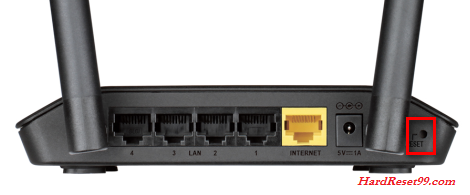
- Power on the D-link Router, place a paper clip or Pin into the hole on the back of the Router labeled Reset.
- Hold paper clip or pin down for 10 to 15 seconds and release.
- The Router will reboot on its own. Once the WLAN light stops blinking, the Router is reset.
Note : Resetting the Dlink router does not reset the firmware to an earlier version. It will only change all settings back to factory defaults.
D-Link Default Settings :
Once your D-Link router has been reset, it goes back to it’s factory defaults Settings.
- IP address: 192.168.0.1
- Username: admin
- Password: There is no password (leave this box blank)
How To Reset D-Link DIR-825 Router From Admin Control Panel :
Find Your D-Link Router IP Address. You need to know the Internal IP Address of your D-Link DIR-825 router before you can login to it. By default the IP is 192.168.0.1. The D-Link DIR-825 has a web interface for configuration. You can use any web browser you like to login to the Dlink Router such Firefox and Chrome. Open your browser then type 192.168.0.1 and hit enter. Now login page will come. Type
Username : admin
Password : Blank (Leave this field Empty)
Now you can see the D-Link DIR-825 Home Screen. If you see this screen, then congratulations, you are now logged in to your D-Link wireless router.
- Go to the Maintenance or Tools tab.
- Then click “Save and Restore settings ” or “System” options from the left side of the router page.
- Click on ” Restore Device ” or ” Restore Factory Defaults “.
- Wait for a while, Now you are done Factory Reset successfully.
Solutions To D-Link DIR-825 Login Problems :
If you can not get logged in to your Wireless router, here a few possible solutions you can try.
Forgot Password to D-Link DIR-825 Router
If your Internet Service Provider or ISP supplied you with your router then you might want to try giving them a phone call and see if they either know what your d link router’s username and password are, or maybe they can reset it for you.
How to Reset the D-Link DIR-825 Router To Default Settings
If you still can not get logged in then you are probably going to have to Hard reset your router to its default settings.
How to Reboot your D-link Router :
Rebooting a router means cycling the power to it or refresh the router. If you want to reboot your router, follow below steps.
Method 1 :
- Unplug the power connector from the back of the d link router and plug it back in.
- Wait above 20seconds for the router to reboot.
- Your internet connection may be drop when your wireless router is rebooted. If someone is using a computer on your network to access the internet, you may want to warn them.
Method 2 :
- Go to the Maintenance or Tools tab.
- Then click “Save and Restore settings ” or “System” options from the left side of the router page.
- Click on ” Rebooting ” or ” Reboot the Device “.
- Wait for a while, Now you are done Rebooting successfully.
How To Change The D-link Router Wi-Fi Password :
Step 1 : Open an Internet browser (Firefox or Chrome) and enter “192.168.0.1” without quotes into the address bar. Press “Enter” to go to the D-Link Wireless router configuration page.
Step 2 : Then, Click “Admin” and type your administrator password (The password is blank By default). Press “Enter.”
Step 3 : After that, Click “Setup” at the top of the page. Click the “Wireless Settings” on the left side of the router page.
Step 4 : Next, Click the “Manual Wireless Connection Setup.” Scroll down to find the Pre-Shared Key or Network Key field.
Step 5 : Finally Type a new Wi-Fi password in the Pre-Shared Key or Network Key field. Then click on “Save Settings”. Close the window to save the new password.
Changing The D Link Router Admin Password :
D-Link router’s default Password field is blank, you can leave the field blank and User name is admin. For security purposes, it is recommended to change the router default password.
Note : Changing the router’s admin password through the web-based setup page prevent you from using the dlink Connect software.
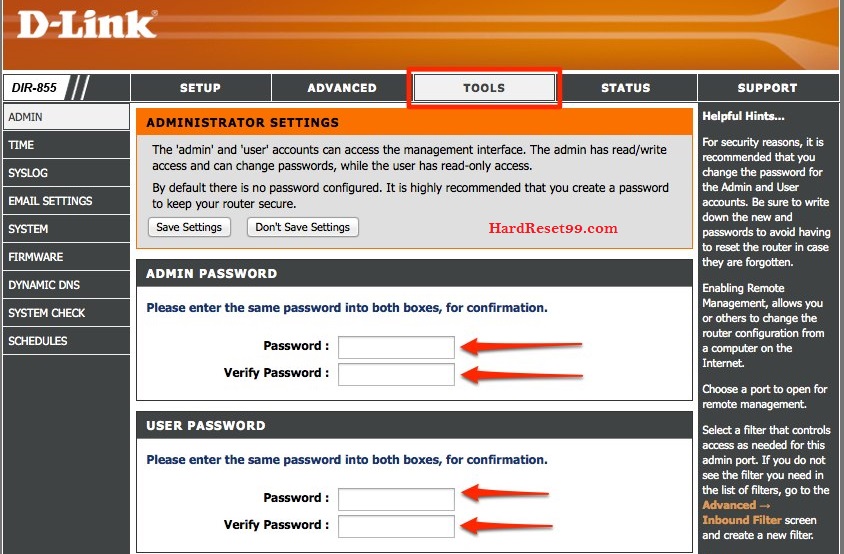
- First, Go to Tools option
- Then, Click on Admin button on the left side
- Enter password in Password Field
- Re-enter password in Verify Password Field
- Finally click on Save Settings button.
- You can also create User Password here.
- Now, you are successfully changed your Admin and user password.
Note: All the computers or laptops that are connected to the network means router will be using the new password when logging in to the router’s web-based setup page. The D-Link router’s administrator User name and Password are different from the wireless network name (SSID or WiFi Username and password) and passphrase of your wireless network.
If you are still having problems changing or resetting the wireless router’s administrative password, you may upgrade the d link router’s firmware. After performing the upgrade, go through the Resetting of the D Link router to factory defaults section again of this page.
D-Link Customer Support :
If you are still having problems, contact D link customer care department. Follow below links.
Exceptions :
- There are some D-Link models for which the reset process is a bit different. For example, when the reset hole is a little bit harder to find or the ‘press and hold’ duration is different than 10 seconds. Here are some such examples, we have come across.
- D Link DIR – 865L – the reset hole is located on the side of the router and it only takes 6 seconds to reboot it, not 10 seconds as usual.
- D Link DIR – 457 – this is a small portable router. The reset button is ‘on the inside’ so you will need to open the back cover to find it. The ‘press and hold’ duration is 5 seconds only.
- D Link DI – 804HV – the ‘press and hold’ duration for this one is only 5 seconds. As the manual says – ‘don’t hold for too long time’.
- D Link DIR – 665 – there are 2 different values for the ‘press and hold’ duration in the manual of the D-Link router. One is 5 seconds, the other one is 10 seconds. Try to find out best value.
- D Link DGL – 4300 – there seem to be some problems with the Hard reset process with this one. We read about it clearly and seems the best way to go is to hold the reset button until all of the LEDs on the d link Router front panel blink at the same time.
- D Link DHP – 1565 – another one with ” press and hold ” duration of only 5 seconds. No need to press long time.
- ← Lenovo A376 Hard reset, Factory Reset and Password Recovery
- Inteno DG150B Router – How to Reset to Factory Settings →