How to sign in to Outlook on the web
Outlook on the web is the web-based version of Outlook used by organizations. You need to sign in with a work or school account to access this web-based version of Outlook. Your work or school account is typically assigned to you by someone in your organization.
Note: To access the web-based version of Outlook using a Microsoft account, see How to sign in or out of Outlook.com.
Sign in to Outlook on the web with your work or school account

- Go to outlook.office.com.
- If you’re not automatically signed in with your work or school account, follow the prompts to enter the email address and password for your work or school account. Follow any two-factor authentication prompts you may have previously set up for this account.
- Select Sign in. (If you’re signed into Microsoft365.com, select Outlook from the app launcher.)
Note: If you signed in with a Microsoft account such as an Outlook.com, Hotmail, Live, or MSN email account instead of your work or school account, sign out, and then sign in again using the correct account. Not sure which account you’re signed in with? Select Account manager in the Outlook navigation header. If you’re not signed in with the account you want, select Sign out and start the process again, or select Sign in with a different account and follow the prompts using the work or school account you want to access.
Sign in to Outlook on the web with your work or school account
- Go to login.partner.microsoftonline.cn and sign in with your work or school account username and existing password.
- If you’re not automatically signed in with your work or school account, follow the prompts to enter the email address and password for your work or school account. Follow any two-factor authentication prompts you may have previously set up for this account.
- Select Sign in and then select Outlook from the app launcher.
Note: If you signed in with a Microsoft account such as an Outlook.com, Hotmail, Live, or MSN email account instead of your work or school account, sign out, and then sign in again using the correct account. Not sure which account you’re signed in with? Select Account manager in the Outlook navigation header. If you’re not signed in with the account you want, select Sign out and start the process again, or select Sign in with a different account and follow the prompts using the work or school account you want to access.
Sign in to Outlook on the web with your work or school account
- Go to portal.office.de and sign in with your work or school account username and existing password.
- If you’re not automatically signed in with your work or school account, follow the prompts to enter the email address and password for your work or school account. Follow any two-factor authentication prompts you may have previously set up for this account.
- Select Sign in and then select Outlook from the app launcher.
Note: If you signed in with a Microsoft account such as an Outlook.com, Hotmail, Live, or MSN email account instead of your work or school account, sign out, and then sign in again using the correct account. Not sure which account you’re signed in with? Select Account manager in the Outlook navigation header. If you’re not signed in with the account you want, select Sign out and start the process again, or select Sign in with a different account and follow the prompts using the work or school account you want to access.
Problems signing in or out?
I forgot my password or it’s not working
If your admin has given you permission to reset your password go to, passwordreset.microsoftonline.com/. Contact your admin if you don’t have permission to change your password.
If your admin has given you permission to reset your password go to, passwordreset.activedirectory.windowsazure.cn/. Contact your admin if you don’t have permission to change your password.
If your admin has given you permission to reset your password go to, passwordreset.microsoftonline.com/. Contact your admin if you don’t have permission to change your password.
I don’t know how to sign out
To sign out of Outlook on the web:
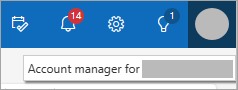
- Select Account manager in the Outlook header. If you don’t see your picture at the top of screen, check to see if ad blocking is turned on. Sometimes this prevents the picture from showing.
- Select Sign out.
I want to stop signing in automatically
To prevent Outlook on the web from signing you in to your work or school account automatically, clear the Keep me signed in check box the next time you sign into Microsoft 365.
How to sign in to Outlook on the web
Outlook on the web is the web-based version of Outlook used by organizations. You need to sign in with a work or school account to access this web-based version of Outlook. Your work or school account is typically assigned to you by someone in your organization.
Note: To access the web-based version of Outlook using a Microsoft account, see How to sign in or out of Outlook.com.
Sign in to Outlook on the web with your work or school account
- Go to outlook.office.com.
- If you’re not automatically signed in with your work or school account, follow the prompts to enter the email address and password for your work or school account. Follow any two-factor authentication prompts you may have previously set up for this account.
- Select Sign in. (If you’re signed into Microsoft365.com, select Outlook from the app launcher.)
Note: If you signed in with a Microsoft account such as an Outlook.com, Hotmail, Live, or MSN email account instead of your work or school account, sign out, and then sign in again using the correct account. Not sure which account you’re signed in with? Select Account manager in the Outlook navigation header. If you’re not signed in with the account you want, select Sign out and start the process again, or select Sign in with a different account and follow the prompts using the work or school account you want to access.
Sign in to Outlook on the web with your work or school account
- Go to login.partner.microsoftonline.cn and sign in with your work or school account username and existing password.
- If you’re not automatically signed in with your work or school account, follow the prompts to enter the email address and password for your work or school account. Follow any two-factor authentication prompts you may have previously set up for this account.
- Select Sign in and then select Outlook from the app launcher.
Note: If you signed in with a Microsoft account such as an Outlook.com, Hotmail, Live, or MSN email account instead of your work or school account, sign out, and then sign in again using the correct account. Not sure which account you’re signed in with? Select Account manager in the Outlook navigation header. If you’re not signed in with the account you want, select Sign out and start the process again, or select Sign in with a different account and follow the prompts using the work or school account you want to access.
Sign in to Outlook on the web with your work or school account
- Go to portal.office.de and sign in with your work or school account username and existing password.
- If you’re not automatically signed in with your work or school account, follow the prompts to enter the email address and password for your work or school account. Follow any two-factor authentication prompts you may have previously set up for this account.
- Select Sign in and then select Outlook from the app launcher.
Note: If you signed in with a Microsoft account such as an Outlook.com, Hotmail, Live, or MSN email account instead of your work or school account, sign out, and then sign in again using the correct account. Not sure which account you’re signed in with? Select Account manager in the Outlook navigation header. If you’re not signed in with the account you want, select Sign out and start the process again, or select Sign in with a different account and follow the prompts using the work or school account you want to access.
Problems signing in or out?
I forgot my password or it’s not working
If your admin has given you permission to reset your password go to, passwordreset.microsoftonline.com/. Contact your admin if you don’t have permission to change your password.
If your admin has given you permission to reset your password go to, passwordreset.activedirectory.windowsazure.cn/. Contact your admin if you don’t have permission to change your password.
If your admin has given you permission to reset your password go to, passwordreset.microsoftonline.com/. Contact your admin if you don’t have permission to change your password.
I don’t know how to sign out
To sign out of Outlook on the web:
- Select Account manager in the Outlook header. If you don’t see your picture at the top of screen, check to see if ad blocking is turned on. Sometimes this prevents the picture from showing.
- Select Sign out.
I want to stop signing in automatically
To prevent Outlook on the web from signing you in to your work or school account automatically, clear the Keep me signed in check box the next time you sign into Microsoft 365.
У вас большие запросы!
Точнее, от вашего браузера их поступает слишком много, и сервер VK забил тревогу.
Эта страница была загружена по HTTP, вместо безопасного HTTPS, а значит телепортации обратно не будет.
Обратитесь в поддержку сервиса.
Вы отключили сохранение Cookies, а они нужны, чтобы решить проблему.
Почему-то страница не получила всех данных, а без них она не работает.
Обратитесь в поддержку сервиса.
Вы вернётесь на предыдущую страницу через 5 секунд.
Вернуться назад
У вас большие запросы!
Точнее, от вашего браузера их поступает слишком много, и сервер VK забил тревогу.
Эта страница была загружена по HTTP, вместо безопасного HTTPS, а значит телепортации обратно не будет.
Обратитесь в поддержку сервиса.
Вы отключили сохранение Cookies, а они нужны, чтобы решить проблему.
Почему-то страница не получила всех данных, а без них она не работает.
Обратитесь в поддержку сервиса.
Вы вернётесь на предыдущую страницу через 5 секунд.
Вернуться назад