Как перевернуть холст в Photoshop: сочетания клавиш и расположение меню
Переворачивание холста — важная часть рабочего процесса многих цифровых художников и дизайнеров. Это позволяет вам увидеть свежим взглядом изображение, над которым вы работаете, не тратя драгоценное время в другом месте. Это позволяет вам заметить композиционные дисбалансы, которые в противном случае могли бы ускользнуть от вашего естественно однобокого человеческого восприятия. Это позволяет вам быстро сравнивать альтернативные версии одного и того же изображения. Традиционные художники используют зеркала. В таких программах, как Krita или Procreate, это так же просто, как нажать M или перетащить влево с помощью жестов. Удивительно, однако, что Photoshop не делает это так просто.
К счастью, мы здесь, чтобы помочь.
Как перевернуть слой в Photoshop
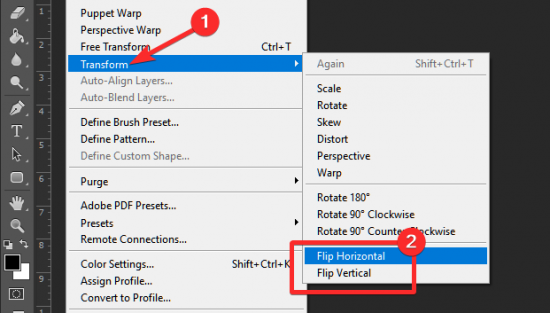
Способ по умолчаниюперевернуть слойнужно перейти в «Редактирование» > «Трансформирование» > «Отразить по горизонтали» (или «Отразить по горизонтали»). Важно отметить, что, как следует из названия, это перевернет только тот слой, который выбран в данный момент.
Для того, чтобыперевернуть несколько слоев, выбрав несколько слоев с помощью щелчка правой кнопкой мыши + Ctrl/Shift и используя то же редактирование Flip, преобразование будет применено ко всем выбранным слоям. Однако, если вы хотите перевернуть весь холст и все, что на нем, прокрутите вниз до раздела «Как перевернуть холст».
Сочетание клавиш «Перевернуть слой» в Photoshop

Чтобы установить ярлык «Перевернуть слой» в Photoshop, сначала выберите «Редактирование» > «Сочетания клавиш», а затем выберите ярлык «Меню приложений» в раскрывающемся списке в верхней части панели. На той же панели откройте «Редактирование», найдите «Преобразование» и нажмите «Отразить по горизонтали» или «Отразить по вертикали» — в зависимости от того, что для вас важнее — и выберите текстовое поле для ввода желаемого ярлыка. Обратите внимание, что вам придется добавить к сочетанию модификатор, например alt/cmd, или функциональную клавишу — однобуквенные сочетания клавиш можно применять только к инструментам. Например, если вы играете
Как перевернуть холст в Photoshop

Как и в случае с переворачиванием слоев, в Photoshop нет ярлыка по умолчанию для переворота всех слоев; Чтобы перевернуть холст в Photoshop, выберите «Изображение» > «Поворот изображения» > «Перевернуть холст по горизонтали» или «Перевернуть холст по вертикали». Это работает достаточно хорошо для редактирования фотографий или для тех, кто использует его нечасто, но для многих художников, иллюстраторов и многих дизайнеров переворачивание всего изображения является регулярной и важной частью их рабочего процесса, а пролистывание панелей меню каждые пару минут нежелательно. Это отличный способ поддерживать состояние творческого потока.
Ярлык «Перевернуть холст» в Photoshop

Как и в случае с «Перевернуть холст», действие «Перевернуть холст» не имеет ярлыка по умолчанию, и его необходимо настроить вручную, выбрав «Правка» > «Сочетания клавиш», выбрав «Меню приложения» в раскрывающемся меню и перейдя к разделу «Изображения» на панели. . Нажмите «Перевернуть изображение по горизонтали» или «Перевернуть изображение по вертикали», в зависимости от того, которое вы хотите установить, и вставьте нужный ярлык в поле ввода.
Как и в случае с любым другим ярлыком меню приложения, вам нужно будет добавить модификатор, например cmd/alt или клавишу F, а не одно из сочетаний клавиш, зарезервированных для инструментов.
И это почти все, что вам нужно знать о переворачивании слоев и холстов в Photoshop. Не стесняйтесь задавать нам любые другие вопросы в комментариях ниже — мы будем рады помочь!
Подскажите комбинацию клавиш в фотошоп, пожалуйста)
Так можно (и нужно!) собственные клавиатурные сокращения создавать. Я их сделал для таких команд: Яркость-контрастность, Кадрирование, Обводка, Повернуть изображение на 90 град.
Меню Редактирование — Установки — Клавиатурные сокращения. Находишь команду и нажатием на выбранные клавиши назначаешь для неё комбинацию. Обычно программа сообщает, что такая комбинация уже используется. Но ты нажимаешь кнопку Принять — и она принимает твой вариант.
Ксения ГерасимоваЗнаток (316) 8 лет назад
Спасибо, проблема решена))
Остальные ответы
CTRL+T -Свободная трансформация. И крути и отражай как хочешь.
А зачем холст крутить?
Ксения ГерасимоваЗнаток (316) 8 лет назад
нужно постоянно делать отражение холста, чтобы замечать косяки при рисовании, когда глаз «замыливается»)
Glebuska Просветленный (32338) Напиши экшен, присвой ему горячие клавиши.
альт шыфт контрал + К . и назначь любые свободные или замени на удобные
R клавиша — зажимаешь и поворачиваешь мышью. В позиции горизонтально или вертикально программа ненавязчиво обозначает состояние. просто там торопиться не надо, аккуратнее.
Сергей ГрушевскийПрофи (614) 2 года назад
Это так не работает, человек спросил про отражение горизонтальное, а не вращение. Жаль, что диз тут нельзя влепить.
А ты не лазАй в общее меню ,- Ctrl+T и юзай контекстное .
( ПРАВАЯ КНОПКА МЫШИ)
Сергей ГрушевскийПрофи (614) 2 года назад
контрол+Е работает со слоем, а не со всем проектом целиком, кроме того лазать в любое меню менее удобно, чем один клик горячих клавиш
Диз бы влепить, да тут нет такой функции, жаль
How to rotate Photoshop’s canvas with the Rotate View Tool

Photoshop’s Rotate View Tool makes editing, drawing and painting in Photoshop easier than ever. Learn how to rotate your view as you work, and how to take advantage of «spring-loaded» tools in Photoshop for the best results! For Photoshop CC and CS6.
Written by Steve Patterson.
If you’ve ever drawn with a pencil, or even colored with a crayon, you know that sometimes, turning the paper to rotate your view makes it easier to work. The same is true with our images. Rotating the view of an image can make it easier to edit or retouch certain areas. Photoshop lets us rotate our view using the Rotate View Tool. We’ll learn how to use the Rotate View Tool in this tutorial.
Notice that the name of the tool is Rotate View, not Rotate Image. Much like rotating the paper doesn’t really rotate the drawing (it just rotates the paper underneath the drawing), Photoshop’s Rotate View Tool doesn’t actually rotate our image. Instead, it rotates the canvas that the image is sitting on. In other words, it rotates our view of the image, but not the image itself.
This is important to understand, because rotating an image in Photoshop is a destructive edit. Each time we rotate an image, Photoshop needs to redraw the pixels. And each time it redraws the pixels, the image loses detail. Since the Rotate View Tool rotates the canvas, not the image itself, the image is never harmed. We’re free to change the angle as many times as we need without any loss in quality. And, we can easily return the image to its original angle when we’re done. Let’s see how it works! I’ll be using Photoshop CC but this tutorial is fully compatible with Photoshop CS6.
Let’s get started!
To follow along, you can open any image in Photoshop. Here’s the photo I’ll be using. I’ve actually opened two images, but we’ll save the second one for later (portrait photo from Adobe Stock):
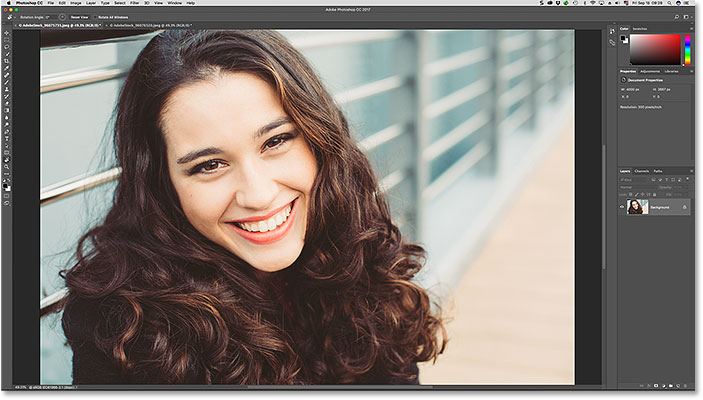
An image open in Photoshop. Photo credit: Adobe Stock.
Selecting The Rotate View Tool
Photoshop’s Rotate View Tool is located in the same spot as the Hand Tool in the Toolbar. By default, the Hand Tool is the tool that’s visible, and the Rotate View Tool is hiding behind it. To select the Rotate View Tool, click and hold on the Hand Tool’s icon until a fly-out menu appears. Then, choose the Rotate View Tool from the menu. Notice that the Rotate View Tool has a keyboard shortcut of R. This will become important in a few moments:
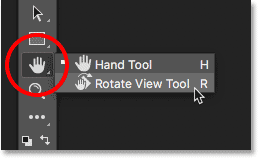
By default, the Rotate View Tool is nested behind the Hand Tool.
How To Rotate Your View
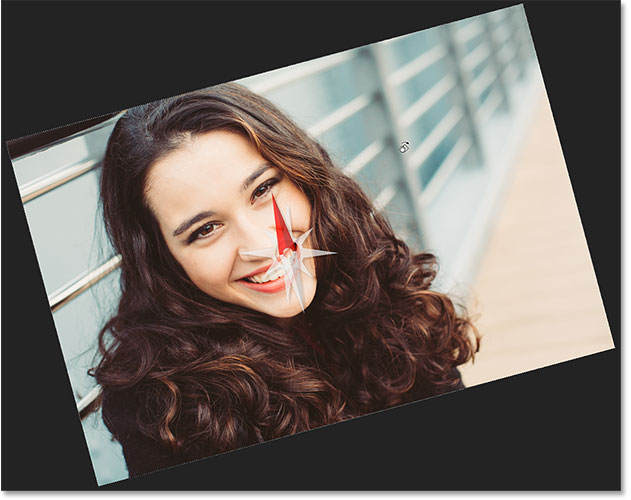
With the Rotate View Tool selected, the easiest way to rotate your view of the image is to simply click and drag inside the document window. Click on the image with the Rotate View Tool and keep your mouse button held down. A compass appears in the center. The red direction marker at the top of the compass always points to the actual top of the image, so that even when you’ve rotated the angle, you’ll always know which way is up:

Click and hold with the Rotate View Tool to display the compass.
To rotate the view, keep your mouse button held down and drag the image. You can drag clockwise or counterclockwise as needed. Notice that the compass continues to point to the actual top of the image as you rotate the view. By default, Photoshop lets you rotate the angle freely. But if you press and hold your Shift key as you drag, you’ll rotate the view in steps of 15 degrees:

Keep your mouse button held down and drag the image to rotate the view.
Entering A Specific Rotation Angle
If you know the exact angle you need, you can enter it directly into the Rotation Angle box in the Options Bar. Click inside the box to highlight the current angle, and then type in your new value. Don’t worry about the degrees symbol ( ° ) because Photoshop will include it automatically. Press Enter (Win) / Return (Mac) on your keyboard when you’re done to accept it. Or, press Shift+Enter (Win) / Shift+Return (Mac) to keep the new value highlighted. This lets you quickly type in different angles without needing to click inside the box each time:

Use the Rotation Angle option to rotate the view at specific angles.
Changing The Rotation Angle With The Scrubby Slider
Another way to rotate your view of the image is by using Photoshop’s Scrubby Slider. Hover your mouse cursor directly over the words «Rotation Angle» in the Options Bar. Your cursor will change into a hand icon with direction arrows pointing left and right. This is the Scrubby Slider cursor. Click and drag to the right to increase the rotation angle, or drag to the left to decrease it. By default, you’ll increase or decrease the angle in 1 degree increments. Press and hold your Shift key as you drag with the Scrubby Slider to change the angle in steps of 10 degrees:

Click and drag over the words «Rotation Angle» to use the Scrubby Slider.
Resetting The View
To reset your view and restore the image to its upright position, click the Reset View button in the Options Bar. Or, press the Esc key on your keyboard. You can also reset the view by double-clicking on the Rotate View Tool in the Toolbar:

Click the «Reset View» button in the Options Bar to reset the angle.
Using The «Spring-Loaded» Rotate View Tool
Photoshop has a great feature known as spring-loaded tools. If you know the keyboard shortcut for a specific tool, pressing and holding that key on your keyboard will temporarily switch you to that tool for as long as the key is held down. When you release the key, you’ll switch back to the previously-active tool. Using the «spring-loaded» version of the Rotate View Tool is the fastest way to work.
Earlier, when we learned how to select the Rotate View Tool from the Toolbar, we saw that the tool has a keyboard shortcut of R. When any other tool is active, press and hold the «R» key on your keyboard to temporarily switch to the Rotate View Tool. Click and drag the image to rotate your view, and then release the «R» key to return to the previous tool. In «spring-loaded» mode, you won’t have access to any of the Rotate View Tool’s options in the Options Bar. So to reset your view when you’re done, press the Esc key on your keyboard:
Press and hold «R» at any time to access the «spring-loaded» version of the Rotate View Tool.
Rotating The View For All Open Images At Once
So far, we’ve learned how to rotate the view for a single image. But Photoshop makes it just as easy to rotate the view for multiple images at the same time. Here’s a second image from the same series that I’ve opened. Photoshop opens each image in its own separate document. I switched to this second image by clicking on its tab above the document window (portrait photo from Adobe Stock):

A second image open in Photoshop. Photo credit: Adobe Stock.
Viewing Multiple Images On The Screen
By default, we can only view one document at a time. But it’s easy to view two or more documents at once using Photoshop’s multi-document layouts. You’ll find them by going up to the Window menu in the Menu Bar and choosing Arrange. From there, choose a layout based on the number of images you’ve opened. I’ve opened two photos, so I’ll select the 2-up Vertical layout:

Going to Window > Arrange > 2-up Vertical.
With the «2-up Vertical» layout selected, my images now appear side-by-side on the screen. To switch back to Photoshop’s default layout when you’re done, go back up to the Window menu, choose Arrange, and then choose Consolidate All to Tabs:

A second image open in Photoshop. Photo credit: Adobe Stock.
The «Rotate All Windows» Option
To rotate all open images at once, make sure you’ve selected the Rotate View Tool from the Toolbar, since the «spring-loaded» method won’t give you access to the tool’s options. Then, select the Rotate All Windows option in the Options Bar:

Use the «Rotate All Windows» option to rotate the view for all open images.
Click and hold on any image and then drag to rotate its view. At first, it will look like the view for only that one image is being rotated. Here, I’m rotating the image on the left. The image on the right hasn’t yet moved:

Click and drag inside one of the documents to rotate its view.
As soon as you release your mouse button, the view for the other image(s) will instantly rotate to the same angle:

The other documents rotate to the same angle when you release your mouse button.
Resetting The View For All Open Images
To reset the view for all open images, make sure you still have the Rotate All Windows option selected in the Options Bar. Then, click the Reset View button:
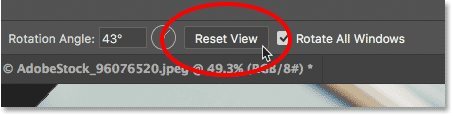
Resetting the view for both images at once.
The «Match Rotation» Option
Finally, if you’re viewing multiple open images at different angles, you can instantly match them all to the same angle. First, select the document with the rotation angle you want the others to match. Then, go up to the Window menu, choose Arrange, and then choose Match Rotation. All documents will jump to the same viewing angle as the document you selected:

Use «Match Rotation» to easily match the viewing angle for all open images.
Where to go next.
And there we have it! In the next and final lesson in this chapter, we’ll round up every tip, trick and shortcut you need to know to navigate images like a pro in Photoshop!
You can jump to any of the other lessons in this Navigating Images in Photoshop chapter. Or visit our Photoshop Basics section for more topics!
Get all of our Photoshop tutorials as PDFs! Download them today!
Links
Tutorials
Other Stuff
© 2024 Photoshop Essentials.com.
For inspiration, not duplication.
Site design by Steve Patterson.
Photoshop is a trademark of Adobe Systems Inc.
How to Flip Canvas in Photoshop: Shortcuts and Menu Location
Flipping your canvas is an important part of many digital artists’ and designer’s workflow. It allows you to see with fresh eyes the image you’re working on without spending valuable time elsewhere. It lets you notice compositional imbalances that may have otherwise slipped through your naturally lopsided human perception. It lets you compare quickly alternative versions of the same image. Traditional painters use mirrors. In programs like Krita or Procreate it’s as easy as pressing M or dragging to the left via gesture controls. Surprisingly, however, Photoshop doesn’t make it so easy.
Luckily, we’re here to help.
Contents show
- How Flip Layer in Photoshop
- Flip Layer Keyboard Shortcut in Photoshop
- How to Flip Canvas in Photoshop
- Flip Canvas Shortcut in Photoshop
How Flip Layer in Photoshop
The default way to flip a layer is to go to Edit > Transform > Flip Horizontal (or Flip Horizontal). It’s important to note that this will, as the name suggests, flip only the layer that is currently selected.
In order to flip multiple layers, selecting multiple layers using right-click + ctrl/shift and using the same Flip edit will apply the transformation to all layers selected. However, if you’re looking to flip the entire canvas and everything on it, scroll down to How to Flip Canvas.
Flip Layer Keyboard Shortcut in Photoshop

To set a Flip Layer shortcut in Photoshop, your first option is to Edit > Keyboard Shortcuts and then select the Application Menus shortcut from the dropdown at the top of the panel. Inside the same panel, open up Edit, find Transform, and click on Flip Horizontal or Flip Vertical — whichever one is more important to you — and select the textbox to input your desired shortcut. Note that you will have to add a modifier like alt/cmd or a function key to the shortcut — single-letter keyboard shortcuts can only be applied to tools. For example, if you’re playing
How to Flip Canvas in Photoshop

Similar to Flipping Layers, there is no default shortcut to flip all layers in Photoshop; to flip the canvas in Photoshop, you have to go to Image > Image Rotation > Flip Canvas Horizontal/Flip Canvas Vertical. This works well enough for photo editing or for those who use it infrequently, but for many artists, illustrators and many designers, flipping the entire image is a regular and important part of their workflow — and flicking through menu panels every couple of minutes isn’t a great way to maintain a creative flow state.
Flip Canvas Shortcut in Photoshop

Similar to the Flip Transformation, the Flip Canvas action doesn’t come with a default shortcut and needs to be set manually by going to Edit > Keyboard Shortcuts, selecting Application Menus in the dropdown menu, and moving down to the Images section within the panel. Click on Flip Image Horizontal or Flip image Vertical, depending on the one you want to set, and insert your desired shortcut in the input box.
Like any other Application Menu shortcut, you’ll need to add a modifier like cmd/alt or an F-key rather than one of the keyboard shortcuts reserved for tools.
And that’s pretty much all you need to know about flipping layers and canvases in Photoshop. Feel free to shoot any other questions you have at us in the comments below — we’d love to help!

Will
Will Heydecker is a writer, screenwriter and illustrator who still likes dragons. As part of his bitter war against adulthood, he likes to distill art, gaming, technology, and entertainment info into digestible topics people actually enjoy reading.