Как найти MAC-адрес в Windows 10?

Есть несколько причин, по которым вам может понадобиться найти MAC-адрес вашей сетевой карты. Например, если вы хотите подключиться к сети с защитой на аппаратном уровне, где только определенные устройства могут подключаться к сети, вам необходимо знать ваш MAC-адрес.
Что такое MAC-адрес?
Каждое сетевое устройство имеет уникальный идентификатор для уникальной идентификации себя в сети. MAC ( Media Access Control ) — это 12-значное шестнадцатеричное число для идентификации сетевого компонента.
Mac-адрес является универсально уникальным номером. Два сетевых устройства не могут иметь одинаковый MAC-адрес.
MAC-адрес также называется аппаратным адресом. MAC-адреса могут быть легко изменены или подделаны с помощью некоторых временных взломов.
Windows 10 дает нам несколько вариантов быстрого поиска адресов Mac. Мы обсудим варианты здесь.
Как найти Mac-адрес с помощью командной строки
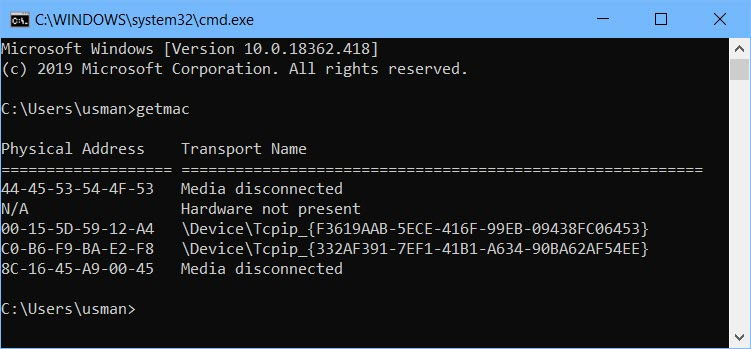
Чтобы быстро найти MAC-адрес всех сетевых устройств на вашем компьютере, вы можете использовать команду getmac . Вот как это сделать:
- Перейдите в Выполнить -> cmd, чтобы открыть командную строку.
- Запустите следующую команду:
getmac
Это даст вам список всех сетевых устройств на вашем компьютере и их соответствующие MAC-адреса. Эта команда хорошо работает в Windows 10. Единственная проблема в том, что она отображает имя транспорта вместо понятного человеку имени устройства.
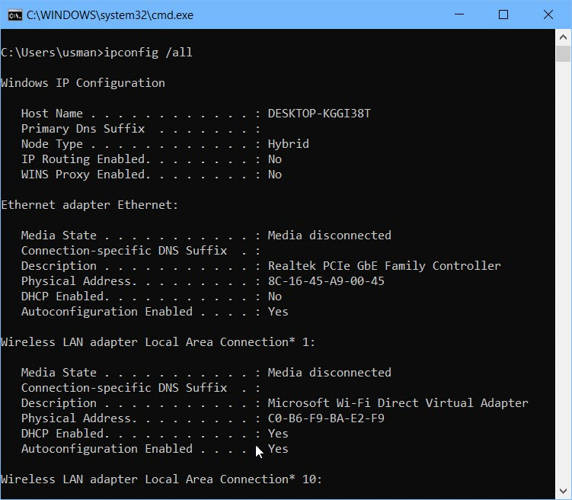
IPCONFIG — это еще одна команда, которая может показать вам подробную информацию о каждом сетевом устройстве, включая их MAC-адреса. Вот как это сделать:
- Перейдите в Выполнить -> cmd, чтобы открыть командную строку.
- Запустите следующую команду:
ipconfig /all
Как найти MAC-адрес определенного сетевого адаптера?
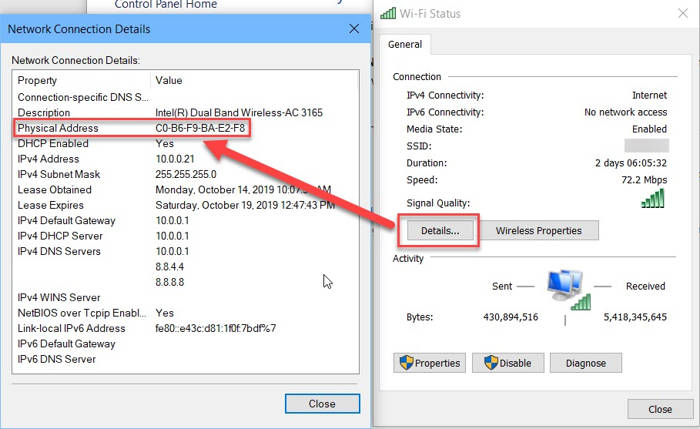
Если вы хотите найти MAC-адрес определенного сетевого адаптера и вам неудобно использовать параметр командной строки, вы можете получить его из окна состояния сети. Следуйте инструкциям ниже:
- Перейдите в Выполнить -> control /name Microsoft.NetworkAndSharingCenter
Откроется Центр управления сетями и общим доступом. Вы также можете открыть Центр управления сетями и общим доступом , перейдя в Панель управления. - Нажмите на активный сетевой адаптер, для которого вы хотите узнать MAC-адрес.
- Нажмите кнопку Подробности, которая откроет новое окно. Вы можете найти MAC-адрес со всеми другими сетевыми данными.
Как узнать MAC-адрес удаленного компьютера?
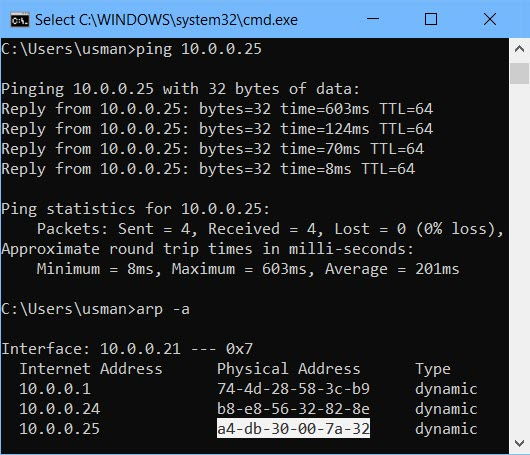
Вы можете легко получить MAC-адрес удаленного компьютера, подключенного к той же сети, что и вы. ARP (Address Resolution Protocol) — это инструмент, который разрешает IP-адреса и аппаратные адреса устройств, которые обмениваются данными с вашим компьютером.
Чтобы найти MAC-адрес удаленного компьютера, выполните следующие действия:
- Перейдите в Выполнить -> cmd, чтобы открыть командную строку.
- Запустите следующую команду:
ping 192.168.1.1
(Замените IP-адрес на IP-адрес удаленного компьютера) - Запустите следующую команду:
ARP -A
Это даст вам список всех устройств, взаимодействующих с вашим компьютером. Этот список должен включать IP-адрес удаленного компьютера и его mac-адрес (поскольку мы уже связывались с IP-адресом на шаге 2.
Вот как вы можете найти MAC-адрес по IP. Вы не можете пропинговать MAC-адрес, но вы можете использовать команду ARP, чтобы проверить, активна ли конкретная система в сети.
Как я могу получить список всех MAC-адресов в моей сети?
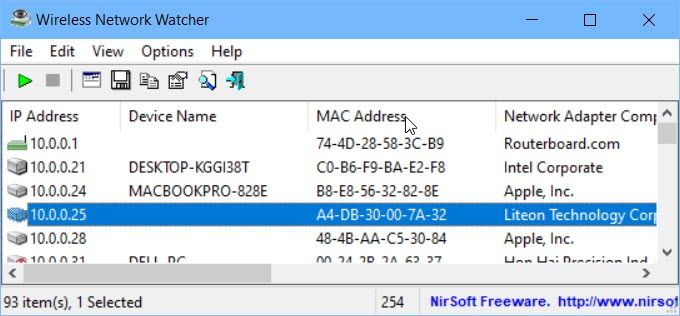
Есть утилита под названием Wireless Network Watcher. Он дает множество информации о подключенных к сети устройствах. Хотя, это для беспроводных сетей, но отображает все устройства в сети, независимо от того, являются ли они проводными или беспроводными.
Wireless Network Watcher предоставляет обширную информацию о каждом сетевом устройстве, включая IP-адрес, имя устройства, MAC-адрес и сетевой адаптер компании.
Последние мысли
MAC-адреса обычно полезны для сетевых администраторов. Но каждый должен знать больше о сетевом взаимодействии, потому что именно так вредоносные программы атакуют системы. Чем лучше вы будете знать о том, как все работает, тем лучше вы сможете избежать и предотвратить заражение вашей системы вредоносным ПО.
Надеюсь, я ответил на большинство вопросов, которые есть у людей по поводу mac-адреса Если я что-то пропустил или запутался, пожалуйста, дайте мне знать в комментариях ниже, и я сделаю все возможное, чтобы обновить статью с дополнительной информацией.
Насколько публикация полезна?
Нажмите на звезду, чтобы оценить!
Средняя оценка / 5. Количество оценок:
Оценок пока нет. Поставьте оценку первым.
getmac
Возвращает адрес управления доступом к мультимедиа (MAC) и список сетевых протоколов, связанных с каждым адресом для всех сетевых карта на каждом компьютере, локально или в сети. Эта команда особенно полезна, если вы хотите ввести MAC-адрес в сетевой анализатор или когда необходимо знать, какие протоколы в настоящее время используются на каждом сетевом адаптере на компьютере.
Синтаксис
getmac[.exe][/s [/u [/p ]]][/fo ][/nh][/v] Параметры
| Параметр | Описание |
|---|---|
| /s | Указывает имя или IP-адрес удаленного компьютера (не используйте обратные очки). По умолчанию используется локальный компьютер. |
| /U \ | Выполняет команду с разрешениями учетной записи пользователя, указанного пользователем или доменом\user. Значение по умолчанию — это разрешения текущего пользователя, вошедшего в систему на компьютере, выдающего команду. |
| /P | Указывает пароль учетной записи пользователя, указанной в параметре /u . |
| /fo | Задает формат, используемый для выходных данных запроса. Допустимые значения: таблица, список и csv. Формат выходных данных по умолчанию — таблица. |
| /Nh | Подавляет заголовок столбца в выходных данных. Допустимо, если для параметра /fo задано значение table или csv. |
| /v | Указывает, что выходные данные отображают подробные сведения. |
| /? | Отображение справки в командной строке. |
Примеры
В следующих примерах показано, как использовать команду getmac :
getmac /fo table /nh /v getmac /s srvmain getmac /s srvmain /u maindom\hiropln getmac /s srvmain /u maindom\hiropln /p p@ssW23 getmac /s srvmain /u maindom\hiropln /p p@ssW23 /fo list /v getmac /s srvmain /u maindom\hiropln /p p@ssW23 /fo table /nh Дополнительные ссылки
How to Find MAC Address Remotely in Windows 11 and 10 Using CMD
If you want to find the MAC (hardware) address of your network card in Windows 11/10 or earlier versions of computers, here are the simple steps. You may require MAC (Media Access Control) address to troubleshoot the network issues or secure the network access by using the MAC address filter. For example, you can allow only specific MAC addresses on your home or office Wi-Fi network to access the internet.
Let me show you how to find the MAC address on the local and remote computer by using the command prompt. We can easily find someone’s computer (assuming it is on your network and reachable), printer or the router MAC address from command prompt.
MAC address is a hardware ID assigned by the network card manufacturer and it can’t be changed.
Though the following screenshots are taken from Windows 10, it is applicable for Windows 11 desktop and laptops too.
Find MAC Address by Command Prompt (Local Computer)
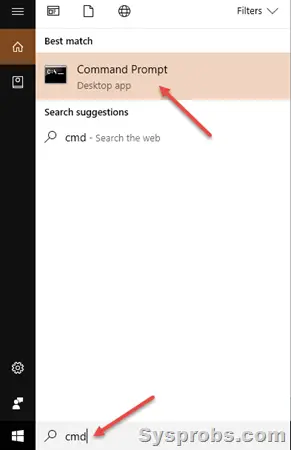
1) Open the command prompt in Windows 11/10.
Type ‘cmd’ in search and the open command prompt
2) Type ‘ipconfig /all’ and press enter.
3) It will be showing the details of all network adapters (including physical and virtual). Scroll down and find the correct network adapter which you are looking for, either it can physical LAN port or a Wireless adapter.
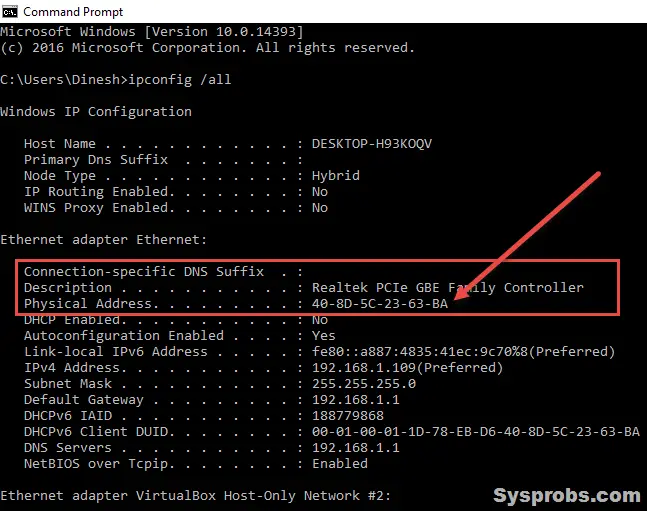
‘Physical Address’ of the particular network card is the MAC address of your computer. Whether you are using Windows 11, 10, 8.1 or even the Linux Operating system, the MAC address remains the same since it is an embedded hardware number of your computer network adapter.
It is the same and simple method to find MAC addresses in Windows Server Operating Systems such as Windows 2012 R2 and 2016.
Find MAC from GUI Control Panel
It is easy to identify the MAC address in Windows Operating System via the Graphical User Interface (GUI).
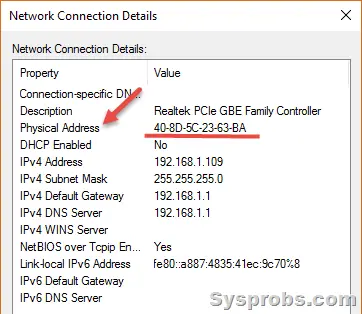
You can go to the network connections in the Control panel and double click to see the status of the network. It will bring the dialogue box as below which usually gives the information of connection status.
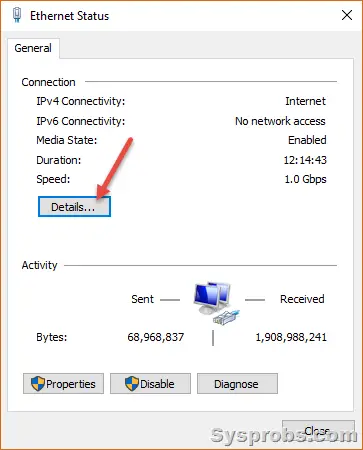
Click on the ‘Details’ button.
Here you can see some more information including the MAC address about the network card and connection status.
Finding the MAC Address of Remote Computers/Network Devices
If you want to find the physical address (MAC) of the remote computer or other network devices on your internal network, you can find it easily. You must know the IP address of the device or name (that should be resolved by DNS) to execute the simple commands in the Windows command prompt.
1) By using getmac /s command. This built-in Windows command can be used to retrieve the MAC address of the remote Windows computer. It uses RPC service to pull the details.
Type getmac /s from the command prompt.
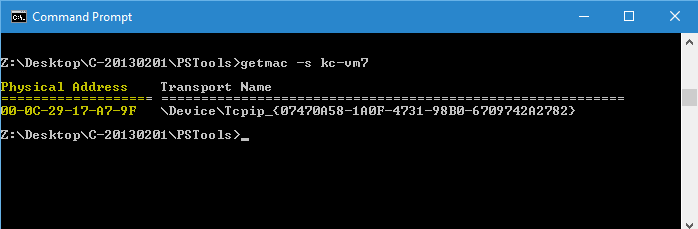
We can’t use the getmac command to retrieve MAC address details for the network devices such as routers, wireless access points ..etc since they don’t use RPC service. Let’s use another method for these types of devices.
Ping and Arp Method
We can use the ping command to collect the hardware address details then arp command to retrieve them. Usually, every computer keeps the cache of all physical addresses (MAC) with the IPs of all network devices they communicate. So, once we did a ping to the desired remote Windows computer or network device, we can view the MAC address from the Arp cache.
2) Let’s ping a remote computer or network device from your computer in the command prompt. Here I’m pinging a network device (router).
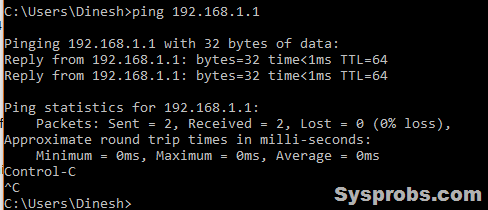
Once it returned successfully, let us see the ARP cache entry for the particular device.
Type arp –a
Example: arp –a 192.168.1.1
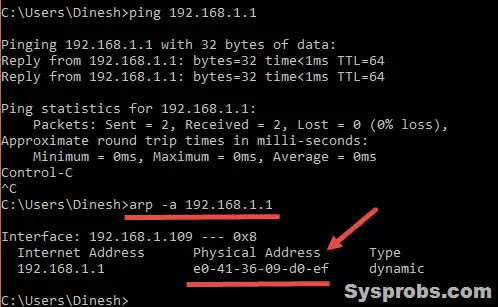
That shows the MAC address of the IP address (192.168.1.1) which is the router in this example.
Note: This method will not work on external networks. For example, you can’t ping Google’s IP address then find its MAC address. When there is NAT enabled network active(which is enabled on the public network), this arp cache method will not work.
Anyhow, we hope these steps would be useful to find the MAC address of the Windows 11/10 computers and other Server Operating Systems internally and remotely. There would be more ways and tools available to find in bulk or track the MAC addresses on the network, but these simple commands with the Windows OS without installing any 3rd party tools would be handy at any time.
If any of the above solutions did not fix the Windows PC issues, we recommend downloading the below PC repair tool to identify and solve any PC Issues.
RЕCOMMENDED: Click here to Download & Fix PC Issues Automatically!
Categories Windows 10, Windows 11 Tags Free Tips, Windows 10
Dinesh
Dinesh is the founder of Sysprobs and written more than 400 articles. Enthusiast in Microsoft and cloud technologies with more than 15 years of IT experience.
Get mac address from command line (CMD)
We can find mac address (physical address) of a computer using the command ‘getmac‘. This can be used to get mac address for remote computers also. Below are few examples on how to use this command. It works on XP, Vista, Windows 7, Server 2003 and Server 2008 operating systems.
Get mac addresses from CMD
Just run the command getmac to get the mac addresses. Find an example below.
C:\>getmac Physical Address Transport Name =================== ========================================================== 2C-3F-45-02-1B-32 \Device\Tcpip_ 10-13-17-BC-12-48 Media disconnected 22-B3-C5-30-76-78 \Device\Tcpip_ 00-05-2A-3C-78-00 \Device\Tcpip_ 2C-23-45-14-23-AD Media disconnected C:\>
This command does not show mac addresses for the network connections which are disabled. You can run ncpa.cpl and check which NICs are disabled. Further, I have received comments that this command does not help identify the mac address for a specific device. For example, if I need to get the mac address for my WiFi card, output of getmac command is not helpful. We can use ipconfig command to deal with this.
C:\>ipconfig /all Windows IP Configuration Host Name . . . . . . . . . . . . : PC-10234 Primary Dns Suffix . . . . . . . : mydomain.com DNS Suffix Search List. . . . . . : mydomain.com mydomain.com Wireless LAN adapter Wireless Network Connection: Connection-specific DNS Suffix . : mydomain.com Description . . . . . . . . . . . : Intel(R) Centrino(R) Advanced-N 6205 Physical Address. . . . . . . . . : 3C-99-88-64-A1-F0 Ethernet adapter Local Area Connection: Connection-specific DNS Suffix . : mydomain.com Description . . . . . . . . . . . : Intel(R) 82579LM Gigabit Network Connection Physical Address. . . . . . . . . : 73-2B-4F-D5-12-A0 C:\>
Get mac address of a remote computer
We can retrieve the mac addressses for a remote computer using nbtstat command.
Example:
C:\>nbtstat -a 10.63.71.55 Local Area Connection: Node IpAddress: [10.59.13.47] Scope Id: [] NetBIOS Remote Machine Name Table Name Type Status -------------------------------------------- 7CF71D1C3B05 UNIQUE Registered MAC Address = 00-00-00-00-00-00 Wireless Network Connection: Node IpAddress: [10.63.71.58] Scope Id: [] NetBIOS Remote Machine Name Table Name Type Status -------------------------------------------- 7CF71D1C3B05 UNIQUE Registered MAC Address = 7C-F7-1D-1C-3B-05 Local Area Connection 2: Node IpAddress: [0.0.0.0] Scope Id: [] Host not found.
Alternatively, We can run the below command to retrieve the mac addresses of a remote computer.
getmac /s remote_computer /u username /p password
remote_computer : Full name of the remote computer or IP address
username and password are of the account on the remote computer. Example:
C:\>getmac /S remotepc.domain.com /u administrator /p adminpassword Physical Address Transport Name =================== ========================================================== 22-15-25-9C-3A-29 Media disconnected 34-11-45-7A-9C-48 \Device\Tcpip_
If you do not want to specify the password, you can skip /p parameter. You will be prompted to enter the password and the command execution will take place after that. Errors: Using getmac command we can retrieve the mac addresses of the machines running windows OS only. If you try this for a Linux machine you would get the error “The RPC server is unavailable.” If you provide incorrect password, the command would fail with the error message “Logon failure: unknown user name or bad password.” Also Read:
Windows CMD commands reference