Обновление BIOS ноутбука Samsung RV520
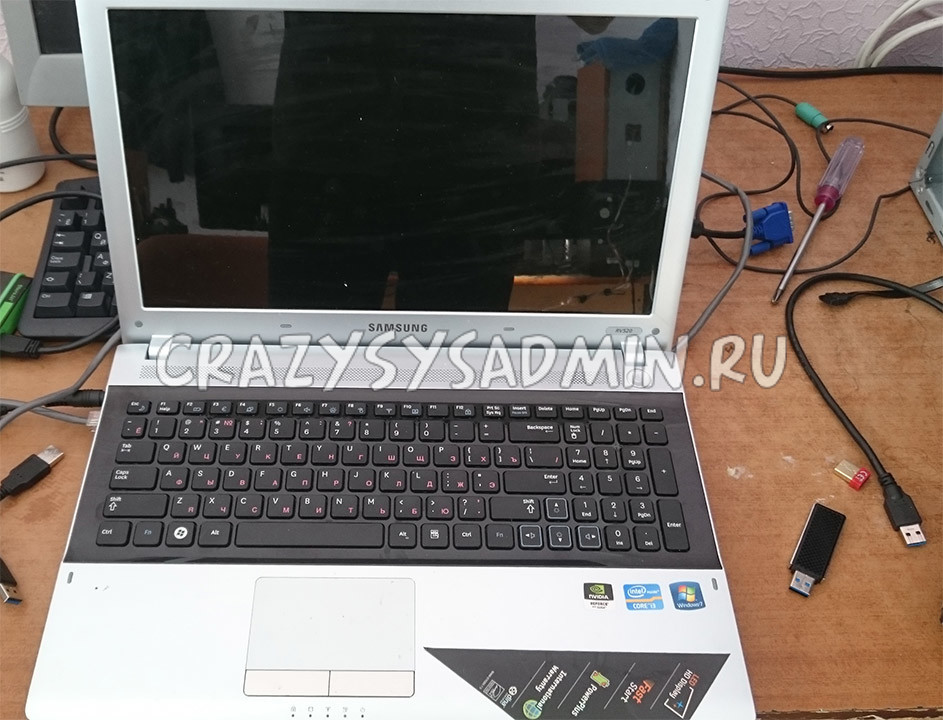
Однажды попал в руки ноутбук производства Samsung и модели RV520 у которого «медленно» выходил из строя винчестер. Соответственно, была произведена замена жесткого диска на новый SSD, и тут обнаружилась проблема в виде невозможности установки Windows — каждый раз при загрузке с установочным диском/флэшкой ноутбук показывал просто черный экран. Первым делом было принято решение обновить BIOS у ноутбука, и ниже будет простая инструкция о том, как это сделать.
Инструкция по обновлению BIOS на ноутбуке Samsung RV520
Самое главное, что стоит знать — обновление BIOS на ноутбуке Samsung RV520 производится исключительно из Windows, поэтому пришлось установить в ноутбук обратно проблемный винчестер, и грузиться уже с него. Затем, нужно скачать программу для обновления BIOS — её можно найти на сайте Samsung. Найти её можно следующим способом:
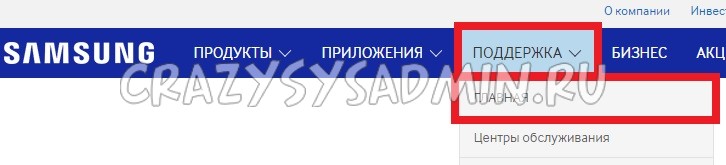
- На сайте samsung.com нужно выбрать пункт «Поддержка», затем подпункт «Главная».
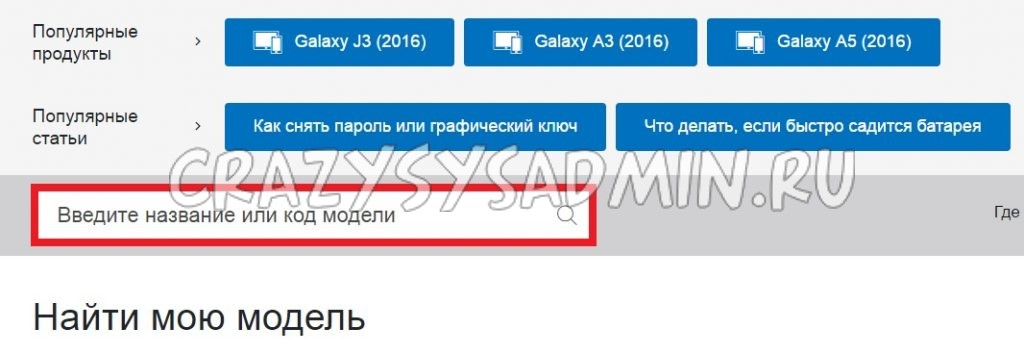
- На загрузившейся странице в строке с надписью «Введите название или код модели» нужно ввести RV520, после чего высветится список моделей этого ноутбука, среди которых нужно выбрать свою нужную.
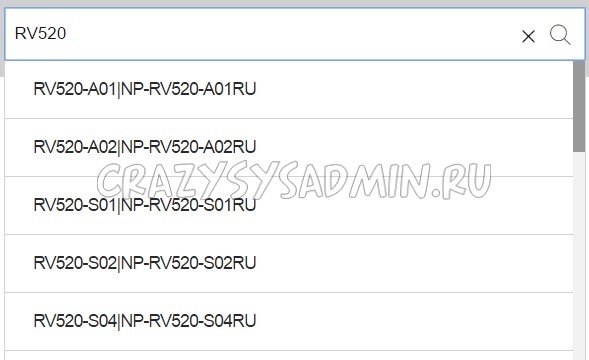
Узнать полный код модели можно на нижней стенке ноутбука.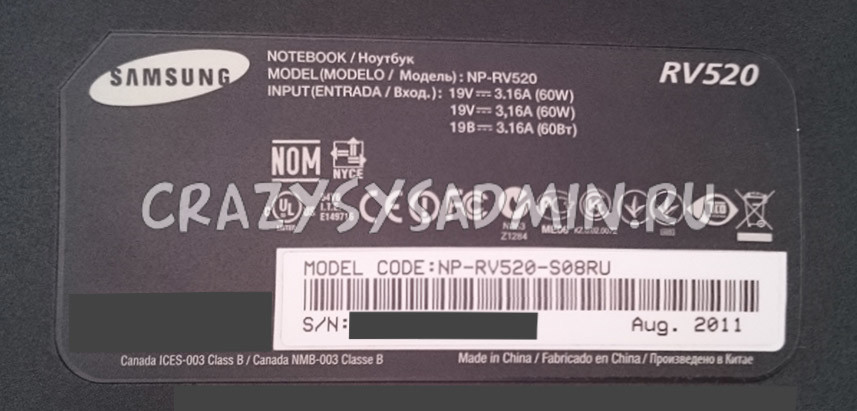
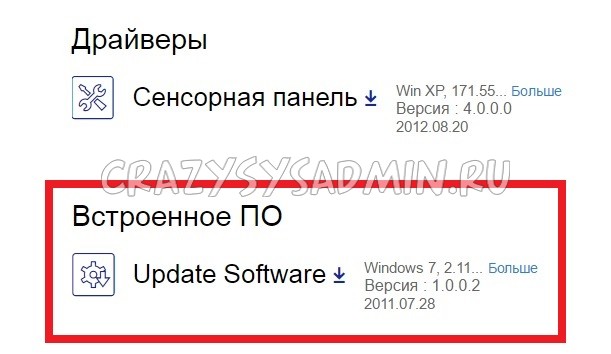
- На странице с нужной моделью ноутбука находим пункт «Загрузки и руководства», затем ниже нужно найти заголовок «Встроенное ПО», и там же «Update Software», что и является программой обновления BIOS на ноутбуке. Для скачивания достаточно просто нажать по названию — «Update Software».

Загруженный файл необходимо запустить, после чего программа проанализирует текущую версию BIOS, и если есть более новая, предложит её обновить путем нажатия кнопки «Обновить».
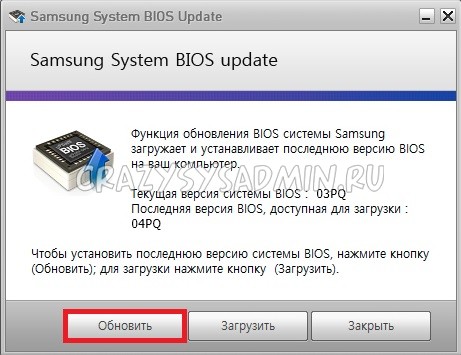
После нажатия кнопки «Обновить» начнется процедура обновления, состоящая из нескольких задач, таких как скачивание новой версии BIOS, сохранения резервной копии текущей версии и обновления до новой. После завершения обновления программа предложит выполнить перезагрузку.
Не в коем случае не выключайте ноутбук во время процедуры обновления! Это может привести к выходу из строя устройства!
Стоит отметить, что после обновления версии BIOS на ноутбуке, мне сразу удалось без проблем начать установку Windows, в то время как на старой версии просто показывало черный экран.
How To Update Your BIOS For Windows 8?
To update your BIOS you will need to use SW Update. If you do not currently have SW Update (located on the Start Screen or the Desktop), click here to download the SW update program.
Not all Samsung PC’s require a BIOS update, if you do not see the BIOS update in SW Update as shown below, your PC does not have an update available.
To install the BIOS update, follow the steps below:
Launch SW Update from the Start Screen or your desktop. The program will open in the desktop.
Update software, apps and drivers on your Samsung laptop or notebook
Software updates are a vital part of keeping your laptop or notebook running its best. It’s important to periodically check for updates since they are released at different intervals. To make things easier, your Samsung laptop or notebook allows you to quickly check and apply updates. You can even customize the update options, so they’ll only happen at times that are convenient for you.
Note: Information provided applies to devices sold in Canada. Available screens and settings may vary for laptops and notebooks sold in other countries.
Note: Samsung Update is not available on the Galaxy Book S. If you want to update this device, use Windows Update instead.
Samsung Update is usually preinstalled on Samsung laptop or notebook, but you can download it from the Microsoft Store if you don’t see it.
Samsung Update allows you to download updates and drivers for your Samsung software. Select Start, and then scroll to and select Samsung Update. Enter your laptop or notebook’s model number in the Search bar at the top right, and then choose the appropriate software version. Select your desired drivers or installation files, and then click Download. The updates will automatically install.
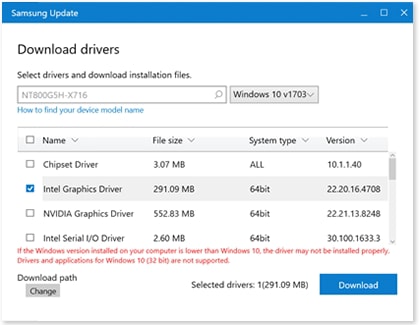
If you aren’t sure about your laptop or notebook’s model number, click How to find your device model name, and then follow the instructions.
You do not have to fire up your browser to check for updates; you can look for them right from your Start menu. Click the Start icon, and then click Settings. Click Update & Security, and then click Check for updates. If Windows finds updates, they will download and install automatically.
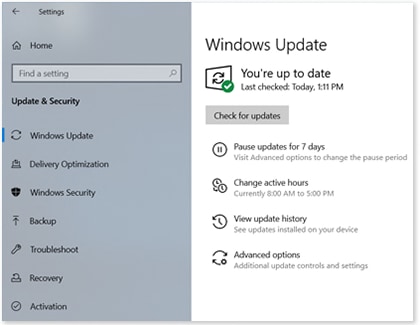
There are other update options available in this menu. For example, if you don’t want to perform an update right now, you can pause updates for 7 days. Here are the available update settings:
- Pause updates for 7 days: Prevent any updates from automatically installing for a week.
- Change active hours: Set the time you are using your laptop or notebook, so it will not automatically restart. You can even automatically adjust the active hours based on your activity.
- View update history: See which updates were made and when. Here you can uninstall updates and also access the recovery mode.
- Advanced options: Receive updates for other Microsoft products, change restart options, and more.
There are times when an update can cause more harm than good. If needed, you can uninstall a recent update to make things go back to the way they were.
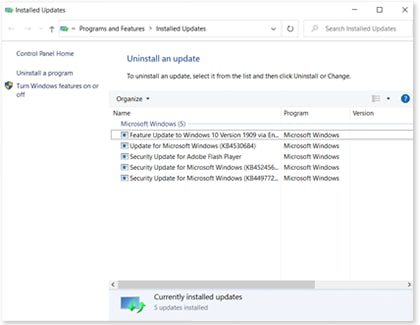
Updating device drivers can be done through either Samsung Update or Windows Update. Windows Update may mark these updates as optional. These drivers are needed to run system apps and connect devices.
Depending on what device you are connecting, you can get drivers for Samsung devices from our Support Center. If drivers are not available for the device, then the drivers available from Samsung Update and Windows Update are sufficient. Devices or components made by manufacturers other than Samsung may offer drivers directly from their site. See Microsoft’s help article for how to install and update drivers.
Although you can update Samsung apps using Samsung Update, to update all the apps on your laptop or notebook, open the Microsoft Store (open the Start menu and type store, then click on Microsoft store to open it).
In the top right, if some apps are already available for update, you may see a download icon and the number of apps awaiting download. Otherwise, click the three dots and then Downloads and updates. Once here, you can use the Get updates button to check all your apps for updates, and the Update all button to download all updates that are already detected as available. Or you can pick and choose which ones to download. Finally, you can click the three dots again and select Settings to enable the setting to Update apps automatically (which should be on by default).
If the Microsoft store app itself is one of the apps being updated, the store will close as the update is performed. Reopen the Microsoft store app and check again for updates if this happens. It is also good to check for app updates after updating to a new version of Windows 10 from Windows update.
It is also possible to install desktop apps that are not found in the Microsoft store. These apps are completely maintained by their developers and you should use any update tools the app offers or check with the app developer’s website to find information on when and how to update it.
Note: If you no longer have use for an app and want to uninstall it, read our guide.
How To Update Your BIOS For Windows 8?
To update your BIOS you will need to use SW Update. If you do not currently have SW Update (located on the Start Screen or the Desktop), click here to download the SW update program.
Not all Samsung PC’s require a BIOS update, if you do not see the BIOS update in SW Update as shown below, your PC does not have an update available.
To install the BIOS update, follow the steps below:
Launch SW Update from the Start Screen or your desktop. The program will open in the desktop.