How To Make A Discord Music Bot With Python In 2023
In this post, we’re going to make our own Discord bot that will be able to play music from Youtube. Since many of the music streaming bots had legal issues because of Youtube, we can’t use them anymore, sadly.
But don’t worry, it’s not the end of the story for music bots just yet. I’m going to show you how to setup a simple Discord bot for playing music, which you can host on your own server. Even more, as long as you don’t monetize it in any way, it should be perfectly fine.
Prerequisites
Before we begin writing any code, we need to create a Discord application, which will allow us to setup a bot user. For that to happen, you’ll need to go to official Discord developer portal and create a new application.
Then, you’ll need to invite your bot to your server through a link that you can create under OAuth2 tab of your application. Here, you’ll also need to check what kind of permissions you want your bot to have.
I’m going to put Administrator privilages for the sake of demonstration. This is not what I would recommend you to do. Usually, it would suffice if you just checked whatever your bot will need.
Start coding
Okay, now that we have our bot setup from the Discord end, we need to give it some functionality so we can use it. Additionally, the way I’ll code this is by separating the Discord bots token into its own file. This will allow me to retrieve it in the python script, without revealing it there.
So let’s go ahead and import the necessary libraries for this project and write the function that will fetch our token.
import os import json import asyncio import discord from discord.ext import commands import yt_dlp as youtube_dl ROOT = os.path.dirname(__file__) def get_token(token_name): auth_file = open(os.path.join(ROOT, 'auth.json')) auth_data = json.load(auth_file) token = auth_data[token_name] return tokenCoding the brain of our Discord music bot
In order for our bot to work, we need to create a Cog class, which will hold the functionality of our bot. Furthermore, we can create multiple Cogs for a bot, which we’ll add them to the bot instance we’ll create later on.
class MusicCog(commands.Cog): def __init__(self, bot): self.bot = bot self.is_playing = False self.is_paused = False self.music_queue = [] self.load_queue() self.ydl_options = < 'format': 'bestaudio/best', 'outtmpl': os.path.join(ROOT, 'yt', '%(extractor)s-%(id)s-%(title)s.%(ext)s'), 'restrictfilenames': True, 'noplaylist': True, 'nocheckcertificate': True, 'ignoreerrors': False, 'logtostderr': False, 'quiet': True, 'no_warnings': True, 'default_search': 'auto', 'source_address': '0.0.0.0', # bind to ipv4 since ipv6 addresses cause issues sometimes >self.ffmpeg_options = < 'options': '-vn' >self.voice_client = None def load_queue(self): try: with open(os.path.join(ROOT, 'queue.json'), 'r') as queue_file: self.music_queue = json.load(queue_file) except: print('Starting from empty queue.') def save_queue(self): with open(os.path.join(ROOT, 'queue.json'), 'w') as queue_file: json.dump(self.music_queue, queue_file, indent=4) def search_yt(self, item): with youtube_dl.YoutubeDL(self.ydl_options) as ydl: try: info = ydl.extract_info(item, download=True) if 'entries' in info: info = info['entries'][0] source = info['formats'][0]['url'] else: source = info['url'] filename = ydl.prepare_filename(info) except: print('Something went wrong.') return < 'source': source, 'title': info['title'], 'filename': filename >def play_next(self): if len(self.music_queue) > 0: self.is_playing = True filepath = self.music_queue[0]['filename'] self.music_queue.pop(0) self.save_queue() self.voice_client.play(discord.FFmpegPCMAudio(filepath, **self.ffmpeg_options), after=lambda e: self.play_next()) else: self.is_playing = False async def play_music(self, ctx): if len(self.music_queue) > 0: self.is_playing = True channel = ctx.author.voice.channel filepath = self.music_queue[0]['filename'] await ctx.send(f'Now playing: ') if self.voice_client == None or not self.voice_client.is_connected(): self.voice_client = await channel.connect() if self.voice_client == None: await ctx.send('Could not connect to the voice channel.') return else: await self.voice_client.move_to(channel) self.music_queue.pop(0) self.save_queue() self.voice_client.play(discord.FFmpegPCMAudio(filepath, **self.ffmpeg_options), after=lambda e: self.play_next()) else: self.is_playing = False @commands.hybrid_command(name='play') async def play(self, ctx, *, song): channel = ctx.author.voice.channel if channel is None: await ctx.send('You\'re not connected to a voice channel.') elif self.is_paused: self.voice_client.resume() else: async with ctx.typing(): result = self.search_yt(song) if type(result) == type(True): await ctx.send('Oops, something went wrong.') else: self.music_queue.append(result) self.save_queue() if self.is_playing == False: await self.play_music(ctx) else: await ctx.send(f'Added to the queue.') @commands.hybrid_command(name='pause') async def pause(self, ctx): if self.is_playing: self.is_playing = False self.is_paused = True self.voice_client.pause() elif self.is_paused: self.is_paused = False self.is_playing = True self.voice_client.resume() await ctx.send('') @commands.hybrid_command(name='resume') async def resume(self, ctx): if self.is_paused: self.is_paused = False self.is_playing = True self.voice_client.resume() await ctx.send('') @commands.hybrid_command(name='skip') async def skip(self, ctx): if self.voice_client != None and self.voice_client: self.voice_client.stop() await self.play_music() await ctx.send('') @commands.hybrid_command(name='queue') async def queue(self, ctx): result = '' for q in self.music_queue: result += q['title'] + '\n' if result != '': await ctx.send(result) else: await ctx.send('Queue is empty.') @commands.hybrid_command(name='clear') async def clear(self, ctx): if self.voice_client != None and self.is_playing: self.voice_client.stop() self.music_queue = [] self.save_queue() await ctx.send('Queue cleared.') @commands.hybrid_command(name='leave') async def leave(self, ctx): async with ctx.typing(): self.is_playing = False self.is_paused = False await self.voice_client.disconnect()There’s a lot going on in this class as you can see. Mostly, it contains functions for our commands, we want our bot to respond to.
This Discord music bot includes a queue functionality, which will also save it to a json file. This allows it to remember queued songs even if it disconnects for some reason.
Create Discord music bot instance & run it
For the last part of this tutorial, you’ll need to plug functionality above into a bot and run it. For that, you’ll need to setup its instance, which requires intents and description. I also added command prefix to it so you can use commands in a few different ways.
Furthermore, you need to keep in mind that it’s very important that you sync the bot commands if you want to create slash commands. In this case, we’re using hybrid commands, which include slash and prefixed commands.
intents = discord.Intents.default() intents.message_content = True bot = commands.Bot( command_prefix=commands.when_mentioned_or('!'), description='A music bot.', intents=intents ) @bot.event async def on_ready(): print(f'Logged in as (ID: )') print('------') await bot.tree.sync() async def main(): async with bot: await bot.add_cog(MusicCog(bot)) await bot.start(get_token('discord-token')) asyncio.run(main())For your bot to grab the token, you’ll need to create a json file and name it auth.json . In this file, you’ll input the following code and replace the “ TOKEN ” text with your actual token.
Okay, we’re done! Now all we have to do is run this thing and enjoy the music with our friends.
Conclusion
To conclude, we created a simple Discord bot for playing music from Youtube. I learned a lot while working on this project and I hope this post proves helpful to you as well.
If you liked this tutorial, you can also check out my other Discord bot building tutorials.
Python Discord Bot: Play Music and Send Gifs
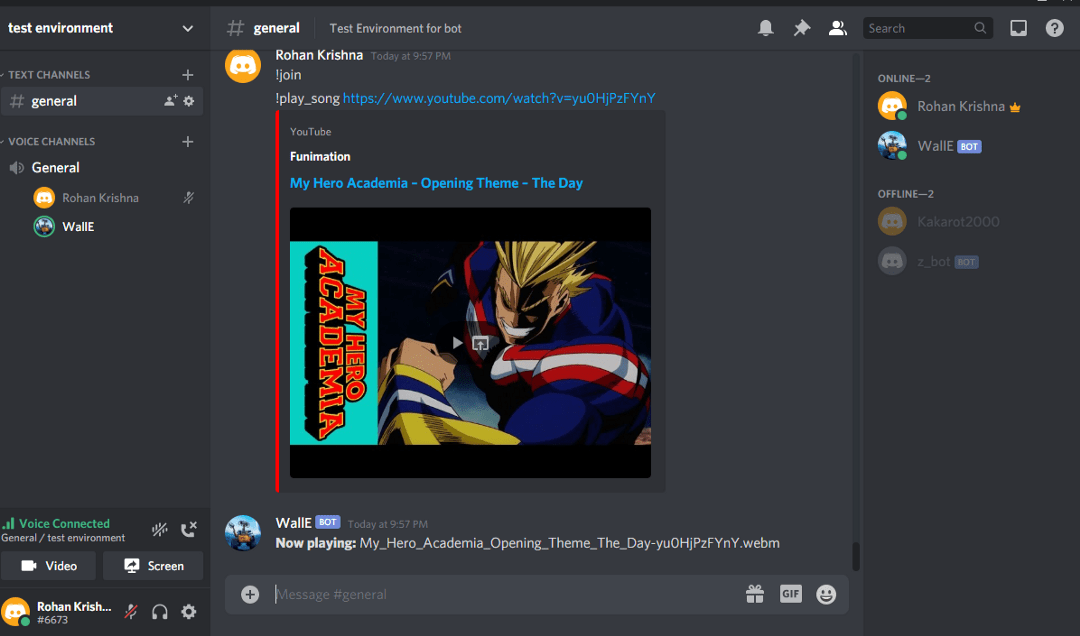
In this tutorial, we’ll make a Python Discord bot that can play music in the voice channels and send GIFs. Discord is an instant messaging and digital distribution platform designed for creating communities. Users can easily enter chat rooms, initiate video calls, and create multiple groups for messaging friends.
We’ll skip the basics and jump straight over to the music playing. Check out this Medium article to catch up on the basics of setting up your bot. In the end, our Python Discord bot will look like the cover image of this article!
Before we dive in: remember to allow Administrator permissions for the bot.
Thanks to Rohan Krishna Ullas, who wrote this guest tutorial! Make sure to check out his Medium profile for more articles from him. If you want to write for Python Land too, please contact us.
Table of Contents
- 1 Part 1: Importing all the libraries
- 2 Part 2: Using youtube_dl to download audio
- 3 Part 3: Adding commands to the Python Discord bot
- 4 Part 4: Running the Python Discord bot locally
- 5 Bonus: send GIFs on start-up and print server details
Part 1: Importing all the libraries
First, create a virtual environment and install the requirements:
discord==1.0.1 discord.py==1.6.0 python-dotenv==0.15.0 youtube-dl==2021.2.10
Next, let’s set up the .env file for our project. Create a .env file so that we can separate the environment configuration variables (these are variables whose values are set outside the program) from the main code:
discord_token = "copy_paste_your_bot_token_here"
Then use Python import to load all the needed modules in the main file app.py :
import discord from discord.ext import commands,tasks import os from dotenv import load_dotenv import youtube_dl
The module youtube_dl is an open-source download manager for video and audio content from YouTube and other video hosting websites.
Now we need to set intents for our bot. Intents allow a bot to subscribe to specific buckets of events, allowing developers to choose which events the bot listens to and to which it doesn’t. For example, sometimes we want the bot to listen to only messages and nothing else.
load_dotenv() # Get the API token from the .env file. DISCORD_TOKEN = os.getenv("discord_token") intents = discord.Intents().all() client = discord.Client(intents=intents) bot = commands.Bot(command_prefix='!',intents=intents)
Part 2: Using youtube_dl to download audio
The next step in building our Python Discord bot is dealing with the part that actually downloads the audio file from the video link we provide. Please note that this bo is just a demonstration. It’s not illegal to download from YouTube for personal use according to this article, but it might be against the YouTube Terms Of Service. Please be sensible and use this for personal use only.
youtube_dl.utils.bug_reports_message = lambda: '' ytdl_format_options = < 'format': 'bestaudio/best', 'restrictfilenames': True, 'noplaylist': True, 'nocheckcertificate': True, 'ignoreerrors': False, 'logtostderr': False, 'quiet': True, 'no_warnings': True, 'default_search': 'auto', 'source_address': '0.0.0.0' # bind to ipv4 since ipv6 addresses cause issues sometimes >ffmpeg_options = < 'options': '-vn' >ytdl = youtube_dl.YoutubeDL(ytdl_format_options) class YTDLSource(discord.PCMVolumeTransformer): def __init__(self, source, *, data, volume=0.5): super().__init__(source, volume) self.data = data self.title = data.get('title') self.url = "" @classmethod async def from_url(cls, url, *, loop=None, stream=False): loop = loop or asyncio.get_event_loop() data = await loop.run_in_executor(None, lambda: ytdl.extract_info(url, download=not stream)) if 'entries' in data: # take first item from a playlist data = data['entries'][0] filename = data['title'] if stream else ytdl.prepare_filename(data) return filename
The from_url() method of YTDLSource class takes in the URL as a parameter and returns the filename of the audio file which gets downloaded. You can read the youtube_dl documentation at their GitHub repository.
Part 3: Adding commands to the Python Discord bot
Now let’s add the join() method to tell the bot to join the voice channel and the leave() method to tell the bot to disconnect:
@bot.command(name='join', help='Tells the bot to join the voice channel') async def join(ctx): if not ctx.message.author.voice: await ctx.send("<> is not connected to a voice channel".format(ctx.message.author.name)) return else: channel = ctx.message.author.voice.channel await channel.connect() @bot.command(name='leave', help='To make the bot leave the voice channel') async def leave(ctx): voice_client = ctx.message.guild.voice_client if voice_client.is_connected(): await voice_client.disconnect() else: await ctx.send("The bot is not connected to a voice channel.")
Here we first check if the user who wants to play music has already joined the voice channel or not. If not, we tell the user to join first.
Awesome! Give yourself a pat on the back if you’ve reached this far! You’re doing great. In the next step, we’ll add the following methods:
@bot.command(name='play_song', help='To play song') async def play(ctx,url): try : server = ctx.message.guild voice_channel = server.voice_client async with ctx.typing(): filename = await YTDLSource.from_url(url, loop=bot.loop) voice_channel.play(discord.FFmpegPCMAudio(executable="ffmpeg.exe", source=filename)) await ctx.send('**Now playing:** <>'.format(filename)) except: await ctx.send("The bot is not connected to a voice channel.") @bot.command(name='pause', help='This command pauses the song') async def pause(ctx): voice_client = ctx.message.guild.voice_client if voice_client.is_playing(): await voice_client.pause() else: await ctx.send("The bot is not playing anything at the moment.") @bot.command(name='resume', help='Resumes the song') async def resume(ctx): voice_client = ctx.message.guild.voice_client if voice_client.is_paused(): await voice_client.resume() else: await ctx.send("The bot was not playing anything before this. Use play_song command") @bot.command(name='stop', help='Stops the song') async def stop(ctx): voice_client = ctx.message.guild.voice_client if voice_client.is_playing(): await voice_client.stop() else: await ctx.send("The bot is not playing anything at the moment.")
At this point, we need to have the ffmpeg binary in the base directory. It can be downloaded from https://ffmpeg.org/. In this case, I used the exe since I’m using a Windows machine.
Part 4: Running the Python Discord bot locally
Add the final piece of code to start the bot and it’s done:
if __name__ == "__main__" : bot.run(DISCORD_TOKEN)
To deploy the bot locally, activate the virtual environment and run the app.py file:
(venv1) C:\Github\Discord-Bot>python app.py
Bonus: send GIFs on start-up and print server details
In this bonus section, we will set up our bot to listen to events such as start-up. This example sends a previously downloaded GIF image to the text channel when the bot is activated:
@bot.event async def on_ready(): for guild in bot.guilds: for channel in guild.text_channels : if str(channel) == "general" : await channel.send('Bot Activated..') await channel.send(file=discord.File('add_gif_file_name_here.png')) print('Active in <>\n Member Count : <>'.format(guild.name,guild.member_count))
To print server details such as owner name, the number of users, and a server id, we can add a bot command ‘where_am_i’:
@bot.command(help = "Prints details of Server") async def where_am_i(ctx): owner=str(ctx.guild.owner) region = str(ctx.guild.region) guild_id = str(ctx.guild.id) memberCount = str(ctx.guild.member_count) icon = str(ctx.guild.icon_url) desc=ctx.guild.description embed = discord.Embed( title=ctx.guild.name + " Server Information", description=desc, color=discord.Color.blue() ) embed.set_thumbnail(url=icon) embed.add_field(name="Owner", value=owner, inline=True) embed.add_field(name="Server ID", value=guild_id, inline=True) embed.add_field(name="Region", value=region, inline=True) embed.add_field(name="Member Count", value=memberCount, inline=True) await ctx.send(embed=embed) members=[] async for member in ctx.guild.fetch_members(limit=150) : await ctx.send('Name : <>\t Status : <>\n Joined at <>'.format(member.display_name,str(member.status),str(member.joined_at))) @bot.command() async def tell_me_about_yourself(ctx): text = "My name is WallE!\n I was built by Kakarot2000. At present I have limited features(find out more by typing !help)\n :)" await ctx.send(text)
This is what this will look like:
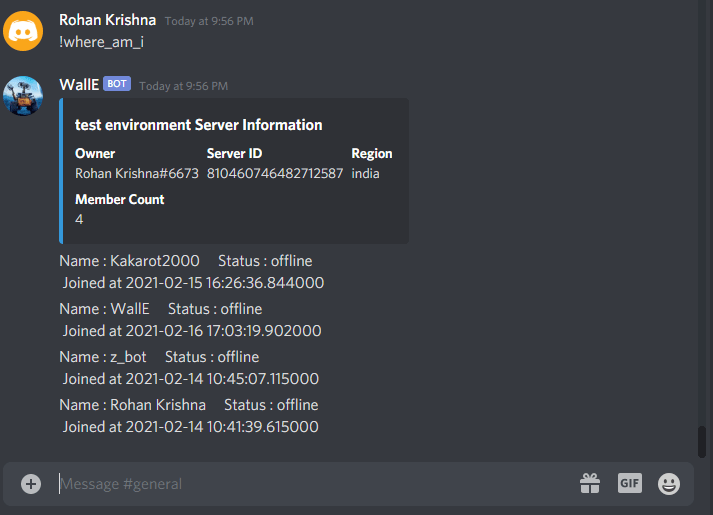
You can view and clone the complete results from my Discord-Bot GitHub Repository.
That’s it! We made a Python Discord bot. Thank you for reading, and don’t hesitate to leave a reply or ask your questions in the comments section.
Get certified with our courses
Learn Python properly through small, easy-to-digest lessons, progress tracking, quizzes to test your knowledge, and practice sessions. Each course will earn you a downloadable course certificate.
Beginners Python Course (2024)
Modules, Packages, And Virtual Environments (2024)
NumPy Course: The Hands-on Introduction To NumPy (2024)
Leave a Comment Cancel reply
You must be logged in to post a comment.
Как создать музыкального бота в Discord с использованием Python
В этой статье мы рассмотрим, как создать музыкального бота для Discord с использованием языка программирования Python и библиотеки discord.py .
Шаг 1: Установка необходимых библиотек
Установите библиотеку discord.py и youtube_dl с помощью следующих команд:
pip install discord.py pip install youtube_dl Шаг 2: Создание и настройка бота в Discord
- Перейдите на сайт Discord Developer Portal.
- Нажмите кнопку «New Application» и введите имя для вашего бота.
- Перейдите на вкладку «Bot» и нажмите кнопку «Add Bot».
- Скопируйте токен бота, он потребуется для авторизации в коде Python.
Шаг 3: Создание основного кода бота
Создайте новый файл Python и импортируйте необходимые библиотеки:
import discord from discord.ext import commands import youtube_dl Затем создайте экземпляр бота:
bot = commands.Bot(command_prefix='!') Добавьте событие, которое будет вызываться при готовности бота:
@bot.event async def on_ready(): print(f'Бот готов к работе!') Добавьте команду !join , чтобы бот присоединялся к голосовому каналу:
@bot.command() async def join(ctx): channel = ctx.author.voice.channel await channel.connect() Добавьте команду !leave , чтобы бот выходил из голосового канала:
@bot.command() async def leave(ctx): await ctx.voice_client.disconnect() Добавьте команду !play для воспроизведения видео с YouTube:
@bot.command() async def play(ctx(ctx, url): ydl_opts = < 'format': 'bestaudio/best', 'postprocessors': [< 'key': 'FFmpegExtractAudio', 'preferredcodec': 'mp3', 'preferredquality': '192', >], > with youtube_dl.YoutubeDL(ydl_opts) as ydl: info = ydl.extract_info(url, download=False) url2 = info['formats'][0]['url'] voice_client = ctx.voice_client FFMPEG_OPTIONS = < 'before_options': '-reconnect 1 -reconnect_streamed 1 -reconnect_delay_max 5', 'options': '-vn', >voice_client.stop() voice_client.play(discord.FFmpegPCMAudio(url2, **FFMPEG_OPTIONS)) Добавьте команду !pause для приостановки воспроизведения:
@bot.command() async def pause(ctx): ctx.voice_client.pause() Добавьте команду !resume для продолжения воспроизведения:
@bot.command() async def resume(ctx): ctx.voice_client.resume() Запустите бота, передав токен, скопированный на шаге 2:
bot.run('your-token-here') Шаг 4: Запуск бота
Запустите файл Python, и ваш музыкальный бот для Discord будет работать. Теперь вы можете использовать команды !join , !leave , !play , !pause и !resume для управления воспроизведением музыки в голосовом канале.
Заключение
В этой статье мы рассмотрели, как создать музыкального бота для Discord с использованием Python и библиотеки discord.py . Теперь вы можете развлекать участников вашего сервера музыкой прямо в голосовых каналах.
Discord Music Bot in Python
I miss the days of Groovy. Sometimes it’s fun to just sit in Discord and listen to music with your friends. I thought to myself, why not just build a new music bot for me and my friends to use? It turns out that it’s pretty easy.
First, I did a bit of research into how to make a Discord bot. I’m not going into a lot of details on how that works, but it led me to the point where I created a bot token and installed the proper package to create a bot. I didn’t go straight into setting up the music part of it because I wasn’t ready for it yet. Instead, I simply messed around with posting messages, responding to commands, and figuring out how I should structure my project’s folders.
After that, I was ready to start figuring out how to stream music. An old method people suggested was using a package called yt-dlp. However, I found that it no longer works with Discord…or YouTube…or both. I quickly gave up on that method. It didn’t seem like a scalable way to do things.
Eventually I stumbled accross wavelink. The wavelink package, in conjunction with a running lavalink container would allow me to get music from many different sources and stream it over Discord.
As I do with all of my projects, I set up a docker-compose config to run my code.
version: '3' services: rutabega: build: dockerfile: ./compose/local/rutabega/Dockerfile context: . volumes: - ./src:/app env_file: - ./.envs/local/rutabega/.env command: python -u main.py depends_on: - lavalink lavalink: image: fredboat/lavalink ports: - 2223:2223 volumes: - ./.envs/local/lavalink/application.yml:/opt/Lavalink/application.yml env_file: - ./.envs/local/lavalink/.envWith the Discord secret token provided to my Python bot through environment variables, I was able to add it to my test Discord server and listen for commands. I created one music cog with the following code, which would allow me to play, queue, skip, and stop songs.
import os import time import threading import wavelink from discord import client, VoiceChannel, FFmpegPCMAudio from discord.utils import get from discord.ext import commands class Music(commands.Cog): def __init__(self, client: client): self.client = client self.lavalink_host = os.environ.get("LAVALINK_HOST") self.lavalink_port = int(os.environ.get("LAVALINK_PORT")) self.lavalink_password = os.environ.get("LAVALINK_PASSWORD") client.loop.create_task(self.connect_nodes()) self.queue = wavelink.Queue() async def connect_nodes(self): """Connect to our Lavalink nodes.""" await self.client.wait_until_ready() await wavelink.NodePool.create_node( bot=self.client, host=self.lavalink_host, port=self.lavalink_port, password=self.lavalink_password, ) async def disconnect(self, player: wavelink.Player): try: print("Disconnecting from voice") player.queue.clear() player.cleanup() await player.disconnect() except Exception as e: print(e) @commands.Cog.listener() async def on_wavelink_track_end( self, player: wavelink.Player, track: wavelink.Track, reason): if player.queue.count > 0: print(f"Current queue count is ") await player.play(player.queue.pop()) else: await self.disconnect(player=player) @commands.Cog.listener() async def on_wavelink_node_ready(self, node: wavelink.Node): print(f"Node: > is ready!") @commands.Cog.listener() async def on_ready(self): print("Music is loaded!") @commands.command() async def play(self, ctx: commands.Context, *, search: wavelink.GenericTrack): try: if not ctx.voice_client: # noinspection PyTypeChecker vc: wavelink.Player = await ctx.author.voice.channel.connect(cls=wavelink.Player) else: # noinspection PyTypeChecker vc: wavelink.Player = ctx.voice_client vc.queue.put(search) if vc.queue.count == 1 and not vc.is_playing(): print(f"No other songs in queue. Playing ") await vc.play(vc.queue.pop()) else: await ctx.channel.send( f'There\'s currently a song playing. I added "" to the queue.' ) except Exception as e: print(e) @commands.command() async def stop(self, ctx: commands.Context, **kwargs): try: # noinspection PyTypeChecker vc: wavelink.Player = ctx.voice_client await vc.stop() except Exception as e: print(e) @commands.command() async def next(self, ctx: commands.Context, *, search: wavelink.GenericTrack): try: # noinspection PyTypeChecker vc: wavelink.Player = ctx.voice_client await vc.stop() if vc.queue.count > 0: await vc.play(vc.queue.pop()) else: await self.disconnect(vc) except Exception as e: print(e) @commands.command() async def queue(self, ctx: commands.Context): try: # noinspection PyTypeChecker vc: wavelink.Player = ctx.voice_client if vc.queue.count > 0: message = """Current songs in queue are:\n""" for track in vc.queue.__iter__(): message += f"- \n" else: message = "There are no songs in the queue." await ctx.channel.send(message) except Exception as e: print(e)Once my code was complete, I was able to build my containers, publish them to AWS ECR, and use them in a simple AWS ECS Fargate deployment. My containers could run constantly and with minimal work on my behalf. This isn’t the cheapest solution. I would probably save some money if I just ran a tiny EC2 instance, and created a unit-file to run my docker containers…but this was just a test project and I really did not want to spend much time on infrastructure.
If you are looking for a Discord music bot, feel free to use my sample code to get started!
Written by Dan Slapelis I’m a maker who loves to build things and write about them. Reach out to him at dan@slapelis.com.