Как ускорить работу Bluestacks
На сегодняшний день практически все пользователи знакомы с эмулятором BlueStacks. Ведь благодаря ему на ПК создается полнофункциональная среда, где возможно запустить различные приложения или игры, которые были скачаны из Google Play. Данный эмулятор замечательно поддерживается на различных платформах, регулярно улучшается и последняя версия вышла специально для любителей компьютерных игр. Безусловно, случается и такое, что программа начинает тормозить. Сегодня мы разберемся, как сделать так, чтобы работа BlueStacks была ускорена.
В связи с чем BlueStacks может тормозить
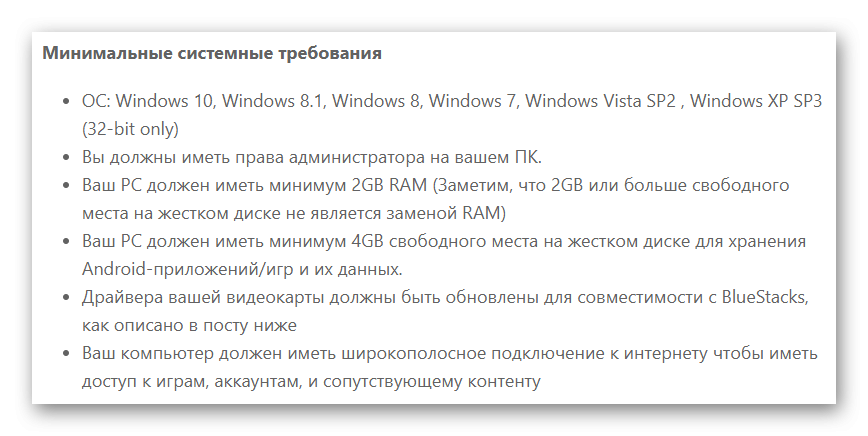
Безусловно, оптимизация BlueStacks делает свое дело. Благодаря новому релизу, эмулятор стал намного лучше, быстрее, надежнее, практически избавился от всевозможных ошибок.
Но хочется отметить, что задача совместить различные операционные системы – очень непростая, поскольку может существовать большое количество вариаций конфигураций платформ. Да, проблемы будут, но уже не в таком количестве, если начать пользоваться последней версией.
Также BlueStacks может зависать еще по ряду причин:
● системные требования персонального компьютера не соответствуют;
● система слишком загружена;
● ошибки в системном реестре компьютера.
В случае, если эмулятор начал зависать, то для решения данной проблемы не нужно вызывать программиста. Достаточно произвести некоторые действия и проблема будет очень просто решена.
Проверить параметры ПК
В начале необходимо убедиться, что ваш персональный компьютер полностью соответствует всем системным требованиям. Данная процедура является довольно-таки несложной, но в соответствии со статистикой, многие беды с работой BlueStacks связаны именно с этой областью. Естественно, все мы можем быть невнимательными и попросту упустить требования, которые прописывают разработчики. Всегда обращайте внимания на этот пункт на сайте.
Хочется напомнить, что в соответствии со старыми версиями данных эмуляторов, любые процессоры, предназначенные для BlueStacks, должны быть с поддержкой аппаратной виртуализации, тактовой частотой не ниже 2 ГГц, а сама оперативная память — не меньше 1 Гб. Помните, что все требования напрямую зависят от версии BlueStacks.
Отключите все лишние процессы
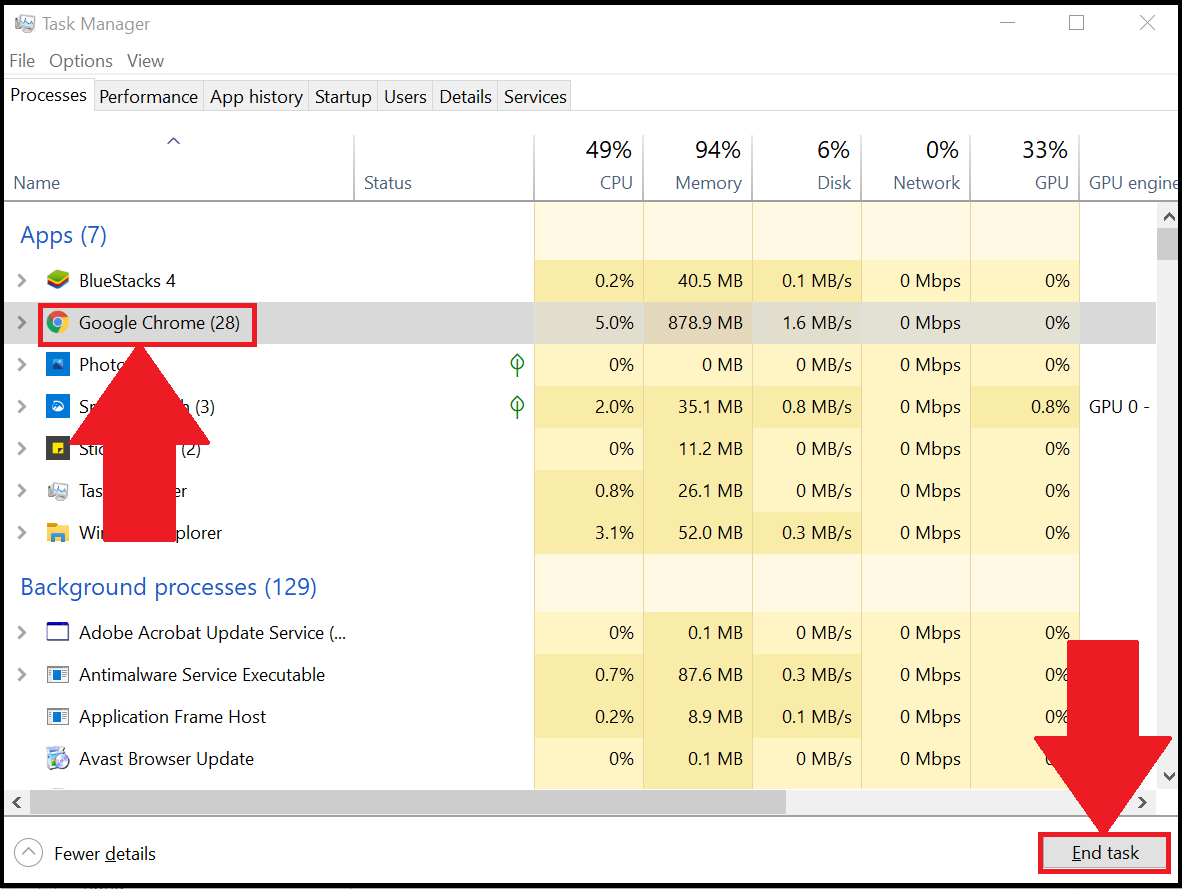
Даже если у вас объем оперативной памяти является очень большим, это не является гарантией того, что работа программы будет безупречной. В связи с этим, после того, как вы проведете проверку всех параметров, обязательно определить и отключить процессы, способны перегрузить операционную систему компьютера. Помните, что эмулятор использует исключительно выделенный объем памяти, и часть его занимают игры и приложения. Именно там можно обнаружить то, что вам уже не нужно. Просто зайдите во вкладку «Диспетчер задач» и поняв ситуацию в целом, просто отключите все ненужные процессы и включите антивирус. Данную процедуру важно выполнять очень аккуратно, поскольку можно навредить и эмулятору и самому компьютеру.
Перезапустите эмулятор
Всем приложениям свойственно иногда зависать. И, чтобы разобраться с данной проблемой, достаточно перезагрузить BlueStacks. Таким образом можно значительно ускорить работу программы.
Для рестарта необходимо:
● закрыть рабочее окно;
● войти в «диспетчер задач» и завершить все активные процессы.
После этого можно открыть программу. Помимо перезагрузки самой программы, можно перезапустить и сам компьютер. Таким образом вы сможете освободить ресурсы, и эмулятор станет работать намного быстрее.
Установите и обновите драйвера
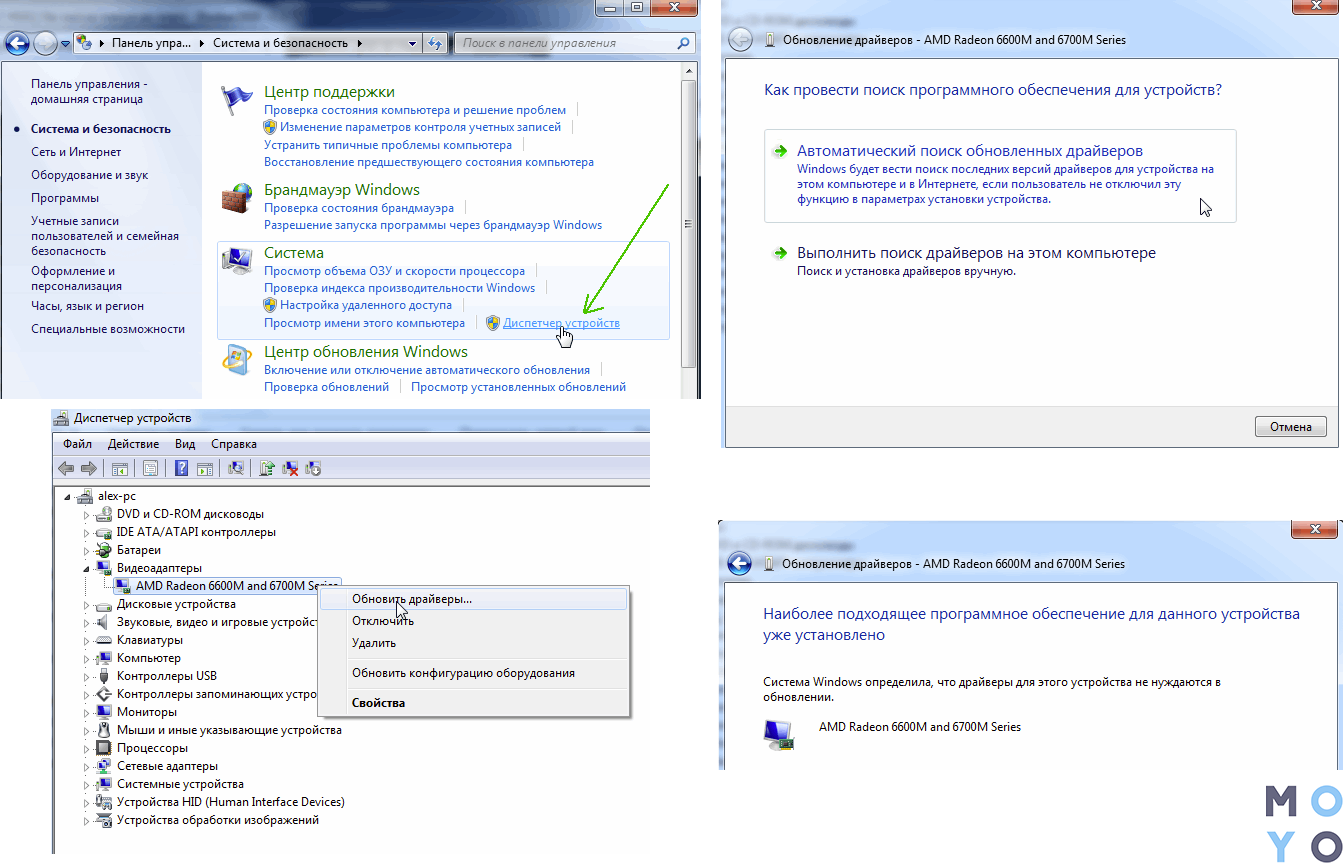
Еще одной причиной того, что эмулятор работает нестабильно, может быть наличие старых драйверов. Программа вообще не будет работать, если драйверов нет. В связи с этим, необходимо регулярно обновлять их. Проверить состояние драйверов можно в «Диспетчере устройств».
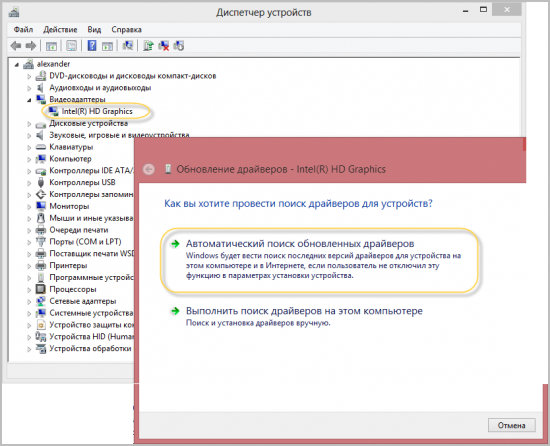
Для того, чтобы проверить, можно ли установить последнюю версию необходимо:
● зайти в раздел «Видеоадаптеры»;
● перейти по названию;
● выбрать вкладку «Драйвер».
В случае, если окно окажется пустым, то в таком случае системе не удалось обнаружить драйвер и его необходимо загрузить.
Как переустановить эмулятор BlueStacks
Случаются ситуации, когда после проверок все, итак, в порядке, но даже перезапуск системы не дает никакого результата. Эмулятор продолжает зависать. В таком случае можно воспользоваться радикальным методом – удалить и повторно установить BlueStacks. Таким образом произойдет исключение несистемных ошибок, которые накопились в процессе использования.
Удаление эмулятора является очень простой процедурой, но необходимо точно все сделать. Главной задачей является не оставить на ПК частицы старой программы, в таком случае произойдет конфликт двух разных программ.
Каким образом повысить производительность эмулятора
Если эмулятор довольно-таки сильно перегружает процессор ПК, независимо от версии, необходимо изучить характеристики производительности при помощи следующих шагов:
● изменить размер расширения;
● изменить доступность BlueStacks по количеству памяти RAM.
Благодаря данному эмулятору есть возможность использовать стандартные приложения, предназначенные для телефона, но уже с компьютера. Поскольку у приложения бесплатное распространение и русскоязычный интерфейс, то оно является очень доступным. Поддержка 3D – игр также значительно увеличивает огромную аудиторию. Помимо этого, эмулятор был оценен и игроками, у которых тяжелый кэш игр, и также, без BlueStacks не могут обойтись разработчики программного обеспечения. Данный эмулятор подойдет тем, кто хочет быть при любых обстоятельствах быть подключенным к миру приложений.
Как повысить FPS для игр в BlueStacks
BlueStacks это популярный эмулятор, благодаря которому миллионы пользователей могут отложить на время свои мобильные устройства и насладиться любимыми играми на ПК. Что делать, если BlueStacks работает с перебоями, а визуальный ряд выдаёт плохую картинку? Здесь мы рассмотрим распространённые причины плохой производительности эмулятора, и дадим советы, как стать профессионалом в BlueStacks.
Советы перед началом использования BlueStacks
Первый совет не откроет ничего нового, но, как оказывается, многие пользователи забывают о такой естественной проблеме, как загруженность системы. Поэтому, прежде чем запустить эмулятор убедитесь, что на вашем компьютере не занят критический объем операционной памяти. Запустите диспетчер задач и остановите на время все ресурсоемкие задачи. Несмотря на то, что BlueStacks очень не требователен к ресурсам системы, ему все равно понадобится свежие параметры видеокарты, поэтому на время игры лучше не обременять компьютер большим количеством процессов.
Второй совет — уточните, насколько категоричен ваш антивирус по отношению к подобным программам. При этом, не обязательно полностью исключать BlueStacks из списка программ, за которыми наблюдает антивирус. Если речь идёт об Авасте, то достаточно включить виртуализацию с аппаратной поддержкой.
Третий совет — предоставить эмулятору больше ресурсов системы. Возможно, в настройках компьютера было установлено маленькое значение мощности CPU для поддержки игр. Чтобы это проверить и ввести необходимые изменения, необходимо вызвать редактор реестра (сочетание клавиш Win+X). Затем следует пройти по маршруту — Local_Machine — SOFTWARE — BlueStacks- Guests -Android и там выбрать Memmory. Правым щелчком мышки откроется панель настроек, где необходимо указать желаемый объем использования оперативной памяти. Нужно помнить, что больше 1 ГБ программа использовать не будет, поэтому следует проставить 1024 МБ. Возможно, что этот совет вам не пригодится, потому что настолько малый объемы ресурсов, предназначенных для сторонних программ, встречается крайне редко. В особенности, если речь идёт о старых ПК или тех, на которых никогда не загружались игры.
Четвёртый совет — проверить состояние видеокарты. Прежде чем приступать к играм, убедитесь, что ваша видеокарта обновлена и в ней установлена последняя версия драйверов. Это легко проверить, зайдя в меню видеокарты. Обычно, в таких случаях, программа сама предлагает обновить драйверы, предоставляя ссылку на сайт производителя.
Также в этом деле помогают разные программы для актуализации обновлений видеокарты и других компонентов компьютера.
Как стать профессиональным пользователем BlueStacks?
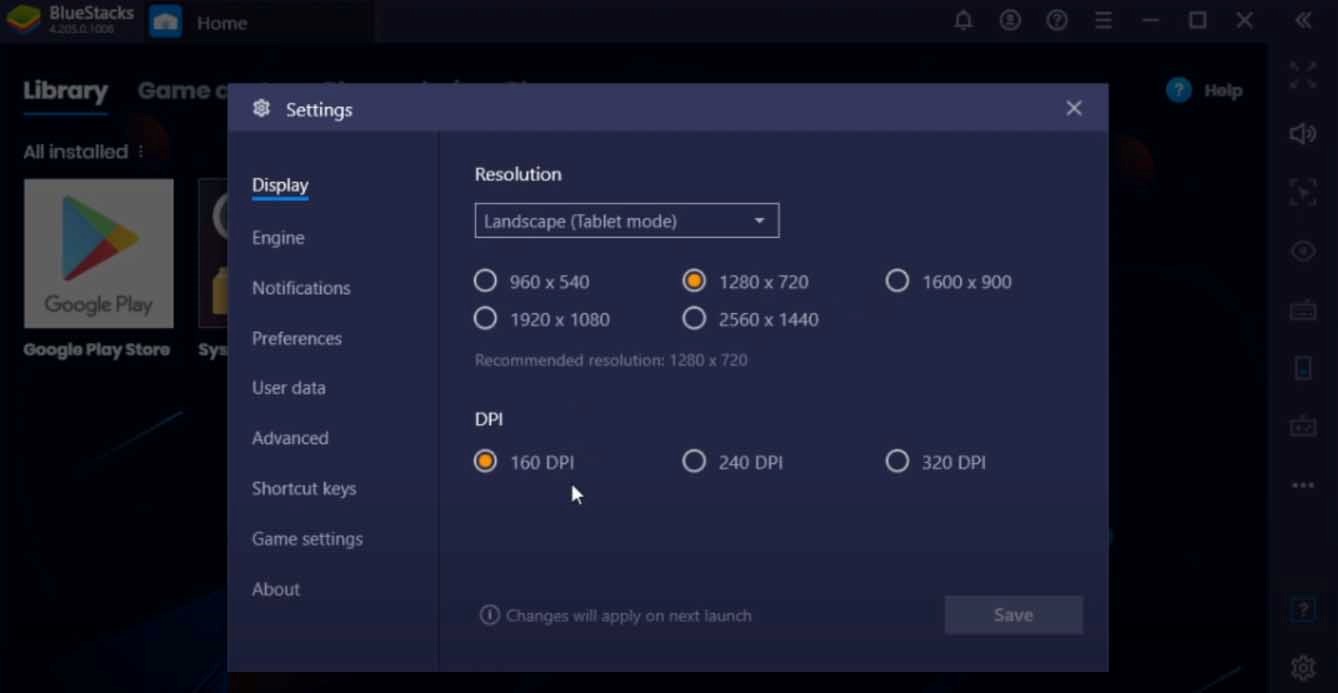
Чтобы ваши игры приносили вам удовольствие, а каждое приложение работало без тормозов и застывшей визуализации, следует разобраться в настройках эмулятора. Меню «Настроек» расположено во всех версиях программы в правом нижнем углу. Обратите внимание на маленькую шестерёнку — в ней заключены основные параметры, с которыми мы будем работать. Для начала, зайдите в меню – «Экран» (на приведенном ниже изображении – Display). Здесь можно настроить параметры, которые помогают программе правильно воспроизводить видеоряд в играх. Особенно часто проблема неправильного воспроизводства зависит от того, какой видеокартой пользуется компьютер — интегрированной или дискотекой. Обратите внимание на настройки разрешения экрана. Вероятно, вам не следует использовать чрезмерно широкие параметры. Не все игры созданы под них, поэтому, чтобы улучшить свой опыт, в качестве теста, начните со средних или малых размеров экрана. Также, полезно будет понизить количество пикселей на дюйм до 160.
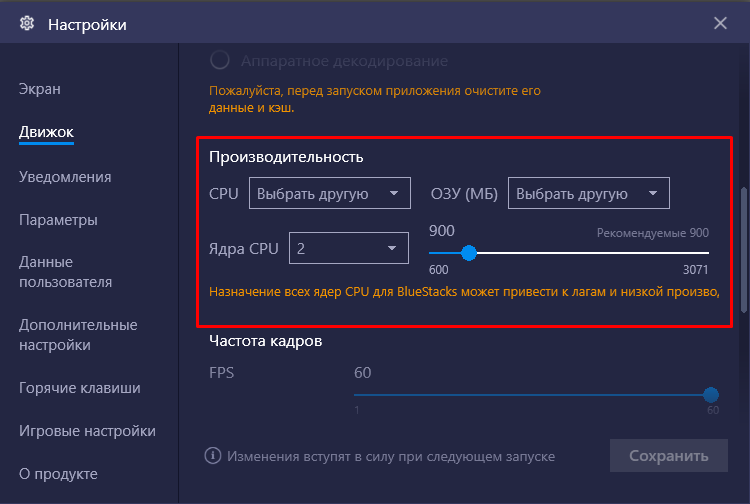
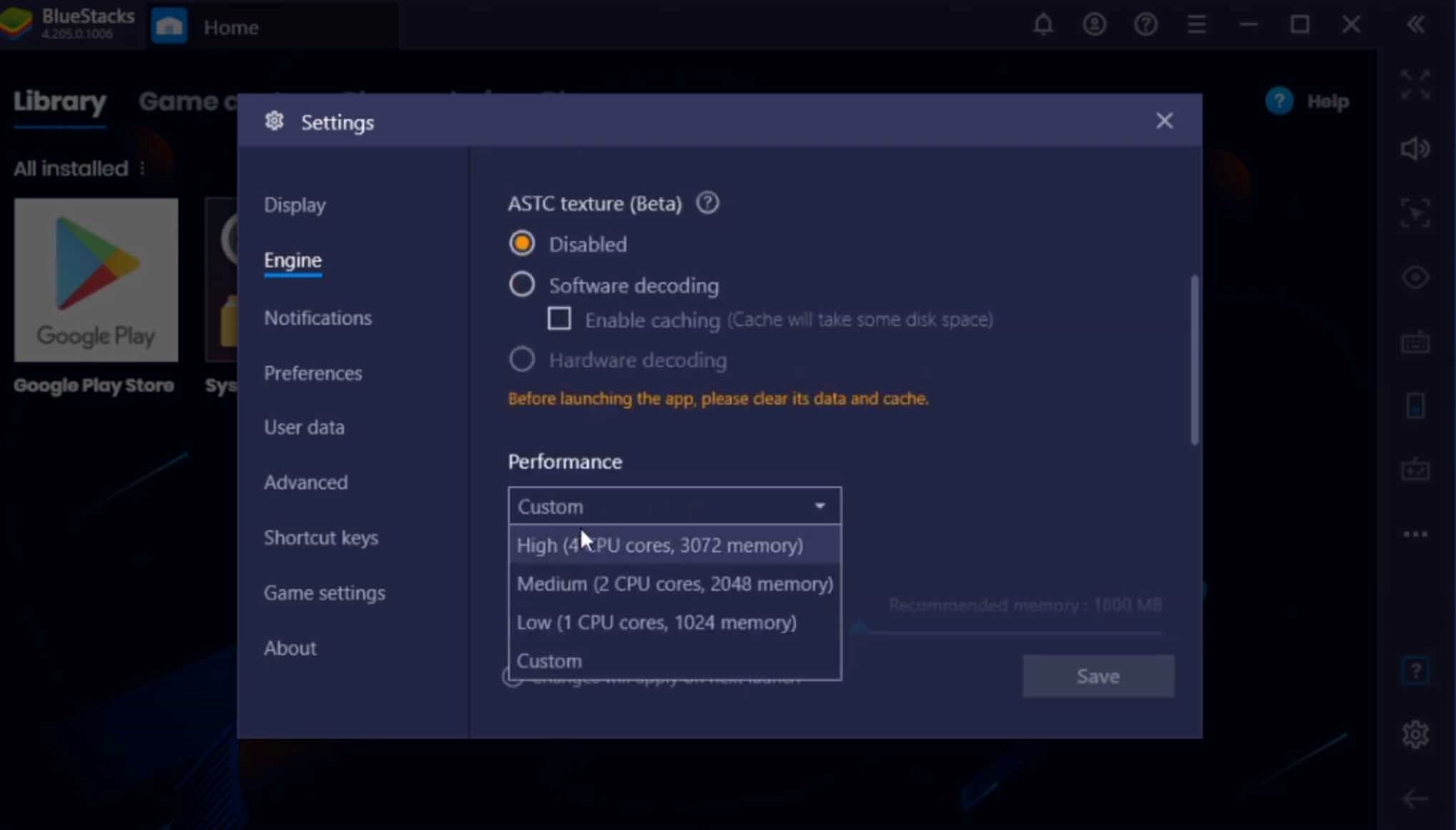
Затем перейдите в настройки «Движка» (на нашем изображении — Engine). В настройках Движка программа сама предлагает выбрать количество ядер, которые будут использоваться в работе BlueStacks. В этом же меню можно найти настраиваемые опции «Производительность» (на нашем изображении – Performance). Это — один из самых важных пунктов. В подменю «Производительность» можно выбрать количество ядер и объем памяти, который вы хотите использовать. Для этого рекомендуется поставить значение Custom.
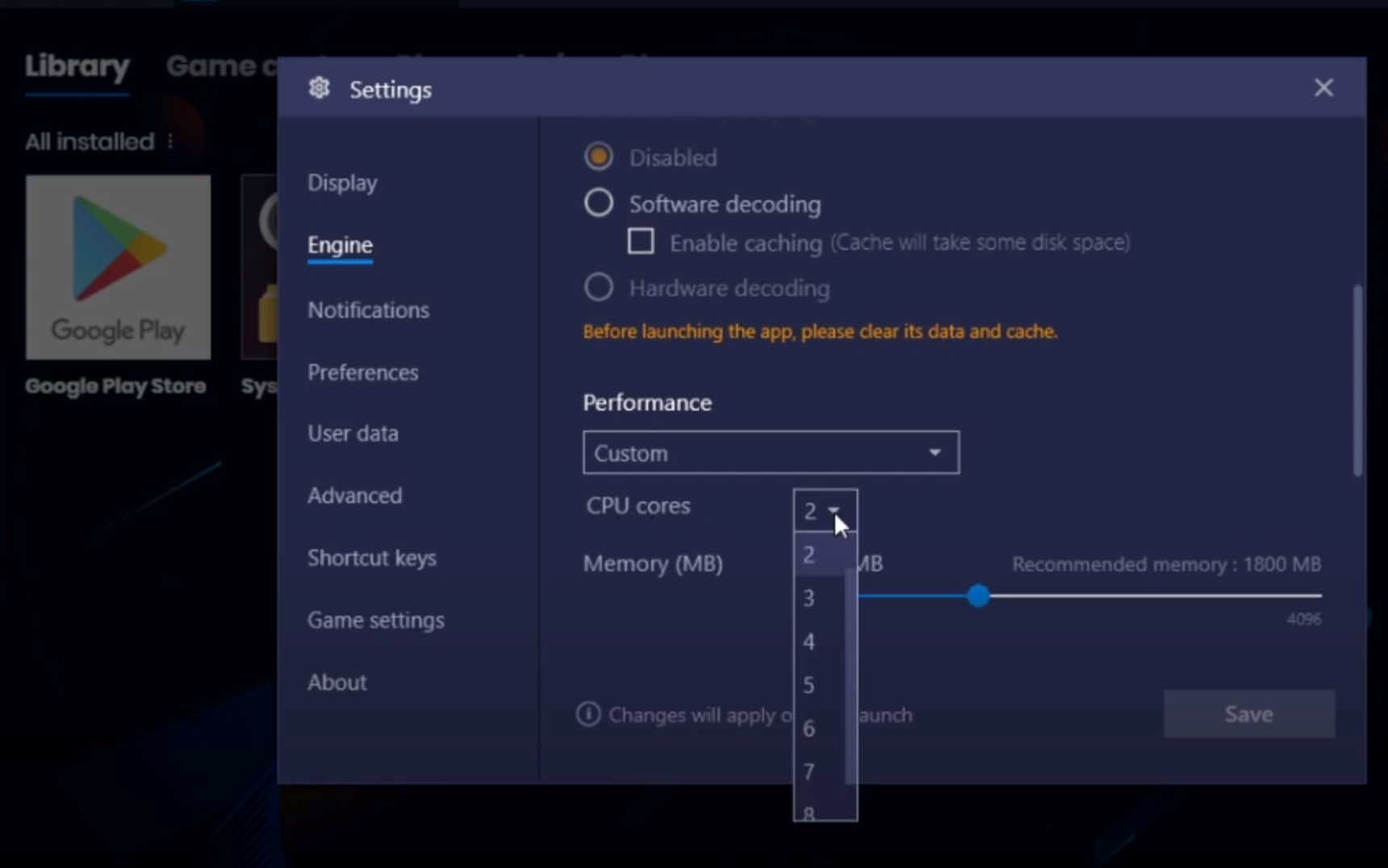
После этого, вам открывается бегунок, с помощью которого можно указать максимально значение мощности процессора (CPU) предоставляемого эмулятору. В том же меню можно указать необходимое вам количество ядер CPU.
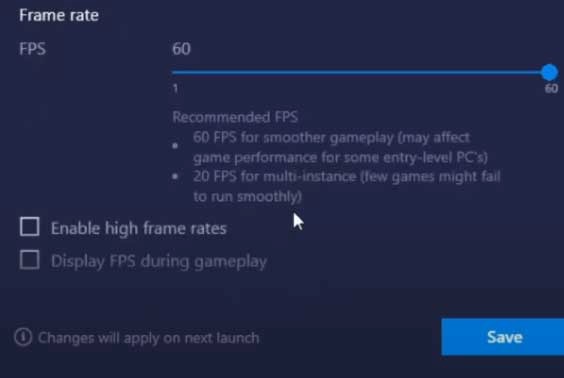
Прокрутив меню «Движка» вам открывается подменю FPS. Чтобы увеличить количество FPS – протяните бегунок вправо, а также поставить галочку в графе – Включить высокую частоту кадров. После проделанных манипуляций необходимо сохранить изменения, и перезапустить эмулятор.
Альтернативные методы
Если перечисленные методы не помогли вам, можно воспользоваться программами по типу Advance Game Booster. Программа автоматически оптимизирует ваш компьютер, а также способствует повышению FPS, производит анализ работы CPU, защищает систему от перегрева и освобождает компьютер от ненужных файлов.
Наслаждайтесь любимыми играм, не думая о проблемах системы и эмулятора. Воспользуйтесь удобными настройками BlueStacks и добивайтесь новых результатов в своем игровом опыте.
10 Best Ways to Speed Up BlueStacks 5 – Fix Lag and Hike FPS

Want to speed up bluestacks 5 to run the games more smoothly and lag-free? Then you are in the right place. You can easily fix lag and boost bluestacks applications by implementing the methods mentioned in the article.
Bluestacks is one of the best emulators to run mobile applications, games, etc on PC and one of the genuine emulators from the beginning of the emulator’s era. In comparison with the older version of bluestacks, it has been found that bluestacks 5 is around four-time better in performance.

However, there are certain requirements for installing bluestacks on a PC. If your PC does not meet the minimum requirements, then you will face lag while using the BlueStacks emulator.
Table of Contents
How to Speed Up BlueStacks 5 Emulator – 10 Best Methods
Speeding up Bluestacks 5 to fix lag is not a complicated process. You just need to implement the below methods from your side to reduce lag in Bluestacks 5 emulator. Here are the best methods to speed up Bluestacks 5 emulator:-
- Update your Graphics Drivers to the Latest Version
- Clear Temporary Files From Windows
- Set Bluestacks 5 to High Priority
- Enable Virtualization Mode in your System
- Install Advance Gaming Booster on your PC
- Disable your Antivirus while starting Bluestacks 5
- In-Emulator Settings to Fix Lag in Bluestacks
- Change the Visual Effects to High-Performance Mode
- Set your Graphic Mode to Maximum Performance
- Change your Power Plan to High Performance
Each method is explained in depth below. Just follow the methods correctly and you will see a significant improvement in your Bluestacks emulator performance.
1. Update your Graphics Drivers to the Latest Version
If your drivers are outdated, the system will not perform its best to provide you with a better experience in bluestacks 5. Plenty of free software is available on the internet which would help to increase the graphics performance and in turn, helps you to speed up bluestacks 5.

One of the best software is Advanced Driver Booster 6. It is free of cost and has a well-updated driver database.

To update your driver with Driver Booster Pro, follow these steps: –
- Download and install the Driver Booster Pro and scan your PC
- After completion, it will display all the outdated drivers in your system
- Simply, download the latest driver from the list
- Once, your download will be complete, it will automatically create a restore point and install the downloaded drivers on your PC
- Restart your PC and your drivers will be updated
2. Clear Unwanted Temporary Files From the System
There are unwanted files that accumulate automatically when you run any software or perform any function in the system. These junk files occupy space on your hard disk and decrease performance. You need to clean these junk files from your system to run the BlueStacks more smoothly.

To clear unwanted temporary files, read the below steps: –
- Go to your start menu and type Run in the search bar
- Now open the Run option and enter Temp from the keyboard in the command box
- A new window folder will appear, just delete all the files from the folder
- Once, you had deleted the files, restart your PC again
3. Set Bluestacks 5 to High Priority
One of the best ways to reduce lag in bluestacks 5 is by changing the priority for it. Our PC system allocated resources like memory, process, etc based on the priority list. You can change the priority of the bluestacks 5 to high which will tell the system to allocate more memory, the process for it to run efficiently.
To change the priority of bluestacks 5, follow the below instructions:-
- Run the Bluestacks 5
- Open your Task Manager by pressing CTRL + ALT + ESC on your keyboard
- Go to the Process section located in the sub-title bar
- Right-click on the Bluestacks process which consumes more resources
- Tap on Change Priority and set it to High Priority
Now, more resources will be available for your Bluestacks 5 emulator that will help it run more smoothly than before performance.
4. Enable Virtualization Mode in your System
Another best way to speed up Bluestacks 5 is by setting your virtualization mode to on. Bluestacks 5 uses virtualization technology to run the software or games more smoothly.
To set your Virtualization Technology to on, follow the steps:-
- Restart your PC and enter the BIOS section by pressing the DEL key
- Go to the Process section in the Management
- Enable the Virtualization Technology option
- Save your settings by pressing the F10 key and restart your PC
5. Install Advance Gaming Booster on PC
Gaming Booster helps to run the games more smoothly. The main feature which helps to boost the performance of bluestacks 5 is disabling all the unnecessary background processes running simultaneously in the system.
Also, it helps to clean the RAM usage, Performance Utility, etc. You can download the advance gaming booster through the below link.
To set up your advance gaming booster on your PC, follow these steps:-
- Download the Booster from here
- Install the driver booster application in your system and scan the PC for the first time
- Once the scanning is finished, it will list all the outdated settings
- Simply enable the featured settings
6. Disable your Antivirus While Running Bluestacks 5
Antivirus takes a lot of memory space and CPU usage to run in the background services. Mostly, the real-time protection service consumes a lot of resources to run. You must disable your antivirus, which will help other applications like Bluestacks 5 run it perfectly by providing more resources.
To disable your antivirus, simply follow these instructions:-
- Go to your Antivirus dashboard. Click on the Real-time protection tab and disable it
- Now, open your task manager by pressing CTRL+SHIFT+ESC
- Go to the Process tab and click on the Description tab
- Now end all the processes which are related to your Antivirus applications
7. In-Emulator Settings to Fix Lag in BlueStacks
There are many in-emulator settings like allocating more ram, more processors, changing the DPI settings, etc for the bluestacks application to run more perfectly.
To change the In-emulator settings, follow these steps:-
- Open your Bluestacks 5 application
- Click on Settings and then go to the Display tab
- Adjust to the lowest screen resolution
- Select the Lowest DPI (160) in the DPI section
- Now, click on the Engine tab, and drag the Memory bar up to increase the memory allocation for it
- Select the Highest number of CPU cores to run Bluestacks 5
- Now, save the settings and restart the Bluestacks
8. Change the Visual Effects to High-Performance Mode
By changing the visual effect to the high-performance mode will reduce useless animations and processes running in the background services.

To change the visual effects to high performance, follow the below steps:-
- Right-click on the My Computer icon and click on Properties
- Click on Advanced System Settings located on the left sidebar
- In the Performance tab, click on the Settings
- In the Visual Effects tab, select the Adjust for best performance option
- Click on Apply and your settings will be saved
9. Set the Graphics mode to Maximum Performance
To boost your gaming experience in bluestacks 5, change the graphics mode from Balanced to Maximum Performance.
To set the mode to High Performance, follow the instructions below:-
- Open your Graphics Driver Panel Dashboard
- Go to the Settings and click on the Mode panel
- Set the mode to High Performance
10. Change the Power Plan to High Performance
Windows always choose a balanced power plan for resource consumption. You can set it to high performance to provide more power for the system. This will ultimately increase your BlueStacks 5 experience.

To set the Power Plan to High Performance, follow these steps:-
- Open your Control Panel of your system
- Search Power Plan in the search box
- Click on Change your Power-Plan settings and set it to High performance
- All done. More power will be available for your system
Final Words
Bluestacks 5 is one of the best emulators in the market. Although it is quite laggy, still you can easily speed up Bluestacks with these methods. Especially, the in-emulator settings, Driver updater techniques, etc will improve your Bluestacks speed.
Stuck while implementing any method? Ping us in the comment section and we will help you to boost BlueStacks 5 emulator on your PC.
How to Get High Fps In Bluestacks 5

How to Get High FPS in Bluestacks 5 We all know that Bluestacks is one of the best Android emulators out there. But did you know that you can get even better performance by tweaking a few settings? In this blog post, we’ll show you how to get high FPS in Bluestacks 5 so that you can enjoy your favorite Android games at their best.
How to get high fps in Bluestacks 5
If you want to get high fps in Bluestacks 5, there are a few things you can do. First, make sure your PC is powerful enough to run the emulator. Second, tweak the settings in Bluestacks 5 to get the best performance.
To get started, open Bluestacks 5 and go to Settings. In the General section, look for the Emulation Engine drop-down menu. Select High Performance from the options. This will ensure that your computer is using its full power to run Bluestacks 5.
Next, go to the Graphics section and choose Custom from the Rendering Mode drop-down menu. This will allow you to fine-tune the graphics settings to get the best performance. For example, you can lower the resolution or turn off anti-aliasing to improve fps.
Finally, go to the Advanced section and disable any unnecessary features. For example, if you don’t need GPS emulation, you can turn it off. This will free up resources that can be used elsewhere and help improve performance.
With these tips, you should be able to get high fps in Bluestacks 5 without any problems.
The benefits of high fps in Bluestacks 5
There are a number of benefits to having high fps in Bluestacks 5. One advantage is that it might make playing games more enjoyable. If you’re someone who enjoys playing mobile games on your PC, then you know how important it is to have a smooth and lag-free gaming experience. With high fps in Bluestacks 5, you can enjoy your games without any lag or stuttering.
Another benefit of high fps in Bluestacks 5 is that it can help improve your overall PC performance. If you have a lot of applications and programs running in the background, then it can put a strain on your CPU and slow down your PC. By having high fps in Bluestacks 5, you can help reduce the strain on your CPU and keep your PC running smoothly.
Lastly, high fps in Bluestacks 5 can also help extend the battery life of your device. If you’re using Bluestacks 5 on a laptop or tablet, then you know how important battery life is. By having high fps in Bluestacks 5, you can help reduce the power consumption of your device and extend its battery life.
How to achieve high fps in Bluestacks 5
There are a few key things you can do to increase the fps in your Bluestacks 5 emulator. Follow these steps and you’ll be on your way to smoother gameplay in no time.
1) Update your graphics drivers
Updating your graphics drivers is always a good place to start when trying to improve your gaming performance. Newer drivers often include optimizations and bug fixes that can improve FPS.
2) Adjust Bluestacks 5 settings
Within Bluestacks 5, there are a few settings you can adjust that could impact your FPS. Try lowering the resolution, disabling CPU overclock, and enabling GPU rendering.
3) Close resource-heavy apps
When running Bluestacks 5, close any other apps that may be taxing your computer’s resources. Having too many programs open at once can drag down performance across the board.
4) Allocate more RAM to Bluestacks 5
If you have plenty of RAM to spare, consider allocating more of it to Bluestacks 5. This will give the emulator more memory to work with, potentially resulting in higher FPS.
Step One: Update Drivers
If you want to get the most out of Bluestacks, it’s important to make sure that your drivers are up to date. This will ensure that your computer is able to communicate effectively with the Bluestacks software.
Update your drivers manually or automatically using one of two methods.
Manual driver updates require you to identify the specific driver that needs to be updated and then download and install it yourself. This can be time-consuming and challenging, especially if you’re not familiar with computers.
Fortunately, there’s an easier way. You can use a driver updater tool like Driver Easy to scan your computer for outdated drivers and then update them all with just a few clicks. Driver Easy is free to use and makes updating your drivers quick and easy.
Step Two: Tweak Settings
After you have installed BlueStacks and logged in, it’s time to tweak a few settings to eke out every last bit of performance.
First, open the settings menu by clicking the cogwheel icon in the upper right corner of the main window. Then, click “Engine” in the left sidebar.
This will bring up the engine settings. The first setting you want to change is the “Graphics Mode” dropdown. By default, this is set to “DirectX”, but you want to set it to “OpenGL” for better performance.
Next, find the “Render Resolution” setting and set it to the lowest possible value. This will make games look worse, but they will run better.
Finally, scroll down to the “Advanced Settings” section and turn on the “Enable HD Engine” checkbox. This will make games look better while still running smoothly.
Step Three: Allocate More RAM
If you want to get high fps in Bluestacks, you need to allocate more RAM. You can do this by going into the settings and increasing the amount of RAM that Bluestacks can use. By doing this, you will be able to run more apps and games at higher framerates.
Conclusion
If you’re looking for a way to get high fps in Bluestacks 5, there are a few things you can do. Initially, confirm that your machine satisfies the minimum system requirements. Second, try disabling any unnecessary features or apps that might be running in the background. Finally, update your graphics drivers and tweak your settings to get the best performance possible.
Post Views: 451