У вас большие запросы!
Точнее, от вашего браузера их поступает слишком много, и сервер VK забил тревогу.
Эта страница была загружена по HTTP, вместо безопасного HTTPS, а значит телепортации обратно не будет.
Обратитесь в поддержку сервиса.
Вы отключили сохранение Cookies, а они нужны, чтобы решить проблему.
Почему-то страница не получила всех данных, а без них она не работает.
Обратитесь в поддержку сервиса.
Вы вернётесь на предыдущую страницу через 5 секунд.
Вернуться назад
У вас большие запросы!
Точнее, от вашего браузера их поступает слишком много, и сервер VK забил тревогу.
Эта страница была загружена по HTTP, вместо безопасного HTTPS, а значит телепортации обратно не будет.
Обратитесь в поддержку сервиса.
Вы отключили сохранение Cookies, а они нужны, чтобы решить проблему.
Почему-то страница не получила всех данных, а без них она не работает.
Обратитесь в поддержку сервиса.
Вы вернётесь на предыдущую страницу через 5 секунд.
Вернуться назад
Как скопировать содержимое защищенной таблицы Google

В гугл-документах или таблицах можно защитить от копирования сам файл или его содержимое. Тогда при попытке скопировать файл, сервис покажет вам сообщение «этот файл запрещено скачивать, печатать или копировать». Пользователи задаются вопросом, если мы читаем текст с компьютера или телефона, то почему его нельзя скопировать? Как онлайн-сервис может иметь такой приоритет перед нашей операционной системой, что запрещает нам выполнять простое действие? Причина в том, что на странице запускается специальный скрипт, который препятствует копированию любой части документа. Обойти эту защиту можно двумя простыми способами:
С отключением JavaScript в браузере
Отключить JavaScript в браузере во время просмотра заблокированного документа. Это вырубит скрипт и даст возможность копировать текст как в обычном файле.
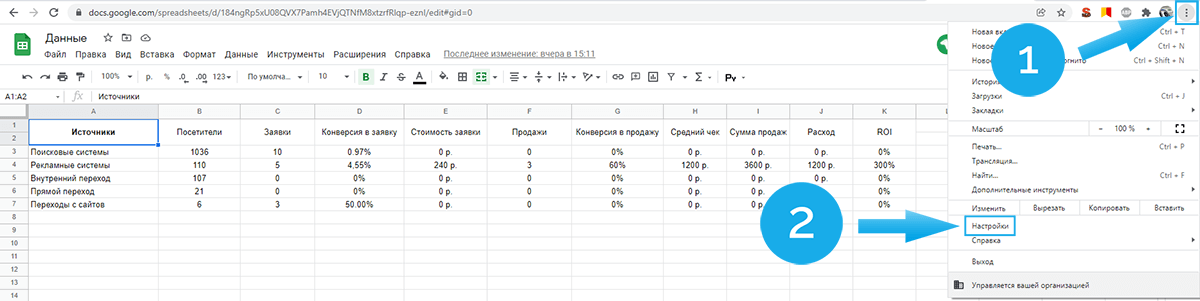
- Откройте браузер и нажмите по вертикальному «троеточию». Перейдите в настройки.
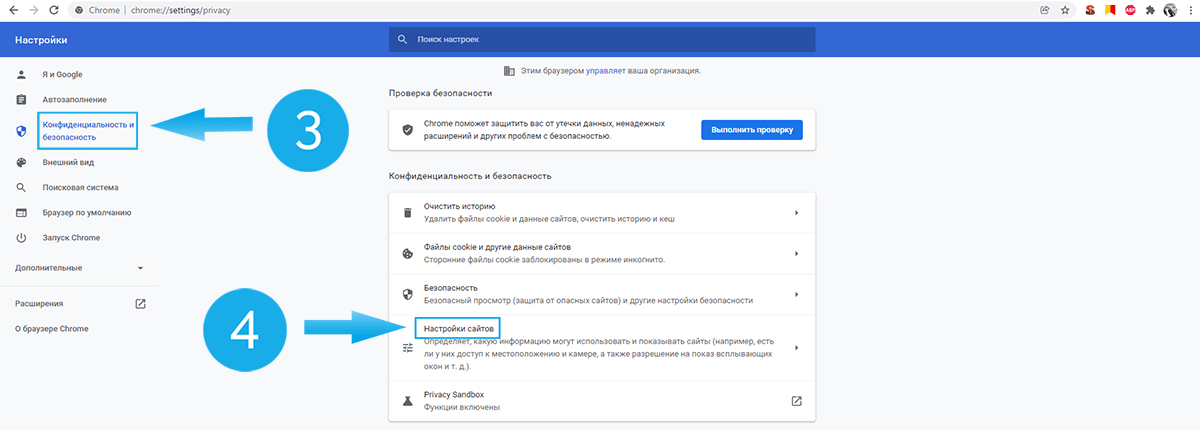
- Далее кликайте на «Конфиденциальность и безопасность» и на «настройки сайтов».
- Пролистывайте вниз и нажимайте «JavaScript» и «Запретить сайтам использовать JavaScript».

Не забудьте после копирования таблицы включить JavaScript, как это было ранее.
С использованием preview
- В режиме preview таблицы кликните по адресной строке браузера.
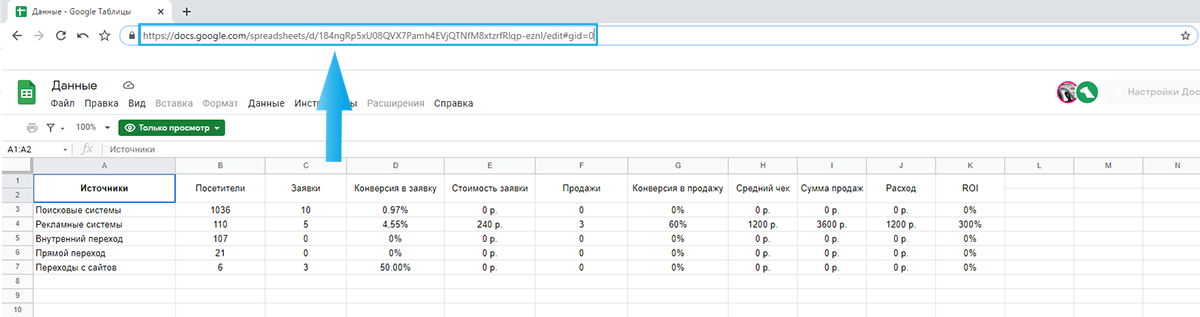
- В URL-адресе замените все, начиная со слова edit и до конца строки, на слово preview.
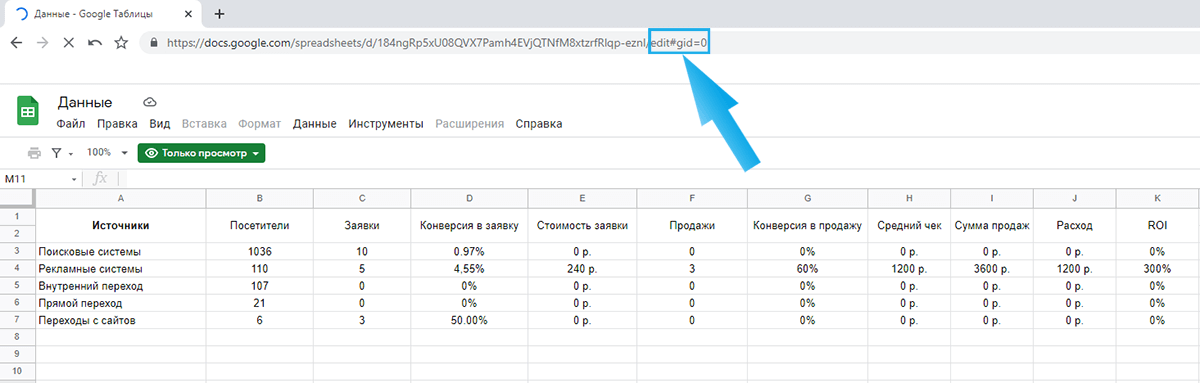
- Адрес страницы теперь заканчивается на /preview.

- Копируйте содержимое через CTRL+A — CTRL+C и вставляйте в новую таблицу.
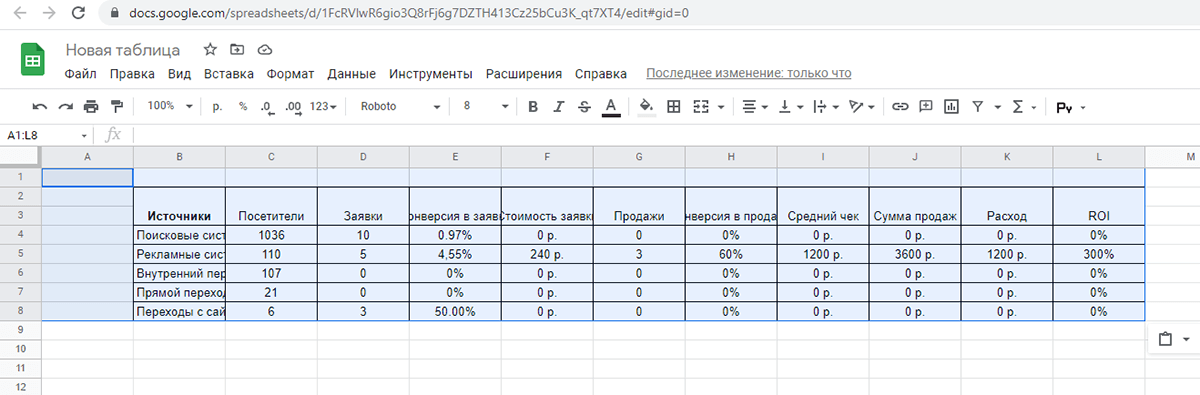
Готово! Полученные файлы ничем не отличаются от обычных.
How to Save Google Docs with ‘Export Options Disabled’?

Looking to Copy and Save Google Docs Files with View Only Permissions? Here is the Best Method to Download Export Protected Files Using Chrome Browser.
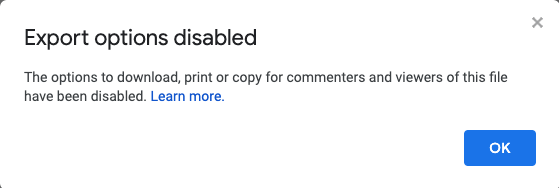
Google Docs offers the owner of the file option to disable download, printing, and copying of the file. This means the Google Docs File Shared with restricted permissions can only be viewed and cannot be copied, edited, or downloaded. The protected Google Doc file is not easy to download or save.
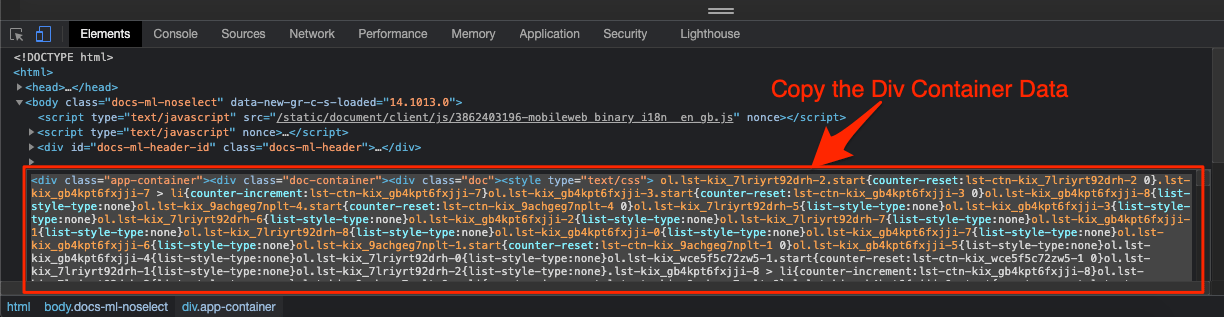
If you wish to save the content of the protected doc file then, there is a trick. It is not that easy as hitting a button to download the file. We will use Chrome’s Dev Tool to get a hand on Docs. Though the file is protected, the content still has to be stored inside the HTML code of the website to load the file. We will use this HTML to extract the Doc Content. The post below is a little technical and you may need a couple of attempts to successfully save the view-only restricted Google Doc File.
Steps to Save the Download Protected Google Docs
Here are the Steps to Save or Download the Google Docs File with View Only Permissions on PC
- Open the Restricted Doc file and in Chrome Browser.
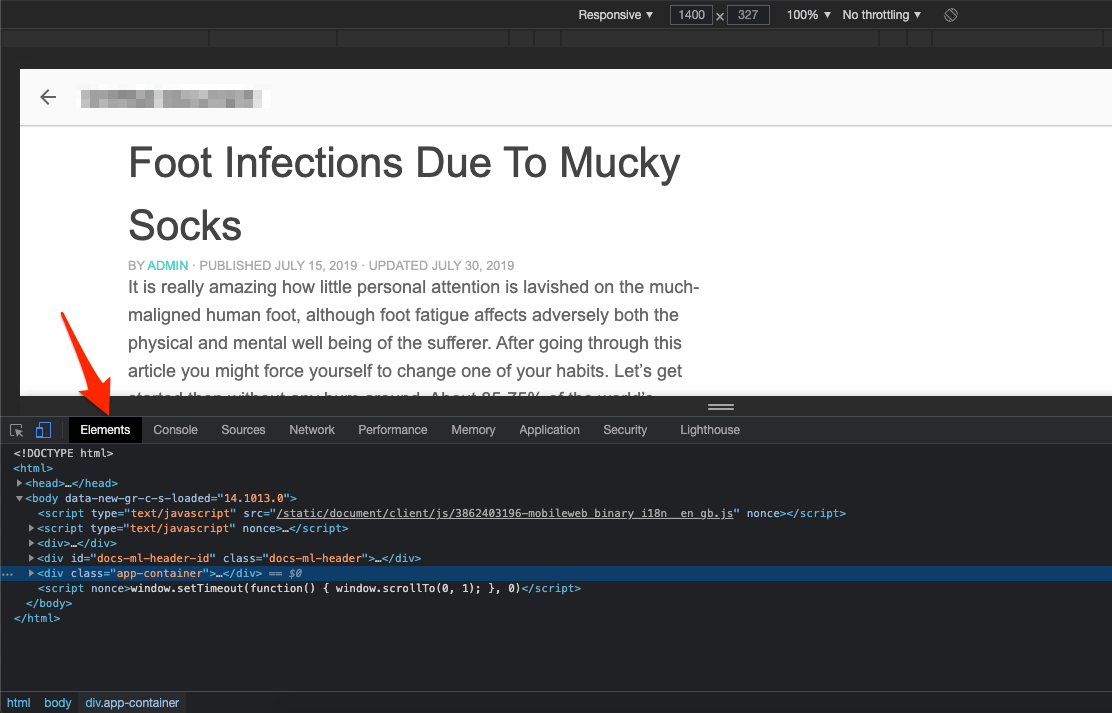
- Now open Developer Console by pressing Ctrl + Shift + C for Windows or Cmd + Shift + C for Mac.
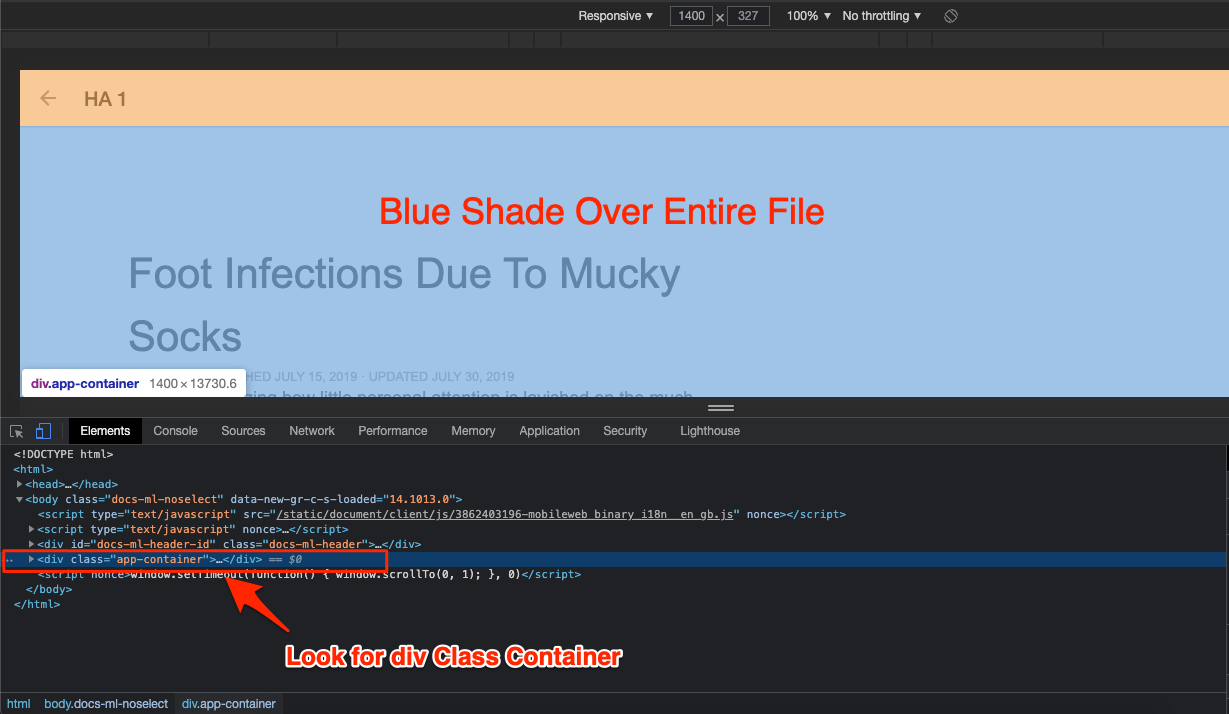
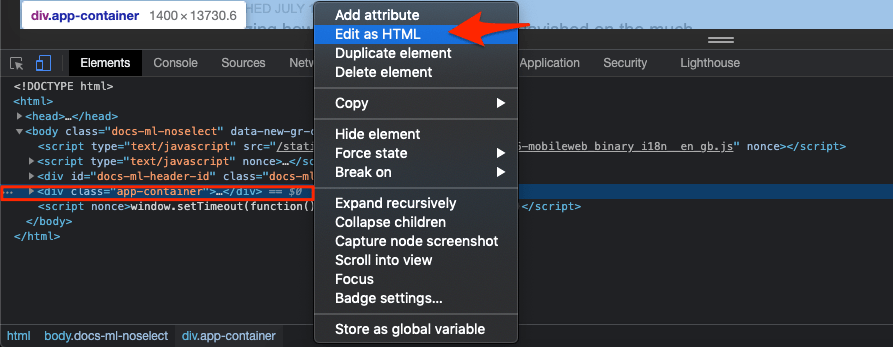
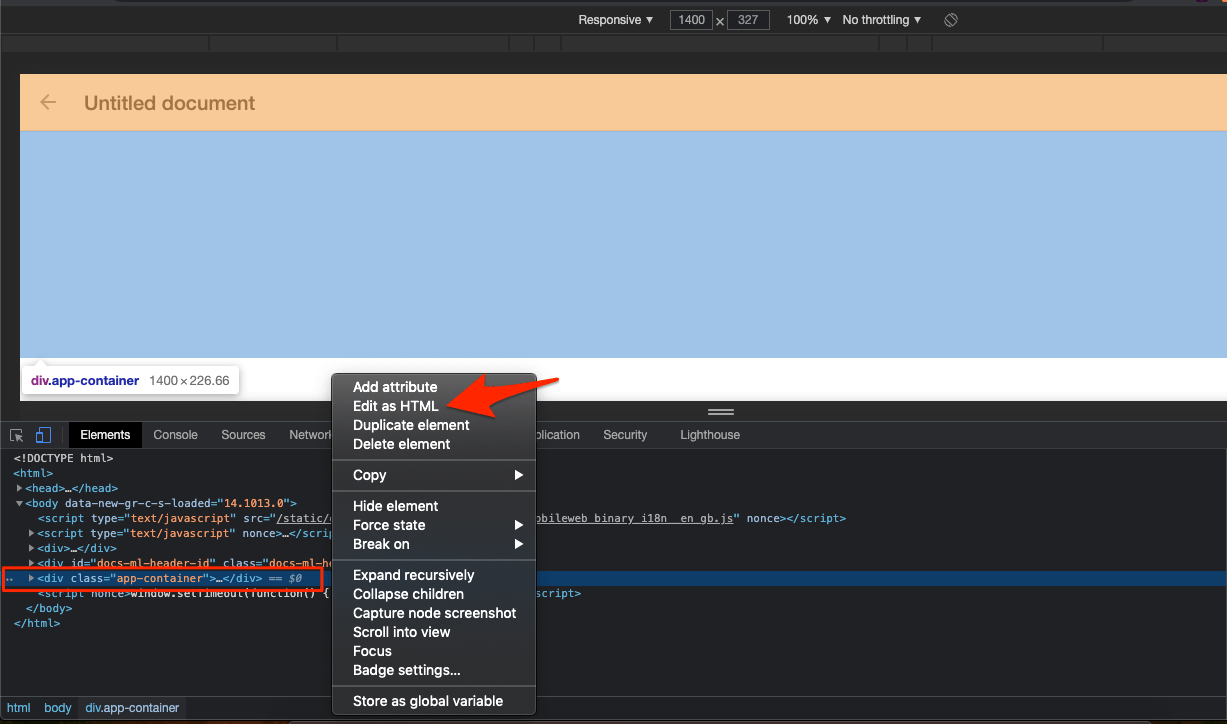
- Reload the page and under the Elements Tab look for the tag that covers all the content in blue shade.
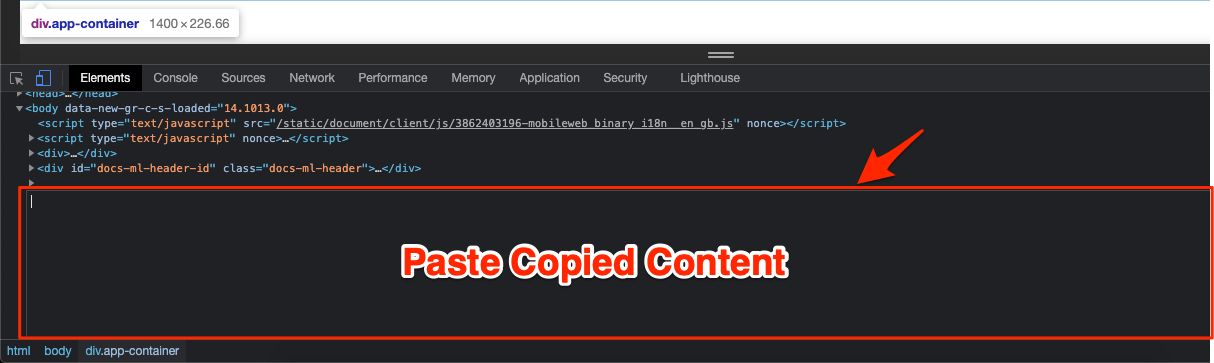
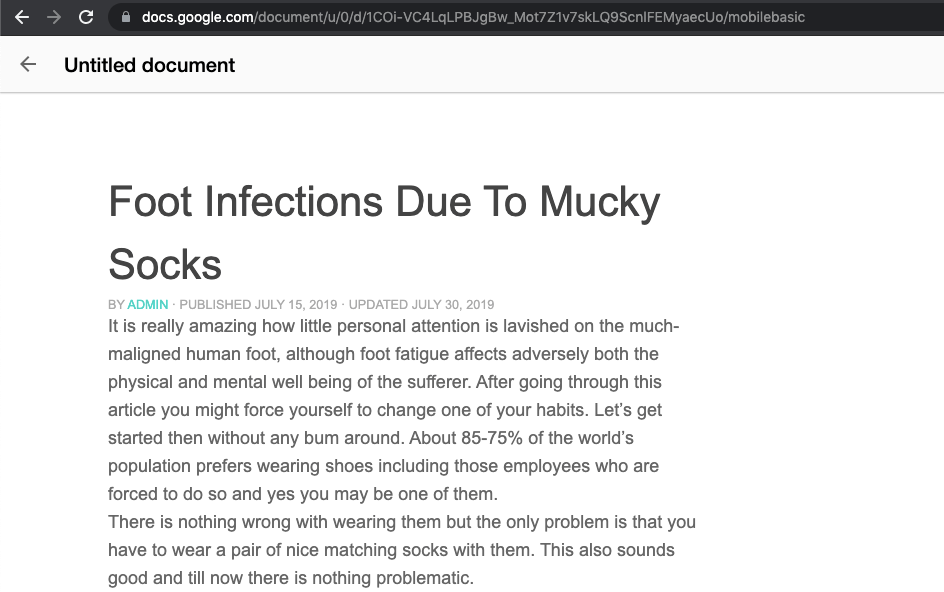
Alternative Method to Copy Google Docs Using JS Script
You again need to use Google Chrome Developer Console. The file is blocked using Javascript code. You need to disable the JS and add a manual JS script to copy the Google Docs. This method was shared on Github.
- Open the protected GDoc using Chrome. Change the end of the document URL from `/edit` to `/mobilebasic`
https://docs.google.com/document/d/1NVbFrAinfMK9p0WkXXqQDYFyxxxxcNeN9Yu6CbUaJdA/ edit
https://docs.google.com/document/d/1NVbFrAinfMK9p0WkXXqQDYFyxxxxcNeN9Yu6CbUaJdA/ mobilebasic - Scroll all the way down to the bottom to make sure that it is entirely loaded.
- Now open Developer Console by pressing Ctrl + Shift + C for Windows or Cmd + Shift + C for Mac.
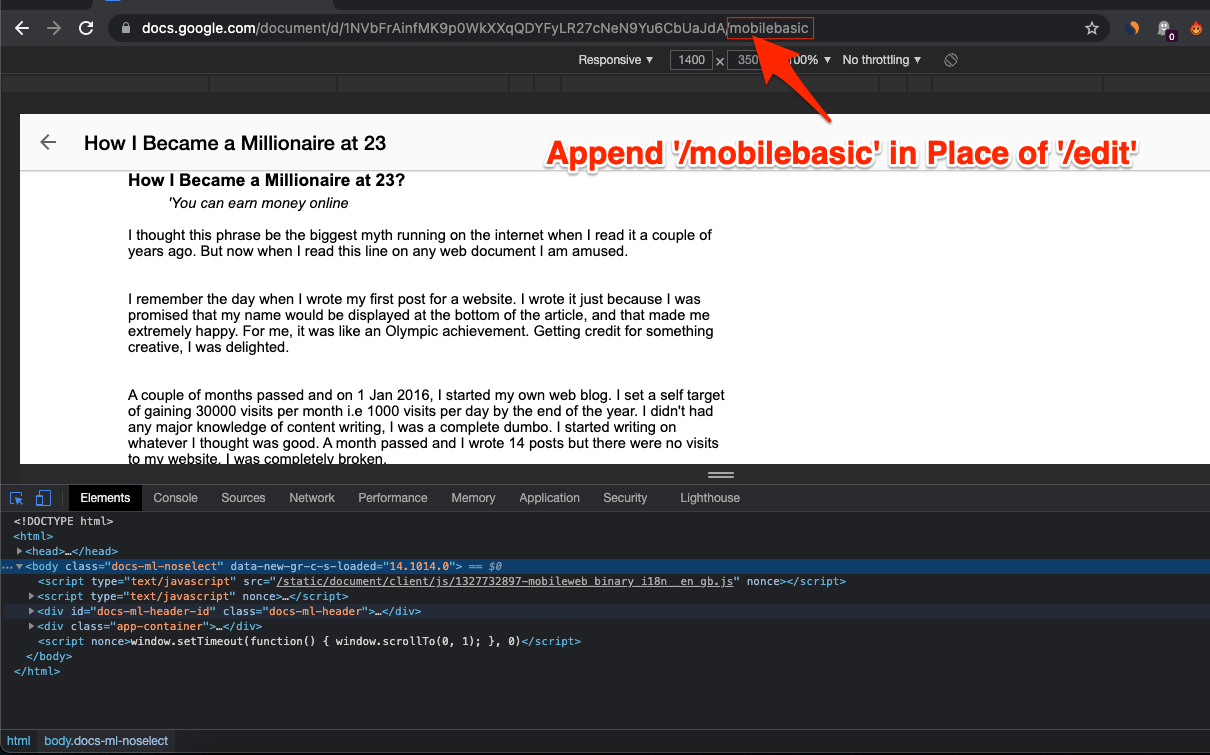
- Open the Command Console [Ctrl+Shift+P for Windws & Cmd + Shift + C for Mac].
- Search “javascript”, and select the option “Disable Javascript“.
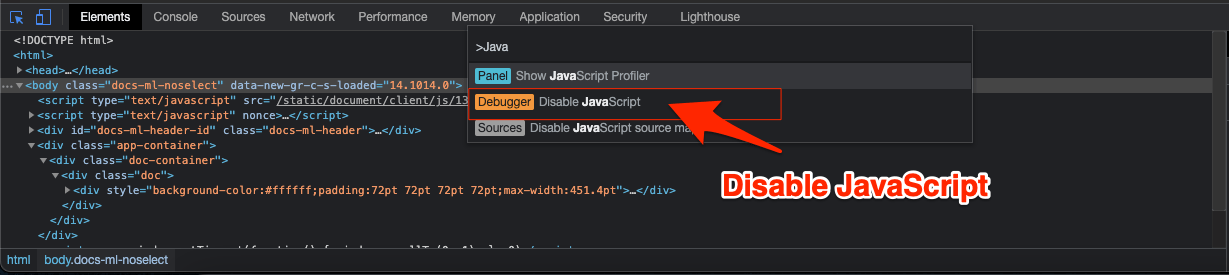
- Now click on the Console Tab and look for a small arrow marker.
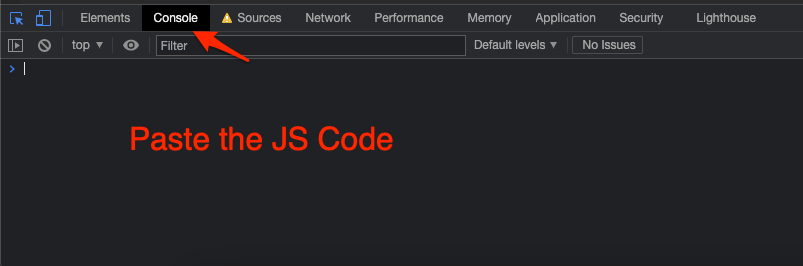
- Here paste the JS code from below and hit enter.
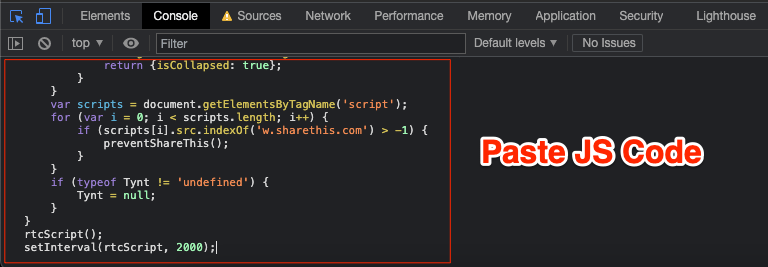
function rtcScript() < document.oncontextmenu = null; document.onselectstart = null; document.onmousedown = null; document.onclick = null; document.oncopy = null; document.oncut = null; var elements = document.getElementsByTagName('*'); for (var i = 0; i < elements.length; i++) < elements[i].oncontextmenu = null; elements[i].onselectstart = null; elements[i].onmousedown = null; elements[i].oncopy = null; elements[i].oncut = null; >function preventShareThis() < document.getSelection = window.getSelection = function() < return ; > > var scripts = document.getElementsByTagName('script'); for (var i = 0; i < scripts.length; i++) < if (scripts[i].src.indexOf('w.sharethis.com') >-1) < preventShareThis(); >> if (typeof Tynt != 'undefined') < Tynt = null; >> rtcScript(); setInterval(rtcScript, 2000);
Conclusion
Using Dev Tools you can extract the View Only Protected Google Docs File and Save them as a Fresh Doc File. Follow the guide carefully. If you find it difficult to locate the div container tag, just reload the page and try again. I hope the post is helpful, do comment below for any assistance or support.
If you’ve any thoughts on How to Save Google Docs with ‘Export Options Disabled’?, then feel free to drop in below comment box. Also, please subscribe to our DigitBin YouTube channel for videos tutorials. Cheers!