Как добавить виджет Spotify и Apple Music на домашний экран iOS 14
С момента выхода iOS 14 обновленные виджеты стали невероятно популярными среди пользователей. В топах App Store теперь не социальные сети или мессенджеры, как было раньше, а приложения для создания собственных виджетов вроде Widgetsmith. Apple добавила возможность настройки виджетов, что позволит вам выбирать между разными размерами и стилями в соответствии с вашими предпочтениями. Хотя поддержка виджетов для встроенных приложений уже включена в iOS 14, сторонние разработчики пока не торопятся. Одним из таких популярных приложений является Spotify. Но не обязательно ждать, когда разработчики сервиса выпустят обновление — вы можете добавить музыкальный виджет на главный экран айфона прямо сейчас. Причем не только для Spotify, но и для Apple Music.
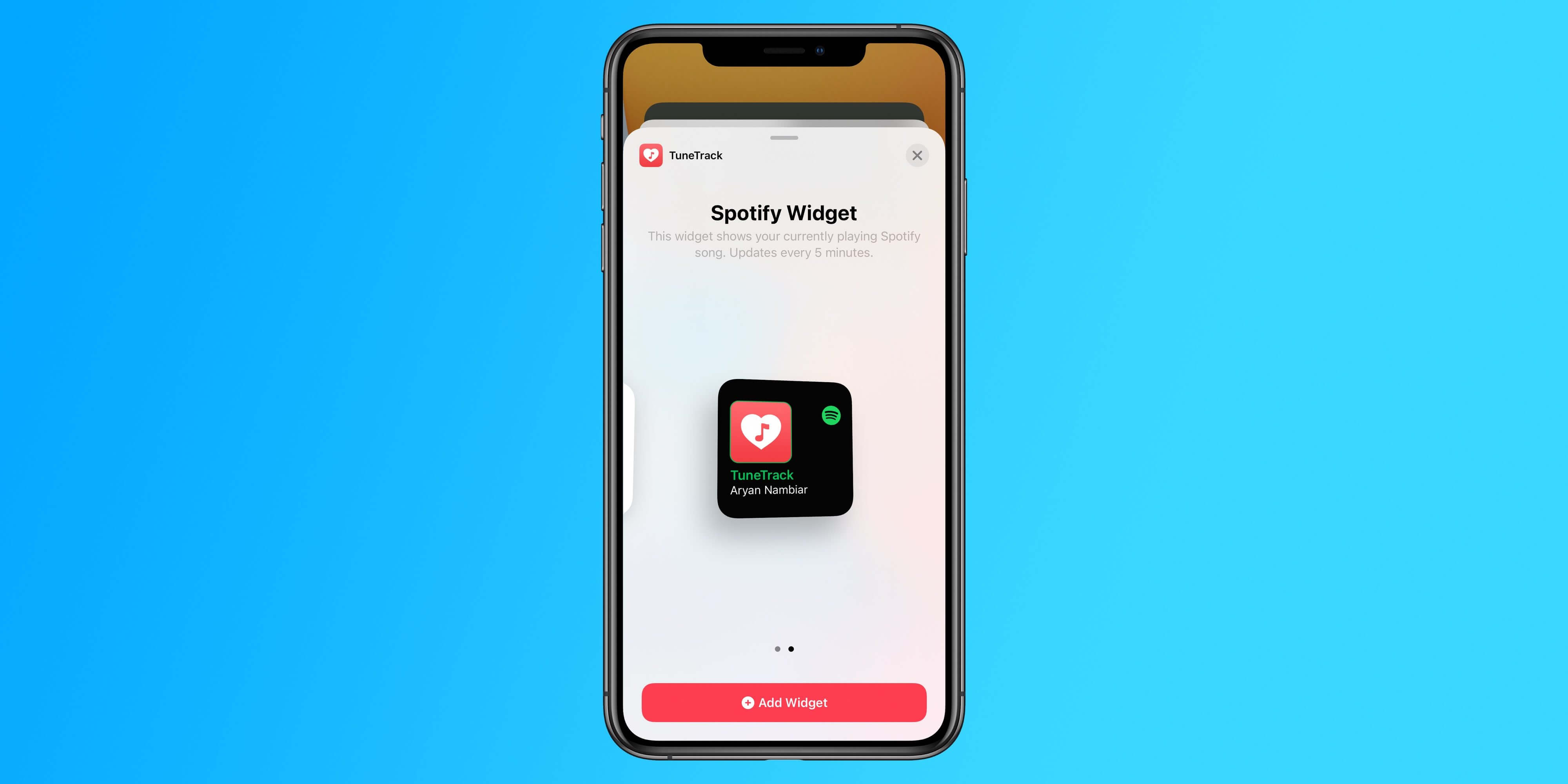
Не обязательно ждать, пока разработчики обновят свои приложения
Многие пользователи и читатели в нашем чате в Telegram уже несколько дней призывают Spotify добавить виджет для iOS 14. Пока что Spotify не выпустила обновление приложения с виджетами домашнего экрана, но стороннее приложение TuneTrack способно решить эту проблему.
Планирует ли Spotify добавить свой собственный виджет в iOS 14, еще неизвестно, но у компании не лучшая репутация, когда дело доходит до быстрого внедрения новых функций iOS и Apple Watch.
Как добавить виджет Spotify на домашний экран iOS 14
TuneTrack — это стороннее приложение, которое интегрируется с Apple Music, Spotify и Last.fm. Приложение позволяет отслеживать ваши музыкальные вкусы, автоматически определяя самые популярные треки, создавать собственные списки воспроизведения и многое другое. Однако за последние несколько дней популярность TuneTrack резко возросла из-за своего виджета главного экрана Spotify для пользователей iOS 14.
TuneTrack можно бесплатно загрузить из App Store. После установки приложения вы можете открыть его и войти в свою учетную запись Spotify.
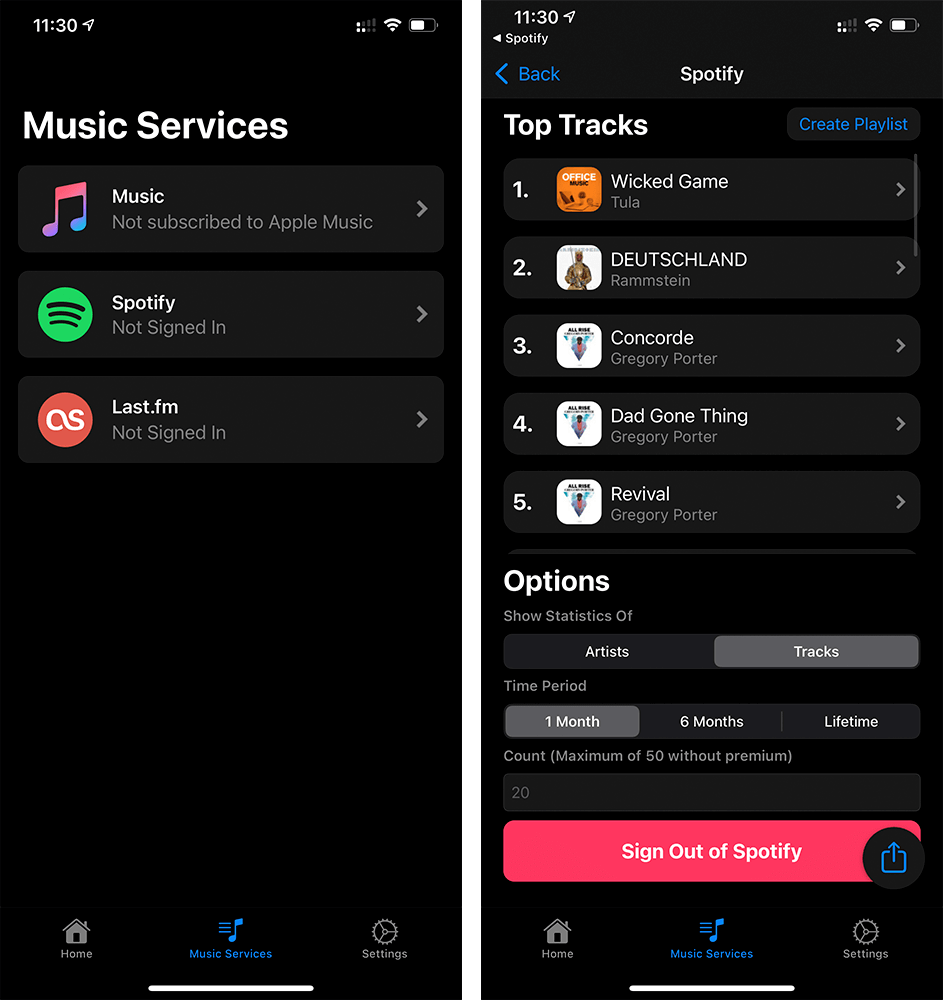
Зайдите в нужный музыкальный сервис
После входа в свою учетную запись Spotify вернитесь на домашний экран iOS 14, нажмите на экран и удерживайте, чтобы войти в режим добавления виджетов, затем нажмите «+» в правом верхнем углу.
Просмотрите список установленных вами приложений с поддержкой виджетов, пока не найдете TuneTrack. Оттуда вы можете легко добавить виджет TuneTrack Spotify на главный экран iOS 14 и разместить его, где захотите.
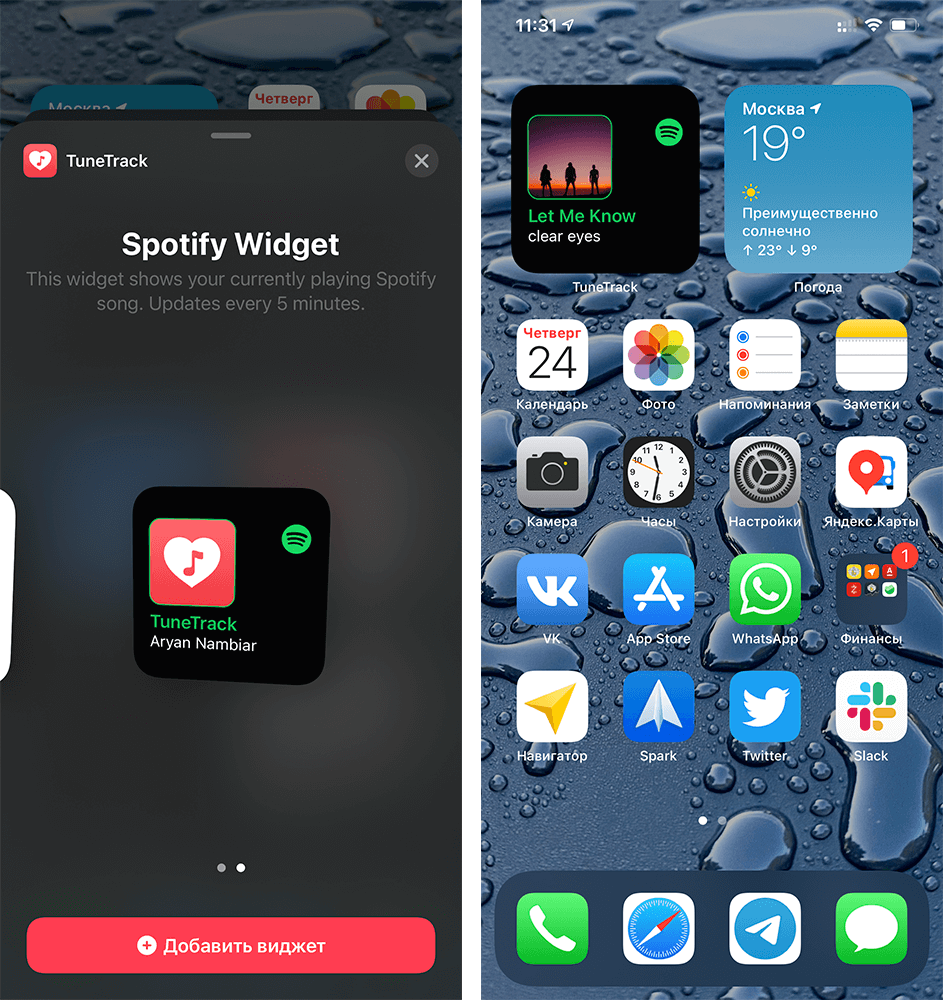
Добавьте виджет на рабочий стол
Виджет Spotify будет обновляться каждые пять минут, или вы можете принудительно обновить его в приложении TuneTrack в меню настроек. Он покажет, какой трек проигрывается в данный момент. То есть вам не придется заходить в плеер или в центр уведомлений. Ну и это просто красиво.
Как добавить виджет Apple Music на домашний экран iOS 14
Кстати, TuneTrack также предлагает виджет для Apple Music, так что если хотите себе такой же виджет на рабочий стол, можете его добавить. Просто войдите не в Spotify, а в Apple Music, а затем при добавлении виджета выберите вариант для Apple Music.
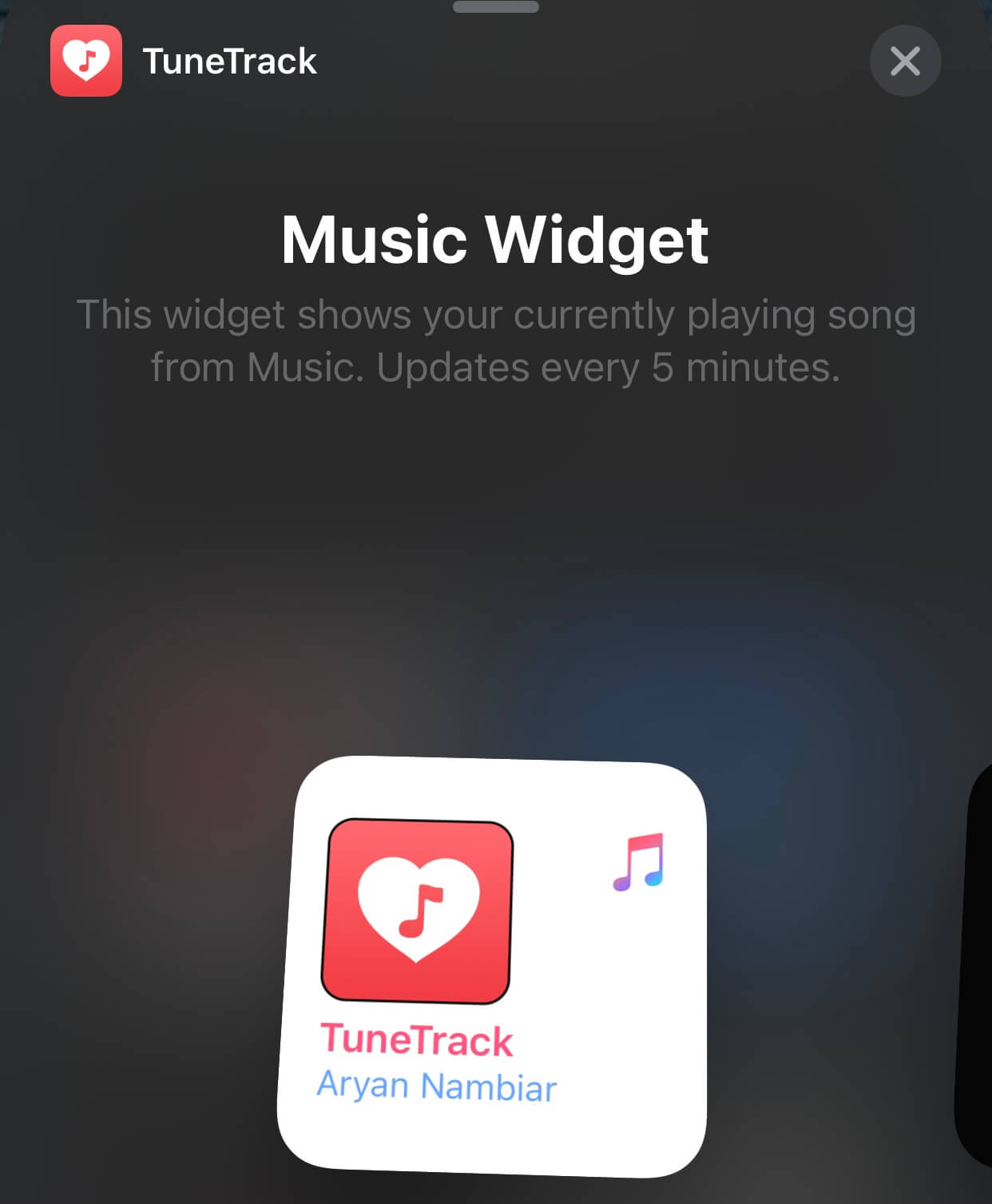
Есть такой же виджет для Apple Music
При этом вы всегда можете создать свои виджеты в приложении вроде Widgetsmith и даже поменять иконку любого приложения iOS 14 в приложении «Быстрые команды». Уже пробовали? Расскажите о своих впечатлениях в комментариях.
How to Use Spotify Desktop Widget on Windows 10 and Mac
Spotify is one of the most used music streaming platforms because it lets you listen to over 70 million songs with just one subscription. So, no matter which music genre you like, Spotify will have that for you. Plus, the songs are of excellent quality, which enhances your music listening experience. Since Spotify is so popular, you can now get a Spotify widget on your Windows 10 and Mac PC and easily control the songs without having to go back to the actual app. For example, the Spotify widget will let you pause, play, and skip your current songs.
Since not many people are familiar with the Spotify widget and want to learn how to go about the OBS Spotify widget and other ways, this article will help you understand how. We have covered every detail in steps to make the whole process of adding the Spotify Desktop widget for you.
- Part 1. Use Windows 10 Spotify Widget
- Part 2. Use Spotify Widget on Mac
- Part 3. Create Streamlabs Spotify Widget
- Learn More: Play Spotify on the Desktop without Limits
- Part 5. Conclusion
Part 1. How to Use Windows 10 Spotify Widget
Before we tell you how to get Windows 10 Spotify widget, please note that Spotify doesn’t have a mini player. So, you will need to rely on other methods to be able to do that. However, since the official player won’t allow you to add a mini player to your desktop, we have prepared different ways to try.
Method 1: Spotify Widget on Chrome
For the first Spotify Windows 10 widget, you can try Google Chrome. The best part about this method is that Spotify is available for Chrome. You can get the mini-player on your Chrome browser to leverage the features easily.
Step 1: Launch Chrome.
Step 2: Go to spotify.com
Step 3: Get the Spotify web player.
Step 4: Sign in and start playing a song.
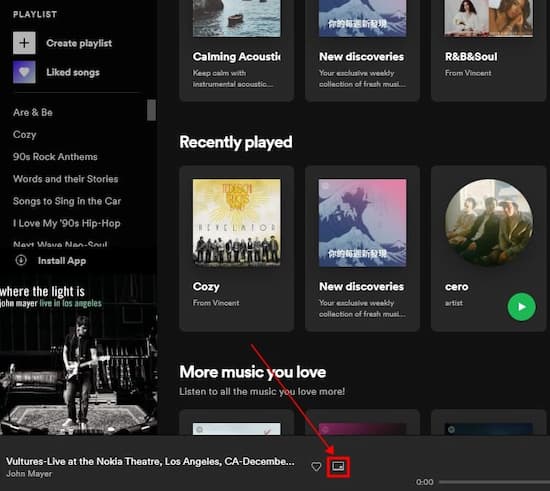
Step 5: You will see a mini-player icon. Click on that.
Step 6: The album art will get pinned to a small window.
This window will enable you to play, pause, and even jump to the following songs.
Method 2: Lofi Spotify Mini Player

If you don’t want to add the Spotify mini-player to Chrome, you can try Lofi. This tool will let you control your Spotify songs easily as well.
Step 1: Visit lofi.rocks
Step 2: Download the app.
Step 3: Log in to Spotify.
Step 4: The player will be displayed.
Part 2. How to Use Spotify Widget Mac?
To get Spotify widget Mac, you can first try method one that we shared for Windows 10, the Chrome method. If not, we have two other ways for you. Try them out.
Method 1: Alfred Spotify Mini Player
One of the best tools to use to play Spotify songs is Alfred Spotify Mini Player. This mini player is easy to use and comes with good features. For example, you can go to quick mode, search for songs, listen to a podcast, display current tracks, and so on.
Step 1: Visit Alfred Spotify Mini Player.
Step 2: Download the workflow.
Step 3: Set it up on the Mac.
Now start using the mini player and enjoy your Spotify songs.
Method 2: Spotify MiniPlay
Don’t get confused with the name. It’s not an official tool of Spotify. This mini-player shows you the details of the song that is being played. In addition, it lets you control your songs.
Step 1: Visit MiniPlay.
Step 2: Download the tool.
Step 3: Set it up and start listening to Spotify songs.
The app will show you the album art, let you control the song, go back or listen to the next song.
Part 3. How to Create Streamlabs Spotify Widget?
This section will help you understand how you can add Spotify to Streamlabs OBS.
Step 1: Launch Spotify.
Step 2: Queue songs that you want to listen to.
Step 3: Go to the SLOBS Editor screen.
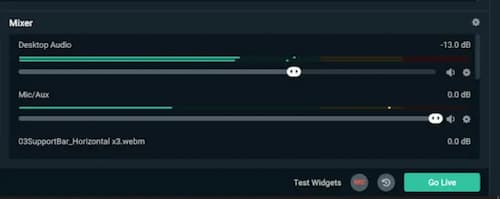
Step 4: Look for the Mixer tab.
If you are already playing the songs, then you may see some bars, which will be under Desktop Audio, and they should be moving. If you are facing trouble, just check out the step 5 and 6.
Step 5: Check the volume for Desktop Audio.
Step 6: If you want to play Spotify songs while speaking through the microphone, slide the volume bars.
This is how you get the Streamlabs Spotify widget.
Learn More: How to Listen to Spotify on the Desktop without Limits
The methods that we have shared will let you listen to Spotify songs easily; however, each comes with some drawbacks. For example, if you are using Spotify mini-player on Chrome, you will play Spotify songs in 192kbps only. Even third-party tools will have some limitations.
So, if you want to play Spotify songs whenever you want to and without any restrictions, try AudKit SpotiLab Music Converter. It’s an easy-to-use software and will let you unlimited Spotify songs in a jiffy. Moreover, you can convert them to different audio formats as well. You can download AudKit Spotify Music Converter on your Mac computer or Windows computer.
Main Features of AudKit Spotify Music Converter
- Batch conversion with 5X speed
- Convert Spotify songs to MP3 and more
- Listen to Spotify songs offline and on any device
- Retain complete ID3 tags and lossless quality
Как поставить виджет Spotify на iOS 14

С выходом iOS 14 пользователям стали доступны новые виджеты, а также у них появилась возможность их кастомизировать, тем самым полностью настраивая их под себя. Но пока не все сторонние приложения обзавелись новыми виджетами, одним из таких стал Spotify. Всё же некоторые бета-тестеры возможно получили доступ к новым виджетам, но пока сам Spotify не выпускал никаких обновлений по этому поводу. Так возможно ли поставить виджет Spotify на iOS 14?
А пока и другие сторонние приложения не выпустят необходимые обновления, мы покажем вам один обходной способ, с помощью которого вы всё-таки сможете сделать задуманное.
Каким образом можно получить доступ к Spotify на iOS 14
К сожалению, Spotify не имеет собственного виджета на iOS 14, но всё же есть обходной путь, о котором мы вам и расскажем. Конечно, это лишь временное решение, однако оно работает очень хорошо. Более того, благодаря этому способу владельцам нескольких разных подписок на музыкальные сервисы не придется переключаться между ними. Вы также получите доступ к статистике прослушивания, с помощью которой вы сможете пополнять свой собственный плейлист.
В данной статье мы будем использовать приложение Tunetrack для iOS 14. Это прекрасный выбор, так как там уже имеется виджет для Spotify, а само приложение совместимо с последними наборами средств разработки.
Для дальнейшей работы вам понадобится:
- Tunetrack | Скачать
- Устройство на iOS 14
- Установленный и залогиненный Spotify
Пошаговая инструкция
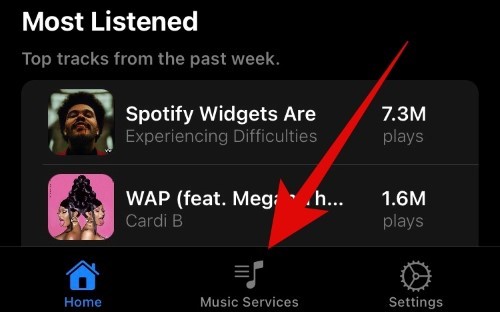
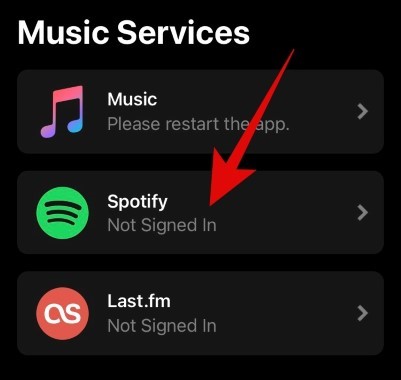
Шаг 1: После установки Tunetrack, откройте приложение и нажмите на ‘Music Services’
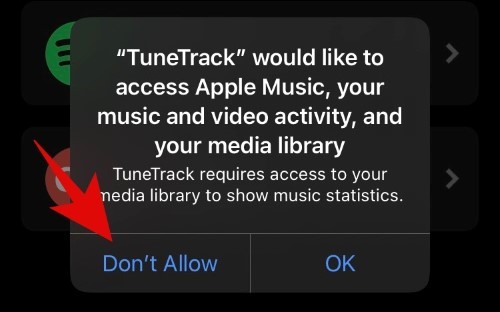
Шаг 2: Предоставьте необходимые разрешения (если приложение их не запросило, нажмите на иконку Spotify)
Примечание: Если вы хотите установить лишь Spotify виджет, то вы можете не предоставлять разрешения для Apple Music
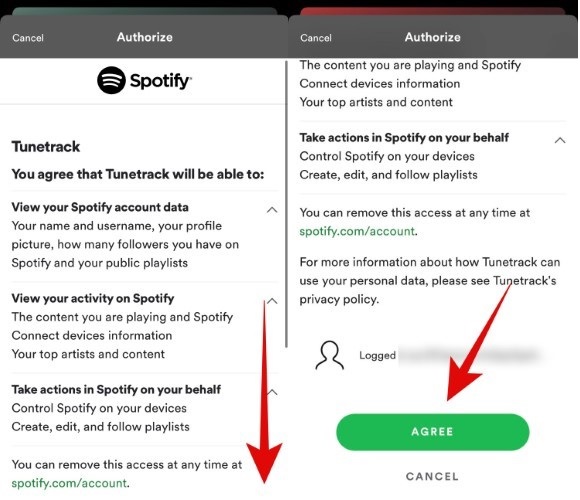
Шаг 3: Здесь вы можете ознакомиться с пользовательским соглашением, прокрутите вниз и нажмите ‘Agree’
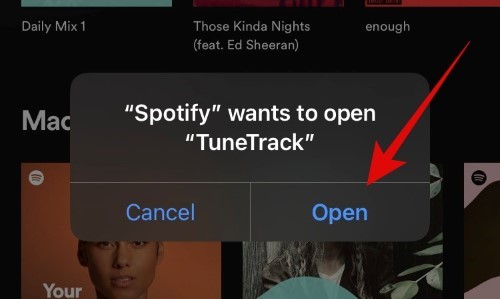
Шаг 4: Теперь Spotify попросит разрешение для открытия Tunetrack, нажмите на ‘Open’
Шаг 5: Теперь в Tunetrack будет доступен ваш плейлист из Spotify
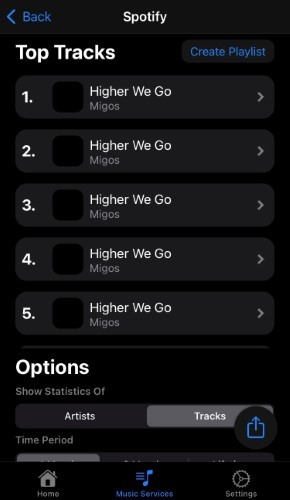
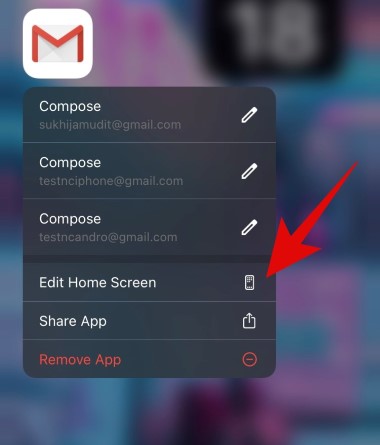
Шаг 6: Закройте приложение, выйдите на экран «Домой» и зажмите в свободной области, а затем выберите ‘Edit Home screen’
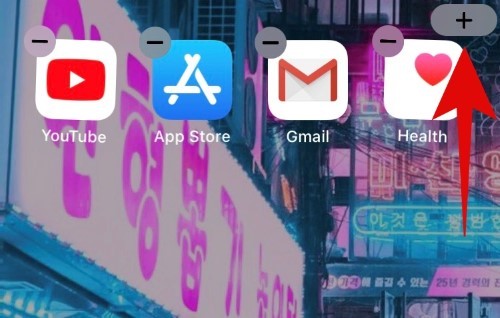
Шаг 7: Нажмите на плюсик в правом верхнем углу
Шаг 8: Выберите виджет Tunetrack
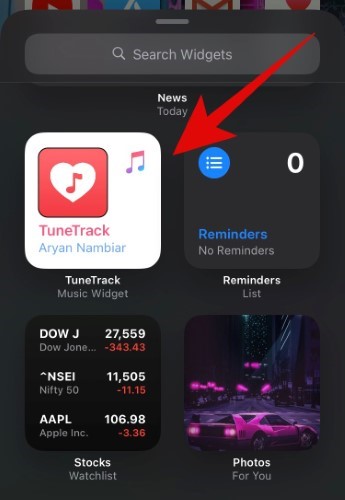
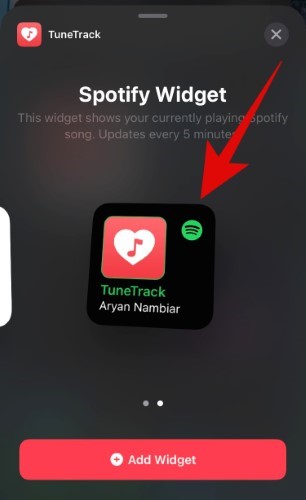
Шаг 9: Листайте до момента с виджетом Spotify
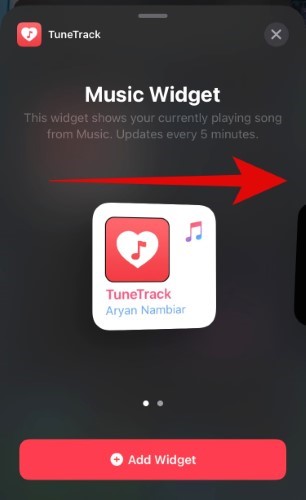
Шаг 10: Нажмите ‘Add widget’
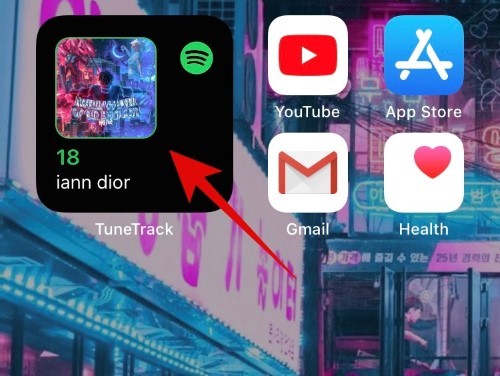
Шаг 11: Проверьте работоспособность на экране «Домой»
Что делать если виджет ничего не показывает
Для начала вы можете запустить какую-нибудь песню, неважно в самом Spotify или через Tunetrack. Если же это не помогло, следуйте следующей инструкции.
Шаг 1: Откройте Tunetrack и пройдите в настройки
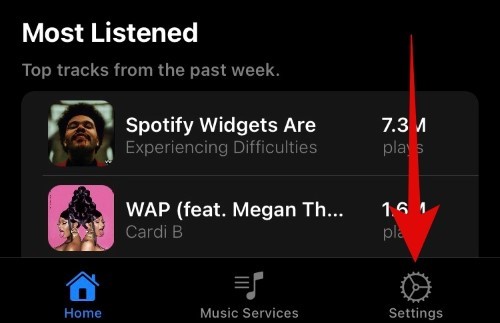
Шаг 2: Выберите пункт ‘Refresh widgets’
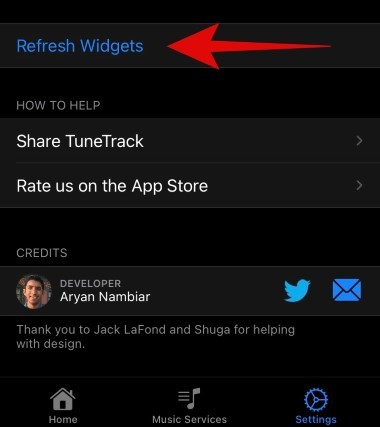
Шаг 3: Высветится уведомление об успешном обновлении виджетов, нажмите на ‘Close’
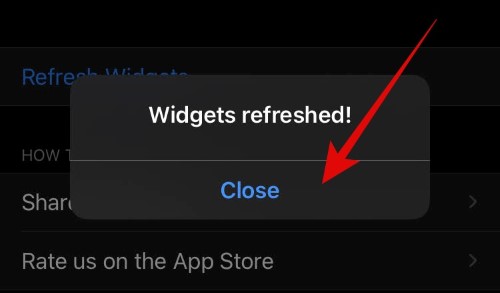
Шаг 4: Вернитесь в Spotify и выберите другую песню, теперь виджет должен заработать
How to Add Spotify Widget on iOS and Android

You can add Spotify widgets on both iOS and Android, which is a great feature if you want to skip launching the app every time you want to play music. Using this tool, a small window will appear on your home screen that will allow you to play, skip, and pause Spotify. Whether you are on Spotify Premium or on a free account, the platform will have a default widget that comes along when you install the app on your phone. However, there are other ways how to add Spotify widgets to your home screen.
While the app does have a pretty good user interface (UI), there is a better way to control your music. This is through adding control widgets to your home screen, which we will tell you all about!
Inside This Article
- When Was Spotify Widget Added on iOS and Android?
- What Can You Do With the Spotify Widget?
- How to Add Spotify Widgets
- On iOS
- On Android
- Sign Homescreen Widget for Spotify
- Audio Widget Pack
- TuneTrack
- WidgetPod
- MusicView
When Did Spotify Widgets Appear On iOS and Android?
Google first introduced widgets for Android in 2011 when they released Android Ice Cream Sandwich (or Android 4.0). These are fun, quirky mini-apps that sat on your home screen and can control or present information on the apps they are connected to. Android phones normally come with a pre-installed calendar, clock, and weather widgets, too. They will eventually pile up as you install more apps that have widgets, like Spotify.
Taking advantage of this feature, Spotify had a slightly buggy widget you could use that they tried to pull out in 2019. Due to customer complaints, however, Spotify brought the widgets back but has mostly done nothing to improve them.
This was the case until 2021 when Apple announced they would introduce widgets to iOS 14’s home screens. Along with other companies and apps, Spotify also jumped on this opportunity by releasing an iOS widget of their own. A year later, Spotify has since revamped its Android widget version to streamline its look with the iOS version.
What Can You Do With the Spotify Widget?
As we said earlier, Spotify widgets let you control the functions of the Spotify app, including the Spotify playlists you made. This means that not only can you use the widget to play, pause, skip forward, or skip back to previous songs or podcasts you were listening to, but you can also see the information on what you are listening to. These are its features on the Android version, at least.
Possibly due to how new the feature is to iOS users, their version of the widget is a little bare-bones. iOS users can only see the picture and information of their favorite and previous tracks through the widget. The iOS version does share the Android widget’s shortcut feature where you can click on it to bring up the full Spotify app UI, though.
How to Add Spotify Widgets
Now that you know a little bit about the history of Spotify widgets and what they are for, let us talk about how to get them on your home screens. There are two main ways to get a Spotify widget on your screen. The first of which is to download the iOS or Android Spotify app, and the second is to get a third-party home screen widget that can connect to the Spotify app. We will explain how to get the widgets on iOS and Android while giving a shortlist of third-party apps you can choose from.
Adding Spotify Widget on iOS
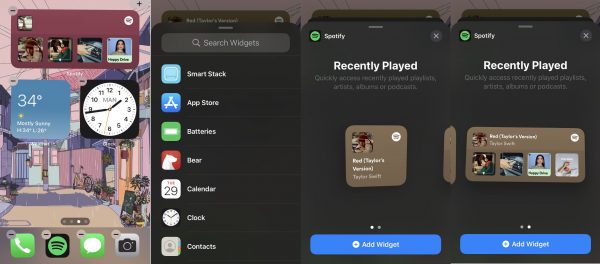
Spotify’s default iPhone widget will show you the recent tracks you have played. To add Spotify widgets to your home screen on iOS 15, you just need to do the following:
1. Long press an empty part of your iPhone’s home screen.
2. Wait for the home screen edit icons to appear. Click the “+” on the upper right corner.
3. Scroll down the pop-up menu to find the Spotify tab or use the search box to look for it. Select it.
4. Choose between the 2×2 or 2×8 widget sizes by swiping left or right. Press the “Add Widget” button once you have chosen the size you want.
5. Select a blank spot on your home screen to drag and add the widget to it. You can drag and drop the widget to other places on your screen.
6. Enjoy your Spotify widget!

Note
This guide on how to add Spotify widgets to an iPhone home screen has been tested to work on an iPhone running iOS 15.4.
Adding Spotify Widgets On Android
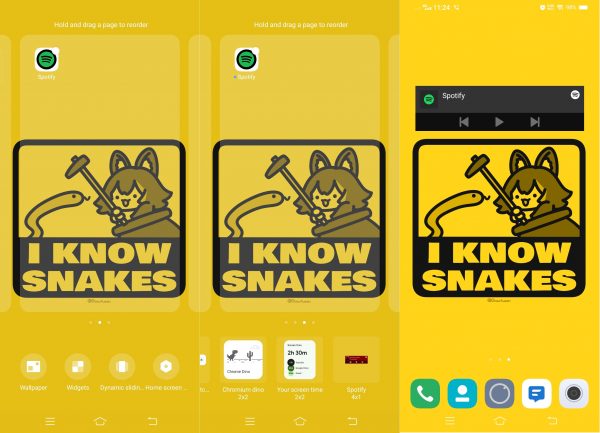
On Android, the Spotify widget will show you the play and skip buttons as well as the art cover of tracks. To add Spotify widgets to your home screen on Android, you just need to do the following:
1. Long press an empty part of your iPhone’s home screen.
2. Wait for the home screen edit icons to appear. Click on the “Widgets” icon to bring up the menu.
3. Scroll through the ribbon menu to find the Spotify widgets, then select the size you want.
4. It will automatically fill a blank spot on your home screen. You can drag and drop the widget to other places on your screen. When long-pressing the widget, you can also change its size and shape to fit your screen better.
6. Enjoy your Spotify widget!
Note
This guide on how to add Spotify widgets to an Android home screen has been tested to work on an Android phone running Android 11. Older versions of Android that support widgets have a similar way of adding widgets to their home screens.
Alternative Home Screen Widgets
Since you now know how to add the official Spotify widgets to your phone’s home screen, let us talk about alternative ones now. You may want to choose these widgets instead of the sometimes buggy official widget for your home screen. Do remember that these third-party apps are not officially sanctioned by Spotify, and letting them integrate with your account may be dangerous due to security problems.
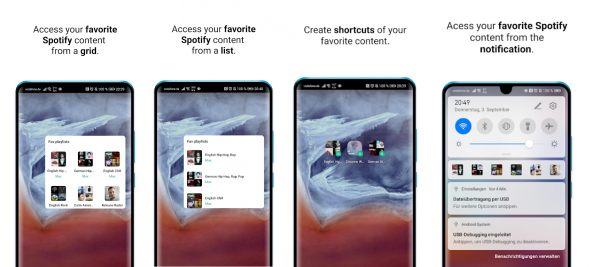
1. Sign – Homescreen Widget for Spotify
Developer: Maximilian Keppeler
Platform: Android
Rating: 4.3/5
The first Spotify widget app alternative we have, Sign – Homescreen Widget for Spotify, is a pretty well-rounded app. It lets users connect their Spotify accounts (Premium or free) to create shortcut widgets to their favorite tracks or entire playlists. This app also lets users tack on these shortcuts to the notification ribbon aside from normal home screen widgets.
2. Audio Widget Pack
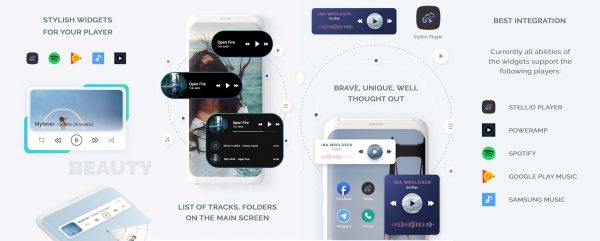
Developer: Stellio Soft
Platform: Android
Rating: 3.9/5
Another Spotify widget alternative for Androids, Audio Widget Pack works not just for Spotify; it also works for Google Music and Samsung Music. Created by the same person behind the Stellio Player, the Audio Widget Pack has a pretty sleek-looking widget. It gives you everything you need to control your Spotify tracks right on your home screen. It also has multiple widget designs, which you can mix and match with your wallpaper.
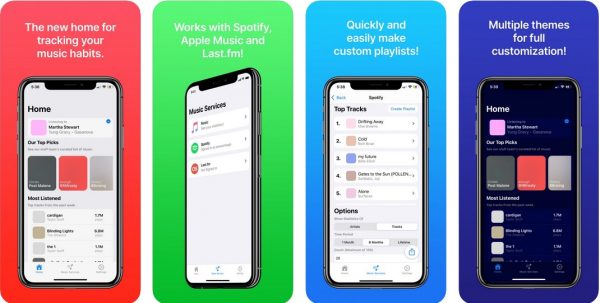
3. TuneTrack
Developer: Aryan Nambiar
Platform: iOS
Rating: 3.1/5
Before Spotify released its own widget for iOS, TuneTrack already released its own to work with the Spotify app. Aside from giving playback controls to iOS users, TuneTrack also has a few additional features. These include Spotify play data, music charts, and other on-demand statistics. It also works for Apple Music and Last.fm accounts as well.
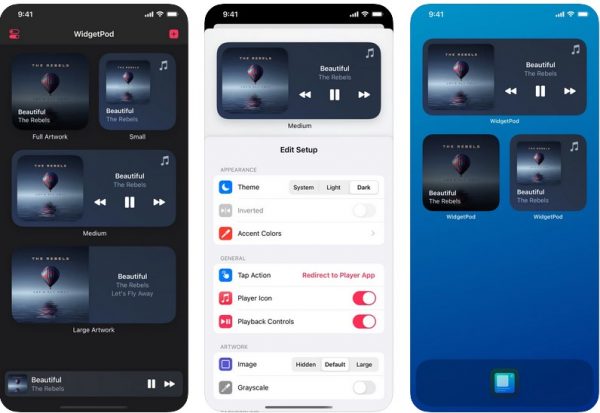
4. WidgetPod
Developer: Aditya Rajveer
Platform: iOS
Rating: 3.6/5
A simple widget that connects with Apple Music and Spotify apps, WidgetPod lets you have much-needed playback controls for your Spotify app without any hassles. Aside from its basic functions, WidgetPod also lets you customize its widgets a little by choosing their size and picking either the light or dark themes for them.
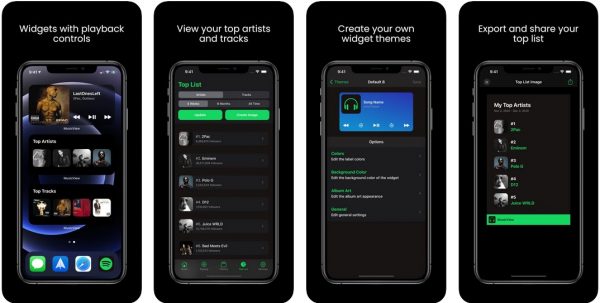
5. MusicView
Developer: Innovative Digital Technologies Ltd.
Platform: iOS
Rating: 3.9/5
The final app on this list, MusicView is also a good alternative to the official Spotify widget. If you want to have the Spotify Android widget version’s playback controls, MusicView is a good pick. Compared to the other two iOS alternatives on this list, MusicView does specify that you need to have a Spotify Premium account to use the playback controls on its widgets.
How to Remove Spotify Widgets
If you think the Spotify widget makes your home screen cramped, you can remove it anytime to tidy up your phone. Removing widgets couldn’t get any easier and would only take a few taps.
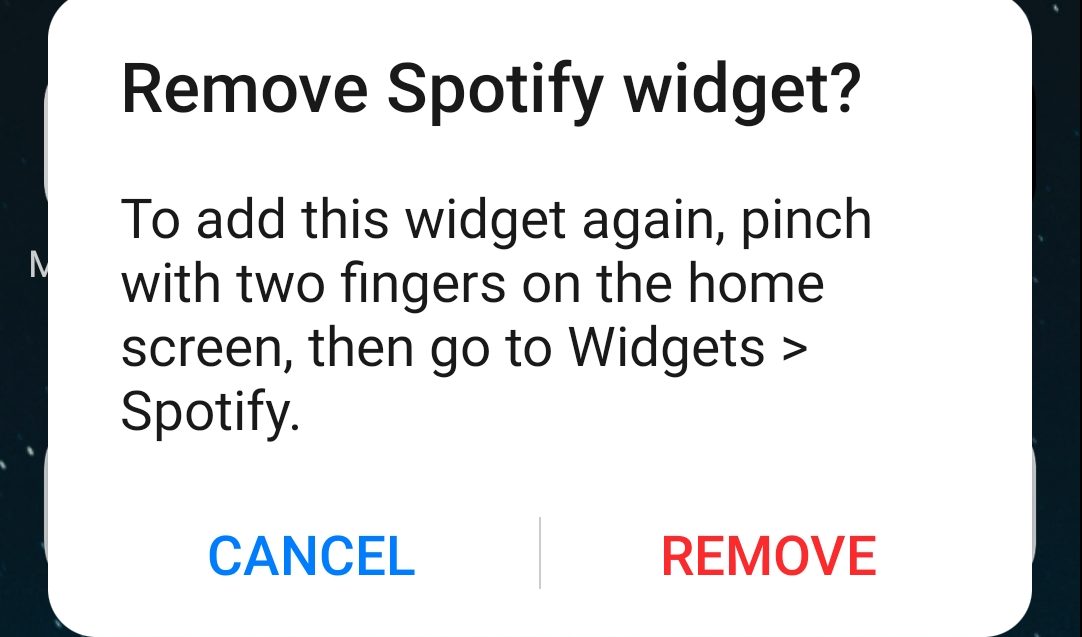
On Android phones, just touch and hold the Spotify widget until the remove option appears. Click on it and select Remove if a confirmation dialogue pops up.
Removing a Spotify widget on an iPhone works similarly. Touch and hold the widget, select Remove stack from the options that will appear, then select Confirm.
Takeaway
There you have it — we hope you now know how to add Spotify widgets to iPhone and Android devices. What is good music if you can’t hear them properly, though? Those that want the best music experience should snag some of the best open-backed headphones to go with their listening binge. If you want to explore more about widgets, you might find battery widgets a helpful addition to your home screen to keep track of your battery health while jamming with your favorite music.