OSFMount для Windows
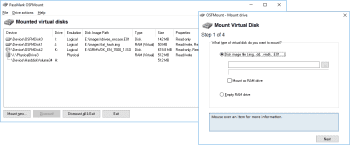
OSFMount — небольшая бесплатная утилита, которая позволяет монтировать ранее сделанные образы дисков и представлять их в виде виртуальных приводов. Также следует отметить возможность создания RAM-дисков, которые находятся исключительно в оперативной памяти компьютера, что позволяет существенно повысить скорость работы с ними. При монтировании диска пользователь может самостоятельно задавать тип устройства (HDD, CD/DVD, флоппи-дисковод), устанавливать атрибут «только чтение», а также выбирать букву для обозначения диска. Поддерживаются форматы ISO, BIN, IMG, DD, 00n, NRG, SDI, AFF, AFM, AFD и VMDK.
ТОП-сегодня раздела «Образы дисков»

DAEMON Tools Lite 12.0.0.2126 Daemon Tools — небольшое, бесплатное, но при этом очень функциональное приложение для создания.

UltraISO 9.7.6.3829 UltraISO — незаменимый инструмент для работы с образами дисков. Поможет выполнить запись и.

Alcohol 120% 2.1.1.2201 Free Edition Alcohol 120% Free — бесплатная версия популярного эмулятора приводов. Программа умеет записывать.

Alcohol 120% 2.1.1.2201 Alcohol 120% — популярный эмулятор CD/DVD-дисков, который создает на жестком диске ПК пользователя.

WinToFlash Lite 1.13.0000 WinToFlash — бесплатное приложение, которое поможет вам создать загрузочную флешку для.

WinToUSB 8.2 WinToUSB — инструмент для установки и запуска операционной системы Windows с USB-накопителя.
Отзывы о программе OSFMount
serg про OSFMount 3.0.1005 [14-02-2020] Win 7, 32 бит — не работает. Требуется x64. Жалко, что нет 32 битной версии.
4 | 4 | Ответить
игорь про OSFMount 3.0.1004 [10-08-2019] искал виртуальный cd/dvd rom, прога никакого отношения к этому не имеет, вообще не понятно то она делает..
6 | 11 | Ответить
User про OSFMount 3.0.1004 [09-06-2019] Попытался поставить на Win 7, программа написала, что не может установить драйвер. После выключения ноутбука Windows отказалась загружаться, пришлось откатиться на последнюю удачную конфигурацию. Не ставьте!
7 | 6 | Ответить
Vladimir Oval’nyj в ответ User про OSFMount 3.0.1005 [23-01-2020] Я не знаю, что вы там делаете с этой программой, но у меня никаких проблем с ней нет. Единственное — очищается содержимое при перезагрузке, но это легко исправить.
4 | 11 | Ответить
MrBird про OSFMount 3.0.1001 [25-04-2019] На данный момент дистрибутив требует архитектуру х64, то бишь фактически неприменим на ХР.
7 | 8 | Ответить
OSFMount — программа для монтирования образов и создания виртуальных флешек
С уществует небольшая группа программ, которые для своей работы, чаще всего для сохранения данных, требуют обязательного подключения к компьютеру внешнего носителя. Это могут быть бухгалтерские или какие-нибудь иные специальные приложения. Подобная необходимость также может возникнуть при работе с системами виртуализации, к которым нужно подключить физические флешки. Но что, если флешки под рукой не оказалось, а выполнить работу в программе всё же надо?
В такой ситуации выручит небольшая бесплатная программка под названием OSFMount. Предназначается она в основном для монтирования уже готовых образов дисков, но также может использоваться для создания RAM-дисков, то есть таких, которые существуют только в оперативной памяти компьютера. При этом пользователь может задать тип виртуального устройства, присвоить ему букву, а также установить нужные атрибуты.
В использовании программа очень проста и удобна, разве что без поддержки русского языка. Чтобы добавить носитель, жмём кнопку «Mount new» и в открывшемся окошке настраиваем параметры монтирования.
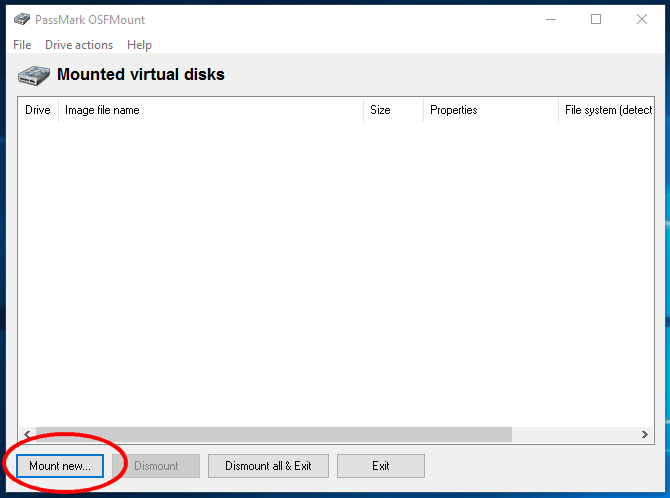
Опция «Source» позволяет выбрать источник образа. Им может быть прикрученный (Image file) или загруженный в ОЗУ (Image file in RAM) файл образа, а также пустой диск из оперативной памяти (Empty RAM drive) . Если вам нужна виртуальная флешка, указываем путь к ISO или иного поддерживаемого формата образу.
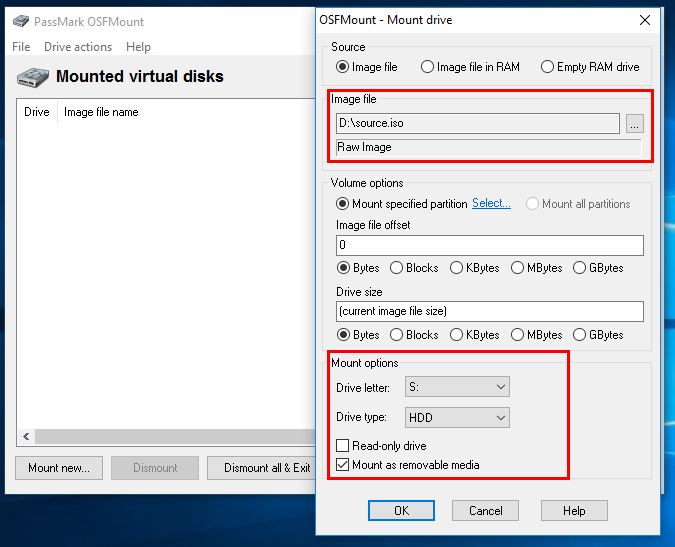
Настройки «Volume options» можно оставить по умолчанию, да и для виртуализации флешки они не имеют значения, понадобиться они могут разве что при загрузке образа в память и создании диска из памяти. Куда больший интерес представляют настройки «Mount options».
Опция «Drive letter» задаёт букву диска.
«Drive type» — тип образа.
Таких типов четыре:
В нижней части окошка также будут два чекбокса «Read-only drive» и «Mount as removable media». Если вы собираетесь производить на виртуальный диск запись, первую галочку нужно снять. Вторая же напротив, должна быть установлена дабы система не распознала подвох и определила смонтированный образ как флешку. Установив такие настройки, жмём «ОК». Вот и всё, теперь вы можете работать с образом как с обычным съёмным носителем.
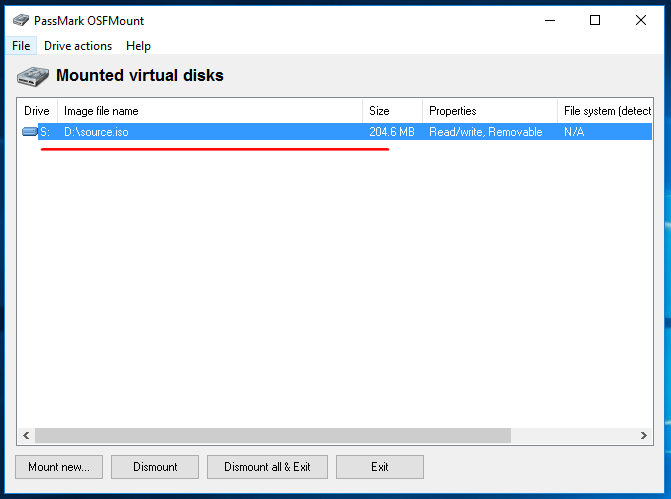
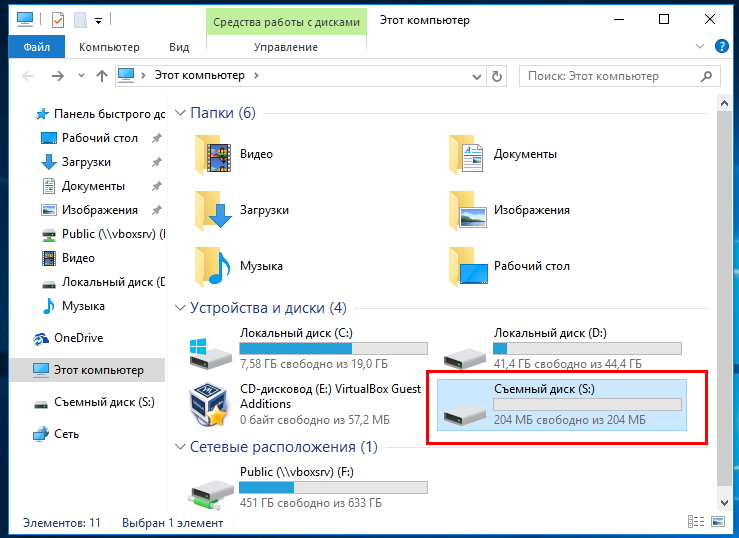
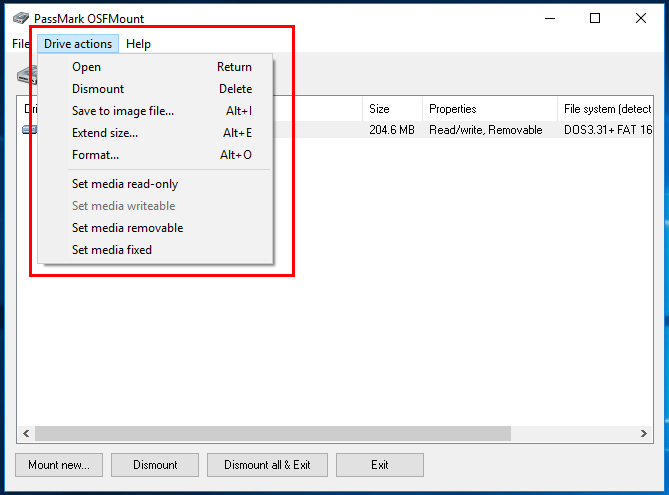
Опции, которые вам могут понадобиться при работе с виртуальной флешкой находятся в меню «Drive actions».
К дополнительным опциям относится Set media read-only (запрет записи) и Set media writable (разрешение записи) .
Какие образа можно использовать для виртуализации флешек? В принципе любые, даже загрузочные, только в этом случае OSFMount может попросить вставить в устройство диск, и чтобы сделать такую виртуальную флешку доступной, придётся её сначала отформатировать. При этом исходный образ скорее всего окажется поврежденным и открыть его можно будет только в OSFMount.
Скачать OSFMount 3.1.1001
OSFMount — небольшая бесплатная утилита, которая позволяет монтировать ранее сделанные образы дисков и представлять их в виде виртуальных приводов. Также следует отметить возможность создания RAM-дисков (полное описание. )

Рекомендуем популярное
Daemon Tools — небольшое, бесплатное, но при этом очень функциональное приложение для создания.
UltraISO — незаменимый инструмент для работы с образами дисков. Поможет выполнить запись и.
Alcohol 120% Free — бесплатная версия популярного эмулятора приводов. Программа умеет записывать.
Alcohol 120% — популярный эмулятор CD/DVD-дисков, который создает на жестком диске ПК пользователя.
WinToFlash — бесплатное приложение, которое поможет вам создать загрузочную флешку для.
WinToUSB — инструмент для установки и запуска операционной системы Windows с USB-накопителя.
Osfmount что это за программа
OSFMount allows you to mount local disk image files (bit-for-bit copies of an entire disk or disk partition) in Windows as a physical disk or a logical drive letter. You can then analyze the disk image file with PassMark OSForensics™ by using the physical disk name (eg. \\.\PhysicalDrive1) or logical drive letter (eg. Z:).
By default, the image files are mounted as read only so that the original image files are not altered.
OSFMount supports mounting disk image files as read/write in «write cache» mode. This stores all writes to a «write cache» (or «delta») file which preserves the integriy of the original disk image file.
OSFMount also supports the creation of RAM disks , basically a disk mounted into RAM. This generally has a large speed benefit over using a hard disk. As such this is useful with applications requiring high speed disk access, such a database applications, games (such as game cache files) and browsers (cache files). A second benefit is security, as the disk contents are not stored on a physical hard disk (but rather in RAM) and on system shutdown the disk contents are not persistent. At the time of writing, we believe this is the fastest RAM drive software available.
OSFMount supports mounting images of CDs in .ISO format , which can be useful when a particular CD is used often and the speed of access is important.
Download
Please click below to download the OSFMount V3.1.1002 installation package
Known issues
#1: On certain Windows systems (mostly Windows server 2016), when using OSFMount, Windows will prevent the OSFMount driver from loading. See the following page for more details, «Why do I get the error, Error loading OSFMount Driver?»
#2: If you get an Access Denied message during install for the osfmount.sys file, or OSFmount driver is disabled error. Reboot the machine and reinstall. A previous version of the driver was likely still loaded in memory, preventing an update.
Supported File Extensions
OSFMount supports the mounting of the following Windows image file formats:
| Image Format | Read | Write | Mount as RAM drive | Convert to Image file | Extend | Format |
| Raw Image (.IMG, .DD) |  |
|
|
|
|
|
| Raw CD Image (.ISO, .BIN) | |
 |
|
|
|
|
| Split Raw Image (.00n) | |
|
|
|
|
|
| Nero Burning ROM Image (.NRG) | |
|
|
|
|
|
| System Deployment Image (.SDI) | |
|
|
|
|
|
| Advanced Forensics Format Images* (AFF) | |
|
|
|
|
|
| Advanced Forensics Format Images w/ meta data* (AFM) | |
|
|
|
|
|
| Advanced Forensics Format Directories* (AFD) | |
|
|
|
|
|
| VMWare Image (.VMDK) | |
|
|
|
|
|
| EnCase EWF (.E01) | |
|
|
|
|
|
| SMART EWF (.S01) | |
|
|
|
|
|
| VHD Image (.VHD) | |
|
|
|
|
|
* The supported version of Advanced Forensics Format is AFFv3 with zlib compression support. Encryption and signatures are not supported.
RAM Drive Benchmarks
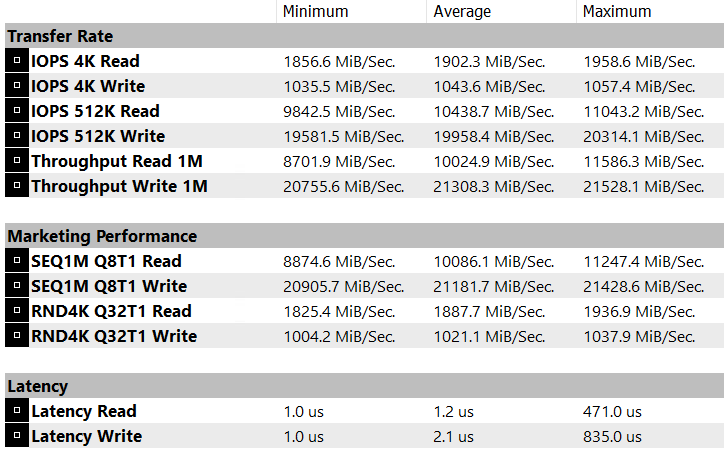
These RAM drive benchmarks were taken on a Intel i7-12700K CPU with 64GB DDR5 RAM @ 4800MHz in dual channel mode. RAM disk size was 8GB, formatted with FAT32. Typical speeds with large linear blocks are around 10,000 MiB/sec reads and 20,000 MiB/sec writes. With smaller 4K blocks and random access plus queue depth of 1, speed is still a very respectable 1,900 MiB/sec read and 1,000 MiB/sec write. Benchmarks were taken with PerformanceTest V11.
System requirements
Win 10 and Win 11
Win 7 SP1, Win 8, Windows Server 2008, 2012 (Windows Server 2016 has issues) are supported but have not been validated
64bit support (For 32-bit support, please use OSFMount v2)
CPU with SSE4.2 instruction set (i.e. CPUs released after 2010)
Users must have administrator privileges.
RAM: 1GB (When mounting large disk images, the more RAM the better)
Disk space: 15 MB of free hard disk space for the installation files.
What’s new
Expand all  Collapse all
v3.1.1002, 15 Sep 2023
- Fixed mounting of image files located on a network share using physical emulation
v3.1.1001, 6 Jun 2022
- Added more verbose progress text when mounting image in CLI
- Fixed bug in mounting all partitions using the «-v all» option in CLI
- Display error when mounting physical disk with invalid MBR disk signature
v3.1.1000, 5 Mar 2021
- Updated drivers built with latest WDK and disk image libraries
- Fixed OSFMount CLI usage text
- Updated Command Line Interface section in help file with new examples
v3.0.1006, 7 May 2020
- Added support for specifying ‘all’ to ‘-v’ option in CLI to mount all detected partitions in image file
- Fixed error when saving a mounted logical drive greater than 4GB to an image file due to 32-bit truncation errors
- Fixed logical drives not being recognized by Windows Explorer for older O/S (eg. Win 7) when mounting via CLI
v3.0.1005, 29 Jul 2019
- Added ‘physical’ and ‘logical’ command line option to force physical or logical emulation respectively
- Fixed image files being opened without share permissions
v3.0.1004, 24 May 2019
- Fixed driver not being properly uninstalled when an older version is detected
- Error message now displayed when system reboot is required after driver installation
v3.0.1003, 10 May 2019
- Fixed extremely slow disk performance of single part EnCase disk images inadvertently introduced by the previous fix
v3.0.1002, 8 May 2019
- Fixed extremely slow disk performance of split EnCase disk images
- Fixed unable to query or dismount drive via CLI when disk is in use
- Fixed UI draw issues on Win7 Basic Theme
v3.0.1001, 17 Apr 2019
- Fixed bug with error message displayed when mounting an image in read/write mode using logical emulation
- Fixed bug with ImageUSB images being mounted as CD
v3.0.1000, 5 Apr 2019
- Mount a virtual disk using Physical Disk emulation, allowing the disk to be recognized by Windows Disk Management
- Added Write Cache mode to allow mounting a virtual disk as read-write while preserving the data of the original image file
- New step-by-step wizard for mounting virtual disks with simplicity
- NTFS, exFAT and FAT32 now supported when formatting a drive
- Revised columns in main window with support for physical disk emulation
- Added support in the OSFMount CLI for mounting using Physical Disk emulation
v2.0.1001, 21 Mar 2018
- Updated/added warning and error messages when using format option on command line when specifying a ram drive that is smaller than 260MB.
- Fixed issue with detecting partitions for ImageUSB images.
- Microsoft signed OSFMount.sys device driver for Windows 10.
v2.0.1000, 08 Mar 2018
Download:
64-bit Windows 7 SP1, 8, 10, 11, Server 2008 & 2012 are supported. For 32-bit Windows, please download OSFMount v2 below.
Previous Version: OSFMount V2.0.1001 32-bit64-bit
- New compiler with better code optimization
- Forcing the RAM drive to be held in physical RAM (if free space is available on initial mounting). So no swapping to disk. Making it more important than ever to make sure you have sufficient free RAM available.
- Rewrite of the device driver code to remove overheads in the handling of I/O request packets (IRPs), which read and write data from the RAM drive.
v1.5.1018, 18 Jan 2018
- Fixed issue with not recognizing partitions from large E01 images after mounting.
- Warning shown when formatting small drives. OSFMount cannot format empty ram drives that are smaller than 260 MB. They may be possible to be formatted using Windows.
v1.5.1017, 12 Dec 2017
- AAdded option to specify Volume Label when formatting. For Command Line, specify format:»Vol Label» under the options (-o). Example Syntax:
osfmount -a -t vm -m «F:» -o format:»RamDisk» -s 1G - OSFMount GUI will new auto refresh drive list when images are mounted/unmounted using Command Line Interface.
- When mounting a new image using the command line and the mount point specified already exists, OSFMount will fail.
v1.5.1016, 27 Nov 2017
- Added «Format as FAT32» as a mount option to newly created Empty RAM drives. For Command Line, specify «format» under the options (-o). Example Syntax:
osfmount -a -t vm -m «F:» -o format -s 1G
v1.5.1015, 7 Feb 2014
- Added VHD image file support. VHD is the Virtual Hard Disk file format for disk images, as used by Micrsoft’s Virtual PC. This includes support for Dynamic-size (or sparse) hard disk images. Differential images are not supported. Support was added via libvhdi.
- Updated EWF library to libewf-20131230
- Confirmed Win8.1 support
v1.5.1014, 22 Oct 2013
- Fixed issue with detecting partitions for ImageUSB images
- Windows dynamic disks are now supported
- Fixed issue with mounting via OSFMount command line with «-o rw» option
- Fixed issue with mounting multiple partitions in an image file as writable due to file sharing permissions
- Fixed issue with mounting multiple partitions in an image file from command line
- Drive letters ‘A’ and ‘B’ can now be used
- Propagated changes from Imdisk v1.7.5 including some key fixes:
- Disks with «lost» drive letters can now be removed
- Notifications hanging on drive creation and removal
v1.5.1013, 7 Mar 2013
- Columns and main window are now resizable
- Added «DEBUGMODE» command line parameter to OSFMount (GUI) for debug logging
- Added «File system (detected)» column in the mounted drive list (for file systems unsupported by OS)
- APM partition scheme is now supported, along with more robust partition detection
v1.5.1012, 27 Dec 2012
- Fixed an issue with logical (extended) partitions not being displayed in the list when selecting a partition
v1.5.1011, 09 May 2012
- Fixed OSFMount driver load error in Win2k3 64-bit
- OSFMount command line now supports setting drive type (eg. CD, HD, FD) via the -o option
v1.5.1010, 03 Apr 2012
- Fixed error when mounting multiple drives backed by the same image file. This includes attempting to mount all partitions from an image file as individual drives.
v1.5.1009, 13 Mar 2012
- Browsing for an image file automatically prompts the user to select a partition
- Changed ‘Select Partition’ button to a hyperlink
v1.5.1008, 22 Nov 2011
- Added option to mount all partitions in an image to separate drive letters with a single click
v1.5.1007, 27 Jun 2011
- Added option to dismount all drives upon exit of the application
- Fixed OSFMount logo containing incorrect version number
v1.5.1006, 16 Jun 2011
- Added command line support via OSFMount.com console application
- Fixed ‘Browse’ file dialog to show all file extensions
v1.5.1005, 01 Jun 2011
- Fixed crash when mounting incomplete split files
v1.5.1004, 25 Apr 2011
- Added support for mounting EnCase/SMART images as read/write
- Added support for saving disks as EnCase/SMART images ( .E01 format )
- Fixed issue with mounting larger VMWare images
- Fixed crash when mounting a large image into RAM
v1.5.1003, 21 Apr 2011
- Fixed issue with mounting images split into a large number of files (eg. AFD, E01)
v1.5.1002, 20 Apr 2011
- Added read support for EnCase / SMART EWF format images, typically these have the .E01 file name extension
v1.5.1001, 14 Apr 2011
- Fixed offset/size calculation for images with one partition, which was preventing the mounting of some image files.
v1.5.1000, 16 Mar 2011
- Fixed issue with virtual disks > 4GB. It is now possible to create RAM drives greater than 4GB and not have them corrupt themselves in 64bit
- Fixed issue with memory not deallocating properly when dismounted
- Added support for mounting GUID partition table (GPT) based disks
- Fixed issue with extended partitions
- Improved the add drive window to simplify the options.
v1.4.1005, 27 Jan 2011
- Bug corrected from 1.4.1004 where the mounted drive letter may not appear in Windows Explorer
v1.4.1004, 21 Jan 2011
- Minor corrections
v1.4.1003, 17 Dec 2010
- Added support for ImageUSB image files. So images of USB drives from ImageUSB can now be mounted.
- Fixed issue with mounting on a drive letter that is already being used as a network drive
- Fixed issue with improperly loading/unloading OSFMount driver
- Fixed issue with drive icon remaining in Windows Explorer even after dismounting
v1.4.1002, 15 Dec 2010
- Fixed issue with large physical memory usage for non-raw images
- Fixed issue with incorrectly detecting MBR
- Added status window for analyzing images before mounting
- Optimized loading of AFF images
- Synced with afflib-3.6.4
v1.4.1001, 8 Dec 2010
- Error checking for NTFS partition size / image size mismatch and code to try and deal with it
- Error checking for encrypted AFF images
- Support for AFF directories (AFD)
- Updated OSFMount logo
v1.4.1000, 6 Dec 2010
- Support for split raw, AFF, VMWare images .VMDK, CD ISO images
- Various minor bug fixes
v1.3.1000, 25 Oct 2010
- First version based on ImDisk V1.3 by Olof Lagerkvist. Branched to support forensic file formats.