Для этой NFC-метки нет поддерживаемых приложений — что значит
В любой программе, будь она на ПК или смартфона может произойти сбой. Обычно ошибка высвечивается сразу, если вы пытаетесь запустить то, с чем связана проблема. Мы расскажем о смартфонах с технологией бесконтактной оплаты, а также что означает надпись «Для этой метки NFC отсутствует поддерживаемые приложения»?
Что такое NFC
NFC – сокращение, которое расшифровывается как Near Field Communication, и означает коммуникация ближнего поля. Благодаря такой функции, человек может обмениваться данными с другим устройством на расстоянии до десяти сантиметров. Точно так же, как и другие сигналы связи, NFC работает с помощью передачи информации по радиоволнам.
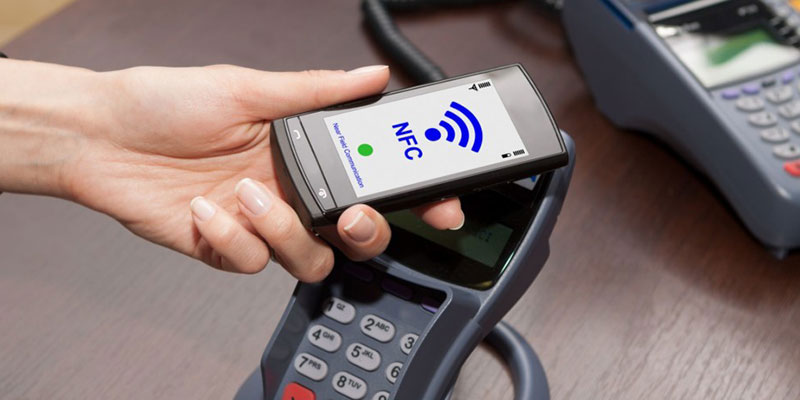
Чтобы воспользоваться технологией, нужно как минимум два разных устройства, одно будет сигнал отдавать, а другое принимать. Благодаря NFC у людей появляется все больше возможностей, самая популярная сейчас – оплата покупок в магазине с помощью специальных приложений и данной функции.
Помимо этого, в скором, функция поможет ещё больше облегчить жизнь людей, у которых в смартфоне она есть, а именно:
- Контроль доступа. Человеку уже совершенно необязательно брать с собой пропуск на работу, если действует пропускной режим, так как вся информация будет в телефоне. Его нужно лишь прислонить на входе.
- Оплата проезда в автобусе, метро и в других видах общественного транспорта.
- Медицинская сфера. Даже в медицине NFC нашли применение, чтобы узнать о передвижении пациентов.
- Техника для умного дома. Многие такие приборы работают через современный модуль беспроводной связи.
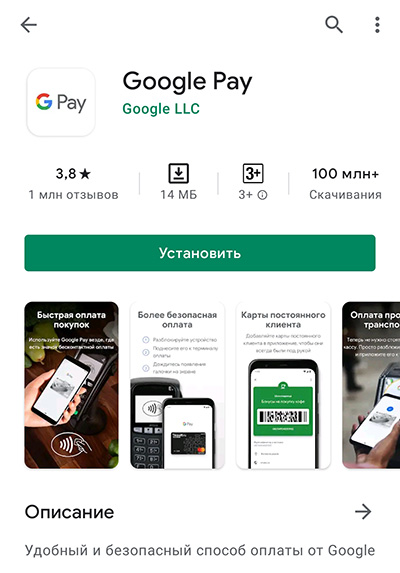
Как начать использовать технологию в своем устройстве? В зависимости от операционной системы вашего телефона, зайдите в магазин приложений Play Market или App Store.
-
Установите приложение – SberPay, Samsung Pay, Apple Pay или Google Pay. Некоторые могут быть уже предустановлены изначально на вашем устройстве.
Теперь вы можете использовать свой смартфон вместо карты в гипермаркетах, магазинах, где принимают оплату терминалом, а также в общественном транспорте. Это особенно удобно тем, что необязательно носить с собой в кошельке пластик, тем более, что карту можно забыть. А вот телефон редко кто из нас забывает дома.
Что означает «тип метки NFC не поддерживается»
В случае, когда вы уже долго пользуетесь бесконтактной оплатой со своего устройства, но появилась проблема и теперь вместе успешных платежей, вы видите лишь «Тип метки NFC не поддерживается». Что это значит, и что могли пойти не так?

Каждое устройство оснащено специальной меткой, будь это турникет или терминал в магазине. Но при этом, случается и такое, что тип метки отличается от того, что установлен в вашем гаджете. Тогда они смогут взаимодействовать друг с другом, а вы увидите данную надпись на своем экране.
Данная проблема может встречаться у некоторых моделей смартфонов, например, Samsung. Они создают свои собственные метки, и при этом не обменивались с многими разработчиками лицензиями. На данный момент бесконтактная оплата отлично работает на телефонах компании Apple.
Также, проблема может скрываться и в том, что сломалась важная деталь в аппаратной части. Тогда вы тоже можете видеть данную надпись о метке, которая не поддерживается.
Решить проблему обычному пользователю вряд ли удастся, так как в первую очередь, проблема связана именно с «Железом» устройства. Если говорить точнее, то проблема кроется в самом NFC.
Как убрать предупреждение
В случае, когда вы уже поняли всю суть проблемы, хочется убрать надоедливую надпись, которая отображается и мешает. Можно сделать это двумя способами. Первый – попробовать перепрограммировать устройство, то есть нужно получить рут права и установить специальное прприложение.
-
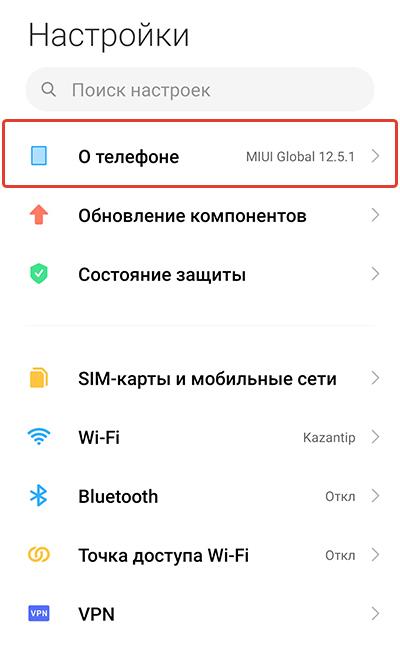
Зайдите в Настройки устройства, перейдите в «Сведения о телефоне».
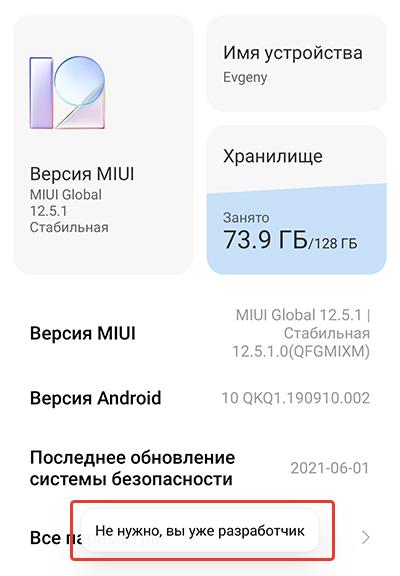
Затем несколько раз нажмите на графу № сборки, если появилась надпись «Вы стали разработчиком», значит все сделано верно.
Но если вы неопытный пользователь и не хотите лезть в систему глубже, чем это положено разработчиками, тогда для вас есть простой способ отключить уведомления:
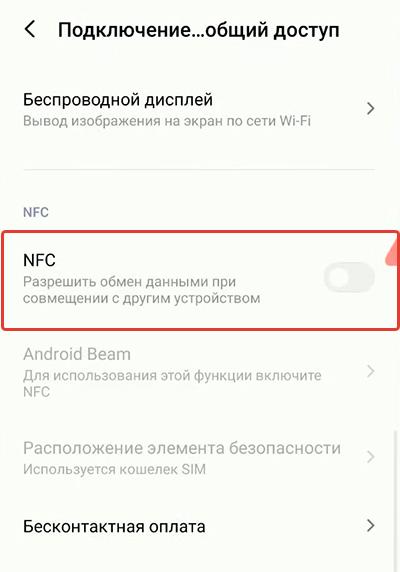
- Откройте Настройки телефона;
- Теперь перейдите в раздел Беспроводные сети;
- Найдите NFC;
- Нажмите на переключатель, чтобы он был выключен.
На этом все, пара минут и вас больше не побеспокоят лишние уведомления.
Заключение
Теперь вы знаете, что означает надпись для этой метки NFC отсутствуют поддерживаемые приложения, а также о том, как избавиться от таких навязчивых оповещений.
How to Fix ‘No Supported App for this NFC Tag’ Error?
The main reason for the “No supported app for this NFC tag” notification is that you have placed a credit card, rewards card, or debit card with a scanner tag too close to the back of your phone. If you are using a folding case with cards inside it, this is highly likely to occur.
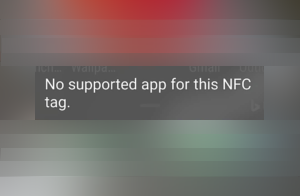
Your phone’s NFC recognizes the card, but since it was not previously registered – being a library card, common advertisement point card, train card, or bus card, etc. – a notification stating ‘No supported application for this NFC tag’ will appear on your device.
The good news is that this problem can be solved easily. You can follow the troubleshooting methods described in this article to resolve the NFC issue. So, let’s get started!
1. Turn off the NFC service, if applicable.
If you suddenly start receiving numerous notifications about NFC tags and you do not wish to use this service in the near future, you simply need to locate the NFC setting on your phone and turn it off if you’re not interested in such a service.
To turn off the NFC service on your phone, follow these steps:
- Go to Settings on your phone.
- Search for NFC in the search bar and open it.
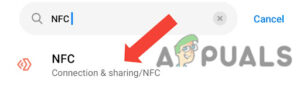
- If it is turned on, tap the button to turn it off.
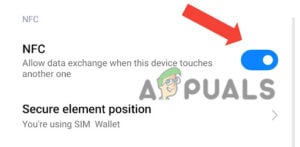
That will surely solve your problem, as you will no longer be using the NFC service and it won’t allow any further notifications. If the problem still continues, move on to the next method.
2. Reset Wi-Fi, mobile data, and Bluetooth settings.
Resetting Wi-Fi, mobile data, and Bluetooth settings can help resolve this issue, as these settings are closely linked to the NFC menu. Once these settings are reset, the data saved by NFC through these settings will also be cleared. Consequently, the issue will be resolved. If you wish to turn NFC off, please follow the appropriate steps.
- First, go to Settings.
- Then, search for the “Reset Mobile Data, Wi-Fi, and Bluetooth” option in the search bar.
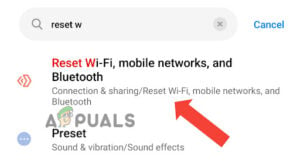
- Here, select the cellular SIM you are using.
- Tap on ‘Reset‘ at the bottom of the screen.

- Enter your PIN or Password.
- Confirm the reset by tapping ‘OK.’
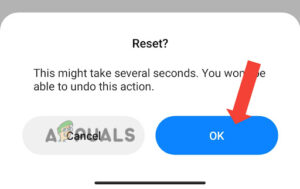
3. Reboot your phone.
Rebooting your device will shut down the entire system, and when it turns back on, it will provide a fresh start for both the hardware and software. Regularly rebooting helps your device run smoothly and clears the RAM consistently.
- Long press the power button until the power options appear.
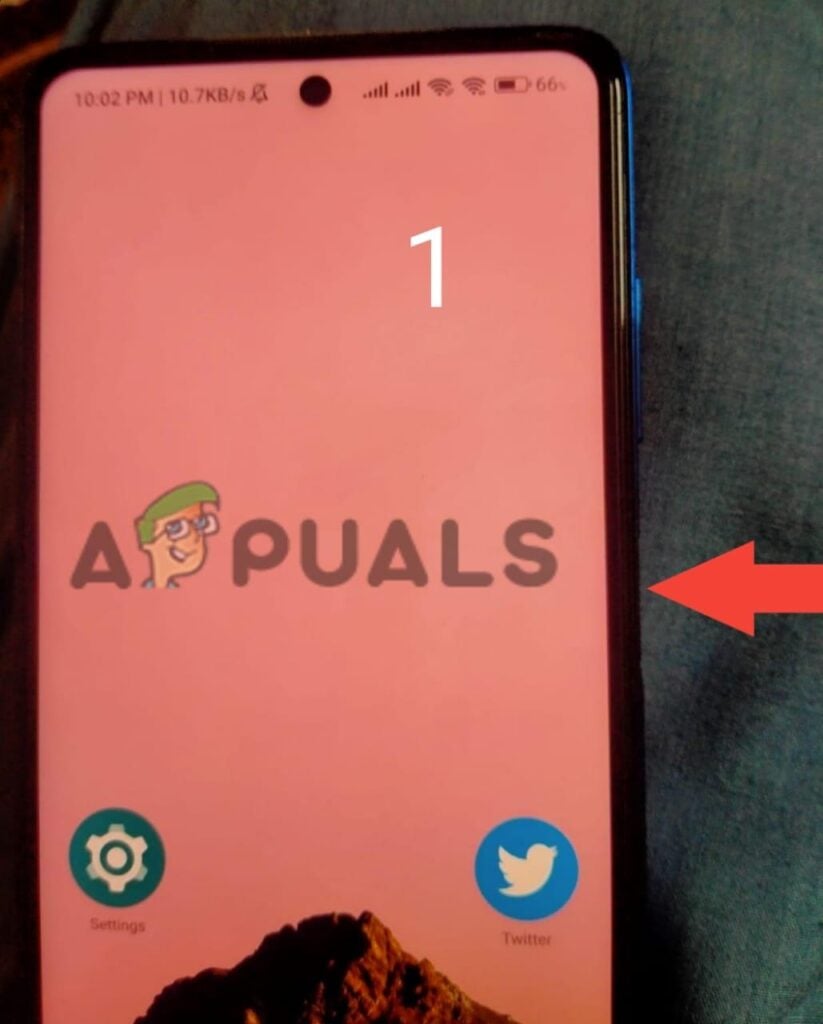
- Then, tap on Reboot/Restart to reboot your device.
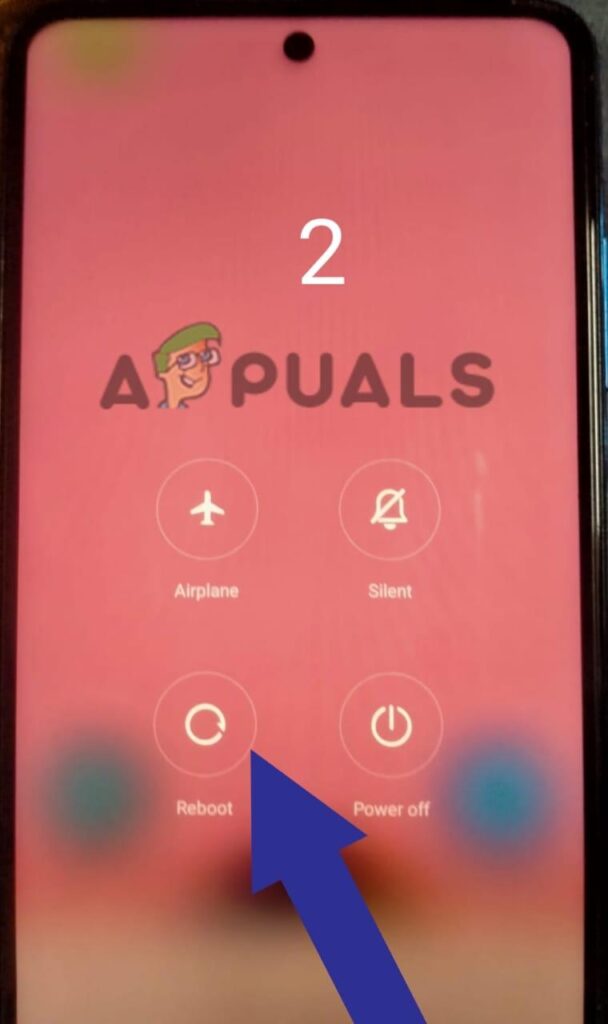
4. Place a metal sheet between the card and the phone.
First of all, check your pocket to see if the mobile phone and the cards are placed together in your phone cover. If so, that’s the issue. The device you’re using might be trying to read the credit card numbers simply because they are too close to it, similar to the payments you make via wireless technology.
Follow the steps below to fix this issue:
- Cut a strip of aluminum approximately the width of a credit card and 1.2 mm thick.
- Layer it between the phone and the card with which it came.
5. Use an RFID wallet.
To access the data from the card you’re using, an RFID reader is most frequently utilized. The job of an RFID wallet is to hinder the electromagnetic radiation used by RFID readers to access such information. A specific material is typically employed in the manufacturing of RFID wallets, and it certainly has the capacity to disable and/or disrupt radio signals.
6. Reset the device.
If such notifications continue to appear on your smartphone, try restarting your device. If this doesn’t work and you’ve tried all other methods, then consider resetting the device. Sometimes, bugs are the core reasons for these undesired notifications and settings being turned on.
- Make sure to back up your data before resetting your phone.
- Turn off your phone by holding the power button and selecting the Power Off option.
- Turn on your phone by holding the Power and Volume Up buttons simultaneously until the phone logo appears.
- Click on ‘Wipe Data‘, then move down by using the volume down key.
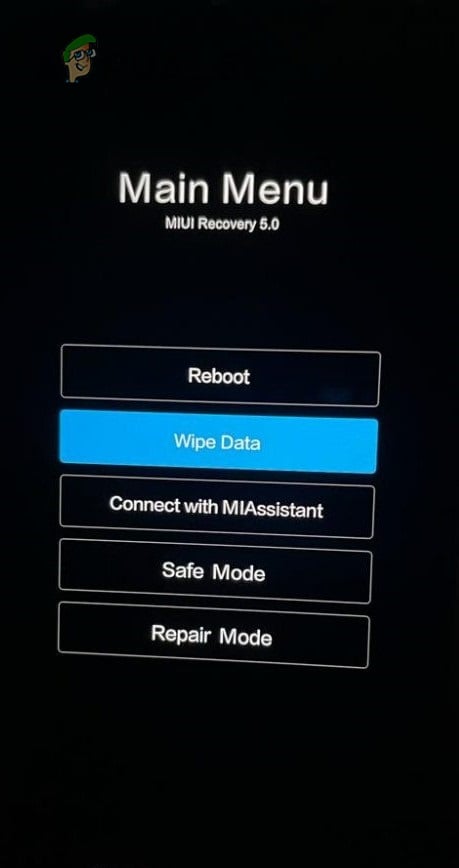
- Press the power button to select the option.
- Select ‘Wipe All Data‘ and click ‘Confirm.’
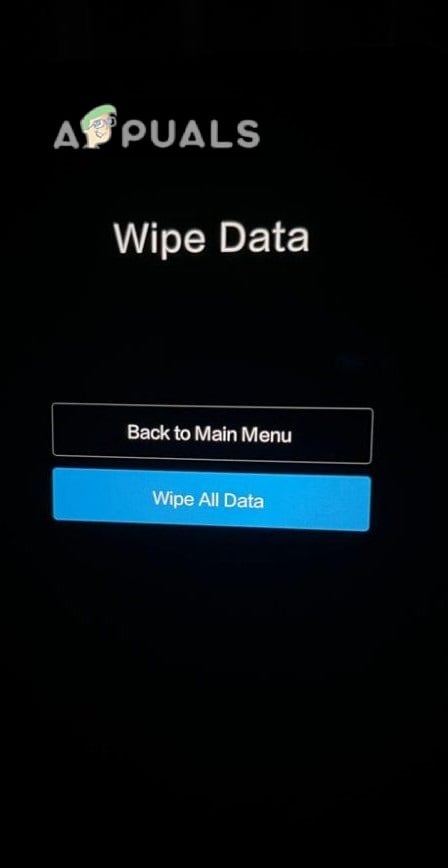
- After the successful reset, you’ll receive the text “Data Wiped Successfully.
- Reboot your device from the main menu to turn it on.
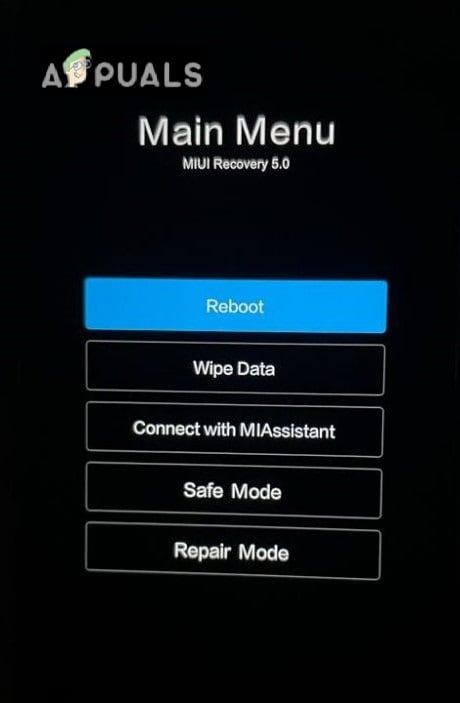
If the issue still occurs, then there is a hardware issue with your device. In this case, you should visit a nearby mobile repair store and have your phone checked by a professional.
What Does No Supported App For Nfc Tag Mean
Exploring the Meaning of “No Supported App for NFC Tag”
No Supported App for NFC Tag is a message that appears when a user attempts to read an NFC tag with a device that does not have the necessary software installed. NFC stands for Near Field Communication, and it is a technology that allows two devices to communicate with each other when they are placed in close proximity. NFC tags are small chips that contain data that can be read by compatible devices.
When a user attempts to read an NFC tag with a device that does not have the necessary software installed, the message “No Supported App for NFC Tag” will appear. This message indicates that the device does not have the necessary software to read the data stored on the NFC tag. In order to read the data, the user must install an app that is compatible with the NFC tag.
The most common type of app used to read NFC tags is an NFC reader app. These apps are available for both Android and iOS devices, and they allow users to read the data stored on NFC tags. Once the app is installed, the user can simply place the device near the NFC tag and the data will be read.
In addition to NFC reader apps, there are also apps that allow users to write data to NFC tags. These apps allow users to store data such as URLs, contact information, and other types of data on the NFC tag. This data can then be read by compatible devices.
No Supported App for NFC Tag is a message that appears when a user attempts to read an NFC tag with a device that does not have the necessary software installed. In order to read the data stored on the NFC tag, the user must install an app that is compatible with the NFC tag. There are both NFC reader apps and apps that allow users to write data to NFC tags available for both Android and iOS devices.
How to Troubleshoot NFC Tag Issues When “No Supported App” is Displayed
NFC (Near Field Communication) tags are small, wireless chips that can be used to store and share data. They are commonly used to store contact information, URLs, and other small pieces of data. However, if you are having trouble getting your NFC tag to work, there are a few steps you can take to troubleshoot the issue.
First, make sure that your device is NFC-enabled. Most modern smartphones and tablets are NFC-enabled, but some older models may not be. If your device is not NFC-enabled, you will not be able to use NFC tags.
Second, make sure that your device is running the latest version of its operating system. NFC tags require the latest version of the operating system in order to work properly. If your device is running an older version, you may need to update it in order to use NFC tags.
Third, make sure that you have an app installed that is compatible with NFC tags. Many apps are available that can read and write data to NFC tags. If you do not have a compatible app installed, you will not be able to use NFC tags.
Finally, if you are still having trouble getting your NFC tag to work, you may need to reset it. To reset an NFC tag, you will need to use a compatible app. Once you have reset the tag, you should be able to use it again.
If you have followed these steps and are still having trouble getting your NFC tag to work, you may need to contact the manufacturer for further assistance. They may be able to provide additional troubleshooting steps or suggest a compatible app that you can use.
Understanding the Benefits of NFC Tags and Why “No Supported App” is a Problem
Near Field Communication (NFC) tags are small, inexpensive chips that can be embedded into everyday objects to enable them to communicate with other NFC-enabled devices. NFC tags are becoming increasingly popular as a way to quickly and easily transfer data between devices, such as smartphones, tablets, and computers.
NFC tags are particularly useful for automating tasks. For example, you can program an NFC tag to launch an app, turn on Wi-Fi, or even adjust the brightness of your phone’s screen. NFC tags can also be used to store information, such as contact details, URLs, or even small amounts of text.
The benefits of NFC tags are clear. They are easy to use, cost-effective, and can be used to automate a wide range of tasks. However, there is one major problem with NFC tags: “No Supported App”.
When an NFC tag is scanned, the device will look for an app that can read the data stored on the tag. If no such app is installed, the device will display a “No Supported App” message. This means that the data stored on the tag cannot be read.
The “No Supported App” problem can be solved by installing an app that is capable of reading the data stored on the tag. However, this requires the user to manually install the app, which can be time-consuming and inconvenient.
In conclusion, NFC tags are a great way to quickly and easily transfer data between devices. However, the “No Supported App” problem can be a major obstacle to using NFC tags. To ensure that NFC tags can be used effectively, it is important to install an app that is capable of reading the data stored on the tag.
Exploring the Different Types of NFC Tags and What “No Supported App” Means
NFC (Near Field Communication) tags are small, wireless chips that can be used to store and transfer data between two devices. They are commonly used in mobile payments, ticketing, and access control systems. NFC tags come in a variety of shapes and sizes, and can be used for a variety of purposes.
The most common type of NFC tag is the Type 1 tag, which is a small, flat chip that is embedded in a card or sticker. These tags are typically used for access control, ticketing, and mobile payments. Type 2 tags are similar to Type 1 tags, but are slightly larger and have more memory. They are often used for more complex applications, such as loyalty programs and product tracking.
Type 3 tags are larger than Type 1 and Type 2 tags, and are typically used for more complex applications. These tags are often used for asset tracking, product authentication, and access control. Type 4 tags are the largest type of NFC tag, and are typically used for more complex applications such as secure data storage and access control.
When an NFC tag is scanned, the device will usually display a message that says “No Supported App”. This means that the device does not have an app installed that can read the data stored on the tag. In order to read the data stored on the tag, the user must install an app that is compatible with the tag.
In conclusion, NFC tags come in a variety of shapes and sizes, and can be used for a variety of purposes. When an NFC tag is scanned, the device may display a message that says “No Supported App”, which means that the device does not have an app installed that can read the data stored on the tag. In order to read the data stored on the tag, the user must install an app that is compatible with the tag.
Comparing NFC Tags and QR Codes: What Does “No Supported App” Mean for NFC Tags?
When using Near Field Communication (NFC) tags, a “No Supported App” message may appear when attempting to read the tag. This message indicates that the device being used to read the tag does not have an app installed that is capable of reading the tag.
NFC tags are small, passive devices that contain a small amount of data that can be read by an NFC-enabled device. NFC tags are typically used to store information such as URLs, contact information, or other data. When an NFC-enabled device is brought close to the tag, the device will read the data stored on the tag.
In order to read an NFC tag, the device must have an app installed that is capable of reading the tag. This app must be specifically designed to read NFC tags. If the device does not have an app installed that is capable of reading the tag, the “No Supported App” message will appear.
In order to read an NFC tag, the user must install an app that is capable of reading the tag. There are many apps available that are capable of reading NFC tags, and most of them are free. Once the app is installed, the user can then read the data stored on the tag.
In comparison, QR codes are two-dimensional barcodes that can be read by any device with a camera. QR codes are typically used to store URLs, contact information, or other data. When the device’s camera is pointed at the QR code, the device will read the data stored in the code.
Unlike NFC tags, QR codes do not require a specific app to be installed in order to read them. Any device with a camera can read a QR code, making them much more accessible than NFC tags.
In conclusion, NFC tags require a specific app to be installed in order to read them, while QR codes can be read by any device with a camera. If a device does not have an app installed that is capable of reading an NFC tag, the “No Supported App” message will appear.
Q&A
1. What does “No Supported App for NFC Tag” mean?
This means that your device does not have an app installed that can read the information stored on the NFC tag. NFC tags are small chips that can store a small amount of data, such as a URL or contact information. In order to read the data stored on the tag, you need an app that is capable of doing so.
2. What type of apps can read NFC tags?
There are a variety of apps available that can read NFC tags, such as NFC TagInfo, NFC Tools, and NFC TagWriter. These apps are available for both Android and iOS devices.
3. What type of data can be stored on an NFC tag?
NFC tags can store a variety of data, such as URLs, contact information, and even small amounts of text.
4. How do I use an NFC tag?
In order to use an NFC tag, you need to have an app installed that can read the data stored on the tag. Once you have the app installed, you can simply tap your device to the tag to read the data stored on it.
5. Are NFC tags secure?
NFC tags are generally considered to be secure, as the data stored on them is encrypted. However, it is important to be aware that NFC tags can be read by any device that has an app installed that can read them. Therefore, it is important to be aware of who has access to the tag and to ensure that the data stored on it is secure.
Why Does My Phone Keep Saying NFC Tag Not Supported?

Android’s system displays “No Supported App For This NFC Tag” message before dispatching the tag to the app. NFC tags are passive data storage devices that can be read and written to. There are different types of NFC tags, and you can turn them off if they aren’t working on your phone. To turn off the pop-up, go to Settings > Security and privacy> Security and privacy.
How to Get Rid of a No Supported App For This NFC Tag
This error message appears whenever you try to use NFC technology on your Android device. It is caused by a card that has an NFC tag. The issue occurs when you bring the card close to your phone, or when you hold the card in a wallet style case. In either case, you will receive a no-supported app for this type of NFC tag message. To fix the problem, you need to find and turn off the “NFC” and “Payment” settings on your Android device.
How Do I Turn Off NFC Tag on My Android Phone?
The first step in disabling the NFC tag on your Android phone is to go to the settings. Go to the App tray, and tap the settings button. Scroll down to the section for NFC. Toggle the switch to off and it should disappear. This step is essential if you want to avoid being charged for every time you make a payment using your mobile phone. If you do not wish to be charged for every time you make a payment, you should keep this toggle off.
Do I Need NFC Turned On?
When you purchase items with a smartphone, you may be wondering: Do I need to turn on NFC on my phone? The answer is simple. Tap the “NFC” option on your smartphone’s settings menu. When enabled, the switch will turn blue and it will be visible to you. If you do not want to use NFC, simply turn it off. Once you have turned it off, the feature will not be active.
What is NFC Tag on Samsung Phone?
You may be wondering what is NFC tag on your Samsung phone. Using the NFC technology, you can do all sorts of things. For example, you can write an SMS message or a Web page with NFC tag. If you have a Galaxy Nexus, you may have trouble writing the Wi-Fi password because it is very long and complicated. But with the use of NFC, you can write the Wi-Fi password on the NFC tag and then scan it with your mobile phone. It will then pre-populate the connection details in your browser, enabling you to save time while typing in the password.
READ ALSO: How Do I Find the Year of My Samsung TV?
Can You Be Hacked Through NFC?
Hackers have been looking into ways to exploit NFC, which enables phones to tap into cards in an instant. The most obvious example is an ATM. The security researcher Josep Rodriguez discovered that an Android phone’s NFC sensor could collect the card data and use it to commit identity theft. He also developed a special Android app that allowed him to send the card data to the hacker’s computer.
How Do I Turn Off NFC on My Samsung Galaxy S10?
To turn off NFC on your Samsung Galaxy S10, find the switch in the upper-right corner of the screen. Toggle it on and press it again to switch it off. To disable NFC, slide the toggle switch down. The N symbol should disappear from the top of the screen. Keep in mind that you should only turn off the feature if you’re not using it for mobile payments.
How Do I Turn Off NFC Tag Reader on Samsung?
To turn off the NFC tag reader on your Samsung phone, go to the settings menu. Open the quick settings panel, and swipe down to find the NFC toggle switch. Then, turn off NFC by pressing the switch. The N symbol should disappear from the top of the screen. If you aren’t using your phone for mobile payments, leave it turned on. Otherwise, turn it off.
What is an NFC Tag Reader on My Phone?
If you’re wondering: what is an NFC tag reader? It’s an app that allows you to scan the tags on objects with near-field communication technology (NFC). The device needs to be close enough to scan the tags without having to be in physical contact with them. This app works on all iPhone models from the iPhone 5s to the iPhone X. You can access the app from the Control Centre.
What Does an NFC Tag Do?
There are various NFC Tags. Most of them can store a few kilobytes of data. Depending on the model, you can program them to do different things. For example, you can have it turn off Wi-Fi, open an alarm app, or toggle between silent and vibrate. You can also use them to save your voice messages, which you can listen to anytime you want.
READ ALSO: How to Pair Bluetooth Headphones to Samsung TV?
How to Tell If Someone is Spying on Your Phone
Spying on your phone is a big problem. However, there are ways to spot a potential snoop. Here are a few signs to watch out for. First, spying apps use your phone’s data faster. This is one of the biggest red flags that someone is watching your conversations. Secondly, they use your phone’s battery faster than you do.
Does This Phone Have NFC?
Does this phone have NFC? This is a common question, but it’s not always clear where to look to find out if your phone has this feature. Newer phones have the hardware built in to do this, but mobile networks have not yet aggressively marketed this feature, so you may not be able to tell if your phone has it until you check it out in a shop. It’s a good idea to check the manufacturer’s website to see what version of Android it has, since some are more up to date than others.
Is NFC Used to Spy?
One of the biggest concerns about NFC is that it can be used for spying. The problem is that it only works in Active mode. That means it cannot spy on you, but it can transfer malware apps. In this article we’ll explain how to use the technology safely. It may seem like an impractical way to keep track of your activities, but it’s actually a much safer alternative. Let’s take a look at how it works.
Is it OK to Leave NFC on?
You may be wondering if it’s OK to leave NFC on, even if you’re not using it. Its main advantage is that it’s easier to make purchases. However, you’re also exposing yourself to the possibility of being a target for a hacker. The good news is that NFC is not as dangerous as it used to be. Here are some precautions you should take to keep your smartphone as secure as possible.
Can NFC Tags Hack Your Phone?
Can NFC tags hack your phone? – The answer is yes. These small devices can easily read and write data. It is also possible to program an NFC tag to change your sleeping patterns with the tap of a button in the morning. Many apps work with NFC technology, and it could be used to control your smart home. Its use is largely based on what you want it to do.
READ ALSO: Where is the Camera on a Samsung Smart TV?
How to Register an NFC Tag on the Samsung S10
When using your phone to make payments, it may be necessary to use an NFC tag. This feature allows you to scan and share small payloads of data between two devices. The Samsung S10 has an NFC tag, but you need to register it with your phone’s operating system before you can use it to make payments. Here are the steps to fix this issue. If you have not yet registered your card, you can do so here.
Where is the NFC Reader on Samsung?
Samsung Pay is a new mobile payment option that allows you to pay with your phone. It works with nearly all point-of-sale systems, except those that require you to insert your card. This feature is available in many stores, including gas stations and ATMs, as well as in many budget smartphones. To use this feature, you simply need to have a compatible phone and to find the NFC reader on the device.
How Do I Turn On NFC on My Samsung A12?
Once you have rooted your smartphone, you can find the NFC option in the Settings menu. Tap the switch next to it to enable it. To disable it, simply tap the switch again. You should see a notification that NFC is now enabled. Then, follow the same steps as above to turn off this feature. Remember that this feature won’t drain the battery in any noticeable way, so you won’t need to worry about it if you’re not using it.
Programming NFC Tags Using an Android App
Whether you need an app for your mobile device or just want to write some data on your NFC tag, this article will show you how to do it. You can install an app on your Android device that will allow you to program your NFC tags. By programming your NFC tags, you can create a number of different tasks that your device can execute. In this article, we’ll cover how to program your NFC tags using an Android app.