Lenovo Vantage Service — что это за программа и нужна ли она?
Lenovo Vantage Service — фирменное служебное приложение, представляет из себя центр управления устройством Lenovo, позволяет например узнать информацию о гарантии, получить доступ к настройкам батареи, аудио/видео, камеры, изменить яркость экрана, настроить безопасность Wi-Fi, обновить ПО и многое другое.
Основные возможности программы:
- Доступ к настройкам батареи, а также параметрам питания.
- Функции безопасности Wi-Fi.
- Обновление драйверов устройств, а также прошивки биоса.
- Диагностика компьютера.
- Отображение служебной информации, например серийник, номер продукта, версия биоса.
- Получить информацию о гарантийном обслуживании (дата начала/окончания).
- Доступ к техподдержке.
- Параметры веб-камеры.
- Изменение яркости экрана.
- Настройки микрофона, а также многоканального звука Dolby.
- Поддержка интеллектуальной функции автоматической регулировки звука/картинки в зависимости от запущенной программы.
- Настройки горячих кнопок F1-F12 + Fn, подсветки клавиатуры, параметры мышки.
- Опции безопасности, среди которых — антивирус McAfee LiveSafe, менеджер паролей Dashlane, защищенное соединение интернета SurfEasy VPN, инструмент защиты сети Lenovo Wifi Security, технология двухфакторной аутентификации Intel Online Connect. Некоторые опции для полноценной работы требуют приобретения лицензии.
Судя по этому скриншоту — приложение присутствует в магазине Microsoft Store:

Общий внешний вид программы:

Параметры работы батареи ноутбука:

Lenovo Vantage может искать обновления для вашей системы:

Настройка горячих кнопок:

Среди параметров аудио/видео есть функция защиты глаз, включая автоматический режим.
Lenovo Vantage Service — как удалить?
Данное ПО не является критически важным или драйверами, без него ноутбук будет нормально работать. Поэтому при желании — можно удалить простым способом:
- Зажмите кнопки Win + R, появится окошко Выполнить.
- Вставьте команду appwiz.cpl, нажмите ОК.
- Откроется окно установленного софта, находим здесь Lenovo Vantage, нажимаем правой кнопкой — выбираем Удалить.
- Следуем инструкциям на экране, обычно нужно нажимать Далее/Next/Удалить/Uninstall.
Надеюсь эта информация оказалась полезной. Успехов вам.
LVT — что это за программа и нужна ли она?

Приветствую друзья! Сегодня мы поговорим о программе LVT, я постараюсь узнать максимум информации и написать все простыми словами.
LVT — что это такое?
Кнопка, которая запускает фирменную программу Lenovo Vantage Technology, предназначенную для настройки ПК. Основные функции программы:
- Проверка новых версий драйверов, а также при необходимости загрузка их и установка.
- Просмотр состояния устройств, а также тестирование их.
- Обновление фирменного софта Lenovo.
- Настройках подсветки кнопок, изменение режимов электропитания, настройка веб-камеры, функциональных кнопок и другие настройки.
- Информация о гарантии устройства.
Это примерные функции, в новой версии могут появиться новые или наоборот — исчезнуть некоторые старые.
Программу можно встретить на ноутбуках, планшетах, моноблоках фирмы Lenovo. При этом вы могли ее даже не устанавливаться, она могла быть установлена еще на заводе.
Судя по этой картинке — LVT это кнопка которая может быть даже на отдельной клавиатуре Lenovo:

Внешний вид Lenovo Vantage
Как понимаю — это стартовый экран, на котором сразу удобно показывается информация о железе (а справа вроде бы даже реклама есть):

Программа может быть как в обычной версии, которая устанавливается при помощи exe-установщика, так и в виде метро-приложения:


Параметры оборудования — здесь содержатся настройки питания, датчиков, аудио/видео, клавиатуры и другие настройки:

Lenovo Vantage — как удалить?
В случае если программа не является UWP-приложением — вот способ обычного удаления через окно Программы и компоненты:
- Зажмите Win + R > команда appwiz.cpl > нажимаем ОК.
- Откроется список установленного софта.
- Находим Lenovo Vantage.
- Нажимаем правой кнопкой. Обычно нужно нажимать Далее/Next/Удалить/Uninstall.
Продвинутые юзеры могут также попробовать удалить ПО при помощи удалятора Revo Uninstaller или Uninstall Tool. Фишка в том, что удалятор и программу удалит и почистит систему от остатков/следов.
Способ удаление метро-приложения:
- Зажмите Win + I или вручную откройте окно Параметры.
- Выберите Приложения.
- В списке установленных приложений найдите Lenovo Vantage, выберите > нажмите Удалить.
Если нужно будет, вы сможете всегда скачать заново приложение из офф сайта либо с Microsoft Store.
Заключение
- LVT — кнопка, запускающая программу Lenovo Vantage, которая нужна для настройки ПК/ноутбука/планшета. Кнопка присутствует на устройствах Lenovo.
- Программу при желании можно удалить, однако некоторые полезные функции могут не работать, например регулировка подсветки, расширенные режимы питания.
How To Uninstall Lenovo vantage service In PC ( Windows 7, 8, 10, and Mac )
Need Space in PC or only want to remove or uninstall Lenovo vantage service On PC ( Windows 7, 8, 10, and Mac )? but how to, after it still having files in C: drive? If the application run on the pc, windows 7, 8, & 10 so you can uninstall using Control Panel or CMD Or If this applicaion run in Mac so you know that how to uninstall in MAC. With the help of this article, you will able to uninstall or remove or kick out all of those files also after uninstalling the Lenovo vantage service.
Are you bored, or tired of using Lenovo vantage service? Now, wanna remove this software from your PC ( Windows 7, 8, 10, and Mac )? There is no condition to follow up before installing, so, you can remove it without getting any confusion about it.
How to uninstall Lenovo vantage service or remove in pc ( windows 7, 8, 10, and mac )
There are 10 methods that users can adapt if they want to uninstall Lenovo vantage service :
Method #1
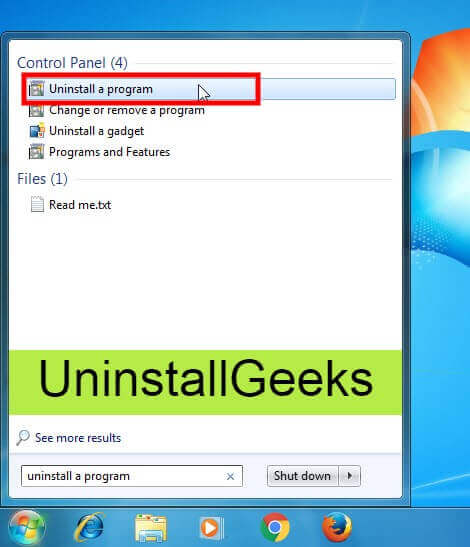
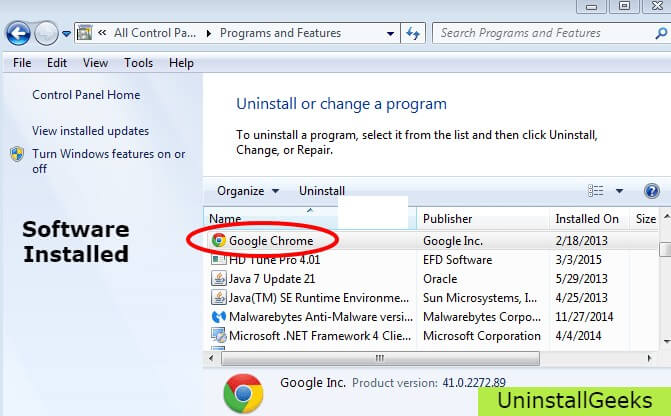
- Go to Start Menu, then click on the Control Panel.
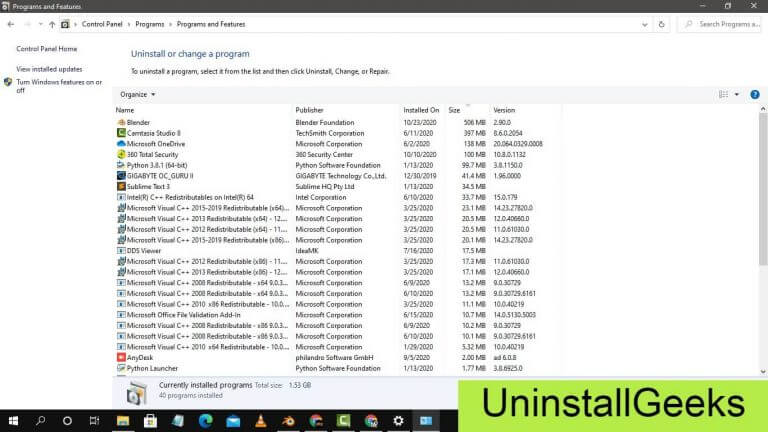
- In Control Panel, under programs, go through the list of the ones that are installed on your computer
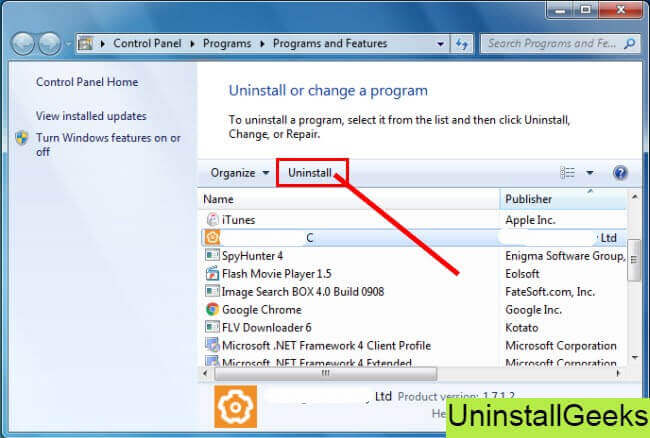
- Right-click on Lenovo vantage service, and then click on uninstall a program
- Follow the prompt on the screen, and you will get to see a progress bar that will take you to remove the Lenovo vantage service from the computer.
Method #2
The second method involves uninstaller.exe, through which Lenovo vantage service can be uninstalled. Just follow the instructions below to execute this step:
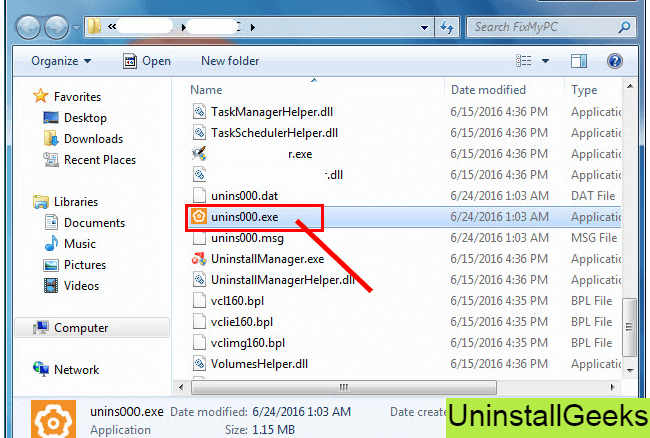
- Go to the installation folder of Lenovo vantage service.
- Find a file that is named uninstall.exe or unins000.exe
- Double click on the file, and then follow the instructions that appear on the screen.
Method #3
The third method involves System Restore. For those who don’t know, System Restore is a utility, which helps the user restore their system to its previous state. System Restore removes all those programs, which interfere with the operation and performance of the computer.
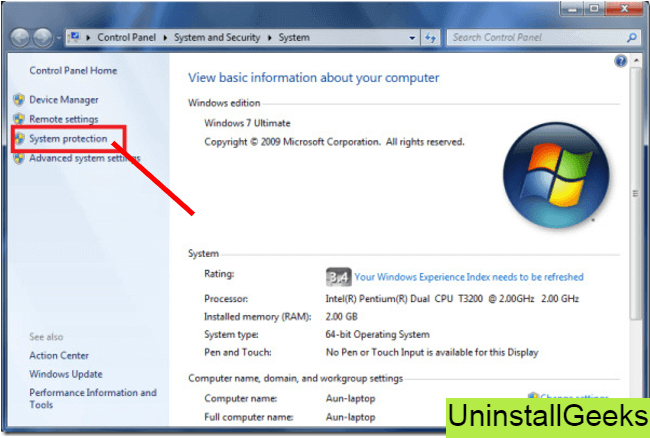
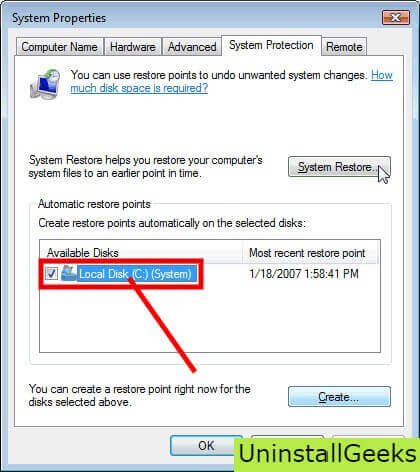
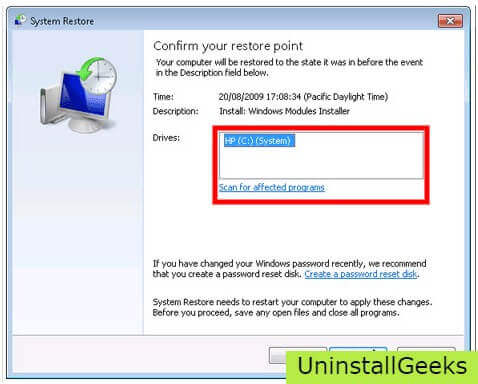
If you have created a system restore point before you installed Lenovo vantage service, then you can use this software to restore the system, and remove such unwanted programs. However, before you do so, make sure that you save all the important data.Follow the steps below to know more from this method:
- Close all the files and programs, which are currently running on your PC
- Open Computer from the desktop, and then select Properties
- System Window will open
- On the left side and click on System Protection
- System Properties will open.
- Then do click on the option of System Restore, and a new window will again open.
- Now, choose the ‘different restore point’ option, and click on Next.
- You have to select a date and time from the given options; when you select a date, the drivers that you installed after the chosen date won’t work.
- Click on Finish and then Confirm the ‘Restore Point’ on the screen.
- When you click Yes to confirm, the Lenovo vantage service would be uninstalled.
Method #4
If you have an antivirus, then you can use it to uninstall Lenovo vantage service.There is much malware or Lenovo vantage service software in the computer applications that we download nowadays. They have become very difficult to remove from the system, like Trojan and spyware.
- If you cannot remove Lenovo vantage service with the above methods.
- It means that there is malware or Lenovo vantage service in it, and only a good antivirus can be used for removing it.
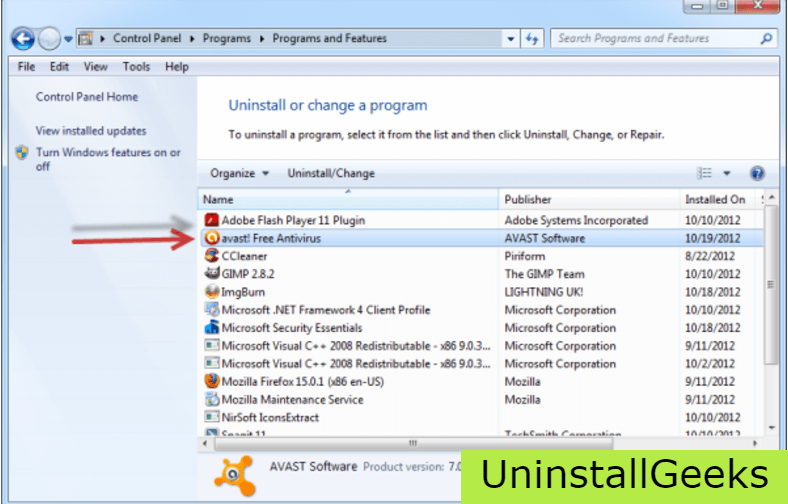
You can either download Norton Antivirus or AVG antivirus, as these are reputable software and will surely remove the malware, Lenovo vantage service on the system.
Method #5
If you want to uninstall Lenovo vantage service, then you can do so using Command Displayed in the Registry. A registry is a place where all the settings of Windows, along with information, are stored. This also includes the command to uninstall a software or program.
You can try this method with Lenovo vantage service as well, but it is a very risky method. If you make any mistake and delete the wrong information, then the system is most likely to crash. It would become difficult for you to bring it back from deletion.
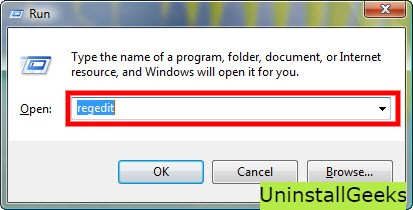
To execute this method, To follow the steps given below:
- Hold Windows + R together, and then Run command
- When the command box opens, type Regedit in the box and then click on OK
- You have to navigate and find the registry key for the Lenovo vantage service
- You will see an uninstall string on the next window; double click on it, and also copy ‘Value Data’
- Again hold Windows + R keys, and run the Command; paste the value data that you just copy and click on OK
Follow what comes on the screen and then uninstall Lenovo vantage service.
Method #6
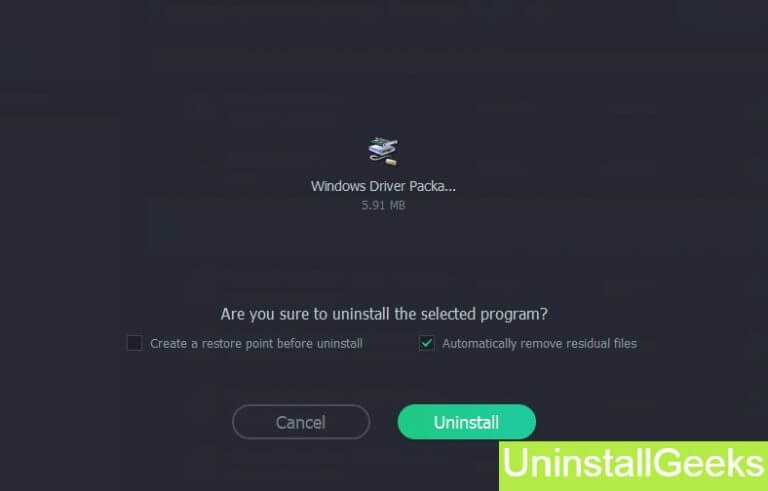
The seventh method is to uninstall the Lenovo vantage service using a third-party uninstaller.
At times, those who don’t have any knowledge of computer language, won’t be able to manually uninstall the software fully.
Many files occupy the hard disk of the computer, so it is best to use third-party software to uninstall them.
Method #7
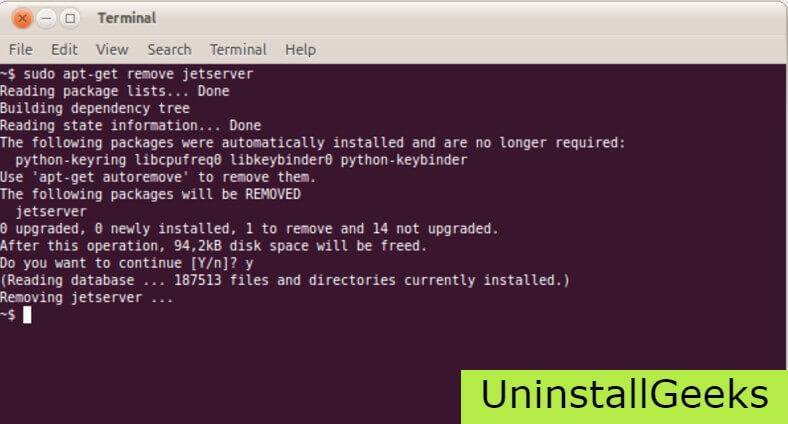
There are some codes that users can type into the command prompt, and they would be able to uninstall the Lenovo vantage service. For example, if they want to remove the package, then just type.
sudo apt-get remove Lenovo vantage service
If you want to uninstall Lenovo vantage service and its dependencies as well, then type:
sudo apt-get remove –auto-remove Lenovo vantage service
For those who don’t know, some of the dependencies of Lenovo vantage service are GCC-5, libc6, libgcc1, Lenovo vantage service dev, and gc++-5.
Method #8
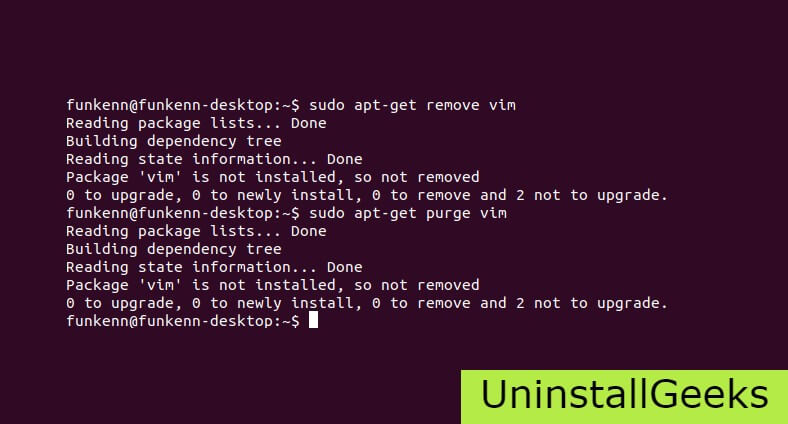
If the user wants to remove the configuration and data files of Lenovo vantage service, then they need to run the following code on the Command Prompt:
sudo apt-get purge Lenovo vantage service
Method # 9
It depends on you that are you willing to kick-out the data or you want to remove the configuration data or data files, along with the dependencies, then the following code is most likely to work for you:
sudo apt-get auto-remove -purge Lenovo vantage service
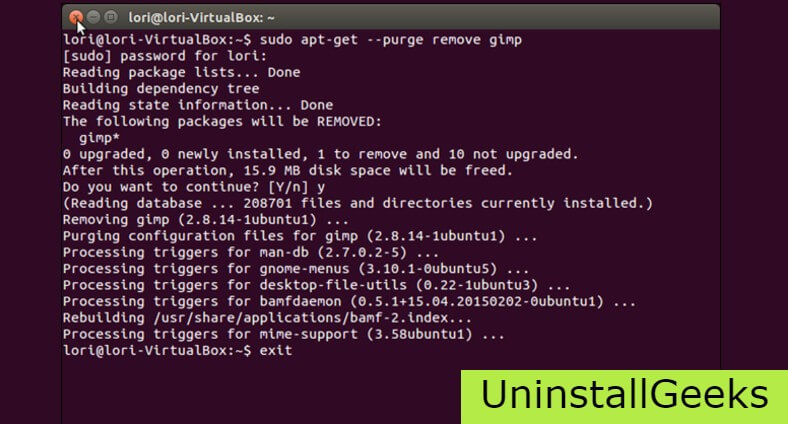
To uninstall Lenovo vantage service on mac because anytime we need space or only want to remove from pc due to some viruses and also many problems which are needed to remove or uninstall from pc.
So I will show you some steps of uninstalling Lenovo vantage service on the mac so follow my this step or method if you have still confusion so you may contact with us for uninstall of Lenovo vantage service on pc or mac.
How to Uninstall Lenovo vantage service on Mac?
For uninstalling Lenovo vantage service on the mac so as I told you that there is a simple method to uninstall apps on mac. As there are installed some apps on your Mac and now you want to remove or uninstall from your pc successfully and want to install some other apps on my mac so follow my these steps to uninstall Lenovo vantage service on mac.
Method #1
In method 1, you have to open mac on your pc as I’m showing in the image follow the images to uninstall Lenovo vantage service on your mac.
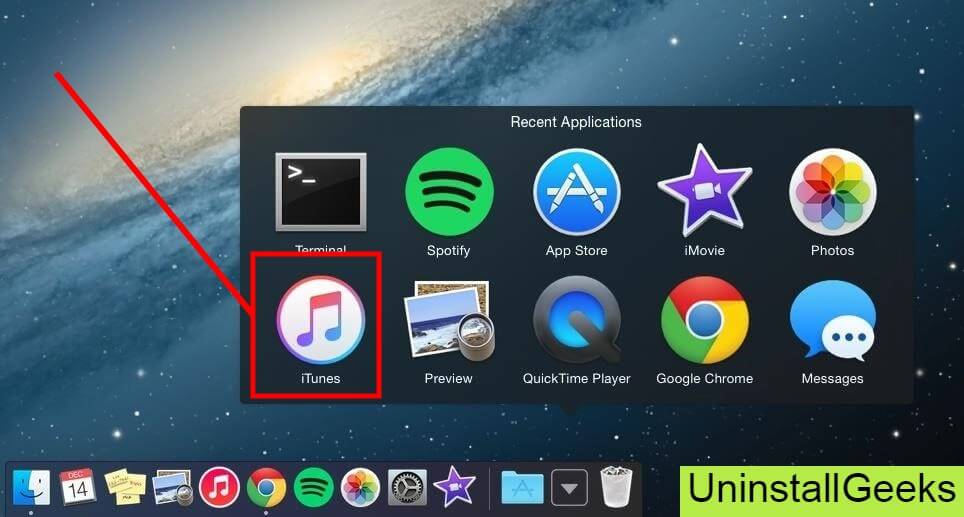
In the image, there is a Lenovo vantage service app on your mac dashboard and now we have to uninstall it from our mac we will uninstall this app and will remove it in of mac now double-click-on-app showing in the image.
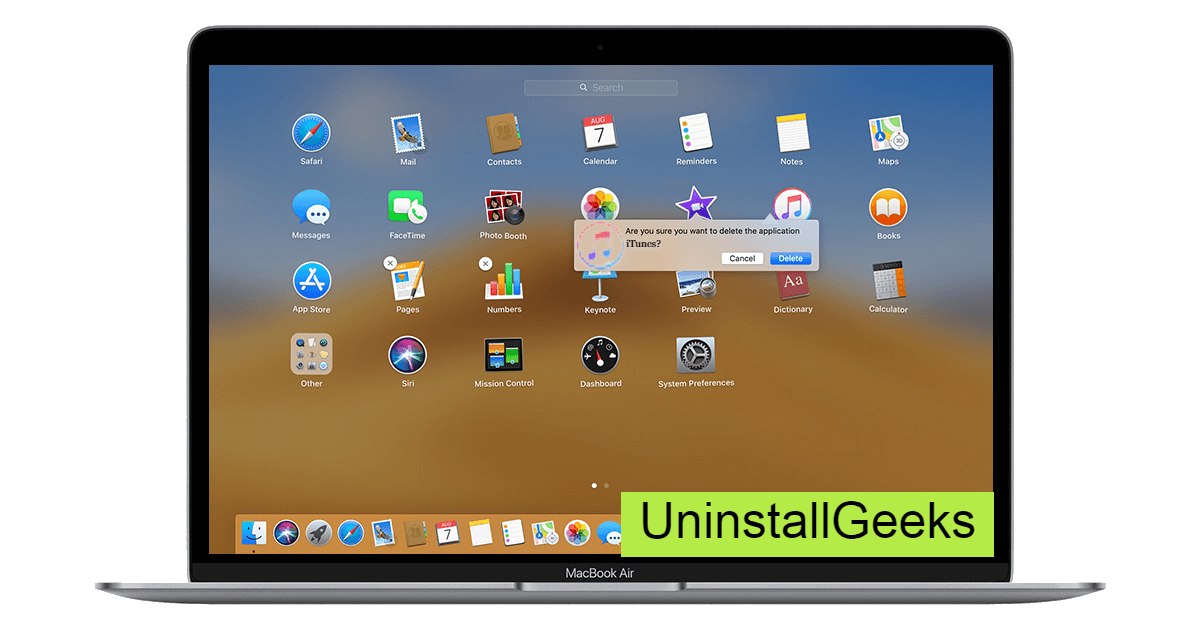
Now you double-clicked on the app mac will ask that are you sure to uninstall Lenovo vantage service click on the Delete button so go to Trash of mac to uninstall completely from mac. Showing in image trash bin click on trash bin and go inside there will be Lenovo vantage service which we had to delete before so have to uninstall completely from mac.
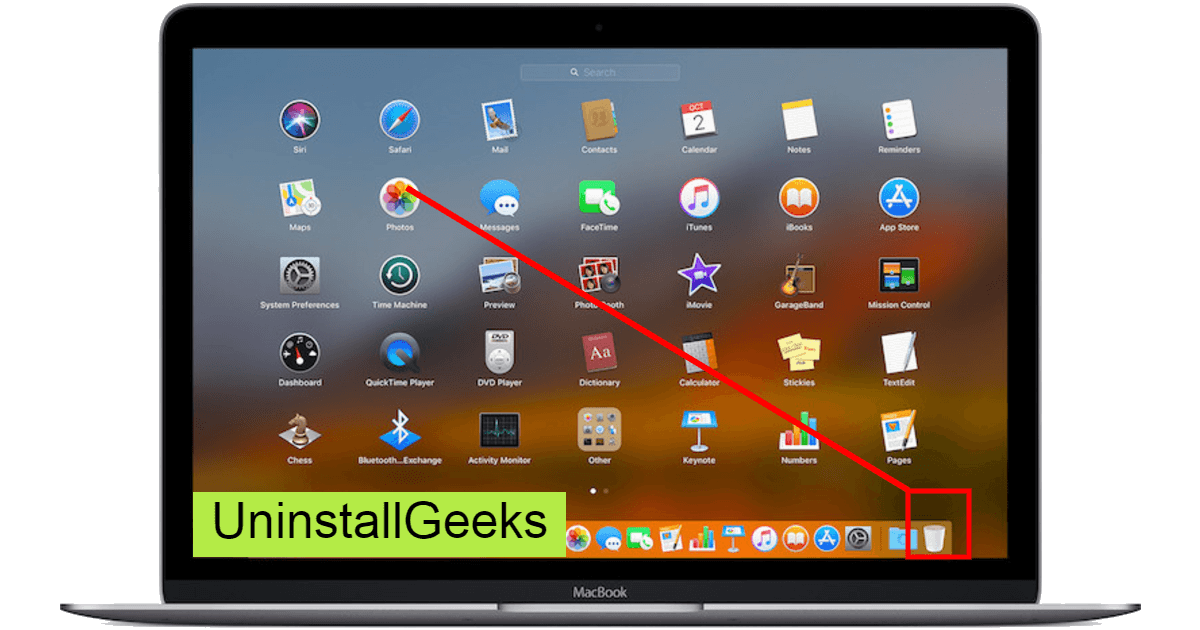
Not right-click on trash to remove all data or app which we had uninstalled before seeing in the image. Click on Empty Trash the whole data which is in the trash will auto remove successfully.
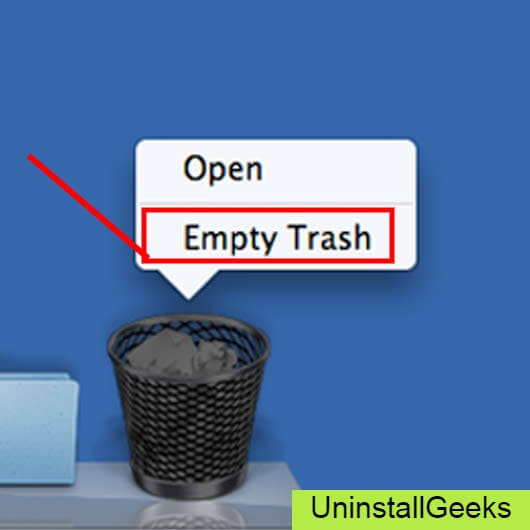
Now we uninstalled Lenovo vantage service on the mac so as you see that how to uninstall or remove any app on the mac so if you liked this so share once. This method doesn’t require any antivirus or uninstaller software from them we are to uninstall.
I described only a simple method of uninstalling Lenovo vantage service on mac. This method more people are using but some people take it is too hard uninstalling in mac but in this step, anyone can understand this simple method.
How To Install?
For those who don’t know much about Lenovo vantage service, they might lean more towards uninstalling it. These Lenovo vantage service create an environment, where users can create a high GPU-accelerated application. If you want to install this Lenovo vantage service, then make sure that your system is compatible with it.
Firstly, verify that the system you are using has a Lenovo vantage service capable GPU, and then download the Lenovo vantage service. Install it, and then test that the software runs smoothly on the system. If it doesn’t run smoothly, then it could be because its communication with the hardware is corrupted.
Conclusion
There are other methods of uninstalling the Lenovo vantage service as well as in pc or windows, but these could be difficult for those, who don’t have much technical expertise. Execute these methods, and they will surely work. These methods don’t require the user to have much knowledge of the technical side of an operating system. They can follow simple steps and uninstall Lenovo vantage service.
Related Posts:
- How To Uninstall Lenovo vantage i it In PC ( Windows…
- How To Uninstall lenovo vantage In PC ( Windows 7,…
- How To Uninstall lenovo vantage In PC ( Windows 7,…
- How To Uninstall Pcmark vantage In PC ( Windows 7,…
- How To Uninstall 3dmark vantage In PC ( Windows 7,…
- How To Uninstall Pcmark vantage In PC ( Windows 7,…
How To Uninstall lenovo vantage In PC ( Windows 7, 8, 10, and Mac )
Need Space in PC or only want to remove or uninstall lenovo vantage On PC ( Windows 7, 8, 10, and Mac )? but how to, after it still having files in C: drive? If the application run on the pc, windows 7, 8, & 10 so you can uninstall using Control Panel or CMD Or If this applicaion run in Mac so you know that how to uninstall in MAC. With the help of this article, you will able to uninstall or remove or kick out all of those files also after uninstalling the lenovo vantage.
Are you bored, or tired of using lenovo vantage? Now, wanna remove this software from your PC ( Windows 7, 8, 10, and Mac )? There is no condition to follow up before installing, so, you can remove it without getting any confusion about it.
How to uninstall lenovo vantage or remove in pc ( windows 7, 8, 10, and mac )
There are 10 methods that users can adapt if they want to uninstall lenovo vantage :
Method #1
- Go to Start Menu, then click on the Control Panel.
- In Control Panel, under programs, go through the list of the ones that are installed on your computer
- Right-click on lenovo vantage, and then click on uninstall a program
- Follow the prompt on the screen, and you will get to see a progress bar that will take you to remove the lenovo vantage from the computer.
Method #2
The second method involves uninstaller.exe, through which lenovo vantage can be uninstalled. Just follow the instructions below to execute this step:
- Go to the installation folder of lenovo vantage.
- Find a file that is named uninstall.exe or unins000.exe
- Double click on the file, and then follow the instructions that appear on the screen.
Method #3
The third method involves System Restore. For those who don’t know, System Restore is a utility, which helps the user restore their system to its previous state. System Restore removes all those programs, which interfere with the operation and performance of the computer.
If you have created a system restore point before you installed lenovo vantage, then you can use this software to restore the system, and remove such unwanted programs. However, before you do so, make sure that you save all the important data.Follow the steps below to know more from this method:
- Close all the files and programs, which are currently running on your PC
- Open Computer from the desktop, and then select Properties
- System Window will open
- On the left side and click on System Protection
- System Properties will open.
- Then do click on the option of System Restore, and a new window will again open.
- Now, choose the ‘different restore point’ option, and click on Next.
- You have to select a date and time from the given options; when you select a date, the drivers that you installed after the chosen date won’t work.
- Click on Finish and then Confirm the ‘Restore Point’ on the screen.
- When you click Yes to confirm, the lenovo vantage would be uninstalled.
Method #4
If you have an antivirus, then you can use it to uninstall lenovo vantage.There is much malware or lenovo vantage software in the computer applications that we download nowadays. They have become very difficult to remove from the system, like Trojan and spyware.
- If you cannot remove lenovo vantage with the above methods.
- It means that there is malware or lenovo vantage in it, and only a good antivirus can be used for removing it.
You can either download Norton Antivirus or AVG antivirus, as these are reputable software and will surely remove the malware, lenovo vantage on the system.
Method #5
If you want to uninstall lenovo vantage, then you can do so using Command Displayed in the Registry. A registry is a place where all the settings of Windows, along with information, are stored. This also includes the command to uninstall a software or program.
You can try this method with lenovo vantage as well, but it is a very risky method. If you make any mistake and delete the wrong information, then the system is most likely to crash. It would become difficult for you to bring it back from deletion.
To execute this method, To follow the steps given below:
- Hold Windows + R together, and then Run command
- When the command box opens, type Regedit in the box and then click on OK
- You have to navigate and find the registry key for the lenovo vantage
- You will see an uninstall string on the next window; double click on it, and also copy ‘Value Data’
- Again hold Windows + R keys, and run the Command; paste the value data that you just copy and click on OK
Follow what comes on the screen and then uninstall lenovo vantage.
Method #6
The seventh method is to uninstall the lenovo vantage using a third-party uninstaller.
At times, those who don’t have any knowledge of computer language, won’t be able to manually uninstall the software fully.
Many files occupy the hard disk of the computer, so it is best to use third-party software to uninstall them.
Method #7
There are some codes that users can type into the command prompt, and they would be able to uninstall the lenovo vantage. For example, if they want to remove the package, then just type.
sudo apt-get remove lenovo vantage
If you want to uninstall lenovo vantage and its dependencies as well, then type:
sudo apt-get remove –auto-remove lenovo vantage
For those who don’t know, some of the dependencies of lenovo vantage are GCC-5, libc6, libgcc1, lenovo vantage dev, and gc++-5.
Method #8
If the user wants to remove the configuration and data files of lenovo vantage, then they need to run the following code on the Command Prompt:
sudo apt-get purge lenovo vantage
Method # 9
It depends on you that are you willing to kick-out the data or you want to remove the configuration data or data files, along with the dependencies, then the following code is most likely to work for you:
sudo apt-get auto-remove -purge lenovo vantage
To uninstall lenovo vantage on mac because anytime we need space or only want to remove from pc due to some viruses and also many problems which are needed to remove or uninstall from pc.
So I will show you some steps of uninstalling lenovo vantage on the mac so follow my this step or method if you have still confusion so you may contact with us for uninstall of lenovo vantage on pc or mac.
How to Uninstall lenovo vantage on Mac?
For uninstalling lenovo vantage on the mac so as I told you that there is a simple method to uninstall apps on mac. As there are installed some apps on your Mac and now you want to remove or uninstall from your pc successfully and want to install some other apps on my mac so follow my these steps to uninstall lenovo vantage on mac.
Method #1
In method 1, you have to open mac on your pc as I’m showing in the image follow the images to uninstall lenovo vantage on your mac.
In the image, there is a lenovo vantage app on your mac dashboard and now we have to uninstall it from our mac we will uninstall this app and will remove it in of mac now double-click-on-app showing in the image.
Now you double-clicked on the app mac will ask that are you sure to uninstall lenovo vantage click on the Delete button so go to Trash of mac to uninstall completely from mac. Showing in image trash bin click on trash bin and go inside there will be lenovo vantage which we had to delete before so have to uninstall completely from mac.
Not right-click on trash to remove all data or app which we had uninstalled before seeing in the image. Click on Empty Trash the whole data which is in the trash will auto remove successfully.
Now we uninstalled lenovo vantage on the mac so as you see that how to uninstall or remove any app on the mac so if you liked this so share once. This method doesn’t require any antivirus or uninstaller software from them we are to uninstall.
I described only a simple method of uninstalling lenovo vantage on mac. This method more people are using but some people take it is too hard uninstalling in mac but in this step, anyone can understand this simple method.
How To Install?
For those who don’t know much about lenovo vantage, they might lean more towards uninstalling it. These lenovo vantage create an environment, where users can create a high GPU-accelerated application. If you want to install this lenovo vantage, then make sure that your system is compatible with it.
Firstly, verify that the system you are using has a lenovo vantage capable GPU, and then download the lenovo vantage. Install it, and then test that the software runs smoothly on the system. If it doesn’t run smoothly, then it could be because its communication with the hardware is corrupted.
Conclusion
There are other methods of uninstalling the lenovo vantage as well as in pc or windows, but these could be difficult for those, who don’t have much technical expertise. Execute these methods, and they will surely work. These methods don’t require the user to have much knowledge of the technical side of an operating system. They can follow simple steps and uninstall lenovo vantage.
Related Posts:
- How To Uninstall Lenovo vantage i it In PC ( Windows…
- How To Uninstall Lenovo vantage service In PC (…
- How To Uninstall lenovo vantage In PC ( Windows 7,…
- How To Uninstall Pcmark vantage In PC ( Windows 7,…
- How To Uninstall 3dmark vantage In PC ( Windows 7,…
- How To Uninstall Pcmark vantage In PC ( Windows 7,…