Shut down, sleep, or hibernate your PC
There are many ways to shut down your PC—you can turn the PC off completely, you can make it sleep, or you can hibernate the PC.
Turn your PC off completely
To shut down, select Start and then select Power > Shut down.
Sleep
Sleep uses very little power, your PC starts up faster, and you’re instantly back to where you left off. You don’t have to worry that you’ll lose your work because of your battery draining because Windows automatically saves all your work and turns off the PC if the battery is too low. Use Sleep when you’re going to be away from your PC for just a little while—like when you’re taking a coffee break.
For a lot of PCs (especially laptops and tablets), your PC goes to sleep when you close your lid or press the power button.
To set your PC so it goes to sleep when you close the lid or press the power button:
- Select Search on the taskbar, type control panel, and select it from the results.
- Select System and Security.
- In the Power Options section, select Change what the power buttons do.
- Select Change settings that are currently unavailable.
- Select options based on how you want Sleep to work:
- For a laptop, expand the list for When I close the lid in the On battery column and select Sleep. Repeat for the Plugged in column, if desired.
- For a desktop, tablet, or laptop, expand the list for When I press the power button in the On battery column and select Sleep. Repeat for the Plugged in column, if desired.
- Select Save changes.
When you’re ready to make your PC sleep, just press the power button on your desktop, tablet, or laptop, or close your laptop’s lid.
On most PCs, you can resume working by pressing your PC’s power button. However, not all PCs are the same. You might be able to wake it by pressing any key on the keyboard, clicking a mouse button, or opening the lid on a laptop. Check the documentation that came with your computer or go to the manufacturer’s website.
Hibernate
This option was designed for laptops and might not be available for all PCs. (For example, PCs with InstantGo don’t have the hibernate option.) Hibernate uses less power than sleep and when you start up the PC again, you’re back to where you left off (though not as fast as sleep).
Use hibernation when you know that you won’t use your laptop or tablet for an extended period and won’t have an opportunity to charge the battery during that time. First check to see if this option is available on your PC and if it is, turn it on.
To set your PC so it hibernates:
- Select Search on the taskbar, type control panel, and select it from the results.
- Select System and Security.
- In the Power Options section, select Change what the power buttons do.
- Select Change settings that are currently unavailable.
- In the Shutdown settings section, select Hibernate.
- Select Save changes.
Now you’ll be able to hibernate your PC in a few different ways:
- Select Start , and then select Power >Hibernate.
- Press the Windows logo key + X on your keyboard, and then select Shut down or sign out >Hibernate.
Note: If devices connected to your PC (like monitors, printers, or scanners) aren’t working properly after waking up from sleep or hibernate, you might need to disconnect and reconnect your device or restart your PC. You should also make sure that you have the most current drivers for all of your devices.
Turn your PC off completely
To shut down, select Start and then select Power > Shut down.
Sleep
Sleep uses very little power, your PC starts up faster, and you’re instantly back to where you left off. You don’t have to worry that you’ll lose your work because of your battery draining because Windows automatically saves all your work and turns off the PC if the battery is too low. Use Sleep when you’re going to be away from your PC for just a little while—like when you’re taking a coffee break.
For a lot of PCs (especially laptops and tablets), your PC goes to sleep when you close your lid or press the power button.
To set your PC so it goes to sleep when you close the lid or press the power button:
- Open power options—select Start , then select Settings >System >Power & sleep >Additional power settings.
- Do one of the following:
- If you’re using a desktop, tablet, or laptop, select Choose what the power buttons does. Next to When I press the power button, select Sleep, and then select Save changes.
- If you’re using only a laptop, select Choose what closing the lid does. Next to When I close the lid, select Sleep, and then select Save changes.
When you’re ready to make your PC sleep, just press the power button on your desktop, tablet, or laptop, or close your laptop’s lid.
On most PCs, you can resume working by pressing your PC’s power button. However, not all PCs are the same. You might be able to wake it by pressing any key on the keyboard, clicking a mouse button, or opening the lid on a laptop. Check the documentation that came with your computer or go to the manufacturer’s website.
Hibernate
This option was designed for laptops and might not be available for all PCs. (For example, PCs with InstantGo don’t have the hibernate option.) Hibernate uses less power than sleep and when you start up the PC again, you’re back to where you left off (though not as fast as sleep).
Use hibernation when you know that you won’t use your laptop or tablet for an extended period and won’t have an opportunity to charge the battery during that time. First check to see if this option is available on your PC and if it is, turn it on.
To hibernate your PC:
- Open power options—select Start , then select Settings >System >Power & sleep >Additional power settings.
- Select Choose what the power button does, and then select Change settings that are currently unavailable. Under Shutdown settings, select the Hibernate checkbox (if it’s available), and then select Save changes.
Now you’ll be able to hibernate your PC in a few different ways:
- Select Start , and then select Power >Hibernate.
- Press the Windows logo key + X on your keyboard, and then select Shut down or sign out >Hibernate.
Note: If devices connected to your PC (like monitors, printers, or scanners) aren’t working properly after waking up from sleep or hibernate, you might need to disconnect and reconnect your device or restart your PC. You should also make sure that you have the most current drivers for all of your devices.
Turn your PC off completely
To shut down Windows 8.1 or Windows RT 8.1, move your mouse to the lower left-hand corner of the screen and right-click Start or press the Windows logo key + X on your keyboard. Tap or select Shut down or sign out and choose Shut down.
Sleep
Sleep uses very little power, your PC starts up faster, and you’re instantly back to where you left off. You don’t have to worry that you’ll lose your work because of your battery draining because Windows automatically saves all your work and turns off the PC if the battery is too low. Use Sleep when you’re going to be away from your PC for just a little while—like when you’re taking a coffee break.
For a lot of PCs (especially laptops and tablets), your PC goes to sleep when you close your lid or press the power button.
To set your PC so it goes to sleep when you close the lid or press the power button:
- Open power options—swipe in from the edge of the screen, tap Search (or if you’re using a mouse, point to the upper-right corner of the screen, move the mouse pointer down, and then select Search), type Power options in the search box, and then tap or select Power options.
- Do one of the following:
- If you’re using a desktop, tablet, or laptop, select Choose what the power buttons do. Next to When I press the power button, select Sleep, and then select Save changes.
- If you’re using only a laptop, select Choose what closing the lid does. Next to When I close the lid, select Sleep, and then select Save changes.
When you’re ready to make your PC sleep, just press the power button on your desktop, tablet, or laptop, or close your laptop’s lid.
On most PCs, you can resume working by pressing your PC’s power button. However, not all PCs are the same. You might be able to wake it by pressing any key on the keyboard, clicking a mouse button, or opening the lid on a laptop. Check the documentation that came with your computer or go to the manufacturer’s website.
Hibernate
This option was designed for laptops and might not be available for all PCs. (For example, PCs with InstantGo don’t have the hibernate option.) Hibernate uses less power than sleep and when you start up the PC again, you’re back to where you left off (though not as fast as sleep).
Use hibernation when you know that you won’t use your laptop or tablet for an extended period and won’t have an opportunity to charge the battery during that time. First check to see if this option is available on your PC and if it is, turn it on.
To hibernate your PC:
- Open power options—swipe in from the edge of the screen, tap Search (or if you’re using a mouse, point to the upper-right corner of the screen, move the mouse pointer down, and then select Search), type Power options in the search box, and then tap or select Power options.
- Select Choose what the power button does, and then select Change settings that are currently unavailable. Under Shutdown settings, select the Hibernate checkbox (if it’s available), and then select Save changes.
Now you’ll be able to hibernate your PC in a few different ways:
- Move your mouse to the lower left-hand corner of the screen and right-click Start or press Windows logo key + X on your keyboard. Tap or select Shut down or sign out and choose Hibernate.
- Swipe in from the right edge of the screen and then tap Settings. (If you’re using a mouse, point to the lower-right corner of the screen, move the mouse pointer up, and then select Settings.) Tap or select Power >Hibernate.
Note: If devices connected to your PC (like monitors, printers, or scanners) aren’t working properly after waking up from sleep or hibernate, you might need to disconnect and reconnect your device or restart your PC. You should also make sure that you have the most current drivers for all of your devices.
Turn your PC off completely

To shut down, select Start and then select Shut down.
Sleep
Sleep uses very little power, your PC starts up faster, and you’re instantly back to where you left off. You don’t have to worry that you’ll lose your work because of your battery draining because Windows automatically saves all your work and turns off the PC if the battery is too low. Use Sleep when you’re going to be away from your PC for just a little while—like when you’re taking a coffee break.
For a lot of PCs (especially laptops and tablets), your PC goes to sleep when you close your lid or press the power button.
To set your PC so it goes to sleep when you close the lid or press the power button:
- Open power options—select Start , then select Control Panel >System and Security >Power Options.
- Do one of the following:
- If you’re using a desktop, tablet, or laptop, select Choose what the power buttons do. Next to When I press the power button, select Sleep, and then select Save changes.
- If you’re using only a laptop, select Choose what closing the lid does. Next to When I close the lid, select Sleep, and then select Save changes.
- When you’re ready to make your PC sleep, just press the power button on your desktop, tablet, or laptop, or close your laptop’s lid.
On most PCs, you can resume working by pressing your PC’s power button. However, not all PCs are the same. You might be able to wake it by pressing any key on the keyboard, clicking a mouse button, or opening the lid on a laptop. Check the documentation that came with your computer or go to the manufacturer’s website.
Hibernate
This option was designed for laptops and might not be available for all PCs. (For example, PCs with InstantGo don’t have the hibernate option.) Hibernate uses less power than sleep and when you start up the PC again, you’re back to where you left off (though not as fast as sleep).
Use hibernation when you know that you won’t use your laptop or tablet for an extended period and won’t have an opportunity to charge the battery during that time. First check to see if this option is available on your PC and if it is, turn it on.
To hibernate your PC:
- Open power options—select Start, then select Control Panel >System and Security >Power Options.
- Select Choose what the power button does, and then select Change settings that are currently unavailable. Under Shutdown settings, select the Hibernate checkbox (if it’s available), and then select Save changes.
Now you’ll be able to hibernate your PC—select Start , select the arrow next to Shut down, and then select Hibernate.
Note: If devices connected to your PC (like monitors, printers, or scanners) aren’t working properly after waking up from sleep or hibernate, you might need to disconnect and reconnect your device or restart your PC. You should also make sure that you have the most current drivers for all of your devices.
[Windows 11/10] Три способа отключить компьютер — Выключение, Сон, Гибернация
Есть много способов выключить компьютер: Вы можете полностью выключить компьютер, перевести его в спящий режим или в режим гибернации. В следующей статье кратко представлены операции и описание каждого режима.
Пожалуйста, перейдите к соответствующей инструкции, исходя из текущей операционной системы Windows на вашем компьютере:
Несохраненные данные будут потеряны после выключения компьютера. Пожалуйста, убедитесь, что Ваши данные были сохранены, а затем выключите компьютер.
- Нажмите [Пуск]
 ① , выберите [Выключение]
  ② а затем [Выключить] ③ .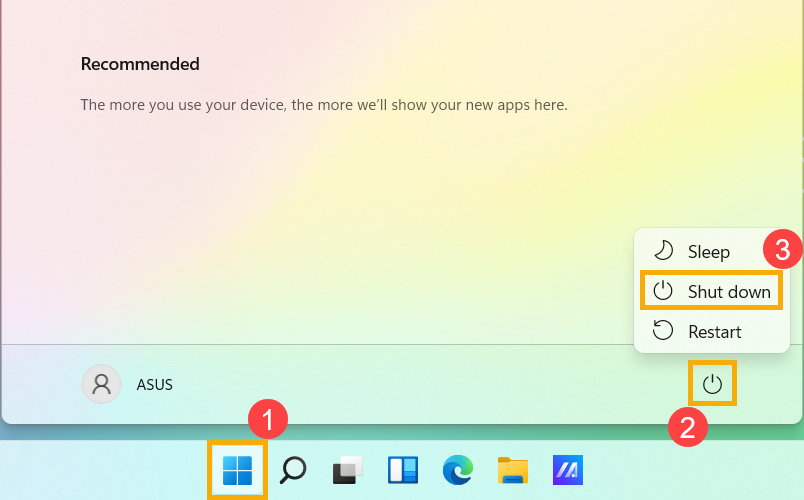
Когда компьютер переходит в спящий режим, он потребляет очень мало энергии и запускается быстрее, поэтому Вы сразу же возвращаетесь к тому месту, где остановились. Вам не нужно беспокоиться о том, что потеряны данные из-за разрядки батареи, потому что Windows автоматически сохраняет всю Вашу работу и выключает компьютер, если батарея слишком разряжена. После того, как компьютер перейдет в спящий режим, Вы можете возобновить работу, нажав кнопку питания, любую клавишу на клавиатуре, щелкнув кнопку мыши или открыв крышку ноутбука.
Вы можете обратиться к следующим методам перевода компьютера в спящий режим:
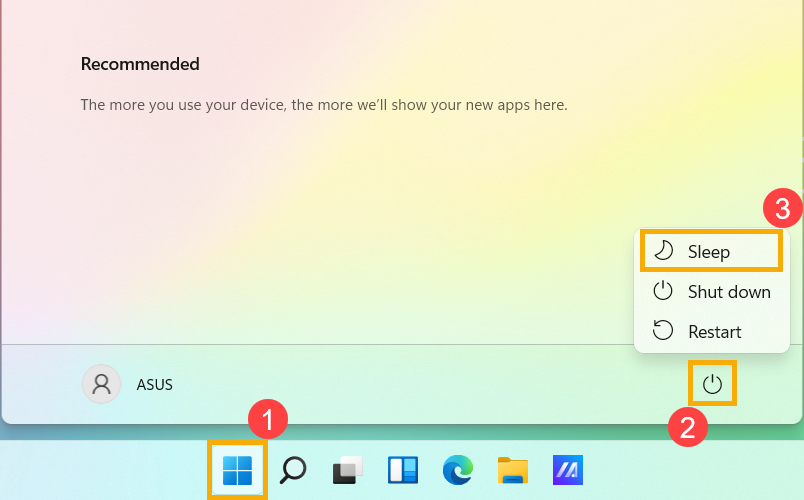
- Нажмите [Пуск] ① , выберите [Выключение] ② а затем [Сон] ③ .
- Когда компьютер бездействует и Вы им не пользуетесь какое-то время, он автоматически переходит в спящий режим. Ниже представлено время автоматического перевода компьютера в спящий режим:
Введите и найдите [Настройки питания, сна и батареи] в строке поиска Windows ①, затем нажмите [Открыть] ② .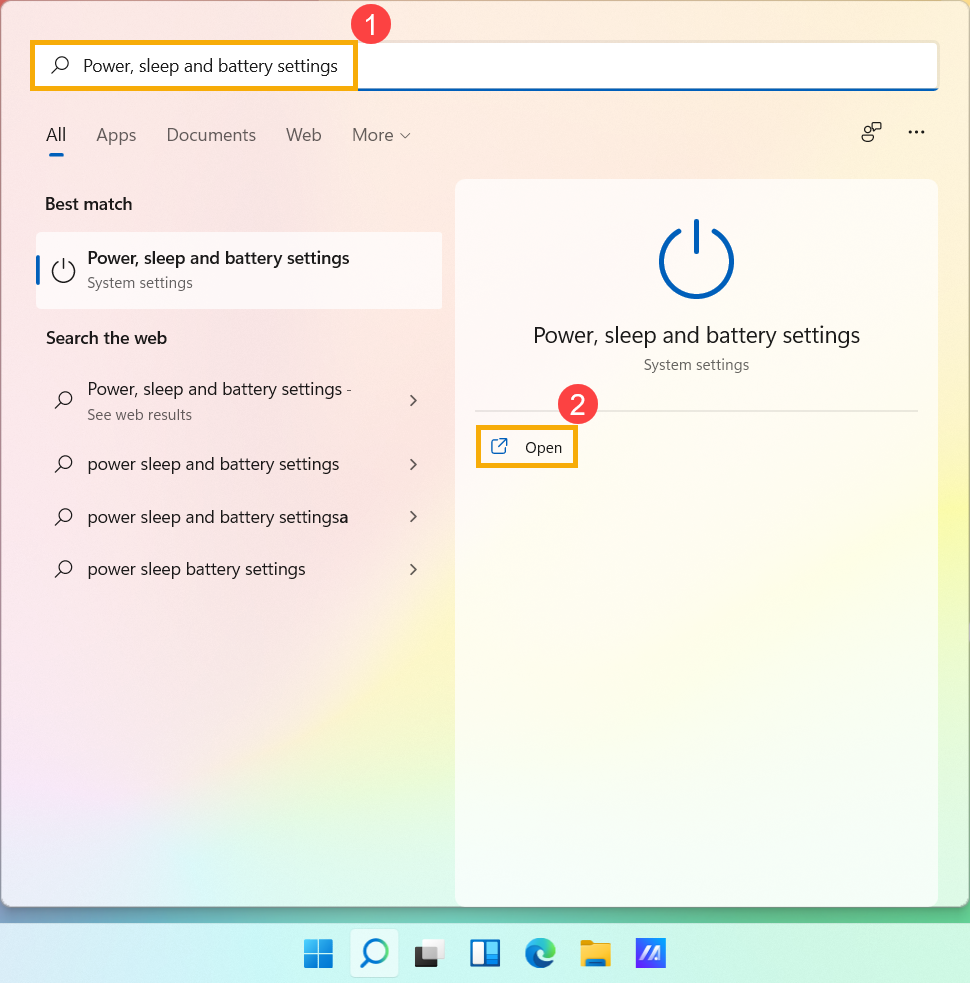
Разверните поле [Экран и спящий режим] ③, В ы можете настроить параметры «При питании от батареи» или «При подключении к сети», которые определяют время, в течение которого компьютер будет переходить в спящий режим после простоя ④.
Примечание. Если на Вашем компьютере установлена экранная заставка, и время заставки предшествует времени сна, компьютер сначала перейдет в режим экранной заставки перед переходом в спящий режим. Если Вы хотите проверить настройки заставки, перейдите в [Настройки] >[Персонализация] >[Экран блокировки], а затем выберите [Заставка].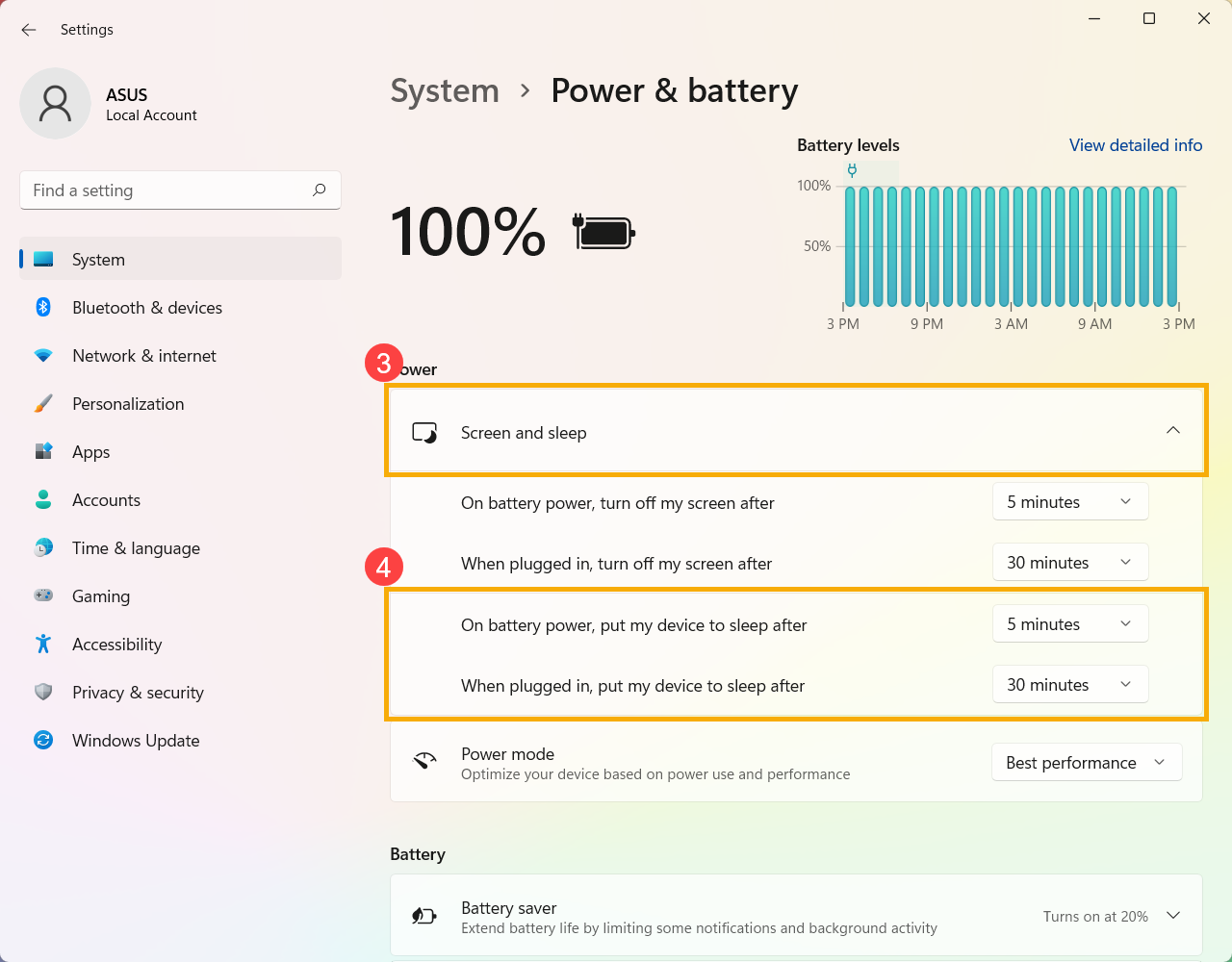
- Когда Вы закрываете крышку ноутбука или нажимаете кнопку питания компьютера, Ваш компьютер также переходит в спящий режим. Ниже представлено действие при нажатии кнопки питания или закрытии крышки:
Введите и найдите [Выберите схему питания] в строке поиска Windows ①, затем нажмите [Открыть] ②.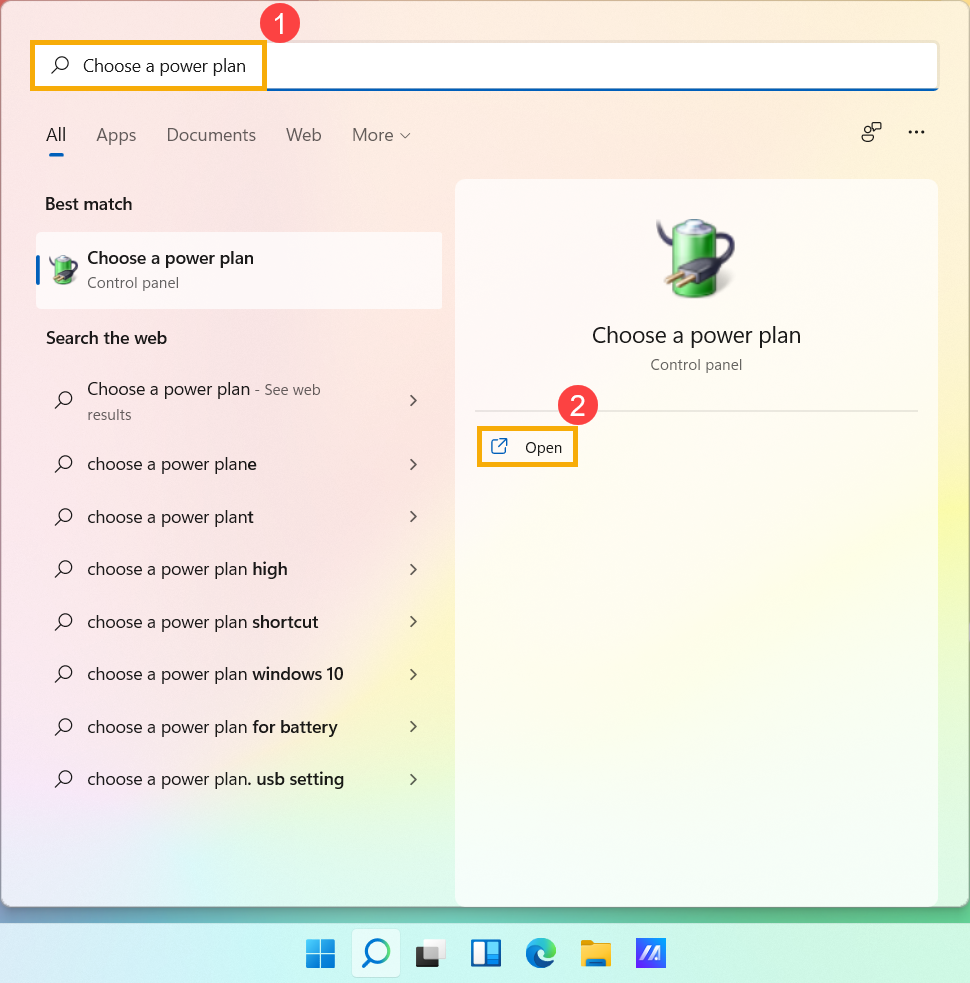
Нажмите [Выберите, действие кнопки питания] ③ .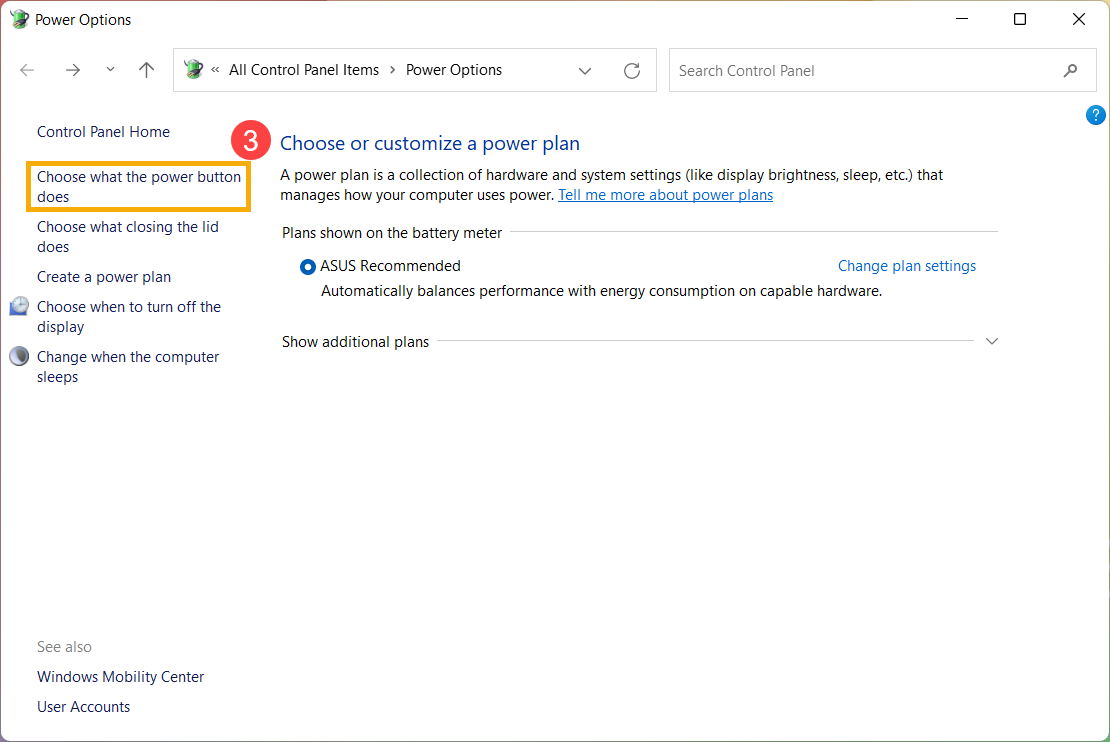
Вы можете настроить параметры «От батареи» или «От сети», которые будут выполняться при нажатии кнопки питания или закрытии крышки ④. (Ничего не делать, Спящий режим, Спящий режим, Выключение) После завершения настройки выберите [Сохранить изменения] ⑤.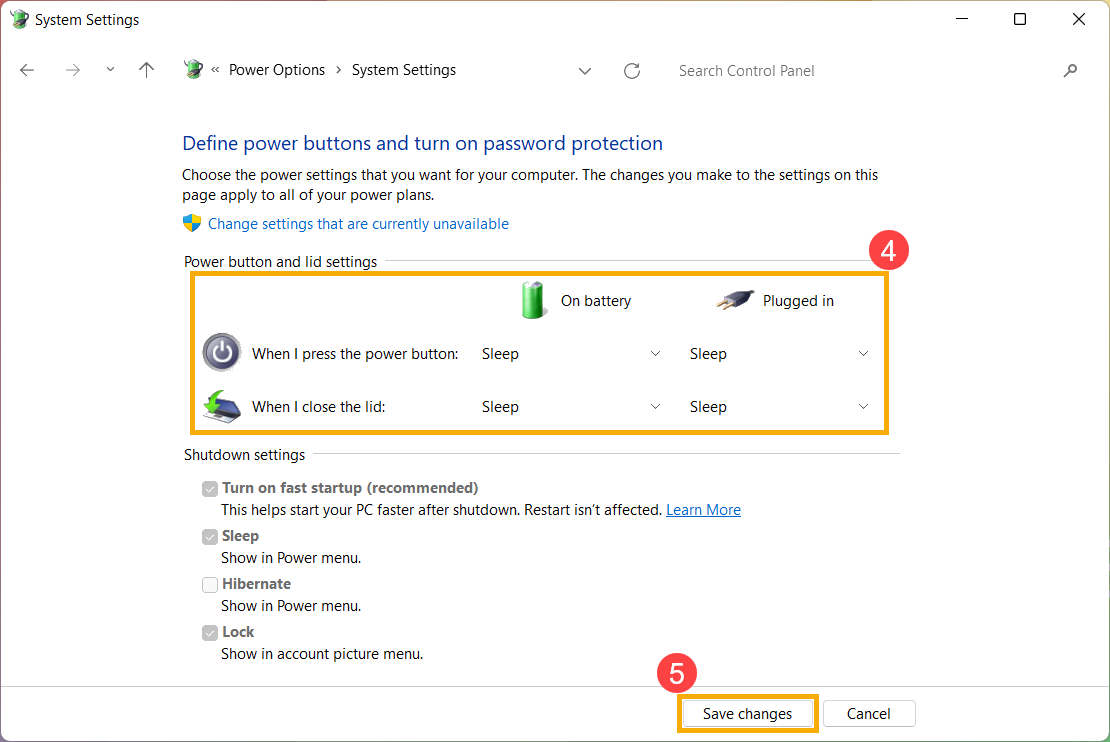
В гибернации потребляется меньше энергии, чем в спящем режиме, и при повторном запуске компьютера Вы возвращаетесь к тому месту, где остановились (хотя и не так быстро, как в спящем режиме). После того, как компьютер перейдет в гибернацию, Вы можете возобновить работу, нажав кнопку питания компьютера.
- Параметр гибернации может быть недоступен по умолчанию для некоторых моделей, поэтому Вы можете использовать следующий метод, чтобы включить его.
Введите и выполните поиск [Выберите схему питания] в строке поиска Windows ①, затем нажмите [Открыть] ②.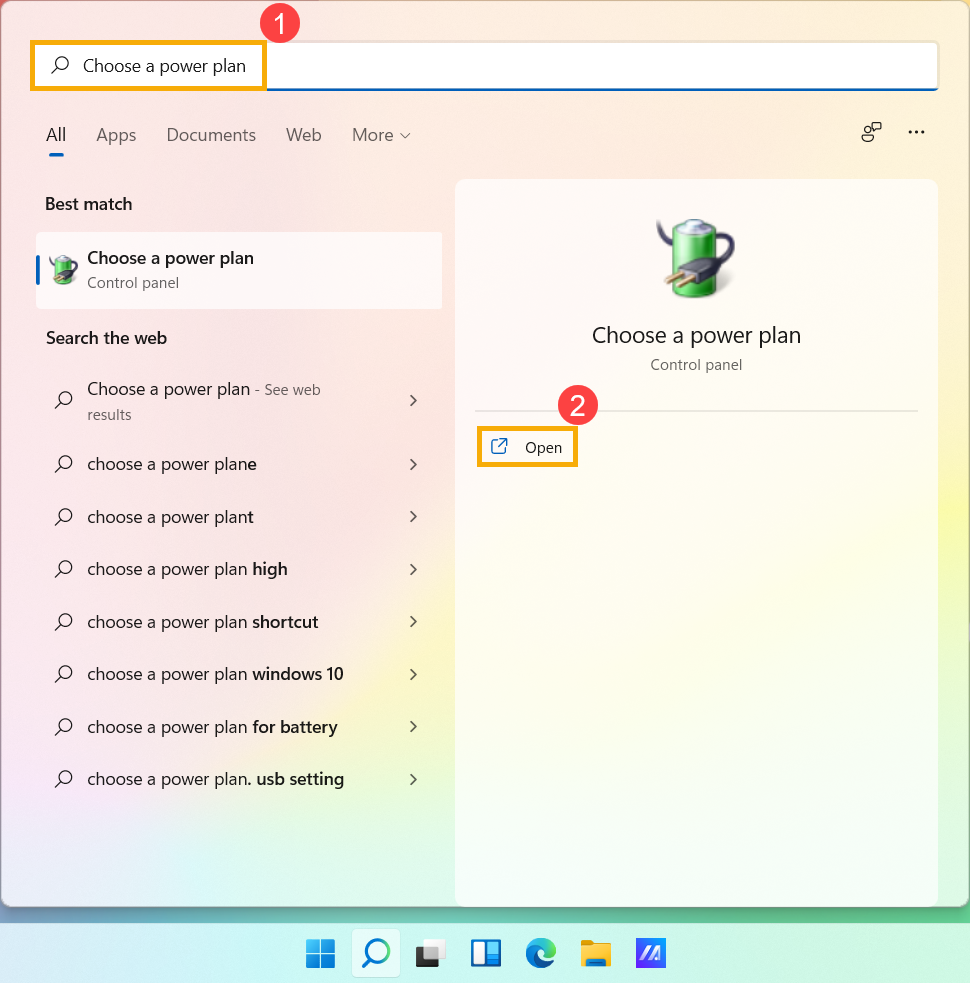
Нажмите [Выберите, что делает кнопка питания] ③.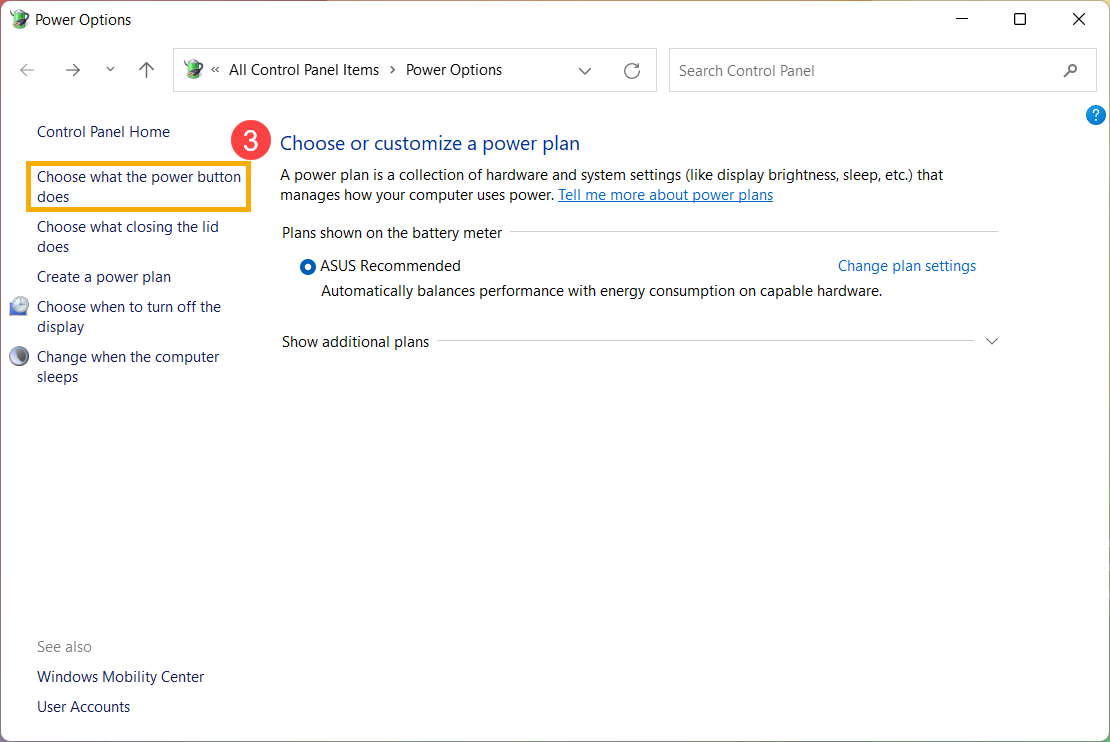
Нажмите [Изменить настройки, которые в данный момент недоступны].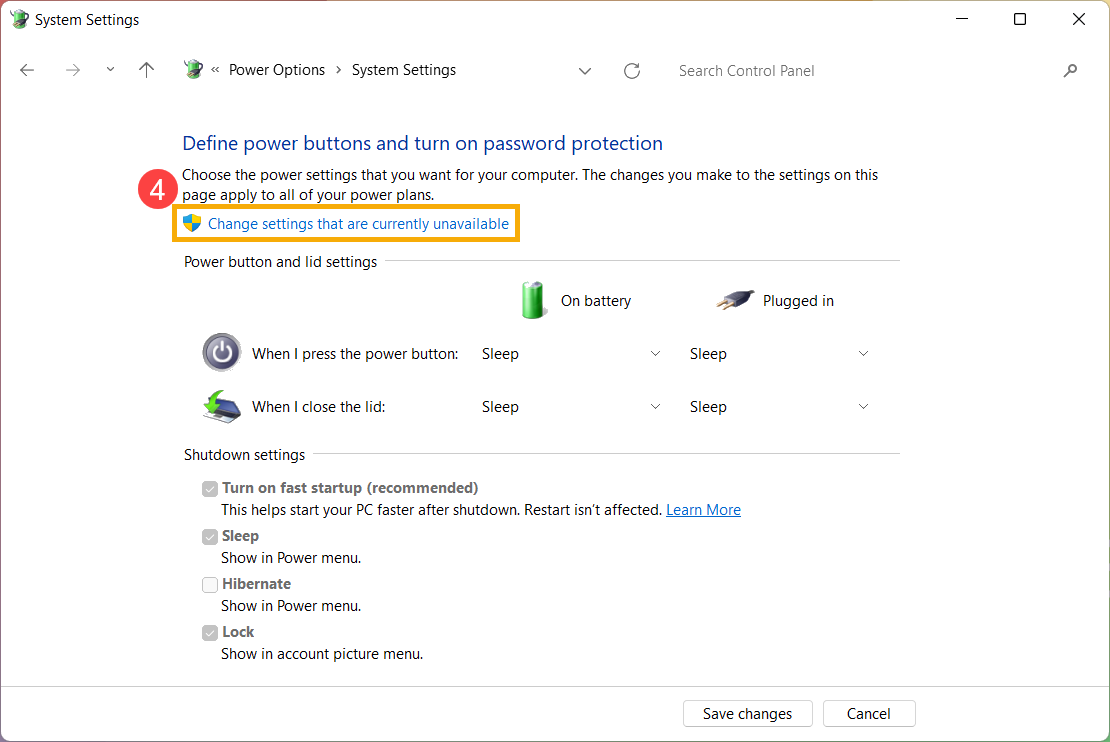
Установите флажок «Гибернация» в настройках «Выключение» ⑤, затем выберите [Сохранить изменения] ⑥ .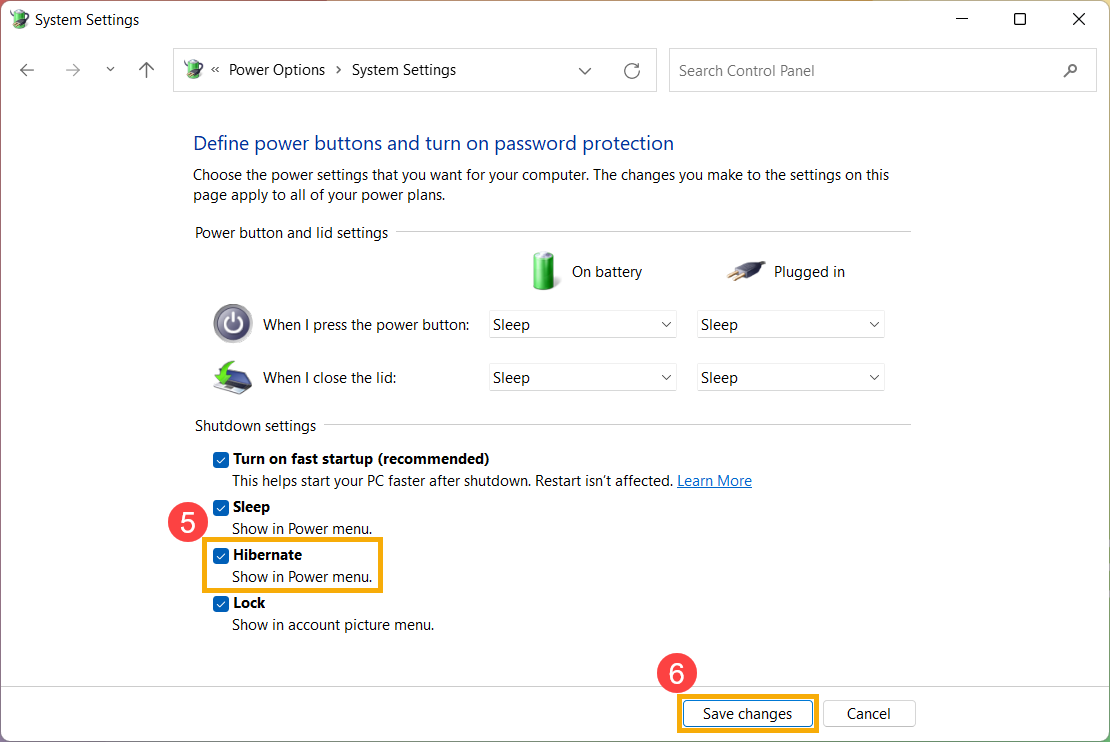
- Теперь Вы сможете переводить компьютер в гибернацию следующим образом.
Нажмите [Пуск]① , выберите [Выключение] ② и затем [Гибернация] ③ .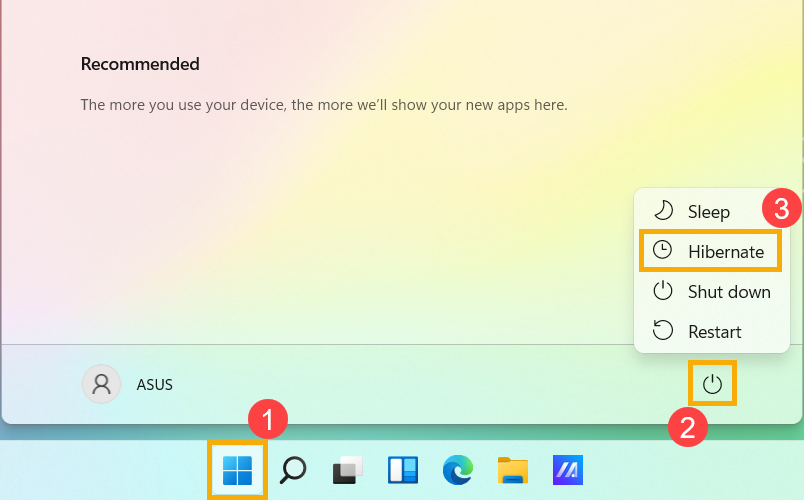
Несохраненные данные будут потеряны после выключения компьютера. Убедитесь, что Ваши данные были сохранены, а затем выключите компьютер.
Нажмите иконку [Пуск]  в углу экрана Панели Задач ① , выберите иконку [Выключение] ② и нажмите [Завершение работы] ③ .
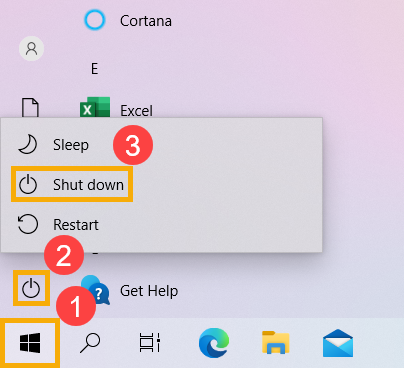
После перехода компьютера в спящий режим он потребляет очень мало энергии и запускается быстрее, поэтому Вы сразу же возвращаетесь к тому месту, где остановились. Вам не нужно беспокоиться о том, что потеряна работа из-за разряда батареи, потому что Windows автоматически сохраняет всю Вашу работу и выключает компьютер, если батарея разряжена. После перехода компьютера в спящий режим Вы можете возобновить работу, нажав кнопку питания компьютера, нажав любую клавишу на клавиатуре, щелкнув кнопку мыши или открыв крышку ноутбука.
Вы можете следовать шагам ниже для перехода в режим сна:
- Нажмите на иконку [Пуск]
 в углу Панели Задач ① , выберите [Выключение]
  ② и выберите [Спящий режим] ③ .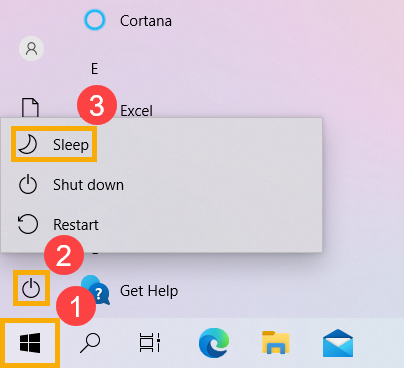
- Когда компьютер находится в режиме ожидания и Вы не используете его какое-то время, он автоматически переходит в спящий режим.
Укажите в поисковой строке Windows [Параметры питания и спящего режима] ① , нажмите [Открыть] ② .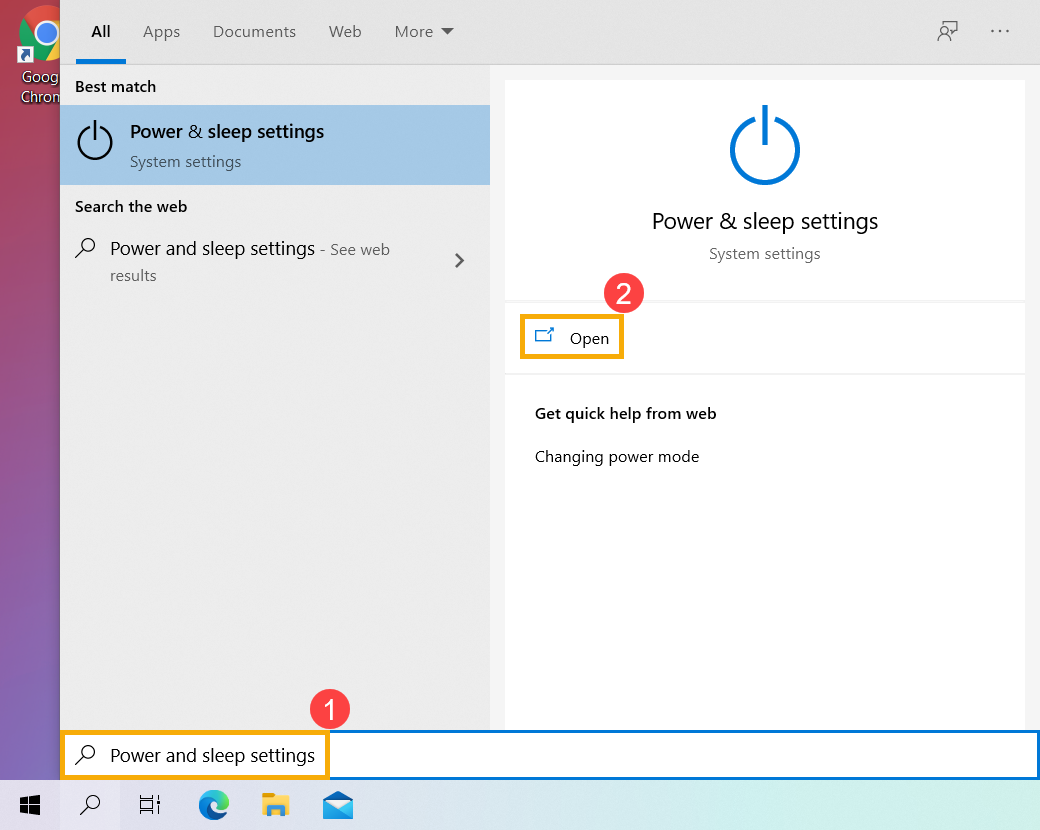
Вы можете настроить Питание от батареи или При питании от сети, через какое время компьютер будет переходить в спящий режим ③ .
Примечание. Если на Вашем компьютере установлена экранная заставка, и время заставки предшествует времени сна, компьютер сначала перейдет в режим экранной заставки перед переходом в спящий режим. Если Вы хотите проверить настройки заставки, перейдите в [Настройки] >[Персонализация] >[Экран блокировки], а затем выберите [Заставка].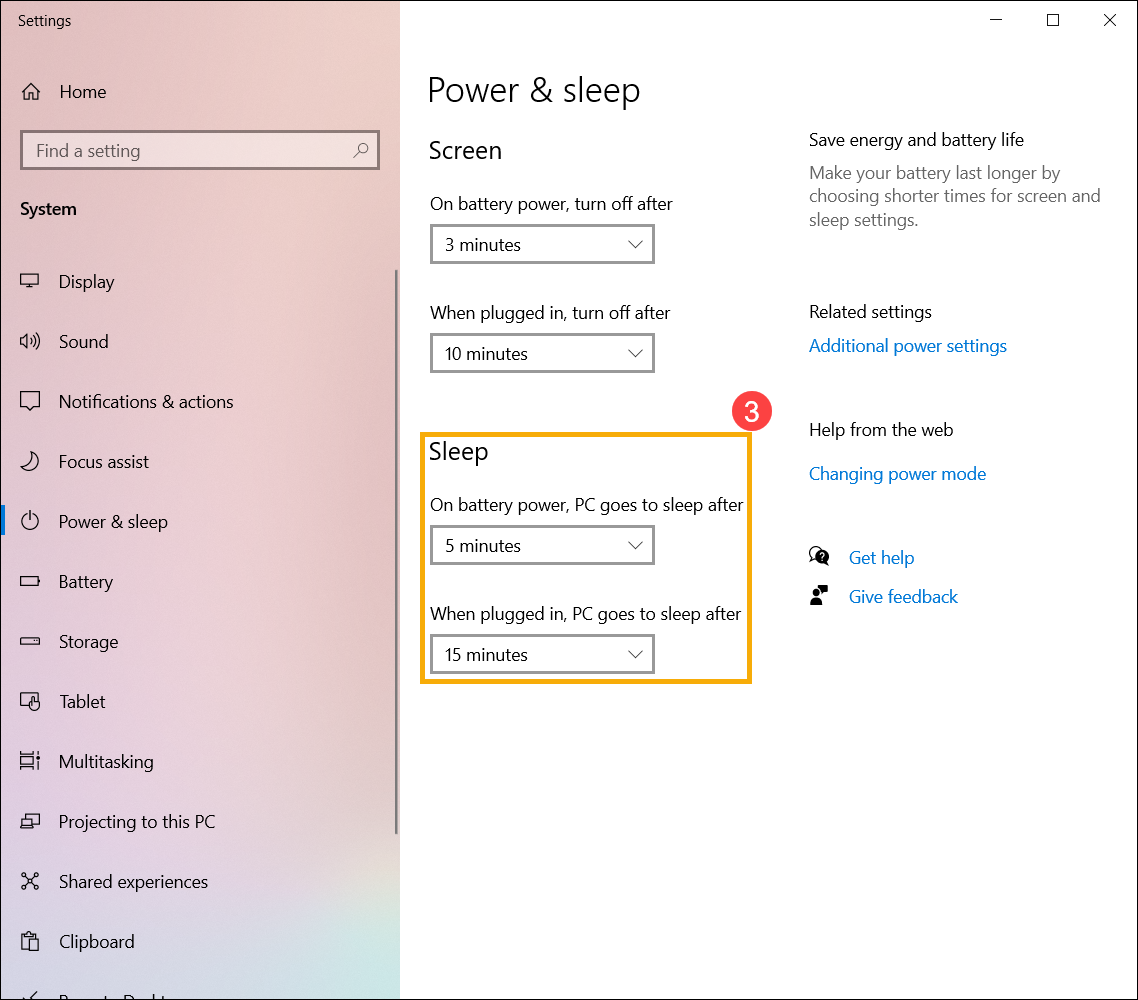
- Когда Вы закрываете крышку ноутбука или нажимаете кнопку питания компьютера, Ваш компьютер также переходит в спящий режим.
Укажите в поисковой строке Windows [Параметры питания и спящего режима] ① , нажмите [Открыть] ② .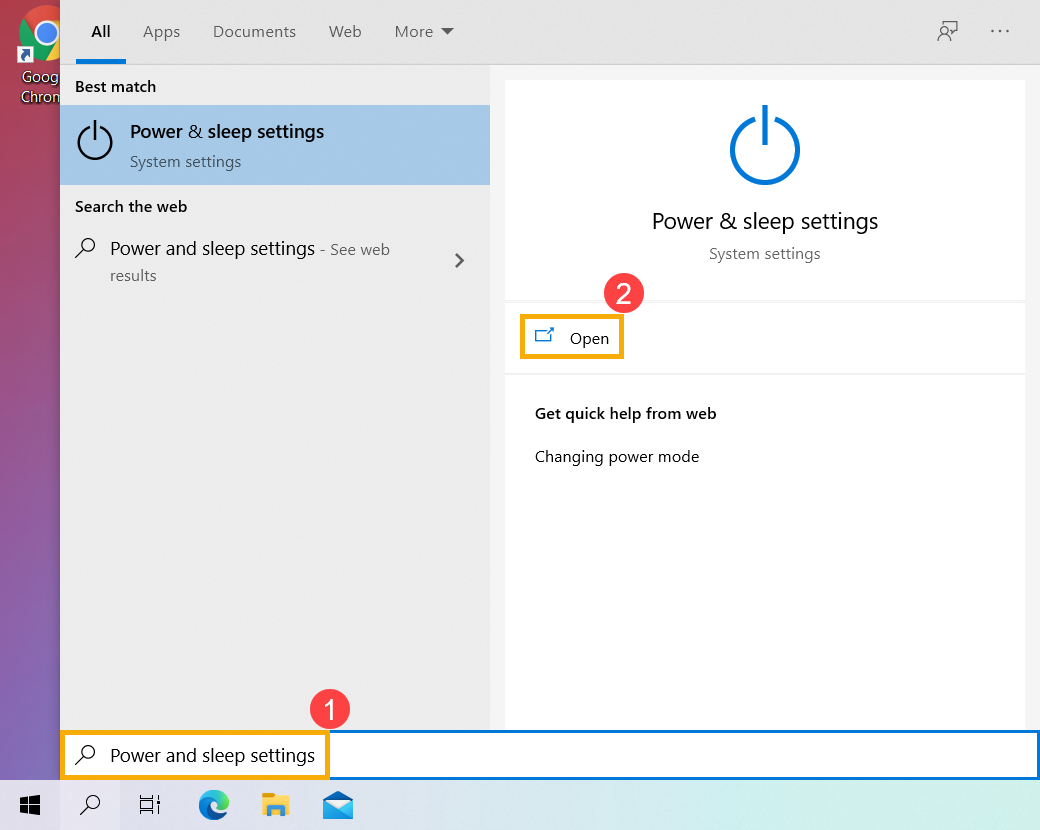
Выберите [Дополнительные параметры питания] ③ .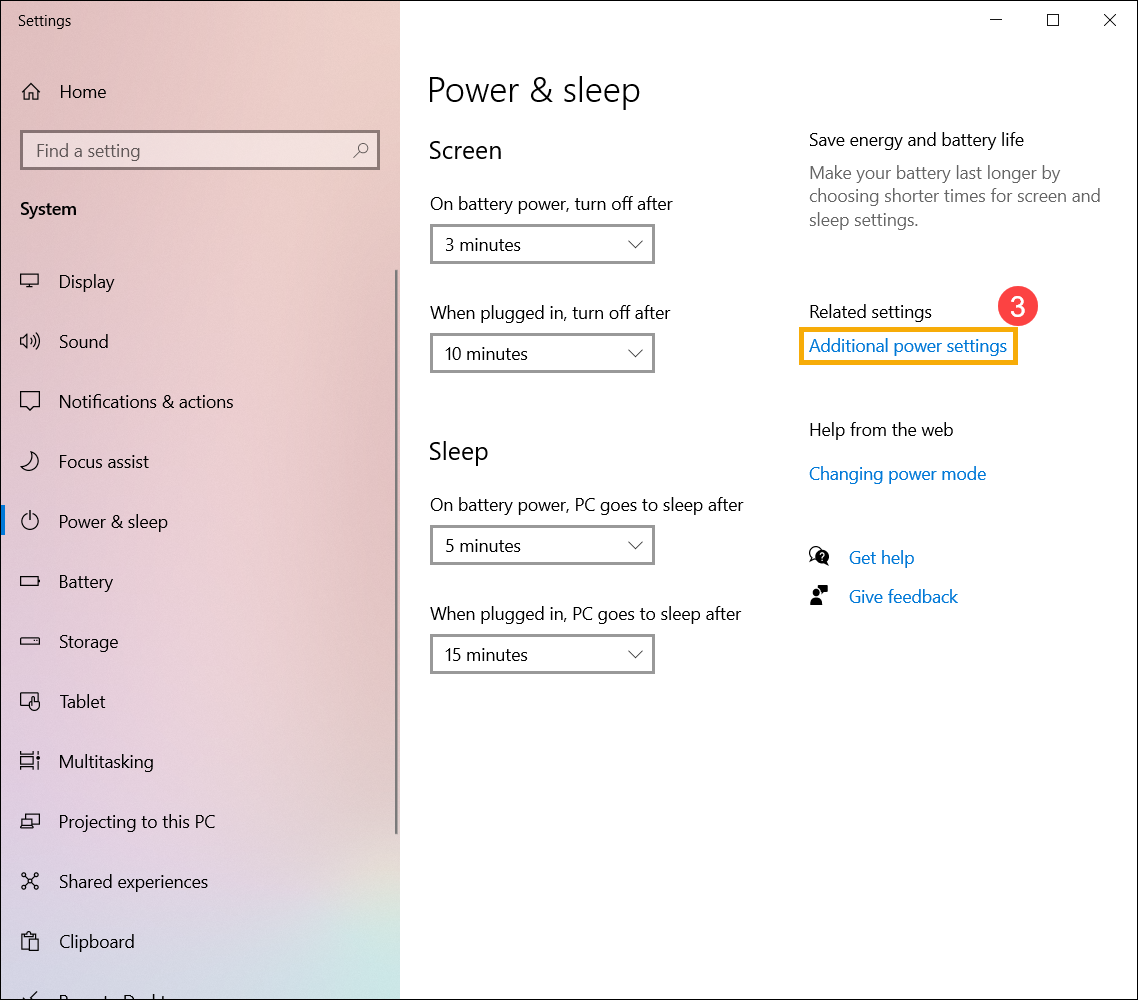
Выберите [Действие кнопок питания] ④ .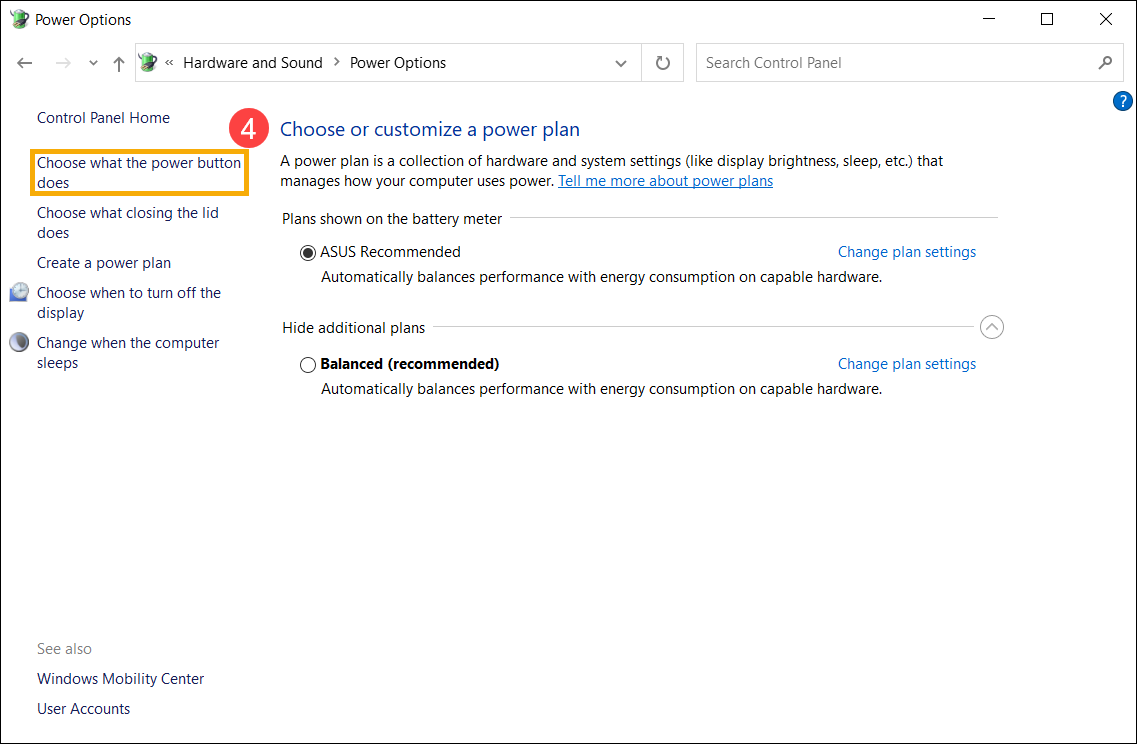
Вы можете выбрать От батареи или От сети действие при нажатии кнопки питания или закрытии крышки ⑤ . (Действие не требуется, сон, гибернация, завершение работы)
После завершения настройки выберите [Сохранить изменения] ⑥ .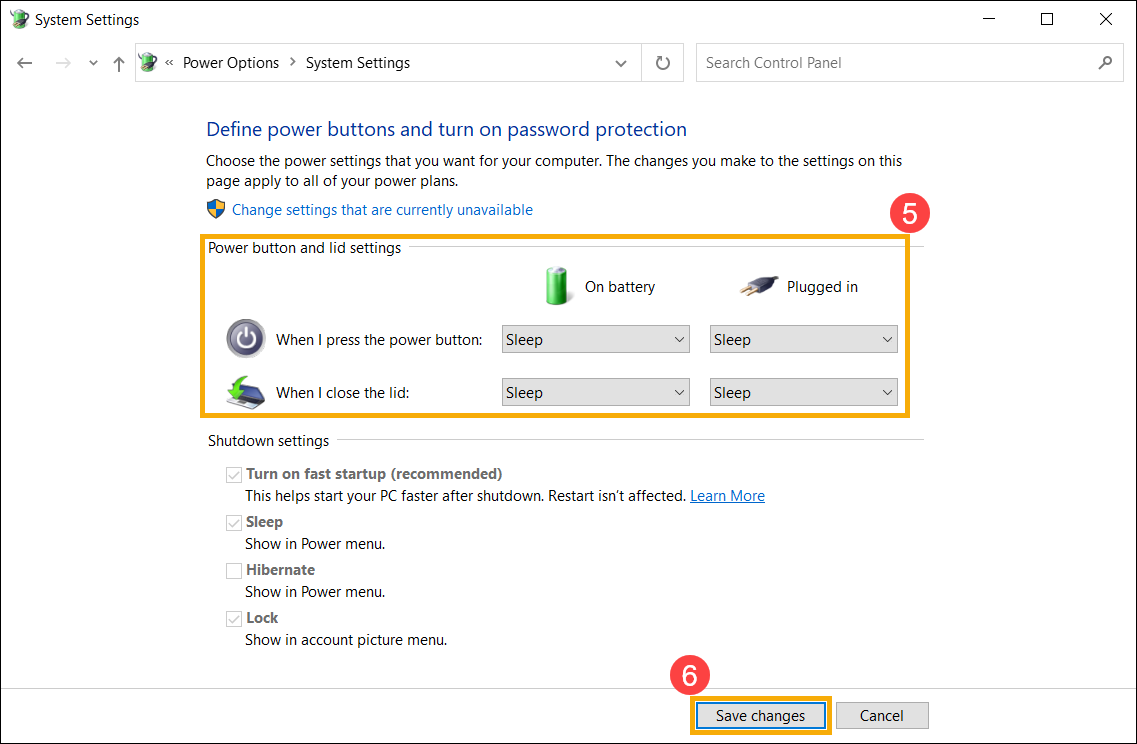
Гибернация потребляет меньше энергии, чем спящий режим, и когда Вы снова включаете компьютер, Вы возвращаетесь к тому месту, где остановились (хотя и не так быстро, как спящий режим). После того, как компьютер перейдет в гибернацию, Вы можете возобновить работу, нажав кнопку питания компьютера.
- Параметр гибернации может быть недоступен по умолчанию для некоторых моделей, поэтому Вы можете использовать следующий метод, чтобы включить его.
Укажите в поисковой строке Windows [Параметры питания и спящего режима] ① , нажмите [Открыть] ② .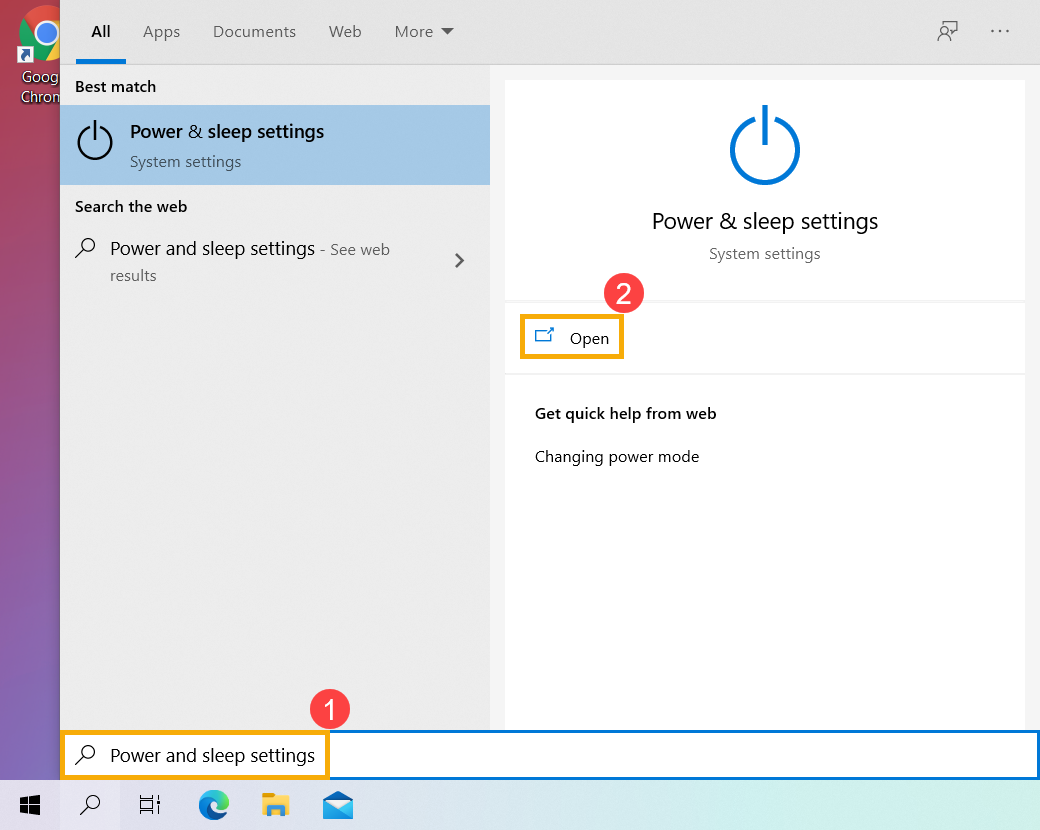
Выберите [Дополнительные параметры питания] ③ .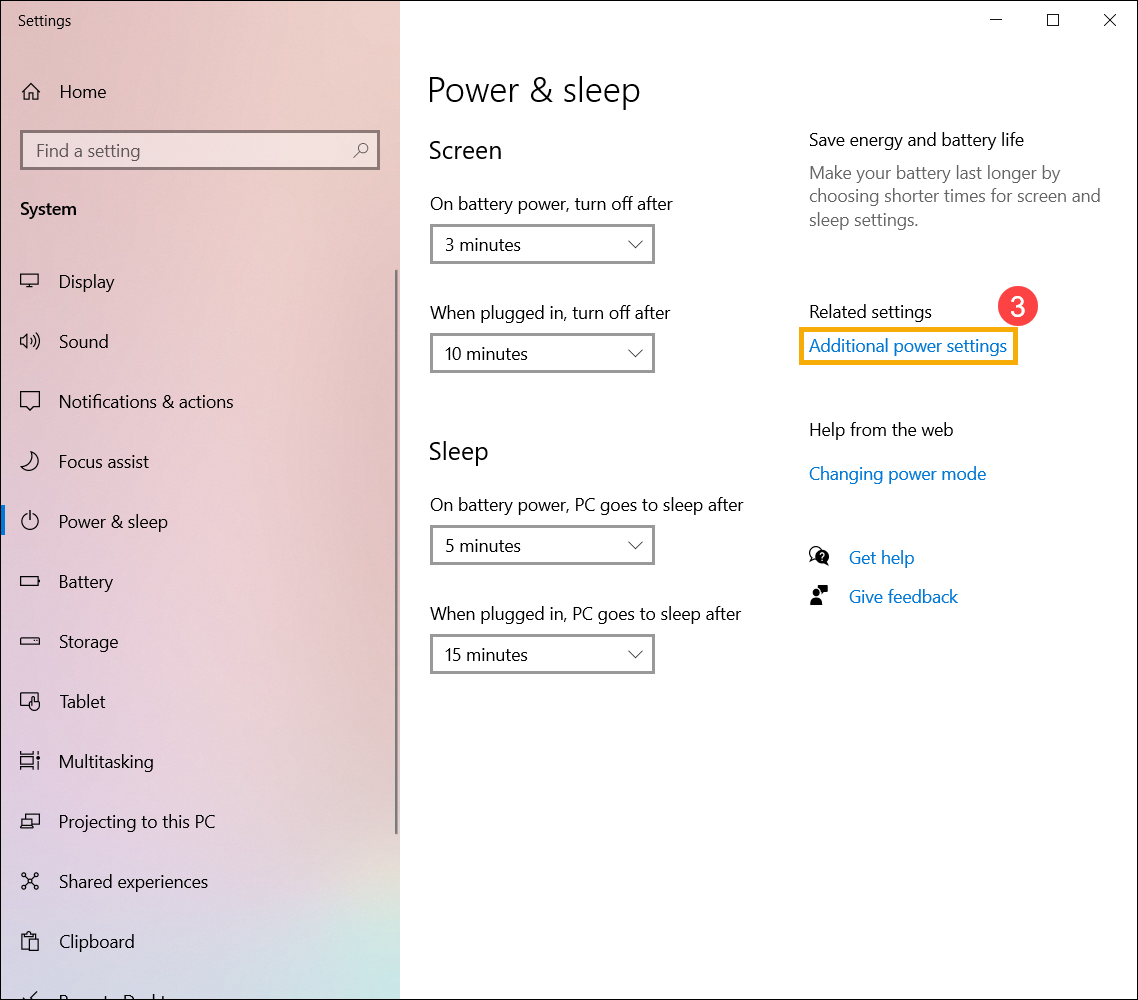
Выберите [Действие кнопок питания] ④ .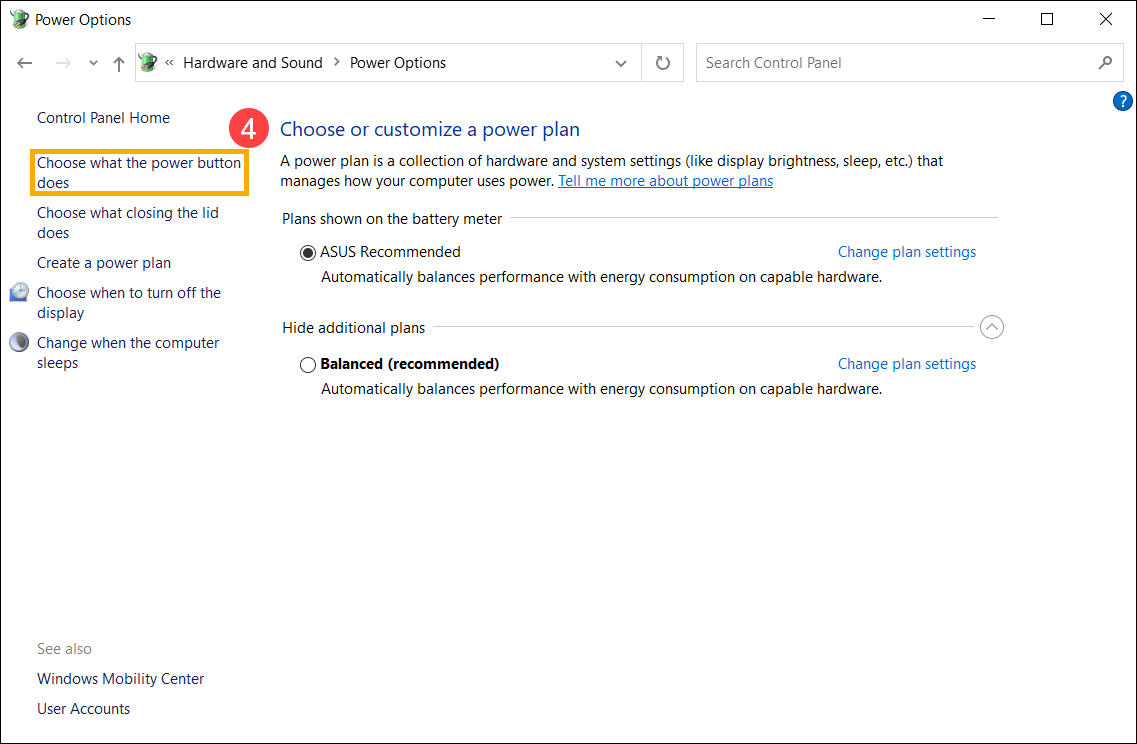
Выберите [Изменение параметров, которые сейчас недоступны] ⑤ .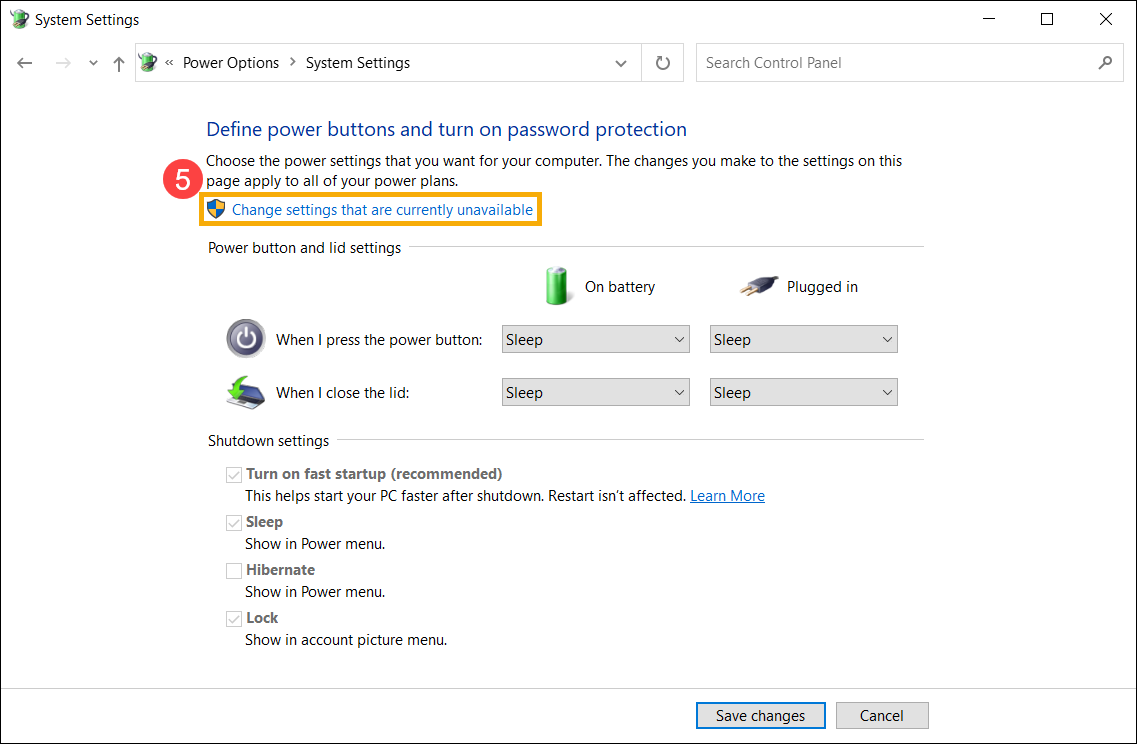
Поставьте галочку рядом с Режимом гибернации в Параметрах завершения работы ⑥ , выберите [Сохранить изменения] ⑦ .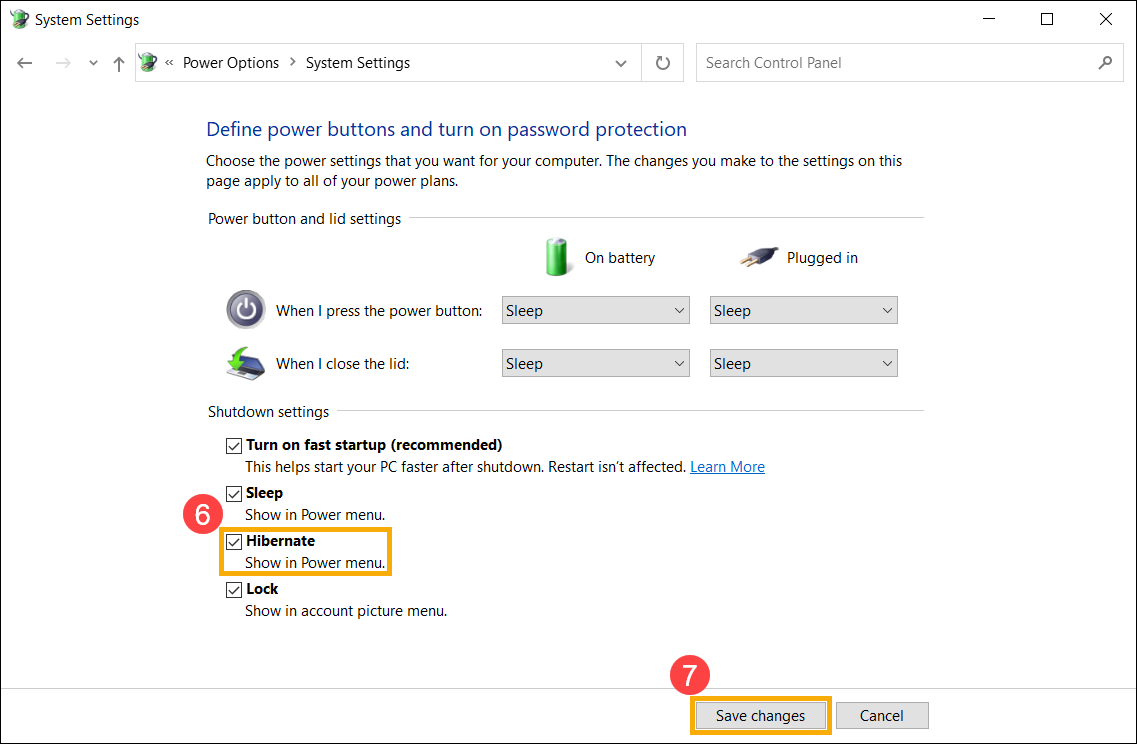
- Теперь Вы сможете перевести компьютер в спящий режим следующим образом.
Нажмите на иконку [Пуск] в углу Панели Задач ① , выберите [Выключение]
  ② и выберите [Гибернация] ③ .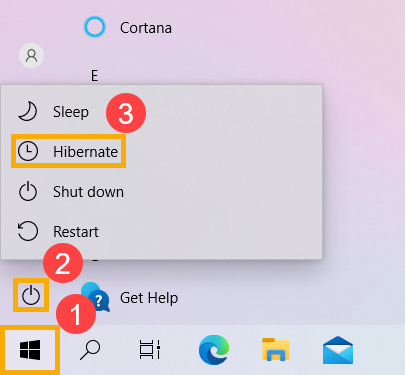
Shut down, sleep, or hibernate your PC
There are many ways to shut down your PC—you can turn the PC off completely, you can make it sleep, or you can hibernate the PC.
Turn your PC off completely
To shut down, select Start and then select Power > Shut down.
Sleep
Sleep uses very little power, your PC starts up faster, and you’re instantly back to where you left off. You don’t have to worry that you’ll lose your work because of your battery draining because Windows automatically saves all your work and turns off the PC if the battery is too low. Use Sleep when you’re going to be away from your PC for just a little while—like when you’re taking a coffee break.
For a lot of PCs (especially laptops and tablets), your PC goes to sleep when you close your lid or press the power button.
To set your PC so it goes to sleep when you close the lid or press the power button:
- Select Search on the taskbar, type control panel, and select it from the results.
- Select System and Security.
- In the Power Options section, select Change what the power buttons do.
- Select Change settings that are currently unavailable.
- Select options based on how you want Sleep to work:
- For a laptop, expand the list for When I close the lid in the On battery column and select Sleep. Repeat for the Plugged in column, if desired.
- For a desktop, tablet, or laptop, expand the list for When I press the power button in the On battery column and select Sleep. Repeat for the Plugged in column, if desired.
- Select Save changes.
When you’re ready to make your PC sleep, just press the power button on your desktop, tablet, or laptop, or close your laptop’s lid.
On most PCs, you can resume working by pressing your PC’s power button. However, not all PCs are the same. You might be able to wake it by pressing any key on the keyboard, clicking a mouse button, or opening the lid on a laptop. Check the documentation that came with your computer or go to the manufacturer’s website.
Hibernate
This option was designed for laptops and might not be available for all PCs. (For example, PCs with InstantGo don’t have the hibernate option.) Hibernate uses less power than sleep and when you start up the PC again, you’re back to where you left off (though not as fast as sleep).
Use hibernation when you know that you won’t use your laptop or tablet for an extended period and won’t have an opportunity to charge the battery during that time. First check to see if this option is available on your PC and if it is, turn it on.
To set your PC so it hibernates:
- Select Search on the taskbar, type control panel, and select it from the results.
- Select System and Security.
- In the Power Options section, select Change what the power buttons do.
- Select Change settings that are currently unavailable.
- In the Shutdown settings section, select Hibernate.
- Select Save changes.
Now you’ll be able to hibernate your PC in a few different ways:
- Select Start , and then select Power >Hibernate.
- Press the Windows logo key + X on your keyboard, and then select Shut down or sign out >Hibernate.
Note: If devices connected to your PC (like monitors, printers, or scanners) aren’t working properly after waking up from sleep or hibernate, you might need to disconnect and reconnect your device or restart your PC. You should also make sure that you have the most current drivers for all of your devices.
Turn your PC off completely
To shut down, select Start and then select Power > Shut down.
Sleep
Sleep uses very little power, your PC starts up faster, and you’re instantly back to where you left off. You don’t have to worry that you’ll lose your work because of your battery draining because Windows automatically saves all your work and turns off the PC if the battery is too low. Use Sleep when you’re going to be away from your PC for just a little while—like when you’re taking a coffee break.
For a lot of PCs (especially laptops and tablets), your PC goes to sleep when you close your lid or press the power button.
To set your PC so it goes to sleep when you close the lid or press the power button:
- Open power options—select Start , then select Settings >System >Power & sleep >Additional power settings.
- Do one of the following:
- If you’re using a desktop, tablet, or laptop, select Choose what the power buttons does. Next to When I press the power button, select Sleep, and then select Save changes.
- If you’re using only a laptop, select Choose what closing the lid does. Next to When I close the lid, select Sleep, and then select Save changes.
When you’re ready to make your PC sleep, just press the power button on your desktop, tablet, or laptop, or close your laptop’s lid.
On most PCs, you can resume working by pressing your PC’s power button. However, not all PCs are the same. You might be able to wake it by pressing any key on the keyboard, clicking a mouse button, or opening the lid on a laptop. Check the documentation that came with your computer or go to the manufacturer’s website.
Hibernate
This option was designed for laptops and might not be available for all PCs. (For example, PCs with InstantGo don’t have the hibernate option.) Hibernate uses less power than sleep and when you start up the PC again, you’re back to where you left off (though not as fast as sleep).
Use hibernation when you know that you won’t use your laptop or tablet for an extended period and won’t have an opportunity to charge the battery during that time. First check to see if this option is available on your PC and if it is, turn it on.
To hibernate your PC:
- Open power options—select Start , then select Settings >System >Power & sleep >Additional power settings.
- Select Choose what the power button does, and then select Change settings that are currently unavailable. Under Shutdown settings, select the Hibernate checkbox (if it’s available), and then select Save changes.
Now you’ll be able to hibernate your PC in a few different ways:
- Select Start , and then select Power >Hibernate.
- Press the Windows logo key + X on your keyboard, and then select Shut down or sign out >Hibernate.
Note: If devices connected to your PC (like monitors, printers, or scanners) aren’t working properly after waking up from sleep or hibernate, you might need to disconnect and reconnect your device or restart your PC. You should also make sure that you have the most current drivers for all of your devices.
Turn your PC off completely
To shut down Windows 8.1 or Windows RT 8.1, move your mouse to the lower left-hand corner of the screen and right-click Start or press the Windows logo key + X on your keyboard. Tap or select Shut down or sign out and choose Shut down.
Sleep
Sleep uses very little power, your PC starts up faster, and you’re instantly back to where you left off. You don’t have to worry that you’ll lose your work because of your battery draining because Windows automatically saves all your work and turns off the PC if the battery is too low. Use Sleep when you’re going to be away from your PC for just a little while—like when you’re taking a coffee break.
For a lot of PCs (especially laptops and tablets), your PC goes to sleep when you close your lid or press the power button.
To set your PC so it goes to sleep when you close the lid or press the power button:
- Open power options—swipe in from the edge of the screen, tap Search (or if you’re using a mouse, point to the upper-right corner of the screen, move the mouse pointer down, and then select Search), type Power options in the search box, and then tap or select Power options.
- Do one of the following:
- If you’re using a desktop, tablet, or laptop, select Choose what the power buttons do. Next to When I press the power button, select Sleep, and then select Save changes.
- If you’re using only a laptop, select Choose what closing the lid does. Next to When I close the lid, select Sleep, and then select Save changes.
When you’re ready to make your PC sleep, just press the power button on your desktop, tablet, or laptop, or close your laptop’s lid.
On most PCs, you can resume working by pressing your PC’s power button. However, not all PCs are the same. You might be able to wake it by pressing any key on the keyboard, clicking a mouse button, or opening the lid on a laptop. Check the documentation that came with your computer or go to the manufacturer’s website.
Hibernate
This option was designed for laptops and might not be available for all PCs. (For example, PCs with InstantGo don’t have the hibernate option.) Hibernate uses less power than sleep and when you start up the PC again, you’re back to where you left off (though not as fast as sleep).
Use hibernation when you know that you won’t use your laptop or tablet for an extended period and won’t have an opportunity to charge the battery during that time. First check to see if this option is available on your PC and if it is, turn it on.
To hibernate your PC:
- Open power options—swipe in from the edge of the screen, tap Search (or if you’re using a mouse, point to the upper-right corner of the screen, move the mouse pointer down, and then select Search), type Power options in the search box, and then tap or select Power options.
- Select Choose what the power button does, and then select Change settings that are currently unavailable. Under Shutdown settings, select the Hibernate checkbox (if it’s available), and then select Save changes.
Now you’ll be able to hibernate your PC in a few different ways:
- Move your mouse to the lower left-hand corner of the screen and right-click Start or press Windows logo key + X on your keyboard. Tap or select Shut down or sign out and choose Hibernate.
- Swipe in from the right edge of the screen and then tap Settings. (If you’re using a mouse, point to the lower-right corner of the screen, move the mouse pointer up, and then select Settings.) Tap or select Power >Hibernate.
Note: If devices connected to your PC (like monitors, printers, or scanners) aren’t working properly after waking up from sleep or hibernate, you might need to disconnect and reconnect your device or restart your PC. You should also make sure that you have the most current drivers for all of your devices.
Turn your PC off completely
To shut down, select Start and then select Shut down.
Sleep
Sleep uses very little power, your PC starts up faster, and you’re instantly back to where you left off. You don’t have to worry that you’ll lose your work because of your battery draining because Windows automatically saves all your work and turns off the PC if the battery is too low. Use Sleep when you’re going to be away from your PC for just a little while—like when you’re taking a coffee break.
For a lot of PCs (especially laptops and tablets), your PC goes to sleep when you close your lid or press the power button.
To set your PC so it goes to sleep when you close the lid or press the power button:
- Open power options—select Start , then select Control Panel >System and Security >Power Options.
- Do one of the following:
- If you’re using a desktop, tablet, or laptop, select Choose what the power buttons do. Next to When I press the power button, select Sleep, and then select Save changes.
- If you’re using only a laptop, select Choose what closing the lid does. Next to When I close the lid, select Sleep, and then select Save changes.
- When you’re ready to make your PC sleep, just press the power button on your desktop, tablet, or laptop, or close your laptop’s lid.
On most PCs, you can resume working by pressing your PC’s power button. However, not all PCs are the same. You might be able to wake it by pressing any key on the keyboard, clicking a mouse button, or opening the lid on a laptop. Check the documentation that came with your computer or go to the manufacturer’s website.
Hibernate
This option was designed for laptops and might not be available for all PCs. (For example, PCs with InstantGo don’t have the hibernate option.) Hibernate uses less power than sleep and when you start up the PC again, you’re back to where you left off (though not as fast as sleep).
Use hibernation when you know that you won’t use your laptop or tablet for an extended period and won’t have an opportunity to charge the battery during that time. First check to see if this option is available on your PC and if it is, turn it on.
To hibernate your PC:
- Open power options—select Start, then select Control Panel >System and Security >Power Options.
- Select Choose what the power button does, and then select Change settings that are currently unavailable. Under Shutdown settings, select the Hibernate checkbox (if it’s available), and then select Save changes.
Now you’ll be able to hibernate your PC—select Start , select the arrow next to Shut down, and then select Hibernate.
Note: If devices connected to your PC (like monitors, printers, or scanners) aren’t working properly after waking up from sleep or hibernate, you might need to disconnect and reconnect your device or restart your PC. You should also make sure that you have the most current drivers for all of your devices.
Как запланировать автоматическое выключение в Windows 11

Выключение компьютера необходимо для того, чтобы дать время остыть внутренним компонентам вашего ПК. Однако компиляция кода, рендеринг видео или загрузка игры могут заставить вас оставить компьютер без присмотра, что не приведет к простоям.
Если вы не выключите компьютер, это может нанести вред в долгосрочной перспективе, поскольку это приведет к сокращению срока службы электрических компонентов, а также повлияет на его производительность.
Решение? Запланируйте автоматическое выключение вашего компьютера, чтобы дать ему отдохнуть перед тем, как вы приступите к работе на следующий день. Есть несколько способов сделать это, и мы продемонстрируем все методы в этом руководстве.
1. Запланируйте выключение с помощью утилиты «Выполнить».
Это наиболее удобный и быстрый способ запланировать отключение объекта.
Нажмите клавиши Windows + R на клавиатуре, чтобы вызвать на экран утилиту «Выполнить команду». Затем введите или скопируйте и вставьте указанную ниже команду в текстовое поле и нажмите Enter на клавиатуре или нажмите «ОК».
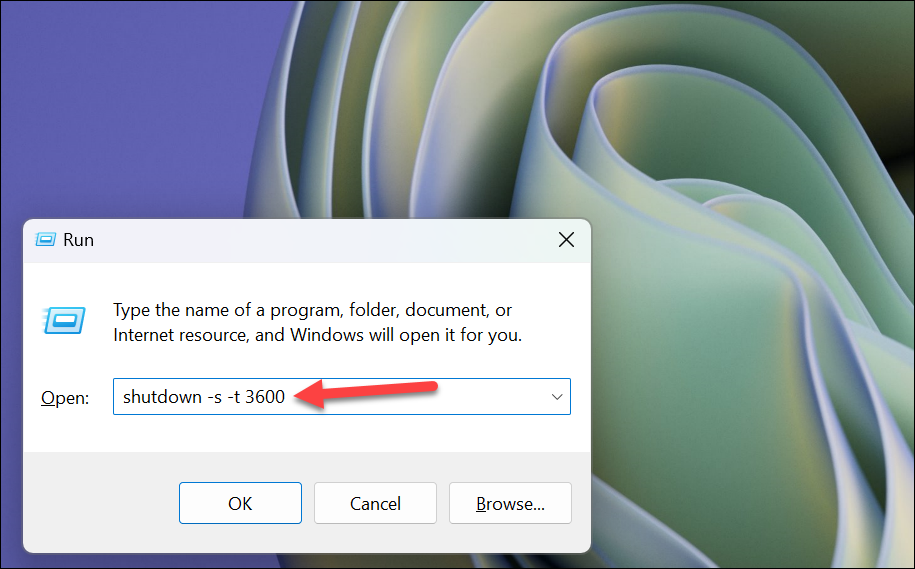
Для справки: если ввести значение «1», компьютер выключится через 1 секунду. Другие значения, которые вы можете использовать, включают:
- 3600 секунд = 1 час
- 7200 секунд = 2 часа
- 10800 секунд = 3 часа
Хотя вы не получите подтверждения, на вашем экране может мигнуть окно.
Если вы хотите настроить время или отменить выключение, скопируйте и вставьте указанную ниже команду и нажмите Enter «ОК». Для настройки времени запустите исходную команду с новым временем после отмены выключения, используя команду ниже.

2. Автоматическое выключение компьютера с помощью командной строки.
Команда с использованием Терминала в основном аналогична команде утилиты «Выполнить». Вы можете использовать его в том случае, если утилита «Выполнить» у вас по каким-то причинам не работает.
Сначала перейдите в меню «Пуск» и введите «Терминал». Затем в результатах поиска щелкните правой кнопкой мыши плитку «Терминал» и выберите «Запуск от имени администратора», чтобы продолжить.

На вашем экране появится окно UAC (Контроль учетных записей); если вы не вошли в систему с учетной записью администратора, введите учетные данные для нее. В противном случае нажмите кнопку «Да», чтобы продолжить.
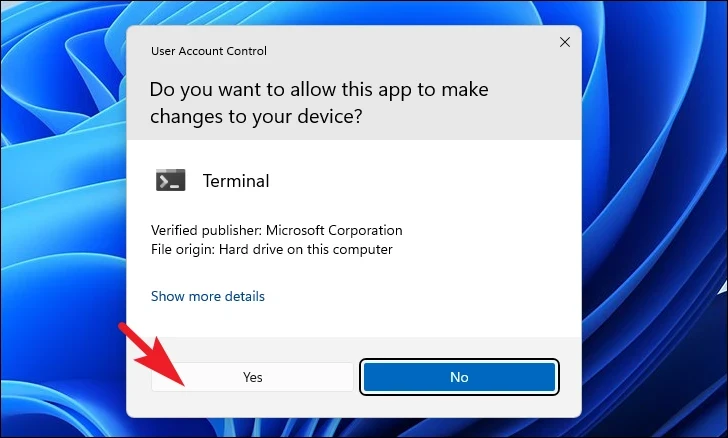
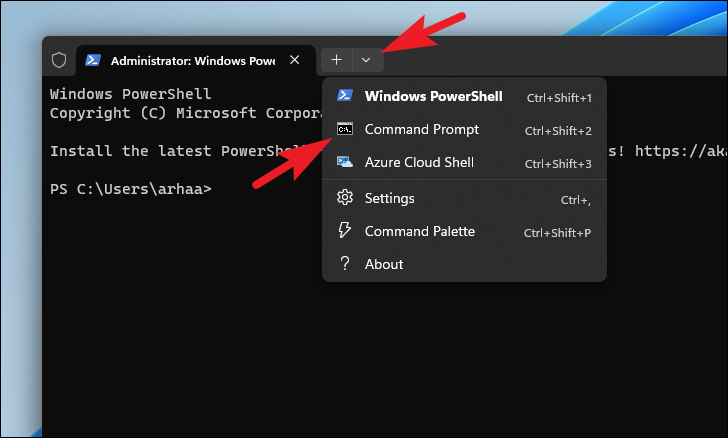
Затем щелкните значок «шеврон» (стрелка вниз) и выберите значок «Командная строка», чтобы продолжить. Это откроет командную строку на отдельной вкладке.
Затем введите или скопируйте и вставьте приведенную ниже команду и нажмите Enter для ее выполнения.
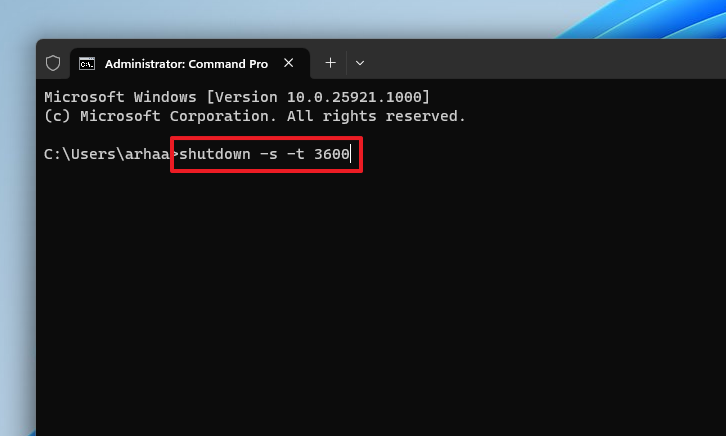
Примечание. Замените заполнитель фактической продолжительностью в секундах.
3. Запланируйте выключение с помощью планировщика задач.
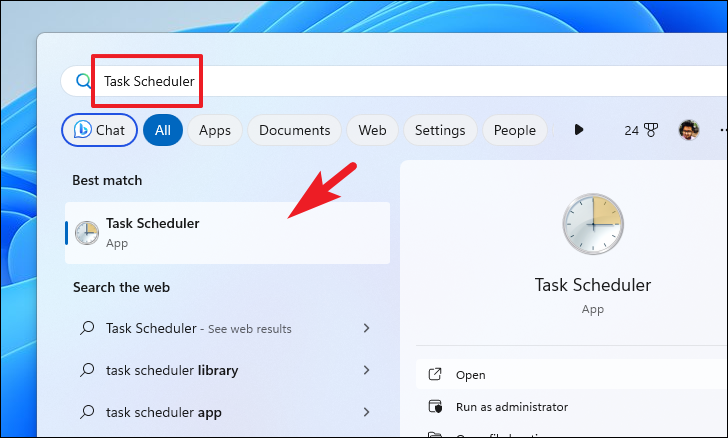
Сначала перейдите в меню «Пуск» и введите «Планировщик заданий», чтобы выполнить поиск. Затем нажмите на его плитку в результатах поиска.
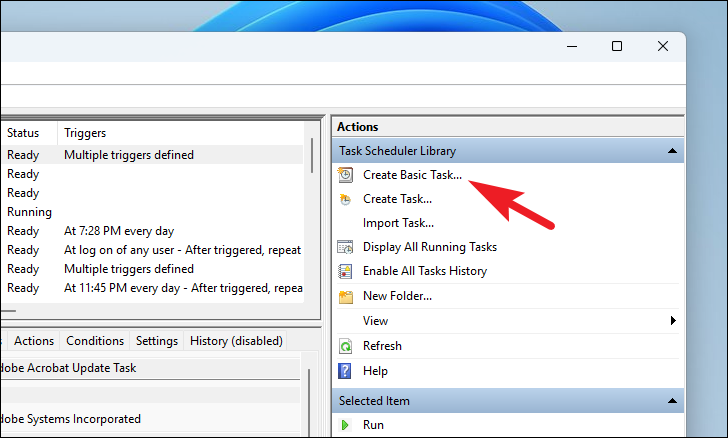
После этого нажмите «Создать базовую задачу» в правой части окна. Откроется отдельное окно на вашем экране.
На следующем экране выберите опцию «Одноразово». Если вы хотите запланировать отключение одновременно на более длительный период, вы можете выбрать предпочтительный вариант. После этого нажмите «Далее».

Теперь выберите дату и время, чтобы запланировать выключение. Затем нажмите «Далее», чтобы продолжить.

Выберите «Действие» на левой боковой панели. Затем выберите «Запустить программу» и нажмите «Далее», чтобы продолжить.
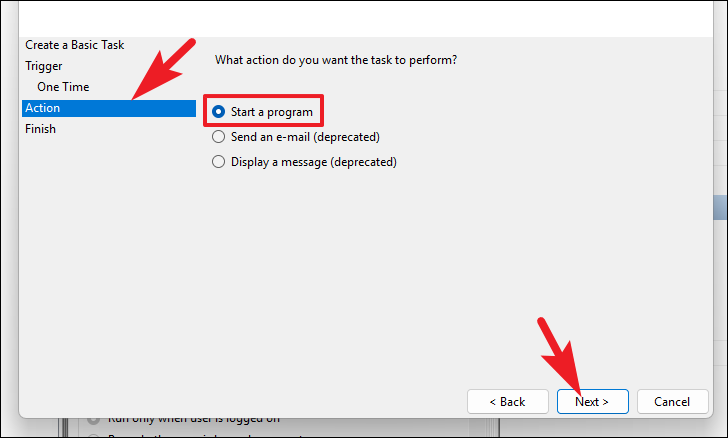
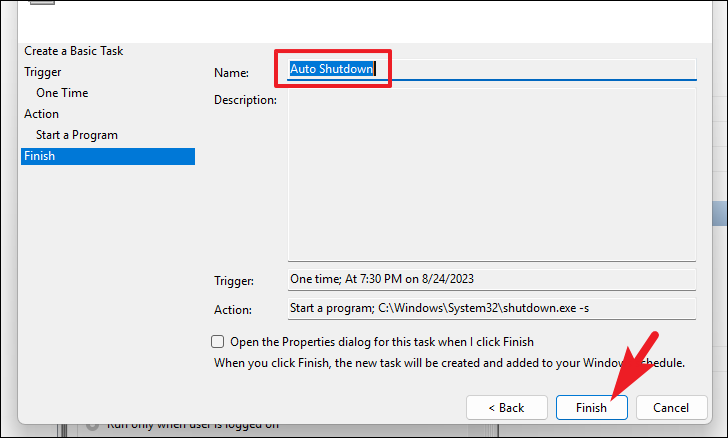
После этого введите или скопируйте и вставьте указанный ниже адрес в поле, указанное для пути к каталогу. Затем введите -s раздел аргументов. После этого нажмите «Далее».

На следующем экране дайте задаче подходящее имя и нажмите «Готово». Убедитесь, что выключение запланировано на удобное для вас время.
4. Создайте ярлык на рабочем столе, чтобы запланировать выключение.
Вы также можете создать ярлык на рабочем столе для таймера выключения, который при запуске начнет обратный отсчет выключения. Единственное предостережение: вы можете определить продолжительность времени только во время создания, которую нельзя изменить позже. Тем не менее, вы по-прежнему можете удобно запланировать автоматическое выключение одним нажатием кнопки.
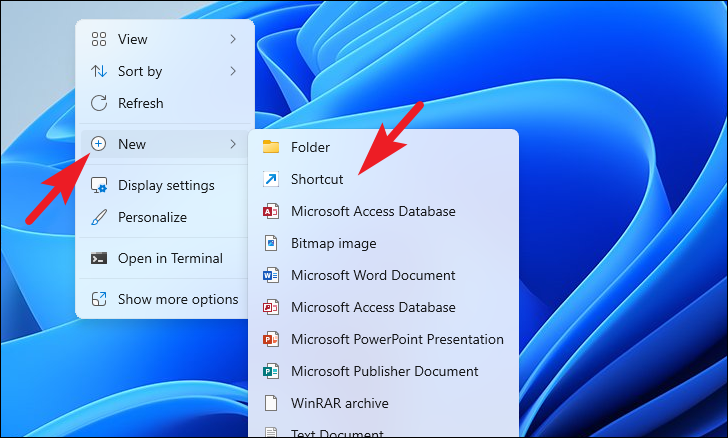
Чтобы создать ярлык, щелкните правой кнопкой мыши на рабочем столе и наведите указатель мыши на опцию «Новый». Затем выберите «Ярлык». Откроется окно на вашем экране.
После этого введите или скопируйте и вставьте указанную ниже команду и нажмите «Далее».
shutdown -s -t xxxx
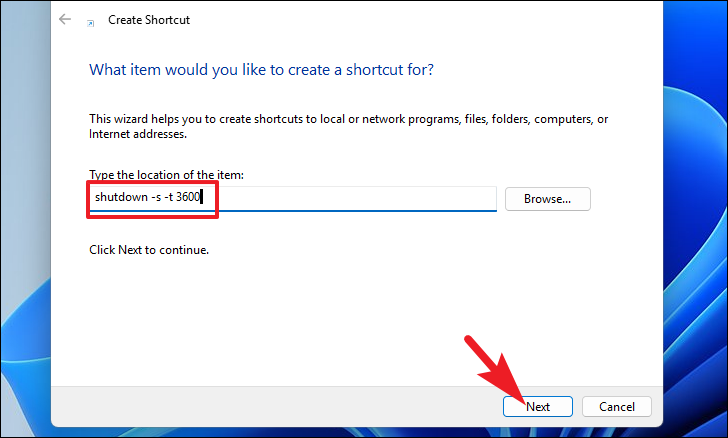
Примечание. Замените заполнитель «xxxx» фактической продолжительностью в секундах, как показано на снимке экрана.
На следующем экране дайте подходящее имя ярлыку и нажмите «Готово».

После создания вы сможете увидеть ярлык на рабочем столе. Запустите его, чтобы запланировать выключение.

Запланировать выключение компьютера может быть очень полезно, если вы склонны оставлять компьютер с работающими задачами. Это обеспечит долговечность внутренних компонентов, а также поддержание оптимальной производительности компьютера.
Насколько публикация полезна?
Нажмите на звезду, чтобы оценить!
Средняя оценка / 5. Количество оценок:
Оценок пока нет. Поставьте оценку первым.