PostgreSQL 9.2 Начало!
Мне хотелось создать прекрасный объемлющий мануал Getting Start без всякой воды, но включающий основные плюшки для начинающих по системе PostgreSQL в Linux.
PostgreSQL является объектно-реляционной системой управления базами данных (ОРСУБД) на основе POSTGRES, версия 4.2, разработанной в Университете Калифорнии в Беркли департаменте компьютерных наук.
PostgreSQL является open source потомком оригинального кода Berkeley. Он поддерживает большую часть стандарта SQL и предлагает множество современных функций:
- Cложные запросы
- Внешние ключи
- Триггеры
- Представление
- Транзакционная целостность (transactional integrity)
- Управление конкурентным доступом с помощью многоверсионности
- типов данных
- функций
- операторов
- агрегатных функций
- индекс методов
- процедурных языков
Сборка и установка
Как и все любители мейнстрима PostgreSQL мы будем конечно же собирать, а не скачивать готовые пакеты (в репозитариях Debian, например, нет последней версии). Вот здесь лежит множество версий, скачивать конечно же лучше всего последнюю. На момент написания поста это версия 9.2.2
wget http://ftp.postgresql.org/pub/source/v9.2.2/postgresql-9.2.2.tar.gz tar xzf postgresql-9.2.2.tar.gzТеперь у нас есть директория с исходниками сей прекрасной базы данных.
По умолчанию файлы базы будут установлены в директорию /usr/local/pgsql, но эту директорию можно изменить задав
--prefix=/path/to/pgsqlперед командой ./configure
Перед сборкой можно указать компилятор С++
export CC=gccPostgeSQL может использовать readline библиотеку, если у вас её нет и нет желания её ставить просто укажите опцию
--without-readlineНадеюсь у всех есть Autotools? Тогда вперед к сборке:
cd postgresql-9.2.2 ./configure --without-readline sudo make install cleanВсе господа! Поздравляю!
Настройка
Нам необходимо указать хранилище данных наших баз данных (кластер) и запустить её.
Есть один нюанс — владельцем директории данных и пользователь, который может запускать базу должен быть не root. Это сделано в целях безопасности системы. Поэтому создадим специального пользователя
sudo useradd postgres -p postgres -U -mИ далее все понятно
sudo chown -R postgres:postgres /usr/local/pgsqlВажный процесс. Мы должны инициализировать кластер баз дынных. Сделать мы должны это от имени пользователя postgres
initdb -D /usr/local/pgsql/data- prefix — это место куда мы ставили PostgreSQL и задавали в ./configure
- PGDATA — это то, где хранится кластер баз данных и куда должен иметь доступ наш пользователь postgres
- PGUSER — это тот самый пользователь, от лица которого будет все работать
sudo cp ./postgresql-9.2.2/contrib/start-scripts/linux /etc/init.d/postgres sudo update-rc.d postgres defaults Перезапускам систему, чтобы проверить что наш скрипт работает.
Вводим
/usr/local/pgsql/bin/psql -U postgresИ если появится окно работы с базой, то настройка прошла успешно! Поздравляю!
По умолчанию создается база данных с именем postgres
Теперь важно поговорить о методах авторизации.
В /usr/local/pgsql/data/pg_hba.conf как раз есть необходимые для этого настройка
# TYPE DATABASE USER ADDRESS METHOD local all all trust host all all 127.0.0.1/32 trust host all all ::1/128 trust - trust — доступ к базе может получить кто угодно под любым именем, имеющий с ней соединение.
- reject — отклонить безоговорочно! Это подходит для фильтрации определенных IP адресов
- password — требует обязательного ввода пароля. Не подходит для локальных пользователей, только пользователи созданные командой CREATE USER
- ident — позволяет только пользователем зарегистрированным в файле /usr/local/pgsql/data/pg_ident.conf устанавливать соединение с базой.
Утилиты для работы с базой
pg_config
Возвращает информацию о текущей установленной версии PostgreSQL.
initdb
Инициализирует новое хранилище данных (кластер баз данных). Кластер представляет собой совокупность баз данных управляемых одним экземпляром севера. initdb должен быть запущен от имени будущего владельца сервера (как указано выше от имени postgres).
pg_ctl
Управляет процессом работы сервера PostgreSQL. Позволяет запускать, выполнять перезапуск, останавливать работу сервера, указать лог файл и другое.
psql
Клиент для работы с базой дынных. Позволяет выполнять SQL операции.
createdb
Создает новую базу данных. По умолчанию, база данных создается от имени пользователя, который запускает команду. Однако, чтобы задать другого — необходимо использовать опцию -O (если у пользователя есть необходимые привилегии для этого). По сути — это обертка SQL команды CREATE DATABASE.
dropdb
Удаляет базу данных. Является оберткой SQL команды DROP DATABASE.
createuser
Добавляет нового пользователя базы дынных. Является оберткой SQL команды CREATE ROLE.
dropuser
Удаляет пользователя базы данных. Является оберткой SQL команды DROP ROLE.
createlang
Добавляет новый язык программирования в базу PostgreSQL. Является оберткой SQL команды CREATE LANGUAGE.
droplang
Удаляет язык программирования. Является оберткой SQL команды DROP LANGUAGE.
pg_dump
Создает бэкап (дамп) базы данных в файл.
pg_restore
Восстанавливает бэкап (дамп) базы данных из файла.
pg_dumpall
Создает бэкап (дамп) всего кластера в файл.
reindexdb
Производит переиндексацию базы данных. Является оберткой SQL команды REINDEX.
clusterdb
Производит перекластеризацию таблиц в базе данных. Является оберткой SQL команды CLUSTER.
vacuumdb
Сборщик мусора и оптимизатор базы данных. Является оберткой SQL команды VACUUM.
Менеджеры по работе с базой
Что касается менеджера по работа с базой, то есть php менеджер — это phpPgAdmin и GUI менеджер pgAdmin. Должен заметить, что они оба плохо поддерживают последнюю версию PostgreSQL.
P.S Если что-то забыл, скажите — добавлю.
Как запустить постгрес линукс
Before anyone can access the database, you must start the database server. The database server program is called postgres .
If you are using a pre-packaged version of PostgreSQL , it almost certainly includes provisions for running the server as a background task according to the conventions of your operating system. Using the package’s infrastructure to start the server will be much less work than figuring out how to do this yourself. Consult the package-level documentation for details.
The bare-bones way to start the server manually is just to invoke postgres directly, specifying the location of the data directory with the -D option, for example:
$ postgres -D /usr/local/pgsql/data
which will leave the server running in the foreground. This must be done while logged into the PostgreSQL user account. Without -D , the server will try to use the data directory named by the environment variable PGDATA . If that variable is not provided either, it will fail.
Normally it is better to start postgres in the background. For this, use the usual Unix shell syntax:
$ postgres -D /usr/local/pgsql/data >logfile 2>&1 &
It is important to store the server’s stdout and stderr output somewhere, as shown above. It will help for auditing purposes and to diagnose problems. (See Section 25.3 for a more thorough discussion of log file handling.)
The postgres program also takes a number of other command-line options. For more information, see the postgres reference page and Chapter 20 below.
This shell syntax can get tedious quickly. Therefore the wrapper program pg_ctl is provided to simplify some tasks. For example:
pg_ctl start -l logfile
will start the server in the background and put the output into the named log file. The -D option has the same meaning here as for postgres . pg_ctl is also capable of stopping the server.
Normally, you will want to start the database server when the computer boots. Autostart scripts are operating-system-specific. There are a few example scripts distributed with PostgreSQL in the contrib/start-scripts directory. Installing one will require root privileges.
Different systems have different conventions for starting up daemons at boot time. Many systems have a file /etc/rc.local or /etc/rc.d/rc.local . Others use init.d or rc.d directories. Whatever you do, the server must be run by the PostgreSQL user account and not by root or any other user. Therefore you probably should form your commands using su postgres -c ‘. ‘ . For example:
su postgres -c 'pg_ctl start -D /usr/local/pgsql/data -l serverlog'
Here are a few more operating-system-specific suggestions. (In each case be sure to use the proper installation directory and user name where we show generic values.)
- For FreeBSD , look at the file contrib/start-scripts/freebsd in the PostgreSQL source distribution.
- On OpenBSD , add the following lines to the file /etc/rc.local :
if [ -x /usr/local/pgsql/bin/pg_ctl -a -x /usr/local/pgsql/bin/postgres ]; then su -l postgres -c '/usr/local/pgsql/bin/pg_ctl start -s -l /var/postgresql/log -D /usr/local/pgsql/data' echo -n ' postgresql' fi
/usr/local/pgsql/bin/pg_ctl start -l logfile -D /usr/local/pgsql/data
to /etc/rc.d/rc.local or /etc/rc.local or look at the file contrib/start-scripts/linux in the PostgreSQL source distribution. When using systemd , you can use the following service unit file (e.g., at /etc/systemd/system/postgresql.service ):
[Unit] Description=PostgreSQL database server Documentation=man:postgres(1) After=network-online.target Wants=network-online.target [Service] Type=notify User=postgres ExecStart=/usr/local/pgsql/bin/postgres -D /usr/local/pgsql/data ExecReload=/bin/kill -HUP $MAINPID KillMode=mixed KillSignal=SIGINT TimeoutSec=infinity [Install] WantedBy=multi-user.target
su - postgres -c "/usr/local/pgsql/bin/pg_ctl start -l logfile -D /usr/local/pgsql/data"
While the server is running, its PID is stored in the file postmaster.pid in the data directory. This is used to prevent multiple server instances from running in the same data directory and can also be used for shutting down the server.
19.3.1. Server Start-up Failures #
There are several common reasons the server might fail to start. Check the server’s log file, or start it by hand (without redirecting standard output or standard error) and see what error messages appear. Below we explain some of the most common error messages in more detail.
LOG: could not bind IPv4 address "127.0.0.1": Address already in use HINT: Is another postmaster already running on port 5432? If not, wait a few seconds and retry. FATAL: could not create any TCP/IP sockets
This usually means just what it suggests: you tried to start another server on the same port where one is already running. However, if the kernel error message is not Address already in use or some variant of that, there might be a different problem. For example, trying to start a server on a reserved port number might draw something like:
$ postgres -p 666 LOG: could not bind IPv4 address "127.0.0.1": Permission denied HINT: Is another postmaster already running on port 666? If not, wait a few seconds and retry. FATAL: could not create any TCP/IP sockets
FATAL: could not create shared memory segment: Invalid argument DETAIL: Failed system call was shmget(key=5440001, size=4011376640, 03600).
probably means your kernel’s limit on the size of shared memory is smaller than the work area PostgreSQL is trying to create (4011376640 bytes in this example). This is only likely to happen if you have set shared_memory_type to sysv . In that case, you can try starting the server with a smaller-than-normal number of buffers (shared_buffers), or reconfigure your kernel to increase the allowed shared memory size. You might also see this message when trying to start multiple servers on the same machine, if their total space requested exceeds the kernel limit.
FATAL: could not create semaphores: No space left on device DETAIL: Failed system call was semget(5440126, 17, 03600).
does not mean you’ve run out of disk space. It means your kernel’s limit on the number of System V semaphores is smaller than the number PostgreSQL wants to create. As above, you might be able to work around the problem by starting the server with a reduced number of allowed connections (max_connections), but you’ll eventually want to increase the kernel limit.
Details about configuring System V IPC facilities are given in Section 19.4.1.
19.3.2. Client Connection Problems #
Although the error conditions possible on the client side are quite varied and application-dependent, a few of them might be directly related to how the server was started. Conditions other than those shown below should be documented with the respective client application.
psql: error: connection to server at "server.joe.com" (123.123.123.123), port 5432 failed: Connection refused Is the server running on that host and accepting TCP/IP connections?
This is the generic “ I couldn’t find a server to talk to ” failure. It looks like the above when TCP/IP communication is attempted. A common mistake is to forget to configure the server to allow TCP/IP connections.
Alternatively, you might get this when attempting Unix-domain socket communication to a local server:
psql: error: connection to server on socket "/tmp/.s.PGSQL.5432" failed: No such file or directory Is the server running locally and accepting connections on that socket?
If the server is indeed running, check that the client’s idea of the socket path (here /tmp ) agrees with the server’s unix_socket_directories setting.
A connection failure message always shows the server address or socket path name, which is useful in verifying that the client is trying to connect to the right place. If there is in fact no server listening there, the kernel error message will typically be either Connection refused or No such file or directory , as illustrated. (It is important to realize that Connection refused in this context does not mean that the server got your connection request and rejected it. That case will produce a different message, as shown in Section 21.15.) Other error messages such as Connection timed out might indicate more fundamental problems, like lack of network connectivity, or a firewall blocking the connection.
| Prev | Up | Next |
| 19.2. Creating a Database Cluster | Home | 19.4. Managing Kernel Resources |
Submit correction
If you see anything in the documentation that is not correct, does not match your experience with the particular feature or requires further clarification, please use this form to report a documentation issue.
Copyright © 1996-2024 The PostgreSQL Global Development Group
PostgreSQL в Linux: рецепты популярных действий и решения проблем
PostgreSQL, как сказано на её официальном сайте, это самая продвинутая в мире реляционная база данных с открытым исходным кодом.
Использование PostgreSQL
Как запустить службу PostgreSQL. Как управлять службой PostgreSQL
Запуск службы PostgreSQL:
sudo systemctl start postgresql.service
Остановка службы PostgreSQL:
sudo systemctl stop postgresql.service
Добавление службы PostgreSQL в автозагрузку:
sudo systemctl enable postgresql.service
Удаление службы PostgreSQL из автозагрузки:
sudo systemctl disable postgresql.service
Для просмотра состояния процесса PostgreSQL:
systemctl status postgresql.service
Альтернативный вариант запуска службы для работы с определённой базой данных следующий:
sudo -u ПОЛЬЗОВАТЕЛЬ postgres -D /ПУТЬ/ДО/БАЗЫ/ДАННЫХ
sudo -u postgres postgres -D /var/lib/postgres/data
Как узнать, какая версия PostgreSQL запущена
Версию запущенной PostgreSQL не всегда можно определить по установленным пакетам. Например, во время обновления PostgreSQL на некоторых дистрибутивах не заменяет предыдущую версию, а устанавливает новую в дополнении к имеющейся. Иногда у пользователя в корпоративной среде есть доступ через Navicat или phpPgAdmin, но нет доступа к консоли сервера, на котором работает база данных.
Для определения версии сервера выполните команду:
pg_config --version

postgres -V
Для определения версии клиента:
psql --version

Ещё один вариант определения версии PostgreSQL:
sudo -u postgres psql postgres -c 'SELECT version()' | grep PostgreSQL
sudo -u postgres psql -c 'SELECT version()' | grep PostgreSQL

PostgreSQL 14.0 (Debian 14.0-1) on x86_64-pc-linux-gnu, compiled by gcc (Debian 10.3.0-11) 10.3.0, 64-bit
Если вам нужен только номер версии (например, для скрипта), то используйте следующую команду:
postgres -V | awk ''
Хотя вместо postgres можно использовать postmaster, использование postgres предпочтительнее, поскольку postmaster это устаревший псевдоним для postgres.
Если вы предпочитаете вариант с SQL, то подключитесь к интерактивному терминалу:
sudo -u postgres psql
SELECT version();
Также вам может пригодиться один из следующих вариантов
SHOW server_version; SHOW server_version_num;

SHOW all;
Как инициализировать базу данных PostgreSQL
Остановите службу, если она запущена:
sudo systemctl stop postgresql.service
Директория /var/lib/postgres/ должна принадлежать пользователю postgres:
sudo chown -R postgres:postgres /var/lib/postgres/
Смените пользователя на postgres:
sudo -i -u postgres
Выполните инициализацию БД:
initdb --locale $LANG -E UTF8 -D '/var/lib/postgres/data'
Если вы столкнулись с ошибкой:
initdb: command not found
То найдите расположение файла initdb:
locate initdb
И укажите до него полный путь в команде инициализации:
/usr/lib/postgresql/14/bin/initdb --locale $LANG -E UTF8 -D '/var/lib/postgres/data'
Нажмите CTRL+D
Запустите службу PostgreSQL:
sudo systemctl start postgresql.service
Создайте нового пользователя (например, user):
sudo -u postgres createuser user
При желании, вы можете установить пароль для пользователя, это делается командой с ключом -W:
sudo -u postgres createuser user -W
Создайте базу данных (например, my-first-db):
sudo -u postgres createdb -O user my-first-db
Как подключиться к локальному серверу PostgreSQL
Для подключения к интерактивному терминалу PostgreSQL используется команда psql.
Примеры синтаксиса команд:
psql psql БАЗА-ДАННЫХ psql БАЗА-ДАННЫХ ПОЛЬЗОВАТЕЛЬ
Для psql требуется указать имя пользователя и если он не указан, то пересылается имя текущего пользователя системы, который скорее всего отсутствует в базе данных PostgreSQL, что вызывает ошибку. По умолчанию создаётся пользователь postgres, поэтому без дополнительной настройке вы можете подключиться к серверу PostgreSQL следующим образом:
sudo -u postgres psql
Какой конфигурационный файл использует PostgreSQL
Конфигурационный файл PostgreSQL носит имя postgresql.conf.
В системе может быть несколько конфигурационных файлов PostgreSQL. Вы можете найти их командой:
sudo locate postgresql.conf
Что особенно важно, systemd может использовать свои собственные конфигурационные файлы, например:
- /usr/lib/systemd/system/postgresql@.service.d/kali_postgresql.conf (путь в Kali Linux)
- /usr/lib/sysusers.d/postgresql.conf (путь в Arch Linux)
Если вы настраиваете PostgreSQL, но после перезапуска службы с помощью systemd (systemctl) изменения не применяются, возможно, вы просто редактируете неверный файл.
Также конфигурационный файл имеется в директории с базой данных, например:
- /var/lib/postgres/data/postgresql.conf
С пакетом PostgreSQL могут поставляться образцы конфигурационных файлов, например:
- /usr/share/postgresql/14/postgresql.conf.sample
- /usr/share/postgresql/postgresql.conf.sample
Как обновить базу данных PostgreSQL при переходе на новую версию
Сообщение при обновлении пакетов Linux:
Configuring postgresql-common Obsolete major version 13 The PostgreSQL version 13 is obsolete, but the server or client packages are still installed. Please install the latest packages (postgresql-14 and postgresql-client-14) and upgrade the existing clusters with pg_upgradecluster (see manpage). Please be aware that the installation of postgresql-14 will automatically create a default cluster 14/main. If you want to upgrade the 13/main cluster, you need to remove the already existing 14 cluster (pg_dropcluster --stop 14 main, see manpage for details). The old server and client packages are no longer supported. After the existing clusters are upgraded, the postgresql-13 and postgresql-client-13 packages should be removed. Please see /usr/share/doc/postgresql-common/README.Debian.gz for details.

Оно означает, что в системе 2 установленные версии PostgreSQL:
Если запустить службу PostgreSQL командой:
sudo systemctl start postgresql
И проверить версию командой:
sudo -u postgres psql postgres -c 'SELECT version()' | grep PostgreSQL
То будет выведено следующее:
PostgreSQL 13.4 (Debian 13.4-3) on x86_64-pc-linux-gnu, compiled by gcc (Debian 10.3.0-8) 10.3.0, 64-bit
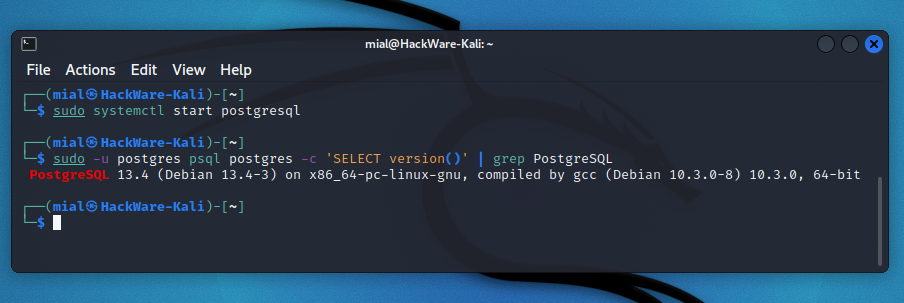
То есть по умолчанию используется 13, устаревшая версия.
Удаление старых версий пакетов, например, командой:
sudo apt remove postgresql-13 postgresql-client-13
ситуацию не меняет. Если вам нужно перенести базы данных из устаревшей версии в новую, то верните устаревшие пакеты, если вы успели их удалить.
Последующие действия подразумевают, что вы
1) установили новую версию PostgreSQL, но ещё не использовали её, то есть не сохраняли базы данных, поскольку файлы новой версии будут удалены.
2) хотите перенести старые база данных в новый формат
С помощью следующей команды просмотрите доступные кластеры:
pg_lsclusters
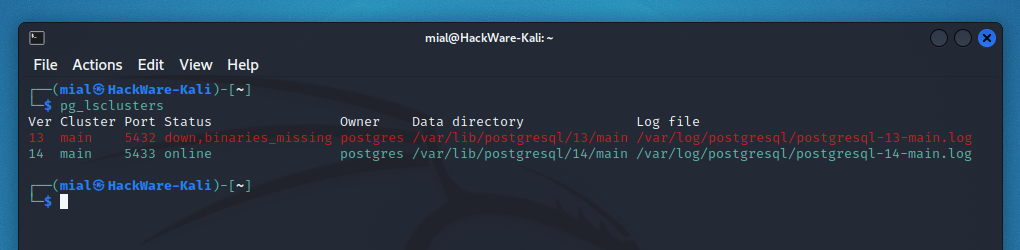
На скриншоте только один из них online (я успел удалить пакет postgresql-13), но у вас оба должны быть online, иначе перенос базы данных не удастся.
Пример правильного вывода:
Ver Cluster Port Status Owner Data directory Log file 13 main 5432 online postgres /var/lib/postgresql/13/main /var/log/postgresql/postgresql-13-main.log 14 main 5433 online postgres /var/lib/postgresql/14/main /var/log/postgresql/postgresql-14-main.log
Как можно увидеть, обе версии 13 и 14 в настоящее время установлены и запущены. Держите в уме, что при переносе старой базы данных в новый формат вам понадобиться двойной объём места на диске, поскольку pg_upgradecluster копирует данные.
Процедура обновления включает в себя следующее:
1. Удаляем данные новой версии:
sudo pg_dropcluster --stop 14 main
2. Запускаем процедуру обновления кластера:
sudo pg_upgradecluster 13 main
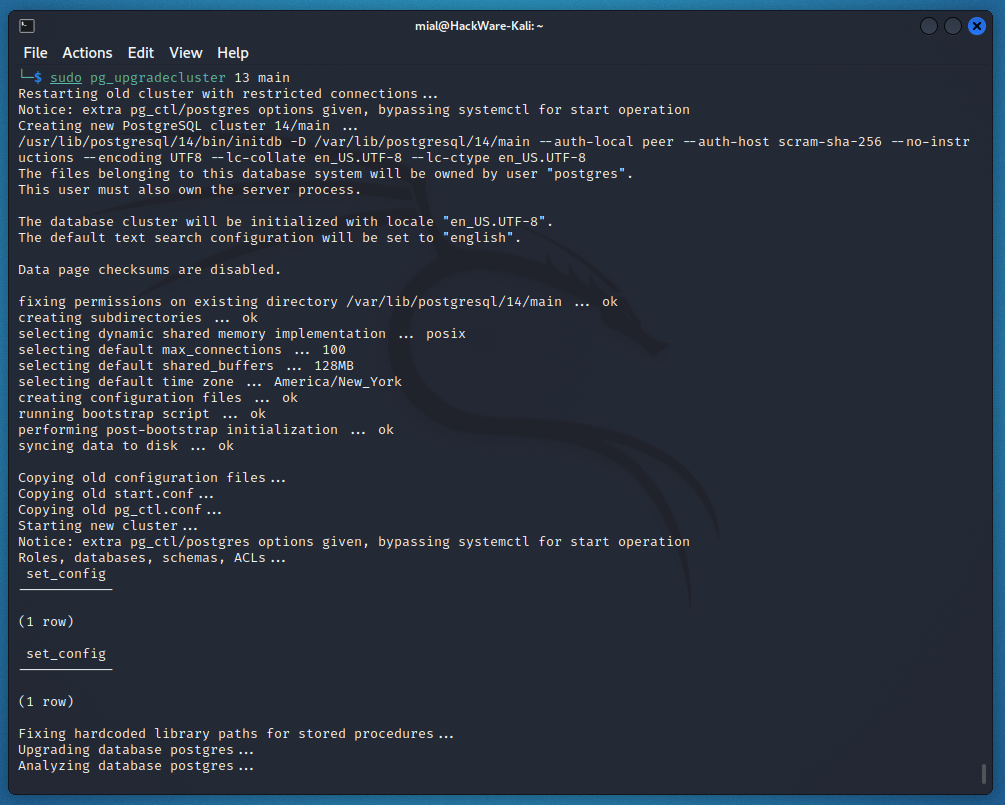
3. Когда операция будет завершена, дважды проверьте, что всё работает
4. Удалите старую версию
sudo pg_dropcluster --stop 13 main
Это показывает суть обновления кластера. Конечно, в конкретной вашей ситуации могут быть нюансы: другие номера версий, либо другое расположение файлов с базами данных.
Вновь проверяем версию:
sudo -u postgres pg_upgrade -b /opt/pgsql-13/bin -B /usr/bin -d /var/lib/postgres/olddata -D /var/lib/postgres/data

Теперь используется 14, то есть самая последняя версия.
В чём разница между postgres и psql
postgres
postgres — это сервер базы данных PostgreSQL. Чтобы клиентское приложение могло получить доступ к базе данных, оно подключается (по сети или локально) к работающему экземпляру postgres. Затем экземпляр postgres запускает отдельный серверный процесс для обработки соединения.
Один экземпляр postgres всегда управляет данными только одного кластера базы данных. Кластер базы данных — это набор баз данных, который хранится в общей папке файловой системы («область данных»). В системе может работать более одного экземпляра postgres одновременно, если они используют разные области данных и разные порты связи. Когда postgres запускается, ему необходимо знать расположение области данных. Местоположение должно быть указано параметром -D или переменной среды PGDATA; по умолчанию это значение не установлено. Обычно -D или PGDATA указывает непосредственно на каталог области данных, созданный initdb.
Чтобы запустить сервер в однопользовательском режиме, используйте такую команду, как
postgres --single -D /usr/local/pgsql/data ДРУГИЕ-ОПЦИИ БАЗА_ДАННЫХ
Чтобы запустить postgres в фоновом режиме со значениями по умолчанию, введите:
nohup postgres >logfile 2>&1Чтобы запустить postgres с определенным портом, например, 1234:
postgres -p 1234Чтобы подключиться к этому серверу с помощью psql, укажите этот порт с параметром -p:
psql -p 1234или установите переменную окружения PGPORT:
export PGPORT=1234 psqlpsql
psql — это интерфейс для PostgreSQL на основе терминала. Он позволяет вам вводить запросы в интерактивном режиме, отправлять их в PostgreSQL и просматривать результаты запросов. В качестве альтернативы ввод может быть из файла или из аргументов командной строки. Кроме того, psql предоставляет ряд мета-команд и различных функций, подобных оболочке, для облегчения написания сценариев и автоматизации широкого спектра задач.
Пример запуска psql:
psql БАЗА ПОЛЬЗОВАТЕЛЬЗапуск psql от пользователя postgres, который создаётся по умолчанию:
sudo -u postgres psqlОшибки PostgreSQL
psql: error: не удалось подключиться к серверу: Нет такого файла или каталога
При попытке подключиться к серверу PostgreSQL или выполнить запрос на сервере PostgreSQL, например:
sudo -u postgres psqlвы можете столкнуться с ошибкой:
psql: error: не удалось подключиться к серверу: Нет такого файла или каталога Он действительно работает локально и принимает соединения через Unix-сокет "/run/postgresql/.s.PGSQL.5432"?В англоязычной версии эта ошибка выглядит так:
psql: error: connection to server on socket "/var/run/postgresql/.s.PGSQL.5432" failed: No such file or directory Is the server running locally and accepting connections on that socket?Эта ошибка означает, что служба PostgreSQL не запущена, для её запуска выполните команду:
sudo systemctl start postgresql.serviceАльтернативный вариант запуска службы следующий:
sudo -u ПОЛЬЗОВАТЕЛЬ postgres -D /ПУТЬ/ДО/БАЗЫ/ДАННЫХsudo -u postgres postgres -D /var/lib/postgres/dataДругой возможной причиной ошибки может быть то, что psql ищет файл сокета в неверной директории: например, файл сокета помещён в /tmp, а psql ищет его в /run/postgresql/. В этом случае вы можете с помощью опции --host явно указать директорию, в которой находится сокет:
sudo -u postgres psql --host=/tmpFATAL: не удалось создать файл блокировки "/run/postgresql/.s.PGSQL.5432.lock": Нет такого файла или каталога
При запуске системы БД, например, следующей командой:
sudo -u postgres postgres -D /var/lib/postgres/dataВы можете столкнуться с ошибкой:
LOCATION: resolve_symlinks, exec.c:308 2021-11-12 06:12:22.424 MSK [16067] LOG: запускается PostgreSQL 13.4 on x86_64-pc-linux-gnu, compiled by gcc (GCC) 11.1.0, 64-bit 2021-11-12 06:12:22.425 MSK [16067] LOG: для приёма подключений по адресу IPv6 "::1" открыт порт 5432 2021-11-12 06:12:22.425 MSK [16067] LOG: для приёма подключений по адресу IPv4 "127.0.0.1" открыт порт 5432 2021-11-12 06:12:22.427 MSK [16067] FATAL: не удалось создать файл блокировки "/run/postgresql/.s.PGSQL.5432.lock": Нет такого файла или каталога 2021-11-12 06:12:22.428 MSK [16067] LOG: система БД выключена
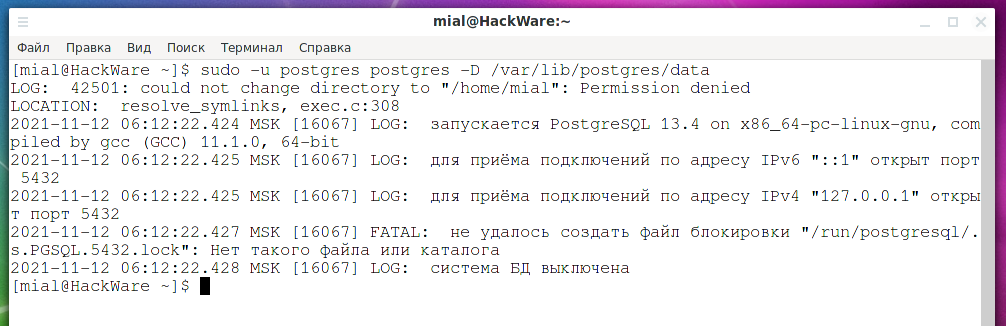
В англоязычной версии ошибка выглядит так:
2021-11-12 01:45:37.232 EST [3709] LOG: starting PostgreSQL 14.0 (Debian 14.0-1) on x86_64-pc-linux-gnu, compiled by gcc (Debian 10.3.0-11) 10.3.0, 64-bit 2021-11-12 01:45:37.233 EST [3709] LOG: listening on IPv6 address "::1", port 5432 2021-11-12 01:45:37.233 EST [3709] LOG: listening on IPv4 address "127.0.0.1", port 5432 2021-11-12 01:45:37.234 EST [3709] FATAL: could not create lock file "/run/postgresql/.s.PGSQL.5432.lock": No such file or directory 2021-11-12 01:45:37.235 EST [3709] LOG: database system is shut downПричина ошибки в том, что не удалось создать файл блокировки в указанной директории. Путь директории может быть разным в различных дистрибутивах, например, /var/run/postgresql/ или как в сообщении выше /run/postgresql/. Вы можете разрешить проблему двумя способами:
- Создать данную директорию (если она отсутствует) и сделать её владельцем пользователя postgres
- Отредактировать конфигурационный файл так, чтобы служба пыталась создавать файл блокировки в директории /tmp, на которую у всех пользователей есть право записи
Первый вариант — создаём директорию /run/postgresql/ и назначаем её владельцем пользователя postgres:
sudo mkdir /run/postgresql/ sudo chown -R postgres:postgres /run/postgresql/Второй вариант — открываем конфигурационный файл postgresql.conf (у вас может быть другое расположение)
sudo gedit /var/lib/postgres/data/postgresql.confИ добавляем туда следующую запись:
unix_socket_directories = '/tmp'sudo: postgres: command not found
Если при использовании postgres вы столкнулись с ошибкой:
sudo: postgres: command not foundто у этой проблемы может быть две возможных причины:
1. Не установлен пакет postgresql.
Установите его одной из следующих команд.
В Debian, Kali Linux, Linux Mint, Ubuntu и их производных:
sudo apt install postgresqlВ Arch Linux, Manjaro, BlackArch и их производных:
sudo pacman -S postgresql2. Исполнимый файл postgres находится за пределами $PATH
Это необязательно говорит о проблеме — такой подход может использоваться для возможности иметь на одном компьютере сразу несколько серверов PostgreSQL.
Найдите исполнимый файл
locate bin/postgres

Как можно видеть на скриншоте, исполнимый файл присутствует для двух версий сервера:
- /usr/lib/postgresql/13/bin/postgres
- /usr/lib/postgresql/14/bin/postgres
Теперь вместо postgres используйте полный путь в команде запуска, например:
sudo -u postgres /usr/lib/postgresql/14/bin/postgres -D /var/lib/postgres/data
psql: ошибка: ВАЖНО: роль "" не существует
При попытке запуска интерактивного терминала PostgreSQL
psql
Вы можете столкнуться с ошибкой:
psql: ошибка: ВАЖНО: роль "mial" не существует
Имя пользователя может быть другим — там будет показано имя того пользователя, котоырй пытается выполнить вход.
В англоязычной версии ошибка выглядит так:
psql: error: connection to server on socket "/var/run/postgresql/.s.PGSQL.5432" failed: FATAL: role "mial" does not exist
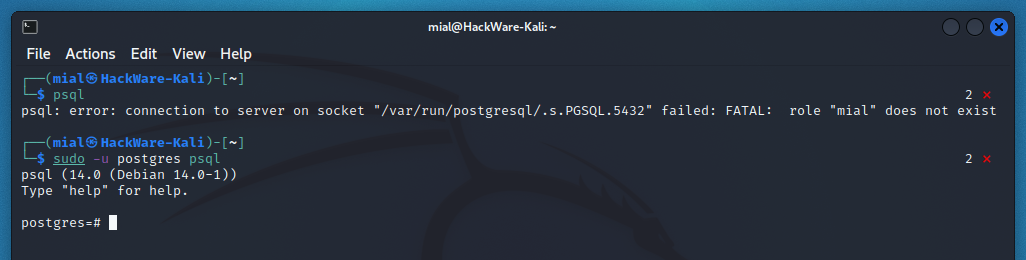
Для psql необходимо имя пользователя и если оно не указано явно, то передаётся имя пользователя системы. Но поскольку данный пользователь не существует на сервере PostgreSQL, то возникает указанная выше ошибка.
Вы можете создать пользователя с любы именем, как это показано выше и ошибка исчезнет.
По умолчанию присутствует пользователь postgres, поэтому вы можете подключиться от его имени:
sudo -u postgres psql
Вы должны указать его расположение в параметре --config-file или -D, либо установить переменную окружения PGDATA
При запуске postgres вы можете столкнуться с ошибкой:
postgres не знает, где найти файл конфигурации сервера. Вы должны указать его расположение в параметре --config-file или -D, либо установить переменную окружения PGDATA.
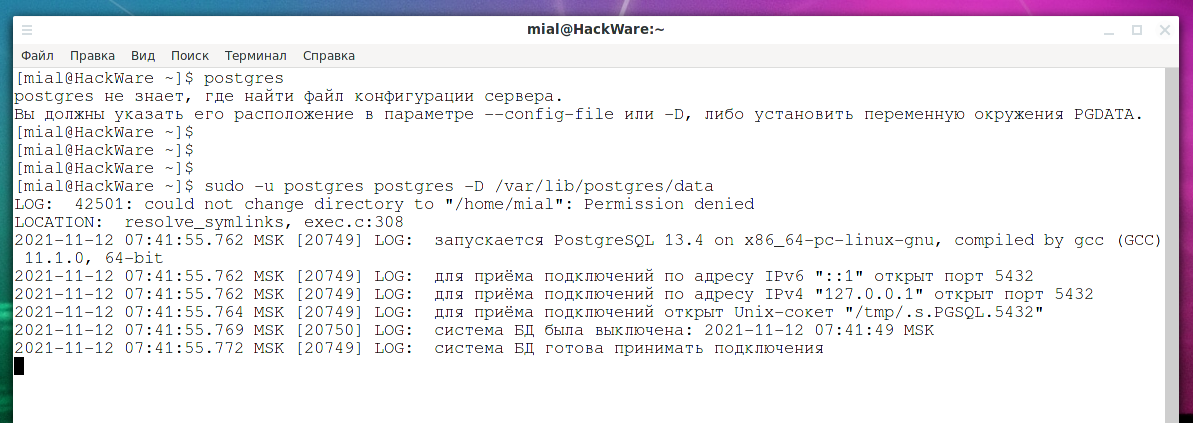
В англоязычной версии:
postgres does not know where to find the server configuration file. You must specify the --config-file or -D invocation option or set the PGDATA environment variable.
Суть ошибки в том, что необходимо указать конфигурационный файл в опции командной строки или в переменной окружения. Как вариант — можно указать путь до базы данных, содержащий конфигурационный файл. Например:
sudo -u ПОЛЬЗОВАТЕЛЬ postgres -D /ПУТЬ/ДО/КОНФИГУРАЦИОННОГО/ФАЙЛА
Конфигурационный файл называется postgresql.conf, но нужно указать не его, а директорию, в которой он содержится. Например:
sudo -u postgres postgres -D /var/lib/postgres/data

initdb: command not found
Смотрите объяснение данной проблемы, а также дополнительные пути устранения в описании аналогичной ошибки: sudo: postgres: command not found
Найдите initdb с помощью:
locate initdb
- /usr/lib/postgresql/13/bin/initdb
- /usr/lib/postgresql/14/bin/initdb
И используйте в ваших командах абсолютный путь до файла initdb нужной вам версии, например:
/usr/lib/postgresql/14/bin/initdb --locale $LANG -E UTF8 -D '/var/lib/postgres/data'
Как запустить постгрес линукс
pg_ctl — initialize, start, stop, or control a PostgreSQL server
Synopsis
pg_ctl init[db] [ -D datadir ] [ -s ] [ -o initdb-options ]
pg_ctl start [ -D datadir ] [ -l filename ] [ -W ] [ -t seconds ] [ -s ] [ -o options ] [ -p path ] [ -c ]
pg_ctl stop [ -D datadir ] [ -m s[mart] | f[ast] | i[mmediate] ] [ -W ] [ -t seconds ] [ -s ]
pg_ctl restart [ -D datadir ] [ -m s[mart] | f[ast] | i[mmediate] ] [ -W ] [ -t seconds ] [ -s ] [ -o options ] [ -c ]
pg_ctl reload [ -D datadir ] [ -s ]
pg_ctl status [ -D datadir ]
pg_ctl promote [ -D datadir ] [ -W ] [ -t seconds ] [ -s ]
pg_ctl logrotate [ -D datadir ] [ -s ]
pg_ctl kill signal_name process_id
On Microsoft Windows, also:
pg_ctl register [ -D datadir ] [ -N servicename ] [ -U username ] [ -P password ] [ -S a[uto] | d[emand] ] [ -e source ] [ -W ] [ -t seconds ] [ -s ] [ -o options ]
pg_ctl unregister [ -N servicename ]
Description
pg_ctl is a utility for initializing a PostgreSQL database cluster, starting, stopping, or restarting the PostgreSQL database server ( postgres ), or displaying the status of a running server. Although the server can be started manually, pg_ctl encapsulates tasks such as redirecting log output and properly detaching from the terminal and process group. It also provides convenient options for controlled shutdown.
The init or initdb mode creates a new PostgreSQL database cluster, that is, a collection of databases that will be managed by a single server instance. This mode invokes the initdb command. See initdb for details.
start mode launches a new server. The server is started in the background, and its standard input is attached to /dev/null (or nul on Windows). On Unix-like systems, by default, the server's standard output and standard error are sent to pg_ctl 's standard output (not standard error). The standard output of pg_ctl should then be redirected to a file or piped to another process such as a log rotating program like rotatelogs ; otherwise postgres will write its output to the controlling terminal (from the background) and will not leave the shell's process group. On Windows, by default the server's standard output and standard error are sent to the terminal. These default behaviors can be changed by using -l to append the server's output to a log file. Use of either -l or output redirection is recommended.
stop mode shuts down the server that is running in the specified data directory. Three different shutdown methods can be selected with the -m option. “ Smart ” mode disallows new connections, then waits for all existing clients to disconnect. If the server is in hot standby, recovery and streaming replication will be terminated once all clients have disconnected. “ Fast ” mode (the default) does not wait for clients to disconnect. All active transactions are rolled back and clients are forcibly disconnected, then the server is shut down. “ Immediate ” mode will abort all server processes immediately, without a clean shutdown. This choice will lead to a crash-recovery cycle during the next server start.
restart mode effectively executes a stop followed by a start. This allows changing the postgres command-line options, or changing configuration-file options that cannot be changed without restarting the server. If relative paths were used on the command line during server start, restart might fail unless pg_ctl is executed in the same current directory as it was during server start.
reload mode simply sends the postgres server process a SIGHUP signal, causing it to reread its configuration files ( postgresql.conf , pg_hba.conf , etc.). This allows changing configuration-file options that do not require a full server restart to take effect.
status mode checks whether a server is running in the specified data directory. If it is, the server's PID and the command line options that were used to invoke it are displayed. If the server is not running, pg_ctl returns an exit status of 3. If an accessible data directory is not specified, pg_ctl returns an exit status of 4.
promote mode commands the standby server that is running in the specified data directory to end standby mode and begin read-write operations.
logrotate mode rotates the server log file. For details on how to use this mode with external log rotation tools, see Section 25.3.
kill mode sends a signal to a specified process. This is primarily valuable on Microsoft Windows which does not have a built-in kill command. Use --help to see a list of supported signal names.
register mode registers the PostgreSQL server as a system service on Microsoft Windows . The -S option allows selection of service start type, either “ auto ” (start service automatically on system startup) or “ demand ” (start service on demand).
unregister mode unregisters a system service on Microsoft Windows . This undoes the effects of the register command.
Options
-c
--core-files
Attempt to allow server crashes to produce core files, on platforms where this is possible, by lifting any soft resource limit placed on core files. This is useful in debugging or diagnosing problems by allowing a stack trace to be obtained from a failed server process.
Specifies the file system location of the database configuration files. If this option is omitted, the environment variable PGDATA is used.
Append the server log output to filename . If the file does not exist, it is created. The umask is set to 077, so access to the log file is disallowed to other users by default.
Specifies the shutdown mode. mode can be smart , fast , or immediate , or the first letter of one of these three. If this option is omitted, fast is the default.
Specifies options to be passed directly to the postgres command. -o can be specified multiple times, with all the given options being passed through.
The options should usually be surrounded by single or double quotes to ensure that they are passed through as a group.
-o initdb-options
--options= initdb-options
Specifies options to be passed directly to the initdb command. -o can be specified multiple times, with all the given options being passed through.
The initdb-options should usually be surrounded by single or double quotes to ensure that they are passed through as a group.
Specifies the location of the postgres executable. By default the postgres executable is taken from the same directory as pg_ctl , or failing that, the hard-wired installation directory. It is not necessary to use this option unless you are doing something unusual and get errors that the postgres executable was not found.
In init mode, this option analogously specifies the location of the initdb executable.
Print only errors, no informational messages.
Specifies the maximum number of seconds to wait when waiting for an operation to complete (see option -w ). Defaults to the value of the PGCTLTIMEOUT environment variable or, if not set, to 60 seconds.
Print the pg_ctl version and exit.
Wait for the operation to complete. This is supported for the modes start , stop , restart , promote , and register , and is the default for those modes.
When waiting, pg_ctl repeatedly checks the server's PID file, sleeping for a short amount of time between checks. Startup is considered complete when the PID file indicates that the server is ready to accept connections. Shutdown is considered complete when the server removes the PID file. pg_ctl returns an exit code based on the success of the startup or shutdown.
If the operation does not complete within the timeout (see option -t ), then pg_ctl exits with a nonzero exit status. But note that the operation might continue in the background and eventually succeed.
Do not wait for the operation to complete. This is the opposite of the option -w .
If waiting is disabled, the requested action is triggered, but there is no feedback about its success. In that case, the server log file or an external monitoring system would have to be used to check the progress and success of the operation.
In prior releases of PostgreSQL, this was the default except for the stop mode.
Show help about pg_ctl command line arguments, and exit.
If an option is specified that is valid, but not relevant to the selected operating mode, pg_ctl ignores it.
Options for Windows
Name of the event source for pg_ctl to use for logging to the event log when running as a Windows service. The default is PostgreSQL . Note that this only controls messages sent from pg_ctl itself; once started, the server will use the event source specified by its event_source parameter. Should the server fail very early in startup, before that parameter has been set, it might also log using the default event source name PostgreSQL .
Name of the system service to register. This name will be used as both the service name and the display name. The default is PostgreSQL .
Password for the user to run the service as.
Start type of the system service. start-type can be auto , or demand , or the first letter of one of these two. If this option is omitted, auto is the default.
User name for the user to run the service as. For domain users, use the format DOMAIN\username .
Environment
PGCTLTIMEOUT
Default limit on the number of seconds to wait when waiting for startup or shutdown to complete. If not set, the default is 60 seconds.
Default data directory location.
Most pg_ctl modes require knowing the data directory location; therefore, the -D option is required unless PGDATA is set.
pg_ctl , like most other PostgreSQL utilities, also uses the environment variables supported by libpq (see Section 34.15).
For additional variables that affect the server, see postgres .
Files
postmaster.pid
pg_ctl examines this file in the data directory to determine whether the server is currently running.
If this file exists in the data directory, pg_ctl (in restart mode) will pass the contents of the file as options to postgres , unless overridden by the -o option. The contents of this file are also displayed in status mode.
Examples
Starting the Server
To start the server, waiting until the server is accepting connections:
$pg_ctl start
To start the server using port 5433, and running without fsync , use:
$pg_ctl -o "-F -p 5433" start
Stopping the Server
To stop the server, use:
$pg_ctl stop
The -m option allows control over how the server shuts down:
$pg_ctl stop -m smart
Restarting the Server
Restarting the server is almost equivalent to stopping the server and starting it again, except that by default, pg_ctl saves and reuses the command line options that were passed to the previously-running instance. To restart the server using the same options as before, use:
$pg_ctl restart
But if -o is specified, that replaces any previous options. To restart using port 5433, disabling fsync upon restart:
$pg_ctl -o "-F -p 5433" restart
Showing the Server Status
Here is sample status output from pg_ctl :
$pg_ctl statuspg_ctl: server is running (PID: 13718) /usr/local/pgsql/bin/postgres "-D" "/usr/local/pgsql/data" "-p" "5433" "-B" "128"
The second line is the command that would be invoked in restart mode.
See Also
| Prev | Up | Next |
| pg_controldata | Home | pg_resetwal |
Submit correction
If you see anything in the documentation that is not correct, does not match your experience with the particular feature or requires further clarification, please use this form to report a documentation issue.
Copyright © 1996-2024 The PostgreSQL Global Development Group