¶ Чек-лист
Руководство как через OBS возможно осуществлять трансляцию в Discord.
1. Заходим в OBS, настраиваем все то, что мы хотим транслировать в Discord.

2. Нажимаем на экран трансляции правой кнопкой мыши, выбираем оконный проектор(Windowed Projector).

3. На экране всплывает окно “оконный проектор”, где мы можем увидеть то, что будет транслировать Discord.

Также можно открыть несколько оконных проекторов. Например, выбрать нужные на панели «Scenes».


4. Заходим на нужный сервер в Discord, выбираем необходимый канал. Начинаем звонок, нажимаем кнопку “продемонстрируйте свой экран”.
.jpg)
5. В всплывающем окне, в разделе “приложения” выбираем “оконные проектор”(«windowed projector»).

6. Переходим на вкладку, где можно выбрать настройки трансляции.
.jpg)
7. Запускаем прямой эфир, нажав на кнопку “прямой эфир”.

Звук необходимо настроить в OBS, соответсвенно выбрать необходимый микрофон или динамик. Участники стрима будут слышать друг друга как при обычном звонке в Discord.
How To Stream To Discord With OBS Studio
The days are gone when there were only one or two streaming platforms. Creators now have a large choice of platforms to broadcast their content on. Not only are there obvious choices such as YouTube and Twitch, but there are now forum-based applications such as Discord coming to the forefront of streaming. Knowing how to stream to Discord with OBS Studio could help you take your content and community to the next level!
We’re here to talk you through how to set up OBS Studio streaming in Discord and the benefits it will bring to you and your followers. Follow the simple steps below, and you’ll be streaming your OBS collections to Discord in no time at all.
What Are Discord And OBS Studio?
You don’t need to be a streaming veteran to have heard about both Discord and OBS Studio. Over the years, they have developed into must-have software for content creators. Here’s a short breakdown as to what they do and why they’re essential:
Discord
Before Discord arrived, followers of a popular show or game were forced to use browser-based forums to discuss their passion. These web forums usually had limited storage and were incredibly slow, even painful to use! Enter Discord, a dedicated forum application where users can join channels based on their passions and hobbies.
As a creator, Discord provides a platform where you can gather your extended community. It gives them a safe space to discuss your content and meet one another.
Not only are there text channels where users can chat, but there are audio and video channels too. In these, creators can share their screens, webcams, or in this case, OBS Studio setup to share streams, new releases, and much more.
OBS Studio
If you’re reading this article, chances are you are already a user of OBS Studio! OBS is an open-source, plug-in-compatible streaming software. In it, users can design collections of scenes to stream to viewers via an online platform such as YouTube or Twitch. Thanks to its open-source nature, it is the number one choice of large streamers.
Why Stream To Discord With OBS Studio?
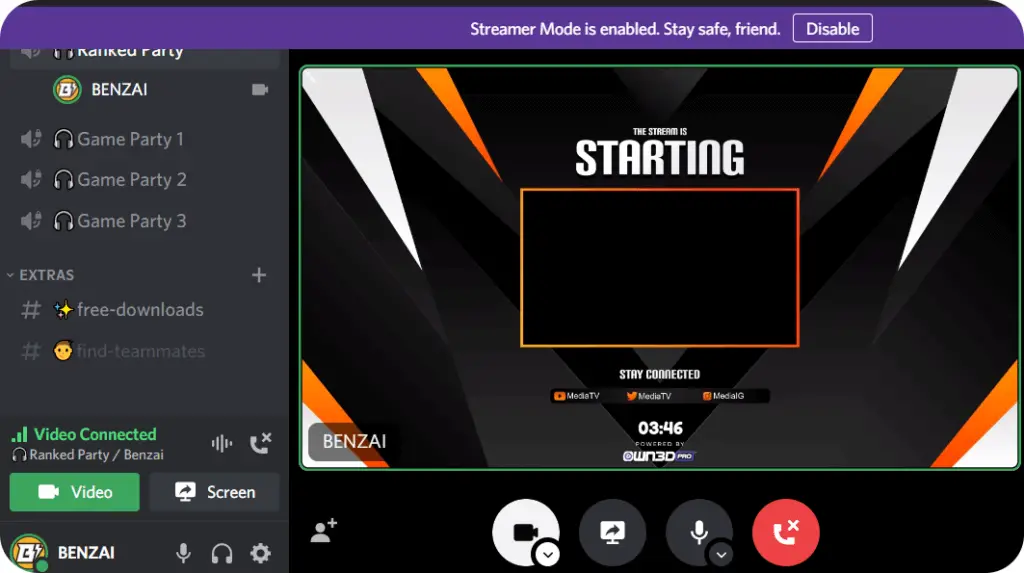
When you first download Discord, your video streaming options will be very limited. When you go to your video and audio settings, you’ll see you can only choose from in-built or external webcams. Further still, when you share your screen, you can only choose specific applications or the entire screen. There is no option to enable virtual cameras.
Using OBS Studio to stream to Discord, you can stream your entire stream as you usually would online. All of your scenes, sources, transitions, and effects will appear as usual and occur in real-time without latency issues.
One of the main reasons streamers might want to do this is to stream privately to members or subscribers. In Discord, you can assign users specific roles and permissions based on their community status.
For example, followers who buy membership can unlock a special role in Discord, giving them access to a video channel. You can stream additional content on top of your normal streams as a reward to your members in that video channel. If you were to stream on your main platform, everyone would see it, but doing so through Discord helps you manage and control your audience.
Discord takes its place as a complementary platform to more significant streaming sites, but broadcasting additional content on it will encourage more interaction and regular engagement from your loyal community.
How To Stream To Discord With OBS Studio: Step By Step
Using OBS to stream to Discord takes a few simple steps. The setup also depends on whether or not you want to use a single microphone for audio or the entire audio from OBS Studio. This changes the setup procedure a little bit, but we’ve got both covered! Follower the easy steps below to get started.
Step 1: Prepare The Scene Collection You Want To Stream
This process will stream whatever collection is appearing on OBS Studio at the time. Be sure to load in the correct scene collection for what you want to stream to your audience.
Check all of your scenes and sources to make sure they’re working and navigate to the opening scene you want your viewers to see when they first join.
Step 2: Start Virtual Camera In OBS Studio
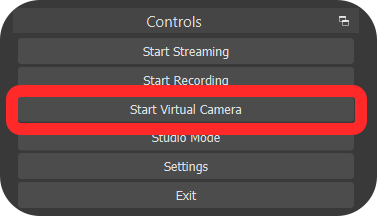
In the bottom right-hand corner of OBS Studio (or wherever you moved your controls dock too), you will see a button that says start virtual camera.
Once you click this button, it will turn a darker shade of grey, and the text will change to stop virtual camera. This is how you know your virtual camera is on.
Note: Previously, there was no virtual camera option. Users had to install the virtual camera feature themselves using this plugin. You may see some guides telling you to do this, but it’s outdated and unnecessary.
Step 3: Change Your Webcam Settings In Discord
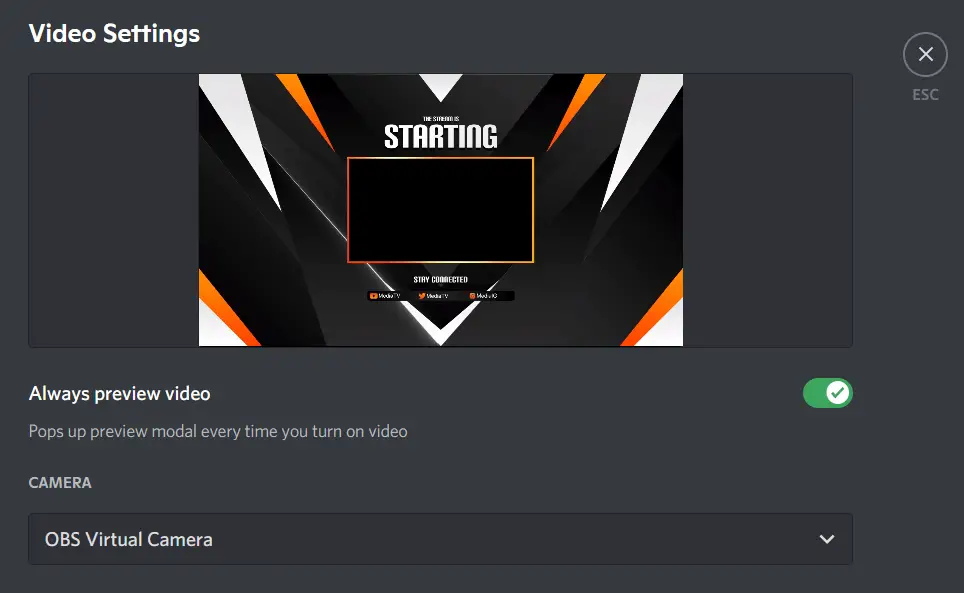
Click the gear icon in the bottom left-hand corner of the Discord application. It is located next to your username and tag.
In the next menu, you will see a long list of options on the left sidebar—select Voice & Video.
Scroll down to video settings and select the drop-down menu for selecting your camera. If your OBS Virtual Camera is running, you will see an option called OBS Virtual Camera. Select it and exit the settings menu. Your OBS Virtual Camera is now being used as your Discord webcam.
Step 4: Configure Audio Depending On Your Inputs
Setting up OBS video streaming in Discord is pretty simple, but the audio is not quite that easy. When you select your virtual camera as a camera device, Discord only receives the video footage, not OBS Studio’s audio.
There are two main ways you can go about setting up audio for OBS streaming in Discord.
Leave Your Microphone As Default
This is the simplest way of setting up audio because it doesn’t bring in any audio from OBS Studio! If what you want to do is just speak over your OBS virtual camera footage, then you can leave the microphone set to default or choose your plugged-in microphone.
This is great if you don’t require your system sound in your stream and just want to talk over the top of it. If you do want all of your OBS and system sounds, you’ll need to adopt a slightly different approach.
Set Up VoiceMeeter To Capture OBS Studio Audio
So you want to capture all of the audio that OBS normally captures in your Discord stream? Not a problem, but the setup is a little complicated.
You need to use a software called VoiceMeeter to set up a virtual audio cable. This will host all of your OBS audio as a virtual ‘microphone,’ so to say. Your system will recognize it as a mic, and you’ll be able to select it as an audio source in the Discord audio settings.
Unfortunately, there isn’t a more straightforward way to reroute all of your audio to Discord from OBS. Luckily enough for you, we have a very in-depth tutorial on setting up and using VoiceMeeter banana! It’s all free to use, and with a little bit of time and patience, it will become a powerful tool in your streaming arsenal.
Step 5: Manage Your Stream As You Usually Do
Once you are streaming to Discord, you can manage all of your stream features as you usually do in OBS Studio. Select different scenes to transition to, play sound effects, and it will all be mirrored identically in Discord.
One thing to remember is that you are technically not live. You are just mirroring your OBS Studio preview area. With that in mind, none of your cloudbot or moderation services will be online, and any of those features will need to be engaged manually (if possible).
Both pieces of software are continuously evolving, and we expect there to be a ‘stream to Discord’ plugin for OBS very soon, but for now, this is a perfectly reliable method!
In Conclusion
Using OBS Studio to stream to Discord is an excellent way of including your community in extra content. Whether that’s hosting members-only streams or running exclusive content previews, you’re bound to get positive feedback using the two cohesively.
Discord is not yet a monetized alternative to larger streaming platforms, but it is possibly the best community-based and most inclusive social system. Use it regularly in tandem with OBS Studio and watch your viewers gawp in amazement at what you can achieve as a creator!
Recent Posts
- 20 Key Film & TV Crew Roles Explained
- Top 5 Streamer Headsets in 2024
- Getting Noticed on TikTok
- How to Make a Short Film: The Ultimate Guide
- PowerVision: A New Player in the Drone Market
How To Add Discord Chat to OBS (Text or Voice)
Having a chat as an overlay is a regular feature across most Twitch streams these days. Chances are, when you click a newly recommended stream on the platform, you’ll see their chat embedded into the side of their stream.
But what if you could go one step further and add your Discord chat to your stream? It would have all of the role colors, GIF capabilities, and everything that is available on Discord.
Read on to find out more about Discord and how to integrate it directly into your content! We will show you how to:
- Add Discord text chat to OBS
- Add Discord voice chat audio to OBS
Discord and Streaming
Discord and streaming are now synonymous with each other. Creating and managing an active Discord channel can form a vital sense of community. It enables you to engage with fans outside of your stream schedule and be more readily available to them.
Discord is a two-way conversation too. Not only can you supply your members with information, news, and additional media, but they can instigate chats with you in the relevant channels. Having these chats on screen is something creators have wanted to do for a long time, and now the plugins exist to help streamers achieve this goal!
To Chat Or Not To Chat (On Screen)?
Streaming trends are an ever-evolving topic. One day one thing is super popular with viewers, and the next, it is outdated and uninteresting.
Streaming trends change daily, and on-screen chat is one of the most highly debated recent changes. A large number of streamers still deem on-screen to be necessary since stream chat is disabled for VODs. However, a few large streamers have analyzed their stream statistics, realized that VODs only attract a small percentage of their views, and decided that on-screen chat takes up too much space.
Currently, it doesn’t seem to make much of a difference in viewer retention,, but it’s worth keeping an eye on the trend to make sure you’re all up to date with what’s hot and what’s not!
How To Add Discord Text Chat To OBS
There are currently two main ways to add an OBS overlay to your streams; StreamKit and Window Capture. One requires the use of a browser capture source, and the other utilizes the window capture source:
StreamKit Method
The Discord StreamKit is a fantastic tool that helps you set up three different overlay types on your stream; Server Status, Chat, and Voice Chat. To set up your text chat overlay:
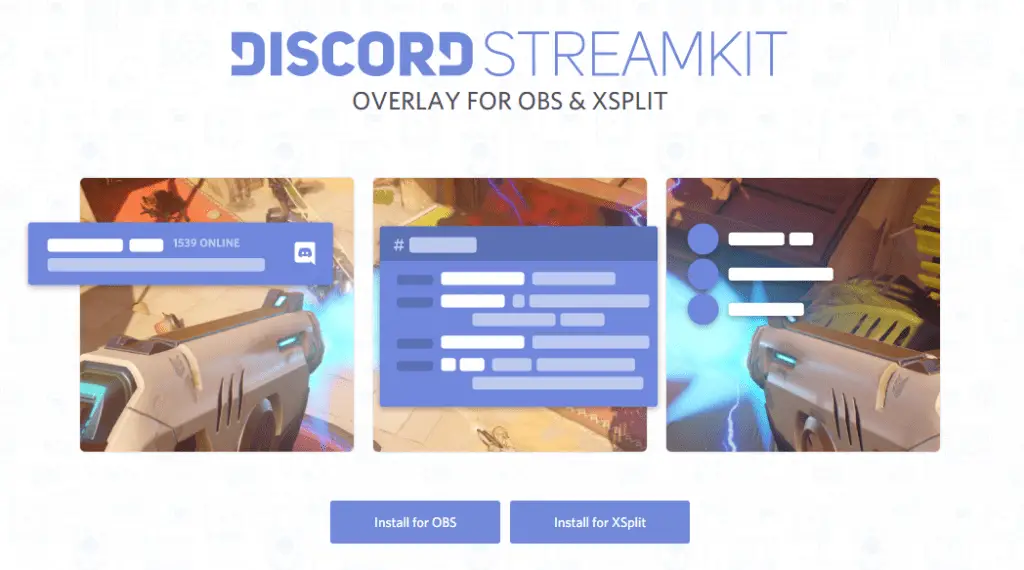
- Got to: https://streamkit.discord.com/overlay. There, click on “Install for OBS.” (There is nothing to install really, it will just open a browser window with settings).
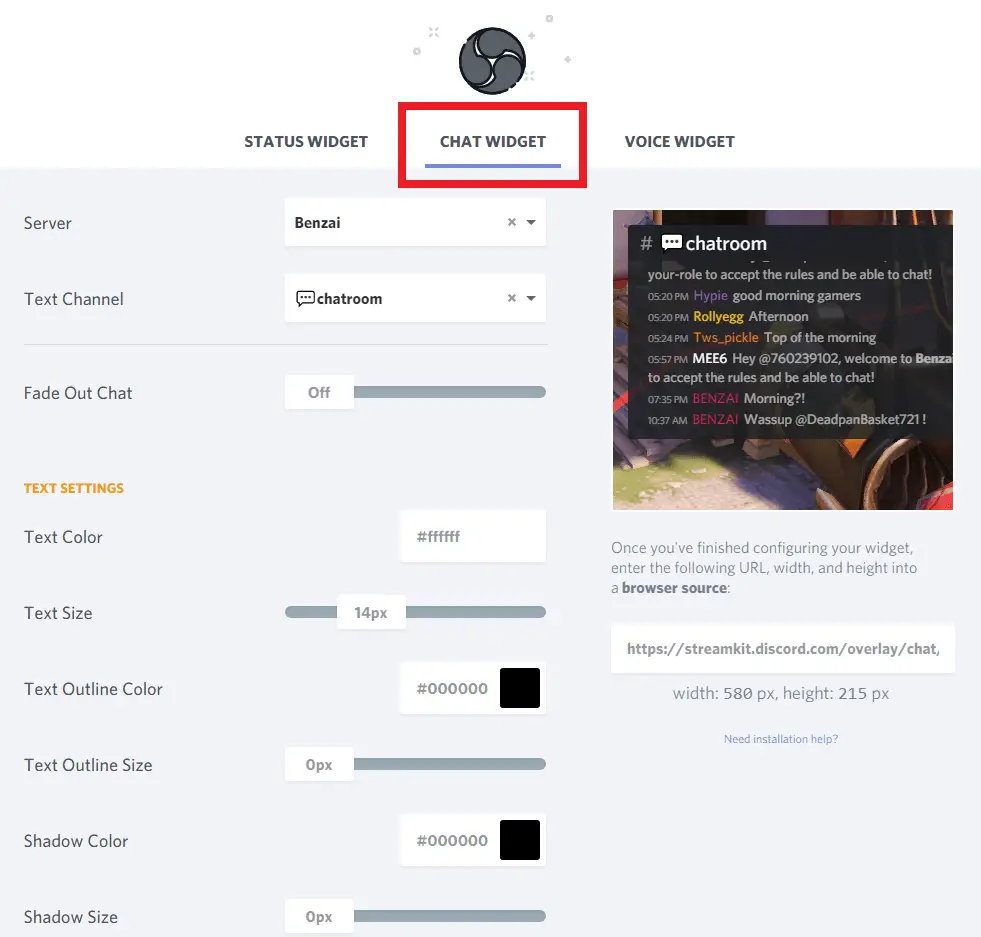
- Click the “Chat Widget” tab and choose the correct server and text channel you want to feature on stream.
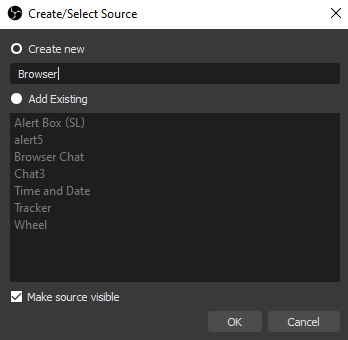
- Add a new browser source in OBS Studio.
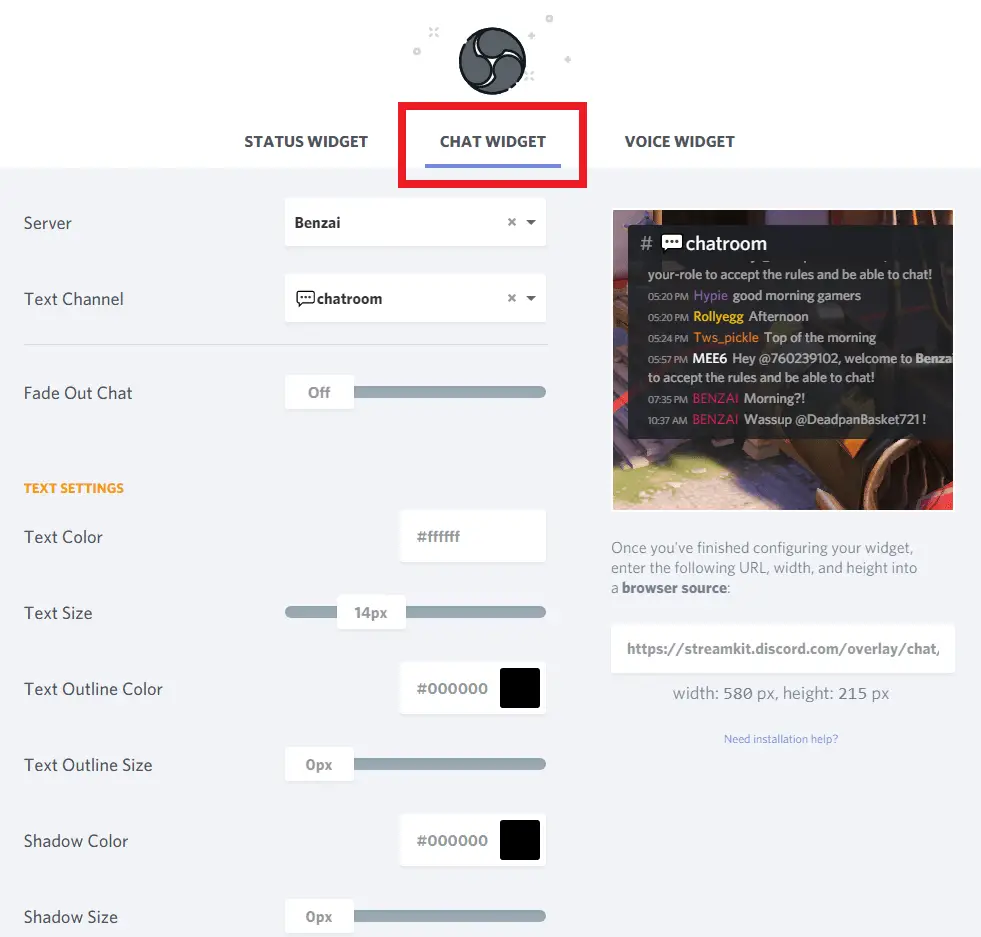
- Copy the URL from the StreamKit browser and paste it into your browser source URL settings. Set the dimensions to 580px x 215px and you’re good to go!
Window Capture Method
The second way to overlay your Discord chat is to set up a window capture of your discord window. This is slightly more reliable than the above method but has less customizability in terms of transparency and general format. It also requires that you stay on the chat channel of your discord for the entirety of your stream. If you change the channel, the overlay on your stream will also change!
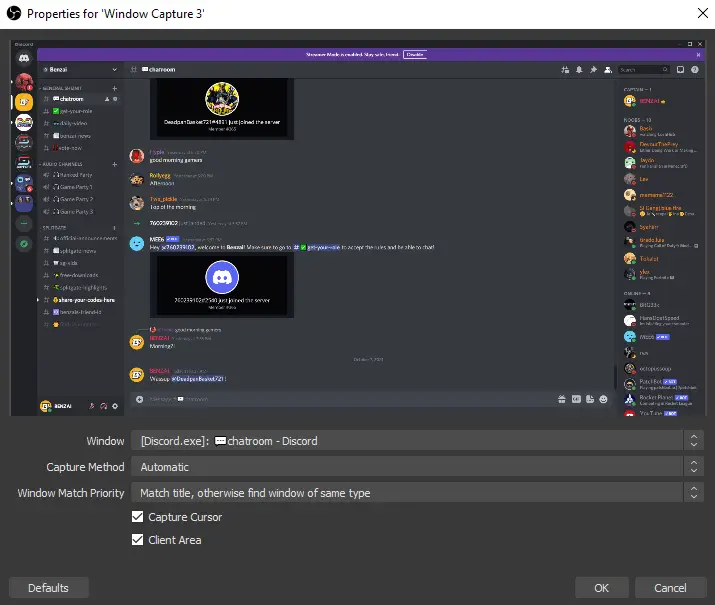
- Set up a new window capture source on OBS Studio.
- Open Discord
- Set the Window source in OBS to [Discord.exe], and your discord preview should appear above.
- Crop the window to show only the chat using the crop filter or by holding ‘alt’ as you drag the tops and sides of the image.
How to Add Discord Voice Chat Audio to OBS
You might also want to add the audio from your Discord voice chat in OBS. This is also pretty simple to do.
Streamkit Method
- Go to: https://streamkit.discord.com/overlay and click on “Install for OBS.”
- You will be greeted by three tabs. Just open the “Voice Widget” tab.
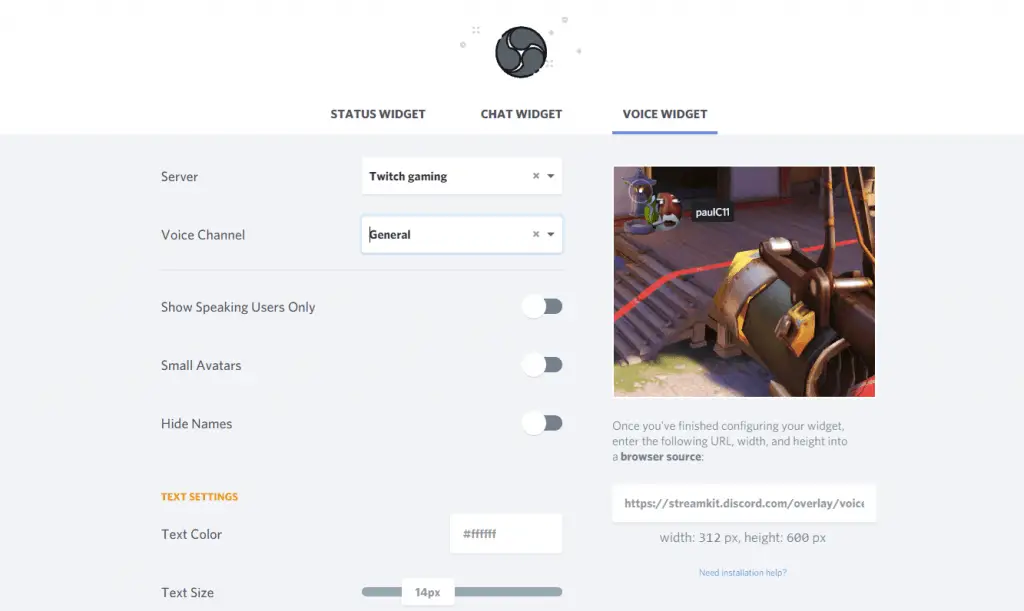
- Here, you can simply input which Discord server and voice channel you want to record.
- Once you have put in all the info, Streamkit will spit out a Browser Source URL.
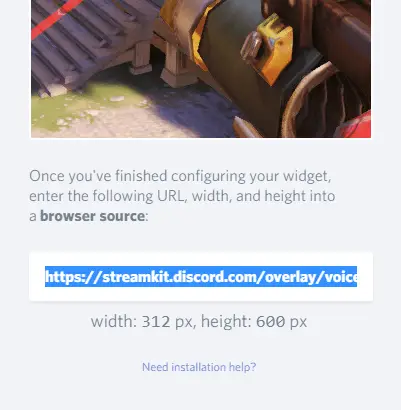
- Add the browser source in OBS and set the dimensions to width: 312px, height: 600px.
- So there you have it! You can now simply add the Discord widget wherever you want it to appear on your screen.
Audio Input / Output Method
- Open Discord and go to Settings > Voice & Video
- If you haven’t already, set your “input” and “output” devices. In your case, these are most likely your microphone and headset.
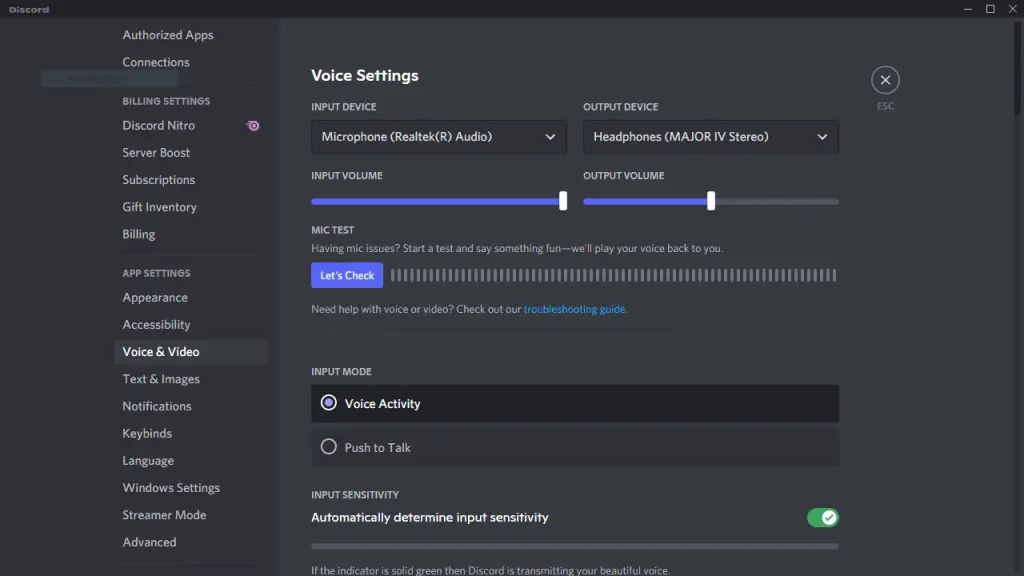
- Now open OBS Studio or SLOBS and go to Settings > Audio
- Set the exact “input” and “output” devices as in Discord. In OBS, these settings are called “Desktop Audio” and “Mic/Auxiliary Audio”
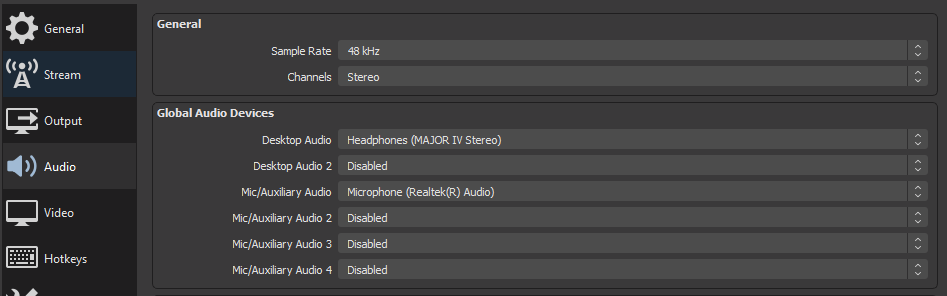
- Once set up, you can now adjust the settings in the sound mixer in OBS.
That wasn’t that hard. Was it?
Provided you have done everything correctly, your viewers will now hear when someone is talking to you on Discord as well as what you say.
How to Mute Discord Voice Chat When Live-Streaming
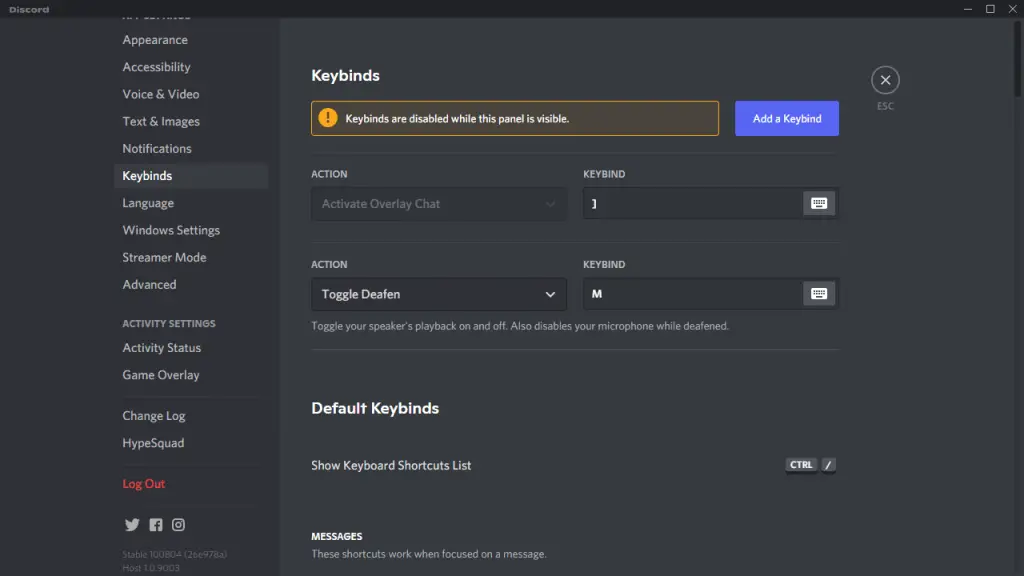
Once in-stream, it might be a good idea to be able to mute the voice chat. You can do this by setting up a hotkey to mute the OBS audio source.
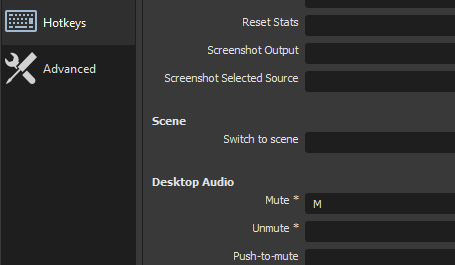
The second option is to use a hotkey to mute your Discord directly.
In Conclusion
Of the two methods, StreamKit is probably the most compatible and reliable. However, it is an online source, and should anything happen to the website; your source will be unavailable. Your best bet would be to set both methods up with StreamKit as your main and Window Capture hidden in the background as a backup. One thing’s for sure, with Discord chat on the screen, you’ve now linked two platforms that are vital to creation success!
Recent Posts
- 20 Key Film & TV Crew Roles Explained
- Top 5 Streamer Headsets in 2024
- Getting Noticed on TikTok
- How to Make a Short Film: The Ultimate Guide
- PowerVision: A New Player in the Drone Market
OBS streaming to Discord with audio
As part of a project I am working on, I had to get OBS studio streaming into a Discord voice channel so that we could broadcast a stream to our community with all the benefits of the built-in Discord chat surrounding it.
First of all, is this even possible? Turns out it is, though you have to use OBS Studio differently to how you would if you were streaming to Twitch, Youtube, etc.
Note: All the information in this post is based on what I’ve found scattered across the web. I’m just compiling everything here into a single guide to save you time.
1. Setup OBS video
We need to use the OBS Virtual Camera feature if we want to stream via Discord. What this does is create a virtual webcam recognized by our computer. The webcam video will be our OBS stream video output. This allows us to use the OBS stream in any application that usually relies on a webcam (e.g Zoom, Google Meet, Discord, etc).
Enabling this is simple, Just click the Start Virtual Camera button in the control panel:
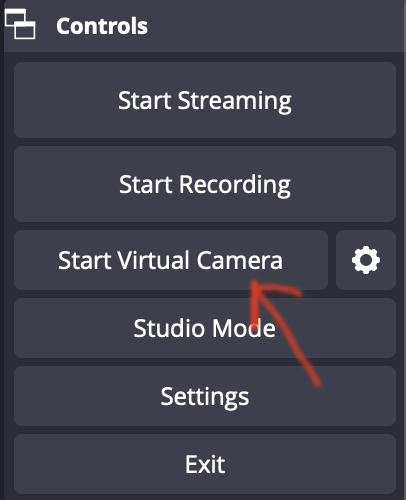
Note: You don’t need to click «Start Streaming» in order to enable the virtual camera.
At this point a new webcam called OBS Virtual Camera will be available to all applications.
2. Setup OBS audio
The OBS Virtual Camera does not include audio by default. So we need to handle that separately.
We do this by making the audio for our stream available via the audio monitoring stream. The audio monitoring stream is a secondary audio stream output from OBS, separate from your main stream’s audio output. It is intended as a way for you to monitor selective parts of the audio inputs for any issues.
In our case we can use the monitoring stream as a way to pipe the audio into a virtual microphone (just like how we turned the video stream into a virtual webcam).
Firstly, we need a virtual audio device to send the monitoring stream audio to. I recommend either of the following for Windows and Mac:
- VAC — Free. Windows only.
- Virtual Audio Cable — Free. Windows and Mac.
- Loopback — Paid. Mac only. Most user-friendly GUI.
Note: Linux users, please refer to your distribution for the best option,
Use the virtual audio device software to setup a virtaul audio device. I use Loopback on my Mac and here is how it looks:
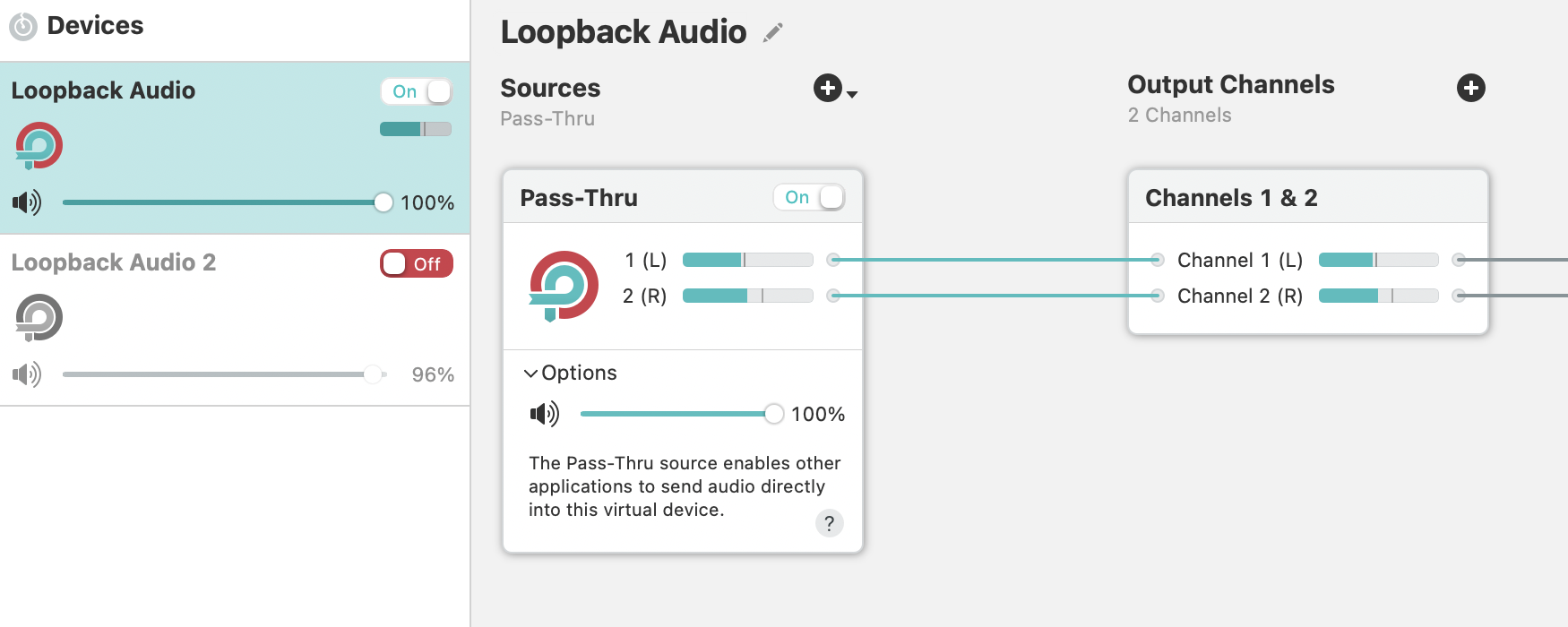
Once this is turned on a new audio device called Loopback Audio appears in my system’s list of sound devices, both as a speaker and microphone.
Now let’s tell OBS to send the monitoring audio stream to this device:
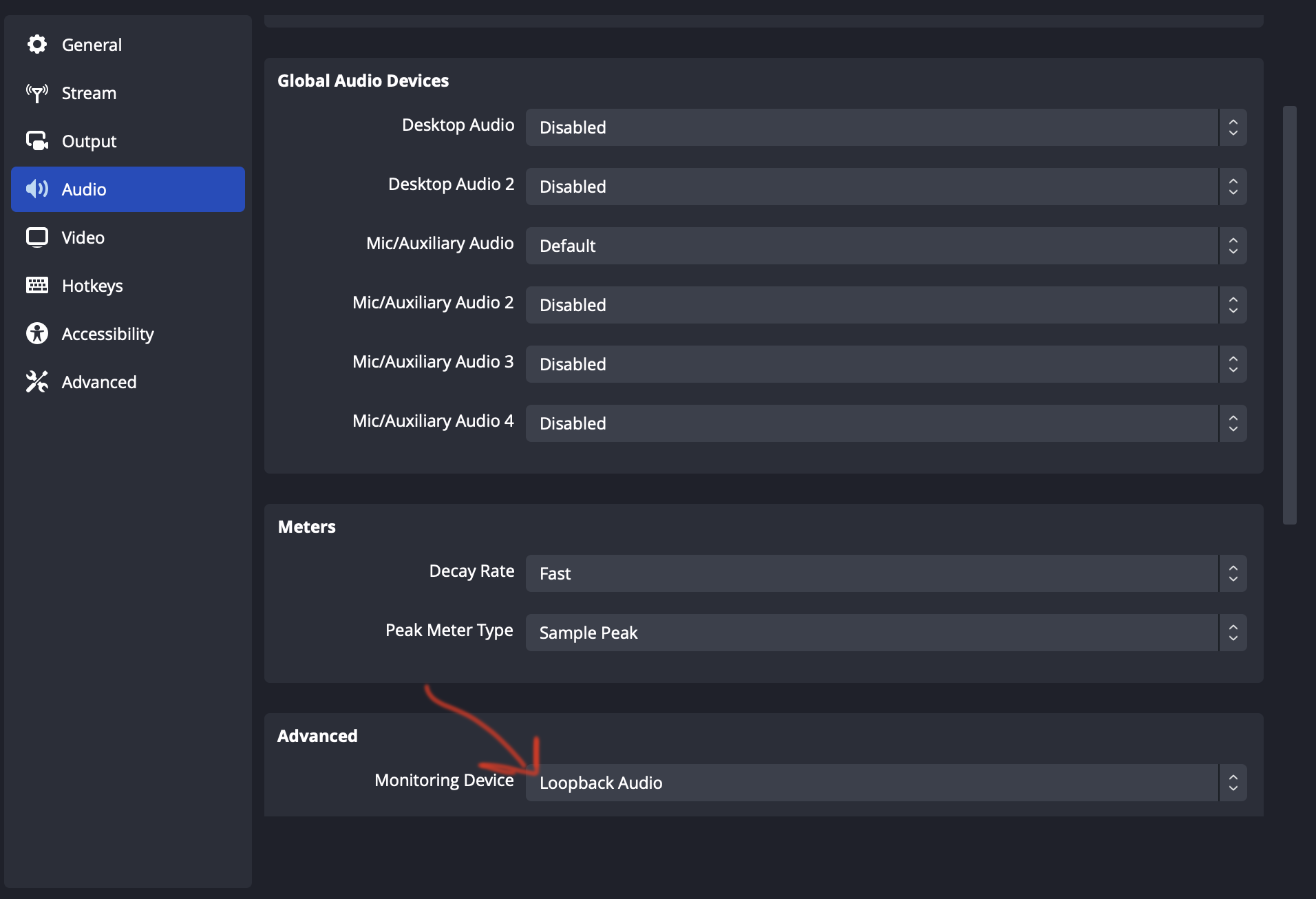
We now need to set which OBS audio source should be sent to the monitoring output. In the example below I’m streaming from a Browser source, and so I need to select the browser source. Start by selecting Advanced Audio Properties for the source:
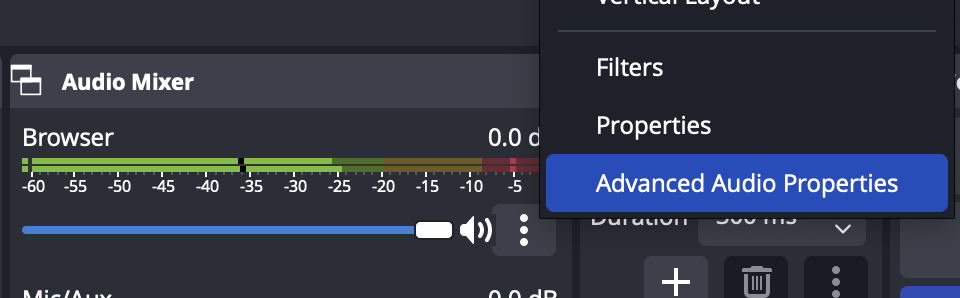
This will open up the advanced settings menu for each audio source. Now let’s set the appropriate audio source to be output to the monitoring stream:

That’s it. If I were to now pipe the Loopback Audio device output to my computer’s speaker I would be able to hear the stream audio.
3. Setup Discord
Note: You may need to restart Discord once you’ve setup OBS, just to ensure it picks up the new devices.
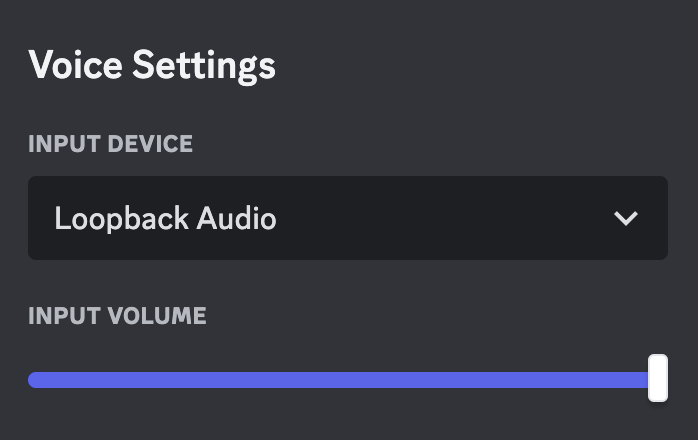
The setup in Discord is now straightforward. Create or go into a voice channel or stage and turn on your webcam video. Now, go into the Voice and Video settings for your account. Select the virtual audio device ( Loopback Audio in my case) as the microphone:
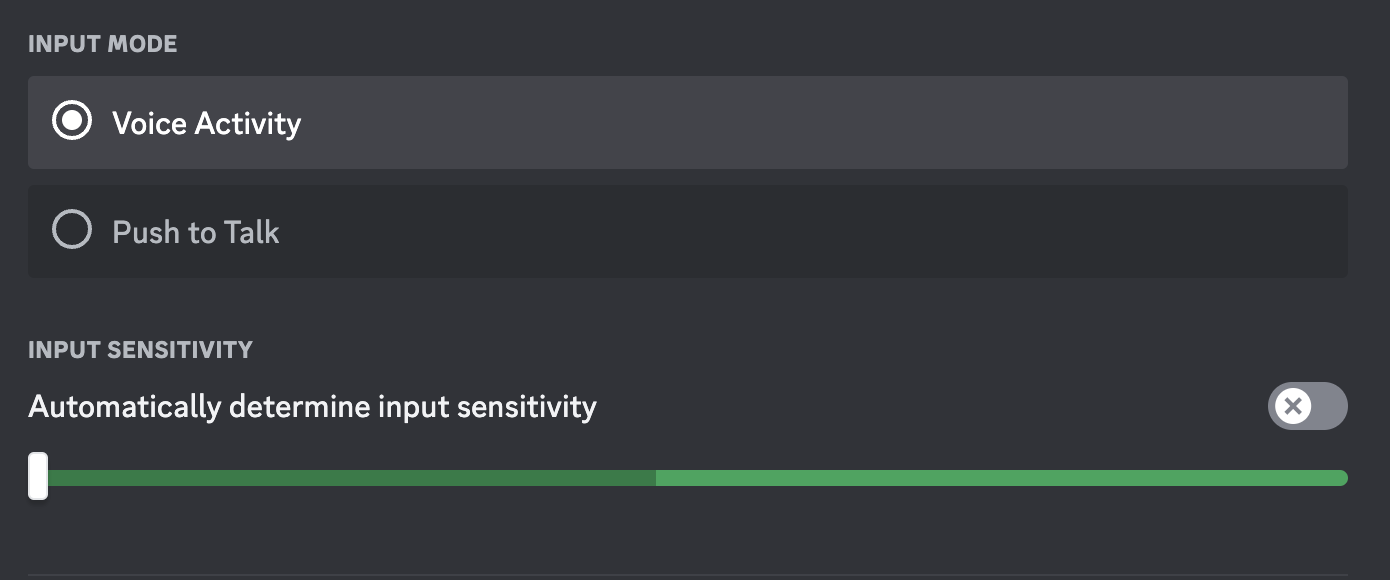
Now, ensure that the Input Mode is set to Voice Activity and that the Automatically determine input sensitivity option is disabled. Set the sensitivity threshold to the leftmost end:
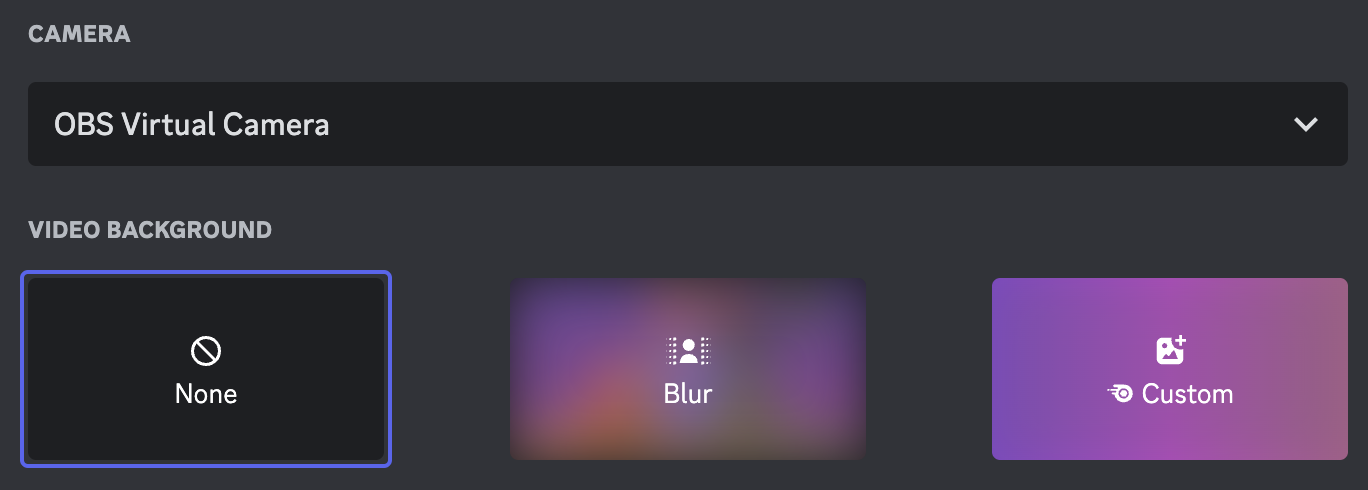
For the video, select OBS Virtual Camera as the webcam and disable any video background:
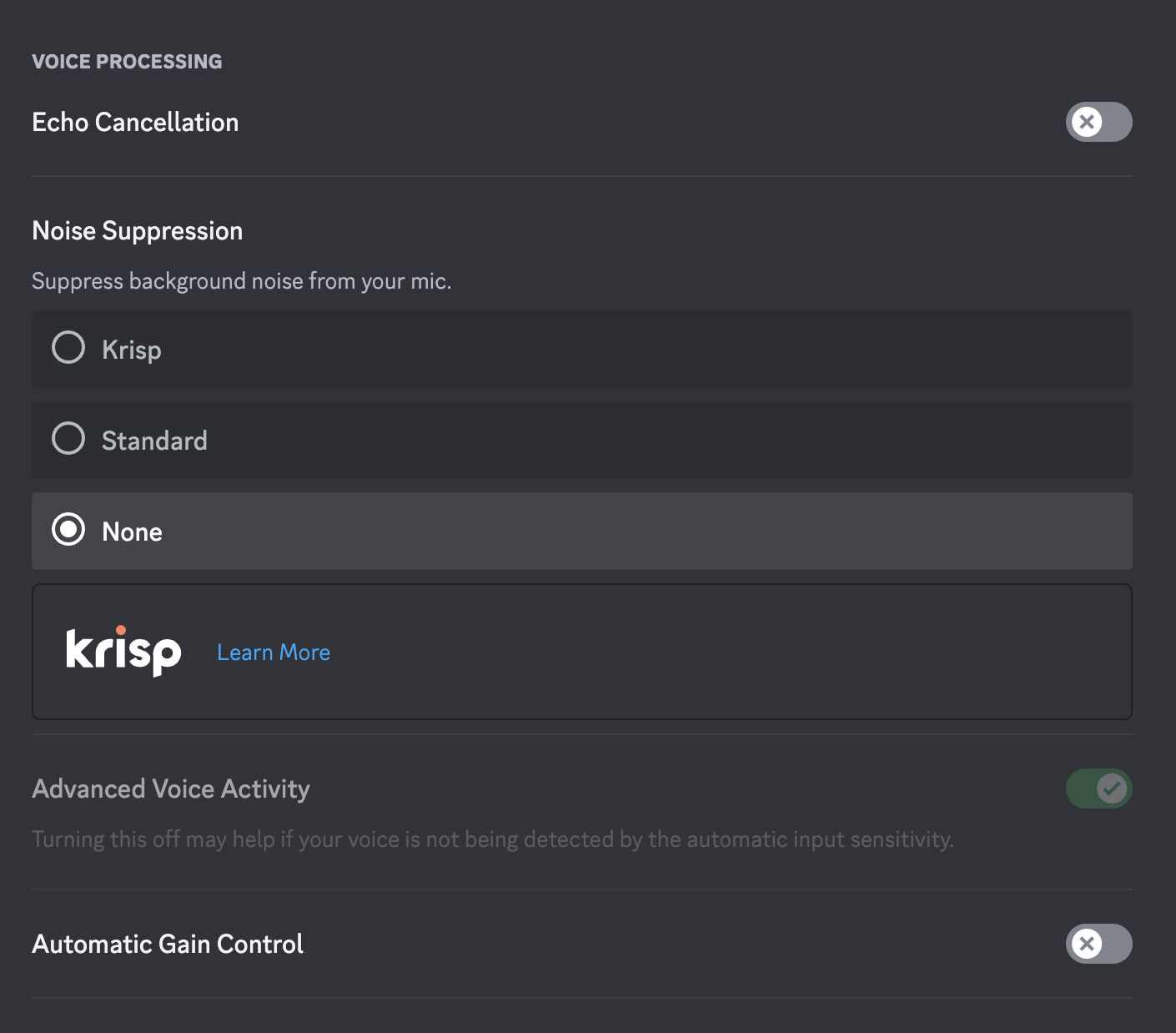
Finally, update the Voice Processing settings to ensure Discord doesn’t do any unwanted processing on the incoming audio:
At this point the stream should be working in Discord, with audio!
Note that the video image will likely appear horizonally flipped. This is because Discord thinks the video image is coming from a webcam and so it flips it like it normally does for any webcam image. Don’t worry, everyone else in the channel/stage will see the video as originally streamed; only you will see it flipped.
I hope you found this guide helpful!
- ⇦Next.js custom server with cron jobs
- Upgrading multiple proxy contracts in Solidity in one call⇨