Как поменять идентификационную информацию у SMI флешки
Это основная статья, в которой мы рассмотрим, как классический способ смены данных флешки, так и сравним его с двумя экзотическими, подробно описанными в отдельных статьях.
В них описаны методики смены таких данных, которые нельзя изменить обычным редактированием настроек программы. Короче, применён нестандартный подход к решению задачи.
Чем хороши контроллеры SMI, так тем, что их шить совсем не обязательно, чтобы изменить серийный номер и большинство прочей инфы. Это в свою очередь, снижает риски, получения на выходе мёртвой флешки.
Но расслабляться всё равно не надо, использование любого из методов может повлечь, как необходимость дополнительного форматирования, так и зависания. В основном это связанно с глюками некоторых дистрибутивов утилиты SMI MPTool. Так в одной версии, почему-то идентификационная инфа не хочет обновляться, в другой после перебивки серийника, требует форматирования и т.д. Иногда, просто необходимо нащупать полностью совместимый дистрибутив со своей флешкой и уже смело извращаться по полной.
Ниже я разместил небольшую табличку, в которой сделал наглядное сравнение возможностей различных методов изменения идентификационной информации. Как видно из неё, универсального способа нету и комбинация отдельных элементов — это тот самый выход, который напрашивается самим собой.
| СРАВНИТЕЛЬНЫЙ АНАЛИЗ МЕТОДИК | |||
|---|---|---|---|
| СТАНДАРТНЫЙ МЕТОД | SMI DEBUG | РЕДАКТИРОВАНИЕ ФАЙЛОВ | |
| VID-PID: | + | + | + |
| Vendor-Product: | + | + | + |
| Serial Number: | + | + | + |
| Revision: | – | + | + |
| MP Date: | – | + | – |
| ISP Ver: | – | – | + |
| PreTest Ver: | – | + | + |
| MP Package No: | – | + | + |
| FlashSet: | – | + | + |
| УРОВЕНЬ СЛОЖНОСТИ: | ЛЕГКО | СРЕДНИЙ | ВЫШЕ СРЕДНЕГО |
ЧЕРЕЗ ПРОШИВАЛЬЩИК SMI MPTOOL
Как я уже написал в введении, шить совсем не обязательно для решения задачи смены данных. Достаточно на первой странице настроек в правой части оставить активными галочки Write CID и Download ISP.

И даже больше, для старой модели SM3252C, можно вообще оставить только одну птичку Write CID.
Полная же перепрошивка достигается путём дополнительного включения опций: Pretest и Format(FAT32).
Отдельно рассмотрим Serial Number, т.к. он наиболее сложный, а уже потом все прочие параметры.
СЕРИЙНОГО НОМЕРА
При первом знакомстве может показаться что благодаря ручной правке, можно устанавливать длину серийника SMI-флешки ниже 13-символов, заложенных в производственную утилиту SMIMPTool. Но как такового нижнего ограничения в 13 байт не существует в приложении, не смотря на имеющийся параметр SN Length.
Сначала выставляем значение параметра Serial Number, определяющего способ формирования:
– 13-32 Bytes (стандартное значение, из-под которого и следует редактировать его)
– Random SN (случайные символы)
– NO Serial (отсутствует серийник)
– NO Update Serial (оставить прежнее значение)

Если хотите жестко задать определённый серийный номер, то просто укажите его в графе Serial Mask.
Символ # в серийном номере, значит произвольное значение, используется при генерации серийника в режимах Random SN и 13-32 Bytes.
SN Length: значение длины, от 13 до 32 символов. Без опции Chk SN Len, жестко контролирующей длину указанного серийника, параметр SN Length ограничивает ваши аппетиты лишь по максимальной длине.
Serial Mask – маска по которой формируется серийник. Каждая последующая флешка будет иметь отличный от предыдущей номер, идущий от значения Begin Serial до End Serial меняя символы под знаком решетки (#).
Begin Serial – начальное значение, для первой флешки.
End Serial – конечное значение.
Рассмотрим пример генерации номера на примере режима Random SN:
Задаём Serial Mask = AA#USBDEVRU###################
Получаем такой серийный номер: AAZUSBDEVRU0ORFR1BYNRB7UBY317E
Т.е. символы AA и USBDEVRU остались, остальные произвольно сменились.
ВСЕГО ОСТАЛЬНОГО
Объяснять процедуру изменения VID-PID, REV, VENDOR-PRODUCT нету особого смысла, лишь коротко поясню где что. Будем называть элементы SMI MPTool так, как это принято в приложении ChipGenius.

VID и PID и без меня понятно, вбиваем свои значения, если это того требуется.
(название в SMI MPTool) = (в ChipGenius)
USB Vendor Str = Device Vendor
USB Product Str = Device Name
Inquiry Vendor = Manufacturer
Inquiry Product = Product Model
bcdDevice – это ревизия (Revision), задаётся одно и тоже значение для Device Revision и Product Revision. При использовании других методов, можно менять их отдельно и поэтому в таблице я поставил МИНУС в соответствующей графе.
ЧЕРЕЗ SMI REFIXINFO
Является компактным портативным инструментом, который идеально подходит совсем неподготовленным юзерам.
Достаточно активировать снизу птички тех параметров, которые следует изменить и затем перебить их в верхней части программы.

К сожалению утилита устаревшая и несовместима с актуальными чипами. Предположительно работает с моделями не старше SMI SM3257AA, который с конца 2000-ых годов, днём с огнём не сыщешь.
К тому же не позволяет сменить серинный номер устройства, а это вполне существенный недостаток. Позволяет модифицировать следующие параметры: VID, PID, Device Vendor, Device Name, Device Revision, Manufacturer и Product Model.
ЧЕРЕЗ ПРОШИВАЛЬЩИК DYNA MPTOOL
Имеет куча особенностей и заковырок, советую обходить утилиты Dyna Mass Storage Production Tool стороной по возможности.
Для тех, кто как-то запорол флешку и хочет прошить её уже с нужными данными, покажу на скринах соответствующие пункты настроек программы.
: OpenCard Config :

: Device Config :

Учитывая то, что с DYNA-шитыми флешками вообще много проблем, лучшее для них решение будет ручное редактирование данных через инструмент SMI Debug.
ЧЕРЕЗ SMI QCTOOL
Есть ещё такой вариант как использование утилиты SMI QCTool I1027, но это всё же слишком экзотический вариант.
Точно сказать не могу с какими моделями чипов совместима эта утилита, но уж точно мало с какими и все они старые. Например, совместима с моей флешкой на SMI SM3252C.
Рассматривать в данном материале вопрос применения приложения SMIQCTool мы не будем и вам не советую с ним связываться. Скажу лишь, что в графы Vendor, Product, Label находящиеся в главном окне утилиты, нужно вбить значения вашей флешки, чтобы она не выдавала красным цветом ошибки типа: Label error, SCSI Vendor error и SCSI Product error.
Ну и приведу пару скриншотов настроек утилиты, а дальше уже сами, если захотите.

Для детального рассмотрения вашей проблемы по смене серийника или любого другого параметра, перейдите пожалуйста на – ФОРУМ USBDEV .
Как изменить серийный номер в программе Phison MPALL
До недавнего времени, я был убеждён в том, что средствами классического MPALL, невозможно сменить серийный номер по своему усмотрению. Но последний анализ, выявил наличие специального параметра, отвечающего за эту возможность.
На момент написания статьи (июль 2017 года), всего четыре самых последних дистрибутива Phison MPALL, имеющихся в нашем распоряжении, поддерживают данный атрибут. Полностью приведу этот скромный список:
– Phison MPALL v3.70.0E
– Phison MPALL v3.71.0A_03 MLC(UP03 64pin)
– Phison MPALL v3.72.0B
– Phison MPALL v5.03.0A-DL07
Но с другой стороны, дистрибутив v3.70.0E, это 2013 год, с которого прошло немало времени.
КАК ЭТО СДЕЛАТЬ
Всего-то нужно в секцию [Customize Info], подготовленного под конкретную флешку конфига MP.ini (или любого другого), добавить параметр CustomerSerialNumber с соответствующим значением серийника.
На длину серийного номера есть жесткие ограничения, это не меньше 12 символов и в тоже время не длиннее чем 24.
В зависимости от используемой версии MPALL и настроек, короткий серийный номер, программа или сама удлинит до минималки или просто проигнорирует. Из чего вытекает логичная рекомендация, сразу забивать такой, какой вам нужно и не короче 12 символов.
Кстати, если выставить его подлиннее, то это приведёт его к неконтролируемой модификации. В таком случае, он хоть и может стать значительно длиннее, только повлиять на его содержимое вы не сможете.

Помимо ручной правки INI-конфига, имеется возможность прописать параметр CustomerSerialNumber в нужную секцию, с помощью интерфейса MPALL (а вернее его конфигуратора MPParamEdit_F1.exe).
Для этого после нажатия кнопки Setting в главном окне MPALL, нужно переключиться на расширенный режим (Advance Setting) и на вкладке Other Setting, добавить наш параметр в область Special Setting.
[Customize Info]
CustomerSerialNumber=A007654321DF

На выходе получаем абсолютно тоже самое содержание конфигурационного файла. ИМХО, легче через блокнот прописать этот жалкий параметр, заодно проконтролировать остальные записи.
ПРИМЕР КОНФИГА
[PenDriveMP]
IC Type=PS2251-61/91
[Parameter Mark]
Parameter Type=F1_MP_21
[Customize Info]
USB VID=0x13FE
USB PID=0x3E00
String Product Name=PENDRIVE
String Manufacturer Name=USBDEV
Inquiry Version=PMAP
CustomerSerialNumber=A007654321DF
[Configuration]
Reset Serial Number=1
TestReadWrite=0
[TestItemOption]
Do Preformat Test=1
[Extra]
Mode=3
[Misc]
Volume Label=USBDEVRU
Burner Erase All=1
[Advance]
FC1=0xFF
FC2=0x01
[Firmware]
ISP=1
Burner File=BN61V118M.BIN
Firmware Name=FW61FF01V30750M_20121212.BIN
Leave a Reply Cancel reply
This site uses Akismet to reduce spam. Learn how your comment data is processed.
How to: Change SD Card Serial Number Without Formatting in Windows
Here, we will tell what is SD card serial number, as well as how to change SD card serial number with formatting or without formatting the card in Windows 10, 8, 7.
By Emily / Updated on May 12, 2023
Share this:
Table of Contents
- What is (SD card) serial number?
- Why need to change SD card serial number?
- How to change SD card serial number in Windows 10/8/7?
- Conclusion
What is (SD card) serial number?
A serial number is an identifying code assigned to the hardware during the creation of a file system for unique identification and licensing. Besides the SD card, other electronic data storage devices such as USB flash drive, memory cards, hard disk drive also have such a number.
The serial number does not need to be strictly numerical. Instead, it is determined by the data and time on the real-time clock on the current computer at the time when you format the hard drive. So they may contain letters and other typographical symbols, or may consist entirely of a character string.
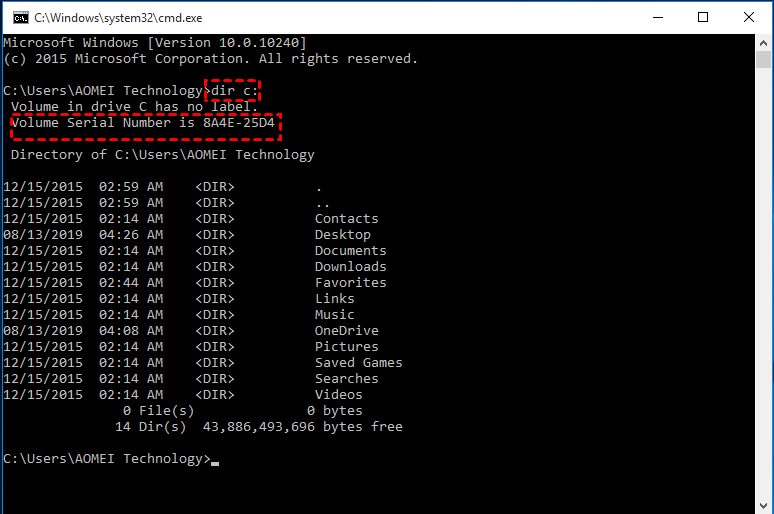
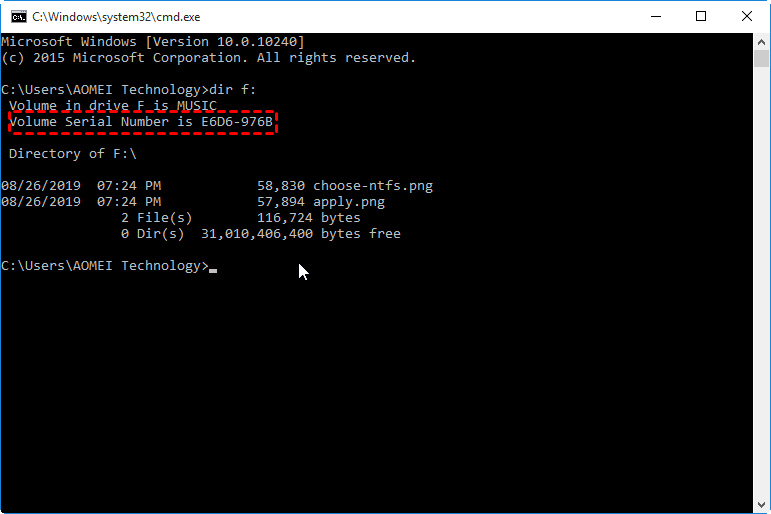
The function of the SD card serial number is similar to the fingerprint of persons: identify a specific item. To check or read the serial number on your storage device, you can execute the command: dir [driveletter:] in the Command Prompt window.
Why need to change SD card serial number?
Why do we need to modify the SD card or other hard drives serial number? We can find some clues from the functions of the serial number. The disk serial number is used by software applications to identify the drive and prevent multiple activations of the same software on another computer. So, if you plan to replace your old SD card with a new one, a different serial number will be created with software association. Thus, you can change the SD serial number to match your old one’s, then the software association issue can be avoided effectively.
How to change SD card serial number in Windows 10/8/7?
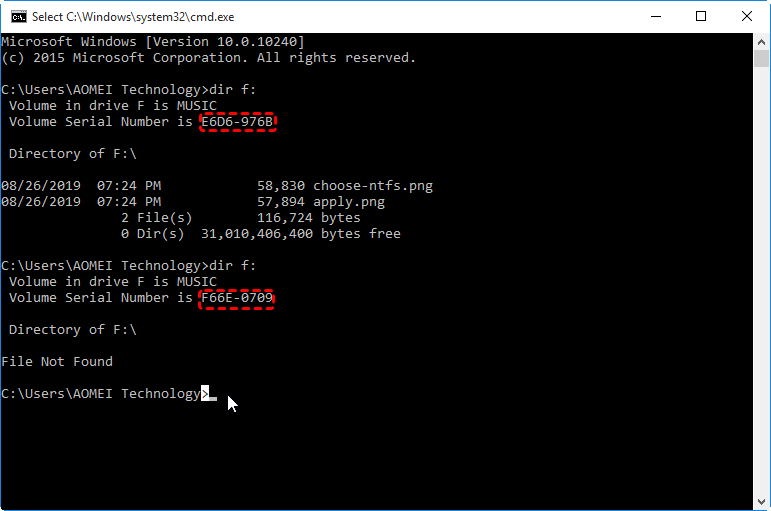
As mentioned above, the disk serial number is automatically generated and assigned when you format the partition, so you can format it again to change the serial number of the SD card. After you format the SD card, you can retype the command to check whether the serial number is changed or not.
Note: Formatting the hard drive will delete all data from it, so please backup important files beforehand.
>>To change SD card serial number without formatting
If you don’t want to edit or modify serial number by formatting, you can turn to a third-party tool like AOMEI Partition Assistant Professional. It can directly change the SD card serial number without formatting it again. So the data security is enhanced. Below is how to edit serial number step by step.
Secure Download
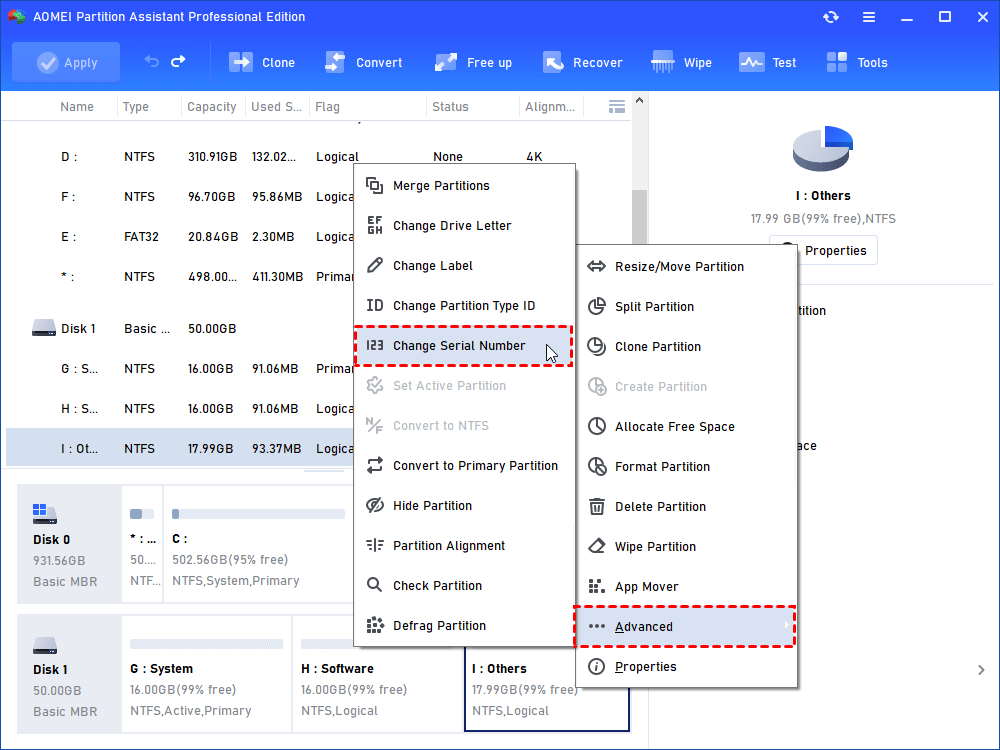
Step 1. Install and launch AOMEI Partition Assistant Professional. Right click the SD card partition, and click “Advanced” and then “Change Serial Number”.
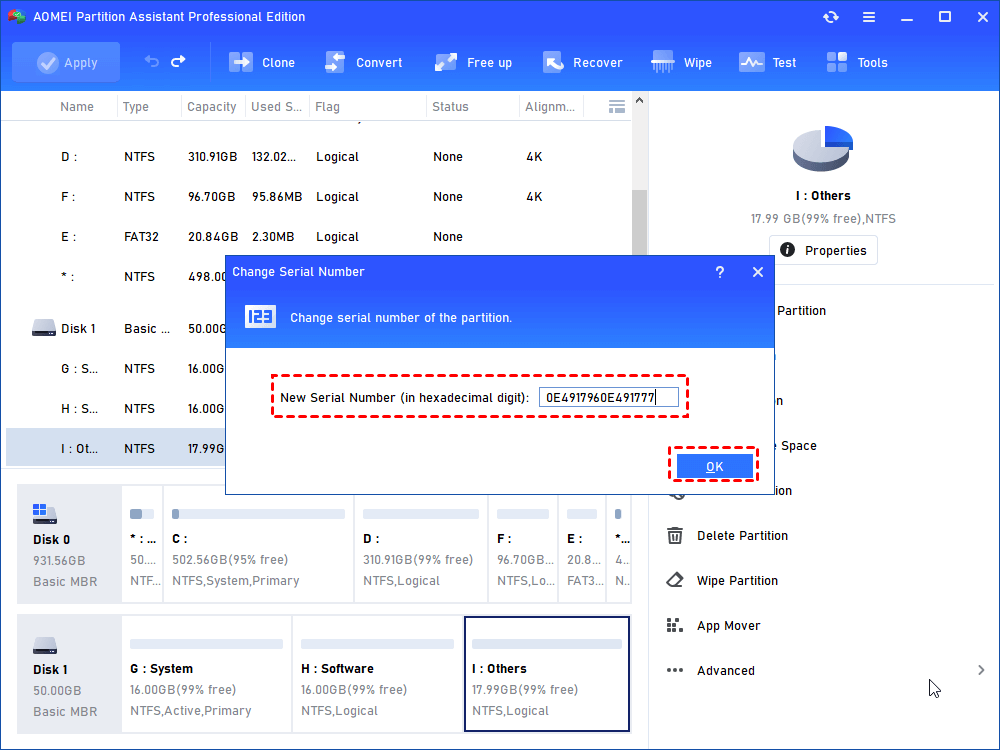
Step 2. In the pop-out window, you can edit a new serial number such as 123456.
Step 3. Back to the main interface, click “Apply” to commit the pending operation.
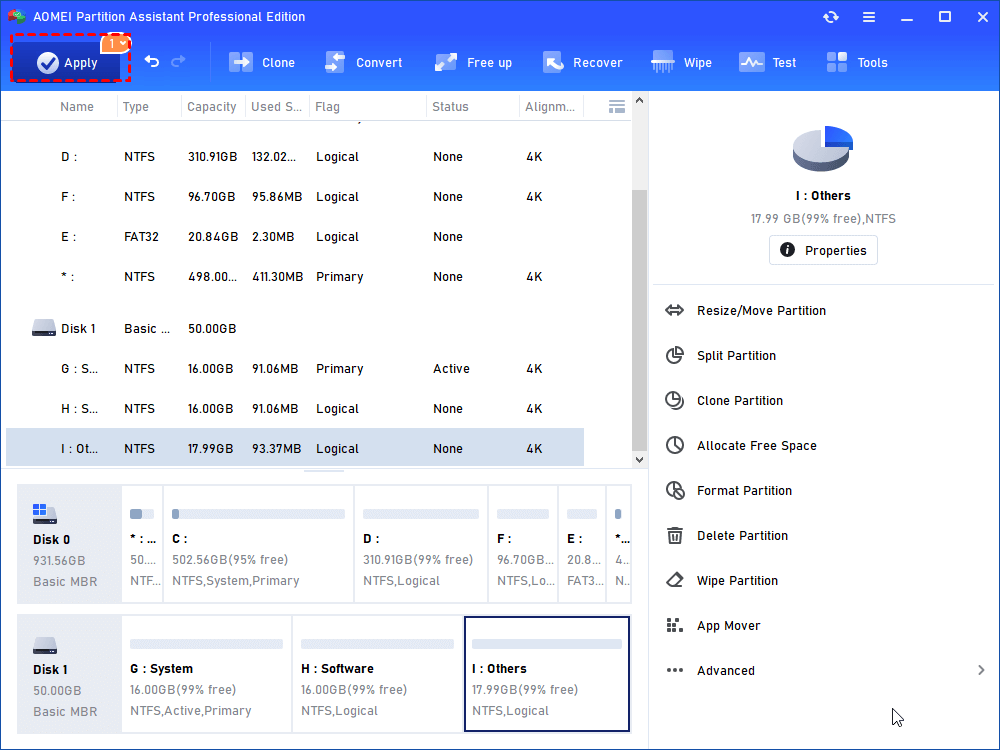
The same steps can also be applied to change Samsung micro SD card serial number and other brands of SD card and hard drives. To change the SD card or other storage devices serial number in Windows Server 2019/2016/2012/2008/2003, you can try AOMEI Partition Assistant Server.
Conclusion
As you see above, AOMEI Partition Assistant Professional is a great serial number editor to change SD card serial number safely without damaging stored data. Additionally, it is compatible with Windows 10/8/7 and Windows XP/Vista (both 32-bit and 64-bit).
Moreover, it comes with many other fantastic functions to help manage disk partition conveniently in Windows PC, such as copying SD card to SD card, formatting large SD card to FAT32, erasing SD card completely and so on.
Emily · Staff Editor
Emily is an English editor of AOMEI Technology; she has a great passion for providing easy solutions for people to tackle with all disk or partition management problems. In addition to writing articles about disk/partition management, she also edits great tutorials on how to back up and restore disk for data security. In her spare time, she loves to learn computer skill to improve herself or stay with her family to enjoy a good day.
Related Articles
Corrupted SD Card Repair Tool| Software Free Download
AOMEI Partition Assistant Standard can be a great SD card repair tool for Windows users. It is able to repair damaged SD card via several different methods.
Solved| The Type Of The File System Is RAW on SD Card
Sometimes, you may encounter the error “The type of the file system is RAW” while running CHKDSK on the storage device. So here we will explain it occurs and how to fix the RAW file system effectively.
How to Change Partition Type ID Easily? (2 Ways Included)
Are you in need of changing partition type ID in Windows? Read this article thoroughly to get two efficient methods to modify partition type ID.
Free Download to Try AOMEI Partition Assistant Now
The Best Windows Disk Partition Manager and PC Optimizer
Download Freeware

Trustpilot 4.9/5
How to Change USB Serial Number in Windows 11/10/8/7?
You can change USB serial number quickly in Windows 10/8/7 with AOMEI Partition Assistant Professional.
By Dervish / Updated on May 12, 2023
Share this:
What is USB serial number
USB serial number is an identifying number created by the operating system to a USB flash drive during the process of creating the file system. Generally, the USB serial number is a string of numbers to identify a USB stick and to store the basic information of the USB. Apart from USB flash drive, other storage devices like a hard disk drive, SSD, SD card have their own serial number.
How to find or check USB serial number in Windows 11/10/8/7?
How to get the USB or other storage device serial number? For some USB devices, you can check serial number in the properties on Windows Explorer or using CMD. Open the Windows Explorer, and right-click the USB flash drive and select “Properties”. You will see the serial number under the “Details” tab.
If you can’t find the number on Windows Explorer, you can get USB serial number using CMD.
1. Press “Win + R” to open run box, and type “cmd” to enter Command Prompt.
2. Type the “dir [drive letter:]” command in the Prompt and press Enter.
How to change serial number in Windows 11/10/8/7? (with 2 methods)
For particular reasons, you may want to change or add the USB serial number for better managing USB and other disks. There are 2 ways offered to change USB serial number in Windows 11/10/8/7.
Method 1. Change USB serial number by formatting
The OS will randomly assign a string of numbers for your USB as the serial number when formatting. So we can format your USB flash drive to change the USB serial number
✍Warning: If there are important files on your USB drive, you can turn to method 2, or back up the USB firstly, because your USB needs to be formatted in this method.
Step 1. Double-click the PC icon, then right-click the USB flash drive and select “Format”.
Step 2. The information of the USB will be showed on a pop-up window, then click “Start”.
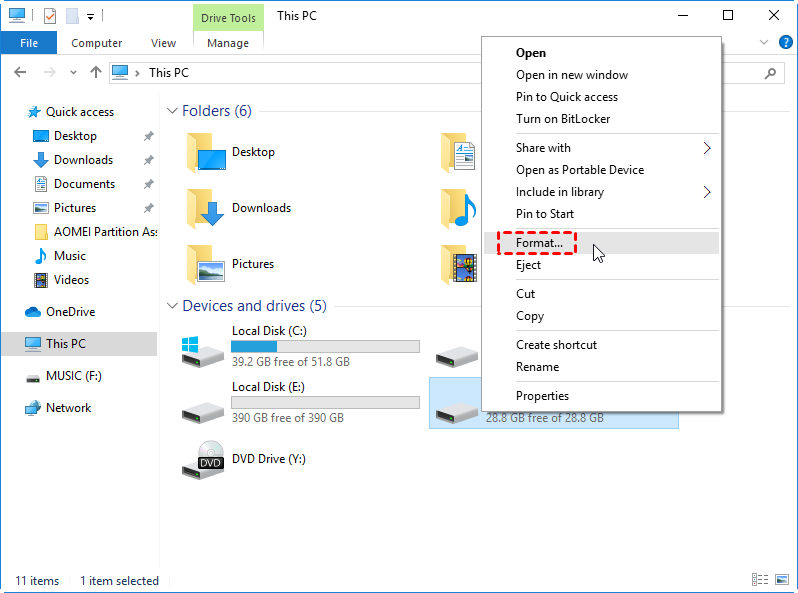
3. Open Command Prompt, and execute the command: dir [drive letter:] again, and you will find the USB serial number has been changed, different from above.
Method 2. Change USB serial number without formatting
Formatting your USB will erase all the data on the USB. The serial number can be changed without formatting? Yes, it can. You can turn to a USB serial number changer-AOMEI Partition Assistant Professional. With this tool, you can change your USB serial number without formatting in a very quick and simple way. Let’s see the specific steps.
Secure Download
Step 1. Insert USB into a computer, and launch AOMEI Partition Assistant Professional. Right-click the USB, and choose “ Advanced” > “Change Serial Number”.
Step 2. You can set the new USB serial number in this window like 123456.
Step 3. Then click “Apply” to execute the operation.
Conclusion
This is how to change the serial number of a USB drive via two different methods in Windows. As you see, AOMEI Partition Assistant can help you to change USB serial number in 3 simple steps without data loss. Besides, you can utilize this serial number editor to change other storage drives like SD, HDD, SSD on computer. And it is compatible with Windows 11/10/8/8.1/7, Windows Vista and XP.
Moreover, AOMEI Partition Assistant is more than a USB serial number. It has many useful features to help you to manage disk, such as converting boot disk from MBR to GPT, restoring partition on USB drive, SSD secure erasing.
If the system of your computer is Windows Server, you can use AOMEI Partition Assistant Server Edition to perform the operation of changing USB serial number.
Dervish · Staff Editor
Dervish is an English editor of AOMEI Technology; He is delicated to offering users easy and effecitve solutions for issuses related to disks and partitoins. In his spare time, he enjoy wathcning films, playing footable, traveling and so on.
Related Articles
How to Change SD Card Serial Number without Formatting Step by Step?
Here, we will tell what is SD card serial number, as well as how to change SD card serial number with formatting or without formatting the card in Windows 10, 8, 7.
Free HP USB Format Tool for Windows 7 64 bit/32 bit Download
In this post, you can find and download the best HP USB format tool for Windows 7 64 bit/32 bit, with which you can easily format (HP) USB drive with FAT32, NTFS or other file systems.
Solved: Verbatim USB Flash Drive Cannot Be Formatted
Verbatim USB flash drive cannot be formatted? Here you can find the reasons why Windows can’t format verbatim flash drive and how to solve it in different ways.
Free Download to Try AOMEI Partition Assistant Now
The Best Windows Disk Partition Manager and PC Optimizer
Download Freeware
Trustpilot 4.9/5