Сервисы Google Play остановлены – что это значит и как исправить ошибку
Остановка сервисов Google Play – ещё один распространенный технический сбой, свидетелем которого вы могли быть. Но, вот настоящий вопрос: что привело к возникновению ошибки сервисов Google Play на вашем устройстве Android?
Что ж, я получил ответы и делюсь ими с вами. Просмотрите всю статью и решите ошибку «Службы Google Play продолжают останавливаться».
Почему сервисы Google Play останавливаются?
Действительно, ошибка «К сожалению, сервисы Google Play остановлены» имеет множество причин, по которым она появляется на экране вашего устройства. Но, насколько мне известно, основная причина – устаревшая версия Google Play Store.
Более того, причиной возникновения ошибки сервисов Google Play могут быть проблемы с программным обеспечением или сетевым подключением. Есть несколько других причин, о которых чуть позже.
Теперь пришло время искать решения! Ниже приведены эффективные методы, которые наверняка помогут избавиться от этой ошибки сервисов Google Play.
Измените дату и время на вашем устройстве Android
- Запустите приложение «Настройки» на телефоне Android.
- Теперь в разделе настроек нажмите «Дополнительные настройки» или «Общие» (конкретное название зависит от модели устройства).
- Здесь вы получите возможность настроить Дату и время.

- Измените дату и время.
После настройки даты и времени вы всё ещё наблюдаете проблему остановки службы Google Play? Тогда читайте дальше.
Сбросьте сервис Google Play
- Снова запустите «Настройки».
- Здесь нажмите на «Дополнительные настройки» или «Общие» (конкретное название зависит от модели устройства).
- Теперь нажмите «Приложения» → «Все».
- Перейдите в «Google Play Маркет» и нажмите «Остановить».

Перезагрузите устройство и проверьте, сохраняется ли ошибка сервисов Google Play.
Сбросить все настройки приложения
- Откройте «Настройки» и нажмите «Дополнительные настройки».
- Здесь нажмите «Приложения».
- Прокрутите вниз в конце, и вы получите возможность сбросить все настройки приложения.
По завершении этой процедуры перезагрузите телефон Android.
Обновите Play Store и Google Services
- Откройте Google Play Маркет на своём устройстве.
- Нажмите в верхнем левом углу три горизонтальные линии меню.
- Теперь нажмите Мои приложения и игры.
- Здесь вы получите список устаревших приложений.
- Найдите и загрузите последние версии всех приложений.
- Вы можете вернуться снова в меню Google Play Маркет и нажать «Настройки».
- Внизу страницы нажмите на версию Play Store. Вы увидите всплывающее окно с надписью «Google Play Маркет обновлен».
Перезагрузите Android и снова запустите Play Store.
Эти должны исправить ошибку «К сожалению, сервисы Google Play остановлены» на вашем устройстве Android. Кроме того, вы также можете попробовать войти и выйти из своей учетной записи Google, если это необходимо. Но, я уверен, что если вы будете точно следовать описанному выше методу, ошибка сервисов Google Play не будет появляться на экране вашего устройства в будущем.
Fix Google services framework keeps stopping problem 2021
Google puts a lot of effort into providing multiple apps that make our Android smartphones work successfully. If these were to start glitching or getting errors, it would become really hard to use Smartphones for specific tasks related to the error. One such app is Google Services Framework. You might have noticed the error ‘Google Services Framework keeps stopping’ and perhaps you are here to fix it.
Do not worry, I would walk you through the simple guide of fixing Google Services Framework so that you can use all the important related applications again. You would find the instructions written down in form on steps as soon we get to that part.
What is Google Services Framework keeps stopping error?
I believe I do not need to explain it in much detail. Since you must have experienced it already. This error is caused by one of Google’s app which works as a base for the proper functioning of other applications.
All the intricate tasks such as GPS and the likes are managed by the app, making it a necessity to work properly. Furthermore, the app keeps your phone in synchronization with the Google servers. Anything you do, including adding your accounts to managing the data in them is performed ultimately by this app.
Fix Google services Framework keeps stopping error:
There are quite a few ways to achieve the fix for this issue, but first of all, we will start with the easiest one. Head over to the Play Store and find the Play Services Framework app, it goes by the name Google Play Services. In case you cannot find it, try this link. You should check if the app is up to date. This might be the main cause of the errors. If you update it, it would probably get rid of the error.
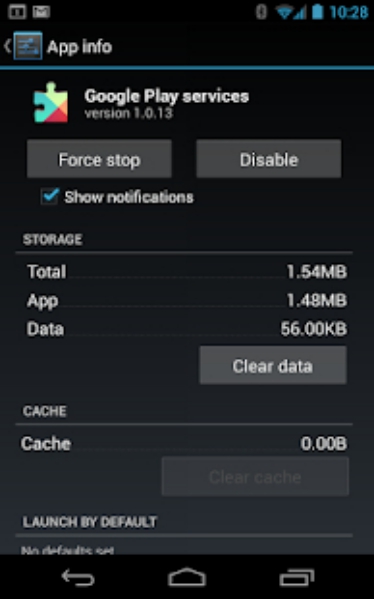
In case the issue still is not fixed, then go to Settings, from there go app and find the Google Services Framework app. Clear its cache and it should start to work normally. Moreover, you can also try Force closing it while you are clearing the cache.
If it still does not works, follow these steps:
- Step 1:Head over to Settings earlier than to Apps. If you do not use stock android, you might find it by a different name.
- Step 2:Search for the Google Services Framework app. Open its settings.
- Step 3: On stock Android, you can click the settings menu on the top right, which is the three dots. On MIUI and similar versions, you can directly see the options on the screen.
- Step 4: Find ‘UninstallUpdates’. Click on it and approve the confirmation in case it asks for one.
- Step 5: Head over to the play store and install the latest version again. This should fix the issue.
Equally important to note that sometimes your phone might be blocking the connection to Google’s server for some reason. There are a few workarounds for these too, ranging from easy to complex. The easiest one involves Changing your network connection or Rebooting your phone.
In scenarios where this does not help, I would suggest Resetting your phone or Using a different, much stable ROM. Since your current ROM might be having a bug.
Conclusion:
This article focused on ways through which you can fix the Google services Framework keeps stopping error. I hope the article proved useful for you. You can read more Google-related errors and fixes here.
Google Services Framework keeps stopping? How to fix it in 2024

If you get the “Unfortunately Google Services Framework has stopped” error on your Android device, try rebooting your device, clearing cache data, removing your google account, and adding it back again. You also have an option to factory reset your device should all other methods fail.
Google Services Framework (GSF) is a collection of APIs, SDKs, and other tools that help developers build applications for Google platforms. GSF is designed to allow developers to create applications that can run on multiple device types and channels, including phones and tablets, the web, and Android devices.
The Google Services Framework is an important component of Android. It includes applications such as the Play Store, Accounts Manager, Contacts Sync, and Backup. Let’s see how to fix Google Services Framework if it stopped working on your Android device.
Fix: Google Services Framework keeps stopping on Android
Google’s Service Framework is an important component of the Android operating system that every smartphone needs to function properly. There could be instances when you find the framework constantly keeps stopping; however, there are workarounds to fix the issue.
1. Reboot your device to safe mode
The first step to take whenever there’s a system-related problem on Android is to restart your device. This can reset installed applications and clear any errors that have arisen.
To put your phone into safe mode, press the power button. When the animation starts, press and hold your phone’s volume down button until the animation ends; then release both buttons. You’ll see “Safe mode” at the bottom of your screen.
2. Remove any other framework installed on your device
If you have any other framework (for example Xposed Framework) installed on your device, you may want to remove it. Without you knowing, the other framework might be interfering with the Google Services Framework from functioning properly.
Simply uninstalled third-party framework and reboot your device. Google Services Framework will then likely function normally thereafter. If it doesn’t, continue to the next step.
3. Clear data from Google Services Framework and reboot
There are a limited number of ways to shut down built-in system services. They cannot be uninstalled, and any attempt to do so will break the functionality of your Android device.
The only way to reliably stop these services is through a process known as “forcing stop” followed by clearing all data from your device and restarting it. What now you will do is clear data from Google Services Framework and restart your device.
Here’s how to clear data from Google Services Framework to make it work again:
1. Open Settings on your device.
2. Go to Apps.
3. Select Google Services Framework from the list of available apps.
4. Tap Force stop.
5. Open Storage and clear data.
6. Finally, reboot your device.
4. Wipe Cache Partition in Recovery Mode
Wipe Cache Partition in Recovery Mode deletes temporary files from your phone’s operating system, cleans up any residual files from apps you have uninstalled, and optimizes your phone’s performance. This might fix Google Services Framework from keeping stopping.
Note, that all other personal files and settings are not affected by this option. Therefore, this is an entirely safe method to perform. Simply follow the steps below to Wipe Cache Partition on Android devices.
Here’s how to Wipe Cache Partition in Recovery Mode on Android devices:
1. Power off your device.
2. Next, Press and hold the Power button + Volume Up until the animation screen appears.
3. Release the Power button, but not the Volume Up button.
4. In Recovery mode, use the Volume buttons to get to the Wipe Cache Partition option.
5. Once done, restart your device.
This should fix the problem.
5. Factory data reset
Normally, we don’t suggest our readers perform factory data reset. As this will delete all your data on your device, including pictures, videos, apps, contacts, and more if you don’t have a proper backup option. However, doing so will certainly address the Google Services Framework problem we are having.
Before you reset your device, navigate to Settings > System > Software update. Afterward, follow the below steps to backup and factory reset your Android device.
1. Go to the Settings on your Android device,
2. Next, go to Personal > Backup and Reset option.
3. Here you will get the two options: Automatic restore and Backup My Data. Choose both of these options.
4. Select Erase All (factory reset) or Factory data reset.
5. Finally, enter your device password and wait for the process to finish.
With these workarounds to address Google Services Framework stopping issue, we can conclude this article. We hope you have found this article easy to read and helpful. Thank you for reading. If you have any questions or concerns, feel free to leave a comment below. We will get back to you as soon as we can.
“Google Services Framework Keeps Stopping” (Solved), see how
Do your Google services framework keep stopping? If yes then we have a solution for you. Read on.
Table of contents: hide
Google Mobile Service (GMS) is a collection of Apps and APIs that supports functionality across different devices. Apps such as Gmail, Google Chrome, Google Apps, YouTube, Google+, The Google App and other Google apps and APIs.
Google Play Services/Google Services Framework, on the other hand, helps make sure everything, including those aforementioned apps run smoothly on your device by allowing those applications to easily communicate with services through a common means. It makes the following possible:
So when the Google Services Framework keeps stopping then you know there is something wrong with one of the Google Apps you have installed on your phone. Either Google Services Framework, Google Play Services or Google PlayStore. Picking out the particular app responsible might be tasking so it might be best to just clear the data and cache of all three apps. Remove or log out of your Google Account and log back in.
How To Fix Google Services Framework Keeps Stopping
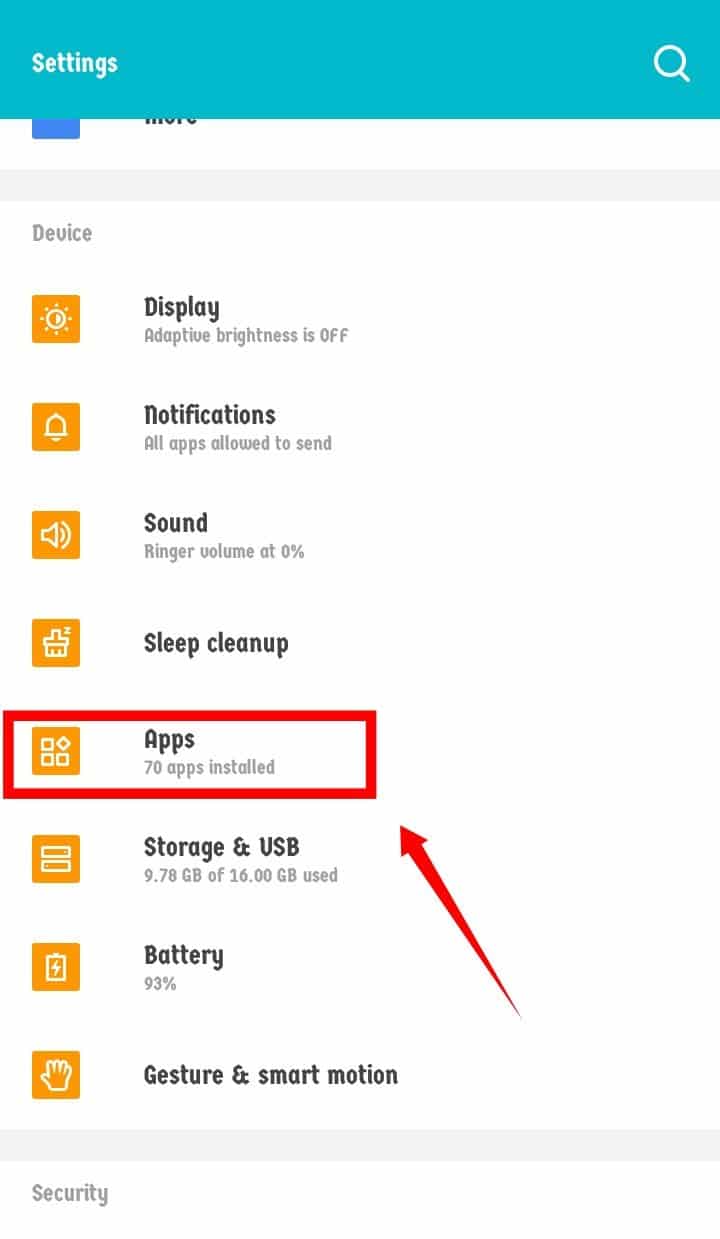
- Navigate to your Settings Menu and Click on Apps.
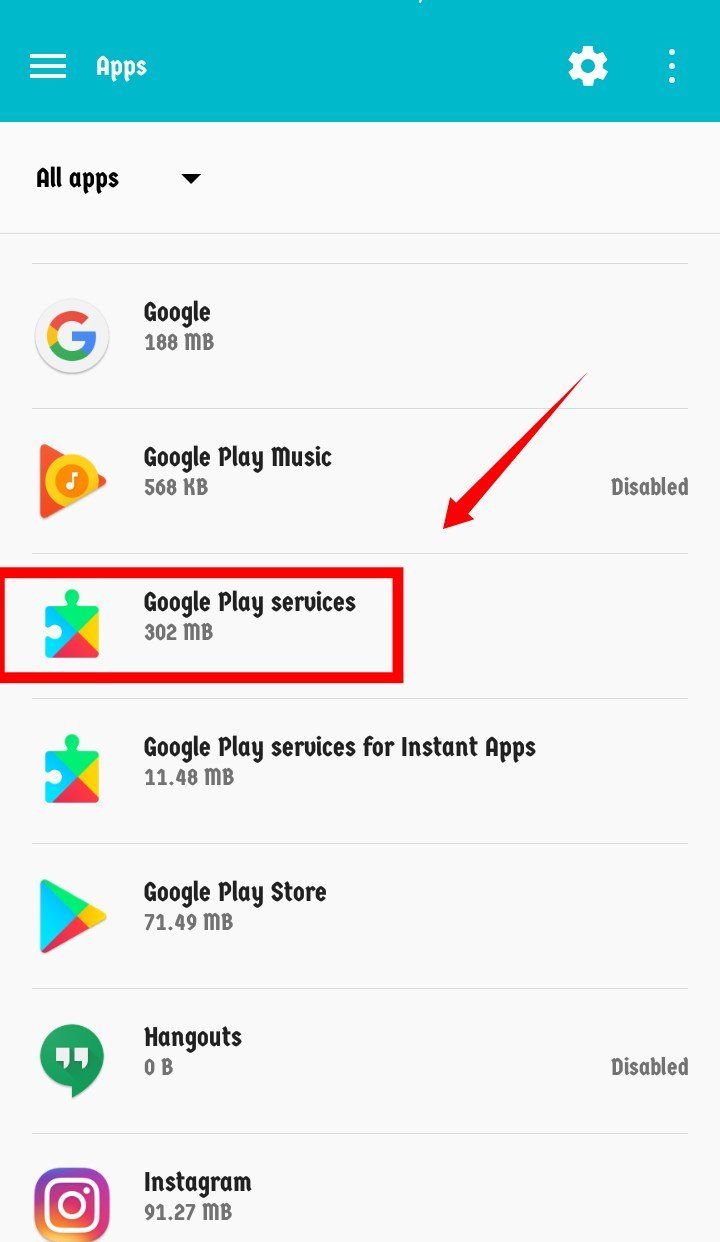
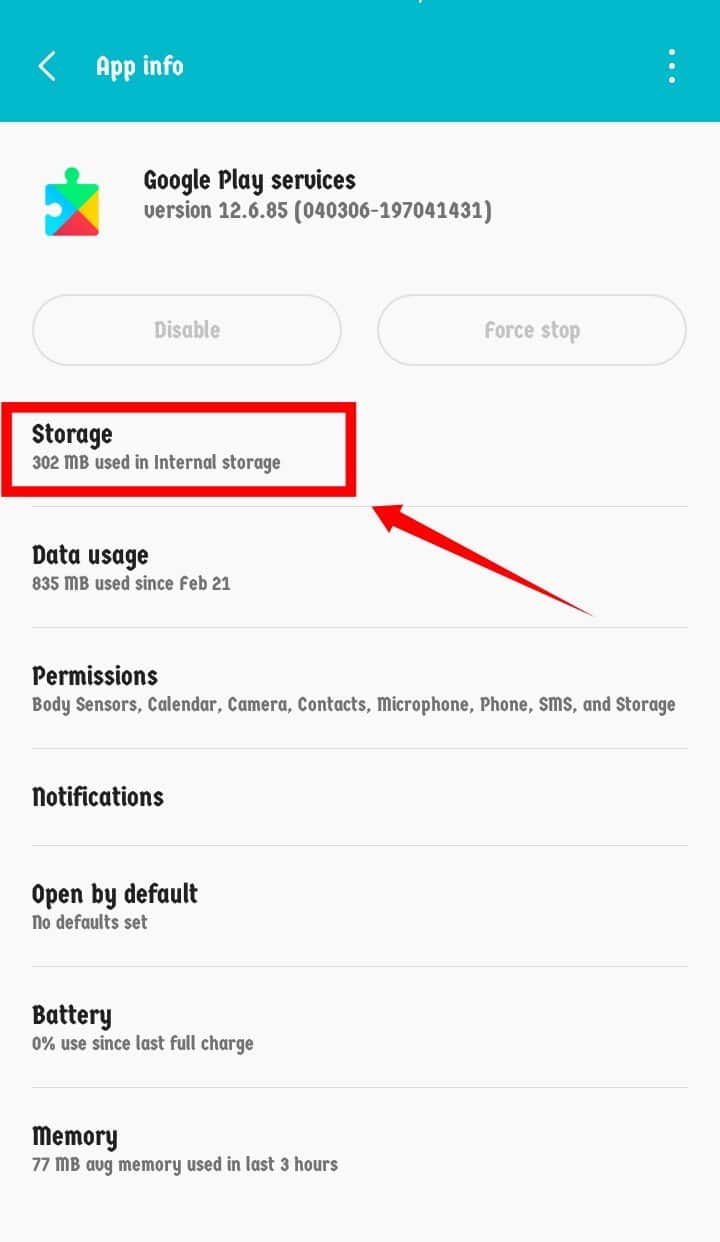
- Now, Go back to the Apps List and Click On Google Play Store.
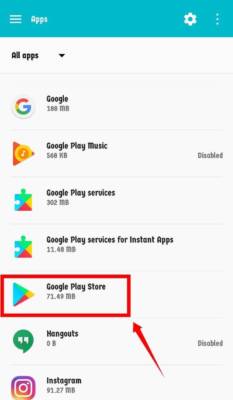
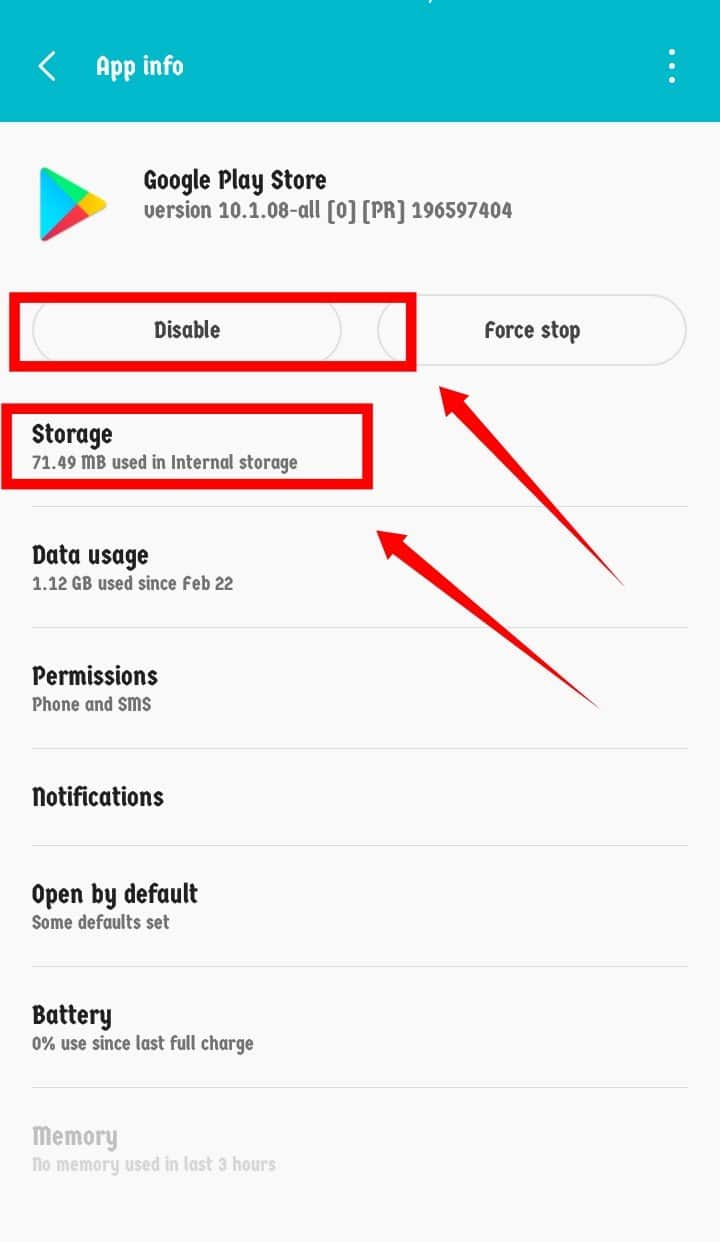
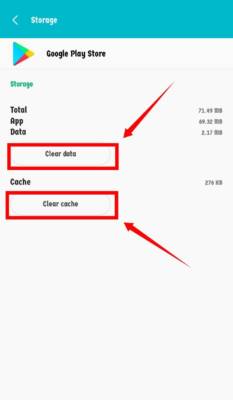
- Go back to the App List and Click On Google Services Framework. If you don’t see the Google Services Framework then Click on the Three Dots at the right corner and Select Show System which will show System Apps.
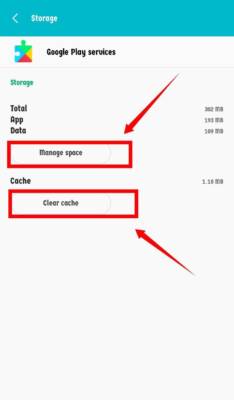
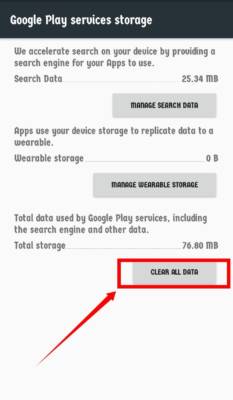
- Click on Storage. Clear Data and Cache(if Any) Of the Google Services Framework.
Almost There
What’s left is for you to Remove any and all Google account you might have signed in on your phone. Reboot your phone and then add the account(s) back.
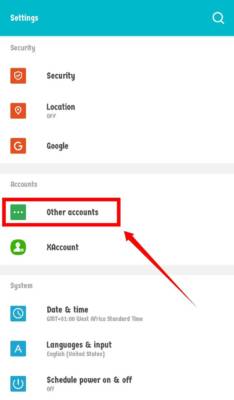
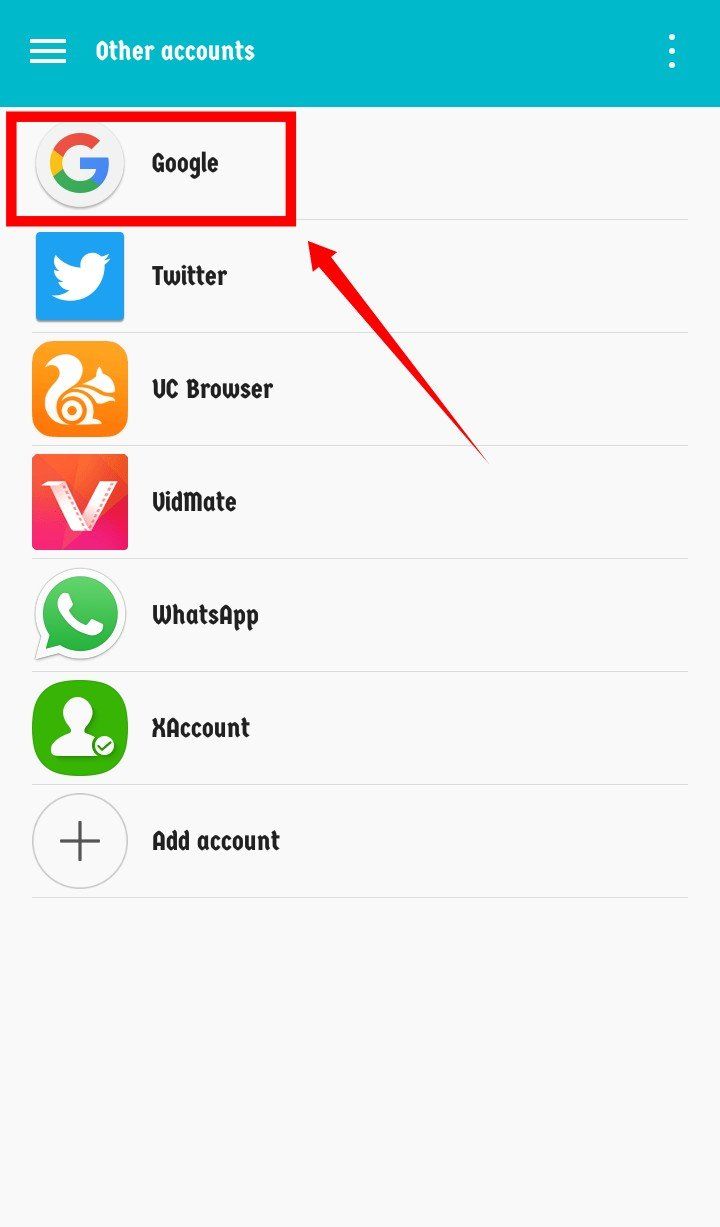
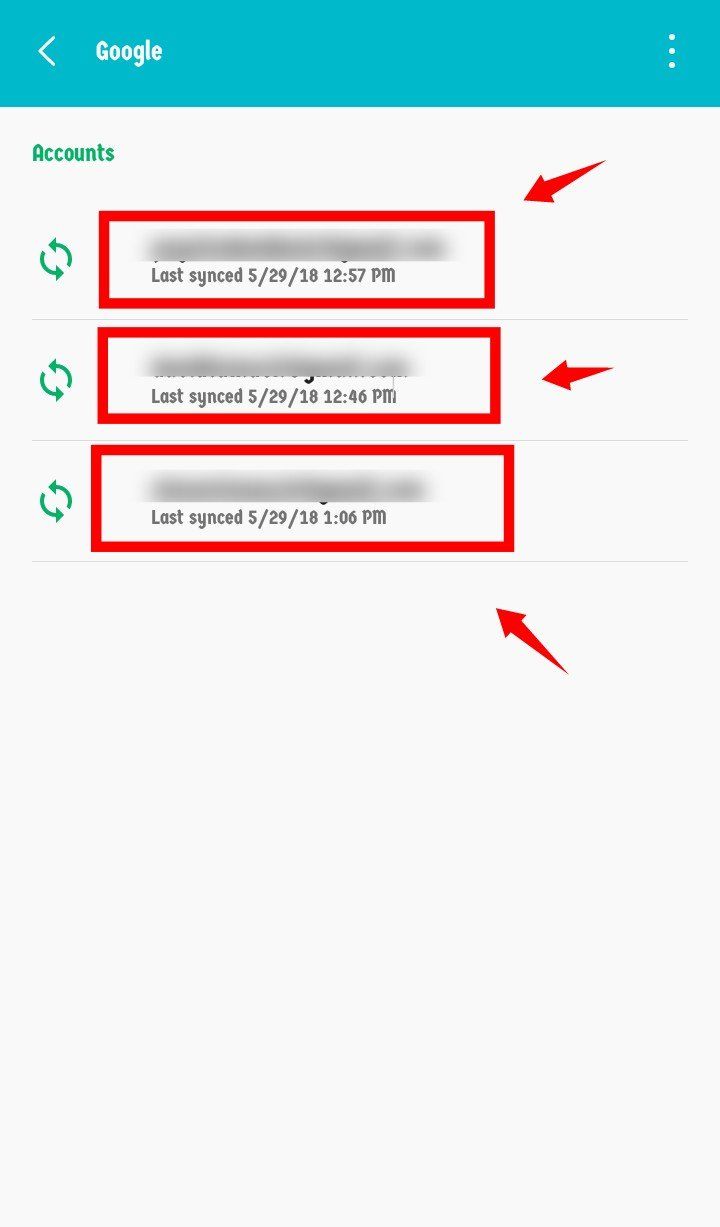
- Click on the Account. In my case, I have three Google accounts logged in.
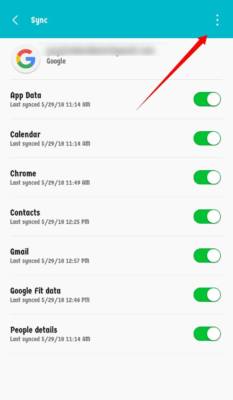
- Tap the Three Dots at the top right corner.
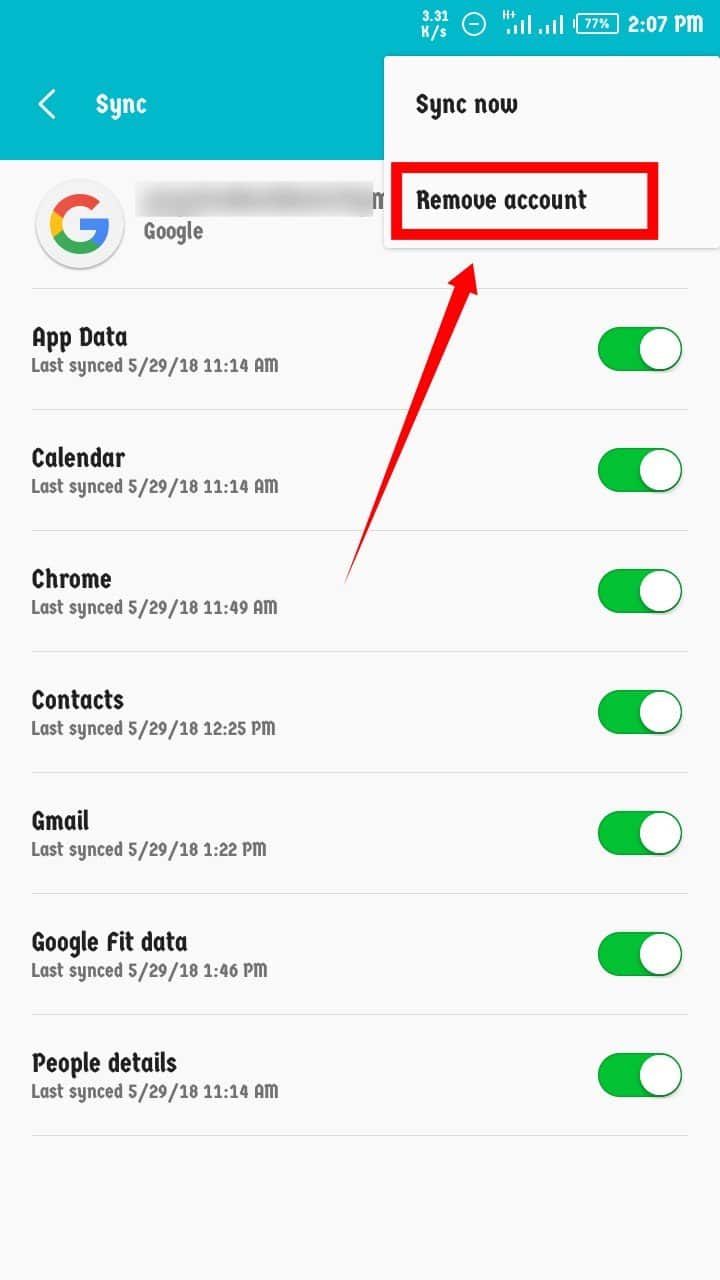
Do this for any other Google accounts that are signed in. After that, you can reboot your phone and add the accounts back and that should fix the Google Services Framework Keeps Stopping problem.
Can’t Get To The Settings To Do All These?
If you can’t get to the Settings Menu to do all these then simply Boot into Safe Mode and try it. If you are using a Samsung Galaxy S9 then you can see how to boot Samsung Galaxy S9 into safe mode. In Safe Mode, only the core apps are allowed to run thereby giving you the chance to access the settings menu.
Conclusion
The Google Services Framework Keeps Stopping is just a minor error and has been fixed using the steps above. However, if the process above doesn’t work for you, please let know us know by leaving a comment down below.
About Author
Samuel Afolabi is a lazy tech-savvy that loves writing almost all tech-related kinds of stuff. He is the Editor-in-Chief of TechVaz. You can connect with him socially 🙂