Using Samsung Update to install drivers and apps
Samsung Update is a program that makes it easy to install or update the latest system BIOS, drivers, and applications optimized for Samsung computers.
Features
- Install and update Samsung-approved drivers.
- Install and update Samsung-approved desktop apps from the Microsoft Store.
How to install Samsung Update
The Samsung Update application can be found on the Microsoft Store by searching for “Samsung Update”.
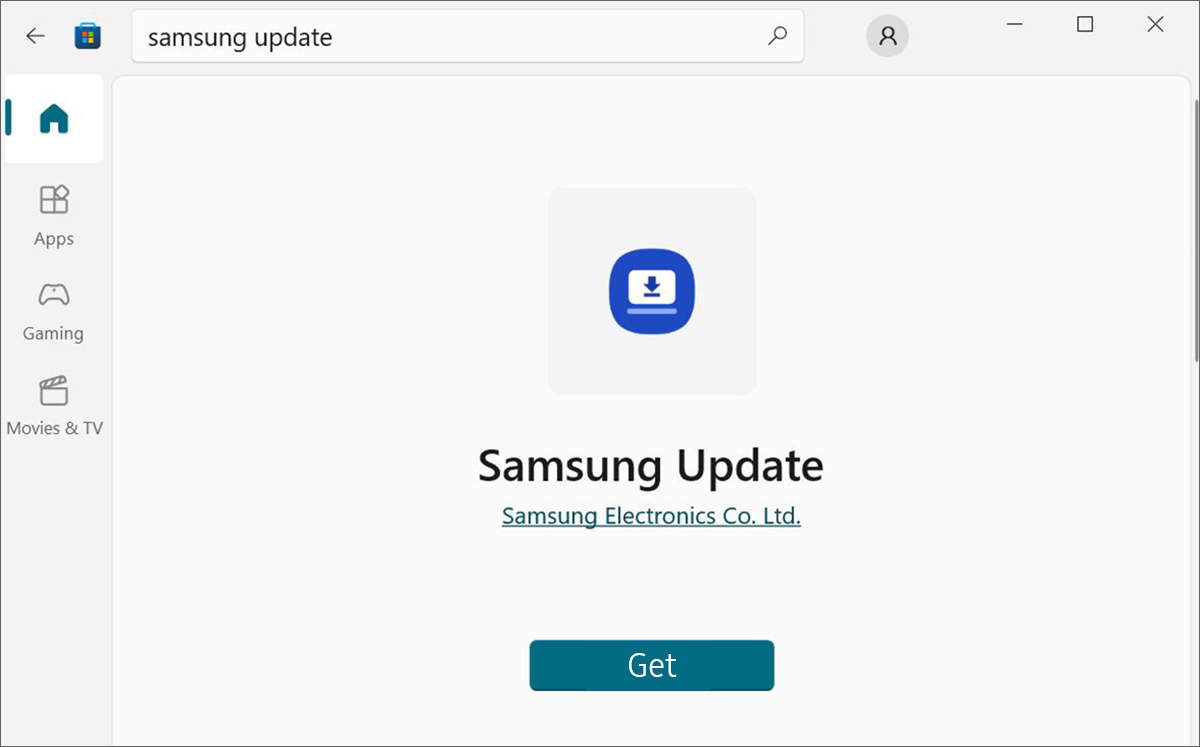
Figure 1: Samsung Update App on Microsoft Store
To install the application, click Get. Samsung Update is downloaded and installed on your device. Click Open to launch the application once installed.
How to use Samsung Update
Launch the Samsung Update application by selecting it from the Start menu, or double-clicking the desktop icon.
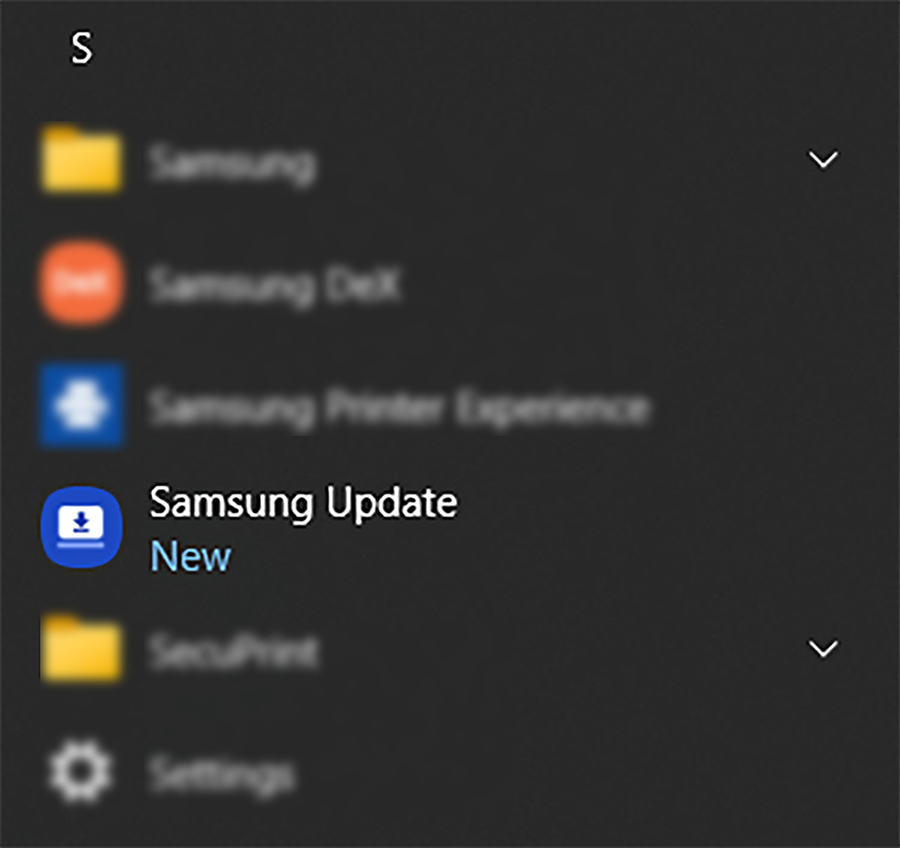
Figure 2: Samsung Update App on Start Menu
If you’re starting Samsung Update for the first time, you’ll be prompted to download an additional software package to run the application. Click Yes to install the additional software.
Note — Samsung Update will stop working without the additional software installed.
Installing and updating drivers
You can find a list of available updates by selecting Drivers from the left menu.
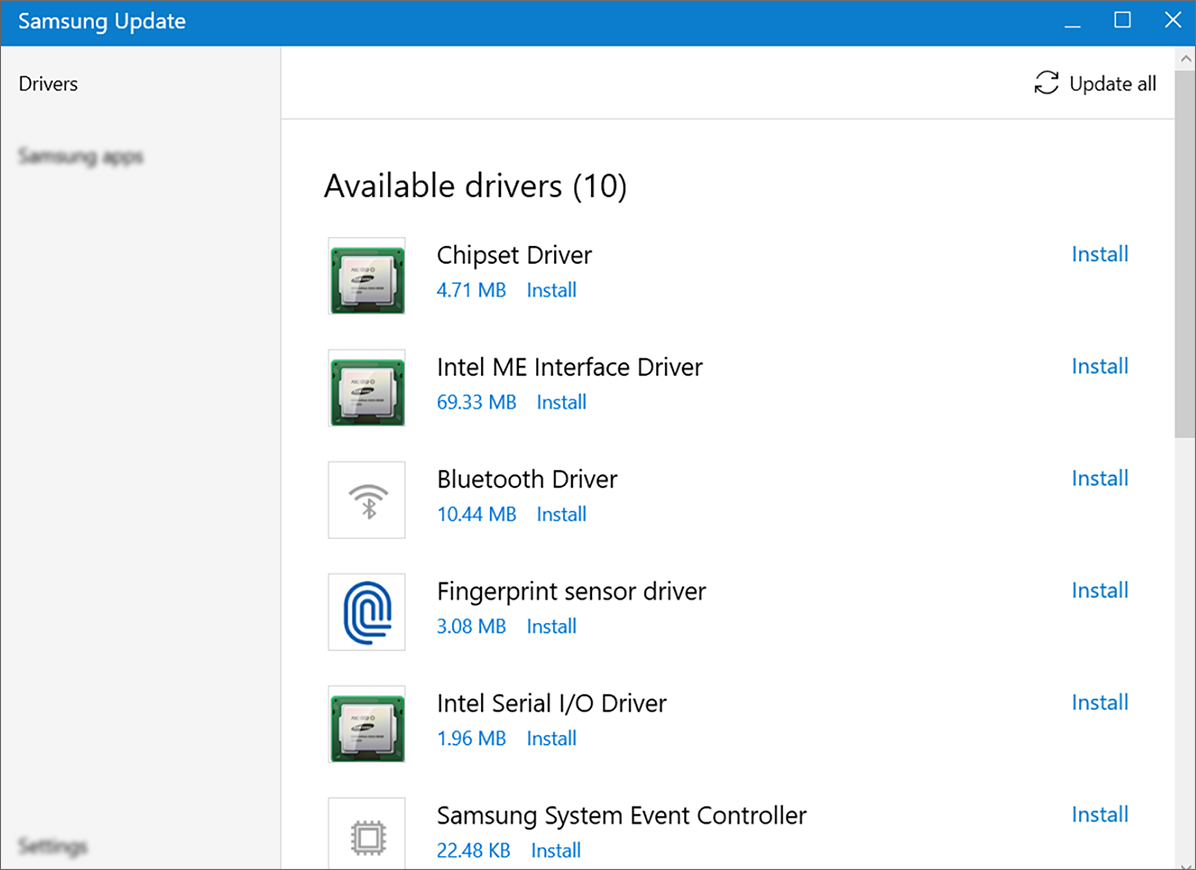
Figure 3: List of available drivers
Select Update all in the top-right corner if you want to automatically install and update every available driver, or click Update or Install beside individual drivers.
Alternate method for installing drivers
While the Samsung Update app normally detects automatically which drivers your computer needs, there may be times when the app doesn’t display any updates at all. This could be due to several reasons, such as the app needing an update of its own, or the app being incompatible with the current version of Windows.
To find the latest drivers for your device if they don’t appear in the Drivers list:
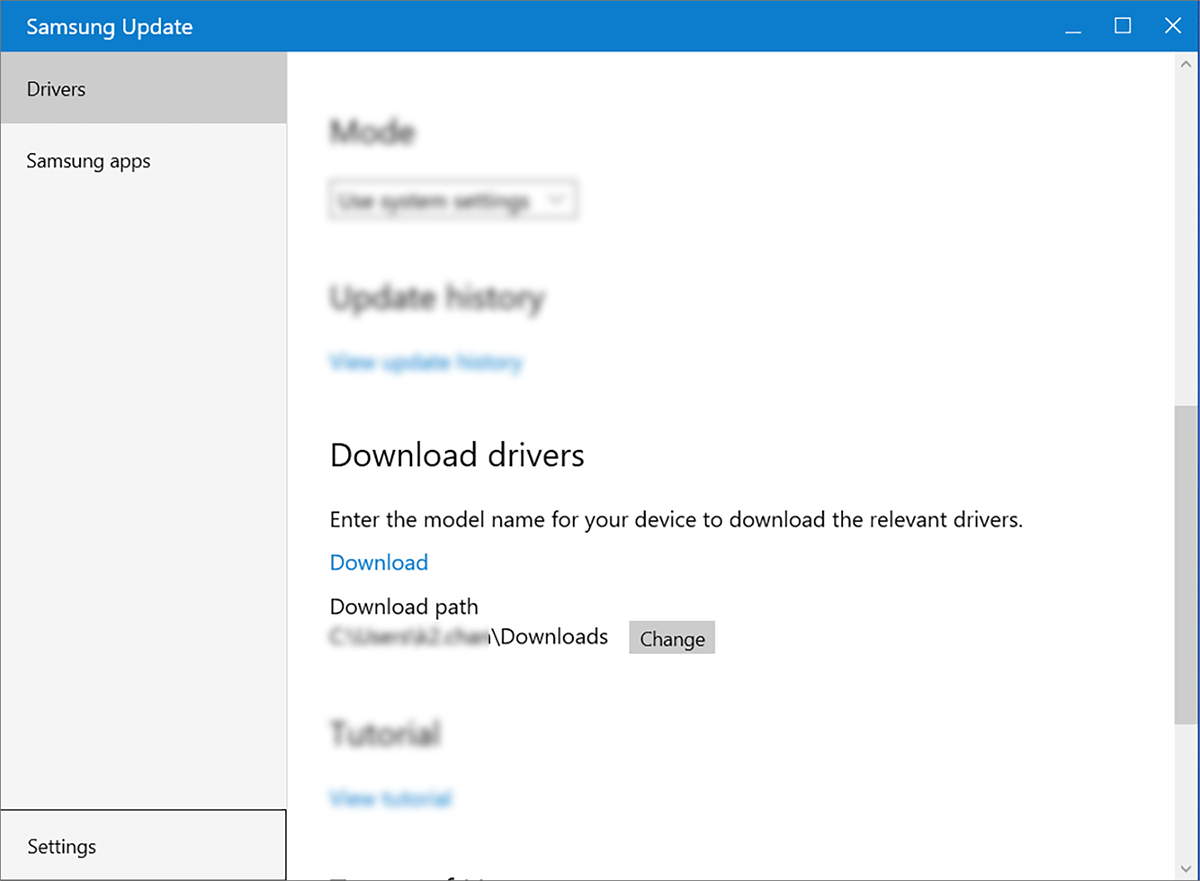
- Go to the Samsung Update app Settings, then click Download in the Download Drivers section.
Figure 4: Download drivers from Settings menu - On the driver download page, enter your device’s model name in the My Product field to view a list of available drivers for your device.
Product name suggestions are provided after you’ve typed five or more characters. 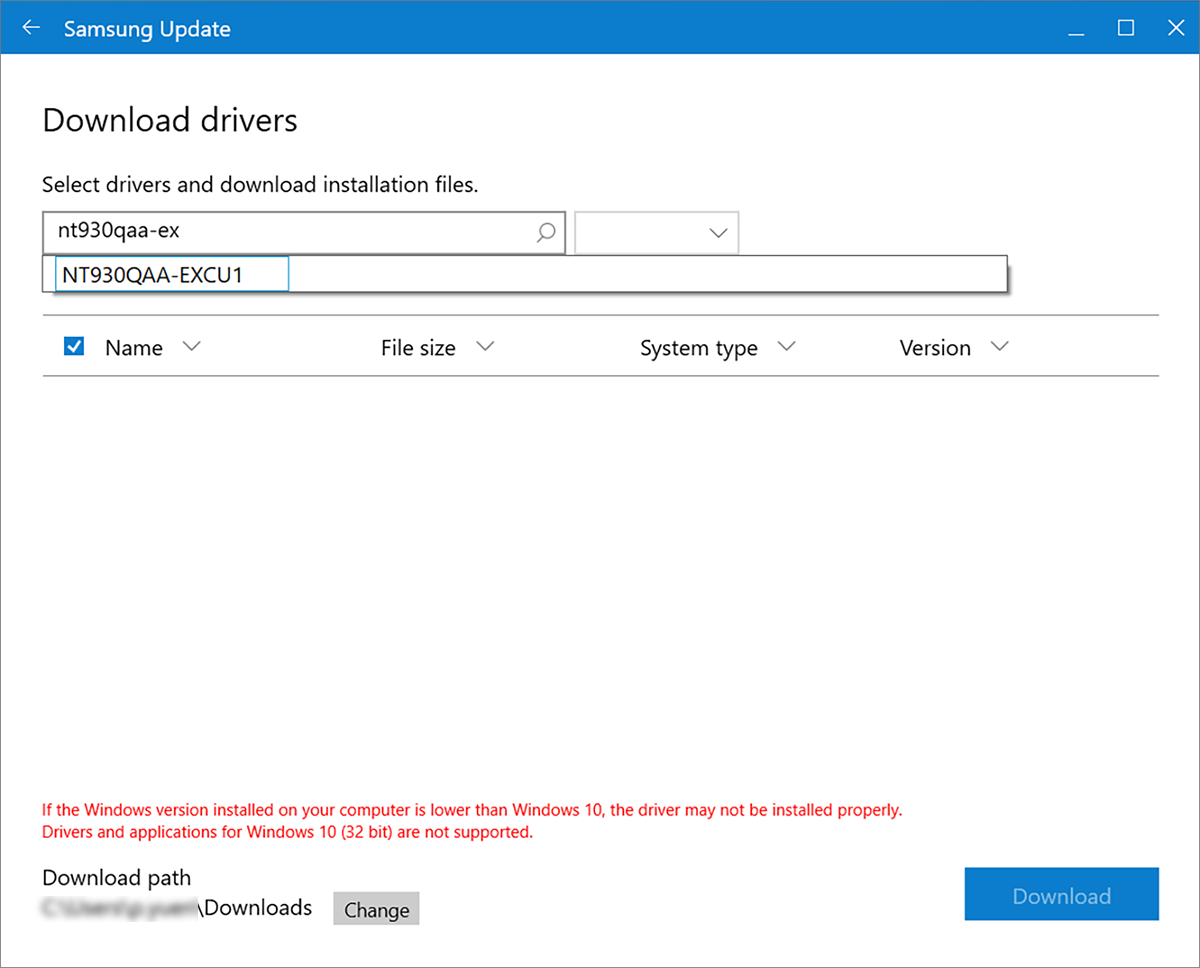
Figure 5: Finding drivers for a specific model name If you don’t know your device’s model name, click How to find your device model name under the My Product search bar for a quick tutorial. 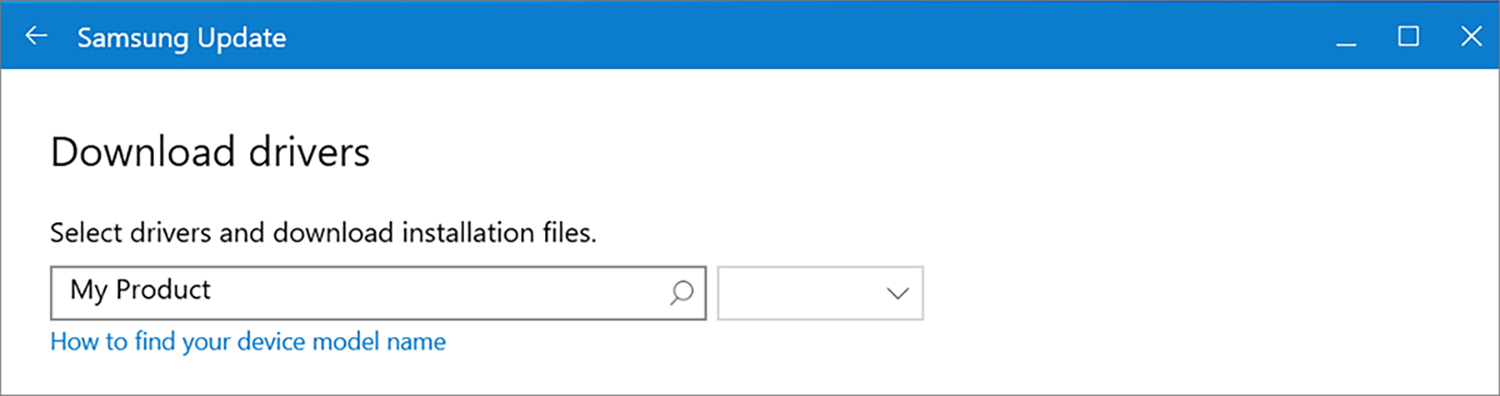
Figure 6: Link to tutorial for finding model name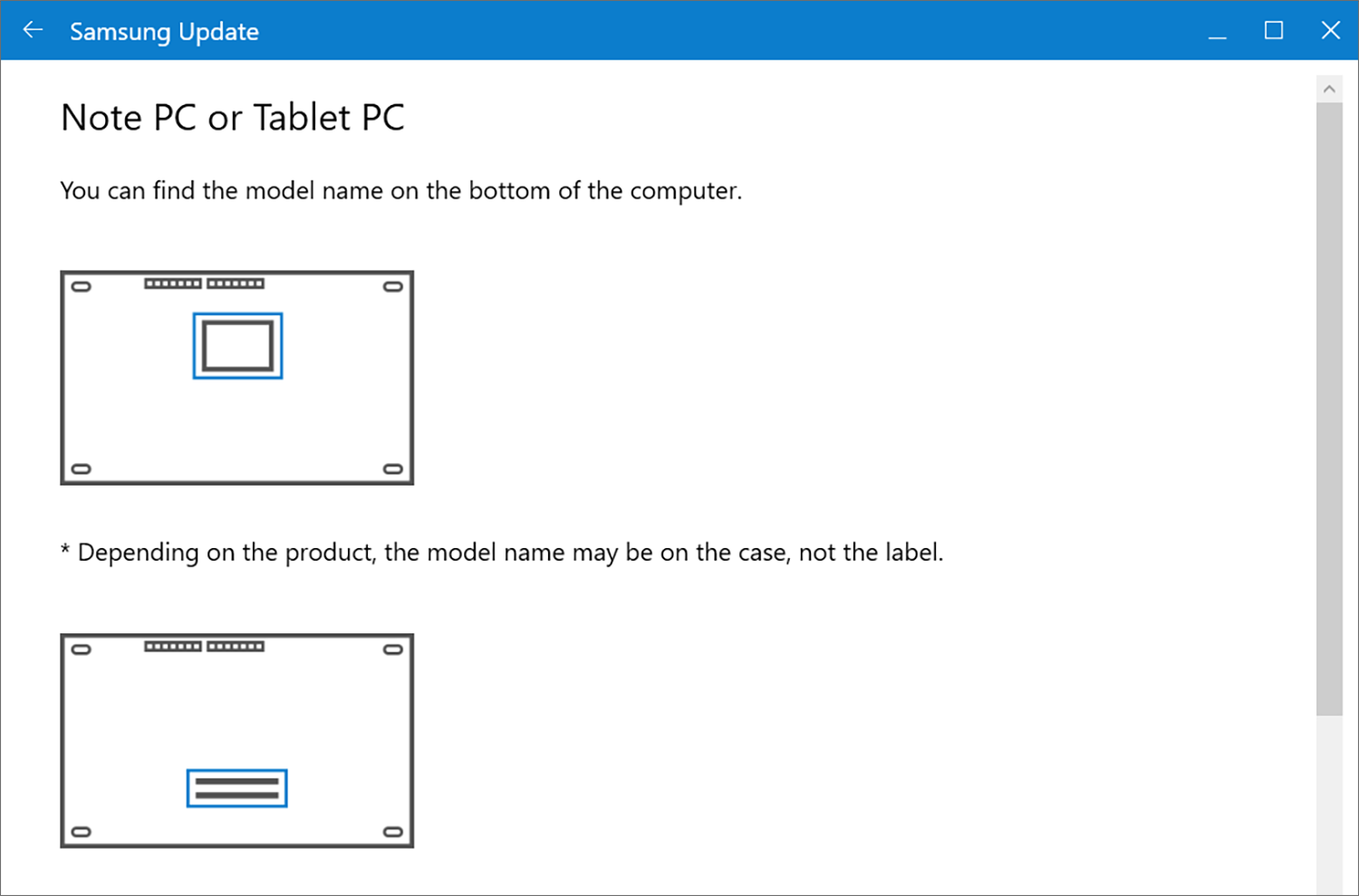
Figure 7: Tutorial on finding device model name
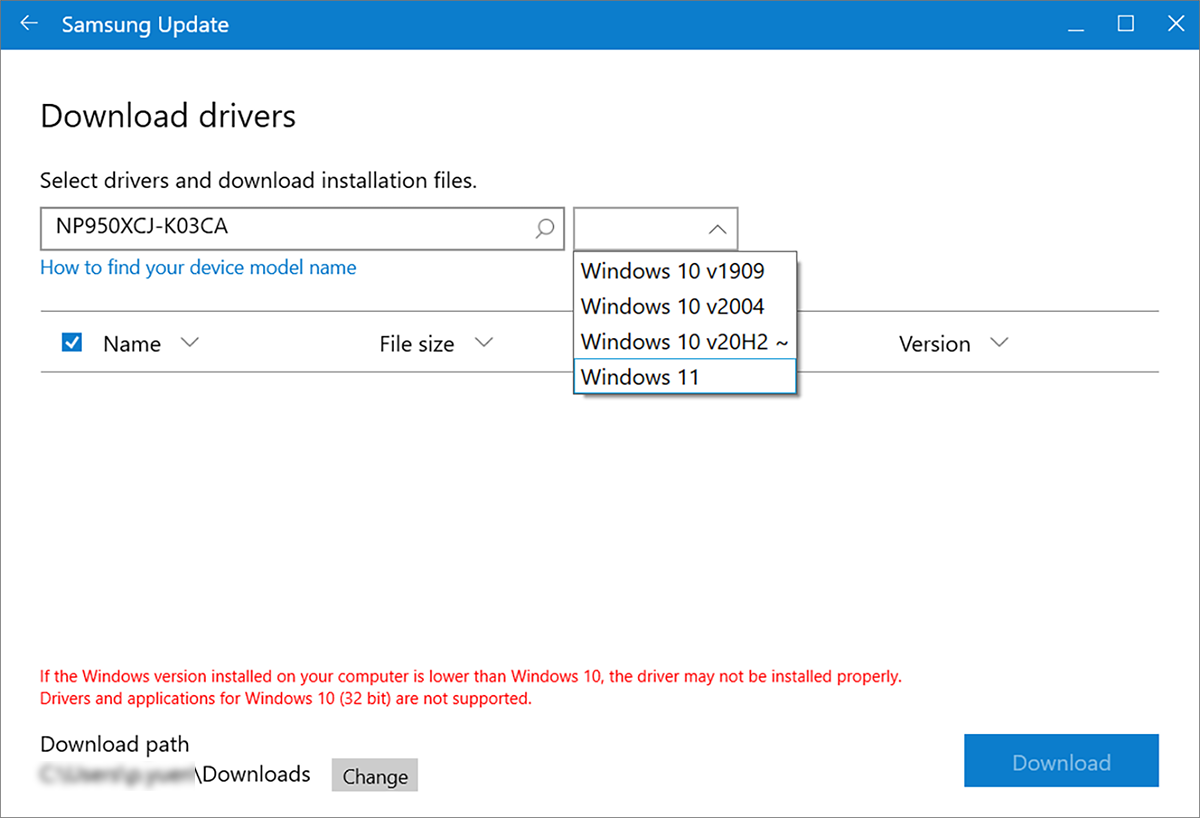
Figure 8: Selecting OS version for drivers
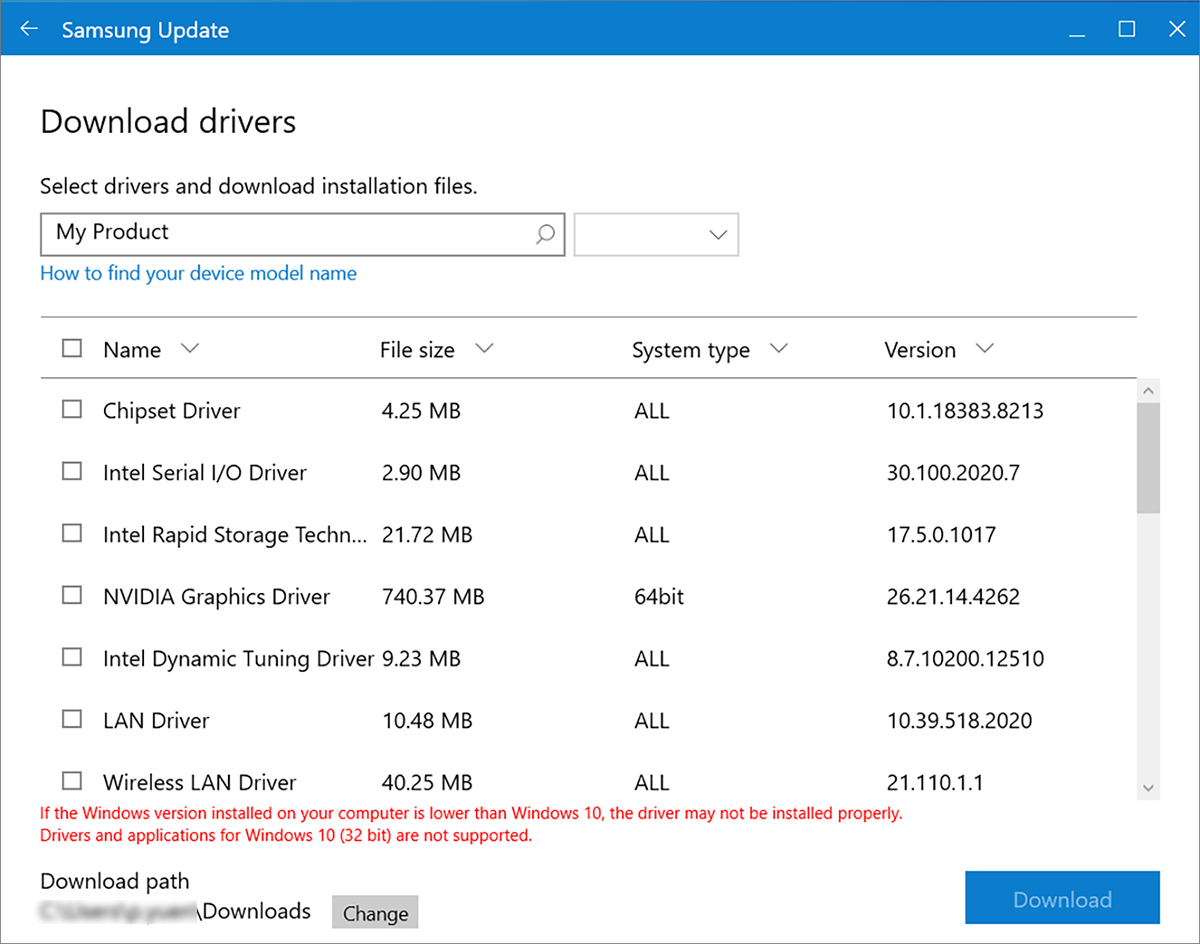
Figure 9: List of available drivers
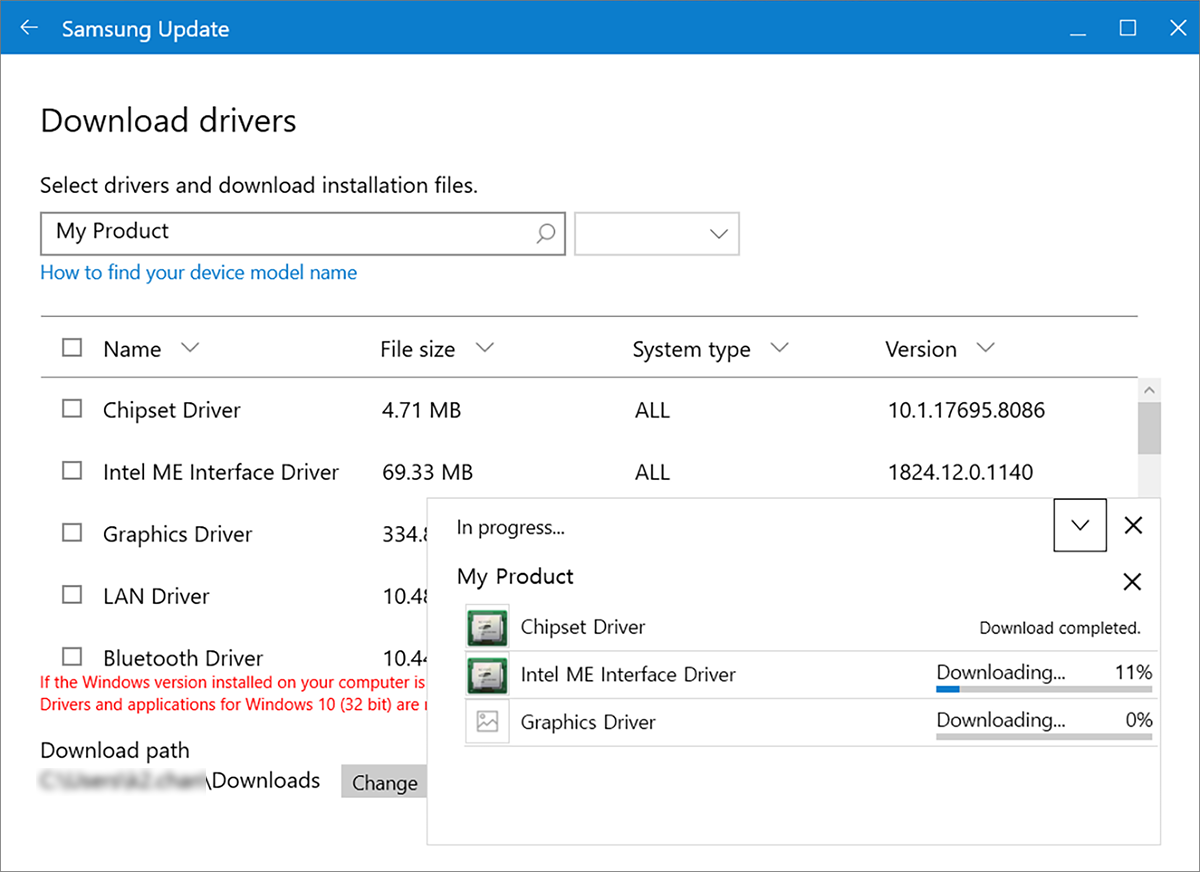
Figure 10: Driver download progress
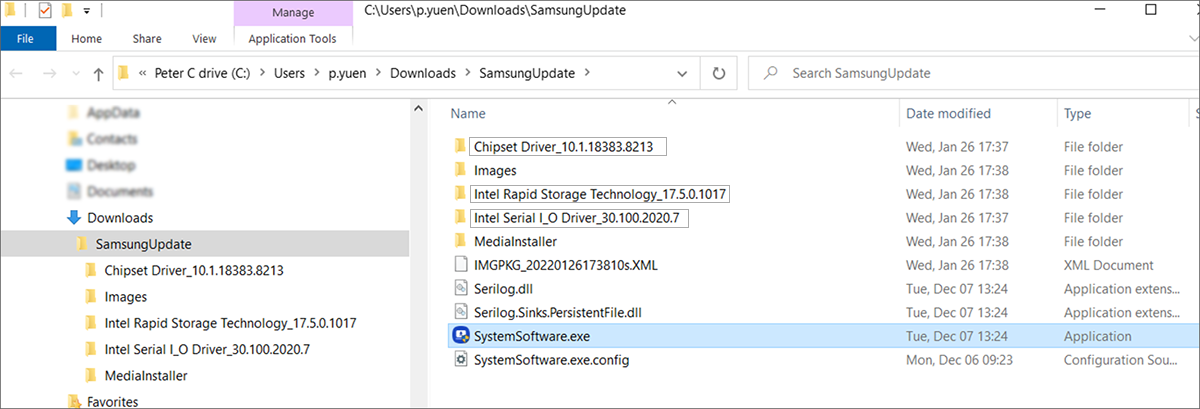
Figure 11: SamsungUpdate folder with SystemSoftware.exe
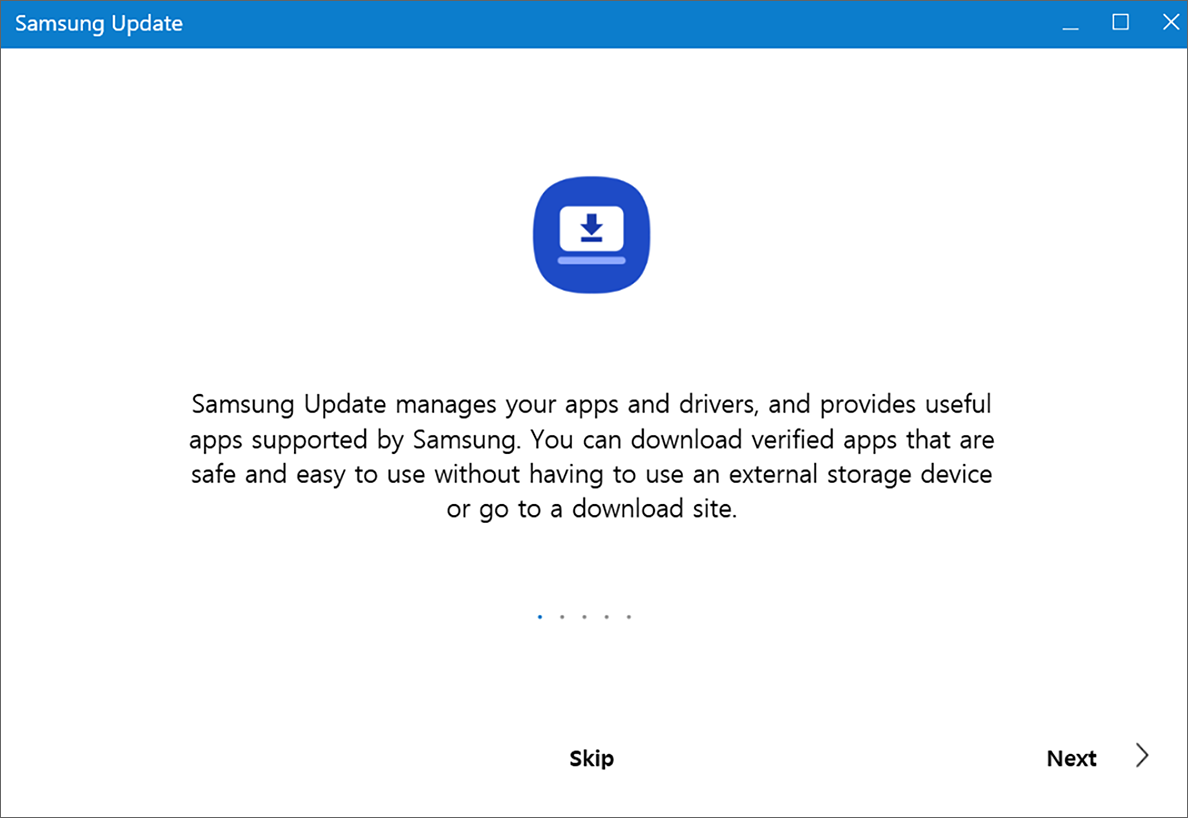
Figure 12: Alternate Samsung Update launcher tutorial
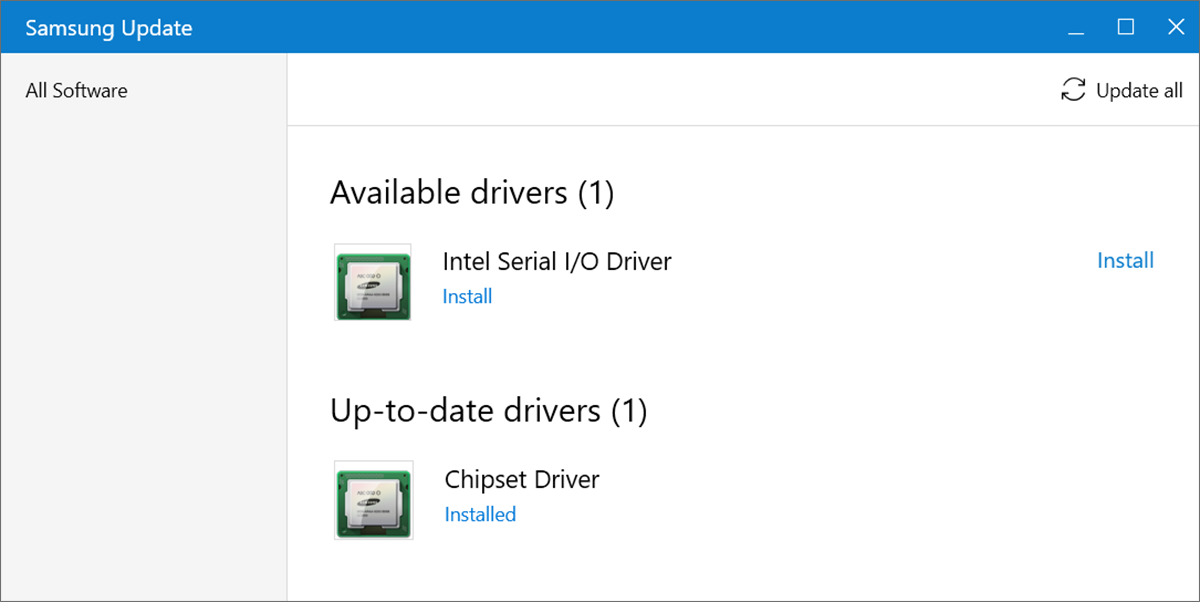
Figure 13: Manually installing drivers with alternate Samsung Update app
Installing and updating Microsoft Store apps
With Samsung Update, you can choose to install additional desktop applications for your device.
To find a list of available updates:
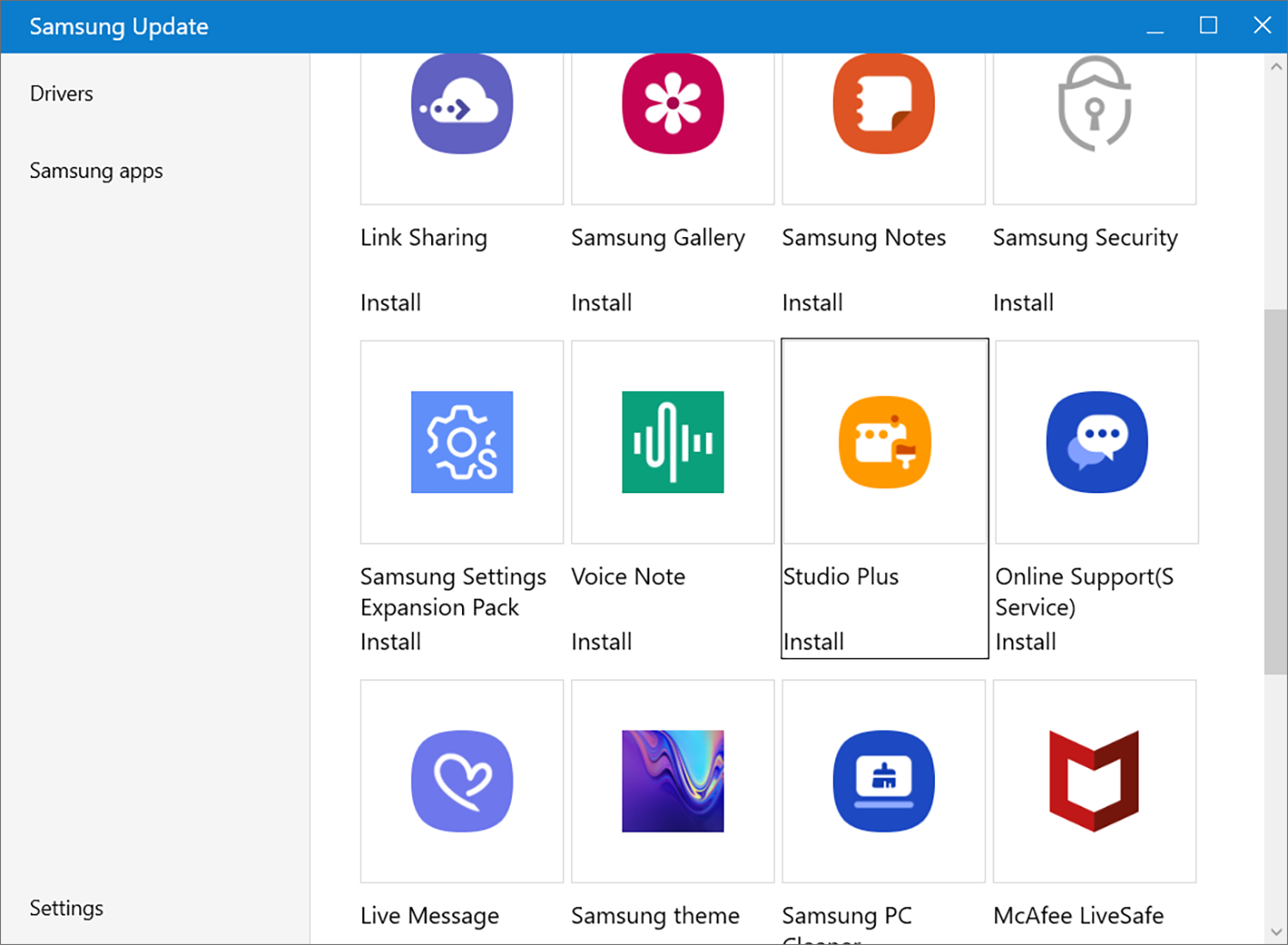
- Select Samsung apps from the left menu.
Figure 14: Samsung Apps - Select the Samsung app you want to install from the list, then click Install.
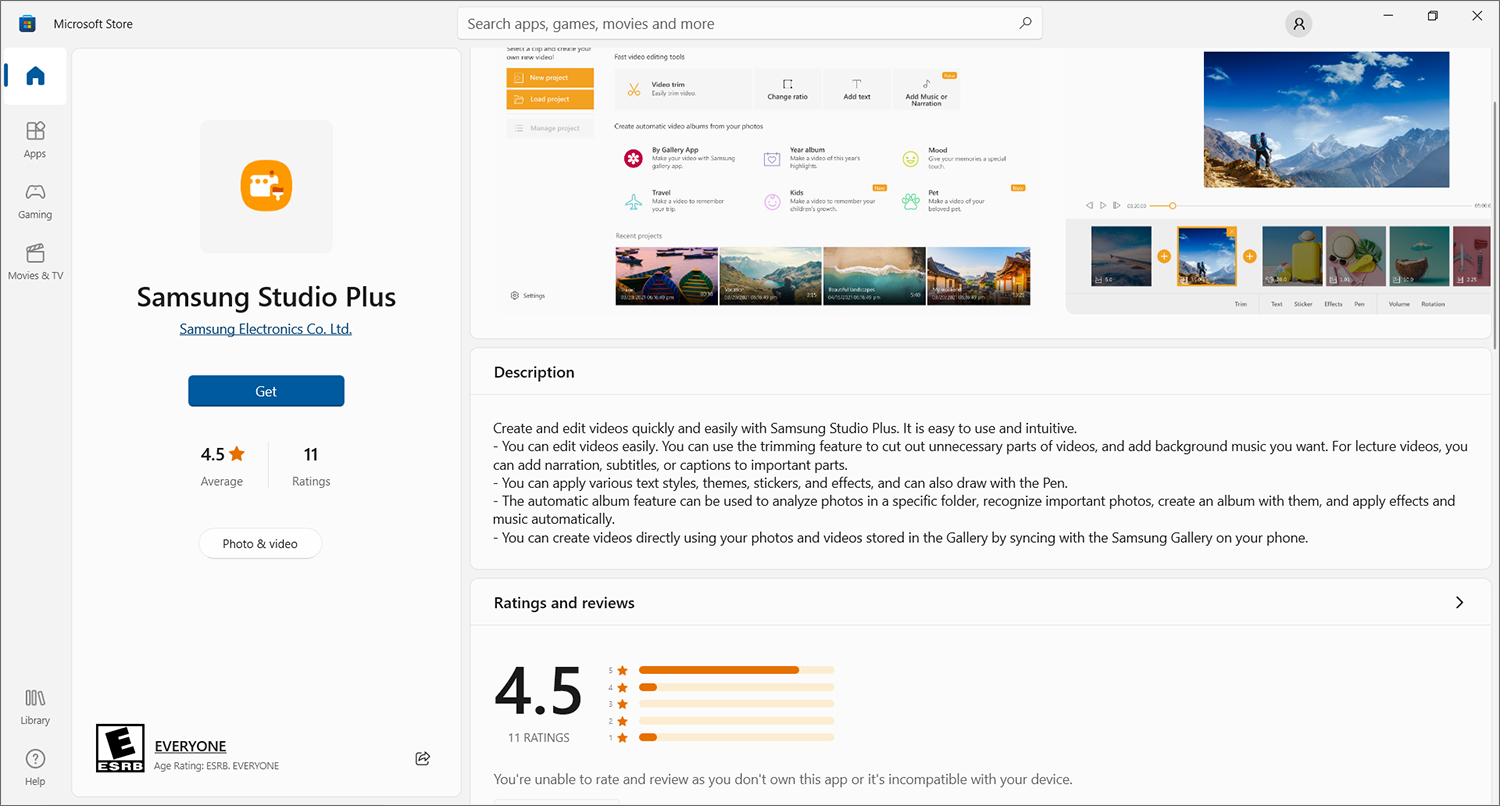
You’ll be redirected to the Microsoft Store, where you can read about the app, view images, and get customer ratings and reviews.
Figure 15: Samsung App on Microsoft Store
Legal Open Source Announcement This website is best viewed using Microsoft Edge, Google Chrome, and Mozilla Firefox browsers. Copyright© 2023 SAMSUNG All Rights Reserved.
Update software, apps and drivers on your Samsung laptop or notebook
Software updates are a vital part of keeping your laptop or notebook running its best. It’s important to periodically check for updates since they are released at different intervals. To make things easier, your Samsung laptop or notebook allows you to quickly check and apply updates. You can even customize the update options, so they’ll only happen at times that are convenient for you.
Note: Information provided applies to devices sold in Canada. Available screens and settings may vary for laptops and notebooks sold in other countries.
Note: Samsung Update is not available on the Galaxy Book S. If you want to update this device, use Windows Update instead.
Samsung Update is usually preinstalled on Samsung laptop or notebook, but you can download it from the Microsoft Store if you don’t see it.
Samsung Update allows you to download updates and drivers for your Samsung software. Select Start, and then scroll to and select Samsung Update. Enter your laptop or notebook’s model number in the Search bar at the top right, and then choose the appropriate software version. Select your desired drivers or installation files, and then click Download. The updates will automatically install.
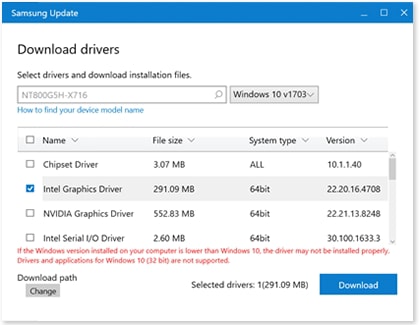
If you aren’t sure about your laptop or notebook’s model number, click How to find your device model name, and then follow the instructions.
You do not have to fire up your browser to check for updates; you can look for them right from your Start menu. Click the Start icon, and then click Settings. Click Update & Security, and then click Check for updates. If Windows finds updates, they will download and install automatically.
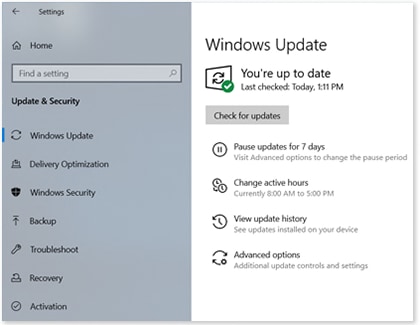
There are other update options available in this menu. For example, if you don’t want to perform an update right now, you can pause updates for 7 days. Here are the available update settings:
- Pause updates for 7 days: Prevent any updates from automatically installing for a week.
- Change active hours: Set the time you are using your laptop or notebook, so it will not automatically restart. You can even automatically adjust the active hours based on your activity.
- View update history: See which updates were made and when. Here you can uninstall updates and also access the recovery mode.
- Advanced options: Receive updates for other Microsoft products, change restart options, and more.
There are times when an update can cause more harm than good. If needed, you can uninstall a recent update to make things go back to the way they were.
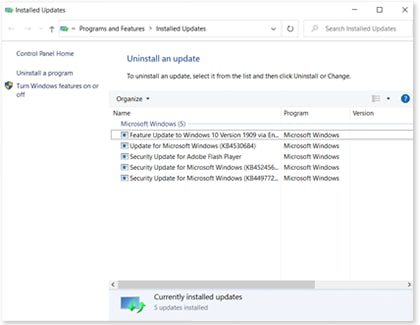
Updating device drivers can be done through either Samsung Update or Windows Update. Windows Update may mark these updates as optional. These drivers are needed to run system apps and connect devices.
Depending on what device you are connecting, you can get drivers for Samsung devices from our Support Center. If drivers are not available for the device, then the drivers available from Samsung Update and Windows Update are sufficient. Devices or components made by manufacturers other than Samsung may offer drivers directly from their site. See Microsoft’s help article for how to install and update drivers.
Although you can update Samsung apps using Samsung Update, to update all the apps on your laptop or notebook, open the Microsoft Store (open the Start menu and type store, then click on Microsoft store to open it).
In the top right, if some apps are already available for update, you may see a download icon and the number of apps awaiting download. Otherwise, click the three dots and then Downloads and updates. Once here, you can use the Get updates button to check all your apps for updates, and the Update all button to download all updates that are already detected as available. Or you can pick and choose which ones to download. Finally, you can click the three dots again and select Settings to enable the setting to Update apps automatically (which should be on by default).
If the Microsoft store app itself is one of the apps being updated, the store will close as the update is performed. Reopen the Microsoft store app and check again for updates if this happens. It is also good to check for app updates after updating to a new version of Windows 10 from Windows update.
It is also possible to install desktop apps that are not found in the Microsoft store. These apps are completely maintained by their developers and you should use any update tools the app offers or check with the app developer’s website to find information on when and how to update it.
Note: If you no longer have use for an app and want to uninstall it, read our guide.
Samsung Update Plus — что это за программа и нужна ли она?

Samsung Update Plus — фирменное приложение, предназначенное для проверки новых версий ПО и драйверов для устройств Samsung.
Простыми словами — это просто программа, которая проверяет наличие новых версий ПО и драйверов, если есть — то вас об этом уведомляет. Также может иметь функцию автоматического скачивания и установки.
Программа имеет русский язык, что не может не радовать:

Как видите есть журнал обновлений, прога умеет сама устанавливать новые версии ПО, точнее найденные обновления.
По этой картине видим — прога существовала еще во времена Windows XP, также видим что она например может найти драйвер для сетевой карты:

После запуска можно сразу начать проверку обновлений ПО и драйверов:

Данное ПО не является критически важным и при желании его можно легко удалить:
- Зажмите Win + R, появится окошко Выполнить.
- Вставьте команду appwiz.cpl, нажмите ОК.
- Откроется окно установленного софта. Находим здесь Samsung Update Plus, нажимаем правой кнопкой > выбираем Удалить.
- Следуем инструкциям на экране, обычно нужно нажимать Далее/Next/Удалить/Uninstall.
Надеюсь данная информация оказалась полезной. Удачи и добра, до новых встреч друзья!
Samsung Update

Samsung Update (SW Update) – это специальная программа (драйвер), которая обеспечивает инсталляцию и обновление программного обеспечения на ноутбуках южнокорейского разработчика.
Этот софт сканирует систему, подбирая нужные программы (драйверы) для ноутбуков Samsung. Samsung Update является официальной программой и подходит только для оборудования создателей их Южной Кореи.
Совместимость
Не пытайтесь установить драйверы на другое оборудование (не от Самсунг). Эта утилита обновляет программное обеспечение на ноутбуках, которые выпущены на заводе компании Samsung. Для сторонних производителей «железа» используйте софт под соответствующего производителя.
Основные возможности
Используя Samsung Update, вы обновите фирменные утилиты и программы (драйверы) для ноутбуков Samsung. Не забывайте, что некоторые компоненты нужно обновлять регулярно. Воспользовавшись этим менеджером, вы обновите драйверы, избежав плохой работоспособности системы.
Пользуясь этим софтом, вы увидите плюсы в обновлении оборудования. Во-первых, вы установите драйверы, не используя поиск в сети. Во-вторых, когда произойдёт запуск обновления, то клиент проверит систему и обнаружит модель вашего аппарата. После чего вы инсталлируете программы и драйверы для ноутбука.
Вам нужно только согласиться с «действием» и не отключать питание аппарата до окончания процесса установки. Samsung Update работает на OS Windows 7 и новых сборках системы.
Используя OS Windows 8 или 10, вы можете обновлять программное обеспечение автоматически, настроив процесс установки драйверов в софте.
Дополнительные возможности
Фирменный менеджер обеспечивает не только обновление программ и драйверов, но и помогает в этом деле неопытным пользователям, которые не сильно разбираются в компьютерных технологиях.
Вписав марку (бренд) модели ноутбука в строку поиска, щелкните на кнопку «Найти модель». После чего укажите необходимые файлы (драйверы) и закачайте их. Затем вы можете отправить эти компоненты другу или знакомому, облегчив ему процесс обновления ноутбука.
Ключевые особенности
- в менеджере можно быстро найти драйверы для ноутбука;
- этот софт работает на устройствах Samsung;
- программа функционирует на OS Windows 7 и более новых сборках системы;
- закачка драйверов для «удаленного» мобильного аппарата;
- менеджер работает только после подключения к сети;
- SW Update не сложная в эксплуатации, а также содержит удобный мастер шагов.