Как изменить голосовой набор Google на клавиатуру
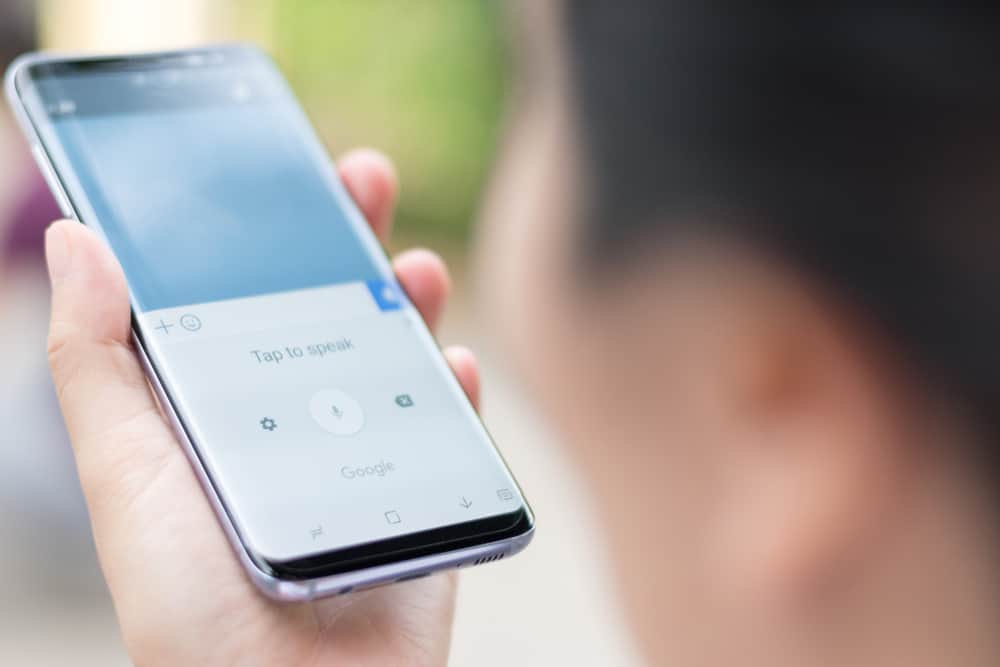
Голосовой набор Google — отличный способ ускорить общение, особенно в спешке. Но бывают случаи, когда он не полностью понимает, что вы говорите, и это может расстраивать. К счастью, есть быстрое решение — смена клавиатуры.
Существует способ изменить метод ввода по умолчанию на вашем устройстве Android, чтобы использовать обычную клавиатуру вместо голосового набора Google. Просто перейдите к настройкам и выберите предпочитаемый вариант клавиатуры в настройках ввода.
Несмотря на свои преимущества, голосовой набор Google иногда может разочаровать. Переход на обычную клавиатуру делает работу с ней более приятной для многих пользователей. Вы можете легко набирать слова, не используя функцию распознавания голоса.
В этой статье мы покажем вам, как изменить клавиатуру по умолчанию на вашем устройстве Android с Google Voice Typing на обычную клавиатуру для набора текста.
Как изменить голосовой набор Google на клавиатуру
Если вы когда-либо были разочарованы тем, как Google Voice набирает ваши сообщения за вас, вы можете быстро и легко изменить его обратно на обычную клавиатуру.
Вот как изменить клавиатуру вашего Android по умолчанию.
Шаг № 1. Откройте настройки на своем телефоне.
Если вы хотите изменить клавиатуру по умолчанию на своем устройстве Android, вам сначала нужно открыть приложение «Настройки», которое можно найти в панели приложений или на главном экране.
На большинстве устройств Android вы также можете открыть настройки, просто проведя пальцем сверху вниз и щелкнув значок «Настройки» на панели уведомлений.
Шаг № 2: перейдите к опции «Язык и ввод».
Теперь вам нужно найти настройки, связанные с клавиатурой и параметрами ввода, в разделе «Язык и ввод» в настройках.
Как правило, эти параметры находятся в разделе «Общее управление» на устройствах Samsung и в разделе «Система», «Личные» или «Дополнительные настройки» на других устройствах.
Поскольку эти параметры находятся в разных местах в разных версиях Android, вы также можете использовать кнопку поиска, чтобы найти их.
Шаг № 3: измените клавиатуру по умолчанию
Найдите параметр «Клавиатура по умолчанию» или «Текущая клавиатура» один раз в настройках «Язык и ввод». В этом случае он будет установлен на Google Voice Typing, и нам нужно будет это изменить.
Нажмите на нее и измените клавиатуру по умолчанию на «Gboard», «Samsung Keyboard» или любую другую клавиатуру, которую вы уже установили.
Когда вы закончите вносить изменения, вы можете закрыть настройки и проверить приложение «Сообщения», чтобы увидеть новую клавиатуру по умолчанию.
Шаг № 4. Отключите голосовой ввод в Gboard (необязательно)
При желании вы также можете отключить голосовой ввод для Gboard или любой другой клавиатуры, которую вы используете, чтобы значок голосового ввода был удален с клавиатуры.
В настройках клавиатуры нажмите на Gboard, чтобы получить доступ к его настройкам, а затем найдите параметр голосового ввода и отключите его.
Вот и все. Отныне весь ввод текста будет осуществляться с помощью этой клавиатуры вместо голосового набора Google.
Когда голосовой ввод полностью отключен, вы можете печатать с помощью обычной клавиатуры, не беспокоясь о неправильном истолковании слов и опечатках.
Как установить дополнительные клавиатуры на Android
В некоторых случаях, если вы попытаетесь изменить клавиатуру по умолчанию на Android с Google Voice Typing на что-то другое, вы можете увидеть, что список установленных клавиатур пуст.
Чтобы это исправить, вам потребуется скачать и установить дополнительные клавиатуры из Google Play.
Вот что вам нужно сделать.
- Откройте Google Play на своем Android.
- Найдите клавиатуру, которую хотите установить (например, Gboard).
- Нажмите «Установить», чтобы загрузить и установить клавиатуру.
И это все. Вы можете выбрать загруженную клавиатуру, используя параметры клавиатуры в настройках.
Для Android доступно множество клавиатур, поэтому вы можете найти идеальную для своих нужд. Некоторые популярные приложения для клавиатуры Android включают Gboard, гибкийи SwiftKey.
Итак, если вы предпочитаете вводить сообщения, а не использовать функции распознавания голоса Google Voice, вы можете легко переключать клавиатуры, следуя нашему руководству.
Часто задаваемые вопросы
Вы можете отключить голосовой ввод, зайдя в настройки клавиатуры и нажав на клавиатуру. Просто найдите параметры, которые говорят о голосовом вводе, и отключите его.
Да, Google Voice Typing — это бесплатный инструмент Google для преобразования текста в речь, который позволяет вам говорить то, что вы хотите сказать, а затем автоматически преобразовывать это в текст.
Если сравнивать Google Voice Typing с другими инструментами, его точность составляет до 94%, что значительно выше, чем у других инструментов преобразования текста в речь на рынке.
How to Use the Google Docs Voice Typing Feature
Jerri L. Ledford has been writing, editing, and fact-checking tech stories since 1994. Her work has appeared in Computerworld, PC Magazine, Information Today, and many others.
Published on May 5, 2020
In This Article
Jump to a Section
Trending Videos
If typing is painful for you or you just think better when speaking, voice dictation might be a good option for creating written documents. Not the inaccurate voice recognition of the early 90s, but the current iteration of voice typing that’s become increasingly popular on mobile devices. If you have Google Docs, all the better because Google Docs voice typing is the feature you never knew you were missing. Here’s how to use it.
Before You Use Google Docs Speech-to-Text
Before you get started using dictation in Google Docs, you’ll need to make sure you’re using Google Docs on a Chrome browser. Although you can use the speech-to-text feature of the Google keyboard on a mobile device, it’s not as fully featured as voice typing in Google Docs on Chrome.
You also need to make sure the microphone on your computer is enabled and is working properly. For most microphones on Windows computers you’ll find the microphone settings under settings system sound. For microphones on Mac computers, those options are in system preferences sound input.
How to Use Voice Typing in Google Docs
Google Docs voice typing works in over 100 languages. If you’re not sure if it will work in your language, you can check the Google Docs support page to find a full listing of available languages.
To use Google Docs voice typing:
- In the Chrome browser, open or create a new Google Docs document.
To quickly start a new document in the Chrome browser, type docs.new into the Chrome address bar and press Enter on your keyboard.
:max_bytes(150000):strip_icc()/VoiceToText_01-5cfa15c28fac47619059e240e3abeb97.jpg)
Place your cursor in the document where you want to begin typing, then click Tools on the top tools menu.
:max_bytes(150000):strip_icc()/VoiceToText_02-6f6f273cb90d476cb0a6d7cfa0df139a.jpg)
- Windows: Ctrl+Shift+S
- Mac: Command+Shift+S
:max_bytes(150000):strip_icc()/VoiceToText_03-df5002c9ec8040d180e99c479f636e64.jpg)
A microphone will appear on upper left corner of the document. By default it will be turned on and ready for you to speak. You’ll know it’s on because the microphone will be an orange/red color. Speak your text in a normal tone of voice at a normal cadence, and you’ll see a circle around the microphone as Google Docs captures your voice and converts it to text. If the microphone doesn’t have the circle around it, but it’s still orange, it’s idle and ready to capture speech. If the microphone is gray it is deactivated; click it once to activate it, and then begin speaking.
If the microphone box is in an inconvenient place, you can click the three dots at the top of the box and drag it to any place within the document. You cannot, however, move it outside the document to other places on the screen.
Tips for Using Speech-to-Text in Google Docs
Google Docs speech-to-text is easy to get started using, but if you really want to use it to its fullest potential, there are a few things you should know.
- Correcting mistakes: If you make a mistake or if Google Docs hears you incorrectly, highlight the mistake, and with the microphone activated say the correct word. Do this often, and Google Docs will learn you speech patterns.
- Using suggested alternatives: While using Google Docs voice typing, words underlined in gray have suggested alternatives. If the word that was recorded is incorrect and it has the gray underline, click the word and (if correct) select the suggested alternate.
- Using commands: Some commands, such as those used for editing documents, are only available in the English language. Punctuation only works in English, German, Spanish, French, Italian, and Russian.
Using Google Docs Voice Typing Commands
To get the most from using Google Docs voice typing, you should use the commands that are available to help when creating and editing documents. Some of the most basic (and most useful) commands are for basic formatting and navigating your document.
Navigation Commands
To navigate around your document, say any of these commands:
- «Go to the end of the paragraph»
- «Move to the end of the paragraph»
- «Go to the end of the line»
- «Move to the end of the line»
- «Go to [word]»
- «New line»
- «New paragraph»
Formatting Commands
The formatting commands that are available include a rich selection of capabilities. You can say:
- «Apply heading [1-6]»
- «Apply Bold»
- «Apply italics»
- «Decrease font size»
- «Increase font size»
- «Create bullet/numbered list» (After each line say «New line,» and at the end of the list say «New line» twice to end the list.)
Get Voice Typing Help
There’s a long list of commands available to use with Google Docs voice typing. The easiest way to access those commands is to use a voice command such as:
- «Voice typing help»
- «Voice command list»
- «See all voice commands»
Additional Accessibility Options
For those who may need additional accessibility options, there’s also a Speak function available in Google Docs that can be used to have Docs speak to you to share information for everything from reading what’s been typed to telling you the location of your cursor or the style of formatting that’s been applied to a selection of text. You’ll need to turn on screen reader support and then can use these commands to assist with voice typing:
- «Speak cursor location»
- «Speak from cursor location»
- «Speak selection»
- «Speak selection formatting»
Google Docs audio voice typing
Speechify cuts your reading time in half. Listening is the faster way to read. Trusted by 25M+ students & professionals.
Featured in

Table of Contents
Listen to this article with Speechify!
The Google Docs audio voice typing feature uses speech-to-text technology to improve accessibility and productivity. Learn more about this feature!
Google Docs audio voice typing
Google Docs (also called Google Documents) is the most popular text processor today, and you can use the Google Docs voice typing feature to make it even more accessible. This feature allows you to transcribe audio using speech recognition software integrated in the app and, essentially, create subtitles.
This can be more than beneficial for those that want to avoid typing. Google Docs audio voice typing opens a whole new world of possibilities, and it allows you to save time during the process. More importantly, it is a great tool for those that struggle with typing or dyslexia.
Almost everyone has a Google account today, and many people use Google apps like Google Docs or Google Slides. Using Google Docs audio voice typing only simplifies using this feature since you won’t need to create additional accounts or learn how to use different text processors.
Type with your voice in Google Docs
Having the ability to use your voice instead of typing is something that many people prefer. After all, not everyone is able to type messages or text as fast, and this will save so much time in the process.
There are so many benefits to using speech-to-text (STT) tools in your everyday life. For some, it is a way to save time, while for others, voice commands are a way to overcome a disability. These tools do an incredible job of improving accessibility of numerous devices and apps.
One of the main advantages of STT tools is that they are easy to use. In the majority of cases, all you need to do is press a single button, and the app will start “listening” to your command.
This makes writing with your voice accessible even to people who are not computer experts. Having a tool that can make communication a bit simpler is one of many ways people use speech-to-text.
One use case example for speech-to-text is driving. You might be in a car and need to respond to a message. Instead of putting yourself and others at risk by replying to the message, you can use STT to send it in just a couple of seconds.
Speech-to-text can also help improve flexibility, since you will be able to work from outside of your office. Regardless of the type of document you need to write, you can take a walk, dictate it, and only proofread it once it’s done.
For PC owners, you will need an external microphone to use the voice to text feature since it would be impossible for the PC to recognize your voice without it. However, modern smartphones already include a built-in microphone to sue.
When it comes to Google Docs, you can use STT tools to write entire documents!
Uses for speech-to-text in Google Docs
Besides being used to save time, speech-to-text software can offer so much more. In fact, it was designed with a couple of ideas in mind. Most of these apps are designed to assist people with dyslexia, and they do quite a good job with it.
Many people know that dyslexia means that a person has difficulties reading, but it can also affect their writing. Speech-to-text tools can eliminate this problem. Additionally, using these tools allow people to respond to messages hands-free.
Whether you are driving, cooking, or doing anything around the house, it’s incredible that people can dictate their messages or even entire texts, and the device will recognize the text.
Finally, people who are blind or have any type of visual impairment will struggle with typing, which STT software can help solve. Today, smartphones rarely have any buttons, and typing a message can be challenging.
There are a few different programs and accessibility tools to make it possible, but using STT is so much simpler. It is one of the best accessibility features you can find on modern devices, and it is a game-changer.
With virtual assistants, speech recognition will also play an important role, and being able to “talk” to your device is more than useful for numerous users across the globe. Whether you need to write a paper, a resume, or take notes—speech-to-text in Google Docs can help!
How to use voice typing in Google Docs
The first thing you should know is that Google Docs has an integrated speech-to-text tool in Google Docs. It is available on Google Chrome, and you can use it on any device as long as you use this web browser. You can open a new document and start a new paragraph.
Obviously, the first thing you will need to do is turn on your microphone. If needed, you will need to adjust permissions and ensure that the device has access to your mic. The settings for the microphone will vary based on whether you are using Mac or PC.
To start voice typing, you can click on Tools on top of the screen once the new Google Doc is open. Within the dropdown menu, you will notice the Voice Typing, and with it, you’ll be able to record your voice. You can also start it using the CTRL+SHIFT+S keyboard shortcut. This will add an on-screen microphone box, and when you are ready to use it, just click on the microphone icon.
Using the voice dictation is quite easy. You don’t need to speak too loud since the microphone will be able to pick up your voice without any problems. Try to speak as clearly as possible. Stressing the words will allow you to add a question mark, for example.
If it happens that the app made a mistake while typing, you can always use your cursor to mark the word and fix the error without stopping the microphone. The app allows you to speak commands like “italics” or “select paragraph” for further customization.
What about TTS?
Now that you understand how speech-to-text apps work, it is time to talk about the flip side of the coin—text-to-speech. Text-to-speech (or TTS) tools do the reverse by making a synthesized speech that is able to read text out loud.
The majority of devices today offer the text-to-speech feature in some shape or form. You can find TTS apps on Android, iOS, macOS, and Microsoft Windows, and they are one of many ways to increase accessibility of your device.
You can use speech-to-text and text-to-speech together by using your voice to type the text or transcription with STT—and after that you can listen to what you wrote said out loud with TTS. You can choose to either use an existing app on your device or to download a new one.
There are plenty of different options when it comes to TTS apps. Each offers something different, and your primary goal should be finding one with natural-sounding voices.
If you are interested in getting one of the best text-to-speech apps on the market, the answer is Speechify. The app works with all types of devices, and you can convert any type of text file format into an audio file in just a few clicks.
The main advantage of Speechify is that it offers high-quality voices, and it is available across multiple platforms.
Using both text-to-speech and speech-to-text
Using Speechify in combination with Google Docs will get accessibility to a whole new level. You can use the Voice Typing feature to dictate the entire document instead of writing it on your own. And after that, Speechify can do a great job of letting you proofread it.
This is the simplest way to go through the document and hear how it sounds. It will give you a clearer perspective, and you’ll be able to improve it if there is enough space for improvements.
Keep in mind that you can use these apps independently, and turn any type of text into an speech. It is easy to use through Chrome extension, and you won’t need any tutorials—although many are available if you would like some extra guidance.
Since these tools work through the Chrome browser, you can use them not only on Google Docs or Google Slides (Google Workspace), but on any other website as well. Speechify is available for free, or you can choose different pricing based on subscribers’ preferences.
You can also save the audio recording on Google Drive, listen to it wherever you go, or just use these features to simplify the process of writing and editing.
- Previous Text to speech on Discord
- Next Text-to-speech WAV file
Cliff Weitzman
Cliff Weitzman is a dyslexia advocate and the CEO and founder of Speechify, the #1 text-to-speech app in the world, totaling over 100,000 5-star reviews and ranking first place in the App Store for the News & Magazines category. In 2017, Weitzman was named to the Forbes 30 under 30 list for his work making the internet more accessible to people with learning disabilities. Cliff Weitzman has been featured in EdSurge, Inc., PC Mag, Entrepreneur, Mashable, among other leading outlets.
By Cliff Weitzman
Dyslexia & Accessibility Advocate, CEO/Founder of Speechify Dyslexia & Accessibility Advocate, CEO/Founder of Speechify in Productivity on August 24, 2022
Google Speech Technology: Gboard & Voice Typing

Lightening fast, accuracy improving, and with sophisticated interfaces, the ability for instructors to get free and fantastic speech technology into the hands of language learners has never been easier.
In this article, we explore how Google Voice Typing and Google Gboard can be used today to facilitate multilingual language use and learning. Faster than typing, reports indicate that voice typing (dictation) is three times faster than manual keyboard typing (Ong, 2017). This may not be quite as fast for language learners, but certainly could help them build their proficiency in speaking the new language.
Is speech recognition perfect today? No, of course not. But Google’s speech technology is considered one of the best in the world ( Kudryavtsev, 2016; Novet, 2015; Ong, 2017; Tatman, 2017) . Google reported an 92% accuracy for its speech recognition technology in 2015 for native speakers (Novet, 2015). With the recent demonstration of Google Duplex for making automated calls to get haircut appointments and the like (Malcom, 2018), this form of speech recognition is superior to its peers, Amazon’s Alexa and Apple’s Siri.These advances in speech technology overall are thanks to artificial intelligence through machine learning, enhanced processing power, and big, big, big data sets.
Important for those of us who are multilinguals, Google supports 119 languages . This means that it does have commonly available languages: English, Spanish, French, and German, but also Arabic, Turkish, and Chinese. Google speech recognition works best for people who have supplied it with lots of previous data, working best for early adopters and affluent populations.The best accuracy rates for speech recognition today are often for white, male, Californian speakers (Hannun, 2017; McMillian, 2011; Nicol et al., 2002, Tatman, 2017).
Many jokes have been made about exactly how bad these systems do with native speakers of Scottish English, such as Scottish comedians parody in a voice activated elevator that is unable to understand them (Burnistoun, 2011). But these biases and frustrations aside, if the tech tools are used for learning purposes and not for assessment, they can have immense benefits.
Below are some of the benefits of using Google Voice Typing and Gboard.
TOP BENEFITS FROM SPEECH TECHNOLOGY
- Individualized Practice and Agency: Learners can work on material in personalized ways. Learners can learn more about their own personal speech habits and tendencies. Beyond common pronunciation difficulties, users can also see how many filler words, “um” and “uh” type words they produce.
- Time Immersed: By speaking the language, learners can spend more time thinking and being in an immersed environment. Spending time speaking and interacting with the second language are crucial for acquisition (Ellis & Bogart, 2007).
- Immediate Feedback: With almost instantaneous processing speed, students get direct feedback about what the speech recognizer did or did not understand.
- Focus on Speaking: Learners can speak for longer durations than many typical classrooms may support (Bajorek, 2017)
- Skill Building: Students can see direct connections between their speech and writing skills.
- Speed: Manually typing can be fatiguing and slow. Speech can be significantly faster because of using your voice not your hands to communicate.
VOICE AND DICTATION
Let’s be clear that “voice typing” really means dictation. One reason for the rebranding of the term may be because the experience feels different than previous, clunkier versions of dictation tools. This Gboard and Voice Typing are sophisticated enough to give you options of what it believes you said by underlining words and phrases that it is less sure about recognizing correctly. You can often specify your dialect, so that the recognizer best matches your voice.
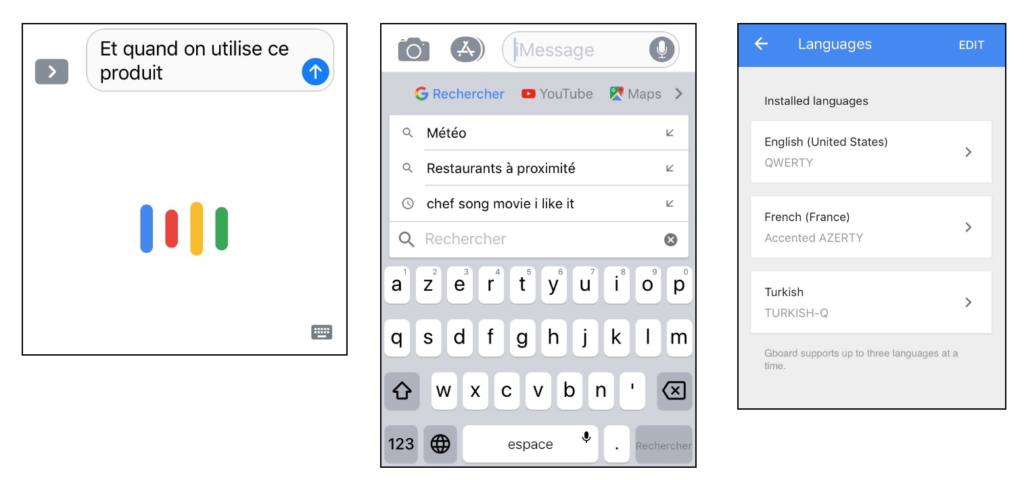
For your smartphone, Google Gboard has its speech technology integrated into a keyboard and search bar (see Picture 1). This Gboard is available on iPhone, Android, Pixel, and Samsung smartphones. Users can enable up to three languages of their choosing to toggle between (see Picture 2).
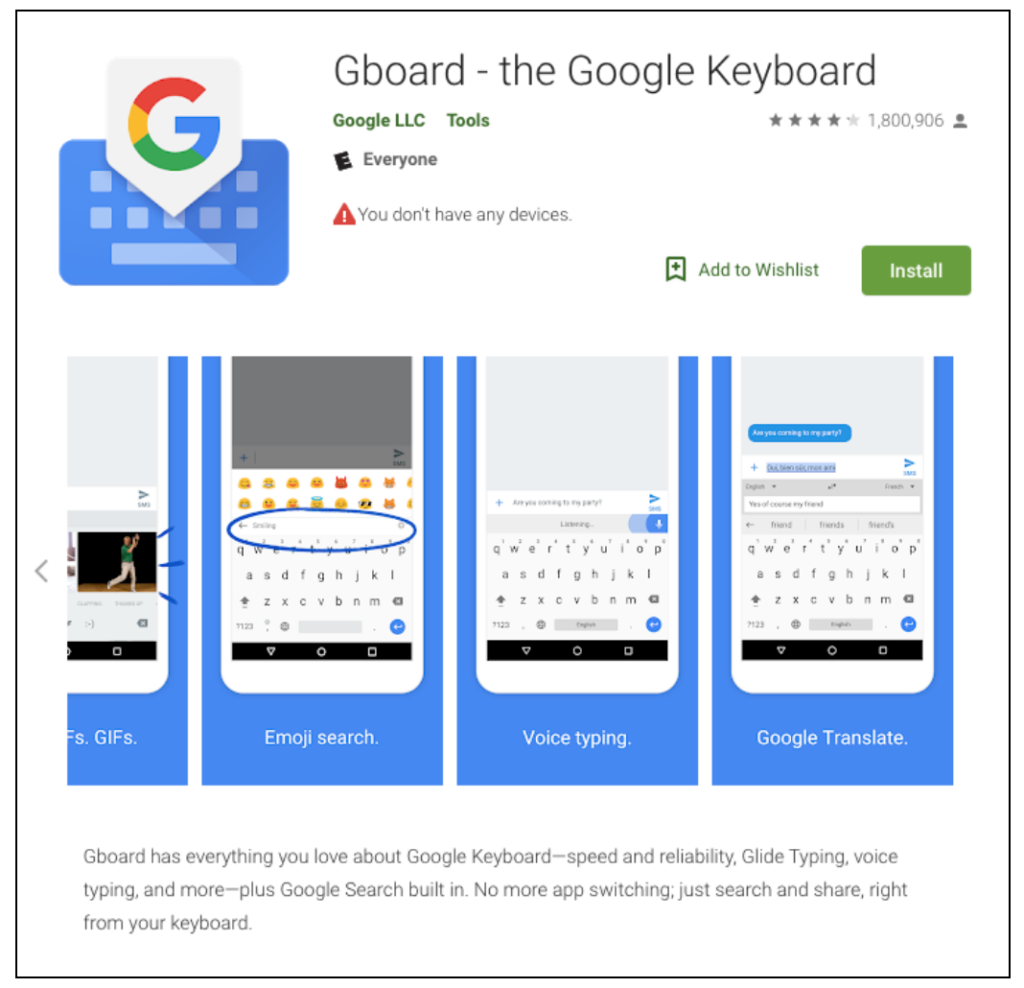
With this keyboard, you can voice type, use Google Translate, use emojis, and in general use a keyboard in multimodal ways that currently aren’t supported on many other keyboards. In many ways, Google wants to make their products more accessible in the mode that people are currently using the most, the keyboard on the mobile phone. The size of the individual keys on the board may differ in size from the regular keyboard. You might notice some glitches, but you can always go to another keyboard and return to the Gboard when you need it.
Faster and more accurate than Siri, users can easily enable the keyboard, speak what I need to say, and check for any modifications that are needed (see Picture 2). Instead of opening a new browser to find certain things, Google has made it possible to search from within the keyboard (see Picture 3). Best of all, you can have this keyboard enabled in up to three languages. If part of your life is in one language, and the other in another language, all you need to do is toggle on the keyboard. There are still glitches, such as repeating parts of the sentences or accidentally toggling to the wrong language, but the ability to use this to practice your second language is powerful.
GOOGLE VOICE TYPING: LAPTOP AND DESKTOP
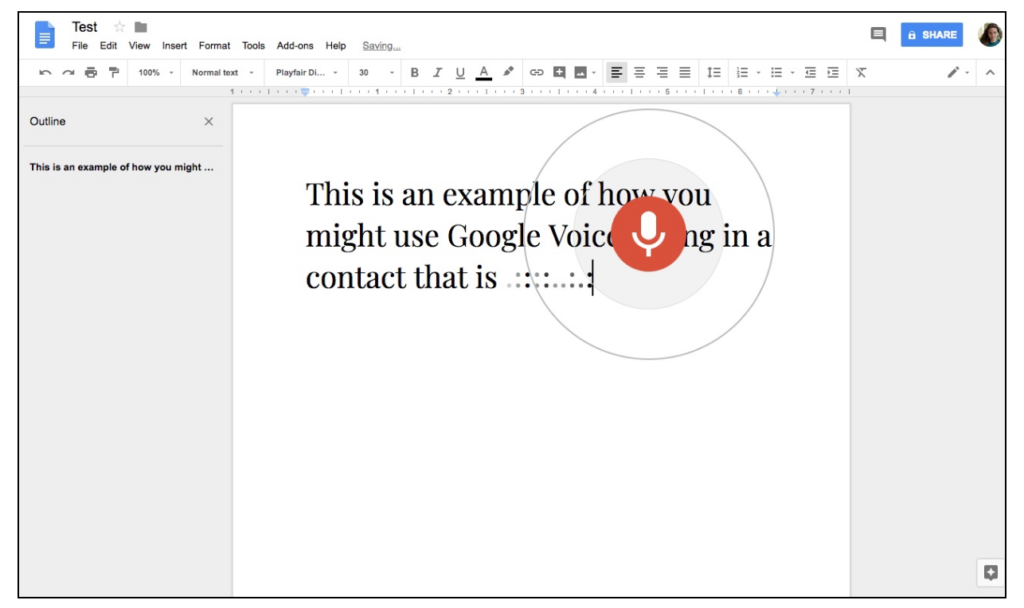
When you are not on your mobile and potentially need longer sentences and paragraphs, Google Voice Typing is available in Google Docs. Google Voice Typing can be found under the “Tools” menu bar under “voice typing.” Next you’ll have to specify the language and give permissions to allow the microphone to listen to you speak. When you enable Voice Typing, you’ll see a large red microphone working on your speech by listening to words in contexts (see Picture 5). Voice Typing corrects itself as it recognizes words and puts together whether words are possessives or adverbs, etc. Most of the time the words that the voice typing will get right are regular words like verbs and adjectives, not more difficult content words like the names of places or people. For example, it is not yet sophisticated enough to learn my last name, but it may get more common words and more recognizable names such as Sotomayor, Mother Teresa and Beyoncé. Another limitation is that this tool requires significant working memory of your computer. If it is pausing frequently or stops, simply refresh the page or the speech recognizer through the red icon that appears on the page (see Picture 5).
There are limitations to what this software can recognize, but when the voice typing fails, there is always the option to type manually. Using it in hybrid ways is clearly the most effective use of the tool.
What seems almost magical is the speed, the accuracy, and the direct link between your voice and the written words on the screen. Only a few years ago, this type of technology cost hundreds of dollars per user. Now, it’s free with a Google account to those with access to technology.
EDUCATIONAL PURPOSES: HOW MIGHT THIS BE USED IN THE CLASSROOM
Speech technology in language learner settings is relatively new concept and it isn’t always straightforward how to best integrate it into homework and in-class time. In my experience, the best ways are task-based assignments out of class that inform discussions and content we are covering. Learning about modals and polite dialogues? I send students in pairs to write, speak, practice, and deliver short dialogues with technology in hand.
In my research about student experiences with speech technology, language learners talk about how different it is to copy and paste answers versus using speech technology tools. For example, here is an excerpt from one of my participants comparing the use of speech technology to traditional homework:
“I feel like that’s a really good way to do it because I feel like a lot of homework, you just end up going to Google Translate and being like “okay and there’s my answer” and or just like copying from the book or whatever. And [with speech technology] you keep doing it until you get it right. I feel like that’s a lot more helpful.”
Instead of a relatively passive experience of copy-paste, speech technology can be a way to engage the students through more interactive, active, vocal means. For the student above, their experience with speech technology helped them to practice repetition and with meaningful language usage.
LESSON PLAN IDEA WITH GOOGLE VOICE TYPING AND GBOARD
The ability to use this technology for language learning and usage purposes is almost limitless. Here are some concrete, task-based examples to spark the imagination of integrating speech technology into your classes and the language experiences of your students:
- Texting and Messaging: Ask students to enable Gboard on their phones. For the span of a week, create exercises where they must text each other or message each other by using the voice activated messaging in the language being learned. Ask them to notice and identify when the speech recognition writes out different words from what they thought they said or the modifications in their voices they need to make to be understood by the software.
- Minimal Pairs: A favorite of pronunciation practice material, some students appreciate getting lists of words that have small differences in vowels or consonants to be able to practice those contrasts. For English, some examples are “Beat” versus “Bit” and “Sheet” versus “Cheat.” By making this a game, the speech recognition can be a way to get immediate feedback on their pronunciation.
- Speeches: Ask students to create speeches and longer spoken material that they can practice by using the Google voice recognition.
- Register and Genre: Ask students to speak material from different genres such as poems, plays, song lyrics, emails, etc. while using Voice Typing. Ask them to reflect about their experience and how the speech recognition matched or did not match the spoken material they were reading.
- Tongue Twisters: Give students tongue twisters in different languages and ask them to practice by using Gboard or Google Voice Typing.
- Essays and Paragraphs: Get students to write a paragraph by using Google Voice Typing. Pair this with a lesson about formulating paragraphs and essay writing. Ask students how dictating using voice typing is different from regular manual typing.
- Dialogues: Pair students in small groups and ask them to create dialogues by using Google Voice Typing.
Hopefully, this list of ideas gives you food for thought about how you could incorporate these tools into your lives and those of your students. I know when I was learning languages more seriously I would have loved these resources. Many times we do not get enough practice in the language classroom speaking and getting instantaneous feedback.
OUT OF YOUR COMFORT ZONE? DIGITAL LITERACIES AND LANGUAGE SKILLS FOR TODAY
Feeling some hesitation? Does using these type of tools feel out of your comfort zone? For those who might feel anxiety and trepidation about the usage of speech technology in education settings, let’s consider some of these potential concerns. Would using speech technology detract from writing and literacy skills? If they are using speech technology while they write, is that still writing skills?
Let’s talk about digital literacies and the goal of language education. Today in 2018, I want to empower my learners to be active participants in their language communities. They need to be able to speak, listen, read, write, type, and convey their thoughts effectively in the new language. This includes being able to type and use technology. This is part of their overall literacy. Digital literacies include the ability to read and create emails, blogs, text messages, social media posts, memes etc. Your students might learn new language strategies by using voice typing in conjunction with their writing assignments. Is this skill set identical to those found when you use paper and pen to write? Nope. But they might be more in line with how students are interacting with language communities in the real world today.
Here’s an example of the importance of digital literacies. I moved to France in 2013 and had just accepted a new job. I had some questions and needed to send an email to my new boss. I had been learning French for 11 years. I had a French BA. I could read Proust and Madame de la Fayette and write persuasive essays. I could debate fluently in French.
But I could not write an email. Never in my life had I written a professional email in French and had no idea where to begin. What was the correct greeting? Would I need to use “vous” or “tu”? Should I make sure to use the subjunctive or conditional to express the level of formality and deference required between an employee and a boss? How should I sign off?
It was embarrassing that I had absolutely no clue! I did not want to be mistaken as being rude. A faux pas could have been potentially detrimental to my career. It eventually worked out, but it was a nerve-wracking time.
I wish my instructors and professors during those 11 years of study had been more open new approaches for learning. That they had been open to a wider definition of literacy that included digital platforms, genres, and registers. Knowledge of a language is the ability to use it in contexts with others in the language community.
Now, not all language students might need to learn how to write a professional email. However, this does not make skills of digital literacy any less valuable. The ability to convey thoughts digitally is exceptionally important as learners participate in a broadening digital landscape.
FINAL NOTES
Lastly, I will leave you with the fact that most of this article was “written” using Google Voice Typing. This takes the capacities of Google Docs to another level. Consider how this may change your writing style, how it may broaden your knowledge of digital genres, and how future technology may blur the lines more and more of typing, dictating, and speaking. Some theorize that these technologies will make manual typing obsolete. I know many people who can’t wait for this change. Although there are still some features that need improvement, the tools are at a great first stage.
It is a wonderful time for all of us to practice speaking and understanding how technology can better help us to communicate efficiently and effectively in many languages.
Note: For more research and expanded literature review of contemporary speech technology, look for an upcoming Cambridge University Press, Online Language Learning Research Network (OLLReN) publication, Bajorek, 2018: “Speech Technology for Language Learning: Research & Today’s Tools.”
REFERENCES
Bajorek, J. P. (2017). L2 Pronunciation Tools: The Unrealized Potential of Prominent Computer-assisted Language Learning Software. Issues and Trends in Educational Technology, 5 (2), 60-87. https://journals.uair.arizona.edu/index.php/itet/article/view/20140/21378
Burnistoun (2011). Scottish Elevator With Voice Recognition (with subtitles). https://www.youtube.com/watch?v=BOUTfUmI8vs
Ellis, N., & Bogart, P. (2007). Speech and Language Technology in Education: the perspective from SLA research and practice. Paper presented at the Proceedings ISCA ITRW SLaTE, Farmington PA.