How to enable JavaScript in Windows
Many Internet Web sites contain JavaScript, a scripting programming language that runs on the web browser to make specific features on the web page functional. If JavaScript has been disabled within your browser, the content or the functionality of the web page can be limited or unavailable. This article describes the steps for enabling JavaScript in web browsers.
More Information
Internet Explorer
To allow all websites within the Internet zone to run scripts within Internet Explorer:
- On the web browser menu, click Tools or the «Tools» icon (which looks like a gear), and select Internet Options.
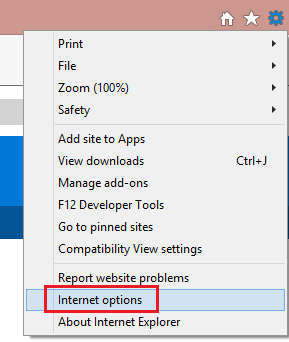
- When the «Internet Options» window opens, select the Security tab.
- On the «Security» tab, make sure the Internet zone is selected, and then click on the «Custom level. » button.
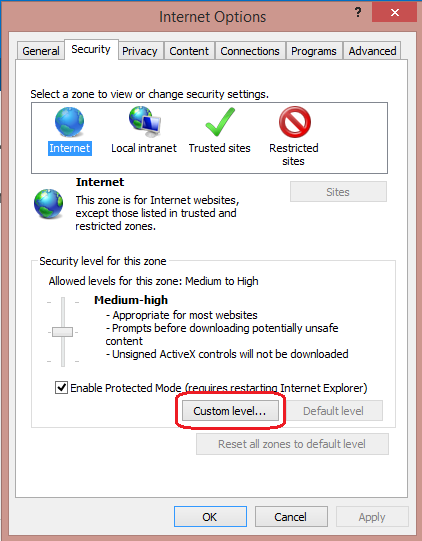
- In the Security Settings – Internet Zone dialog box, click Enable for Active Scripting in the Scripting section.
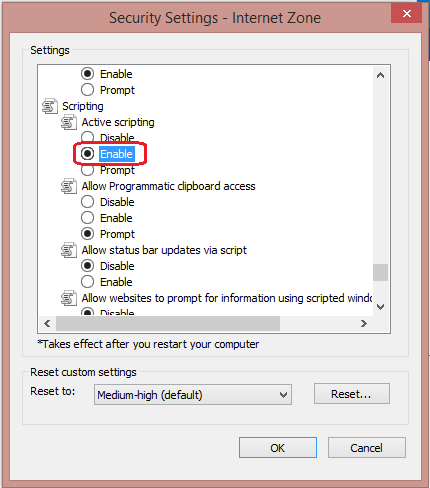
- When the «Warning!» window opens and asks, «Are you sure you want to change the settings for this zone?» select Yes.
- Click OK at the bottom of the Internet Options window to close the dialog.
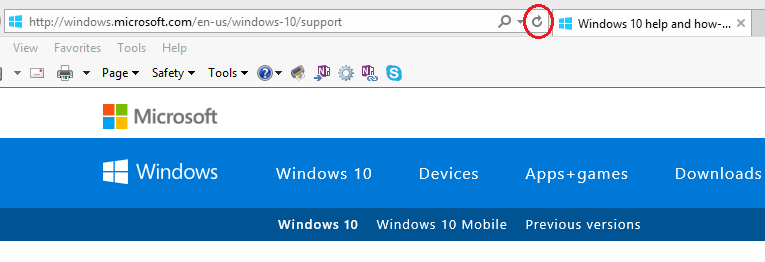
- Click the Refresh button to refresh the page and run scripts.
To allow scripting on a specific website, while leaving scripting disabled in the Internet zone, add the specific Web site to the Trusted sites zone:
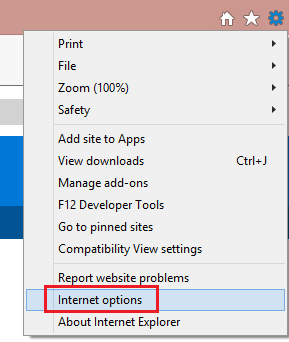
- On the web browser menu, click Tools, or the «Tools» icon (which looks like a gear) and select Internet Options.
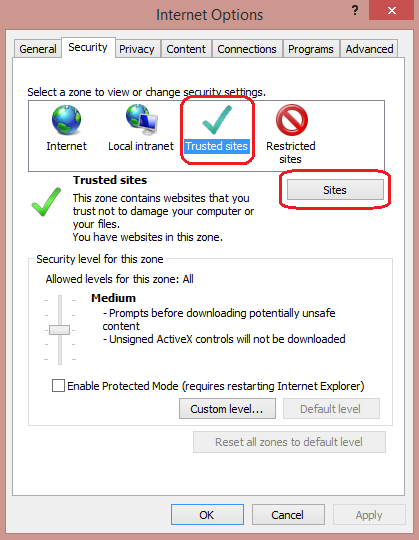
- When the «Internet Options» window opens, select the Security tab.
- On the «Security» tab, select the Trusted sites zone and then click the Sites button.
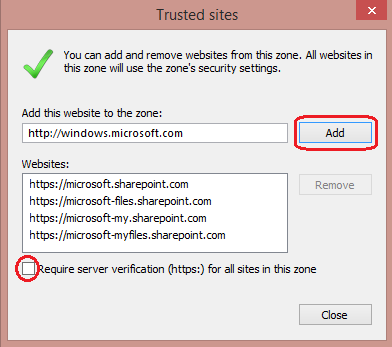
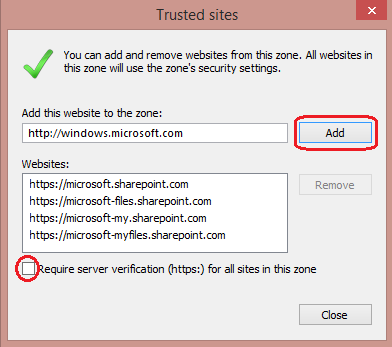
- For the website(s) you would like to allow scripting, enter the address within the Add this website to the zone text box and click Add. Note: If the address does not begin with «https:», you many need to uncheck «Require server verification (https:) for all sites in this zone».
- Click Close and then click OK at the bottom of the Internet Options window to close the dialog.
- Click the Refresh button to refresh the page and run scripts.
Google Chrome
To enable JavaScript in Google Chrome, please review and follow the instructions provided at Enable JavaScript in your browser to see ads on your site.
Mozilla Corporation’s Firefox
To enable JavaScript in Firefox, please review and follow the instructions provided at JavaScript settings for interactive web pages.
Как включить поддержку Javascript в Internet Explorer 11
Чтобы проверить поддержку Javascript в русской версии Internet Explorer 11, выполните следующие шаги:
- Выберите пункт меню Сервис -> Свойства браузера. Откроется окно Свойства браузера.
- Выберите вкладку Безопасность. На ней нажмите Другой. Откроется окно Параметры безопасности.
- Найдите раздел Сценарии / Выполнять сценарии приложений Java.
- Выберите значение Включить.
- Нажмите OK.
How to Enable JavaScript on Internet Explorer
Internet Explorer is a web browsing software developed by Microsoft in response the Netscape Navigator – one of the first graphics-based internet browsers. Internet Explorer was the most widely used internet browser in the world for several years, despite facing fierce competition from the likes of Google Chrome, Firefox, Apple Safari, etc.
Since 1995, a total of eleven Internet Explorer versions have been released, with Explorer 11 being the latest version of the Windows supported browser. As with most modern browsers, Internet Explorer supports JavaScript, which is enabled by default to allow users view dynamic interactions like display ads and animations on web pages.
In this guide, we will provide you with basics about JavaScript in Internet Explorer as well as how you can activate or disable it in a couple of minutes.
Javascript is enabled in your web browser. If you disable JavaScript, this text will change.
Instructions for Web Developers
You may want to consider linking to this site, to educate any script-disabled users on how to enable JavaScript in six most commonly used browsers. You are free to use the code below and modify it according to your needs.
On enablejavascript.io we optimize the script-disabled user experience as much as we can:
- The instructions for your browser are put at the top of the page
- All the images are inlined, full-size, for easy perusing
We want your visitors to have JavaScript enabled just as much as you do!
What is JavaScript and Why Do I Need It?
JavaScript is a browser-based scripting language that is used by web developers to add dynamic interactions and functionalities to web pages. Today, modern web browsers like Internet Explorer 11 have JavaScript enabled by default, allowing users access to enjoy user-interactive experiences on the internet.
With JavaScript disabled, Internet Explorer users will be unable to view or experience dynamic features on web pages. For example, if you turn off JavaScript in your Internet Explorer browser, you can say goodbye to automated updates on your Facebook and Twitter timeline. Similarly, websites like Amazon and YouTube become almost impossible to use when you turn off JavaScript because it contributes in large part to their interactive capabilities.
Internet Explorer users who wish to turn on JavaScript on their browser can do so in just a few easy steps. All that’s needed is a device with an active Internet Explorer browser.
How to Check if JavaScript is Enabled in Internet Explorer
Follow the simple procedure below to tell if JavaScript is activated in your Internet Explorer browser.
You can simply make use of the function to tell if JavaScript is enabled in your Internet Explorer browser. The tag is used to control – or handle (whichever is appropriate) – websites that neither support scripting nor recognize the tag.
If JavaScript is turned off in your Internet Explorer, the element will be displayed as an alternative text message.
How to unblock JavaScript on Internet Explorer
- Open your Internet Explorer browser.
- With Internet Explorer now open, tap on the “Tools Menu” (Gear Icon). It’s located in the top right corner of the browser window.
- Now locate the menu item labeled “Internet Options”, and then click it.
- Under the Internet Options window, select “Security tab”.
- Now, click the “Custom level” button to access the Internet zone section.
- Scroll down the Internet zone section until you locate the “Scripting” header.
- Look for “Active Scripting” and select “Enable” on all options to unblock JavaScript.
- Now, save your settings by clicking OK on each of the next two screens (Security and Internet Options).
- Restart your Internet Explorer.
How to Enable JavaScript in Explorer on Windows 10
Windows 10 users who wish to turn on JavaScript on Internet Explorer can do so in just a few easy steps:
- Open your Internet Explorer browser.
Select the “Tools/Action” menu – it’s located in the right corner of the Internet Explorer browser window.
- Select Internet Options
A drop-down menu appears upon selecting the Tools menu. Find “Internet Options” on this menu and then click on it.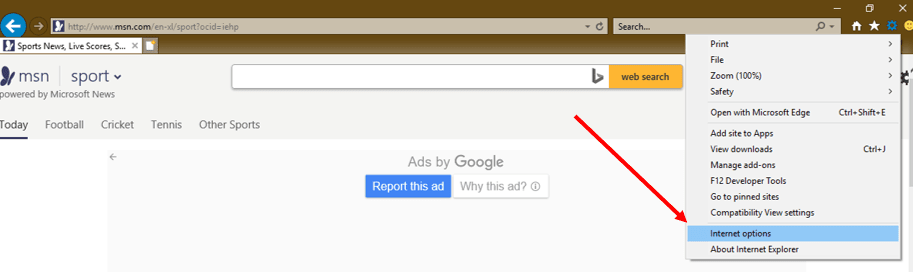
- Open Security Tab
In the Internet Options menu, click on the “Security” tab to access security options – it’s located at the top of the dialogue box overlaying your browser window.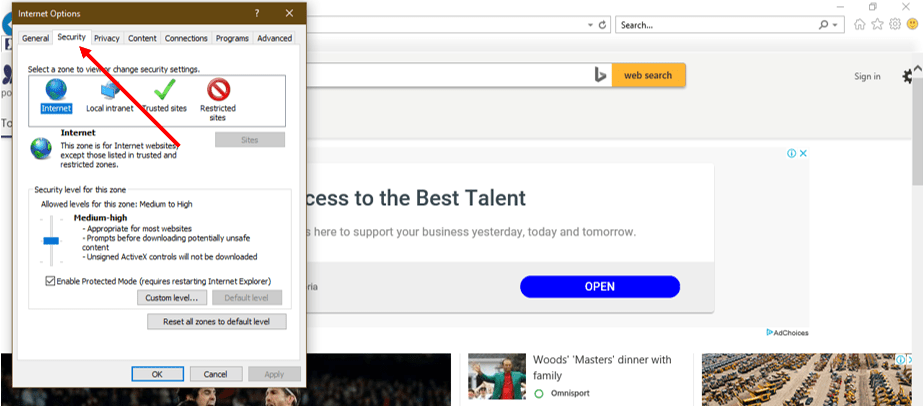
- Click Custom Level
Under the Security tab, select the “Custom Level” button to display the “Internet Zone” security settings.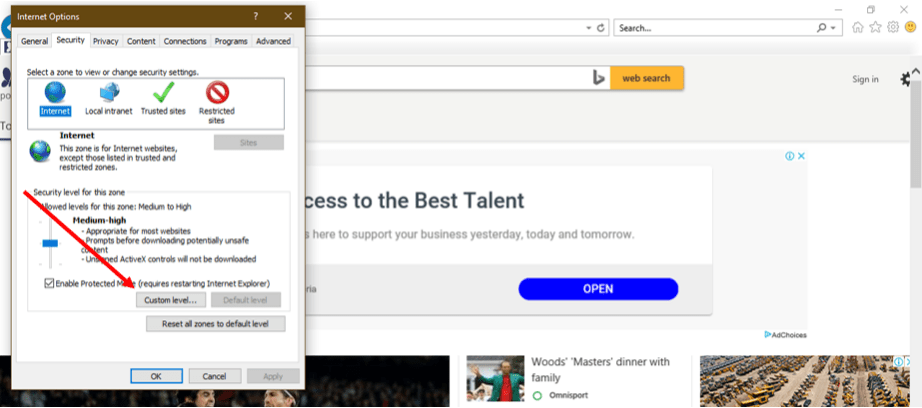
- Locate the Scripting section
In the Internet Zone, scroll down to find the “Scripting” Section.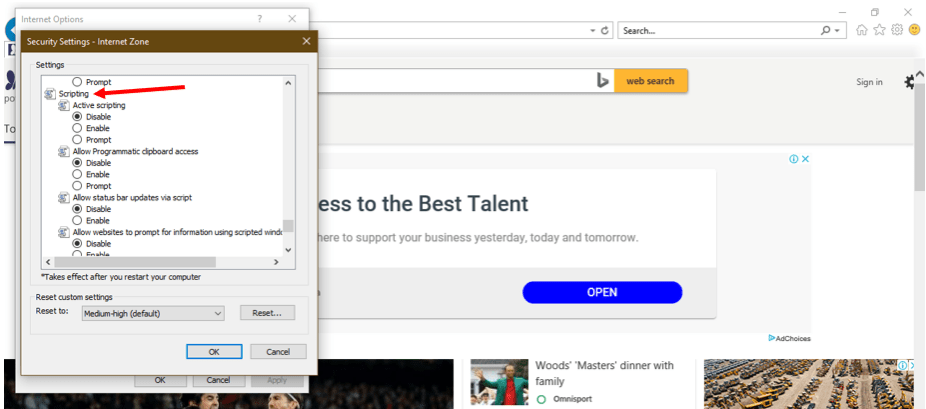
- Enable JavaScript
In the Scripting section, enable active scripting and also click “Enable” on all confirmation boxes that may follow to turn on JavaScript on your Internet Explorer Browser.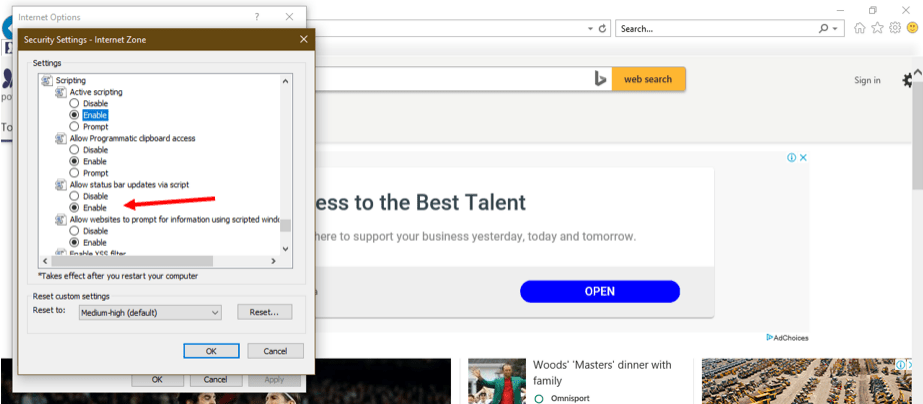
- JavaScript is Enabled
Click OK on each of the next two screens to confirm the change. Remember to restart your Internet Explorer browser.
How to Enable JavaScript in Explorer on Windows 8
Windows 8 users who wish to turn on JavaScript in Internet Explorer can do so in just a few easy steps:
- Open your Internet Explorer browser.
- With Internet Explorer now open, tap on the “Tools Menu” (Gear Icon). It’s located in the top right corner of the browser window.
- Now locate the menu item labeled “Internet Options”, and then click it.
- Under the Internet Options window, select “Security tab”.
- Now, click the “Custom level” button to access the Internet zone section.
- Scroll down the Internet zone section until you locate the “Scripting” header.
- Look for the “Active Scripting” option and then set it to “Enable”.
- Now save your settings by clicking OK on each of the next two screens (Security and Internet Options).
- Restart your Internet Explorer.
How to Enable JavaScript in Explorer on Windows 7
Windows 7 users who wish to turn on JavaScript in Explorer can do so in just a few easy steps:
- Open your Internet Explorer browser.
- Tap on the “Tools Menu” (Gear Icon). It’s located in the top right corner of your browser window.
- Now locate the menu item labeled “Internet Options”, and then click it.
- Under the Internet Options window, select “Security tab”.
- Next, click the “Custom level” button to access the Internet zone section.
- Scroll down the Internet zone section until you locate the “Scripting” header.
- Look for “Active Scripting” and select “Enable” on all options to unblock JavaScript.
- Now save your settings by clicking OK on each of the next two screens (Security and Internet Options).
- Restart your Internet Explorer.
How To Enable JavaScript On Mac Explorer
Mac users who wish to turn on JavaScript in Internet Explorer can do so in just a few easy steps:
- From the tool section of the browser, select Internet options.
- Now open the Security tab and navigate down to the “Custom level”.
- Scroll down until you find the “Scripting” heading on the Custom level page.
- Next, look for “Active Scripting” and select “Enable” on all options. A dialogue box will display after this; simply click on “Yes”.
- Now restart your Mac Explorer to experience JavaScript-based websites.
How To Disable JavaScript on Explorer
Even though JavaScript is widely used on most websites, it still presents occasional security concerns, prompting some Internet Explorer users to turn off JavaScript.
Here’s how to disable JavaScript on your Internet Explorer browser:
- Start your Internet Explorer browser
Select the Tools menu (Gear Icon) – it’s located in the right of the Internet Explorer browser window.
- Select Internet options
A drop-down menu appears on selecting the Tools menu. Find Internet Options on this menu and then click on it.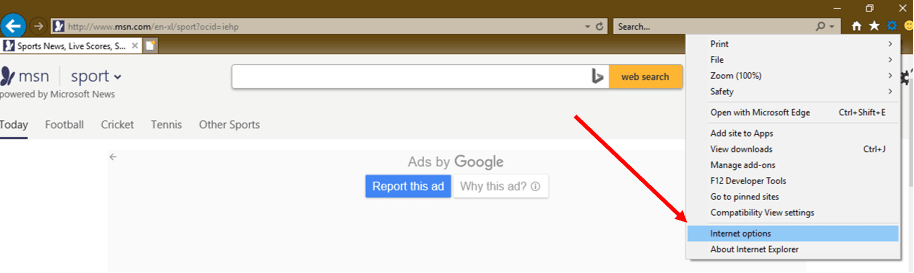
- Open Security Tab
In the Internet Options menu, click on the “Security” tab to access security options – it’s located at the top of the dialogue box overlaying your browser window.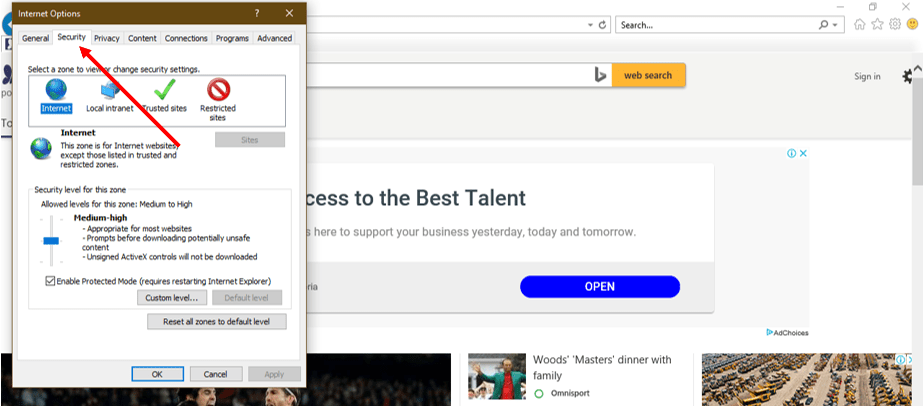
- Click Custom Level
In the Internet Zone, scroll down to find the “Scripting” section.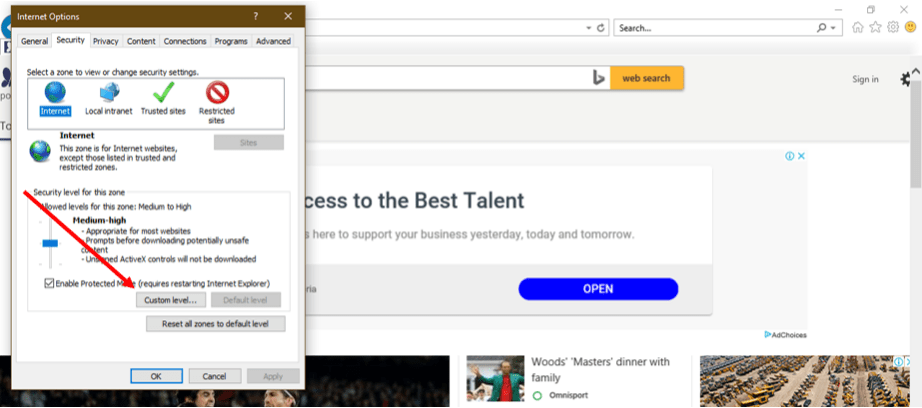
- Locate the Scripting section
In the Internet Zone, scroll down to find the “Scripting” Section.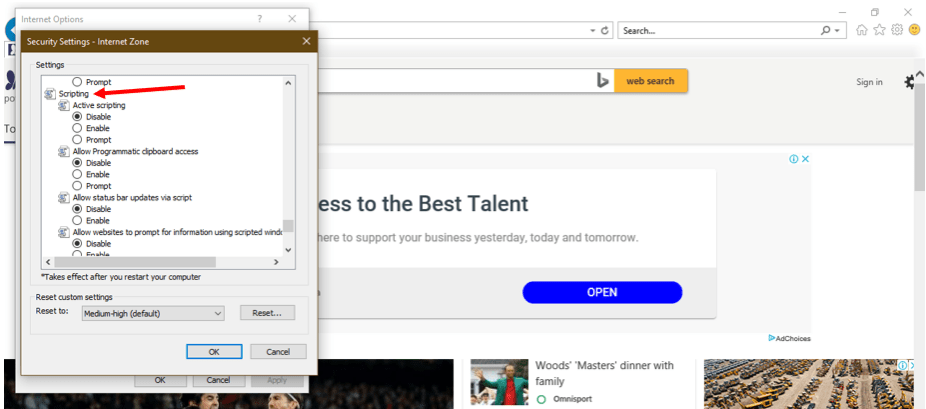
- Disable JavaScript
In the Scripting section, locate the Active Scripting subsection and disable it. Also click “Disable” on all confirmation boxes that may follow to disable JavaScript on your Internet Explorer browser.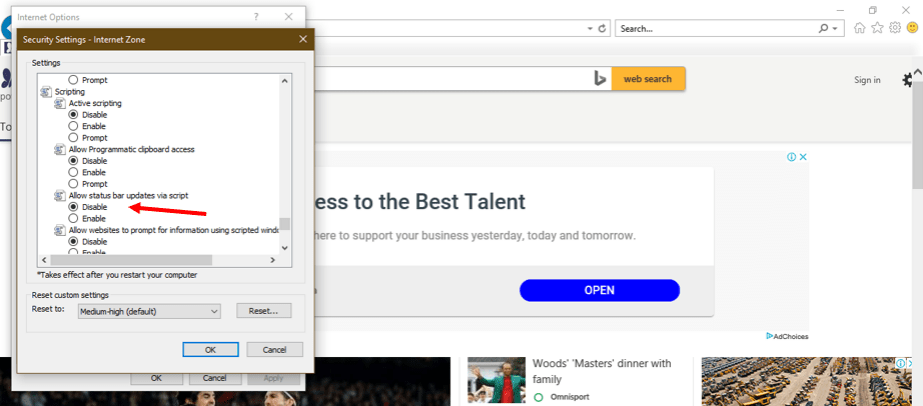
- Now, save your settings by clicking OK on each of the next two screens (Security and Internet Options).
F.A.Q
Why do I need JavaScript enabled on Internet Explorer?
JavaScript is a programming language that powers most of the interactive and dynamic elements you see on web pages. By enabling it in your Internet Explorer, you’ll be able to enjoy a fantastic level of usability – from filling out forms and activating buttons to logging in accounts and more.
How do I know if JavaScript is working on Internet Explorer?
JavaScript is enabled by default in Internet Explorer, but you can check it reasonably quickly to know if it is active through the Tools Menu of your IE. To access this Menu, simply click the gear icon on the right-hand side of your browser window. Then, click on «Internet Options» to access the «Security Tab.» Click on this tab and then proceed to click on the custom security level to modify it. Next, scroll down to the sub-section titled «Active Scripting» under «Scripting» to know if your JavaScript works. To verify this, ensure the «Enable» option is selected.
What happens if I disable JavaScript on Internet Explorer?
Most websites use JavaScript to add interactivity and enhance user experience making it a necessity to browsing the Internet in this age. However, by disabling it on your Internet Explorer browser, the content or functionality of these websites will be limited or unavailable, thereby limiting your browsing experience. Type in the word «Site Settings» into the search box to reveal the «Site Settings» section and then click on it. Once you’re in this section, scroll down to find the JavaScript option and then click it. To verify if your JavaScript is working, ensure the toggle button is toggled on.
Olumide Damilola Updated: 2022-11-30
Olumide is a longtime writer who started his career as a digital marketer before transitioning into a copywriter almost eight years ago.
Как включить JavaScript в моем браузере
Удивительно, насколько изменилось использование JavaScript — малоизвестный предмет за несколько лет стал важным инструментом веб-разработки. Сегодня JavaScript настолько незаменим в Интернете, что в большинстве интернет-браузеров применяется специальный модуль для его запуска.
JavaScript — замечательная технология для Интернет-пользователей и отключать ее для всех веб-сайтов в браузере не рекомендуется. Самые популярные веб-сайты основаны на Java-технологии — это означает, что они используют JavaScript для запуска интерактивных функций, которые улучшают их восприятие пользователем.
При отключении JavaScript браузер не сможет запускать или отображать интерактивные элементы, такие как реклама, анимация или аудио. Но, к счастью, JavaScript довольно просто активировать. Кроме того, с помощью определенных способов можно отключать JavaScript не полностью, а для отдельных сайтов.
Если вы отключили JavaScript в своем браузере и теперь снова хотите включить, мы с радостью поможем вам. Мы составили эту инструкцию, которая поможет активировать JavaScript в пяти наиболее популярных браузерах. Кроме того, мы расскажем о том, что такое JavaScript, для чего используется JavaScript и что можно делать с помощью JavaScript.
Microsoft Edge
Internet Explorer
Mozilla Firefox
Google Chrome
Opera
Apple Safari
Javascript включен в вашем веб-браузере. Если отключить JavaScript, этот текст изменится.
Инструкции для разработчиков
Вы можете использовать ссылку на этот сайт, что бы рассказать пользователям у которых отключен Javascript о том, как включить Javascript в шести наиболее распространенных браузерах. Вы можете свободно пользоваться кодом, указанным ниже, и изменять его согласно вашим потребностям.
Мы оптимизировали страницу enablejavascript.io для пользователей с отключенным JavaScript таким образом, что:
- Инструкции для вашего браузера помещаются в верхнюю часть страницы
- Все изображения кликабельны, для удобства просмотра в натуральном размере
Мы хотим, чтобы у ваших посетителей JavaScript был включен так же часто, как и у вас!
Google Chrome
- Включите компьютер и откройте браузер Google Chrome.
- В правом верхнем углу вкладки «Chrome» нажмите на значок меню.
- Выберите «Settings» в раскрывающемся списке.
- Теперь выберите «Privacy and settings» на левой боковой панели окна «Settings».
- В разделе «Privacy and Security» щекните пункт «Site settings».
- Выберите «JavaScript».
- Включите «Allowed (recommended)». Готово!
Internet Explorer
- Запустите Internet Explorer и откройте окно браузера.
- Нажмите «Tools» — обычно находится в самом верху строки меню. Затем выберите пункт «Internet Options» в отображаемом списке. Для быстрого перехода можно также воспользоваться клавишей «Alt».
- Щелкните вкладку «Security».
- Нажмите на кнопку «Custom Level».
- Прокрутите экран вниз до заголовка «Scripting» внизу страницы.
- Выберите пункт «Active Scripting» для включения JavaScript.
- Щелкните «OK».
- Перезапустите браузер.
Microsoft Edge
- Откройте браузер Microsoft Edge.
- Щелкните значок троеточия в правом верхнем углу экрана, чтобы открыть вкладку «Menu».
- Выберите пункт «Settings» на вкладке «Menu».
- Затем щелкните «Site permissions» на панели «Settings» слева.
- Выберите «JavaScript».
- Включите «Allowed (recommended)».
Mozilla Firefox
- Запустите Mozilla Firefox и откройте окно браузера.
- Введите «about:config» в адресную строку и нажмите «Enter».
- Нажмите на кнопку «Accept the Risk and Continue» под предупреждающим сообщением, чтобы перейти на страницу окна поиска настроек.
- Введите «javascript.enabled» в окне поиска настроек.
- Найдите параметр «javascript.enabled» в результатах поиска и включите переключатель JavaScript.
- Перезапустите браузер.
Opera
- Запустите браузер Opera.
- Откройте меню «Easy Setup».
- Прокрутите меню «Easy Setup» вниз и выберите пункт «Go to browser settings».
- Затем прокрутите вниз до пункта «Site Settings» и щекните его.
- В разделе «Site Settings» найдите параметр, в котором отображается JavaScript, и выберите его.
- Включите переключатель «Allowed (recommended)» для включения JavaScript. Во включенном состоянии он становится синим.
- Поздравляем, вы включили JavaScript.
Apple Safari
- Перейдите в раздел «Safari» на своем устройстве.
- Выберите «Preferences».
- Щелкните значок безопасности.
- Установите флажок возле пункта «Enable JavaScript».
- Перезапустите браузер.
О проекте
Что такое JavaScript?
JavaScript — это «клиентский» язык программирования, который в основном используется для создания и добавления всех видов динамического взаимодействия на веб-страницах. В стремительно развивающемся мире технологий JavaScript стал фундаментом современного веб-программирования.
Он прекрасно работает с традиционными языками проектирования программных средств и обладает отличными от них уникальными функциями. В отличие от CSS и HTML (языков, которые задают стили и структуру веб-страниц), JavaScript позволяет добавлять на веб-страницы интерактивные элементы, которые улучшают их восприятие пользователем.
Замечаете, как на экране вашего устройства меняются или всплывают элементы без перезагрузки веб-страницы во время сеанса просмотра? Это работа JavaScript.
Сегодня JavaScript настолько распространен, что его используют многие современные веб-браузеры, включая Google Chrome, Safari, Mozilla Firefox, Opera, Internet Explorer, Microsoft Edge и пр. Популярные мобильные устройства (iPhone и на базе Android) также позволяют запускать браузеры и приложения на основе JavaScript по умолчанию.
История популярности JavaScript поможет вам понять, как он работает.
История JavaScript
Прошло 25 лет с момента создания, пожалуй, одного из самых популярных кодов для веб-программирования. Появление Интернета позволило JavaScript сыграть такую роль, которую предсказать было невозможно. С момента появления JavaScript не только укрепил свои позиции в качестве эффективного языка программирования, но и захватил новые сферы использования в современной веб-разработке.
Под влиянием уже существующих Scheme, Java и Self в 1995 г. появляется JavaScript — его создал Брендан Айк (Brendan Eich), на тот момент работающий с Netscape Communications. В 1990-х компания Netscape Communications была широко известна в Интернете благодаря браузеру Netscape Navigator, который пользователям нравился больше, чем Mosaic — первый пополярный веб-браузер.
Соучредителем Netscape Communications был Марк Андриссен (Marc Andreessen), член команды разработчиков Иллинойского университета, которая работала над проектом Mosaic в 1993 г. По мере того, как Интернет набирал популярность, технологические компании боролись за создание самого эффективного веб-браузера.
Корпорация Microsoft быстро среагировала и начала разработку Internet Explorer, намереваясь отобрать лидерство в Интернете у Netscape. Между браузерами Microsoft и Netscape началась ожесточенная война за превосходство на рынке акций браузеров.
На тот момент веб-разработчикам был остро необходим скриптовый язык для создания или добавления динамических функций на веб-страницах. Изначально они ориентировались на Java, но впоследствии убедились, что для улучшения взаимодействия с пользователем нужно нечто более адаптивное и многофункциональное.
В Netscape это поняли и представили легкий язык сценариев, позволяющий веб-разработчикам добавлять интерактивные функции на веб-страницы. Главным фактором было время, и в решающий момент на сцену вышел создатель JavaScript
В 1995 г. компания Netscape заключила договор с Бренданом Айком (Brendan Eich) о создании и внедрении динамического языка для выпуска своего браузера Netscape Navigator 2.0. Это был непростой проект с очень сжатыми сроками. Но Айк видел в нем возможность поработать над тем, чем он страстно увлекался, и согласился сотрудничать с Netscape. Так родилась идея легкого скриптового языка. Он был назван Mocha Eich, но позже был переименован в Live Script. Всего за десять дней функциональный прототип был разработан и готов к реализации в бета-браузере Netscape Navigator 2.0.
Чтобы сохранить свое превосходство на рынке акций браузеров, Netscape согласилась сотрудничать с Sun Microsystems — разработчиками языка программирования под названием Java. В рамках этого союза Sun Microsystems обеспечила использование Netscape Navigator в качестве веб-платформы для предоставления сообществу доступа к Java.
В 1996 г., почти год спустя, Live Script в конечном итоге переименовали в JavaScript в маркетинговых целях для завоевания признания в сообществе Java. JavaScript был представлен как язык сценариев для небольших проектов на стороне клиента в браузере Netscape Navigator 2.0, а Java — как специализированный инструмент для разработки сложных веб-решений.
После этого Microsoft разработала свою реализацию JavaScript для создания пользовательской версии своего Internet Explorer 3. Ее назвали JScript во избежание правовых споров с компанией Sun Microsystems, которая владела торговой маркой Java и предоставляла ее Netscape по лицензии.
Чистые, универсальные и доступные для не разработчиков, JavaScript и JScript делали веб-страницы более интерактивными и динамичными и были очень популярны.
К сожалению, они начали терять свою добрую славу из-за низкого порога входа, то есть люди могли писать фрагменты кода, мало понимая или совсем не понимая, что они делают. Кроме того, результаты использования JavaScript часто не улучшали взаимодействие с пользователями, а раздражали (всплывающая реклама, идентификация браузера и пр.).
Эту проблему в значительной степени помогла решить стандартизация ECMA. Netscape и Sun Microsystems обратились к ассоциации ECMA International, которая должна была стандартизировать JavaScript. Стандартизация сыграла важную роль и привлекла внимание к этому новому языку.
Она расширила аудиторию пользователей JavaScript и позволила разработчикам принимать участие в эволюции языка сценариев. Кроме того, стандартизация позволяла решить вопрос контроля ситуаций использования кода в негативных целях. Чтобы не нарушать авторских прав Sun Java на торговую марку, комитет ECMA решил назвать стандартизированный язык ECMAScript.
Поначалу это вызвало еще большее недопонимание, но в конечном итоге ECMAScript стал спецификацией, а JavaScript был и является языком сценариев.