Как исправить ошибку PR_CONNECT_RESET_ERROR в Mozilla Firefox?
При попытке открыть сайт HTTPS в Mozilla Firefox, браузер неожиданно возвращает ошибку при установлении защищенного соединения PR_CONNECT_RESET_ERROR. Сбой при подключении к серверу этого ресурса возникает по причине того, что одноранговый узел или промежуточное звено между ними (скорее всего, брандмауэр) принудительно разрывают соединение.
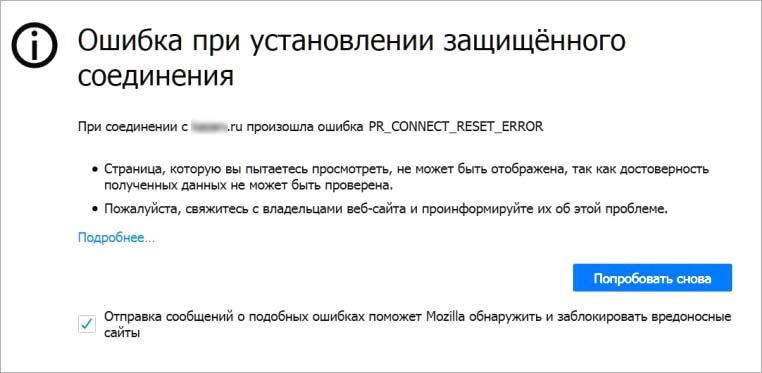
К этой ошибке может быть причастна функция фильтрации протокола TCP, которая разрывает соединение между браузером и сервером сайта. В этом случае нужно ее отключить в дополнительных настройках антивируса. По умолчанию эта функция включена в антивирусе Eset.
Подключение также может быть прервано некоторыми кэшированными файлами. Сбой обычно происходит, когда пользователь пытается получить доступ к одному и тому же сайту как с обычным подключением, так и через VPN. Эта проблема решается очисткой кэша браузера. Ошибка также может произойти из-за стороннего брандмауэра или когда подключаетесь к странице через VPN.
Отключение фильтрации протокола
В большинстве случаев ошибку PR_CONNECT_RESET_ERROR вызывает функция фильтрации протокола, которая в итоге прерывает соединение между браузером и сервером. Во многих антивирусах фильтрация включена по умолчанию. Это функция проверяет безопасность всех соединений браузера и может заблокировать любую подозрительную активность. Обычно она не вызывает проблем, но в некоторых антивирусных программах, в частности ESET, часто прерывает соединения из-за ложных срабатываний.
Если используете ESET, следуйте инструкции, чтобы отключить фильтрацию протокола.
Откройте антивирус, перейдите в Дополнительные настройки или просто нажмите F5.
Разверните вкладку «Интернет и электронная почта» и переместите соответствующий ползунок опции включения фильтрации содержимого протокола приложения в положение отключено.
Примените изменения на «ОК» и выйдите из антивируса. Попробуйте войти на сайт, который вызывал ошибку PR_CONNECT_RESET_ERROR.
Очистка кэшированных файлов
Сообщение об ошибке также может вызвано временными файлами, которые препятствует новым подключениям. Оно возникает при попытке получить доступ к одному и тому же сайту с помощью обычного соединения и через VPN. В этом случае ошибку PR_CONNECT_RESET_ERROR можно исправить путем очистки кэша Firefox.
Сначала убедитесь, что все вклады Firefox закрыты, за исключением новой, которую собираетесь использовать.
Нажмите на кнопку меню и перейдите в Настройки.
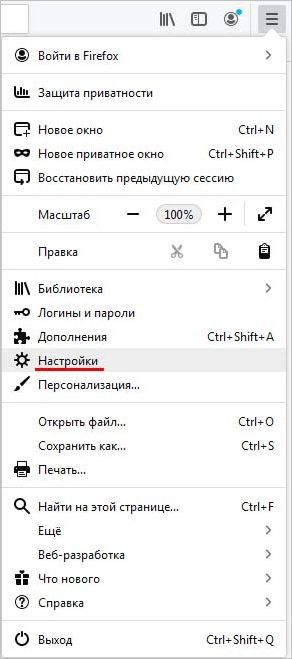
В левом боковом меню перейдите на вкладку «Приватность и защита». Прокрутите страницу вниз до раздела Куки и данные сайтов. Нажмите на кнопку «Удалить данные».
Оставьте флажок только на опции «Кэшированное веб-содержимое» и нажмите на кнопку «Удалить».
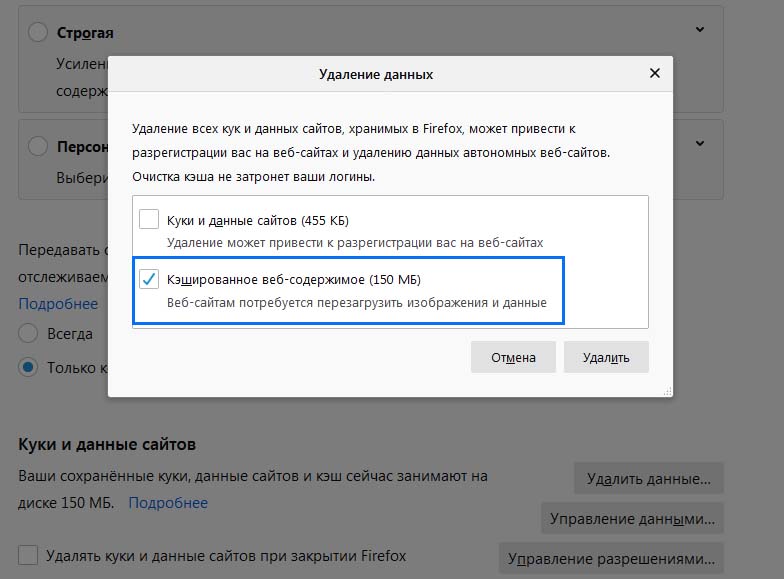
После закройте FireFox и перезагрузите компьютер.
Удаление стороннего брандмауэра
Еще одна распространенная причина связана с брандмауэром стороннего разработчика, который ошибочно прерывает подключение. Поэтому если используете сторонний брандмауэр вместо встроенного в Windows проверьте, не причастен ли он к ошибке PR_CONNECT_RESET_ERROR в браузере Mozilla Firefox.
Однако имейте в виду, что в отличие от антивируса, отключение защиты брандмауэра в режиме реального времени не остановит блокировку. Скорее всего, те же правила безопасности останутся в силе. Единственный способ – это временно его удалить.
Откройте раздел «Программы и компоненты» командой appwiz.cpl из окна Win + R.
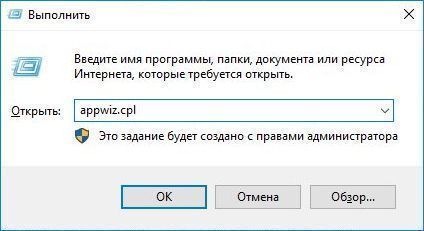
В списке установленных приложений найдите брандмауэр стороннего разработчика. Щелкните на него правой кнопкой мыши и удалите. Следуйте инструкциям на экране, чтобы завершить этот процесс.
После завершения операции перезапустите систему и попробуйте открыть страницу, которую не удавалось из-за ошибки PR_CONNECT_RESET_ERROR.
Отключение прокси и VPN
Проблема часто возникает из-за отказа хоста разрешать пользователям подключаться через VPN или прокси-серверы. Если используете эти инструменты для анонимного серфинга в интернете, скорее всего, они причастны к ошибке с кодом PR_CONNECT_RESET_ERROR. Поэтому отключите их и проверьте, решена ли проблема.
Удаление клиента VPN
Перейдите в раздел «Удаления или изменения программ» командой appwiz.cpl из диалогового окна Win + R.
В списке приложений найдите активный клиент VPN. Кликните на него правой кнопкой мыши и удалите. Завершите этот процесс подтверждая все запроси деинсталлятора и перезагрузите компьютер.
Удаления прокси-сервера
Перейдите на вкладку Прокси командой ms-settings:network-proxy из окна Win + R.
Перейдите к ручной настройке прокси-сервера и отключите опцию, связанную с использованием прокси-сервера.
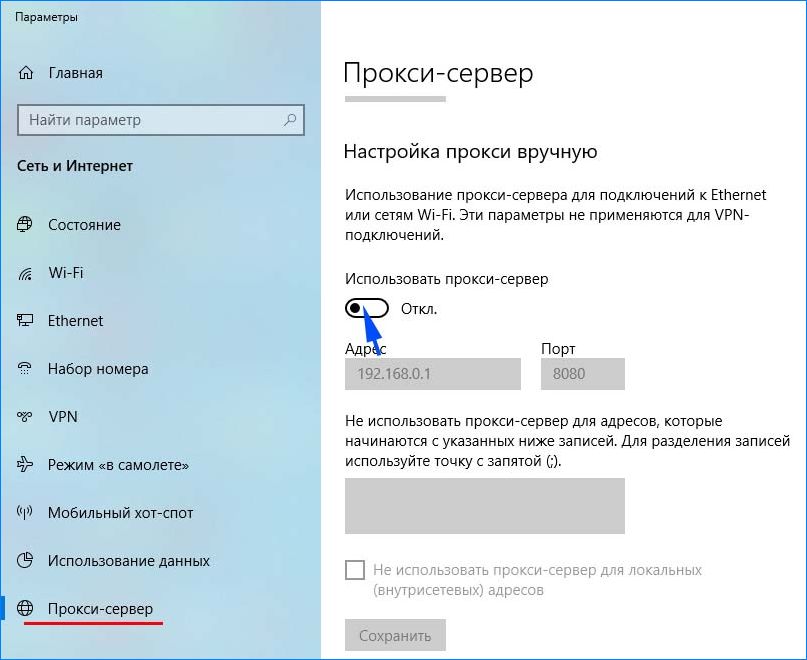
После перезапустите систему и повторите то действие, которое вызывало ошибку PR_CONNECT_RESET_ERROR в Firefox.
Имейте в виду, что клиент VPN также может способствовать решению проблемы, когда дело касается гео положения. Вполне возможно, что провайдер отбрасывает IP-адрес сайта, который пытаетесь посетить.
How To Fix the PR_CONNECT_RESET_ERROR in Firefox?
The pr_connect_reset_error indicates that the browser cannot connect to the server. It generally happens when a client or browser sends a request to the server, but the server declines before completing the request.
At the Front end, this error may seem similar to other connection errors, which you might find in the 4XX and 5XX range of status codes. But this particular pr_connect_reset_error is generally shown in the Firefox browser.
This connection error can be triggered by various reasons, including internet issues, server problems, and network configuration issues, among others. We will explore these in detail in the later sections.
pr_connect_reset_error How to fix?
Check out these easy troubleshooting methods to fix pr_connect_reset_error.
- Check your network connection
- Change your network connection
- Clear Firefox Browser Cache
- Deactivate Firefox extensions
- Deactivate the VPN or Proxy server
- Disable Firewalls or Antivirus software
- Check SSL certificates
1. Check your network connection
Since the pr_connect_reset_error is a connection error, the first thing you need to check is whether your internet connection is stable or not.
For example, if you are using a Wi-Fi connection for internet access, try moving closer to the router range, accessing the other websites, or connecting to the internet directly via ethernet cable.
In case you are using any VPN services or proxy, disable it for a while and check whether it fixes the error or not.
2. Change your network connection
Sometimes even a simple solution can indeed do wonders for complex problems. While referring to this particular error “pr_connect_reset_error”, it can also be possible that your current network for some reason is not allowing you to access your favorite website.
To check if this is the main culprit, try switching to a different network. For example, if you are connected to a Wi-fi try switching to the mobile network instead. If this solves the issue, it might be your Wifi problem. Immediately contact your ISP and intimate the same.
3. Clear Firefox Browser Cache
Since the pr_connect_reset_error is commonly seen in the Firefox browser, you need to clear its cache. Your cache generally contains important files and settings of the websites that you visit often. And to bring the best user experience, browsers tend to fetch data from the cache.
Unfortunately, sometimes these caches get outdated or corrupted resulting in displaying such “pr_connect_reset_error” messages on the screen.
The best thing you can do is to clear the cache and try to visit the website again.
To do this follow these simple steps given below.
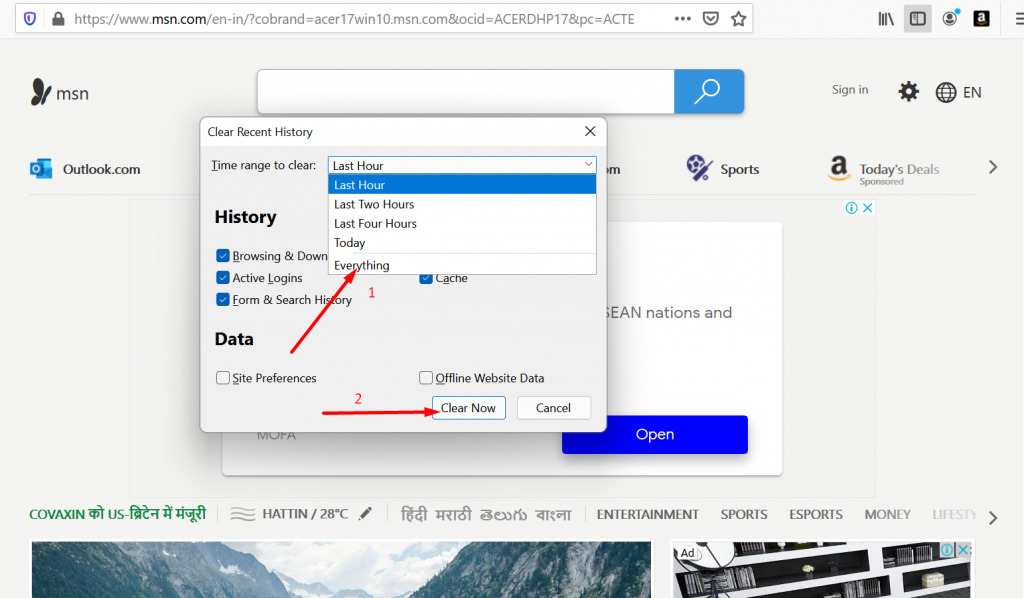
- First, you need to open your Firefox web browser and navigate to its top-right corner. Click on Menu option > Library >History > Clear recent history.
- Now select a time range on the pop that will appear. If you want to clear all the cache data. you need to select the “Everything” option. Now click on the Details section and choose the type of data you want to clean (Browsing, download history, or Cache).
- After finalizing the selections, finally, click on the Clear Now button. Now you have successfully been able to clear all the cache from your browser.
4. Deactivate Firefox extensions
Although it might not be an essential step to deactivate Firefox extensions or add-ons. But you don’t want to give the browser a single excuse to display this error. It is because sometimes, these extensions or addons are poorly coded conflicting with the network and triggering such error messages.
Here are the steps you need to follow:
Go to your Firefox browser > click on the Hamburger menu > select Add-ons and themes.
Use the toggle switches to deactivate or disable the extensions.
Now, Check whether the PR_CONNECT_RESET_ERROR is still showing up by accessing the website. If the error is not showing up, it means there is a faulty extension that was the culprit.
To figure that out, toggle on each extension one by one > and refresh the site each time.
5. Deactivate the VPN or Proxy server
To deactivate proxy and VPN in Windows 10
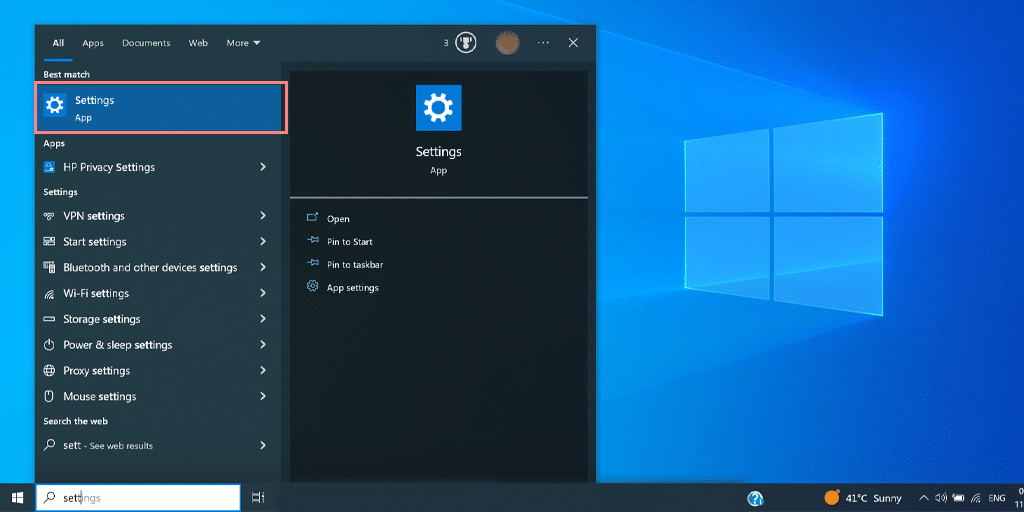
- Press the Windows key + I to open the Settings window or type “settings” in the search bar as shown below:
From the main window, select Network & Internet.
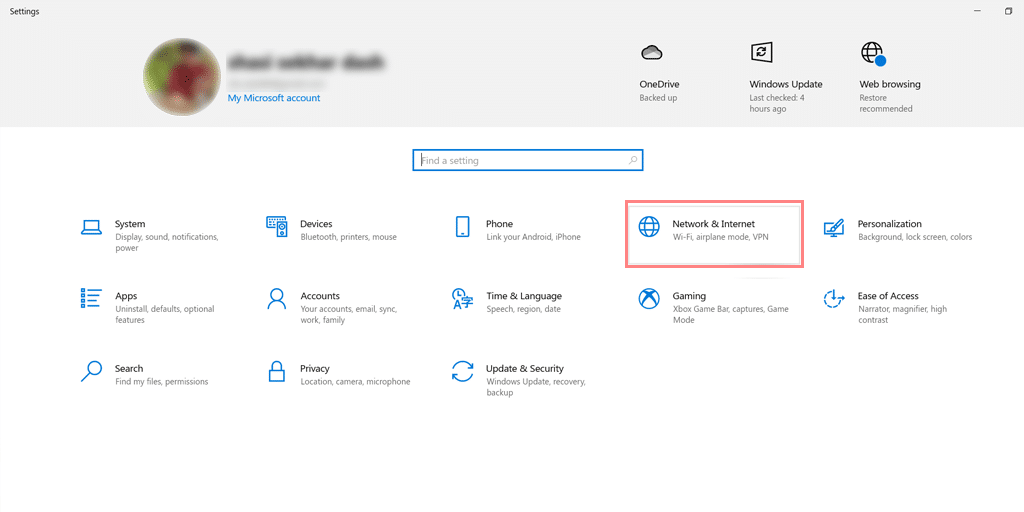
Select the “Proxy” option on the Left.
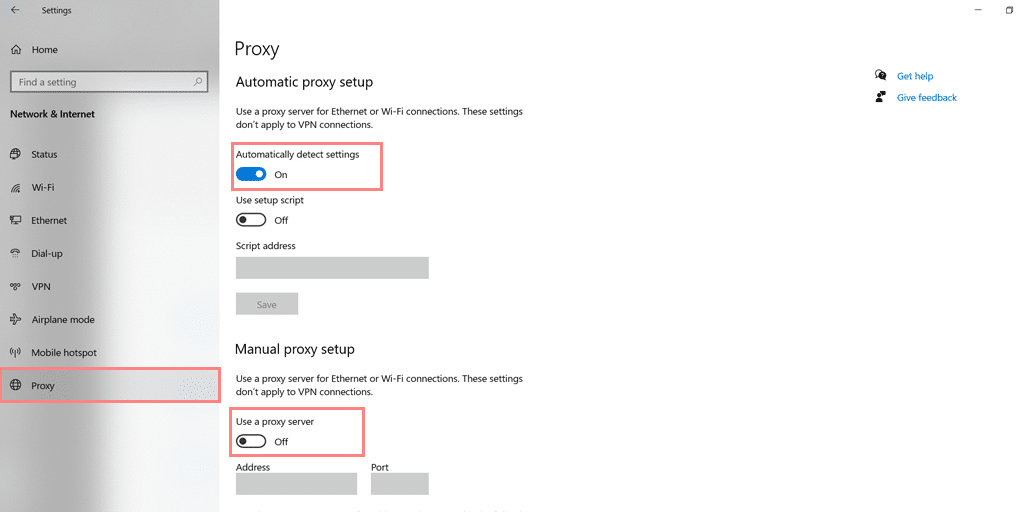
Check if the “Automatically detect settings” option is turned off under “Automatic proxy setup”.
Disable the “Use a proxy server” option in the “Manual proxy setup” section.
To disable the VPN, click on the “VPN” tab > VPN connection > Disconnect button. After that restart or reboot your computer and check if the error has been fixed.
To deactivate the proxy on the Mac
You can do the following steps to disable proxy settings on Mac:
Step 1: Go to the Apple menu or click on the Apple icon located at the top left of your Mac screen.
Step 2: Click on System Settings or System Preferences, whichever is applicable.
Step 3: Now click on the “Network” in the sidebar.
Step 4: From the right panel, select a network service > and click the Advanced button.
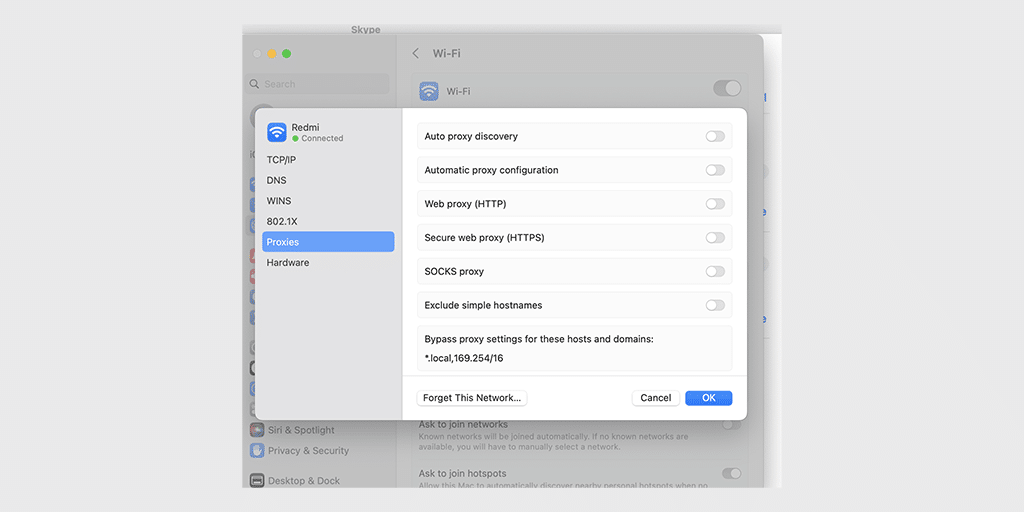
Step 5: Click on the Proxy tab and uncheck all the protocols under “Select a protocol to configure” and click on the “Ok” button when done.
6. Disable Firewalls or Antivirus software
The pr_connect_reset_error is a network error that triggers if there is a conflict or interruption while connecting to the server. Therefore, we can also consider firewalls or antivirus software as another possibility of causing this error.
To figure this out, you need to temporarily disable Firewalls or antivirus software for a while and check if this fixes the issue.
You can check if your PC’s firewall or antivirus program causing the issue. You can refer to this method to temporarily disable antivirus or firewalls in Windows.
To disable Firewalls in Mac, follow these steps,
Step 1: Go to the Apple menu or click on the Apple icon located at the top left of your Mac screen.
Step 2: Click on System Settings or System Preferences, whichever is applicable.
Step 3: Now click on the “Network” in the sidebar and click on the “Firewall” tab as shown in the picture.
Step 4: Toggle it to either turn on or off.
7. Check SSL certificates
If your website has SSL certificates, make sure they are valid and have not expired. You can use various online tools such as WPOven’s “SSL Checker Online” and check the expiration date and make sure that it matches the current date.
In case it is expired, renew it as soon as possible or replace it with a new one.
What causes the pr_connect_reset_error?
The PR_CONNECT_RESET_ERROR generally triggers if there is an interruption in the connection between the client (Your Browser) and the server (Where your website is hosted). Here are some of the reasons that can interfere with the connection:
- If you are using any Security software or Strictly configured Firewalls, it may be preventing the connection.
- It is also possible that the website has been configured to restrict access to the content based on geographical location.
- The error can also trigger if you use both a standard connection and a VPN or proxy simultaneously.
- An unstable or poor internet connection can also be responsible to occurring this error.
Summary
Just like any other error, the first approach to fixing the pr_connect_reset_error is to first determine the underlying cause and proceed to fix it accordingly. Just follow the methods mentioned above and you can easily resolve the issue along with ensuring the network is stable.
Similarly, if you are experiencing other network connectivity errors such as “DNS_PROBE_FINISHED_NXDOMAIN“, Check out our Troubleshooting method as well. If you have any queries, please do let us know in the comment section below.
Frequently Asked Questions
How to fix the Pr_connect_reset_error?
you can easily fix the Pr_connect_reset_error by following these methods:
1. Check your network connection
2. Change your network connection
3. Clear Firefox Browser Cache
4. Deactivate Firefox extensions
5. Deactivate the VPN or Proxy server
6. Disable Firewalls or Antivirus software
7. Check SSL certificates
What is the Pr_connect_reset_error in Linux?
The pr_connect_reset_error indicates that the browser cannot connect to the server. It generally happens when a client or browser sends a request to the server, but the server declines before completing the request
Rahul Kumar is a web enthusiast, and content strategist specializing in WordPress & web hosting. With years of experience and a commitment to staying up-to-date with industry trends, he creates effective online strategies that drive traffic, boosts engagement, and increase conversions. Rahul’s attention to detail and ability to craft compelling content makes him a valuable asset to any brand looking to improve its online presence.
How to Fix PR_CONNECT_RESET_ERROR on Firefox?

Everyone of uses the internet these days. The medium through which we access might change, but the fact is we all stay connected through the internet. But what do you do when you want to access a web page but cannot get a response? Not many users can fix such a situation. This puts them into panic and they can do nothing but to wait and watch because, without the internet, they don’t understand how to fix it. Therefore, in this post, we will discuss one such error called PR_CONNECT_RESET_ERROR which you might face in the future. This post will cover everything from the origins to the fixes of this error. So, if you want to know about the PR_CONNECT_RESET_ERROR in detail, read this post till the end because every line is filled with information derived from credible and tested sources.
- 1 What is PR_CONNECT_RESET_ERROR?
- 2 What causes the PR_CONNECT_RESET_ERROR?
- 3 How to Fix the PR_CONNECT_RESET_ERROR?
- 3.1 1. Clear the Browser Data
- 3.2 2. Disable the VPN
- 3.3 3. Disable the TCP Filters
- 3.4 4. Disable the Antivirus Program
- 3.5 5. Use a Different Network to Connect
What is PR_CONNECT_RESET_ERROR?

Many times the users panic to an extent when they encounter an error screen as if the system has crashed. It is rarely a possibility and such a reaction occurs due to a simple reason that they are not at all aware of what has happened. So, to keep things simple, we will introduce you to the PR_CONNECT_RESET_ERROR in an easy way. Let’s assume you want to connect to a website. All the websites are hosted on one or the other web server and the browser downloads the web page from that server. What happens when the download fails?
When the download fails, the browser tries to connect again. But when the browser fails repeatedly, within a short period, it throws out an error message that might vary from one browser to other. In Mozilla, we get an error message which says PR_CONNECT_RESET_ERROR. When you get such an error, it simply means that there is a connection issue between the host server and your web browser. Now what causes this connection issue, we shall look in the next section of this post.
What causes the PR_CONNECT_RESET_ERROR?
For now, we know that this is a connection error and in this section, we shall look at the reasons behind the connection issue. Generally, it is due to a no-response state from the host server. But, this usually is fixed within minutes or at most, hours. If you face the error for a longer duration, then you must look for the fixes to the error. the reason why we say this is because this indicates that the issue is in your device. We have given a summary of the reasons behind the error below for reference:
- Filled up browser memory
- Issues with Transmission Control Protocol (TCP)
- Issues due to a Virtual Private Network (VPN)
- Interference by Antivirus Program
- Internet Service Provider blockade

We shall look at the steps to fixing this error in the next section, one by one so that you can use the Mozilla browser seamlessly.
How to Fix the PR_CONNECT_RESET_ERROR?
Now that we have discussed a lot about the PR_CONNECT_RESET_ERROR and the reason why it shows up, we need some effective methods to fix this error. This is an easy process that takes just a few clicks. However, we make sure that one method that has worked for your friend might not work for you. So, try all the methods one after the other to fix this issue.
1. Clear the Browser Data
The reason why we ask you to clear the browser data is that when websites load on your computer, they occupy space. When the browser is loaded with data, it takes time to allocate space to the web pages that have to be downloaded. In this process, the security system of the host server times out the request, and what you get on your screen is nothing but a PR_CONNECT_RESET_ERROR. So, here are the steps to clear the browser data from Firefox:

- Open Mozilla Firefox and click on three dots on the top right corner.
- Click on Options and go to Privacy and Security.
- Select the Cookies and Data tab and click on Clear Data.
- From the list of checkboxes, click on the type of data you want to clear.
- We would suggest clearing cache first and if the issue persists, then go for Clearing all the data.
- Finally, click on the Clear option.
Restart the browser and try to access the web page. If this was the issue behind the error, you will notice that you have now loaded the page successfully. If the issue still pops up, we have other methods as well.
2. Disable the VPN
Several users have VPN software installed in their systems. Most of the users don’t use them at all and they are in their system because they came with some other software, complementary. However, several VPNs hinder the connection with several host servers. So, it is better to get rid of them if you do not use them at all. Here are the steps to do so:

- Open Control Panel and go to Programs.
- Find the VPN program and click on it.
- Select Uninstall and confirm your decision.
Restart your system and you shall see that the PR_CONNECT_RESET_ERROR has vanished from your browser. If it persists, there might be an issue with the Transmission Control Protocol. We have talked about it in the next method.
3. Disable the TCP Filters
The Transmission Control Protocol (TCP) is responsible for the security of the websites you visit. It approves a site as safe or unsafe based on its SSL certificate. So, you might be facing the PR_CONNECT_RESET_ERROR because the TCP has filtered it out. To fix the error at this stage, you need to disable this filter. Here is how you do it:

- In the Search bar, type Control Panel and click on the app.
- Select Network Connections and open Properties.
- Under Properties, click on Internet Protocol (TCP/IP) and go to the Properties tab.
- Click on the Advanced tab and then go to Options.
- Under the Optional Settings, find the TCP/IP Filtering option and open Properties.
- Uncheck the Enable TCP/IP Filtering (All adapters) check box, and click on OK.
That’s all. Your TCP will now run smoothly and your network connection may resume to normal.
4. Disable the Antivirus Program
As we talked about the VPN programs, there are several antiviruses as well that unnecessarily interfere with the connections. You cannot blame them for that because all they do is provide security. The error might be occurring because you are trying to access a potentially unsafe website. this issue can be fixed by temporarily disabling the antivirus. Here are the steps to do so:

- In the Search bar, type “Windows Security”.
- Click on Virus & Threat Protection and open the Settings.
- Under Manage Settings, turn off the Antivirus for a specified period, say 15 minutes.
That’s all. you can now easily make it to that website. But if you still face the error, it is time to change your network, possibly.
5. Use a Different Network to Connect

Many times the internet speed is too low that the connection gets reset. this also gives PR_CONNECT_RESET_ERROR on your browser. A very simple method to get rid of it is to change the network and check if the issue is fixed. Most probably the issue will be fixed, but if it does not, there is bad news for you. This means that your Internet Service Provider has blocked that particular website. So, you will need to change your ISP.
Conclusion
This was all about the PR_CONNECT_RESET_ERROR which you face on the Mozilla Firefox web browser. We hope that this post helped you enhance your knowledge about this error. Overall, the PR_CONNECT_RESET_ERROR is a common problem that can occur in the Mozilla Firefox web browser, but it can often be resolved by following the right troubleshooting steps. If you are still facing the problem, You can contact Mozilla Firefox support for further assistance. If you know of any method that we have not mentioned over here, share it with us and we shall update the post. The comments section is open for you to share thoughts about this post.
Easily Fix PR_CONNECT_RESET_ERROR on Firefox
The PR_CONNECT_RESET_ERROR mostly occurs in Firefox while trying to load a website and it only occurs because the connection gets terminated from the server end. Therefore, we suggest that you try to fix this issue by implementing the solutions that we have listed in this article. Not only that, but we have also collected the reasons due to which the error occurs in the first place and listed them here as well.

What Causes the PR_CONNECT_RESET_ERROR with Firefox?
After having to go through the issue on one of our computers, we concluded that the following must be the most important reasons due to which it occurs in the first place.
- TCP Filtering: We have found that in some cases, the antivirus installed on your system might have a TCP Filtering function that can sometimes trigger a false positive and prevent the website from loading properly because the server gets flagged as suspicious. Therefore, you can disable this feature temporarily as mentioned in the steps below to make sure that this isn’t happening to you.
- Proxied Connection: Sometimes, a proxied connection might get flagged by the server because these connections use a server to bounce off their traffic from and this server gets all kinds of traffic. Therefore, we suggest that you disable the proxied connection and try to connect directly as mentioned below.
- ISP FIrewall: The ISP always installs a firewall on your router that blocks suspicious packets from reaching your internet connection and prevents connection to certain websites that might be flagged. Therefore, we suggest that you ensure that your ISP isn’t blocking your connection by following some of the solutions that we have listed below.
Now that we have taken you through most of the reasons due to which the error occurs, we can finally start implementing the solutions on your computer.
Fixing the PR_CONNECT_RESET_ERROR:
Contents hide
Fix 1: Disabling Protocol Filtering (ESET Antivirus)
The TCP protocol filtering might be interfering with the connection between the user and the server thus causing the error. This feature blocks any suspicious activity, but it might give out false alarms and block safe activity marking it as suspicious.
If you are using ESET Antivirus, then follow the steps below to disable Protocol Filtering:
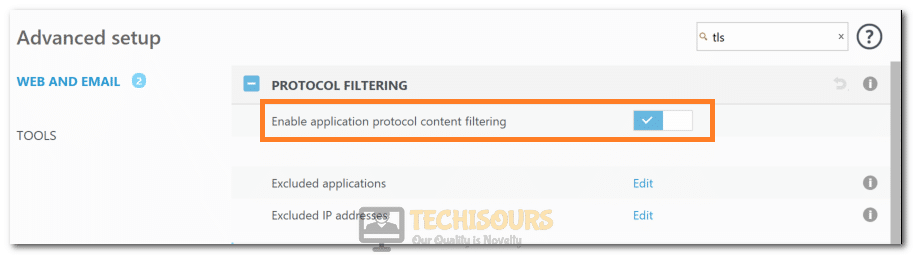
- Launch “ESET Antivirus” and head over to the “Advanced” setup window.
- Select “Web and Email” and disable the option “Enable application protocol content filtering” under “Protocol Filtering”.
- Click “OK” and see if the PR_CONNECT_RESET_ERROR issue has now been resolved.
Fix 2: Uninstalling 3rd-party Security Apps

- Press “Window + S”, type in “Apps & features” and press Enter on your keyboard.
- Look for the third-party firewall and antivirus apps that you have installed.
- Click each of them one by one and select “Uninstall” to remove them from your PC.
- Restart your PC afterwards and see if the issue is resolved.
Examples of these apps include McAfee, Avast, Kaspersky, BitDefender and ESET.
Fix 3: Disabling/Removing VPN from your PC
- Press “Window + S”, type in “Apps & features” and press Enter on your keyboard.
- Look for the VPN that you have installed on your PC and click on it.
- Select the “Uninstall” button and wait for it to be removed from your PC.
- Restart your PC afterwards and see if the issue is resolved now.
Fix 4: Disabling Proxy from your PC
Make sure that your proxy server is turned off. Follow the steps below to turn off Proxy Server:
- Press “Window + R”, type in “ms-settings:network-proxy” and press Enter on your keyboard.
- Below the “Manual proxy setup”, make sure that “Use a proxy server” is turned off.
- Restart your PC afterwards and see if the PR_CONNECT_RESET_ERROR issue is resolved.
Fix 5: Using a VPN
It is possible in some cases that the ISP that you are using might have blocked or prevented you from loading the website. Therefore, we suggest that you try to connect to and use a VPN in order to ensure that the website is loaded properly. You can use any VPN of your choice that suits you best but make sure to use a trial version first to ensure that the website loads properly.
Fix 6: Clearing the Browser’s Cache
Corrupted or a huge amount of cache can also interfere with the functionality of the browser. You need to clear it to gain back the normal functionality of the browser. Follow the steps below to do so:

- Launch Firefox and click the three horizontal lines on the top-right corner of the screen.
- Select the “Settings” option from the menu and then click on the “Privacy & Security” option.
- Look for the “Cookies and Site Data” option and click on the “Clear Data…” button in front of it.
- Uncheck the box for “Cookies and Site Data” and keep the “Cached Web Content” box checked.
- Click on the “Clear” button and wait for it to be cleared.
- Restart your PC and check to see if doing so fixes the PR_CONNECT_RESET_ERROR issue.
Fix 7: Disabling Extensions/Add-ons
Some extensions or add-ons can cause issues as well. You need to disable them or remove them from your browser. Follow the steps below to do so:

- Launch your browser and click the three horizontal lines on the top-right corner of the screen.
- Select the “Add-ons and Themes” option and click on the “Extensions” option.
- You should see all your installed extensions here, try to make sure that all of them are disabled.
- Restart your browser and see if the issue is resolved now.
- If it is resolved, then there is an extension that is interfering with your connection.
- To catch the culprit, you need to enable the extensions one by one and see if the issue reoccurs.
Fix 8: Make Sure that Work Offline Option is Off
- Launch Mozilla Firefox, right-click on the “Tabs Bar” where the different tabs are shown and click on the “Menu Bar” option.
- Now, click on the “File” option at the top-left corner of the screen and see if there is a tick beside the option “Work Offline” option.
- If you see a tick, then click on it and the option will be disabled and you should now be able to load the website normally.
Fix 9: Making Sure that Settings for IE are like Firefox’s
Discrepancies in your connection settings might also cause issues. You need to compare the connection settings of “Internet Explorer” to that of Firefox. Follow the steps below to access Internet Explorer’s settings:
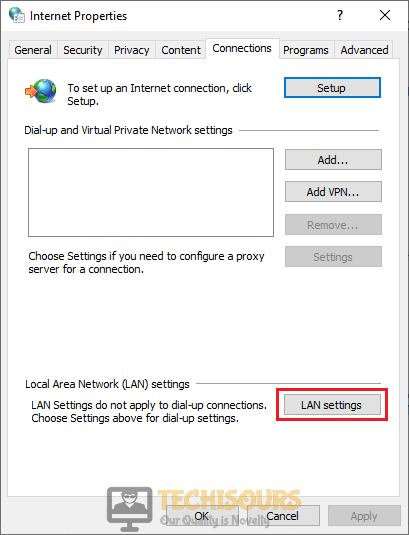
- Press “Window + S”, type in “Internet Options” and press Enter on your keyboard.
- Go to the “Connections” tab and click “LAN settings”.
- From here, make sure to note down your LAN and IP settings that have been configured on your computer
From here, make sure to navigate through the following options to set the same settings for Firefox:
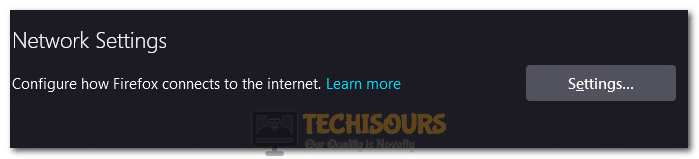
- Launch Mozilla Firefox, right-click the tabs bar on top and click “Menu Bar”.
- Click “Tools” at the top of the screen and select the “Settings” option at the bottom of the page under the “Network Settings” option.
- Now, make sure that the Internet Explorer settings are the same as the settings here. If they aren’t, make sure that you change the Firefox settings.
- Restart your computer after configuring these settings and check to see if the PR_CONNECT_RESET_ERROR is fixed.
If the changes that you make are not saved after every restart, you need to make sure that you do not have a program named “Hide IP Platinum” installed.
Even if it is uninstalled, the user settings file might still hold those modified settings, to resolve this issue you will need to press “Window + R”, type in “%appdata%” and press Enter and then open the “Mozilla” folder. In this folder, you will see the profile folder. In this folder, look for the user.js file and delete it. You can also take another approach which is to redownload that app and disable the service manually and uninstall it afterwards.
Fix 10: Modifying the Network Settings in Firefox
- Launch Mozilla Firefox, right-click the tabs bar on the top and click on the “Menu Bar” option.
- Click on the “Tools” at the top of the screen, select the “Settings” button and click on the “Settings” option at the bottom under the “Network Settings” option.
- From here, check the “Auto-detect proxy setting for this network” option and restart your browser.
- Check to see if doing so fixes the PR_CONNECT_RESET_ERROR on your Firefox Browser.
Fix 11: Disabling AppEx Networks Accelerator
- Press the “Window + R” keys from your keyboard to launch the Run prompt, type in “Control panel” and press Enter on your keyboard.

- Select the “Network and Internet” option and click on the “Network and Sharing Center” option.
- Click on the “Change adapter settings” from the options on the left and right-click on the network connection that you are using.
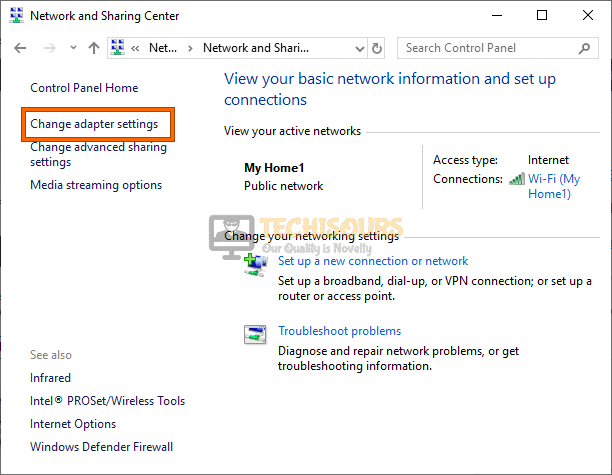
- Select the “Properties” option and look for the “AppEx Networks Accelerator” option from the list of items and untick it.
- Save your changes, restart the PC and check to see if doing so fixes the PR_CONNECT_RESET_ERROR issue.
Fix 12: Allowing Firefox through Firewall
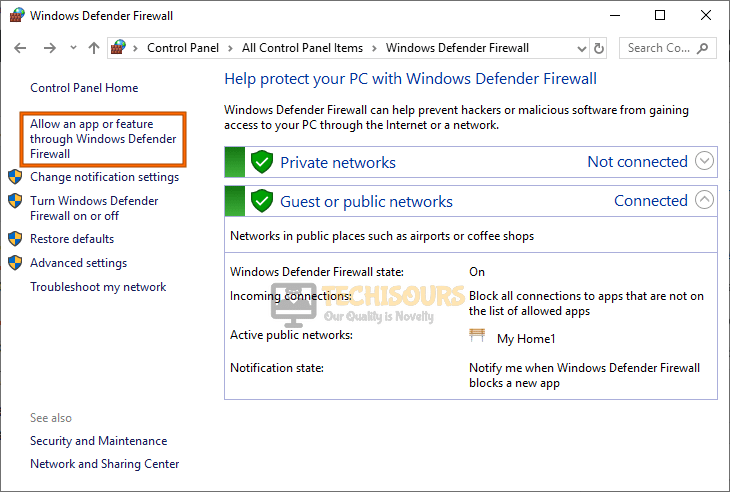
- Press “Window + S” keys on your keyboard, type in “Windows Defender firewall” and press Enter on your keyboard.
- Select the “Allow an app or feature through Windows Defender Firewall” from the options on the left.
- Click on the “Change settings” options and approve the UAC prompt to provide the administrative permissions.
- Look for Mozilla Firefox in the list of apps and tick all the checkboxes horizontal to it.
- Click “OK” and restart your PC and check if the issue is resolved now.
Fix 13: Disabling IPv6

- Launch Firefox, type in “about:config” in the address bar and press “Enter” to launch the preferences list.
- After that, paste the “network.dns.disableIPv6” text in the “Search Preference Name” search bar and click on the “Toggle” to disable it on your computer.
- After disabling this, restart your browser and check to see if the PR_CONNECT_RESET_ERROR is fixed.
Fix 14: Disabling DNS Prefetching

- Launch Firefox and type in “about:config” in the address bar and press “Enter” to load the preferences list.
- From here, in the “Search Preference Name” bar, make sure to type in “network.dns.disablePrefetch” and check the “Boolean” option if it gives you the option to create a new one and set its value to “True”.
- However, if the value is already there, click on the “Toggle” switch to turn it on and enable it on your computer.
- Restart your browser and check to see if this fixes the error message while loading the website.
Fix 15: Using the do-not-track option

- Launch Mozilla Firefox, right-click on the “Tabs” bar at the top where the different tabs open in the browser. are displayed and select the “Menu Bar” option from the menu.
- After that, click on“Tools” at the top left of the screen and select the “Settings” button.
- From there, click on the “Privacy & Security” option on the left side.
- Now, make sure that select the “Always” option for the “Send Websitesa Do Not Track Signal”.
- Check to see if the PR_CONNECT_RESET_ERROR is resolved. If it isn’t, make sure to set the option back to “Only When Firefox is set to Block known Trackers” setting and check if that fixes the issue.
Fix 16: Refresh Internet or Use Another Connection
Sometimes a simple restart to the internet router might change the IP address that your ISP has provided you with which might help you in communicating with the website’s server if your previous IP address had been blacklisted from the website.
In addition to this, you can try to use your mobile’s hotspot to connect to the website because sometimes the internet connection from the Wi-Fi might not be suitable to connect.
Fix 17: Flushing DNS

- Press “Window + R”, type in “cmd” and press “Ctrl + Shift + Enter” on your keyboard.
- Type in the following commands and press Enter after each.
netsh int ip reset netsh int ip reset resettcpip.txt netsh int ipv4 reset netsh int ipv6 reset ipconfig / flushdns
Fix 18: Increasing Maximum Transmission Unit and RWIN
Follow the steps below to modify the values of RWIN and MTU which might resolve your issue:

- Press “Window + R”, type in “control” and press Enter on your keyboard.
- Select “Network and Internet” and select “Network and Sharing Center”.
- Copy the name of your network word by word.
- Now, press “Window + R”, type in “cmd” and press “Ctrl + Shift + Enter” on your keyboard.
- Type in the following command and press Enter afterward.
netsh interface IPv4 set subinterface "Your Network’s Name" mtu = 1472 store = persistent
Fix 19: Updating Network Adapter Driver
- Press “Window + R” to launch the Run prompt, type in “devmgmt.msc” and press Enter on your keyboard.
- Click on the “Network adapters” dropdown and right-click on your network connection.
- Select the “Update driver” button and choose the “Automatically search for updated drivers” option.
- From here, follow the on-screen instructions to completely update your drivers to the latest available ones.
- Check to see if doing so has fixed the PR_CONNECT_RESET_ERROR.
Fix 20: Updating your Browser
Sometimes, the issue might occur if the browser that you have installed has been outdated. Therefore, we strongly suggest that you head on over to the Firefox website and download the latest version of the browser from there.
Fix 21: Running a Script in PowerShell
This solution has worked out for multiple users. Follow the steps below:

- Press “Window + X” and select the “Windows PowerShell (Admin)” option to launch into the Powershell.
- Type in the following script and press Enter afterwards.
Start-Transcript -Path «$($MyInvocation.MyCommand.Path).log» try < Write-Host "Creating cert resources" $ekuOidCollection = [System.Security.Cryptography.OidCollection]::new(); $ekuOidCollection.Add([System.Security.Cryptography.Oid]::new("1.3.6.1.5.5.7.3.1","Server Authentication")) | Out-Null $sanBuilder = [System.Security.Cryptography.X509Certificates.SubjectAlternativeNameBuilder]::new(); $sanBuilder.AddDnsName("localhost") | Out-Null Write-Host "Creating cert extensions" $certificateExtensions = @( # Subject Alternative Name $sanBuilder.Build($true), # ASP.NET Core OID [System.Security.Cryptography.X509Certificates.X509Extension]::new( "1.3.6.1.4.1.311.84.1.1", [System.Text.Encoding]::ASCII.GetBytes("IIS Express Development Certificate"), $false), # KeyUsage [System.Security.Cryptography.X509Certificates.X509KeyUsageExtension]::new( [System.Security.Cryptography.X509Certificates.X509KeyUsageFlags]::KeyEncipherment, $true), # Enhanced key usage [System.Security.Cryptography.X509Certificates.X509EnhancedKeyUsageExtension]::new( $ekuOidCollection, $true), # Basic constraints [System.Security.Cryptography.X509Certificates.X509BasicConstraintsExtension]::new($false,$false,0,$true) ) Write-Host "Creating cert parameters" $parameters = @< Subject = "localhost"; KeyAlgorithm = "RSA"; KeyLength = 2048; CertStoreLocation = "Cert:\LocalMachine\My"; KeyExportPolicy = "Exportable"; NotBefore = Get-Date; NotAfter = (Get-Date).AddYears(1); HashAlgorithm = "SHA256"; Extension = $certificateExtensions; SuppressOid = @("2.5.29.14"); FriendlyName = "IIS Express Development Certificate" >Write-Host «Creating cert» $cert = New-SelfSignedCertificate @parameters $rootStore = New-Object System.Security.Cryptography.X509Certificates.X509Store -ArgumentList Root, LocalMachine $rootStore.Open(«MaxAllowed») $rootStore.Add($cert) $rootStore.Close() Write-Host «Creating port bindings» # Add an Http.Sys binding for port 44300-44399 $command = ‘netsh’ for ($i=44300; $i -le 44399; $i++) < $optionsDelete = @('http', 'delete', 'sslcert', "ipport=0.0.0.0:$i") $optionsAdd = @('http', 'add', 'sslcert', "ipport=0.0.0.0:$i", "certhash=$($cert.Thumbprint)", 'appid=') Write-Host "Running $command $optionsDelete" & $command $optionsDelete Write-Host "Running $command $optionsAdd" & $command $optionsAdd > > catch < Write-Error $_.Exception.Message >finally
If the issue still occurs, contact us for further troubleshooting.