Buttons
On May 26, 2021, Discord added a new interaction called buttons. Instead of reactions, bots could now send buttons and users could use them to interact with bots. This opened up a whole new world of possibilities for bots. Soon after, developers made calculators, polls, and games like blackjack, UNO, and even Minecraft! Buttons provided a clear and easy to use interface for interacting with bots.
So, let’s learn how you can add buttons to your bot!
Concept
Buttons weren’t the only update to the interactions system in Discord. Discord also added Select Menus and Modal Dialogs, both of which work very similarly to buttons.
These UI elements reside in a «view». To learn more about views, please refer to the interactions page.
Usage Syntax
Let’s see how to create a simple responsive button.
import discord bot = discord.Bot() # Create a bot object class MyView(discord.ui.View): # Create a class called MyView that subclasses discord.ui.View @discord.ui.button(label="Click me!", style=discord.ButtonStyle.primary, emoji="��") # Create a button with the label "�� Click me!" with color Blurple async def button_callback(self, button, interaction): await interaction.response.send_message("You clicked the button!") # Send a message when the button is clicked @bot.slash_command() # Create a slash command async def button(ctx): await ctx.respond("This is a button!", view=MyView()) # Send a message with our View class that contains the button bot.run("TOKEN") # Run the bot Using this command should return the following message:

BobDotCom used / button
Robocord Bot 07/24/2023
This is a button!
As you can see, we create a class called MyView that subclasses discord.ui.View .
Then, we add a function called button_callback to the MyView class with the decorator discord.ui.button . This decorator adds a button to a component. This function takes two arguments: the button that was clicked and the interaction. These arguments are passed to the function when the button is clicked by the module. We use the interaction.response.send_message function to send a message to the channel where the interaction was sent.
Finally, we create a global slash command called button that sends the message, along with the view that contains a button.
This is the basic syntax of creating a button. What you create with it is up to you. You can worry about making your button do amazing things, while Pycord handles the rest!
Button Styles
| Name | Usage | Color |
|---|---|---|
| Primary | discord.ButtonStyle.primary / discord.ButtonStyle.blurple | Blurple |
| Secondary | discord.ButtonStyle.secondary / discord.ButtonStyle.grey / discord.ButtonStyle.gray | Grey |
| Success | discord.ButtonStyle.success / discord.ButtonStyle.green | Green |
| Danger | discord.ButtonStyle.danger / discord.ButtonStyle.red | Red |
| Link | discord.ButtonStyle.link / discord.ButtonStyle.url | Grey |
Check out the discord.ButtonStyle class for more information.
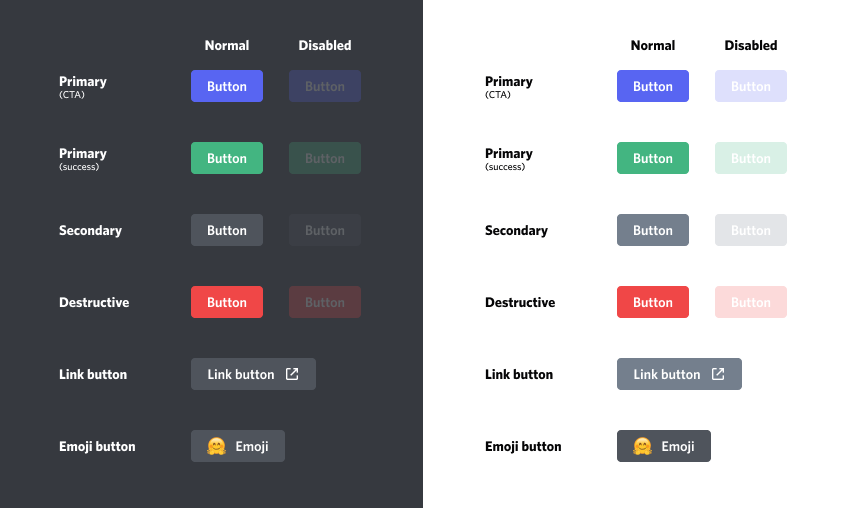
You can set a button’s style by adding the style argument in the discord.ui.button decorator.
class MyView(discord.ui.View): @discord.ui.button(label="Click me!", style=discord.ButtonStyle.success) async def button_callback(self, button, interaction): await interaction.response.send_message("You clicked the button!") Action Rows
We have discussed that Views can have 5 rows. Each row has 5 slots, and each button takes up 1 slot. So, how do we move the buttons to another row?
This can be done by specifying the row argument in the discord.ui.button decorator.
The row argument
The row argument specifies the relative row this button belongs to. A Discord component can only have 5 rows. By default, items are arranged automatically into those 5 rows. If you’d like to control the relative positioning of the row then passing an index is advised. For example, row=1 will show up before row=2. Defaults to None, which is automatic ordering. The row number must be between 0 and 4 (i.e. zero indexed).
class MyView(discord.ui.View): @discord.ui.button(label="Button 1", row=0, style=discord.ButtonStyle.primary) async def first_button_callback(self, button, interaction): await interaction.response.send_message("You pressed me!") @discord.ui.button(label="Button 2", row=1, style=discord.ButtonStyle.primary) async def second_button_callback(self, button, interaction): await interaction.response.send_message("You pressed me!") Disabling Buttons
Pre-Disabled Buttons
class MyView(discord.ui.View): @discord.ui.button(label="A button", style=discord.ButtonStyle.primary, disabled=True) # pass `disabled=True` to make the button pre-disabled async def button_callback(self, button, interaction): ... @bot.command() async def button(ctx): await ctx.send("Press the button!", view=MyView()) Disabling Buttons on Press
- Disabling a single component
- Disabling all the components of a view
class MyView(discord.ui.View): @discord.ui.button(label="A button", style=discord.ButtonStyle.primary) async def button_callback(self, button, interaction): button.disabled = True # set button.disabled to True to disable the button button.label = "No more pressing!" # change the button's label to something else await interaction.response.edit_message(view=self) # edit the message's view class MyView(discord.ui.View): @discord.ui.button(emoji="��", label="Button 1", style=discord.ButtonStyle.primary) async def button_callback(self, button, interaction): self.disable_all_items() await interaction.response.edit_message(view=self) @discord.ui.button(label="Button 2", style=discord.ButtonStyle.primary) async def second_button_callback(self, button, interaction): self.disable_all_items() await interaction.response.edit_message(view=self) Timeouts
Sometimes, you want to have a button that is disabled after a certain amount of time. This is where timeouts come in.
- Specifying time when creating a view object
- Specifying the time when subclassing
class MyView(discord.ui.View): async def on_timeout(self): self.disable_all_items() await self.message.edit(content="You took too long! Disabled all the components.", view=self) @discord.ui.button() async def button_callback(self, button, interaction): ... @bot.command() async def button(ctx): await ctx.send("Press the button!", view=MyView(timeout=30)) class MyView(discord.ui.View): def __init__(self): super().__init__(timeout=10) # specify the timeout here async def on_timeout(self): self.disable_all_items() await self.message.edit(content="You took too long! Disabled all the components.", view=self) @discord.ui.button() async def button_callback(self, button, interaction): ... Here, we disable all buttons and select menus in the view. Then, we edit the message to show that the timeout was reached.
If the on_timeout coroutine is not present, the components will simply stop working after the specified time.
Persistent Views
Sometimes, instead of a button that is disabled after a certain amount of time, you want to have a button that is always working.
Normally, when the bot goes offline, all of its buttons stop working. You will be able to see the buttons, but nothing will happen when you press them. This is a problem if you are trying to create a self-role system with buttons, for example. This is where persistent views come in.
Persistent views work forever. When the bot goes offline, the buttons will stop working. When the bot comes back online, however, the buttons will start working again.
In a Persistent View, the timeout must be set to None and all the children in the view much have a custom_id attribute set.
@bot.event async def on_ready(): bot.add_view(MyView()) # Registers a View for persistent listening class MyView(discord.ui.View): def __init__(self): super().__init__(timeout=None) # timeout of the view must be set to None @discord.ui.button(label="A button", custom_id="button-1", style=discord.ButtonStyle.primary, emoji="��") # the button has a custom_id set async def button_callback(self, button, interaction): await interaction.response.send_message("Button was pressed", ephemeral=True) @bot.command() async def button(ctx): await ctx.send(f"Press the button! View persistence status: MyView.is_persistent(MyView())>", view=MyView()) FAQ
How many buttons can I have in a message?
Each message can have a maximum of 25 buttons. Views can have up to 5 rows, and each row has 5 slots. A button takes up one slot, while a select menu takes up all five slots.
Can I add more than one view to a message?
No. As a Discord limitation, you can only have one view per message.
Why are UI Components so confusing?
They cannot be simple like commands. This system makes them flexible and doesn’t limit your imagination. There are loads of different ways you can use UI Components. For example, you could subclass Buttons or Select Menus and add them to a view using the view’s add_item function.
UI Components aren’t hard to use if you know Python. We recommend learning Object-Oriented Programming with Python.
What is OOP? What is subclassing?
OOP (object-oriented programming) is a programming paradigm that allows you to create objects that have their own properties and methods. Almost everything in python is an object or a class. discord.Embed and discord.ui.View are both classes. When you use view = discord.ui.View() to create a view, you are actually creating an object of type discord.ui.View .
Subclassing is a Python OOP concept. It means that you can create a class that inherits from another class. In other words, the class that subclasses another class can inherit all the methods and attributes of that class.
We highly recommend you learn about basic Python concepts like classes and inheritance before you start learning Pycord.
Resources:
- W3Schools’s Guide to Python Classes & Objects
- W3Schools’s Guide to Python Inheritance
Do buttons need any special permissions?
No new permissions are needed for either the bot or the server to allow bots to use buttons.
Should I replace reactions with buttons for my bot?
That is up to you. Buttons do provide a cleaner interface for your bot and are easier to use.
- Slash Commands
- Interactions Index
button discord python
Советую уменьшить пример до минимально воспроизводимого кода. Любителей читать длинные чужие коды, скачанные неизвестно откуда, мало. Заодно и разберётесь в нём.
3 мая 2022 в 10:24
по вашему совету укоротил код насколько это возможно
3 мая 2022 в 16:06
@Сергей теперь можно разбирать код :p
4 мая 2022 в 9:04
теперь ждём знатоков discord:-)
4 мая 2022 в 9:07
И посмотрите другие вопросы на эту тему. Например, Например, строчку с DiscordComponents — там её считают обязательной, а в вашем коде её нет (я не знаток discord, так что просто бегло посмотрел). И поставил плюс за старательность:-) — надеюсь, привлечет желающих помочь.
4 мая 2022 в 9:10
1 ответ 1
Сортировка: Сброс на вариант по умолчанию
Чтобы не намешивать библиотеки, я все же предлагаю использовать py-cord :
import discord from discord.ext import commands from discord.ui import Button, View bot = commands.Bot(command_prefix='!', intents=discord.Intents.all()) Тогда обработку нажатия кнопки можно будет реализовать вот так:
@bot.command() async def test(ctx): await ctx.send('Hello World!', view=View( Button(custom_id='button1', label='WOW button!', style=discord.ButtonStyle.green) )) interaction = await bot.wait_for('interaction', check=lambda i: i.custom_id == 'button1') await interaction.response.edit_message(content='Button clicked!', view=None) Или так, через установку отдельной функции в качестве свойства отклика кнопки:
@bot.command() async def test(ctx): async def button_callback(interaction): await interaction.response.edit_message(content='Button clicked!', view=None) button = Button(custom_id='button1', label='WOW button!', style=discord.ButtonStyle.green) button.callback = button_callback await ctx.send('Hello World!', view=View(button)) Add button components to a message (discord.py)
I was wondering after seeing this (message components) on discord’s API reference if there was any way to implement it using python ?
I tried making a json array and passing it in my message but couldn’t make it work. I also tried looking on the reference for python but couldn’t find anything.
Here’s my code
components= [ < "type": 2, "label": "Clear les kick", "style": 4, "custom_id": "clear_kick_button" >] @slash.slash(name="kicked", description="Voir qui a été kick et combien de fois.", guild_ids=guild_id) async def kicked(ctx): await ctx.send("test", components= components) If you have any informations thank you if you share it.
3,532 2 2 gold badges 13 13 silver badges 44 44 bronze badges
asked May 27, 2021 at 12:32
53 1 1 gold badge 1 1 silver badge 4 4 bronze badges
Don’t mind the name of the command just used an unfinished one to test the components.
May 27, 2021 at 12:32
Please remove the discord.js tag if you’re not using js
May 27, 2021 at 12:33
Also, discordpy already manages all the components for you. You will not need to make your own. Just look at the discordpy docs. Not discord’s
May 27, 2021 at 12:34
Doesn’t look like it’s implemented yet, you might need to try using requests
May 27, 2021 at 12:44
@FluxedScript, dont use requests with bots. It blocks event loops
– user6641547
Jun 1, 2021 at 11:29
7 Answers 7
New Answer
Discord.py 2.0 Allows for use of Buttons and Dropdowns, and has new added support for Slash Commands. A 3rd party repository is no longer necessary. However, if you don’t want to use the default one for some reason, you can checkout discord_slash .
To upgrade to Discord.py 2.0:
pip install -U git+https://github.com/Rapptz/discord.py MacOS and Linux:
pip3 install -U git+https://github.com/Rapptz/discord.py Old Answer:
(This Answer is OUTDATED.)
As of right now, you can get a library called discord_components to use buttons.
To install this library, use pip install —upgrade discord-components (Sometimes the command would be pip3 install —upgrade discord-components ).
To import Discord Component Buttons, use
from discord_components import DiscordComponents, Button, ButtonStyle, InteractionType Then just add this code in the bot’s on_ready() :
DiscordComponents(bot, change_discord_methods=True) (Make sure to replace bot with the name of your bot, the same one you use for @something.command() )
To add a button to a message, do this:
await ctx.send(type=InteractionType.ChannelMessageWithSource, content="Message Here", components=[Button(style=ButtonStyle.URL, label="Example Invite Button", url="https://google.com"), Button(style=ButtonStyle.blue, label="Default Button", custom_id="button")]) (A message is required)
To do something when the button is clicked, you can do something like this:
@bot.event async def on_button_click(interaction): if interaction.component.label.startswith("Default Button"): await interaction.respond(type=InteractionType.ChannelMessageWithSource, content='Button Clicked') This method even survives reboots!
Here’s an example I put together for you if you need it:
import discord from discord.ext import commands from discord_components import DiscordComponents, Button, ButtonStyle, InteractionType bot = commands.Bot(command_prefix=prefix, description="Desc", help_command=None) @bot.event async def on_ready(): DiscordComponents(bot, change_discord_methods=True) await bot.change_presence(activity=discord.Game(name=f"help")) print("Bot has successfully logged in as: <>".format(bot.user)) print("Bot ID: <>\n".format(bot.user.id)) @bot.command() async def button(ctx): await ctx.send(type=InteractionType.ChannelMessageWithSource, content="Message Here", components=[Button(style=ButtonStyle.URL, label="Example Invite Button", url="https://google.com"), Button(style=ButtonStyle.blue, label="Default Button", custom_id="button")]) bot.run("token") Hope this Helps!
Tip: If you want the buttons to be in one row, use [[]] instead of just [] for Example: [[btn1, btn2],[btn3, btn4]] will result in:
[btn 1][btn 2] [btn 3][btn 4] Extra Tip: You can also set a variable as a button then send the variable
lykn / buttons.md
Note: Before we go any further. Let me make this real clear that the following gist uses the OFFICIAL discord.py library and not forks like discord_components , nextcord , etc. So when your using this code but a different library and fuck up don’t comment something mean or go to a help channel in the server and say «this gist is misleading» or «bad gist who wrote this» when your at fault, trust me I’m going to fuck you up��
Just a reminder^^
Related Links:
Buttons are a new feature added to discord in the brand new 2.0.0a update. Read more about it here(in the discord.py server)

How can I install discord.py v2 ?
It’s pretty simple all you have to do it go to your console/terminal and say the following:
pip install -U git+https://github.com/Rapptz/discord.py Note: You need to have Git BASH and a python version higher than or equal to 3.8.0 . Get it at python.org/downloads
Now let’s get started shall we? First of let me show you the bad way to make buttons
@client.command(brief="Send a message with a button!") # Create a command inside a cog async def button(self, ctx): view = discord.ui.View() # Establish an instance of the discord.ui.View class style = discord.ButtonStyle.gray # The button will be gray in color item = discord.ui.Button(style=style, label="Read the docs!", url="https://discordpy.readthedocs.io/en/master") # Create an item to pass into the view class. view.add_item(item=item) # Add that item into the view class await ctx.send("This message has buttons!", view=view) # Send your message with a button.
This example is shown when you say ?tag button example in any channel in the official dpy server but this is wrong! Why? you may ask Reason: It’s because the button style doesn’t work perfectly and all butttons are url buttons.
So what’s the good/better way to make buttons? I never said the method provided above was wrong but it just isn’t feasible of sorts. But, the better way is to sub-class the buttons isn’t a view class( discord.ui.View ) like follows: Code:
import discord from discord.ext import commands client=commands.Bot(command_prefix=".") class Buttons(discord.ui.View): def __init__(self, *, timeout=180): super().__init__(timeout=timeout) @discord.ui.button(label="Button",style=discord.ButtonStyle.gray) async def gray_button(self,button:discord.ui.Button,interaction:discord.Interaction): await interaction.response.edit_message(content=f"This is an edited button response!") @client.command() async def button(ctx): await ctx.send("This message has buttons!",view=Buttons()) token="" client.run(token)
Response:

Response — On Click:

Let me explain what happened just happened. First we delared the bot( client=commands.Bot() ), then we made a class called Buttons() and it was a simple view ( discord.ui.View ) class Then we declared the view as self , and timeout as 180 seconds in the def __init__(): right after that we added the timeout to the view in the super().__init__() Right after we added an @discord.ui.button decorator which declares a button and in the decorator we declared the label and style a lot more things can be declared in there which will be shown later on in the gist. Then we called our button as gray_button inside an asynchronous function(basically the button’s asynchronous callback function) and inside that we declared our:
(a) view as self (b) discord.ui.Button as button (c) discord.Interaction as interaction
Right after that we opened up the funtion and added in a await interaction.response.edit_message() and added some content to it. After that we delcared a command( button ), added one argument to it( ctx ) and sent a primary/base message with the content as «This message has buttons!», and, then added in the view class we defined earlier( Button() ) as view=Buttons() Then ran the bot
Now that I gave you the a small summary of what just happened in the above code, let me tell you the various attributes of the @discord.ui.button decorator. Taken from the API. Reference Link: ui.Button

Basic Required Attributes:
This is the button’s label, basically what’s shown when the message is sent.

This is the button’s style, basically what the button looks like when the message is sent. Various Styles: Again taken from the API

How can I change the button style?

In your @discord.ui.button decorator add in a style parameter and do something like below
How do I change the button style on click?
That’s actually a better question that pops up in someone’s head because they’ve seen buttons change styles on click and let me tell you it’s pretty easy to do. Take an example of the code below.
Code:
# Note: This is just an "improved" code of what's shown above and that's how it's going to work throughout the gist the above code is going to be refined over and over again. import discord from discord.ext import commands client=commands.Bot(command_prefix=".") class Buttons(discord.ui.View): def __init__(self, *, timeout=180): super().__init__(timeout=timeout) @discord.ui.button(label="Button",style=discord.ButtonStyle.gray) async def blurple_button(self,button:discord.ui.Button,interaction:discord.Interaction): button.style=discord.ButtonStyle.green await interaction.response.edit_message(content=f"This is an edited button response!",view=self) @client.command() async def button(ctx): await ctx.send("This message has buttons!",view=Buttons()) token="" client.run(token)
Initial Response:

Response — On Click:

When changing anything in your button all you have to do is add in a view=self in your interaction.response.edit_message() But, if you’d like to change the style on the click on a interaction.response.send_message() , the following would be your output with the above shown code, but, with the await interaction.response.edit_message(. view=self) , replaced, with await interaction.response.send_message(. ephemeral=False) you may make it True if you’d like too

That would be your response and if you had ephemeral as True then all responses would only be able to be seen by the button clicker and not the command user. If you’d like to add an interaction_check funtion, and send a message when the interaction user isn’t the command user it’s shown below or futher in the gist(don’t fret!)
Let’s get back to the main topic — components of a button

This is basically the emoji that pops up on the left-side of the button. So, how can I use these emojis? You may use the emojis in the below format. To get this «format» just add a \ before the emoji name regardless if it’s a discord default, unicode, or, discord custom(statis or animated) and the emoji ID is what’s going to pop up as: (a) for a static emoji (b) for an animated emoji
For getting the unicode character(s) of the entered text(as shown in the below picture) go to the discord.py server and say ?charinfo and the bot’ll respond with the related information
Code:
import discord from discord.ext import commands client=commands.Bot(command_prefix=".") class Buttons(discord.ui.View): def __init__(self, *, timeout=180): super().__init__(timeout=timeout) @discord.ui.button(label="Blurple Button",style=discord.ButtonStyle.blurple,emoji="��") # or .primary async def blurple_button(self,button:discord.ui.Button,interaction:discord.Interaction): button.disabled=True await interaction.response.edit_message(view=self) @discord.ui.button(label="Gray Button",style=discord.ButtonStyle.gray,emoji="\U0001f974") # or .secondary/.grey async def gray_button(self,button:discord.ui.Button,interaction:discord.Interaction): button.disabled=True await interaction.response.edit_message(view=self) @discord.ui.button(label="Green Button",style=discord.ButtonStyle.green,emoji="") # or .success async def green_button(self,button:discord.ui.Button,interaction:discord.Interaction): button.disabled=True await interaction.response.edit_message(view=self) @discord.ui.button(label="Red Button",style=discord.ButtonStyle.red,emoji="") # or .danger async def red_button(self,button:discord.ui.Button,interaction:discord.Interaction): button.disabled=True await interaction.response.edit_message(view=self) @client.command() async def button(ctx): view=Buttons() view.add_item(discord.ui.Button(label="URL Button",style=discord.ButtonStyle.link,url="https://github.com/lykn",emoji="")) await ctx.send("This message has buttons!",view=view) token="" client.run(token)
Response:

Those were the basic componenets that are required to make a good button. Below I’m going to show you the code and response to the code where all the button styles are shown
Code:
# Note: In the below code the buttons get disabled on click. """ Note: The last button is a URL button which takes in a `url` param and has to be added via declaring the view in a variable and then adding a the item in the view through the variable """ import discord from discord.ext import commands client=commands.Bot(command_prefix=".") class Buttons(discord.ui.View): def __init__(self, *, timeout=180): super().__init__(timeout=timeout) @discord.ui.button(label="Blurple Button",style=discord.ButtonStyle.blurple) # or .primary async def blurple_button(self,button:discord.ui.Button,interaction:discord.Interaction): button.disabled=True await interaction.response.edit_message(view=self) @discord.ui.button(label="Gray Button",style=discord.ButtonStyle.gray) # or .secondary/.grey async def gray_button(self,button:discord.ui.Button,interaction:discord.Interaction): button.disabled=True await interaction.response.edit_message(view=self) @discord.ui.button(label="Green Button",style=discord.ButtonStyle.green) # or .success async def green_button(self,button:discord.ui.Button,interaction:discord.Interaction): button.disabled=True await interaction.response.edit_message(view=self) @discord.ui.button(label="Red Button",style=discord.ButtonStyle.red) # or .danger async def red_button(self,button:discord.ui.Button,interaction:discord.Interaction): button.disabled=True await interaction.response.edit_message(view=self) @client.command() async def button(ctx): view=Buttons() view.add_item(discord.ui.Button(label="URL Button",style=discord.ButtonStyle.link,url="https://github.com/lykn")) await ctx.send("This message has buttons!",view=view) token="" client.run(token)


Heads Up!
URL Buttons can’t be added into the button’s class, aka, a button’s callback funtion in a class, but, to have such a button you need to make a discord.ui.View class(a simple view class) and then name you variable in your command, let’s call this variable v . The, you have to do something like what’s shown below
@client.command() async def button(ctx): v=Buttons() v.add_item(discord.ui.Button(label="URL Button",style=discord.ButtonStyle.link,url="https://github.com/lykn")) await ctx.send("This message has buttons!",view=v)
Functions Inside Button Callback
All the parameters that can be added inside the @discord.ui.Button decorator can be passed in an individual button’s callback by declaring the discord.ui.Button as a positinal arguement your async def button_name(self,_____:discord.ui.Button) function(button callback)
Let’s make a code where on the click of a button all the other buttons get disabled! Note: This is just a smol code to show you how to use for loops inside a button’s callback Code: We are going to be for looping a «child» in self.children (i.e, the button’s view components)
import discord from discord.ext import commands from discord.ui import view client=commands.Bot(command_prefix=".") class Buttons(discord.ui.View): def __init__(self, *, timeout=180): super().__init__(timeout=timeout) @discord.ui.button(label="Blurple Button",style=discord.ButtonStyle.blurple) # or .primary async def blurple_button(self,button:discord.ui.Button,interaction:discord.Interaction): button.disabled=True await interaction.response.edit_message(view=self) @discord.ui.button(label="Gray Button",style=discord.ButtonStyle.gray) # or .secondary/.grey async def gray_button(self,button:discord.ui.Button,interaction:discord.Interaction): button.disabled=True await interaction.response.edit_message(view=self) @discord.ui.button(label="Green Button",style=discord.ButtonStyle.green) # or .success async def green_button(self,button:discord.ui.Button,interaction:discord.Interaction): button.disabled=True await interaction.response.edit_message(view=self) @discord.ui.button(label="Red Button",style=discord.ButtonStyle.red) # or .danger async def red_button(self,button:discord.ui.Button,interaction:discord.Interaction): button.disabled=True await interaction.response.edit_message(view=self) @discord.ui.button(label="Change All",style=discord.ButtonStyle.success) async def color_changing_button(self,child:discord.ui.Button,interaction:discord.Interaction): for child in self.children: child.disabled=True await interaction.response.edit_message(view=self) @client.command() async def button(ctx): view=Buttons() view.add_item(discord.ui.Button(label="URL Button",style=discord.ButtonStyle.link,url="https://github.com/lykn")) await ctx.send("This message has buttons!",view=view) token="" client.run(token)
Response:

Required Button:

Response — On Click:

And as all good things come to an end, I have come to the last few lines of this gist. Firstly I’d like to thank everyone at the discord.py server who have helped me figure out how to make buttons on the whole you guys are amazing(Includes Umbra#9999 if he reads this, that is��)! A special thanks goes to LeoCx1000#9999 , veyron#1741 , Jeyy#6639 , Hay#7860 , Ender2K89#9999 , SHERLOCK#7309 and Nyanaka#1224 for helping me with all the patience in this world!
Thanks to everyone reading this! If you feel something is wrong/needs correction or just need some help then drop a comment down below
This is Lykn signing off.