How To Fix TWRP Asking Password To Decrypt Data?
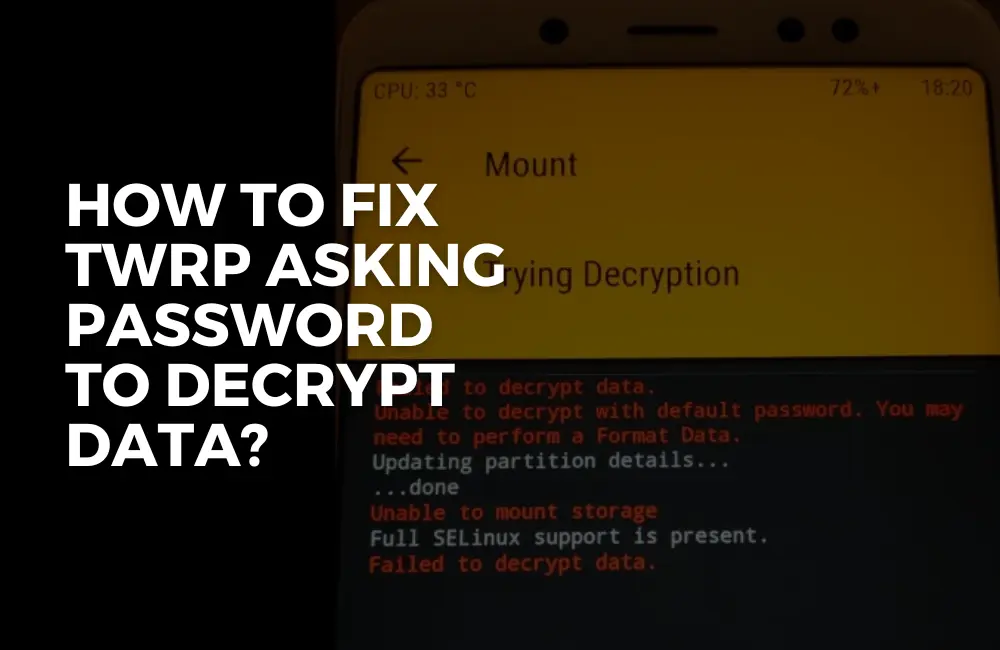
TWRP is a custom recovery image for Android phones. This provides additional functions over the stock recovery image.
You can use this software for flashing custom ROMs on your device. You can use this for backing up your device and restoring it.
With TWRP you can wipe your device, mount partitions, and also file transfer over MTP.
Users have reported facing issues with TWRP. Many users have said that TWRP keeps asking for a password when they try decrypting data.
Table of Contents
How to Fix TWRP Asking Password to Decrypt Data?
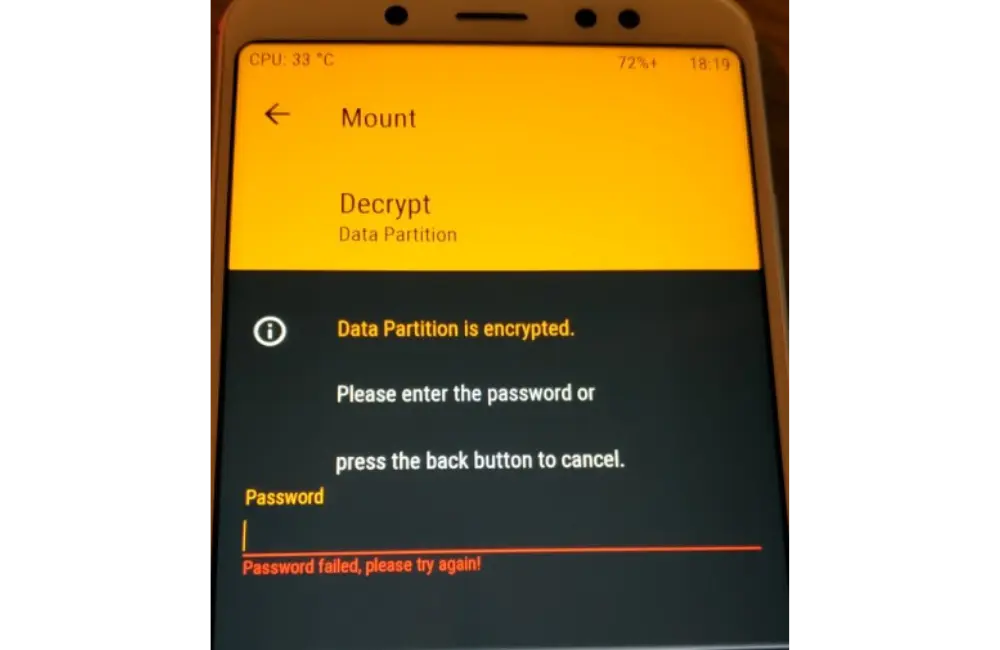
This occurs when the TWRP is unable to decrypt the data partition. If you have been facing the same issue and you are looking for a fix to it then this article will help you with it.
In this article, we will be discussing how you can fix TWRP asking password to decrypt data.
Fix #1: Mending Vendor Partition/FSTAB Via File Manager And Root Access (For Rooted Device)
The very first thing that you can try doing is mending the vendor partition through the File Manager and Root access. You should only continue with this method if your device is rooted. To do so, follow the steps given below-
- Open the app drawer and tap on Play Store .
- In the Play Store search for Xplore File Manager . Tap on the relevant search result and then tap on Install to install it.
- Open the Xplore File Manager on your phone.
- Here, tap on the three dots at the top right corner. Here, head to Configuration Settings .
- Now tap on Give Root Access and then on the Enter superuser and mount writable. Head back to the home screen of your file manager. Here tap on vendor/
- Now tap on /etc . Now, long press FSTAB to edit it.
- Here, look for encrypt or forceencrypt . Rename it to Encryptable.
- Now
- Now turn off your phone. After the phone turns off, press and hold the Volume Up + Power button and release the power button after seeing the device logo. This will boot your phone to stock recovery ROM.
- Once done, select Wipe data/factory reset with the volume rockers.
- Confirm the selection by pressing the Power button.
- Once done, your phone will reset.
- Reboot your phone to the home screen then boot to TWRP again.
- Once done see if the issue is fixed or not.
Fix #2: Mending The Vendor Partition/FSTAB Through TWRP and Text Editor (For Non-Rooted Devices)
You can continue with this method if your device is not rooted. You must have a USB device connected to your phone via OTG or an SD card inserted into your phone. To do so, follow the steps given below-
- Firstly boot your phone into TWRP mode.
- Here, head to Mount to access the mount vendor partition.
- Head back to the home screen of TWRP, and then tap on Advanced Settings.
- Here, tap on File Manager.
- Now enter etc/vendor to copy the FSTAB to the external storage.
- Head to the nvdata/vendor directory. Here, copy FSTAB again and paste it on the external storage but this time under a different file name.
Note- If you do not see FSTAB then you can simply skip this step.
- Now, reboot your phone normally.
- Open the Play Store on your phone. From here, install a text editor on your phone.
- Open the File Manager on your device and head to the location where you have saved the FSTAB file.
- Edit the FSTAB file using the text editor you just installed on your phone.
- Here, search for forceencrypt and replace it with encryptable .
- After making the changes copy the file into the USB-OTG or the SD card.
- Turn off your phone and boot it into TWRP.
- Copy the FSTAB files you edited and replace them in all the other locations.
- After doing so, visit TWRP Settings and tap on Wipe to format the data. This will format the data partition.
- Now check if the issue is fixed or not.
Fix #3: Using No-Verify-Opt-Encrypt.Zip
You can use the No-Verify-Opt-Encrypt.Zip file on your phone to fix ‘TWRP Asking Password to Decrypt Data. To do so, follow the steps given below-
- Click on this link and download the No-Verify-Opt-Encrypt.Zip file from here.
- Open File Manager on your device and visit the location where the file has been saved.
- Copy the file and paste it on your external storage (SD card or your USB drive).
- Now, turn off your phone and boot to TWRP Recovery mode.
- Here, tap on the Install option.
- Now, head to the location where you saved the No-Verify-Opt-Encrypt.Zip file.
- Flash the Zip on your device.
- Once done, the issue should be fixed and you should be able to format the data partition, and TWRP will not ask you for the password for decrypting the data.
Conclusion
Above were the steps to fix TWRP Asking Password to decrypt data. We hope this article helped you with what you were looking for.
How to Remove Data Encryption and Decrypt Data in TWRP
In this guide, we will show you the steps to remove the data encryption and hence decrypt data in TWRP. Such has been its dominance, that it is hard to imagine a working environment without the presence of this custom recovery. Beholding a plethora of useful features, it has made life really easy for tech enthusiasts. Be it for flashing ZIP/IMG files, taking partition backup, or even wiping partitions flashing custom ROMs, there’s plenty to try out.
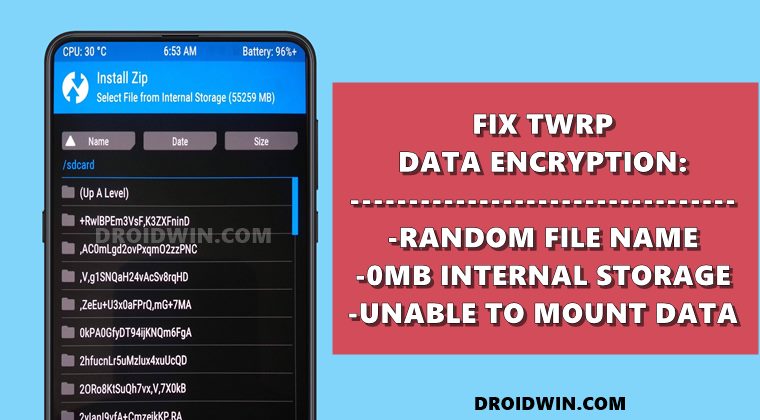
However, it isn’t free from its fair share of issues as well. One of the most common and concerning problems is related to Data Encryption. Without going into many technicalities, when this issue happens, all your file names will be in a jumbled form, with numbers and random strings of characters. In other instances, TWRP might show Internal Storage as having 0MB of consumed storage. All these straight away results in a plethora of issues.
Among them, the most important issue is that you wouldn’t be able to identify the file that you have to flash. And we all know how disastrous could it be if we end up flashing an incorrect file. Furthermore, some users have even shared their horror stories as well. They planned to flash a new custom ROM, so they downloaded it and sent it to their device. Then they booted the device to TWRP and wiped the System partition.
After that, they tried flashing the ROM but were unable to do so since they cannot identify which was the actual ROM file (due to an encryption issue). As a result, they were then greeted with the No OS Installed Are you sure you wish to reboot? message in TWRP. Well, I have already covered a comprehensive guide to fix that issue, let’s now turn our attention towards this one. Given here are the various methods that will help you to remove the data encryption and hence decrypt data in TWRP.
Table of Contents
How to Remove Data Encryption and Decrypt Data in TWRP
We have shared a total of four different types of fixes. In my case, the last one did the job. However, I have mentioned it in the end because it requires a complete data wipe. So if you have already taken a backup and have no concern about data loss, then I would suggest you directly start off with the last fix itself.
Others may begin from the first fix onwards. Droidwin and its members wouldn’t be held responsible in case of a thermonuclear war, your alarm doesn’t wake you up, or if anything happens to your device and data by performing the below steps to remove the data encryption and hence decrypt data in TWRP.
Note: Booting Android to TWRP
During the course of the article, you will have to boot your device to TWRP. For that, you may take the help of the device-specific hardware key combinations or refer to the below universal method:
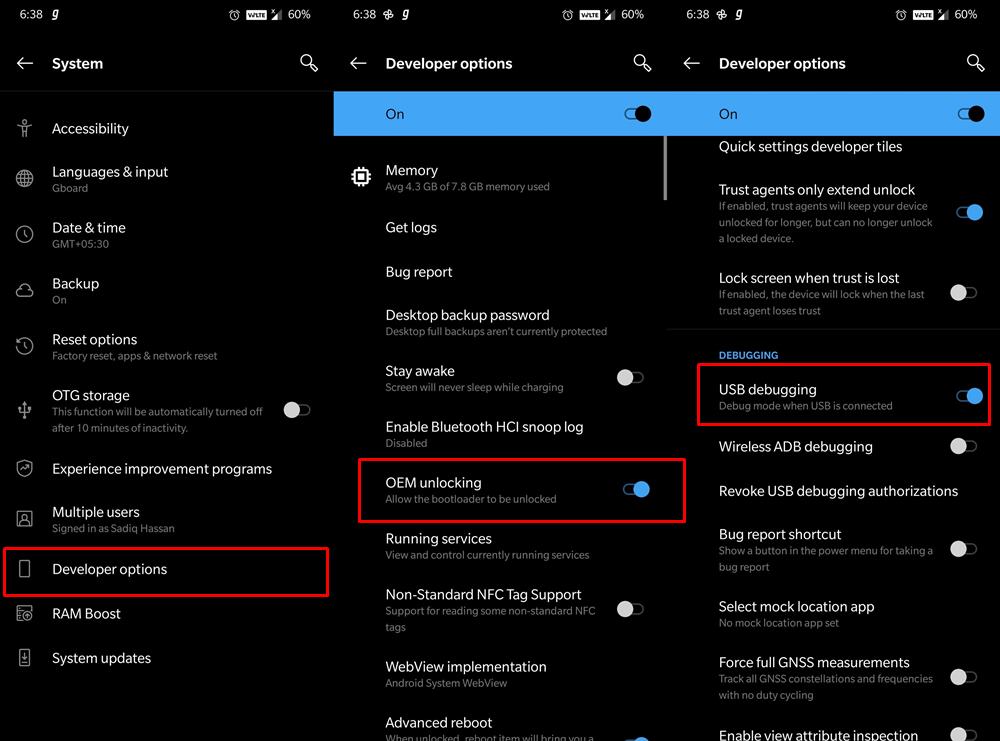
- Connect your device to the PC via USB cable. Make sure USB Debugging is enabled.
- Download the Android SDK Platform Tools on your PC. Extract it and you shall get the platform-tools folder.
- Head over to this platform-tools folder, type in CMD in the address bar, and hit Enter. This will launch the Command Prompt.
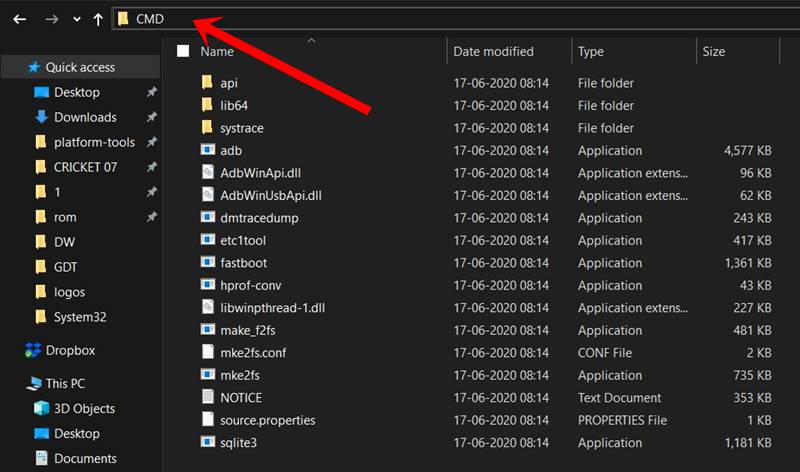
- Type in the following command in the CMD window to boot your device to TWRP
adb reboot recovery
Fix 1: Remove Lock Screen
While it may sound like a pretty vague workaround, but most of the earlier Android devices (three-four-year-olds) and some even today have known to fix the issue via it. For the unawares, TWRP isn’t able to decrypt the data if you have enabled a Pattern Lock because it only supports unlocking via the PIN or Password. However, users are even stuck with these numerical passwords. So the best and safest bet is to temporarily remove all the lock screen protection from your device. Here’s how it could be done:
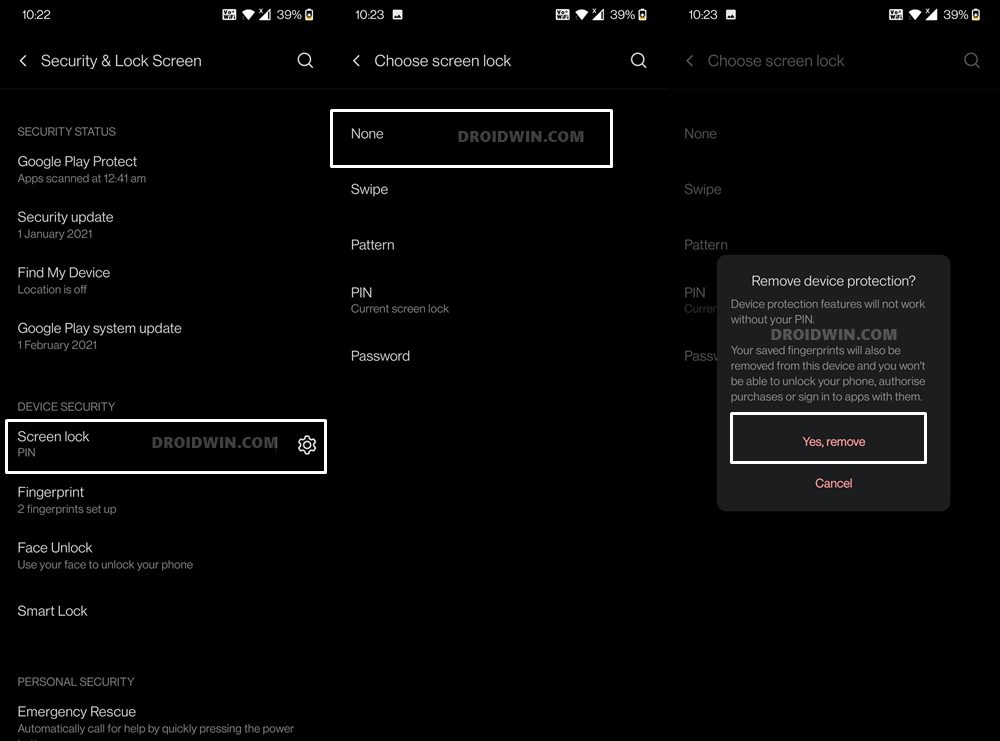
- To begin with, head over to the Settings page on your device.
- Then go to Privacy > Security and Lock Screen.
- Tap on Screen Lock and then select None.
- The device will now verify this decision, reply YES/OK.
Once done, reboot your device to the TWRP Recovery and see if it is able to remove the data encryption and decrypt data or not.
Fix 2: Flash no-verity-opt-encrypt.zip via TWRP
While its name might be hard to spell but its task is pretty simple: to decrypt the data partition. As of now, this file wouldn’t be present on your device and you will have to transfer it via TWRP. However, don’t send it to the Internal Storage (because you wouldn’t able to identify the file). If you have a USB OTG or Pendrive, then connect it to PC, transfer the file, then connect the OTG to your device and flash the file.
All the instructions related to the same are given in this guide: How to use USB OTG or Pen Drive to Flash File via TWRP Recovery. However, if you don’t have OTG, then you may try out the ever-useful ADB Sideload feature. For detailed instructions regarding the same, you may refer to our guide: How to Use ADB Sideload in Android [Stock and TWRP Recovery]. The shorter instruction follows below:
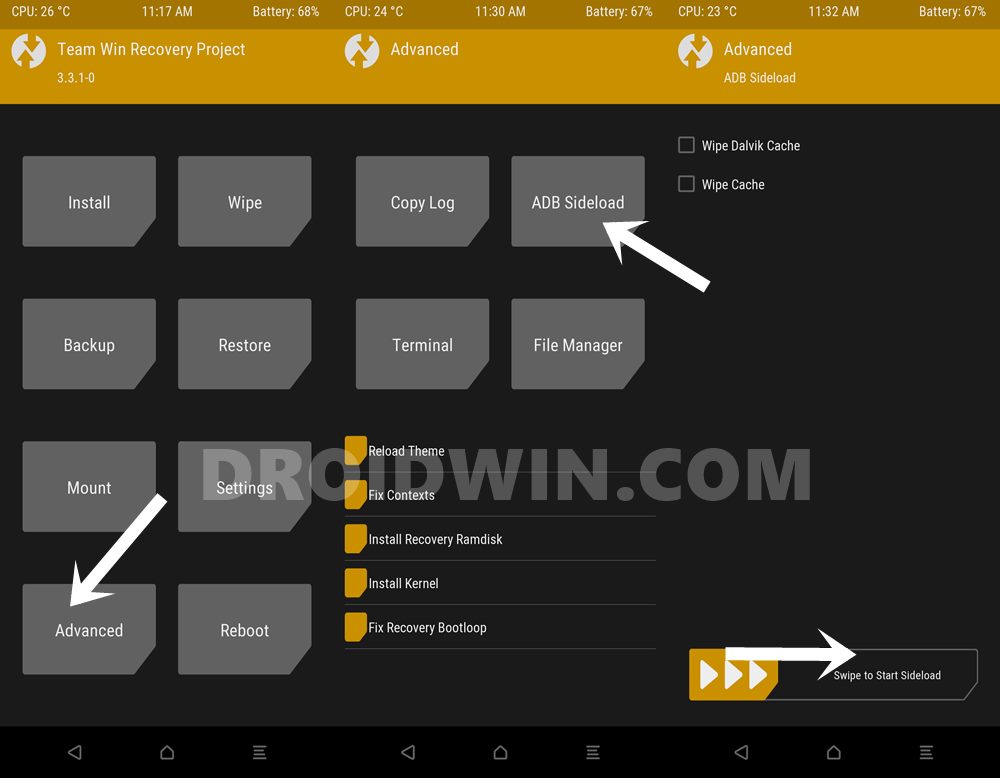
- Download no-verity-opt-encrypt.zip and transfer it to the platform-tools folder.
- Boot your device to TWRP, go to Advanced and select ADB Sideload.
- Then perform a right swipe on the Swipe to Start Sideload button situated at the bottom.
- After this, launch CMD inside platform-tools and use the below command:
adb sideload filename.zip
Fix 3: Change File System and Mount Data Partition via TWRP
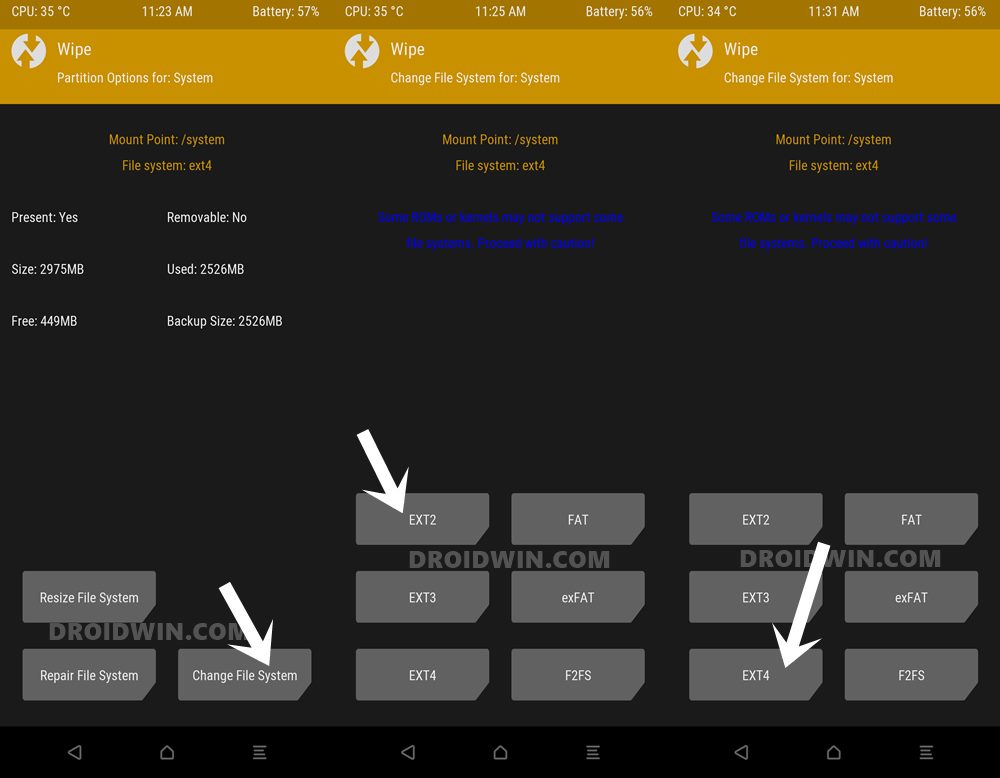
In some instances, the issue isn’t as complicated as it might look. You only need to mount the data partition and TWRP then automatically decrypts the partition. To try it out, head over to Mount and checkmark the Data partition. See if it is able to fix the underlying issue. if TWRP isn’t allowing you to mount data, then you would have to Repair and/or Refresh the File Partition, which could be done as follows:
- From TWRP, go to Wipe and tap on Advanced Wipe
- Then select the System partition and tap on Repair or Change File System.
- Finally, tap on Repair File System and now try Mounting Data.
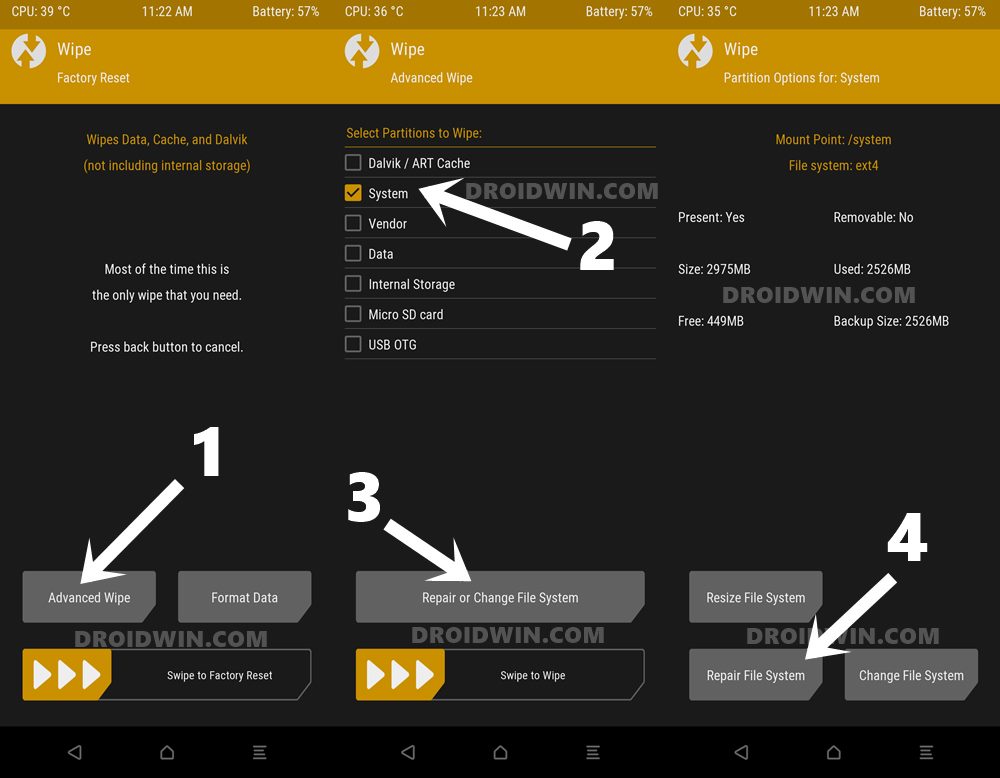
- If you are still not able to do mount data, then again go to the Repair or Change File System menu. [Don’t try the below steps if you are on a Custom ROM, rather move over to the next fix].
- This time tap on Change File System and switch to the new EXT2 from the current EXT4.
- Then again switch it back to default EXT 4 from the new EXT2.
- Now verify if it is able to remove TWRP data encryption and decrypt data or not.
Fix 4: Format Data via TWRP
This will erase all the data from your device, so make sure that you have made a backup beforehand [and as mentioned before, this method did work out for me!]. Once done, proceed with the below steps:
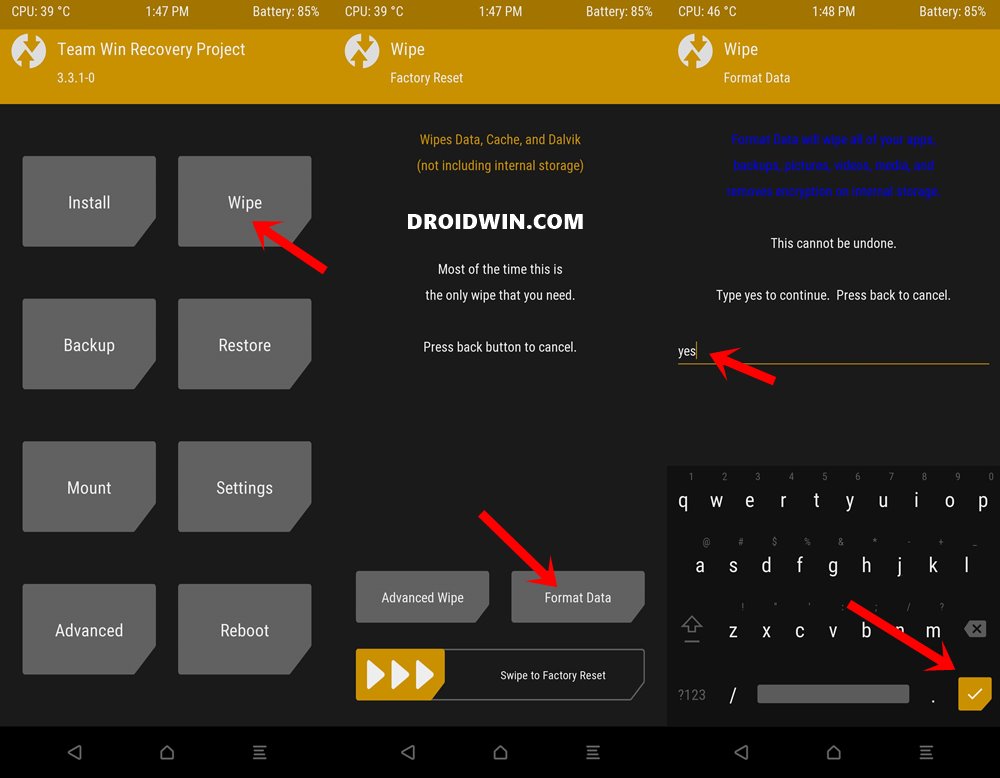
- From TWRP, go to Wipe and tap on Format Data.
- Type in YES in the space provided
- Finally, tap on the checkmark situated at the bottom right.
- The wipe process will now begin and once complete, the issue stands rectified.
So this was all from this guide on how to remove TWRP data encryption and decrypt data. If you have any queries concerning the aforementioned steps, do let us know in the comments. We will get back to you with a solution at the earliest.
- How to Install TWRP Recovery on Android
- Flash Custom ROM After Wiping Internal Storage Without SD Card or OTG
- How to Install MIUI Stock ROM on Xiaomi via TWRP Recovery
- How to Flash Stock and Magisk Patched Boot.img via TWRP
About Chief Editor
Sadique Hassan
A technical geek by birth, he always has a keen interest in the Android platform right since the birth of the HTC Dream. The open-source environment always seems to intrigue him with the plethora of options available at his fingertips. “MBA by profession, blogger by choice!”
Как отключить шифрование раздела data?
Переходим в меню «Настройки» -> «Расширенные настройки» -> «Конфиденциальность». Во вкладке «Дополнительные настройки» выбираем «Шифрование устройства». Перед тем как его включить обязательно настройте блокировку экрана в смартфоне Xiaomi.
Как убрать шифрование в TWRP?
Первым делом нужно отключить шифрование. Итак, в TWRP зайдите в Wipe > Format Data . Введите ключевое слово «да» в отведенное место. Это полностью очистит внутреннюю память и отключит шифрование.
Как отключить шифрование данных на андроид?
- Шифрование возможно только в одном направлении. .
- Шифрование всего устройства замедляет работу смартфона.
Как отключить шифрование Orange Fox?
Если по какой-то причине вы не хотите, чтобы ваш телефон был зашифрован, то перед прошивкой MIUI отформатируйте раздел данных (для расшифровки телефона), немедленно перезагрузите OrangeFox, перейдите в настройки OTA, отметьте поле «Отключить принудительное шифрование«, а затем установите MIUI.
Как расшифровать данные Twrp?
TWRP требует пароль, потому что ваши /data зашифрованы, что по умолчанию начиная с Android 6. Чтобы окончательно расшифровать файловую систему, вам нужно отформатировать /data и прошить пакет «disable force encryption». Помните, что форматирование /data будут удалять все ваши файлы, включая фотографии, музыку и т.
Как исправить невозможность смонтировать хранилище Twrp?
Для этого, если вы загрузились в TWRP, перезагрузите устройство в Систему. После загрузки перейдите в Настройки> Безопасность и экран блокировки> Блокировка экрана. Выберите из списка PIN-код или пароль. Теперь перезагрузите ваше устройство обратно в TWRP.
Что такое Twrp 4pda?
Официальное приложение команды Team Win Recovery Project для установки популярного одноименного кастомного рекавери на Android. Особенности: Выбор конкретного Android-устройства
Зачем нужно шифрование данных на телефоне?
Когда данные в вашем телефоне зашифрованы, это уже обеспечивает безопасность, но приостановка процесса загрузки до момента, пока не введен пароль, предотвращает доступ к файлам и служит дополнительным уровнем защиты.
Как зашифровать данные на телефоне?
Оставив телефон на подзарядке, выберите «Безопасность» >«Настройки» и пролистайте вниз до раздела «Шифрование» («Зашифровать устройство»). Внимательно ознакомьтесь с появившимися предупреждениями системы безопасности. После этого вам необходимо будет ввести пароль.
Что такое шифрование на Android?
Когда вы шифруете устройства на Android или iOS, данные хранятся в телефоне в нечитаемом формате. Когда вы вводите PIN-код, пароль или узор на экране блокировки, телефон расшифровывает данные.
Как переустановить Orange Fox?
Найдите и выберите zip-архив OrangeFox, нажмите на него и проведите пальцем для его установки (поскольку OrangeFox Recovery нужны некоторые файлы из zip) После установки, телефон автоматически перезагрузится в OrangeFox. Наслаждайтесь!
Какой пароль в Twrp?
Android: При входе в TWRP запрашивается пароль для расшифровки – DenTNT.trmw.ru.
Как отключить шифрование Xiaomi?
Переходим в меню «Настройки» -> «Расширенные настройки» -> «Конфиденциальность». Во вкладке «Дополнительные настройки» выбираем «Шифрование устройства». Перед тем как его включить обязательно настройте блокировку экрана в смартфоне Xiaomi.
Как отключить шифрование данных TWRP?
Первым делом нужно отключить шифрование. Итак, в TWRP зайдите в Wipe > Format Data . Введите ключевое слово «да» в отведенное место. Это полностью очистит внутреннюю память и отключит шифрование.
Как убрать шифрование данных?
- Сделайте копию данных
- Сбросьте настройки
- Восстановите данные из копии
Как убрать шифрование данных на Андроиде?
- Шифрование возможно только в одном направлении. .
- Шифрование всего устройства замедляет работу смартфона.
Как расшифровать данные TWRP?
TWRP требует пароль, потому что ваши /data зашифрованы, что по умолчанию начиная с Android 6. Чтобы окончательно расшифровать файловую систему, вам нужно отформатировать /data и прошить пакет «disable force encryption». Помните, что форматирование /data будут удалять все ваши файлы, включая фотографии, музыку и т.
Как отключить шифрование Orange Fox?
Если по какой-то причине вы не хотите, чтобы ваш телефон был зашифрован, то перед прошивкой MIUI отформатируйте раздел данных (для расшифровки телефона), немедленно перезагрузите OrangeFox, перейдите в настройки OTA, отметьте поле «Отключить принудительное шифрование«, а затем установите MIUI.
Что такое шифрование на Android?
Когда вы шифруете устройства на Android или iOS, данные хранятся в телефоне в нечитаемом формате. Когда вы вводите PIN-код, пароль или узор на экране блокировки, телефон расшифровывает данные.
Что значит ваш планшет зашифрован?
Шифрование вашего телефона означает, что если телефон заблокирован, то файлы зашифрованы. Любые файлы, отправляемые и получаемые с вашего телефона, не будут зашифрованы, если вы не используете дополнительные методы.
Как зашифровать данные на телефоне?
Оставив телефон на подзарядке, выберите «Безопасность» >«Настройки» и пролистайте вниз до раздела «Шифрование» («Зашифровать устройство»). Внимательно ознакомьтесь с появившимися предупреждениями системы безопасности. После этого вам необходимо будет ввести пароль.
Как расшифровать устройство?
- Откройте меню «Настройки».
- В «Настройках» выберите «Безопасность», «Шифрование» («Зашифровать устройство»), см. экран 6.
- В соответствии с требованиями, вам необходимо ввести пароль длиной не менее шести символов, по крайней мере один из которых является числом.
Как шифровать данные?
- Установите и откройте VeraCrypt.
- В меню «Тома» нажмите «Создать новый том» → «Зашифровать несистемный раздел/диск» → «Обычный том VeraCrypt», выберите нужный носитель.
- Нажмите «Создать зашифрованный том и отформатировать».
- Щёлкайте «Далее», пока вам не предложат придумать пароль.
Что такое сбой шифрования на Андроиде?
Сбой шифрования на планшете – ошибка, которая может случиться исключительно на тех устройствах, где такая функция была изначально подключена. Используется такая полезная опция для шифрования всех данных, которые хранятся в памяти гаджета.
Как зашифровать самсунг?
Тут надо войти в меню «Настройки», выбрав «Блокировка экрана» и «Безопасность», а затем «Другие параметры защиты», и нажмите на «Шифровать телефон». Вы также можете зашифровать вашу карту SD, чтобы сохранить безопасность данных и предотвратить возможность чтения карты на другом устройстве (если сначала не стереть).