Complete Guide On How To Stream Netflix On Discord
The recent updates of Discords increased the number of viewers at a time for a stream from 10 viewers to 50 viewers. Although this change was made with the thought of people who were using it for professional purposes while working from home but can also be used for streaming entertainment too. Netflix streams have gained popularity over the past few years and Discord provides an innovative way to stream them. The features similar to the clubhouse encourage user interactions and allow users to host Netflix stream parties on Discord.
How can Users Stream Netflix on Discord?#
Since you are here you might have the same question, but to put it straight you cannot stream Netflix on Discord’s mobile applications for both Android and iOS devices due to Digital Rights Management (DRM) limitations for protecting copyrights. So does this mean that you can’t stream Netflix on Discord? You can, by sharing the screen on the Discord Application. Not only this you can also enjoy a Spotify party mode on Discord. Similar steps can be performed to stream movies or TV shows from other platforms too. Follow these steps mentioned below to watch Netflix on discord:
Method 1: Download the official Discord Application#
The users often prefer the webpage version of Discord but to stream Netflix, you are required to load the Discord Application. You can get the Discord Application downloaded on your device depending upon the platform you use (Android or iOS) from the official website or by using the link below: https://discord.com/download Once the download completes you can sign in using credentials for your Discord account or through scanning QR code via your mobile application. Also Read: How to Fix Discord Stuck on ‘RTC Connecting’
Method 2: Stream Netflix on the App#
The streaming part might look complicated but can be easily attained. To stream Netflix on Discord follow the given steps: Step 1: Open the Netflix app on your web browser and log in to your account. Step 2: Open the Discord Application side by side while ensuring a good internet connection. Step 3: Click on Settings option on the left bottom of the webpage. Step 4: From the menu bar select the “Game Activity” option. Step 5: Hit the Click button on the “Add it “ option that appears. Step 7: Choose Netflix and Press on the “Add Game” option. Step 8: Once done, Close the settings menu. Step 9: Select the screen icon available on the lower left of the webpage that allows you to screen share your Netflix window. Step 10: Choose the Window from the browser or application that you want to stream and adjust the stream settings as per your requirements. Step 11: Click on “Go Live” to begin the stream.
How to Stream Netflix on Discord Using Android or iPhone?#
Many users are curious about the fact that how they can use their mobile devices to stream Netflix on Discord. But the Discord Application does not extend its usability of streaming content on mobile phones. You can not screen share and stream movies or TV shows on your Android or iPhone devices. It is restricted to watch Netflix on Discord due to the limitations of DRM. So, for now, this feature is not available for mobile devices Although for both users i.e Android and iPhone Discord allows high-quality audio and video calls. To use Discord on your mobile phone you can log in or create a new account and invite your friends to join the platform. It also enables users to create a public group to meet new people, learn from them and develop more opportunities for building an online community. Also Read: How to Solve Discord Overlay Not Working on Windows PC
Issues Faced While Streaming Netflix on Discord#
Users come across various issues while they watch Netflix on Discord. Let us look at the common issues faced by users and their fixes.
1. Audio Not Working#
Users often face sound issues while you stream Netflix on Discord. You can reset the voice settings for Discord. It can also occur due to a lack of audio drivers or an outdated driver. Make sure the drivers you are using are updated and the most recent versions. You can download and update drivers manually or by using software that can automate this process. To download drivers manually you can go on the manufacturer’s website. To automate this process and save all the time and effort you can Download Bit Driver Updater that enables users to update or download drivers at an ease of a single click. You can download Bit Driver Updater software by using the below link. Follow the steps to troubleshoot the audio not working issue while you watch Netflix on Discord: Step 1: Check the server status of Discord and reset the Discord voice settings. Step 2: Restart your device to overcome any temporary glitch. Step 3: Try using Discord Legacy Audio Subsystem. Step 4: Add the program you are using to Discord. Step 5: Update the Audio drivers of your Computer manually or by using automated software for this task. Step 6: Update the Discord Application or Reinstall it in case the issue still persists.
2. Black Screen Issue:#
This issue is among the most recurrent issues faced by users while they stream Netflix on Discord. One possibility for this glitch can be outdated graphic drivers. To fix the issue of the black screen you can go through the solution mentioned below. Disable the “Hardware Acceleration” To avoid the black screen as you stream Netflix on Discord, users need to switch off the hardware acceleration. Follow the steps mentioned below to overcome the black screen issue by putting hardware Acceleration out of action on Chrome Step 1: Open Chrome and Tap on the icon with three dots on the right top corner. Open the “Settings”.
Step 2: Click on “advanced” settings and then on “System”. Turn the toggle off which is in front of “ Use hardware acceleration when available”. Close the Window of Chrome and restart it.
For other browsers such as Microsoft Edge, Firefox you can follow similar steps or search “hardware acceleration” in browser settings and disable hardware acceleration. Also Read: [Fixed] Netflix App Not Working On Windows 10
3. Not Able to Share Screen on Discord?#
Discord allows its users to communicate and connect with their friends and enjoy something together even when they are miles apart. You can follow the steps given below to share your Netflix screen on Discord: Step 1: The screen icon on the bottom left of the Netflix window allows you to share the screen. Step 2: Select the icon and select the tab on which you want to stream your Netflix. Step 3: Alter the streaming settings according to your requirements. Step 4: Press the “Go Live” option and begin the stream.
Q.1 Why does my screen turn black while I try to stream Netflix on Discord?#
Black screen issues are among the most recurrent issues faced by users. It can be resolved by following simple steps in your browser settings to turn the hardware acceleration option off.
Q.2 Is streaming Netflix on Discord legal?#
No streaming Netflix on Discord is legally prohibited under Netflix’s usage guidelines. We don’t support Netflix stream on Discord but it is anyways good to learn how it can be done.
Q.3 Can users stream Netflix through mobile phones?#
No, you can’t stream Netflix through mobiles ( Both Android and iOS devices) due to the Digital Right Management limitations to protect the copyrights for content across digital platforms.
Conclusion#
Do let us know in the comments If we missed out on any of your queries. For more such tech-related content subscribe to our Newsletter and never miss an update. Follow us for more information on Facebook, Twitter, Instagram, and Pinterest.
How to Stream Netflix on Discord (2024 Full Guide with Images)
Do you need help figuring out how to stream Netflix on Discord? You’re in the right place! Streaming services are a great way to watch endless amounts of your favorite TV shows, movies, and more. But if you want to share what you’re watching with friends or family, it can be difficult finding the best platform for doing so. That’s where Discord comes in! In this blog, we’ll go over how easily and quickly you can start streaming Netflix content on Discord for everyone to watch together.
Download EaseUS Screen Recorder
Download EaseUS Screen Recorder Trustpilot Rating 4.7
Don’t forget to share this post!
Page Table of Contents

Jane Zhou Updated on Jan 05, 2024
0 Views | 0 min read
- Can You Screen Share Netflix on Discord?
- How to Stream Netflix on Discord (Step-by-Step Guide)
- Pro Tip: Record Netflix Videos for Sharing
- How to Stream Netflix on Discord FAQs
Are you a Netflix fanatic looking for an easy way to share your favorite shows and movies with friends? Do you want to be able to watch together, in real-time, while living miles apart? If so, we have just the thing: streaming Netflix on Discord!
With this simple step-by-step guide, you can join forces with your pals and transform your Discord experience into an immersive movie night — all from the comfort of your own home. Whether for a virtual game night or just for weekly chill sessions with pals, let’s explore how easily one can set up Netflix streaming on Discord.
��You may also need:
Can You Screen Share Netflix on Discord?
Of course, yes! You can screen share Netflix or stream Netflix on Discord. Some people ask: why can’t I stream Netflix on Discord? Well, to get the job done successfully, you need to make some basic preparations listed below:
- ��Make sure you have an active Netflix plan
- ��Download and install the Discord app. Then create a Discord server for streaming
- ⭐Need a Nitro subscription if you want to adjust the stream quality and more
- ��Turn off both the hardware acceleration in your browsers and Discord (avoid the black screen during streaming)
With all things done, let’s dig into the details to share the Netflix screen on Discord. If you think this post is helpful, don’t forget to share it on social sites by clicking the below sharing buttons!
How to Stream Netflix on Discord (Step-by-Step Guide)
It is not difficult to stream Netflix on Discord on your PC or Mac, only if you follow the below-detailed guide. Now, let’s get started!
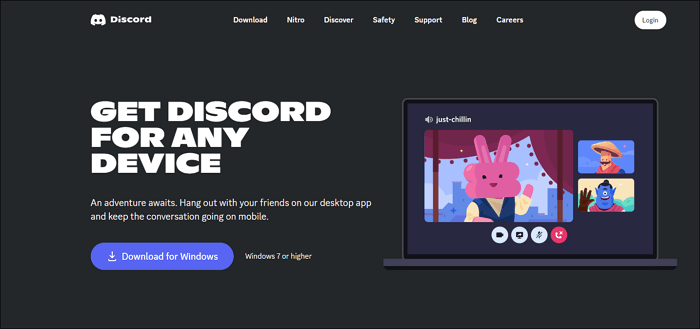
Step 1. First of all, you need to go to its official website to get the Discord app. Then, you can sign in by scanning a QR code from the mobile app or using your Discord credentials.
Step 2. There might be a black screen issue for most people who stream Netflix on Discord. So to avoid that problem, you can disable the hardware acceleration.
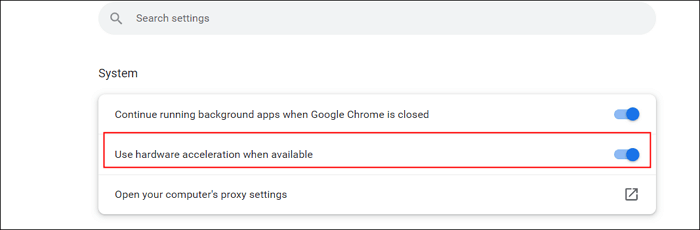
Google Chrome:
- Open Chrome, click on the three dots menu at the top right, and click «Settings».
- Click «Advanced» > «System» to disable the toggle that reads «Use hardware acceleration when available».
Firefox:
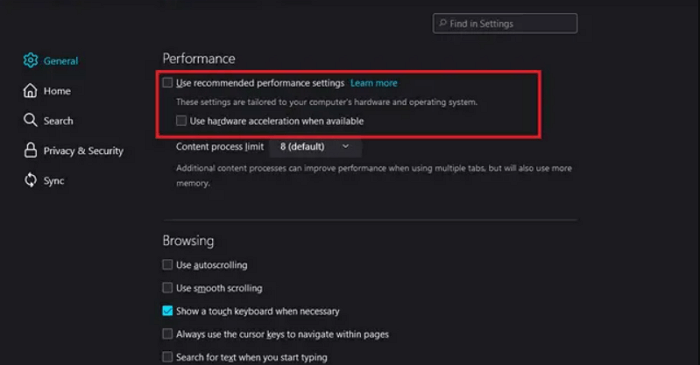
- Open your Firefox, and click the horizontal three lines to choose the «Settings» option.
- Click General > Performance to uncheck a checkbox that reads «Use recommended performance settings».
Step 3. Play the movie or video that you want to stream from Netflix. Next, minimize the tab and open the Discord app.

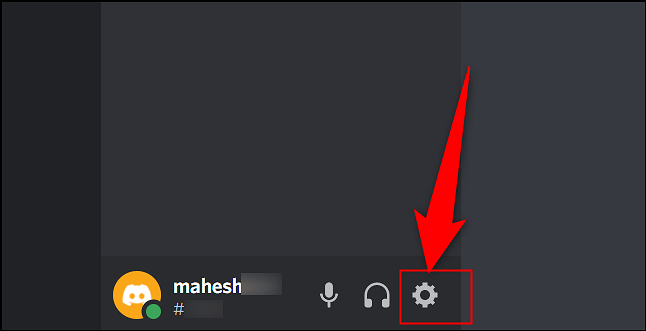
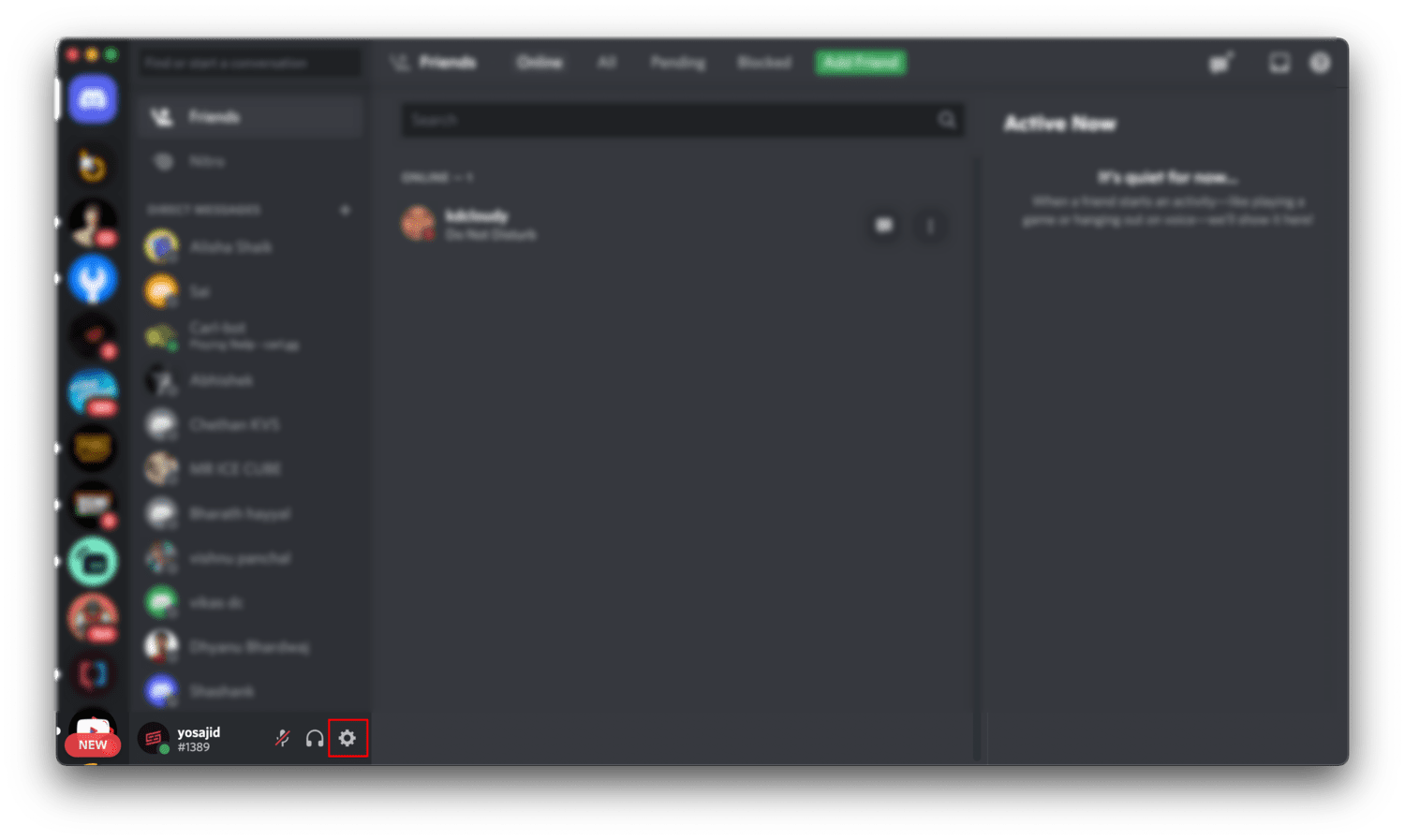
Step 4. Open the Discord app on your computer, then click «Settings» in the bottom left corner.
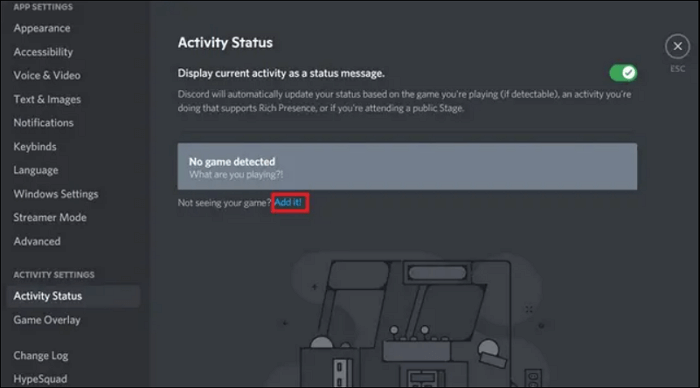
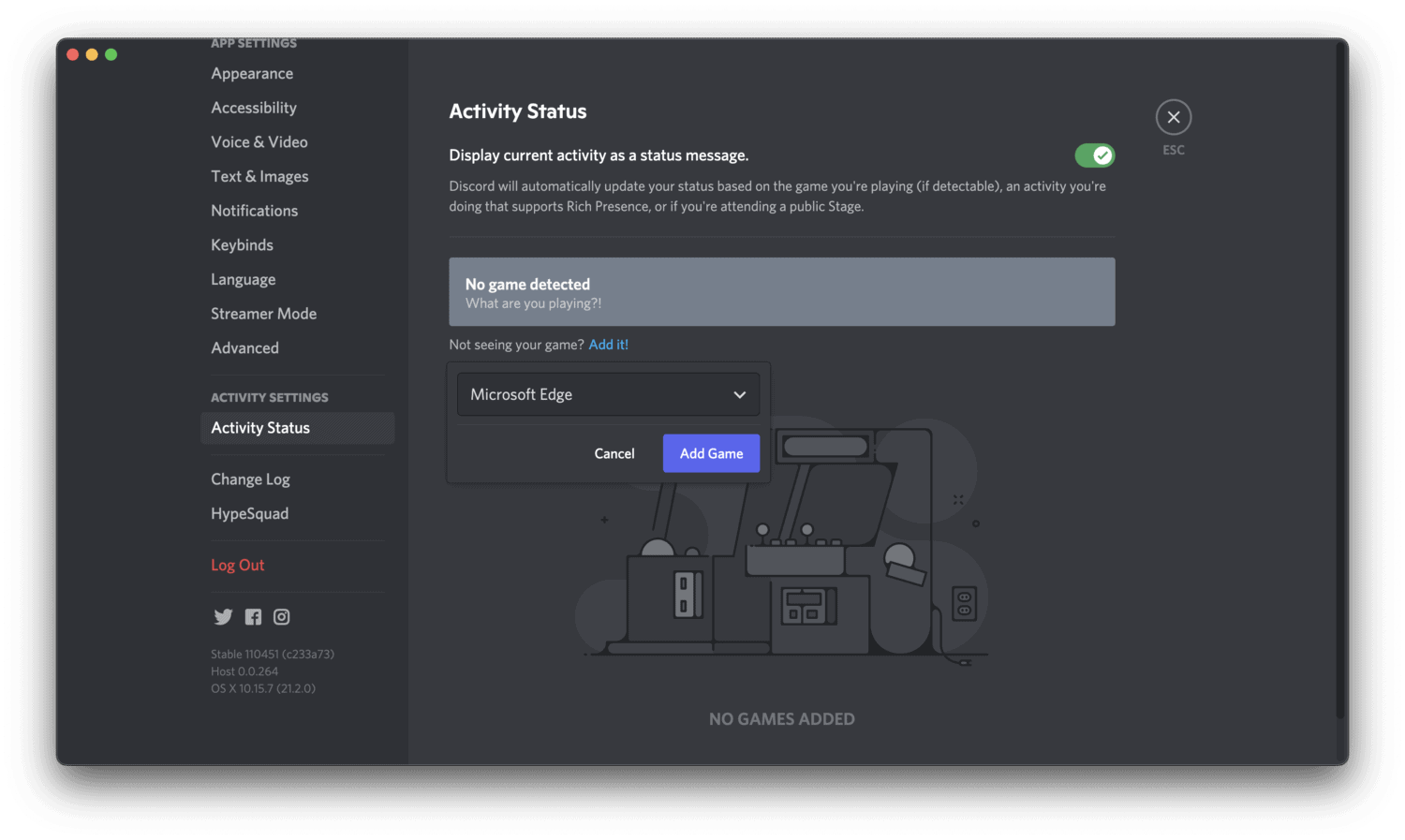
Step 5. Click «Activity Status» > «Add it!» on the Settings page. Once done, you will see a list of apps running in the background. Next, pick the browser window with Netflix and click the «Add Game» button.
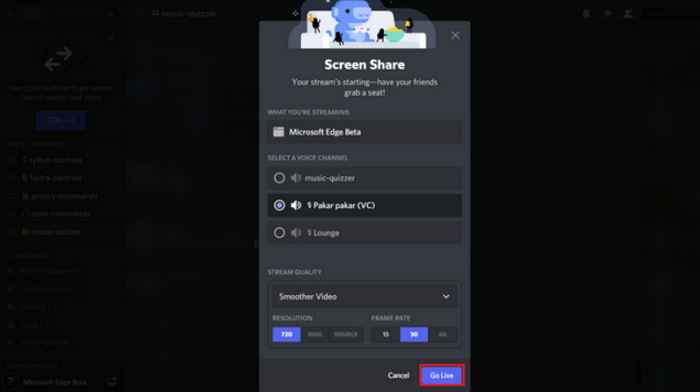
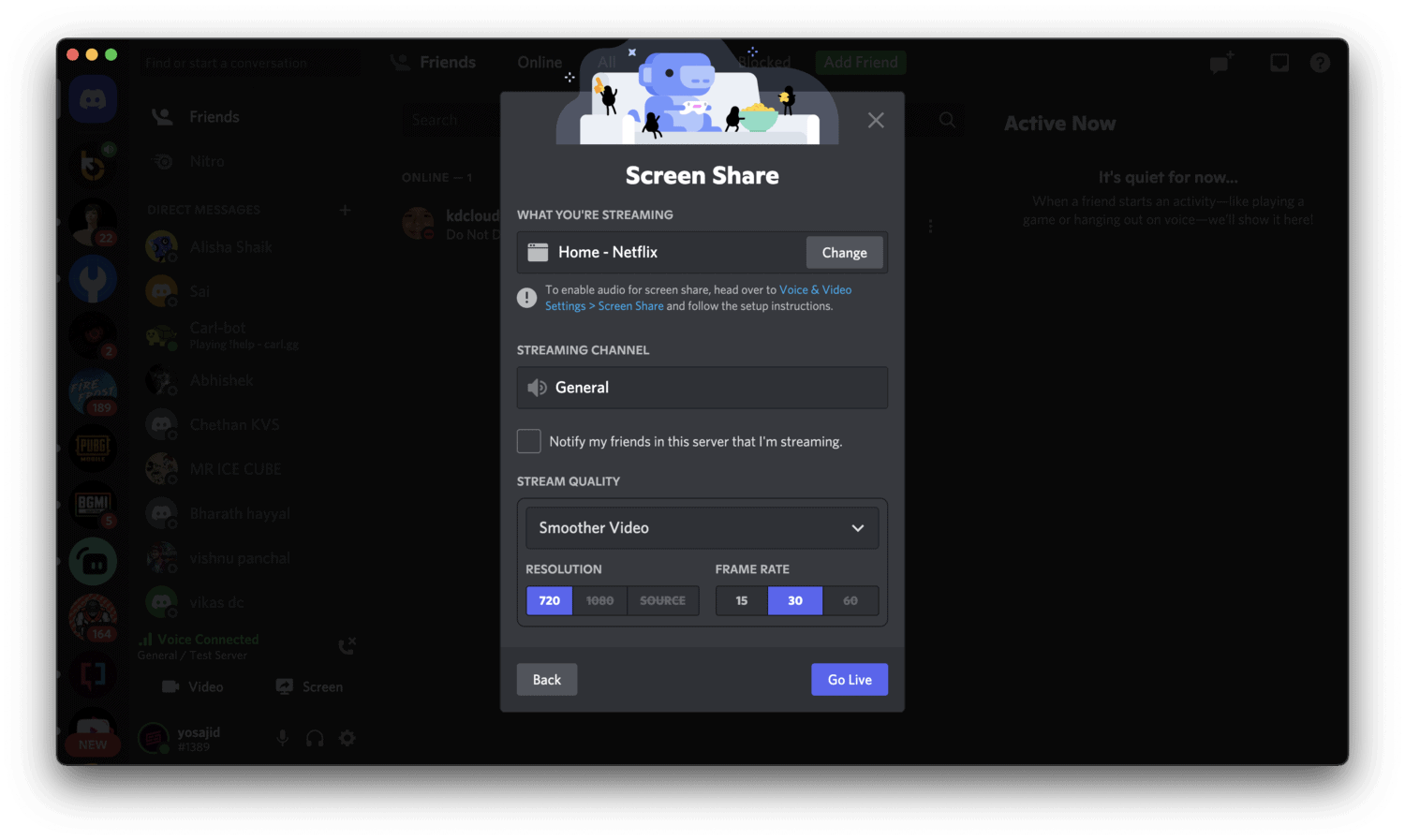
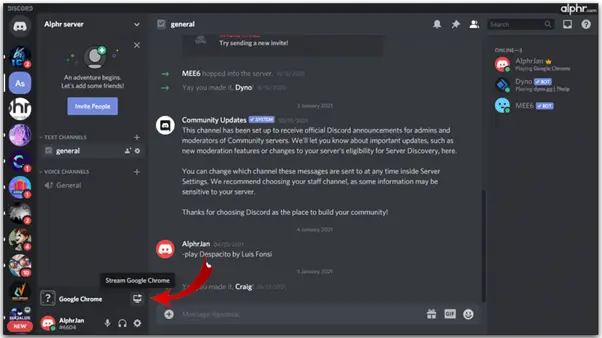
Step 6. Next, click on the «Stream» button present above your username. Once you have picked the channel and stream quality, click «Go Live» to start streaming Netflix on Discord.
That’s all for how to stream Netflix on Discord!
If you used to watch some video tutorials for sharing Netflix screen on Discord, you can also check the below video content:
Pro Tip: Record Netflix Videos for Sharing
If you sometimes want to save some brilliant videos from Netflix for offline watching, an excellent screen recorder can be much helpful. EaseUS RecExperts is a versatile tool that allows you to capture movies from popular streaming video sites, including Netflix, Amazon Prime Video, YouTube live, Hulu, etc.
With its help, you can choose your recording area flexibly, like an entire screen, a specific region, etc. Once selected, you are able to hit the «REC» button to start your recording. When it finishes, you can even export your recordings in various formats based on your needs. Most importantly, this unlimited screen recorder makes it possible to record screen as long as you want, leaving no watermark on your recordings.
Trustpilot Rating 4.7
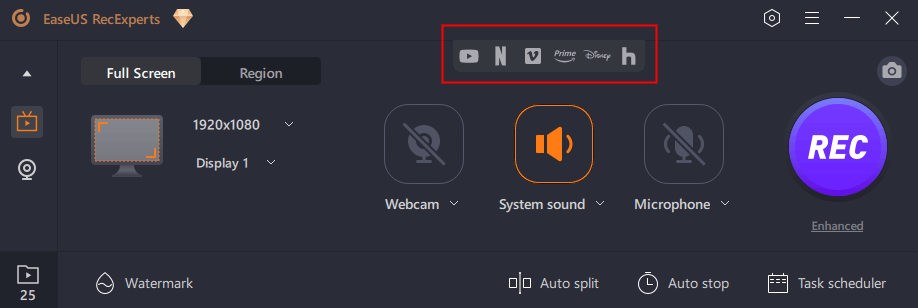
Step 1. Launch the EaseUS RecExperts, and click the downward triangle to find the «Enhanced mode» button that looks like a small TV on the left panel.
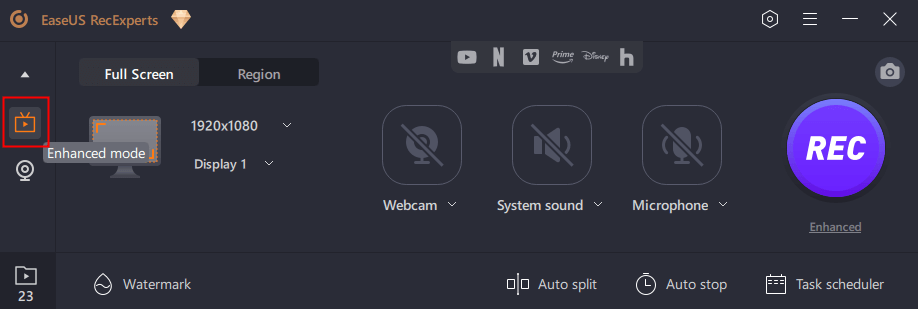
Step 2. Select to record the webcam, system sound, or the microphone. You can see popular streaming sites in this interface, including YouTube, Netflix, Vimeo, Amazon Prime, Disney, Hulu, etc. Then, click a site, and you will be lead to its official website.
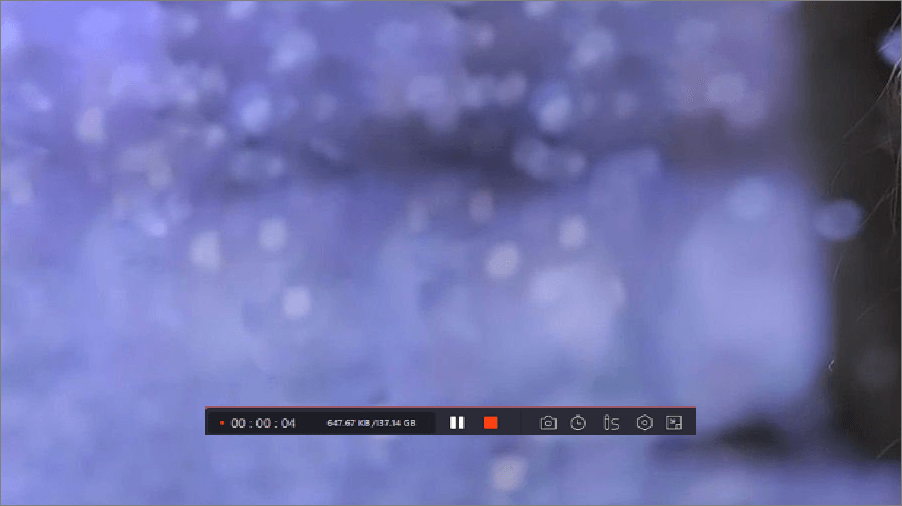
Step 3. Go back to EaseUS RecExperts and click the «REC» to proceed. The recording will start after a 3-second countdown. You can see a task bar on your screen. Choose the corresponding button on it to pause or stop the recording.
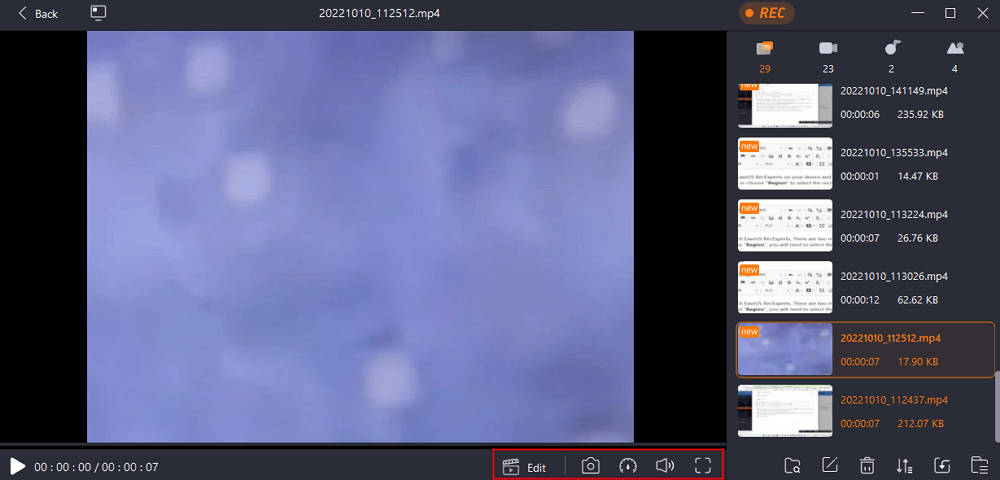
Step 4. When the recording is over, you will be lead to the preview interface where you can view and edit the recorded videos. Here you can eidt, take screenshots from the recording, or, adjust the volume and playback speed as you like.
The Bottom Line
Luckily, streaming Netflix on Discord is super easy, so you can watch your favorite shows and movies with friends. All you need to do is to follow the simple steps shown on this page, and you’re good to go! We hope this guide was helpful and that now you can enjoy streaming Netflix with your friends on Discord.
How to Stream Netflix on Discord FAQs
1. Is it possible to stream Netflix on Discord?
Sure! You can stream Netflix on Discord easily and quickly, as Discord enables streaming your favorite Netflix experience using the screen share feature.
2. How do I share my Netflix screen on Discord?
One of the most common reasons is the DRM limitations, and you will find the Netflix black screen on Discord due to the hardware acceleration. To deal with the problem, you’d best disable it. Based on the browser you are using, there are different methods to disable the hardware acceleration.
3. Why Netflix cannot play on Discord?
Discord often needs administrative access to your computer. If your drivers are not functioning, you won’t be able to watch a movie or be a part of the game, as you won’t be able to hear anything. So, if you find Netflix cannot play on Discord, you’d better check your drivers first.
One-click to capture anything on screen!
No Time Limit, No watermark
How to Stream Netflix on Discord With Friends [No Black Screen]
Discord is one of the best communication platforms; built primarily for gamers but has evolved for everyone. Constant updates, bug fixes, and Discord bots have made the platform grow over time with an increased user base. Discord has also made it available to stream movies, games, music, and more on the community servers.
On the other hand, due to the COVID-19 pandemic, people can not step out of their homes and should maintain social distancing. But to enjoy movies together with family and friends, you can now stream Netflix on Discord.
As a result, you might think you can stream Netflix on Discord. However, you might find a black screen instead of the content, and sometimes there’s no sound as well.
In this guide, we’ll show you how you can stream Netflix on Discord without any black screen and sound issues.
Warning:
Netflix doesn’t allow streaming content to Discord or to other apps. You will be violating Netflix’s ToC when you do it. Also, it is not legal in a few regions too.
Try this at your own risk and make sure you stream with only close friends and family members. Never do it for commercial benefits.
Streaming Netflix on Discord in 2024
First, you cannot stream Netflix on Discord mobile apps, whether Android or iOS. It is because of the DRM limitations, which don’t allow you to share your screen on the Discord mobile app.
Moving things aside, here’s how you can watch Netflix with your friends on Discord on your PC.
On a second note, the process shown in this guide allows you to stream shows from other platforms like Amazon Prime Video and Disney+ Hotstar too.
A few common causes don’t let you stream Netflix in Discord. Following these steps shall resolve the errors you face during the streaming process. Here’s how you can watch Netflix on Discord together.
1. Setup the Discord App on Your PC
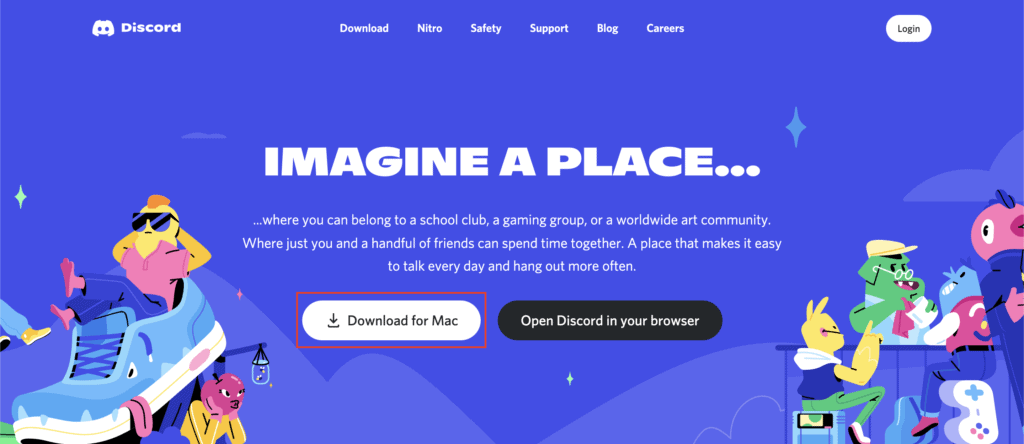
Discord is available on multiple platforms, including PC, smartphones, and web browsers. Although, for this process, you’ll need the desktop app to watch Netflix via Discord stream.
All you need to do is head over to the official site or click o the following link to download and install the Discord app on your Mac or Windows PC.
Once the app gets installed on your computer, log in to your Discord account if you have one. You can also log in using the QR Scanner on your mobile app. If you don’t have an account, you can create one by heading to the official Discord page.
2. Turn Off Hardware Acceleration
It is crucial to ensure that you don’t see a black screen when streaming Netflix through Discord. Hardware Acceleration is a helpful feature indeed, but it does cause trouble when you perform this process. The disabling process varies from browser to browser.
Google Chrome and Chromium-based browsers
Follow the steps below to disable Hardware Acceleration on Google Chrome or other Chromium-based browsers like Microsoft Edge, Brave, etc.
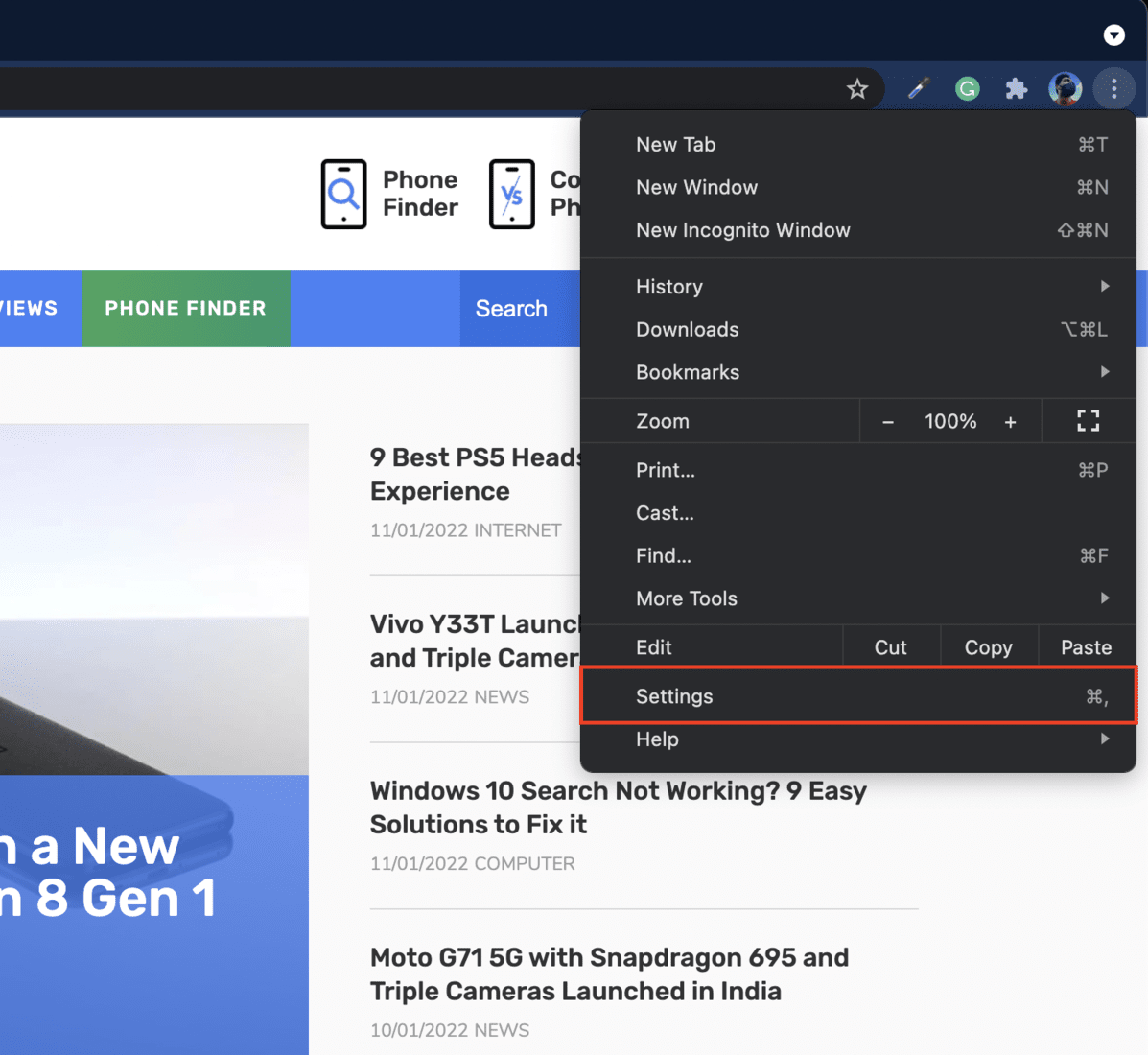
- Open Google Chrome.
- Go to the Settings page by clicking on the three-dots menu.
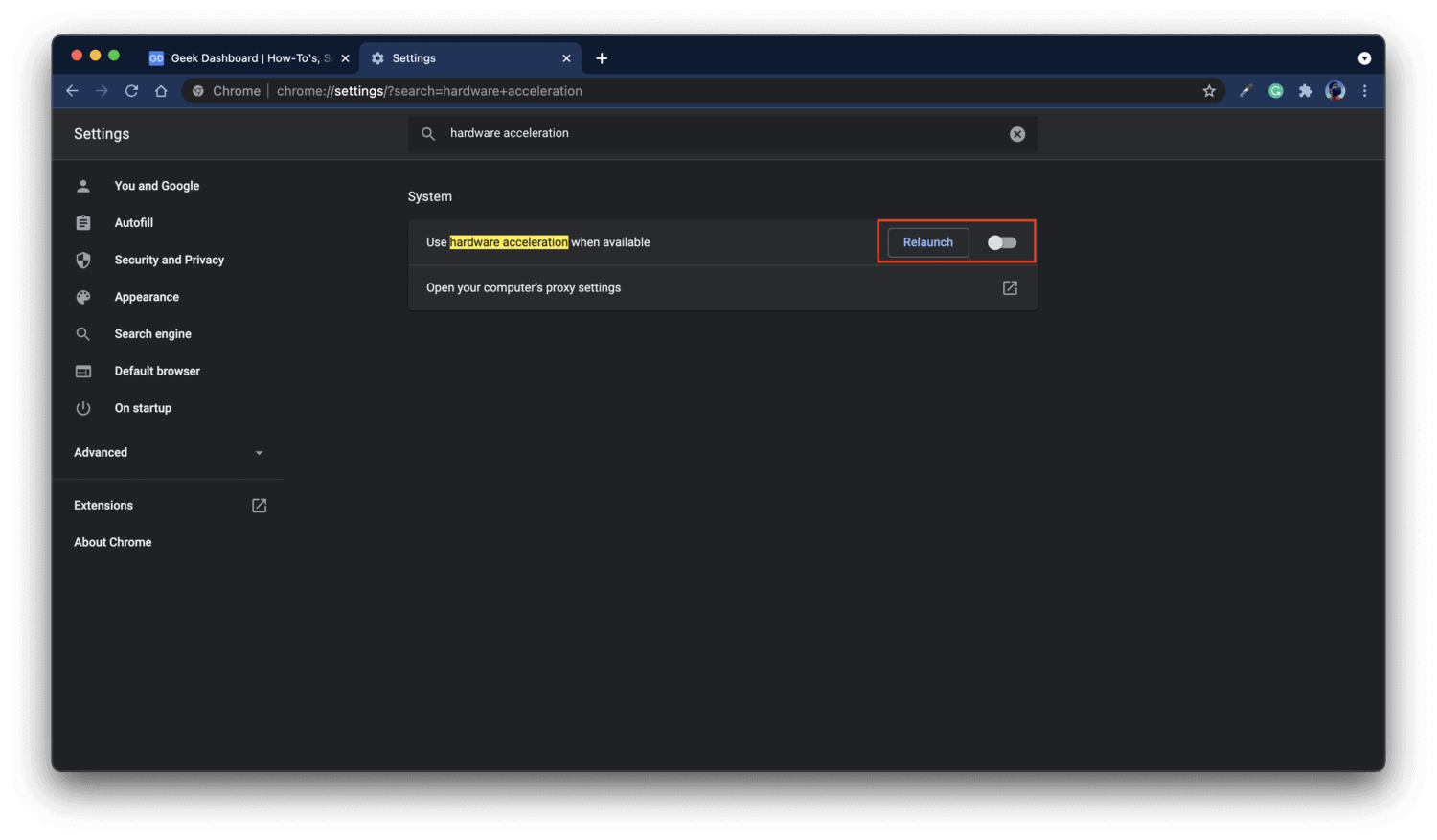
- Search for Hardware Acceleration in the Setting’s search bar, or you can find it under the System tab.
Firefox
The process for Firefox is a little different in comparison to Google Chrome. Here’s how you can turn off Hardware Acceleration in Firefox.
- Open Firefox.
- Head over to the Settings page by clicking on the hamburger menu.
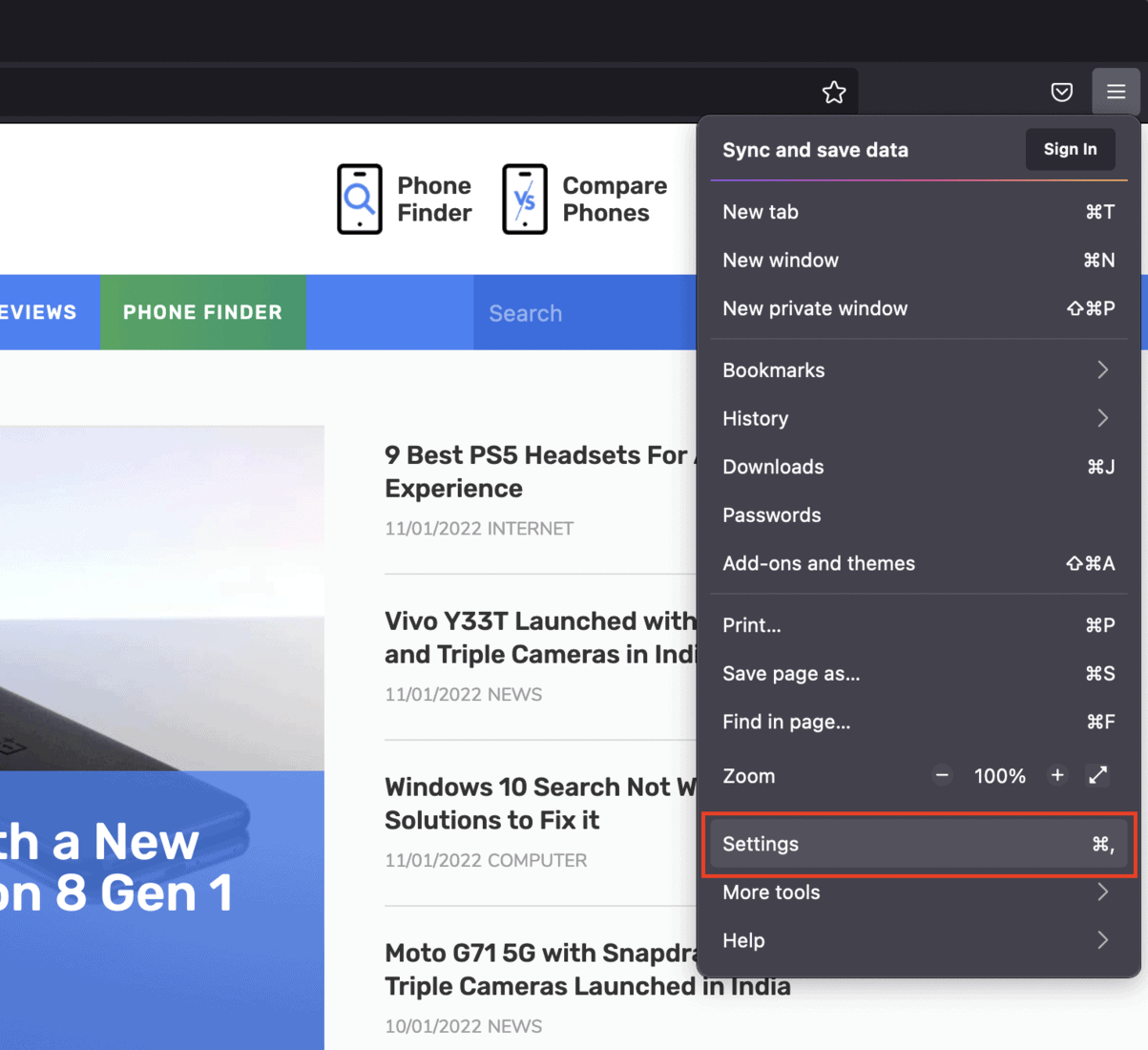
- Find the Performance section under the General tab.
- Uncheck the “Use recommended performance settings” option.
- Then, uncheck the “Use Hardware Acceleration when available” option.
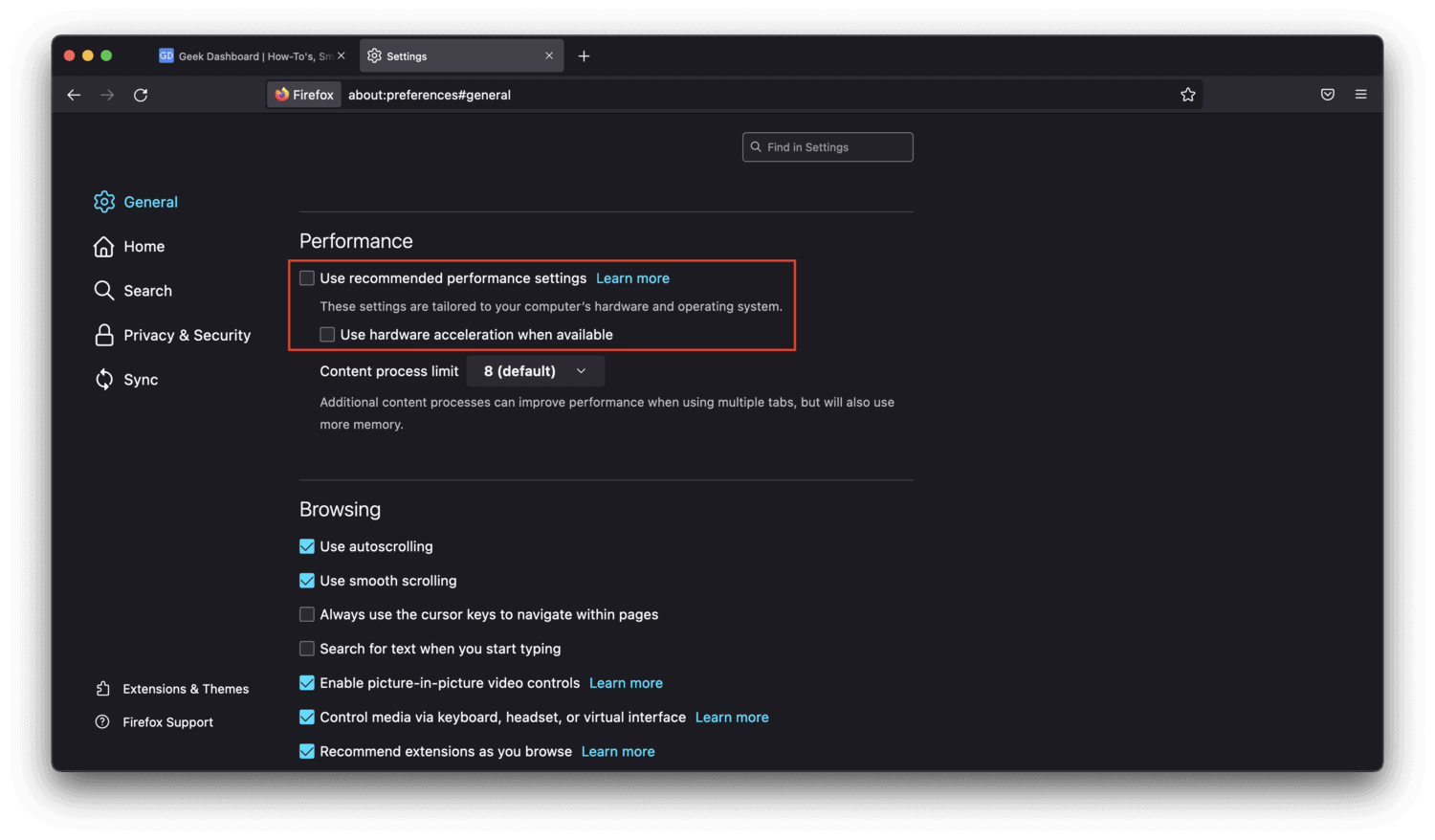
- Restart Firefox browser, and you should be good to go now.
Microsoft Edge
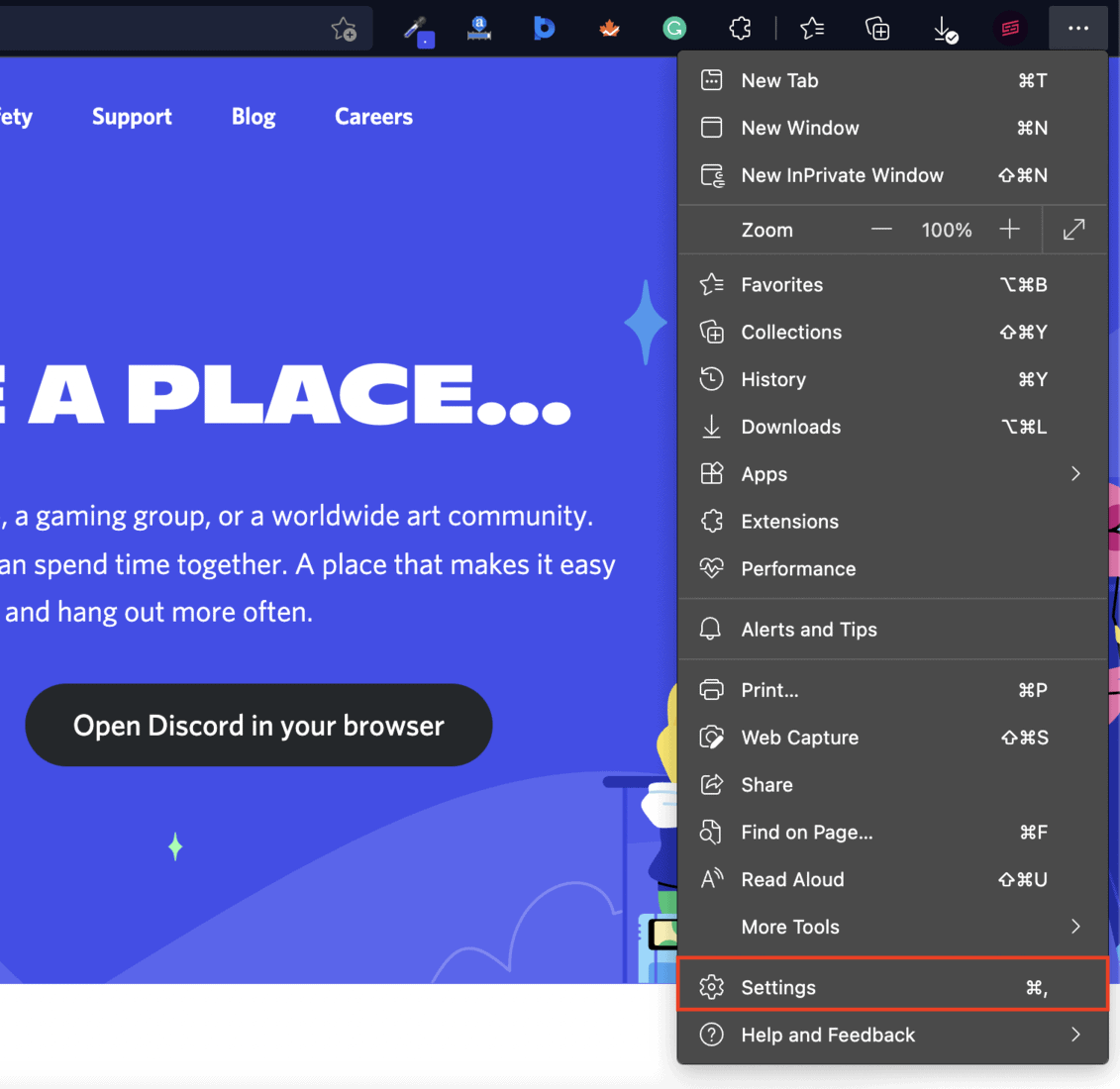
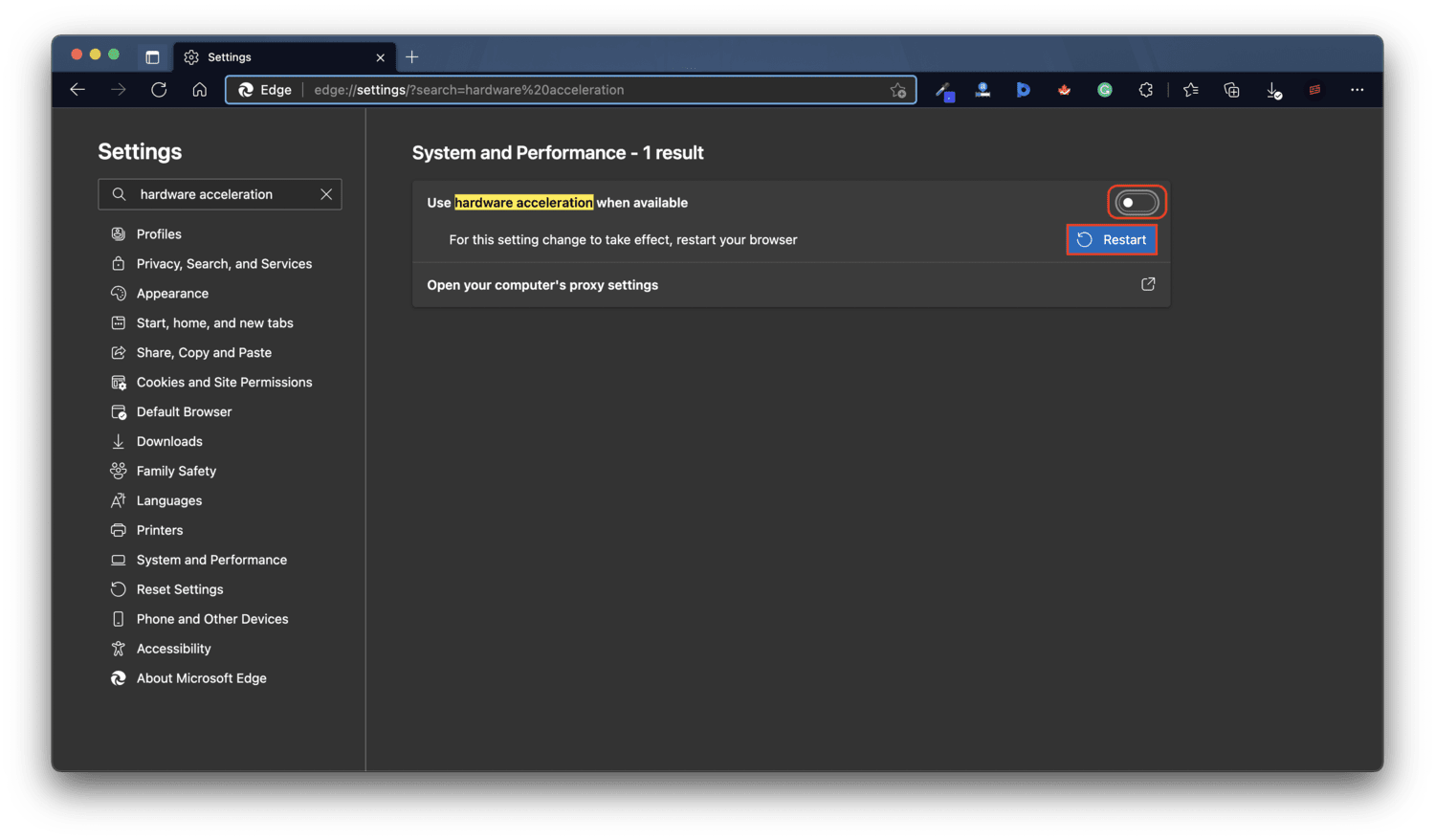
Since Microsoft Edge is also a Chromium-based browser, the process is a little similar to Google Chrome. Here’s how to disable Hardware Acceleration on the Microsoft Edge browser.
-
Open Edge and and go to the Settings page by clicking on the vertical three-dots menu.
3. Setup Netflix Streaming on Discord
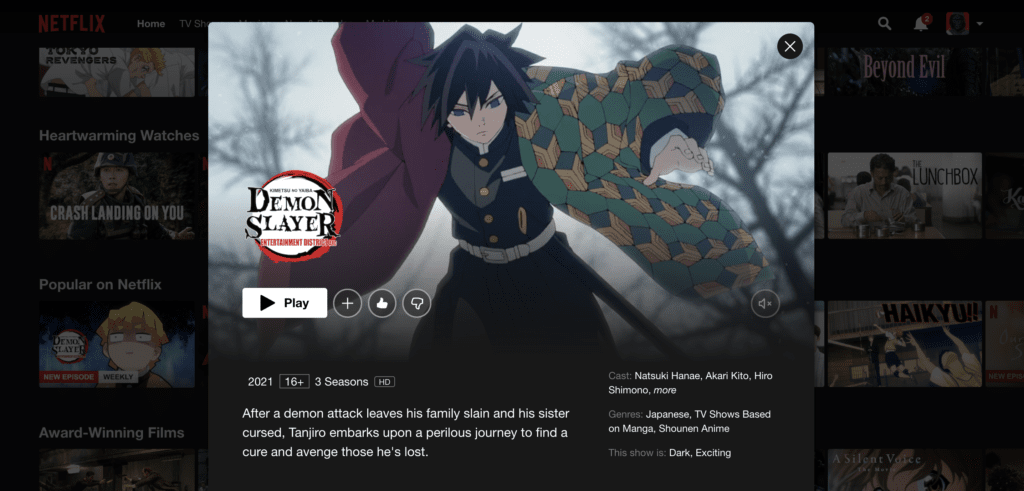
Now that you’re all set with the browser, head over to Netflix.com from your browser. Log in with your credentials and be ready with your friends’ content you want to watch.
Ensure that you have a fast and reliable internet connection to stream without buffering issues. Now that you’ve chosen the content, you can head over to the Discord app.
4. Preparing Discord Streaming
Now, it’s time to set up the Discord app for streaming. You can follow the provided steps below to further continue with the process.
- Open the Discord app and click on the Settings button on the bottom side.
- Choose the Activity Status tab from the sidebar menu scrolling down.
- Click on the “Add it!” button under the “No game detected” message.
- Choose your web browser from the list where you opened Netflix, and select Add Game.
- Close the Settings page and head over to the server where you’ll stream Netflix.
- Click on the Share Screen button.
- Adjust the stream quality and frame rate settings. Some options are available in Discord Nitro only.
5. Enjoy Streaming Netflix on Discord
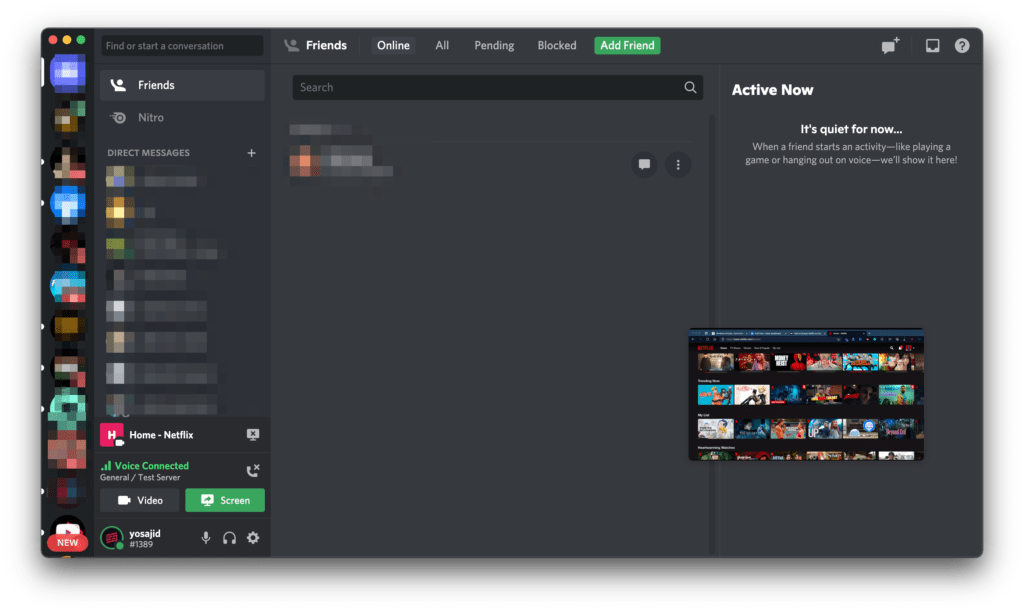
The stream will be accessible to everyone on the Discord server, and you will see the Netflix content you’re playing. If things are going in the right direction, you’ll see a floating window. Now it’s up to you and your friends to decide which Netflix show you want to watch.
Common Issues When Streaming Netflix on Discord and How to Fix Them
Things aren’t always right, and thus you might find yourself in several situations where you do things correctly but still face some issues. There are a few in this process too.
Here are some common problems you might encounter while streaming Netflix to Discord:
Black Screen Issue
As mentioned previously in the article, you’ll face the Black screen issue while streaming Netflix on Discord. Generally, you’ll see a black screen instead of the content when you play any Netflix content. However, your Netflix will continue to stream Netflix on your web browser.
Disabling Hardware Acceleration in the web browser should have solved your problem already. But if that’s not the case, follow the above steps again and restart your web browser in the end. Restarting your browser should resolve this issue.
No Audio Issue
Not only black screen issues, but users have also reported some audio issues. In many cases, viewers may not hear any audio even when you see the content perfectly. That said, there isn’t any solution that could work universally for every computer.
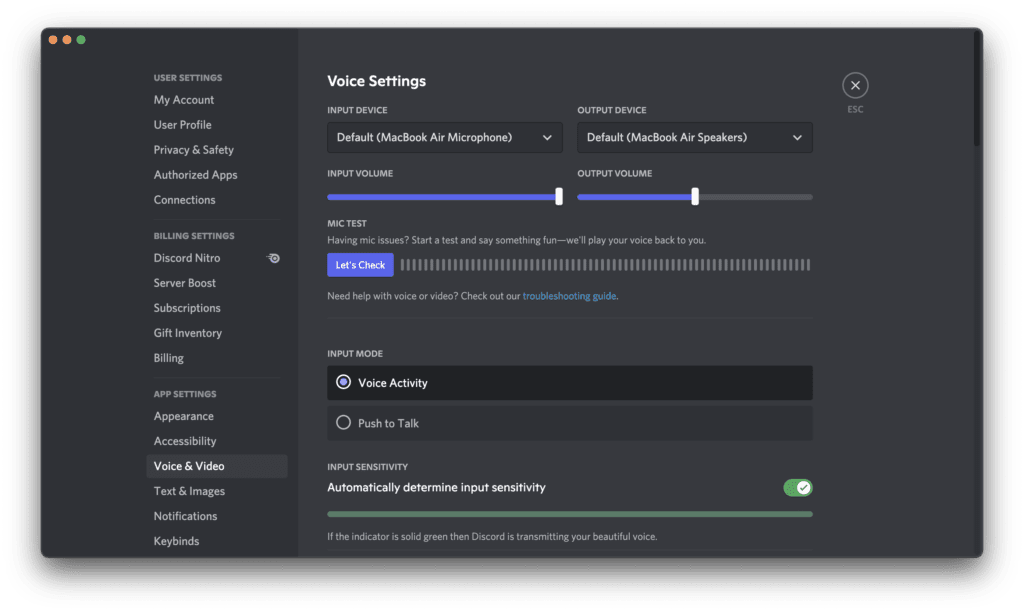
On the other side, you can look at the Voice settings on your Discord app and follow the recommended steps. Sometimes, you might have to go through installing a third-party agent that captures the audio content from the desktop and adds it to the stream.
Furthermore, ensure that Discord is capturing the audio from the correct source. For instance, the Discord app should be capturing the audio from the system when you’re on Netflix.
Conclusion
We hope this guide was beneficial to you in understanding how you can stream Netflix on Discord. On top of that, it isn’t legal and it’s unofficial to stream Netflix on Discord; follow this method at your risk. You should use this method only to enjoy movies with your limited close friends and family members. Else you may be troubled legally.
As mentioned previously, this method is only possible on Windows and Mac but not on Android or iOS due to DRM limitations.
Once you follow these steps in the process, you’ll be able to stream Netflix through Discord and have a watch party with your friends. If you have any further queries or suggestions regarding this, you can let us know in the comments below.
Spread the word and help us create better tech content
How To Stream Netflix On Discord — Step By Step Guide (2024)
Netflix can be streamed using a variety of hardware, software, and apps, and Discord users have come up with an inventive way to do it. If you want to add some great entertainment, you can learn from this step by step guide how to stream Netflix on Discord.
Gaming enthusiasts can connect on the Discord platform to discuss shared interests and stream media.
This article will cover 6 different ways of how to stream Netflix movies and TV shows using Discord as well as how to resolve audio and video issues.
You’ll learn more about «Go Live» and why it might be the best option for you and your friends in addition to how it works.
-
- How to Stream Netflix on Discord from a PC
- How to Stream Netflix on Discord with Audio
- How to Stream Netflix on Discord Without Black Screen
- How to Stream Netflix on Discord on Android
- How to Stream Netflix on Discord on iPhone
- How to Schedule a Watch Party on Discord
- Video Walkthrough
- Troubleshooting Problems
- Why Is My Screen Black When I Stream Netflix on Discord?
- Can You Screen Share Netflix on Discord?
- How Do You Watch a Stream on Discord?
- What Is Go Live on Discord?
- Is It Illegal to Stream Netflix on Discord?
How to Stream Netflix on Discord from a PC
Even if you’re far apart, you can still communicate with your friends while watching something on Netflix through Discord. Here’s how to stream Netflix if you’re using Discord on a Mac or Windows computer:
- Go to the «Netflix website» by opening a «web browser» and entering the address.
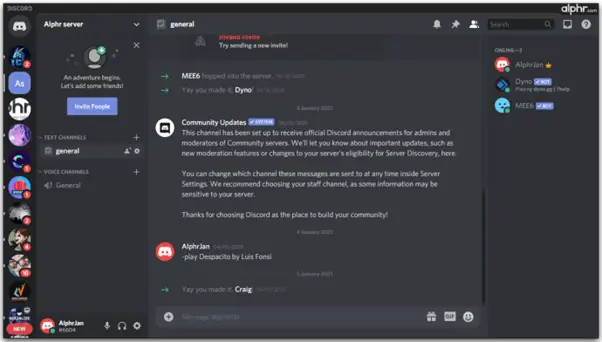
- Open «Discord» and make sure it’s connected to a server simultaneously.
- At the bottom of the page, click «Settings,» then select the «Activity Status» you want to use.
- Select the browser tab that has a streaming service open by clicking «Add it» and then selecting the tab. Click «Add Game» after selecting Netflix.
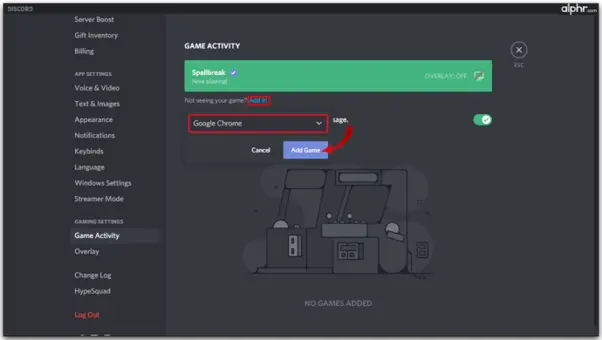
- After leaving «Settings,» select the «screen icon» in the bottom-left area.
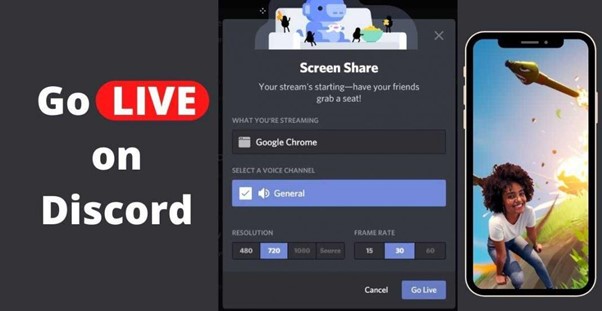
- Pick the «browser tab» you want to stream in the «Screen Share» pop-up.
- Change the streaming options.

- Click «Go Live» to launch Netflix streaming.
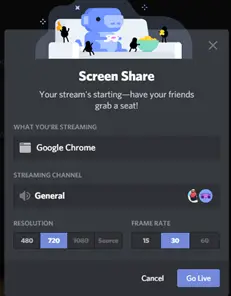
- Go back to Netflix and start watching the movie you want to share.
Discord streaming is unique in that you can watch a movie or TV show while keeping your camera on so that your friends can see how you are responding to the action on the screen.
How to Stream Netflix on Discord with Audio
On Discord, audio issues are some of the most frequent issues experienced by viewers and players, so it’s critical to identify their root causes before going live.
There are a number of causes for the intermittent inability to hear sound when streaming content from another platform.
The fact that Discord frequently requires administrative access to your computer is one of the most typical explanations.
You won’t be able to watch a movie or play a game if your drivers aren’t working because you won’t be able to hear anything.
Audio driver issues on users’ devices have also been mentioned as a problem. This typically indicates that the drivers are corrupt when it occurs. In that case, the images will be clearly visible but, regrettably, soundless.
Last but not least, the «Screen Share» feature is unstable and, even in its early stages, can cause audio signal issues.
Verify that Discord has been granted access to all of your audio devices and that they are all turned on.
Reminder: Adding audio functionality requires additional steps if you’re having trouble streaming with audio on a Mac.
How to Stream Netflix on Discord Without Black Screen
There’s a good chance that if you use Discord, you’ve tried to stream games or other content and encountered a black screen. Typically, your graphics drivers are to blame.
There are several solutions you can try if you frequently encounter these issues:
- Update the Discord application.
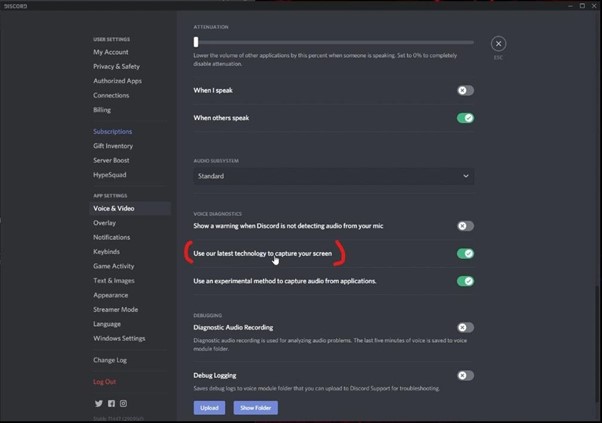
- You can enable or disable hardware acceleration.
- While streaming, shut off all unnecessary programmes.
- Discord’s cache folder should be cleared.
You may need to reinstall Discord if none of these fixes work to resolve the issue. Putting in a newer version of Discord might fix your issue.
Keep in mind that outdated computers can also cause issues, so if Discord isn’t functioning properly, you might want to think about purchasing a newer model.
How to Stream Netflix on Discord on Android
It is not possible to stream Netflix through the Discord app on an Android device, but you can always use it to place voice and video calls.
You’ll need to sign in or make a new account after installing Discord on your phone in order to communicate with your friends.
To invite your friends to join, simply create a public or private server. Most users favour private servers, which are great for groups of people.
Public groups, however, are also intriguing if you want to network and pick up new gaming strategies.
How to Stream Netflix on Discord on iPhone
iPhone users cannot stream or screen-share their gaming activities using Discord. Only Windows or Mac computers running Discord are capable of doing this. You can only make voice and video calls on your iPhone.
They will, however, have a flawless sound quality and almost no lag. On all 4G and 5G networks, the video quality is quite good. Although you currently cannot share your screen, this feature might become available in the future.
How to Schedule a Watch Party on Discord
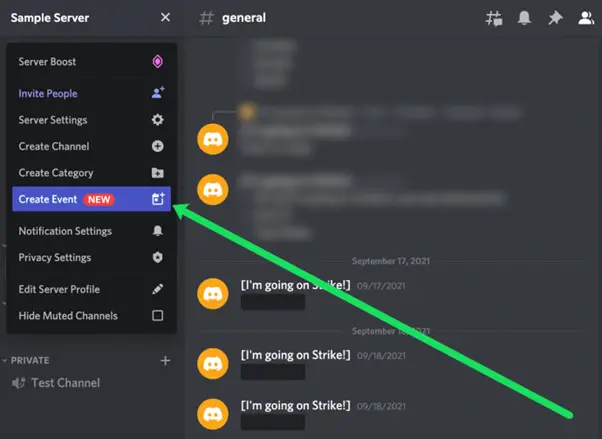
- To open the dropdown menu, click the arrow icon in the top left corner.
- Select «Create Event.»
- Click Next after selecting the live stream’s source. We’re using the Voice Channel in this instance.
- Click Next after naming your event, choosing the date and time, and adding a description.
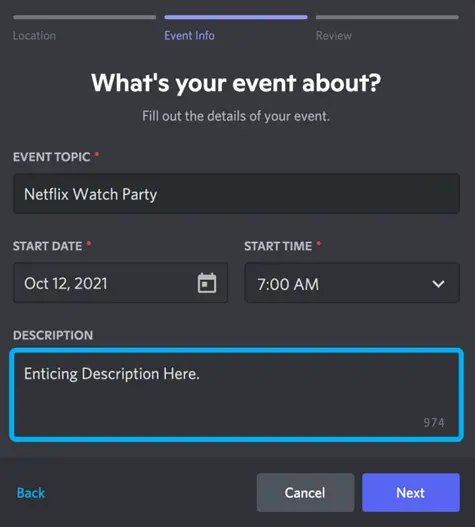
- After reading, click Create Event.
- The event is now accessible from the same menu as your channels. To view an event, click it.
- To invite people, click the people icon.
Video Walkthrough
If you’d like to see a walkthrough video of the procedure, please click on the below YouTube video and also check out some of our other Discord guides.
Troubleshooting Problems
Why Is My Screen Black When I Stream Netflix on Discord?
Many Discord users are familiar with black screens. The likelihood that you won’t be able to view any video content is high if your computer’s background processes are active or if your cache folder is overloaded.
A good reason to check frequently is the possibility that your Discord has not been updated.
- Keep Discord up to date.
- When streaming, shut off all unnecessary programmes.
- Delete the Discord cache folder.
- Change the settings for hardware acceleration.
The fact that Netflix is DRM-protected and you can’t always share the screen is another problem. This is meant to stop friends from sharing without permission.
If so, try utilising a different web browser. Our tests show that Chrome functions without a hitch. Some users, however, claim that they can only use Firefox. The problems should be resolved by switching browsers.
Wrapping Up
Discord is one of the best VoIP apps, so it attracts a lot of gamers who use it as a communication tool. However, a lot of users use Discord to play movies and TV shows in their small communities.
We hope this guide has given you a better understanding of how Discord functions. Netflix content streaming might be simpler now that you know how to do it and what device to use.
Additionally, you are now aware of any potential issues and how to fix them so that Discord runs smoothly.
Discord Netflix Streaming FAQs
We’ve included this section to answer more of your questions about Discord and Netflix.
Can You Screen Share Netflix on Discord?
You can use Netflix to stream movies to your private groups, so the answer is yes. Discord has a lot more features than just the ability to show off your gaming prowess or communicate with friends. You can use it to play games, watch something with friends, or assist friends with projects because it is high-quality streaming.
How Do You Watch a Stream on Discord?
Everyone’s favourite Discord activity is streaming, which is also what makes the service so well-liked. If someone is streaming right now, you’ll see a «Live» icon. You must select «Join Stream» if you want to participate and watch the live stream. It only requires one click.
What Is Go Live on Discord?
Anyone can stream gaming sessions with up to 10 people at once using the Discord function «Go Live» on any voice channel. The goal is to create a setting in which you can demonstrate your moves to your friends while playing a game in a room full of them. Even though «Go Live» functions best on Windows, Mac, and Linux apps, users can access this feature through browsers as well. «Go Live» works with any server.
Is It Illegal to Stream Netflix on Discord?
There isn’t a conclusive response to this question as of yet. Netflix’s terms and conditions state that sharing content with people outside of your home is prohibited unless you use the Teleparty feature (formerly called Netflix Party). Several factors, including local laws in your area, the intended use of the streaming, and other copyright laws, will likely determine whether you can be prosecuted for streaming Netflix content on Discord.
About the Author

Daniel is a web designer and developer. He has been a developer for the last 10 years working with various WordPress themes that allows him to compare and contrast different themes, understand the strengths and weaknesses to develop factual, real-world reviews. He is also a mobile app developer and technology reviewer. Over several years, he has developed his own mobile apps, both on Android and iPhone. This hands-on specialisation in mobile and web development allows him to be an authoritative voices when it comes to technology reporting.
One more thing. Did you know that people who share useful stuff like this post look AWESOME too? 😉
Please leave a useful comment with your thoughts, then share this on your Facebook group(s) who would find this useful and let’s reap the benefits together. Thank you for sharing and being nice!Disclosure: This page may contain links to external sites for products which we love and wholeheartedly recommend. If you buy products we suggest, we may earn a referral fee. Such fees do not influence our recommendations and we do not accept payments for positive reviews.