Factory reset Samsung Galaxy M12

If your Samsung Galaxy M12 smartphone is running very slowly, hanging, you want to bypass the screen lock, or you have a full memory and want to erase everything, or you want to sell or give it away and want to ensure that nobody can access your files and passwords, you can do a factory reset to restore it to its original state like the first day.
In the following steps we explain how to format the Samsung Galaxy M12 to erase all your information and make it totally clean as it came out of the store.
Before doing a factory reset, we recommend deleting all the accounts on the device, specifically it is useful to unlink the Google account if you are going to sell, donate, or give away your Galaxy M12. This will avoid problems for the new user, as some newer devices include a functionality called FRP (Factory Reset Protection) that requires the same Google account or PIN code with which the Samsung Galaxy M12 was initially configured when factory resetting a device.
Keep in mind that a reset or return to the factory state on a mobile/cell phone deletes all its content, so make a backup of your data before doing it if you don’t want to lose everything.
In case you do not want to erase the data from the device, you can try to restart the Samsung Galaxy M12..
There are two ways to do a reset on a Samsung Galaxy M12 one through the mobile options and another more complete from the recovery mode.
Table of Contents:
- Restore from the options of Samsung Galaxy M12
- Video instructions
- Hard reset Samsung Galaxy M12
- Related articles
Restore from the options of Samsung Galaxy M12
If you want to make a reset using the device options to return to the factory state a Samsung Galaxy M12 you have to follow these simple steps:
Estimated time: 5 minutes .
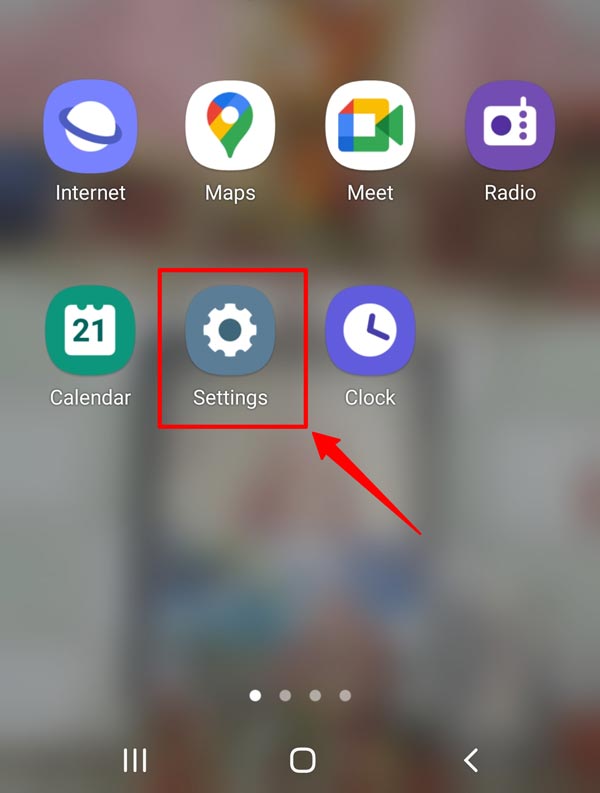
Access the settings menu of your Samsung SM-M127F/DSN, it is the gear icon. If you don’t see it on the home screen, swipe up from the bottom of the screen and make sure it’s there.

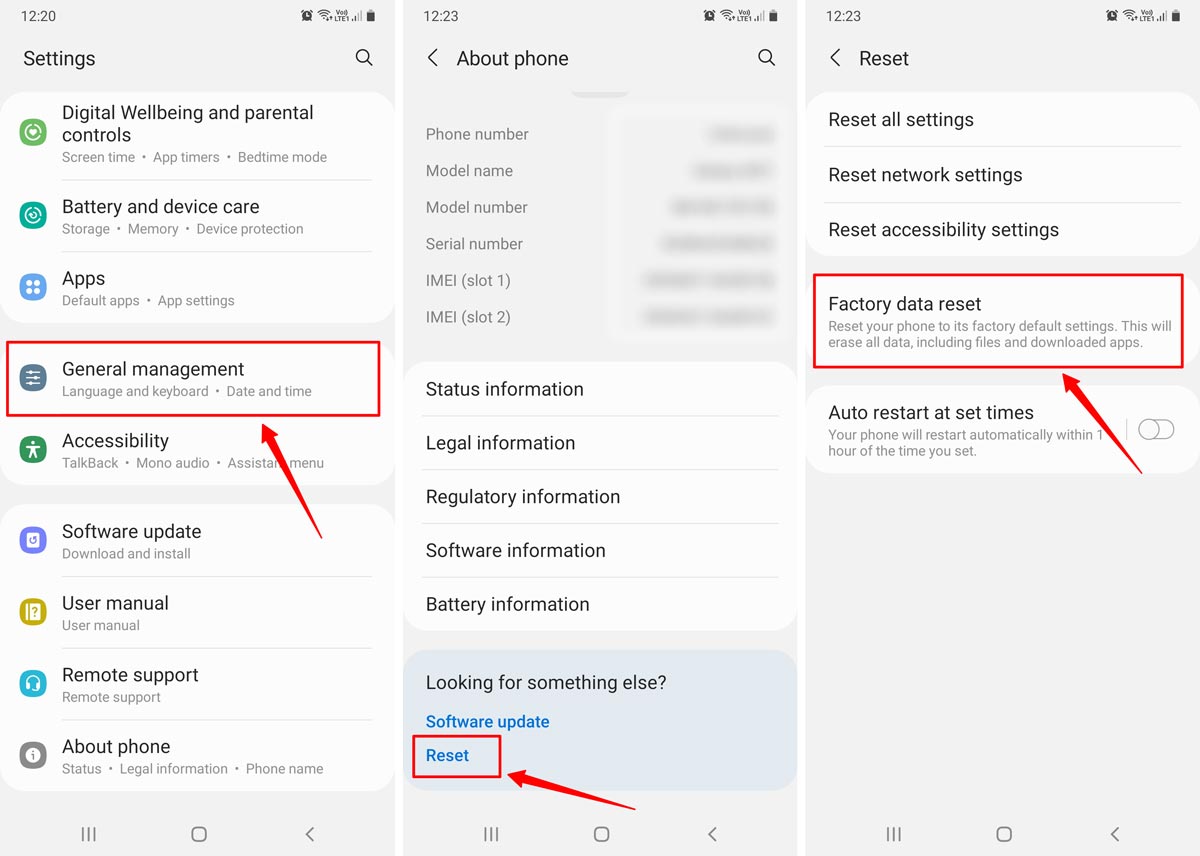
Scroll down the Samsung Galaxy M12 settings until you find the section called “General management”, press to access those settings and continue.

If a section called “Advanced” appears, click to display the advanced options of the Samsung Galaxy M12. Otherwise, scroll down until you see “Reset” and click on that option to continue.

Several options will appear to reset the Samsung Galaxy M12, the first called “Reset settings” resets the default settings, it is a simpler and less deep reset. The method to remove all the content from the Galaxy M12 completely is “Factory data reset” click on this option to continue.

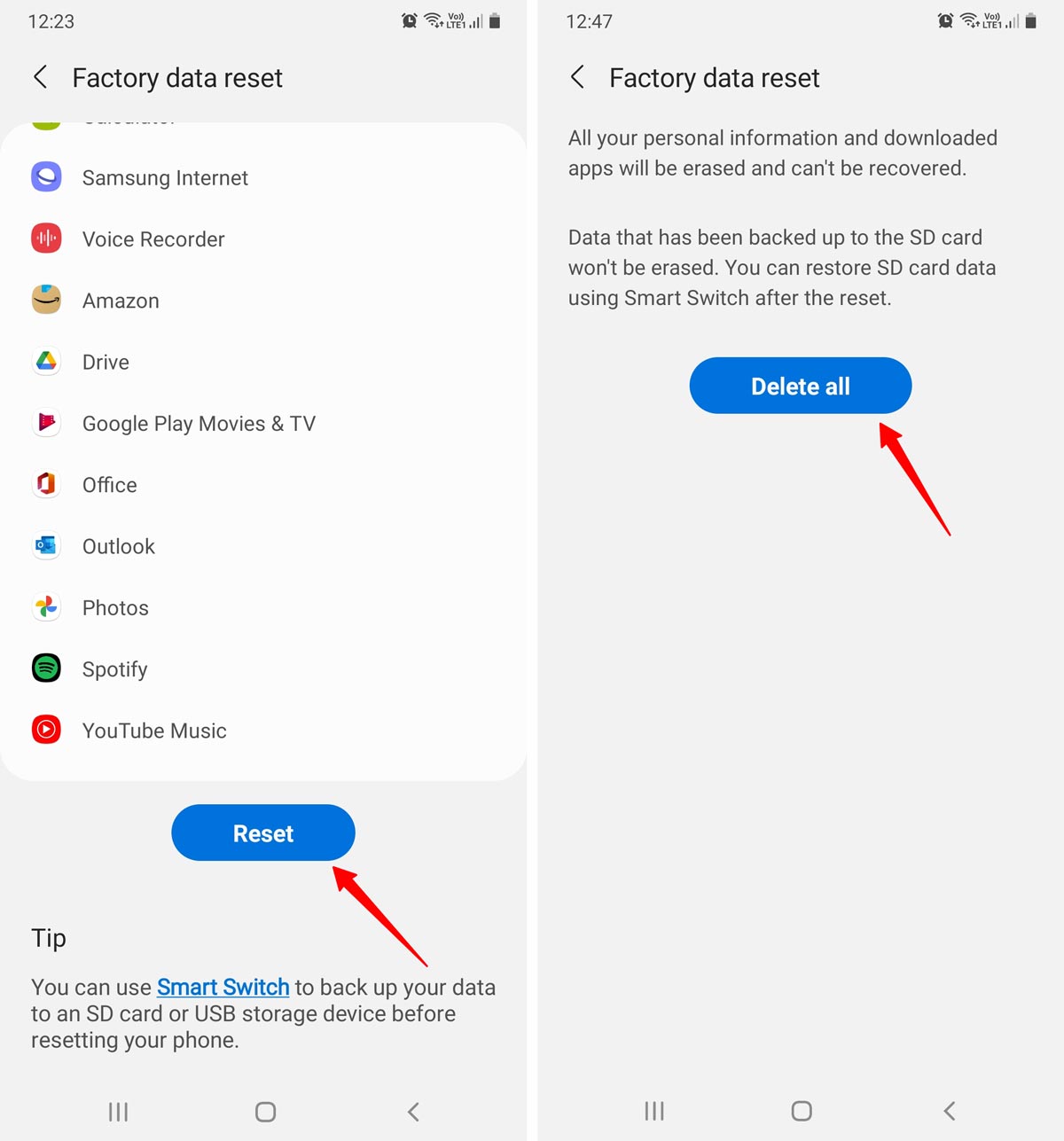
A list of all the data that will be removed from the Samsung Galaxy M12 and the applications that will be uninstalled will appear. Scroll down until you find the “Reset” button and press to continue with the process.

If necessary, draw the screen unlock pattern or enter the screen unlock password or PIN to continue.

A second confirmation message will appear indicating that all information stored on the Samsung Galaxy M12 and all downloaded applications will be erased and reminding that this action cannot be undone. If you agree, click on “Delete all”.

Your device Galaxy M12 from Samsung it will restart and take several minutes to start while restoring the device to its factory state and optimizing the applications pre-installed in the operative system Android 11, One UI 3.0.

Users rating on reset an Samsung Galaxy M12
How to Hard Reset Your Samsung Galaxy M12 SM-M127F Unlock Pattern Forgot Password

Last Updated on July 17, 2021 by Editorial Staff
Inroduction
On this page, we shared a complete guide on how to hard reset your Samsung Galaxy M12 SM-M127F using recovery mode. Of course, a hard reset will increase your device performance. You will feel that your phone will work very well after the hard reset. We can help you on how to wipe all data of your phone. You can also bypass screen lock and pattern lock with a hard reset.
A hard reset is a way to restore a device to its original factory settings, effectively wiping all of the data, settings, and applications that have been added to the device. Here are the steps to perform a hard reset on a Samsung Galaxy M12 SM-M127F.
A hard reset, also known as a factory reset, is a process of restoring a device to its original manufacturer settings. This type of reset is often used to fix software issues or to erase all data on the device before disposing of it. Here are the steps to perform a hard reset on your mobile phone:
How To Hard Reset On Samsung Galaxy M12 SM-M127F? Unlock Pattern Forgot Password
Backup your data: Before performing a hard reset, it’s important to backup your important data such as contacts, photos, and other files. You can backup your data to a cloud service or transfer it to a computer.
- Turn off your phone: Press and hold the power button to turn off your phone.
- Enter recovery mode: The steps to enter recovery mode may vary depending on the brand and model of your phone.
- Typically, you need to press and hold a combination of buttons, such as the volume up, volume down, and power buttons, while the phone is turned off.
- Check the user manual or online support resources for your specific phone to find the exact steps.
- Perform the reset: In recovery mode, navigate to the «Wipe data/factory reset» or «Reset to factory settings» option using the volume buttons to move and the power button to select. Follow the on-screen instructions to reset your phone.
- Restart your phone: After the reset process is complete, restart your phone. It will boot up as if it were new, and you will need to set it up and restore your backed-up data.
Disclaimer: The exact steps for performing a hard reset on a mobile phone may vary based on the specific model and operating system, so I would recommend consulting the user manual or online support resources for your particular phone if you need more detailed instructions.
Continue holding the Volume Down button until the device finishes rebooting. After the hard reset, the Galaxy M12 SM-M127F should be returned to its original state, as it was when it was first purchased. You may need to set up the device again as you would for a new device, including configuring the Wi-Fi and re-installing any applications that you want to use.
Please note that performing a hard reset will erase all data stored on the device, including contacts, messages, and other personal information, so it’s important to back up any important data before starting the process.
Latest Samsung Mobile Phone Prices


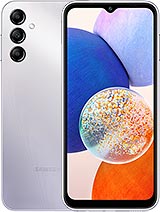

Step 1: Firstly, you need to press the Power key Button to Restart your Samsung Galaxy M12 SM-M127F. See the below picture:
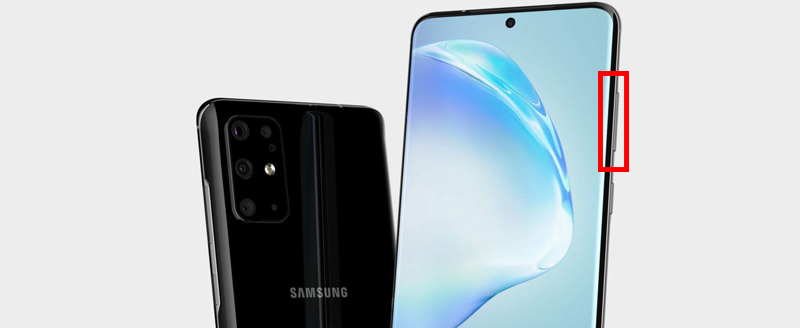
Step 2: Now, when your device is vibrating then, you need to hold the Volume Up and Down with Power button together. See the below picture:

Step 3: If you would like to hard reset on Samsung Galaxy M12 SM-M127F using Stock Recovery Mode Option, follow the below steps one by one.
You can use both Volume keys: UP Key and DOWN Key together to choose «wipe data/factory reset» Now, if you are sure and want to hard reset please confirm using the Power key button. See the below Image:
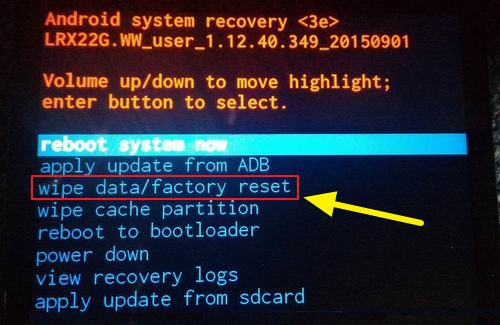
You can use Volume Keys to select the «wipe data/factory reset option» if you want to reset your Samsung Galaxy M12 SM-M127F with Recovery Mode.
Step 4: Now, you will select «Yes» using the Power button. See the below picture:

Step 5: After that, select “Yes — delete all user data” by pressing the Volume Down button. See the below image:
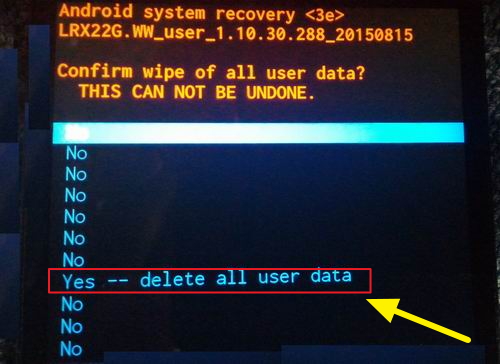
Step 6: Finally, press the Power button to Reboot the system, and now Press the power button to confirm.
Step 7: That’s it! You have successfully hard reset on Samsung Galaxy M12 SM-M127F.
We hope that the above-given steps will help you to hard reset of your Samsung Galaxy M12 SM-M127F.
Read Me Once: We advise you before the hard reset, you need to create a backup of all files and save them in a safe location. Hard reset will affect your phone storage and all data including images, videos, and other documents. So we will not force you, do it on your own risk.
Samsung Galaxy M12 Hard Reset, Factory Reset & Unlock

Do you want to Hard Reset or Factory Reset Samsung Galaxy M12 phone? If yes, then keep reading this article until the end. In this article, I have shown you seven methods by which you can Reset Samsung Galaxy M12 and unlock your locked phone.
A phone reset can be done for various reasons, such as when you want to sell your phone, bypass screen lock, remove password lock, or if you are experiencing problems and want to start over.
- 1 What is Reset?
- 2 Why need to Reset the Device?
- 2.1 Advantages of Resetting
- 2.2 Disadvantages of Resetting
- 3.1 Pre-Requirement of Resetting Galaxy M12
- 4.1 Method 1: Hard Reset Samsung Galaxy M12 via Recovery mode
- 4.2 Method 2: Factory Reset Samsung Galaxy M12 via Settings Menu
- 4.3 Method 4: Reset Samsung Galaxy M12 with Google Find My Device
- 4.4 Method 5: Reset Samsung Galaxy M12 with Code
- 4.5 Method 6: Unlock Galaxy M12 with Google Account
- 4.6 Method 7: Password Recovery Galaxy M12 with Security Questions
- 5.1 How do I reset my Galaxy M12 without a Password?
- 5.2 How can I remove my Samsung Galaxy M12 pattern lock?
- 5.3 What do I lose if I reset my Galaxy M12 phone?
- 5.4 What should I backup before factory reset Samsung Galaxy M12?
- 5.5 How do I reset my Galaxy M12 phone without losing everything?
What is Reset?
Resetting the phone is an option that will make it brand new. It will erase your stored data, such as installed apps, photos, videos, and music, and will reset your phone’s settings to be like when you first turn it on.
After restoring your phone to factory settings, all your Google data is intact and fully restored. It also sets everything on your phone back to the default, so you won’t have any issues setting up or using it again. All of this can be accomplished with a single button press!
Why need to Reset the Device?
Hard Reset (or Factory Reset) is a handy troubleshooting method to fix many device issues. However, all of your data will be deleted, so be sure to back it up first!
- To clean the memory space.
- Fix device slow down or hang issues.
- If you want to Erase all personal data.
- Speed up the performance of your phone.
- You must reset it before selling your device.
- Remove a file or app which contains the virus.
- To thoroughly delete all apps and app settings.
Advantages of Resetting
Here are the advantages of resetting your Samsung Galaxy M12:
- Free up storage space by deleting unnecessary files and apps.
- You will be able to fix bugs that you might not have been able to find on your own.
- Get rid of all the junk accumulated over time and slow down your phone or tablet.
Disadvantages of Resetting
If you reset your Galaxy M12 phone, you will lose all your data unless you back up it beforehand. So before doing a factory reset on your device, make sure to back up any crucial data, so it isn’t lost.
All the settings on the device will also be changed, and users may not like this new setup.
Difference Between Hard Reset vs Factory Reset
Hard Reset
The Hard Reset is a more extreme way of returning the phone back to its original settings. This method deletes all data and settings without restoring them from backup.
Factory Reset
A Factory Reset is a process that restores the phone to its original state. It deletes all data and settings on the phone. A hard reset is a process that deletes all data and settings on the phone but does not restore it to its original state.
- Photos, videos, or other media you may have saved to your device
- Text messages or chat conversations you may have had with friends or family members
- Your Google account’s information (such as Gmail messages, contacts, calendar events)
- Any other information stored in your Google account (such as documents or files)
Pre-Requirement of Resetting Galaxy M12
- The phone should have at least 50% battery left.
- Make sure that you have backed up the data of your device.
We have already written a comprehensive guide on How to Backup complete Android.
Methods To Reset Galaxy M12 & Unlock Forgot Password or Pattern Unlock
It is essential to know how to reset Samsung Galaxy M12. This is required if you want to get rid of any malicious software that was downloaded on your phone or if you wish to get rid of all the data on your phone before selling it.
There are seven ways to factory reset or hard reset Galaxy M12. You can follow any of the below methods.
Method 1: Hard Reset Samsung Galaxy M12 via Recovery mode
If you don’t know how to boot into recovery, you can check this guide to Enter Fastboot & Recovery Mode on Samsung Galaxy M12.
- Power Off your Galaxy M12 by holding the power button.
- After that, press and hold the Volume Up + Power Key for 10 to 15 seconds.
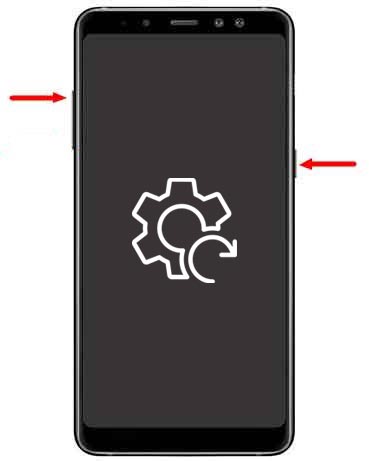
- Once the Samsung logo appears, release the Power key.
- You will see Recovery mode on your screen.
- Navigate with Volume Keys to select the Wipe data/factory reset option and press the Power Key to confirm.
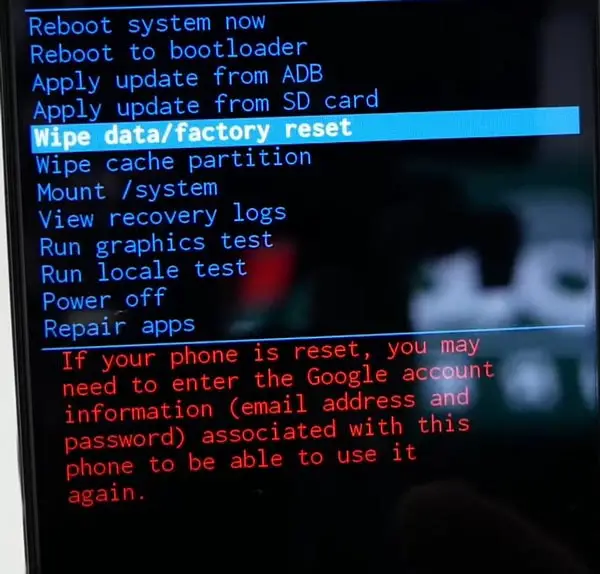
- Use the Volume keys to select option Yes and press the Power key to confirm.
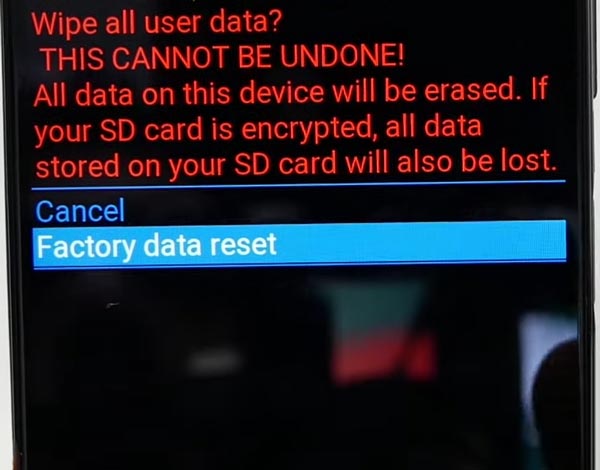
- Ultimately, select the Reboot system now option.
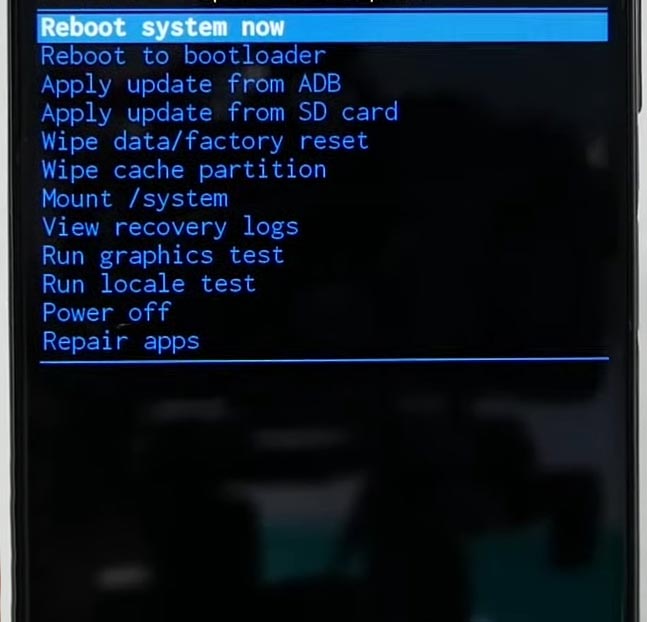
- All Done! You have successfully reset your device.
Method 2: Factory Reset Samsung Galaxy M12 via Settings Menu
To do a factory reset safely, make sure to delete all the accounts on Samsung Galaxy M12. It is also helpful to unlink your Google account before selling, donating, or giving away the device.
This way, we will avoid problems for the new user, who may face difficulties without this feature. Some modern devices come with a Factory Reset Protection (FRP), with which you must log in to your Google account to perform a factory reset.
- Power ON your Samsung Galaxy M12 phone.
- Open Settings Menu.
- Scroll down and tap on General management.
- After that, select Reset and Factory data reset.
- Next, tap on Reset and select Delete all.
- Your Samsung Galaxy M12 device will restart and take some time to boot up.
Method 4: Reset Samsung Galaxy M12 with Google Find My Device
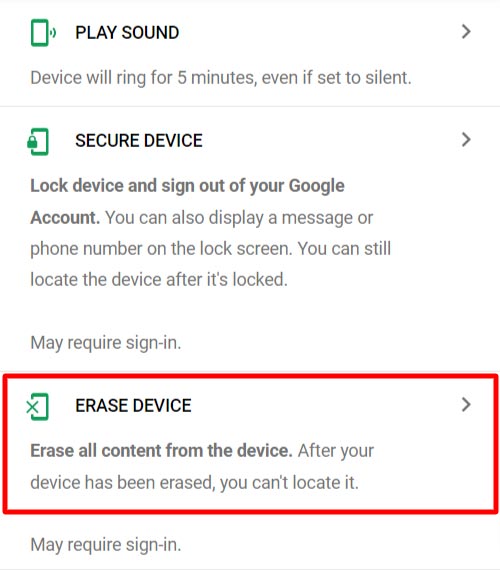
- First, head over to the official Google Find My Device website.
- Now Sign in with your Google account.
- You will see three options Play Sound,Secure device & Erase device.
- Click on Erase device option.
- Next, click on Erase Device option.
- That’s it. It will wipe all your data from your phone.
Method 5: Reset Samsung Galaxy M12 with Code
You can reset Samsung Galaxy M12 with the help of the below codes. Enter these codes on your device to reset it.
- Contacts
- Downloaded apps
- All app data and settings
- Media files like photos, videos, music, etc.
- Google account settings and other accounts.
Method 6: Unlock Galaxy M12 with Google Account
- First, Power ON your Samsung Galaxy M12 device.
- Due to the number of unsuccessful attempts, you will see Forgot pattern on your phone.
- Tap on the Forgot pattern option.
- Next, Enter your Google account credentials.
- Tap on the Sign-in button.
- After that, choose a new password and unlock your device.
- Finally, your Galaxy M12 phone will be unlocked.
Method 7: Password Recovery Galaxy M12 with Security Questions
- Power ON your Samsung Galaxy M12 device.
- After the number of unsuccessful attempts, you will see Forgot pattern on your phone.
- Tap on the Forgot pattern option.
- After that, tap on the Answer question.
- Enter the answers to your security questions unlock your phone.
- Next, you will be asked Yes or No.
- Choose the Yes option to create a new password or pattern lock.
- All Done! You have successfully unlocked your Samsung device.
People Also Ask
How do I reset my Galaxy M12 without a Password?
If you have forgotten your Samsung Galaxy M12 password, there is a way to reset it without using a password. You can do this by using Recovery mode on your device. Check method 1 to know complete steps.
How can I remove my Samsung Galaxy M12 pattern lock?
If you forget your Galaxy M12 pattern lock and don’t want to use your Google account to unlock it, then the only other option is to perform a hard reset with recovery mode.
What do I lose if I reset my Galaxy M12 phone?
You lose all your data on the phone, including contacts, photos, messages, settings, and more. It is advisable to back up your data before resetting your phone.
What should I backup before factory reset Samsung Galaxy M12?
It is necessary to backup all data on the device before doing a factory reset. This can be done by transferring files through a cable connection, exporting, and syncing data with various social media sites or mobile phone management systems.
How do I reset my Galaxy M12 phone without losing everything?
If you don’t want to lose your data and still want to reset your device, the only setting available is Reset options. Go to Settings and then choose System, Advanced, Reset options and select Reset Settings only option. It will only reset Wifi, Mobile, Bluetooth, App preferences data.
About Samsung Galaxy M12
Conclusion
I have given you the complete guide on Hard Reset Samsung Galaxy M12. I hope you can fix your phone and get it back up and running with the provided information.
If this guide helped you in any way, then please leave a comment below. If you have any questions or concerns about this guide, make sure to leave a comment, and I will respond as soon as possible.
How to hard reset Samsung Galaxy M12
You need to know that a hard reset will remove all personal info and settings from your device. Hope you use the Sync function from Samsung or Google to restore your data after the reset. The reset procedure will solve most problems you may have with your M12.
The main problems to reset your phone are:
- Freezing or not responsive;
- Virus;
- Battery drains fast;
- Restart randomly;
- Often failures, errors from system and apps;
- You forgot the password, pin, or pattern lock;
- Many other soft problems make using this M12 nightmare.
- You want to sell your Galaxy phone.
Before starting to reset you need to know your Google Account and password if you use it. If you have turned ON Factory Reset Protection (FRP) at the end of the hard reset process, you will be asked for your Google account. So if you don’t know your account or password you need to log out first from the Google Account before resetting.
You can do a hard reset in 2 ways: using the menu or using the buttons combination.
How to factory reset Samsung M12 by using the menu:
- Go to the Settings
- Find and Press General Management
- Slide to Reset and press it
- Select Factory Data Reset
- Press Reset
- Confirm the process by entering your security option if you have one: (Face id, Fingerprint ID, Iris scan, screen lock, or password)
- Finally, press Delete All
Samsung m12 hard reset by using buttons:
- Turn Off your Galaxy M12
- Connect USB – Type C cable to the notebook or PC
- Hold together the Volume Up + Power keys for a few seconds until you see the logo
- Use the Volume keys and navigate to the Wipe data/factory reset option
- Confirm your choice with the Power button
- Now, select Yes and accept it by using the Power key
- To exit from the recovery menu after finishing select Reboot System Now if it does not restart itself.
How to reset M12 if you forgot the pin, password, and pattern?
- Connect your phone with the USBCable type-C and Notebook or PC
- Restart your phone by Pressing the Power and Vol– keys until the phone is off
- When the phone is off (you have 1 second before it starts again) just press and hold the Power and VOL+ buttons
- If you see the logo, release the Power but still push Vol+ until you see the recovery menu.
- Then choose the wipe data/factory reset and confirm.
How to restart the Samsung M12 model
To restart Samsung Galaxy M12 you need:
- 1way – press and hold the Power key and tap restart
- 2way, if your phone is frozen and unresponsive
Press the Power and Volume- buttons simultaneously for 10 seconds or until the restart begins.
What to do if resetting M12 doesn’t work?
First, you need to repeat the steps again.
It may be hard for the first time. You must connect the USB Type C cable to the notebook or PC else, the reset function by using buttons does not work. (Do not use the power adaptor)
Press buttons until you will see the change and only then release.
On some Android Version when you reset by buttons you need to do this step:
When you see the logo, release the Power key and still, press the VOL+ until you see the recovery menu
You may find interesting:
- How to hard reset Samsung Galaxy M22
- How to hard reset Samsung Galaxy A52
- Hard Reset Samsung Galaxy S3 GT-i9300
- Hard Reset on the Samsung Galaxy S4 SGH-I545