People — что это за программа и нужна ли она? (на Windows 10)

- Описание
- Разбираемся
- Отключение
- Удаление
- Дополнительная информация
Приветствую друзья! Данный материал расскажет об одном приложении, которое можно встретить в операционной системе Windows 10.
Описание
People — программа представляет из себя записную книгу, которое используется для синхронизации всех контактов устройства.
Простыми словами — место, где собраны ваши контакты, поддерживается импорт.
Эта программа — значок Люди возле системного трея:

Разбираемся
- Данная программа представляет из себя адресную книгу (можно указывать номер телефона, электронную почту человека, адрес проживания, день рождение и другие данные). Однако она не самостоятельная, а работает вместе с приложениями Календарь и Почта.
- Программа People отображает контакты, которые можно добавлять и удалять.
- Поддерживается импорт из других почтовых сервисов, например Microsoft Outlook, Exchange, Gmail (Google), iCloud (Apple).
Отключение приложения Люди
Сперва нажмите правой кнопкой по панели задач, далее выберите пункт Отображать кнопку Люди:

Теперь открываем реестр:
- Зажмите клавиши Win + R, появится окошко Выполнить.
- Вставьте команду regedit, кликните ОК.
- Открываем раздел: HKEY_CURRENT_USER\Software\Microsoft\Windows\CurrentVersion\Explorer\Advanced\People
- По разделу People нажимаем правой кнопкой. При отсутствии — создаем, нажав правой клавишей по Advanced.
- В разделе People редактируем параметр PeopleBand (DWORD 32 бита). При отсутствии — создаем. Указываем 0 в поле значение. Сохраняем изменения кнопкой ОК.
При наличии параметра PeopleBand — необходимо только изменить значение:


People — удаление приложения
- Нажмите правой кнопкой по значку Пуск.
- Выберите пункт PowerShell (Администратор).
- Укажите команду: Get-AppxPackage *People* | Remove-AppxPackage
- Нажмите энтер. Спустя несколько секунд приложение People будет удалено.


Удаление других приложений
- Начало работы: Get-AppxPackage *getstarted* | Remove-AppxPackage
- Groove Music: Get-AppxPackage *zunemusic* | Remove-AppxPackage
- Карты: Get-AppxPackage *windowsmaps* | Remove-AppxPackage
- Кино и ТВ: Get-AppxPackage *zunevideo* | Remove-AppxPackage
- Новости: Get-AppxPackage *bingnews* | Remove-AppxPackage
- OneNote: Get-AppxPackage *onenote* | Remove-AppxPackage
Внимание! Перед удалением приложений желательно создавать контрольную точку восстановления.
Надеюсь данная информация оказалась полезной. Удачи и добра.
Справка по приложению «Люди»
Корпорация Майкрософт всегда стремится к созданию более согласованного и упрощенного интерфейса в наших приложениях. Одним из примеров этого является предварительная версия нового приложения Люди (контакты) в новом Outlook для Windows (предварительная версия). Новый Outlook для Windows (предварительная версия) предназначен для предоставления современного, но знакомого интерфейса Outlook, который помогает повысить вашу личную производительность и организацию.
Как попробовать новое приложение Люди
Включите переключатель Попробовать новый Outlook, расположенный в правом верхнем углу классического Outlook для Windows, и следуйте инструкциям на экране.
Вы также можете нажать кнопку Попробовать новый Outlook, отображаемую в баннере приложения Люди. Примечание. Эта функция постепенно развертывается, поэтому не все увидят этот баннер при запуске приложения Люди с панели задач.
Если у вас уже есть учетная запись Майкрософт в классическом Outlook для Windows и включен переключатель Попробовать новый Outlook , сведения об учетной записи должны открыться и синхронизироваться в новом Outlook для Windows (предварительная версия) автоматически.
Вы можете вернуться к предыдущему интерфейсу Outlook в любое время. Просто выключите переключатель, и он автоматически откроет предыдущую версию без потери данных или электронной почты.
Статьи по теме
Примечание: Начиная с 29 января 2021 г. приложение Люди больше не сможет запускаться напрямую (например, через меню «Пуск» или строку поиска) в Windows 10. Вы по-прежнему сможете запустить его с помощью значков Люди в почте, календаре и других приложениях.
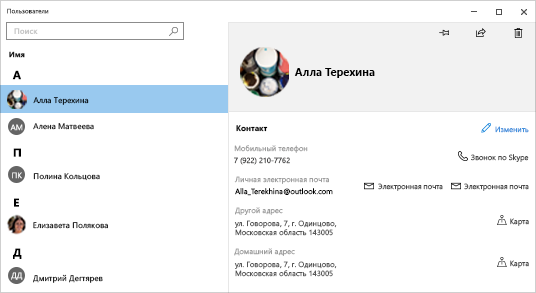
Приложение «Люди» — это ваша адресная книга. Вы можете добавлять контакты и общаться с друзьями и родными. Приложения «Люди», «Почта» и «Календарь» работают вместе так, чтобы вы могли легко отправить сообщение по электронной почте важным для вас людям или назначить с ними встречу. Удаление контактов.
Начало работы
Проверьте наличие обновлений
Чтобы убедиться, что у вас установлена последняя версия приложения «Люди», проверьте наличие обновлений для приложения «Люди» в Microsoft Store.
- Нажмите кнопку Пуск , а затем выберите элемент Microsoft Store .
- Выберите Подробнее рядом с аватаром учетной записи.
- Выберите Загрузки и обновления.
- Выберите Получить обновления или включите автоматическое обновление.
Добавление учетных записей
При запуске приложения «Люди» в первый раз:
- Выберите Начало работы.
- Вам будет предложено разрешить приложению «Люди» доступ к вашей электронной почте и календарю.
- Если вы уже добавили свою учетную запись Майкрософт на компьютере с Windows 10, приложение автоматически импортирует контакты из этой учетной записи. Вы также можете выбрать пункт Импорт контактов , чтобы добавить другую учетную запись, например Outlook, Exchange, Google и iCloud.
- Когда вы закончите, выберите Готово к работе.
После этого можно добавить дополнительные учетные записи в любой момент:
- Нажмите кнопку Пуск , а затем выберите Люди .
- Выберите Параметры .
- Выберите Добавить учетную запись , а затем выберите тип учетной записи, которую нужно добавить, и следуйте инструкциям.
Удаление учетной записи
Если вы больше не требуется, чтобы данные учетной записи импортировались в приложение «Люди», ее можно удалить.
- Нажмите кнопку Пуск , а затем выберите Параметры .
- Выберите Учетные записи >Email & учетные записи.
- Выберите учетную запись электронной почты для удаления.
- Выберите Управление.
- Выберите Удалить учетную запись с этого устройства и следуйте инструкциям на экране.
Все о контактах
Добавление контактов
Приложение «Люди» используется для синхронизации всех контактов на устройстве. Вы можете импортировать контакты из различных служб, включая Outlook, Exchange, Gmail и iCloud.
Импорт контактов
- Нажмите кнопку Пуск , а затем выберите Люди .
- Выберите Параметры .
- Нажмите Добавить учетную запись , выберите тип учетной записи, которую нужно добавить, и следуйте указаниям на экране, чтобы импортировать контакты.
Добавление контактов по одному
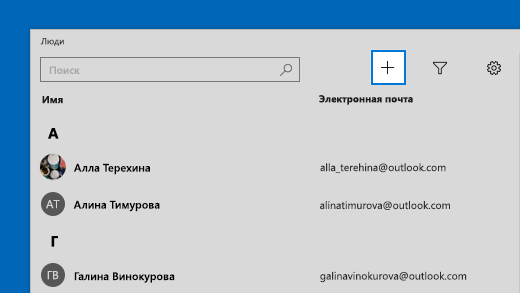
- Нажмите кнопку Пуск , а затем выберите Люди .
- Нажмите кнопку Создать контакт .
- При отображении запроса выберите, какую учетную запись необходимо использовать для сохранения контактов. Если вы создали нескольких учетных записей электронной почты в приложении «Почта», приложение «Люди» спросит, в какую учетную запись необходимо добавить новый контакт.
- Заполнение формы «Создать контакт».
- Нажмите Сохранить.
Добавление контакта из почты
Если вы используете приложение «Почта», можно сохранить контакт из почты в приложении «Люди».
- Нажмите кнопку Пуск , а затем выберите Почта .
- Выберите сообщение. Выберите имя отправителя сообщения или любого из получателей.
- Выберите Сохранить .
- Если вы создали нескольких учетных записей электронной почты в приложении «Почта», приложение «Люди» спросит, в какую учетную запись необходимо добавить новый контакт. Выберите учетную запись.
- Добавьте любые дополнительные сведения, а затем нажмите Сохранить.
Удаление контактов
Из приложения «Люди» и импортированных учетных записей можно удалять контакты. При удалении контакта он удаляется из импортированной учетной записи и приложения «Люди».
Примечание. Приложение «Люди» не может удалять контакты в Skype.
- Нажмите кнопку Пуск , а затем выберите Люди .
- В поле поиска введите имя контакта, который хотите удалить. По мере ввода вы увидите список контактов. Выберите контакт, который требуется удалить.
- Выберите значок корзины , а затем выберите Удалить.
- Нажмите кнопку Пуск , а затем выберите Люди .
- В поле поиска введите имя контакта, который хотите удалить. По мере ввода вы увидите список контактов. Выберите контакт, который требуется удалить.
- Нажмите и удерживайте (или щелкните правой кнопкой мыши) контакт, выберите Удалить и следуйте инструкциям на экране.
Закрепление контактов на начальном экране
Когда вы закрепляете пользователя на начальном экране, там появляется плитка с изображением его профиля. Коснитесь этой плитки или щелкните по ней, чтобы быстро увидеть контактные данные этого пользователя.
- Нажмите кнопку Пуск , а затем выберите Люди .
- Выберите человека из списка контактов, к которому необходимо быстро получить доступ.
- Нажмите и удерживайте (или щелкните правой кнопкой мыши) контакт, а затем выберите пункт Закрепить на начальном экране .
- В отобразившемся окне нажмите Да.
Изменение контактов
Вы можете редактировать контакты, если их данные изменились.
Примечание. Если контакт связан, будет необходимо выбрать, какой контакт требуется изменить.
- Нажмите кнопку Пуск , а затем выберите Люди .
- В поле поиска введите имя контакта, данные которого нужно изменить. По мере ввода вы увидите список контактов. Выберите необходимый контакт.
- Выберите Изменить , а затем — Добавить.
- Внесите необходимые изменения и нажмите кнопку Сохранить .
Добавление или изменение фотографии контакта
Вы можете добавлять или изменять фотографию для контакта в списке контактов.
- Нажмите кнопку Пуск , а затем выберите Люди .
- В поле поиска введите имя контакта, для которого требуется добавить или изменить фотографию. По мере ввода вы увидите список контактов. Выберите необходимый контакт.
- Нажмите кнопку Изменить .
- Выберите Добавить фотографию, если у контакта нет фотографии. Выберите фотографию контакта, если таковая имеется.
- Выберите фотографию на своем устройстве. Затем в появившемся диалоговом окне обрежьте фотографию соответствующим образом. По завершении нажмите кнопку Готово.
Объединение контактов
Повторяющиеся контакты можно объединять. Таким образом все сведения контактов будут объединены в один контакт и ничего не будет удалено.
- Нажмите кнопку Пуск , а затем выберите Люди .
- В поле поиска введите имя контакта, данные которого нужно объединить. По мере ввода вы увидите список контактов. Выберите нужный контакт.
- Выберите Найти контакт для объединения.
- В поле поиска введите имя контакта, данные которого нужно объединить с данными того контакта, который вы выбрали. По мере ввода вы увидите список контактов. Выберите контакт, который требуется объединить с контактом, который вы выбрали.
Обмен контактами
В приложении «Люди» можно отправлять контакты пользователям и в приложения.
- Нажмите кнопку Пуск , а затем выберите Люди .
- В поле поиска введите имя контакта, данными которого вы хотите поделиться. По мере ввода вы увидите список контактов. Выберите необходимый контакт.
- В правом верхнем углу выберите Поделиться .
- Выберите Поделиться контактом.
- Выберите пользователя, с которым вы хотите поделиться контактом, и следуйте инструкциям, чтобы отправить контакт по электронной почте. Либо выберите приложение, в которое требуется отправить контакт, и следуйте инструкциям.
Отправка контактов по электронной почте
Можно выбрать контакт и адрес электронной почты, на который требуется отправить контакт. Для отправки электронной почты в приложении «Люди» используется почтовый клиент по умолчанию.
- Нажмите кнопку Пуск , а затем выберите Люди .
- В поле поиска введите имя контакта, который требуется отправить по электронной почте. По мере ввода вы увидите список контактов. Выберите нужный контакт.
- Выберите Электронная почта .
Просмотр бесед с контактом
Можно просматривать информацию, которой вы обмениваетесь с контактом в настоящее время или обменивались в прошлом.
- Нажмите кнопку Пуск , а затем выберите Люди .
- В поле поиска введите имя контакта, беседу с которым вы хотите просмотреть. По мере ввода вы увидите список контактов. Выберите нужный контакт.
- В разделе Беседы вы увидите последние сообщения электронной почты и другие разговоры. Выберите любой из них, чтобы открыть.
Просмотр организационной диаграммы контакта
Если вы используете Microsoft 365 или Microsoft Exchange, то для контактов, относящихся к вашей организации, будет отображаться организационная диаграмма.
- Нажмите кнопку Пуск , а затем выберите Люди .
- В поле поиска введите имя контакта, организационную диаграмму которого требуется просмотреть. По мере ввода вы увидите список контактов. Выберите нужный контакт.
- В разделе Организационная диаграмма выберите Дополнительно, чтобы просмотреть организационную диаграмму для контакта.
Фильтрация контактов
По умолчанию в списке контактов отображаются все контакты из добавленных учетных записей. Но вы можете настроить отображение контактов только из определенных учетных записей.
- Нажмите кнопку Пуск , а затем выберите Люди .
- Выберите Фильтровать контакты .
- Используйте флажки, чтобы выбрать учетные записи, контакты которых должны отображаться в вашем списке контактов. По завершении нажмите кнопку Готово.
Создание группы контактов в учетной записи электронной почты
Создайте группу контактов или список рассылки в Outlook, Outlook.com или другой учетной записи электронной почты, чтобы отправить электронное сообщение многим пользователям одновременно без добавления имени каждого контакта в строки «Кому», «Копия» или «Скрытая копия». Сведения о том, как это сделать в Outlook для ПК, см. в статье Создание группы контактов или списка рассылки в Outlook для ПК.
Экспорт и импорт контактов из учетной записи электронной почты
Экспортировать контакты напрямую из приложения «Люди» нельзя, однако можно экспортировать контакты из учетной записи электронной почты, а затем импортировать их в другую учетную запись электронной почты, которая связана с приложением «Люди», чтобы эти контакты отобразились в приложении «Люди». Сведения об экспорте и импорте контактов из различных поставщиков электронной почты в учетную запись Outlook.com см. в статье Импорт контактов в Outlook.com.
Люди на панели задач
Если у вас на панели задач есть элемент «Люди» , вы можете быстро перейти к разговору с наиболее частыми собеседниками с помощью панели задач на устройстве с Windows 10. Закрепив самые частые контакты на панели задач, вы можете отправить им сообщение электронной почты, позвонить или написать в Skype, выполнив всего несколько щелчков мыши.
Чтобы начать работу, выберите Люди на панели задач.
Примечание: Если элемент Люди не отображается на панели задач, выполните нажатие и удерживание на панели задач (или щелкните по ней правой кнопкой мыши) и проверьте, стоит ли флажок рядом с пунктом Показывать элемент «Люди» на панели задач . Если это не так, установите флажок Показывать элемент «Люди» на панели задач.
Закрепление контактов на панели задач
Закрепление контакта
- Выберите Люди на панели задач.
- Выберите один из ваших контактов или выберите Найти и закрепить контакты, чтобы просмотреть все контакты.
- После того как вы выберете контакт, он отобразится на панели задач рядом с вкладкой Люди .
Примечание: На панели задач отображаются только первые три закрепленных контакта. Все контакты, закрепленные после этого, отображаются в разделе Больше закрепленных контактов при выборе вкладки Люди на панели задач.
Открепление контакта
Нажмите и удерживайте контакт (или щелкните его правой кнопкой мыши), а затем выберите Открепить от панели задач .
Изменение порядка контактов на панели задач
Чтобы изменить порядок контактов на панели задач, выберите контакт и перетащите его в нужное место.
При наличии более трех закрепленных контактов их можно переместить с панели задач в приложение «Люди» в раздел Другие закрепленные контакты или из приложения «Люди» на панель задач.
Использование Skype
После закрепления контактов вы можете позвонить или отправить сообщение кому-нибудь в Skype непосредственно с панели задач.
Примечание: Чтобы вы могли позвонить закрепленному на панели задач контакту или отправить ему сообщение, у этого контакта должна быть учетная запись Skype.
Чтобы позвонить кому-нибудь в Skype, выполните следующие действия
- Выберите закрепленный на панели задач контакт или выберите Люди , а затем выберите контакт.
- Выберите Skype.
- Чтобы позвонить, выберите Голосовой звонок . Чтобы начать видеовызов, выберите Видеовызов . (Чтобы начать видеовызов, у вас и у пользователя, которому вы звоните, должна быть веб-камера.)
Чтобы отправить кому-нибудь сообщение в Skype, выполните следующие действия.
- Выберите закрепленный на панели задач контакт или выберите Люди , а затем выберите контакт.
- Выберите Skype.
- Введите текст сообщения, а затем выберите Отправить .
Отправка сообщения электронной почты
- Выберите закрепленный на панели задач контакт или выберите Люди , а затем выберите контакт.
- Выберите Почта.
- В нижней части окна выберите пункт Новое сообщение .
- Введите адрес электронной почты, а затем Отправить по завершении.
People app help
Microsoft is always striving to create a more consistent and streamlined experience across our apps. One example of this is our preview of the new People app (contacts) in the new Outlook for Windows (Preview). The new Outlook for Windows (Preview) is designed to provide a contemporary yet familiar Outlook experience that helps improve your personal productivity and organization.
How to try the new People app
Turn on the Try the New Outlook toggle located in the upper-right corner of your classic Outlook for Windows and follow the on-screen instructions.
You can also select the Try the new Outlook button displayed in the People app banner. Note—this feature is being rolled out carefully over time, so not everyone will see this banner when launching the People app from the task bar.
If you already have a Microsoft account in the classic Outlook for Windows and turn on the Try the new Outlook toggle, your account information should open and sync in the new Outlook for Windows (Preview) automatically.
You can switch back to your previous Outlook experience whenever you want. Just switch the toggle off and it will automatically open your previous version with no data or email loss.
Related topics
Note: Effective January 29, 2021, the People app will no longer be able to be launched directly (for example, through the Start Menu or search bar) in Windows 10. You’ll still be able to launch it through the People icons in Mail, Calendar, and other apps.
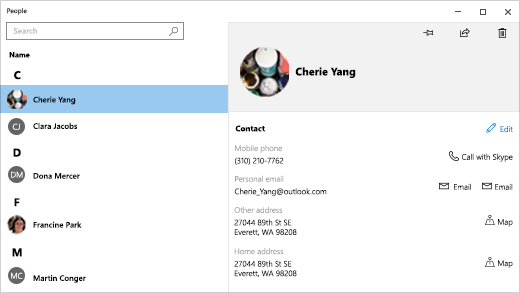
The People app is your address book. You can add your contacts and keep in touch with friends and family. The People, Mail, and Calendar apps work together so you can easily send mail to and schedule appointments with your most important people. Delete contacts.
Getting started
Check for updates
To ensure that you have the latest version of the People app, check for People app updates in Microsoft Store.
- Select the Start button, then select Microsoft Store .
- Select See more next to your account profile picture.
- Select Downloads and updates.
- Select Get updates, or turn on automatic updates.
Add accounts
The first time you open the People app:
- Select Get Started.
- You’ll then be prompted to allow the People app access to your email and calendar.
- If you already have your Microsoft account added to your Windows 10 PC, the app will automatically import contacts from that account. You can also select Import contacts to add another account such as Outlook, Exchange, Google, and iCloud.
- When you’re done, select Ready to go.
After that, you can add more accounts at any time:
- Select the Start button, then select People .
- Select Settings .
- Select Add an account , choose the type of account you want to add, and follow the instructions.
Remove an account
If you no longer want an account imported to the People app, you can remove it.
- Select the Start button, then select Settings .
- Select Accounts >Email & accounts.
- Select the email account you want to remove.
- Select Manage.
- Select Delete account from this device and follow the on-screen instructions.
All about contacts
Add contacts
The People app is used to sync all your contacts to your device. You can import contacts from various services, including Outlook, Exchange, Gmail, and iCloud.
Import contacts
- Select the Start button, then select People .
- Select Settings .
- Select Add an account , choose the type of account you want to add, and follow the on-screen instructions to import contacts.
Add contacts one at a time
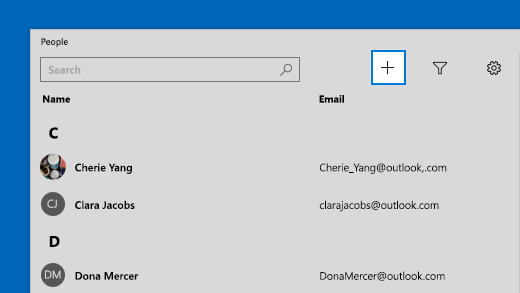
- Select the Start button, then select People .
- Select the New contact button.
- If you’re asked, choose which account to use for saving new contacts. If you’ve entered more than one email account in Mail, the People app asks you to decide which account should receive the new contact.
- Fill out the New Contact form.
- Select Save.
Add a contact from an email
If you’re using the Mail app, you can save a contact from an email to the People app.
- Select the Start button, then select Mail .
- Choose a message. Select the name of the person who sent it or any of the recipients.
- Select Save .
- If you’ve entered more than one email account in Mail, the People app asks you to decide which account should receive the new contact. Choose which account to use.
- Add any additional information, then select Save.
Delete contacts
You can delete contacts from imported accounts and the People app. Deleting the contact removes it from both the imported account and the People app.
Note: The People app can’t delete Skype contacts.
- Select the Start button, then select People .
- In the search box, type the name of the contact you want to delete. You’ll see a list of contacts as you type. Select the one you want to delete.
- Select the trash can icon , then select Delete.
- Select the Start button, then select People .
- In the search box, type the name of the contact you want to delete. You’ll see a list of contacts as you type. Select the one you want to delete.
- Press and hold (or right-click) the contact, select Delete , and follow the on-screen directions.
Pin contacts to Start
When you pin a person to your Start screen, that person’s profile picture will appear as a tile on Start. Tap or click the tile to quickly get their contact info.
- Select the Start button, then select People .
- Select a person from your contacts who you want to get to quickly.
- Press and hold (or right-click) the contact, and select Pin to Start .
- In the box that appears, select Yes.
Edit contacts
You can edit contacts if their information has changed.
Note: If the contact is linked, you’ll need to choose which contact you want to edit.
- Select the Start button, then select People .
- In the search box, type the name of the contact whose info you want to edit. You’ll see a list of contacts as you type. Select the one you want.
- Select Edit , and then select Add.
- Make the changes you want, and then select Save .
Add or change a contact’s photo
You can add or change a photo for a contact in your contact list.
- Select the Start button, then select People .
- In the search box, type the name of the contact whose photo you want to add or change. You’ll see a list of contacts as you type. Select the one you want.
- Select Edit .
- Select Add photo if the contact has no photo. Select the contact’s photo if there is one.
- Select a photo from your device. Then, on the dialog that appears, adjust how the photo will be cropped. When you’re finished, select Done.
Combine contacts
You can combine duplicate contacts. This way, all their information is combined in a single contact, and nothing gets deleted.
- Select the Start button, then select People .
- In the search box, type the name of the contact whose info you want to combine. You’ll see a list of contacts as you type. Choose the one you want.
- Select Find a contact to combine.
- In the search box, type the name of the contact whose info you want to combine with the one you selected. You’ll see a list of contacts as you type. Choose the one you want to combine with the one you selected.
Share contacts
In the People app, you can share contacts with people and apps.
- Select the Start button, then select People .
- In the search box, type the name of the contact whose info you want to share. You’ll see a list of contacts as you type. Choose the one you want to share.
- At the upper right, select Share .
- Select Share contact.
- Select a person to share the contact with and follow the instructions to send the contact via email, or select an app to share the contact with and follow the instructions to share the contact.
Email contacts
You can select a contact and choose the email address. The People app uses your default mail client to send the email.
- Select the Start button, then select People .
- In the search box, type the name of the contact you want to email. You’ll see a list of contacts as you type. Choose the one you want.
- Select Email .
View your contact’s conversations
You can see upcoming or recent items exchanged between you and a contact.
- Select the Start button, then select People .
- In the search box, type the name of the contact whose conversations you want to view. You’ll see a list of contacts as you type. Choose the one you want.
- Under Conversations, you’ll see recent email messages and other conversations you’ve exchanged. Select any of these to open them.
View a contact’s organization chart
If you use Microsoft 365 or Microsoft Exchange, you can see the organization chart for contacts who are in your organization.
- Select the Start button, then select People .
- In the search box, type the name of the contact whose organization chart you want to view. You’ll see a list of contacts as you type. Choose the one you want.
- Under Org chart, select See more to view the organization chart for the contact.
Filter contacts
By default, all contacts from the accounts you’ve added appear in your contact list. However, you can choose to only see contacts from certain accounts.
- Select the Start button, then select People .
- Select Filter contacts .
- Use the check boxes to select the accounts whose contacts you want to see on your contact list. When you’re finished, select Done.
Create a contact group in your email account
Create a contact group or distribution list in Outlook, Outlook.com, or another email account to send an email to many people at once so that you don’t have to add each name to the To, Cc, or Bcc line. To learn how to do that in Outlook for PC, read Create a contact group or distribution list in Outlook for PC.
Export and import contacts from an email account
You can’t export contacts directly from the People app, but you can export contacts from an email account and then import them into another email account that’s linked to the People app so that they appear in the People app. To see how to export and import contacts from a variety of email providers into an Outlook.com account, read Import contacts to Outlook.com.
People on the taskbar
With People on the taskbar, you can reach the people you talk to most from the taskbar on your Windows 10 device. By pinning your most-frequent contacts to the taskbar, you can send them an email or call or message them on Skype with just a few clicks.
To get started, select People on the taskbar.
Note: If you don’t see People on the taskbar, press and hold (or right-click) the taskbar and make sure Show People on the taskbar has a check mark next to it. If it doesn’t, select Show People on the taskbar.
Pin contacts to the taskbar
To pin a contact
- Select People on the taskbar.
- Select one of your contacts, or select Find and pin contacts to see all your contacts.
- After you select a contact, they’ll appear on the taskbar next to People .
Note: Only the first three contacts you pin show up on the taskbar. Any contacts you pin after that appear under More pinned contacts when you select People on the taskbar.
To unpin a contact
Press and hold (or right click) the contact and select Unpin from taskbar .
Rearrange contacts on the taskbar
To change the order of people on the taskbar, select a contact and drag it where you want it.
If you have more than three pinned contacts, you can move them from the taskbar to People under More pinned contacts, or from People to the taskbar.
After you pin contacts, you can call or message someone on Skype directly from the taskbar.
Note: Your contact must have a Skype account for you to call or message them as a pinned contact on the taskbar.
To call someone on Skype
- Select a pinned contact on the taskbar, or select People and then select a contact.
- Select Skype.
- To start a voice call, select Audio call . To start a video call, select Video call . (Both you and the person you’re trying to reach must have a webcam to start a video call.)
To message someone on Skype
- Select a pinned contact ont he taskbar, or select People and then select a contact.
- Select Skype.
- Type your message and select Send .
Send an email
- Select a pinned contact on the taskbar, or select People and then select a contact.
- Select Mail.
- At the bottom of the window, select New .
- Type your email and select Send when you’re finished.
When you first open People on the taskbar and select Apps, you’ll see tiles for Mail, Skype, and People.
To import contacts from other apps
- Select People >Apps, and then select Get more apps in the Store.
- Choose an app from the list, and on its description page select Get.
- After the app is done installing, select People >Apps and select the app to import contacts.
Note: To import contacts from apps you’ve added to People, you’ll need to be signed in to an account in that app.
The People app is your address book and your social app all in one. You can add your contacts and keep in touch with friends and family on Skype—all from a single app.
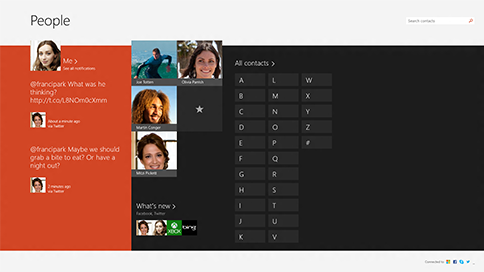
The People, Mail, and Calendar apps work together. So when you email a contact from Mail, the app picks up that person’s email address from the People app (which is where their contact info lives).
Note: The People app for Windows 8/8.1 no longer supports integration with Facebook and Sina Weibo networks due to changes in the connection software from both services. This means that the People app will no longer be able to access information from or share directly to Facebook or Sina Weibo.
All about contacts
Add or import contacts
Import contacts
- On Start, tap or click People.
- Swipe in from the right edge of the screen, and then tap Settings.
(If you’re using a mouse, point to the lower-right corner of the screen, move the mouse pointer up, and then click Settings.) - Tap or click Accounts.
- Tap or click Add an account, choose the type of account you want to add, and then follow the on-screen instructions.
Note: As of January 30, 2013, Google no longer supports new EAS (Exchange ActiveSync) connections in some scenarios, so how you add contacts to the People app might change.
Add contacts one at a time
- On Start, tap or click People.
- Swipe in from the bottom edge to see the app commands.
(If you’re using a mouse, right-click within the app.) - Tap or click New contact.
- Enter the info you want for this contact, and then tap or click the save button .
If you want to add several contacts at once, you can import them into one of the accounts you’ve already added to the People app, and they’ll appear in the People app the next time it syncs.
Add a contact from an email
- On Start, tap or click Mail.
- Tap or click a message and then tap or click the name of the person who sent it or any of the recipients.
- Tap or click Add contact.
- Add any additional info (if possible) and then tap or click the save button .
Edit contacts
- On Start, tap or click People.
- In the search box, enter the name of the contact whose info you want to edit. You’ll see a list of contacts as you type—tap or click the one you want.
- Swipe in from the bottom edge to see the app commands.
(If you’re using a mouse, right-click within the app.) - Tap or click Edit, make the changes you want, and then tap or click the save button on the screen.
Delete contacts
You can only delete your Outlook.com or Outlook contacts from the People app. If you’ve connected other social networks like LinkedIn or Twitter, you’ll need to go to that app or website to delete those contacts.
- On Start, tap or click People.
- In the search box, enter the name of the contact whose info you want to delete. You’ll see a list of contacts as you type—tap or click the one you want.
- Tap or click a contact.
- Swipe in from the bottom edge to see the app commands.
(If you’re using a mouse, right-click within the app.) - Tap or click Delete.
Change a contact’s photo
You can choose to change a photo for a contact in your contact list. Here’s how:
- On Start, tap or click People.
- Enter the name of the contact in the search box. You’ll see a list of contacts as you type—tap or click the one you want.
- Tap or click the contact’s photo (or if there is no photo, the space where it should be), tap or click Change photo, choose a photo and tap or click Open.
Search for contacts
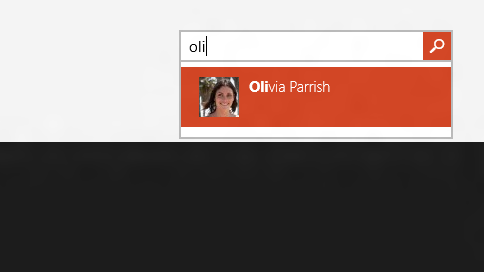
Here are a couple of ways to quickly find someone in your contact list:
- On Start, tap or click People.
- Enter the name of the contact in the search box. You’ll see a list of contacts as you type—tap or click the one you want.
Jump to a letter of the alphabet
- On Start, tap or click People.
- Tap or click the letter of the alphabet that matches the first name of the person you’re looking for.
Change which contacts you see
By default, all contacts from the accounts you’ve added will appear in your contact list. However, you can choose to only see contacts from certain accounts. People you know on other networks will be hidden, but if you know someone on multiple networks, they’ll still be visible. Also, your favorites won’t be hidden no matter what accounts you choose, and everyone will be available in search results.
To change which contacts you see
- On Start, tap or click People.
- Swipe in from the right edge of the screen, and then tap Settings.
(If you’re using a mouse, point to the lower-right corner of the screen, move the mouse pointer up, and then click Settings.) - Tap or click Options.
- Under Show only these contacts, clear the check box next to any networks you want to hide. To see contacts from that network again, select its check box.
Pin people and add/remove favorites
When you pin a person to your Start screen, that person’s profile picture will appear as a tile on Start. Tap or click the tile to get to their contact info. You can then quickly send them a text message or an email, or call, chat, or get on a video call with them on Skype.
- On Start, tap or click People.
- Tap or click a person you want to get to quickly.
- Swipe in from the bottom edge to see the app commands.
(If you’re using a mouse, right-click within the app.) - Tap or click Pin to Start, enter a nickname if you want, and then tap or click Pin to Start.
Add a favorite
Anyone can be a favorite—like your mom, your boss, your best friend, or a coworker. When you add someone as a favorite, you see that person on the home page of People and can tap or click their picture to quickly email, call, or message them.
- On Start, tap or click People.
- Tap or click the tile with the star button.
- Choose the person you want and tap or click Add.
Remove a favorite
- On Start, tap or click People.
- Tap or click the person you want to remove from favorites.
- Tap or click Favorite. When you go back to the home page of the People app, you will no longer see this person under your list of favorites.
Remove an account
This removes the account from People, but doesn’t delete any contacts from the original account. You’ll still be able to get to them when you directly sign in to that account.
- On Start, tap or click People.
- Swipe in from the right edge of the screen, and then tap Settings.
(If you’re using a mouse, point to the lower-right corner of the screen, move the mouse pointer up, and then click Settings.) - Tap or click Accounts.
- Select the account you want to remove.
- Tap or click one Remove account, Remove all accounts or Manage this account online.
Note: Removing your Microsoft account (the account you use to sign in to Windows) will remove all your accounts from People, Mail, Calendar, and Messaging. You might want to hide those contacts instead of removing the account.
Social notifications and updates
Call, chat, or video chat using Skype
All Windows RT 8.1 and Windows 8.1 PCs come with Skype installed and you can easily get in touch with someone on Skype from the People app. Here’s how:
- On Start, tap or click People.
- Enter the name of a Skype contact (if you updated to Skype and signed in with your Microsoft account, your Messenger contacts should have automatically been added to the contact list). You’ll see a list of contacts as you type—tap or click the one you want.
- Tap or click how you want to contact them (send a message, call, or video call), and you’re on your way.
Post your own updates
You can post your own updates in the People app. You can also share links, photos, and messages to your social networks from other apps and websites. Here’s how to compose a Tweet:

- On Start, then tap or click People.
- Tap or click Me.
- In What’s new, choose the social network you want to use, write your message, and tap or click the send button to post it on your wall.
See what’s new
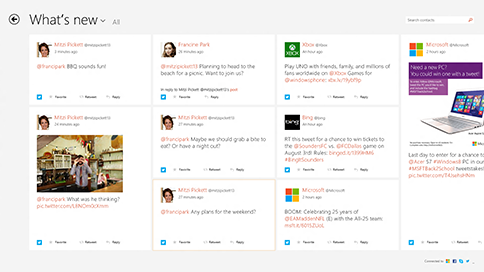
Keep an eye on what’s new with your friends and family using the People app. When you connect your accounts, like Twitter, and LinkedIn, you’ll get all the latest updates, Tweets, and pictures in one place. You can retweet a Tweet without switching to another app.
- On Start, tap or click People.
- Tap or click What’s new.
- You’ll see recent updates and Tweets, and you can like, comment, and retweet.
Note: As of May 2016, newsfeeds from Twitter and LinkedIn are no longer available.
Change which updates you see
- On Start, tap or click People.
- Tap or click What’s new.
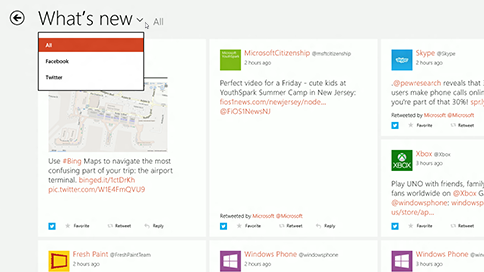
- Tap or click the arrow next to What’s new, and then choose which network you want to see.
Note: As of May 2016, newsfeeds from Twitter and LinkedIn are no longer available.
Pin people to see updates right from Start
Pin people to Start to see their picture and new updates without opening the app. It’s also a handy shortcut to send them email, start chatting, and more.
- On Start, tap or click People.
- In the search box, enter the name of the contact you want to pin. You’ll see a list of contacts as you type—tap or click the one you want.
- Swipe in from the bottom edge to see the app commands.
(If you’re using a mouse, right-click within the app.) - Tap or click Pin to Start, enter a nickname if you want, and then tap or click Pin to Start.
Note: As of May 2016, updates from Twitter will no longer display on tiles pinned to Start.
Keyboard shortcuts for the People app
The following table contains keyboard shortcuts for the People app.
Press this key
Go to beginning of contact list
Go forward in the contact list
Go backwards in the contact list
Go to end of the contact list


Need more help?
Want more options?
Explore subscription benefits, browse training courses, learn how to secure your device, and more.




Communities help you ask and answer questions, give feedback, and hear from experts with rich knowledge.



Find solutions to common problems or get help from a support agent.
How to Use the Microsoft People App
Michael Archambault is a technology writer and digital media specialist. His work has appeared in Mobile Nations, Amazon’s Digital Photography Review, PetaPixel, and other outlets.
Updated on January 10, 2020
In This Article
Jump to a Section
Trending Videos
Windows 10 includes a contact app called People app, which is a more advanced version of their previous contact app that allows for the easy consolidation of contacts between different internet accounts.
Users who utilize the Microsoft Mail and Calendar apps can also use the People app to see their most recent conversation with specific individuals and any upcoming scheduled appointments. The People app can be useful at helping you keep your digital Rolodex nice, neat, and all in one place.
This article addresses the People app included with the latest version of Windows 10.
:max_bytes(150000):strip_icc()/WelcomePeopleApp-5c48df8c46e0fb00012c4f66.jpg)
Where Can I Access the People App in Windows?
The People app is installed by default in Windows and cannot be uninstalled. Thus the program will always be located in your Start menu. To access the People App, click on your Start menu then search for the application using the search bar. Once the People app appears, click it to open the application.
What Accounts Are Supported by the People App?
The People app imports the preexisting contacts that you have stored with your email account. Supported services for setup of the People App include Outlook.com, Hotmail.com, Live.com, Exchange, Microsoft 365, Gmail, Yahoo Mail, and iCloud. Additional services can be set up through the Advanced Settings options, such as Exchange ActiveSync.
:max_bytes(150000):strip_icc()/CompatibleAccounts-5c48dfdb4cedfd00013575bf.jpg)
Setting Up an Account With the People App
If you’re looking to add your contacts to the People app, you will need to connect the application with an account, such as those noted above. Follow these steps to open the People app for the first time and get started.
The People app will request access to your email and calendar, click Yes when both dialogs appear.
How to Create a New Contact File
Have someone new to add to your contact book? Fantastic! Follow these steps to add a new contact file to the People app and save it within the appropriate internet account for later access.
:max_bytes(150000):strip_icc()/AddNewContact-5c48e03246e0fb00018e7568.jpg)
Click the + button at the top of the People App to begin.
Clicking the + Other option will give you access to additional contact fields including website, company, job title, significant other, children, birthday, and more.
Viewing Events and Conversations With Contacts
To view upcoming events and recent conversations with an individual, merely click on their name on the left-hand side of the People app. The right-hand side of the app will now show the contact’s information as well as any upcoming events and recent conversations.
:max_bytes(150000):strip_icc()/UpcomingContactInfo-5c48e113c9e77c0001cffb80.jpg)
For upcoming events to show under a contact’s name, the individual must be included in the calendar event. For recent conversations to show, an email address must be listed.
How to Show Only Specific Contacts in People App
You may opt to only show contacts from a particular account or, if you are using the People app as a phonebook, you may wish only to display contacts with a phone number available. To sort the People App, select the Filter button (the funnel icon) at the top of the screen, then choose the accounts you would like to view, along with whether or not you wish to hide contacts without phone numbers.
How to Combine Contacts
If you have duplicates of contacts across multiple internet accounts, or within the same address book, it is a cinch to combine them. Follow these steps to clean up the People app quickly.
- Click on one of the contacts you wish to combine.
:max_bytes(150000):strip_icc()/CombineContact-5c48e171c9e77c0001300d00.jpg)
On the right-hand side of the screen, scroll down to the Combined contacts section. If the contact you wish to combine is already displayed, select it. Otherwise, continue on to the next step.
To un-separate two contacts, click the See more > option at the bottom of the contact information, then click the Separate button.
Common People App Settings
To access the Settings options for the People app, select the Settings button (the gear icon) at the top of the screen. From within the Settings menu, you can add additional accounts, remove current accounts, and choose how you wish to sort your contact list.