У вас большие запросы!
Точнее, от вашего браузера их поступает слишком много, и сервер VK забил тревогу.
Эта страница была загружена по HTTP, вместо безопасного HTTPS, а значит телепортации обратно не будет.
Обратитесь в поддержку сервиса.
Вы отключили сохранение Cookies, а они нужны, чтобы решить проблему.
Почему-то страница не получила всех данных, а без них она не работает.
Обратитесь в поддержку сервиса.
Вы вернётесь на предыдущую страницу через 5 секунд.
Вернуться назад
How to Fix 1801-Microcode Patch or Upate Error in HP Business-focused Desktop
Today, HP business-focused desktop computers are being widely used in the commercial industry, we can communicate with our customers by computers, and have a media meeting with our boss. But sometimes some problems will occur. When we install a new motherboard or CPU in HP business-focused desktop, it may prompt you with this message:1801-Microcode Patch or Update Error during the self-test process. At this moment, you can press F1 key to continue booting up the system, but the performance of the CPU will be limited and each time you boot up your computer, this error will be prompted. Is it very annoying? Here we will demonstrate how to fix the 1801-Microcode Error in HP business-focused desktop.

Due to different types of HP business-focused desktop. We will demonstrate how to fix the 1801-Microcode Path Error in them separately.
- Fix the 1801-Microcode Patch or Update Error in HP BIOS
- Fix the 1801-Microcode Patch or Update Error in HP UEFI Mode
Fix the 1801-Microcode Patch or Update Error in HP BIOS
Step 1: Go to the HP official site to download right BIOS program for the corresponding host from an accessible computer. And extract it and copy all the files whose filename ends up with .BIN in DOS Flash folder to a USB flash drive.
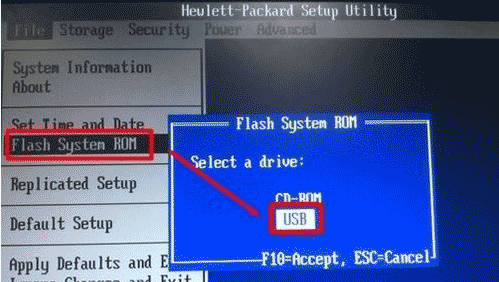
Step 2: Restart your target computer and press F10 key as soon as possible to boot to the HP BIOS. Then in HP BIOS, navigate to the File item and find Flash System Rom in its sub-item drop down list. In the prompted Flash System Rom dialog, choose USB as the first choice. Last, click F10 to continue the setting.
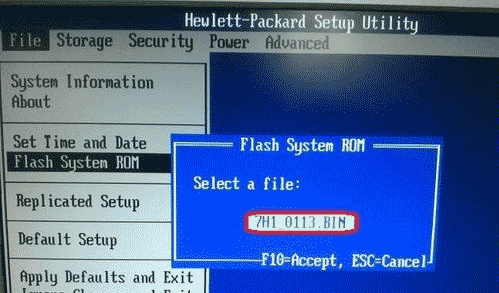
Step 3: Then you will see the previously copied file whose filename ends up with .BIN. Just select it and press F10 key to activate this setting.
Step 4: Save changes and Exit HP BIOS, then restart your pc.
Fix the 1801-Microcode Patch or Update Error in HP UEFI Mode
If you find your computer runs HP UEFI Mode, then you should follow the under steps to fix this problem.
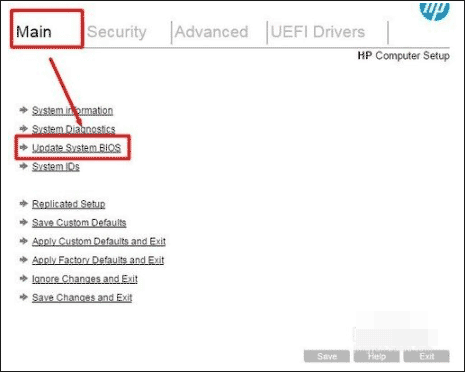
Step 1: Press F10 key as soon as you start your target computer. And select the Update System BIOS option under the category of Main item.
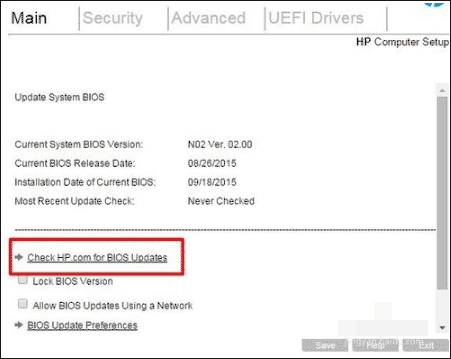
Step 2: In the coming dialog, choose Check HP.com for BIOS Updates option to update your BIOS settings to latest ones.
Attention: You should keep your computer connecting to the internet in this process. And if your computer still prompt you that 1801-Microcode Patch error occurred, then you should go to HP official customer support site to consult your computer manufacturer.
Related Articles:
- How to Fix the Wireless Keyboard not Working on HP Pavilion Computers
- How to Reset BIOS Setting to Factory Default
- How to Boot to BIOS in Different Computers
- How to Find the BIOS Version of a Computer
- How to Change Boot Orders in BIOS
1801 microcode update error как исправить
Windows update impacting certain printer icons and names. Microsoft is working on a solution.
Click here to learn more
Information
Need Windows 11 help?
Check documents on compatibility, FAQs, upgrade information and available fixes.
Windows 11 Support Center.
Information
Windows update impacting certain printer icons and names. Microsoft is working on a solution.
Click here to learn more
Information
Need Windows 11 help?
Check documents on compatibility, FAQs, upgrade information and available fixes.
Windows 11 Support Center.
- HP Community
- Desktops
- Desktop Hardware and Upgrade Questions
- How to fix «1801-Microcode Update Error» in HP Compaq dc7700.
How to fix «1801-Microcode Update Error» in HP Compaq dc7700p Convertible Minitower
- Mark Topic as New
- Mark Topic as Read
- Float this Topic for Current User
- Bookmark
- Subscribe
- Mute
- Printer Friendly Page
Auto-suggest helps you quickly narrow down your search results by suggesting possible matches as you type.
Showing results for
Search instead for
Did you mean:
Guidelines
Any failures related to Hotkey UWP service? Click here for tips.

Create an account on the HP Community to personalize your profile and ask a question
Your account also allows you to connect with HP support faster, access a personal dashboard to manage all of your devices in one place, view warranty information, case status and more.
03-25-2015 01:06 PM — edited 03-25-2015 01:09 PM
HP Recommended
Product: HP Compaq dc7700p
Operating System: Microsoft Windows 7 (64-bit)
i’ve been reading and reading this post for a several times and i’m not sure will this work on my PC so i must ask, how to fix «1801-Microcode Update Error» in HP Compaq dc7700p Convertible Minitower i’ve upgraded it with E7200 instead of the original E6300
here’s Product Number: p/n RN120ET#UUZ
I’m able to boot up and start windows i don’t know is it working normaly or not, i’m just annoyed with the boot message:
Please HELP �� and Thank You in advance .
- Tags:
- HP Compaq dc7700p
1 ACCEPTED SOLUTION
Accepted Solutions

Paul_Tikkanen
160,731 39,341 25,608
03-25-2015 01:22 PM — edited 03-25-2015 01:28 PM
HP Recommended
You will need to update the BIOS to its latest version to get rid of the microcode error, and the processor will only run at half the FSB speed because the BIOS update was not written to make the E7xxx processors work correctly.
You will need to run this software each time you get into windows and change the multiplier to the max.
Or you can run that batch file listed on the below webpage for it to run automatically.
If I were you, I would just install a Conroe E6700 and have a problem-free upgrade.
You will need to use the DOS based flash because I don’t think there is a BIOS update written for W7.
Was this reply helpful? Yes No
16 REPLIES 16
Paul_Tikkanen
160,731 39,341 25,608
03-25-2015 01:22 PM — edited 03-25-2015 01:28 PM
HP Recommended
You will need to update the BIOS to its latest version to get rid of the microcode error, and the processor will only run at half the FSB speed because the BIOS update was not written to make the E7xxx processors work correctly.
You will need to run this software each time you get into windows and change the multiplier to the max.
Or you can run that batch file listed on the below webpage for it to run automatically.
If I were you, I would just install a Conroe E6700 and have a problem-free upgrade.
You will need to use the DOS based flash because I don’t think there is a BIOS update written for W7.
Was this reply helpful? Yes No
03-25-2015 01:38 PM
HP Recommended
first of all thank You for a replay ��
I did updated the BIOS from the HP site but the thing is that this E7200 is the same FSB as the original E6300 wich is 1066Mhz im not an expert on this so excuse me if i mistaking ��
the thing is that first time i’ve tried to upgrade with a processor with 1333FSB and i got something like 9 beeps and i’ve red about it and found out that is FSB issue so i returned that one and orderd this E7200 but now i’m desperate ��
I’ve red some posts on this issue for DC7800 i think where You’ve wrote about Microcode updates and now im lost in all this :S
I’ll try Your advice and let You know if it works ��
Was this reply helpful? Yes No
Paul_Tikkanen
160,731 39,341 25,608
03-25-2015 01:46 PM
HP Recommended
You’re very welcome.
You should check the fsb speed of the processor in Windows. Forum members have reported it runs at only 533 MHz
You can also see this post for more info.
Was this reply helpful? Yes No
03-25-2015 02:02 PM
HP Recommended
here’s what im getting :S
i’m going to read this post that You’ve suggested but at the start i saw that my CPU and is unlikely to compatible ��
Thank You very much anyways ��
Was this reply helpful? Yes No
03-25-2015 02:22 PM
HP Recommended
But wait i’m not giving up without a fight ��
look at this please becouse here it seems to work ok :S
Was this reply helpful? Yes No
Paul_Tikkanen
160,731 39,341 25,608
03-25-2015 02:26 PM — edited 03-25-2015 02:31 PM
HP Recommended
Did the BIOS update get rid of the microcode error? It should have.
I see you added a new screen shot.
9 is the highest you can go?
If so, then you are good to go. 1066 MHz (System Bus) is the right fsb speed.
Was this reply helpful? Yes No
03-25-2015 07:36 PM
HP Recommended
I’ve actualy updated the wrong BIOS update and now its even worse :s
After first error it gives me a second one and then boots up so what i did is: i’ve updated BIOS via CD inside the BIOS it self using 3.07 Rev. A(11 Oct 2011)sp54656.exe (5.8 MB) , but now im having problem with updating it with the 1.06 Rev. A(21 Dec 2010) sp51243.exe (371 KB) wich i think is the only that i can use and that i’ve found Here and wich is USB Flash Media BIOS Flashing in DOS and after i boot i get a message something like: Windows Millenium Emergency Boot and: C:\> after wich i have no idea what to type :S I’ve tried G: wich is my thumb drive but nothing happened it says something like wrong drive or vol. ��
Please Help and THANK YOU in advance ��
1801 microcode update error как исправить
Windows update impacting certain printer icons and names. Microsoft is working on a solution.
Click here to learn more
Information
Need Windows 11 help?
Check documents on compatibility, FAQs, upgrade information and available fixes.
Windows 11 Support Center.
Information
Windows update impacting certain printer icons and names. Microsoft is working on a solution.
Click here to learn more
Information
Need Windows 11 help?
Check documents on compatibility, FAQs, upgrade information and available fixes.
Windows 11 Support Center.
- HP Community
- Desktops
- Desktop Hardware and Upgrade Questions
- How to fix «1801-Microcode Update Error» in HP tower desktop.
How to fix «1801-Microcode Update Error» in HP tower desktop Compaq dc7800
- Mark Topic as New
- Mark Topic as Read
- Float this Topic for Current User
- Bookmark
- Subscribe
- Mute
- Printer Friendly Page
Auto-suggest helps you quickly narrow down your search results by suggesting possible matches as you type.
Showing results for
Search instead for
Did you mean:
Guidelines
Any failures related to Hotkey UWP service? Click here for tips.
Create an account on the HP Community to personalize your profile and ask a question
Your account also allows you to connect with HP support faster, access a personal dashboard to manage all of your devices in one place, view warranty information, case status and more.
06-19-2017 10:35 AM
HP Recommended
Product: HP tower desktop Compaq dc7800
Operating System: Microsoft Windows 10 (64-bit)
I wanted to upgrade my stock processor in my of dc7800 but I have ran into a problem which states
«1801-Microcode Update Error
Missing or Invalid Processor Microcode Update, Please Contact HP Company for a new Microcode Update to support the new Processor Stepping.»
Here are my specs
Intel(R) Core(TM)2 Duo CPU E6850 @ 3.00GHz
Mainboard Name: 0AA8h
Intel® Core™2 Duo Processor E8500 (6M Cache, 3.16 GHz, 1333 MHz FSB) CPU LGA 775
- Tags:
- HP tower desktop Compaq dc7800
1 ACCEPTED SOLUTION
Accepted Solutions
Paul_Tikkanen
160,731 39,341 25,608
06-19-2017 01:34 PM
HP Recommended
Here is all the info you need to update the microcode for your dc7800.
I zipped up and attached the utility to make a bootable flash drive below, the DOS command files you will need, as well as the dc7800 microcode update files.
You make the bootable flash drive first by running sp27608.
After the utility has formatted the drive and made it bootable, copy the DOS system files to the flash drive, then copy the dc7800 Microcode update flash files to the flash drive.
Copy just the files in the folders, not the folders.
Restart the PC with the flash drive plugged in, and the PC should boot to the usb flash drive.
The PC should arrive at a command prompt.
At the command prompt, type Flashbin.exe and hit the enter key.
Follow the on screen instructions to update the microcode.
After the microcode has been updated, the error should be gone.
SP27608.zip
Dos System Files.zip
dc7800 Microcode DOS Flash.zip
- Tags:
- HP tower desktop Compaq dc7800
Was this reply helpful? Yes No
52 REPLIES 52
Paul_Tikkanen
160,731 39,341 25,608
06-19-2017 01:34 PM
HP Recommended
Here is all the info you need to update the microcode for your dc7800.
I zipped up and attached the utility to make a bootable flash drive below, the DOS command files you will need, as well as the dc7800 microcode update files.
You make the bootable flash drive first by running sp27608.
After the utility has formatted the drive and made it bootable, copy the DOS system files to the flash drive, then copy the dc7800 Microcode update flash files to the flash drive.
Copy just the files in the folders, not the folders.
Restart the PC with the flash drive plugged in, and the PC should boot to the usb flash drive.
The PC should arrive at a command prompt.
At the command prompt, type Flashbin.exe and hit the enter key.
Follow the on screen instructions to update the microcode.
After the microcode has been updated, the error should be gone.
SP27608.zip
Dos System Files.zip
dc7800 Microcode DOS Flash.zip
- Tags:
- HP tower desktop Compaq dc7800
Was this reply helpful? Yes No
06-19-2017 05:36 PM — edited 06-19-2017 05:59 PM
HP Recommended
I have follow the instructions you gave me and bios version has been updated although the error still remins and when i booted from flash drive i have only update the bios there was no clear mention of micro code update.
It seems the when I have flash the bios with old processor and when i changed to new one it did work but when i flashed the bios with new processor in it seems to work fine but now i cannot go pass the windows 10 boot screen although the new processor shows in system information via bios.
Was this reply helpful? Yes No
Paul_Tikkanen
160,731 39,341 25,608
06-19-2017 06:06 PM — edited 06-19-2017 06:07 PM
HP Recommended
Try resetting the cmos.
You may also have to reinstall W10 if you can’t get it to work.
I never had a problem restarting the OS when I updated the microcode on my dc7800.
Was this reply helpful? Yes No
06-19-2017 06:08 PM
HP Recommended
Sorry about my wording it was indeed microcode which got updated and it all fine the new processor shows in the bios but i cant boot into windows now and im stuck at loading screen do you think it might the processor and should i try take it out and putting it back again?
Was this reply helpful? Yes No
06-19-2017 06:11 PM
HP Recommended
I would greatly appreciate if you can give me some pointers on how to reset the comos that be great.
Was this reply helpful? Yes No
Paul_Tikkanen
160,731 39,341 25,608
06-19-2017 06:16 PM — edited 06-19-2017 06:17 PM
HP Recommended
Shut down the PC.
Unplug the power cord and everything connected to the PC. Mouse, keyboard, monitor. everything.
Press the power button to drain any residual power from the motherboard.
Near the coin cell battery there is a little yellow cmos reset button.
Press and hold that button for about 20 seconds.
Put everything back together.
Hopefully that will fix it.
If not try reinstalling W10.
The processor change may have messed up something in the windows registry.
If you have a W10 installation disk, you can try the repair options before reinstalling windows.
I don’t think it is the processor. If the microcode update error is gone and the PC acts normally until it goes to boot windows, then I think it is a windows problem.
Was this reply helpful? Yes No
06-19-2017 06:38 PM — edited 06-19-2017 07:12 PM
HP Recommended
Resetted the cmos and rentered the time and date but problem is there ill do my best to fix this and let you know how it goes.
Thanks for all the help you given me.
Was this reply helpful? Yes No
Paul_Tikkanen
160,731 39,341 25,608
06-19-2017 07:06 PM
HP Recommended
Yes, it sounds like you have not fared too well!
Unfortunately, I have no idea what the problem could be.
Was this reply helpful? Yes No
06-20-2017 08:55 AM
HP Recommended
Unfortunately, it gets stuck on windows boot screen and the screen only shows the windows 10 logo. It does not show the spinning cycle which indicates the window 10 in loading. Also, I cannot install new operating system neither from USB or CD nor I can repair windows 10.
Window I try to install window 7 just before I can see GUI the pc goes into blue screen and presents this message “IRQL_NOT_LESS_OR_EQUAL”. I have tired unplugging the graphics card and others connected devices but it had no effect but when I put back the old processor windows 10 works as normal without any problem.