Как обновить BIOS в Windows 10 [ПОЛНОЕ РУКОВОДСТВО]

- BIOS предустановлен на материнской плате и обновляется производителем платы. Преемник BIOS называется Unified Extensible Firmware Interface или UEFI.
- Обновление BIOS — сложная операция. Не прерывайте процесс, так как это может привести к большему ущербу, который будет труднее исправить. Внимательно следуйте инструкциям.
- Если обновление не устранило проблему, на которую вы надеялись, посетите раздел BIOS на сайте, где вы найдете руководства по всем видам проблем.
- Нужны другие четкие и простые инструкции? Ознакомьтесь с обучающими материалами из раздела How-To, заполненными похожими статьями.
BIOS — важный компонент каждого ПК, который позволяет изменять настройки оборудования без запуска Windows.
В вашем BIOS доступно множество функций, но некоторые опытные пользователи, как правило, обновляют свои, чтобы получить доступ к новым функциям.
Обновление BIOS может быть довольно сложной процедурой, поэтому сегодня мы покажем вам, как перепрограммировать BIOS в Windows 10.
Нужно ли обновлять BIOS?
Перепрограммирование BIOS — сложная процедура, и если вы не выполните ее должным образом, вы можете серьезно повредить свой компьютер.
В большинстве случаев вам даже не нужно обновлять BIOS, если нет серьезных проблем с вашим оборудованием.
Основная проблема с BIOS заключается в том, что он расположен на микросхеме на вашей материнской плате, и если процесс обновления пойдет не так, вы вообще не сможете запустить Windows.
Если вы не являетесь опытным пользователем, вам не нужно обновлять BIOS, но если у вас есть проблема с оборудованием и единственный способ исправить это — обновить BIOS, возможно, вам придется обновить его.
Чтобы успешно выполнить обновление BIOS, вы должны быть уверены, что процесс обновления не прерван из-за потери питания или неожиданного завершения работы.
Если это произойдет, процесс обновления BIOS завершится неудачно, и вы, скорее всего, повредите материнскую плату.
Во избежание проблем обязательно подключайте ноутбук напрямую к розетке или используйте ИБП для настольного ПК.
Хотя обновление BIOS может быть потенциально опасным, после обновления BIOS есть определенные преимущества. Иногда обновление BIOS обеспечивает поддержку нового оборудования, например, новых процессоров.
Еще одно преимущество обновления BIOS — это улучшенная стабильность и потенциально новые функции, такие как разгон.
Как видите, обновлять BIOS необязательно, особенно потому, что неправильное обновление BIOS может привести ко многим другим проблемам.
Рекомендуется обновить BIOS, если у вас есть проблемы с оборудованием, которые могут быть связаны с вашим BIOS. Есть несколько способов обновить BIOS, и сегодня мы покажем вам, как это сделать.
Эпическое предупреждение! Все, что вам нужно знать о BIOS, здесь!
Как обновить BIOS в Windows 10? Самый простой способ обновить BIOS — прямо из его настроек. Прежде чем начать процесс, проверьте версию BIOS и модель вашей материнской платы. Другой способ обновить его — создать USB-накопитель DOS или использовать программу для Windows.
Если вы хотите знать, как это сделать, выполните следующие действия.
Шаги по прошивке BIOS в Windows 10:
- Обновление из BIOS
- Создайте USB-накопитель DOS
- Используйте программы для Windows
Перед обновлением BIOS необходимо выяснить, какую версию вы используете в настоящее время. Самый простой способ сделать это — использовать командную строку или инструмент «Информация о системе».
Мы уже писали о нескольких различных методах, которые вы можете использовать для проверки версии BIOS в Windows 10, поэтому обязательно ознакомьтесь с этой статьей.
Помимо версии BIOS, вам также необходимо знать модель вашей материнской платы. Вы можете увидеть модель своей материнской платы с помощью любого инструмента информации об оборудовании, такого как Speccy или CPU-Z.
Найдя версию BIOS, которую вы используете, вам необходимо загрузить новую версию с веб-сайта производителя материнской платы. Перейдите в раздел «Поддержка» или «Скачать» и выберите модель своей материнской платы.
Обязательно загрузите обновление BIOS для той модели материнской платы, которую вы используете.
Установка неправильной версии BIOS на материнскую плату может привести к повреждению, поэтому будьте особенно осторожны при загрузке новой версии BIOS.
Почти для всех версий BIOS есть заметки об обновлении, доступные на странице загрузки, чтобы вы могли легко увидеть, какие проблемы устраняет обновление.
Когда вы загружаете новую версию BIOS, она будет сохранена в архиве, поэтому вам нужно сначала ее распаковать. После этого проверьте доступный файл readme для получения инструкций и любой дополнительной информации.
Есть несколько способов обновить BIOS, и мы кратко их рассмотрим.
ПК не загружается после обновления BIOS? Ознакомьтесь с нашим подробным руководством, чтобы решить проблему, как настоящий техник!
Решение 1. Обновление из BIOS
Некоторые производители материнских плат позволяют прошивать BIOS, просто открыв его и выбрав параметр обновления.
Это относительно просто, и для этого вам нужно переместить загруженное обновление BIOS на USB-накопитель.
Перед перемещением обновления на USB-накопитель убедитесь, что на нем нет других файлов. Теперь вам нужно подключить USB-накопитель к компьютеру и получить доступ к BIOS.
Вы можете получить доступ к BIOS во время загрузки, нажав соответствующую клавишу. В большинстве случаев это Del или какая-то другая клавиша F, поэтому следите за сообщениями, в которых вам предлагается нажать определенную клавишу для входа в SETUP.
Кроме того, вы всегда можете проверить руководство к материнской плате, чтобы узнать, какую клавишу нужно нажать, чтобы получить доступ к BIOS.
Если это не сработает, вы можете получить доступ к BIOS, выполнив следующие действия:
- Когда Windows 10 запустится, откройте меню «Пуск» и нажмите кнопку питания .
- Удерживая нажатой клавишу Shift, выберите вариант « Перезагрузить» .
- Вы должны увидеть несколько доступных вариантов. Выберите Устранение неполадок .

- Теперь выберите Дополнительные параметры> Настройки прошивки UEFI .

- Нажмите кнопку « Перезагрузить» , и теперь ваш компьютер должен загрузиться в BIOS.
После входа в BIOS найдите параметр обновления BIOS и выберите его. Теперь вам нужно выбрать файл обновления BIOS на USB-накопителе и дождаться обновления BIOS.
Некоторые производители предлагают инструменты, которые позволят создать USB-накопитель со всеми необходимыми файлами, поэтому вам не придется переносить их вручную.
Имейте в виду, что процесс обновления немного отличается для каждой модели материнской платы, поэтому обязательно ознакомьтесь с инструкцией по эксплуатации, чтобы узнать, как обновить BIOS.
Решение 2. Создайте USB-накопитель DOS.
Это более старый метод перепрошивки BIOS и, вероятно, самый сложный. Этот процесс требует, чтобы вы создали загрузочную флешку, а также скопировали новую версию BIOS на диск.
Кроме того, вам понадобится скрипт, который перепрограммирует BIOS.
Этот файл обычно находится в архиве с обновлением BIOS и имеет расширение .exe или .bat. В некоторых случаях этот скрипт придется скачивать отдельно.
Чтобы создать загрузочный USB-накопитель с системой DOS, вам необходимо использовать сторонние инструменты, такие как Rufus. Просто отформатируйте диск с помощью этого инструмента и обязательно установите флажок Создать загрузочный диск с помощью FreeDOS .
После этого перенесите файл обновления BIOS и сценарий установки на USB-накопитель и перезагрузите компьютер. Загрузите компьютер с USB-накопителя и запустите сценарий установки с помощью DOS.
Это сложная процедура, поэтому мы настоятельно рекомендуем вам проверить руководство к материнской плате для получения подробных инструкций о том, как это сделать.
Решение 3. Используйте программы для Windows.
Если использование DOS кажется вам слишком сложным, вы можете рассмотреть возможность использования приложения для Windows.
Многие производители материнских плат предлагают приложения для обновления BIOS, которые позволяют обновлять BIOS с помощью простого графического интерфейса.
Хотя это самый простой способ сделать это, с ним связаны определенные проблемы. Установленное программное обеспечение может иногда мешать этому процессу и вызывать сбой обновления BIOS.
Программы безопасности часто могут мешать процессу обновления BIOS и вызывать всевозможные проблемы, поэтому, возможно, лучше полностью отключить их при перепрошивке BIOS.
Любой сбой или зависание системы также может повлиять на процесс обновления, поэтому было бы лучше, если бы вы использовали другой метод для обновления BIOS.
Производители материнских плат часто рекомендуют лучший способ обновления BIOS, поэтому обязательно используйте этот метод.
Обновление BIOS — не сложный процесс, но он может быть потенциально опасным, поэтому будьте осторожны, если решите обновить BIOS.
Кроме того, не забудьте все перепроверить перед запуском. Многие инструменты обновления BIOS дают вам возможность сохранить или создать резервную копию текущего BIOS, поэтому обязательно используйте эту функцию.
Нет необходимости обновлять BIOS, особенно потому, что вы можете нанести необратимый ущерб материнской плате, если не сделаете это должным образом.
Однако, если у вас возникла проблема с оборудованием, и единственное решение — обновить BIOS, обязательно внимательно прочитайте руководство по эксплуатации материнской платы, чтобы узнать, как правильно обновить BIOS.
Некоторые производители компьютеров, такие как Asus, Lenovo или Dell, предлагают встроенные инструменты для обновления BIOS. Вы всегда можете проверить руководство к своему ПК, чтобы узнать, предлагает ли он такой инструмент, чтобы немного упростить работу.
Узнайте все, что нужно знать о доступе к BIOS в Windows 10, из нашего подробного руководства!
Если у вас есть какие-либо вопросы или опасения по поводу процесса обновления BIOS, не стесняйтесь оставлять их в разделе комментариев ниже.
Часто задаваемые вопросы: узнайте больше об обновлении BIOS
- Как проверить версию BIOS Windows 10?
Самый быстрый способ — запустить wmic bios get smbiosbiosversion в командной строке от имени администратора. Дополнительная информация и другие способы проверки версии BIOS приведены в этой статье.
- Стоит ли обновлять свою биографию?
BIOS получает обновления для поддержки новых аппаратных компонентов или исправления ошибок. Если вы не меняете свою конфигурацию или у вас возникли ошибки, вам не нужно выполнять эту операцию.
- Сколько времени нужно на обновление BIOS?
После подготовки файла или USB-накопителя, как только вы нажмете кнопку обновления, операция будет довольно быстрой. Обычно это занимает около 1-3 минут.
Примечание редактора: этот пост был первоначально опубликован в ноябре 2016 года и с тех пор был полностью переработан и обновлен в мае 2020 года для обеспечения свежести, точности и полноты.
How to Update BIOS in Windows 10 [Easiest Way]
If you are facing a major issue in accessing your computer and looking for how to update BIOS in Windows 10, you have arrived at the right place. Here, we have described as more details as possible about the BIOS. We have also added the official websites of the computer manufacturer’s, which will help you to easily download the updated version of the BIOS for your personal computer.
Let’s begin with the basic information about the BIOS!
Table of Contents
What is BIOS?
The term BIOS is the abbreviation of the Basic Input Output System. The BIOS is also known as the UEFI Firmware. It’s basically a chip attached to your motherboard which helps to configure the hardware parts inside the system. Without having a BIOS, you can’t even imagine to switch on your laptop or a desktop.
Is It Recommended to Update BIOS in Windows 10?
BIOS comes with a very minor update on an interval. If you are facing a really big issue related to accessing your Windows, then only try to resolve the problem by updating your BIOS on Windows 10, Windows 8, Windows 7 or other versions of the system. Else, you don’t need to bother about the BIOS updates. The major issue may include a slow-starting of the Windows, motherboard problem, system crashing and more.
How to Update BIOS in Windows 10?
- Open the Run Box by pressing Win+R keys at a time. You can also open the Run Box by pressing the Win+X+R keys together.
- Here, you need to type msinfo32 and then press Enter key or click on the OK It will open the Windows System Information details.

- Here, you need to navigate to the option BIOS Version/Date listed under System Summary.
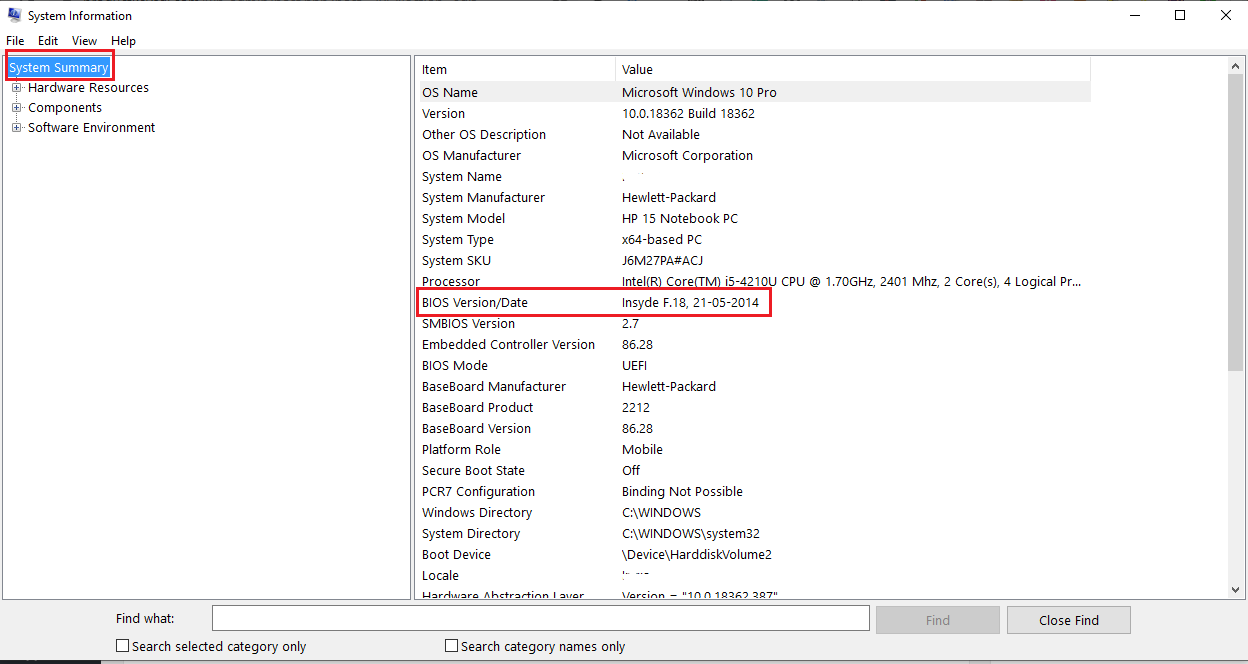
- Now note down the version of your BIOS in a notepad for later reference.
NOTE: If you are using an assembled computer then you need to note down the motherboard model. - Your next task is to find and download the updated BIOS version file from the official website of your PC manufacturer. Go to the support or download section on the website and then search for the updates by entering your computer model number along with the BIOS keyword.
If this step is hard for you to find the updates, simply Google it with your laptop’s or desktop’s brand name, model number or the motherboard name and the BIOS name. And then open the top 5 websites to get the best files out of your searched query. - After downloading the BIOS update file, open the downloaded file location in your system and then unzip the zipped files.
- Now insert a pen drive or any other USB flash drive into 2.0 port of your system.
- Now simply copy all the unzipped files inside the USB device from your PC and then keep it remain inserted.
- In the next step, you need to switch off your computer and then restart it from the power button.
- Within a couple of seconds after restarting the screen of your window, press F2, F4, F8, F10 or F11 key to enter into the BIOS mode. The function key for entering BIOS is different for multiple models. But mostly, you can enter by pressing F4 keys.
- Go to the Boot tab and then enable any Flash
- Select Start Flash in Advance tab and follow the on-screen instructions to start the BIOS update in Windows 10.
However, you can also search online for some graphical interfaced software & tools to easily update BIOS in Windows 10.
NOTE: Before updating the BIOS in Windows 10, it’s recommended to take a backup of it’s current settings to play safely. You can take the BIOS backup by navigating to the Main tab and then click on the Save or Backup option to begin the process. Please keep in mind, the backup navigation may change in different models.
List of Official Websites to Download BIOS Update for Windows 10
Key Points to Remember at the Time of BIOS Update in Windows 10
- Always put your computer on charging whenever you are going to make some major changes through BIOS such as update.
- Make sure, your USB device is virus-free and successfully formatted before copying the BIOS update files in it.
- If you are not sure, which function key does support in your system to enter into the BIOS setting, simply see the bottom side of the screen just after pressing the restart button. It will show you the Function key to go inside the BIOS panel. Still, if you are unable to find it, simply ask Google – ‘BIOS key for your computer’s model number’.
- Don’t panic if your system gets restart automatically during the update BIOS in Windows 10. It’s a normal process of Windows to restart the system multiple times to make the changes.
- Don’t play with the BIOS settings if you are a newbie. It may lead you to go through with some unexpected troubles and then you may lose access to use the Windows properly.
- Recommended to not download the BIOS from any 3 rd party website other than the official site of your computer’s manufacturer. Because unknowingly, your PC might get affected by the virus through the route of the BIOS update in Win 10 or another version of your OS.
How to Check Your System’s BIOS Version?
Whether you are using Windows 7, Windows 8, Windows 8.1 or Windows 10. The process is common to know your system’s BIOS version. And the best part is, there are multiple ways to check the BIOS version. Below are the few simple ways listed to know the version of your computer’s BIOS (Basic Input Output System).
1] Know your BIOS Version in Windows 10 Using Commands
- Press Win+X+C or Win+X+A to open the Command Prompt window.
- Now type and enter the command: wmic bios get smbiosbiosversion
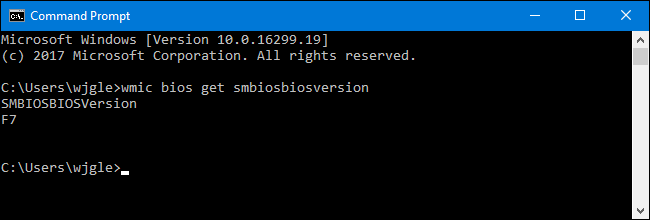
- You can see the BIOS version in result
- You can also enter the command wmic bios get biosversion to see the full details of your system’s BIOS.
2] Check the BIOS Version Using the System Information Panel through Run Box
- Right-click on the start menu and then click on Run to open the Run window
- Now enter the command msinfo32

- In the opened window, scroll down and go to the BIOS Version/ Date listed under items.
- Here you will get the BIOS value.

3] Check the Version to Update BIOS in Windows 10 from Registry Editor
- Press Win+S key to open the search bar
- Now type Run and then click on the first result you see in the list. The Run box will be opened.
- Type regedit and then hit enter key from the keyboard
- In the next opened window, you need to navigate the following folder:
HKEY_LOCAL_MACHINE>> HARDWARE>> DESCRIPTION>> System>> BIOS
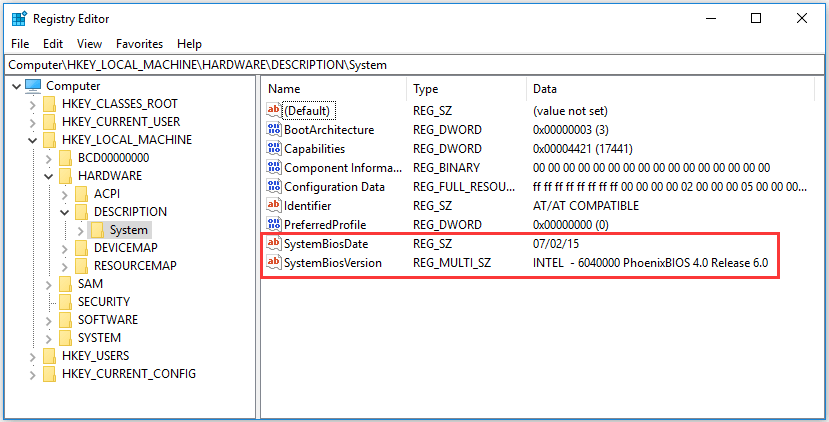
- Inside this folder location, you will get the details of the System Bios Date & the System Bios Version.
4] Get the BIOS Version Informal by Entering into the BIOS Panel
- Restart your computer and enter into the BIOS panel by pressing F2/ F4/ F8 keys within a couple of seconds. Please note, the function key may vary system-to-system.
- Now go inside the BIOS tab using arrow keys and then look for the details given over there.
Hope, the above-mentioned process has worked for you to easily update BIOS in Windows 10. However, if you are running any other OS version and want to update the BIOS there, then the same steps will help you to complete the process.
If you have liked the solutions, please give some feedback in the comment box given below. Your review does matter a lot to use and charged us to create some more problem-solving content for you.
How to Update BIOS Windows 10 | How to Check BIOS Version
This tutorial focuses on how to update computer’s BIOS in Windows 10 ASUS, HP, Dell, Lenovo, Acer, and other PCs. It also tells how to check BIOS version.If you meet problem when updating BIOS, MiniTool Power Data Recovery can help you recover data from PC even if the PC can’t boot. MiniTool also offers MiniTool ShadowMaker to help you backup system & data before conducting a BIOS update.
- How to update BIOS in my Windows 10 ASUS computer?
- Should you update your BIOS?
- How to check BIOS version in Windows 10?
What Is a BIOS?
BIOS, short for Basic Input / Output System, controls your computer boot process. When you start your computer boot, BIOS starts the power-on self-test (POST) and passes the control over to the boot loader that boots your computer OS.
BIOS is a low-level system software and it is stored on a chip on your motherboard, unlike the operating system which is stored on computer hard drive.
Some newer computers come with UEFI firmware instead of the tradition BIOS. Its function is the same as BIOS, and it is also a low-level system software.
Also read: Discover the essential steps for successful hard drive recovery in this informative article.
BIOS Update – Do You Need to Update Your Computer’s BIOS?
Generally you shouldn’t update BIOS of your Windows 10 computer, but sometimes you may update it.
When You Shouldn’t Update BIOS
Normally BIOS updates are small updates. They may fix a bug or add support for a new model of CPU or graphics card. If your computer works well, you probably don’t need to update your BIOS and won’t see any difference after a BIOS update.
In some circumstances, updating BIOS may even bring more new problems to your computer. So it’s advised you go to your computer manufacturer site to find your computer model and check carefully the update details of new BIOS versions, thus, to determine if there is a need to update your computer BIOS.
Besides, updating BIOS is a risky practice. Be careful with BIOS update, it may cause your computer freeze, crash or lose power in the update process, and the BIOS/UEFI firmware may be corrupted. This may lead to your computer unbootable (Related: Solve PC Not Booting after BIOS Update)
When You Can Update BIOS Windows 10
We don’t know for sure whether updating BIOS can make your computer faster and run better, e.g. reduce boot time, improve computer overall performance, fix compatibility issues. In some cases, a BIOS update may fix a motherboard issue for your computer and make your computer perform better than before, but it’s not always the case.
If you are experiencing bugs in your computer that are fixed in a newer version of the BIOS after you check the BIOS update log from the manufacturer website, you may choose to update BIOS to fix those bugs. In addition, if you contact a professional tech support from your manufacturer, and they also advise you to do a BIOS update to repair Windows 10 problems, you may have a try.
In short, it’s not advised to update your BIOS/UEFI firmware unless you do find something specific you need in the newer versions of BIOS updates.
If you decide to perform a BIOS update, you have some ways to go, we’ll cover them below. If you don’t know your current BIOS version yet, you can also follow the guide below to check BIOS version at first.
One-stop Way to Back up Your Computer System, Files and Folders before BIOS Update
As stated above, updating BIOS is a risking task since it may cause your computer unable to boot or run abnormally.
Therefore, it’s highly suggested that you back up your Windows computer system and important data/files on your PC before you learn how to update BIOS in Windows 10. This can help keep your data safe, and easily restore your Windows 10 system if you meet problems in BIOS update.
To back up Windows system, files and folders, partition or disk, MiniTool ShadowMaker is professional and easy-to-use.
Key Features of MiniTool ShadowMaker:
1. Backup and restore Windows OS: Enable you to easily back up Windows 10 system to USB drive, external hard drive, etc. And restore your system to a previous healthy state from USB or external hard drive by using a previous system image backup.
2. Backup individual files and folders on PC: This free Windows backup and recovery tool also allows you to freely choose individual files and folders to back up to USB or external hard drive at fast speed.
3. Backup partition or disk: If you’d like to back up a specific partition or the whole hard disk, MiniTool ShadowMaker also allows you to do it by selecting a partition to back up, or choose the Clone Disk function under Tools tab.
4. File sync: It is also a file sync program, allowing you to sync files to other locations on local computer, other computers, external USB or hard drive, network drive, etc.
5. Advanced backup features: Schedule automatic backup, incremental backup scheme, and more.
6. Bootable media builder: Allow you to create a bootable USB/disk drive to boot your Windows computer into WinPE, and use MiniTool ShadowMaker in WinPE to backup data without booting or perform a system restore.
Free download and install this professional PC backup software – MiniTool ShadowMaker – on your Windows 10/8/7 computer, and follow the steps below to back up your system or files before you update BIOS. (MiniTool ShadowMaker Editions Comparison)
Step 1. Enter into main UI of MiniTool ShadowMaker
You can launch MiniTool ShadowMaker, and click Keep Trial button to use the Trial Edition.
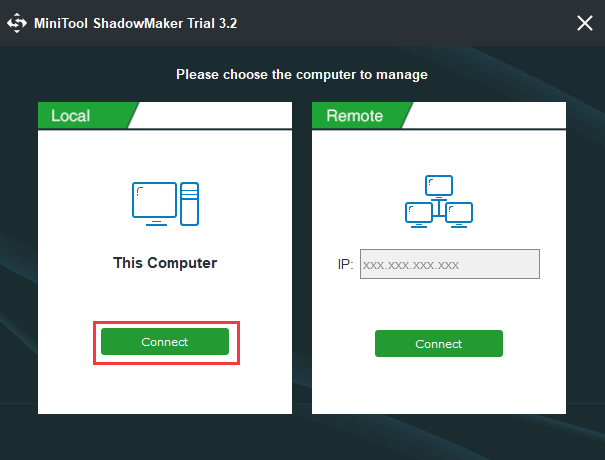
After you see the screen below, you can click Connect button under This Computer, and this will bring you to the main interface of MiniTool ShadowMaker.
Step 2. Choose the backup mode
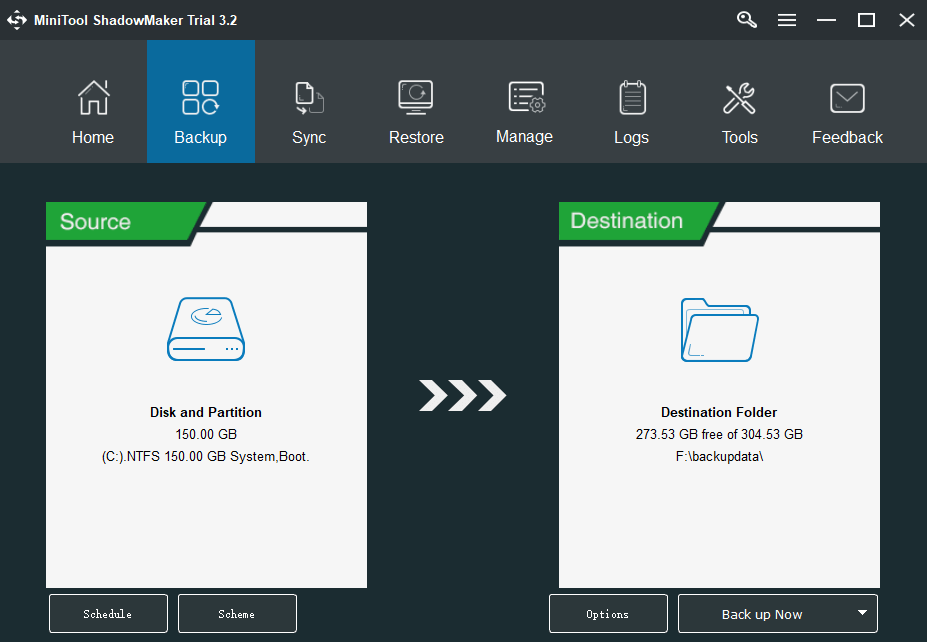
Next you can click Backup icon at the toolbar. This software has chosen the system and boot partitions as the backup resource. If you want to back up Windows 10 system, you can just leave it.
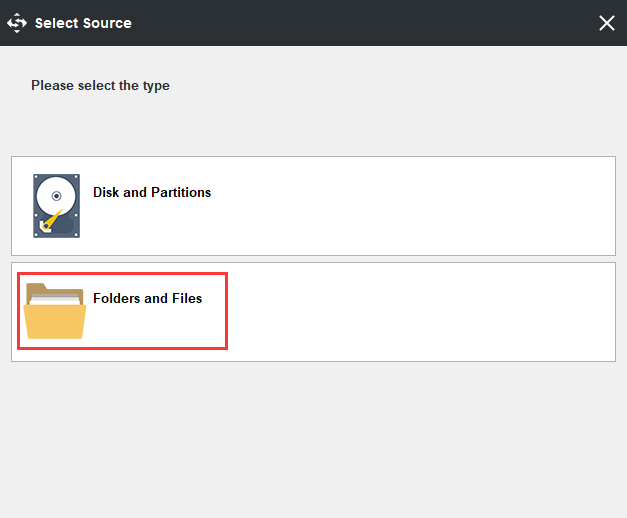
However, if you want to back up files and folders, you can click Source section, and click Folders and Files option.
Step 3. Choose destination path
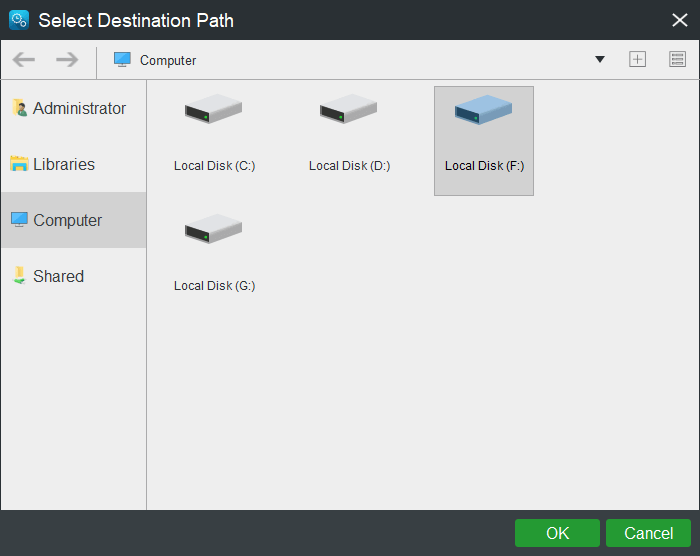
After you’ve selected the source data and files, you can click Destination section on the main UI to select a destination path to store the backup data and files.
The destination path could be other locations of computer, external USB flash drive or hard drive, etc.
Note: Since we don’t know whether the following BIOS update could be successful or not, worse still, a failed BIOS update may cause computer crash and unbootable. So here it’s advised that you back up your Windows system and important files to a safe external USB or hard drive. You can connect a USB or external hard drive to your computer and select it as the destination.
Step 4. Start to back up system or files
When everything is done, you can click Back up Now button on the main UI to start to back up Windows 10 OS, or backup files and folders at fast speed.
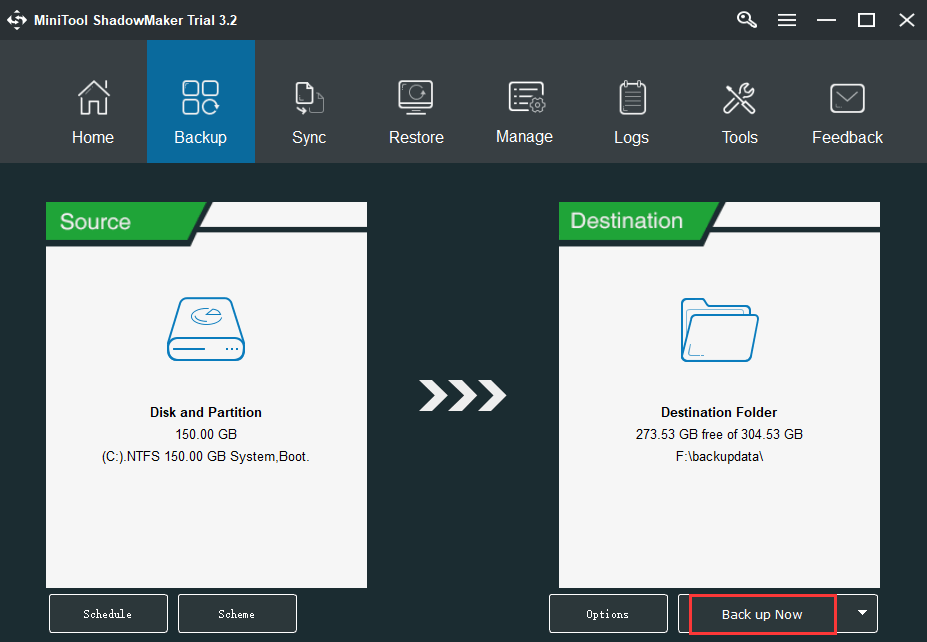
Now you have created a system image of your Windows 10 computer system and backed up needed files and folders, you can continue to check how to update BIOS now.
How to Check BIOS Version Windows 10?
Before you update BIOS in your Windows 10 ASUS, HP, Dell, Lenovo, Acer or other computers, you need to check the current BIOS version of your computer to see if it is already the latest version.
To identify the current version of the BIOS on Windows 10, you can check the 4 ways below.
Way 1. Check BIOS Version from System Information
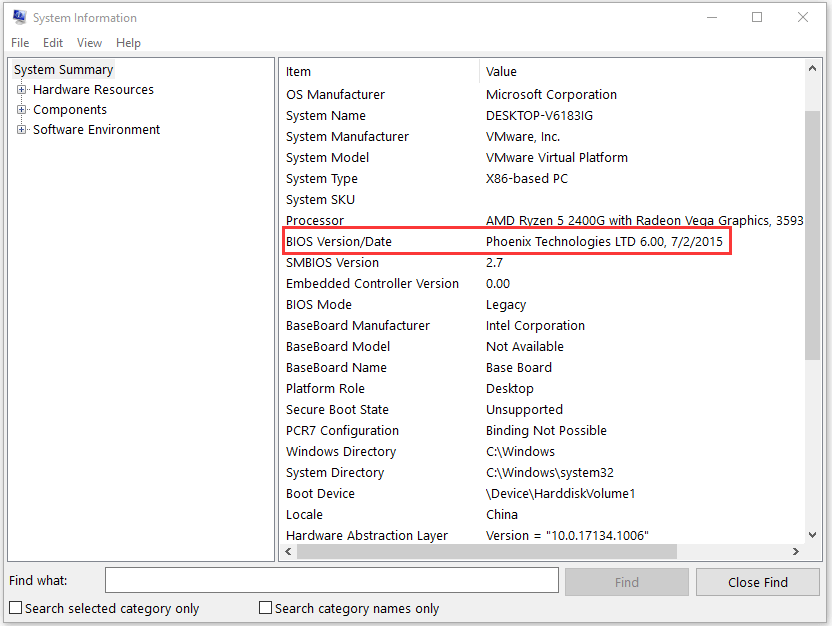
Step 1. You can press Windows + R to open Windows Run dialog, type msinfo32, and hit Enter button to open Windows System Information window.
Step 2. Next you can scroll down to find BIOS Version/Date item under System Summary. Check and note down your computer current BIOS version.
Way 2. How to Check BIOS Version with CMD
You can also check BIOS version using Windows Command Prompt.
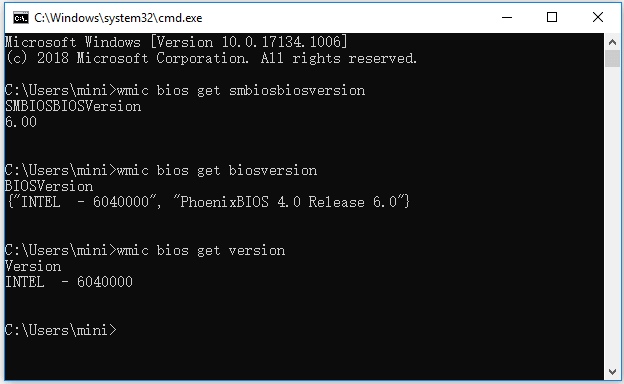
Step 1. You can also press Windows + R simultaneously to open Run window, type cmd, and hit Enter to open Command Prompt Windows 10.
Step 2. In Command Prompt window, you can type the following command line to get the BIOS version of your computer.
- wmic bios get smbiosbiosversion
- wmic bios get biosversion (this command line can get the detailed information of your current BIOS incl. BIOS version and date)
- wmic bios get version
Way 3. How to Check BIOS Version from Windows Registry
You can also find your current BIOS version in Windows Registry.
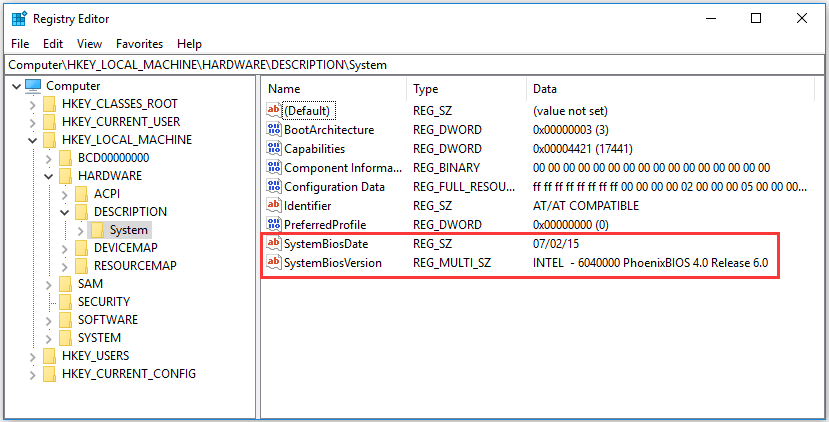
Step 1. You can press Windows + R, type regedit in Run box to open Registry Editor window.
Step 2. Next you can click as follows in Registry window to find the following key:
HKEY_LOCAL_MACHINE -> HARDWARE -> DESCRIPTION -> System
Step 3. After you click System, you can find the SystemBiosDate and SystemBiosVersion keys. You can note down your computer system BIOS version.
Way 4. Check BIOS Version from Startup
Step 1. You can enter BIOS in Windows 10 by pressing F12, DEL, F10 or any other required hotkey on Windows startup screen.
Step 2. Navigate in the BIOS setup window to find if there is BIOS version information.
How to Update BIOS Windows 10
- Check Your Computer’s Model Name
- Find the Latest BIOS Update from Manufacturer Website
- Download and Unzip the BIOS File
- Copy the BIOS File to a USB Flash Drive
- Restart Your Computer to Boot into BIOS Screen
- Back up Your Computer’s Current BIOS File
- Update BIOS in Windows 10
How to Update Your Computer’s BIOS (ASUS, HP, etc.) in Windows 10
After you know the current BIOS version of your computer, you can compare it to the newest version available on your motherboard’s support page, on your computer manufacturer website.
If you decide to update BIOS of your Windows 10 ASUS/HP/Dell/Lenovo computer, check how to update BIOS below.
Step 1. Check Your Computer’s Model Name
Aside from the current BIOS version, you need to know the computer model name or the motherboard model.
You can press Windows + R, type msinfo32, and hit Enter to open System Information window.
You can find your System Model in the right window. You should record it since you will need it to search for the BIOS update file later.
If you are using an assembled computer, you need to find the motherboard model.
Step 2. Find the Latest BIOS Update from Manufacturer Website
Next, you can open your computer manufacturer official website, and find the Downloads or Support page for your specific computer model.
You should see a list of available BIOS versions incl. release date, archive zip file size, download button, and update description.
Tip: If you don’t know where to find the BIOS download page on manufacturer website, you can directly type your computer manufacturer name, your computer model or motherboard name, and BIOS into Google search box, and select a proper link to easily enter into right BIOS page.
Step 3. Download and Unzip the BIOS File
Then you can check the description of BIOS update versions to determine which one you want to download. It’s probable that you may want to download the latest BIOS version.
Download the BIOS update file to your computer. Most of the BIOS update files are Zip folders. You can unzip and extract the Zip file on Windows 10 with WinZip/WinRAR/7-Zip.
After you successfully extract the zip folder, you should see a readme.txt file in it. Read this file carefully before you continue to update BIOS since it offers detailed instructions for updating your BIOS.
Step 4. Copy the BIOS File to a USB Flash Drive
Then you need to plug in a blank USB to your computer and transfer the BIOS update file to the USB flash drive, since your BIOS can’t access your computer files.
Leave the USB plugged into your computer for later BIOS update operation.
Step 5. Restart Your Computer to Boot into BIOS Screen
Next you can click Start -> Power -> Restart to reboot your computer, and press the required key in startup process, to access the BIOS or UEFI screen.
Step 6. Back up Your Computer’s Current BIOS File
In case something goes wrong in BIOS update process, you can tap Main tab, and click the Backup or Save option to back up current BIOS settings. You can plug in another blank USB to your computer and back up BIOS to the USB flash drive. This can help you restore your BIOS settings if the BIOS update fails.
Note: Not all BIOS screens lets you back up the BIOS settings. The BIOS screen may be different in different computers.
Step 7. Update BIOS in Windows 10
At last, you can launch the BIOS/UEFI firmware update or flashing tool, and select the new BIOS update file you copied to the USB flash drive to start the BIOS update process.
To run the BIOS update tool, normally you can select Boot tab (use the arrow buttons on the keyboard to choose it), enable any “Flash” options in the menu, and select Start Flash in Advanced tab to start to update BIOS in Windows 10.
After the BIOS update process is finished, your computer will automatically restart with the new BIOS firmware version.
Tip: If the new BIOS firmware has problems, you may be able to go back to the previous or older version of BIOS from the motherboard manufacturer website by following the same guide above.
How to Recover Data After a BIOS Update Failure in Windows 10
In case you may lose some data on your Windows 10 computer because of the BIOS update, here we provide an easy way to help you recover lost data from Windows 10 computer. It works even if your Windows 10 computer won’t boot after BIOS update.
MiniTool Power Data Recovery, best data recovery software for Windows, enables you to recover lost data or deleted files from computer hard drive, external hard drive, SSD, USB drive (pen drive data recovery), SD card, etc. Extremely easy-to-use and 100% clean.
This program is also capable of recover data when PC won’t boot. You can use its Bootable Media Builder function to create a bootable drive to boot your computer and open MiniTool Power Data Recovery in WinPE to recover data from the unbootable PC. Please be noted that this function is only for advanced versions. (MiniTool Power Data Recovery Editions Comparison)
Get MiniTool Power Data Recovery and install it on your Windows 10 computer (also support Windows 8/8.1/7/Vista), and check the steps below to help you recover lost data on PC.
Step 1 (Optional). If your computer can’t boot because of the BIOS update, you can download MiniTool Power Data Recovery on a normal-working computer to use it to create a bootable USB drive at first. Then you can plug in the bootable USB to your computer and boot computer from the bootable USB and launch MiniTool Power Data Recovery.
Step 2. After you launch MiniTool Power Data Recovery, you can choose a partition under Logical Drives and click Scan button to start scanning data on your PC. Or you can click Devices tab and select the whole disk to scan.
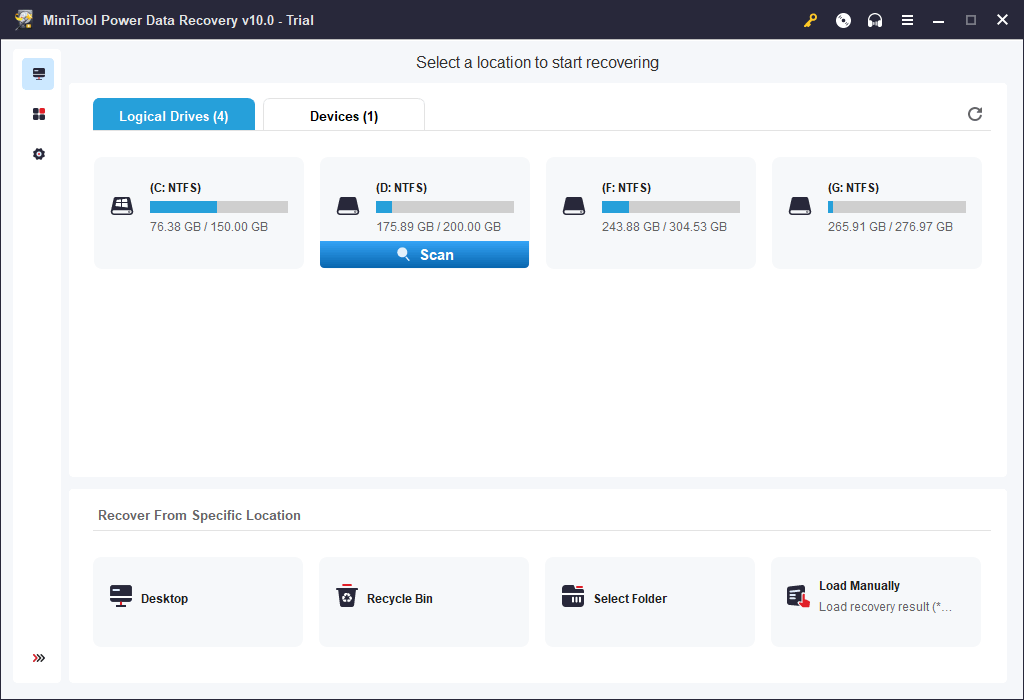
Step 3. After the scan process is finished, you can check the scan result to find needed files and folders, and click Save button to specify a new destination path to store the recovered files.
Conclusion
To sum up, it’s not necessary to update BIOS unless you really have to. If you really need to update BIOS in Windows 10 ASUS, HP, Dell, Lenovo, Acer computers, hope this tutorial gives you some clues.
Besides, it’s highly recommended that you make a backup of your Windows 10 system, files and folders before you perform a BIOS update. If you lost some important data after a BIOS update, you should use professional data recovery tools to immediately recover the lost data to avoid data overwriting and cause permanent data loss.
Still have problems with how to use MiniTool ShadowMaker and MiniTool Power Data Recovery, please contact [email protected] .
How to Update BIOS FAQ
How do I update my BIOS in Windows 10?
Generally you should not update BIOS, but if you really need update your BIOS in Windows 10, you can check the part “How to Update Your Computer’s BIOS (ASUS, HP, etc.) in Windows 10” in this tutorial, it gives a detailed guide.
Can you upgrade BIOS without an OS?
You can upgrade your BIOS without an OS installed, however, you need to be able to access another computer with internet connection. You can use one of the 4 ways in this post to check the correct BIOS version of your computer, and then download the BIOS update on another computer and copy it to a removable flash drive. Then you can insert the media with the BIOS update to your computer to upgrade your BIOS without an OS.
Will updating BIOS delete my files?
Updating BIOS will not delete your files since updating BIOS has no relation with the hard drive data. However, if the installing of new version of BIOS fails, it might damage your computer and cause some data loss. This is why it’s highly recommended that you make a backup of your computer important files and system with a professional PC system and data backup software like MiniTool ShadowMaker. If you hard drive fails and lose some files, you can use MiniTool Power Data Recovery to recover lost files with ease. The data backup and data recovery guide are introduced in the tutorial above.
Is BIOS update safe?
To be frank, if you don’t know much about BIOS update, it’s not safe. The Basic Input / Output System (BIOS) is sit on a chip on your computer motherboard, and it is the first code to run when booting the computer. Updating BIOS is more dangerous than updating other components/software on your computer.
About The Author
Alisa is a professional English editor with 4-year experience. She loves writing and focuses on sharing detailed solutions and thoughts for computer problems, data recovery & backup, digital gadgets, tech news, etc. Through her articles, users can always easily get related problems solved and find what they want. In spare time, she likes basketball, badminton, tennis, cycling, running, and singing. She is very funny and energetic in life, and always brings friends lots of laughs.
Обновление биос через интернет на Windows 10 ��️ Прошивка биос материнской платы на компьютере

В этом видео я вам покажу как обновить прошивку bios не прибегая к использованию флешки. Достаточно будет доступа в интернет. Все гораздо проще чем вы себе представляете. Если понравилось не забудь поставить ❤️ �������������� — https://www.youtube.com/channel/UC0cLK9ZASxgA-sXsOKiQMXA #биос #bios #материнскаяплата #windows10 #компьютер #ноутбук
Показать больше
Войдите , чтобы оставлять комментарии