Как установить Visio?

Приложение Visio предназначено для создания блок-схем, карт и организационных диаграмм. Пользователь может пользоваться различными инструментами рисования и современными шаблонами, которые позволяют управлять и профессионально редактировать диаграммы.
С помощью Visio возможен сбор и отображение динамических данных. У приложения есть функции, благодаря которым возможна одновременная работа нескольких пользователей в одном документе. Результат работы можно сохранять в облаке, для этого используется OneDrive или SharePoint.
Visio Professional 2019
Visio Professional 2016
Visio – установка с официального сайта
Приложение не является составляющей пакета Office. Его приобретают отдельно. Для установки Визио:
- Открываем сайт www.office.com.
- Нажимаем «Войти», при этом используется учетная запись Microsoft.
- Выбираем «Установить приложения».
- Далее выбираем пункт «У меня есть ключ продукта».
- Вводим ключ продукта Визио, получаем ссылку и скачиваем дистрибутив.

Если у вас нет ключа, то можете взять бесплатный ключ Visio на нашем сайте, либо купить в магазине keys-top.com
Далее приложение скачивается. Для завершения установки в Internet Explorer или Microsoft Edge жмем «Запустить», в Chrome – «Настройка», в Firefox – «Сохранить файл». Далее нужно согласиться с тем, что приложение сможет вносить изменения на устройстве. После завершения инсталляции появится сообщение «Готово». Это значит, что установка Microsoft Visio завершена. На экране будет воспроизведена анимация, благодаря которой пользователь узнает, как найти приложение на компьютере. Достаточно следовать инструкциям.

Как выполнить активацию приложения?
Активировать Визио можно даже без использования учетной записи. Для этого:
- Нажимаем правой кнопкой мыши на рабочем столе, создаем документ Visio и открываем его.
- Жмем вкладку «Файл», она расположена в левом верхнем углу окна.
- В открывшемся меню выбираем «Учетная запись».
- Далее жмем на «Активировать продукт».
- Вводим символы лицензионного кода.
- Нажимаем «Продолжить», далее – «Да».

На этом активация завершена, можно полноценно пользоваться приложением.
Если во время активации появляются ошибки, можно попробовать подтвердить код по телефону. Этот способ также работает, если отсутствует интернет-соединение. Воспользоваться им можно для любой версии приложения. Конечно же, для активации потребуется ключ Visio, который нужно приобрести заранее. Также нужно отключить соединение с интернетом. Для активации:
- Начинаем процесс активации, мастере появится окно с предложением об активации с помощью телефона.
- Выбираем пункт «Активировать это программное обеспечение по телефону», жмем «Далее».
- Выбираем страну.
- Набираем телефонный номер, который появится на экране. Звонок – бесплатный.
- Нажимаем на клавиатуре телефона «1», чтобы согласиться с записью разговора.
- Далее нажимаем «3» для выбора активации офиса и других приложений.
- Затем нажимаем «1».
- Автоответчик попросит ввести код, он отображен на экране компьютера. Внимательно вводим 63 символа.
- Далее автоответчик спросит, на скольких устройствах использован ключ, вводим на телефоне «0».
- В компьютер вводим 48 цифр, продиктованных автоответчиком.
Подробную информацию по активации приложений Microsoft Office через телефон можно найти в этой статье.
На этом активация завершена. Для того, чтобы приложение корректно работало, следует перезагрузить его.
Как устранить неполадки?
Иногда во время работы Визио могут появляться различные ошибки. С ними можно попробовать справиться самостоятельно. Изначально нужно попробовать восстановить систему до резервной копии. Для этого:
- Нажимаем кнопку «Пуск»,
- Вводим в строке поиска «Восстановление системы», жмем Enter.
- Заходим в восстановление, при необходимости вводим пароль админа.
- Следуем всем инструкциям.
Если подобный способ восстановления не подошел, нужно попробовать удалить приложение Визио, а затем вновь установить его. Для корректного удаления выполняем следующие действия:
- Нажимаем кнопку «Пуск».
- В строку поиска вводим «Удалить», жмем Enter.
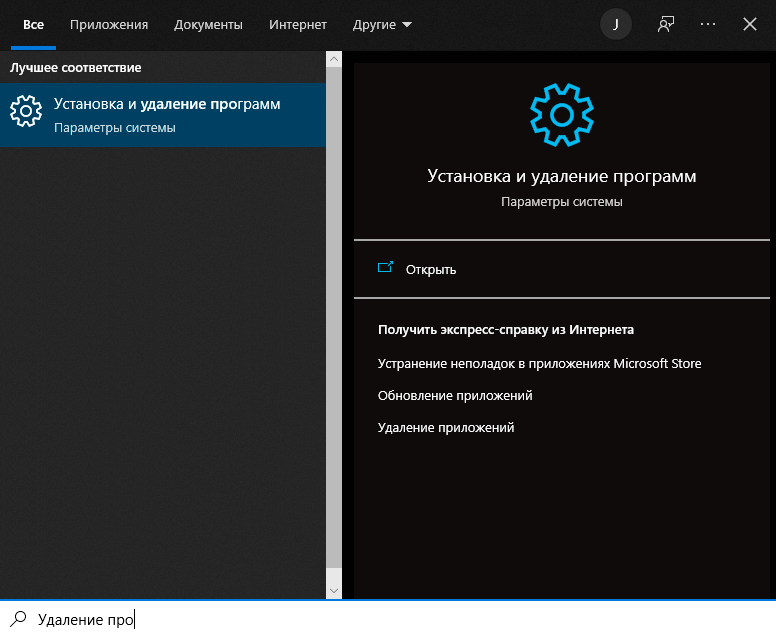
- Заходим в «Установка и удаление программ».
- Находим в списке Визио, жмем кнопку «Удалить».
После того, как приложение будет полностью удалено, перезагружаем компьютер и выполняем повторную установку.
Также помочь в устранении ошибок поможет обновление операционной системы. Для запуска Центра обновлений:
- Жмем кнопку «Пуск».
- В строке поиска вводим «Обновить», жмем Enter.
- Заходим в Центр обновлений, нажимаем кнопку «Проверить наличие обновлений».
- Если появятся доступные обновления, жмем «Установить обновления».
Обязательно нужно перезагрузить компьютер.
Если эти действия не привели к результату – следует связаться со специалистами службы поддержки.
Как установить visio на windows 10
Если на вашем компьютере есть другая версия Visio, её необходимо удалить.
Удалять пакет программ Office не надо.
Установка и удаление программ
Для того, чтобы удалить старые версии Visio, в пуске находим и запускаем «Установка и удаление программ».
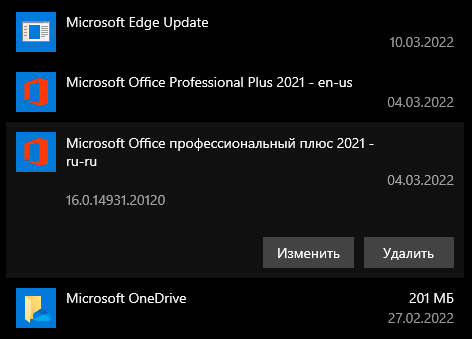
Находим старые версии
С помощью поиска по ключевому слову «Visio» найдите все версии которые установлены на компьютере и нажимаем на них и выбираем «Удалить».
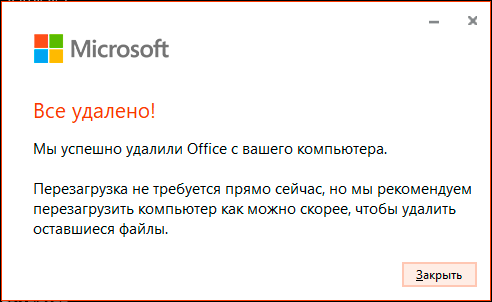
Проверка после удаления
Дожидаемся удаления. Для того чтобы убедиться, что все файлы удалены: напишите в поиске Windows «Visio» и проверяем его отсутствие. Если приложение есть, то повторите предыдущие пункты.
Активируем Visio
Переходим к активации приобретенного ключа
Сайт для активации
Переходите на сайт http://redeem.microsoft.com и авторизуйтесь в учетной записи, если её нет, то создайте её.
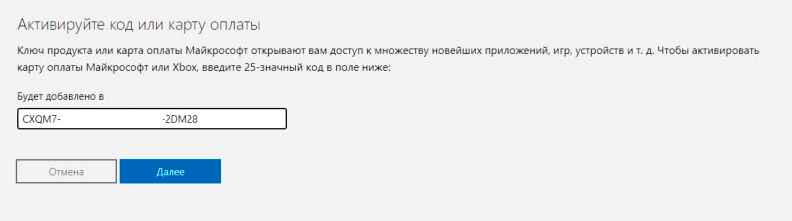
Ввод приобретенного ключа
Вводите приобретенный ключ и нажимаем «Далее». Убедитесь, что вошли в нужную учетную запись.
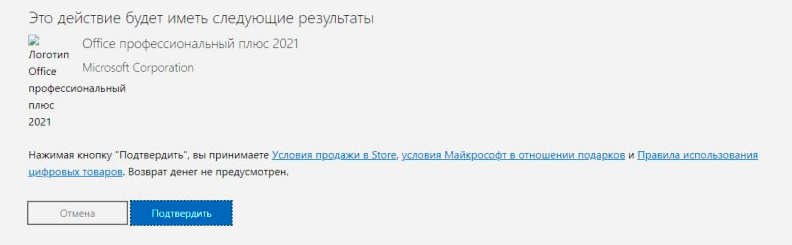
Подтверждение активации
Убедитесь что продукт совпадает с приобретенным, если все в порядке нажмите «Подтвердить»
Убеждаемся в привязке
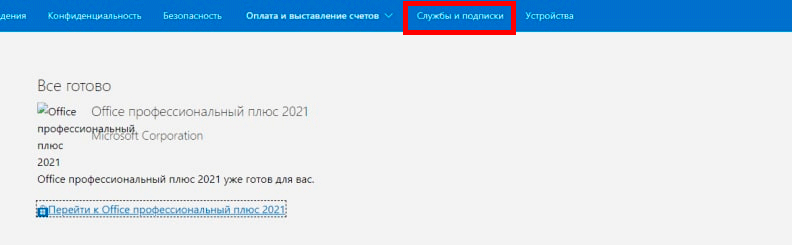
Переходим в раздел «Службы и подписки» по кнопке сверху экрана либо по ссылке https://account.microsoft.com/services
Приобретенные продукты
В разделе «Приобретенные продукты» находим наш Visio, после этого сайт можно закрывать, он больше не понадобится.


Устанавливаем программу
Переходим к этапу установки
Скачиваем дистрибутив
По ссылке из начала статьи скачайте дистрибутив, выбрав соответствующую версию и язык.
Открытие файла
После окончания загрузки откройте скачанный файл. У вас может появиться предупреждение системы безопасности, оно является стандартным для всех файлов «.img». Нажмите «Открыть».
Запускаем установщик
У вас откроется папка, запустите файл «Setup». Установщик самостоятельно выберет необходимую разрядность программы.
Идет установка Office
Начнется установка Visio. Обычно это занимает 5-30 минут.
Office установлен
После окончания установки нажимаем «Закрыть».
Закрываем виртуальный диск
В «Проводнике» найдите виртуальный диск и нажмите правой кнопкой мыши, потом «Извлечь». Скачанный дистрибутив можно удалить.
Запускаем Word
В «Пуске» находим любое приложение Visio.
Активируем установленный пакет
У Вас появляется данное окно — нажимаем «Назад».
Повторно ключ вводить не надо , вы его вводили ранее.
Входим в учетную запись. Если входили в учетную запись ранее, это произойдет автоматически.
Install Visio or access Visio for the web
Visio Plan 2 Visio Professional 2021 Visio Standard 2021 Visio Professional 2019 Visio Standard 2019 Visio Professional 2016 Visio Standard 2016 Visio Professional 2013 Office for business Office 365 Small Business Microsoft 365 admin More. Less
Visio isn’t included in the Office suite, but is sold as a stand-alone application. If you don’t have Visio you can buy or try it now.
Which version of Visio do you have?
Only some versions of Visio include the desktop app.
- If you have Visio Plan 2 or a non-subscription version such as Visio Professional or Visio Standard2021, 2019, 2016, or 2013 you can install and use the desktop app.
- If you have Visio Plan 1 the only way for you to access Visio is via the web app version. Select the Visio for the web tab below for information about how to access Visio this way.
Tip: If you’re using Visio at work or school and not sure if you have a Visio Plan 1 or Visio Plan 2 license, see What Microsoft 365 business product or license do I have?
Tip: If you’re a small business owner looking for more information on how to get Microsoft 365 set up, visit Small business help & learning.
Depending on your version, select the correct tab for how you want to access Visio.
Install Visio (Visio Plan 2 or Visio Professional)
The steps below describe how to install the desktop app included with Visio Plan 2, and non-subscription versions of Visio Professional or Visio Standard 2021, 2019, or 2016. If you have Visio Plan 1 see the steps under the tab Visio for the web.
Note: (Visio 2013, Visio 2010, and Visio 2007 are now out of support.)
Step 1: Associate Visio with your account
To install Visio a license needs to be associated with your Microsoft account or work or school account. Which account you use depends which version of Visio you have.

Visio Professional (or Standard)
Non-subscription version
If your product key is already linked to your Microsoft account, skip to Step 2.
- Go to office.com/setup.
- Sign in with an existing or new Microsoft Account and enter your product key.
Once Visio is associated with your Microsoft account, you no longer need the product key. It will always be linked to your account and you can re-download the app or manage your license from account.microsoft.com.
Visio Plan 2
Subscription version
Your work or school account should already have an assigned license for Visio Plan 2. Go on to Step 2.
If you’re unable to complete Step 2, contact your IT admin to get a Visio Plan 2 license assigned to you.
Note: If you’re the Microsoft 365 admin responsible for assigning licenses, see Assign licenses to users and the Deployment guide for Visio.
Step 2: Sign in to download Visio
Before you begin Make sure your PC meets the system requirements.
The account you sign in with depends which version of Visio you have. Follow the steps for your version.
Visio Professional (or Standard)
Non-subscription versions
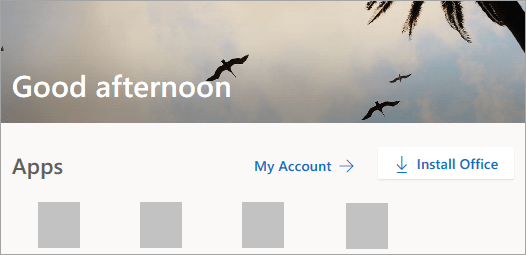
- Go to www.office.com and if you’re not already signed in, select Sign in.
- Sign in with the Microsoft account associated with your one-time purchase version of Visio.
Note: If you’re already signed in to office.com with a work or school account, you’ll need to sign out of that and then sign in again with your Microsoft account, or right-click your browser in the task bar to start an in-private or incognito browser session.
Forgot your account details? See I forgot the account I use with Office.
Tip: To install Visio in a different language, or to install the 64-bit version, select the link Other options. Choose the language and bit version you want, and then select Install.
Visio Plan 2
Subscription version
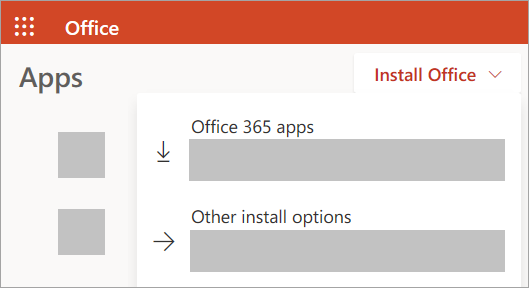
- Go to www.office.com and if you’re not already signed in, select Sign in.
- Sign in with the work or school account associated with this version of Visio.
Note: If you’re already signed in with a Microsoft account, you’ll need to sign out and then sign in with the work or school account you use with your subscription, or right-click your browser in the task bar to start an in-private or incognito browser session.
Forgot your account details? See I forgot the account I use with Office.
- If Visio isn’t listed as an install option under My Installs, it could mean you don’t have a license. Check your assigned licenses and if you don’t see Visio Plan 2 listed under your assigned subscriptions, contact your admin for help. If you’re the Microsoft 365
- admin, learn about assigning licenses to users.
Visio should now begin downloading. Follow the prompts in Step 3: Install Visio to complete the installation.
Step 3: Install Visio
- Depending on your browser, select Run (in Edge or Internet Explorer), Setup (in Chrome), or Save File (in Firefox). If you see the User Account Control prompt that says, Do you want to allow this app to make changes to your device? select Yes. The install begins.
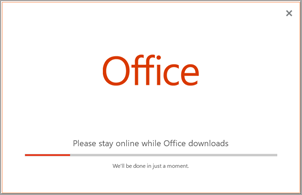
- Your install is finished when you see the phrase, «You’re all set! Visio is installed now» and an animation plays to show you where to find the Visio app on your computer. Follow the instructions in the window to find Visio. For example, depending on your version of Windows, select Start and then scroll to find Visio from your list of apps.

FAQ for installing Visio
Select one of the issues below to expand it. If your issue isn’t listed, please leave us feedback at the bottom of this article and describe the problem you’re having.
I don’t have a product key for my one-time purchase of Visio
If you got Visio Professional or Standard through one of the following, you may not have a product key or associated account. See these steps instead to install your version of Visio.
- Microsoft HUP: You bought Visio for personal use through your company HUP benefit and have a product key, see Install Office through HUP (These steps apply to all stand-alone Microsoft 365 products purchased through HUP.)
- Volume license versions: IT departments often use different methods to install volume license editions of Visio in their organizations. Talk to your IT department for help.
- Third-party seller: You bought Visio from a third-party and you’re having problems with the product key.
I don’t see an option to install Visio
If you don’t see an option to install Visio or if you selected Install Office from the office.com home page and Office begins to download immediately, cancel that installation and do the following.
- From office.com select Install Office and make sure to select the link Other install options.
- From the My Account page, select Apps & devices.
- Find Visio from the list and choose your language and the 64-bit or 32-bitversion, then select Install Visio. (If you have any other Microsoft 365 apps already installed, make sure to select the same bit version for your Visio installation. Not sure what you have? See What version of Office am I using?)
Tip: If Visio isn’t listed as an install option under Apps & devices, it could mean you don’t have a license or you have Visio Plan 1 which doesn’t include the desktop version of Visio. Check your assigned licenses and if you don’t see Visio Plan 2 listed under your assigned subscriptions, contact your admin for help. If you’re the Microsoft 365 admin, learn about assigning licenses to users.
Access Visio for the web
Both Visio Plan 1 and Visio Plan 2 can access Visio for the web. However, with Visio Plan 1 this is the only way you can access Visio since the desktop app isn’t included with Visio Plan 1.
To access Visio for the web, do the following.
- Go to visio.office.com.
- If prompted, sign in with your work or school account.
To learn more about this version of Visio, see Overview of Visio for the web.
Install Visio or access Visio for the web
Visio Plan 2 Visio Professional 2021 Visio Standard 2021 Visio Professional 2019 Visio Standard 2019 Visio Professional 2016 Visio Standard 2016 Visio Professional 2013 Office for business Office 365 Small Business Microsoft 365 admin More. Less
Visio isn’t included in the Office suite, but is sold as a stand-alone application. If you don’t have Visio you can buy or try it now.
Which version of Visio do you have?
Only some versions of Visio include the desktop app.
- If you have Visio Plan 2 or a non-subscription version such as Visio Professional or Visio Standard2021, 2019, 2016, or 2013 you can install and use the desktop app.
- If you have Visio Plan 1 the only way for you to access Visio is via the web app version. Select the Visio for the web tab below for information about how to access Visio this way.
Tip: If you’re using Visio at work or school and not sure if you have a Visio Plan 1 or Visio Plan 2 license, see What Microsoft 365 business product or license do I have?
Tip: If you’re a small business owner looking for more information on how to get Microsoft 365 set up, visit Small business help & learning.
Depending on your version, select the correct tab for how you want to access Visio.
Install Visio (Visio Plan 2 or Visio Professional)
The steps below describe how to install the desktop app included with Visio Plan 2, and non-subscription versions of Visio Professional or Visio Standard 2021, 2019, or 2016. If you have Visio Plan 1 see the steps under the tab Visio for the web.
Note: (Visio 2013, Visio 2010, and Visio 2007 are now out of support.)
Step 1: Associate Visio with your account
To install Visio a license needs to be associated with your Microsoft account or work or school account. Which account you use depends which version of Visio you have.
Visio Professional (or Standard)
Non-subscription version
If your product key is already linked to your Microsoft account, skip to Step 2.
- Go to office.com/setup.
- Sign in with an existing or new Microsoft Account and enter your product key.
Once Visio is associated with your Microsoft account, you no longer need the product key. It will always be linked to your account and you can re-download the app or manage your license from account.microsoft.com.
Visio Plan 2
Subscription version
Your work or school account should already have an assigned license for Visio Plan 2. Go on to Step 2.
If you’re unable to complete Step 2, contact your IT admin to get a Visio Plan 2 license assigned to you.
Note: If you’re the Microsoft 365 admin responsible for assigning licenses, see Assign licenses to users and the Deployment guide for Visio.
Step 2: Sign in to download Visio
Before you begin Make sure your PC meets the system requirements.
The account you sign in with depends which version of Visio you have. Follow the steps for your version.
Visio Professional (or Standard)
Non-subscription versions
- Go to www.office.com and if you’re not already signed in, select Sign in.
- Sign in with the Microsoft account associated with your one-time purchase version of Visio.
Note: If you’re already signed in to office.com with a work or school account, you’ll need to sign out of that and then sign in again with your Microsoft account, or right-click your browser in the task bar to start an in-private or incognito browser session.
Forgot your account details? See I forgot the account I use with Office.
Tip: To install Visio in a different language, or to install the 64-bit version, select the link Other options. Choose the language and bit version you want, and then select Install.
Visio Plan 2
Subscription version
- Go to www.office.com and if you’re not already signed in, select Sign in.
- Sign in with the work or school account associated with this version of Visio.
Note: If you’re already signed in with a Microsoft account, you’ll need to sign out and then sign in with the work or school account you use with your subscription, or right-click your browser in the task bar to start an in-private or incognito browser session.
Forgot your account details? See I forgot the account I use with Office.
- If Visio isn’t listed as an install option under My Installs, it could mean you don’t have a license. Check your assigned licenses and if you don’t see Visio Plan 2 listed under your assigned subscriptions, contact your admin for help. If you’re the Microsoft 365
- admin, learn about assigning licenses to users.
Visio should now begin downloading. Follow the prompts in Step 3: Install Visio to complete the installation.
Step 3: Install Visio
- Depending on your browser, select Run (in Edge or Internet Explorer), Setup (in Chrome), or Save File (in Firefox). If you see the User Account Control prompt that says, Do you want to allow this app to make changes to your device? select Yes. The install begins.
- Your install is finished when you see the phrase, «You’re all set! Visio is installed now» and an animation plays to show you where to find the Visio app on your computer. Follow the instructions in the window to find Visio. For example, depending on your version of Windows, select Start and then scroll to find Visio from your list of apps.
FAQ for installing Visio
Select one of the issues below to expand it. If your issue isn’t listed, please leave us feedback at the bottom of this article and describe the problem you’re having.
I don’t have a product key for my one-time purchase of Visio
If you got Visio Professional or Standard through one of the following, you may not have a product key or associated account. See these steps instead to install your version of Visio.
- Microsoft HUP: You bought Visio for personal use through your company HUP benefit and have a product key, see Install Office through HUP (These steps apply to all stand-alone Microsoft 365 products purchased through HUP.)
- Volume license versions: IT departments often use different methods to install volume license editions of Visio in their organizations. Talk to your IT department for help.
- Third-party seller: You bought Visio from a third-party and you’re having problems with the product key.
I don’t see an option to install Visio
If you don’t see an option to install Visio or if you selected Install Office from the office.com home page and Office begins to download immediately, cancel that installation and do the following.
- From office.com select Install Office and make sure to select the link Other install options.
- From the My Account page, select Apps & devices.
- Find Visio from the list and choose your language and the 64-bit or 32-bitversion, then select Install Visio. (If you have any other Microsoft 365 apps already installed, make sure to select the same bit version for your Visio installation. Not sure what you have? See What version of Office am I using?)
Tip: If Visio isn’t listed as an install option under Apps & devices, it could mean you don’t have a license or you have Visio Plan 1 which doesn’t include the desktop version of Visio. Check your assigned licenses and if you don’t see Visio Plan 2 listed under your assigned subscriptions, contact your admin for help. If you’re the Microsoft 365 admin, learn about assigning licenses to users.
Access Visio for the web
Both Visio Plan 1 and Visio Plan 2 can access Visio for the web. However, with Visio Plan 1 this is the only way you can access Visio since the desktop app isn’t included with Visio Plan 1.
To access Visio for the web, do the following.
- Go to visio.office.com.
- If prompted, sign in with your work or school account.
To learn more about this version of Visio, see Overview of Visio for the web.