4 Ways to Delete Duplicate Photos in Google Photos in 2024
Want to know how to remove duplicate photos in Google Photos? In this article, you will find 4 free and safe ways to resolve Google Photos duplicates problem and 3 ways to avoid Google Photos backup duplicates. With those methods mentioned, you can manage your Google Photos storage space very well.
December 12, 2023
Content Overview:
- Complaints of Google Photos Backup Duplicates
- Why Google Photos Upload Duplicates?
- How to Delete Google Photos Auto Backup Duplicates?
- How to Avoid Google Photos Duplicates Generating?
- Suggestions to Google Photos Backup App
Complaints of Google Photos Backup Duplicates
«I can check the files myself and see that they are identical, but if you put a file from one computer on another computer it gets uploaded as a duplicate. People really are going to go elsewhere.»
«This is pretty screwed up. Do you think it’s okay to create hours of work because you didn’t take the time to explain the process before we created thousands of duplicates? You suck, and now I’ll go use some other photo site.»
«Removing each one individually would take DAYS, and this issue has now ruined my online albums for sharing with friends and family.»
«This service is full of bugs for uploading existing photos. Duplicates are all over the place and no way to organize them via tags. Nice try, Google, but you’ll need to put better engineers on this one. It’s pitiful.»
«These duplicates are a major issue. Perhaps they need new QA testers. This product will have cost me more time than I choose to think about. It sucks. I think I will find better software and keep things local.»
.png)
Why Google Photos Upload Duplicates?
1. Google Photos Backup Has Identical Duplicate Detection
Google Photos has identical duplicate detection, which means that if you have uploaded photos to Google Photos already, it will not re-upload the same photo. The de-duplicating feature will check/scan to see if they have been previously uploaded (each photo file has a unique «hash» that allows us to determine this). If they have, it will skip that photo upload and check the next one and so on. So, it will look like it is uploading the uploaded photos again, but it will just cycle through (re-scan) all the photos and only upload those that were not previously uploaded.
Photo backup client will hide/merge duplicate photos and will only show one copy of a duplicate. This only applies to exact duplicates. If you are seeing what look like duplicates in your Google Photos account, they are most likely either near duplicates or they are copies of the same photo that were changed in some way (such as, opening it in something like Photoshop and then re-saving it). If even a single bit is different in two images, Google Photos won’t see them as duplicates. Click here to see detailed explanations about how Google Photos handles duplicates.
2. Some Other Reasons for Having Duplicates
(1). If you have uploaded pictures/videos using a former Google backup app or other methods say Desktop Uploader or Picasa, then, a new upload by Backup and Sync or drag & drop will create duplicates of all photos that have been modified (edit, change data and time, add tags, etc. not include rename) by the former app. For example, Picasa is much older and did not play by the same rules that allow de-duplication to work (specifically, Picasa might have altered the image metadata or image data prior to upload) and the newer Google Photos Backup utility may not successfully detect the duplicates. (Picasa and Google Photos store them in different folders.)
(2). Uploading from multiple devices (for example different smartphones, computers, and NAS) will result in duplicates (EXACT copies of photos will not be duplicated, but VIDEOS do).
(3). Devices changes. Using a new phone, new computer or reformatted computer (reinstall/upgrade OS, photos backup app, etc.) may also generate duplicated photos.
(4). Bugs can also create duplicate photos in your Google Drive. Sometimes, when you add a new device to Google Photos or enable the «Backup and Sync» feature since the metadata of the two pictures are slightly different, it will upload files that are already in the cloud.
How to Delete Duplicate Photos in Google Photos?
Many users are unwilling to remove duplicates in Google Photos manually due to time-wasting. Unfortunately, there are only manual ways until now.
Note: No matter which way you take below, bear in mind that the Google Photos backup app does not perform a sync function from cloud to local. Otherwise, when you delete duplicates, your local source photos may be deleted at the same time.
In the following parts, you will find 5 ways to help remove duplicate photos from Google Photos.
Method 1. Remove Duplicates in Google Photos Manually
If the number of duplicate photos is not too much, you can try to delete these duplicates manually.
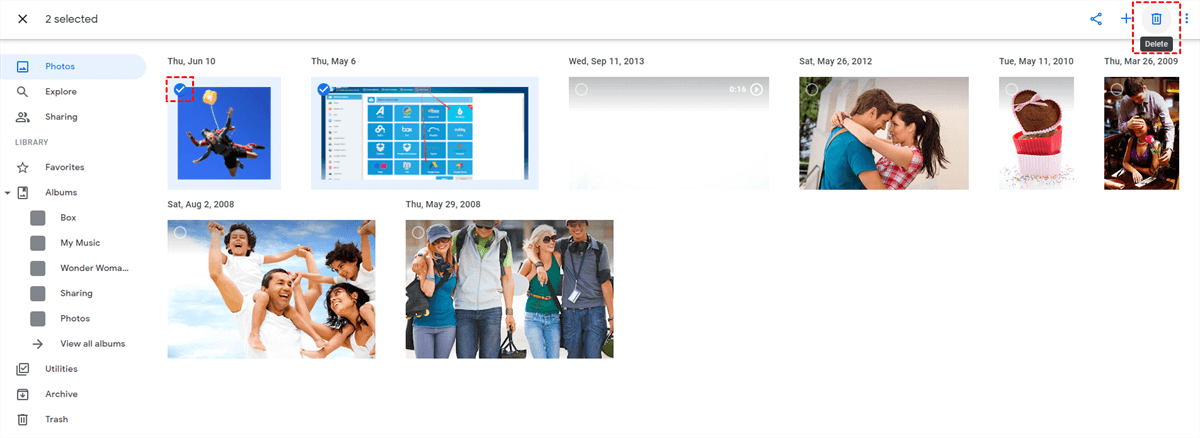
1. Log in to Google Photos official website.
2. Click on «Photos» in the left panel.
3. Find these duplicates, select photos that you don’t need, and click on the «Delete» option.
Method 2. Use Identical Duplicate Detection With Google Photos
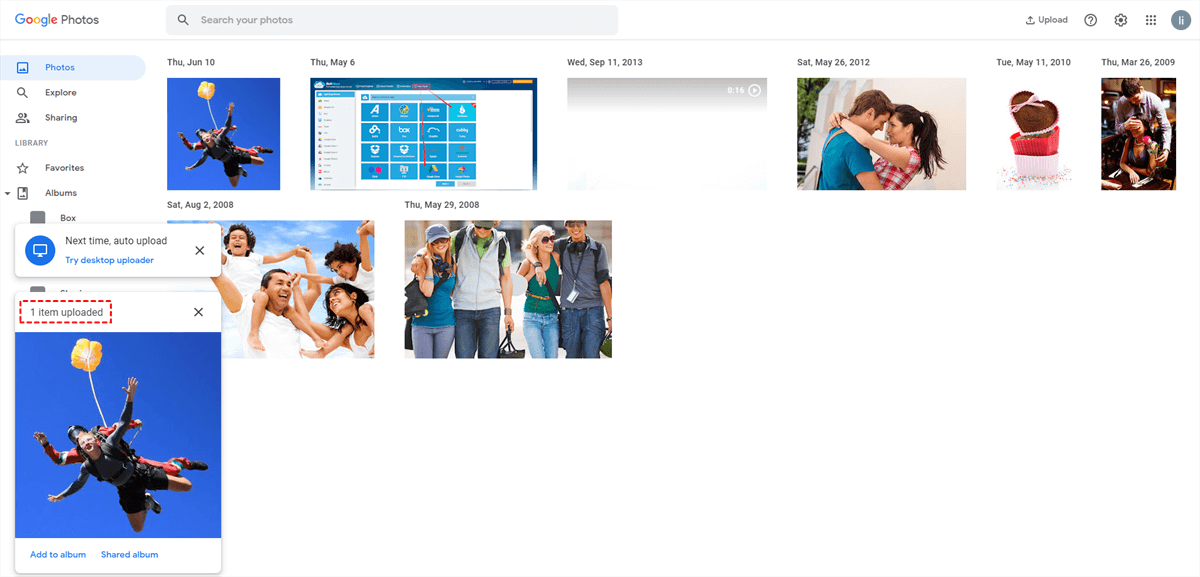
Google does try to prevent complete duplication through the «identical duplication detection» feature. This will scan the content and metadata of any images you upload to the cloud and check to make sure it hasn’t been uploaded yet. This is very simple and easy to use because it is automatically enabled and duplicates can be deleted without user input. Select an image that has already been uploaded to your account and try to upload it again. This will check whether duplicate detection is effective on your device.
Method 3. Google Photos Detect Duplicates — Search
If the upload dates are different (if you uploaded long ago via Desktop Uploader, and now again to Google Photos), it is easier to delete the duplicates. In https://photos.google.com/search/_tra_ they are sorted by upload date (latest on top). Uploads from Desktop Uploader do not appear there at all. Then, hovering over the date with your mouse and tick inside the small circle that appears you can select all photos uploaded on that date, or in batches of a maximum of 500. Review and deselect any individual photos that you need to keep, then move the duplicates to the trash.
Tips:
- Do not empty the trash, the photos will not count against storage and will be safe for 60 days if you discover any mistaken deletions.
- For more ways to get a useful search result, please click here. (Though it is for old Picasa, many are still useful today).
Method 4. Find and Remove Duplicates Google Photos through Third-Party Tools
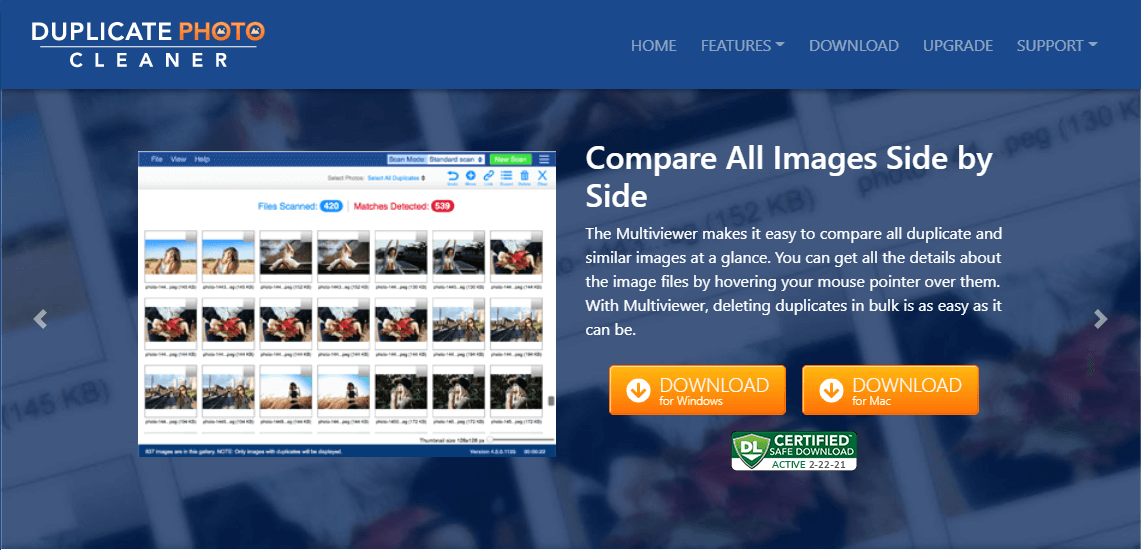
Although Google’s own level of detection is moderate, there are free third-party solutions that can help you remove duplicates from cloud storage. Although you can find many programs on the web that can do this, such as «Duplicate File Finder, Driver Cleaner» or «Duplicate Photo Cleaner», they all follow a similar process.
In a nutshell, how to delete duplicate photos in Google Photos quickly, just follow the simple steps:
| ��Find Google Photos duplicate photos | Go to the Google Photos website, and click Photos to find all duplicate photos. |
| ✂ Delete duplicate Google Photos | Use the Delete option or a third-party tool like Duplicate File Finder to delete. |
How to Avoid Google Photos Duplicates?
1. Get a Fresh Settings or Fresh Start to Any Software/Hardware Changes
Considering the causes of Google Photos upload duplicates, to avoid future Google Photos auto backup duplicates, users should keep backing up photos using the same local device client. If the client gets updated/reinstalled, just adjust the settings and only put the new photos or future photos to source folders. If the local devices get renewed/reformatted or replaced, also reset settings to put already uploaded items out of source folders. Moreover, to avoid uploading the same photos via different devices (desktops, laptops, notebooks, or phones).
2. Upload Google Photos Manually
Just open Google Photos and upload new local photos by dragging and dropping or “Upload” button or “Add photos” bottom in a certain album. You can click here to see more details.
3. Use Different Upload Methods
Since the troubles Google Photos has given you, if you are fed up with it, you can switch to other cloud drive services like Dropbox and OneDrive. They have their own file backup tool to upload local files to cloud storage.
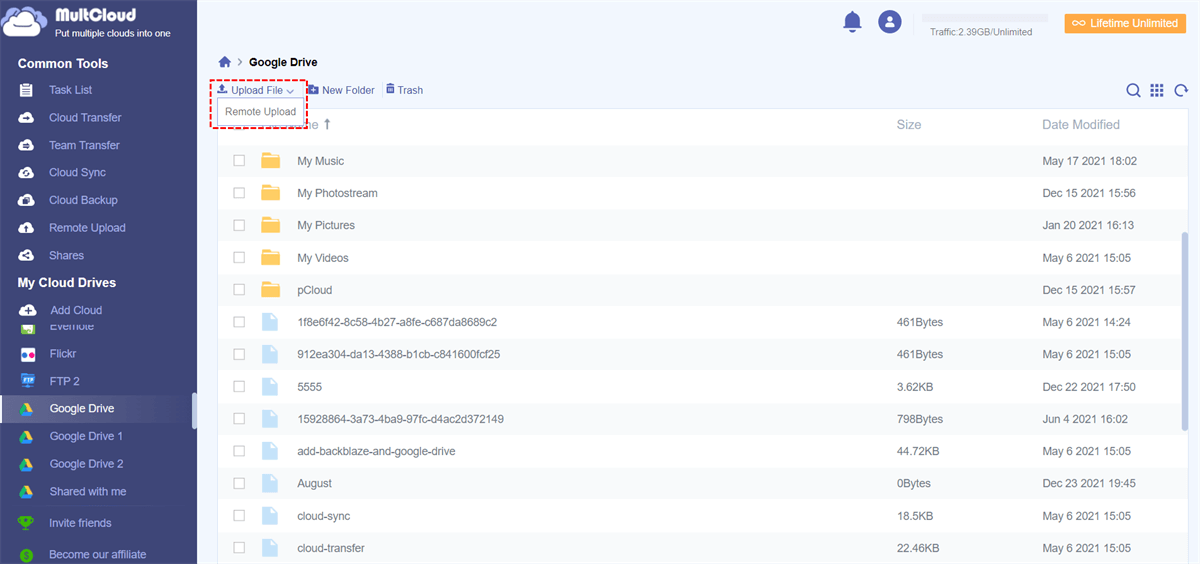
Or, you can make use of third-party software that enables you to upload local items to cloud tasks such as MultCloud. MultCloud, as a FREE online multiple cloud storage manager, can help you not only upload local files (of course including photos/videos) to its supported clouds (more than 30+) like Google Drive, Google Photos, OneDrive, Dropbox, etc., but also remote upload to Google Drive.
MultCloud also allows you to transfer/sync files among cloud drives directly as long as you add your clouds to MultCloud without using laborious uploading and downloading methods. For instance, sync pictures between OneDrive and Google Photos.
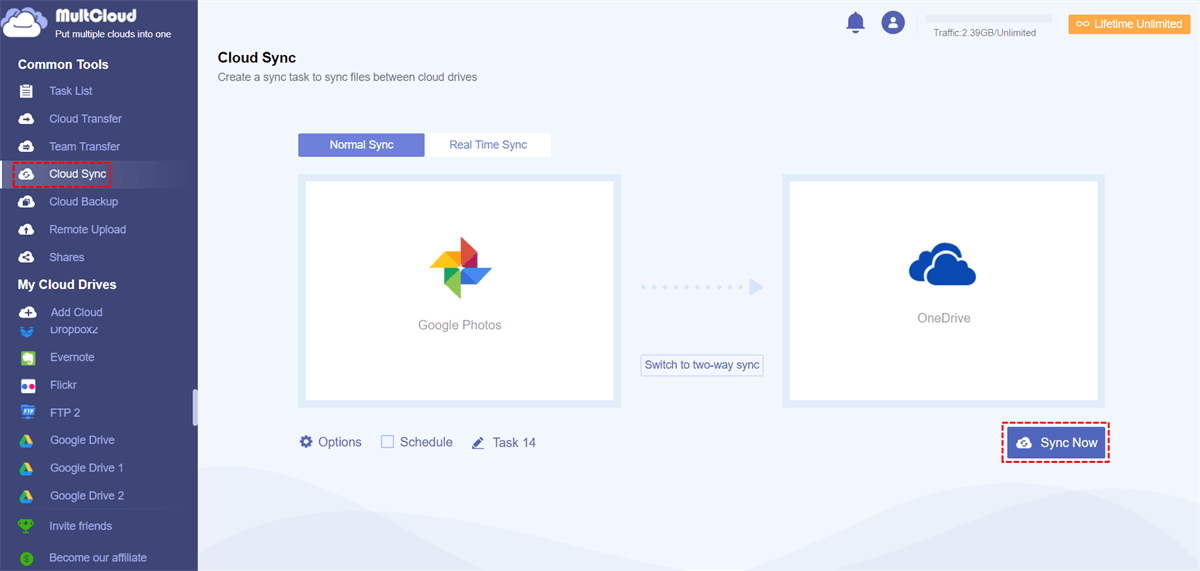
Following any way above can help you delete duplicate photos in Google Photos. This article not only guides you on how to remove duplicates in Google albums but also provides free ways to avoid Google Photos duplicates generating. In general, it is very useful for us to manage photos stored in Google Photos.
Suggestions to Google Photos Backup App
Many users have given their opinions about how to remove duplicates from Google Photos. They insist that Google should implement an ACTUAL duplicate detection to detect duplicated photos. When a photo is being uploaded but Google Photos finds it’s the same as one of the photos uploaded previously, the Google Photos backup app will ask the user to decide whether to keep/merge (keeping the largest/most recent photo) or delete all duplicates.
If there are already duplicates in the cloud, Google Photos should give a function to search out all duplicates and delete them. This actual duplicate detection can detect files of the same content but in different file names, different upload dates, uploads by different clients, uploads from different local devices, etc.
How to Delete Duplicate Photos In Google Photos

In June 2021, Google announced that any new high-quality photo or video backed up on Google Drive would count towards 15GB of free space. This worried a lot of people & everyone started to look for ways to minimize picture count on Google Photos and save space.
If you are also wondering how that can be done, the answer is simple: never let duplicate images fill the space. Fortunately, the post explains how to clean duplicate photos, and manage storage space on Google Drive by cleaning duplicates. However, before that, it is best to know why duplicates are saved on Google Photos.
How do Duplicates Get Stored in Google Photos?
Each file is allotted a hash code to identify and distinguish a file. This code changes when the file is edited or moved across devices. Due to this, it gets uploaded when you sync data on the Google Photos library, even if duplicated. To avoid this, limit the device you are synching with your account.
How To Manually Delete Duplicate Photos Stored in Google Photos?
Sadly, there’s no automatic way to batch-delete duplicate photos saved in Google Photos. However, you can delete them manually.
Note : Google Photos sort the photos by metadata. This means you will see pictures with the same timestamp next to each other.
To learn more about how to find and delete duplicate photos from Google Photos, follow these steps:
- Go to https://photos.google.com/
- Log in to your Google account from which you want to find and remove duplicate photos.
- Click Photos from the left panel.
- Scroll through the list of photos to find duplicate images.
- Select the exact copy of the images and click the Trash Can icon.

Following these instructions, you can find and delete duplicate images from your Google Photos.
Remember, removing pictures from Google Photos will remove them from all the synched devices.
Remove Duplicate Images from Google Drive Using Duplicate Photos Fixer Pro
I know you must be wondering how it is possible because earlier in this post, we explained there’s no automatic way. However, using Duplicate Photos Fixer Pro, you scan Google Drive for duplicates and clean them. This will help clear duplicate images, and you can free up space on Google Drive.
Developed by Systweak Software, Duplicate Photos Fixer Pro is a powerful duplicate image cleaner that allows scanning PC, Google Drive, Dropbox, Picasa, and Lightroom Classic and helps organize and manage photos. The free version of the product allows the cleaning of 15 images. This means even when you are not ready to pay for the tool, you can try it and see whether it works. Here’s how to use it:
- Download and install Duplicate Photos Fixer Pro.


- Launch the de duplicate software.

- Select Google Drive as the scan mode.

- Select the account to scan > grant access > add the folder to scan and click Scan for Duplicates.

- Wait for the scanning to finish.
- Preview scan results and select the images to delete. Alternatively, you can use the Auto Mark feature.

- After selecting duplicate images, click Delete Marked.
That’s all. Duplicate Photos Fixer Pro has helped clean duplicate images from the selected storage device.
Cleaning Duplicate Pictures
Unless you run out of storage space, most might not consider duplicate images a problem. However, looking deeply, you will understand they are a headache. Also, they are responsible for slowing down processing time and loading images.
Therefore, Google Photos is a good idea when it comes to organizing photographs or optimizing space on cloud storage. We hope we were able to explain how you can do it efficiently. To simplify, you can use Duplicate Photos Fixer Pro, the best duplicate image cleaner compatible with Windows, Mac, Android, and iOS.
Recommended-
About The Author
A UX writer who loves explaining technical details in a clear, crisp, and concise manner. She loves writing about technical troubleshooting, How-To’s, product reviews, etc. In her free time, she loves reading, meditating, and traveling.
Related Posts

How To Make High-Quality Educational Video
January 21, 2024 Dishank Sharma

Snipping Tool Error: Recording Stopped Something Happened [Solved]
January 16, 2024 Dishank Sharma
Leave a comment
Seen on
All product names and registered trademarks belong to their respective owners. All the names of the products, companies and services used in this website are for identification purposes only. Use of brand names and trademarks doesn not imply endorsement. Systweak does not have any relationship with any of the companies, products, or services in any form. Being an independent website, Systweak has not been authorized, sponsored, or otherwise approved by Apple Inc. Also, Systweak is not affiliated with Microsoft Corporation, nor does it claim any such implied or direct affiliation. Disclaimer (Last updated on September 16, 2021), the content published on the systweak.com (the “Service”) is for purpose of imparting general information only. Systweak.com undertakes no responsibility for any errors or omissions in the contents of the Service. Under no circumstances shall systweak.com be liable for any direct, indirect , special, consequential, or incidental damages. Systweak.com also does not assume any liability for any damages whatsoever, whether in an action of contract, negligence or another sort, arising out of or in connection with the use of the Service or the contents of the Service. Systweak.com reserves the right to make additions, deletions, or modifications to the contents of the Service at any time without prior notice. Systweak.com does not warrant that the website is free of viruses or other harmful components. External links disclaimer: Systweak.com website may contain links to external websites that are not provided or maintained by or may not be in any way affiliated with systweak.com. Please note that systweak.com does not guarantee the accuracy, relevance, timeliness, or completeness of any information on these external websites. Please note that systweak.com may receive commissions when you click our links and make purchases. However, this does not impact our reviews and comparisons. We try our best to keep things fair, objective and balanced, to help you make the best choice for yourself.
Copyright © Systweak Software, 1999-2024 All rights reserved.
Дубликаты в Google Фото

Иногда пользователи сервиса видят, что у них появляются дубликаты фотографий. Разберемся, почему так происходит, и как это можно исправить.
Как появляются дубликаты в Google Фото?
При использовании приложения Google Фото, люди могут внезапно обнаружить у себя дубликаты фотографий.
Причиной их появления чаще всего служит то, что изменяется Exif информация файлов, и приложение понимает, что на устройстве появился новый файл, поэтому загружает его в облако.
Такие случаи распространены при использовании мессенджеров, редакторов фотографий и других программ, которые редактируют фото, и поэтому меняется Exif файл фото или видео.
В большинстве случаях файл, который вы редактируете, остается без изменений, а копия отредактированного файла тоже сохраняется на устройстве.
Фоторедакторы зачастую предлагают сохранить копию и не изменять оригинал изображения. Хочется отметить, что если будет пересохранение файла через данную программу, тогда файл может поменять Exif данные, а именно дату изменения и наименование программы в которой был отредактирован файл.
Такие случаи могут происходить даже с облачными хранилищами. При использовании двух и более облаков, они могут пересохранить и перезаписать файл.
Также, может возникнуть ситуацию при которой вы загружаете файл в облако, скачиваете на устройстве и Google Фото распознает данный файл, как новый, так как другое облако пересохранил файл и перезаписал данные в Exif.
Многие оригинальные фотографии пересохраняются в отдельные папки, как копии. Они могут быть уменьшены по размеру и качеству.
Зайдите в Google Фото – Меню – На устройстве – Выберите папку (альбом) – Включить / Выключить синхронизацию.
Делается это для предотвращения случаев с захламлением личной библиотеки фото, например, когда Вам не надо сохранять фотографии отредактированные в фоторедакторе.
Обратите внимание, что при использовании мессенджеров, файлы могут сохраняться в кеше, который на разных устройствах, может восприниматься и считываться, как новое фото.
Итак, выделим основные случаи, формирующие дубликаты:
- Использование фото и видеоредакторов
- Пересохранение фото с помощью сторонних программ.
- Изменения с помощью стандартной галереи.
- Использование двух и более облаков на устройстве.
- Изменение геолокации в фотографии.
Как Google Фото относится к копиям и дубликатам?
В теории при загрузке фотографий сверяется Exif информация. Если данные совпадают, изменений нет, размер изображения и др. характеристики одинаковы, тогда файл в облаке останется прежним.
На практике есть случаи, когда при одинаковых Exif данных появлялись дубликаты, однако данный факт необходимо протестировать неоднократно с разными сценариями и устройствами.
Как очистить дубликаты фотографий?
Автоматически – никак, однако можно воспользоваться хитрыми способами. Например, поиском по хештегам, альбомам, месту или сортировкой по дате.
После чего – удалить их в корзину и очистить её.
Или удалить на устройстве.
В некоторых случаях может быть, что процесс будет долгим, и чтобы такого не было, необходимо установить причину появления нежелательных дубликатов.
How to Find and Bulk Remove Duplicates in Google Photos 2023
October 25, 2023  26.8K
26.8K  1
1


With more than one billion users, Google Photos is one of the most popular photo storage services in the world. Google Photos is great. But as with any service, it’s not perfect. For example, many users complain about the duplicate photos in Google Photos.
Duplicates in Google Photos take up space and make it less enjoyable to view photos. Now Google Photos no longer provides unlimited free storage, so your storage space becomes valuable.
After much testing and searching, I’ve found several methods on how to find and remove Google Photos duplicates. One method is not necessarily better than another, and they all work. In this article, I talk about all these methods and provide detailed steps.
- Automatically find duplicate photos in Google Photos and bulk delete them
- Manually find and remove duplicates in Google Photos
 Cisdem Duplicate Finder
The Best Duplicate Photo Finder & Cleaner
- Identify exact duplicate photos, videos, audios, documents and all other exact duplicates
- Identify photos that look the same but different in sizes or formats
- Also identify similar photos
- Find duplicate files on PC, Mac, external storage devices, Google Photos, Google Drive, OneDrive, etc.
- Let you find duplicate files in 1 folder/drive or in and across multiple locations
- Display the found duplicate photos for you to view and preview
- Automatically select all duplicates for you to remove with a click
- Also offer selection rules to help mass select files for removal
- Easy to use and powerful
- Help you get rid of duplicates in Google Photos
 Free Download
 Free Download
4 facts to know about the duplicates in Google Photos
Knowing these facts can help you get rid of duplicates more effectively.
- Google Photos has a duplicate detection feature, which automatically not only detects exact duplicates (files that are exactly identical, regardless of name) during upload but also prevents exact duplicates from being uploaded. But this feature doesn’t detect duplicates that already exit in your Google Photos account.
- You may still find some duplicates in your Google Photos. Why? This is because sometimes Google Photos doesn’t identify duplicate photos that you think are the same. For example, if you sync your Google Photos with multiple devices, the same photo in your different devices can be slightly different in metadata. Google Photos will upload the file twice. And some photos existed in your device are slightly different in resolutions, formats or file sizes. Or, they just look almost the same. They are not considered to be duplicates.
- Google Photos itself doesn’t have a feature to find and delete these near-duplicates in your account. Luckily, the methods in this article can help you get this task done.
- So far, there isn’t a perfect way to very quickly get rid of a large number of duplicates.
Before you get started: Check if the duplicate files really exist
In some cases, you may see duplicates in the Google Photos app on your phone, but they don’t really exist. To check out if photos are really duplicated in Google Photos, go to https://photos.google.com/, sign in with the same account used in the app and see if duplicates show up there.
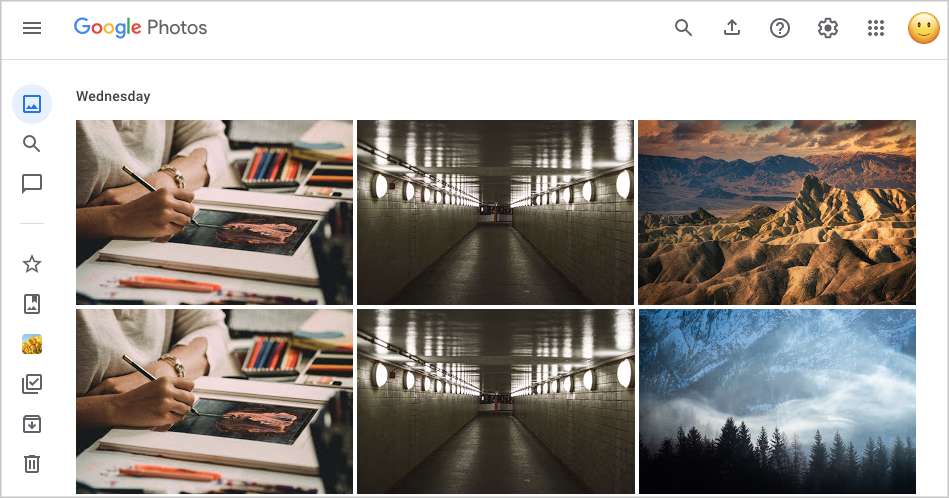
In some cases, you may see duplicates after you update the Google Photos app, update your Android or iOS version, or switch to a new phone. If so, wait for a period of time (for example, a couple of days) and see if the duplicates still show up.
How to find and remove duplicates in Google Photos using duplicate photo cleaner
Applies to: Windows and Mac
This method uses duplicate photo finder and cleaner software to automatically find the duplicates in your Google Photos account and display groups of duplicate photos for you to easily preview and examine, and helps you remove all redundant duplicates from Google Photos at once. And some manual work is also required.
Note that this method requires you to first download your photos to your computer using Google Takeout, a data download feature of Google. Let’s first do the download and then start handling the duplicates.
1. On your computer, sign in to Google.
2. Go to https://takeout.google.com/settings/takeout.
3. Click Deselect all.
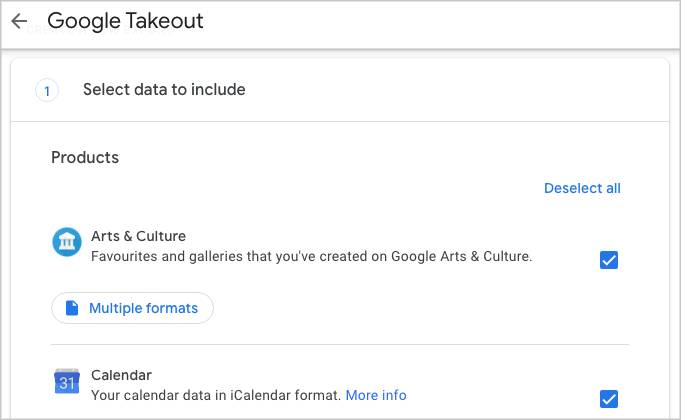
4. Scroll down to find Google Photos. Select the checkbox next to it.

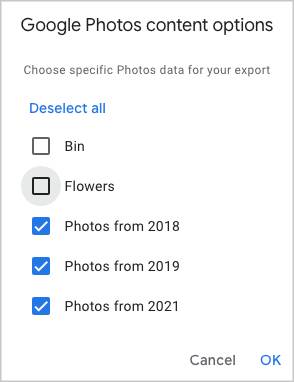
5. Click All photo albums included and deselect Bin and all the albums created by you. Click OK.
6. Scroll down and click Next step.
7. Click Delivery method and choose Send download link via email.
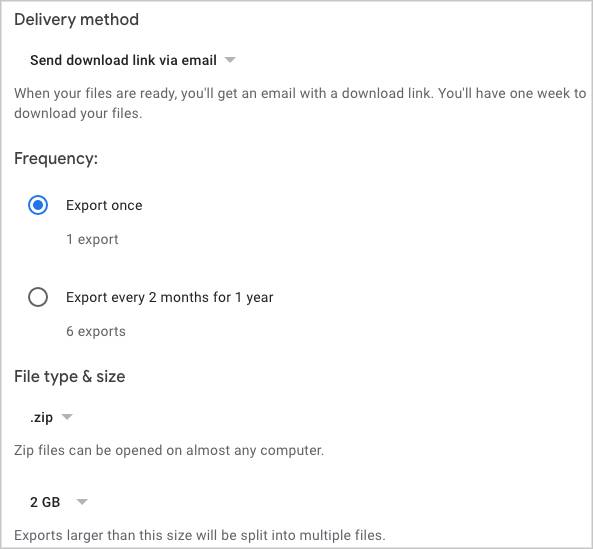
8. Configure settings. It’s recommended to download all your Google Photos files to a single ZIP file. So select .zip and 50GB here.
9. Click Create export.
10. Enter your email. Find and open the message from Google Takeout. Click Download your files.
Now unzip the ZIP file on your computer. The unzipped folder will be automatically named Takeout. In the Takeout folder, you will find a folder called Google Photos. There, all your Google Photos files are automatically organized into “Photos from [year]”subfolders.
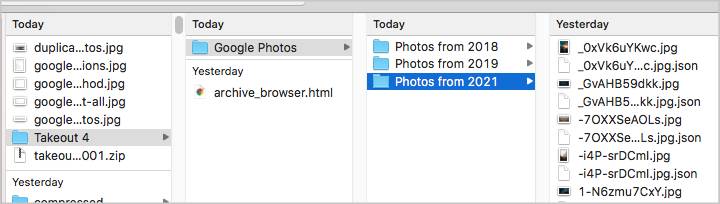
(If you have so many photos in your Google Photos account that the file size is larger than 50GB, you will get multiple ZIP files. In such a case, after unzipping, please merge all the “Photos from [year]” subfolders into one Google Photos folder.)
Steps: Find and delete duplicates in Google Photos
Now, all your Google Photo files are on your computer. You can start removing the duplicates in them.
1. Download Cisdem Duplicate Finder and install the software on your PC or Mac.
2. Drag the above-mentioned Google Photos folder into the software.
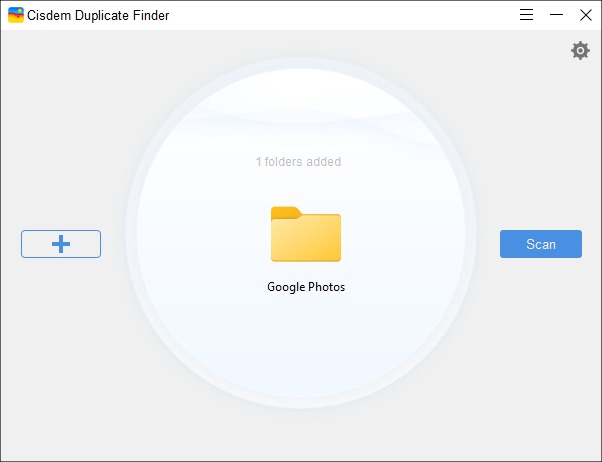
3. Create a folder on your desktop and name it as Duplicates.

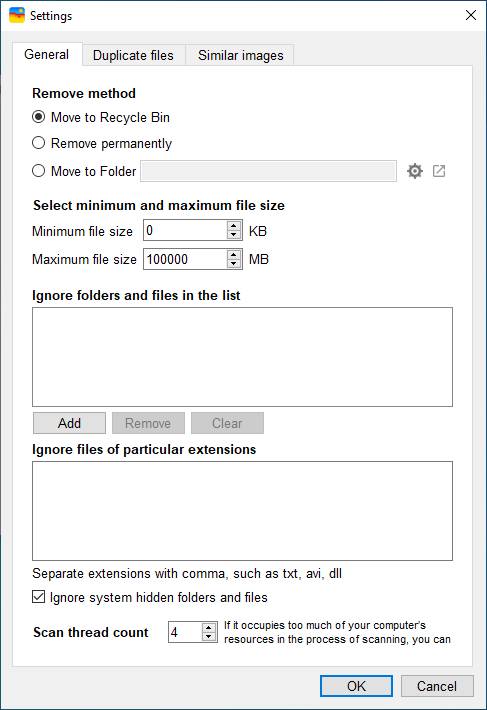
4. Click the settings icon . Under the General tab, select Move to Folder and then select the folder named Duplicates. Under the Similar images tab, select the Enable similar images function checkbox.
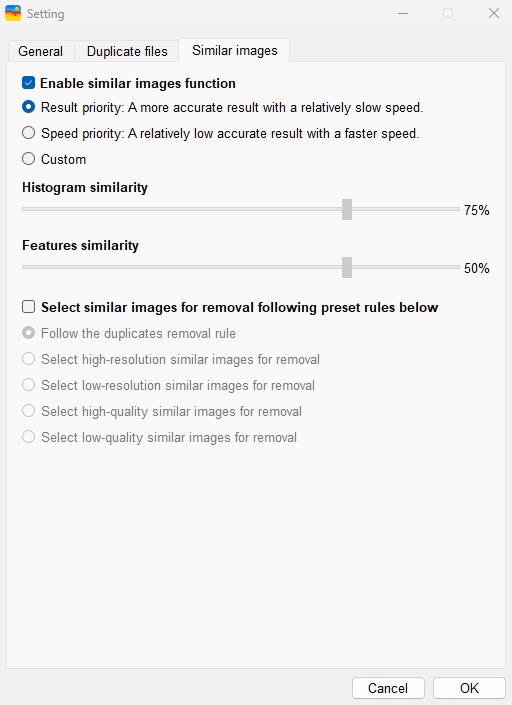
5. Click Scan.
6. When the scan is done, the Similar Image tab will display the duplicates (and similar photos) found in Google Photos. In each group of duplicate (or similar) photos, manually select the redundant photo(s).
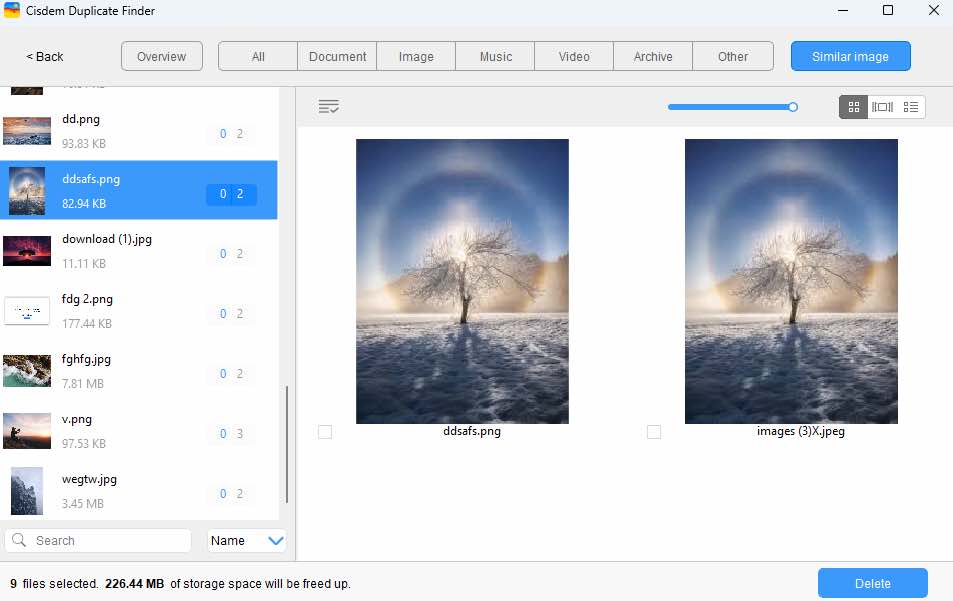
7. Click Delete in the bottom right corner to delete all selected files. Confirm the deletion.
8. Go to https://photos.google.com/. Create a new album and name it as New Album. Open New Album and drag the Duplicates folder on your computer’s desktop into the album.
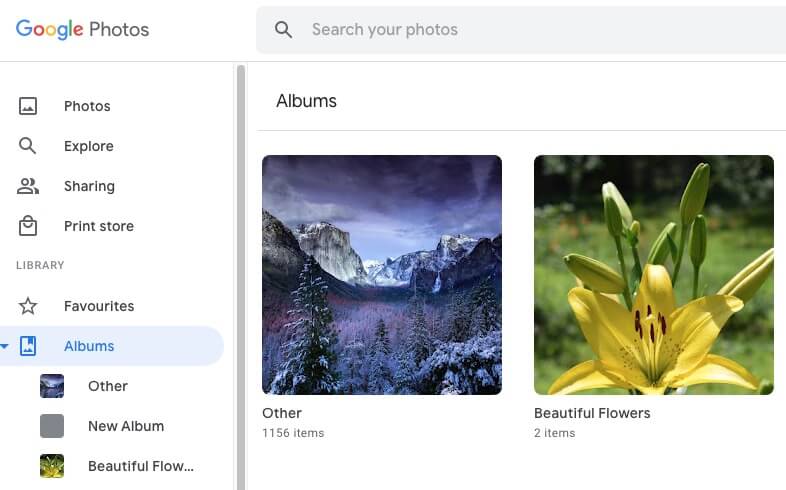
9. In New Album, select all photos in the album, click the 3-dot icon and choose Move to bin.
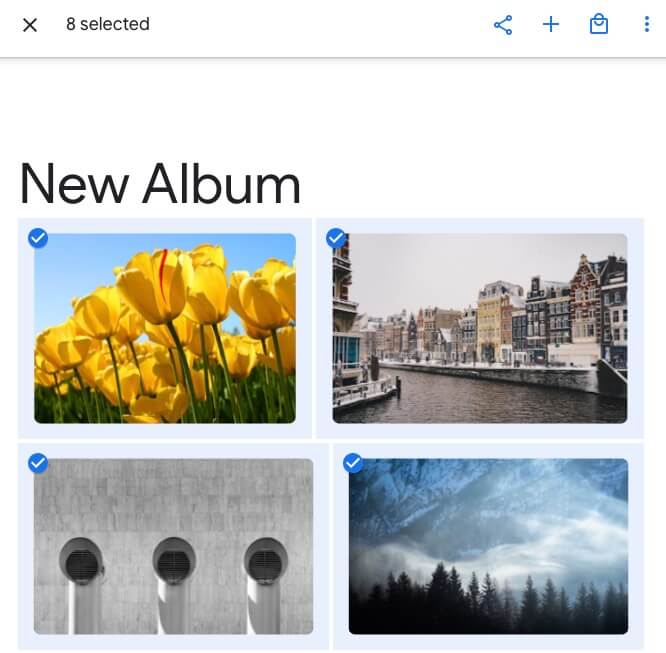
Now the duplicates in Google Photos are deleted.
You can find the deleted duplicates in Google Photos’ Bin. Note that items in the Bin will be permanently deleted after 60 days.
Tip
This tip is for step 6. There are three preview modes. When you are selecting redundant duplicates, you can use the third preview mode to effortlessly view photo information, such as resolutions and file size. Normally, you will want to keep the highest-quality shots and remove the redundant duplicates. If you want, you can use selection rules to mass select. To do so, highlight certain or all groups on the left, click the list icon and choose a selection rule.
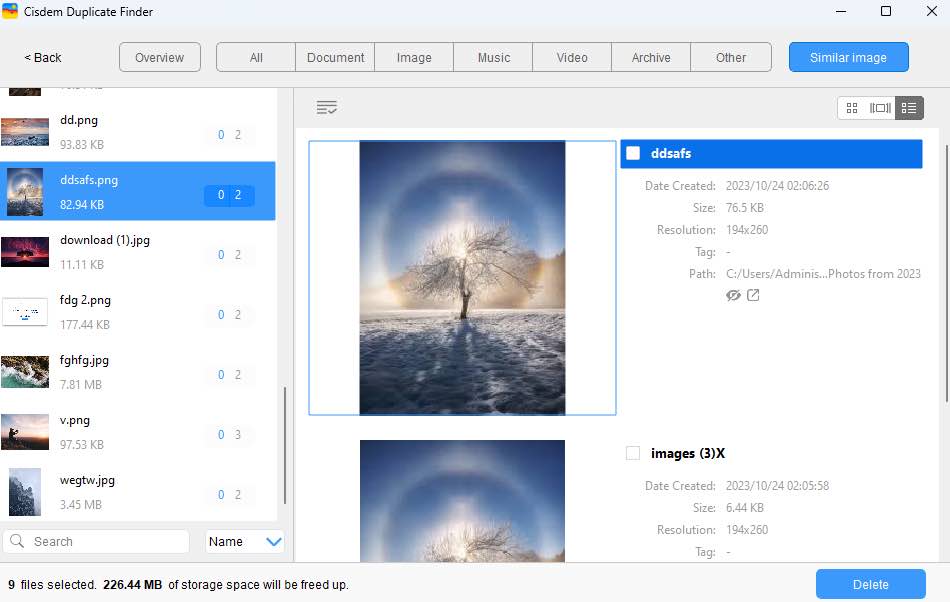
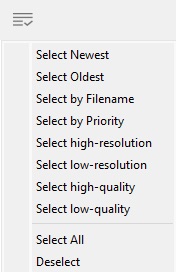
If exact duplicate photos are found in your Google Photos account, they will be displayed under the Image tab. And, in each group of duplicate photos, all but one will be automatically selected for removal.
Completely manually find duplicates in Google Photos and remove them
Applies to: Computer, Android, iPhone and iPad
If there aren’t many files in your Google Photos account, you can browse through them and manually identify the duplicates.
1. On your computer, go to Google and sign in.
2. Visit https://photos.google.com/.
3. Scroll through your photo gallery. When you find a duplicate that you want to get rid of, hover your mouse over it and click the check mark icon to select the picture.
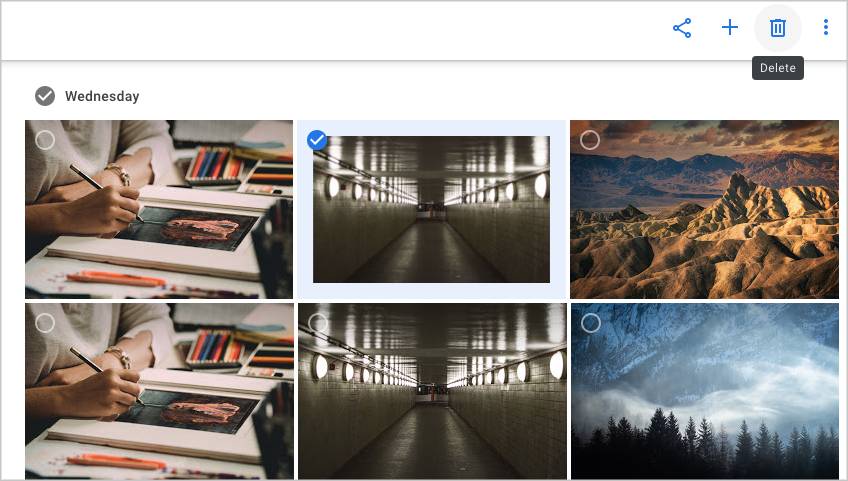
Viewing photo information can help you decide which duplicates to delete. To view photo information, double-click a photo and click the Info icon.
4. When you finish selecting, go to click the Delete icon in the top right corner.
5. Read the message that pops up and click Move to bin.
The deleted files will be kept in Bin for 60 days. You can also choose to permanently delete them right away.
Tip 1: Using the Explore tool in Google Photos to make the search easier
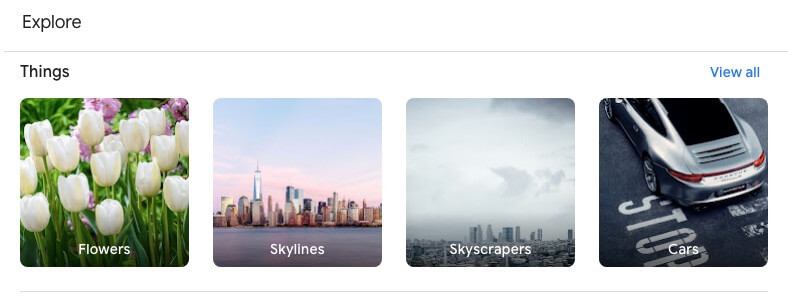
Google Photo has a powerful Explore feature. Although this feature can’t help you directly search for existing duplicates in Google Photos, it can help make the search easier. Go to https://photos.google.com/. Choose Explore in the left sidebar. There can be several sections, such as People and Things. Click View all next to a section. Then you can easily spot duplicate photos of a certain subject. In addition, you can directly search for a term such as “cat” using the Search your photos box at the top, and Google Photos will display all the photos that match. This can also help you easily spot duplicate photos in Google Photos. You can use the Explore tool on photos.google.com or in the Google Photos app.
Tip 2: Does Google Photos supports sorting photos by size?
Some users are looking for ways to sort photos in Google Photos by size. This helps find duplicates faster. And some users want to prioritize deleting duplicates with larger file sizes to recover more space. Unfortunately, Google Photos doesn’t provide this feature currently. If needed, you can use the Google Photos duplicate finder that I covered in method 1. Let it sort all found duplicates by size, or automatically select the largest files in each group of duplicates for you to remove.
How to avoid duplicates in Google Photos?
Below are several tips to help you avoid duplicates in Google Photos and keep you photos library clean and organized.
1. Disable the Backup & Sync feature
If the Sync & Backup feature is enabled, there may be instances that photos get synced multiple times. Sometimes, you edited a photo and Google Photos automatically upload it again. Multi-device syncing of Google Photos can also cause this issue. The best way to handle this is to manually upload photos every time.
2. Check your local device photo library before uploading
Before uploading photos to Google Photos, check your local device photo library. Delete your unwanted, or duplicate photos to ensure only valuable files are uploaded. If you edited a photo, remember to delete the original.
3. Use Google Photos duplicate finder
Browse your Google Photos regularly to identify and manually delete duplicate photos. Or using professional Google Photos duplicate remover like Cisdem Duplicate Finder to scan and automatically delete duplicates from Google Photos.
Conclusion
Why is Google Photos duplicating my pictures? There can be several reasons, such as backing up photos from different devices. Google Photos does a good job of detecting duplicates during upload, but it doesn’t offer a built-in solution to easily deal with the existing duplicates. You can remove the unwanted duplicates manually or with the help of software. The methods described in this article are different, and you can choose the method that suits you best. After you remove duplicates in Google Photos, precious storage space will be freed up, and photo browsing will be more enjoyable.

Rosa has worked in Mac software industry for more than eight years. She believes that the purpose of software is to make life better and work more productively. In addition to writing, Rosa is also an avid runner.
Comments (1) Leave a Reply
Le Sud
Thank you, although the process was a bit complicated, it really helped me eliminate all duplicate images and videos from Google Photos!

0 months ago Reply