iPad для рисования: какой купить?
С появлением возможности комфортно рисовать «в цифре» где угодно, многие художники начали мечтать о приобретении iPad. На данный момент не существует подобных настолько же качественных аналогов в этой ценовой категории, так что планшет «выстрелил» и стал по-настоящему популярным и желанным гаджетом для творческого человека. Если вы всерьёз задумываетесь о покупке мобильного устройства для рисования, но не знаете, с какой стороны подойти к выбору, то эта статья для вас!
К каким моделям присматриваться?
Так как в этой статье мы рассматриваем планшет именно для рисования, а не сёрфинга в социальных сетях или хорошую «игрушку», то и опираться будем на соответствующие потребности.
iPad Mini не очень подходит, так как имеет совсем небольшую площадь экрана (200 × 134.7 × 7.2 мм). В случае если вы уже начали покорять диджитал, рисуете на планшете (например, Wacom) и имеете представление о компьютерной графике — смело смотрите в сторону версии Pro или Air.
Если вы только начинаете рисовать и хотите купить планшет ради того, чтобы «попробовать, как оно», для этого вполне может быть достаточно iPad Air.
Сравнение размера iPad Mini 2 (слева) и iPad Air (справа). Фото взято с applestatus. Важно!
Художнику нужно брать iPad исключительно с поддержкой Apple Pencil — основным рабочим инструментом. Мы ещё вернемся отдельно и к этому гаджету, у него есть свои особенности. До 2018 года поддержка «карандаша» была только у iPad Pro (не самый бюджетный вариант). На данный момент можно купить более дешёвый iPad с поддержкой Pencil и рисовать в своё удовольствие. Если быть точнее, то карандаш от «яблока» будет совместим со всеми моделями Pro, начиная с 2015 года, обычными iPad 2018 и 2019 годов, iPad Mini и iPad Air выпуска 2020 года. И всё-таки, перед покупкой лучше уточнить лишний раз, точно ли выбранный вами планшет работает в паре с Apple Pencil.
iPad Air vs iPad Pro. В чем основная разница?
Оба варианта будут справляться со своей работой, но приписка Pro говорит сама за себя. Производительность Pro ощутимо выше. Есть ещё одна важная деталь: iPad Air имеет куда более толстое стекло. У Pro оно совсем тонкое, словно водишь пером по самому рисунку, как в «традишке». Толщина стекла влияет на отклик и чувствительность Apple Pencil и для некоторых художников подобные вещи принципиально важны.
Большинство рисующих не наклеивают защитное стекло на планшет, предпочитая обходиться обложкой-книжкой, которая по окончании работы закроет экран и спасёт от нежелательных повреждений.
Визуальные отличия iPad Pro (2020 слева) и iPad Air (2019 справа). Источник фото: ferra. Четыре поколения iPad Pro и особенности выбора Apple Pencil
Мы разберём модели Pro отдельно, потому что именно они больше всех остальных «заточена» под рисование. Предположим, вы уже знаете о некоторых тонкостях диджитал арта, работаете с ним и определились для себя, что хотите непосредственно версию Pro. У этих планшетов есть четыре поколения, выпуска 2015, 2017, 2019 и 2020 годов. Большой разницы между первыми двумя поколениями нет, разве что производительность у iPad 2017-2018 годов немного выше, чем у предшественника. Само собой, чем современнее поколение, тем лучше, но покупка и выбор зависит от ваших предпочтений и финансовой составляющей. Здесь очень важен один момент, вызывающий ступор у тех, кто сталкивается с выбором планшета и поиском пера для него. Первое и второе поколение поддерживает Apple Pencil 1. Для iPad Pro третьего и четвертого поколения подходит Apple Pencil 2.
Выше Apple Pencil 2, ниже Apple Pencil 1. Фото взято с applestatus.Какое поколение предпочтительнее?
Само собой, по производительности iPad Pro третьего и четвертого поколения достаточно мощный. И даже обгоняет в этом вопросе некоторые ноутбуки. Четвертое, и самое новое из поколений, получило улучшение камеры и имеет систему, позволяющую подключить клавиатуру со встроенным трекпадом. Хорошая, но не дешевая вещь, позволяющая приблизить технику к ноутбуку больше, чем когда либо. Однако, подобные улучшение могут быть не принципиальны для художника. Тем не менее — это хорошая рабочая техника, с какой стороны не посмотри.
Важно!
Если вы любите слушать за работой музыку, то стоит учесть, что у iPad Pro третьего поколения нет специального разъёма под наушники, их можно подключить только по Bluetooth.
Как определиться с размером?
Здесь нет какого-то единого решения вопроса. Подобные параметры каждый подбирает исключительно под себя и стиль работы. Размеры моделей, которые мы рассматриваем, начинаются от 7,9 дюймов до 12,9.
7,9 дюймов — это совсем маленький компьютер, почти «наладонник», примерно 20 х 13 см. Конечно, для кого-то и такой вариант является достаточно комфортным, всё зависит от того, где вы собираетесь рисовать чаще: дома или вне его стен.
12,9 дюймов — это большая рабочая область, однако, такой планшет уже не потаскаешь с собой в кармане или маленькой сумке, он подойдёт тем, кто почти всегда рисует за рабочим столом. Чем больше размер экрана, тем выше цена на планшет.
Некоторые художники выбирают размер iPad по формату скетчбука, к которому больше всего привыкли. Вы можете взять с собой блокнот, в котором комфортнее всего рисовать, отправиться с ним в магазин и сравнить.
Какая память нужна?
Существуют следующие варианты: 32, 64, 128 и 256 ГБ. Помимо опций хранения изображений, видео, игр и прочего, для художника будет важна поддержка большого количества слоёв и размера картинки. Если вы рисуете в программе «Procreate», вам будет удобно отслеживать, какое именно количество ГБ влияет непосредственно на работу. К примеру, 64 ГБ позволит создать от 50 до 70 слоёв при среднем размере изображения (примерно 1500 на 2000 тыс. пикселей). В то время, как в 128 ГБ версии их можно будет создать гораздо больше.
Всё зависит от вашей манеры создания артов, может вам и не нужно много слоёв или большой размер картинки. Так-то само собой, чем больше будет память, тем лучше! 🙂
Кому-то достаточно и двух слоёв! Памятка по совместимости Apple Pencil с iPad
Воспользуйтесь ей, если станет не совсем понятно, подходит ли Apple Pencil к выбранной вами модели.
Apple Pencil 1 поколения работает с
-iPad Air (3‑го поколения)
-iPad mini (5‑го поколения)
-iPad (6‑го поколения)
-iPad Pro 12,9 дюйма (2‑го поколения)
-iPad Pro 12,9 дюйма (1‑го поколения)
-iPad Pro 10,5 дюйма
-iPad Pro 9,7 дюйма
Apple Pencil 2 поколения работает только с
-iPad Pro 12,9 дюйма (3‑го поколения)
-iPad Pro 11 дюймов
-iPad Pro (4-того поколения)
— Ipad Air (4-того поколения)
Мы надеемся, что эта статья помогла разобраться в продукции Apple и определиться с предпочтениями. Благодаря современной мобильной технике не обязательно проводить всё время за компьютером, можно даже делать домашние задания к нашим курсам, лежа на диване, например, рисовать схемы из «Анатомии для художника».
Наша школа желает вам быстрого развития и как можно больше вдохновения!
Обзор подготовила Наталия Иванова специально для Школы CG LAB
Редактор Лина Сидорова. Другие статьи: ТОП 6 красивых и необычных игр для художников
6 необычных художников
The 5 Best iPads for Drawing in 2023 (October)
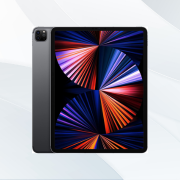
The ultimate choice for artists with exceptional display quality, powerful M1 Chip, and Apple Pencil 2 compatibility, but at a higher price.
Best Value
iPad Air 5
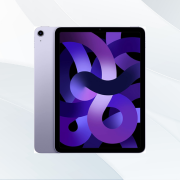
A value-for-money iPad with significant upgrades like M1 Chip, 8GB RAM, and Apple Pencil 2 support, delivering an experience close to Pro versions.
Best for Beginners
iPad 9th Gen
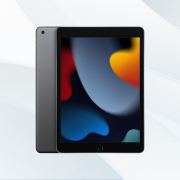
: A budget-friendly yet competent choice for beginners with a great display, extended battery life, and access to popular drawing apps, though RAM is average.
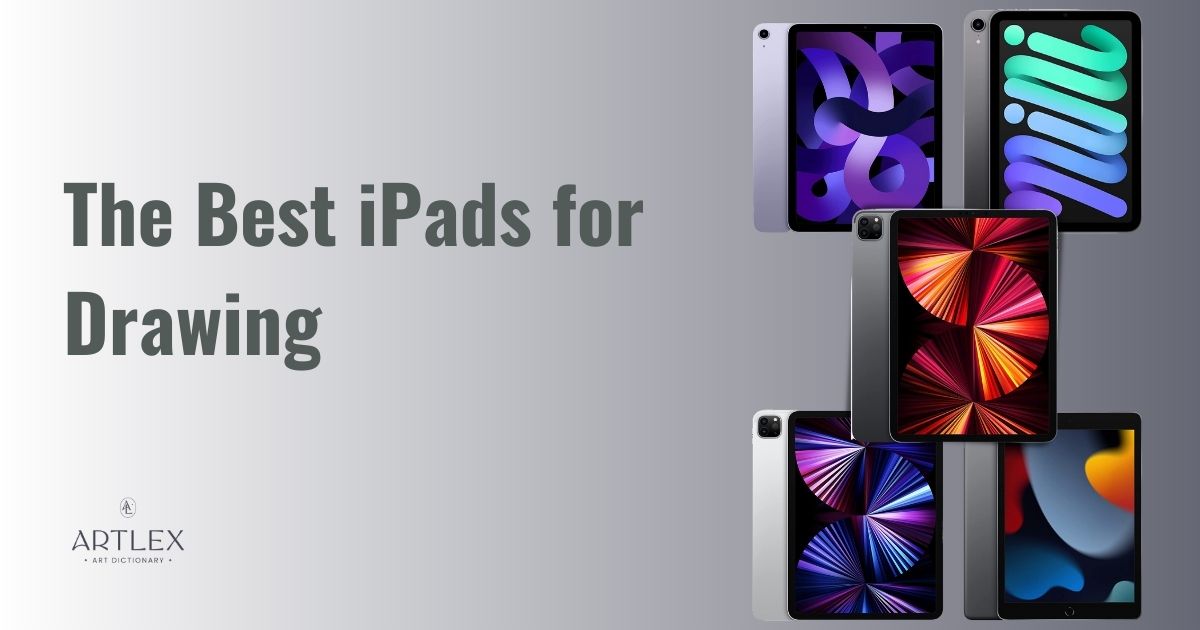 The idea of being able to draw anywhere is not new, artists can draw and create from everywhere with just a pencil and a piece of paper we can let our ideas flow. However not every artist uses traditional media, not every work can be done with a piece of paper and a pencil and if you work in the concept art industry, as a freelance artist or are an independent digital artist, you definitely can’t work with only that. From the introduction of computer graphics with graphic tablets and pen displays, the art industry has grown incredibly, however, portability was still an issue. Though artists could draw using a laptop and a graphic tablet or a small-sized pen display, it was still too much of a hassle to carry everything around, practically impossible to draw on the go and the few models (Wacom companion) that were portable were too chunky and way too expensive to even consider. Since styluses were pretty common, some beginner artists opted for using them with their normal tablets and mobile drawing apps for fun, however, in 2015, Apple launched the Apple Pencil, the first pressure-sensitive stylus that could be used with the iPad and it was sensational.
 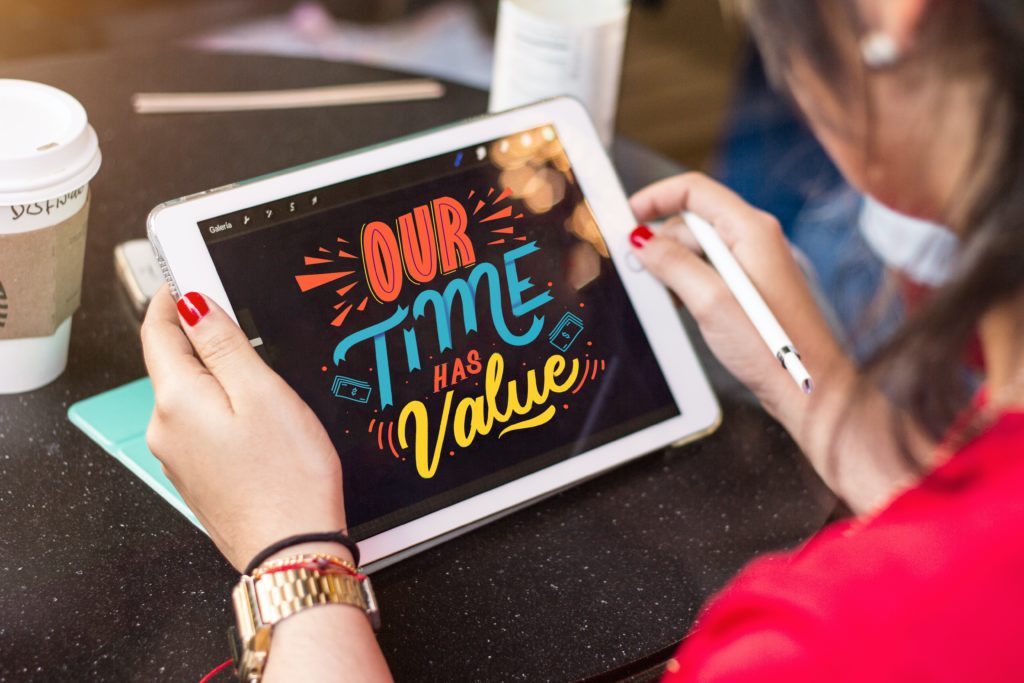 Having the ability to draw on a portable device, without having to be sitting on a desk, having the option to work on your art in any place of the world, at any time and for extended periods was the dream of every artist. It was great, but it could get better, and it did. The introduction of the Apple Pencil 2 and the latest iPad Pro along with the app optimization for iPadOS and Procreate made art more accessible than ever. There was no longer the need of getting a PC, laptop, and a pen display to work in your art, every artist with an iPad and an Apple Pencil is now able to create high-quality art and immediately post it on social media, share it to other devices, or even submit it for work! There are still some small issues that can be improved, but nothing that later updates can’t fix. So if you’re an artist and are considering getting an iPad, here’s all you need to know to make the best investment for your art career.
Before Getting an iPad…Check the App Compatibility
If you’re getting an iPad to draw and work on your art, you have to know what app you’re going to use beforehand, if you’re a beginner and plan on using Procreate, then there will be no issue, however, if you’re a seasoned artist and are used to work in Photoshop, Krita or Paint Tool Sai, then you must know that the iPad OS is not compatible with any of that software. Photoshop was released not so long ago as a compatible app for the iPad, however, it is very limited and lacks too many functions. Other professional software like Clip Studio Paint, Adobe Fresco, and Sketchbooks are available and fully compatible with any iPad model, yet some of them have an additional cost or need a subscription service. There are plenty of free apps for drawing and painting, however, it will depend on you as an artist to choose the best match for you and your art.
How to Choose the Best iPad for Drawing?
At this moment in time, there are many iPad models to choose from, and after the latest Apple event, the list just keeps growing. Here we present to you some important matters that you’ll need to consider before getting an iPad for drawing.
Apple Pencil Support
- iPad Pro 12.9” (3rd generation and later)
- iPad Pro 11” (1st generation and later)
- iPad Air (4th generation and later)
- iPad mini (6th generation)
If you have an older model or are planning on getting one, check this list for the Apple Pencil 1 compatibility devices:
- iPad (6th to 9th generation)
- iPad Air (3rd generation)
- iPad Pro 12.9-inch (1st or 2nd generation)
- iPad Pro 10.5-inch
- iPad Pro 9.7-inch
- iPad mini (5th generation)
Size and Display
When talking about tablets in general, the biggest perk has to be the portability, the most powerful Apple iPad, the iPad Pro 12.9” is carryable but not the best option for portability, the 11” seems to be a perfect size, however, the price is still on the expensive side.
If you’re looking for affordability as well, going for the 10.2” iPad or the 8.3” iPad mini won’t hurt your pocket as much and will give you the drawing on the go experience.
The best price-value model regarding size, power, and affordability is without a doubt the iPad Air 5th generation, 10.9” of Liquid Retina Display (Same as the Pro 11”) and the M1 chip make the best combination.
Another important matter to consider, especially if you’re an artist is the resolution and color accuracy, and the indisputable winner in this aspect is also the most expensive iPad model, the iPad Pro 12.9 5th generation with its XDR Liquid Retina and up to 1600 nits of brightness, however, Apple has always been known for having some of the best quality displays in the market, so even the most basic iPad will have a better display quality than most devices.
CPU and GPU
If you’re planning on getting the iPad Pro 2021 (12.9” or 11”) or the iPad Air 5th Gen then you have nothing to worry about, those are powered by the very impressive M1 chip, with an 8-core CPU and GPU, the performance of the chip is staggering. The A14 chip is indeed very powerful and enough for running drawing apps and handling multitasking, nevertheless, it’s prone to crash if the canvas we’re using is too big or if we’re using too many layers.
Storage and RAM
Some iPad models have different storage than others, however, how can we know what is going to be enough? Simple, if you’re going to use your iPad for school, streaming, and gaming, besides drawing, getting +128 GB is what would suit you best. If you’re going to use your iPad for video editing, heavy illustrations, animations, and work, then getting +512 GB is better.
Regarding RAM , when using apps like Procreate, Ibis Paint, Medibang, and Clip Studio Paint, there’s not that much of an issue and 8GB of RAM seem to be enough, however for Photoshop, even with 16GB of RAM the software crashes from time to time, so if you work with the Adobe Creative Cloud, you might want to reconsider getting an iPad for drawing.
Connectivity
WiFi connectivity is the default condition for any iPad, however, Apple offers to upgrade this by paying a bit more and getting cellular connectivity (5G), and that is a step ahead regarding portability, since having cellular connectivity implies you can draw, work and share your art from anywhere, anytime.
Our Recommended iPads for Drawing
- Best iPad for Drawing Overall — iPad Pro 12.9” 5th Gen
- Best Price Value iPad for Drawing — iPad Air 5
- Best iPad for Drawing on a Budget — iPad 9th Gen
- Best Professional iPad for Drawing on a Budget — iPad Pro 11″
- Best Portable iPad for Drawing — iPad Mini 6th Gen
1. Best iPad for Drawing Overall — iPad Pro 12.9” 5th Gen
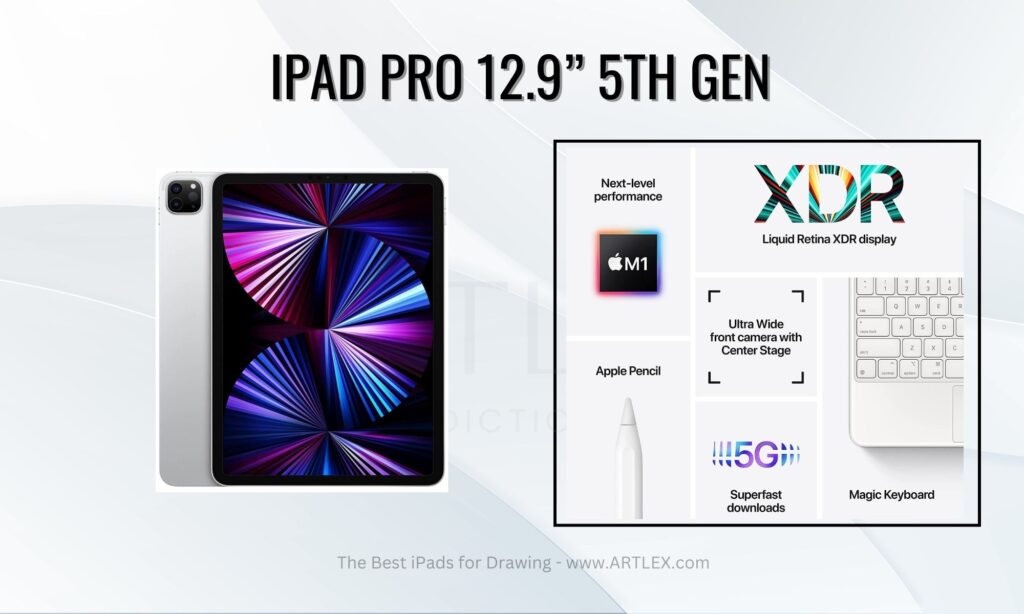
Selection Criteria:
- Apple Pencil Support: Apple Pencil 2
- Our Score: 10/10
- Our score: 10/10
- Our score: 10/10
- Our score: 9/10
- Our Score: 10/10
- Our score: 8/10
About the iPad Pro 12.9 5th Gen
The best iPad model is undoubtedly the iPad Pro 5th Gen, powered by the M1 Chip, and with the best display in the market, this iPad is the favorite tool of many artists around the world. The 120Hz of refresh rate delivers an outstanding drawing experience and in our opinion, better than the best pen displays in the market. The con, is it’s quite expensive and can’t fully run some of the most used professional software, but that’s an issue with all iPads and tablets and I believe it can be fixed in later updates.
Pros
- Has a great display and processor.
- Hass full sRGB coverage.
- Thunderbolt 4 support and ProMotion.
Cons
- It was quite expensive
- The M1 chip doesn’t reach all its potential with iPadOS.
2. Best iPad for Drawing on a Budget — iPad 9th Gen
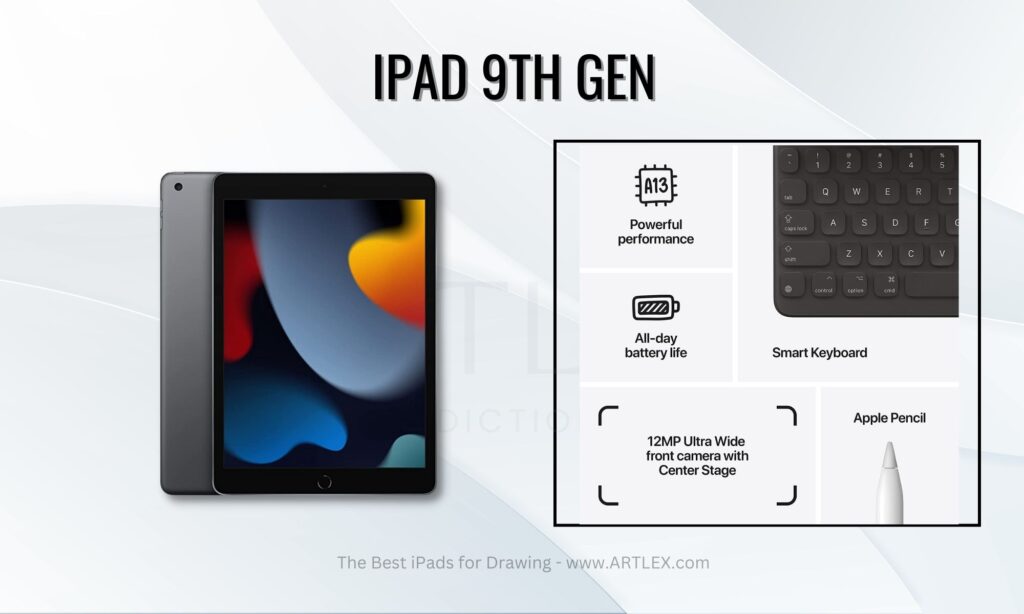
Selection Criteria:
- Apple Pencil Support: Apple Pencil 1
- Our Score: 7/10
- Our score: 8/10
- Our score: 7/10
- Our score: 6/10
- Our Score: 8/10
- Our score: 10/10
About the iPad 9th Gen
If you’re on a budget but still want to have the ultimate drawing on the go experience, then this iPad is for you, for $479 only you get access to most drawing apps and Procreate, though the RAM is not the best, it still allows decent levels of multitasking and the screen is quite bright in comparison to more expensive devices. The battery of this model lasts up to 3 hours more than any other iPad, that’s a great perk for the price.
Pros
- Has a very nice display.
- The battery lasts up to 13 hours.
- Hass full sRGB coverage
Cons
- The screen is not laminated
- The RAM is average at best
3. Best Price-Value iPad for Drawing — iPad Air 5
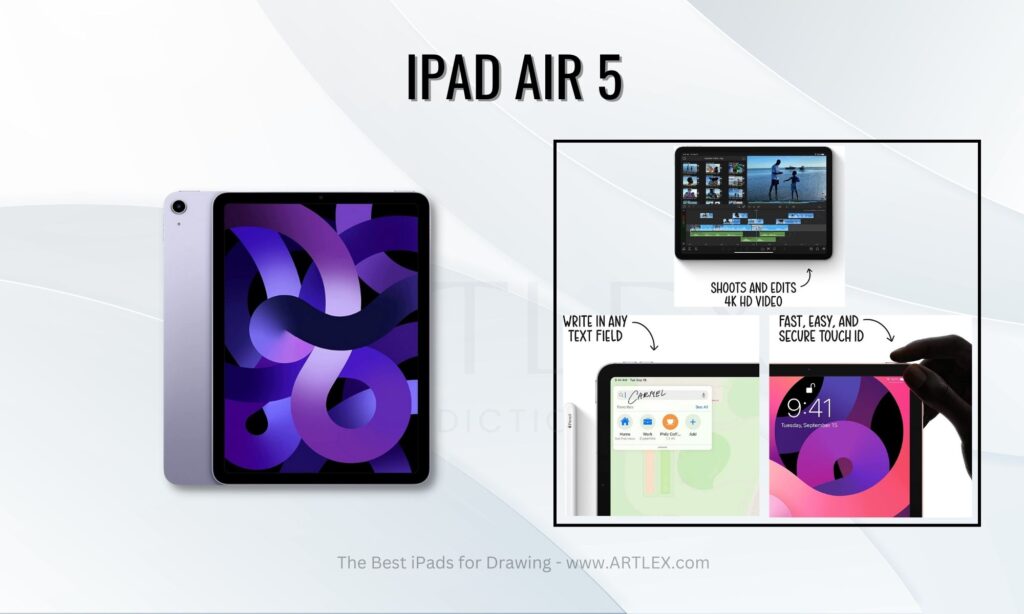
Selection Criteria:
- Apple Pencil Support: Apple Pencil 2
- Our Score: 10/10
- Our score: 9/10
- Our score: 10/10
- Our score: 9/10
- Our Score: 10/10
- Our score: 9/10
About the iPad Air 5
Apple’s last event was a surprise for all of us, we knew the iPad Air was going to have some changes, but no one expected the amazing upgrade it had, going from 4 to 8 GB of RAM was already a big change, however, the integration of the M1 chip took this device even closer to the Pro version. This model has also an upgraded front camera, going from 7MP wide to 12MP Ultra Wide, and support for the Apple Pencil 2 making the drawing experience just as good as in the Pro. The price goes from $499 for the 64GB model and $649 for the 256GB model with WiFi connectivity, the only major difference would be the lack of ProMotion and refresh rate that goes only up to 60Hz, but it’s almost unnoticeable.
Pros
- Has a great display and processor.
- It’s quite affordable
- Hass full sRGB coverage
Cons
- Can only go up to 256 GB of storage.
4. Best Professional iPad for Drawing on a Budget — iPad Pro 11” 3rd Gen
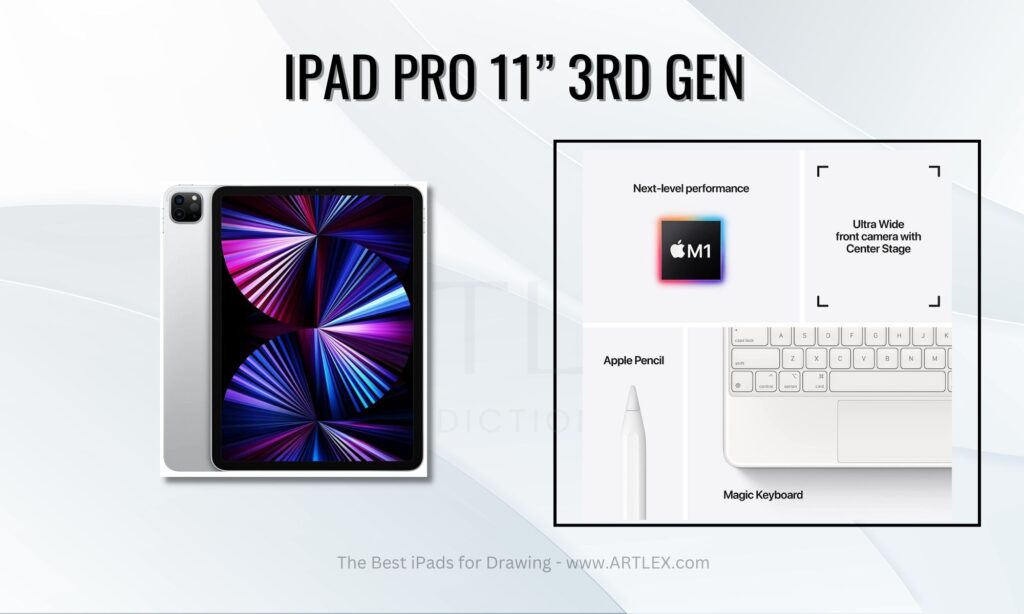
Selection Criteria:
- Apple Pencil Support: Apple Pencil 2
- Our Score: 10/10
- Our score: 9/10
- Our score: 10/10
- Our score: 8/10
- Our Score: 10/10
- Our score: 9/10
About the iPad Pro 11” 3rd Gen
This iPad Pro model has most of the benefits of the 12.9 without the elevated price tag, the size is great for note-taking and carrying it around on a bag, it’s compatible with the Apple Pencil 2 and the refresh rate is the same as the 12.9 model, providing the ultimate drawing experience. The model we choose doesn’t have Cellular connectivity and only has 128GB of RAM which is enough for a great performance and a tight budget.
Pros
- Has a great display and processor.
- Hass full sRGB coverage
Cons
- Some might need more storage.
- It’s still a bit pricey.
5. Best Portable iPad for Drawing — iPad Mini 6
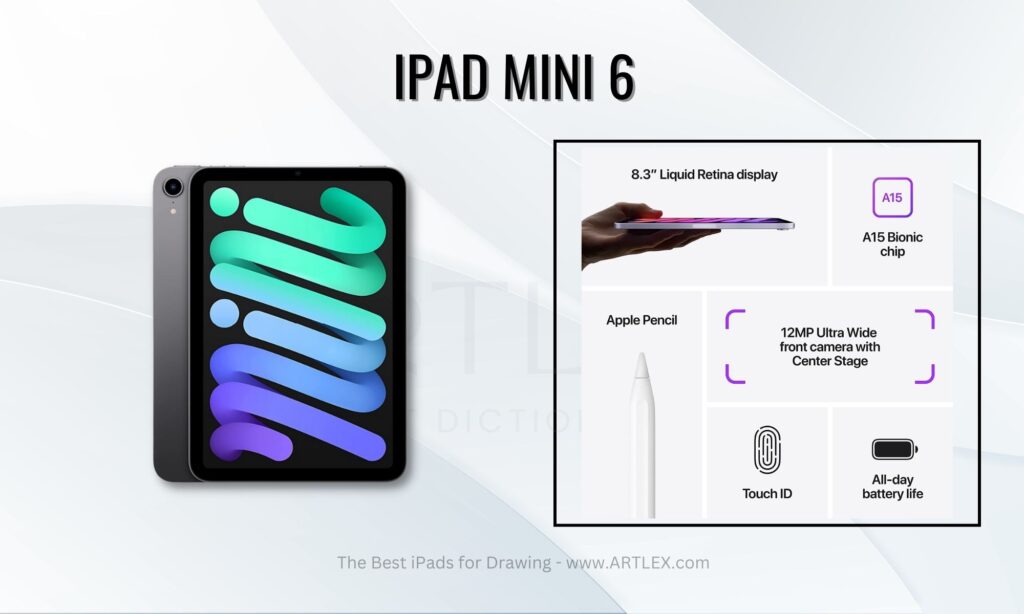
Selection Criteria:
- Apple Pencil Support: Apple Pencil 2
- Our Score: 10/10
- Our score: 8/10
- Our score: 9/10
- Our score: 9/10
- Our Score: 10/10
- Our score: 9/10
About the iPad Mini 6
This small yet powerful iPad is the best option for portability, its 8.3 inches allow you to carry it everywhere, and can even fit in your back pocket. The CPU is only second to the latest M1 Chip, and the USB C connectivity opens the doors to faster charge and Thunderbolt 3 support. The screen is fully laminated and has a 60Hz refresh rate. The 4GB of RAM is great for drawing apps, streaming, and multitasking and the WiFi 6 support only enhances the experience.
Pros
- Has a very nice display.
- Hass full sRGB coverage
Cons
- Some might consider it too small.
- The RAM might be limiting for heavier tasks.
Conclusions
Having the right tools is very important for every artist, and Apple has brought us some of the most reliables devices for us to grow our abilities and careers, though some might consider them pricey, some of these devices fulfill the task that laptop and a pen display can do for the same amount of money, adding the bonus of portability, extended battery life and the reliability Apple has always offered to their users.
I hope you’ve found this article useful and that you can choose the best iPad for you, thank you for reading. Until next time!
Related Posts:
- The 5 Best Drawing Gloves for iPads and Tablets in 2023…
- The 6 Best iPads for Procreate in 2023 (October)
- The 5 Best iPads for Graphic Design in 2023 (October)
- The 7 Best Drawing Tablet with Screens for Beginners in 2023…
- The 5 Best Drawing Tablets for Mac in 2023 (October)
- The 9 Best Drawing Tablets to Buy in 2023 (October)
The 6 Best iPads for Procreate in 2023 (October)
A powerhouse for Procreate, boasting an M2 chip, generous storage, and second-gen Apple Pencil support.
Second Best
iPad Pro 12.9 5th Gen (Renewed)
Nearly identical to the latest model, offering professional Procreate experience at a more accessible price.
Best Budget
iPad 10th Gen
A significant upgrade from the 9th gen, offering a larger screen, improved design, and more powerful processor, ideal for artists.
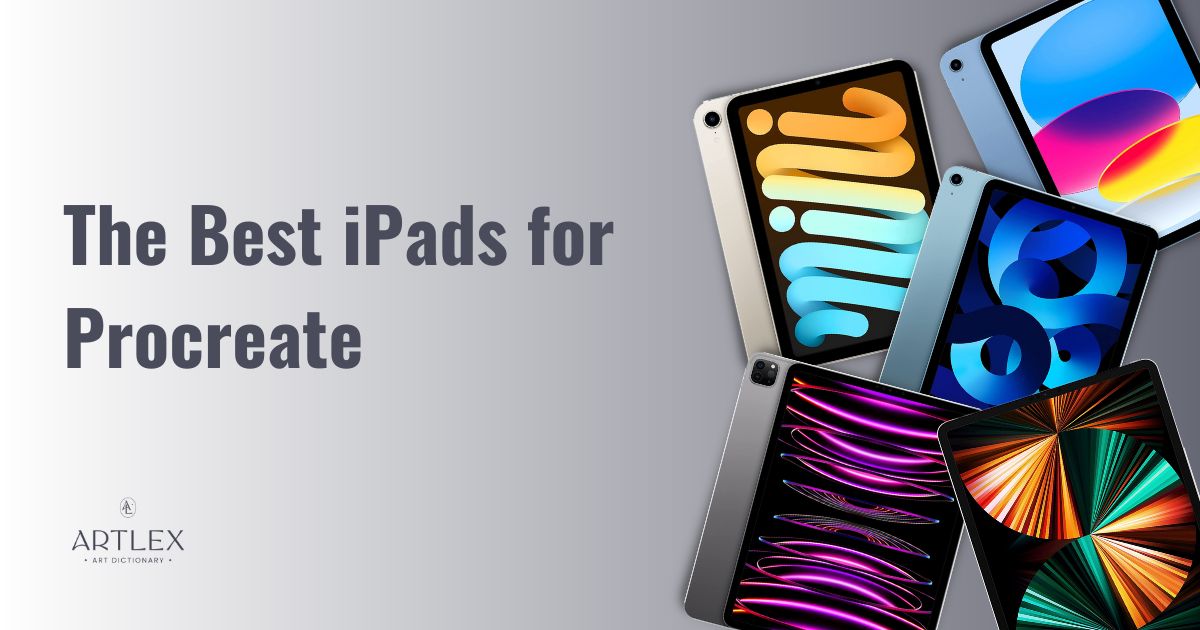 Are you an artist or designer looking for the perfect iPad to use Procreate, the popular drawing and painting app? Look no further! In this article, we’ll showcase the top iPad models that offer the best performance and features for Procreate users.
  From the latest iPad Pro models with their powerful processors and large, high-resolution displays to more budget-friendly options like the iPad Air and iPad Mini, we’ve got you covered. In this article, we’ll be sharing some tips on what to look for in an iPad to use with the Procreate app, so you can make an informed decision and find the perfect device for your creative needs. But first, let’s learn about Procreate!
What is Procreate?
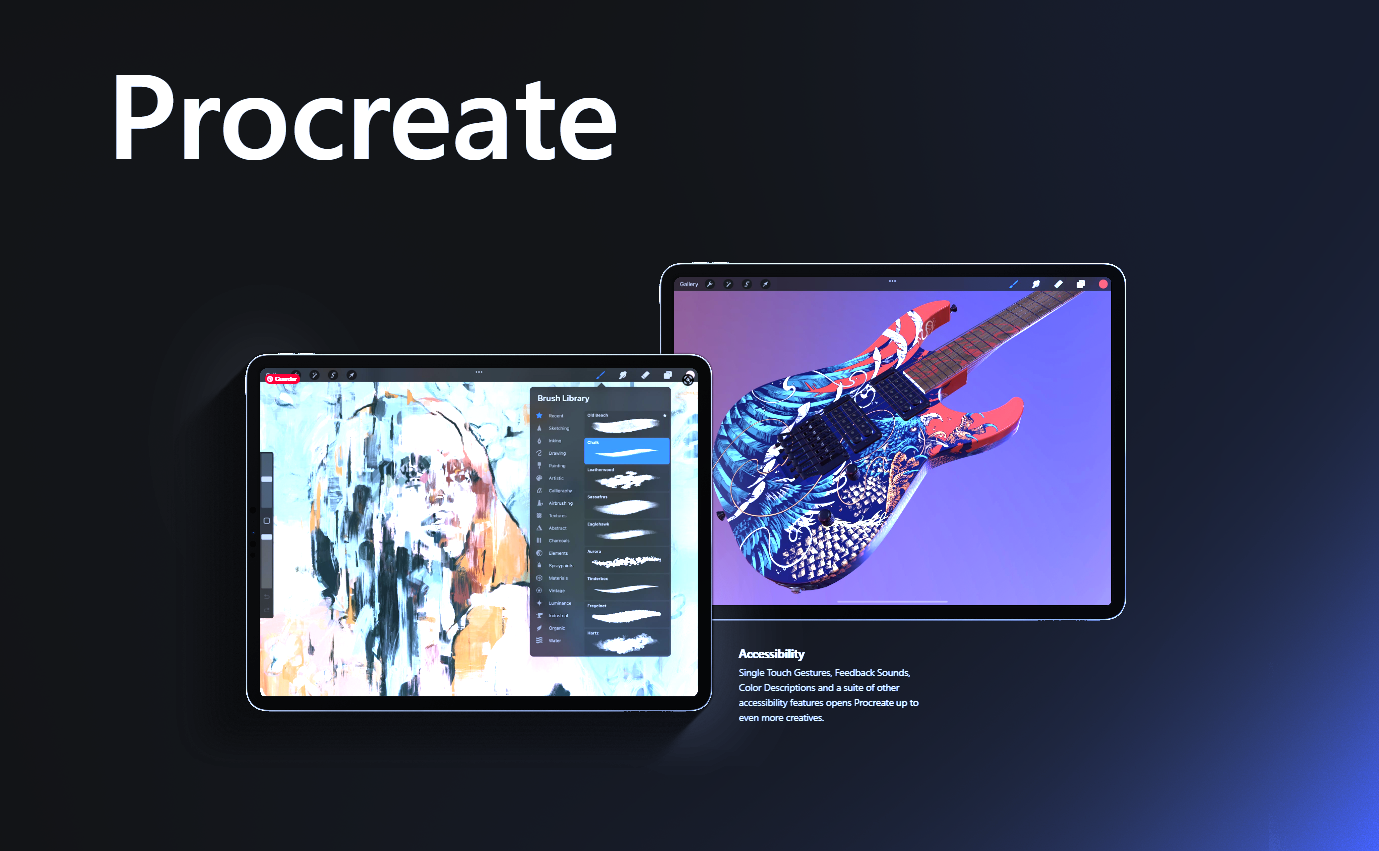
Procreate is an art and design app developed by Savage Interactive, a software company based in Tasmania, Australia, that became crazy popular and is now well-loved by many artists, designers, and creatives around the world. The app was first released in 2011, and since then, it has gained a lot of popularity among digital artists for its wide range of features, intuitive interface, realistic brush styles, and tools, as well as layers, filters, and other common elements found in professional illustration software. Whether you’re a beginner looking to explore your artistic side, a traditional artist wanting to take the leap and join the digital art world, or a professional illustrator looking for new software to try, Procreate is an excellent tool for anyone interested in creating art.
Why do I need an iPad for Procreate?
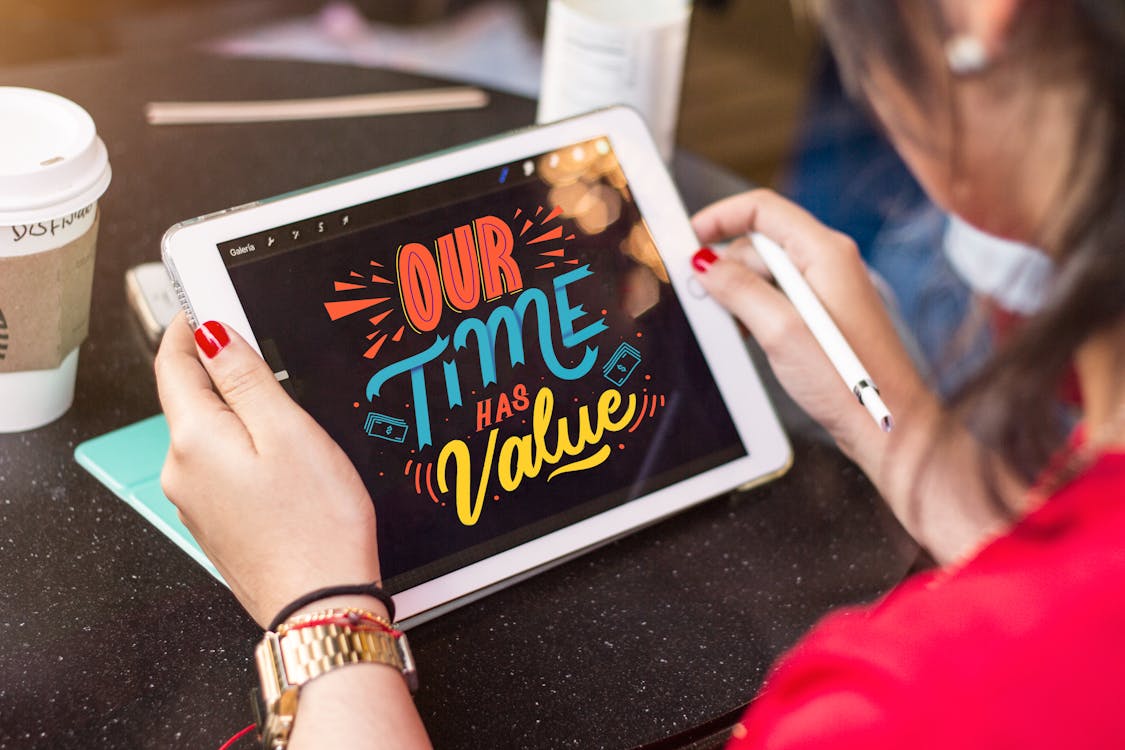
As an illustration and digital painting app, Procreate is better when used on a device with a powerful processor, a robust graphics unit, and a high-resolution display. These essential features allow the app to run smoothly, providing a better drawing experience. Procreate was designed to work with Apple software, and it was specially made for the Pro iPad models due to the superior hardware features and touch gestures compatibility. Nowadays, due to the constant updates and improvements in Apple’s devices, several iPad models are well-suited for Procreate, like the very expensive iPad Pro to more budget-friendly options like the iPad Air and iPad Mini. The latest iPad Pro models are particularly powerful and feature large, high-resolution displays that accurately portray colors and are perfect for not only creating professional work but multitasking, creating content, and sharing your art. In the end, finding the best iPad for Procreate will depend on your specific needs and (especially) your budget. By considering the features and characteristics of different iPad models and learning the way they interact and affect Procreate’s performance, you’ll be able to identify the device that suits you the best.
Best Procreate Features
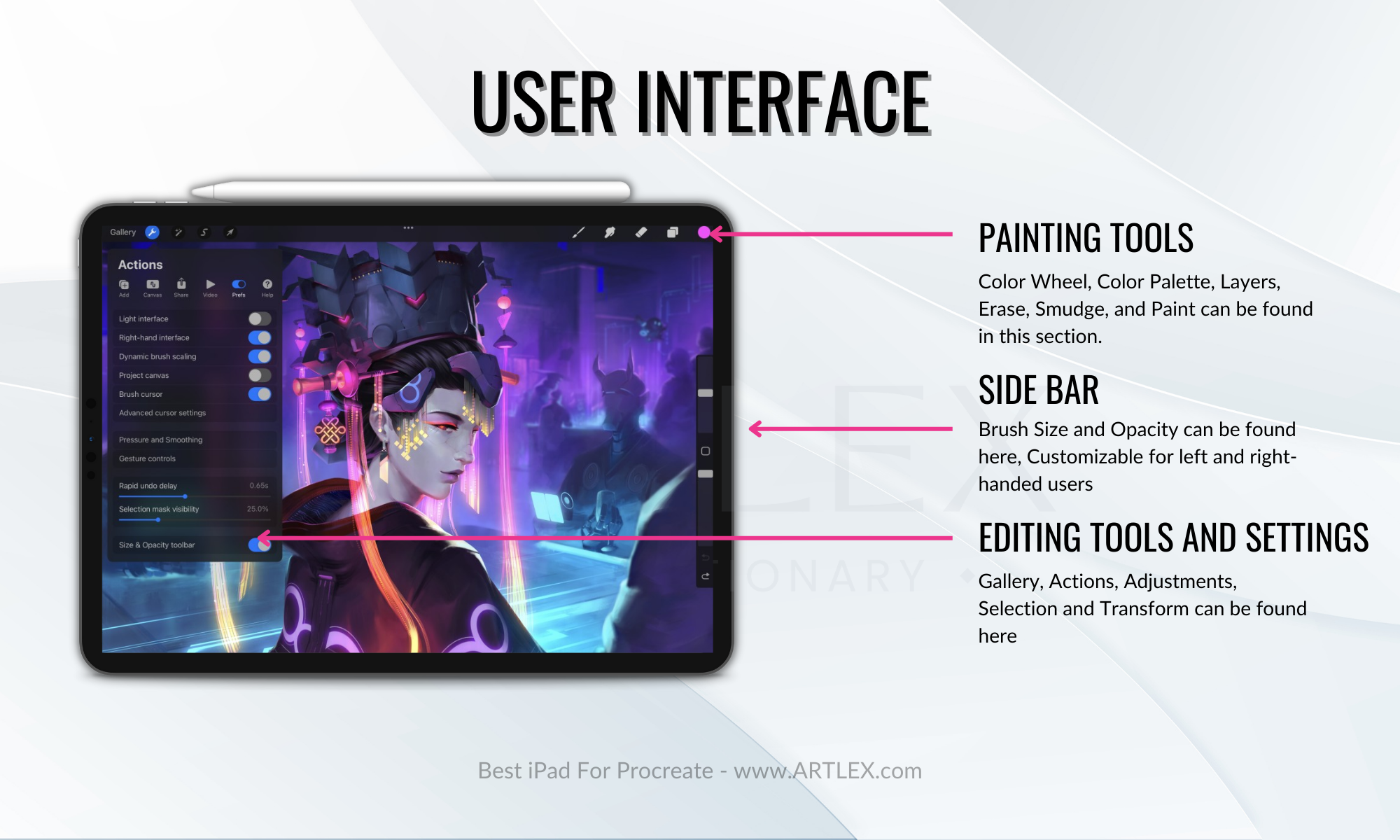
User-friendly interface: Procreate has a user-friendly interface that is easy to navigate, with intuitive controls and a range of helpful tutorials and resources posted by the creative community and developers of the app. This makes it accessible to a wide range of users, including beginners and more experienced artists.
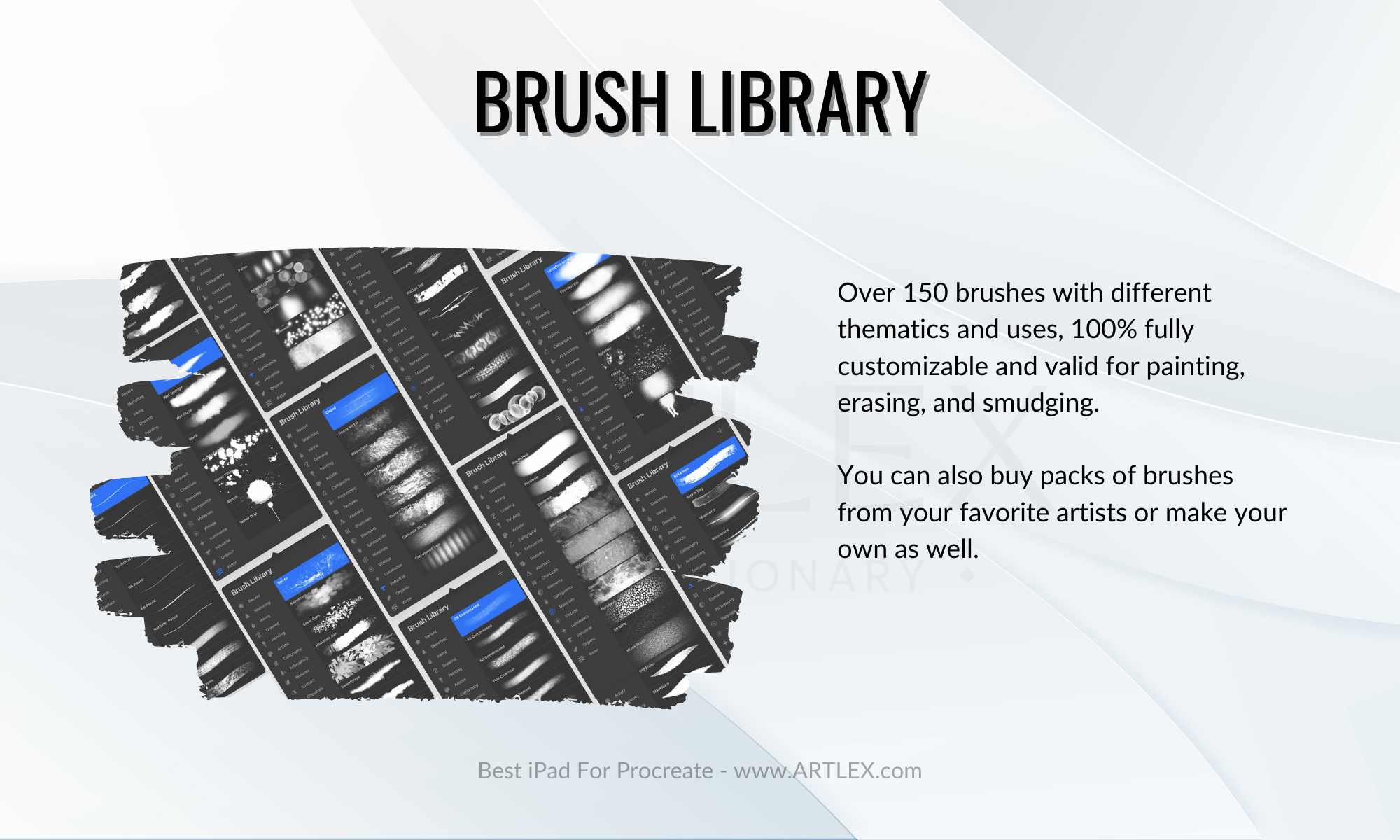
 Brush library: Procreate has a vast library of customizable brushes that allow you to create different types of strokes and artistic effects. You can also find multiple brush packs and tool sets made by other artists that can take your work to another level while improving your workflow and making digital art easier for beginners and intermediate artists.
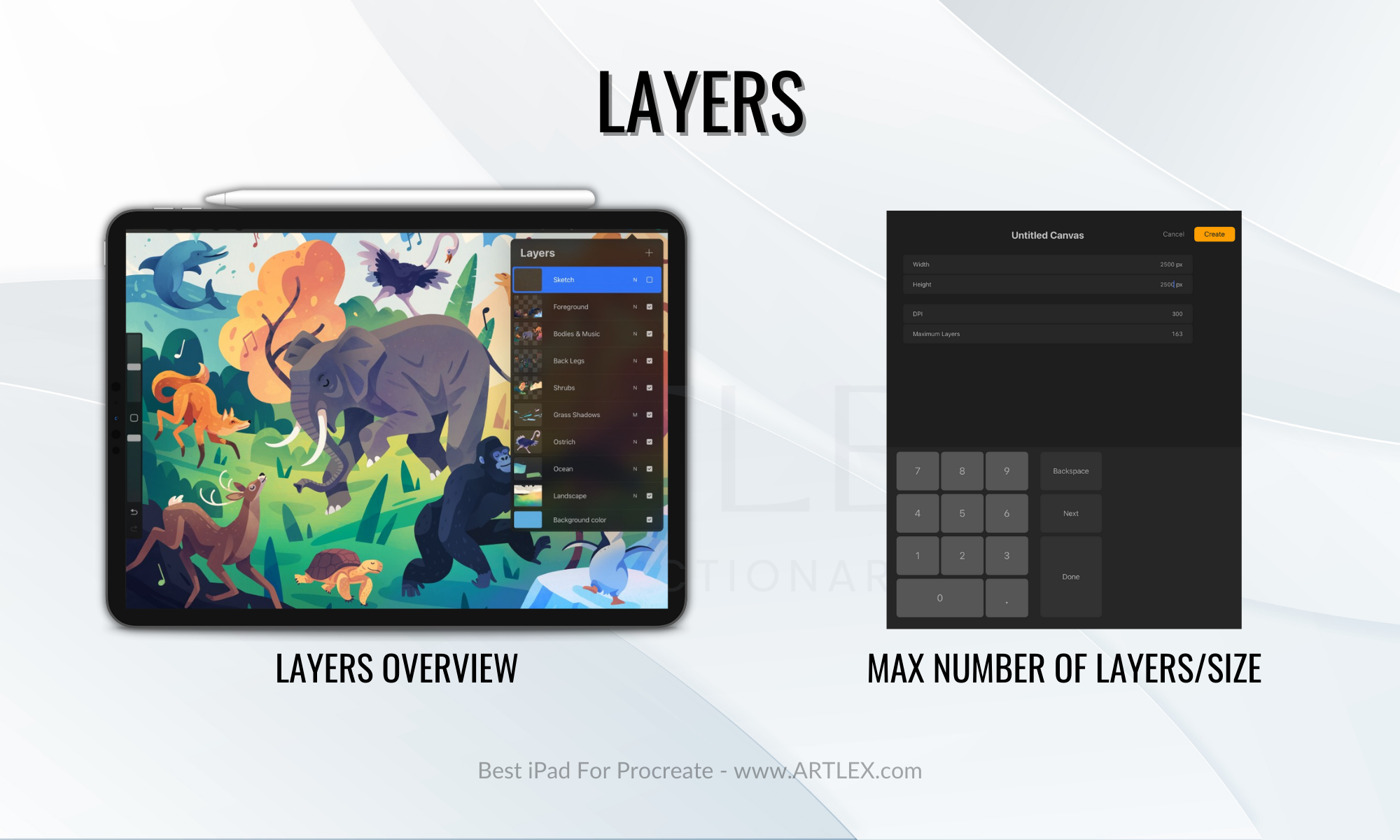
  Layers: Procreate’s layer system allows you to work on different parts of your artwork separately and combine them into a final piece. The number of layers allowed is directly related to the canvas resolution and the device’s RAM and can be visualized and adjusted at the beginning of your creative process.
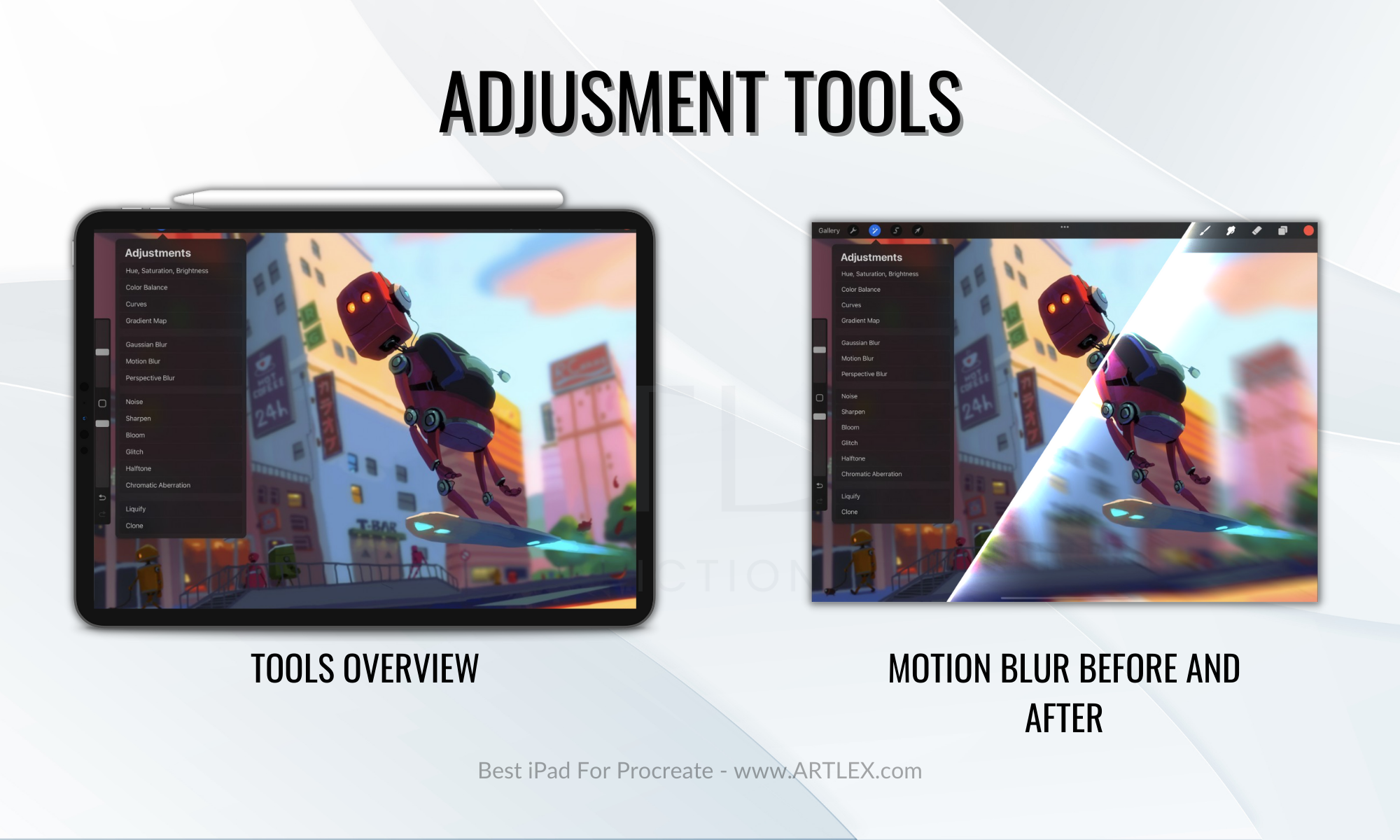
  Adjustment tools: Procreate offers a range of adjustment tools, including blur and artistic effects, color correction levels, curves, and advanced liquify tools that allow you to fine-tune your artwork.
  Selection and Transform tools: Procreate’s selection tools allow you to cut, move and change specific parts of your artwork and make modifications without affecting the rest of the image. In contrast, the transformation tools allow you to change, shape, and distort your artwork in a very intuitive and easy way. Export options: Procreate allows you to export your artwork in various formats, including PNG, JPG, and even PSD, making it easy to share your work with others or use it in other projects. Procreate also records a timelapse of your process and allows you to export it as a short 30 seconds video or a full video, making it easier to create content and share your work process on social media. Animation: Procreate’s animation feature allows you to create frame-by-frame animations using a simple and intuitive layering method. It’s not professional animation software, but it will allow you to experiment, learn and create short animations and animated art. You can also easily export them as video or GIF files which makes sharing much easier. Community:
 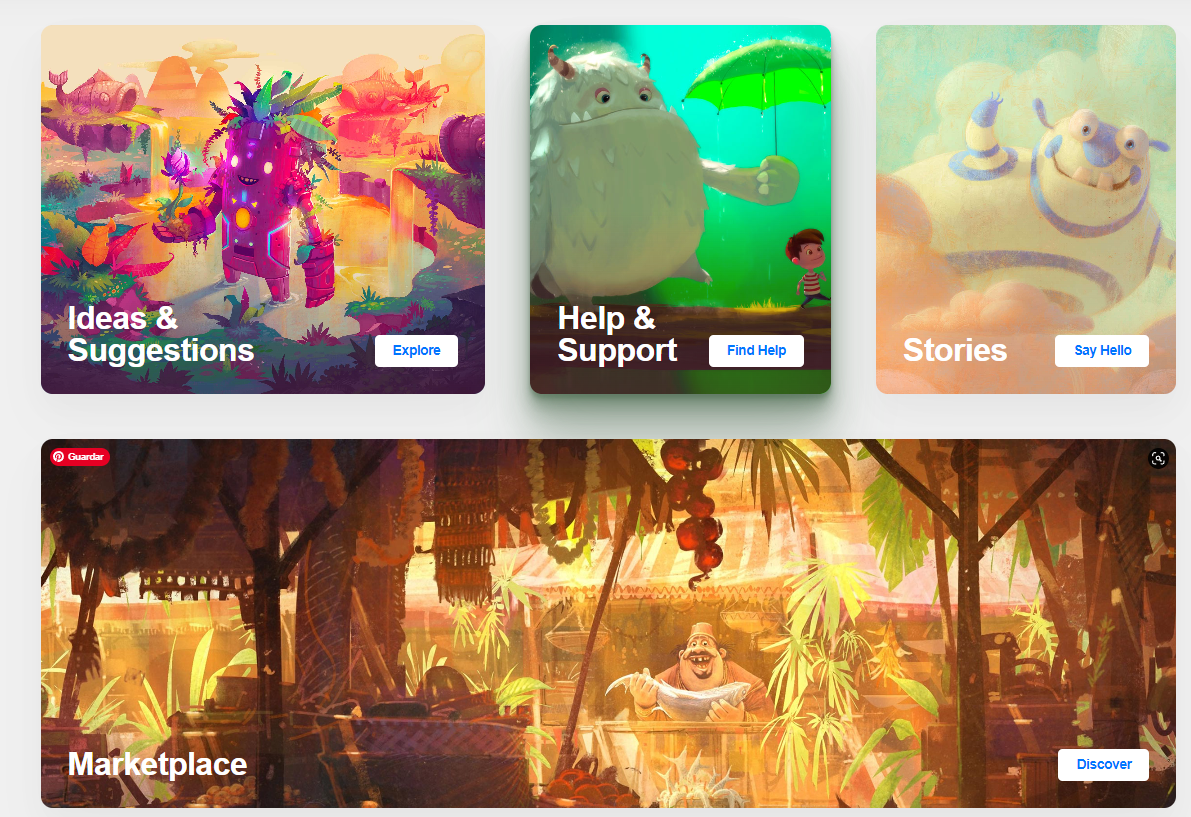 Procreate has a large and active community of users who share their work and offer tips and tricks where you can find inspiration, feedback, and support from other Procreate users. This community has contributed to the app’s popularity by providing users with a sense of connection and mutual assistance.
How to choose the best iPad for Procreate?
Apple iPad models and Procreate always have something to offer, whether you’re a beginner willing to explore digital art for the first time or a seasoned artist, you’d agree iPads are not the most accessible tablets in the market, so in order to get the best value for your money, there are a few key factors you need to consider:
Processor and RAM:
Procreate is a resource-intensive app that needs a powerful processor. Apple iPads have some of the best CPUs in the market; however, the iPad OS limits the resources (CPU and RAM) to only half of what’s available, so it’s better took for an iPad with a newer, faster processor, such as the M1 or newer if your budget allows it. These are the latest processors apple offers in recent iPad models: A14 and A15 Bionic: Currently present in the iPad 10th Gen, the iPad Air 4th Gen, and the iPad Mini 6. It has six cores (two performance cores and four efficiency cores) and 4 (A14), and 5 (A15) GPU cores. It’s capable of handling demanding tasks, such as 4K video editing and AR applications. M1 Chip: Currently present in the iPad Air 5th Gen, the iPad Pro 12.9 5th Gen and the iPad Pro 11 3rd Gen It has eight cores (four high-performance cores and four energy-efficient cores) and 8 GPU Cores. It is capable of an even faster performance and improved energy efficiency compared to the A14 and A15 Bionic. M2 Chip: It is the latest apple processor, present in the iPad Pro 12.9 6th Gen and the iPad Pro 11 3rd Gen. It has eight cores (four high-performance cores and four energy-efficient cores) and 10 GPU Cores and is designed to deliver 18% faster CPU, 35% faster GPU, and twice the memory bandwidth going from 50GB/s to 100GB/s Regarding RAM, Apple offers from 4GB to 16 GB of RAM in the latest models; however, previous models (like the iPad 9th Gen and the iPad mini 5) can have from 3GB of RAM. More RAM means more layers, a larger canvas, and longer animations. It also means you’ll be able to run other apps in the background without worrying about crashes. As always, more means better, but it also means pricier. Apple offers additional RAM in some models, like the iPad Pro. However, the jump from 8GB to 16GB of RAM means +$800 on the price, so I wouldn’t recommend going for the additional RAM unless you absolutely need it.
Display and Resolution
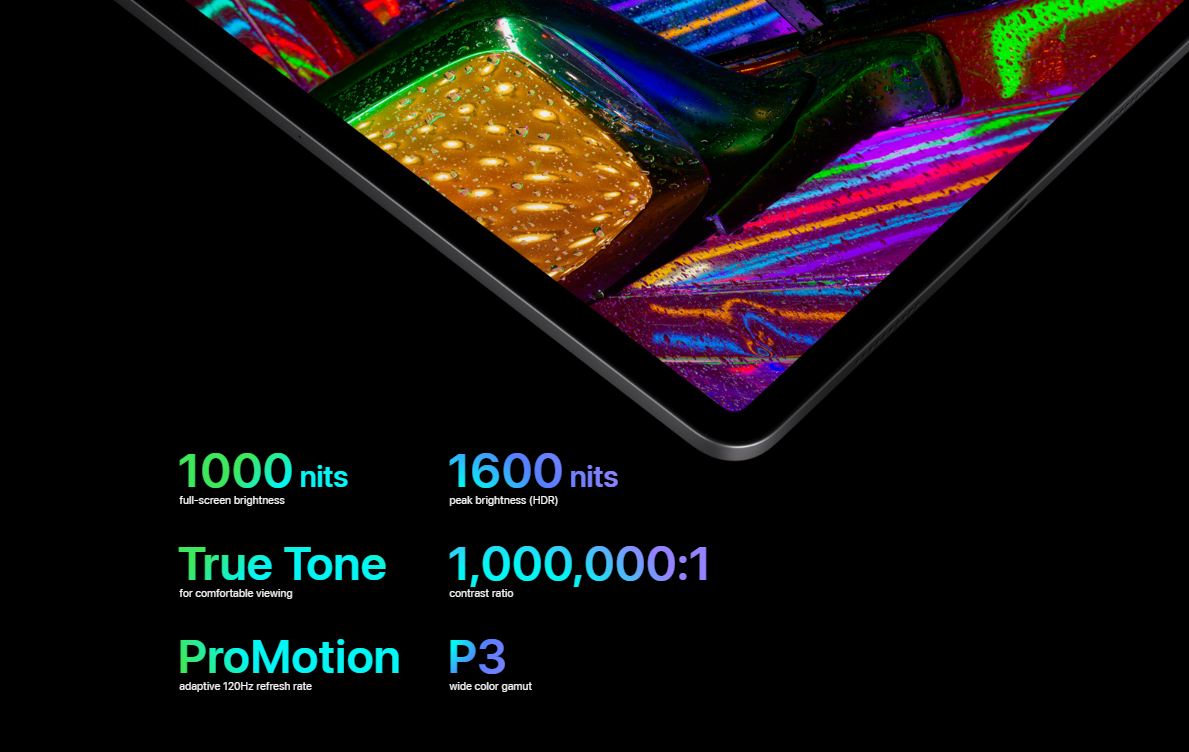
The display quality is important for any art software, and Procreate is no exception. Luckily, Apple has some of the best displays in the market. Apple iPads also have excellent screen resolution, surpassing most Android tablets, so that wouldn’t be a problem on any model. The iPad Pro 12.9 inch has the highest resolution of them all; nonetheless, it also comes at a higher price.
Color Accuracy and Brightness
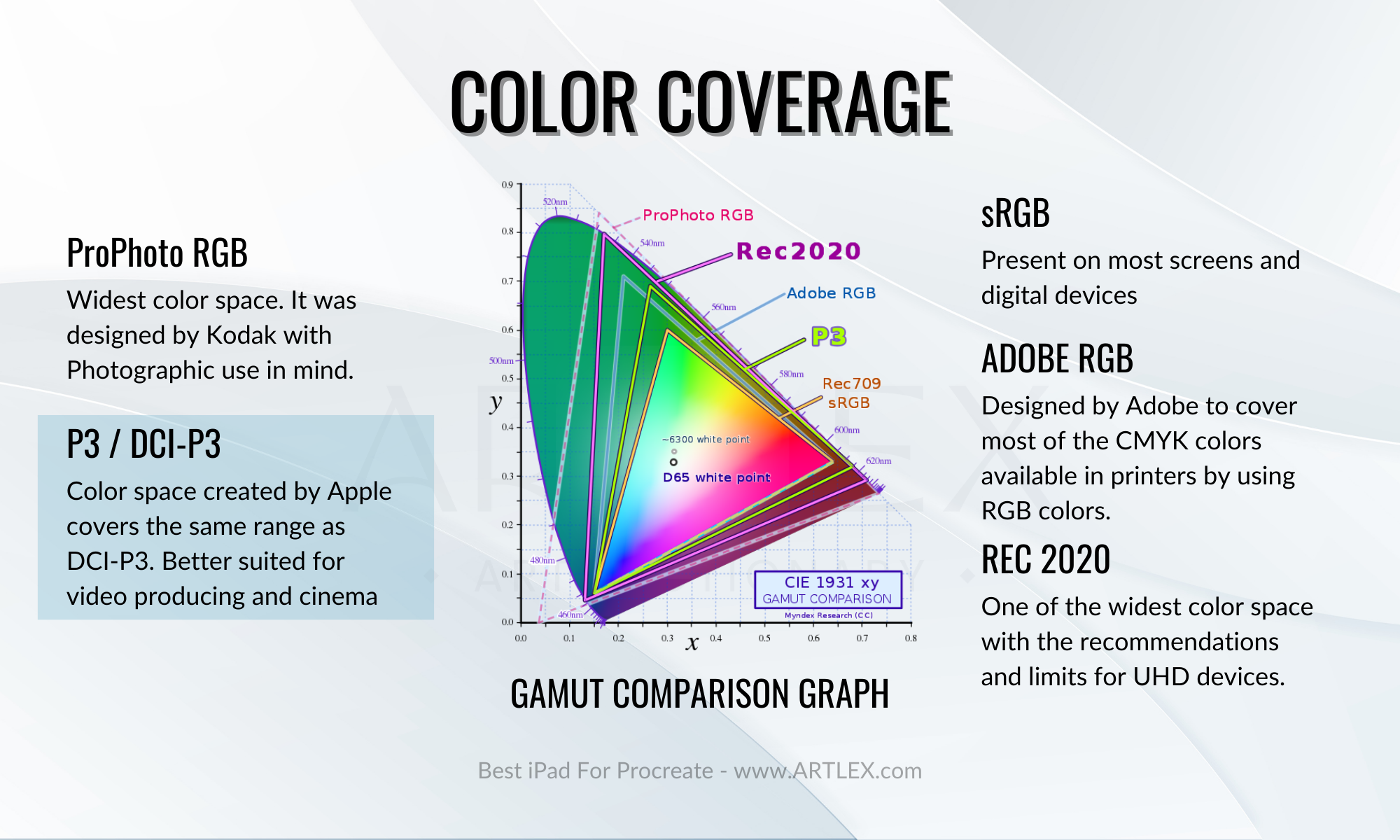
iPads, like most mobile devices, are built to be used indoors and outdoors, so unlike graphic pen displays, laptops, and other tablets that have low brightness, iPads have from 500 to 1600 nits, making them the brightest and, in this case, better display at the moment. Their Liquid Retina display doesn’t only look amazing but also has an extremely high color accuracy and gamut coverage, which is a crucial feature for artists, designers, and creatives in general. The DCI-P3 color space covers more than 100% of the sRGB range and leans towards the reds and yellows, looking more realistic than the Adobe RGB color space, and is also present in most professional displays.
Storage:
Having enough space for your artwork and creations is crucial for any creative professional, and we all know that Procreate files are pretty heavy. Getting lots of storage is what we recommend, especially since the time-lapse exports only add to the problem; however, as always, more storage means more money. Having more than 256GB of storage is what we consider ideal. That way, you’ll be able to have other apps, photos, and files and use your device to all of its capacity. However, you can always have an external storage solution to save your iPad from crashes and malfunctions.
Size:
The size of the iPad can be a matter of personal preference, but larger iPads are more comfortable to draw on and use for extended periods of time. A bigger size also means more space for references and tools like the companion mode of the color wheel or a color palette. And if your hands are on the bigger size, you’ll definitely feel more comfortable with a bigger iPad. On the other side, the portability factor does affect the use of any tablet, you can’t take an iPad Pro of 12.9 inches everywhere and take photos or record videos, and although the size is still on the portable side, some might be more comfortable with a smaller iPad, especially if they intend on using it for anything else than drawing.
Pen support:
Procreate is designed to work with the first and second-generation Apple Pencil, which already are the best possible styluses for any iPad; still, if you plan on using a stylus with Procreate, make sure the iPad you choose is compatible with a stylus and offers good palm rejection. And if you get the first-generation Apple Pencil or an iPad compatible with it, also ensure you get the charger and adapter since most recent iPad models have USB-C ports, and the Apple Pencil 1 doesn’t support magnetic charging.
Software Compatibility
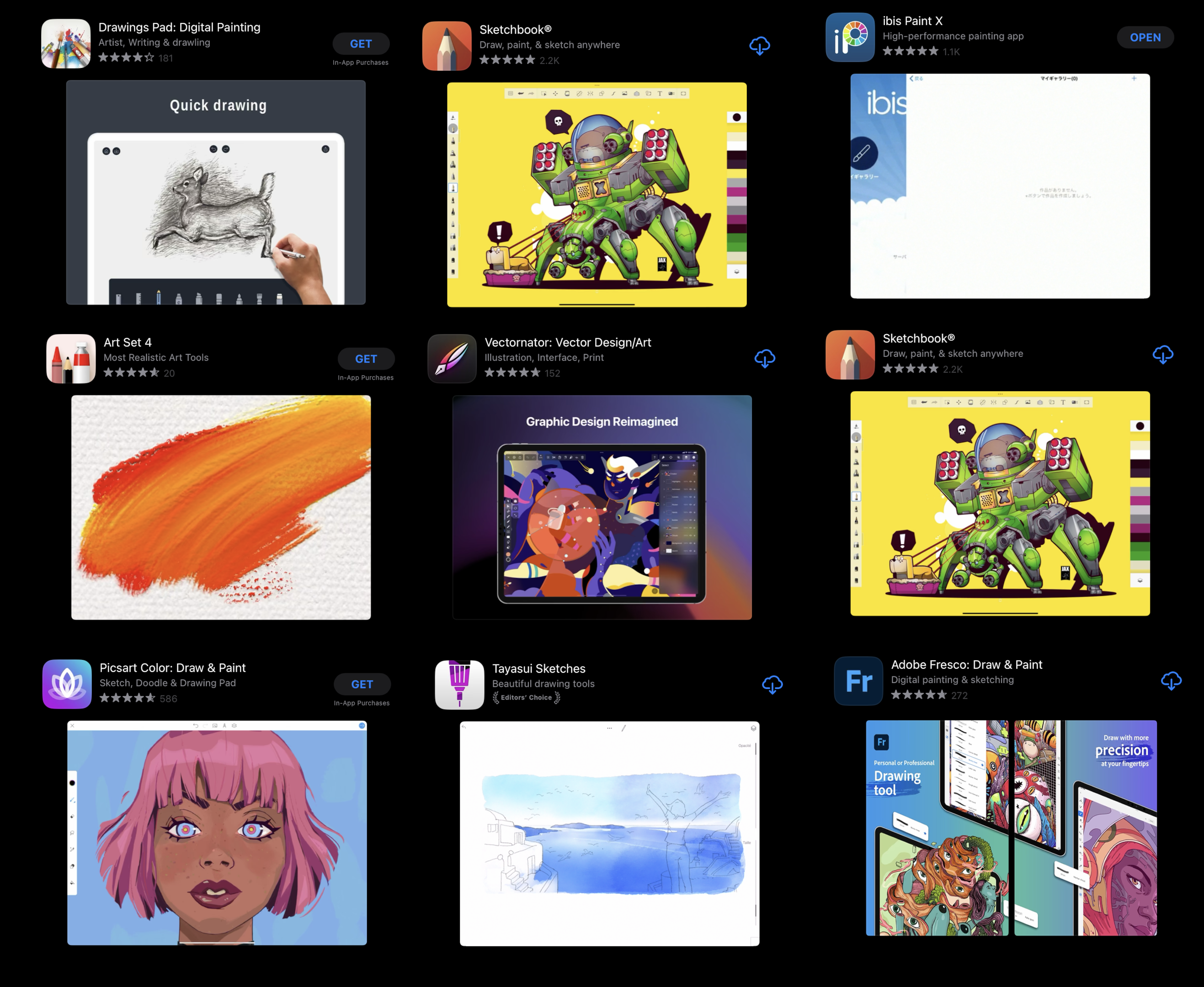
It is also important to know that even though procreate is one of the best drawing apps. It’s not the industry standard. Photoshop recently released an app for the iPad; however, it’s not the full version and won’t work correctly in some iPad versions due to the RAM, making it more of a painting and sketching app than a compatible professional app. There are other pro apps like Clip Studio Paint that remain the same on all devices. On the other hand, you won’t find Krita, Illustrator, Corel Paint, or any professional animation software available in the App Store.
Battery Life
The iPad is a versatile device that can be used for various tasks, like drawing on Procreate, browsing the internet, watching videos, and taking notes. Whether you’re an artist looking to create digital paintings or want a convenient device for everyday use, having enough battery is very important. Fortunately, one of the advantages of Apple devices is their long-lasting battery life, which outperforms most laptops and many Android devices. You can use any iPad device continuously for as many as 12 hours, depending on the model, without worrying about losing performance even at 2% battery. You can also set your iPad on low power mode, which extends your battery at the cost of reducing background tasks and applications.
Price
iPads and Apple devices, in general, are not inexpensive at all. In fact, the latest models are some of the most expensive tablets on the market. However, they are so versatile and useful that I guarantee you they are totally worth the investment. You might not have the budget for the latest and most powerful iPad Pro, yet the latest Apple iPad Air has pretty much the same features as the iPad Pro for around $500 less. The new iPad (10th Gen) is also a great option if you’re on a tight budget since it has a size comfortable enough, a great design, and a very tempting price.
How Much Does Procreate Cost?
In terms of price, Procreate is relatively one of the most affordable brewing apps compared to other professional-grade design software. On any iPad model, the app is available for purchase through the App Store for $9.99. This is a one-time purchase, not a monthly subscription. On the iPhone, the pocket version of the app can be purchased for $5.99. These prices may vary depending on your location and other factors, so it’s always a good idea to check the App Store for the most up-to-date pricing information.
Procreate Learning Curve
The learning curve for Procreate can vary depending on the individual user’s familiarity with digital art tools (like graphics tablets and styluses) and software (like Photoshop or Krita), as well as their specific goals and objectives using the app. Some users may find Procreate relatively easy to learn and use, while others may need more time to master the app’s various features and functions. Some might use procreate as a simple design and illustration tool. In contrast, others might take full advantage of it and use it professionally to work, build a portfolio, make comics and animations, etc.
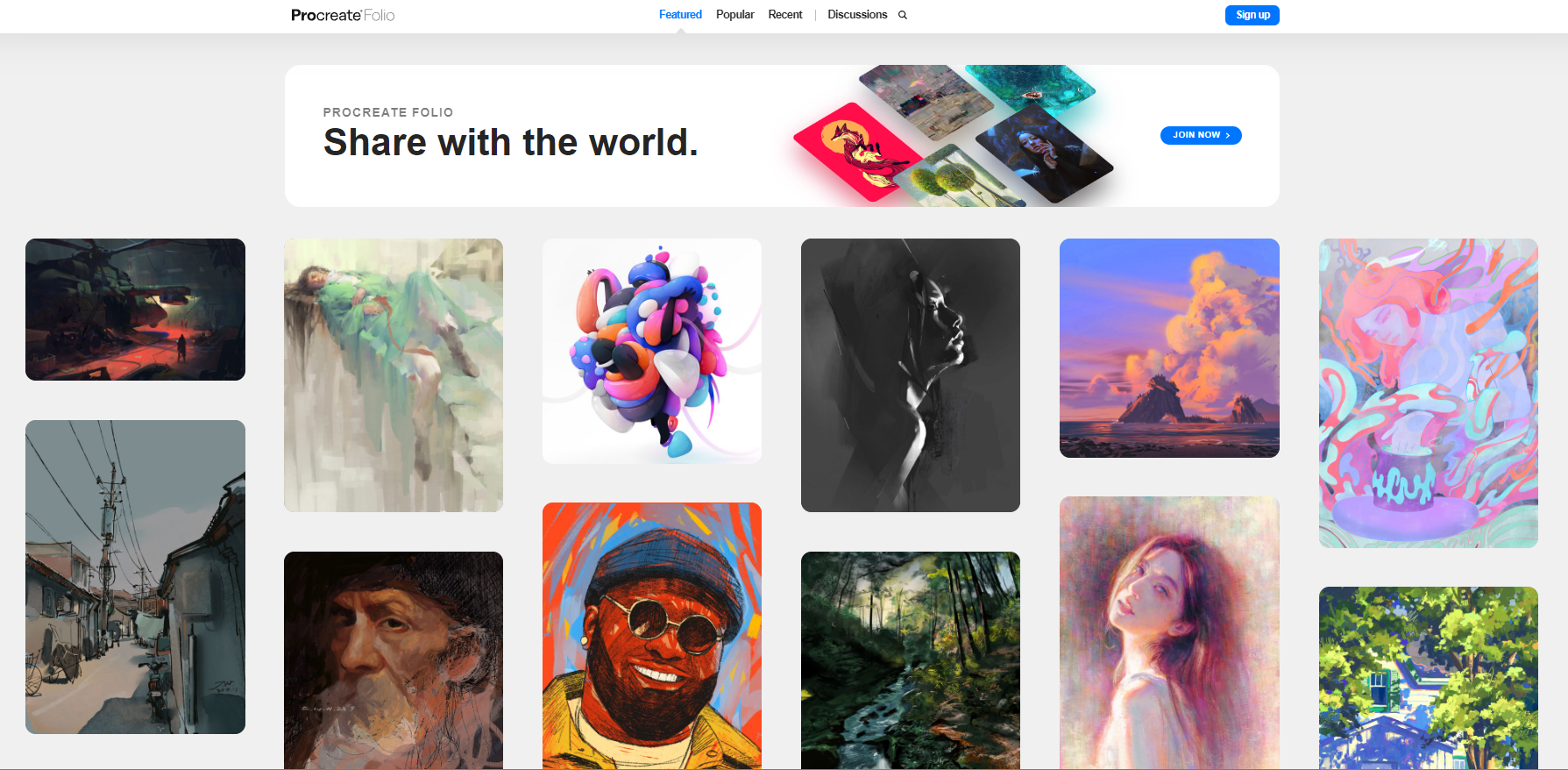 Suppose you have a background in digital art and have used other programs, apps, etc.. In that case, you’ll be familiar with most of the functions, layer blending modes, adjustment tools, and general terminology. The most challenging aspect of the learning curve would be adjusting to the user interface. However, the developers have made a handbook with all the information you need about Procreate, so with dedicated practice, it should only take a matter of days or even hours to become proficient in navigating it. If you are new to digital art, I recommend familiarizing yourself with the tools and features of other software programs through video tutorials first. Many digital painting apps and programs have similar features, so gaining a basic understanding of them can help you feel more comfortable and confident when using Procreate or other professional art software. We highly recommend focusing on learning about the use and creation of brushes in Procreate’s Brush Studio, as well as the finger and stylus shortcuts and gestures available in the app. These features are essential for creating high-quality artwork in Procreate and can significantly enhance your workflow and productivity.
 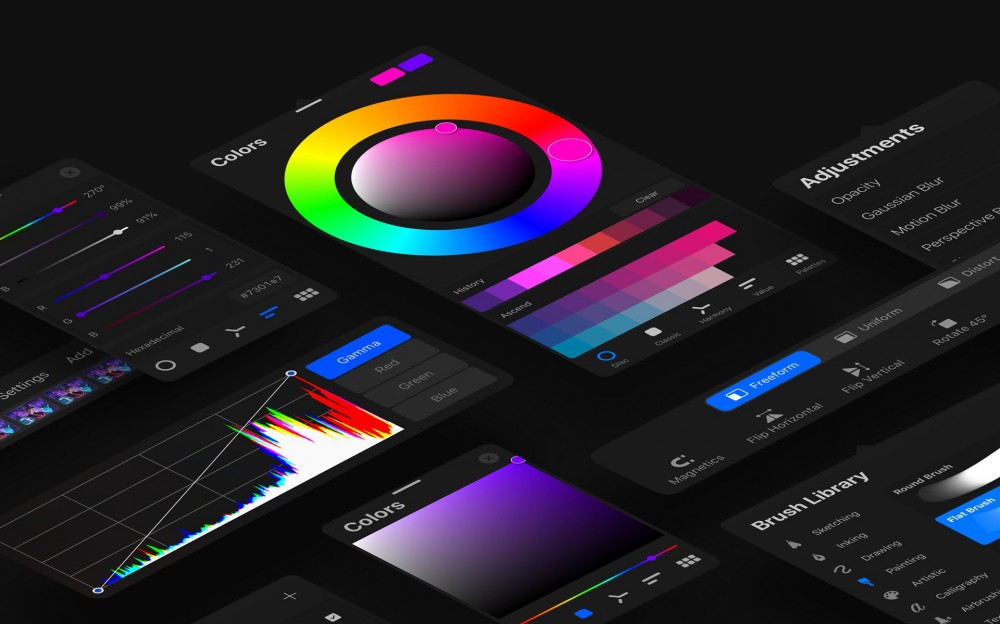 Procreate includes a range of resources to help users learn how to use the app, including video tutorials, a user manual, and a help center with articles and FAQs. Additionally, there are many online resources available, such as tutorials, forums, and social media groups, where users can learn from and connect with other Procreate users and experts.
iPad Accessories for Digital Artists
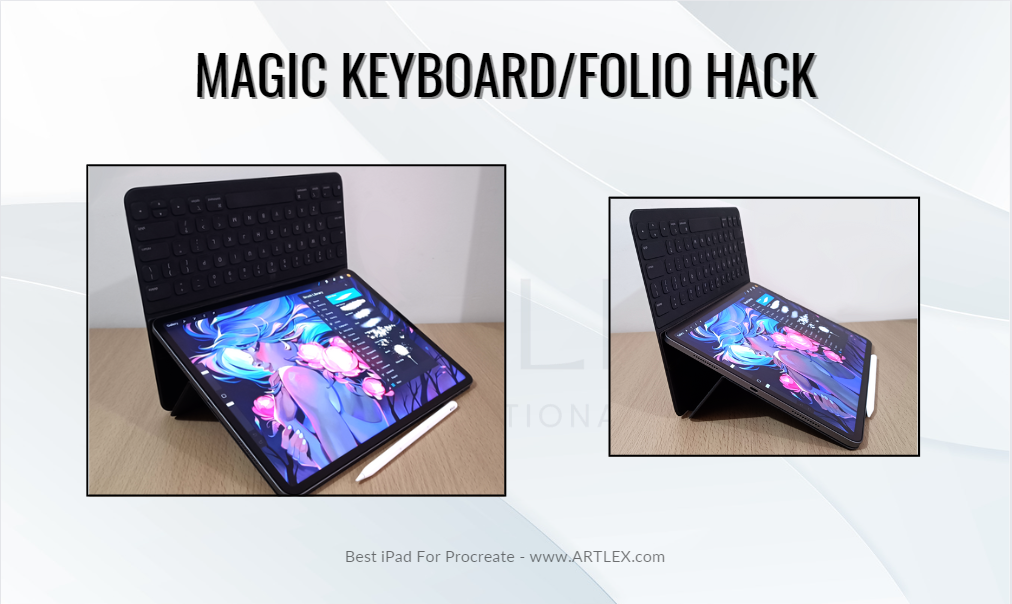
Magic Keyboard/Keyboard Folio If you’re planning on using your iPad for work, note-taking, browsing, etc., getting a Keyboard Folio or the magic keyboard is a completely worthy investment. Apple supports Bluetooth keyboards, and there are many cases available in the market; however, speaking from experience, getting one of these two accessories can boost your productivity and improve your user experience tremendously.
 Sketchbard Pro/iPad Stand Buying an iPad stand or a tablet/laptop stand can be a great way of organizing your space. It can have some cool features like being able to adjust the position for a more comfortable drawing experience, improve your posture and reduce eyes and neck strain, provide a wide range of viewing angles, etc.
 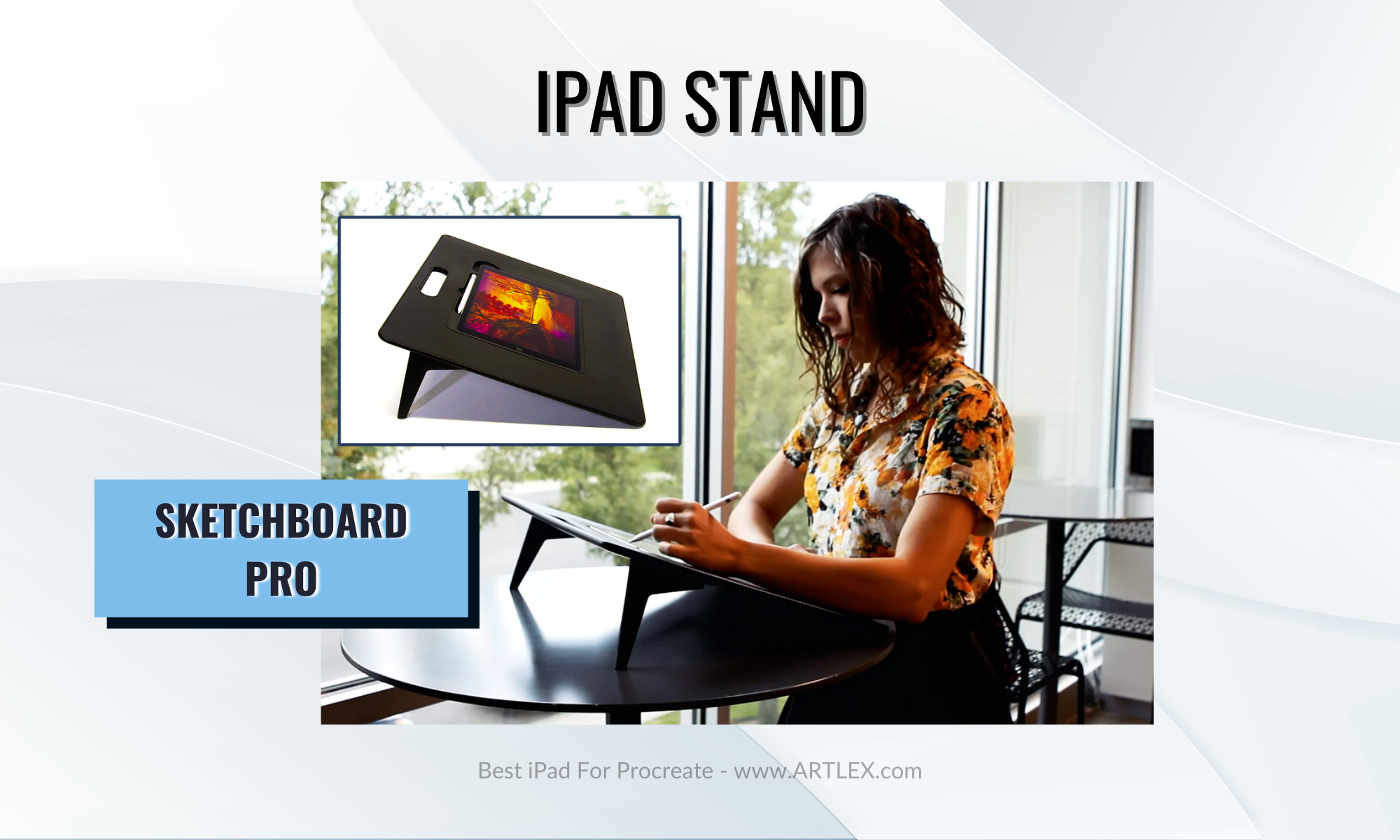 However, it’s hard to find a stand solely for drawing purposes. A few years ago, the Sketchboard Pro was released; it’s a special iPad stand that will drastically improve your drawing experience, will help you reduce wrist pain, and give you a wider surface for gestural drawing. Screen Protector The iPad screen is fantastic to look at; however, drawing on a glossy surface can feel… weird. Most graphics tablets and pen displays have a textured surface that provides the stylus additional friction, helping you make smoother lines and providing more control to the user. Since the Ipad screen doesn’t have any texture, drawing on it feels a bit unnatural. There are several screen protectors in the market, but most of them are so thick that they can negatively affect the Apple Pencil’s performance. The perfect textured screen protector is a thin film designed to mimic the feel of drawing on paper without affecting the Apple Pencil’s sensitivity. Paperlike is one of the most popular brands but is also quite expensive, and according to some users, it destroys the Apple Pencil tip due to being overly textured and wearing off quickly. You can always go for less expensive options but remember to get a thin film instead of a glass or ceramic protector
What is Apple Pencil Hover
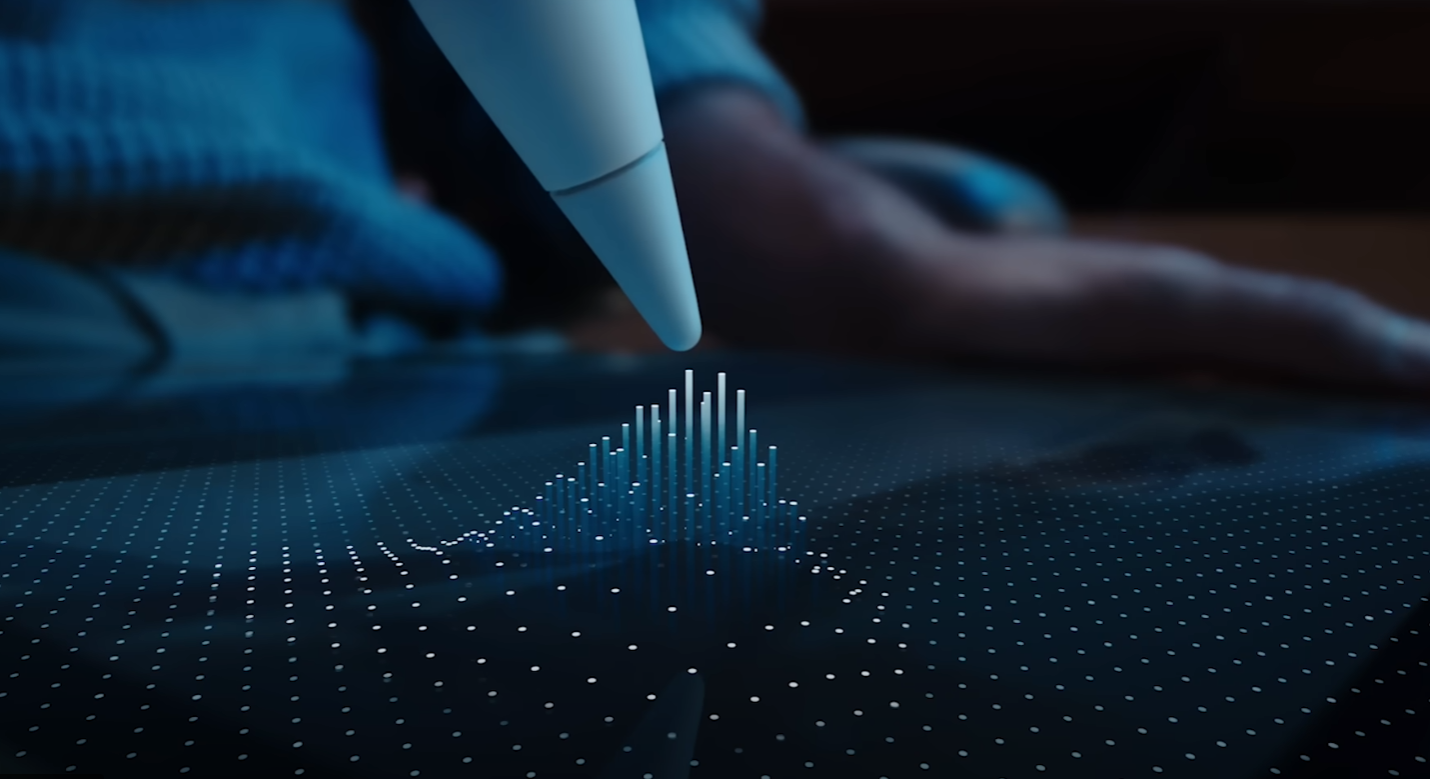 Apple Pencil hover is a feature that allows the Apple Pencil to hover above the screen and perform specific actions, such as accessing tool palettes, increasing and decreasing the brush size and opacity, being able to see the brush shape and preview the color, etc. without actually touching the screen. This is a game-changer feature for apps like Procreate, where precise control and brush manipulation are essential.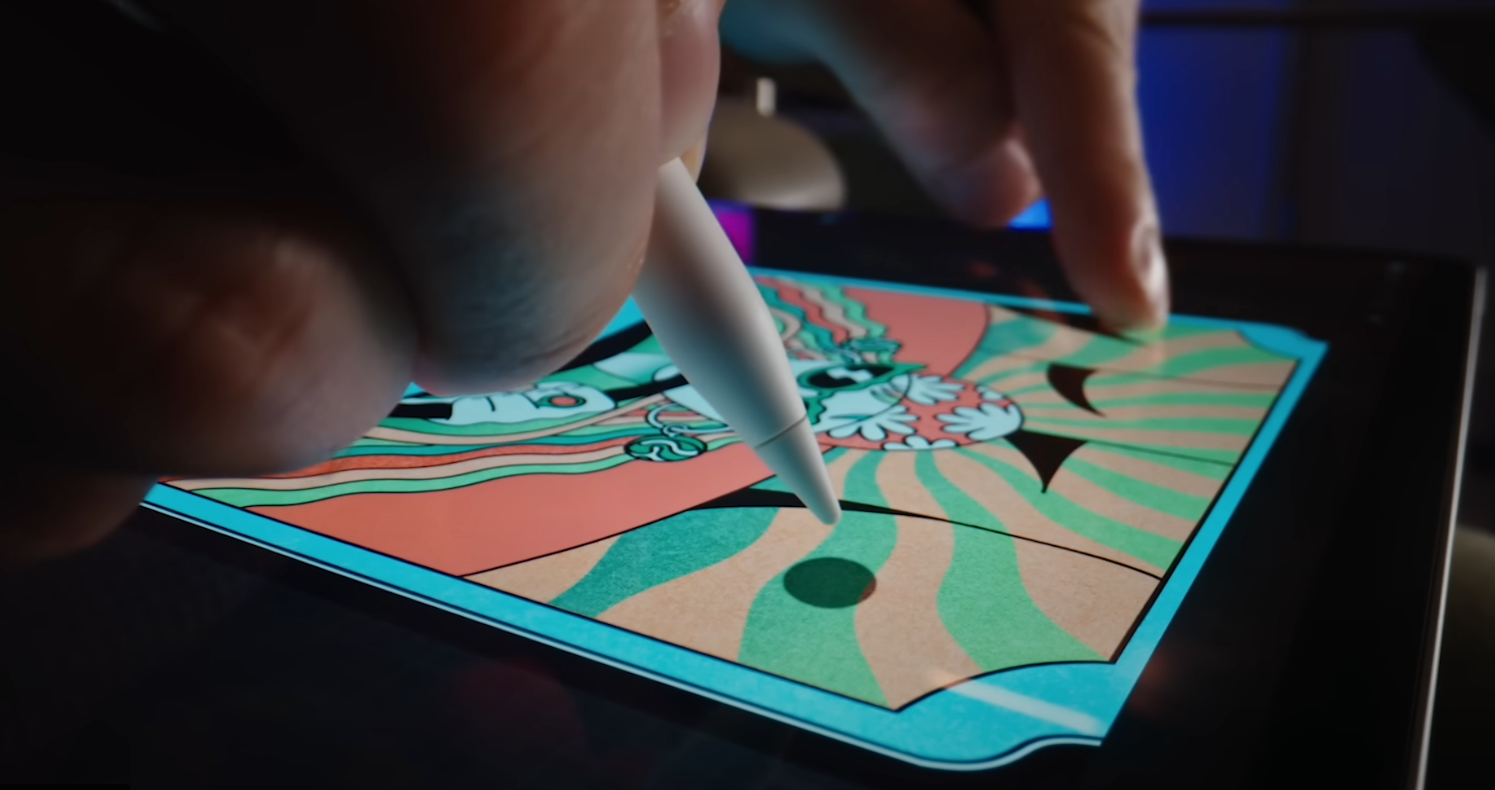
Our Product Recommendations – The Best iPad for Procreate
- Best iPad for Procreate Overall –Apple iPad Pro 12.9″ 6th Gen
- Second Best iPad for Procreate – iPad Pro 12.9 inch 5th Gen (Renewed)
- Best Budget iPad for Procreate – iPad 10th Gen
- Best Price-Value iPad for Procreate – iPad Air 5th Gen
- Best Portable iPad for Procreate – iPad Mini 6th Gen
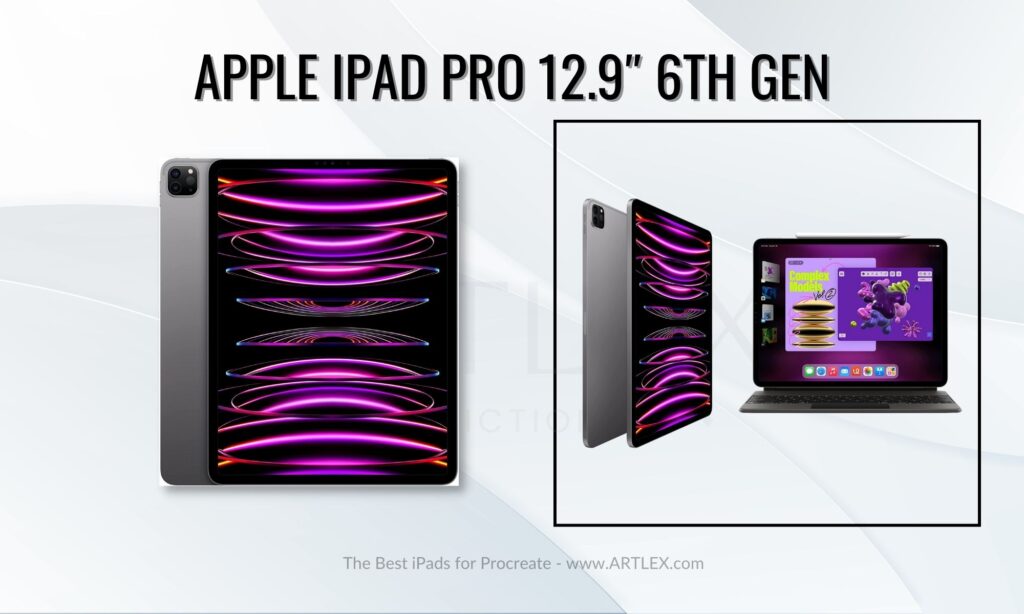
1. Best iPad for Procreate Overall — Apple iPad Pro 12.9″ 6th Gen
Selection Criteria:
- Size: 12.9″, 1.5 lb. Very portable, a bit heavy
- Our score: 9/10
- Our score: 10/10
- Our score: 10/10
- Our score: 10/10
- Our score: 10/10
- Our score: 10/10
- Our score: 9/10
- Our score: 7/10
About the iPad Pro 12.9 6th Gen
The iPad Pro has a fantastic display, is highly accurate, and has an excellent contrast ratio making the colors more vivid, which is ideal for creating high-quality artwork. It’s powered by Apple’s M2 Chip, which provides faster and more efficient performance for tasks such as image editing, drawing, and video rendering.
It also has Pro Motion Technology, which automatically adjusts the refresh rate of the display to match the content being displayed, resulting in a smooth and fluid experience. This might go unnoticed until you use another tablet, where you’ll be able to see the difference, especially using touch gestures and when moving your canvas around.
The iPad Pro is compatible with the Second Generation Apple Pencil, which provides a precise and natural drawing, writing, and painting experience. This Generation also includes the Apple Pencil Hover feature, which is a fantastic feature for creatives and also the only reason it made it to the top.
Pros:
- Apple pencil hover feature
- Great size and display
- High software compatibility
Cons:
- It’s quite expensive
- Pro features might not be worth the update from the last iPad Pro
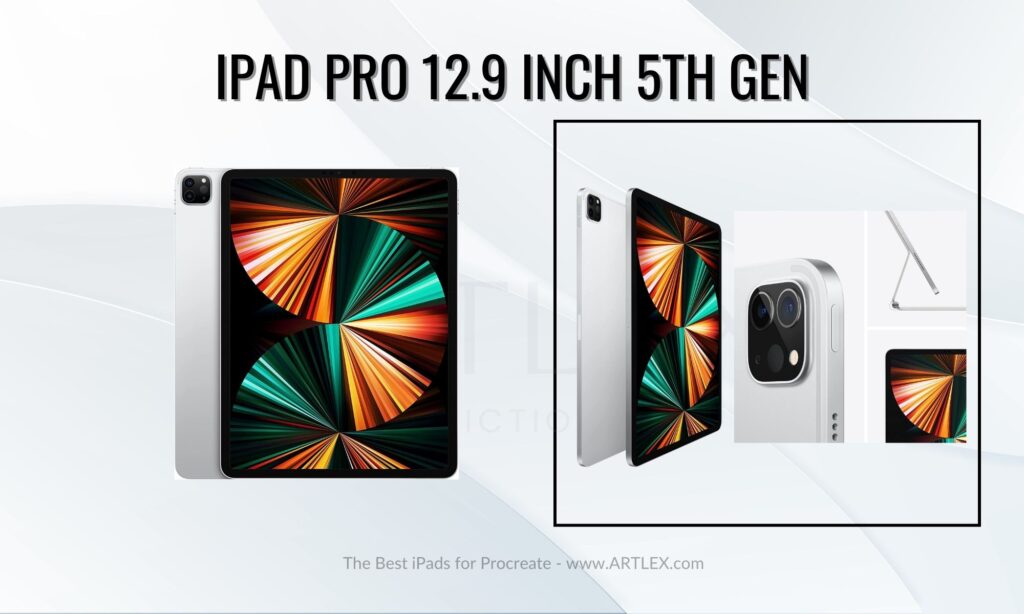
2. Second Best iPad for Procreate — iPad Pro 12.9 inch 5th Gen (Renewed)
Selection Criteria:
- Size: 12.9″, 1.5 lb. Very portable, a bit heavy
- Our score: 9/10
- Our score: 10/10
- Our score: 10/10
- Our score: 10/10
- Our score: 10/10
- Our score: 7/10
- Our score: 9/10
- Our score: 10/10
About the iPad Pro 12.9 5th Gen [Renewed]
This iPad has basically the same characteristics as the latest iPad Pro. The most noticeable difference would be the performance, which isn’t as good, especially regarding GPU-related tasks, the Pro ResVideo Recording feature, and the Apple Pencil Hover feature that is only available for the latest iPad Pro.
What makes it the second-best iPad Pro is the price. The drop in the price after the latest iPad Pro release makes this device way more accessible for professionals and enthusiasts, obtaining almost the same Pro characteristics for way less money.
Pros:
- Fantastic tablet with a discounted price
- Perfect size
- High app compatibility
Cons:
- It’s still quite expensive
3. Best Budget iPad for Procreate — iPad 10th Gen
Selection Criteria:
- Size: 10.9″, 1.05 lb. Very portable
- Our score: 9/10
- Our score: 7/10
- Our score: 7/10
- Our score: 8/10
- Our score: 7/10
- Our score: 5/10
- Our score: 9/10
- Our score: 10/10
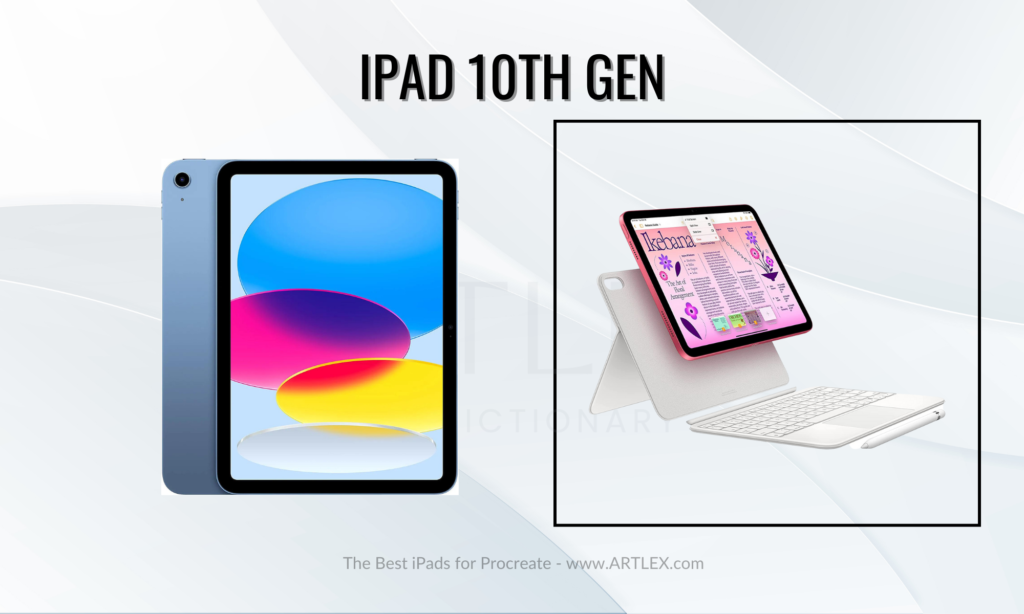
About the iPad 10th Gen
The new iPad released in October was a surprise for many of us, especially artists and professionals in the creative community since this much more accessible model got several improvements. The jump Apple gave from the iPad 9th gen to the iPad 10th gen in size, design, connectivity, and CPU improvement is quite impressive.
We got more RAM (meaning more layers and heavier files to work on). We got a nice design improvement, getting rid of the home button, Touch ID on the top button, Apple Smart Keyboard Folio compatibility, a larger size, a better iPad screen (from Retina to Liquid Retina Display), and a more powerful processor for demanding apps like procreate, clip studio paint, etc.
It might not be the cheapest iPad, but the rise in the price is not very high considering all the new features and improvements, making it more accessible than newer and “better” iPad models in exchange for a few features that are not indispensable.
The major downside would be the Apple pencil since this iPad features a USB-C port for charging, and the apple pencil first generation charges through a lightning port, making the user buy an extra adapter to charge it.
Pros:
- Very affordable tablet
- Perfect size
Cons:
- Apple Pencil needs an extra adapter
- RAM might not be enough.
- The pen could be better.
4. Best Price-Value iPad for Procreate — iPad Air 5th Gen
Selection Criteria:
- Size: 11″, 1.02 lb. Very portable
- Our score: 9/10
- Our score: 8/10
- Our score: 9/10
- Our score: 8/10
- Our score: 8/10
- Our score: 8/10
- Our score: 9/10
- Our score: 10/10
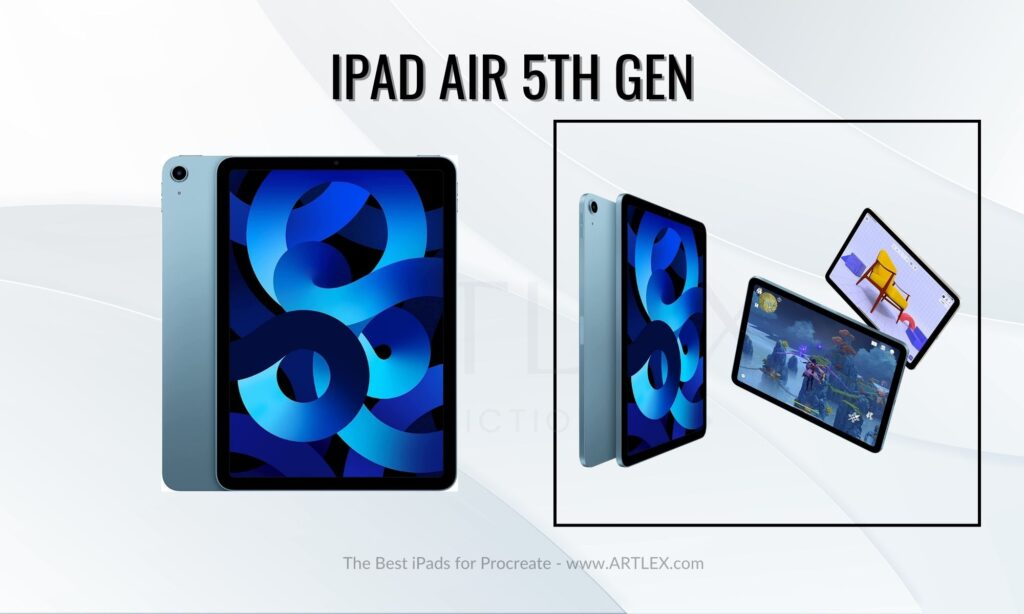
About the iPad Air 5th Gen
The iPad Air (5th gen) is a powerful and versatile device that can be an excellent tool for artists and other creative professionals who want the best value for their money. Some of these features include a large, high-resolution, and fully laminated display, a powerful processor (M1 Chip), a wide range of creative apps, 2dn Gen Apple Pencil support, long battery life, and a high-quality camera.
This device is basically an iPad Pro 11″ without the price tag. There are only a few limitations in RAM, Storage Capacity, the camera, which most of us don’t use, and the lack of Pro Motion which is not completely necessary unless you want nice dynamic visual effects.
It’s compatible with the Apple Pencil 2nd Gen, which can be charged magnetically on the side, and also has Touch ID, that in my personal opinion, is more practical than Face ID (and more secure in some cases).
This device is also very portable, comfortable to draw and paint on, and has the same battery life as any of the Pro Models, making it the best iPad Pro you can get without breaking the bank.
Pros:
- Great characteristics for a reasonable price
- Perfect size
- Apple Pencil 2nd Gen Compatibility
Cons:
- It has limited storage capacity.
5. Best Portable iPad for Procreate — Apple iPad Mini 6th Gen
Selection Criteria:
- Size: 8.3″, 0.65 lb. Extra portable
- Our score: 9/10
- Our score: 10/10
- Our score: 7/10
- Our score: 10/10
- Our score: 7/10
- Our score: 8/10
- Our score: 9/10
- Our score: 7/10
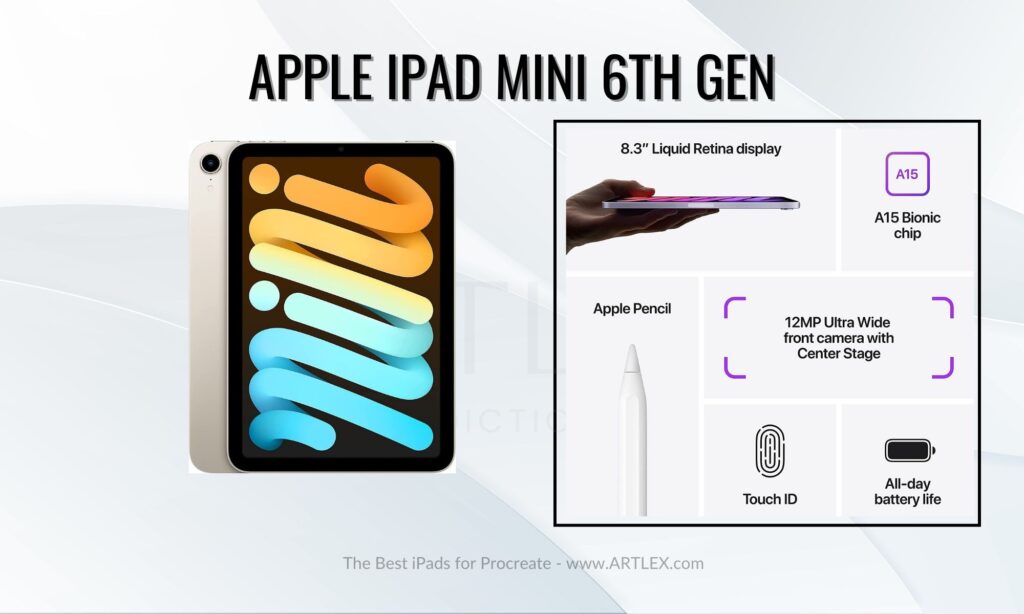
About the iPad Mini 6th Gen
The latest iPad mini is a powerful, portable device that is suitable for both personal and professional use. Its combination of fast performance, high-resolution display, and long battery life make it an excellent choice for anyone looking for a versatile tablet.
The iPad mini, like other iPad models, has a high-resolution Retina display. It’s compatible with the Apple Pencil 2nd Gen, which allows you to take notes, draw, and create artwork on the tablet. The A15 Bionic Chip is a fantastic addition that can’t be found in older iPad Pro or iPad air models
The size might not be as comfortable to draw on, but its size makes it very portable and a fantastic option for those who love drawing on their phone and don’t want to spend too much for a larger screen yet still get very nice features.
Pros:
- Very portable
- Great Processing power and RAM
- Compatible with the Apple Pencil 2nd Gen
Cons:
- It’s too tiny for gestural drawing
- Not compatible with Magic Keyboard/Smart Keyboard Folio
Conclusion
It can be challenging to determine the “best” iPad for Procreate, as the ideal device will depend on an individual’s specific needs and preferences. Owning an iPad can be a valuable asset for artists, as it offers a portable yet powerful workstation, easy to take with you wherever you go, making it a convenient option for working and creating art on the go or while traveling.
Remember that the App Store has a wide range of art apps besides Procreate, such as Adobe Photoshop, Lightroom, Autodesk Sketchbook, Medibang Paint, Clip Studio Paint, Ibis Paint, Adobe Fresco, and more, which are also excellent options for art.
Overall, an iPad can be a great investment for artists, as it can provide a range of tools and features to help you create digital artwork with ease and convenience.
Related Posts:
- The 5 Best Drawing Gloves for iPads and Tablets in 2023…
- The 5 Best iPads for Drawing in 2023 (October)
- The 5 Best iPads for Graphic Design in 2023 (October)
- The 6 Best Watercolor Sketchbooks in 2023 (October)
- The 7 Best Huion Tablets in 2023 (October)
- The 5 Best Print on Demand Sites for Artists (October 2023)
Лучшие iPad для рисования 2024 года
Все больше и больше цифровых художников ищут лучший iPad для рисования, чтобы максимально усовершенствовать результат своей работы. За последние несколько лет Apple значительно повысила качество своих планшетов, благодаря чему из пассивного хобби рисование на iPad превратилось в серьезную профессиональную альтернативу традиционным планшетам для рисования. Сегодня многие творческие люди предпочитают использовать топовый iPad и карандаш Apple вместо специального планшета для рисования.
- Лучшие планшеты для фотографов 2024 года
- Лучшие планшеты для видеомонтажа 2024 года
- Лучшие планшеты iPad для фотографа 2024 года
При составлении рейтинга мы взвесили плюсы и минусы, а также стоимость каждого из них, чтобы вы могли подобрать лучший вариант на любой бюджет. Если вы хотите рассмотреть другие варианты или подобрать лучший планшет для рисования на ходу помимо продуктов Apple, вам стоит обратить внимание на наши рейтинги лучших планшетов и лучших планшетов со стилусом для рисования.
Какой iPad для рисования лучший: на что обратить внимание
Выбор наиболее подходящей модели iPad для рисования в большей степени будет зависеть от индивидуальных потребностей художника, поэтому трудно дать однозначные рекомендации в отношении лучшего варианта. Но все же существует ряд ключевых факторов, на которые в любом случае необходимо обратить внимание при покупке iPad для рисования.
Размер экрана. Определитесь, какой размер экрана вам нужен для рисования. У более габаритных iPad экраны, естественно, крупнее. Это дает больше места для творчества, но при этом делает планшет более громоздким для переноски, что лишает всякого смысла покупать его в качестве портативного устройства для рисования. Однако, если вы планируете пользоваться iPad дома или в студии, портативность модели не будет иметь значения. Возможно, идеальным выбором будет iPad с диагональю экрана 11 или 12,9 дюйма. Если вы собираетесь приобрести базовую модель iPad, предпочтительнее будет 10,9-дюймовая модель, а не 10,2-дюймовая.
Вычислительная мощность. Новые модели iPad оснащены более быстрыми процессорами, поэтому способны выполнять самые сложные задачи без сбоев или замедления работы. Рисование – это не самая ресурсоемкая задача из тех, что может выполнять iPad. По этой причине для вас может не иметь большого значения высокая вычислительная мощность процессора. Но в том случае, если вы работаете с файлами самого высокого разрешения, очень важно, чтобы ваш планшет смог их корректно загружать и отображать.
Совместимость со стилусом. Разные модели iPad совместимы с разными версиями Apple Pencil. Apple Pencil 2 – превосходный в целом стилус с распознаванием давления и наклона, но при этом он стоит дороже и работает, как правило, с более дорогими iPad. Поэтому вам решать, оправдаются ли ваши затраты. Чтобы оценить все плюсы и минусы стилусов, ознакомьтесь с обзорами Apple Pencil, Apple Pencil 2 и нечто среднего между ними – версии Apple Pencil 3.
Стоимость. iPad – достаточно дорогое устройство, поэтому количество подходящих вариантов в немалой степени будет зависеть от вашего бюджета. Но у вас будет возможность расширить возможности выбора, если вы внимательно отследите последние распродажи и специальные предложения.

Реклама: ООО «ЯНДЕКС», ИНН: 7736207543, erid: 5jtCeReNx12oajmTdUC5QDF
Рейтинг лучших iPad для рисования
Категория Место Наименование Рейтинг Идеальный iPad для рисования и работы с фотографиями 1 iPad Pro 12.9″ (M2, 2022) 5.0 / 5 Оптимальный планшет Apple iPad для рисования со стилусом для художников 2 iPad Air 10.9″ (2022) 5.0 / 5 Самый бюджетный iPad для рисования 3 iPad Mini (2021) 4.9 / 5 По соотношению «цена/качество»: лучший планшет Apple для рисования 4 iPad Pro 12.9″ (M1, 2021) 4.9 / 5 Выгодная цена: хороший недорогой айПад для рисования 5 iPad Pro 12.9″ (2020) 4.8 / 5 По цене и отзывам покупателей: лучший iPad для рисования со стилусом 6 iPad Pro 11″ (M1, 2021) 4.8 / 5 Самый дешевый iPad для рисования и Фотошоп 7 iPad 10.2″ (2021) 4.7 / 5