Locating FL Studio Installation Files
This section is to help users who need to work directly with the installation files. If you are looking to access folder locations shown in the Browser (and set in File Settings), you can Right-Click Folders in the Browser and choose ‘Open‘. The operating system browser will open to this folder. To access other files when updating a plugin or component for testing or when working with Techsupport:
Windows
A ‘clean installation’ requires a specific set of steps that should be completed in the following order:
Manual Uninstall / Clean Install
- Set Browser extra search folders.
- Rescan plugins (although, your previous plugin database should still be intact in the User data folder/FL Studio/Presets/Plugin database).
- Reapply your license by logging into your account from the About Panel.
Multiple Installations
- Right-click the existing FL Studio installation icon and choose ‘Open file location’.
- Use your file browser to go back up a level so that you can see the installation folder. Normally C:\Program Files\Image-Line\FL Studio N, where N is the FL Studio version.
- Create a new folder at the same level (not in the ‘FL Studio N‘ but alongside it. Call it ‘FL Studio Test‘ or whatever you like.
- Run the FL Studio installer, and when it offers the install location, set it to your folder: C:\Program Files\Image-Line\FL Studio Test
- There will be a new icon on the desktop for this installation. If you need to manually create a shortcut/s, Right-click the ‘FL64.exe‘ and choose ‘Create shortcut‘ and then drag that shortcut to your desktop.
NOTE: The last installation of FL Studio normally becomes the default install to open project files. You can change this by opening the installation you want to use as the default, then on the General Settings select ‘Associate project files with application‘.
macOS
- From the macOS Finder browse to [Macintosh HD]/Applications/FL Studio.app
- Right-Click FL Studio.app and choose ‘Show Package Contents‘
- Navigate to /Contents/Resources/FL. This will place you in the root of the FL Studio installation folder.
From here you can locate the relevant FL Studio installation files discussed elsewhere in this manual.
Manual Uninstall / Clean Install
- Restart your computer and do not open FL Studio until you have completed this list. This will make sure no files are locked and in use.
- Make sure you have backed up all your personal projects and files! The best way to avoid issues is to make sure everything that is yours is OUTSIDE the FL Studio folders.
- Set Browser extra search folders.
- Rescan plugins (although, your previous plugin database should still be intact in the User data folder/FL Studio/Presets/Plugin database).
- Reapply your license by logging into your account from the About Panel.
Multiple Installations
- Close FL Studio.
- Open Finder and select the ‘Applications‘ folder in the Sidebar.
- Locate and right-click the ‘FL Studio N‘ application. Where N is the version number.
- Select ‘Rename‘.
- Rename the application to something other than ‘FL Studio N‘, such as ‘FL Studio N Stable’.
- Install the beta, or new release, as normal. It will become the default FL Studio installation.
- To maintain quick access to the various installations, make Alias shortcuts.
- Open Finder and select the ‘Applications‘ folder in the Sidebar.
- Right-click the application you would like to create a shortcut for and select ‘Make alias‘.
- Relocate the alias to your Desktop. Alternatively, you can drag the application from the Applications directory to your Dock to create a shortcut.
Knowledge Base
Please follow the step-by-step guide relevant to your product or operating system below (this assumes you already have an Image Line Account ):
- FL STUDIO — Windows and Mac users click HERE
- VST plugins — Windows users click HERE
- VST/AU plugins — Mac users click HERE
Make sure to complete all steps carefully
FREQUENTLY ASKED QUESTIONS
Where do I get the full installer, all I see on your downloads page are trial installers?
The trial installers are also the full installers.
- Get FL Studio here. FL Studio owners can also download previous releases, FL Studio 1 to 12 here.
- Get VST/AU plugins here
NOTE: If you are using FL Studio DO NOT download and install plugins separately. The FL Studio installer contains native format versions of ALL plugins. VST/AU format plugins are for use in other hosts/DAWs only.
Can I use my product on more than one computer?
Yes you can. We allow you to install and use our software on the computers you use (typically this may be 2-3 computers around home and one at work). All we ask is that YOU are the only user of the software. It is not to be installed where others can use it while you are not present.
Can I use the registration key on a computer not connected to the Internet?
Yes you can, just download and save the Installer and FLRegkey.reg license to a portable memory device and copy these onto the non-connected computer. Then, follow the unlock instructions above.
Why do I need to confirm my email?
We do this because your Image-Line Account manages your license. If your email is not working, you may lose access to your products. If you are having problems, please create a support ticket . Verify your email by clicking a link in an email sent to you from our server. If you are not receiving our emails, please check your email spam settings and add our image-line.com domain to the list of trusted domains.
Can I share my license?
No (you agreed to that in the End User License Agreement — Section 6). It’s also a particularly BAD idea. Your friends have friends, they have best friends, their friends have friends. Very soon, your license will be shared all over the internet and 10,000’s of people will be trying to install it. When we see this happening your license will be revoked.
Fl Studio Установка
Запустите установщик Fl Studio, в окне приветствия установщика нажмите Next >. В следующем окне примите лицензию нажав на кнопку I Agree. Далее выберите для текущего пользователя (Current user only), нажмите Next >.
В следующем шаге (показанном на картинке ниже) вам необходимо выбрать — какие компоненты программы вы хотите установить. Тут вам ничего не надо менять, оставьте как есть. Но обратите внимание, что на диске на который вы производите установку должно быть достаточно свободного места (программа занимает 1.7 ГБ). Нажмите Next >.
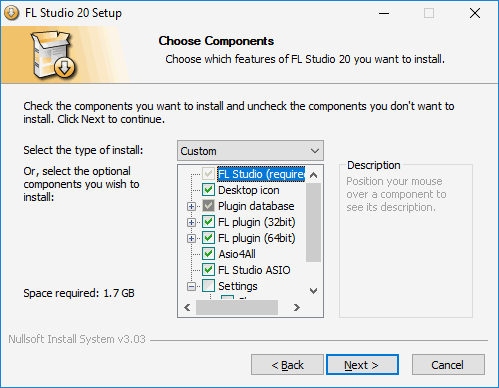
На следующем шаге выберите папку, в которую вы хотите установить Fl Studio. Папку можно выбрать любую (избегайте папок с русскими буквами). Нажмите Next >.
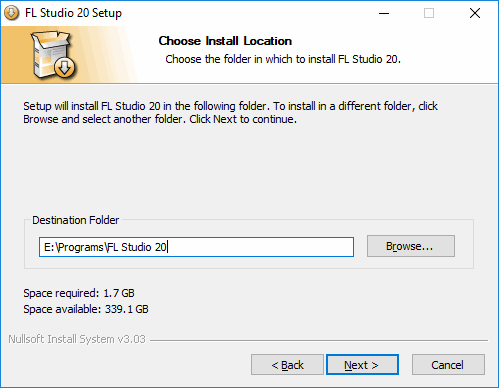
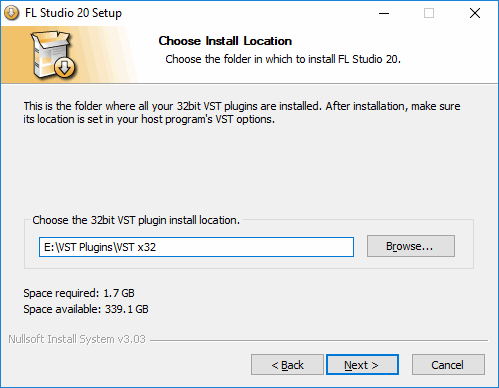
Далее у вас спрашивают, в какой папке будут храниться 32 битные плагины (о плагинах позже). На этом месте немного остановимся. Лучше указать место которое легко запомнить (потому как в будущем вы будете устанавливать сюда плагины), мы бы посоветовали вам путь к примеру E:\VST Plugins\VST x32. То есть на любом из ваших дисков (в нашем примере это диск Е), создайте папку и назовите её VST Plugins, далее откройте эту папку и создайте в ней папку VST x32. Здесь Fl Studio будет искать 32 битные плагины. Нажмите Next.
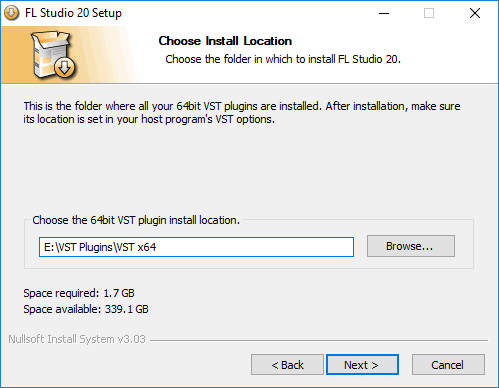
На следующем шаге у вас спрашивают, в какой папке будут храниться 64 битные плагины. Тоже самое, но с изменением E:\VST Plugins\VST x64. Создайте ещё одну папку в папке VST Plugins и назовите её VST x64. Запомните эти 2 несложных пути вы их будете использовать очень часто. Нажмите Next.
Появится окно сообщающее что всё готово к установке. Нажмите Install, начнётся процесс установки, всё что вам остаётся, это просто со всем соглашаться и завершить установку.
Download The Time Unlimited Free Trial
IMPORTANT: Always update your license after installing a new version of FL Studio or purchasing an upgrade.
View the release history to see what’s new.
The installer delivers both the Trial and Full version, when it is unlocked. The Trial is equivalent to FL Studio All Plugins Edition, with a few limitations
Ready to buy? Compare editions. All FL Studio purchases include Lifetime Free Updates Buy FL Studio now to unlock the latest version and all future FL Studio releases. Nothing to pay, ever again! Because we believe you should have the functionality you paid for, bug-fixed, developed and updated for as long as we develop FL Studio.