При установке Windows 10 не видит SSD или HDD
В этой статье мы рассмотрим почему при установке на новый ноутбук Windows 10 не видит SSD или HDD. Причин этому может быть множество, но столкнувшись с этим первый раз начинаешь выполнять действия которые уже немного устарели. А все дело лишь в одной функции которую производители ноутбуков и материнских плат начали втыкать куда попало.
Коллега написал в общий чат что при установке на новый ноутбук Windows 10 не видит SSD. После различных манипуляций результат остался прежним.
При установке на новый ноутбук Windows 10 не видит SSD
Вот такое окно было при установки Windows 10, на только что купленный новый ноутбук.
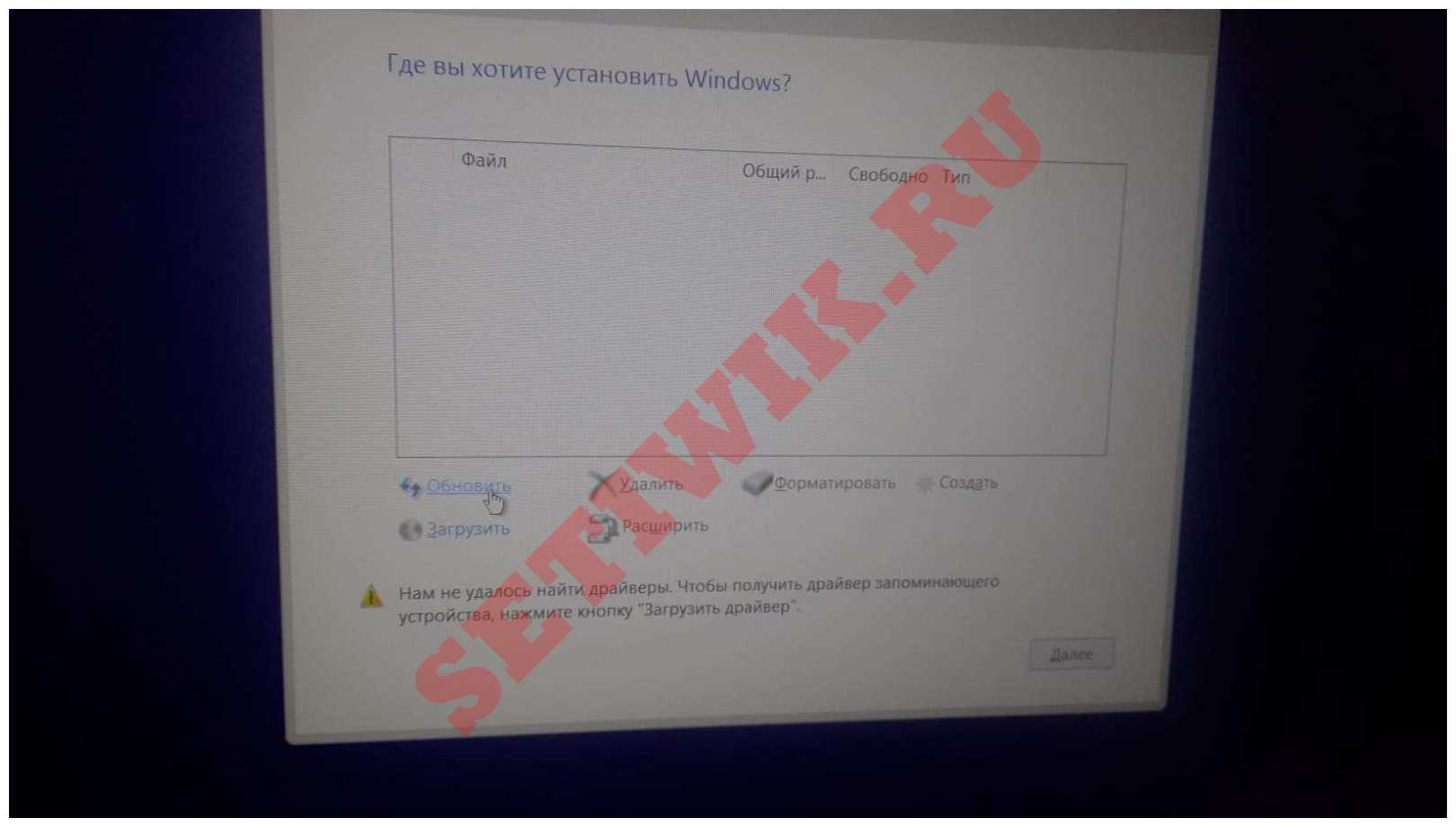
После увлекательного путешествия в google и yandex и выполнения различных советов все осталось по прежнему. Но на одном форуме наткнулись на статью о функции Intel VMD.
Intel® Volume Management Device это встроенный в процессор Intel Xeon Scalable аппаратный контроллер интерфейса NVMe, обеспечивающий возможность горячей замены накопителей, корректную индикацию статуса, а также работу с RAID-массивами.
По сути в домашнем ноутбуке данная функция не несет никакой пользы и при отключении ее в Bios мы заставим Windows 10 увидеть SDD и HDD.
Вход в BIOS
Зайти в BIOS можно сразу после включении компьютера. Когда на экране монитора появляется логотип производителя, с низу есть надпись: Press DEL to enter SETUP. То есть для того чтобы попасть в BIOS необходимо: пока отображается надпись эта надпись на мониторе, нажать кнопку «Delete».
Но не только кнопка DEL перенесет вас в BIOS, так же это может быть и F10, F2, ESC. В идеале выяснить как попасть в биос можно на сайте производителя ноутбука, либо на форумах этой модели.
Возможно вам будет интересно: Как работать с Apt Get — Руководство по команде Apt-Get
Отключение Intel VMD controller
Для того чтоб отключить Intel VMD controller, перейдите на вкладку configuration и найдите функцию Intel VMD controller, нажмите Enter и вместо Enable установите Disable. Как показано на рисунке ниже.
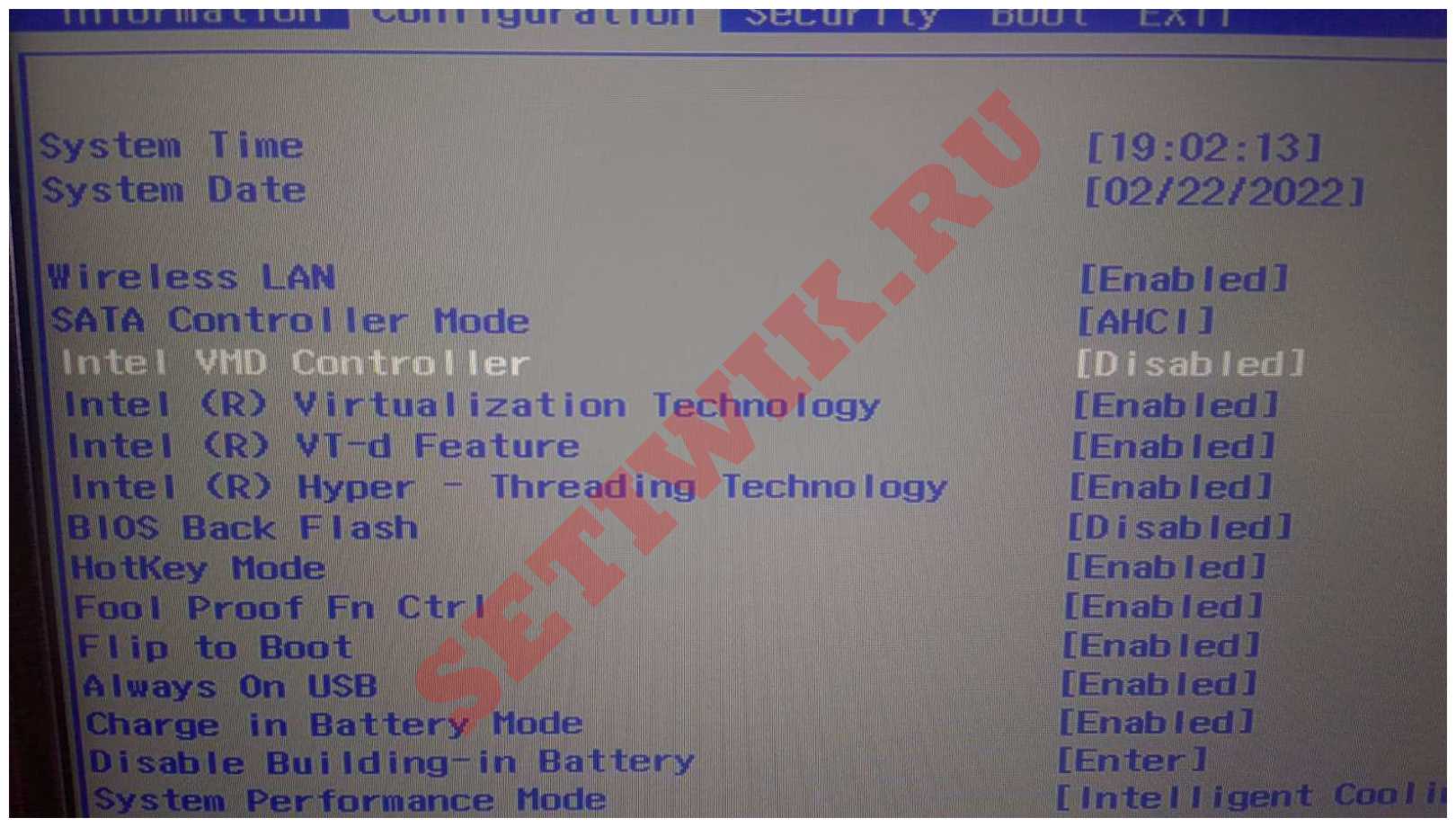
После этого нажмите F10 и Enter. Это сохранит все сделанные изменения и перезагрузит компьютер.
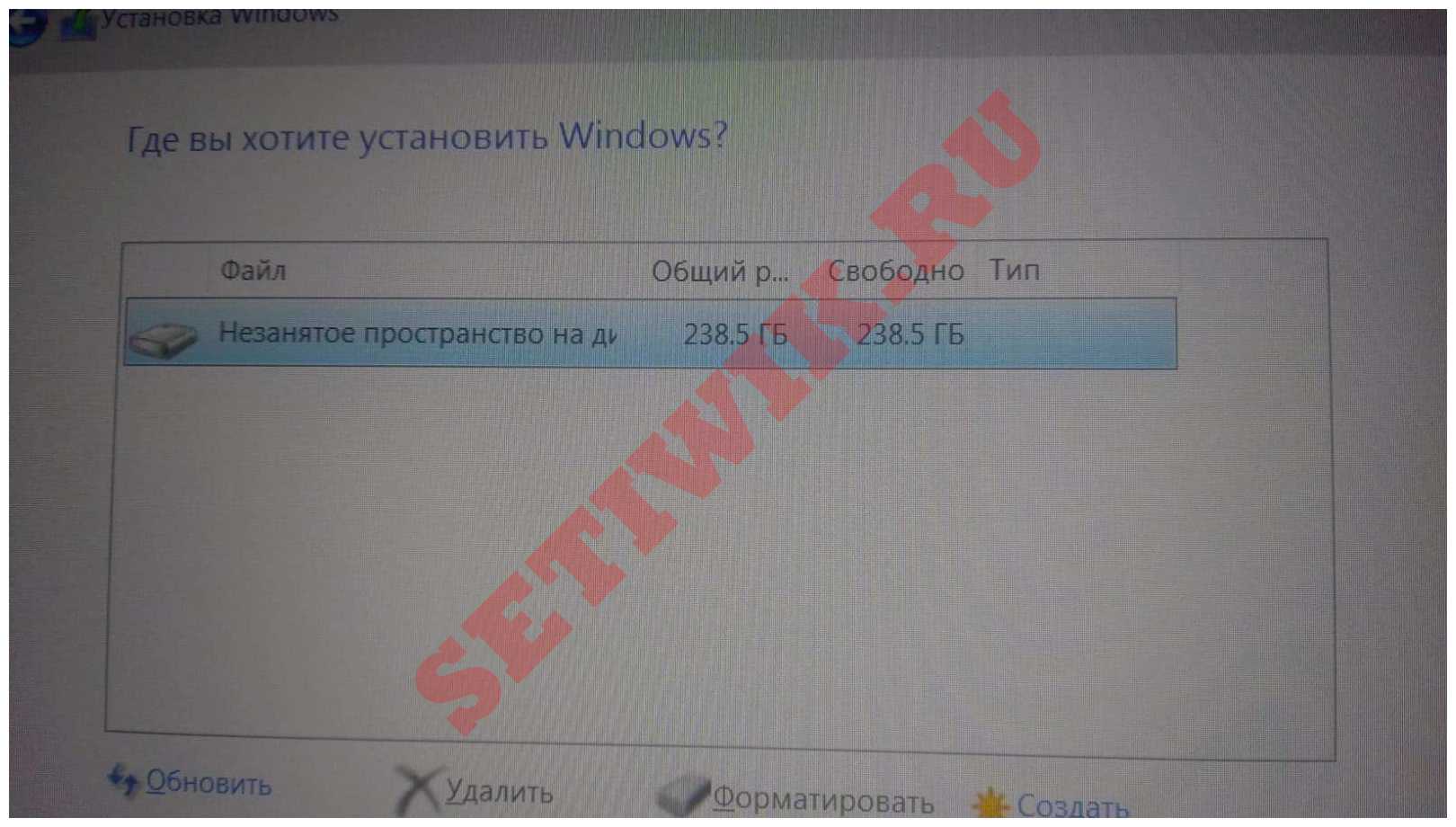
Далее Начните установку Windows 10 и на этот раз вы увидите свой SSD диск.
Заключение
На этом все, поделитесь пожалуйста, получилось ли у вас установить WIndows 10 и увиделись ли SSD или HDD на вашем ноутбуке.
What is vmd controller – Explained
Virtual machines (VMs) have become an essential part of modern computing, allowing users to run multiple operating systems and applications on a single physical machine. However, managing these VMs can be a complex task, which is where the VMD (Virtual Machine Device) controller comes into play. In this article, we’ll take a closer look at what a VMD controller is, how it works, and its importance in VM management.
What is a VMD controller?
A VMD controller is a software component that manages the virtual devices of a VM. These virtual devices include storage devices, network interfaces, and input/output (I/O) devices. The VMD controller acts as an intermediary between the virtual devices and the underlying physical hardware, allowing the VM to access and use the hardware resources as if they were directly connected to the VM.
How does it work?
The VMD controller intercepts I/O requests from the VM and forwards them to the appropriate physical device. For example, when a VM requests access to a storage device, the VMD controller will forward the request to the physical storage device and return the results to the VM. This process is transparent to the VM and the user, making it appear as if the VM has direct access to the physical hardware.
The VMD controller also allocates resources to the VM, ensuring each VM has the resources it needs to run smoothly. It includes managing the allocation of CPU, memory, and storage resources. Additionally, the VMD controller can provide advanced features such as live migration, allowing a VM to move from one physical host to another without interruption.
Importance in VM management
The VMD controller plays a crucial role in the management of VMs. It allows administrators to easily create and manage virtual devices, making it simple to add new hardware resources to a VM or move a VM to a new host. The VMD controller also helps to improve the security of VMs by isolating them from the underlying physical hardware.
Additionally, the VMD controller helps to improve the performance of VMs by managing the allocation of resources and providing advanced features such as live migration. It allows VMs to run more efficiently and reduces the risk of resource contention, which can lead to poor performance.
Conclusion
In conclusion, the VMD controller is a vital component in managing VMs. It allows VMs to access and use physical hardware resources as if they were directly connected while also managing the allocation of resources and providing advanced features. By understanding the importance and function of the VMD controller, administrators can better manage their VMs and ensure they run smoothly and efficiently.
FAQs
What is a VMD controller?
A VMD controller is a software component that manages the virtual devices of a VM, including storage devices, network interfaces, and input/output devices.
How does a VMD controller work?
The VMD controller works by intercepting I/O requests from the VM, forwarding them to the appropriate physical device, and managing allocating resources to the VM.
Why is the VMD controller important in VM management?
The VMD controller plays a crucial role in managing VMs by allowing easy creation and management of virtual devices, improving the security and performance of VMs, and providing advanced features such as live migration.
Can a VMD controller be used with other virtualization technologies?
Yes, the VMD controller can be used with other virtual
How does the VMD controller improve the security of VMs?
The VMD controller improves security by isolating the VMs from the underlying physical hardware, making it more difficult for malicious actors to access or compromise the physical resources.
Can the VMD controller be used to manage multiple VMs simultaneously?
Yes, the VMD controller can manage multiple VMs simultaneously, allowing for efficient management of large numbers of VMs.
Is the VMD controller specific to a certain type of virtualization technology?
No, the VMD controller is not specific to any particular virtualization technology and can be used with various virtualization platforms such as VMware, Hyper-V, and VirtualBox.
Can the VMD controller be customized to fit an organization’s specific needs?
Yes, the VMD controller can be customized to fit an organization’s specific needs, allowing for a more efficient and tailored management of VMs.
Are there any limitations to the VMD controller?
The VMD controller does have some limitations, such as the limitations of the underlying virtualization platform and the number of resources available on the physical host. Some advanced features like live migration may require additional hardware resources or configurations.
Can the VMD controller be integrated with other IT management tools?
Yes, the VMD controller can be integrated with other IT management tools, such as monitoring software, backup solutions, and automation tools, to provide a comprehensive view of the organization’s virtual environment.
Роль VMD в BIOS и его преимущества
## О чем статья
Данный материал рассматривает роль Volume Management Device (VMD) в BIOS, его преимущества и взаимодействие с системными решениями хранения данных.
## Понимание VMD в BIOS
VMD (Volume Management Device) — технология, разработанная компанией Intel для оптимизации использования накопителей NVMe SSD. VMD выступает в качестве отдельного контроллера в BIOS, управляя устройствами хранения данных через интерфейс PCIe и предоставляя ряд преимуществ от повышения производительности до упрощенного управления хранилищем.
### Определения
— BIOS (Basic Input/Output System): Программа, которую микропроцессор персонального компьютера использует для запуска системы после включения питания. Он также управляет потоком данных между операционной системой компьютера и подключенными устройствами.
— NVMe (Non-Volatile Memory Express): Спецификация для доступа к твердотельным накопителям (SSD), подключенным через шину PCIe, что обеспечивает более высокую скорость передачи данных по сравнению со связью SATA.
— PCIe (Peripheral Component Interconnect Express): Высокоскоростной стандарт интерфейса для подключения компонентов, таких как видеокарты и SSD, к материнской плате.
— RAID (Redundant Array of Independent Disks): Технология виртуализации хранения данных, которая объединяет несколько физических дисков в одну или несколько логических единиц для повышения надежности или производительности.
## Роль VMD в BIOS
При активации VMD в BIOS он осуществляет управление накопителями NVMe SSD вместо стандартных контроллеров хранения данных. Это позволяет получить ряд улучшений:
1. Производительность: VMD обеспечивает более высокую производительность, оптимизируя способ доступа системы к накопителям NVMe.
2. Конфигурация RAID: Упрощенный процесс настройки RAID-массивов, что делает его более удобным и доступным для пользователей.
3. Возможность загрузки: С помощью VMD можно загружаться с накопителей NVMe SSD в конфигурации RAID, что не всегда возможно с помощью стандартных контроллеров.
4. Управление: VMD предоставляет централизованную точку управления всеми NVMe SSD, что особенно полезно в корпоративной среде.
## Преимущества использования VMD
— Повышенная производительность устройств хранения данных.
— Упрощенное управление и конфигурация массивов RAID.
— Увеличенная надежность и избыточность для важных данных.
— Возможность загрузки с NVMe SSD в RAID-конфигурации.
## Как включить VMD в BIOS
Для активации VMD обычно необходимо зайти в настройки BIOS во время загрузки компьютера. Точные шаги могут отличаться в зависимости от производителя материнской платы, но в общем случае вам понадобится:
1.Перезагрузить компьютер и нажать определенную клавишу (обычно F2, Delete или F10), чтобы войти в BIOS.
2.Перейти в раздел хранения или расширенных настроек.
3.Найти параметр VMD и изменить его состояние на «Включено».
4.Сохранить изменения и выйти из BIOS.
## Часто задаваемые вопросы
В: Доступен ли VMD только на платформах Intel?
О: Да, VMD является технологией Intel и в настоящее время доступен только на определенных платформах Intel.
В: Улучшит ли активация VMD производительность любого SSD?
О: VMD разработан для оптимизации работы накопителей NVMe SSD, подключенных через интерфейс PCIe. Он может не улучшить производительность SATA SSD или других типов накопителей данных.
В: Могу ли я использовать VMD с конфигурацией без RAID?
О: Да, VMD можно использовать как с одиночными накопителями NVMe SSD, так и с конфигурациями RAID.
В: Требуются ли для активации VMD специальные драйверы?
О: Да, для активации VMD может потребоваться использование специальных драйверов, предоставленных Intel или производителем материнской платы.
В: Необходимо ли активировать VMD в BIOS?
О: Нет, активация VMD не является обязательной, если вам необходимы его специфические преимущества для управления накопителями NVMe SSD или конфигурациями RAID.
## Вывод
VMD в BIOS — это специализированная функция, улучшающая управление и производительность накопителей NVMe SSD в современных вычислительных системах. В то время как она не является необходимой для всех пользователей, те, кто требует расширенных конфигураций хранения данных или стремится максимально использовать возможности своей системы, могут найти в VMD ценный инструмент.
Более подробную информацию о VMD и связанных технологиях вы можете найти на официальном сайте Intel по адресу [intel.com](intel.com).
Marcin Frąckiewicz
BlackBird
Aleje Jerozolimskie 65/79
00-697 Warsaw, Poland
phone +48 22 630 70 70
The BlackBird blog is a dynamic online platform dedicated to new technologies, internet access, and artificial intelligence. It features a range of articles and insights, exploring the latest developments and trends in these fields. The blog is known for its in-depth analysis, expert commentary, and its ability to make complex technological concepts accessible to a wide audience. With a focus on innovation and the future of tech, BlackBird’s blog is a go-to resource for tech enthusiasts and professionals alike.
Vmd controller в биосе что это
Standard Operating Systems generally recognize individual PCIe Devices and load individual drivers. This is undesirable in some cases such as, for example, when there are several PCIe-based hard-drives connected to a platform where the user wishes to configure them as part of a RAID array. The Operating System current treats individual hard-drives as separate volumes and not part of a single volume.
In other words, the Operating System requires multiple PCIe devices to have multiple driver instances, making volume management across multiple host bus adapters (HBAs) and driver instances difficult.
Intel Volume Management Device (VMD) technology provides a means to provide volume management across separate PCI Express HBAs and SSDs without requiring operating system support or communication between drivers. For example, the OS will see a single RAID volume instead of multiple storage volumes, when Volume Management Device is used.
Overview
Intel Volume Management Device technology does this by obscuring each storage controller from the OS, while allowing a single driver to be loaded that would control each storage controller.
Intel Volume Management technology requires support in BIOS and driver, memory and configuration space management.
A Volume Management Device (VMD) exposes a single device to the operating system, which will load a single storage driver. The VMD resides in the processor’s PCIe root complex and it appears to the OS as a root bus integrated endpoint. In the processor, the VMD is in a central location to manipulate access to storage devices which may be attached directly to the processor or indirectly through the PCH. Instead of allowing individual storage devices to be detected by the OS and therefore causing the OS to load a separate driver instance for each, VMD provides configuration settings to allow specific devices and root ports on the root bus to be invisible to the OS.
Access to these hidden target devices is provided by the VMD to the single, unified driver.
Features Supported
Supports MMIO mapped Configuration Space (CFGBAR):
- Supports MMIO Low
- Supports MMIO High
- Supports Register Lock or Restricted Access
- Supports Device Assign
- Function Assign
- MSI Remapping Disable