[Fix] VCRUNTIME140 & MSVCP140 Not Found Error in Origin
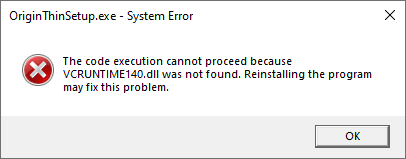

Origin, Electronic Art’s digital distribution and gaming platform, can encounter a peculiar error on some systems. During installation, or even when already installed, Origin shows an error indicating that MSVCP140 and VCRUNTIME140 .dlls can’t be found.
These two .dlls (Dynamic-link library files), are components of Microsoft’s Visual C++ redistributable packages. These files are commonly required for applications developed using the corresponding version of Visual C++. Assumingly, Origin is unable to run properly without these files, so you’ll need to install (or repair) them on your system.
Thankfully, Microsoft hosts these Visual C++ redistributable packages for download directly on their website. In this article, we’ll show you how to fix the “MSVCP140 and VCRUNTIME140 are missing” error in Origin.
How to Fix VCRUNTIME140 & MSVCP140 Not Found Error in Origin
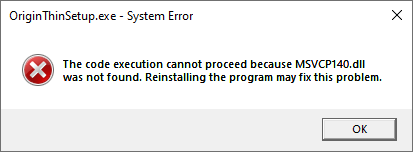
Origin can show the VCRUNTIME140 & MSVCP140 not found error either during the installation process or if these files become corrupt later. To fix the problem, you simply need to install or repair the Visual C++ redistributable packages.
How you fix this issue depends on whether you have Origin installed on your system already, or not. Below, we’ll show you how to fix this error in either scenario.
Origin Showing Error During Installation
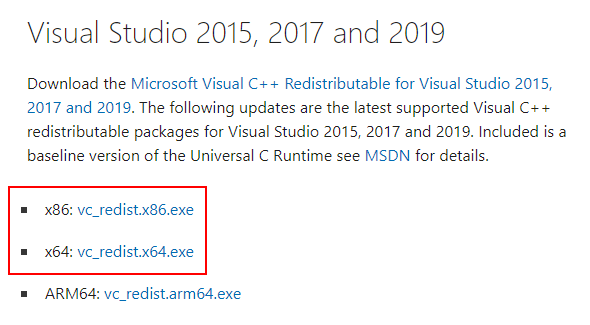
- Navigate to Microsoft’s support page for the latest Visual C++ downloads.
- If using a x64 bit system, download and install both the latest x64 and x86 Visual C++ redistributable packages. If using a x32 bit system, download and install only the latest x86 Visual C++ redistributable package.
- Run the Origin installation file again after the package(s) have finished installing. You may need to reboot your computer first.
Origin is Already Installed
- Navigate to C:\Program Files (x86)\Origin in the Windows file explorer and locate vcredist_x86_vs2015.exe and vcredist_x64_vs2015.exe .
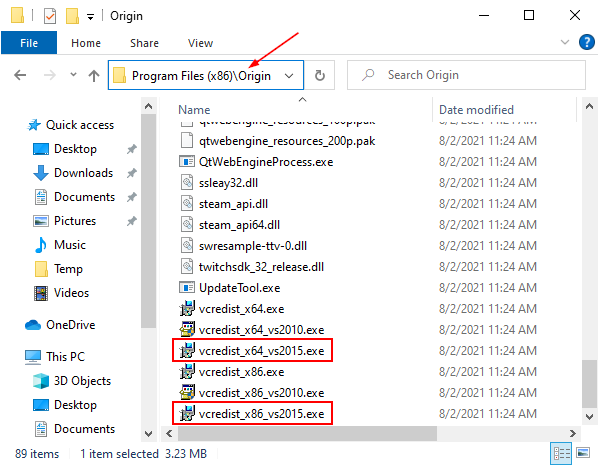
- If using a x64 bit system, run both files. If using a x32 bit system, run only vcredist_x86_vs2015.exe . You may need to run these files as an Administrator (Right click > Run as Administrator).
- If you receive a message that these file are already installed, then click the Repair button. Click Install otherwise. In some cases, you may receive a message that another version of Visual C++ is already installed. In that case, do the following:
- Open Programs and Features (Control Panel > Programs > Programs and Features) and locate the latest Visual C++ redistributable.
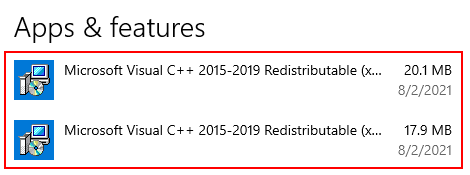
- Repair the package by clicking it and selecting Modify and then Repair . Do this for both the x86 and x64 versions if using a x64 bit system.
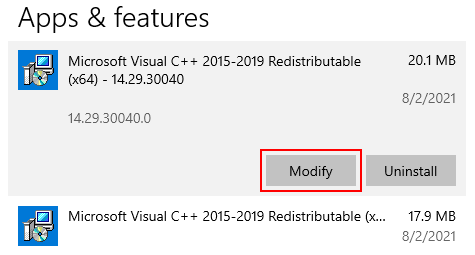
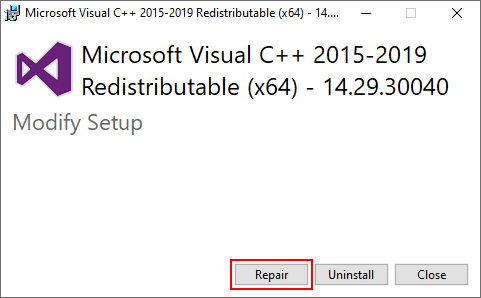
- Open Programs and Features (Control Panel > Programs > Programs and Features) and locate the latest Visual C++ redistributable.
- Try running Origin again. You may need to reboot your PC.
- If the error still persists, try downloading and installing the latest version of Visual C++ packages as detailed in the section above.
Fix VCRUNTIME140 & MSVCP140 Missing Error by Reinstalling Origin
If all else fails, your best bet to fix the VCRUNTIME140 & MSVCP140 missing error is to simply reinstall Origin. EA is kind enough to provide detailed instructions on both uninstalling and installing Origin. Follow these instructions to first uninstall Origin, and then install it again.
Keep in mind that you will need to re-download all of your Origin games after reinstallation.
Скачать msvcp140.dll, vcruntime140.dll для Windows 7,8,10 x64/x84 – Что за ошибка, и как её исправить?
Скачайте Vcruntime140.dll, чтобы исправить ошибку при запуске. Для загрузки доступна последняя версия DLL компонента для Windows 7 и Windows 10 (x32 и x64 bit).
Размер: 1 MB. Распространяется: Бесплатно. Система: Windows.
Vcruntime140.dll и msvcp140.dll – составляющий элемент библиотеки Microsoft Visual Studio 2015. Он является необходимой деталью для включения мультимедиа и игровых приложений на ОС Windows. При его повреждении, изменении или отсутствии появляется ошибка с одноименным названием.
Vcruntime140.dll что это за ошибка как исправить
Обычно все нужные для функционирования программы компоненты устанавливаются одновременно, но, иногда, какой-либо файл библиотеки может оказаться под блокировкой антивирусного обеспечения. В первую очередь, пользователь может повторить установку с выключенным антивирусом, либо исключить dll из заблокированного списка. Также существует вариант скачивания Visual C++, в которой собраны все нужные данные для активации приложений.
Ссылки на скачивание пакета с сайта Microsoft:
Важно. Для систем x64 скачивайте и устанавливайте обе версии, во многих случаях в системе х64 нужна именно 32-битная библиотека, так как приложение, которому требуется библиотека работает только в режиме x86!
Еще один способ – загрузка самого недостающего файла. Для этого надо учитывать разрядность компьютера – это позволяет расположить его в правильном месте. В разделе «Мой компьютер» открывается раздел свойства посредством клика на правую кнопку мышки. В зависимости от полученной информации, vcruntime140.dll устанавливается в соответствующую папку. К примеру, для 32-х битной системы – это будет C:\Windows\System32, а для 64-х – C:\Windows\SysWOW64.
MSVCP140.dll and VCRUNTIME140.dll Was Not Found: How To Fix

Does your PC show the error message MSVCP140.dll and VCRUNTIME140.dll was not found while playing gamers or using a certain application? If yes, don’t worry; we have got your back.
The MSVCP140.dll and VCRUNTIME140.dll files are part of the library of Microsoft Visual C++. The primary use of these two files is when running apps or Visual Studio, especially some games that require these DLL files to run correctly.
If you want to fix this issue on your PC, you can do it very easily. The steps are very straightforward.
Table of Contents
How to fix the MSVCP140.dll and VCRUNTIME140.dll was not found in Windows 11
Before going into detailed steps, try these quicks solutions and see what happens-
- Update Windows to the latest version.
- Restart your PC.
Then, follow these methods one by one to resolve MSVCP140.dll and VCRUNTIME140.dll not found errors:
1. Install the Microsoft Visual C++ Redistributable Packages
The missing DLL files are a part of the Microsoft Visual C++ package, so download and install the package from their official site and see if the issue persists. To do that-

- Visit the Microsoft Visual C++ Redistributable Package download site.
- Download the correct item depending on your OS architecture.
- Install it and restart your PC.
Now, try to run the problematic game or application to see whether it has worked or not.
2. Repair or reinstall the Visual C++ Redistributable
- Press Win + I to open Windows Settings.
- Head to Apps and then Installed apps.

- Click on the three horizontal dots next to a Visual C++ Redistributable item and then click on Modify.

- Then, click on Repair.

- Next, follow any onscreen steps to finish the process.
- Do it for other Visual C++ packages too.
- Restart Windows.
3. Download the Missing DLL Files from the Internet
You also can download the missing files from any third-party website you prefer. For your convenience, here are the steps you can follow:

- Go to this site.
- Find the MSVCP140.dll file using the search box.
- Download the file.
- Similarly, download the VCRUNTIME140.dll file.
- If necessary, unzip the downloaded files.
- Copy the downloaded DLL files and paste them in the appropriate location.
- Restart your PC.
4. Re-Register DLL File
You may need to register the DLL files on your computer to resolve this problem. It’s quite an easy task-
- Press Win + X on the keyboard and go to Terminal (Admin).

- Type this command and press Enter :regsvr32 /u MSVCP140.dll

- Similarly, run the following command: regsvr32 MSVCP140.dll
- For the VCRUNTIME140.dll file, run the following commands:regsvr32 /u VCRUNTIME140.dll
regsvr32 VCRUNTIME140.dll - Restart your PC.
5. Reinstall the Game or Application
If the previous methods don’t fix the missing file error, try reinstalling the problematic app or game.

- Go to Windows Settings and then Installed apps like before.
- Click on the three dots icon next to the problematic app or game and then click on Uninstall.
- After completing the uninstallation process, restart your PC.
- Install the item again.
Now, run the problematic software or game to see whether it has fixed MSVCP140.dll and VCRUNTIME140.dll was not found.
Extra Steps
In case the problem still exists, we suggest these methods as well:
- Run a Malware Scan on your Windows.
- Run an SFC Scan to check for system file corruption.
- Contact the software developer/support if the issue still persists.
I hope you can now solve the issue of MSVCP140.dll and VCRUNTIME140.dll was not found by following the above-mentioned steps. All you have to do is correctly follow each step and if you still can’t fix it, seek professional help.
Ошибка MSVCP140.dll и VCRUNTIME140.dll

ошибка не удается продолжить выполнение кода, поскольку система не обнаружила MSVCP140.dll. Для устранения этой проблемы попробуйте переустановить программу. а потом ошибка не удается продолжить выполнение кода, поскольку система не обнаружила VCRUNTIME140.dll. Для устранения этой проблемы попробуйте переустановить программу. Я УЖЕ переустанавливал но вся таже ошибка
Сообщение 1 из 18 (69 495 просмотров)
Утвержденное решение

Re: Ошибка MSVCP140.dll и VCRUNTIME140.dll
- Отметить как новое
- Закладка
- Подписаться
- Подписка на RSS-канал
- Ссылка на сообщение
- Печать
- Пожаловаться

Pioneer_from_ua
Давно ставили обновления ОС windows? Установите / Обновите vc++
«Hero» это статус, а не должность.
Сообщение 2 из 18 (69 454 просмотров)
Все ответы
Re: Ошибка MSVCP140.dll и VCRUNTIME140.dll
- Отметить как новое
- Закладка
- Подписаться
- Подписка на RSS-канал
- Ссылка на сообщение
- Печать
- Пожаловаться
Pioneer_from_ua
Давно ставили обновления ОС windows? Установите / Обновите vc++
«Hero» это статус, а не должность.
Сообщение 2 из 18 (69 455 просмотров)
Re: Ошибка MSVCP140.dll и VCRUNTIME140.dll
- Отметить как новое
- Закладка
- Подписаться
- Подписка на RSS-канал
- Ссылка на сообщение
- Печать
- Пожаловаться
@L0L_Lexa, здравствуйте! Вам удалось найти решение? Сначала у меня тоже самое выскакивало в начале установки самого клиента ориджина, потом скачал недостающие Visual +++ , установщик запусается и ищет «новую версию» может час искать. пока не откажусь от установки. Купил Star Wars: Battlefront II и хрен поиграешь.
Сообщение 3 из 18 (69 295 просмотров)
Re: Ошибка MSVCP140.dll и VCRUNTIME140.dll
- Отметить как новое
- Закладка
- Подписаться
- Подписка на RSS-канал
- Ссылка на сообщение
- Печать
- Пожаловаться
Pioneer_from_ua
@babek62
Вы ставили все или выборочно Visual +++?
«Hero» это статус, а не должность.
Сообщение 4 из 18 (69 278 просмотров)
Re: Ошибка MSVCP140.dll и VCRUNTIME140.dll
- Отметить как новое
- Закладка
- Подписаться
- Подписка на RSS-канал
- Ссылка на сообщение
- Печать
- Пожаловаться
@Pioneer_from_ua у меня стоят с 2005 по 2017, т.е все, как я понимаю.
Сообщение 5 из 18 (69 269 просмотров)
Re: Ошибка MSVCP140.dll и VCRUNTIME140.dll
- Отметить как новое
- Закладка
- Подписаться
- Подписка на RSS-канал
- Ссылка на сообщение
- Печать
- Пожаловаться
Pioneer_from_ua
марта 2020 — последнее изменение марта 2020
@babek62
Переустановите все пакеты. Не обращайте внимания на ошибку, и выполните описанное ниже:
Если на вашей Windows 10 возникает ошибка 0xc000007b , а пакеты VC++ любой версии не устанавливаются, проблема может быть в том, что в Windows 10 по умолчанию отключен компонент NET Framework.
Как включить NET Framework:
Откройте Панель управления.
Для этого откройте меню Пуск и найдите в нем раздел «Панель управления».
Нажмите Удаление программы под заголовком Программы.
Выберите Включение или отключение компонентов Windows.
Нажмите на + около всех опций NET Framework — обычно это 3.5 и 4.6 — и проставьте галочки.
Переустановите пакеты VC++ x64 и x86 для 2010 и 2013.
«Hero» это статус, а не должность.